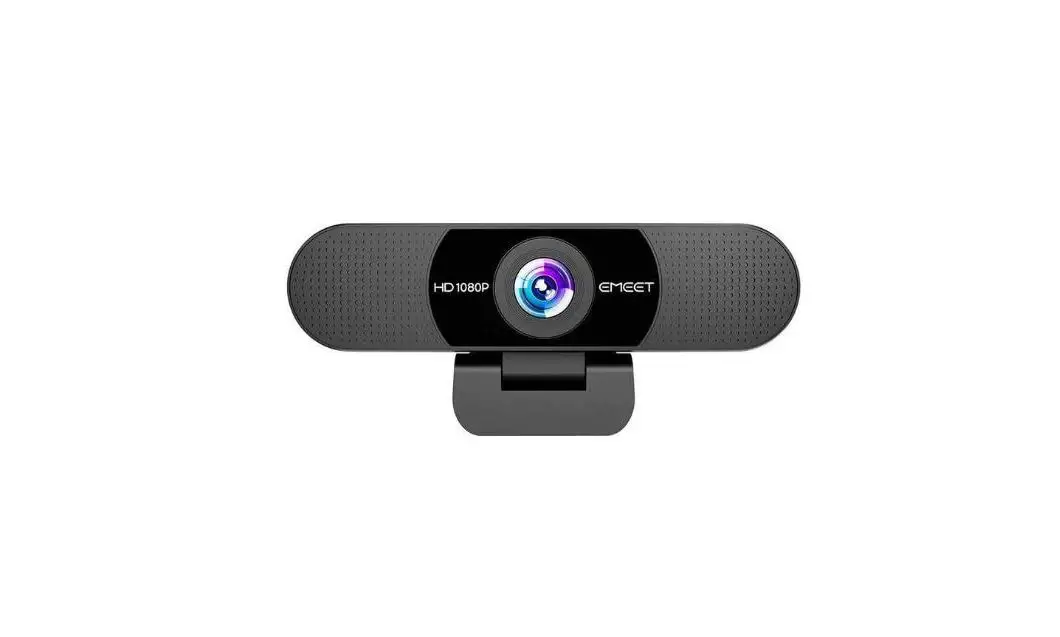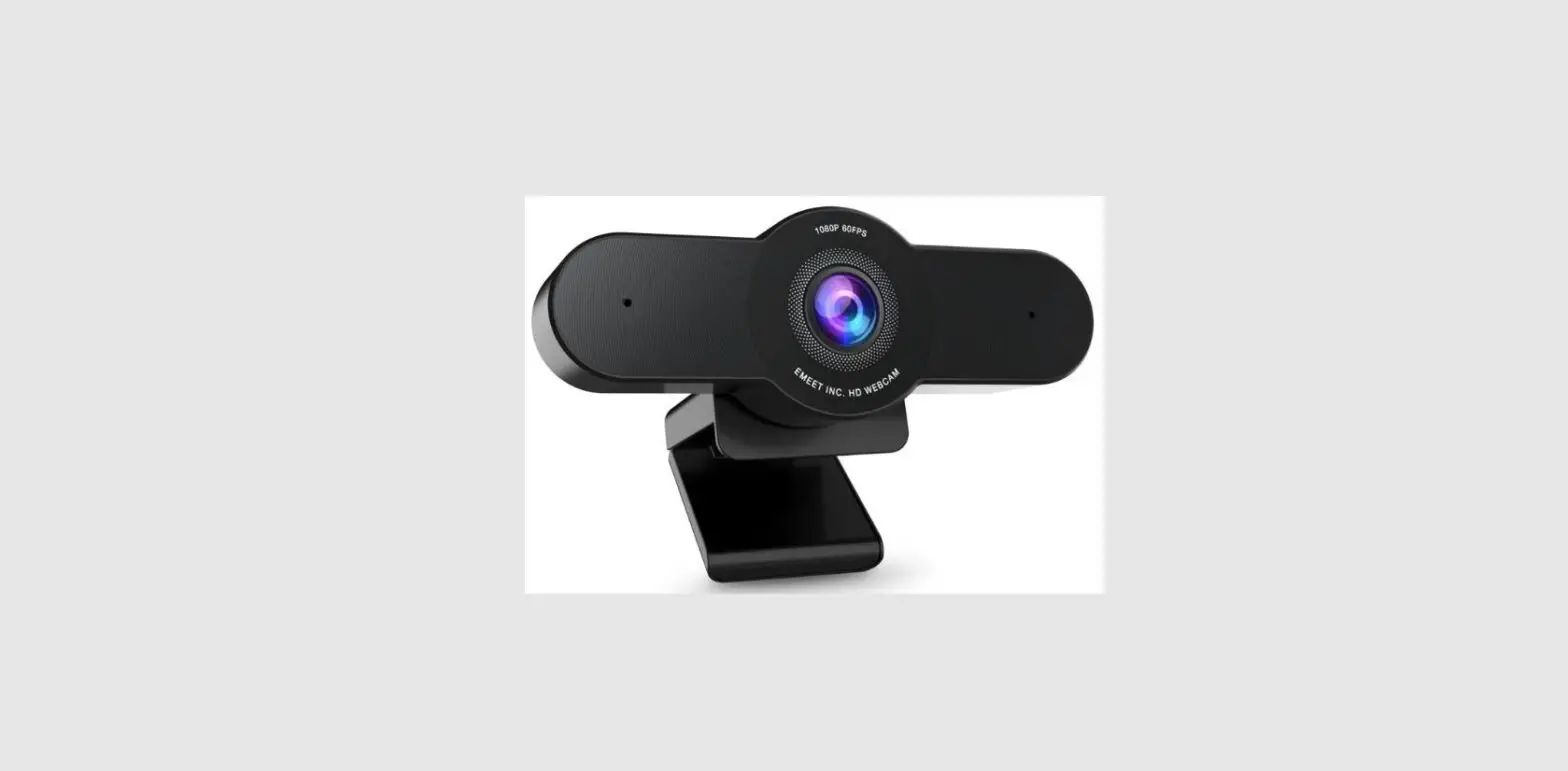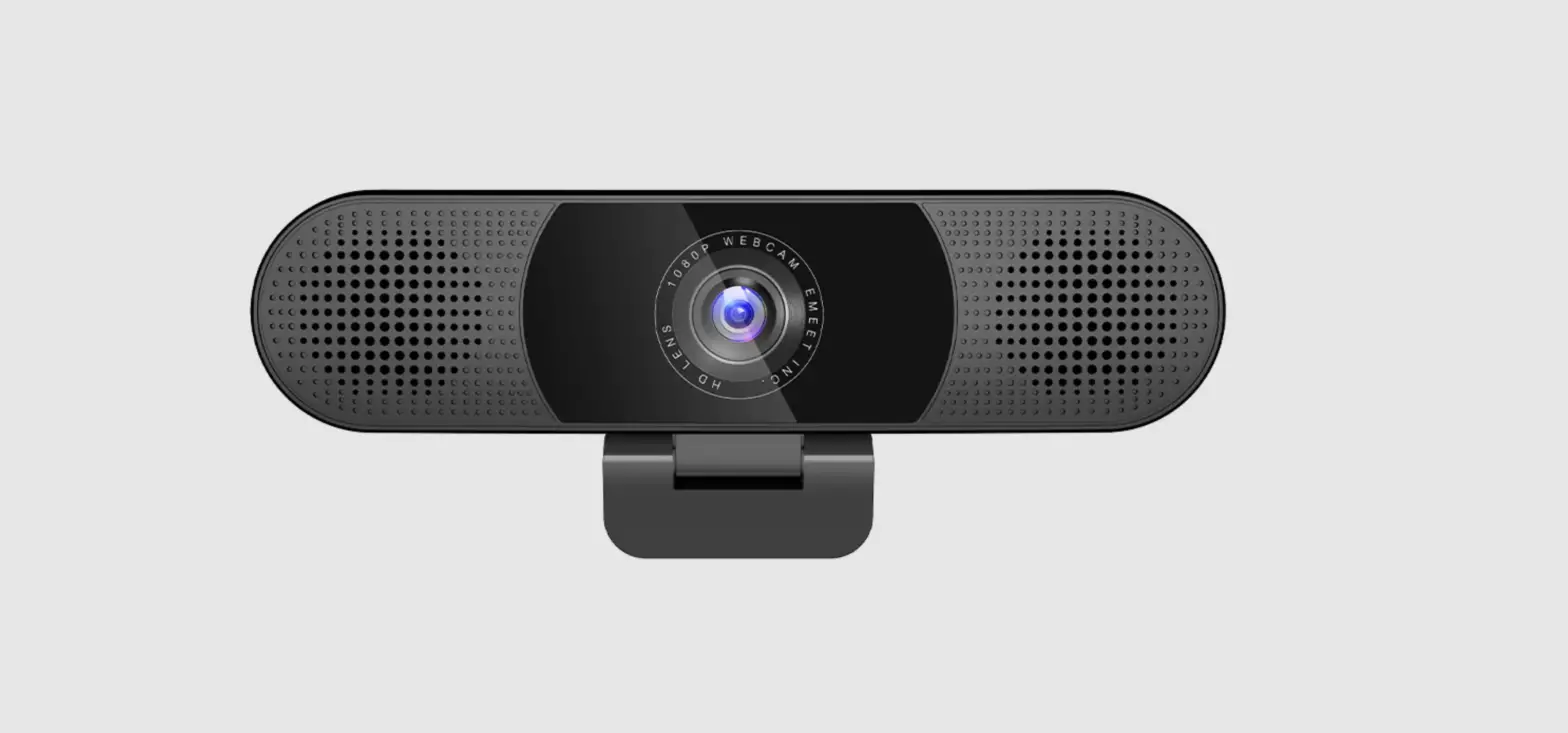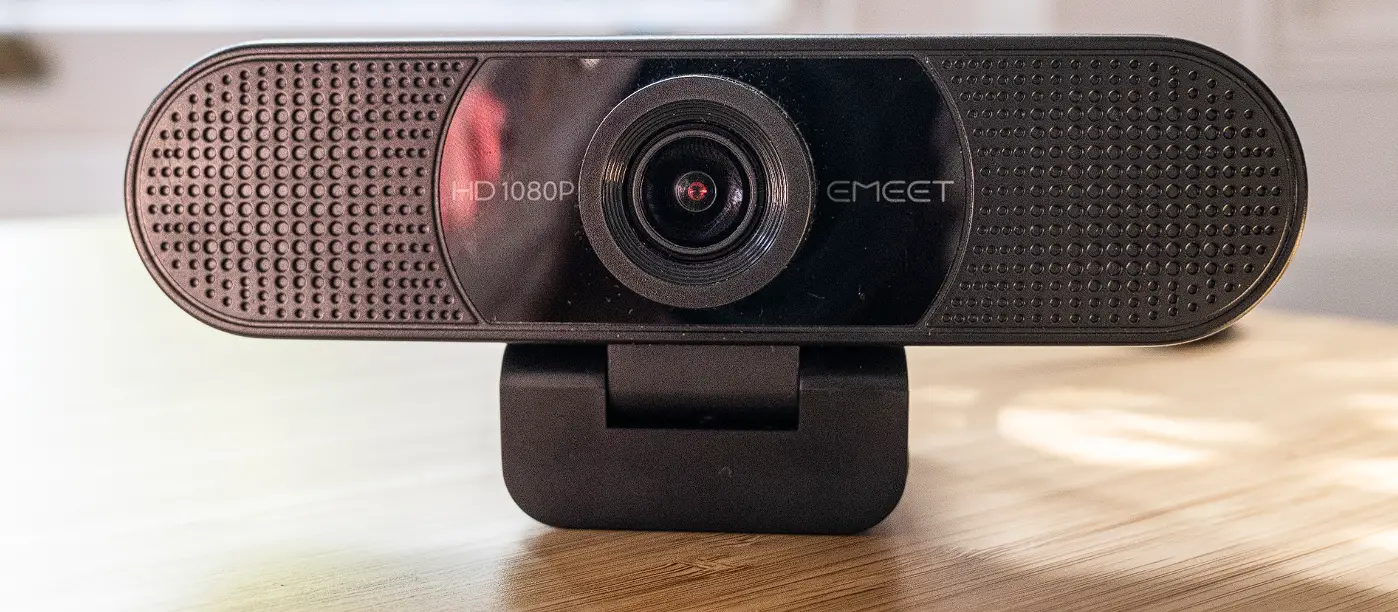
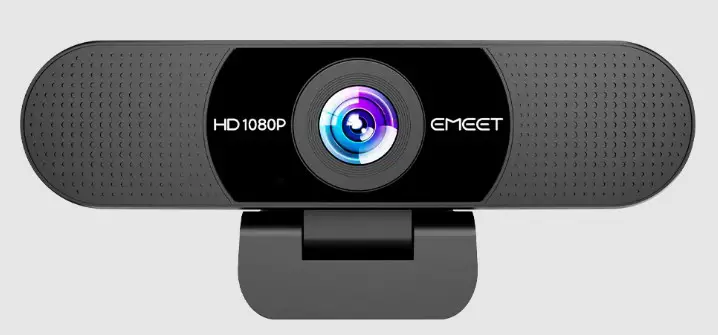
C960 EMEET SmartCam 1080P Web Camera User Manual

Device settings
Firstly, connect the device to the computer via USB cable.
Open the eMeetLink software and enter the setting interface.
1. Video settings
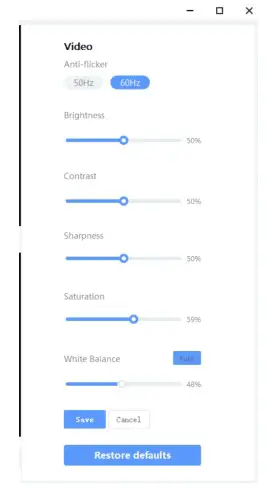
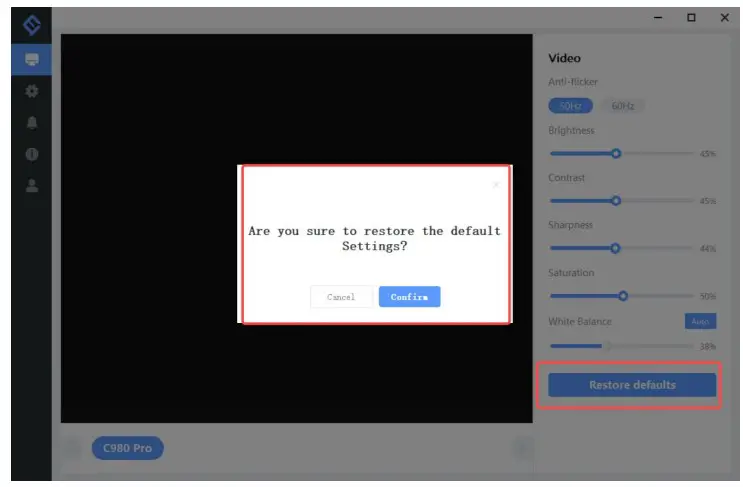
(1) Anti-flicker
Most countries use 50HZ as the power grid operating frequency, and some countries such as the United States use 60HZ.
Choose a suitable power frequency to avoid the screen flashing.

(2) Image parameters
You can drag the slider to adjust the image parameters like brightness, contrast, sharpness,
saturation, and white balance according to your needs.
(3) White Balance
You can click the “Auto” button to open or close the white balance auto adjustment function.
When the auto button shows blue, the white balance of the image will be adjusted automatically.
When the auto button shows grey, you can adjust the white balance according to your needs.

(4) Restore Default Settings
After restoring default settings, all operating settings will be restored to the factory mode.
Settings
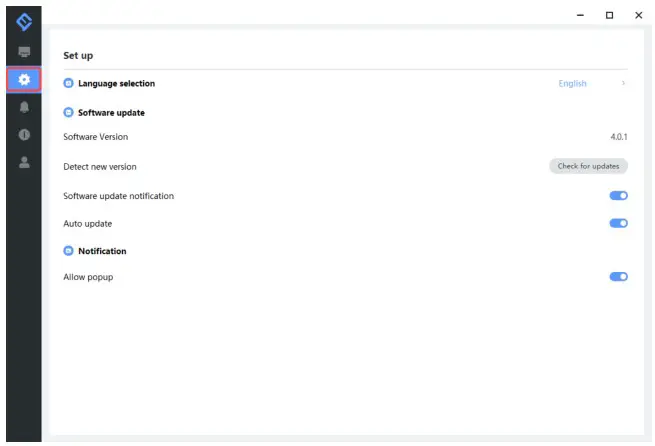
In this setting interface, you can change the language according to your need.
Check your eMeetLink software version and update it.
Support
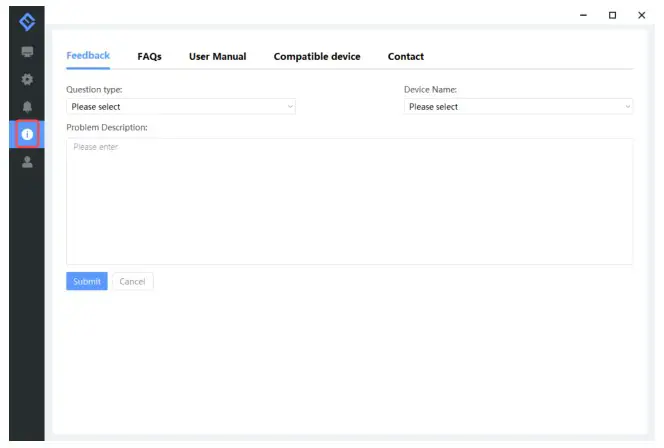
1. Feedback
Write your feedback here to get EMEET customer service support.
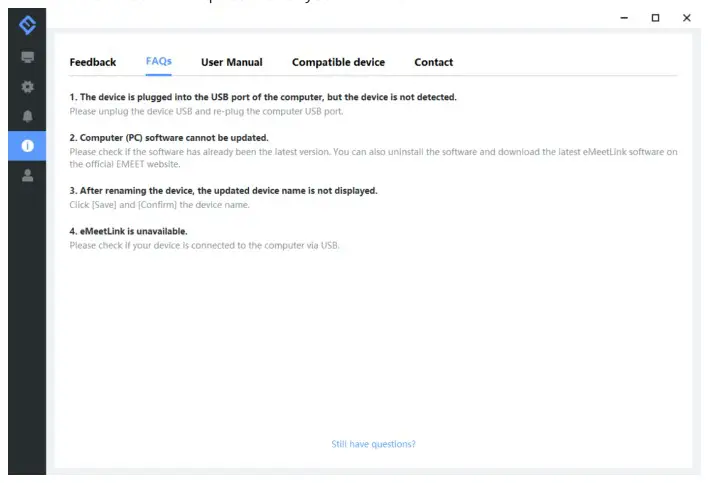
2. FAQs
There are some common questions for your reference.
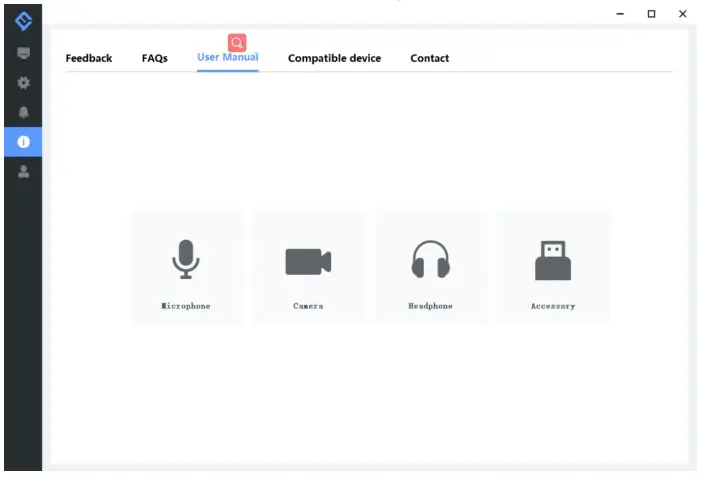
3. User manual
Click the device to enter EMEET official website and get the user manual.
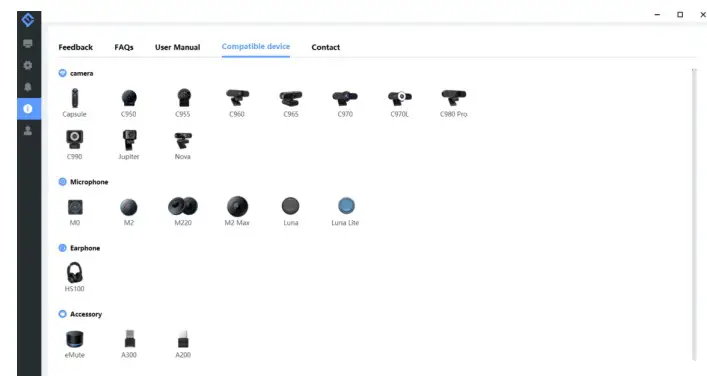
4. Compatible device
5. Contact info