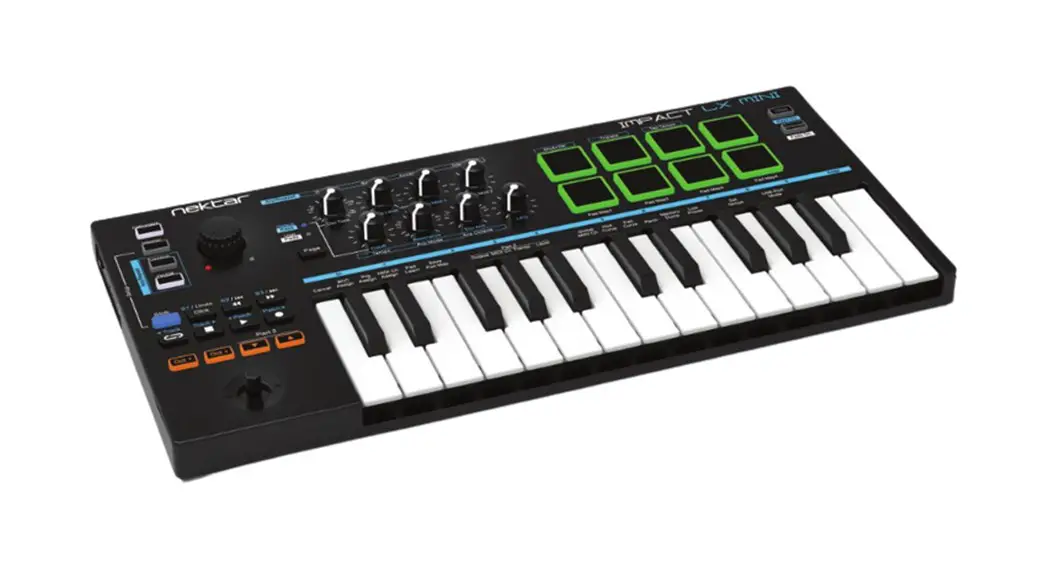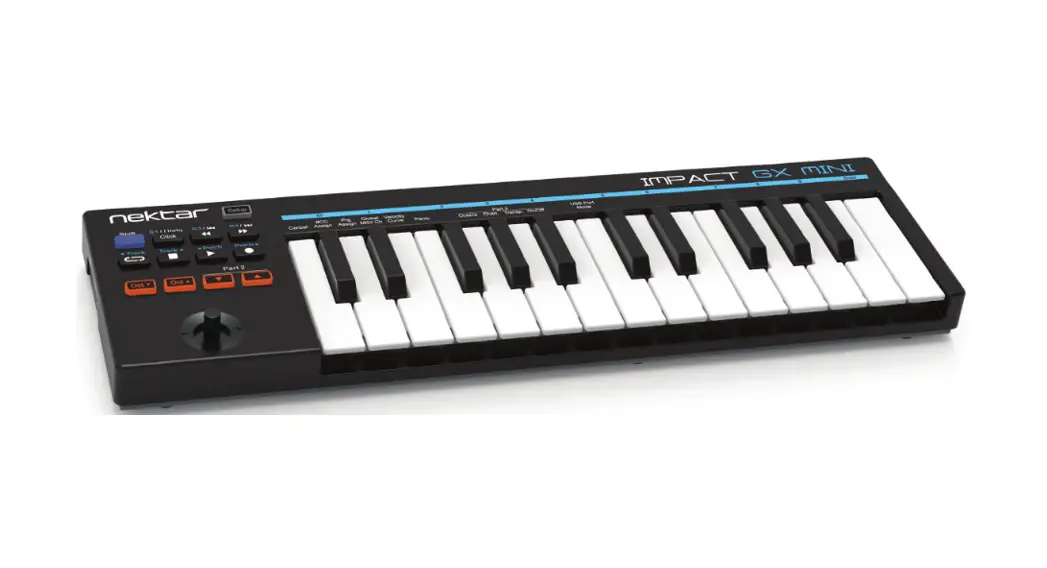
 Impact GX Mini
Bitwig Studio Integration
User Guide
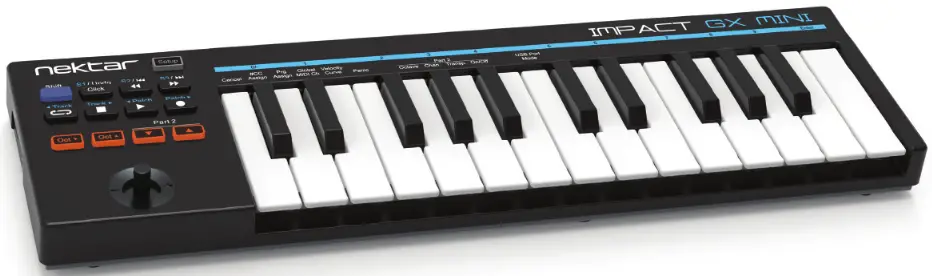 IMPACT GX MINI
Bitwig Setup and Configuration
The Impact GX Mini Bitwig Integration works with Bitwig Studio and Bitwig 8-Track and is installed when Bitwig is installed. No additional files or installation is needed. If you are new to Bitwig, start by visiting www.bitwig.com and creating a user account. Next, register your Bitwig license, then download and install the program on your computer. Setup
Here are the steps you need to go through to get Bitwig Studio or Bitwig 8-Track up and running with your Impact GX Mini:
- Make sure Bitwig is already installed on your computer. If not, please install Bitwig and run it.
- Plug in your Impact GX Mini and make sure it’s switched on.
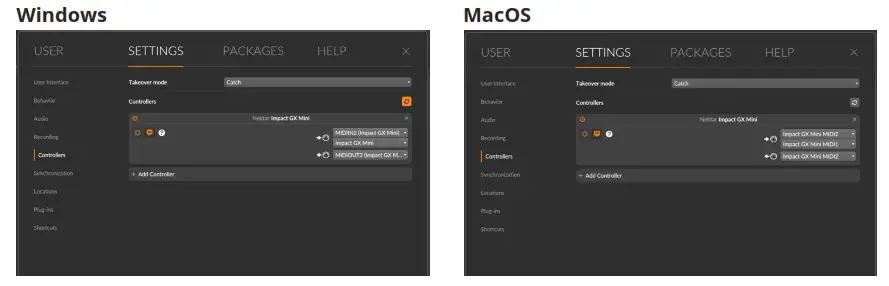
- Bitwig now detects your Impact GX Mini and a ‘Found control surface’ message box appears on the right side of Bitwig.
- In the message box, Click “Add”.
That’s it, the setup is now complete.
Getting Sound
The default song in Bitwig does not host any instruments so you won’t hear any sound when playing your Impact GX Mini unless you do the following:
- In the device browser on the right side of Bitwig, locate an instrument such as Polysynth or FM-4.
- Click on the instrument and drag it into the arrangement window. This action will create a new track unless you drop it on an existing track.
- Make sure the track hosting the instrument is selected. You should now hear sound when you play your Impact GX Mini.
Bitwig 8-Track/Studio and Impact GX Mini Working Together
With installation complete, it’s time to take a look at how the Impact GX Mini integrates with Bitwig Studio or Bitwig 8-Track.
The below chart shows you what each of the buttons is assigned to do. Press the [Play] button to make sure everything is working correctly. Next move on to check the other features by pressing the buttons and button combinations.
| BLUE LED BUTTON OFF | BLUE LED BUTTON ON | [SHIFT] FUNCTIONS | |||
| BUTTON | PARAMETER | BUTTON | PARAMETER | BUTTON COMB. | PARAMETER |
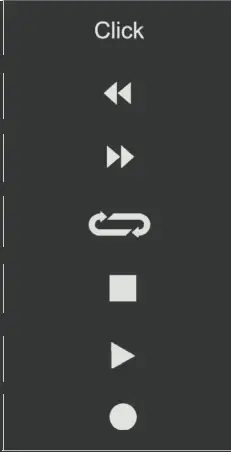 | Click on/off | 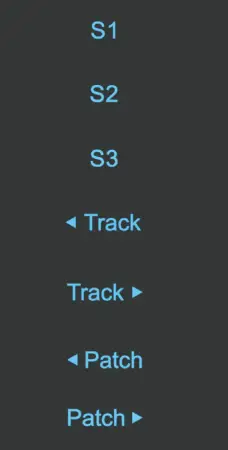 | Open/close Mixer lane | 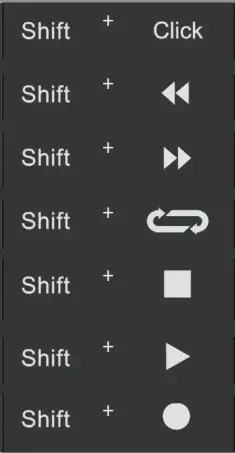 | Undo |
| Rewind,1 bar | Open/close Device chain | Goto Left locator | |||
| Forward, 1 bar | Open/close browser* | Goto Right locator | |||
| Cycle on/off | Select previous track | Set Left locator | |||
| Stop. Press again to go to zero | Select next track | Set Right locator | |||
| Play. Press again to pause | Previous patch for the selected device | Launcher Overdub | |||
| Record | Next patch for the selected device | Arranger Overdub | |||
* Note that a device has to be present on the currently selected track for the browser to open when pressing [S2].
SUPPORT
If you are not getting the results described, please check your installation one more time as well as the Nektar support tab on our website www.nektartech.com. You can also contact our support staff with any questions or issues.
 Bitwig | Home | Bitwig
 HOME ▷ MIDI Controller | Beat Composer | VST Synthesizer - Nektar Technology, Inc