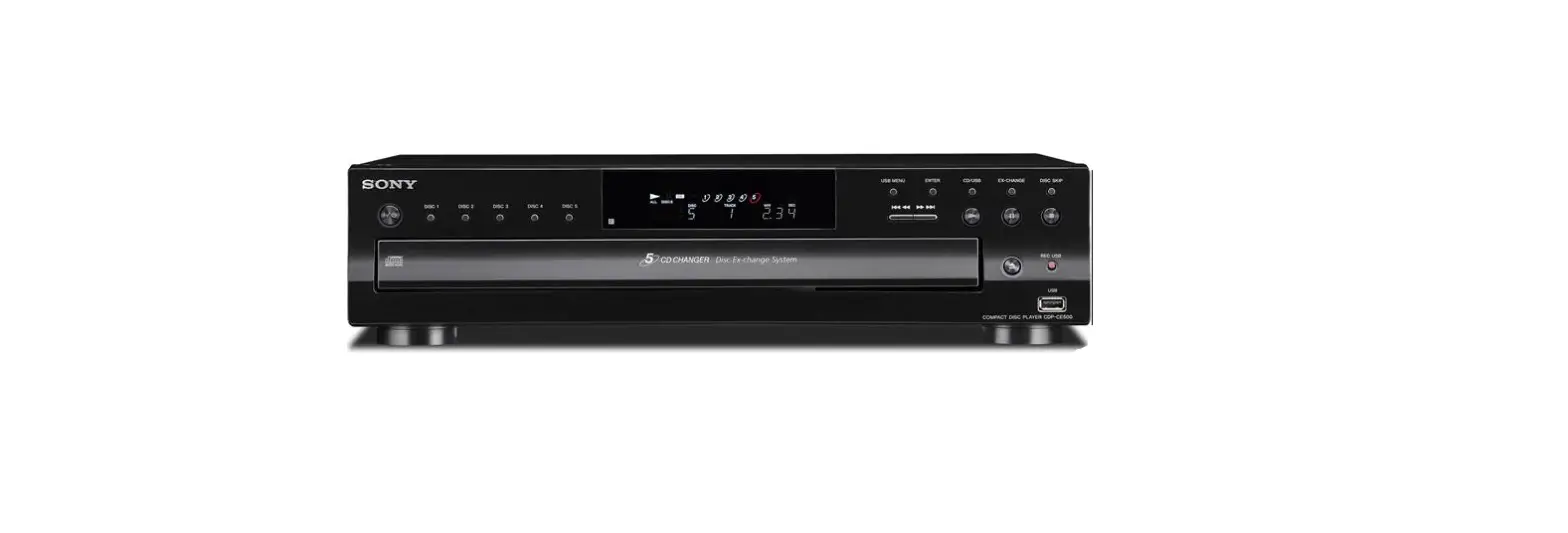
 Sony CDP-CE500 5-Disc CD Changer (Black)

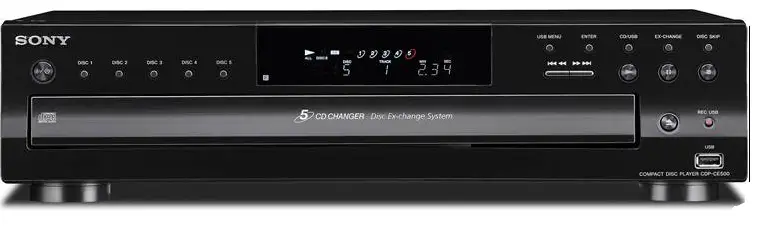
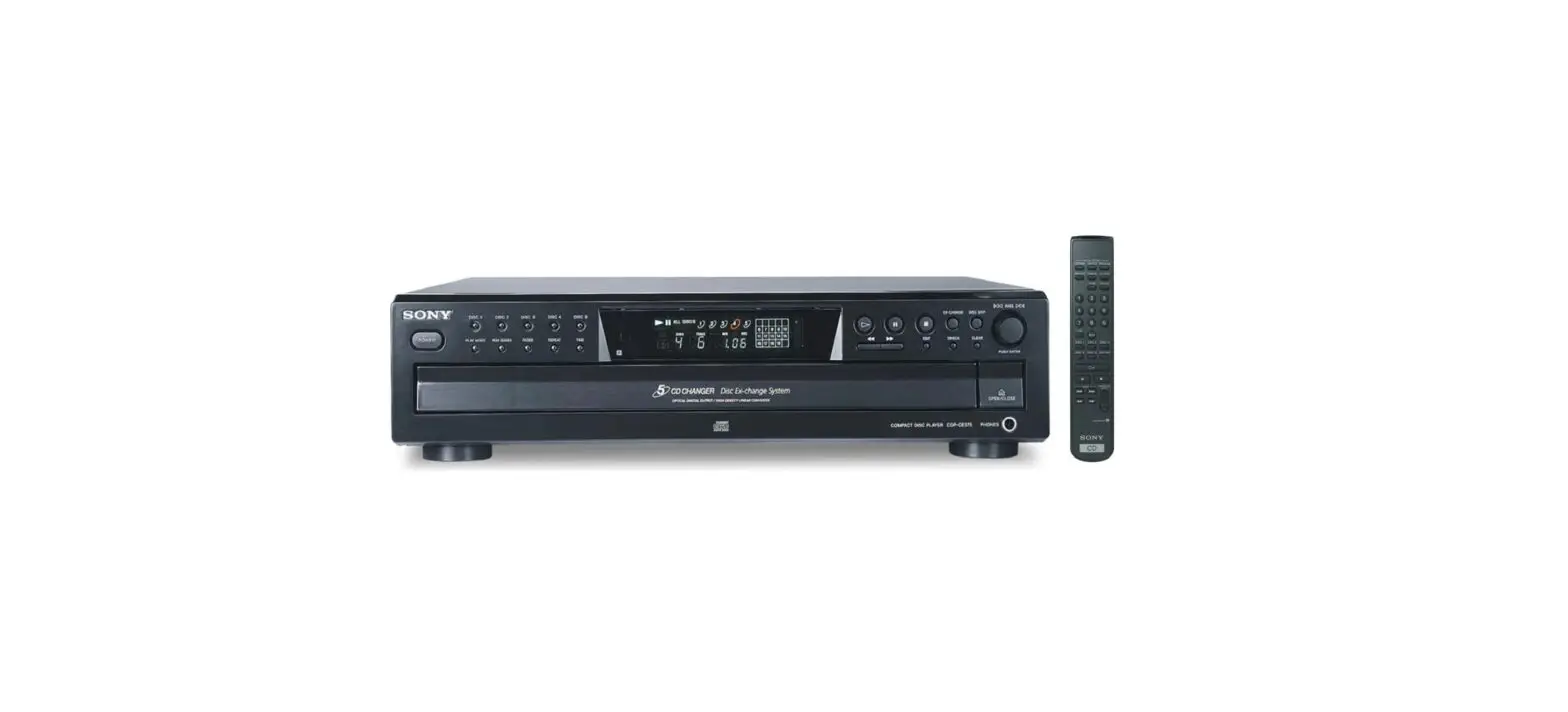
Parts and Controls
For more information, refer to the pages indicated in parentheses.
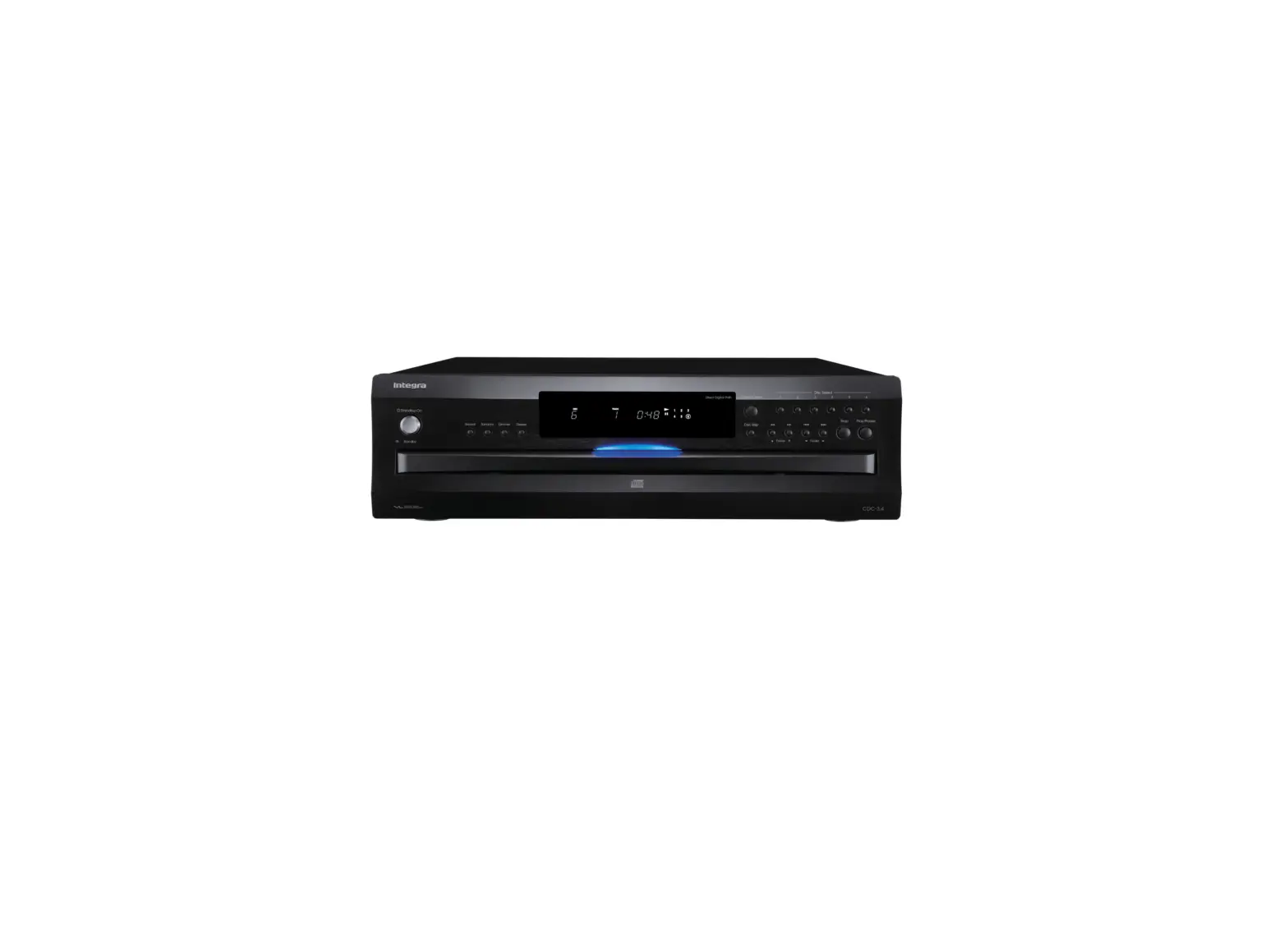
Front panel
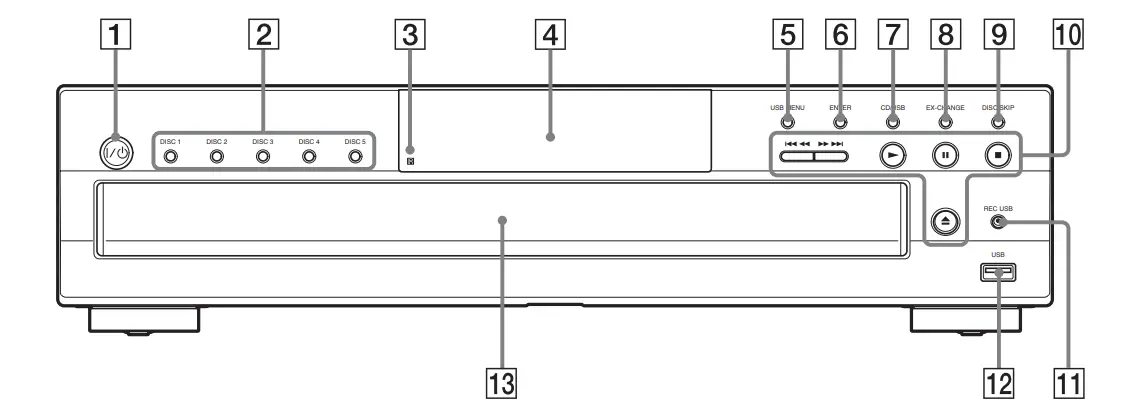
- on/standby
Turns on the player, or set it to standby mode. - DISC 1-5
Selects the disc directly. - remote sensor
- Display
- USB MENU
Enters the options menu for a USB device. - ENTER
Enters settings. - CD/USB (pages 10, 12, 16)
Selects CD or USB mode. - EX-CHANGE (page 11)
Replaces discs while playing a disc. - DISC SKIP
Selects the disc. - Playback operation buttons
- (fast reverse/fast forward) ./> (previous/next)
- (play)
- (pause)
- (stop)
- (open/close)
- REC USB (page 13)
Transfers music from a disc to a USB device. - USB port (page 12)
Used for connecting a USB device. - Disc tray (page 10)
Display
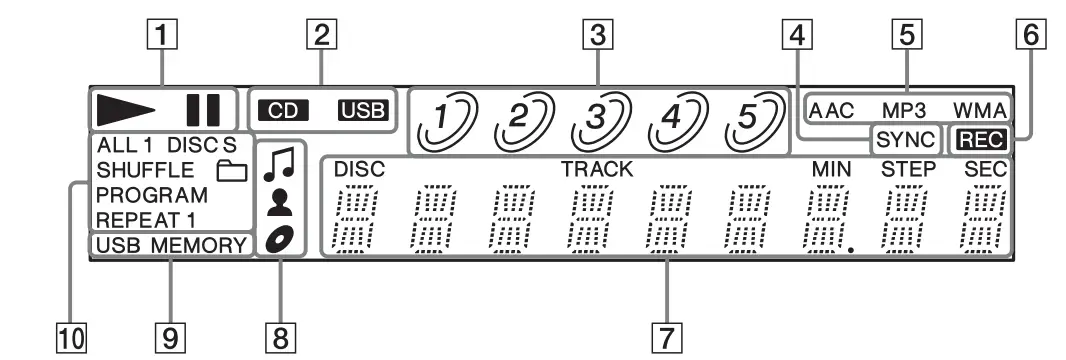
- Displays the player’s playing status.
- Displays the device mode (CD or USB) (pages 10, 12).
- Displays the disc number (pages 10, 16).
- Lights up when using CD SYNC (page 13).
- Displays the file format of an MP3 disc or a USB device (pages 10, 12).
- Lights up when transferring music from a disc to a USB device (page 13).
- Displays track/file information such as track number, time information, etc. While playing an MP3 disc or USB device, also displays the song title, artist name, and album title, when available.
- Lights up when displaying the song title
 , artist name
  , or album title
  .
. - Lights up when a USB device is connected (page 12).
- Displays the player’s playback mode (page 16).
 , artist name
  , or album title
  .
.Notes on the disc number indications
- The red circle around a disc number indicates the disc is ready to be played.
- When all the tracks on a disc have been played, the semicircle around the disc number disappears.
- When a disc compartment is recognized as empty, the disc number disappears.
Notes on the display information
- Characters that cannot be displayed appear as underscores.
- The following are not displayed:
- total playing time for an MP3 disc/USB device
- remaining playing time for a file
- The following are not displayed correctly:
- elapsed playing time of an MP3 file encoded at a VBR (variable bit rate)
- folder and file names that do not follow either ISO 9660 Level 1, Level 2, or the Joliet extension format
- The following are displayed:
- remaining playing time for a track
- ID3 tag information for MP3 files when ID3 version 1 or version 2 tags are used (ID3 version 2 tag information has priority when both ID3 version 1 and version 2 tags are used in a single MP3 file)
- up to 15 characters of an ID3 tag, WMA, or AAC tag information using uppercase letters (A to Z), numbers (0 to 9), and symbols ($ % ’ ” ( ) * + , – . / < = > @ [ \ ] _ ` { | } ! ? ^)
Rear panel
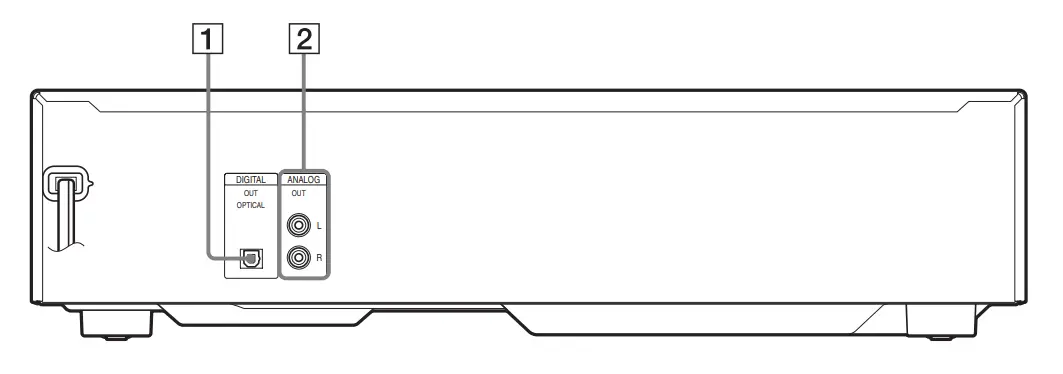
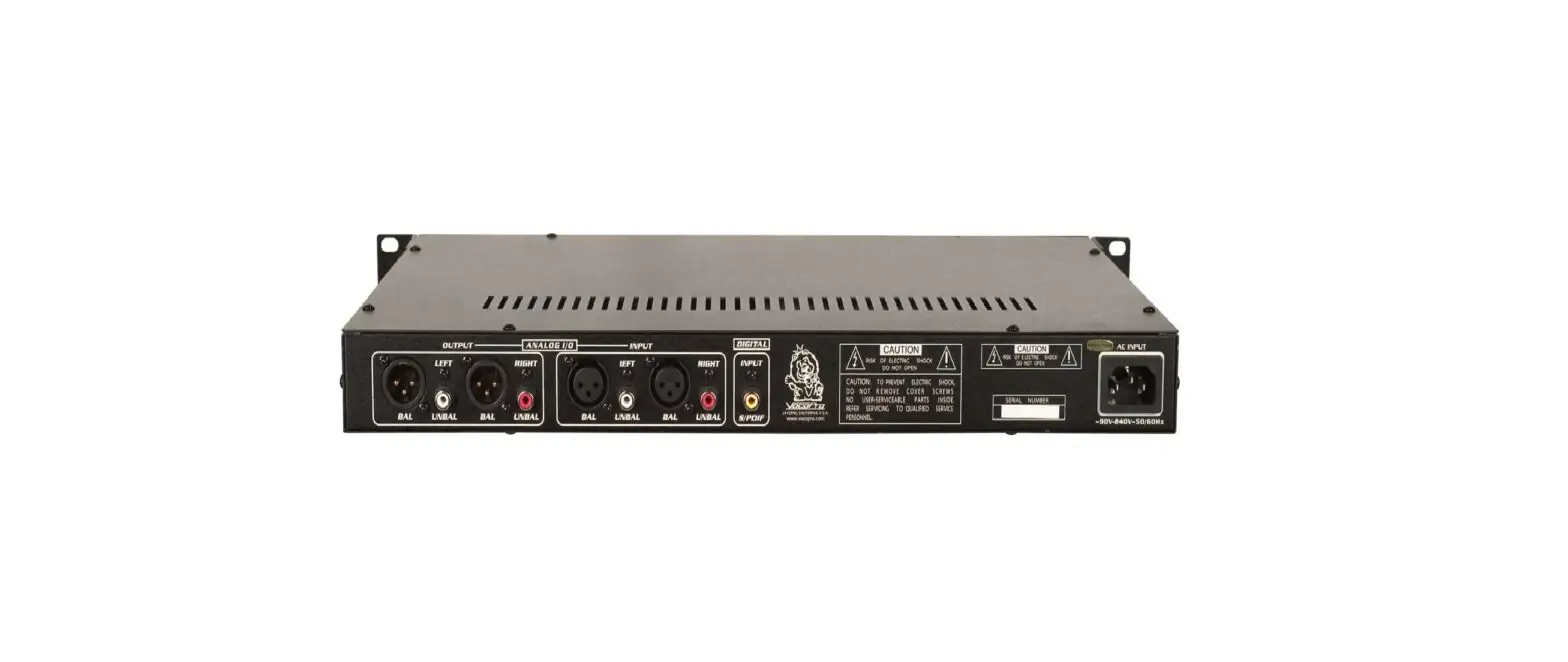
- DIGITAL OUT OPTICAL jack (page 9)
- ANALOG OUT (L/R) jack (page 9)
Remote
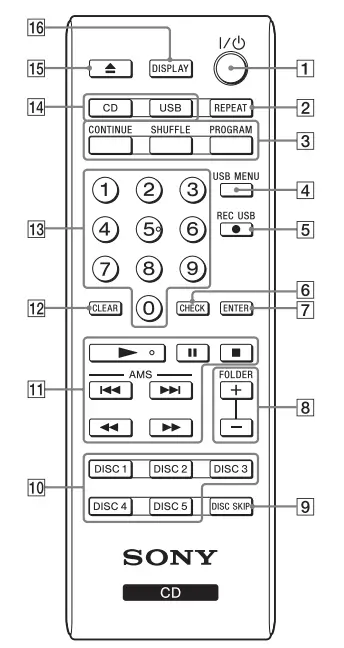
Number 5 and  buttons have a tactile dot. Use the tactile dot as a reference when operating the remote
- on/standby (pages 10, 12)
Turns on the player, or sets it to standby mode. - REPEAT (page 19)
- CONTINUE (page 16)
Resumes normal playback (continuous playback) from Shuffle Play or Program Play modes.
SHUFFLE (page 17)
PROGRAM (page 17) - USB MENU (page 12)
Selects the memory to use or audio file/folder to erase. - REC USB (page 13)
Transfers music from a disc to a USB device. - CHECK (page 17)
Checks the programmed order. - ENTER (pages 12, 17)
Enters the selected setting or item. - FOLDER +/– (pages 10, 12, 16)
Selects a folder when playing an MP3 disc or USB device. - DISC SKIP (pages 10, 16)
Selects the disc. - DISC 1-5 (pages 10, 16)
Selects a disc directly. - Playback operation buttons (pages 10, 12, 16)
N (play)
X (pause)
x (stop)
AMS ./> (previous/next)
(AMS: Automatic Music Sensor)
m/M (fast reverse/fast forward) - CLEAR (page 17)
Deletes a programmed track/file number. - Number buttons (pages 10, 12, 17)
Enters the track/file numbers, etc. Press ENTER after entering the numbers. - NCD (pages 10, 16)
USB (pages 12, 16)
Selects CD or USB mode. - (open/close) (pages 10, 13)
- DISPLAY
Shows the following information when pressed repeatedly:
For a CD
playing time of the track t remaining time of the track t remaining time of the disc
For an MP3 disc/USB device playing time of the file t song title t artist name album title*
When a file lacks these ID3 tags, the file name, “NO ARTIST,” and the folder name are displayed instead.
To insert the batteries
Insert two R6 (size AA) batteries (supplied) by matching the 3 and # ends on the batteries to the markings inside the compartment.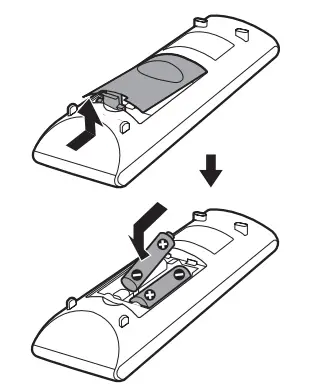
Note
- Do not leave the remote in an extremely hot or humid place.
- Do not use a new battery with an old one.
- Do not drop any foreign object into the remote casing, particularly when replacing the batteries.
- If you do not intend to use the remote for an extended period of time, remove the batteries to avoid possible damage from battery leakage and corrosion.
Connecting the Player
Connections
Be sure to turn off the power of each component before making the connections.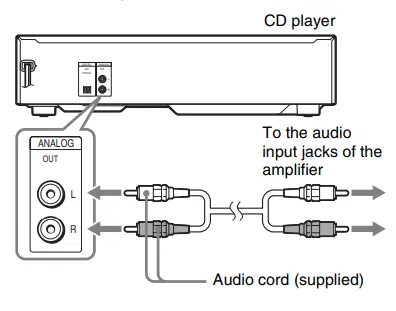
To make digital connections
If you have a digital component such as a digital amplifier, D/A converter, DAT, or MD, connect the component via the DIGITAL OUT OPTICAL jack using a digital optical cord (not supplied).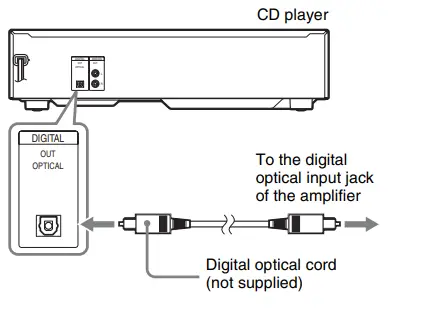
Playback
Playing a CD/MP3 Disc
- Press?/1.
- Press CD.
For operation via the player, press CD/USB repeatedly to select the CD mode. - Press
 , and place a disc on the disctray.
- To load other discs, press DISC SKIP repeatedly and place the discs in the order you want to play them.
Each time you press the button, the disc tray turns and you can place a disc in an empty disc compartment. The player plays the disc in front of you first. - Press to close the disc tray.
- Press

Playback starts.
 , and place a disc on the disctray.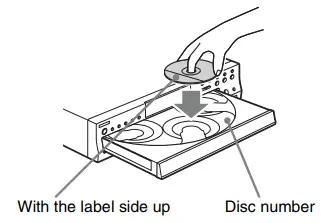
Other operations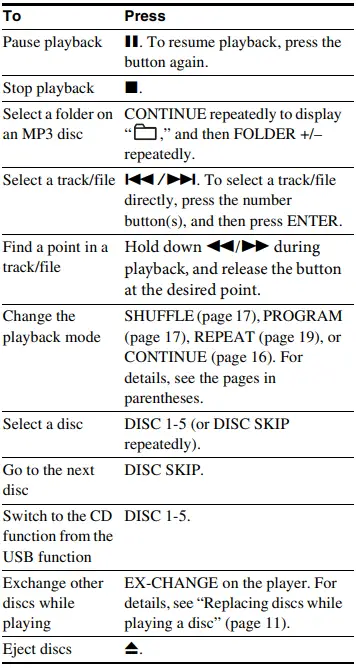
Auto standby
The player enters standby mode automatically when playback is paused or stopped without any operation for more than about 30 minutes.
“AUTO STBY” flashes on the display for 2 minutes before the player enters standby mode.
Notes on playing MP3 discs
- Do not save other types of files or unnecessary folders on a disc that has MP3 files.
- Folders that have no MP3 files are skipped.
- MP3 files are played back in the order that they are recorded onto the disc.
- The player can only play MP3 files that have a file extension of “.mp3.”
- Even when a file name has the “.mp3” file extension, if the actual file format differs, playing this file may generate a loud noise which could damage the speaker system and the player may malfunction.
- The maximum number of recognizable:
- folders is 255 (including the root folder).
- MP3 files is 512.
- folder levels (the tree structure of files) is 8.
- Compatibility with all MP3 encoding/writing software, recording devices, and recording media cannot be guaranteed. Incompatible MP3 discs may produce noise or interrupted audio or may not play at all.
Notes on playing CD-Rs/CD-RWs
- A disc of low recording quality, a disc that has scratches or is dirty, or a disc recorded with an incompatible recording device cannot be played on this player.
- A disc that is finalized incorrectly may not be playable on this player.
Notes on playing multisession discs
- If the first session on the disc is a CD-DA session, the other sessions on the disc cannot be recognized regardless of the session format; only CD-DA tracks in the first session can be played back.
- If the session format for the first session is CD-ROM and the following sessions are recorded in the same format, the player will continue to play MP3 files across multiple sessions until the player encounters another session recorded in a different format.
Replacing discs while playing a disc
You can open the disc tray while playing a disc so that you can check what discs are to be played next and replace discs without interrupting the playback of the current disc.
- Press EX-CHANGE on the player.
The disc tray opens and two disc compartments appear. Even if the player is playing a disc, it does not stop playback. - Replace discs in the compartments with different ones.
The player plays the disc on the left side compartment after the current disc, and then the one on the right side compartment. - Press DISC SKIP.
The disc tray turns and other two disc compartments appear. - Replace discs in the compartments with different ones.
- Press EX-CHANGE on the player.
The disc tray closes.
Note
- Do not push the disc tray to close it in Step 5, as you may damage the player. While the disc tray is open by pressing EXCHANGE on the player
- In ALL DISCS SHUFFLE mode (page 17), tracks/ files are reshuffled on the current disc.
- In Program Play mode (page 17), the program is erased and the player returns to normal play mode.
- If the playback of the current disc ends, the player stops playing. However, in Repeat All mode (page 19), the current disc starts playing again.
Enjoying Music Using a USB Device
You can play music on a USB device, or transfer music from a disc to a USB device. Also, you can erase audio files/folders on a USB device.
Note
- This player supports only USB flash memory devices that meet the following requirements:
- The device is a Sony Mass Storage Class Device complying with Universal Serial Bus Specification Revision 1.1 or later.
- The file system is FAT16/32.
Some USB flash memory devices are not compatible with this player.
Playing a file on a USB device
You can listen to music stored on a USB device. The audio formats that can be played back on this player are MP3/WMA/AAC.
Note
- The file formats that this player can play are as follows:
- MP3: file extension “.mp3”
- WMA: file extension “.wma”
- AAC: file extension “.m4a,” “.mp4,” or “.3gp” Note that even when file names have the above file extensions, if the actual file formats differ, playing these files may generate a loud noise which could damage the speaker system and the player may malfunction.
Files with DRM (Digital Rights Management) copyright protection cannot be played back on this player.
Files downloaded from an online music store may not be playable on this player.
- Press.
- Press USB.
For operation via the player, press CD/USB
repeatedly to select the USB mode. - Connect a USB device to the USB port.

When the USB device is connected, the display changes as follows:
“READING” t Volume label*
* Only when the volume label exists on the connected USB device. - Press .
Playback starts.
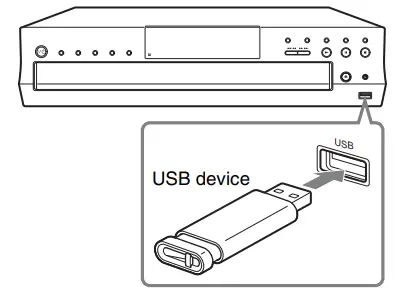
Notes on connecting a USB device
- When a USB cable connection is necessary, connect with the USB cable supplied with the USB device. See the operating instructions supplied with the USB device for details on the operation method.
- It may take about 10 seconds before “READING” appears depending on the type of USB device connected.
Other operations
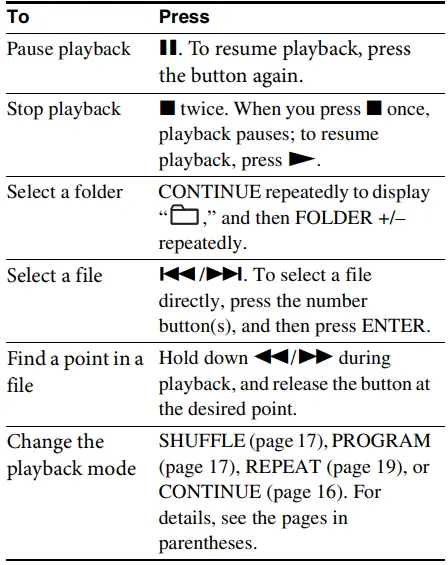
Notes on resume playback of a USB device
- When playing a VBR MP3 file, the player may resume playback from a different point.
- While paused, if
- you change to CD mode, and then return to USB mode, or
- the player enters standby mode, the action when resuming playback differs depending on the playback mode as follows:
While in normal playback or Shuffle Play mode - The player resumes playback from the beginning of the paused track, instead of the pause point.
While in Program Play mode - The resume play is canceled, and the player plays from the first programmed track.
- When you change the playback mode, the resume play is canceled.
Notes on using a USB device - The following situations can increase the time it takes to start playback:
- The USB device is recorded with a complicated tree structure.
- The memory capacity is excessive.
- This player does not necessarily support all the functions provided in a connected USB device.
- Resume play is canceled when you turn off the player.
- Files and folders are displayed in the order of their creation on the USB device.
- The playback order for the player may differ from the folder structure of the connected USB device.
- Folders that have no audio files are skipped.
- With some connected USB devices, after an operation is entered, there may be a delay before it is performed by this player.
- Compatibility with all encoding/writing software cannot be guaranteed. If audio files on the USB device were originally encoded with incompatible software, those files may produce noise or interruptedaudio, or may not play at all.
- This player cannot play audio files on the USB device in the following cases:
- The number of audio files in a folder exceeds 999.
- The total number of audio files exceeds 5,000.
- The number of folders exceeds 255 (including the “ROOT” and “MUSIC” folders, and excluding empty folders).
- The folder depth exceeds 8 folders.
These numbers may vary depending on the file and folder structure. Do not save other types of files or unnecessary folders on a USB device that has audio files.
To select the memory on the USB device
If the USB device has more than one memory (for example, internal memory and a memory card), you can select which memory to use and then start playback or transfer.
- Press USB.
- Connect a USB device to the USB port.
- Press USB MENU in stop mode. “MEM SEL” appears. If an audio file or a folder is selected, “ERASE” appears instead. Press ./> repeatedly to select “MEM SEL.”
- Press ENTER.
- Press ./> repeatedly to select a memory number.
Proceed to Step 6 if only one memory can be selected.
To cancel this operation, press x. - Press ENTER.
Note on selecting the playback source or transferring destination
You cannot select a memory during playback or transfer. Make sure to select a memory before starting playback or transfer.
Transferring music from a disc to a USB device
You can connect an optional USB device to the USB port and transfer music from a disc to the USB device. The format of files transferred by this player is MP3. The amount of free space required on the USB device is about 1 MB per minute when transferring music from a CD. Required free space may be larger when transferring music from an MP3 disc. You can easily transfer all the music on a disc to a USB device (CD SYNC). You can also transfer a track or MP3 file that is currently being played back (REC1).
- Connect the USB device to the USB port.
- Press CD.
For operation via the player, press CD/USB repeatedly to select the CD mode. - Press
 , and place a disc on the disc tray.
 - Press to close the disc tray.
- Set the USB device to standby for transferring.
Synchronized transfer (CD SYNC):
Press REC USB (or REC USB on the player). To transfer only your favorite CD tracks or MP3 files, create your own program beforehand (page 17).
To transfer only MP3 files that are stored in a specific folder on the MP3 disc, press CONTINUE repeatedly until appears while the player is stopped, and then press FOLDER +/– repeatedly to select the desired folder before starting the transfer.
REC1:
Start playback of the track/file you want to transfer, and then pressREC USB (or REC USB on the player).
“REC” flashes, and the display cycles through “CD SYNC (or “REC1”),” “FREExxxM” or “FREExxxG” (free space, in megabytes or gigabytes, on the USB device), and “PUSH ENTER.” The USB device stands by for transferring and playback pauses. - Press ENTER.
Transferring starts.
Do not remove the USB device during transfer operations. Doing so may corrupt the data on the USB device or damage the USB device itself. Wait until “REC” on the display disappears.
When using CD SYNC
When the transfer is completed, access to the USB device and the disc stops automatically.
When using REC1
When the transfer is completed, access to the USB device stops automatically and the player continues playback.
To stop transferring
Press .
.
Folder and file generation rules
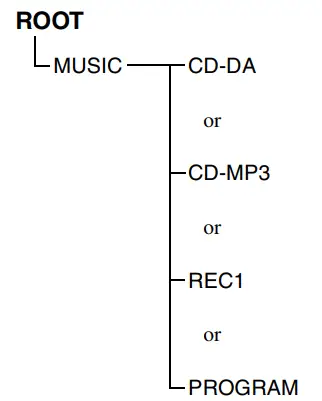
When first transferring music to a USB device, a “MUSIC” folder is created below the “ROOT” folder and a transfer mode-oriented folder (“CDDA,” “CD-MP3,” “REC1” or “PROGRAM”) is created within the “MUSIC” folder.
Folders and files are generated within any of the transfer mode-oriented folders as follows:
 , and place a disc on the disc tray.
 REC USB (or REC USB on the player). To transfer only your favorite CD tracks or MP3 files, create your own program beforehand (page 17).
 appears while the player is stopped, and then press FOLDER +/– repeatedly to select the desired folder before starting the transfer.
 .
.
CD SYNC1)
| Music source | Folder name | File name |
| MP3 | Same as the music source2) | |
| CD-DA | “CDDA001”3) | “TRACK001”4) |
REC1
| Music source | Folder name | File name |
| MP3 | “REC1”5) | Same as the music source2) |
| CD-DA | “TRACK001”4) |
- In Program Play mode, the folder name is “PGM_xxx,” and the file name depends on the music source (CD-DA disc or MP3 disc).
- Up to 32 characters of the name are assigned.
- Folder numbers are assigned serially thereafter up to the maximum 999.
- File numbers are assigned serially thereafter.
- A new file is created in the “REC1” folder each time REC1 is performed.
Note
- When transferring music from a CD, the tracks are transferred as 128 kbps MP3 files. When transferring music from an MP3 disc, MP3 files are transferred with the same bit rate as the original MP3 files.
- If you start transferring in Shuffle Play mode, Repeat Play mode, or in Program Play mode (when no tracks or MP3 files are programmed), the selected playback mode is automatically canceled and the playback mode switches to normal playback mode.
- While transferring music from an MP3 disc, no sound is output and “HI-SPEED” appears.
- CD text information is not transferred in the created MP3 files.
- If you cancel the transfer partway, an MP3 file is created up to the point when the transfer was stopped.
- Transferring stops automatically if:
- the USB device runs out of space during the transfer process.
- the number of audio files on the USB device reaches the limit for the number that the player can recognize.
- If a folder or file that you are trying to transfer already exists on the USB device with the same name, a sequential number is added after the name without overwriting the original folder or file.
- This player cannot transfer music from an MP3 disc when the number of audio files in a folder exceeds 999. The number may vary depending on the file and folder structure. Do not save other types of files or unnecessary folders on a disc that has audio files.
Erasing audio files or folders from the USB device
You can erase audio files or folders from the USB device. Note that you cannot erase audio files and folders in Shuffle Play mode or Program Play mode.
- Connect the USB device to the USB port.
- Press USB.
- Press ./> or FOLDER +/– repeatedly to select the audio file or folder you want to erase.
- Press USB MENU in stop mode.
- Make sure that “ERASE” is selected, and then press ENTER. “TRACK ERASE” or “FOLDER ERASE” appears in the display.
To cancel the erase operation, press. - Press ENTER.
The selected audio file or folder is erased
Do not remove the USB device during erase operations. Doing so may corrupt the data on the USB device or damage the USB device itself.
Note
- If the folder to be erased contains non-MP3/WMA/ AAC format files or subfolders, these are not erased.
Enjoying Music in Various Play Modes
You can use various playback modes to play tracks/files. Some playback modes are available simultaneously.
Selecting tracks/files to be played
In normal playback mode, you can play tracks/ files in sequential order. The tracks/files to be played can be selected.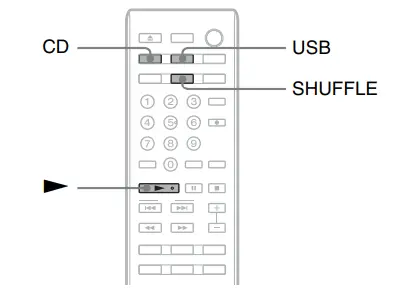
- Press CD or USB.
For operation via the player, press CD/USB repeatedly to select the CD or USB mode. Before you change the playback mode, be sure to stop playback. - Press CONTINUE repeatedly.
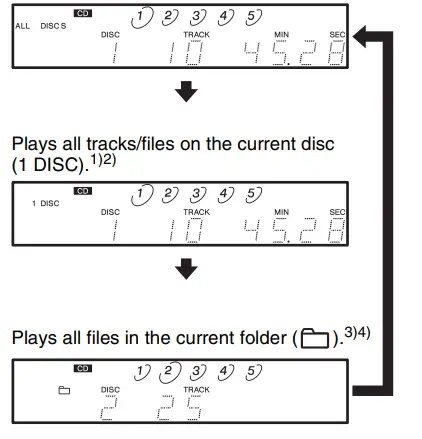
The tracks/files to be played change as follows:- For a CD
Plays all tracks/files on all discs (ALL DISCS).1)
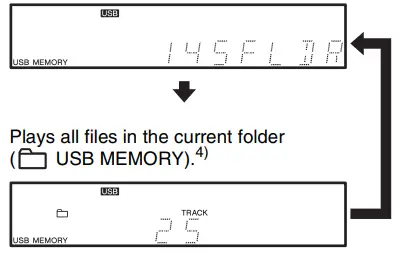
- For a USB device
Plays all files on the USB device (USB MEMORY).
- The display for an MP3 disc differs.
- To select the disc, press DISC 1-5 (or DISC SKIP repeatedly).
- For a CD, functions the same as 1 DISC play.
- To select the folder, press FOLDER +/–.
- For a CD
- Press
Playback starts.
Playing tracks/files in random order
In Shuffle Play mode, you can play tracks/files in random order. You can select whether to play tracks/files on all discs (or a USB device), on a specific disc, or in a specific folder.
- Press CD or USB.
For operation via the player, press CD/USB repeatedly to select the CD or USB mode. Before you change the playback mode, be sure to stop playback. - Press SHUFFLE repeatedly.
Shuffle Play mode changes as follows:
For a CD
Plays all tracks/files on all discs in random order (ALL DISCS SHUFFLE).1) For a USB device
Plays all files on the USB device in random order (USB MEMORY SHUFFLE).
- The display for an MP3 disc differs.
- To select the disc, press DISC 1-5 (or DISC SKIP repeatedly).
- For a CD, functions the same as 1 DISC SHUFFLE play.
- To select the folder, press FOLDER +/–.
- Press.
Shuffle Play starts.
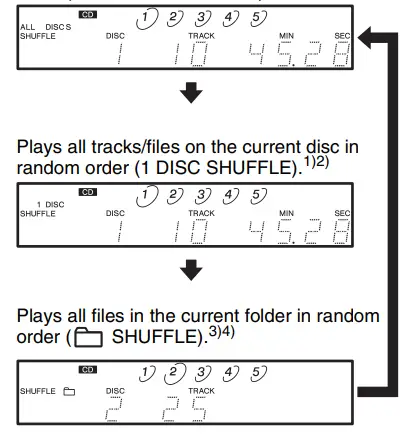 For a USB device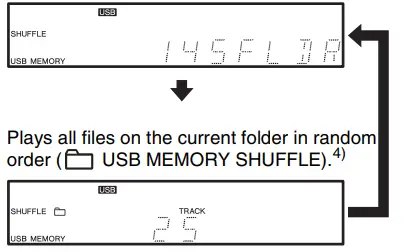
To cancel Shuffle Play mode
Press CONTINUE.
Creating your own program
You can pick out the tracks/files you like and specify the playback order in a program containing up to 32 items.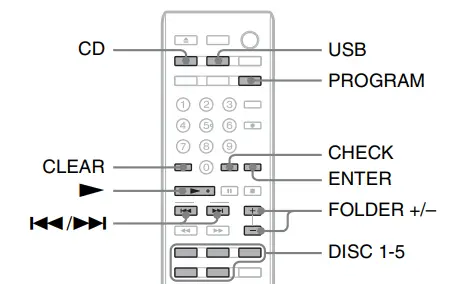
- Press CD or USB.
For operation via the player, press CD/USB repeatedly to select the CD or USB mode. Before you change the playback mode, be sure to stop playback. - Press PROGRAM
If a program is already stored, the last item of the program appears in the display. To erase the whole program, hold down CLEAR until “ALL CLEAR” appears in the display. - Select the disc/folder.
For a CD
Press DISC 1-5 (or DISC SKIP repeatedly) to select the disc.
The selected disc number appears in the display.
For an MP3 disc containing folders, press FOLDER +/– repeatedly to select the desired folder after selecting the disc.
For a USB device
Press FOLDER +/– repeatedly to select the desired folder. If the desired file is in root folder in your USB device, go to Step 4. - Press
 to select the track/file.
You can also select the track/file directly by pressing the number buttons. - Press ENTER.
The track/file number that you programmed, the playing order, and the total playing time of the program appear in the display.
If you entered the wrong track/file number
Press CLEAR. Then repeat Steps 4 and 5 to enter the correct track/file number. - Repeat Steps 3 through 5 to enter other tracks/files.
Each time you enter a track/file, the total number of program items appears in the display. - Press .
Program Play starts.
 to select the track/file.
To cancel Program Play mode
Press CONTINUE.
Tip
- The program remains stored in the player even after program play ends. Press N to play from the beginning of the program again. The program also remains even if you stop playback.
Note - If you disconnect the power cord, press Z, or press EX-CHANGE, the program will be erased.
- The total playing time does not appear when:
- the total playing time of the program exceeds 99 minutes and 59 seconds.
- you programmed an MP3/WMA/AAC file.
To check the contents of the program
While the player is in stop mode, press CHECK repeatedly.
Each time you press the button, the disc and track/file numbers will appear in the display in the programmed order.
To change the contents of the program
You can change the contents of the program in stop mode.
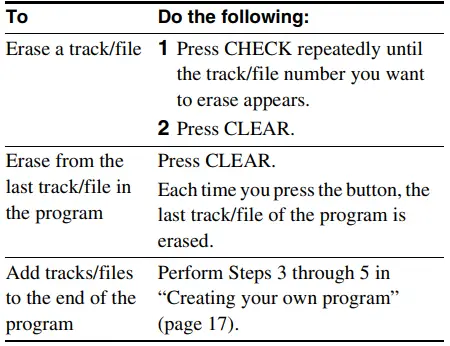
Playing tracks/files repeatedly
You can play track(s)/file(s) repeatedly. Repeat Play mode can be used with other playback modes.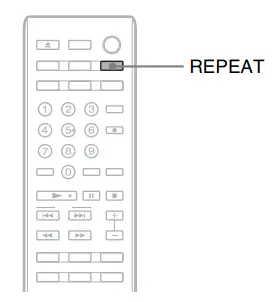
While playing or in stop mode, press REPEAT repeatedly until “REPEAT” or “REPEAT 1” appears in the display. REPEAT (Repeat All): Plays all tracks/files on the disc(s)/USB device repeatedly.
REPEAT 1: Plays a single track/file repeatedly. When “REPEAT” is selected, Repeat Play mode changes according to the selected playback mode. For example, while in ALL DISCS SHUFFLE mode (page 17), the player plays all tracks/files on all discs repeatedly in random order. While in Program Play mode (page 17), the player plays the programmed tracks/files repeatedly.
To cancel repeat play
Press REPEAT repeatedly to turn of “REPEAT” or “REPEAT 1.”
Note
If you disconnect the power cord, Repeat Play is canceled.
Additional Information
Precautions
On safety
- Caution – The use of optical instruments with this product will increase eye hazard.
- Should any solid object or liquid fall into the cabinet, unplug the player and have it checked by qualified personnel before operating it any further.
- The AC power cord (mains lead) must be changed only at a qualified service shop.
- The player is not disconnected from the AC power source as long as it is connected to the wall outlet (mains), even if the player itself has been turned off.
- Do not put any object other than a disc on the disc tray.
- Do not put a vase or candle, etc., in front of the disc tray. When the disc tray opens, it might fall.
On power sources
- Before operating the player, check that the operating voltage of the player is identical with your local power supply. The operating voltage is indicated on the nameplate at the rear of the player.
- If you are not going to use the player for a long time, be sure to disconnect the player from the wall outlet (mains). To disconnect the AC power cord (mains lead), grasp the plug itself; never pull the cord. On placement
- Place the player in a location with adequate ventilation to prevent heat build-up in the player.
- Do not place the player on a soft surface such as a rug that might block the ventilation holes on the bottom.
- Do not place the player in a location near heat sources, or in a place subject to direct sunlight, excessive dust or mechanical shock.
On operation
- If the player is brought directly from a cold to a warm location or is placed in a very damp room, moisture may condense on the lenses inside the player. Should this occur, the player may not operate properly. In this case, remove the disc and leave the player turned on for about an hour until the moisture evaporates.
- While the player is turning on, some noise may be heard as the disc is being loaded into the player. This is not a malfunction.
On adjusting the volume
Do not turn up the volume too much while listening to a portion with very low-level inputs or no audio signals. If you do, the speakers may be damaged when a peak level portion is played.
On inserting a disc
You may hear a transmission or a mechanical sound from the player. This indicates that the player is automatically adjusting its internal mechanisms according to the inserted disc.
You may also hear the mechanical sound from the player when you insert a warped disc.
On cleaning
Clean the cabinet, panel, and controls with a soft cloth slightly moistened with a mild detergent solution. Do not use any type of abrasive pad, scouring powder, or solvent such as alcohol or benzine.
On transportation
- Be sure to remove all discs from the disc tray.
- Be sure to close the disc tray.
If you have any questions or problems concerning your player, please consult your nearest Sony dealer.
Notes on Discs
On handling discs
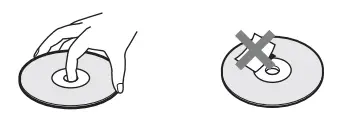
- To keep the disc clean, handle the disc by its edge. Do not touch the surface.
- Do not stick paper or tape on the disc.

- Use only round-shaped discs. If you use a special shaped disc (e.g., star-shaped, heart-shaped, or square-shaped, etc.), the player may be damaged.
- Do not use discs with a seal attached; such seals are often attached to used and rental discs.
On keeping discs - Do not expose the disc to direct sunlight or heat sources such as hot air ducts.
- After playing, store the disc in its case. If you put it on top of another disc without the case, the disc may be damaged.
On placing discs on the disc tray Make sure the disc is positioned securely on the tray. If not, the player or the disc may be damaged.
On cleaning - If the disc is dirty with fingerprints or dust, it may lessen the quality of the audio out.
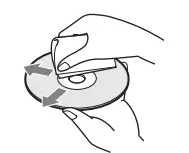
- Before playing, clean the disc with a cleaning cloth. Wipe the disc from the center out

- Clean the disc with a soft cloth slightly moistened with water, and remove moisture with a dry cloth.
- Do not use solvents such as benzine, thinner, record cleaners, or anti-static spray.
Troubleshooting
If you experience any of the following difficulties while using the player, use this troubleshooting guide to help you remedy the problem. Should any problem persist, consult your nearest Sony dealer.
General
There is no sound.
- Check that the player is connected securely.
- Make sure you operate the amplifier correctly.
The remote does not function. - Remove any obstacles in the path of the remote and the player.
- Point the remote at the remote sensor on the player.
- If the batteries in the remote are weak, replace them with new ones.
“ERROR” appears in the display. - Turn off the player, and then turn it on. If “ERROR” appears again, please consult your nearest Sony dealer.
The player enters standby mode automatically. - The player enters standby mode automatically when playback is paused or stopped without any operation for more than about 30 minutes (Auto standby) (page 10).
“AUTO STBY” flashes on the display for 2 minutes before the player enters standby mode.
CD/MP3 player
The disc does not play.
- There is no disc inside the player.
- Place the disc on the disc tray with the label side up.
- The disc is placed at an angle. Reload the disc.
- Clean the disc (page 21).
- Moisture has condensed inside the player.
Remove the disc and leave the player turned on for about an hour. - There is an incompatible disc on the tray (page 11).
A disc cannot be ejected and “LOCKED” appears in the display. - Contact your Sony dealer or local authorized Sony service facility.
USB device
You cannot start transferring to a USB device.
- The following problems may have been encountered:
- The USB device is full.
- The number of files and folders on the USB device has reached the upper limit.
- The USB device is write-protected.
Transferring is stopped before it is finished.
- You are using an unsupported USB device.
- The USB device is not formatted correctly. Refer to the USB device operating instructions for how to format it.
- Turn off the player and remove the USB device. If the USB device has a power switch, turn the USB device off, and then on again after removing it from the player. Then perform the transfer again.
- If the transfer and erase operations are repeated multiple times, the file structure within the USB device becomes fragmented. Refer to the USB device operating instructions for how to deal with this problem. If the problem persists, contact your nearest Sony dealer.
Transferring music to a USB device results in an error. - You are using an unsupported USB device.
- Turn off the player and remove the USB device. If the USB device has a power switch, turn the USB device off and then on again after removing it from the player. Then perform the transfer again.
- The USB device was disconnected or the power was turned off during the transfer process. Delete the partially-transferred file, and perform the transfer again. If this does not fix the problem, the USB device may be broken. Refer to the USB device operating instructions for how to deal with this problem. If the problem persists, contact your nearest Sony dealer.
Files or folders on the USB device cannot be erased. - Check if the USB device is write-protected.
- The USB device was disconnected or the power was turned off during the erase operation. Delete the partially-erased file. If this does not fix the problem, the USB device may be broken. Refer to the USB device operating instructions for how to deal with this problem. If the problem persists, contact your nearest Sony dealer.
Are you using a supported USB device? - If you connect an unsupported USB device, the
following problems may occur:- The USB device is not recognized.
- File or folder names are not displayed on this player.
- Playback is not possible.
- The sound skips.
- There is noise.
- A distorted sound is an output.
- “OVER CURRENT” appears.
- A problem has been detected with the level of electrical current from the USB port. Turn off the player and remove the USB device from the USB port. Make sure there is no problem with the USB device. If this display pattern persists, contact your nearest Sony dealer.
There is no sound. - The USB device is not connected correctly. Turnoff the player and reconnect the USB device, and then turn on the player and check if “US MEMORY” appears in the display.
There is noise, skipping, or distorted sound. - Turn off the player and reconnect the USB device, and then turn on the player.
- The music data itself contains noise, or the sound is distorted. Noise may have entered during the transfer process. Delete the file, and try transferring again.
- the bit rate used when encoding the files was low.
Send files encoded with higher bit rates to the
USB devise.
The USB device cannot be connected into the USB port. - The USB device is being connected upside-down. Connect the USB device in the correct orientation. “READING” is displayed for an extended time, or it takes a long time before playback starts.
- The reading process can take a long time in the following cases:
- There are many folders or files on the USB device.
- The file structure is extremely complex.
- The memory capacity is excessive.
- The internal memory is fragmented.
Thus, we recommend following these guidelines: - Total folders on the USB device: 100 or less
- Total files per folder: 100 or less
Erroneous characters are displayed.
- Send the music data to the USB device again, as the data stored in the USB device may have been corrupted.
- The character codes that can be displayed by this player are numbers and alphabet only. Other characters are not displayed correctly
USB device is not recognized. - Turn off the player and reconnect the USB device, and then turn on the player.
- You are using an unsupported USB device.
- The USB device does not work properly. Refer to the USB device operating instructions for how to deal with this problem.
Playback does not start. - Turn off the player and reconnect the USB device, and then turn on the player.
- Press N to start playback.
Files cannot be played back. - The audio file does not have the extension “.mp3,” “.wma,” “.m4a,” “.mp4,” or “.3gp.”
- The audio file is a multiple track audio file.
- The file is a video file.
- The data is not stored in MP3/WMA/AAC format.
- The data is stored in WMA lossless/AAC lossless format.
- USB storage devices formatted with file systems other than FAT16 or FAT32 are unsupported*.
- If you use a partitioned USB storage device, only files on the first partition can be played.
- Playback is possible up to 8 levels.
- The number of folders has exceeded 255.
- The number of files has exceeded 5,000.
- Files that are encrypted or protected by passwords, etc., cannot be played back.
* This player supports FAT16 and FAT32, but some USB storage devices may not support these file systems. For details, see the operating instructions of the USB storage device or contact the manufacturer.
After you have attempted the prescribed corrective actions
If the player still does not operate properly, or if other problems not described above occur, turn off the player, disconnect the AC power cord (mains lead) from the wall outlet (mains) for a few minutes, and then reconnect the AC power cord (mains lead) to the wall outlet (mains).
Specifications
CD player section
- Laser Semiconductor laser (λ = 780 nm)
Emission duration: Continuous - Frequency response 2 Hz to 20 kHz ± 0.5 dB
- Dynamic range More than 90 dB
- Harmonic distortion Less than 0.006%
- Laser Diode Properties Emission Duration:
Continuous
Laser Output: Less than 44.6 μW
* This output is the value measurement at a distance of 200 mm from the objective lens surface on the optical pick-up block with 7 mm aperture.
USB section
- Supported bit rate MP3 (MPEG 1 Audio
Layer 3): 32 kbps – 320
kbps, VBR
WMA: 48 kbps – 192 kbps
AAC: 48 kbps – 320 kbps - Sampling frequencies MP3 (MPEG 1 Audio
Layer 3): 32 kHz/
44.1 kHz/48 kHz
WMA: 44.1 kHz
AAC: 44.1 kHz - USB port Maximum current:
500 mA
Outputs
| ANALOG OUT | Phono jacks | 2 V (at 50
kilohms) | Over 10 kilohms |
| DIGITAL | Optical | –18 dBm | Wave |
| OUT OPTICAL | output jack | length: 660 nm |
General
- Power requirements 120 V AC, 60 Hz
- Power consumption 16 W
- Dimensions (approx.) 430 mm × 110 mm × 400 mm (w/h/d) (17 in × 4 3/8 in × 15 3/4 in) incl. projecting parts
- Mass (approx.) 5.2 kg (11 lbs 1 oz)
Supplied accessories
- Audio cord Red and white (1)
- Remote commander RM-ASU100 (1)
- Battery R6 (size-AA) (2)
- Design and specifications are subject to change without notice
Standby power consumption: 0.3 W
Halogenated flame retardants are not used in certain printed wiring boards.
FAQS
No, it is not vented and we do not recommend stacking other devices on top of this Sony CD player. It might do some damage on the unit especially when a heavy unit is placed above it.
approximate dimensions for this Sony CD player are: 430 mm × 110 mm × 400 mm or (17 in × 4 3/8 in × 15 3/4 in) including projecting (w/h/d).
Yes, it can play mp3 CD’s.
This is a player. It needs an amplifier to connect to the speakers. It has a USB port on the front.
CDP-CE500
15″ deep x 17′ long x 3 3/4 ” high
Yes, just press the arrow keys below the arrow keys marked AMS and from there you can scan forward or backward within a song.
17″ Wide, 4.25″ High, 15″ Deep
There are no specific requirements. You need only connect it to a receiver or amplifier which is then connected to the speakers.
These components all need to be wired to an amplifier. It does not need to be the same manufacturer, although to use a single remote, they should be. Maybe a remote from another manufacturer could work with the Sony components, but you should check that out beforehand if that is a concern.
The CD player doesn’t come with speakers, it needs to plug into a receiver ( or preamp) that you would connect speakers and any other components to.
This C.D. player is not set up for surround sound. It has RCA stereo output, optical audio output and USB output for recording to a computer.
Yes…but you need an amp
No, you connect it to your speaker system.
button on the remote
There are 2 connections