 IFIX-750 Software Update
Owner’s Manual
IF-745 OBD2 Car Scanner Software
You can update IFIX-750 software through WiFi(recommended) or USB.
IFIX-750 Software Update — Via WiFi
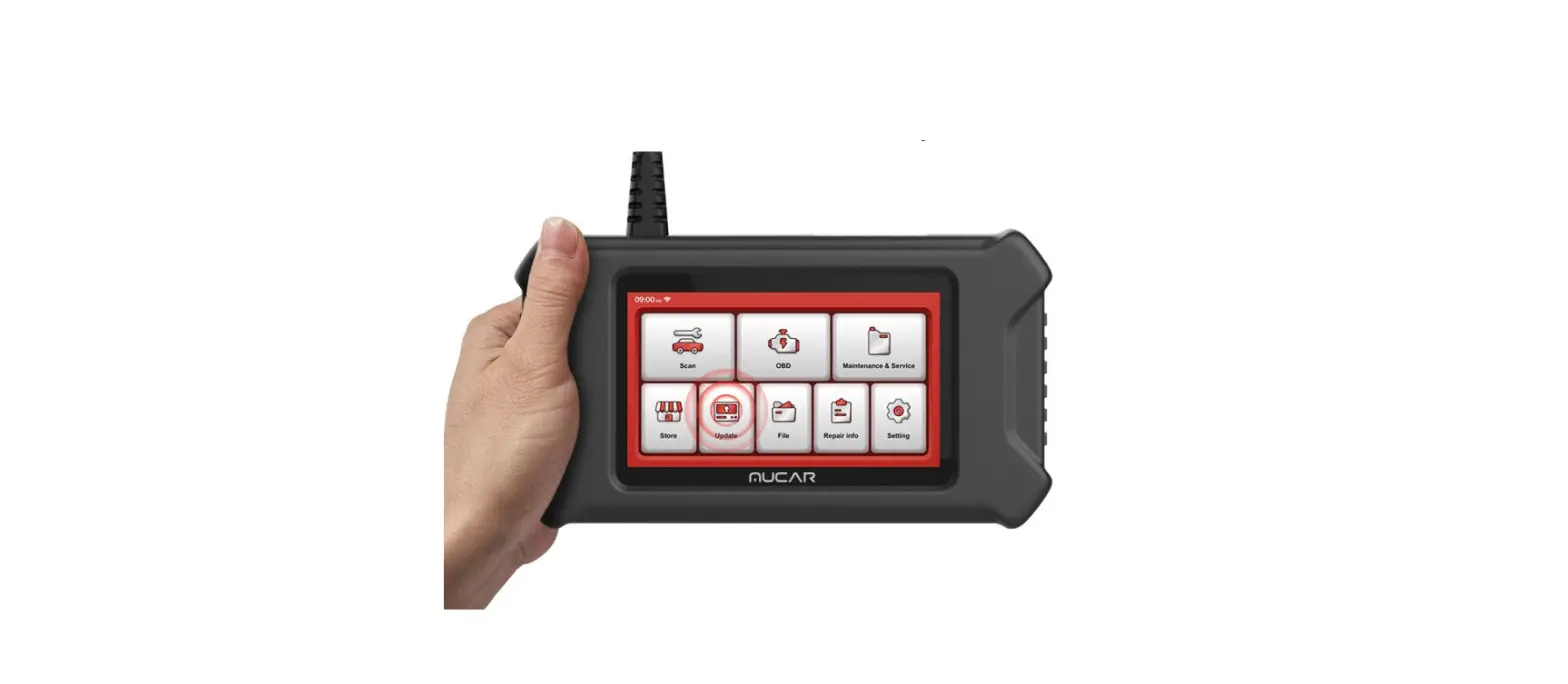
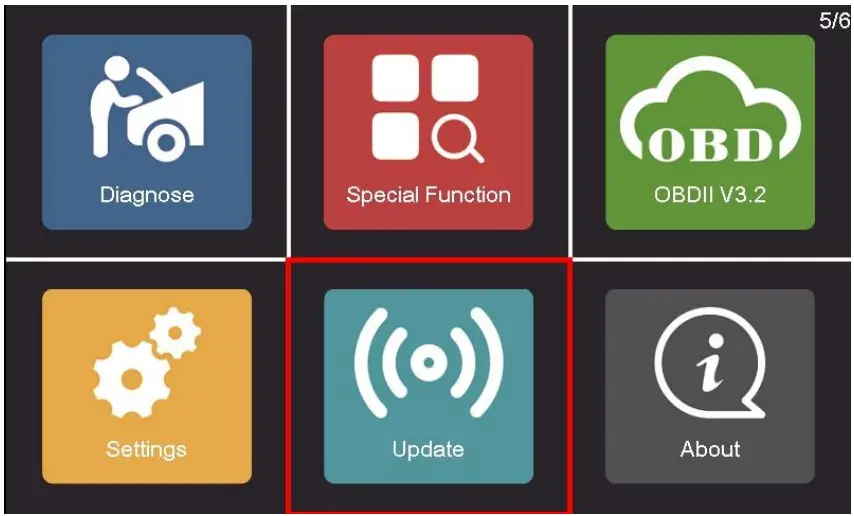
Step1. Use ▲▼◀▶ to move the cursor to [Update], then press [OK] button.
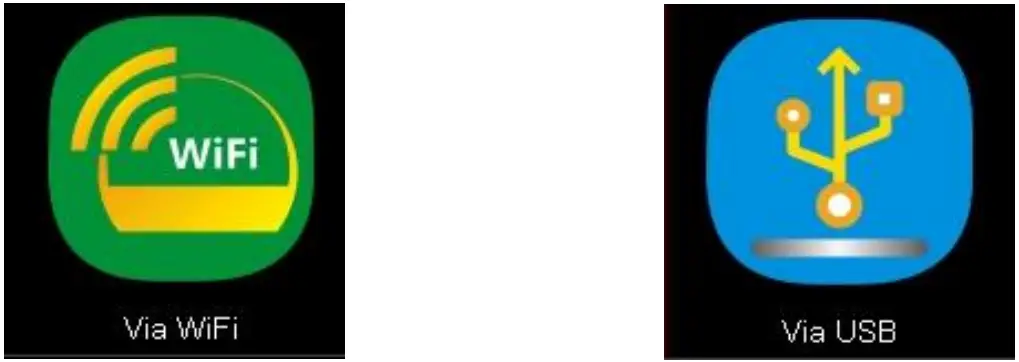
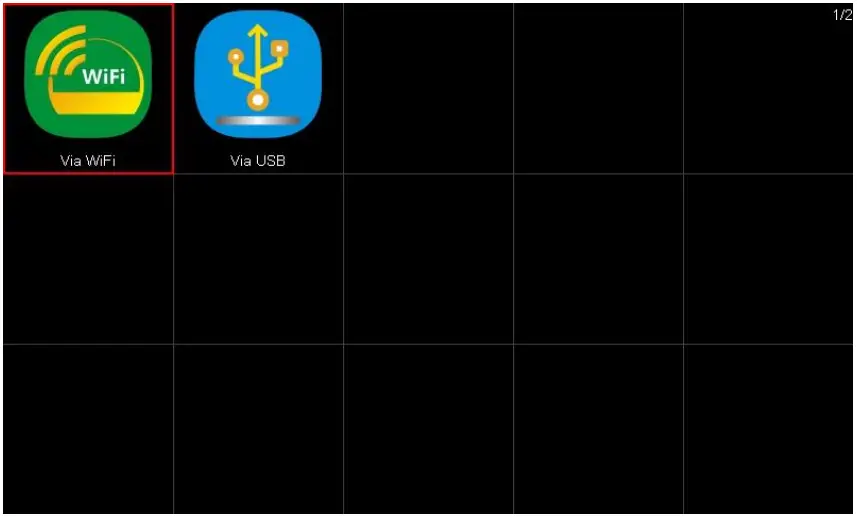
Step2. Use ◀▶ to move the cursor to [Via WiFi], then press [OK] button.
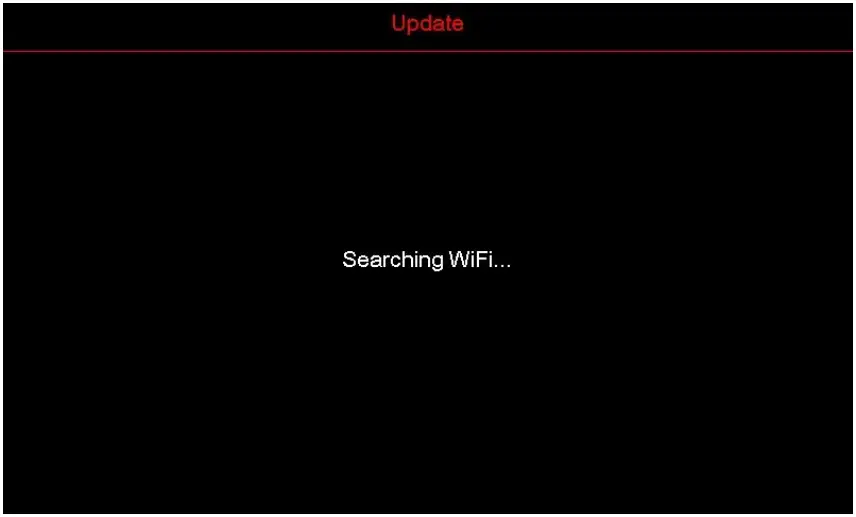
Step3. Search for available WiFi nearby, just wait.
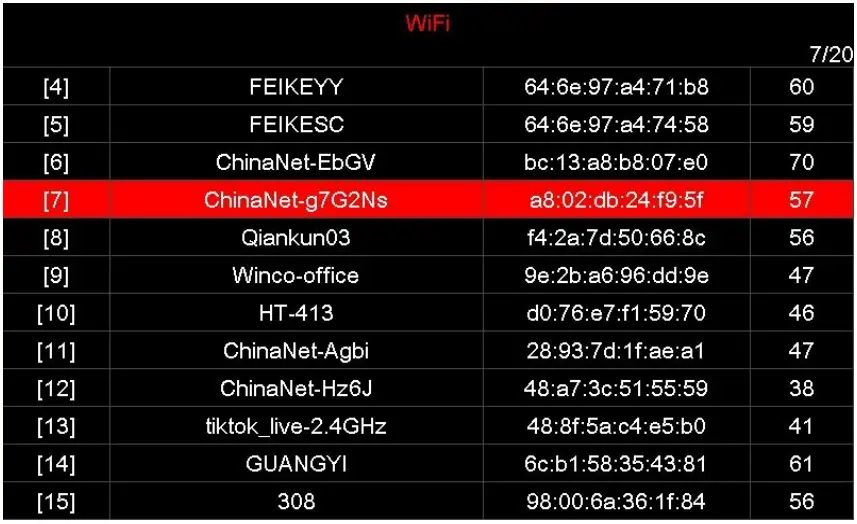
Step4. Use ▲▼ to select your WiFi name, then press [OK] button.
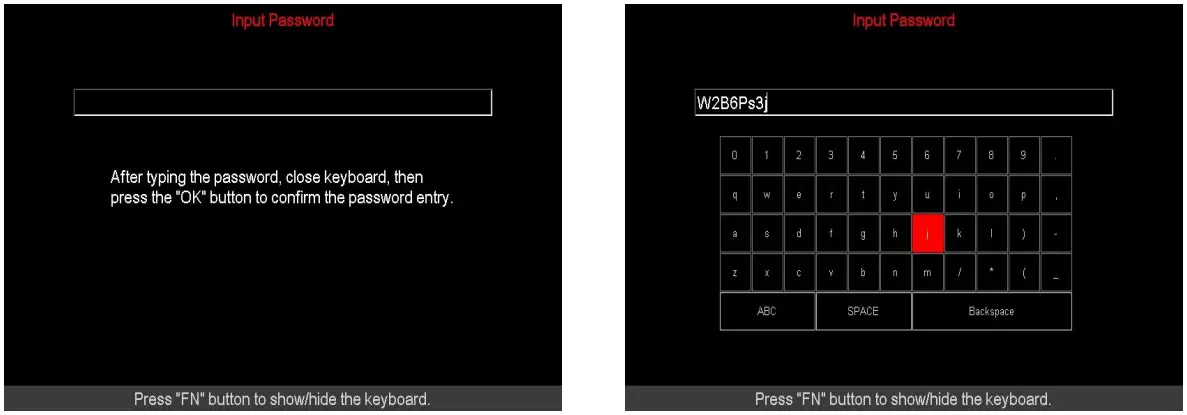
Step5. Press [FN] button to show the keyboard, then type WiFi password.
After typing the password, press [FN] again to close the keyboard, then press [OK] button.
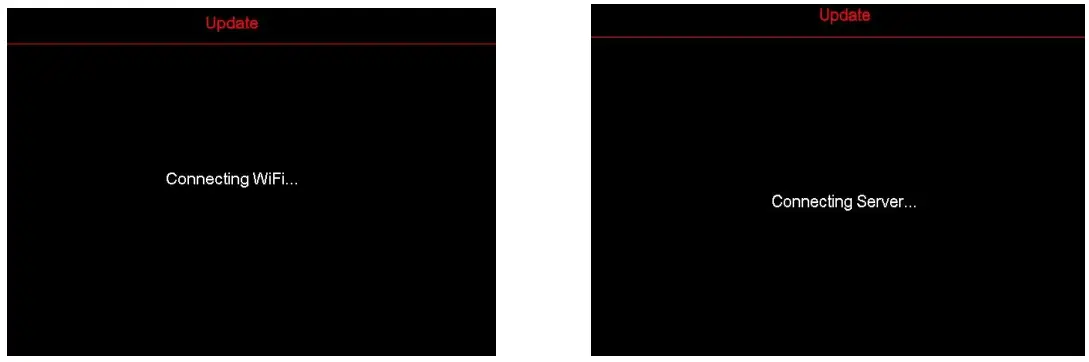
Step6. Connect WiFi and Server, just wait.
Step7. Use▲▼to move the cursor to the vehicle you want to update, then press [FN] button to select (tick) it. Repeat this to select multiple vehicles.
After choosing the vehicles, press [OK] button.
Tips: Long press [FN] button to select/unselect all vehicles at one time.

Step8. During the software update process, just wait.
After the update is complete, press [OK] button.

IFIX-750 Software Update — Via USB
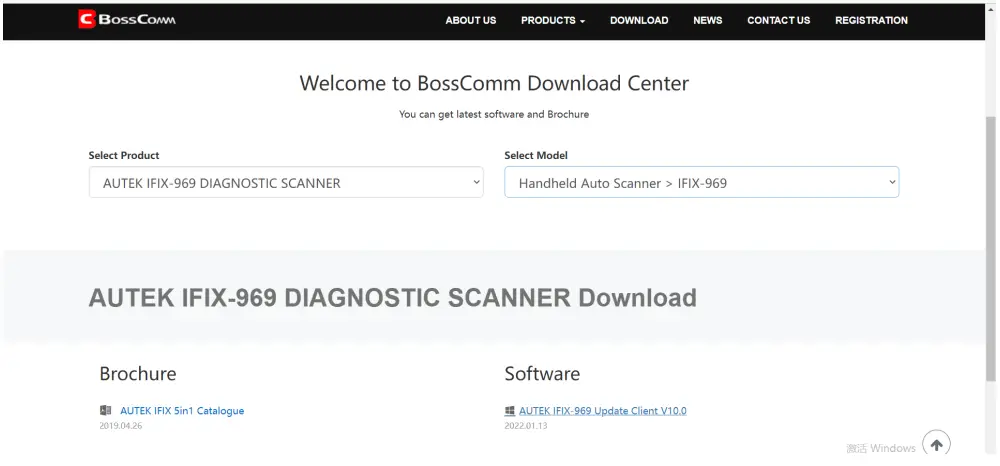
Step1. Go to http://www.autektools.com/support/download to download the update client “IFIX-Series Update Client V10.0”.
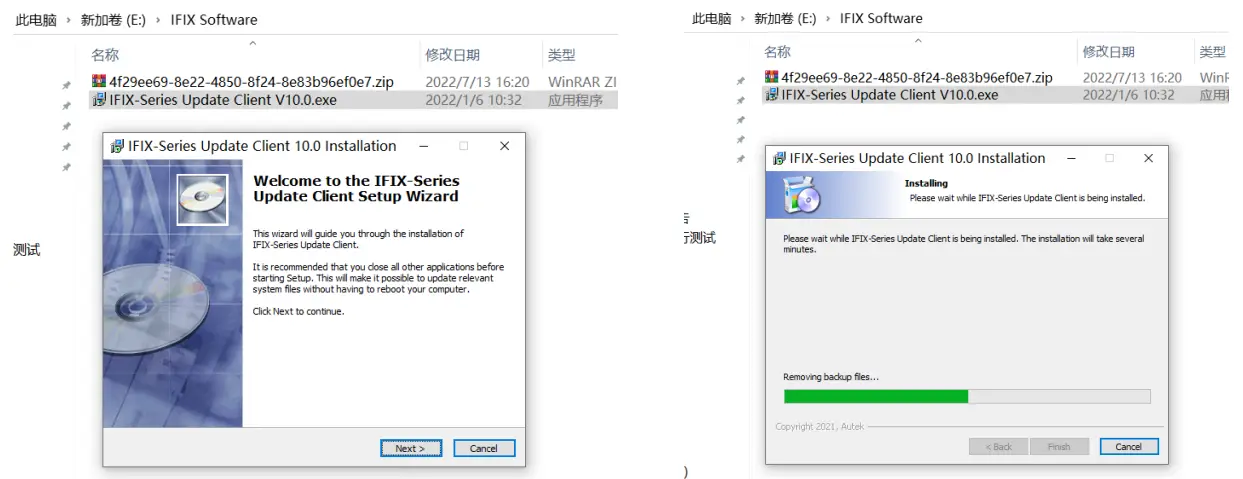
Step2. Double click the “IFIX-Series Update Client V10.0.exe” , then press [Next] /[Next]/[Install]/[Finish] to install the update client on your PC.
Step3. Connect the IFIX-750 device to PC with the USB cable.
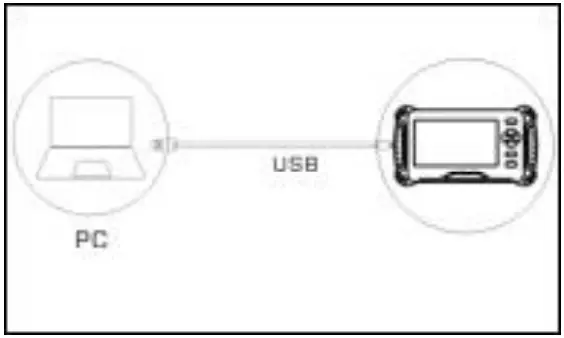
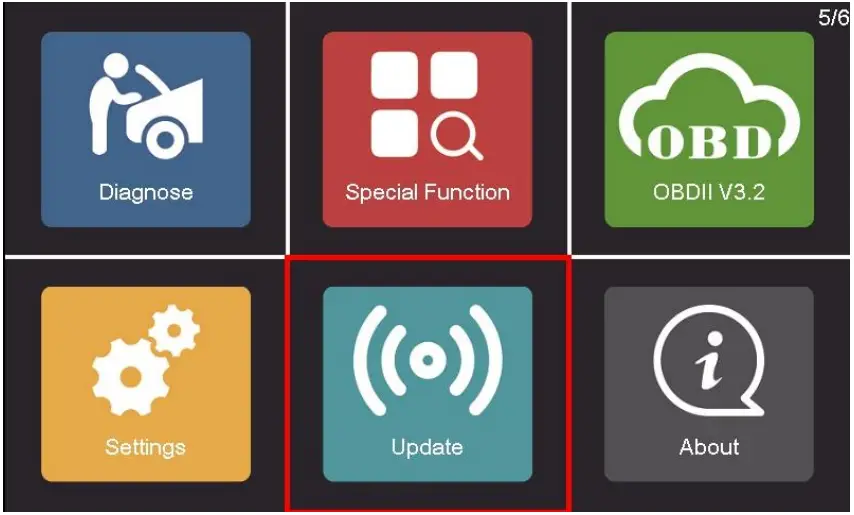
Step4. Use ▲▼◀▶ to move the cursor to [Update], then press [OK] button.
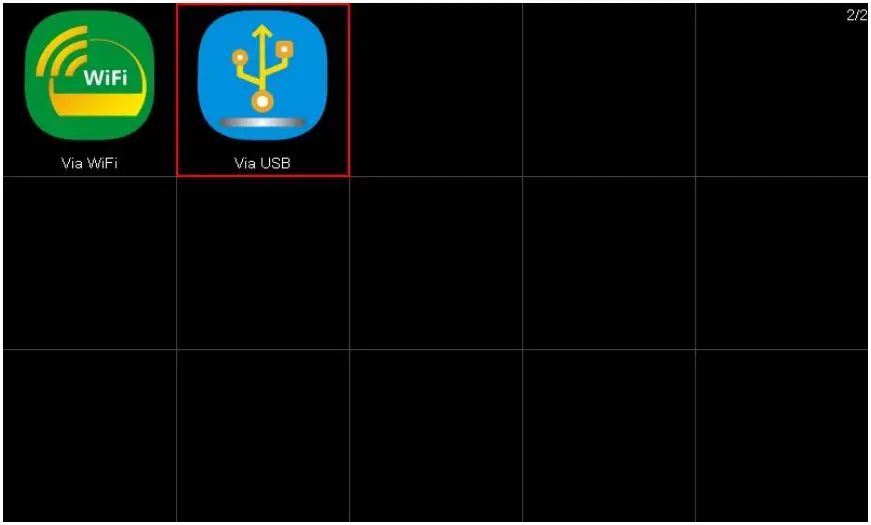
Step5. Use ◀▶ to move the cursor to [Via USB], then press [OK] button.
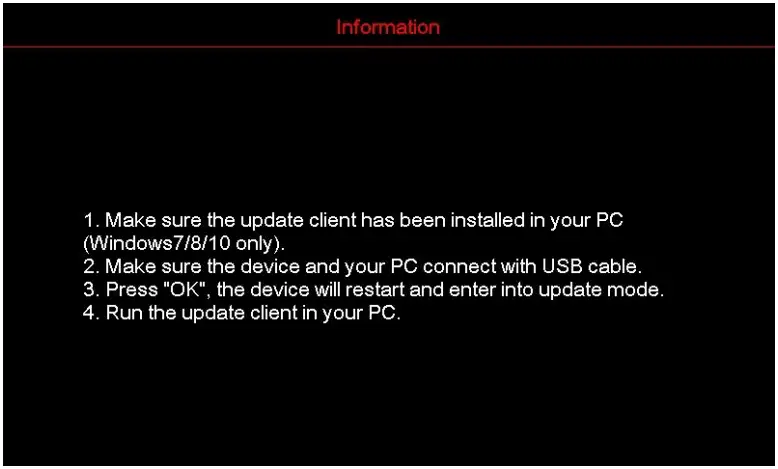
Step6. Please read the USB update instructions carefully, then press [OK] button, IFIX-750 device will reboot and access the USB update mode.
Step7. Please keep the IFIX-750 device in USB update mode, no action is required on the IFIX-750 device.

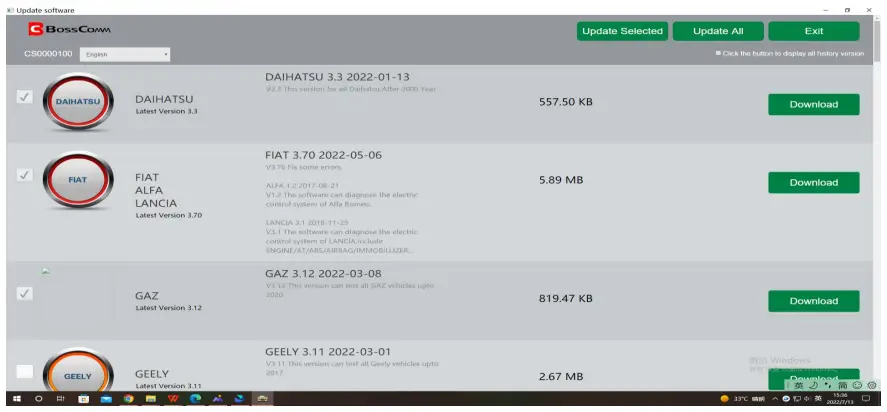
Step8. Run the update client “IFIX-Series Update Client V10.0.exe” on your PC.

Step9. Use [Download] to update one vehicle.
Use [Update Selected] to update the vehicles selected.
Use [Update All] to update all vehicles.
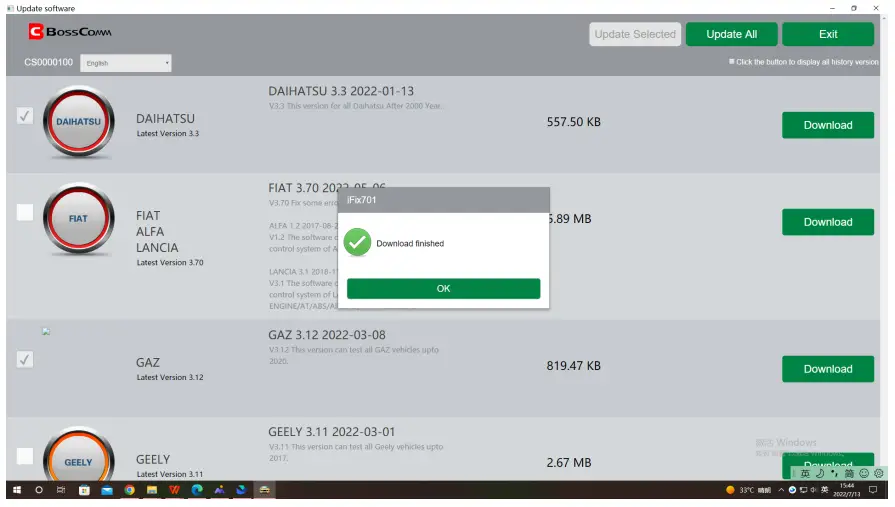
Step10. After the update is complete, disconnect the device from the PC.
The End
Thanks
 DownLoad