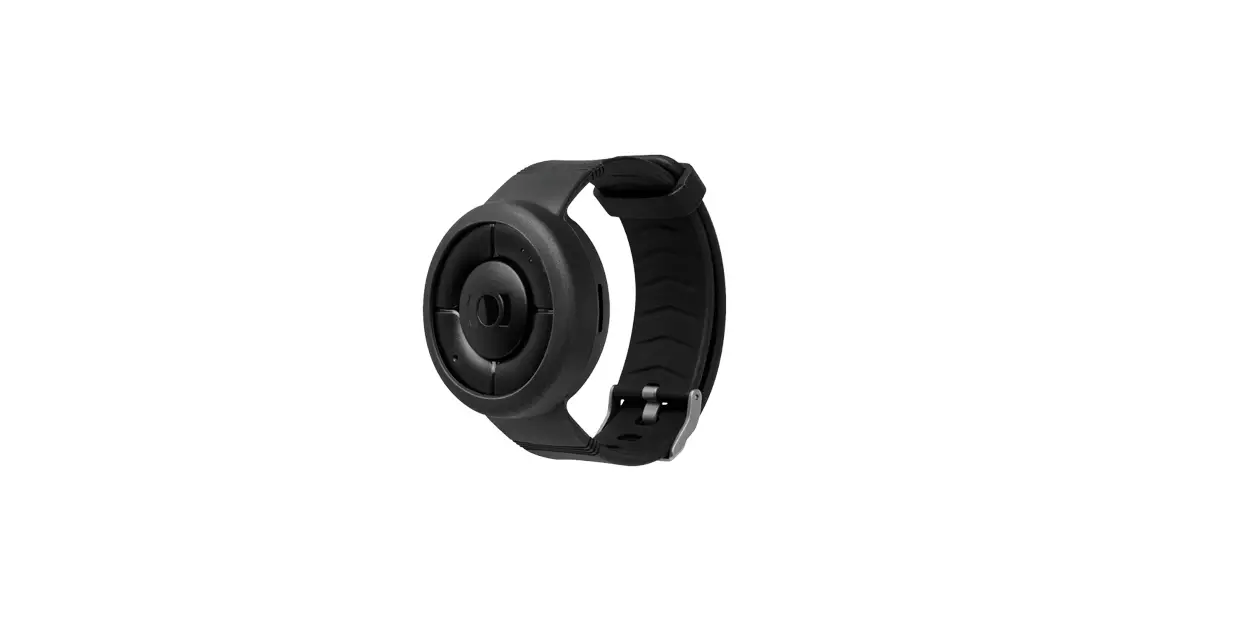
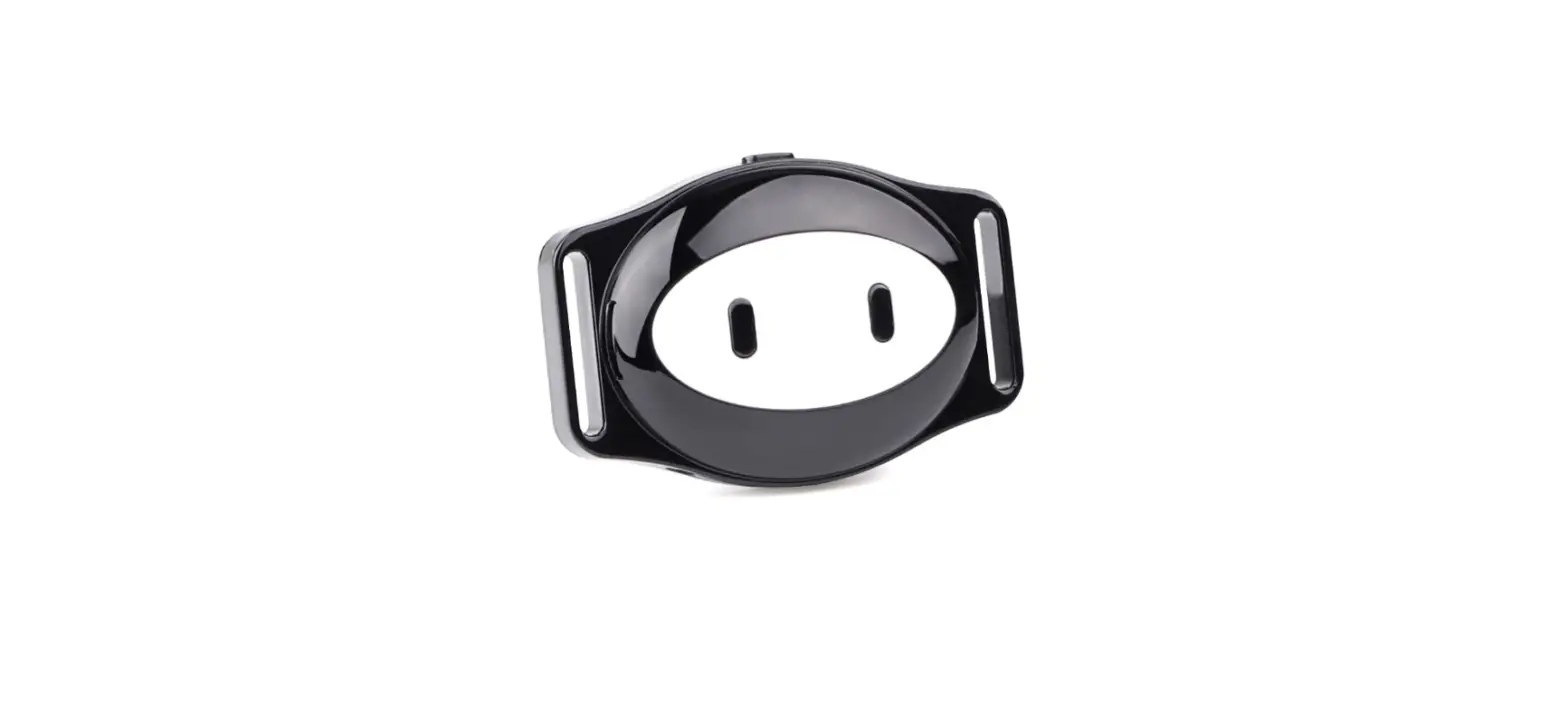
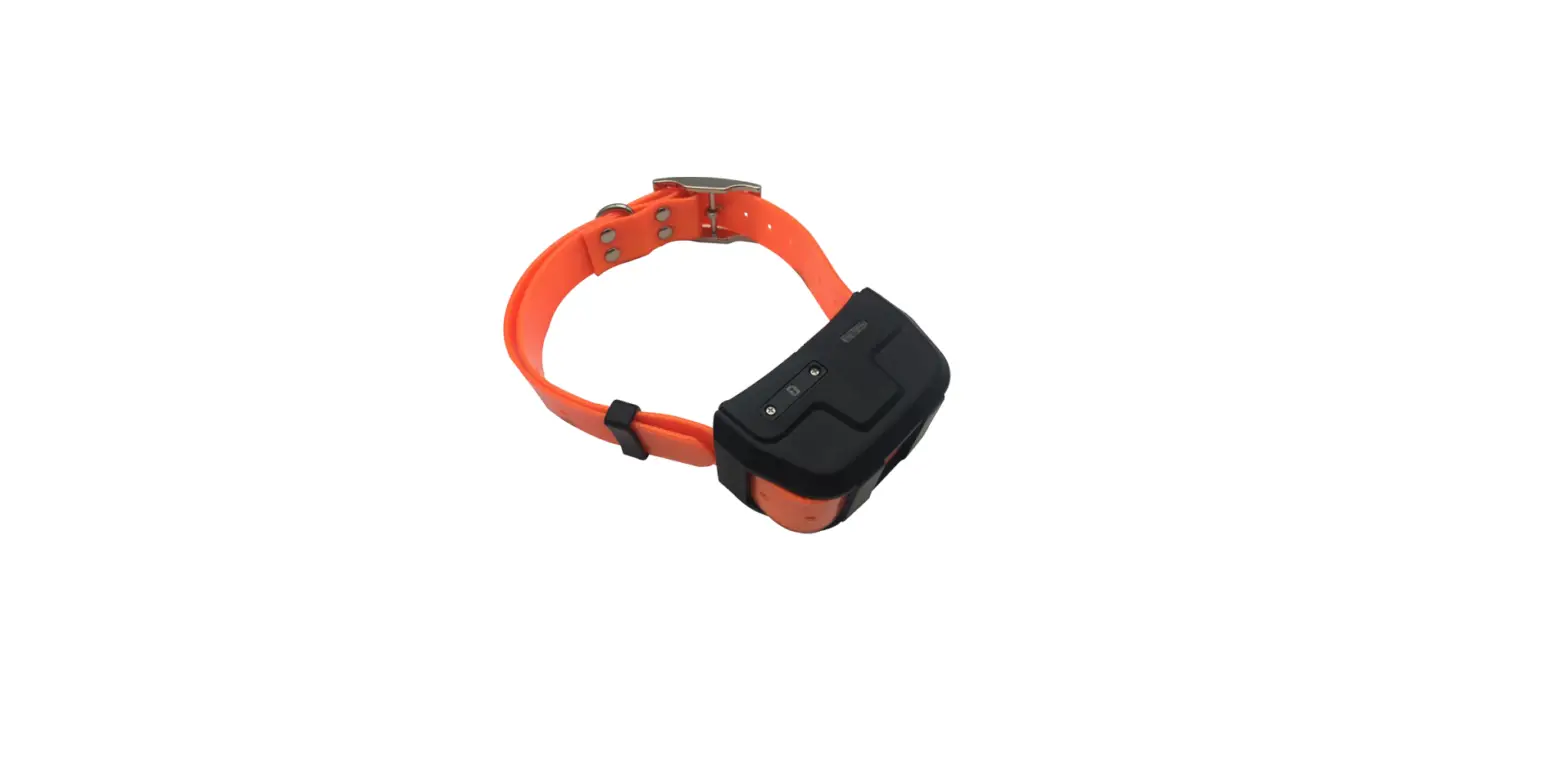
Rex Hunting Dog Tracker
Product Information:
The MiniFinder Rex is a smart device designed to help you
monitor, protect, and locate your animal at all hours of the day.
It offers real-time tracking, the ability to view position history,
and is completely waterproof for use in all weather conditions. The
package includes the MiniFinder Rex device, a USB-C charging cable,
and a bark detector.
Key Features:
- Real-time tracking
- Position history viewing
- Waterproof design
- Bark detection
Package Contents:
- MiniFinder Rex device
- USB-C charging cable
- Bark detector
Product Usage Instructions:
Charging:
Before using your MiniFinder Rex for the first time, it is
recommended to charge the unit for 3 hours. Connect the device to a
power source using the provided USB-C charging cable. While
charging, the red LED will blink slowly every 3 seconds. Once the
battery is fully charged, the red LED will stay solid.
Power On/Off:
To turn on the MiniFinder Rex, press and hold the On/Off button
until it vibrates and the LED starts blinking. To turn off the
device, hold the On/Off button for 10 seconds until the LED shuts
off.
Mobile App:
To enhance your hunting experience and access additional
features, download the MiniFinder Hunter app on your mobile phone.
You can find the app by clicking on the respective links below:
- Apple: https://apple.co/jfyds
- Android: https://play.co/jfyds
App Overview:
Once you have downloaded the app and created an account, you
will be presented with an app overview. This overview provides
access to various functions that enhance your hunting experience.
You can find the app overview on the right-hand side of your
screen.
To access the quick menu, click on the orange MiniFinder button.
This will allow you to quickly access key features such as the Tag
function, Hunting grounds, and Teams. There is also another menu
located in the top left-hand corner of the screen, where you can
access your profile, devices, licenses, subscription, and help
function.
Profile Settings:
To modify or add information to your profile, click on the menu
located in the top left corner of the screen and select Profile.
This will take you to the Profile settings where you can easily
make changes to your personal information, update your profile
picture, or change your password.
Add a New Device:
To add a new device to your account, select Devices from the
menu. This will display a list of devices that have been added to
your account. Click on a specific device from the list to access a
dropdown menu. Within the dropdown menu, you will find options such
as Show on map to view your dog’s real-time position and Profile
settings for further customization.
rex USER MANUAL
© 2023 MiniFinder® All rights reserved
Thank you!
Thank you for purchasing your MiniFinder Rex, we are absolutely sure you made the right choice. Rex is full of smart features to help you monitor, protect and locate the animal at all hours of the day.
MiniFinder Rex primarily includes the ability to track in real time, but it’s also possible to view position history and thereby examine the hunting dog’s movements afterwards. The device is completely waterproof and can be used without any problems in all weather conditions.
Before you start using your Rex, please read this manual in it’s entirety.
Guidance LED-light
On / Off button
Speaker
USB-C socket
Collar attachement
GPS-signal
GSM-signal Microphone
Package contents
1. MiniFinder Rex 2. USB-C charging cable 1
Bark detector Power-signal
2
LED lights
Green LED
1 sec 3 sec 3 sec
Blue LED
1 sec 3 sec
Red LED
1 sec 3 sec
Slow blink = Searching for GSM network Single blink = Connected to GSM network Double blink = Connected to GPRS network Stedy light = No or faulty SIM card
Slow blink = Searching for GSM network Single blink = Connected to GSM network Double blink = Connected to GPRS network Stedy light = No or faulty SIM card
Slow blink = Searching for GSM network Single blink = Connected to GSM network Double blink = Connected to GPRS network Stedy light = No or faulty SIM card
Product management
Before using your Rex for the first time, it’s recommended to charge the unit for 3 hours. While charing, the red LED will blick slowly every 3 seconds. Once the battery is fully charged, the red LED will stay solid. To turn on the unit, press the On/Off button until it vibrated and the LED starts blinking. To turn off the unit, hold the On/Off button for 10 seconds until the LED shuts off.
Download MiniFinder Hunter
Introducing MiniFinder Hunter, the latest online community created exclusively for hunters across the globe. With our innovative app, you can now easily monitor you dog’s location and seamlessly communicate with your hunting team during your hunting session! Thanks to MiniFinder Hunter, you can effortlessly track your hunting dog and team members in real-time. The app comes loaded with features such as hunting grounds, tag placement, hunting teams and invitations to hunts. Navigate the forest effortlessly with your team by using the five different map types and compass built into the app. Following your hunting session, you can quickly access the post-hunt history. Gain insight into where your dog has been by the re-play function and re-live the best moments from the hunt. Our app has answers to many of your hunt questions, and it’s free! Get started today by downloading the MiniFinder Hunter app from either the Apple App Store or Google Play. Simply search for “MiniFinder Hunter” and join our community of hunters worldwide.
If you read this user manual on your mobile phone, please click on the link below to download.
Apple: https://apple.co/jfyds
Android: https://play.co/jfyds
App overview
Once you have downloaded the app, the initial step is to create an account. Simply input your email address and a password to get started. Once logged in, you will be presented with an app overview, which is displayed on the right-hand side of your screen. Within the overview, you will find a plethora of functions that will enhance your hunting experience, making it both more efficient and secure. In this manual, we will delve into some of the features offered by the app.
Menu
To access the quick menu, simply click on the orange MiniFinder button. This will allow you to quickly access key features such as the Tag function, Hunting grounds, and Teams. Additionally, there is another menu located in the top left-hand corner of the screen. By clicking on this menu you access your profile, devices, licenses, subscription, and help function.
Profile settings
To modify or add information to your profile, simply click on the manu located in the top left corner of the screen and select “Profile”. This will take you to the Profile settings where you can easily make changes to your personal information, update your profile picture or change your password.
Add a new device
To add a new device to your account, navigate to the menu located in the top left corner of the screen and select Devices. From there, click on Add new device. You will now have the option to scan the barcode on your MiniFinder Rex package to automatically populate the IMEI number. Alternatively, if the package is not available, you can manually input the IMEI number. Next, you can choose a name for you device, update the profile picture, and select a color. Once you have completed these steps, simply click Save and your new device will be added to your account.
Device list
To access a list of devices that have been added to your accout, select Devices from the menu. This will display a comprehensive list of your registered devices. By clicking on a specific device from the list, a dropdown menu will appear. Within the drop-down menu, you will find two options. The first is Show on map, which will take you to the map where you can view your dog’s real-time position. The second option is Profile settings, which we will explore in the next chapter.
Device profile settings
The Device profile settings section allows you to input specific information regarding you dog, such as its breed, date of birth, and wight. Furthermore, you can choose a different dog icon or upload a profile picture. Once you have completed these steps, simply click Save to save your changes.
Device panel
The Device panel provides valuable insights into your dog’s movement patterns. To access it, simply click on your dog’s profile on the map.
From here, you can identify the dog’s speed, distance and BPM, barks per minute. Share your dog’s position, view its history and change the color of the trail. Additionally, clicking on the top section of the Device Panel, will prompt a drop down menu that provides access to View Profile and Settings. View profile displays the settings you entered for you dog in the previoes chapter, while Settings will be discussed in the following paragraph.
Device settings
Clicking on Settings in the Device panel will take you to a page where you can adjust various settings to further enhance your hunting expereience. The settings are divided into two parts: the first section contains the overall settings for the app. The second section is called Show in profile. Enabling these settings will make them appear in the Device panel, allowing you to quickly access commands during the hunt.
Hunting grounds
To create a hunting ground, access the Hunting ground function in the quick menu. Mark out the area you want to designate as your hunting ground by placing points on the map and connecting them. Give your hunting ground a name and choose a color before saving. Once you have successfully created a hunting ground, you can then proceed to create a hunting team.
Hunting team
To create a new hunting team, navigate to the teams icon located in the app footer. Click on the Create new team button and enter a team name, add a picture and select or create a hunting ground for the team. Once you’ve completed these steps, you can invite you team members to join your newly created team. If you are a member of multiple hunting teams, you can select which team you want to focus on to prepare for the hunt. Upon selecting a team, you will be taken directly to the designated hunting ground on the map.
Create hunt
To create a hunting event, access the calendar symbol in the footer and select Plan hunt. Here, you can choose the hunting ground, start and end date, and a description of the event. Invitations will be sent to the selected hunters, and the event will automatically appear on the calendar. You will receive notifications when the invited hunters accept or decline your invitaion.
Tags
To access the Tag function, click on the quick menu and select it. Move the crosshair to the location where you want to place the tag. You will be presented with a variety of different tags to choose from. Once you have selected the tag you want to place on the map, add a tag label and additional details to the tag if desired. Click on Save and the tag will appear on the map.
Guides in app
If you prefer a hands-on approach to learning, we’ve included some helpful guides within the app. To access them, simply click on the menu icon in the top left corner of the screen and seletect Help. You’ll find a variety of guides that will walk you through the basic features and functions of the app. Welcome to the MiniFinder Hunter community and happy hunting!
Technical specification
Dimensions Weight System Network Battery Interface GSM band Power source Bluetooth G-sensor Battery life Charging voltage Memory Waterproof LED Guidance LED light Buttons Speaker Microphone Vibration High sensitivity GPS/GLONASS receiver WiFi Necklace Warranty
80 mm x 40 mm x 30 mm 100g MiniFinder Firmware MFLPCTM 4G, LTE-M, CAT-M1, GSM Rechargeable, 2500mAh USB-C
LTE-FDD B1/B3/B7/B8/B20 GSM/GPRS.EDGE 900/1800MHZ
1A ~ 1.5A BLE 5.0 Yes 120h during active use 100 ~ 24aV AC 50/60Hz, Output: 5.0V DC2.0A 16Mb (Flash memory) Yes, IP67 3 indicating GPS, GSM and voltage Yes, 200m range 1 button (on/off) Yes Yes Yes Yes 2.4GHz, 802.11 b/g/n 2.54 cm 3 years
Flash memory
The unit has a built-in 16 MB flash memory. The memory stores GPS information when coverage of GSM networks is emitted (eg in sparsely populated areas, indoors, underground locations, etc.). Stored positioning data is automatically transmitted as soon as GSM coverage is available again. This function depends on the additional service of MiniFinder GO. Contact your dealer for more information.
Safety statement
This equipment has been tested to comply with safety certificate in accordance with the specifications of the standard: EN 60950-1: 2006 + A12: 2011.
Important safety instructions
· Please read these instructions. · Please keep these instructions. · Please follow all instructions. · Please take heed of all warnings. · Do not open the unit. Substances in this product and / or the battery can damage the environment, and / or human health if handled improperly. · Do not tamper with your MiniFinder®. · Do not use abrasive cleaners to clean your MiniFinder®. · Do not put your MiniFinder® in a dishwasher, washing machine or dryer. · Do not expose your MiniFinder® to extremely high or low temperatures. · Do not bring your MiniFinder® into a sauna or a steam bath. · Do not leave your MiniFinder® in the direct sunlight for a long time. · Do not place your MiniFinder® near an open flame. · Do not throw your MiniFinder® in a fire. The battery can explode! · Do not attempt to disassemble a MiniFinder®, it contains non-replaceable components · Never let children under 3 years of age play with MiniFinder®. Small components can be a choking hazard for them.
Built-in battery precautions
· Do not attempt to open the built-in battery by force. · Do not try to replace your MiniFinder® battery. It is built in and can not be replaced. · Please charge the battery in accordance with the instructions provided with this guide. · Use only CE certified charger to charge the battery. NOTE: DO NOT use a so-called “Fast Charger”. · Please charge your MiniFinder® with the help of a certified computer, hub or power supply.
Recycling information
The symbol on the product or its packaging means that this product must be disposed of separately from ordinary household wastes at its end of life. Please be aware that this is your responsibility to dispose the electronic equipment at recycling centers to help conserve natural resources.
 Apple
Apple