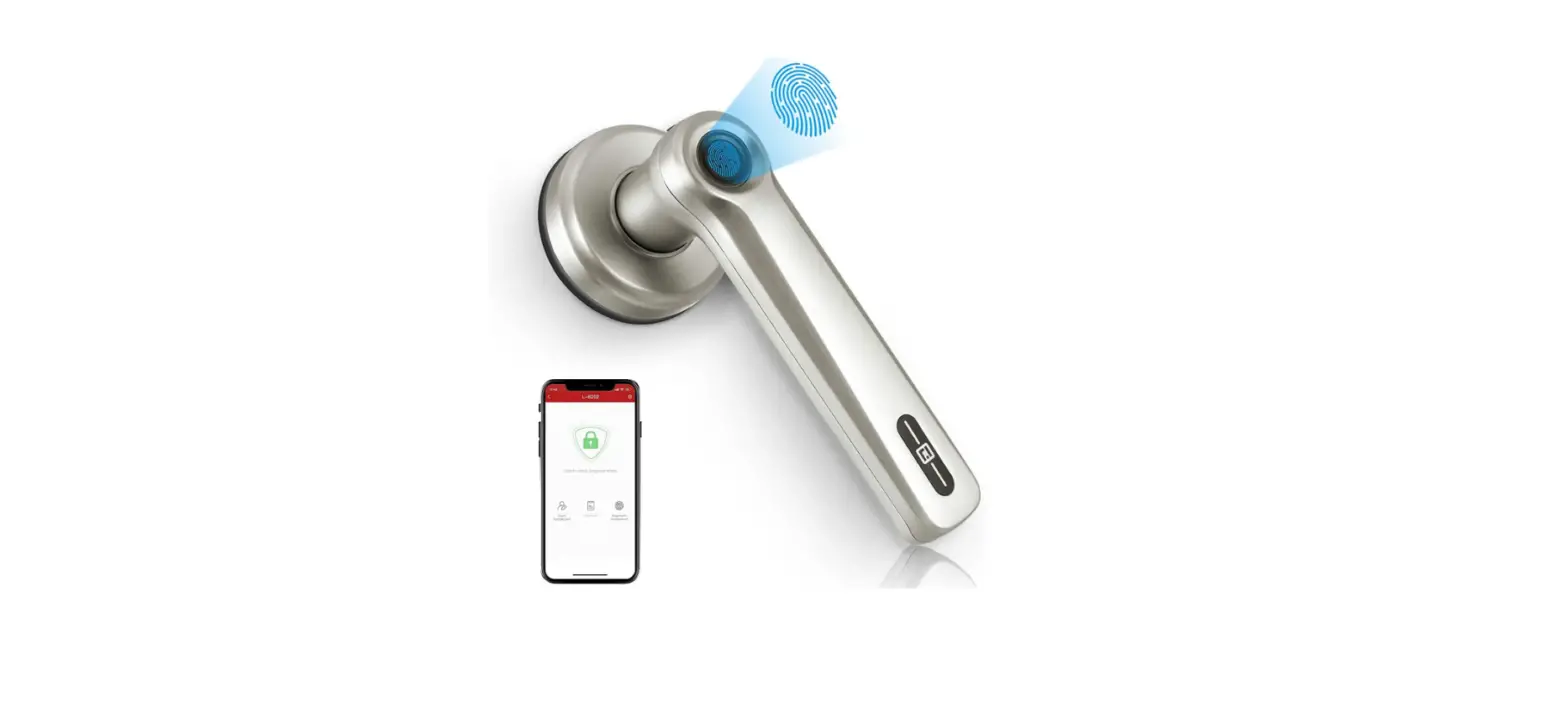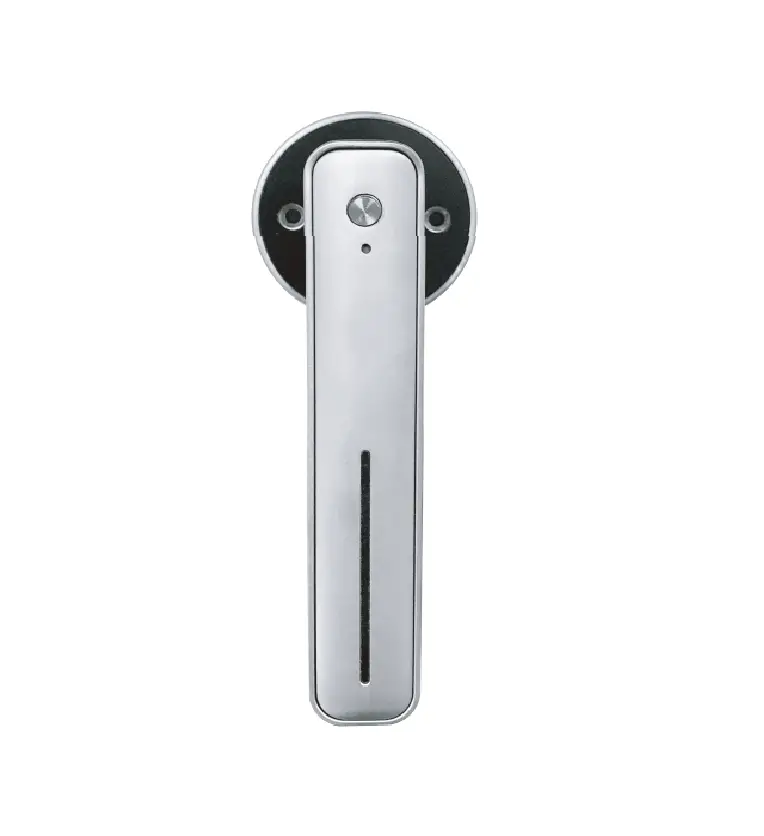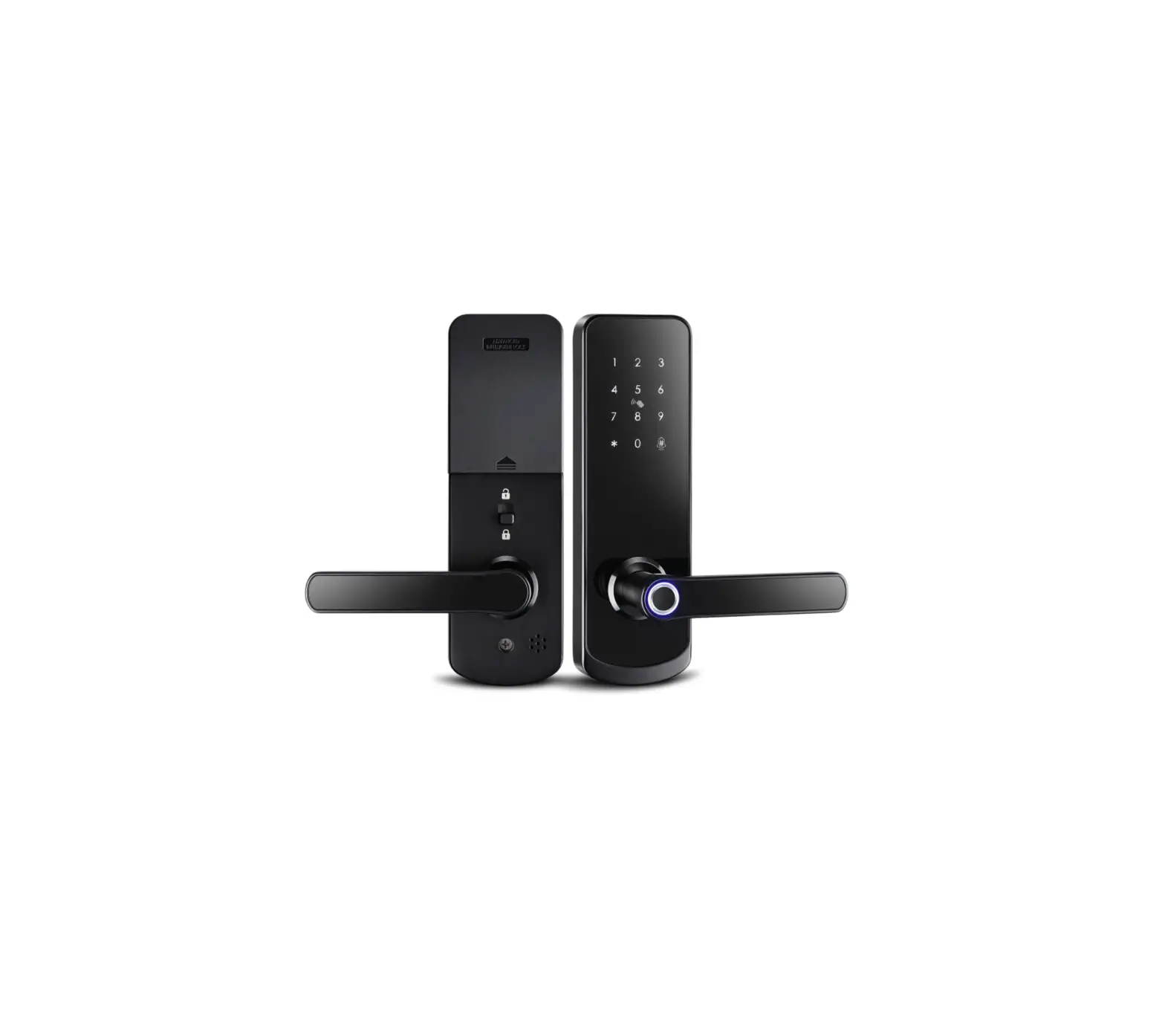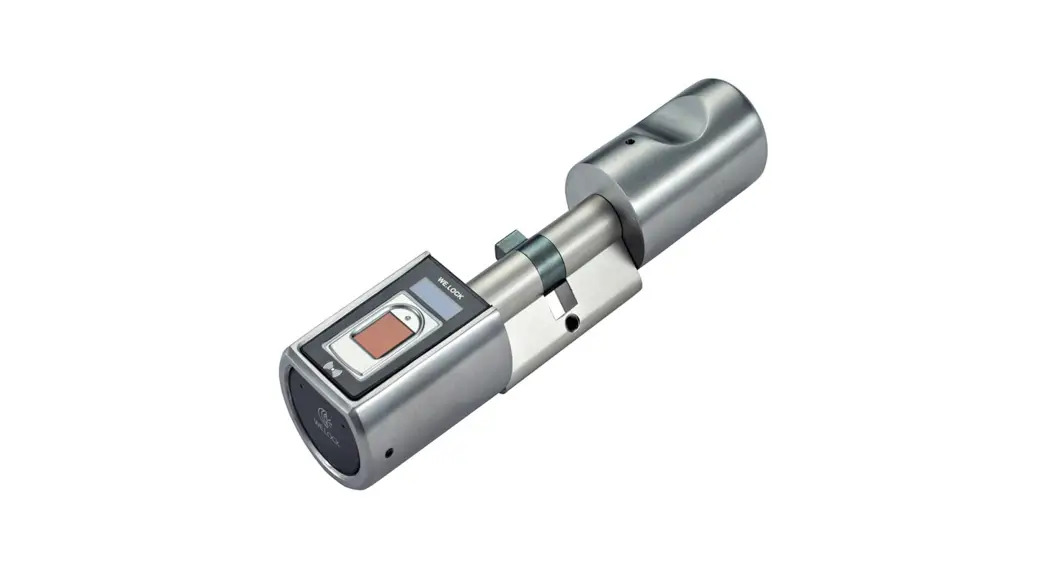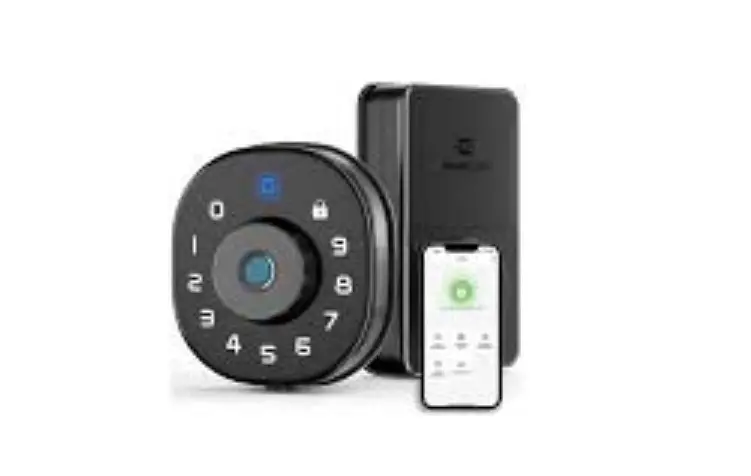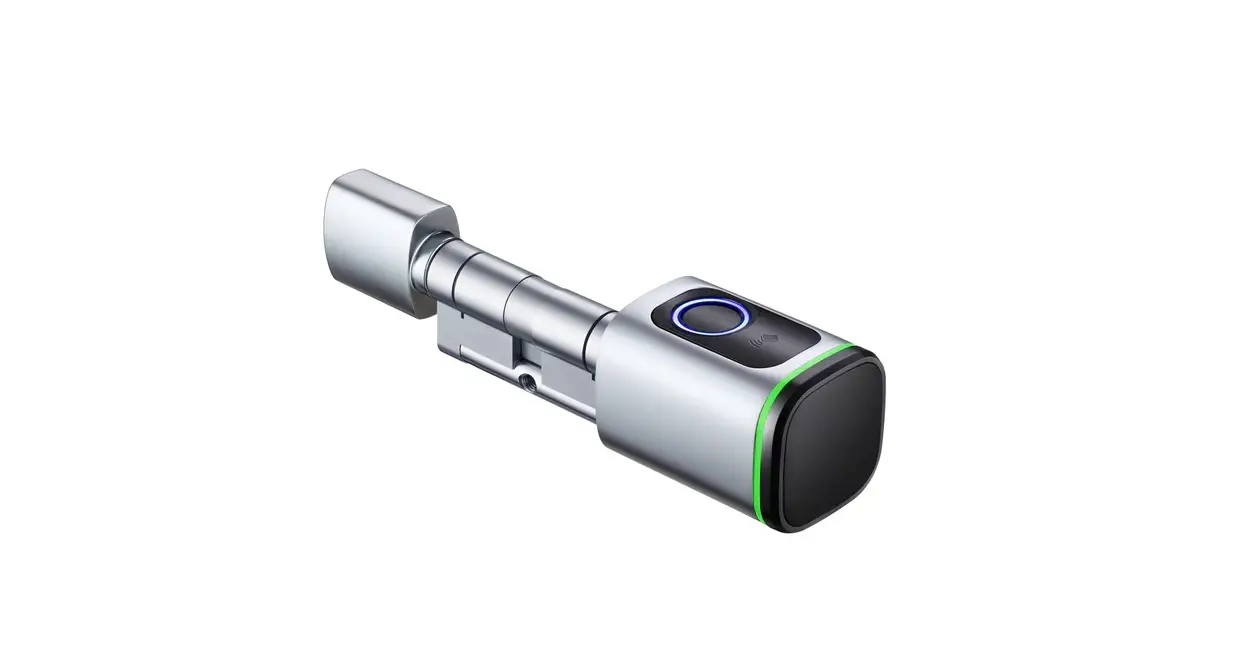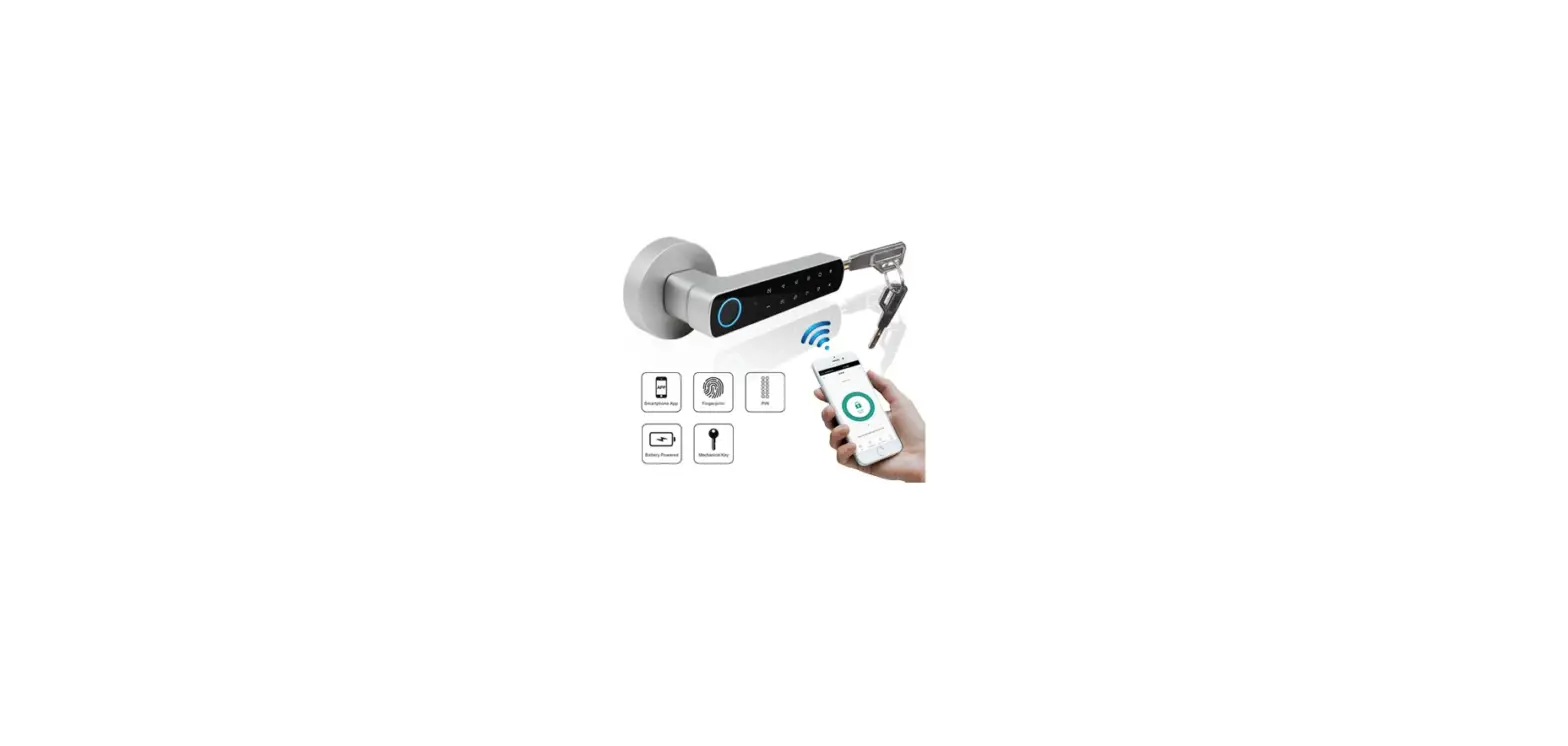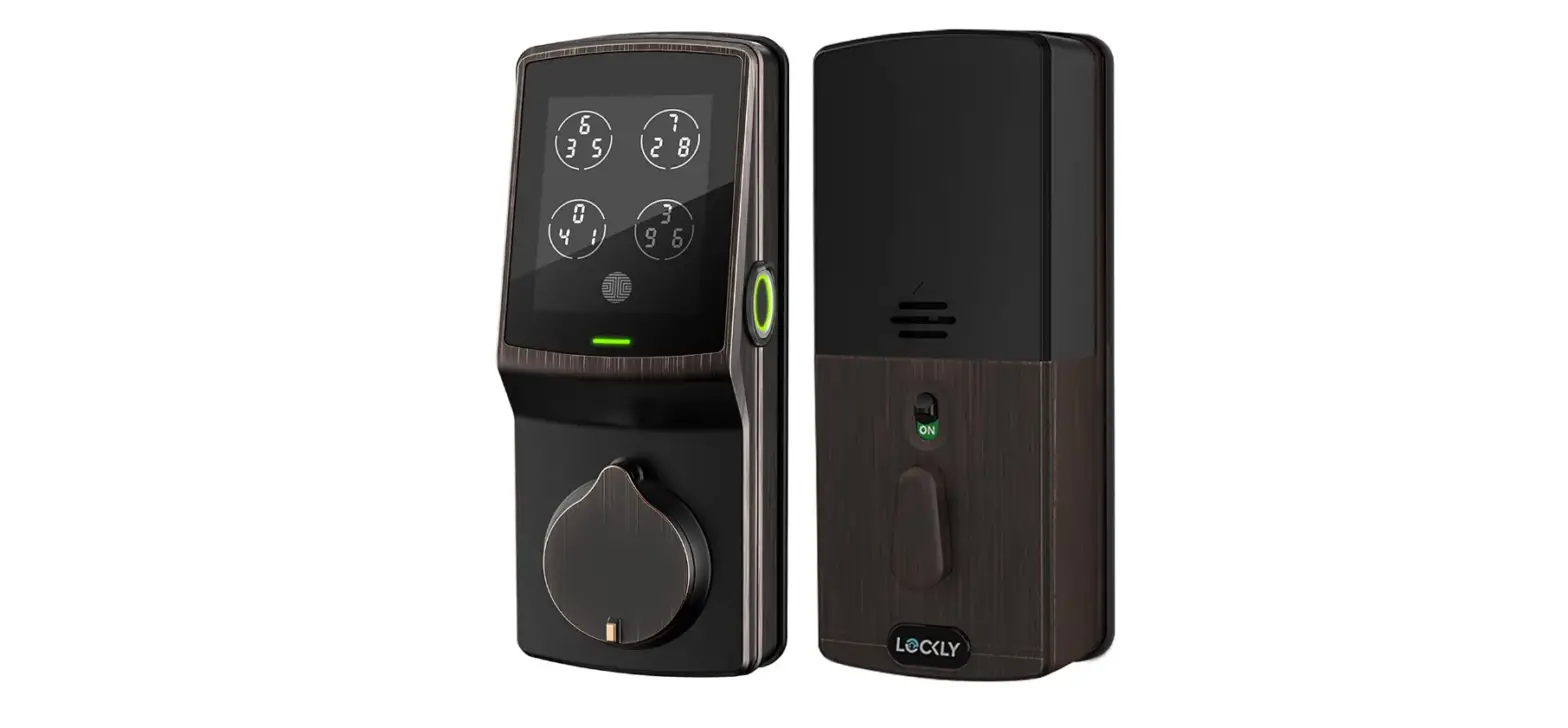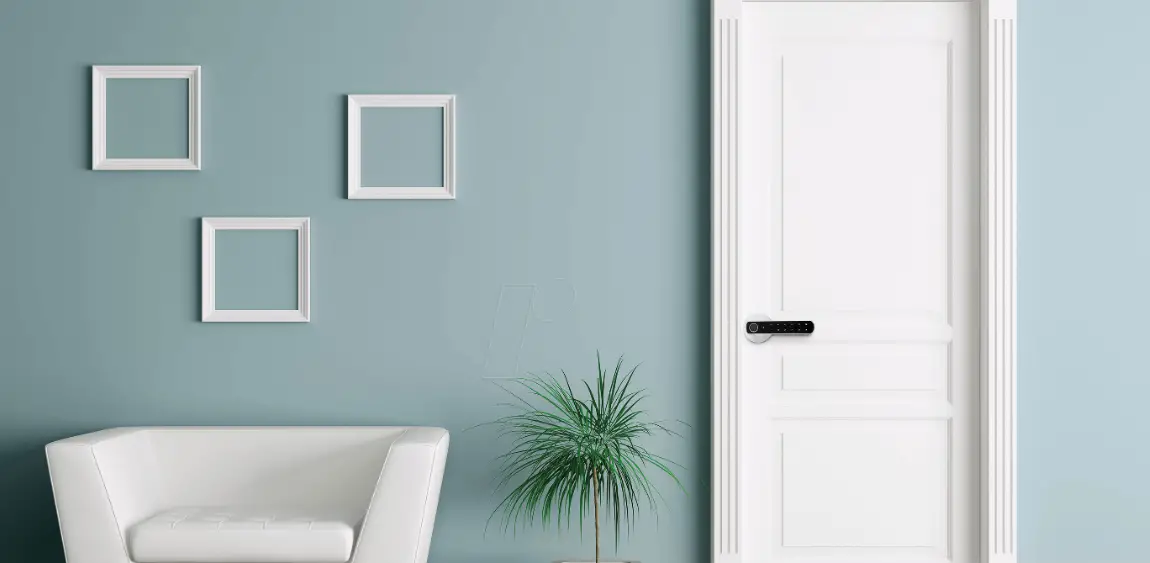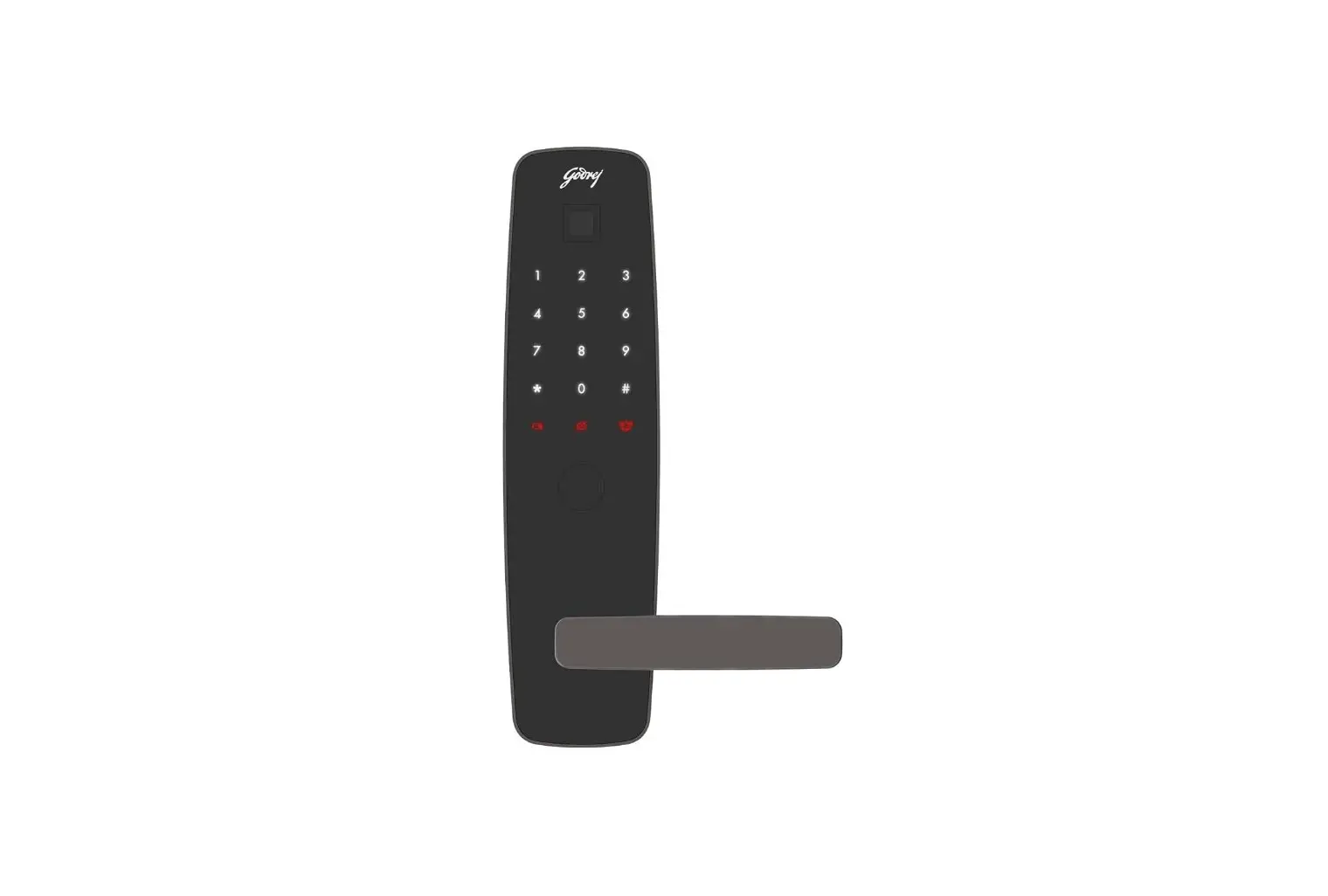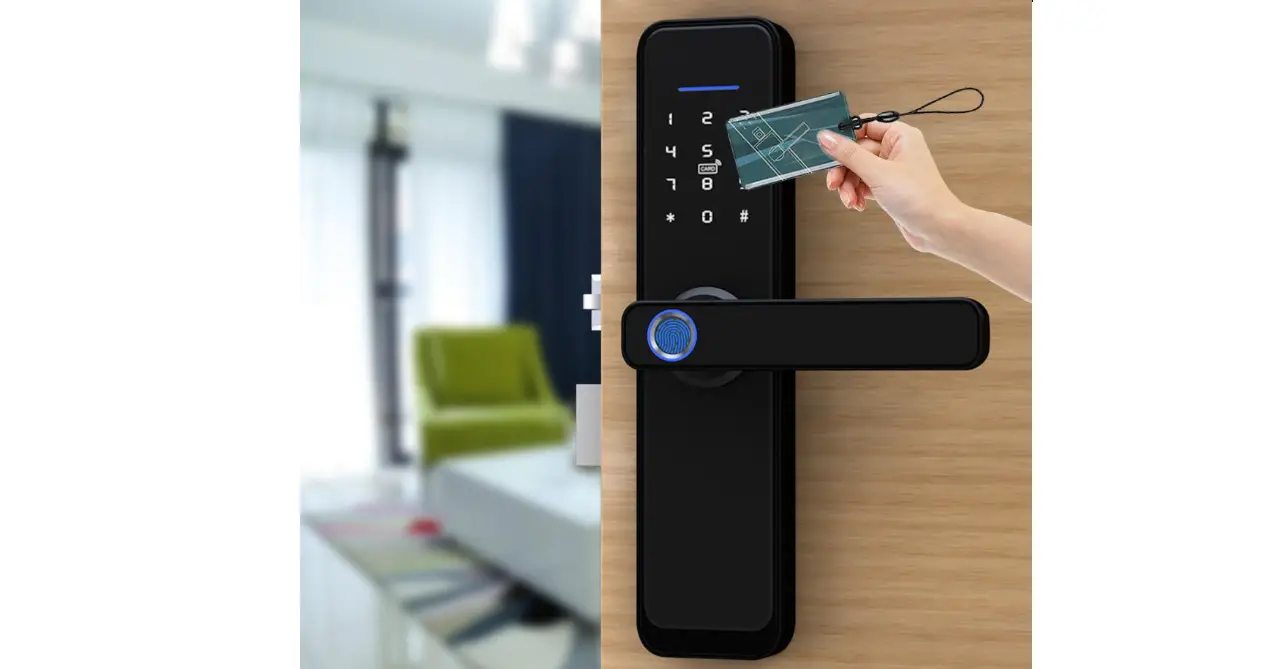

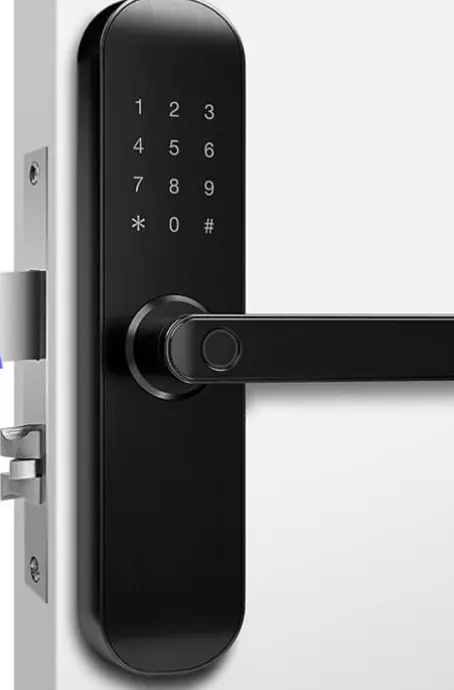
Door Locks DX001 Fingerprint Bluetooth Door Lock
App Use
Download
Download TuyaSmart before adding device, register and log in
Remove Device
The device is bound to the account. If you are not the last owner of the device, please ask the last owner to remove it 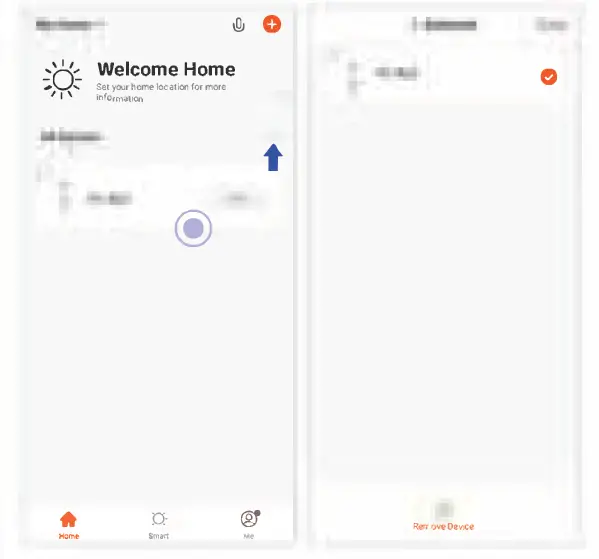
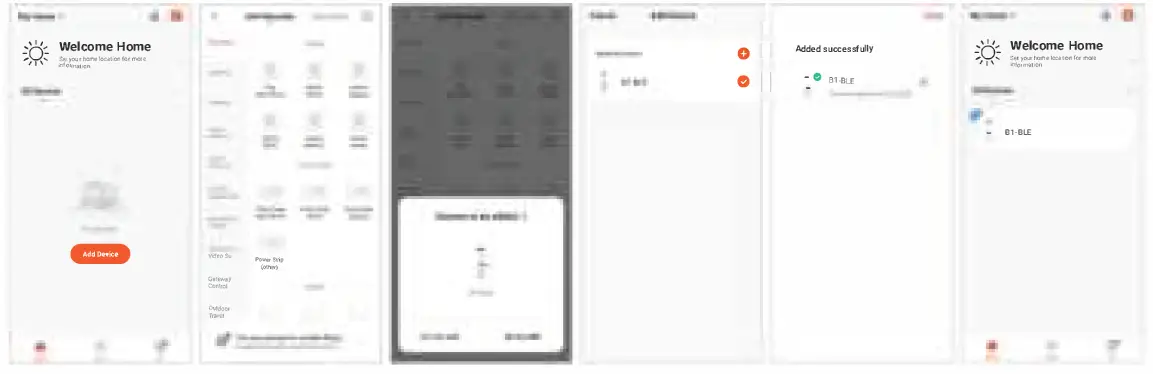
Add Device
Turn on Bluetooth then add device. We recommend that you use your own account to add devices
Multiple User Permissions
Relate accounts to enable your tenants or family members to obtain the permission of app to control the device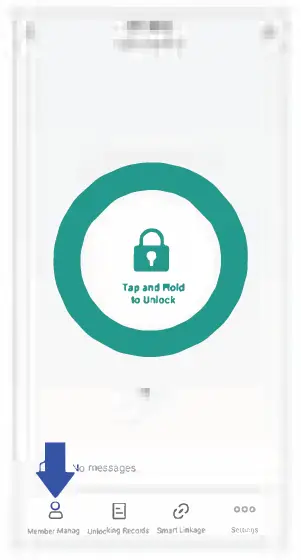
Unlock Records
View electronic unlocking records under different accounts Mechanical unlocking is not recorded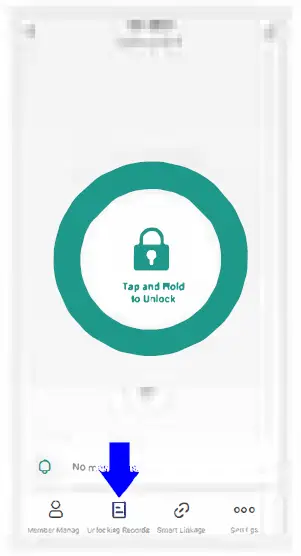
Remote Control{Need tuba Bluetooth gateway)
If you do need remote control, you can get a tuba Bluetooth gateway, add the device to the gateway to control it.
Voice Control{Need tuba Bluetooth gateway)
Support Alexa, you need the amazon account and the amazon voice device for voice control 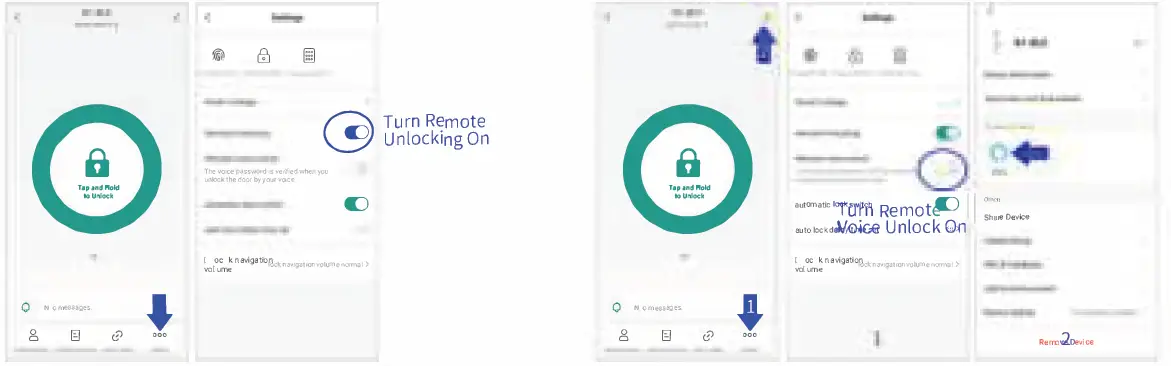
Lock & Unlock
Long press to unlock. Default: Auto lock after electronic unlock in 5 sec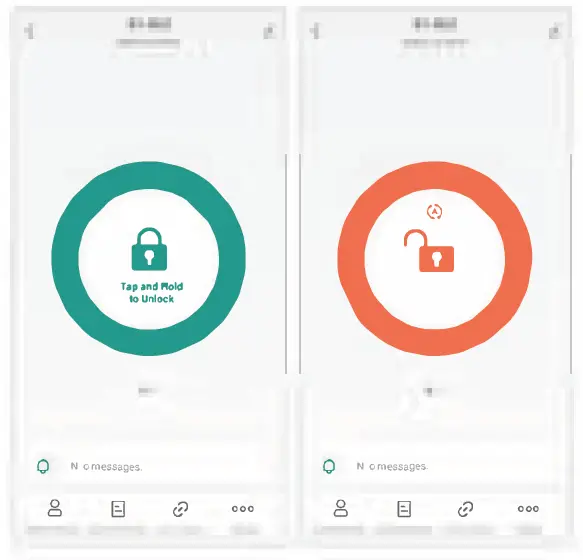
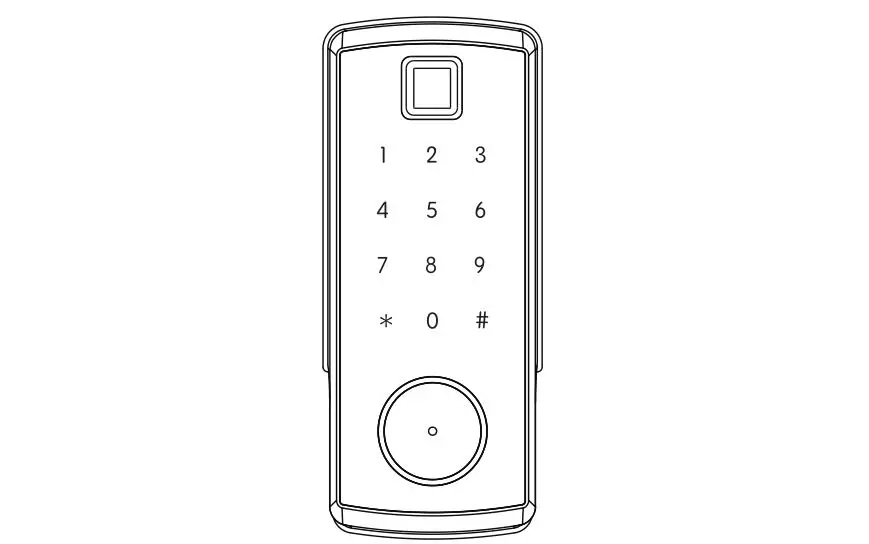
Password & Fingerprint
Slide to obtain dynamic password. In setting page, set fingerprint, passwords and temporary password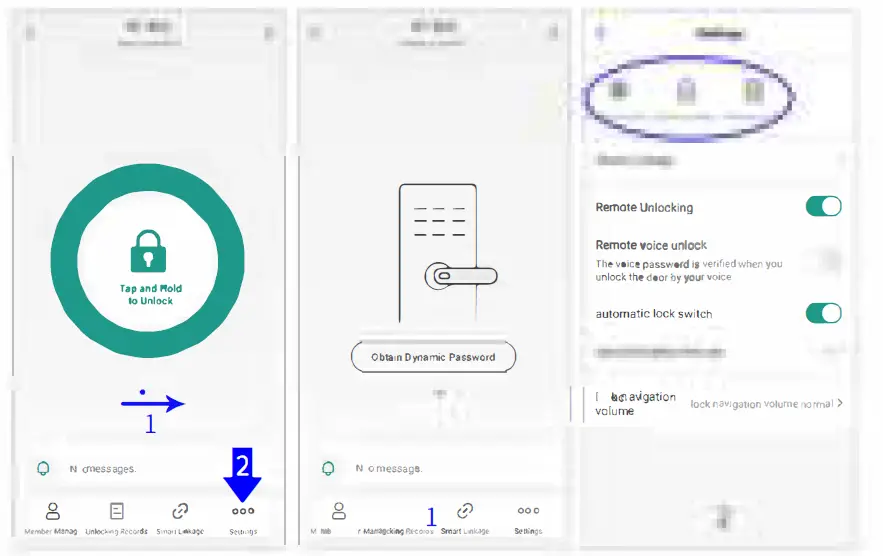
MODEL: DXOOl
Part
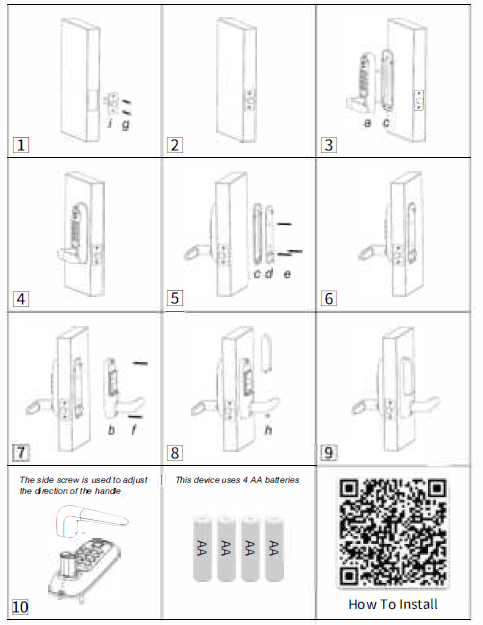
How To Install
Usage Scenario
- When you enter the door
- Fingerprint unlock
- Password unlock
- Bluetooth App unlock
- Remote App unlock
(need extra Bluetooth gateway)
- When you go out
- Handle unlock
- When someone comes
- Handle unlock
- Voice unlock
(need extra Bluetooth gateway and amazon voice device) - Bluetooth App unlock
- Remote App unlock
(need extra Bluetooth gateway)
- When someone needs a single unlock
- Set in app, slide to obtain dynamic password
(remote set need extra Bluetooth gateway)
- Set in app, slide to obtain dynamic password
- You are the landlord or you wat to share the permission
- Check the member management in app and add members
- You no longer use this lock, and others use your lock
- No need to reset, in app main page, press and hold to remove the device
- When need to unlock in rain or cold days
- Use password or app Bluetooth unlock.
(The fingerprint function may not work stably in this case)
- Use password or app Bluetooth unlock.
When the installation is complete, turn to the back and use the app to set up the device.
FCC CAUTION
This device complies with part 15 of the FCC Rules. Operation is subject to the following two conditions: (1) This device may not cause harmful interference, and (2) this device must accept any interference received, including interference that may cause undesired operation. Any Changes or modifications not expressly approved by the party response Dale for compliance could void the user s authority to operate the equipment.
Note: This equipment has been tested and found to comply with the emits for a Class B digital device, pursuant to part 15 of the FC Rules. These limits are designed to provide reasonable protection against harmful interference in a residential installation. This equip mint generates uses and can radiate radio regency energy and, it not installed and used in accordance with the instructions, may cause harmful interference to radio communications. However, there is no guarantee that interference will not occur in a part Ocular installation. If this equipment does cause harmful interference to radio or television reception, which can be determined by turning the equipment oft and on, the user is encouraged to try to correct the intel Terence Dye one or more or the following measures -Reorient or relocate the receiving antenna. increase the separation between the equipment ang receiver -Connect the equipment into an outlet on a circuit different from that to which the receiver IS Connected. -Consult the dealer or an experienced radio/TV technician for help
This equipment complies with FCC radiation exppsure.limits sęt forth for an uncontrolled envirodment. This equipment should be installed and operated with minimum distance 2Ocm between’the radiator & your body.