UG548 Simplicity Link Debugger
Product Information:
The Simplicity Link Debugger is a lightweight tool designed for
debugging and programming Silicon Labs devices on custom boards. It
enables programming and debugging on a target device over USB,
through Silabs’ Mini Simplicity interface. The debugger also
features a virtual COM port interface (VCOM) for easy-to-use serial
port connections over USB. Additionally, the Packet Trace Interface
(PTI) provides valuable debug information about transmitted and
received packets in wireless links. The tool includes a power
switch that allows for debugging target boards without external
power connections or batteries. It also has 12 breakout pads that
can be used for probing signals to and from the connected
board.
Features:
- Lightweight tool for debugging and programming Silicon Labs
devices - Supports programming and debugging over USB
- Includes virtual COM port interface (VCOM) for serial port
connections - Offers Packet Trace Interface (PTI) for debug information on
wireless links - Power switch for debugging without external power connections
or batteries - 12 breakout pads for probing signals
Supported Debug Protocols:
N/A (Not provided in the text extract)
Software Support:
N/A (Not provided in the text extract)
Ordering Information:
N/A (Not provided in the text extract)
Package Content:
N/A (Not provided in the text extract)
Product Usage Instructions:
1. Introduction
The Simplicity Link Debugger is a tool designed to debug and
program Silicon Labs devices on boards equipped with the Mini
Simplicity Interface. It can be used with Simplicity Studio or
Simplicity Commander software tools.
1.1 Getting Started
To start programming or debugging your own hardware, follow
these steps:
- Download the latest version of Simplicity Studio from
silabs.com/developers/simplicity-studio. - Connect the flat cable to your hardware. If your hardware does
not have a suitable connector, you can use the breakout pads and
jumper wires for connection. - Ensure that Segger J-Link drivers are installed. These drivers
are included by default during the installation of Simplicity
Studio, or they can be downloaded directly from Segger.
1.2 Installation
To install the Simplicity Studio and SDK resources, follow these
steps:
- Go to silabs.com/developers/simplicity-studio.
- Download the latest version of Simplicity Studio and SDK
resources, or update your software by opening the Installation
Manager dialog.
UG548: Simplicity Link Debugger User’s Guide
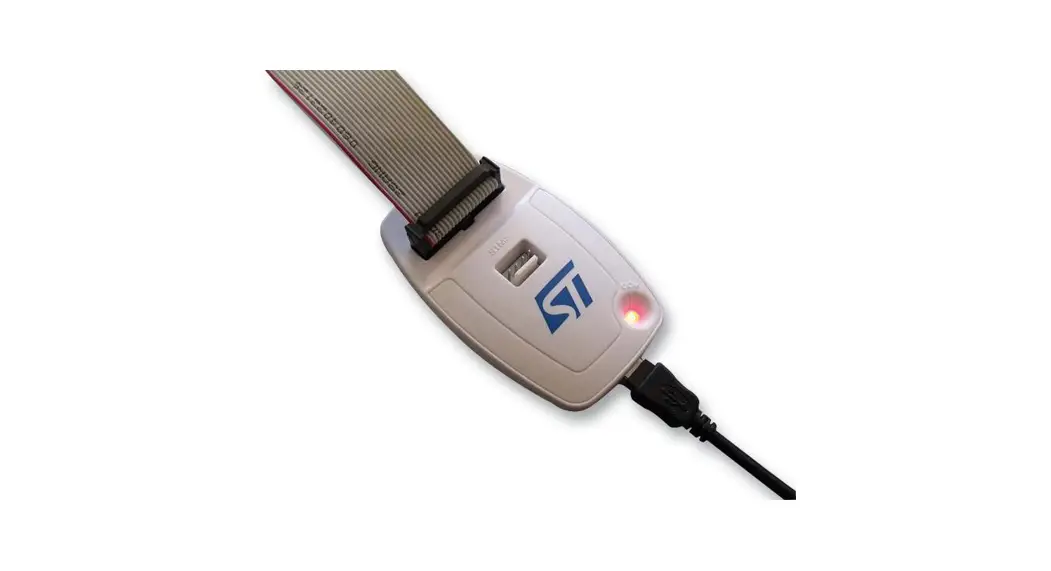
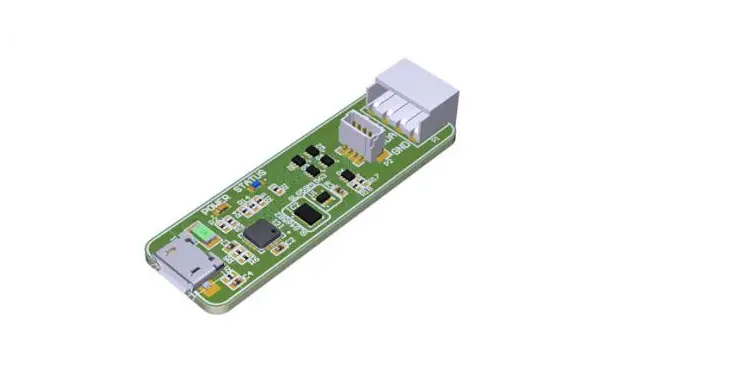
The Simplicity Link Debugger is a lightweight tool for debugging and programming Silicon Labs devices on custom boards.
The J-Link debugger enables programming and debugging on a target device over USB, through Silabs’ Mini Simplicity interface. A virtual COM port interface (VCOM) provides an easy-to-use serial port connection over USB. The Packet Trace Interface (PTI) offers invaluable debug information about transmitted and received packets in wireless links.
A power switch gives the option to debug target boards without external power connections or batteries. The board also has 12 break out pads which can be used for probing signals to and from the connected board.
FEATURES
· SEGGER J-Link debugger · Packet Trace Interface · Virtual COM port · Optional target voltage source · Breakout pads for easy probing
SUPPORTED DEBUG PROTOCOLS
· Serial Wire Debug (SWD) · Silicon Labs 2-Wire Interface (C2)
SOFTWARE SUPPORT
· Simplicity Studio
ORDERING INFORMATION
· Si-DBG1015A
PACKAGE CONTENT
· Simplicity Link Debugger board (BRD1015A)
· Mini Simplicity Cable
silabs.com | Building a more connected world.
Copyright © 2023 by Silicon Laboratories
Rev. 1.0
Table of Contents
1. Introduction . . . . . . . . . . . . . . . . . . . . . . . . . . . . . . . . 3 1.1 Getting Started . . . . . . . . . . . . . . . . . . . . . . . . . . . . . . 3 1.2 Installation . . . . . . . . . . . . . . . . . . . . . . . . . . . . . . . 3 1.3 Custom Hardware Requirements . . . . . . . . . . . . . . . . . . . . . . . . 3
2. Hardware Overview . . . . . . . . . . . . . . . . . . . . . . . . . . . . . 4 2.1 Hardware Layout . . . . . . . . . . . . . . . . . . . . . . . . . . . . . 4 2.2 Block Diagram . . . . . . . . . . . . . . . . . . . . . . . . . . . . . . 4 2.3 Connectors . . . . . . . . . . . . . . . . . . . . . . . . . . . . . . . 5 2.3.1 USB Connector . . . . . . . . . . . . . . . . . . . . . . . . . . . . 5 2.3.2 Breakout Pads . . . . . . . . . . . . . . . . . . . . . . . . . . . . 5 2.3.3 Mini Simplicity . . . . . . . . . . . . . . . . . . . . . . . . . . . . . 6
3. Specifications . . . . . . . . . . . . . . . . . . . . . . . . . . . . . . . 7 3.1 Recommended Operating Conditions . . . . . . . . . . . . . . . . . . . . . . 7 3.2 Absolute Maximum Ratings. . . . . . . . . . . . . . . . . . . . . . . . . . 7
4. Power Supply Modes . . . . . . . . . . . . . . . . . . . . . . . . . . . . 8
5. Debugging . . . . . . . . . . . . . . . . . . . . . . . . . . . . . . . . 9 5.1 Virtual COM Port . . . . . . . . . . . . . . . . . . . . . . . . . . . . . 9 5.2 Packet Trace Interface . . . . . . . . . . . . . . . . . . . . . . . . . . . 9
6. Kit Configuration and Upgrades . . . . . . . . . . . . . . . . . . . . . . . 10 6.1 Firmware Upgrades . . . . . . . . . . . . . . . . . . . . . . . . . . . .10
7. Kit Revision History . . . . . . . . . . . . . . . . . . . . . . . . . . . . 11 7.1 Si-DBG1015A Revision History . . . . . . . . . . . . . . . . . . . . . . . .11
8. Document Revision History . . . . . . . . . . . . . . . . . . . . . . . . . 12
silabs.com | Building a more connected world.
Rev. 1.0 | 2
UG548: Simplicity Link Debugger User’s Guide
Introduction
1. Introduction
The Simplicity Link Debugger is a tool designed to debug and program Silicon Labs devices on boards equipped with Mini Simplicity Interface, using Simplicity Studio or Simplicity Commander software tools.
1.1 Getting Started
To start programming or debugging your own hardware, download the latest version of Simplicity Studio, and connect the flat cable to your hardware. If your hardware does not feature a suitable connector, break out pads might be alternatively used to provide connection by means of jumper wires. Segger J-Link drivers are required. These are installed by default during installation of Simplicity Studio, and they can also be downloaded directly from Segger.
1.2 Installation
Go to silabs.com/developers/simplicity-studio to download the latest version of Simplicity Studio and SDK resources, or simply update your software opening the Installation Manager dialog.
The software user guide is accessible from the Help menu or visiting the documentation pages at:
docs.silabs.com/simplicity-studio-5-users-guide/latest/ss-5-users-guide-overview
1.3 Custom Hardware Requirements
To connect and to take advantage of all debugging features offered by the Simplicity Link Debugger and Silicon Labs software tools, the Mini Simplicity interface needs to be implemented at design stage of the custom hardware. The Single Wire Debug interface is required for programming and basic debug functionality. See table Table 2.1 Mini Simplicity Connector Pin Descriptions on page 6 for connector pinout.
The cable provided with the kit is a 1.27 mm (50 mil) pitch ribbon cable, terminated with 10-pin IDC connectors. To match this and avoid mistakes when connecting the hardware, choosing a keyed connector is recommended, for example Samtec FTSH-105-01-L-DV-K.
Silicon Labs Dev kits and Explorer kits provide implementation examples for specific device packages, which allows one to see how signals are routed between the Mini Simplicity connector and the peripherals on a given target device.
silabs.com | Building a more connected world.
Rev. 1.0 | 3
2. Hardware Overview
2.1 Hardware Layout
J-Link Indicator USB C type
UG548: Simplicity Link Debugger User’s Guide
Hardware Overview
Break Out Pads
Status Indicator Power Switch
Figure 2.1. Hardware Layout
2.2 Block Diagram An overview of the Simplicity Link Debugger is shown in the figure below.
Mini Simplicity Connector Break Out Pads
5V BUS LDO
AUXILIARY POWER
Power Switch
8 Mbit Flash EPROM
(BOARD ID)
Button
VTARGET_EN
LDO VDD
PC10 (I2C0_SCL#14) PC11 (I2C0_SDA#16)
DEBUGGER
VTARGET BUFFER VDD
VTARGET
VTARGET BUFFER
8
8
LED Level Shifters
MINI SIMPLICITY
TARGET PWR TOGGLE
silabs.com | Building a more connected world.
TARGET PWR ON
Figure 2.2. Block Diagram
Rev. 1.0 | 4
2.3 Connectors This section gives an overview of the Simplicity Link Debugger connectivity.
UG548: Simplicity Link Debugger User’s Guide
Hardware Overview
2.3.1 USB Connector
The USB connector is situated on the left side of the Simplicity Link Debugger. All kit’s development features are supported through this USB interface when connected to a host computer. Such features include:
· Debugging and programming of the target device using the on-board J-Link debugger · Communication with the target device over the virtual COM port using USB-CDC · Packet Trace
In addition to providing access to development features of the kit, this USB connector is also the main power source for the kit. USB 5V from this connector powers the debugger MCU and the auxiliary voltage regulator which supports on-demand power to the target device. When using the Simplicity Link Debugger to supply power to the target device, it is recommend that you use a USB host able to source 500 mA.
2.3.2 Breakout Pads
Break out pads are test points placed on the edges. They carry all signals of the Mini Simplicity interface, offer an easy way to probe with external measurement instruments or an alternate connection to debug boards that do not have a suitable connector. The following picture shows the layout of breakout pads in Simplicity Link Debugger:
GND VCOM RX VCOM TX PTI DATA PTI FRAME
GND
VTARGET RST
SWO SWCLK/C2CK
SWDIO/C2D GND
Figure 2.3. Mini Simplicity Connector See table Table 2.1 Mini Simplicity Connector Pin Descriptions on page 6 for descriptions of signal nets.
silabs.com | Building a more connected world.
Rev. 1.0 | 5
UG548: Simplicity Link Debugger User’s Guide
Hardware Overview
2.3.3 Mini Simplicity
The Mini Simplicity Connector is designed to offer advanced debug features through a small 10-pin connector: · Serial Wire Debug interface (SWD) with SWO / Silicon Labs 2-Wire Interface (C2) · Virtual COM port (VCOM) · Packet Trace Interface (PTI)
If needed, the Mini Simplicity interface also support on-demand power to the connected device. This function is normally disabled and the VTARGET pin is used only for sensing.
PTI DATA SWCLK/C2CK
SWO VCOM RX
GND
Mini Simplicity Connector
PTI FRAME SWDIO/C2D
VCOM TX RST
VTARGET
Pin 1
Figure 2.4. Mini Simplicity Connector
Table 2.1. Mini Simplicity Connector Pin Descriptions
Pin Number 1
2 3 4 5 6 7 8 9 10
Function VTARGET
GND RST VCOM_RX VCOM_TX SWO SWDIO/C2D SWCLK/C2CK PTI_FRAME PTI_DATA
Description Target voltage on the debugged application. Monitored or supplied when power switch is toggled Ground Reset Virtual COM Rx Virtual COM Tx Serial Wire Output Serial Wire Data, alternatively C2 Data Serial Wire Clock, alternatively C2 Clock Packet Trace Frame Signal Packet Trace Data Signal
silabs.com | Building a more connected world.
Rev. 1.0 | 6
3. Specifications
UG548: Simplicity Link Debugger User’s Guide
Specifications
3.1 Recommended Operating Conditions The following table is intended to serve as guideline for a correct use of Simplicity Link Debugger. The table indicates typical operating conditions and some design limits.
Table 3.1. Recommended Operating Conditions
Parameter
Symbol
Min
Typ
Max
Unit
USB Supply Input Voltage
VBUS
4.4
5.0
5.25
V
Target Voltage1, 3
VTARGET
1.8
–
3.6
V
Target Supply Current 2, 3
ITARGET
–
–
300
mA
Operating Temperature
TOP
–
20
–
°C
Note: 1. Sensing Mode 2. Sourcing Mode 3. See Section 4. Power Supply Modes for more details about operating modes
3.2 Absolute Maximum Ratings Exceeding the following limits might cause permanent damage to the board.
Table 3.2. Absolute Maximum Ratings
Parameter USB Supply Input Voltage Target Voltage Breakout pads
Symbol
Min
VBUS
-0.3
VTARGET
-0.5
*
-0.5
Max 5.5 5.0 5.0
Unit V V V
silabs.com | Building a more connected world.
Rev. 1.0 | 7
UG548: Simplicity Link Debugger User’s Guide
Power Supply Modes
4. Power Supply Modes
The Simplicity Link Debugger is powered when connected to an host by the USB cable. When powered, the Simplicity Link Debugger can operate in two modes:
1. Sensing mode (default): the Simplicity Link Debugger senses the supply voltage of the connected device. In this mode, the current absorbed by the sensing circuitry of the debugger from the connected device is typically less than 1 µA
2. Sourcing mode: the Simplicity Link Debugger sources a fixed voltage of 3.3V to the device being debugged
At start up, the Simplicity Link Debugger operates in sensing mode (default). This mode is intended for self-powered devices , i.e. the connected board has its own power supply or battery. The Simplicity Link Debugger supports any Silicon Labs device with supply voltage ranging between 1.8V and 3.6V. In such conditions, the Simplicity Link Debugger does not require more than 100 mA and any USB 2.0 host will work.
Changing power supply mode:
If the target device has no power, it is possible to supply power from the Simplicity Link Debugger by toggling the power switch button. Pressing this button once activates the auxiliary power output connected to VTARGET, turning the green LED indicator ON and sourcing current to the target device (sourcing mode). Pressing the same button again, will deactivate the power and turn the LED OFF (sensing mode).
The Figure 2.2 Block Diagram on page 4 in Section 2. Hardware Overview might help visualizing the operating modes.
Note: To prevent accidental activations, the button needs to be pressed a little longer than one second, before it activates the power output. When operating in this mode, the Simplicity Link Debugger provides a fixed voltage of 3.3V to the target device. Depending on the custom hardware, the USB host might be required to source more than 100 mA, but no more than 500 mA.
If the indicator LED turns red when the button is pressed, it means that the Simplicity Link Debugger could not activate the power switch. Make sure that no power is present on the target device and try again.
Table 4.1. Power Supply Mode Indicator
LED Indicator OFF GREEN RED
Power Supply Mode Sensing Sourcing Sensing/Connection Error
Target Device Voltage Range USB Host Required Current
1.8V to 3.6V
Less than 100 mA
3.3V
Less than 500 mA
Out of range
–
Important: Do not activate the power output when the target device is powered by other means, it might cause HW damages to either boards. Never use this function with battery powered devices.
silabs.com | Building a more connected world.
Rev. 1.0 | 8
UG548: Simplicity Link Debugger User’s Guide
Debugging
5. Debugging
The Simplicity Link Debugger is a SEGGER J-Link Debugger that interfaces to the target device using the Serial Wire Debug (SWD) interface for Silicon Labs 32-bit (EFM32, EFR32, SiWx) devices or the C2 interface for Silicon Labs 8-bit MCUs (EFM8) devices. The debugger allows the user to download code and debug applications running on a connected custom hardware equipped with a Mini Simplicity interface. Additionally, it also provides a virtual COM (VCOM) port to the host computer that is connected to the target device’s serial port* for general purpose communication between the running application and the host computer. For EFR32 devices, the Simplicity Link Debugger supports also Packet Trace Interface (PTI)*, offering invaluable debug information about transmitted and received packets in wireless links.
Note: *Assuming that the interface has been routed to the target device on custom board
When the debug USB cable is inserted, the on-board debugger is power activated and takes control of the debug and VCOM interfaces.
When the USB cable is removed, the target board might still be connected. Level shifters and the power switch prevent backpowering.
5.1 Virtual COM Port
The virtual COM port (VCOM) provides a means to connect a UART on the target device and allows a host to exchange serial data. The debugger presents this connection as a virtual COM port on the host computer that comes up when the USB cable is inserted.
Data is transferred between the host computer and the debugger through the USB connection, which emulates a serial port using the USB Communication Device Class (CDC). From the debugger, the data is passed on to the target device through a physical UART connection.
The serial format is 115200 bps, 8 bits, no parity, and 1 stop bit by default. Note: Changing the baud rate for the COM port on the PC side does not influence the UART baud rate between the debugger and the target device. However, for target applications that require a different baud rate, it is possible to change the VCOM baud rate to match the target device’s configuration. VCOM parameters in general can be configured through the kits’ Admin Console available through Simplicity Studio.
5.2 Packet Trace Interface
The Packet Trace Interface (PTI) is a non-intrusive sniffer of data, radio state, and time stamp information. On EFR32 devices, starting from series 1, the PTI is provided for the user to be able to tap into the data buffers at the radio transmitter/receiver level.
From the embedded software perspective, this is available through the RAIL Utility, PTI component in Simplicity Studio.
silabs.com | Building a more connected world.
Rev. 1.0 | 9
UG548: Simplicity Link Debugger User’s Guide
Kit Configuration and Upgrades 6. Kit Configuration and Upgrades The kit configuration dialog in Simplicity Studio allows you to change the J-Link adapter debug mode, upgrade its firmware, and change other configuration settings. To download Simplicity Studio, go to silabs.com/simplicity. In the main window of the Simplicity Studio’s Launcher perspective, the debug mode and firmware version of the selected J-Link adapter are shown. Click the [Change] link next to any of these settings to open the kit configuration dialog.
Figure 6.1. Simplicity Studio Kit Information
Figure 6.2. Kit Configuration Dialog
6.1 Firmware Upgrades You can upgrade the kit firmware through Simplicity Studio. Simplicity Studio will automatically check for new updates on startup. You can also use the kit configuration dialog for manual upgrades. Click the [Browse] button in the [Update Adapter] section to select the correct file ending in .emz. Then, click the [Install Package] button.
silabs.com | Building a more connected world.
Rev. 1.0 | 10
UG548: Simplicity Link Debugger User’s Guide
Kit Revision History
7. Kit Revision History
The kit revision can be found printed on the kit packaging label, as outlined in the figure below. The revision history given in this section may not list every kit revision. Revisions with minor changes may be omitted.
Simplicity link Debugger
Si-DBG1015A
03-03-23
124802042 A03
7.1 Si-DBG1015A Revision History
Kit Revision A03
Released 13 October 2022
Figure 7.1. Kit Label
Description Initial release.
silabs.com | Building a more connected world.
Rev. 1.0 | 11
8. Document Revision History
Revision 1.0 June 2023 Initial document version.
UG548: Simplicity Link Debugger User’s Guide
Document Revision History
silabs.com | Building a more connected world.
Rev. 1.0 | 12
Simplicity Studio
One-click access to MCU and wireless tools, documentation, software, source code libraries & more. Available for Windows, Mac and Linux!
IoT Portfolio
www.silabs.com/IoT
SW/HW
www.silabs.com/simplicity
Quality
www.silabs.com/quality
Support & Community
www.silabs.com/community
Disclaimer Silicon Labs intends to provide customers with the latest, accurate, and in-depth documentation of all peripherals and modules available for system and software implementers using or intending to use the Silicon Labs products. Characterization data, available modules and peripherals, memory sizes and memory addresses refer to each specific device, and “Typical” parameters provided can and do vary in different applications. Application examples described herein are for illustrative purposes only. Silicon Labs reserves the right to make changes without further notice to the product information, specifications, and descriptions herein, and does not give warranties as to the accuracy or completeness of the included information. Without prior notification, Silicon Labs may update product firmware during the manufacturing process for security or reliability reasons. Such changes will not alter the specifications or the performance of the product. Silicon Labs shall have no liability for the consequences of use of the information supplied in this document. This document does not imply or expressly grant any license to design or fabricate any integrated circuits. The products are not designed or authorized to be used within any FDA Class III devices, applications for which FDA premarket approval is required or Life Support Systems without the specific written consent of Silicon Labs. A “Life Support System” is any product or system intended to support or sustain life and/or health, which, if it fails, can be reasonably expected to result in significant personal injury or death. Silicon Labs products are not designed or authorized for military applications. Silicon Labs products shall under no circumstances be used in weapons of mass destruction including (but not limited to) nuclear, biological or chemical weapons, or missiles capable of delivering such weapons. Silicon Labs disclaims all express and implied warranties and shall not be responsible or liable for any injuries or damages related to use of a Silicon Labs product in such unauthorized applications. Note: This content may contain offensive terminology that is now obsolete. Silicon Labs is replacing these terms with inclusive language wherever possible. For more information, visit www.silabs.com/about-us/inclusive-lexicon-project
Trademark Information Silicon Laboratories Inc.®, Silicon Laboratories®, Silicon Labs®, SiLabs® and the Silicon Labs logo®, Bluegiga®, Bluegiga Logo®, EFM®, EFM32®, EFR, Ember®, Energy Micro, Energy Micro logo and combinations thereof, “the world’s most energy friendly microcontrollers”, Redpine Signals®, WiSeConnect , n-Link, ThreadArch®, EZLink®, EZRadio®, EZRadioPRO®, Gecko®, Gecko OS, Gecko OS Studio, Precision32®, Simplicity Studio®, Telegesis, the Telegesis Logo®, USBXpress® , Zentri, the Zentri logo and Zentri DMS, Z-Wave®, and others are trademarks or registered trademarks of Silicon Labs. ARM, CORTEX, Cortex-M3 and THUMB are trademarks or registered trademarks of ARM Holdings. Keil is a registered trademark of ARM Limited. Wi-Fi is a registered trademark of the Wi-Fi Alliance. All other products or brand names mentioned herein are trademarks of their respective holders.
Silicon Laboratories Inc. 400 West Cesar Chavez Austin, TX 78701 USA
www.silabs.com
 Overview - latest - Simplicity Studio 5 Users Guide Silicon Labs
 Silicon Labs
 Simplicity Studio - Silicon Labs