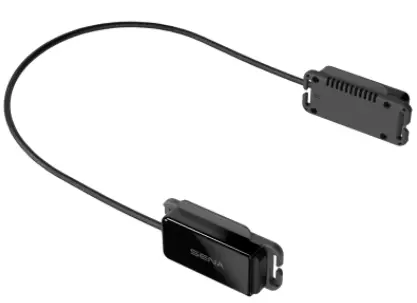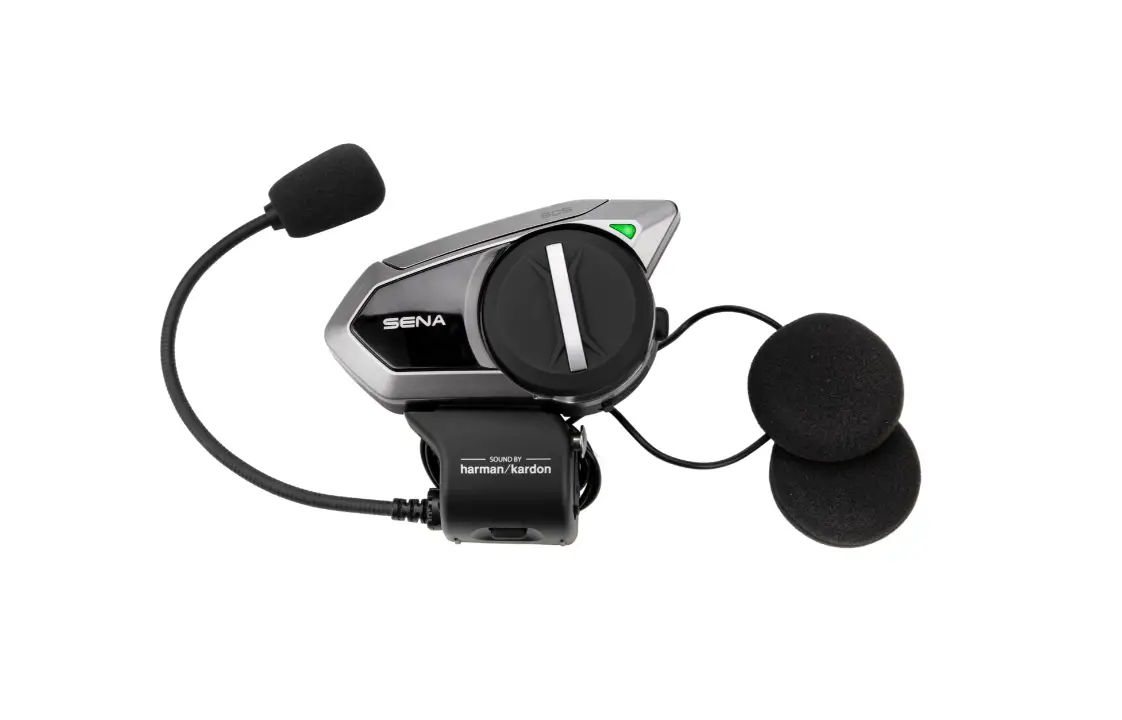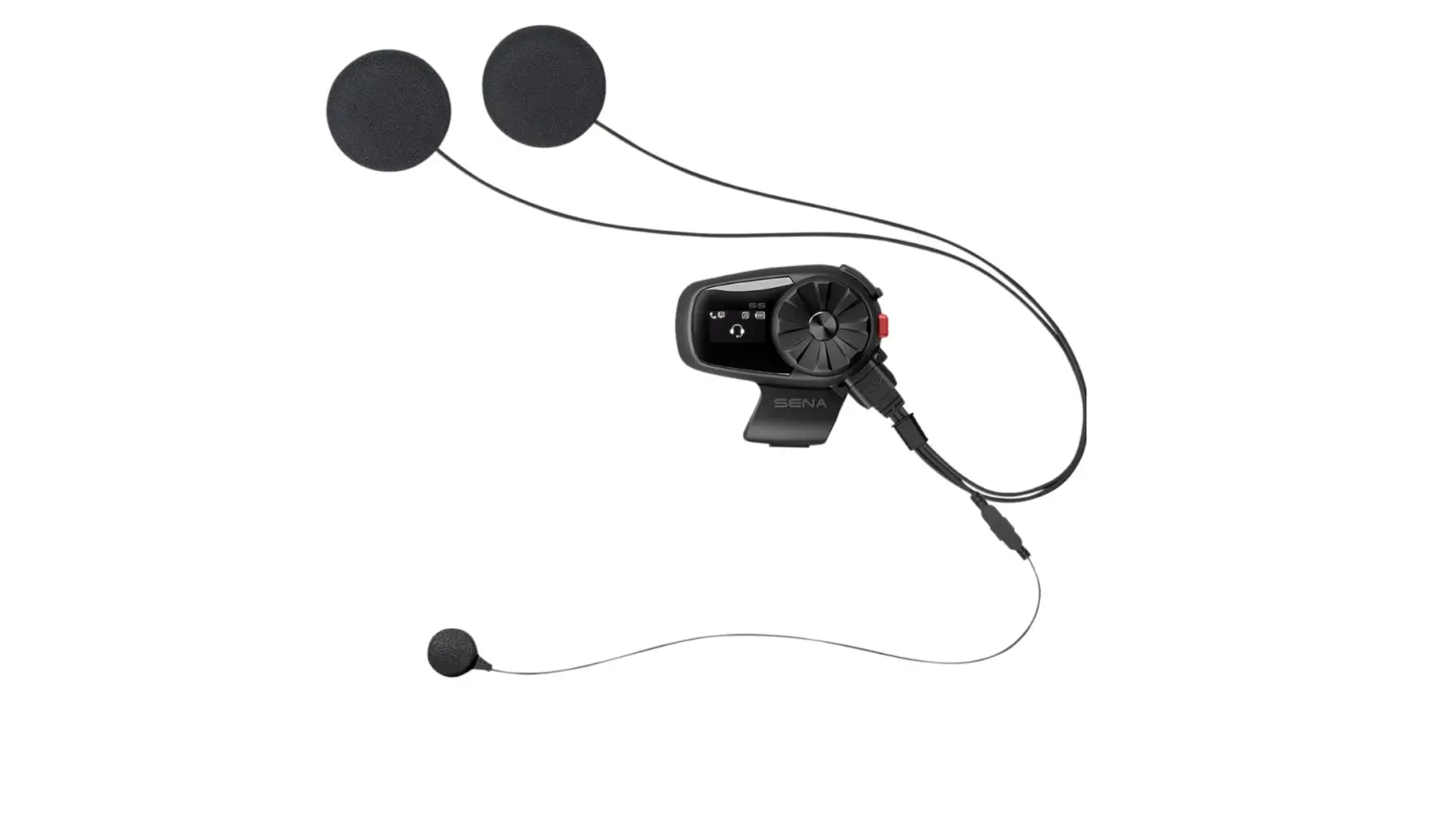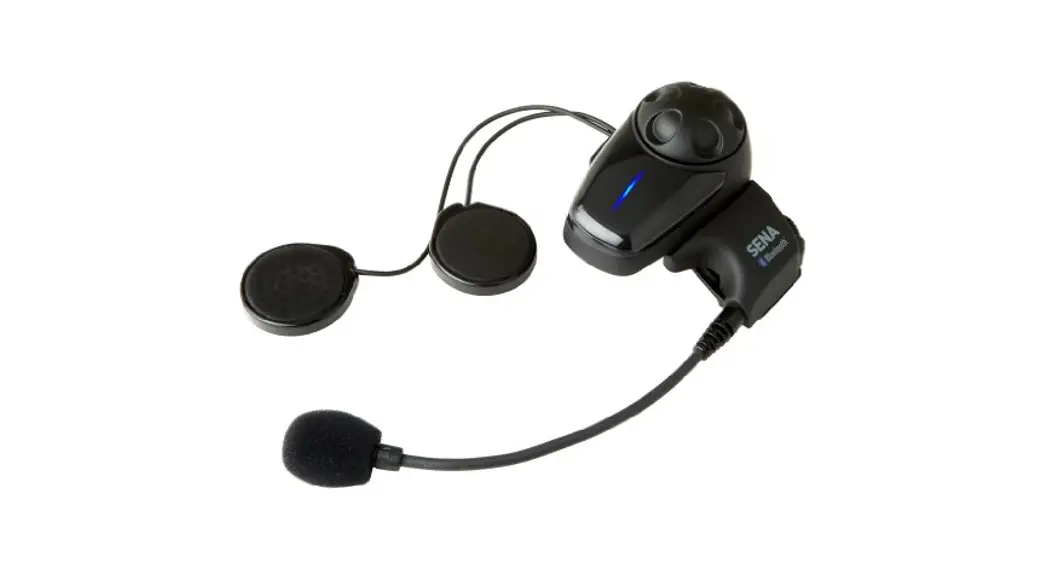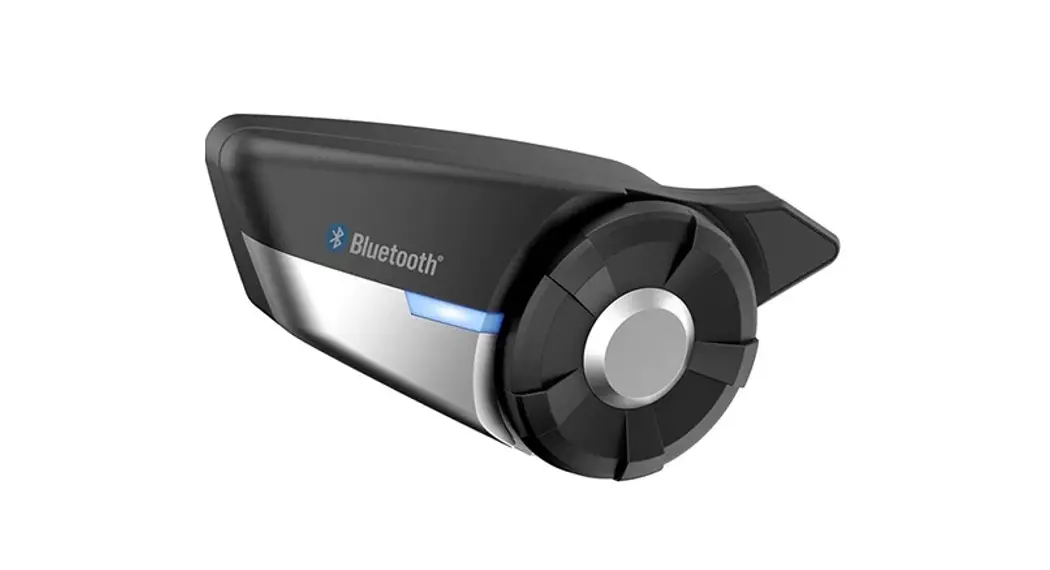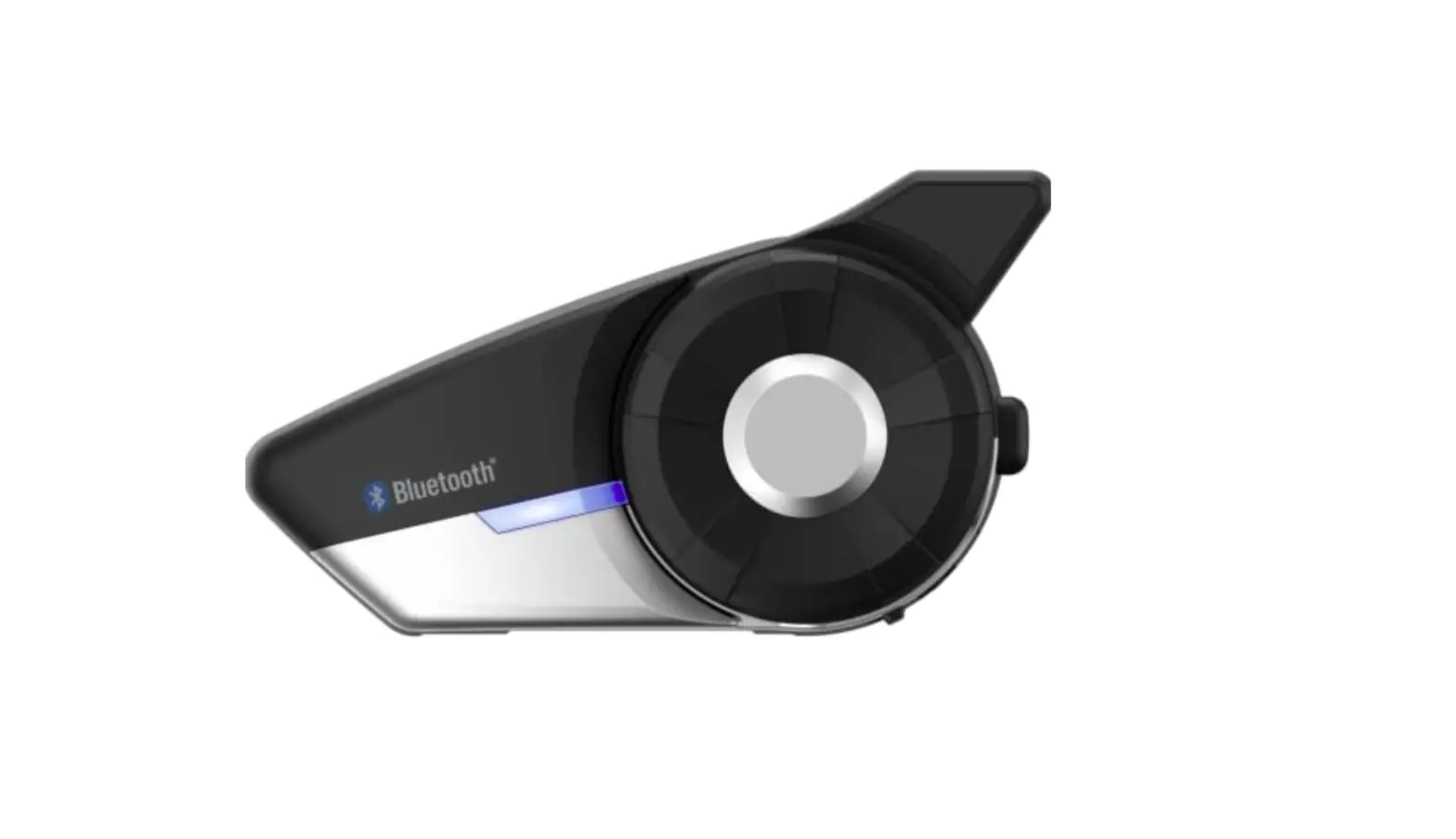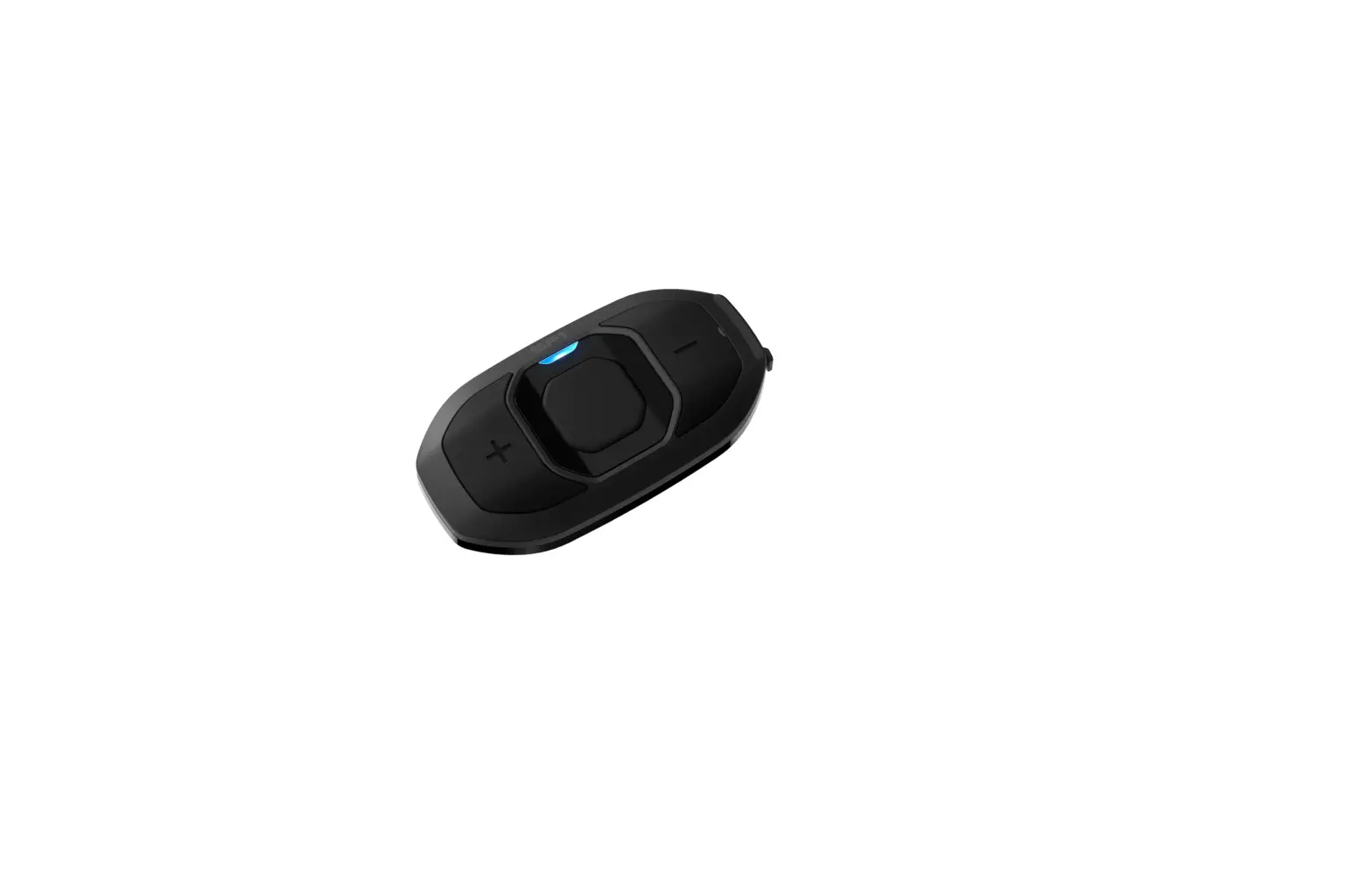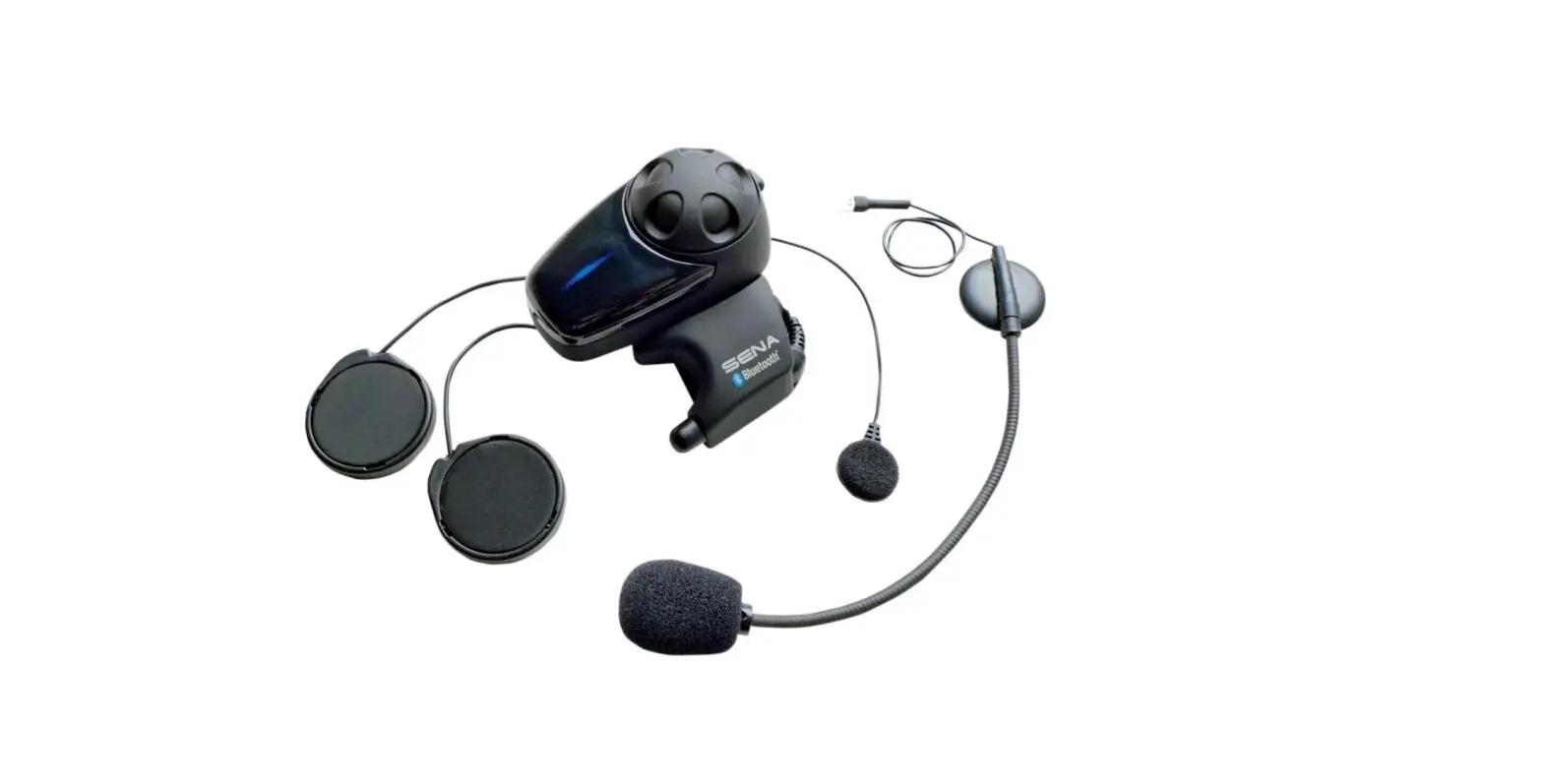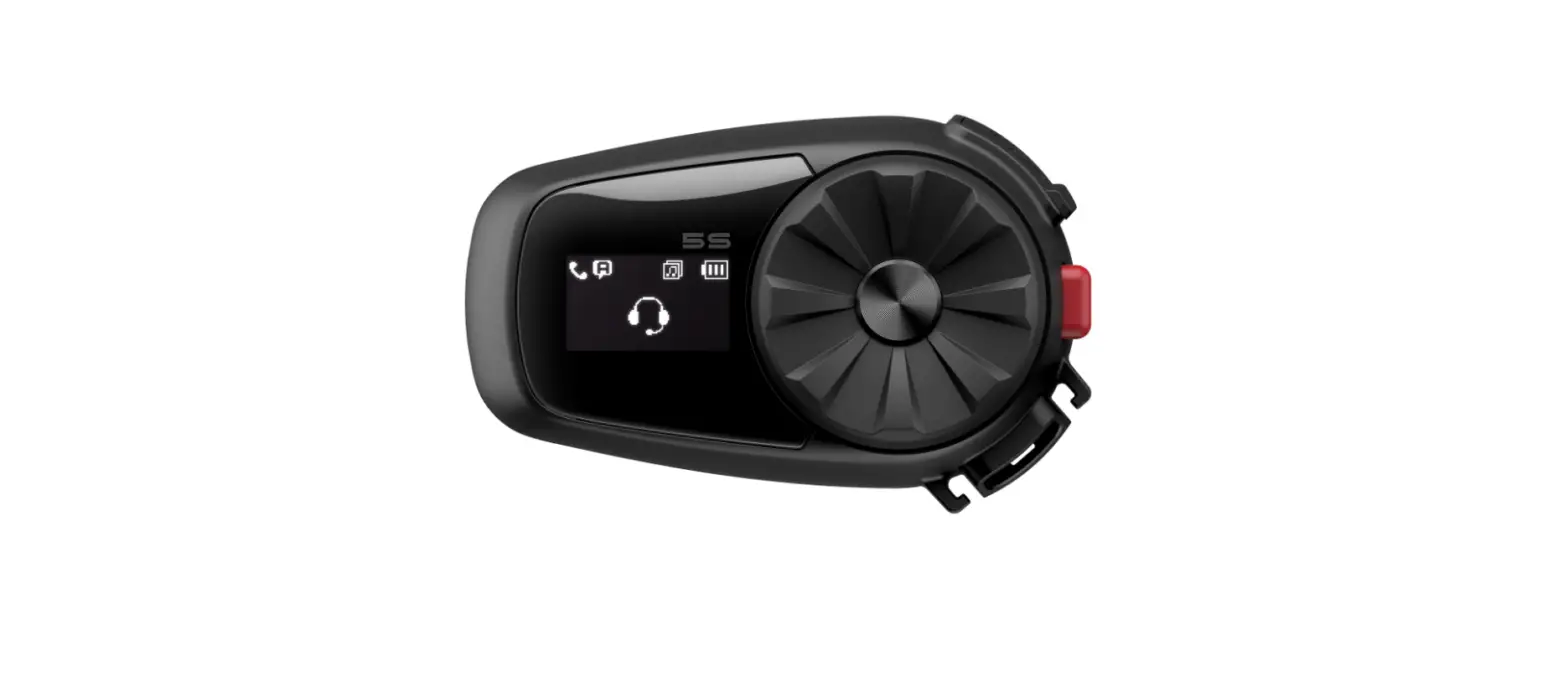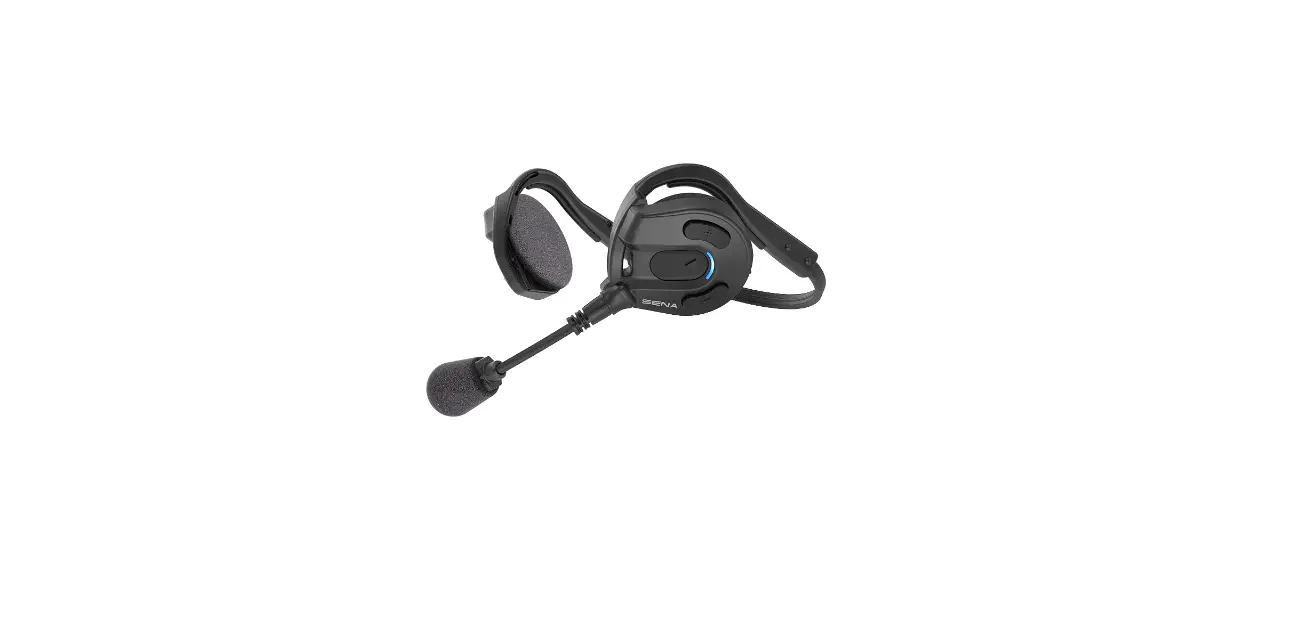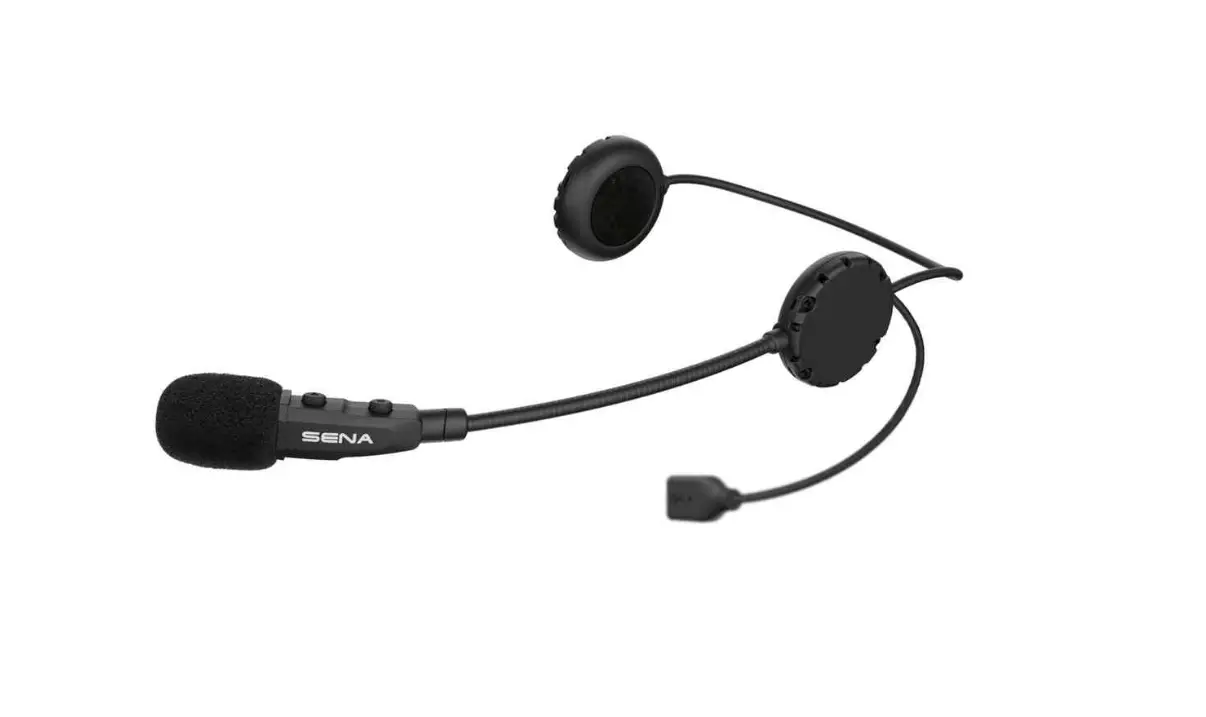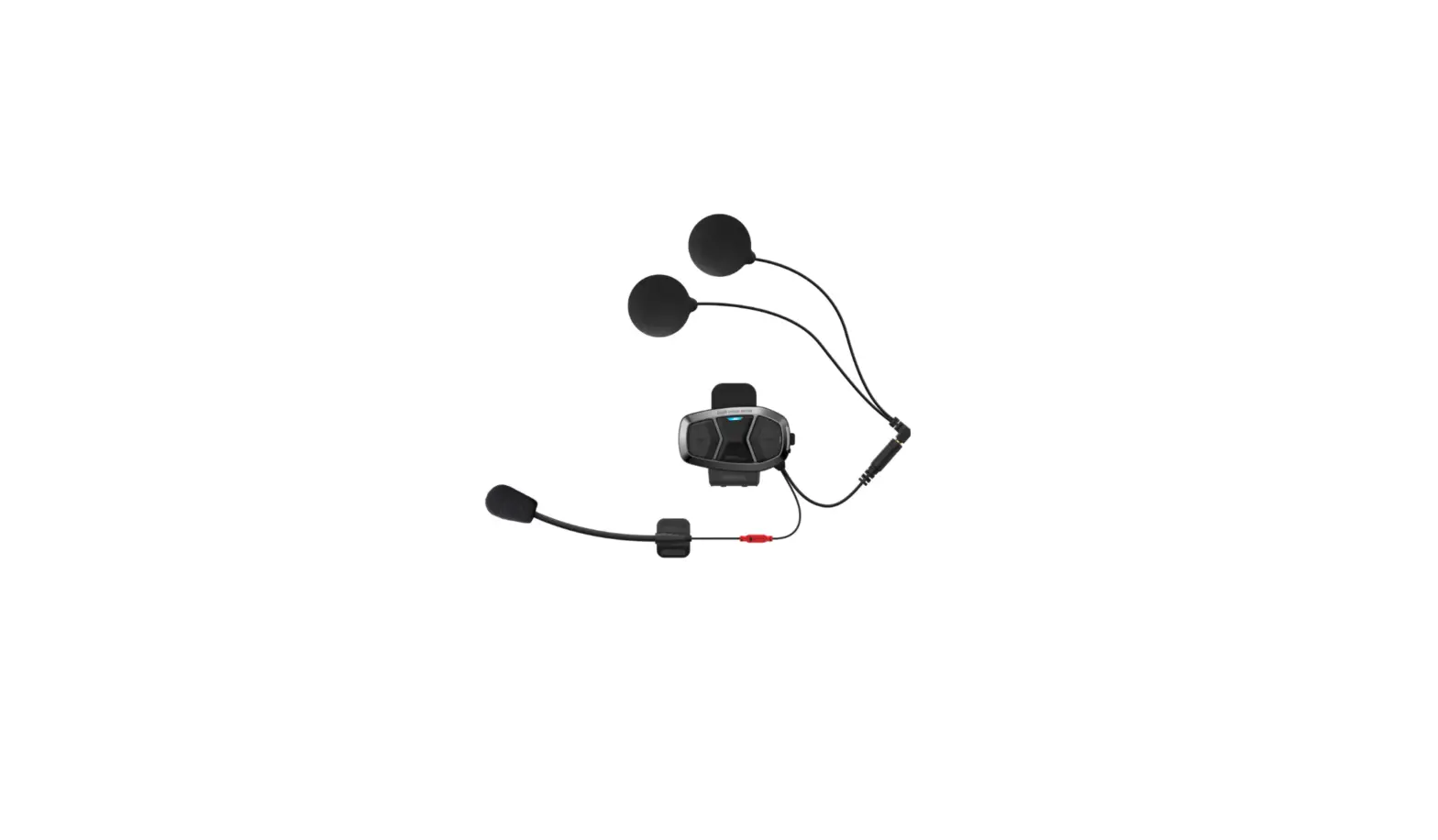

Sena Lse-01 Louis Edition Bluetooth Headset Communication System User Guide

Sena Lse-01 Louis Edition Bluetooth Headset Communication System User Guide

SENA-LOGO

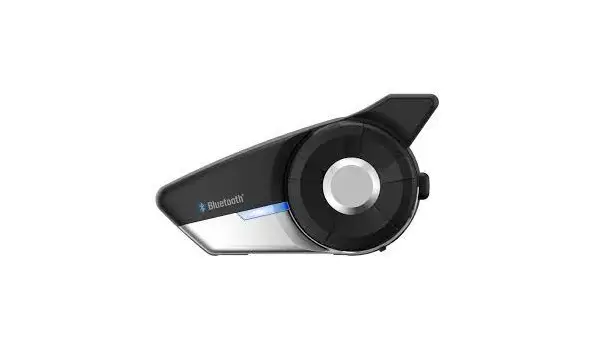
SENA LSE-01 Louis Edition Bluetooth Headset Communication System
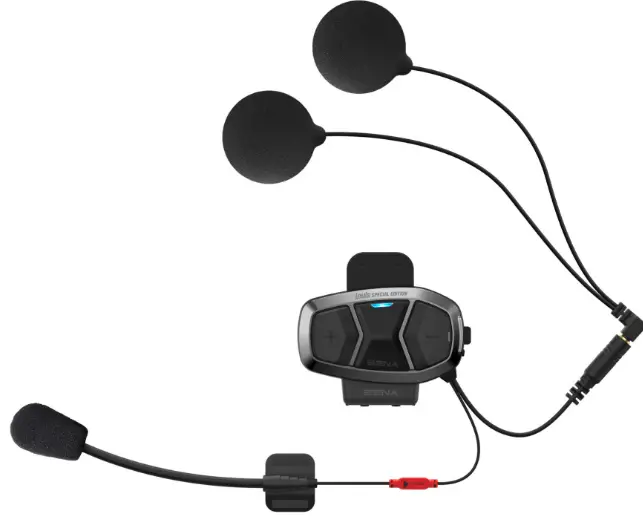
SENA-LSE-01-Louis-Edition-Bluetooth-Headset-Communication-System-PRODUCT

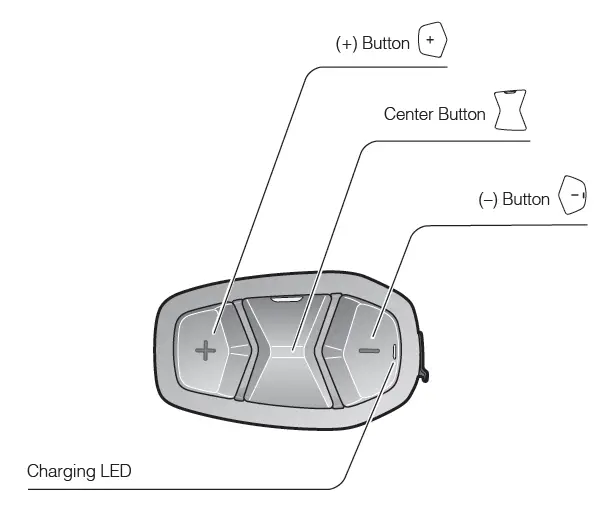
OVERVIEWSENA-LSE-01-Louis-Edition-Bluetooth-Headset-Communication-System-FIG- (1)

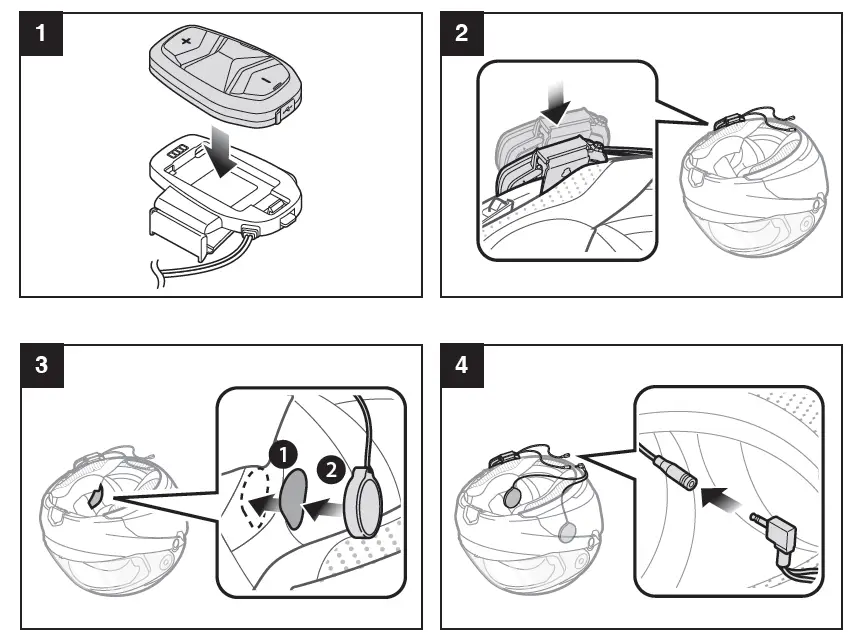
InstallationSENA-LSE-01-Louis-Edition-Bluetooth-Headset-Communication-System-FIG- (2)SENA-LSE-01-Louis-Edition-Bluetooth-Headset-Communication-System-FIG- (3)

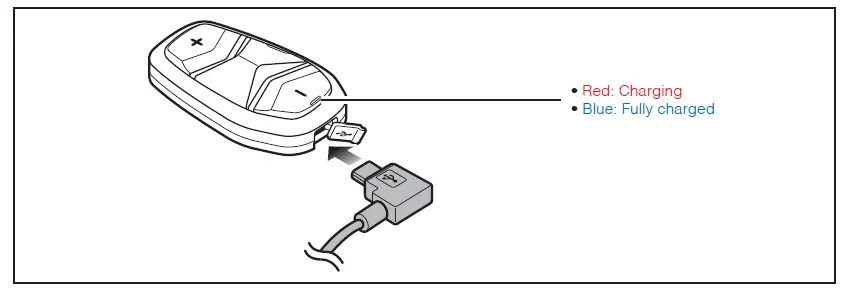
ChargingSENA-LSE-01-Louis-Edition-Bluetooth-Headset-Communication-System-FIG- (4)

Button OperationSENA-LSE-01-Louis-Edition-Bluetooth-Headset-Communication-System-FIG- (5)

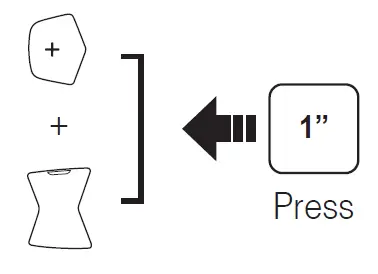
Power On/OffSENA-LSE-01-Louis-Edition-Bluetooth-Headset-Communication-System-FIG- (6)

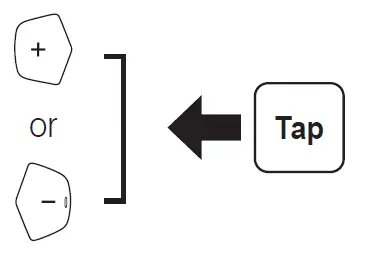
Volume AdjustmentSENA-LSE-01-Louis-Edition-Bluetooth-Headset-Communication-System-FIG- (7)

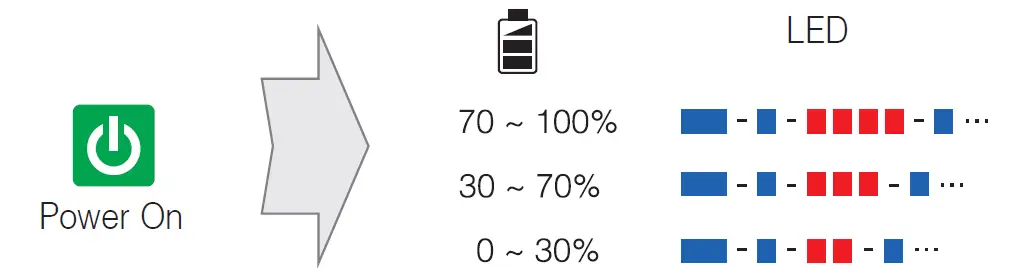
Battery CheckSENA-LSE-01-Louis-Edition-Bluetooth-Headset-Communication-System-FIG- (8)

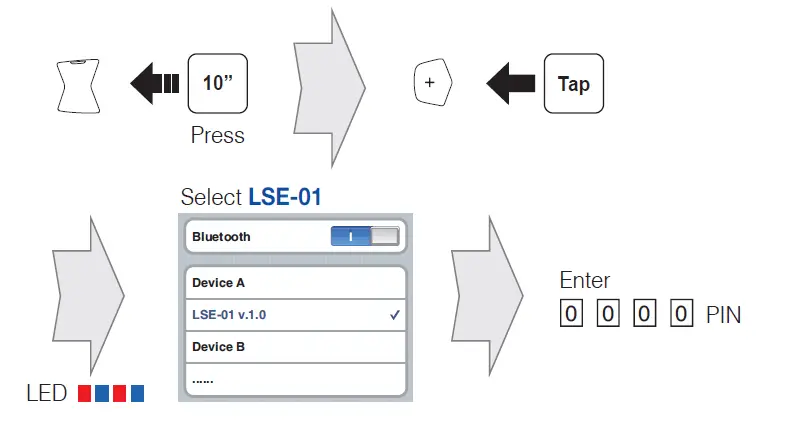
Phone, Music PairingSENA-LSE-01-Louis-Edition-Bluetooth-Headset-Communication-System-FIG- (9)

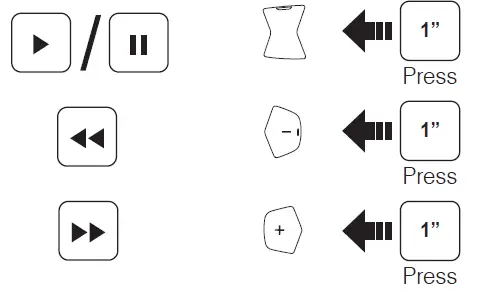
Music OperationSENA-LSE-01-Louis-Edition-Bluetooth-Headset-Communication-System-FIG- (10)

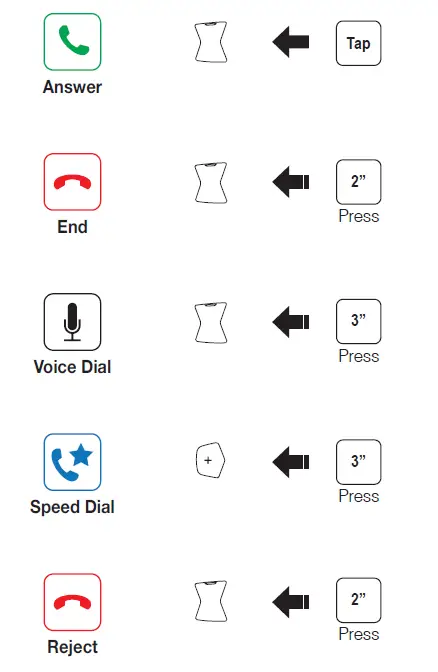
Mobile Phone Call Making and AnsweringSENA-LSE-01-Louis-Edition-Bluetooth-Headset-Communication-System-FIG- (11)

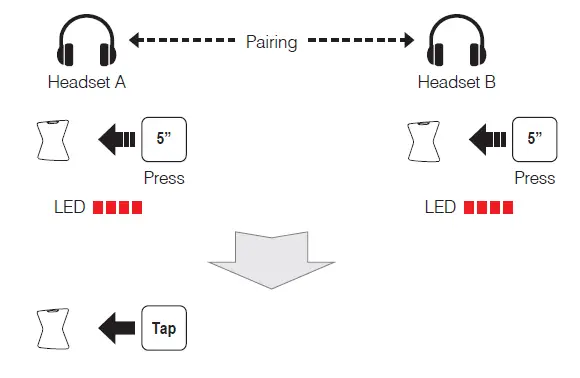
PairingSENA-LSE-01-Louis-Edition-Bluetooth-Headset-Communication-System-FIG- (12)

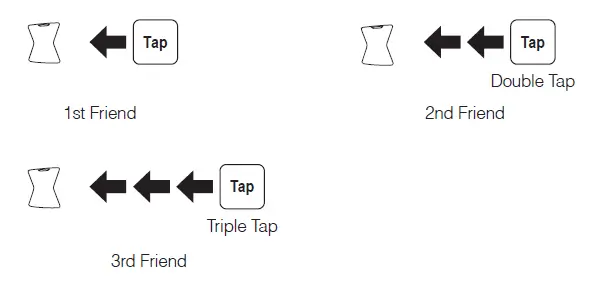
Start/EndSENA-LSE-01-Louis-Edition-Bluetooth-Headset-Communication-System-FIG- (13)

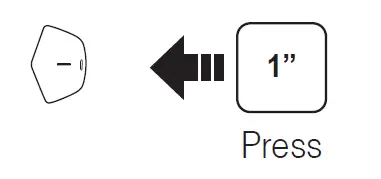
Radio On/OffSENA-LSE-01-Louis-Edition-Bluetooth-Headset-Communication-System-FIG- (14)

Radio Seek StationsSENA-LSE-01-Louis-Edition-Bluetooth-Headset-Communication-System-FIG- (15)

Radio Scan Up FM BandSENA-LSE-01-Louis-Edition-Bluetooth-Headset-Communication-System-FIG- (16)

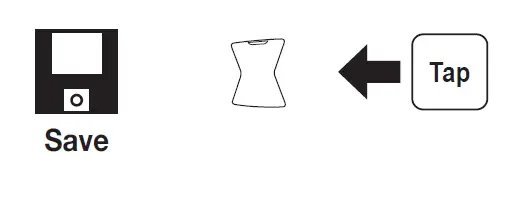
Save to preset while scanning

SENA-LSE-01-Louis-Edition-Bluetooth-Headset-Communication-System-FIG- (17)

Radio Move to Preset StationSENA-LSE-01-Louis-Edition-Bluetooth-Headset-Communication-System-FIG- (18)

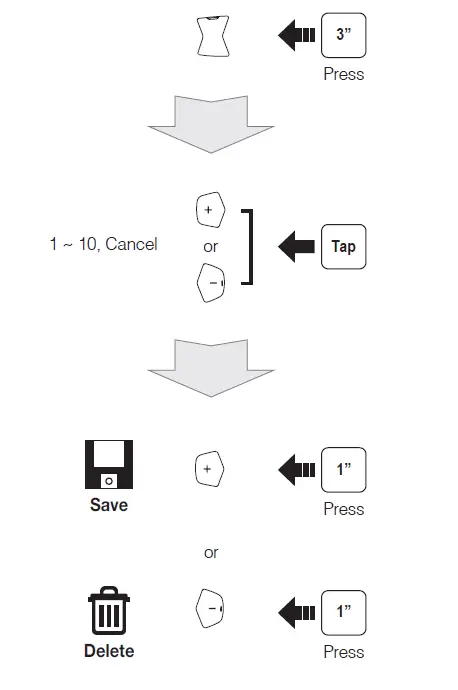
Radio Save or Delete PresetSENA-LSE-01-Louis-Edition-Bluetooth-Headset-Communication-System-FIG- (19)

Setting

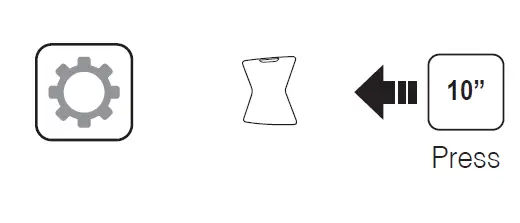
Configuration MenuSENA-LSE-01-Louis-Edition-Bluetooth-Headset-Communication-System-FIG- (20)

Using the Sena Device Manager

  • Connect the headset to your computer via a USB cable. Launch the Sena
  • Device Manager and click DEVICE SETTING to configure the headset settings.
  • For details about downloading the Sena Device Manager, please refer to the leaflet included in the package.

Using the Sena Motorcycles App

  1. ,|On your smartphone, download the Sena Motorcycles App for Android or iPhone from Google Play or App Store.
  2. Pair your smartphone with the headset.
  3. Run the Sena Motorcycles App. Swipe the screen to the right and tap Setting to configure the headset settings.

Troubleshooting

Factory Reset
If you want to restore the LSE-01 to factory default settings, use the Factory Reset in the configuration menu. The headset automatically restores the default settings and turns off.SENA-LSE-01-Louis-Edition-Bluetooth-Headset-Communication-System-FIG- (21)
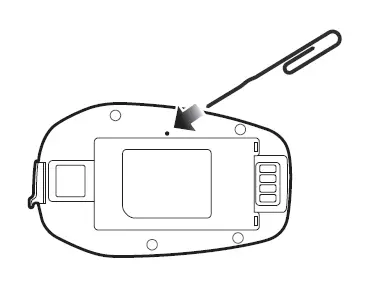
Fault Reset
If the LSE-01 is not working properly for any reason, reset by gently pushing the pin-hole reset button on the back of the main unit.

Customer Support: support.sena.com
E-mail: [email protected]

References

Documents / Resouces

Download manual
Here you can download full pdf version of manual, it may contain additional safety instructions, warranty information, FCC rules, etc.


Related Manuals