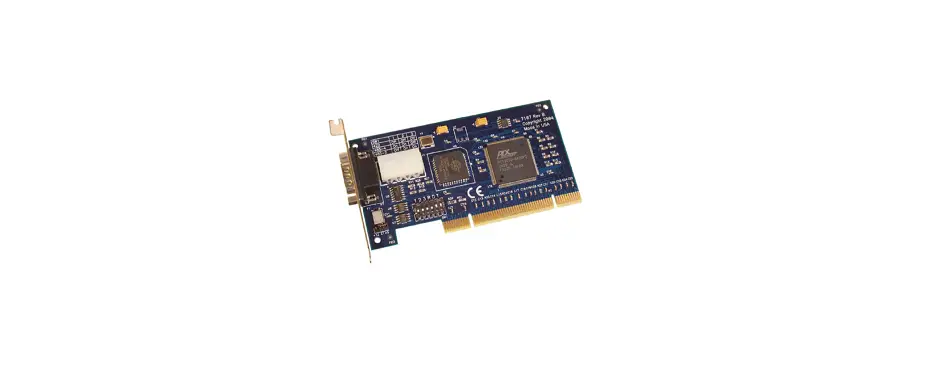
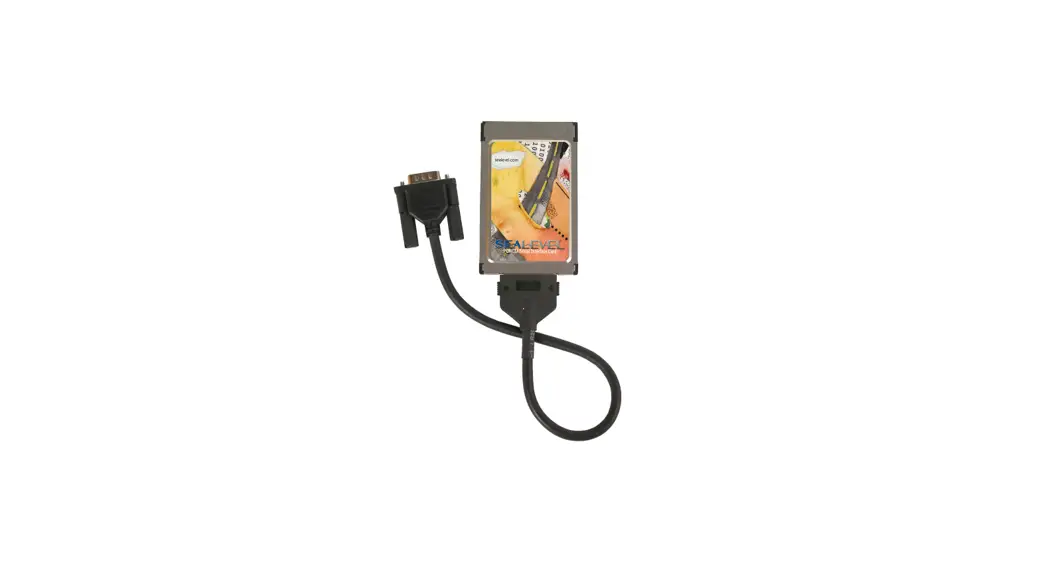
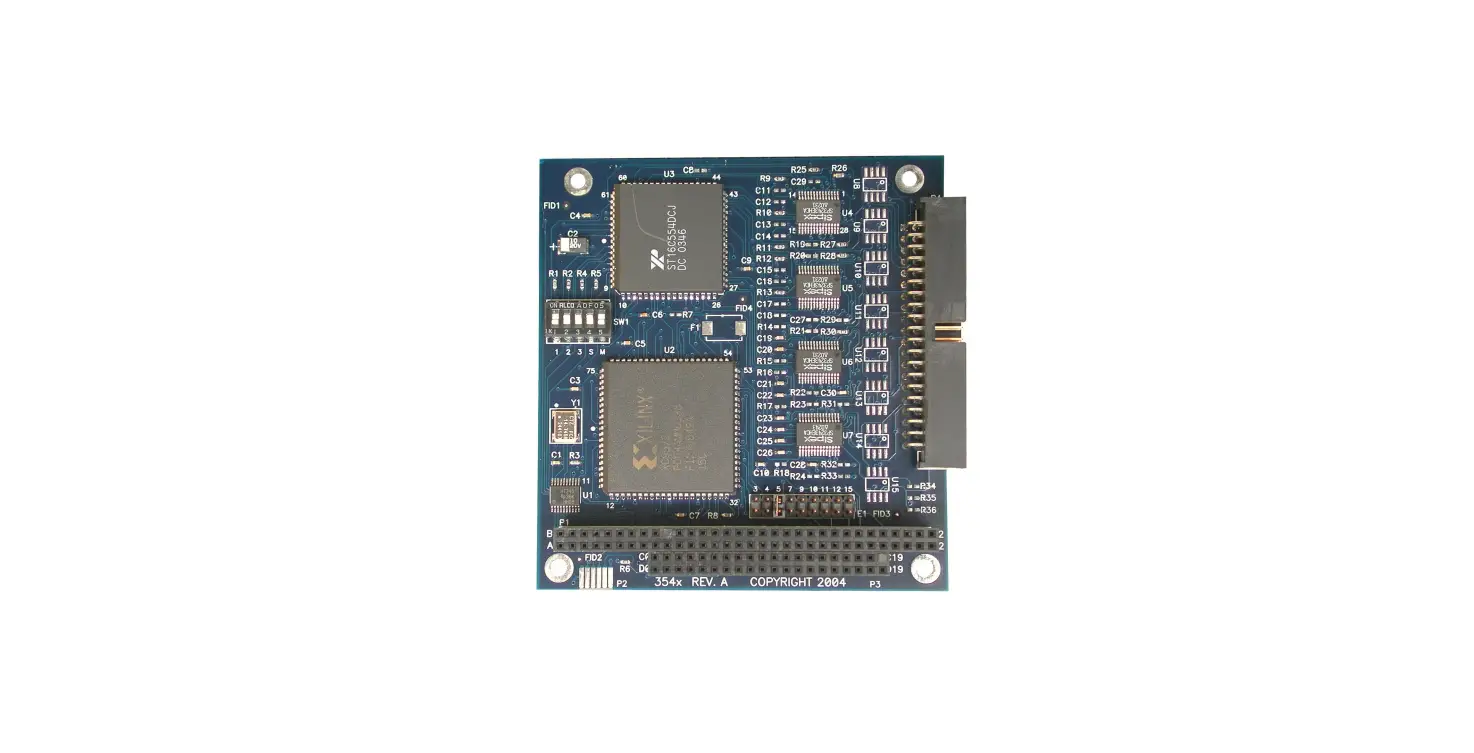
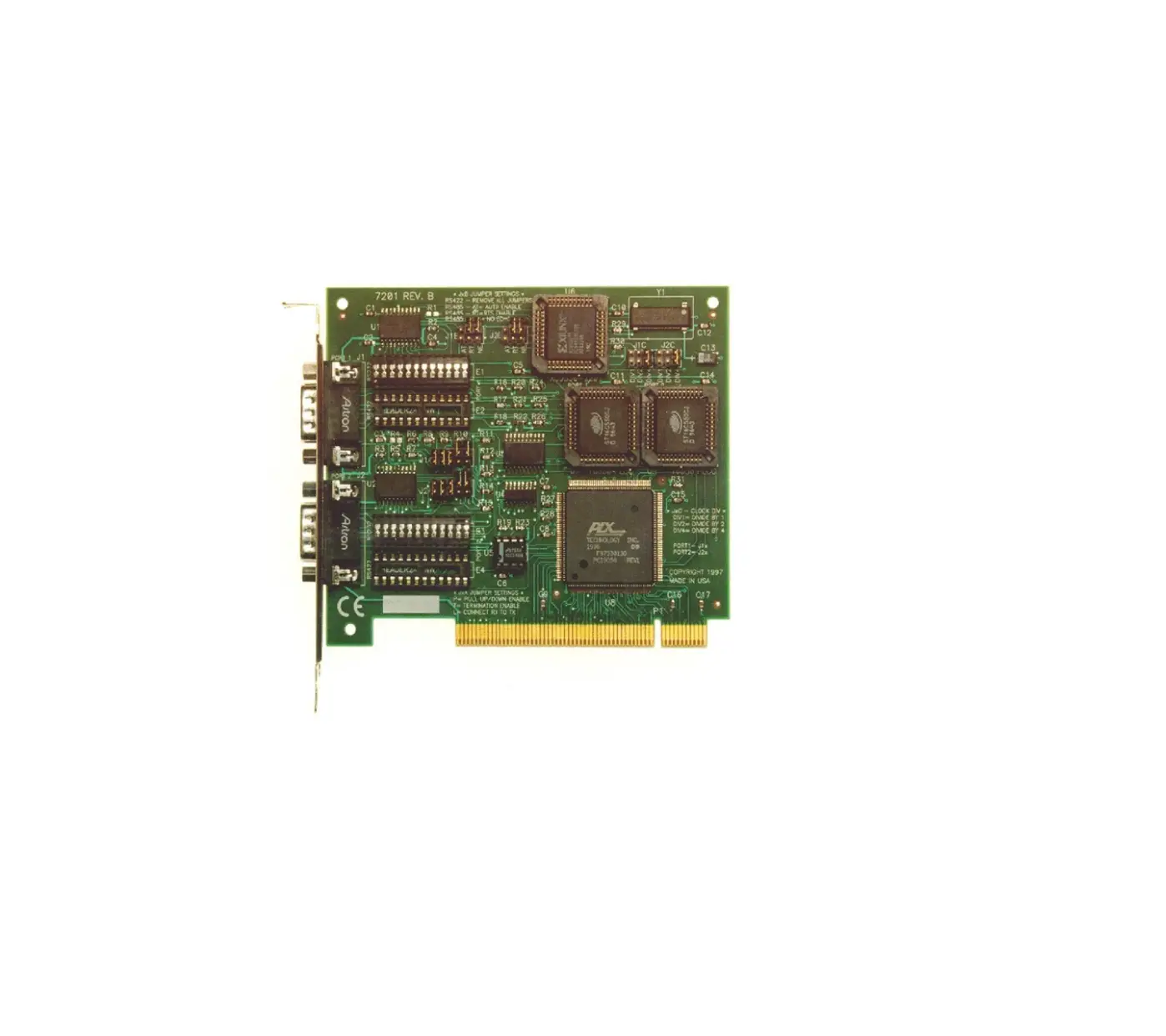
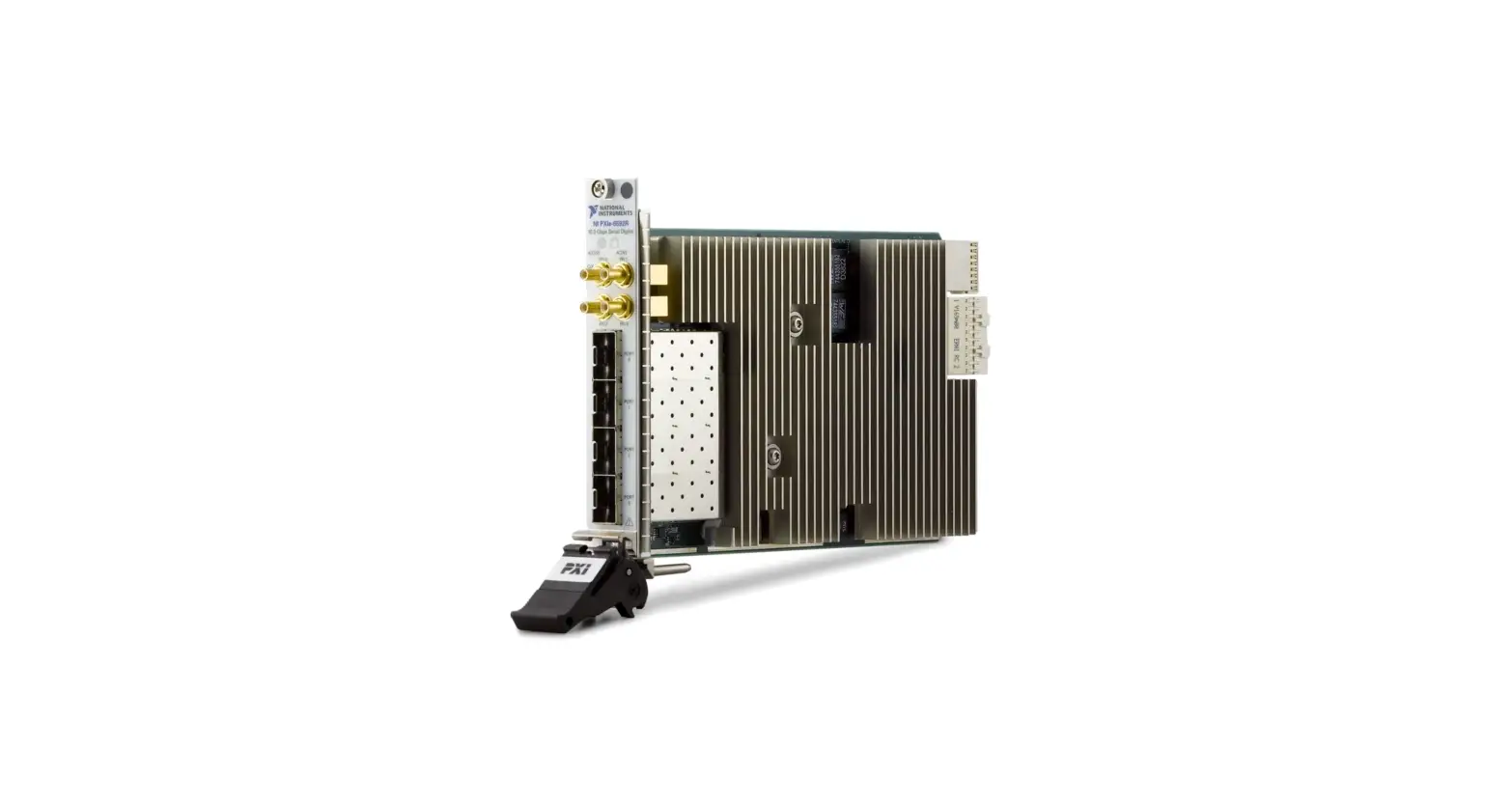
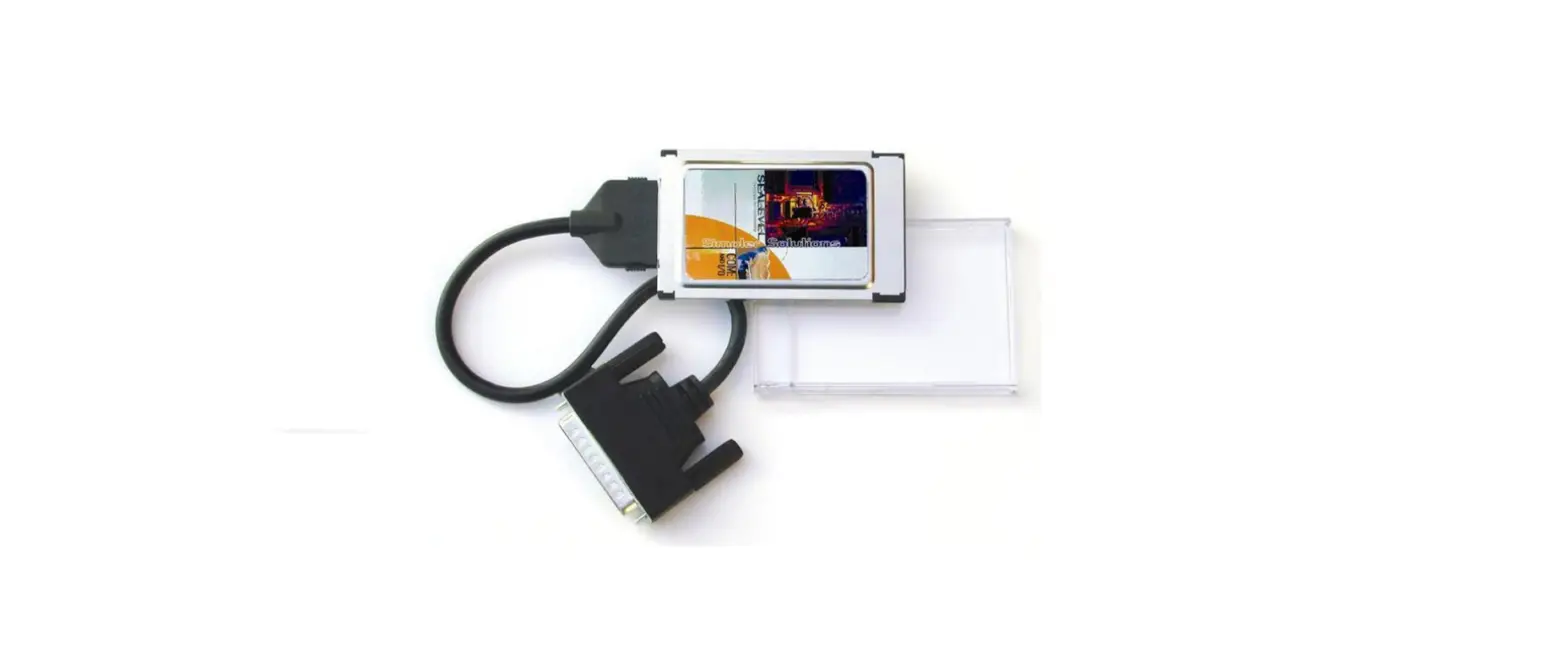
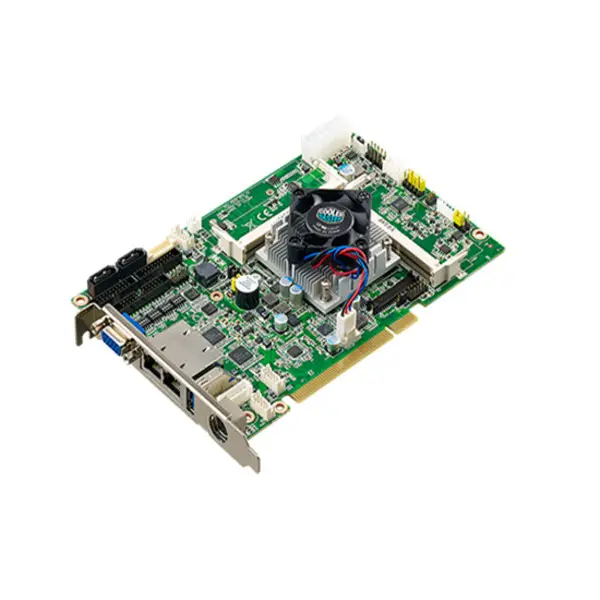
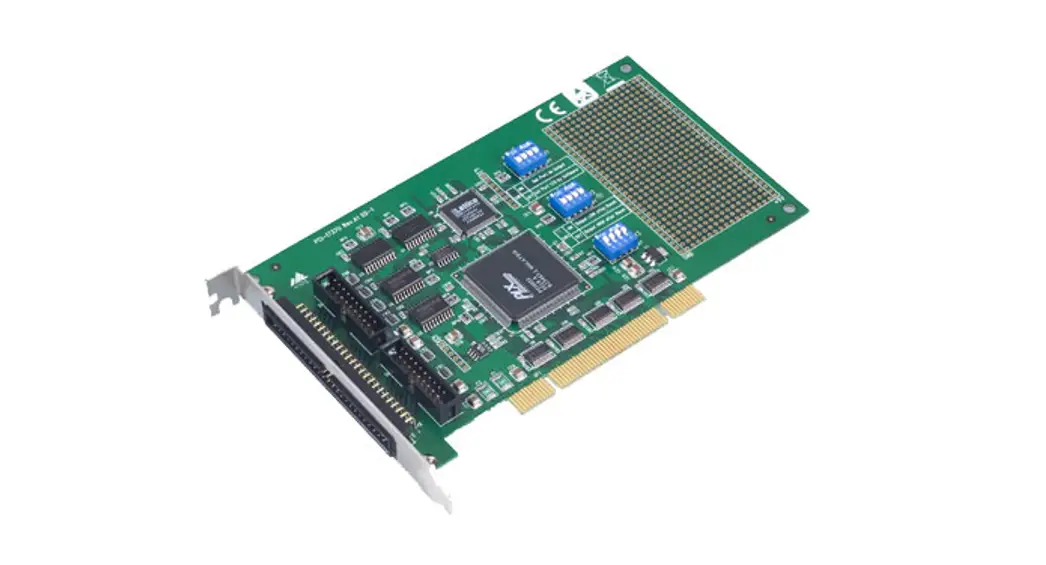
PCMCIA-485 Serial Interface Device
PCMCIA-485
This document contains instructions to help you install and
configure the National Instruments serial hardware for Linux. It
includes information about the PCMCIA-232/4 interface. Please note
that this document assumes that you are already familiar with
Linux.
You can find the latest version of this document at the
following locations:
ftp://metalab.unc.edu/pub/Linux/docs/HOWTO/Serial-Programming-HOWTO- http://metalab.unc.edu/LDP/HOWTO/Serial-Programming-HOWTO.html
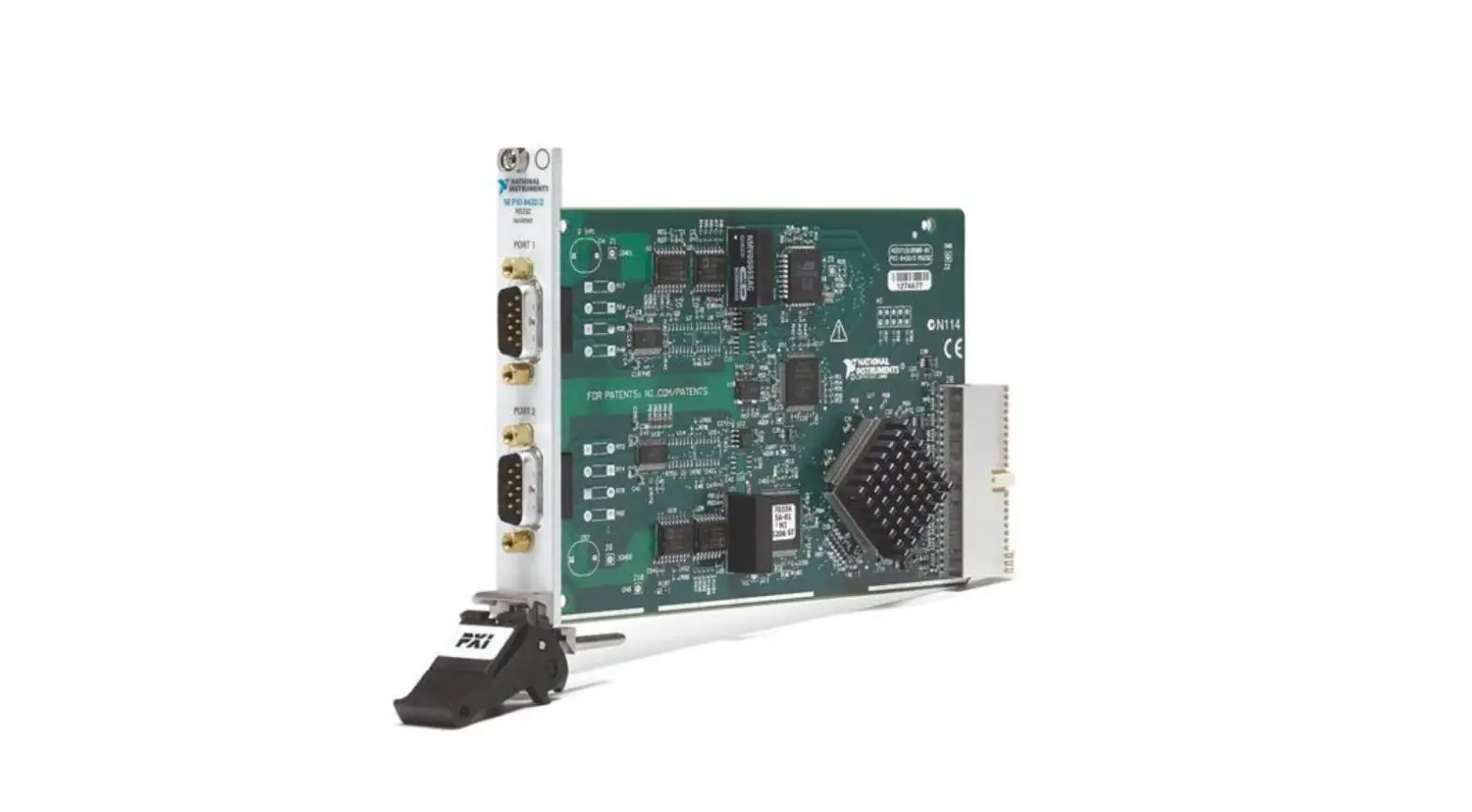
PCMCIA-485 is a PCMCIA serial four-port card designed for use
with Linux.
Product Usage Instructions
Gather What You Need to Get Started
Before you install your PCMCIA serial card for Linux, make sure
you have the following:
- Kernel version 2.2.5 or later
- The necessary options already compiled into your kernel
If you do not have the required kernel version or options, you
will need to recompile your kernel. Include the following Character
Devices options when you configure and recompile the kernel using
make menuconfig:
linux# cardctl -V
The latest version of Card Services can be found at ftp://csb.stanford.edu/pub/pcmcia.
Installation Steps
Follow these steps to install the PCMCIA-485 card:
Step 1: Extract the files
linux# tar zxvf PCMCIA-SERIAL-4port.tar.gz
The tar command extracts and unzips PCMCIA-SERIAL-4port.tar.gz
and creates the subdirectory PCMCIA-SERIAL.
Step 2: Verify files
linux# cd PCMCIA-SERIAL
linux PCMCIA-SERIAL# ls
FIFOtrigger serialtest termios_program.c
FIFOtrigger.c serialtest.c
Configuration
Follow these steps to configure the PCMCIA-485 card:
Step 1: Configure /etc/pcmcia/config to Recognize Your PCMCIA
Card
Signal the Card Manager to Reload /etc/pcmcia/config
Step 2: Find out What Devices Were Assigned to Your Card
Configuration
View Your Hardware Resources
Enable FIFO Buffers
Step 3: Configure struct termios
Test the Configuration
Please refer to the related documentation mentioned above for
more detailed instructions.
Disclaimer: “PCMCIA-485” is a trademark of National
Instruments Corporation. Product and company names mentioned herein
are trademarks or trade names of their respective
companies.
PCMCIA-485
NOTE TO USERS
USING PCMCIA SERIAL FOUR-PORT WITH LINUX
This document contains instructions to help you install and configure the National Instruments serial hardware for Linux. This document includes information about the PCMCIA-232/4 interface.
This document assumes that you are already familiar with Linux.
Contents
Related Documentation………………………………………………………………… 1 Contributions ……………………………………………………………………….. 2
Gather What You Need to Get Started……………………………………………. 2 Setup………………………………………………………………………………………….. 3
Configure /etc/pcmcia/config to Recognize Your PCMCIA Card …………………………………………………………… 3
Signal the Card Manager to Reload /etc/pcmcia/config ……………… 3 Find out What Devices Were Assigned to Your Card………………… 4 Configuration ……………………………………………………………………………… 4 View Your Hardware Resources …………………………………………….. 4 Enable FIFO Buffers……………………………………………………………… 4
FIFO Example ……………………………………………………………….. 5 Configure struct termios ………………………………………………………… 6 Test the Configuration …………………………………………………………………. 6
Related Documentation
The following documents contain information that you might find helpful as you read this document. · Linux Serial-Programming-HOWTO by Peter Baumann. You can find
the latest version of this document at the following locations: ftp://metalab.unc.edu/pub/Linux/docs/HOWTO/Serial-P rogramming-HOWTO http://metalab.unc.edu/LDP/HOWTO/Serial-Programming -HOWTO.html
natinst.comTM, National InstrumentsTM, and NI-Serial TM are trademarks of National Instruments Corporation. Product and company names mentioned herein are trademarks or trade names of their respective companies.
322568A-01
© Copyright 1999 National Instruments Corp. All rights reserved.
August 1999
Contributions
· Linux Serial-HOWTO by David Lawyer. You can find the latest version of this document at the following locations: ftp://metalab.unc.edu/pub/Linux/docs/HOWTO/Serial-H OWTO http://metalab.unc.edu/LDP/HOWTO/Serial-HOWTO.html
· Linux PCMCIA-HOWTO by David Hinds. You can find the latest version of this document at the following locations: ftp://metalab.unc.edu/pub/Linux/docs/HOWTO/PCMCIA-H OWTO http://metalab.unc.edu/LDP/HOWTO/PCMCIA-HOWTO.html
Thanks to Vern Howie for providing suggestions and examples from his serial suite. Also, thanks to David Hines, David Lawyer, Greg Hankins, and Peter Baumann for providing so much information in their HOWTOs.
Gather What You Need to Get Started
Before you install your PCMCIA serial card for Linux, make sure you have the following:
· Linux kernel version 2.2.5 or later. The product has been thoroughly tested with kernel version 2.2.5; however, the product might work with earlier kernel versions.
If you do not have kernel version 2.2.5 or later, or if you do not have the following options already compiled into your kernel, you need to recompile your kernel. Include the following Character Devices options when you configure and recompile the kernel using make menuconfig:
Standard/generic dumb serial support
Extended dumb serial driver options
Support more than four serial ports
Support for sharing serial interrupts
· Card Services (pcmcia-cs) 3.0.13 or later. To find the version of Card Services, enter the following:
linux# cardctl -V
The latest version of Card Services can be found at
ftp://csb.stanford.edu/pub/pcmcia.
Using PCMCIA Serial with Linux
2
www.natinst.com
· PCMCIA-SERIAL-4port.tar.gz. You can download this file from the National Instruments FTP site at ftp://ftp.natinst.com/ support/ind_comm/serial/linux. After you have the file, extract and unzip it by entering the following:
linux# tar zxvf PCMCIA-SERIAL-4port.tar.gz
The tar command extracts and unzips PCMCIA-SERIAL-4port.tar.gz and creates the subdirectory PCMCIA-SERIAL. Enter the following to make sure all necessary files are included:
linux#
cd PCMCIA-SERIAL
linux PCMCIA-SERIAL# ls
FIFOtrigger serialtest termios_program.c
FIFOtrigger.c serialtest.c
· You need superuser privileges to do most of the steps and program segments in this document.
Setup
You need to complete the first two steps in this section before you insert your PCMCIA serial card. You can use any text editor you are comfortable with.
Configure /etc/pcmcia/config to Recognize Your PCMCIA Card
Modify the serial_cs device so that the PCMCIA card manager knows what driver to link to the card. 1. To modify the device in the /etc/pcmcia/config file, enter the
following:
linux# pico /etc/pcmcia/config
2. In the file, edit the device “serial_cs” section to the following:
device “serial_cs” class “serial” module “misc/serial”,”serial_cs”
Signal the Card Manager to Reload /etc/pcmcia/config
Enter the following. Notice that the “`” is a forward single quote. linux# kill -HUP `cat /var/run/cardmgr.pid`
© National Instruments Corporation
3
Using PCMCIA Serial with Linux
Find out What Devices Were Assigned to Your Card
Insert your PCMCIA serial card. You should hear two consecutive high beeps. To see what serial device the card manager assigned to your card, enter the following: linux# more /var/run/stab Socket 0: National Instruments PCMCIA-485
0 serial serial_cs 0 ttyS2 4 66 0 serial serial_cs 1 ttyS3 4 67 Socket 1: empty
The devices listed as ttyS<port number> under National Instruments are your serial ports.
Configuration
View Your Hardware Resources
To see what system resources your serial card is using, use the setserial command, as follows: linux# setserial gv /dev/ttyS<port number>
For example, to view the resources of /dev/ttyS2, you would enter: linux# setserial gv /dev/ttyS2
Something similar to the following should appear: /dev/ttyS2, UART: 16550A, Port: 0x100, IRQ: 3
Enable FIFO Buffers
You can enable the transmit and receive FIFOs in the hardware and set the trigger levels of the FIFOs. Use FIFOtrigger (from your PCMCIA-SERIAL directory) to enable the receive and transmit FIFOs and to set the trigger level of these FIFOs. FIFOtrigger enables the FIFOs of only one serial port. To enable the FIFO for your other serial ports, rerun FIFOtrigger with a different serial port specified in the command line.
Table 1. tx_trigger Values
Transmit FIFO Trigger Level
tx_trigger
8
0x00
16
0x10
Using PCMCIA Serial with Linux
4
www.natinst.com
Table 1. tx_trigger Values (Continued)
Transmit FIFO Trigger Level
tx_trigger
32
0x20
56
0x30
Table 2. rx_trigger Values
Receive FIFO Trigger Level
rx_trigger
8
0x00
16
0x40
56
0x80
60
0xC0
Enter the following to use FIFOtrigger: linux PCMCIA-SERIAL#./FIFOtrigger <port number>
<rx_trigger> <tx_trigger>
The hardware issues a transmit empty interrupt when the number of characters in the transmit FIFO falls below the trigger level. Also, the hardware issues a receive full interrupt when the number of characters in the receive FIFO rises above the trigger level. For more information on the FIFO buffers, refer to your PCMCIA serial getting started manual.
If FIFOtrigger does not work immediately or if it causes a segmentation fault, enter the following to recompile FIFOtrigger.c and rerun FIFOtrigger. Also, the source code for FIFOtrigger is available for viewing and editing at FIFOtrigger.c, provided in the PCMCIA-SERIAL directory.
linux PCMCIA-SERIAL#gcc O FIFOtrigger.c o FIFOtrigger linux PCMCIA-SERIAL#./FIFOtrigger <port number>
<rx_trigger> <tx_trigger>
FIFO Example
Enter the following to set the receive FIFO trigger level to 56 and the transmit level to 32 for /dev/ttyS5:
linux PCMCIA-SERIAL# ./FIFOtrigger 5 0x80 0x20
© National Instruments Corporation
5
Using PCMCIA Serial with Linux
Configure struct termios
Every serial port has an associated struct termios. By using this struct termios in a program, you can set the baud rate, character size (number of data bits), parity, control characters, flow control, and input and output mode for each serial port. For further information on the termios structure itself, refer to the termios man page. To view the termios man page, enter the following:
linux# man termios
To configure your serial port, use a program segment similar to the termios_program.c in your PCMCIA-SERIAL directory.
Test the Configuration
After you connect the cables to the port (as shown in your PCMCIA serial getting started manual), run the serialtest program (from your PCMCIA-SERIAL directory) to verify your setup, as shown in the following:
linux PCMCIA-SERIAL#./serialtest <receive port number> <transmit port number>
If the test is successful, it will display a SUCCESS message. If the test hangs, type <ctrl-c> to exit the program. Also, make sure the cable is attached to the correct ports.
To test /dev/ttyS2 and /dev/ttyS3, connect a cable between the two ports and enter the following:
linux PCMCIA-SERIAL# ./serialtest 2 3
If serialtest does not work immediately or if it causes a segmentation fault, enter the following to recompile serialtest.c and rerun serialtest. Also, the source code for serialtest is available for viewing and editing at serialtest.c provided in the PCMCIA-SERIAL directory.
linux PCMCIA-SERIAL# gcc serialtest.c o serialtest linux PCMCIA-SERIAL# ./serialtest <receive port number>
<transmit port number>
Using PCMCIA Serial with Linux
6
www.natinst.com
 Engineer Ambitiously - NI
 Engineer Ambitiously - NI
 PCMCIA-485 National Instruments Serial Interface Device | Apex Waves