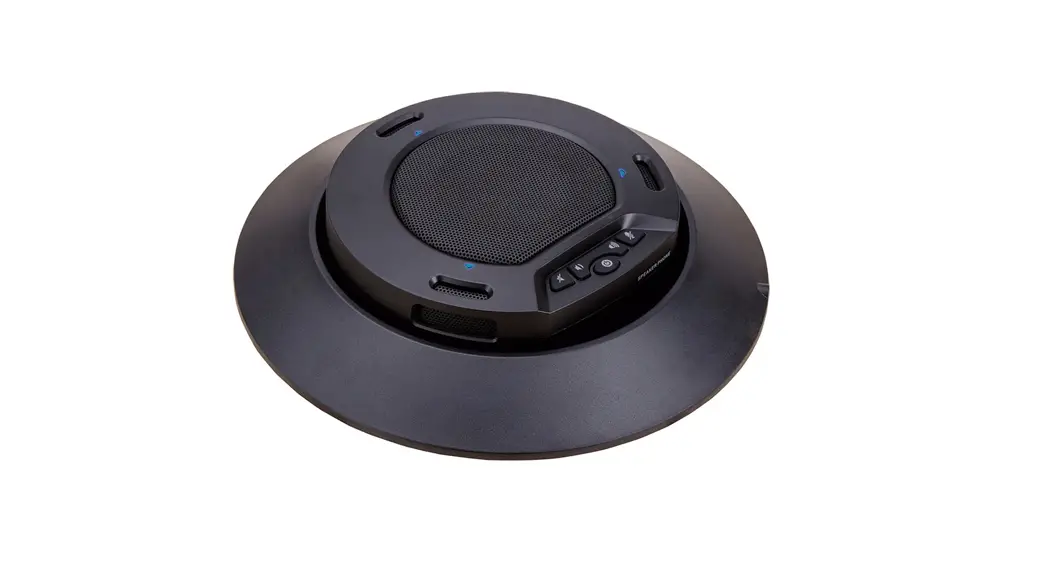
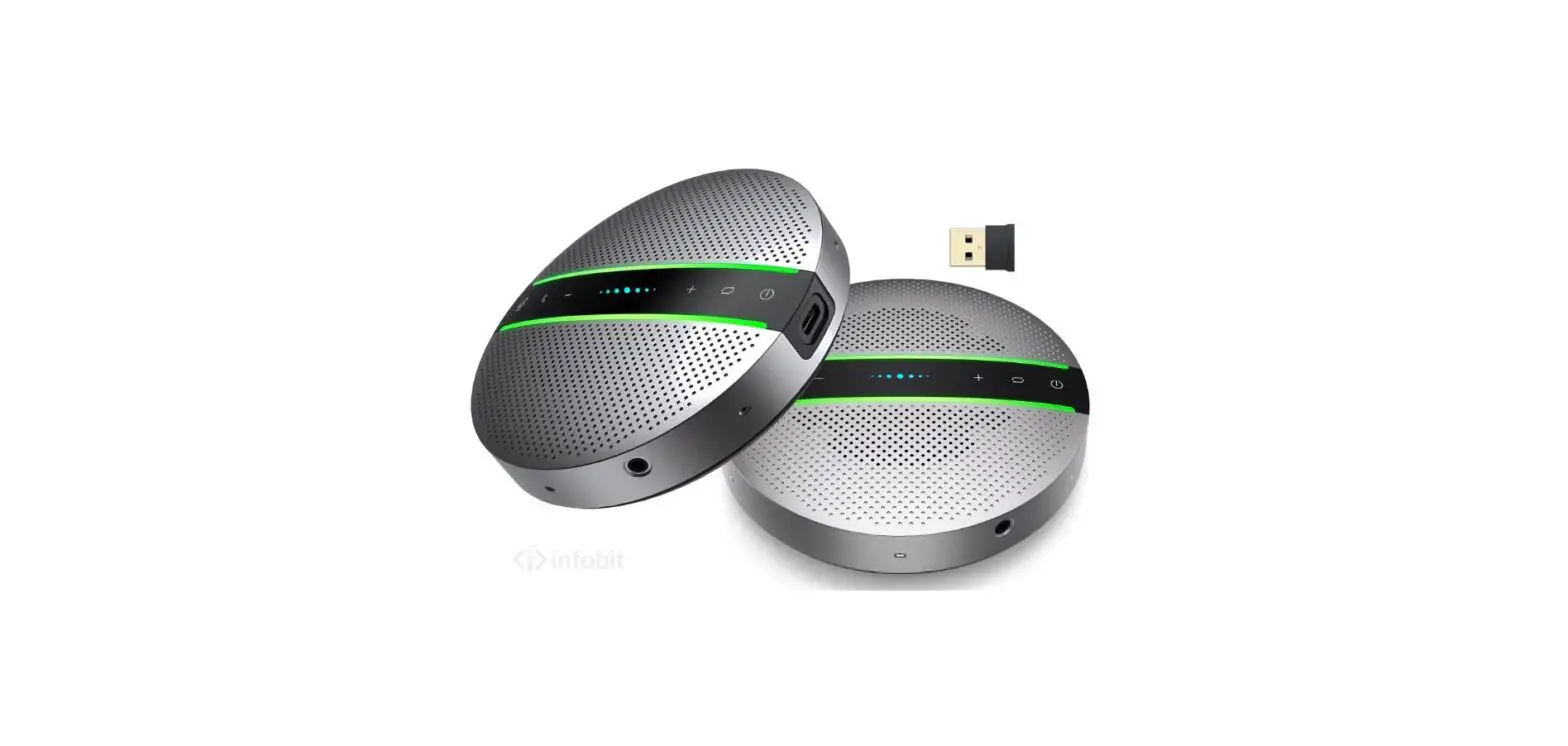
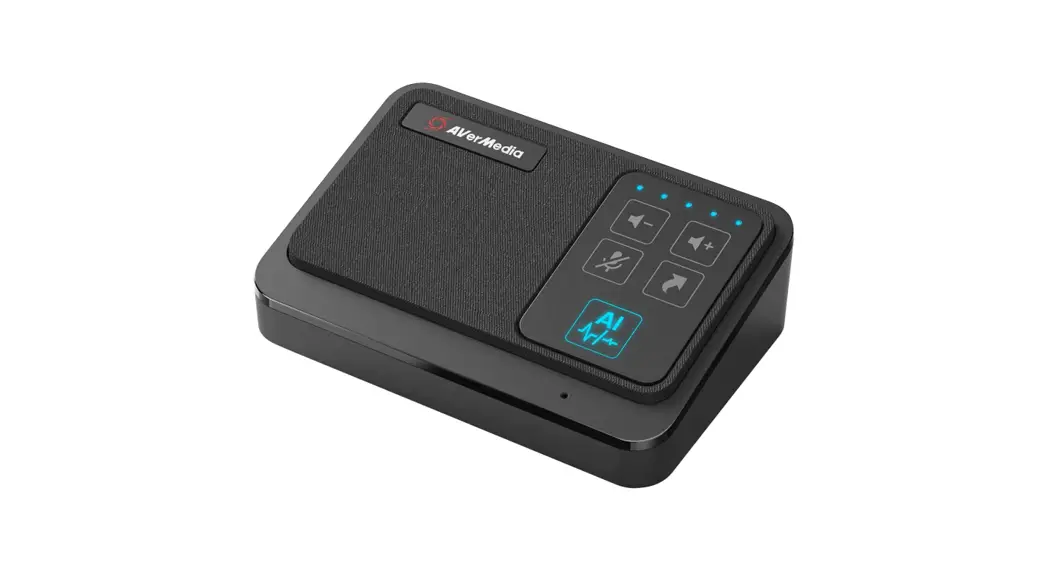
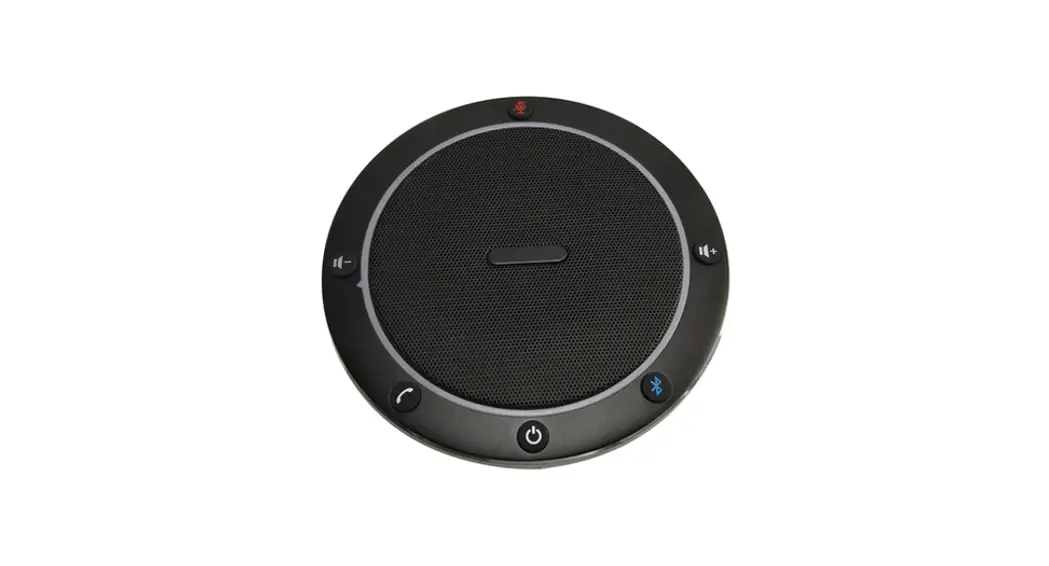
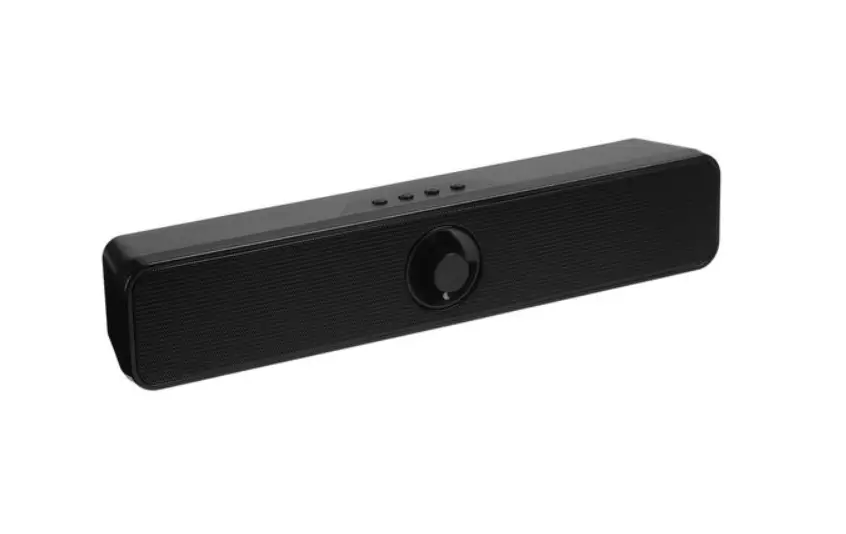
FONE540 USB Conferencing Speakerphone
Product Information
The FONE540 is a speakerphone device that complies with part 15
of the FCC Rules. It is designed to operate in a domestic
environment and may cause radio interference. The device is a class
A product and may require the user to take adequate measures to
reduce interference. AVer Information Inc. is the manufacturer of
the FONE540 and provides no warranty or representation, either
expressed or implied, with respect to the contents of the
documentation, its quality, performance, merchantability, or
fitness for a particular purpose. The device is not to be modified
without authorization, and any unauthorized modifications will void
the warranty.
Product Usage Instructions
Before using the FONE540 speakerphone, make sure that it is not
exposed to rain or moisture to reduce the risk of fire or electric
shock. Do not drop or subject the speakerphone to physical shock,
and use the correct power supply voltage to avoid damaging the
device. Also, avoid placing the speakerphone where the cord can be
stepped on as this may result in fraying or damage to the lead or
plug.
Network Setting
The FONE540 supports both DHCP and static IP network settings.
To set up DHCP, follow these steps:
- Connect the device to the network using an Ethernet cable.
- Press and hold the reset button for 3 seconds until the LED
indicator flashes. - Wait for the LED indicator to stop flashing and turn solid
white. - The device will automatically obtain an IP address from the
DHCP server.
To set up a static IP, follow these steps:
- Connect the device to the network using an Ethernet cable.
- Press and hold the reset button for 3 seconds until the LED
indicator flashes. - Wait for the LED indicator to stop flashing and turn solid
white. - Use a web browser to access the device’s web interface using
the default IP address 192.168.1.100. - Enter the username and password to log in (default username:
admin, default password: admin). - Go to the Network Settings page and select Static IP.
- Enter the IP address, subnet mask, default gateway, and DNS
server information provided by your network administrator. - Click Save to apply the changes.
FONE540
User Manual
Federal Communications Commission Statement
NOTE: This equipment has been tested and found to comply with the limits for a Class A digital device, pursuant to part 15 of the FCC Rules. These limits are designed to pro-vide reasonable protection against harmful interference when the equipment is operate din a commercial environment. This equipment generates, uses, and can radiate radiofrequency energy and, if not installed and used in accordance with the instruction manual, may cause harmful interference to radio communications. Operation of this equipment in a residential area is likely to cause harmful interference in which case the user will be required to correct the interference at his own expense.
FCC Caution: Any changes or modifications not expressly approved by the party responsible for compliance could void the user’s authority to operate this equipment.
This device complies with part 15 of the FCC Rules. Operation is subject to the following two conditions: (1) This device may not cause harmful interference, and (2) this device must accept any interference received, including interference that may cause undesired operation.
Warning: This is a class A product. In a domestic environment this product may cause radio interference in which case the user may be required to take adequate measures.
DISCLAIMER
No warranty or representation, either expressed or implied, is made with respect to the contents of this documentation, its quality, performance, merchantability, or fitness for a particular purpose. Information presented in this documentation has been carefully checked for reliability; however, no responsibility is assumed for inaccuracies. The information contained in this documentation is subject to change without notice.
In no event will AVer Information Inc. be liable for direct, indirect, special, incidental, or consequential damages arising out of the use or inability to use this product or documentation, even if advised of the possibility of such damages.
TRADEMARKS
“AVer” is a trademark owned by AVer Information Inc. Other trademarks used herein for description purpose only belong to each of their companies.
COPYRIGHT
©2020 AVer Information Inc. All rights reserved. All rights of this object belong to AVer Information Inc. Reproduced or transmitted in any form or by any means without the prior written permission of AVer Information Inc. is prohibited. All information or specifications are subject to change without prior notice.
NOTICE
SPECIFICATIONS ARE SUBJECT TO CHANGE WITHOUT PRIOR NOTICE. THE INFORMATION CONTAINED HEREIN IS TO BE CONSIDERED FOR REFERENCE ONLY.
THE CONTENTS ARE SUBJECT TO CHANGE WITHOUT PRIOR NOTICE. IF THE CONTENT IS WRONG, PLEASE INFORM US TO MAKE CORRECTIONS.
WARNING
To reduce risk of fire or electric shock, do not expose this appliance to rain or moisture. Warranty will be void if any unauthorized modifications are done to the product.
Do not drop the speakerphone or subject it to physical shock. Use correct power supply voltage to avoid damaging speakerphone. Do not place the speakerphone where the cord can be stepped on as this may result in
fraying or damage to the lead or the plug.
Contact Information
Global
USA
AVer Information Inc.
AVer Information Inc.
www.aver.com
668 Mission Ct.
8F, No.157, Da-An Rd., Tucheng Dist., Fremont, CA 94539
New Taipei City
www.averusa.com
Taiwan
Toll-free: 1(877)528-7824
Tel: +886-2-2269-8535
Local: 1(408)263-3828
Fax: +886-2-2269-8537
AVer Information Europe B.V. Westblaak 140, 3012KM, Rotterdam, Netherland Tel: +31(0)10 7600 550 Technical support: [email protected]
Contents
Package Contents…………………………………………………………………………….. 6 Overview……………………………………………………………………………………. 7
Speakerphone Indicator …………………………………………………………….. 7 Expansion Speakerphone/Microphone Connection……… 8 Phone in Connection ……………………………………………………………… 8 Audio Signal Receive Range ……………………………………………….. 9 Speakerphone LED Indicator…………………………………………….. 10 Installation ……………………………………………………………………………………. 11 Device Connection ……………………………………………………………….. 11 Operating the Speakerphone ………………………………………………………….. 12 Make an Audio Call ………………………………………………………………. 12 Make a Connection by AVer IP Finder App …………………… 12
Network Setting…………………………………………………………………….. 13 DHCP ………………………………………………………………………………. 13 Static IP …………………………………………………………………………..14
Audio Setting ………………………………………………………………………… 14 Noise Suppression…………………………………………………………14
Automatic Gain Control …………………………………………………15 Echo Cancellation ………………………………………………………….15 Keyboard Noise Suppression ……………………………………….16 Phone In Jack …………………………………………………………………16
Package Contents
Speakerphone Unit
Power Adapter Power Cord*
USB 2.0 Cable
3.5 mm Audio Cable (0.9m)
*The power cord will vary depending on the standard power outlet of the country where it is sold
More Help
For FAQs, technical support, software and user manual download, please visit: http://www.aver.com
Product Introduction
Overview
1 2 34 5 6 7
1. Phone in port
2. Speakerphone port (For extended speakerphone and microphone / Red cable)
3. Line out port 4. USB port 5. Ethernet port 6. Power jack 7. Kensington Lock
Speakerphone Indicator
Bluetooth*
Blinking Blue: Activation and connection state Solid Blue: Connection successful
Mute Un-mute
Phone In
Solid Blue: Connect with external device Solid White: No device connected
Answer Call * ONLY FONE540 Bluetooth version is supported.
Volume Up
Volume Down End Call
Phone in Connection Expansion Speakerphone/Microphone Connection
Please purchase the expansion speakerphone and/or microphone directly from AVer or an AVer reseller. Expansion Speakerphone Requirements: – FONE540 Firmware version: 7000.34 or later [Note] The FONE540 can support up to two expansion speakerphones, however, the daisy-chain
expansion cable cannot exceed over 40m in total. Please connect the power supply for the expansion speakerphone when daisy-chaining over
20m. Please connect the power supply when upgrading the firmware for the expansion
speakerphone. The expansion speakerphone cannot be used as the main speakerphone; it can only be used
with the FONE540. The speakerphone/microphone cables will be included in the package contents when the user
purchases the expansion speakerphone/microphone.
8
Users can connect a mobile phone to the Phone in port on the speakerphone as a hands-free speaker.
When the device connects with the speakerphone, the
icon will light up in blue. Touching the
icon will temporarily disconnect the connection of the device with the speakerphone; touching
the
icon again will resume the connection.
Audio Signal Receive Range
The best distance for the speakerphone to receive audio signal is within 7.5ft in radius. When connecting two or more speakerphones, the distance between the speakerphones must be 9ft.
9
Speakerphone LED Indicator
Button /
LED Indicator White light
White/Blue light
Red light Green light
Status
Adjust the volume up and down. When adjusting the volume up and down, the volume LED indicator will light up in blue. Touch to mute/un-mute the speakerphone volume. In mute status, the LED indicator will light up in red. Touch to hang up the call.
Touch to answer the incoming call.
Blue light: Connects with external device
White light: Temporarily disconnects the connection with the device
Off: No connection with external devices
Activate Bluetooth and connect with laptop/PC.
When the Phone in port connects with the device, the LED indicator will light up in blue.
When connection is successful, the Bluetooth indicator will light up in Blue.
10
Installation
Device Connection
1. Connect the speakerphone to a power outlet.
2. Connect the speakerphone to the laptop/PC.
[Note] Use the USB cable that is included in the
package. Remove the back cover for cable installation.
Or, enable the Bluetooth function on the laptop/PC to make a wireless connection.
[Note] Press on the speakerphone to activate Bluetooth and connect with laptop/PC. When connection is successful, the Bluetooth indicator will light up in Blue.
11
Operating the Speakerphone
Make an Audio Call
A computer is required to use this device. Step 1: Open your audio collaboration application such as SkypeTM, Skype for Business, Google HangoutsTM, ZOOMTM, WebExTM, Adobe ConnectTM, WebRTC, TrueConf, V-Cube, U-meeting, Ringcentral, BlueJeans, Fuze. Step 2: Set the FONE540 speakerphone as your primary audio device in your application (Please consult your application setup guide for details). Step 3: Ready to make an audio call. [Note] FONE540 speakerphone is a Plug-n-Play Conference speakerphone. The system requires no special drivers. For advanced setting and firmware update, please download AVer PTZApp.
Make a Connection by AVer IP Finder App
User can use AVer IP Finder app to find the speakerphone and make a connection through the browser to configure the speakerphone. 1. Download the IP Finder from http://www.aver.com/download-center . 2. Run the IP Finder. 3. Click “Search”, and all available devices will be listed on the screen.
12
4. Select a speakerphone from the list. The corresponding fields of IP address will display. 5. To change the IP address of speakerphone, user can select “DHCP” or “Static IP”.
The DHCP should get the IP address from local dynamic IP sever. The static IP, user can enter the specific IP address. Click “Apply” to apply the setting to the speakerphone. The password is required (The speakerphone login default password is aver4321). 6. Click “Search” button to re-scan the speakerphone. 7. Double-click on the IP address of speakerphone from the list can connect to speakerphone through the browser. 8. Enter the default password (aver4321) to login to Web setup screen. [Note] If IP Finder cannot find the speakerphone, please check following: Please make sure the Ethernet connection of speakerphone is well connected. The speakerphone and PC (IP Finder) are in the same LAN segment.
Network Setting
DHCP
Enable/disable DHCP function. In live screen view, select Network > DHCP > Off or On.
13
Static IP
Assign a fixed IP address to the speakerphone. Please turn off the DHCP function. 1. In live screen view, select Network > Static IP. 2. Enter the IP Address, Gateway, NetMask, and DNS in the corresponding column. 3. Select Confirm to complete the setting.
Audio Setting
Noise Suppression
Enable/Disable reduce ambient noise. In live screen view, select Audio > Noise Suppression > Off or On. When enabling the reduced noise suppression function, please set the value of noise suppression (20 ~ 40).
14
Automatic Gain Control
Enable/disable the automatic gain control. In live screen view, select Audio > Automatic Gain Control > Off or On.
Echo Cancellation
Enable/disable echo situation. In live screen view, select Audio > Echo Cancellation > Off or On.
15
Keyboard Noise Suppression
Enable/disable keyboard noise reduction. In live screen view, select Audio > Keyboard Noise Suppression > Off or On.
Phone In Jack
Set Phone in input source. In live screen view, select Audio > Phone In Jack > Phone In, 3.5mm External Microphone Only or 3.5mm External Microphone Mix In. Phone in: When the mobile phone is connecting to Phone in port, please select “Phone in” option. 3.5 mm External Microphone Only: The speakerphone will transfer the sound that it receives
from the external microphone (connected on phone in port) to far site. 3.5 mm External Microphone Mix In: The speakerphone will transfer the sound that it receives
from the external microphone (connected on phone in port) and speakerphone to far site.
16
Use AVer PTZApp2 to Setup the Speakerphone
After installing the AVer PTZApp, run the PTZApp on your laptop/PC. Select “Settings” > scroll down to “Speakerphone” section. You can adjust the following settings of the speakerphone. Noise suppression: Reduce ambient noise. Automatic gain control: Enable/disable the automatic gain control. Echo cancellation: Enable/disable echo situation. Keyboard noise suppression: Enable/disable keyboard noise reduction. Phone in jack
Phone in: When the mobile phone is connecting to Phone in port, please select “Phone in” option.
3.5mm microphone only: The speakerphone will transfer the sound that it receives from the external microphone (connected on phone in port) to far site.
3.5 mm microphone mix in: The speakerphone will transfer the sound that it receives from the external microphone (connected on phone in port) and speakerphone to far site.
17
 AVer USA
 AVer USA