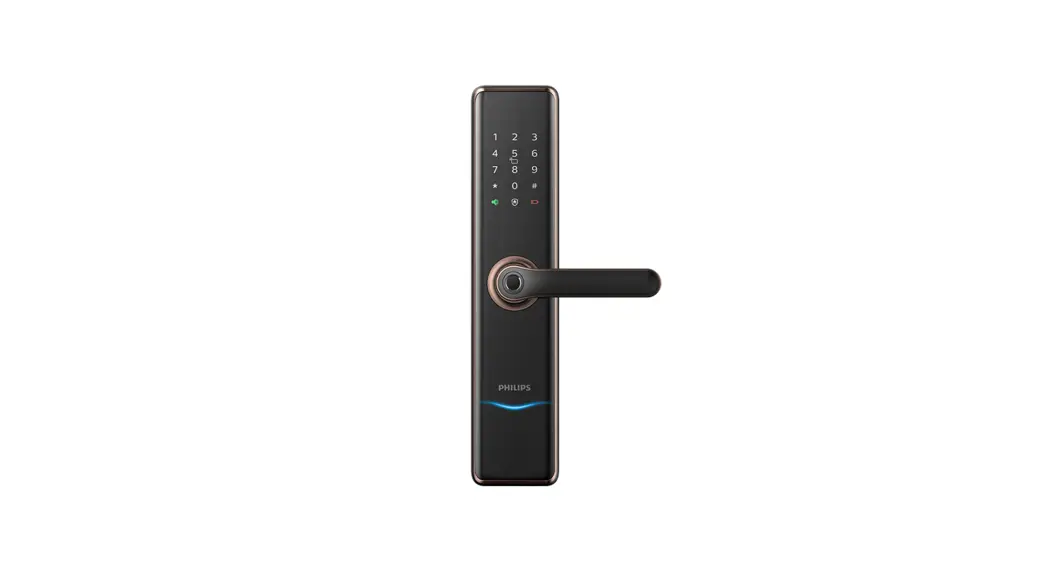
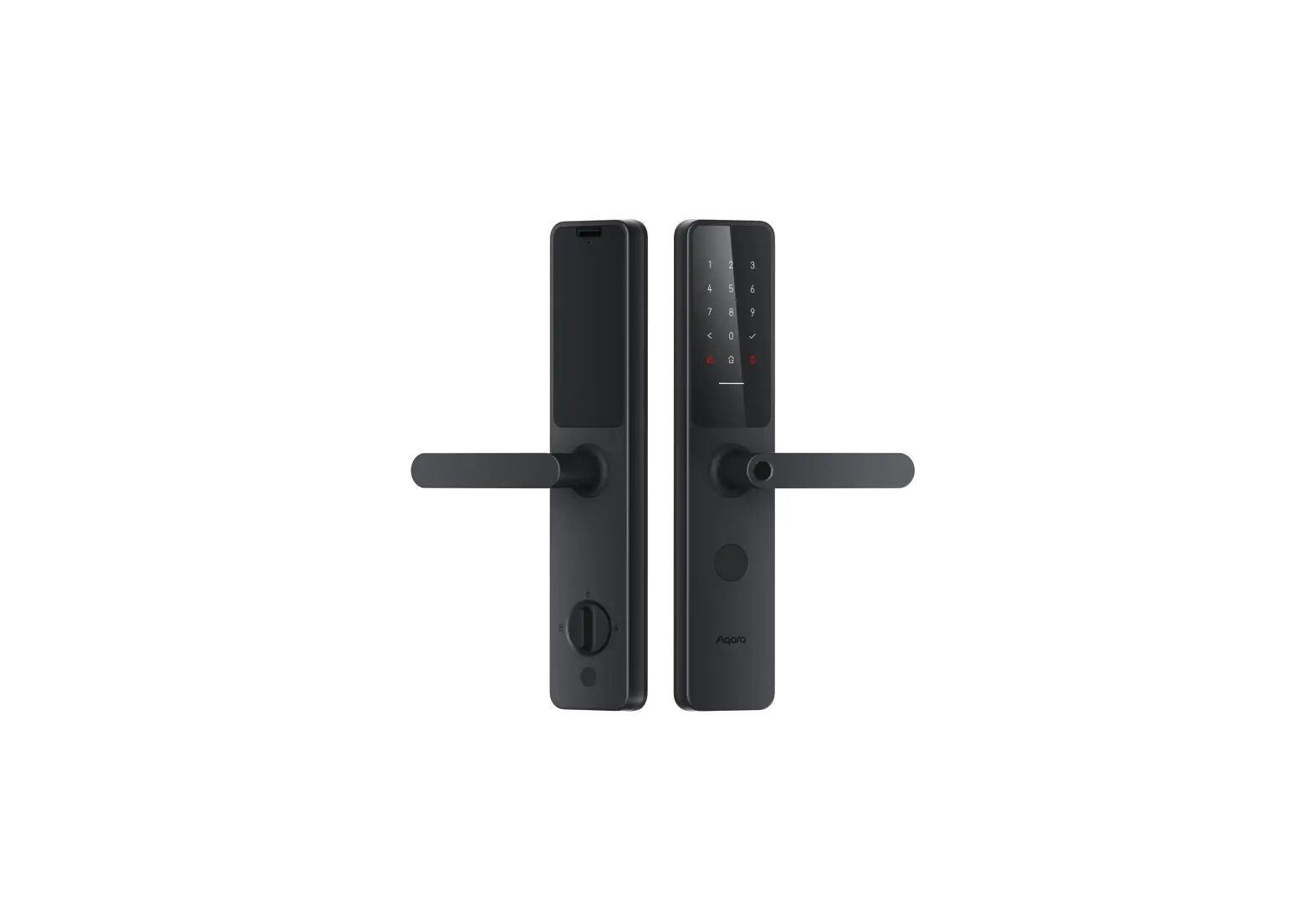
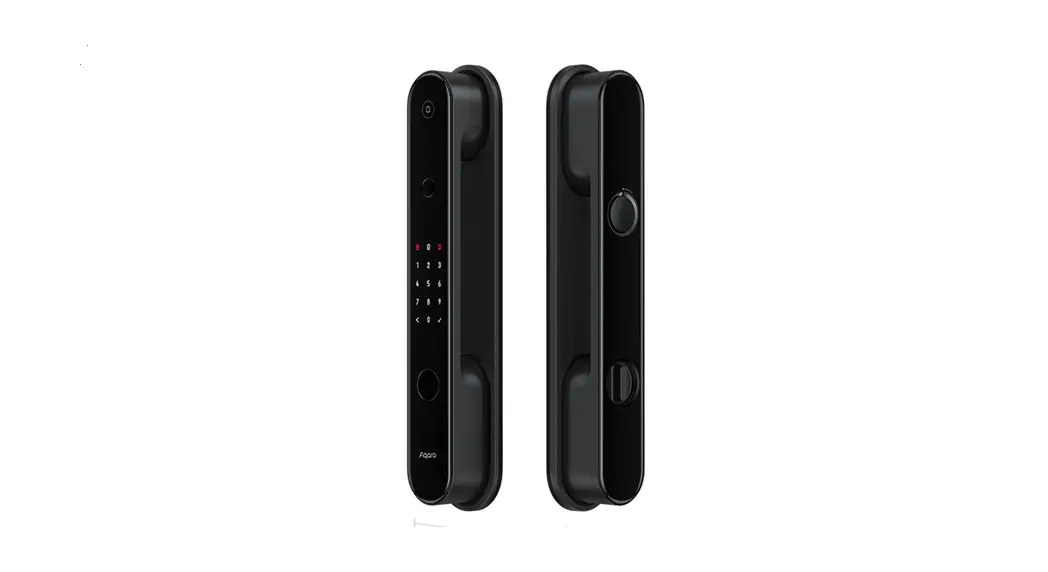
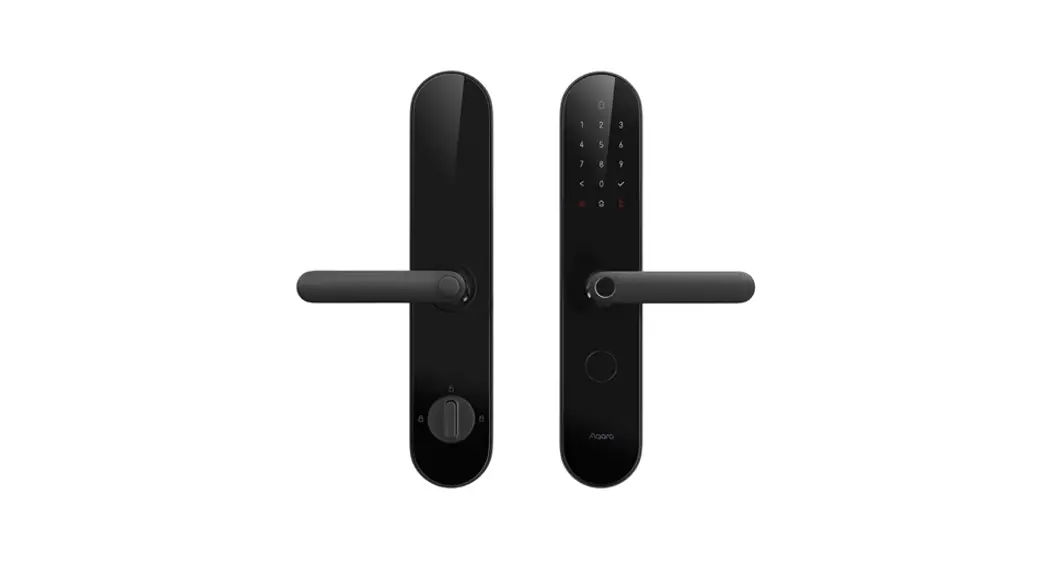
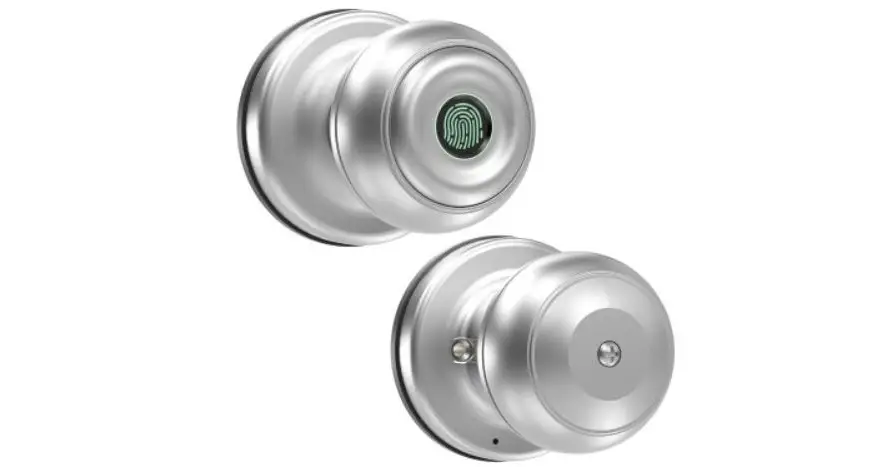
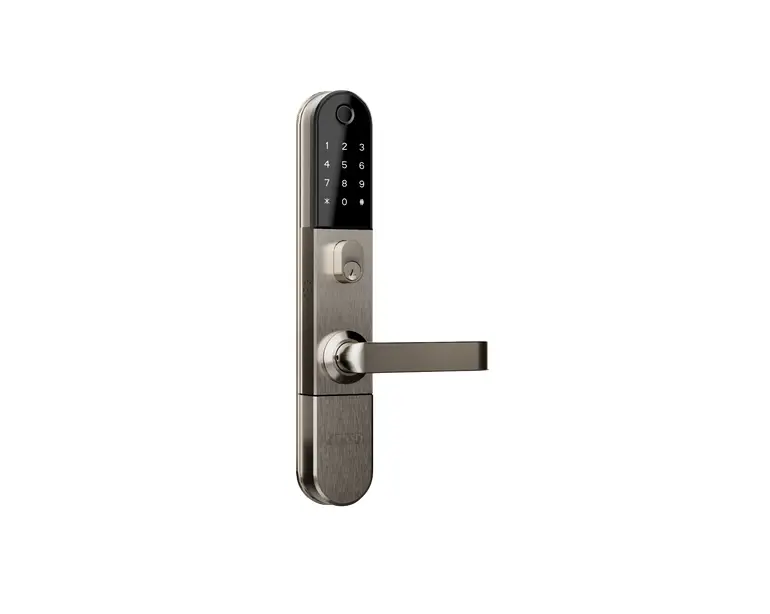
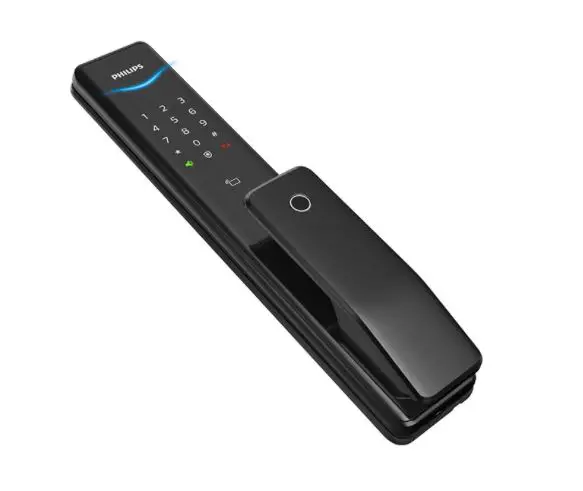
3000 Series Smart Video Door Lock
EasyKey 3000 series Smart Video Door Lock DDL303-VP-5HW
The EasyKey 3000 series Smart Video Door Lock DDL303-VP-5HW is a
secure and convenient way to manage access to your home. It
features a fingerprint sensor for easy unlocking, as well as a
mechanical key for backup. The lock can be controlled remotely via
a mobile app and features various settings that can be customized
to suit your needs.
Product Usage Instructions
Important Information
- Before using the product, read and fully understand all
instructions to avoid damage that may not be covered in the
warranty. - Use only the manufacturer-specified
accessories/components. - Use only the alkaline or Li-polymer batteries the product is
equipped with, or use the same type of batteries with the same
specification. - Do not forcibly disassemble the product to avoid triggering an
alarm or damaging the product. - Do not scrape the fingerprint sensor with sharp objects,
otherwise, it may cause permanent damage. - Do not expose products to the environment where there is water
leakage or splashing. - Do not expose the product to corrosive substances to prevent
damaging the protective cover. - Do not hang objects on the handle, in case it might affect the
normal use of the lock. - Clean the product with a soft cloth.
- Do not remove the battery during setting up and operating.
- Let a professional technician install the door lock and follow
the installation guidelines provided. Do not disassemble the lock
by yourself. Keep the relevant sealed stickers properly. - Modify the default master PIN code immediately after
installation and configuration, and keep the mechanical key
properly, do not easily disclose the password to others. - Replace all the batteries immediately if there is a low battery
level alarm. Make sure to correctly match the poles (+/-) when
installing the batteries.
Caution
- Do not place the batteries near fire sources to avoid an
explosion. - Do not use any power supply that does not meet the safety
requirements to power up the product. - Do not connect the 2 poles of the batteries with metals to
avoid a short circuit which may lead to an explosion. - Make sure any component replacement is executed by Philips,
Philips authorized service center, or professional
technicians. - Do not use accessories or parts that have been produced by
other manufacturers or have not been specifically recommended by
Philips. The use of such accessories and parts may void your
warranty.
Disposal of Used Products and Batteries
You can have your locks reclaimed at Philips authorized service
centers. You will receive corresponding compensation if your
products meet our conditions.
Installation
Refer to the packing list, exploded views, pre-install
instruction, and installation steps provided in the user manual for
installation guidance.
Get to Know the Product
The product features an outside escutcheon and inside
escutcheon. Familiarize yourself with these components before
use.
Settings
The lock features various settings that can be customized. These
include master mode, master settings, user settings, system
settings, network settings, information query, and mechanical
feature query. Refer to the user manual for guidance on how to
access and modify these settings.
Get to Use the Product
The lock can be unlocked from the outside or inside, using the
fingerprint sensor, mechanical key, or via the mobile app. Refer to
the user manual for guidance on how to use each of these
methods.
EasyKey
3000 series Smart Video Door Lock DDL303-VP-5HW
User manual
Register your produc t and get support at ww w.philips.com/support
Contents
1. Important Information 02 6. Other features
19
Safety
Caution
Disposal of used products and batteries
One-click mute Restore to default settings Doorbell Display
2. Installation
Packing list Exploded views Pre-install instruction Installation steps
03 7. Indicators
21
Door lock status indicator Mute indicator System lock-up indicator
3. Get to know the product
Outside escutcheon Inside escutcheon
4. Settings
Master mode Master settings User settings System settings Network settings Information query Mechanical feature query
09 8. Troubleshooting
22
Alert types & methods How to apply an external power supply How to replace batteries How to charge the batteries
10
5. Get to use the
16
product
Outdoor/ indoor unlock Outdoor/ indoor lock Indoor deadlock Mechanical key open
1
1. Important information
Safety
Before using the product, be sure to read and fully understand all instructions. Damage caused by non-compliance with the instructions will not be covered in the warranty.
Use only the manufacturer-specified accessories/components.
Use only the alkaline or Li-polymer batteries the product is equipped with, or use the same type of batteries with the same specification.
Do not forcibly disassemble this product to avoid triggering an alarm or damaging the product.
Do not scrape the fingerprint sensor with sharp objects, otherwise it may cause permanent damage.
Do not expose products to the environment where there is water leakage or splashing.
Do not expose the product to corrosive substances to prevent damaging the protective cover.
Do not hang objects on the handle, in case it might affect the normal use of the lock.
Please clean the product with a soft cloth.
Do not remove the battery during setting up and operating.
Please let a professional technician to install the door lock and follow the installation guidelines provided. Do not disassemble the lock by yourself. Keep the relevant sealed stickers properly.
Please modify the default master PIN code immediately after installation and configuration, and keep the mechanical key properly, do not easily disclose the password to others.
Please replace all the batteries immediately if there is a low battery level alarm. Please make sure to correctly match the poles (+/-) when installing the batteries.
Caution
Do not place the batteries near fire sources to avoid explosion.
Do not use any power supply that does not meet the safety requirements to power up the product.
Do not connect the 2 poles of the batteries with metals to avoid short circuit which may lead to an explosion.
Please make sure any component replacement is executed by Philips, Philips authorized service center or professional technicians.
Do not use accessories or parts that have been produced by other manufacturers or have not been specifically recommended by Philips. The use of such accessories and parts may void your warranty.
Disposal of used products and batteries
You can have your locks reclaimed at Philips authorized service centers. You will receive corresponding compensation if your products meet our conditions.
Please familiarize yourself with the local electronic product collection system.
Please follow local regulations and do not discard used products into ordinary household waste.
Proper disposal of used products can help to avoid potential negative impacts on the environment and human health.
Batteries must not be disposed of with ordinary household waste.
Please familiarize yourself with the local regulations on batteries classification recycling. Disposing of batteries properly can help avoid a negative impact on the environment and human health.
2
2 Installation
Packing list
This packing list is for reference only. Please refer to the actual packing items.
Outside escutcheon with
silicon pad
Inside escutcheon with
silicon pad
Drilling template
Mortise
Easy Key
User Manual
User manual
Easy Key
Warranty Card
Warranty card
EasyKey
Certificate of conformity
Installation kit
Key tag
Mechanical key
Li-ion battery
Strike
Cleaning pad
Charging cable
3
Exploded views
123
4
5
6
78
9
10
11
15
14
13
12
1. Screen*1 2. Li-ion battery*1 3. Inside escutcheon
screw*6 4. Inside escutcheon*1 5. Anchor screw*3
6. Rear sealing plate component*1
7. Mortise*1 8. Mortise’s anchor
screw*4 9. M6 screw tube*3 10. Set screw*2
4
11. Outside escutcheon*1
12. Lock cylinder*1 13. Lock cylinder’s
anchor screw*1 14. Lock-out bolt bar*1 15.Inside escutcheon
silicon plug*1
Pre-install instruction
Step 1 | Door opening direction
This product is suitable for doors with four opening directions: left-out pull, rightout pull, left-in push and right-in push.
Left-open
Right-open
Left-in push
Right-in push
Left-out pull
Right-out pull
Step 2 | Changing the latch bolt’s direction
You can change the direction of the latch bolt to adapt to doors of different opening directions. When the bolt bevel faces outside, it is for inwards opening; And when the bolt bevel faces inside, it is for outwards opening. There might be one of the two types of mortise attached, please follow the below steps to change the latch bolt’s direction as per “Graph 1” or “Graph 2”.
Pull out the latch bolt, rotate it to adjust the direction.
Push the direction adjustment bar to the top.
Follow the direction of the arrow to push the latch bolt in.
Graph 1
Insert a screw driver to the slot, and use the screw driver to push the latch bolt’s connecting rod to the direction of the latch bolt.
5
Follow the direction of the arrow to rotate the latch bolt to 180 degrees.
Follow the direction of the arrow to rotate the direction adjustment bar.
Follow the direction of the arrow to push the latch bolt in.
Graph 2
Follow the direction of the arrow to rotate the direction adjustment bar.
Attention
1. Choose a proper installation kit base on the door thickness. 2. The default installation kit is applicable to door thickness of 60-90mm. If your door thickness is out of this range, please contact the local distributor.
Installation steps
The following installation steps apply to right-open doors. For leftopen doors, please read the [Pre-install instructions] carefully and make needed adjustments.
1 To drill the needed holes in the door as per the drilling template, then mount the mortise on the hole, and tighten the anchor screws to fix the mortise.
6
Lock cylinder
Lock cylinder’s anchor screw
2 Put the lock cylinder into the mortise, and then tighten the lock cylinder’s anchor screw.
Attention
1. Please cut the bar of the lock cylinder to a proper length. 2. Cutting requirements: After the lock cylinder is inserted into the mortise, leave the bar with an extruded length of 15-30mm that is higher than the door surface and cut the rest part. When the cutting is done, align the mortise to put the lock cylinder into it.
3 Install the set screw and connecting screw tube on the outside escutcheon.
4 Pass the connecting cable through the hole above the door. Align the square shaft of the outside escutcheon with the rotary hole on the mortise, and insert the square shaft into the rotary hole, so that the outside escutcheon is closely fitted in the outside part of the door.
Connecting screw tube Connecting
screw tube
Set screw
Connecting screw tube
Escutcheon cable
Video cable
7
5 Attach the fixing plate to the inner surface of the door, fix it with 3 M6 anchor screws, and tighten them.
6 Insert the cut lock-out bolt bar into the buckle of the inside escutcheon, then connect the escutcheon cable and video cable accordingly.
Escutcheon cable
Video cable
Attention
Please cut the length of the lock-out bolt bar to a proper length as per the door thickness.
7 Align the square shaft of the lock cylinder and the
lock-out bolt bar with the
corresponding socket on
the inside escutcheon, hide
the extra cables into the
door hole, and stick the
inside escutcheon tightly to the door. Tighten the anchor screws to fix the inside escutcheon.
8 Install the battery and screen component.
9 To check whether the rotary knob, mechanical keys, and all other parts are well connected or not.
Anchor screw
8
3 Get to know the product
This packing list is for reference only. Please refer to the actual packing items.
Outside escutcheon
1
3
Camera
4
Card reader
2
Fingerprint sensor
Keypad 5
Micro USB port 6
Mechanical key hole
Inside escutcheon
3
4 2 1
5 6
Screen Battery RES button OPEN/CLOSE button Unlock rotary knob Lock-out bolt bar’s rotary
knob
9
4 Settings
Pre-setup instructions
There are 2 operating modes for the product: general mode and dual verification mode.
General mode Dual verification mode
Unlock by any enrolled verification method.
Unlock by any two of the verification methods among PIN code, key tag and fingerprint.
User code You can delete a single user information by its user code without having to delete everything in the system. You can fill in the user information in the following table for future query:
Code 00
Name
Fingerprint
PIN code
Key tag
01
02
03
04
05
06
Icon annotation
Master User PIN Master Fingerprint User code [#] key PIN code code fingerprint enrollment 01-300
[*] key Key tag enrollmentAttention 1.Press [*] key to return to the previous menu. 2. In the initial state, any fingerprint, key tag or 8-digit or above PIN code can unlock the door. 3. Total capacity of verification access is 300 sets- Fingerprint: 100 sets; PIN code: 100 setsKey tag: 100 sets.
10
Master mode
Wake up the keypad and long press the [#] key to enter the master mode.
Attention In the initial state, there is no master information. You need to add a master before moving on to the next steps.
Add a PIN code: enter the master PIN code and confirm with [#] key, re-enter the master PIN code and re-confirm with [#], and the voice will prompt that the addition is successful. Add a fingerprint: place the finger on the fingerprint sensor, follow the voice prompts to lift and re-place the finger on the fingerprint sensor until the voice prompts that the addition is successful. Add a key tag: Follow the voice prompts to enroll the key tag until the voice prompts that the addition is successful.
Attention
1. The user code range from 1 to 9 belongs to master users( and the master users’ verification method could be a fingerprint, PIN code or key tag). 2.The PIN code length is 8 digits.
Delete an admin
Master settings
Add an admin
Long press the [#] key to enter the master mode.
12
Long press the [#] key to enter the master mode.
11
Press [1] to enter master settings, follow by pressing [2] to delete a master user, then delete the user codes of the master PIN
code, master fingerprint or master key tag that need to be deleted, and confirm with [#] key, and the voice will prompt that the operation is successful.
Press [1] to enter master mode, then press [1] again to add an admin, and the door lock will automatically recognize the unlocking
methods and add PIN codes/fingerprints/ key tags accordingly.
11
User settings
Add a user
Long press the [#] key to enter the master mode.
21
Press [2] to enter user settings, then press [1] again to add a user, and the door lock will automatically recognize the unlocking methods and add PIN codes/fingerprints/ key tags accordingly.
22
Press [2] to enter user settings, re-press [2] to delete a user, then delete the user codes of the PIN code, fingerprint or key tag that need to be deleted, and confirm with [#] key, and the voice will prompt that the operation is successful.
System settings
Time settings
Add a PIN code: enter a new user PIN code and confirm with [#] key, re-enter the user PIN code and re-confirm with [#], and the voice will prompt that the addition is successful. Add a fingerprint: place the finger on the fingerprint sensor, follow the voice prompts to lift and re-place the finger on the fingerprint sensor until the voice prompts that the addition is successful. Add a key tag: Follow the voice prompts to enroll the key tag until the voice prompts that the addition is successful.
Attention
1. The user code range from 10 to 300 belongs to general users( and the general users’ verification method could be a fingerprint, PIN code or key tag). 2.The PIN code length is 8 digits.
Long press the [#] key to enter the master mode.
1
Press [3] to enter system settings, then press [1] to enter time settings, the lock will automatically prompt the current time, and the user can follow the voice prompts to finish the time settings.
Lock code settings
Long press the [#] key to enter the master mode.
2
Delete a user
Long press the [#] key to enter the master mode.
Press [3] to enter system settings, then press [2] to enter lock code settings, the lock will prompt the current lock code, then the
user can follow the voice prompts to enter
a 3-digit or 4-digit lock code and confirm with [#] key, the voice prompt that the operation is successful.
12
Voice settings
Delayed locking settings
Long press the [#] key to enter the master mode.
or
Press [3] to enter system settings, re-press [3] to enter voice settings, then follow the voice prompts to choose [6] or [4] to adjust the voice volume accordingly.
Unlock mode
Long press the [#] key to enter the master mode.
or
Press [3] to enter system settings, then press [5] to enter delayed locking settings, for longer delayed locking time, please press [2], for shorter delayed locking time, please press [8].
Attention 1. The default locking time is 10s. 2. The range of the locking time is from 0 to 90 seconds, each time could only adjusted by 10s.
Long press the [#] key to enter the master mode.
1 or
or
Press [3] to enter system settings, then press [4] to enter unlock mode settings, for single-factor unlock method, please press
[1]; for combined-factor unlock method, please press [2]; for latch bolt re-lock time settings, please press [3], and follow by below steps to set the latch bolt re-lock
time.
Language settings
Long press the [#] key to enter the master mode.
or
To add latch bolt re-lock time, please press [2]; to reduce latch bolt re-lock time, please press [8].
Attention
1. The latch bolt re-lock time refers to the set time of how much time the latch bolt will rebound after the door unlocked, and the default latch bolt relock time is 3s. 2. The range of the latch bolt re-lock time is from 1 to 9 seconds, each time could only adjusted by 1s.
Press [3] to enter system settings, then press [6] to enter language settings.
1 2 or
Please select the language needed: for Chinese, press [1]; for English, press [2]. Once the voice prompts operation is successful, press [*] back to the previous menu until exiting the master mode.
13
Network settings
Code query
Long press the [#] key to enter the master mode.
Long press the [#] key to enter the master mode.
Press [4] to enter network settings, for hotspot connection, please press [1], for auto connection, please press [2].
Attention
This product is a connected door lock, users can use the connected features by binding the product with Tuya’s [SmartLift] App, and users can download Tuya’s [SmartLift] App on Appstore.
or
Press [5] to enter information query, for code query, please press [2], then follow the voice prompts to enter the inquired code, the current day’s operation record will be broadcast by voice, for scrolling up the records, please press [2], for scrolling down the records, please press [8].
Storage query
Information query
Time query
Long press the [#] key to enter the master mode.
Long press the [#] key to enter the master mode.
or
Press [5] to enter information query, for time query, please press [1], then follow the voice prompts to enter the inquired date, the current day’s operation record will be broadcast by voice, for scrolling up the records, please press [2], for scrolling down the records, please press [8].
Attention Door lock operation records <510 articles.
Press [5] to enter information query, for storage query, please press [3], the voice will prompt the enrolled records for the current fingerprints, PIN codes, and key tags, and broadcast the remaining storage volume.
Attention
1. Code range from 01~09 belongs to master users; 2. Code range from 10~300 belongs to general users;
14
Motor settings
The motor settings only for installation technicians, please operate it carefully.
Torque settings
or
or
When the door lock is in the initial state,
wake up the door lock keypad and press
“888#” to enter the motor setting mode. Press [1] to enter the torque setting, then press [1], [2] or [3] to select the required torque, and there will be a voice prompt
of the currently selected torque, then the
setting is done.
Reversal period settings
or
Under the initial state, wake up the keypad and press “888#” can enter the motor setting mode. Press [3] to enter reversal period settings, then press [2] to add the reversal period, or press [8] to reduce the reversal period settings. After the settings is done, the voice will prompt: the reversal period is XXX seconds.
Attention The default reversal period is 0.3s, and it could be adjusted from 0 to 0.3 second.
Door swing direction settings
When the door lock is on the left side of
the door, under the initial state, wake up
the keypad and press “888#” can enter the motor setting mode. Press [2] to enter the torque setting, re-press [2] to set the left swing door direction, and the voice will
prompt the door is left-open.
When the door lock is on the right side of
the door, under the initial state, wake up
the keypad and press “888#” can enter the motor setting mode. Press [2] to enter the torque setting, re-press [2] to set the right swing door direction, and the voice will
prompt the door is right-open.
Mortise type settings
Under the initial state, wake up the keypad and press “888#” can enter the motor setting mode. Press [4] to enter mortise type settings, and usually it is defaulted to be self closing mortise, after the setting is done, the voice will prompt the current mortise type.
15
5 Get to use the product
Unlock from outside / inside
Unlock from outside
PIN code 1
Keypad
Fingerprint
Key tag
Push/pull to unlock
2
Fingerprint sensor
1
2
Push/pull to unlock
1 Card reader
2
Push/pull to unlock
Touch to wake up the keypad, enter the enrolled PIN code and confirm with [#] key. After the voice prompts ” door unlocked”, push or pull the handle to unlock the door.
Unlock from inside
Place the enrolled finger to the fingerprint sensor.
After the voice prompts ” door unlocked”, push or pull the handle to unlock the door.
Place the enrolled key tag on the card reader.
After the voice prompts ” door unlocked”, push or pull the handle to unlock the door.
Rotary knob
OPEN/CLOSE button
Handle
Pull the rotary knob outward and rotate it to unlock the door.
Click the[OPEN]button and then push or pull the door
to unlock.
Hold and rotate the handle can unlock the door from inside.
Attention
The door lock will not be locked automatically after using the “rotary knob” or the “handle” to unlock the door. If you are inside the house, please use the “CLOSE” button to lock it. If you are outside the house, please press the “lock” icon on the outside escutcheon to lock it.
16
Lock from outside/inside
Auto-locking
When the door is closed, the lock will be locked automatically.
Attention The auto-locking period is related to the delayed locking period, please follow your own usage habit to set the locking period.
Manually locking
When the auto-locking of the door lock fails occasionally and cannot be automatically locked. After closing the door, please press the lock button on the outside escutcheon to complete the locking step.
Attention
The [*] key could be used as both a lock button and a [*] key, when the keypad is lighten up, long press the [*] key for 2s, the [*] button could be used as a lock button; short press the [*] key could go back to the previous page.
OPEN/CLOSE button locking
When the auto-locking of the door lock fails occasionally and cannot be automatically locked. After closing the door, please press the CLOSE button to complete the locking step.
17
Handle locking
Hold and rotate the handle can unlock the door from inside.
Indoor deadlock
When the door lock is locked, press down and rotate the rotary knob to the left or the right side’s lock scale (as shown on the left graphic) could enable indoor deadlock. On the contrary, rotate the knob to the unlock scale in the middle could disable the indoor deadlock.
Mechanical key unlock
Get the mechanical keys from the packing.
Open the mechanical key cover from the bottom of the outside escutcheon, and rotate the bottom part of the cover until the keyhole unveils.
Insert the key into the lock cylinder, push hard and rotate it to unlock.
18
6 Other features
One-click mute
Mute button
function: Users can enable one-click mute to disable the voice prompts, which applies to the scenario that you don’t want your family to
be disturbed.
How to use (1)Switch to mute mode: when the system is waken up, long press the mute button for 2s to enter mute mode, and the indicator will be in white. (2)Switch to voice mode: when the system is waken up, long press the mute button for 2s to resume to voice mode, and the indicator will be in white.
Default settings
function: Empty all user information and restore to default settings.
How to use Long press the [RES] button with a sharp object for 6s,and confirm with [#], then all the user information will be emptied. The lock will be restored to default settings.
19
Doorbell Display
20
function: The indoor speaker emits a ding-dong sound to remind the host that a visitor is arrived. How to use Press the doorbell from outside, the indoor speaker will emits a ding-dong sound. Simultaneously, the camera of the door lock will capture the visitor’s photo, and send the captured content to the bond WeChat Mini Program. After the WeChat Mini Program receives the push message, you can remotely view the captured content of the doorway and unlock the door accordingly.
Attention The [#] key could be used both as a doorbell button and a [#] key, when it is under sleep mode, press the [#] key is to ring the doorbell, after the keypad is waken up, when you press the [#] key, it is for confirming.
function: When the visitor rings the doorbell, users can check the doorway from the indoor display. How to use When a visitor rings the doorbell, you can click the indoor screen button to turn on the display, and you can also view the doorway through the screen.
7 Indicator annotation
Door lock status indicator
Indicator
Blue: indicating that fingerprinting could be processed;
Green: indicating that verification is succeeded, and unlocking is allowed;
Red: indicating that verification failed or
alert is triggered.
Mute indicator
Note: White:whether the mute mode is on or off, the indicator is in white.
Mute indicator
System lock-up indicator
If there are 5 consecutive incorrect inputs of any of the 3 types of verification methods (fingerprint/PIN code/key tag), the system will be locked for 3 minutes.
Attention Only when touching to wake up the keypad or verifying the unlock methods will the system appears such a system lock-up prompt.
21
8 Troubleshooting
Alert types & methods
Anti-dismantling alert
Triggering: when the outside escutcheon is being pried open and the outside escutcheon is not closely fit with the door. Alert mode: continuous repeated alert. Off: the alert will turn off automatically, turn off after any successful unlock verification from outside or a successful unlock from inside.
How to apply an external power supply
External power supply interface
When the battery voltage is insufficient, and the door cannot be opened from the outside, you can power up the lock through the Micro USB interface by using a 5V power bank as an external power supply. After opening the door lock, please replace the batteries immediately. In case of a system crash and it’s unable to open the door from outside, please use an external power supply to power up the door lock, then it can be reboot automatically.
22
How to replace batteries
Slide up to open the battery cover
Battery cover buckle
The working power of the door lock is a 4200mA/h lithium battery.
The battery cabinet is located at the upper end of the inside escutcheon. You
can slide the battery cover upwards and
remove the cover to replace the battery.
How to charge the batteries
When the battery voltage is insufficient, and the door cannot be opened from the outside, you can power up the lock through the Micro USB interface by using a 5V power bank as an external power supply. After opening the door lock, please replace the batteries immediately.
Attention 1. The warranty period for the Li-ion battery is 1 year. 2. The charging voltage is 5V. 3. When the network in the use environment is unstable, it will accelerate the battery’s power consumption.
23
Philips and the Philips Shield Emblem are registered trademarks of Koninklijke Philips N.V. and are used under license. This product has been manufactured by and is sold under the responsibility of Shenzhen Conex Intelligent Technology Co., Ltd. and Shenzhen Conex Intelligent Technology Co., Ltd. is the warrantor concerning this product.