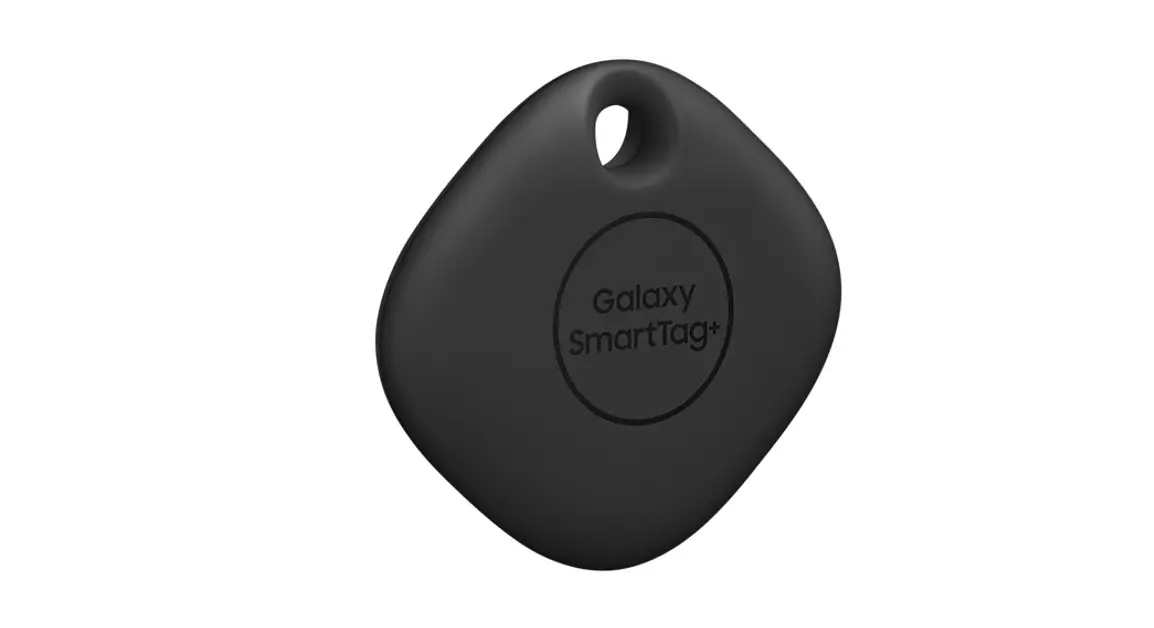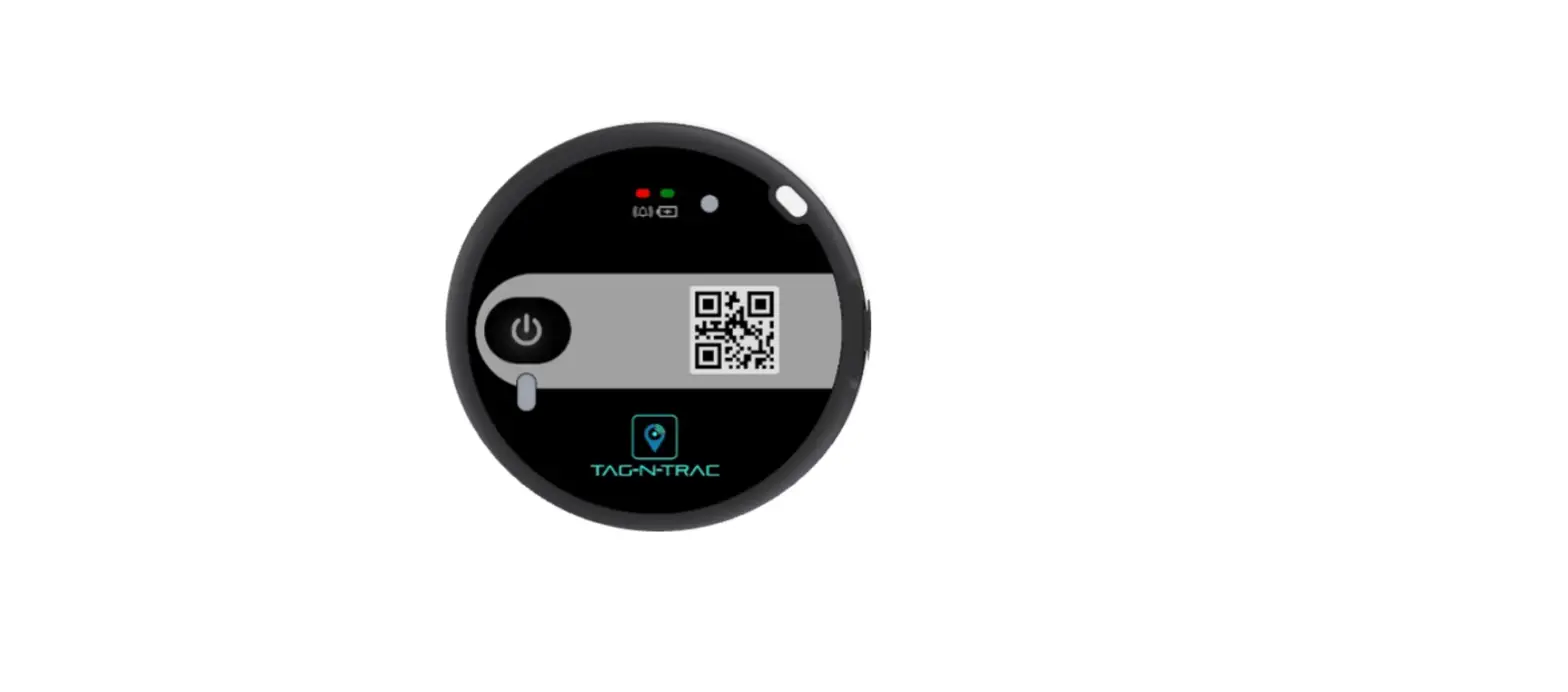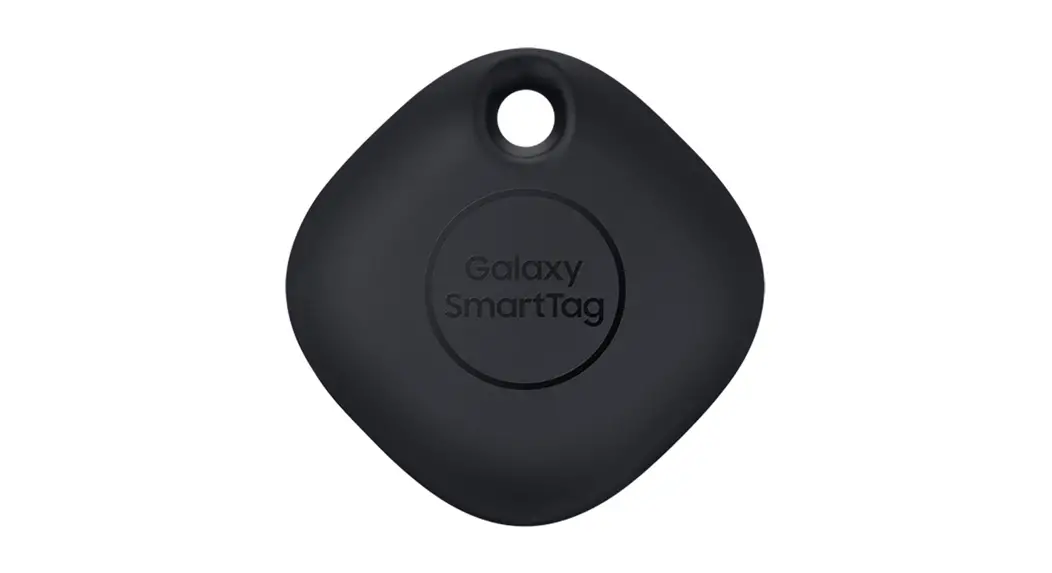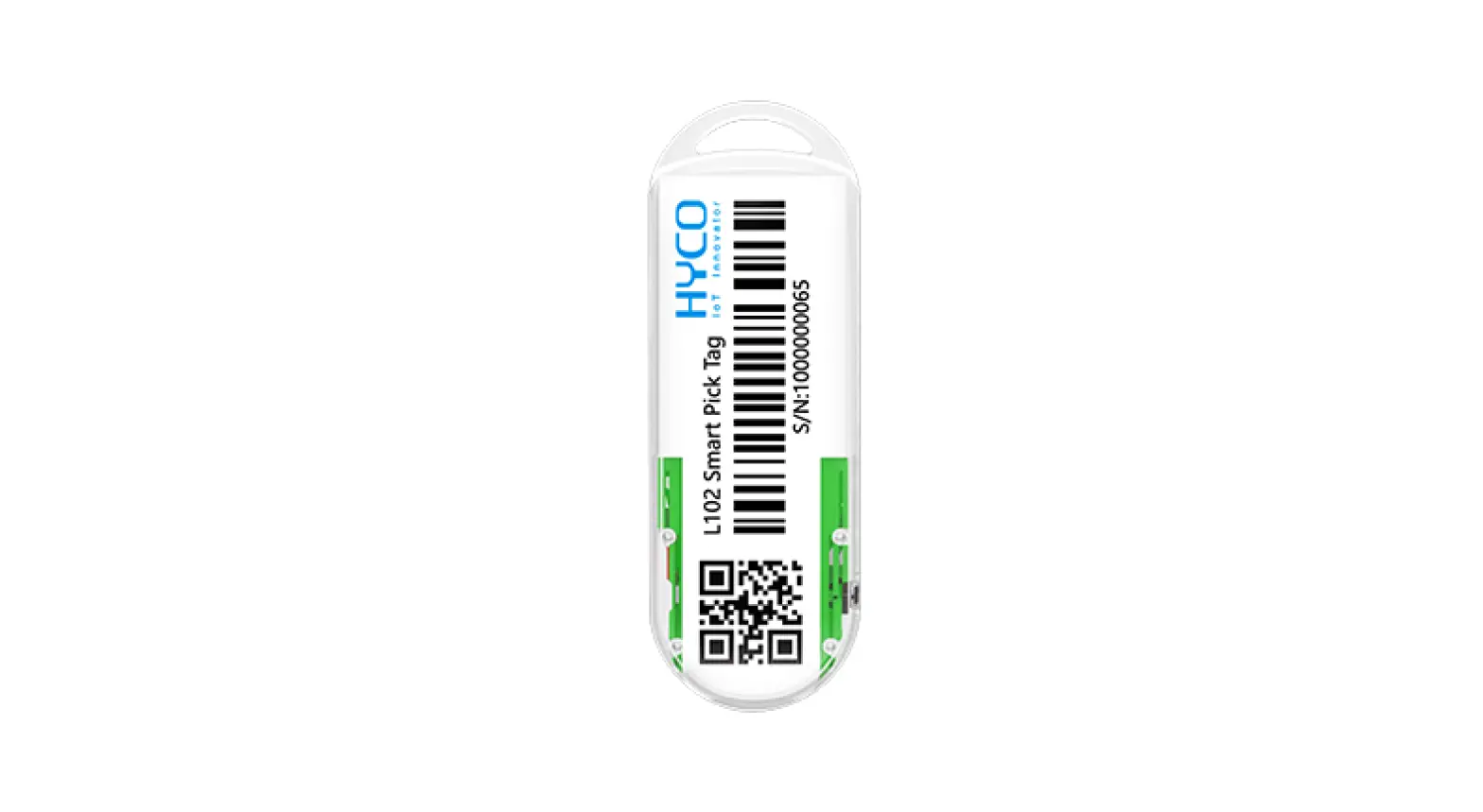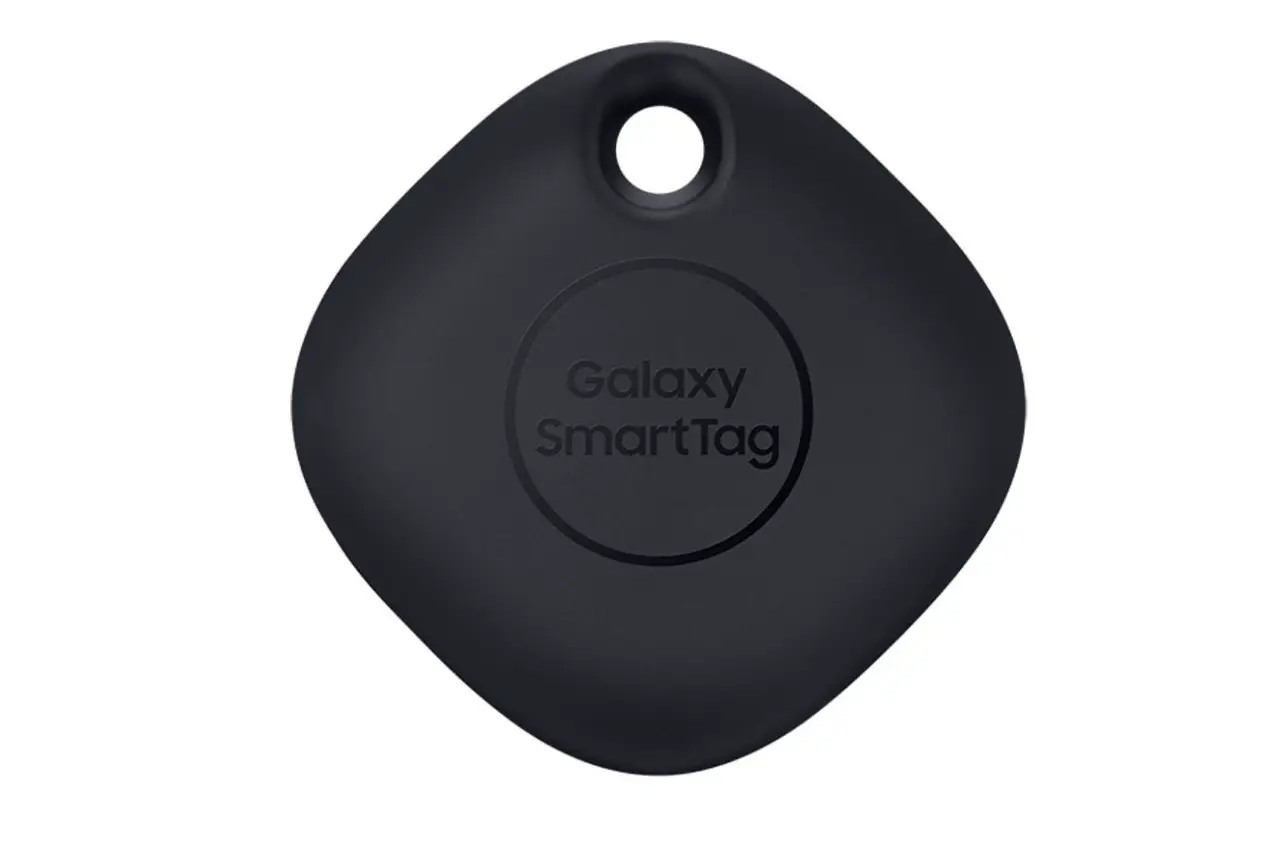

Smart Tag Manual st21
Tag any object and make it smart
Powered by SwiftFinder
Package Content
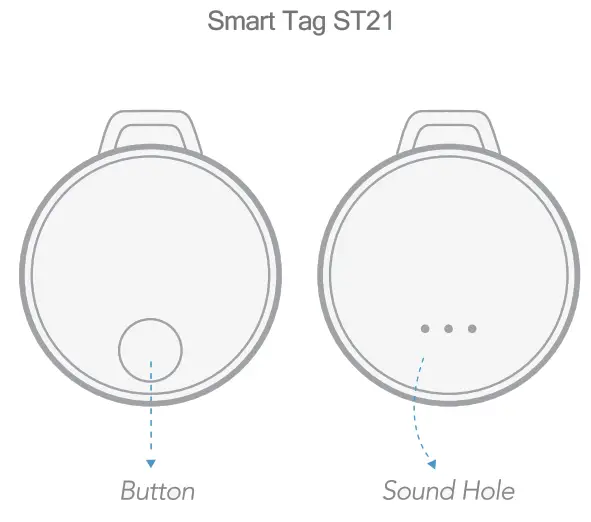
Specifications
| App Name | SwiftFinder |
| App OS | iOS 9&above, Android 6.0&above |
| Main Function | Object Finder, Phone Finder, Object Tracker, Separation Alert , Crowd GPS, Selfie Remote Custom Ringtones, Family Sharing |
| Shell Material | ABS-FPC |
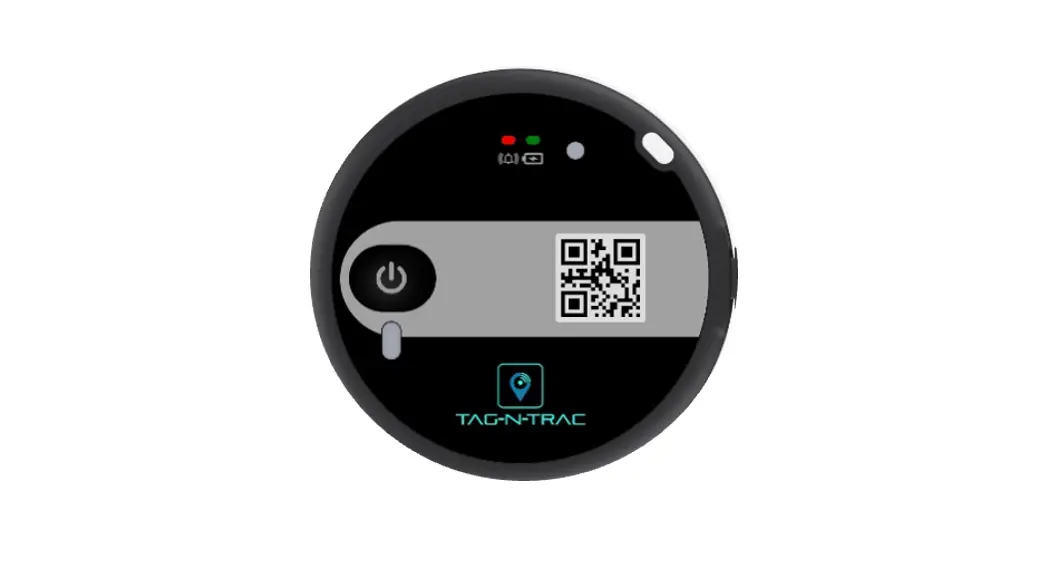
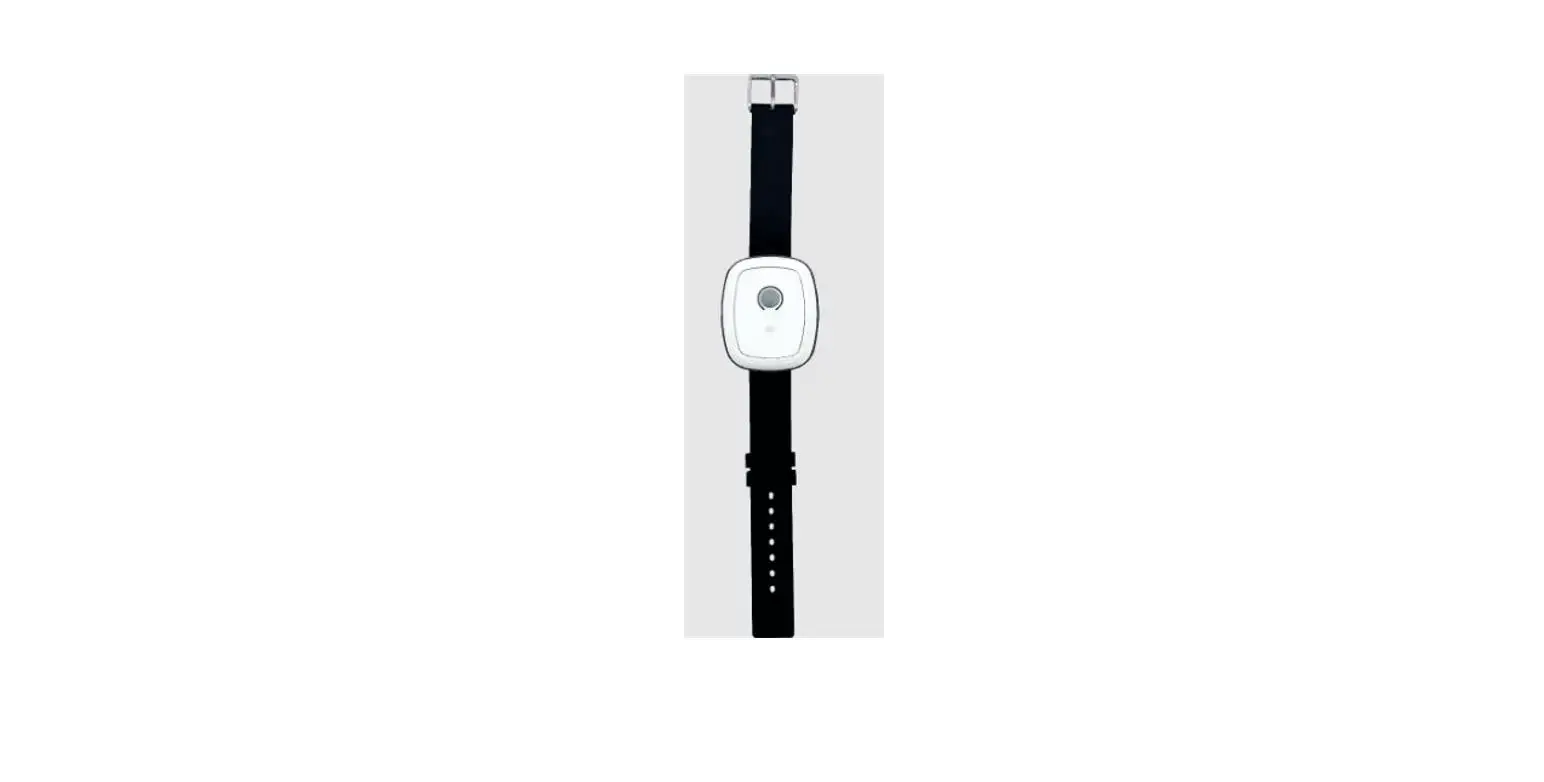
| Dimension | 40*40*6.5mm |
| Connection Range | Up to 40m (open area) |
| Battery Life | 6 Months |
| Battery Type | CR2032 (User Replaceable) |
Scan and Download: SwiftFinder
- Scan QR code

http://onelink.to/eq8dqh - Download

Press and Activate
- Activate your Smart Tag by pressing the button on it. It is ready to be connected to your phone when you hear a melody with a rising tone. If no action is taken within 1 minute, you will hear a melody with a falling tone and the smart tag will go back to sleep mode. Press again to get it ready.
- Open the SwiftFinder APP on your phone to link the device (see details on the next section). Once completed, your Smart Tag is ready to use.
- Test the connectivity by pressing the button on the Smart Tag. It beeps once if the tag is connected to the phone and twice if not.
Please contact us if you hit any issue: [email protected]
Tips for Android Phone
1. System Settings: In order for SwiftFinder devices to work properly, it is important to keep the SwiftFinder app running in the background. Android phones may close apps running in the background. Please tum off “Manage Automatically your settings for the SwiftFinder app to prevent it from being closed by your phone.
2. The Bluetooth module in Android phones may freeze from time to time. If you notice that your smart tag is not connected with the SwiftFinder app even if it is close to your phone, please restart Bluetooth on your phone.
Battery Replacement and Renewal
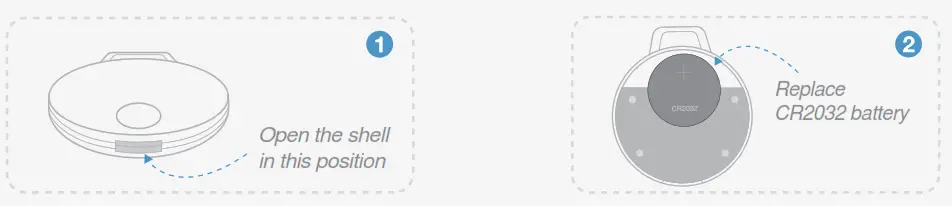
ZenLyte has a replaceable CR2032 battery. You can easily remove and replace the battery yourself by following the simple instructions below.
Add Smart Object
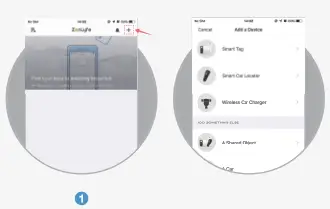 | |
| Tap the ‘+’ button on the Things tab of the app | Choose the type of device you need to add app |
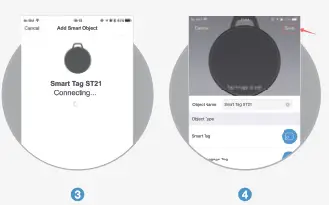 | |
| Connect the smart tag automatically | Tap the save button on the an upper right corner of the app |
Features
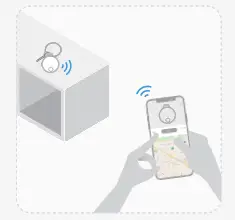
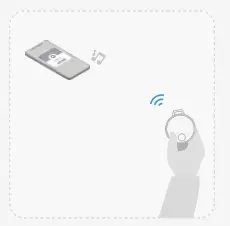
Find your stuff Find your phone
Can t find what you re looking for?
Ring the smart tag!
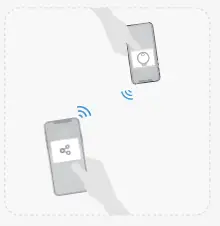
Press the button twice in a row to ring the phone, even when the phone is in silent mode!Share your device
Share the device with friends and family. They can help to find your stuff when your phone is not around!
FAQ
 How can I link my Smart Tag to a different account?
–  You need to unlink it from the previous account first. Simply log in to the last account in the SwiftFinder app, and delete the Smart Tag object.
Why can’t my smart Tag be found in the APP?– Its likely your smart tag is in sleep mode. Press and hold the button to activate it first.
Should I keep the SwiftFinder APP running all the time?– You can choose to only run the app when you are trying to find the tag. However, there are many advanced features, like separation alert, and keeping last seen location, which require the app to run all the time. The APP has been optimized for running at the background without draining the battery. For more info, please refer to our Facebook page.
Why does my Smart Tag sometimes beep randomly?– Please just reinstall the battery. Please refer to our Facebook page for more detail.
My device can’t reconnect to my phone even very close. How can I fix it?– Disable and re-enable Bluetooth on your phone, or restart your phone.
Want to learn more?
You can also email us at: [email protected] if you have other questions.
Learn more in the App Instructions. Open the App SwiftFinder —›Support —>Help Center.
And you will see more CAA to help you learn more about our products,