
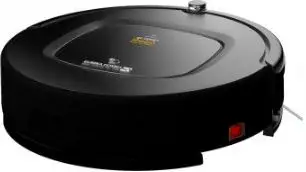
EUREKA FORBES Robo LVac Leaflet App
INSTALLATION
 STEP 1 Install/Download EFL Forbes Robo App.
 STEP 2: Open the app and go to the ‘Home’ page. Click on log in/register’ and enter your details to sign-in/sign-up.
 STEP 3 Once you login, go to the ‘Home’ page, click on the plus sign +” to add your robo model.
 STEP 4 From the listed robo models, select the LVAC VOICE.
 STEP 5: To connect your robo to the WiFi, long-press the WiFi sign on the panel of your robo for 3 seconds. Release the button when the robo gives a voice prompt and the WiFi sign starts flashing.
 STEP 6: Go to the WiFi section on your smartphone settings. Connect to the WiFi network with the prefix of ‘”EFLForbesRobo_”‘ and add your password to connect the device.
 STEP 7: Now, go back to the home screen and wait patiently for the Robo to connect to the network automatically.
 STEP 8: Initiate cleaning by setting scenes. To give cleaning commands via the smartphone app, click the plus sign ‘+# to add the device to a scene or click ‘Submit’ directly.
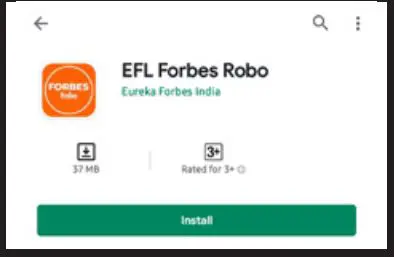 STEP 1 Install/Download EFL Forbes Robo App.
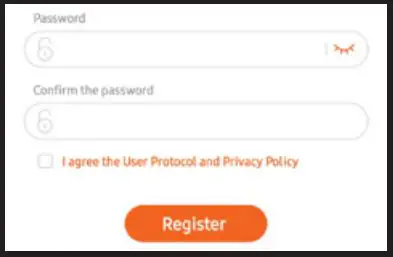 STEP 2: Open the app and go to the ‘Home’ page. Click on log in/register’ and enter your details to sign-in/sign-up.
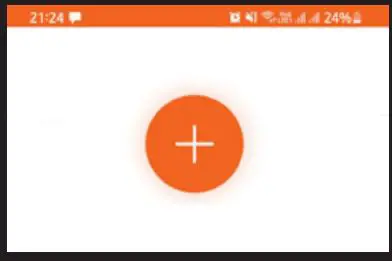 STEP 3 Once you login, go to the ‘Home’ page, click on the plus sign +” to add your robo model.
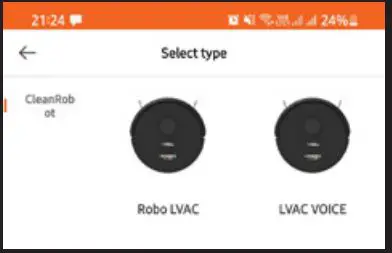 STEP 4 From the listed robo models, select the LVAC VOICE.
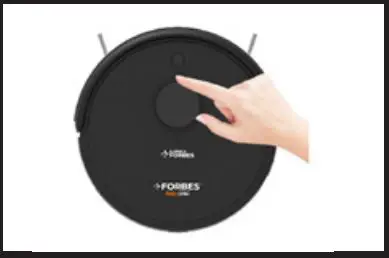 STEP 5: To connect your robo to the WiFi, long-press the WiFi sign on the panel of your robo for 3 seconds. Release the button when the robo gives a voice prompt and the WiFi sign starts flashing.
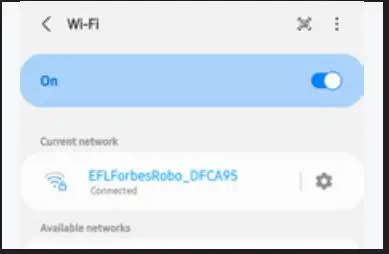 STEP 6: Go to the WiFi section on your smartphone settings. Connect to the WiFi network with the prefix of ‘”EFLForbesRobo_”‘ and add your password to connect the device.
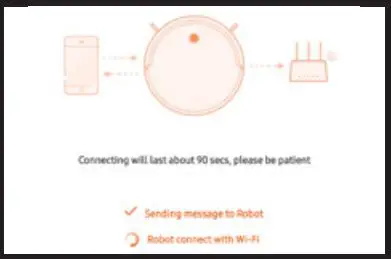 STEP 7: Now, go back to the home screen and wait patiently for the Robo to connect to the network automatically.
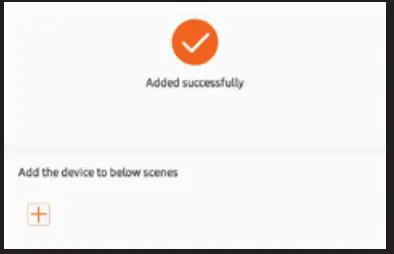 STEP 8: Initiate cleaning by setting scenes. To give cleaning commands via the smartphone app, click the plus sign ‘+# to add the device to a scene or click ‘Submit’ directly.
How to Operate the Device and give cleaning commands?
 Open the smart app and click theCon to enter the settings interface where to start, recharge, move, and delete.
 Tap on the machine’s picture on the smart page and enter the control details. Set partitions, start, recharge, map and ser o give cleaning commands. AutomatiC Long:
 Start the machine on theSelect the ‘smart partition’ icon in the options to experience and drive ne dual parution methods
 AutomatiC Long: Start the machine on the charging base. The machine will automatically recharge after cleaning is completed. It saves the map for intelligent zoning.
 Manual Partition: After cleaning the map, the machine is placed on the charging base, click ‘save Map’ to the partition function for future jobs.
- Select the partition to initiate cleaning.
 Go to map setings to edit, add, restore, clear, use, delete, and name map operations. You can also merge, split, re-partition, rename operations and select customised areas cleaning.
 For more operations select the option icon Set cleaning appointments, cleaning record, do not disturb time (DND), positioning robot, replacement and cleaning of accessories and more. or
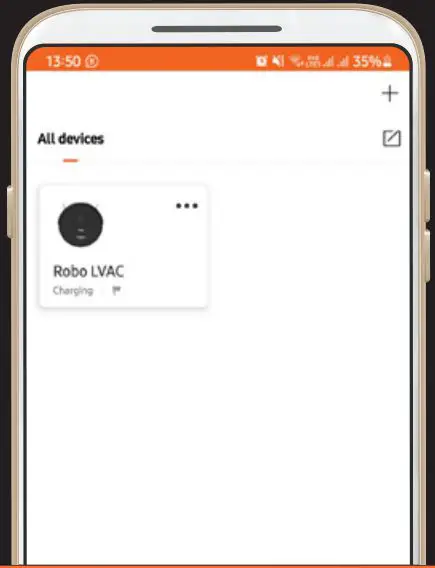 Open the smart app and click theCon to enter the settings interface where to start, recharge, move, and delete.
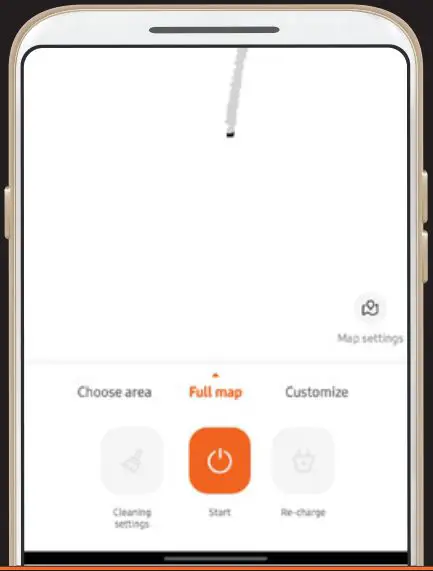 Tap on the machine’s picture on the smart page and enter the control details. Set partitions, start, recharge, map and ser o give cleaning commands. AutomatiC Long:
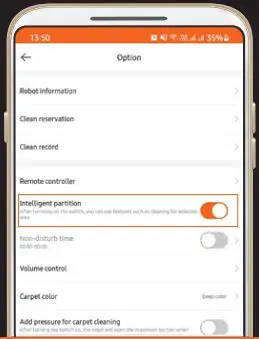 Start the machine on theSelect the ‘smart partition’ icon in the options to experience and drive ne dual parution methods
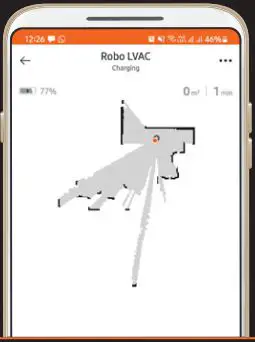 AutomatiC Long: Start the machine on the charging base. The machine will automatically recharge after cleaning is completed. It saves the map for intelligent zoning.
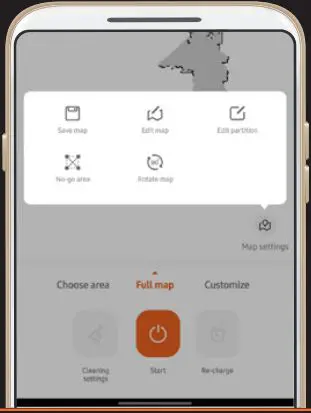 Manual Partition: After cleaning the map, the machine is placed on the charging base, click ‘save Map’ to the partition function for future jobs.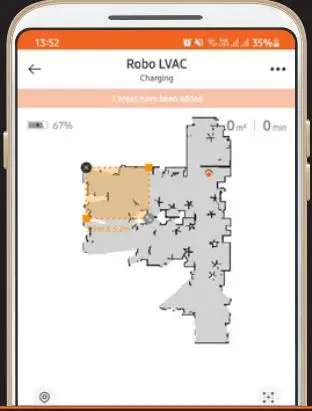
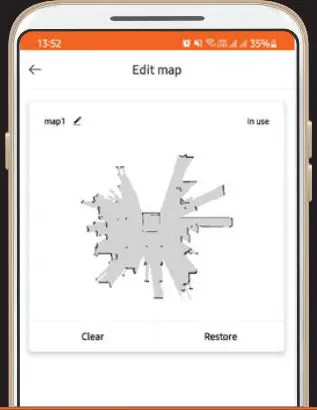 Go to map setings to edit, add, restore, clear, use, delete, and name map operations. You can also merge, split, re-partition, rename operations and select customised areas cleaning.
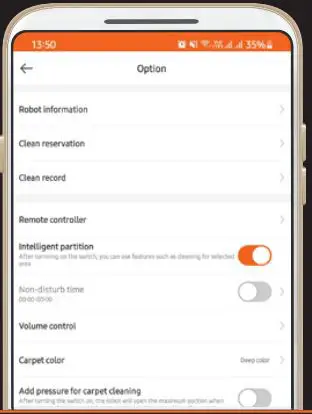 For more operations select the option icon Set cleaning appointments, cleaning record, do not disturb time (DND), positioning robot, replacement and cleaning of accessories and more. or