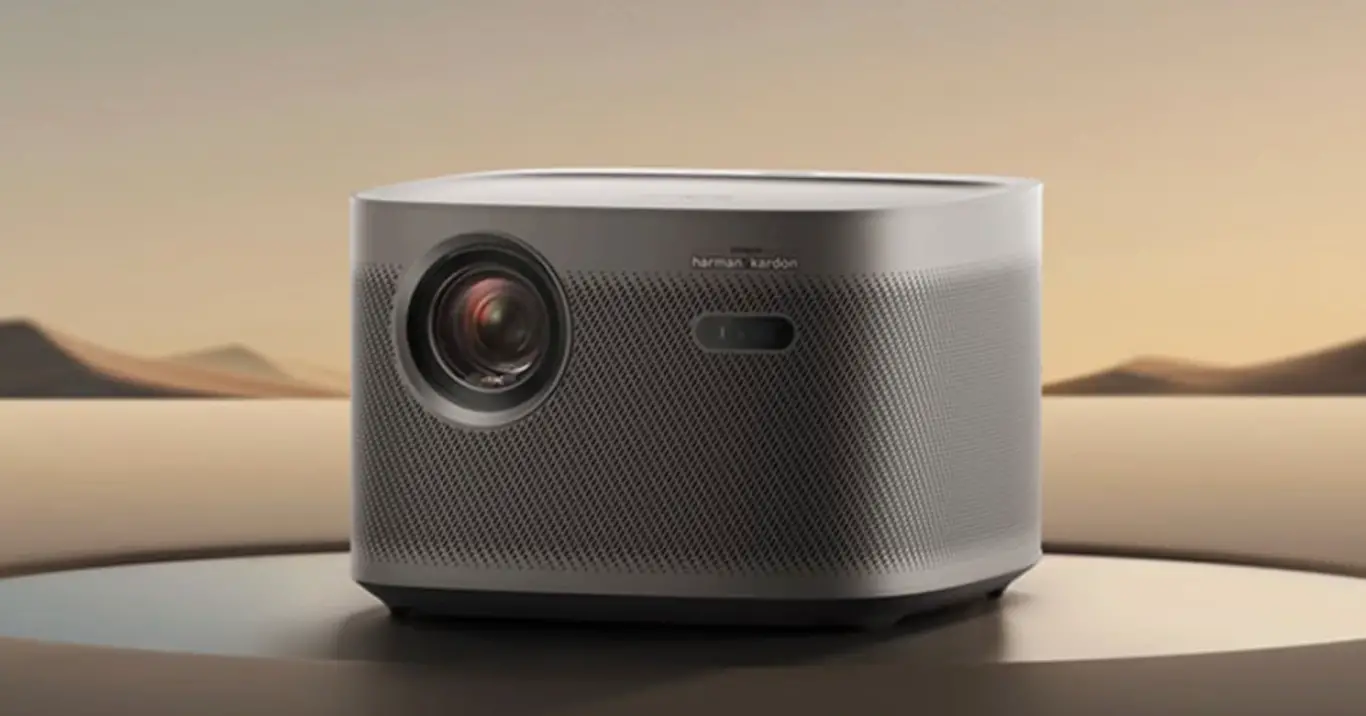

Xgimi Firmware Updating From Usb Disk Installation Guide

Xgimi Firmware Updating From Usb Disk Installation Guide

XGIMI-logo

XGIMI Firmware Updating from USB Disk
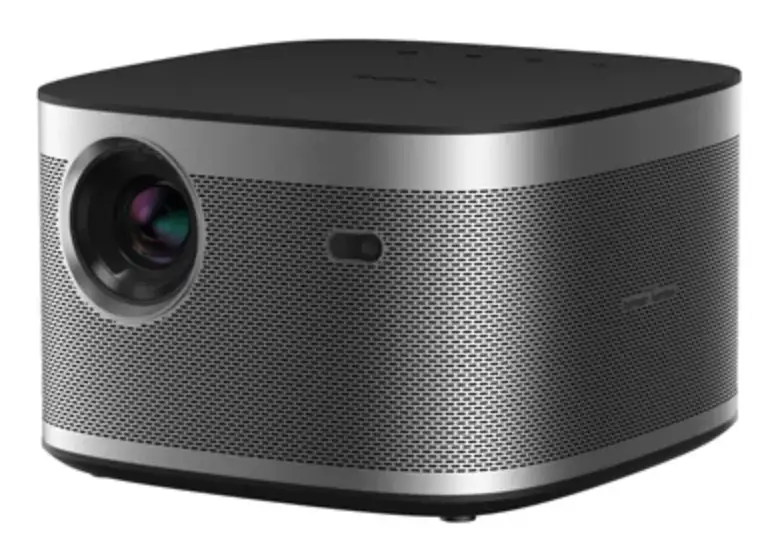
XGIMI-Firmware-Updating-from-USB-Disk-PRODUCT-IMAGE

Necessary Components

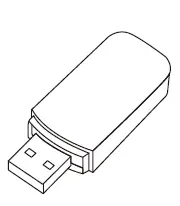
  • USB disk (FAT32 Format)
    XGIMI-Firmware-Updating-from-USB-Disk-1
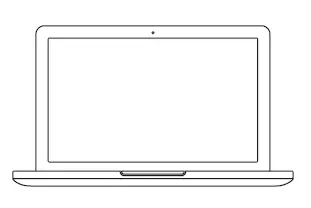
  • PC
    XGIMI-Firmware-Updating-from-USB-Disk-2
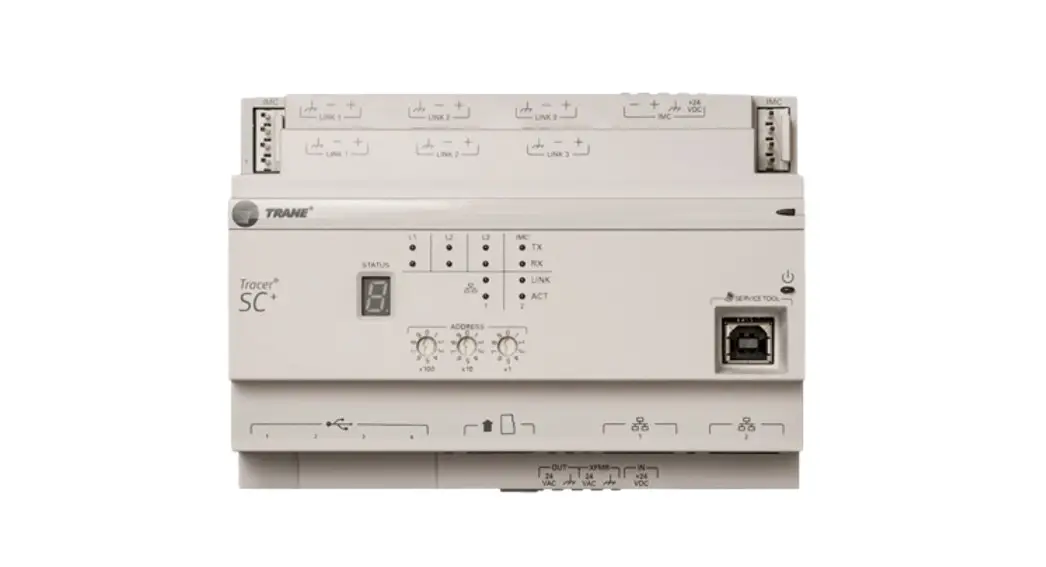
  • Projector (Models support  firmware updates)
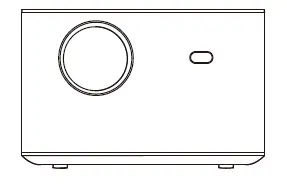
    XGIMI-Firmware-Updating-from-USB-Disk-3

Update Steps

How to perform a force brush

  1.  Download the firmware via the provided link from a PC and copy it to any USB disk; Note: (It should be formatted to FAT32)
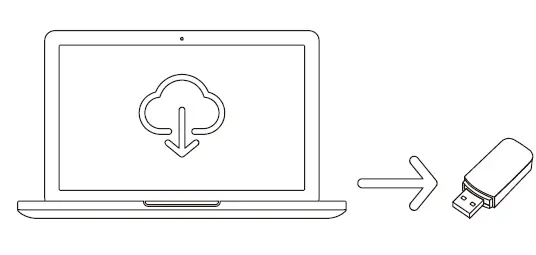
    XGIMI-Firmware-Updating-from-USB-Disk-4
  2. Plug the USB disk into the projector’s USB 2.0 port;
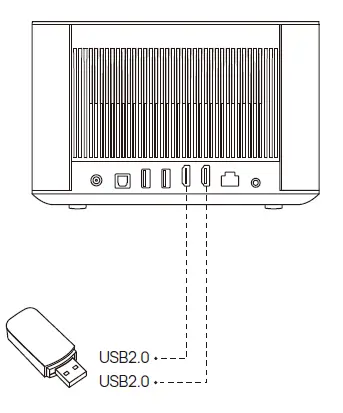
    XGIMI-Firmware-Updating-from-USB-Disk-5
  3. With the projector in Off mode (please don’t turn on the projector), long-press the “power” button on the projector for 5-7 seconds, and release it when you hear the fan operating strongly.
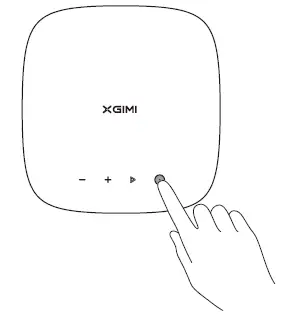
    XGIMI-Firmware-Updating-from-USB-Disk-6
  4. You’ll see an Android robot and a progress bar; Then, the system will update automatically.
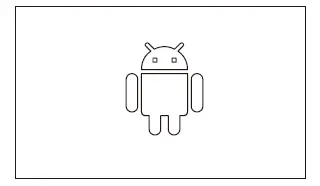
    XGIMI-Firmware-Updating-from-USB-Disk-7

Documents / Resouces

Download manual
Here you can download full pdf version of manual, it may contain additional safety instructions, warranty information, FCC rules, etc.


Related Manuals