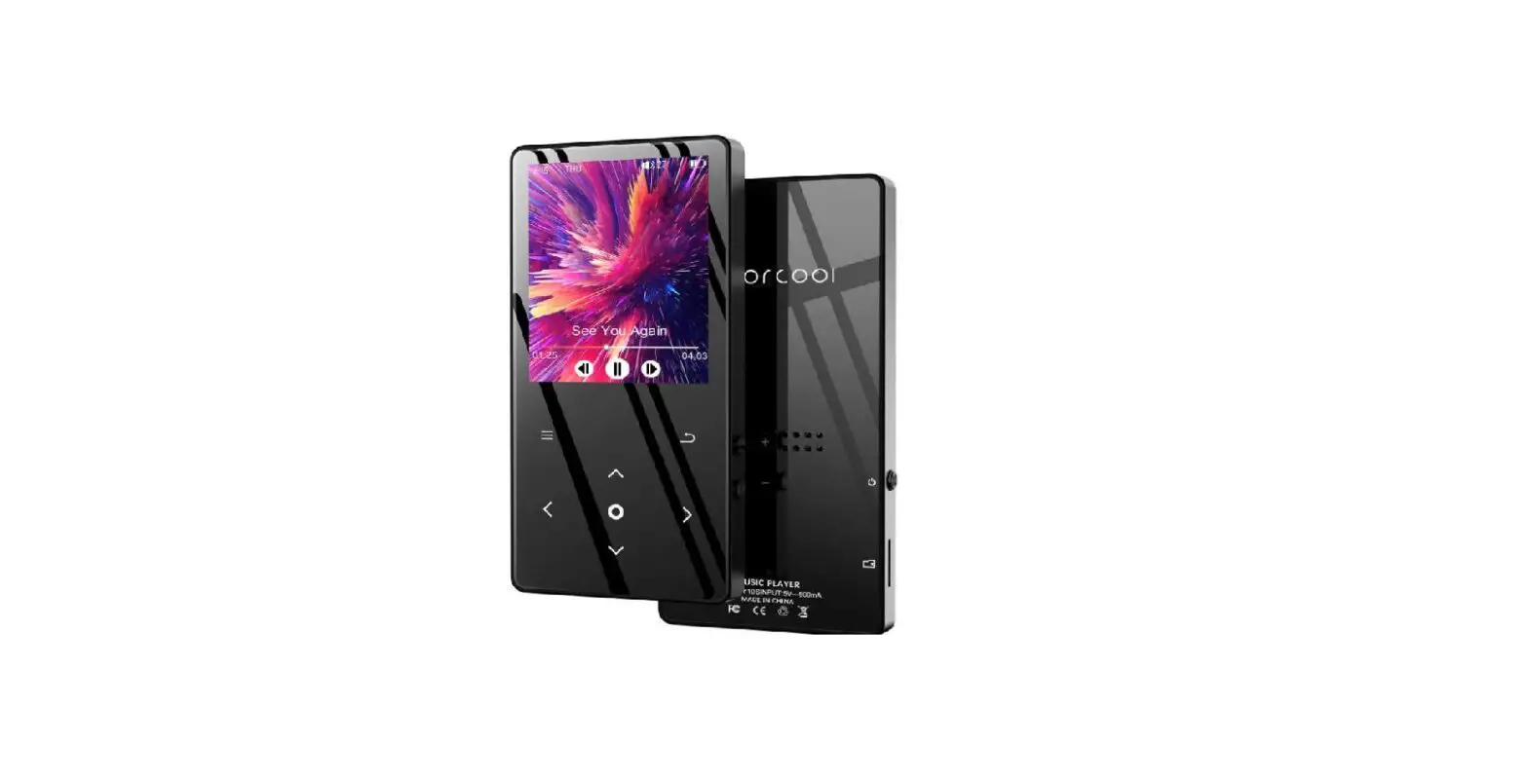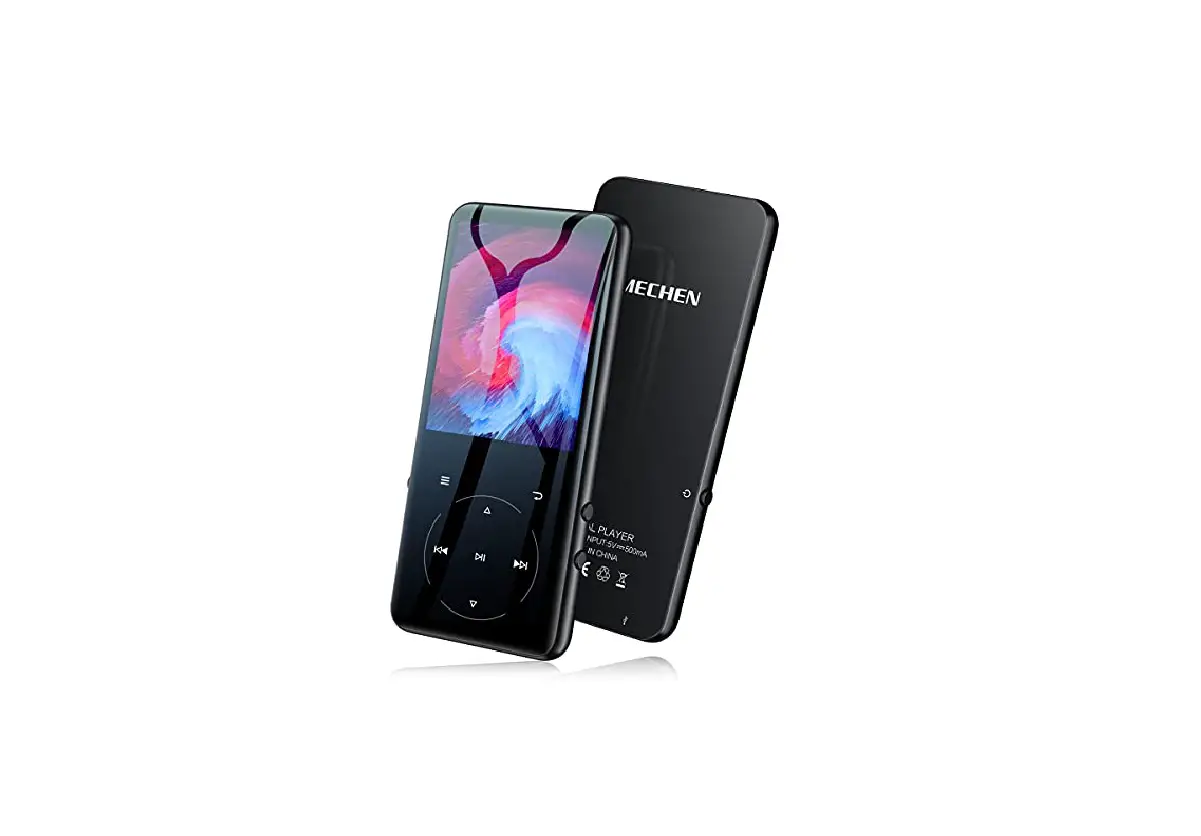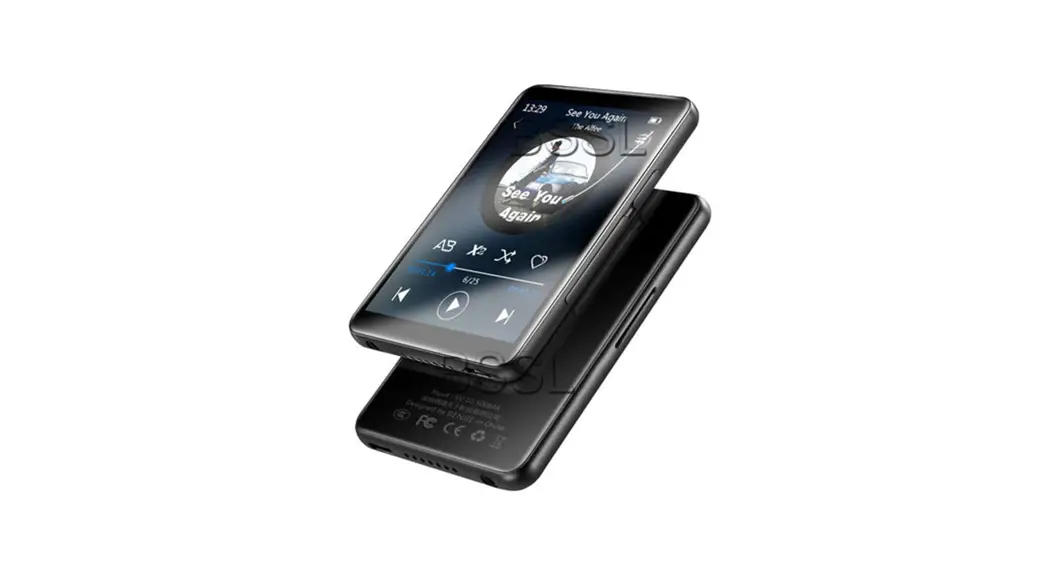
 Touch Screen Music Player
User Guide
Thanks for your order, please read user’s manual carefully before using your player.
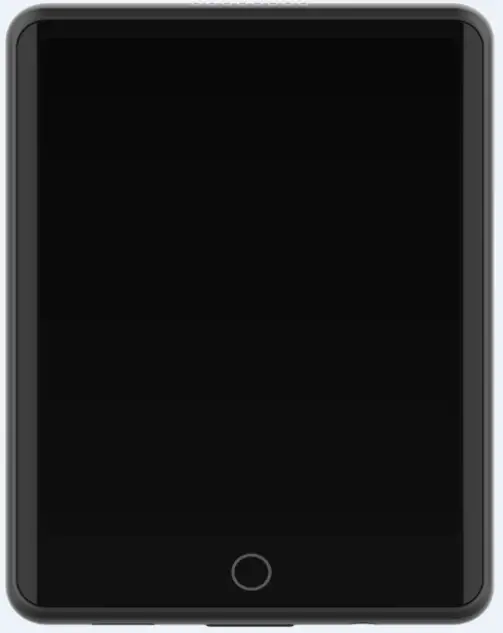
OVER VIEW
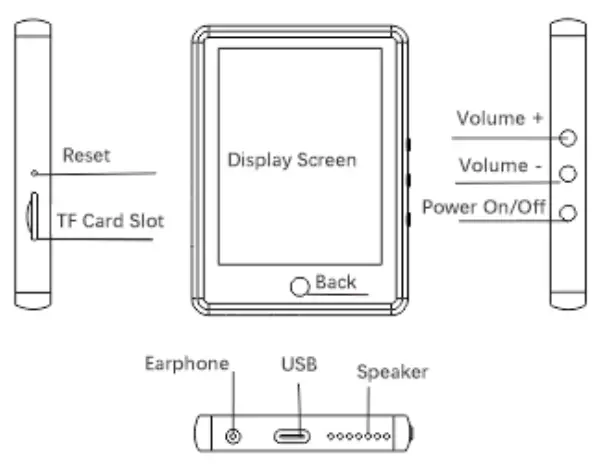
FUNCTIONS
- Music: Support MP3, WMA, APE, FLAC, WAV format
- Voice Record: Support FM, MIC recording, MP3, WAV format
- Picture: Support JPEG, BMP, GIF format
- Video: Support AMV, AVI fomat ( Have to transmit to 240* 320 resolution
- Full screen touch operation
- Charging / Transmit / Micro Earphone use type-c cable
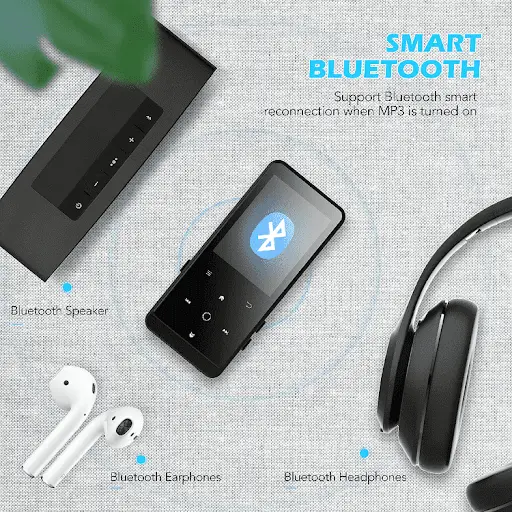
- Support bluetooth, radio, steps counting, e-book, alarm clock, stopwatch functions
ON/OFF
Press and hold the power button to turn on/off the device
BACK
a) On the setting interface, slide up / click and hold  to return to home page
b) On others interface, slide left / click and hold / click icon on the top-left to return to home page
VOLUME
Press volume bottom to up/ down volume
WALL PAPER
Click  icon and find settings, click setting icon , then click
 icon to change wall paper
MUSIC
Go through and click music icon to enter music
a) Play/ pause: click icon to play / pause music
b) Fast forward / Rewind: click and hold icon to fast forward / rewind
c) Previous/ Next : click and hold icon to reach previous/ next song
(d) Music playing setting: on the playing interface, click icon on the right bottom to enter settings.
(e) Play mode: click icon on the left bottom on the playing interface to exchange modes
 (f) Add to my favor list: click icon on the playing interface to add to my favor list.
(f) Add to my favor list: click icon  on the playing interface to add to my favor list.
VIDEO
Go through and click video icon to enter video list.
a) Play/ pause: click screen to play / pause playing
b) Fast forward / Rewind: click and hold screen right side to fast forward, left side to rewind
c) Back: Slide left forward to back to video list while playing
d) Previous/ Next: Slide down/ upside to play next / previous video
e) Setting: Slide right forward on the video to enter repeat/ delete video
RADIO
Go through and click radio  icon to enter radio list.
There are options Preset station/ Auto tuning/ Manual tuning, click preset station and it will auto search FM
RECORDER
Go through and click recorder  icon to enter recorder list.
a) Click start voice recording to start record
b) Recordings library: history recede files
c) Recording format: you can set as mp3/ AV rec.
E-BOOK
Go through and click eBook icon to enter reboot list.
a) While reading, slide upside/ down side to next/ previous page.
b) While reading, slide right forward to enter settings, here you can add mark, delete mark, set words size,etc.
BLUETOOTH
Go through and click bluetooth  icon to search devices, then click the right device to connect.
STEP COUNTER
Go through and click pedometer icon to enter list
a) Start counting: Click start counting on the list , device then will start counting.
b) Save data: Click stop icon to stop counting, then click back icon on the top-left side of the screen ( or slide left forward on the screen), there will be warning “ would you like to save step data?” Click yes.
SETTINGS
Go through and click tool  icon to enter set menu.
Time & Date setting: Click set icon, go through and click date and time on the list.
Click upper/downer number to adjust to correct time, slide left forward/ or click home button to save settings
DATA TRANSFER
Connect device with computer by the come with type-c cable, then you can copy files from PC to your player.
CHARGING
Please charge device with the come with type c cable (wall adapter not included) on the copter or power bank, or a phone adapter.
Special Note: The specifications of the selected charger must meet the following requirements, otherwise any external or failure is regarded as human damage
Input : AC110-240V 50/60Hz Max: 100mA
Output : DC5.0-5.5V 500mA- 1A
SPECIFICATION
| SIZE | 78.2*58.3*10.2 mm |
| DISPLAY | 2.8 inches 240*320 px |
| DISK STORAGE | GB/16GB/32GB |
| WIDE FORMAT | AMV/AV |
| VIDEO FREQUENCY | 320*240 Px |
| PICTURE FORMAT | BMP/JPG |
| MUSIC FORMAT | MP3/WMA/ FLAC/APE/OGG |
| RECORDING FORMAT | WAV/ MP3 |
| RECORDING | MIC |
| TRANSFER | USB 2.0 |
| TEMPERATURE | 0-50 ℃ |
| BATTERY | Built-in polymer batter |
| BATTERY CAPACITY | 410 mAh |
FAQ
Q : Device does not play
1. Check if the device is low power, and charge for double check
2. Please contact us if can not power on even with full charged.
Q : Serious noise
1. Check earphone’s connector if clean, or connect well
2. Check the music file if was damaged.
Q : No sound from the earphone
1. Check volume if is 0, and turn up volume
2. Check if the earphone is connected well.
Q : Screen turn black
1. Press and hold the power button to restart device.
FCC Warning
This equipment has been tested and found to comply with the limits for a Class B digital device, pursuant to part 15 of the FCC Rules. These limits are designed to provide reasonable protection against harmful interference in a residential installation. This equipment generates, uses and can radiate radio frequency energy and, if not installed and used in accordance with the instructions, may cause harmful interference to radio communications. However, there is no guarantee that interference will not occur in a particular installation. If this equipment does cause harmful interference to radio or television reception, which can be determined by turning the equipment off and on, the user is encouraged to try to correct the interference by one or more of the following measures:
- Reorient or relocate the receiving antenna.
- Increase the separation between the equipment and receiver.
- Connect the equipment into an outlet on a circuit different from that to which the receiver is connected.
- Consult the dealer or an experienced radio/TV technician for help.
Caution: Any changes or modifications to this device not explicitly approved by manufacturer could void your authority to operate this equipment.
This device complies with part 15 of the FCC Rules. Operation is subject to the following two conditions:
- This device may not cause harmful interference, and
- this device must accept any interference received, including interference that may cause undesired operation.
This equipment complies with FCC radiation exposure limits set forth for an uncontrolled environment. This equipment should be installed and operated with minimum distance 0cm between the radiator and your body.