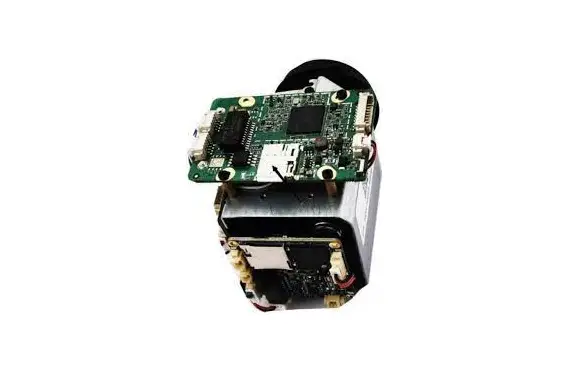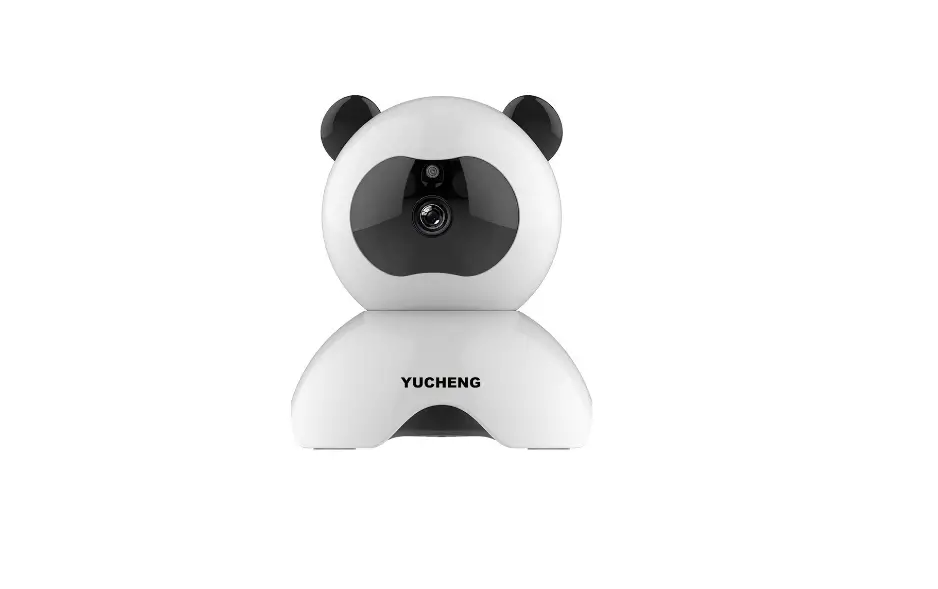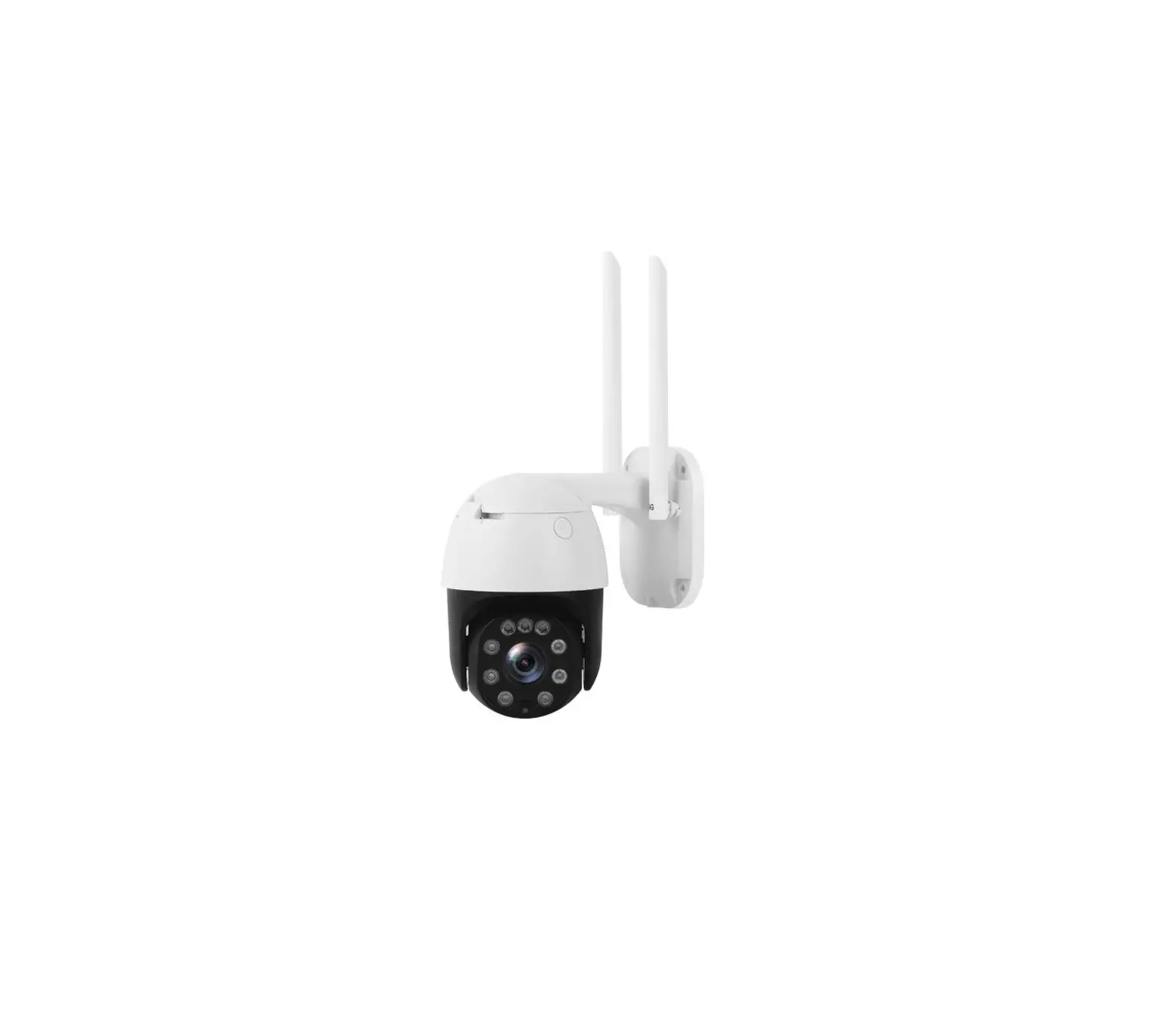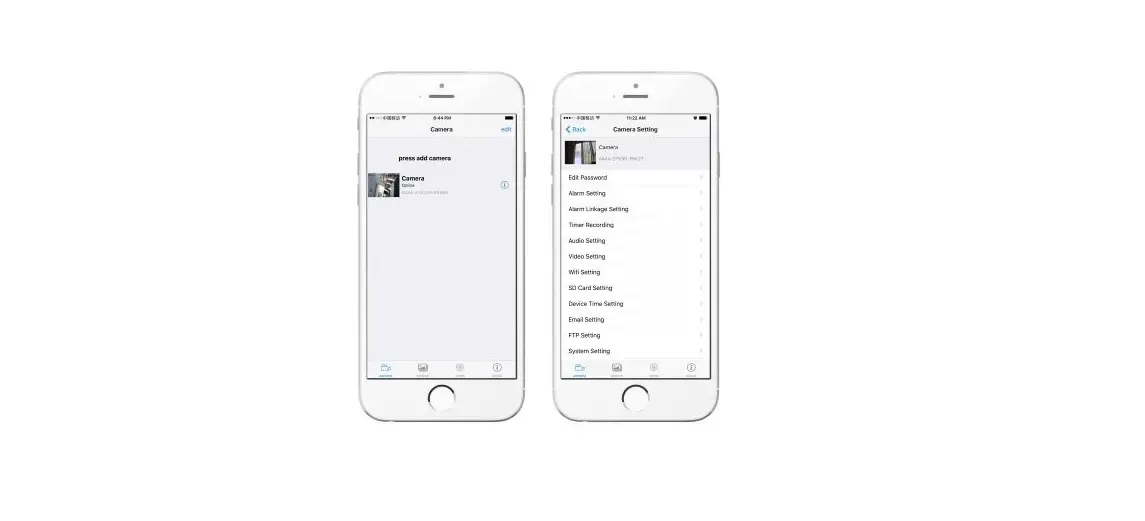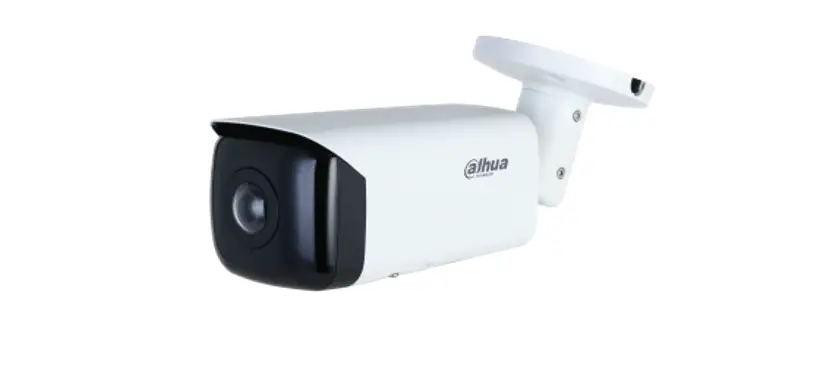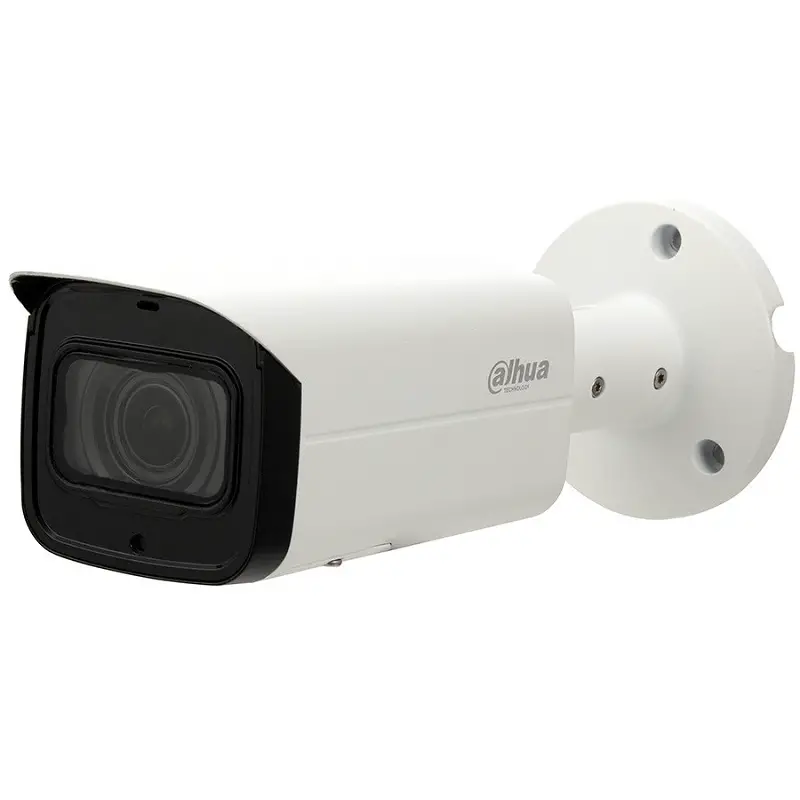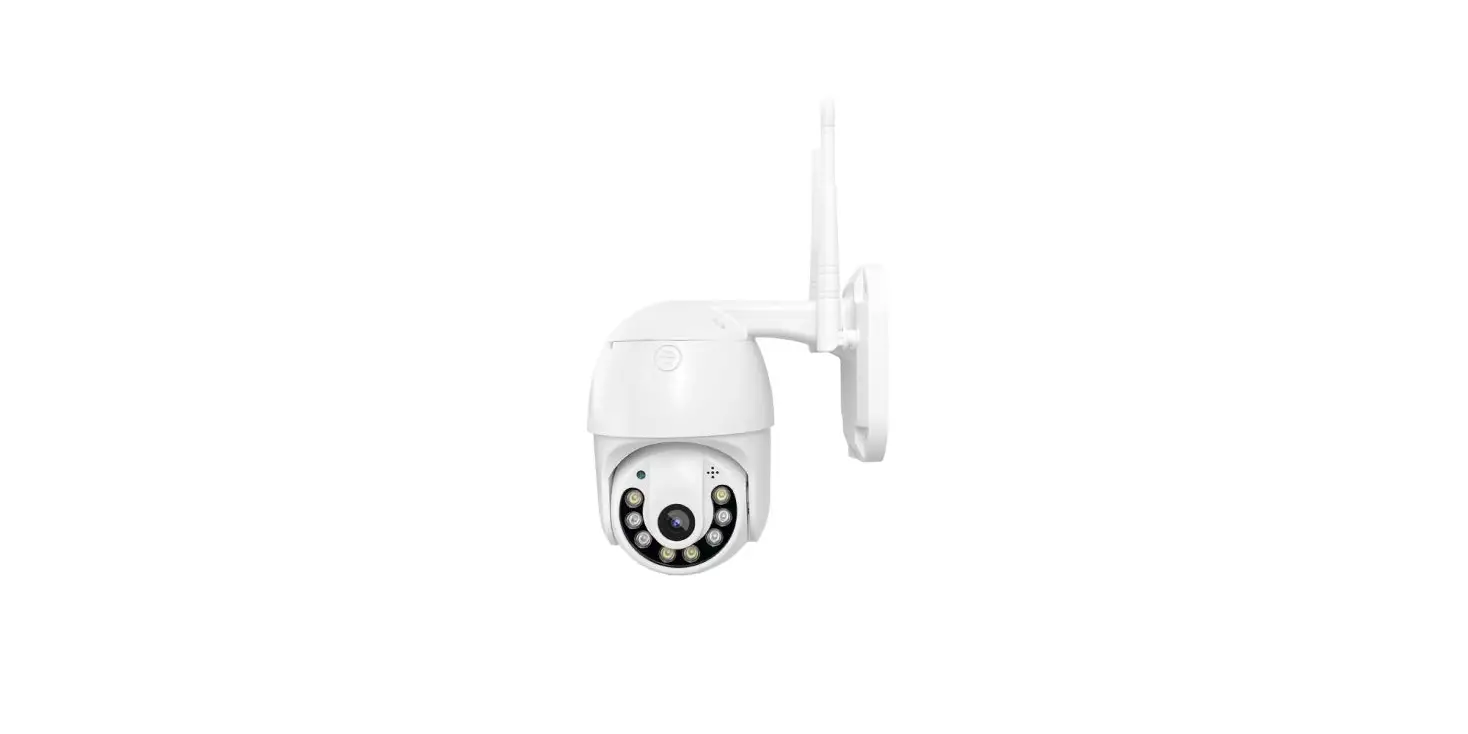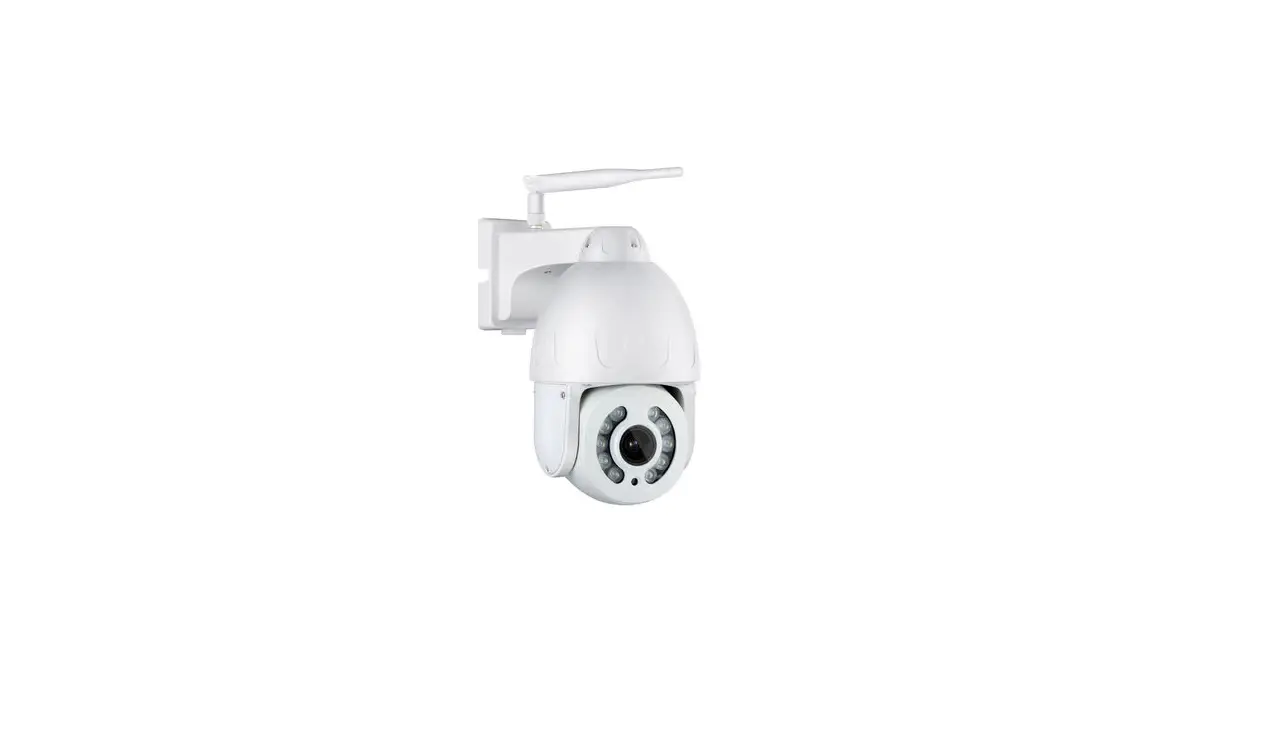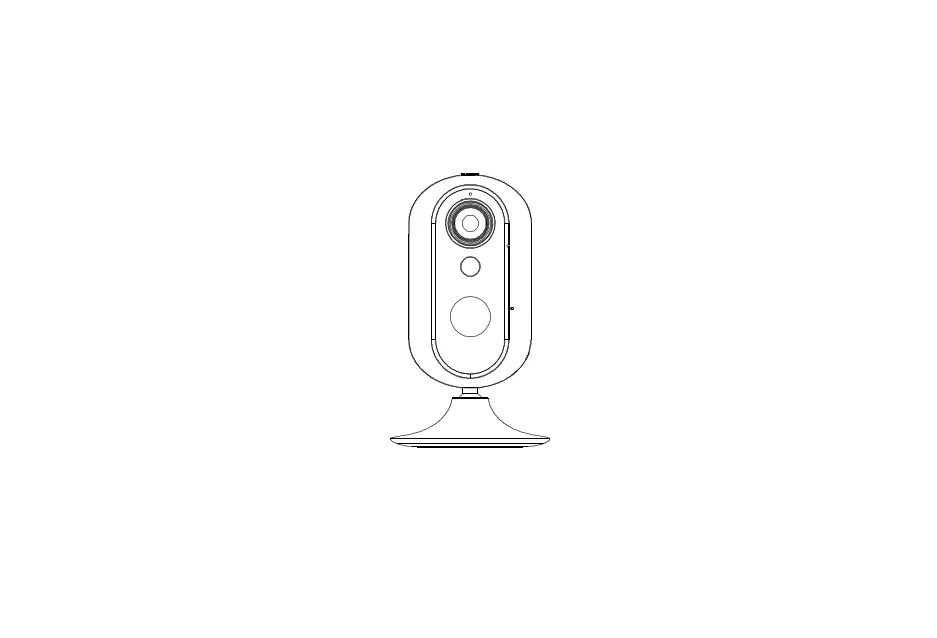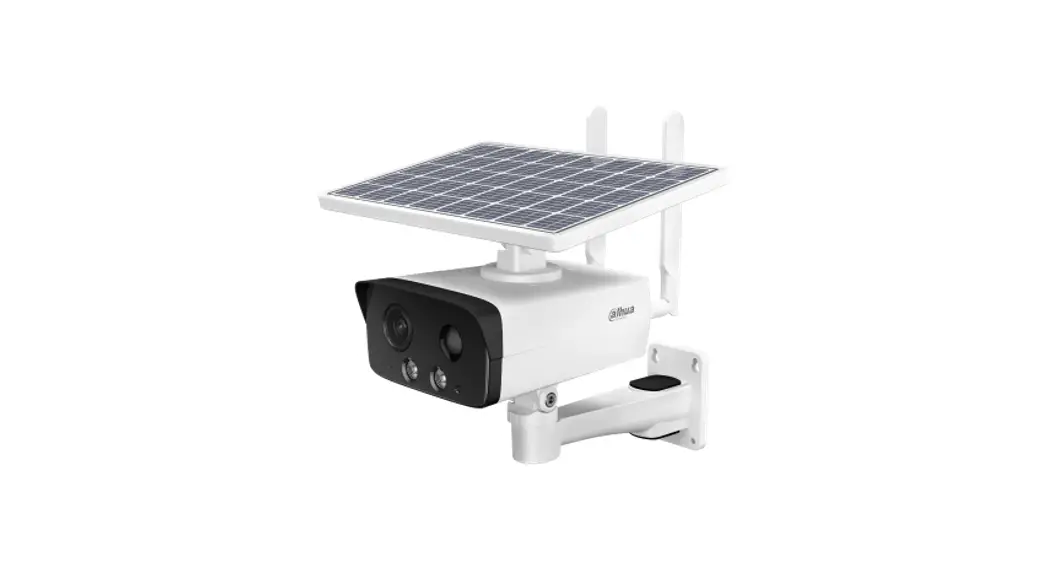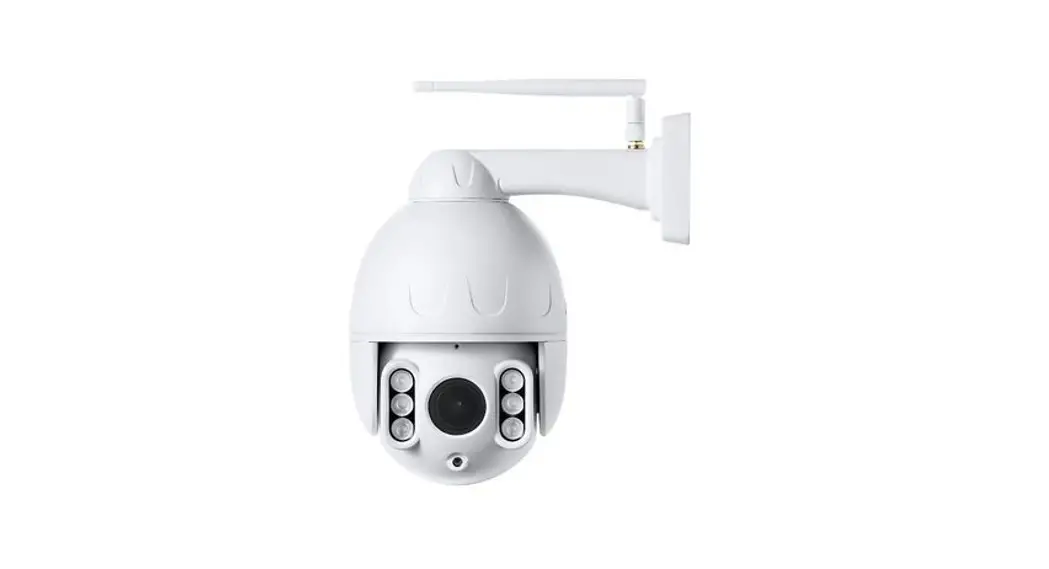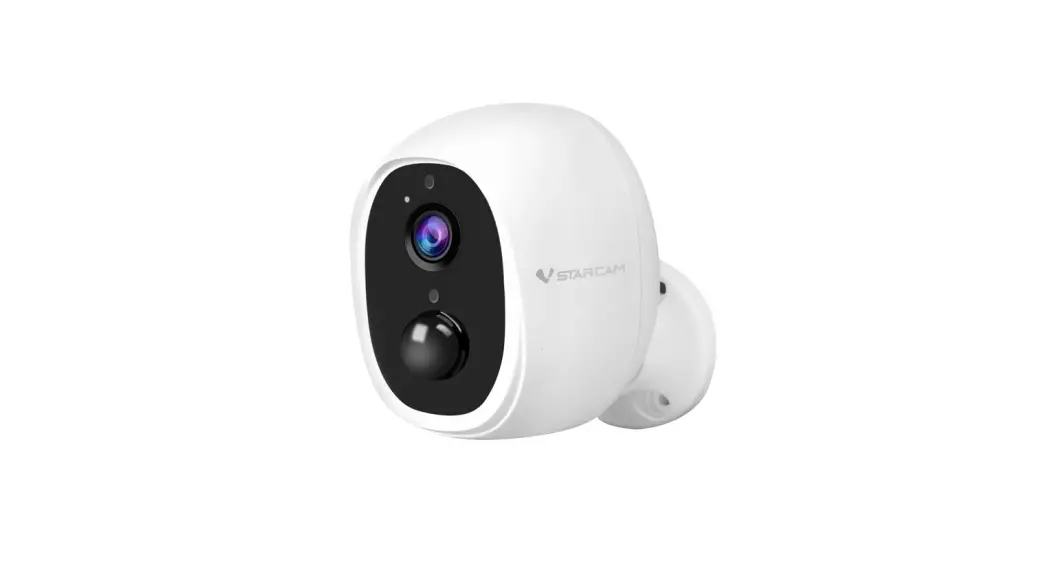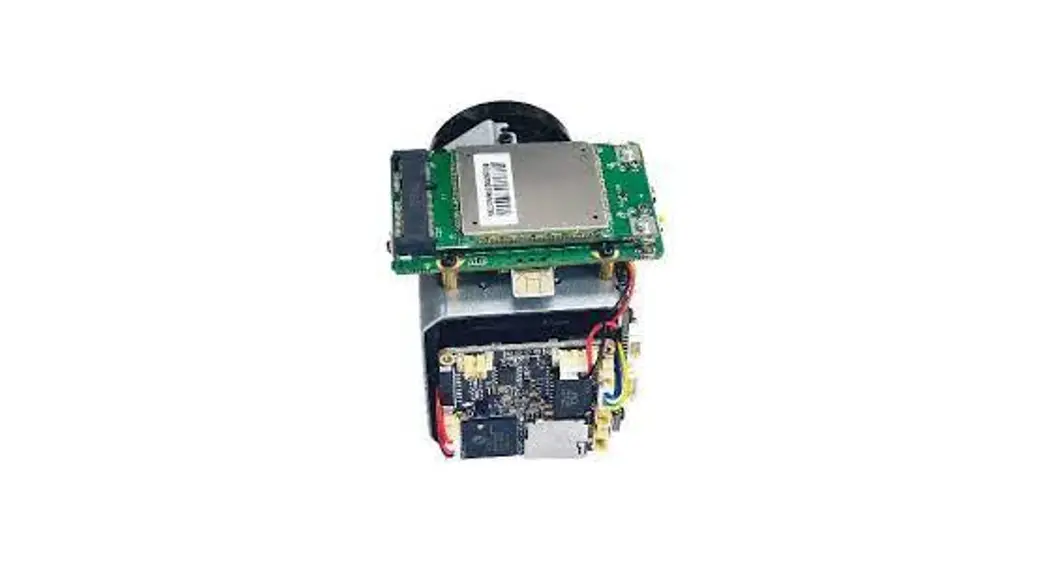
P6SLite 4G IP Camera with 4G router module Instruction Manual
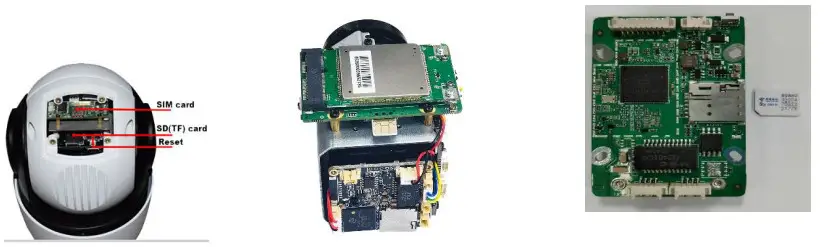
Insert a 4G SIM card to connect to the network
- Prepare a standard Nano SIM card

- Connect the camera power, please do not plug in the network cable. (If you plug in the network cable, the camera will be connected to the wired network first, and the 4G network will not work). and Please wait 1 minute, the 4G camera will automatically complete the 4G network connection.
How to add a camera to a smartphone
Download “P6SLite” ( for IOS and android ) from APP store,open it and click add

http://www.yucvision.com/p6slite.htm
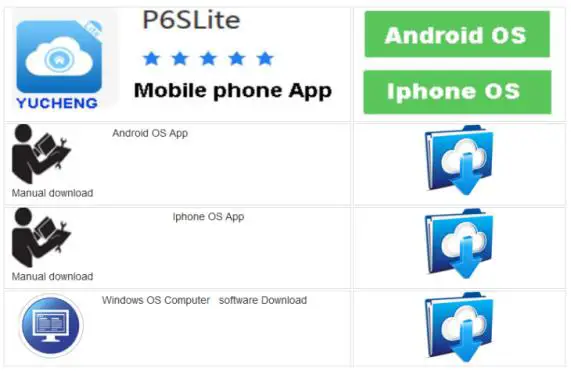
Scan the QR code above to enter the download page A, select the corresponding download option to download the mobile phone APP, and manual, of course, can also download the PC software, which currently only supports Windows OS software download.
B, download the APP and install it, as shown below:
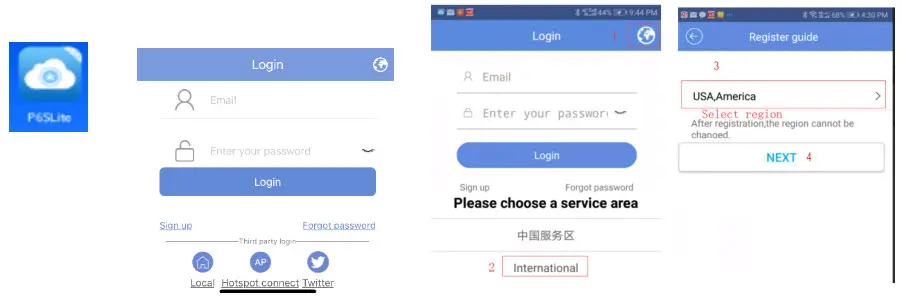
Users can use your e-mail to register an account level. You can also log in to the APP system directly using a Twitter account.
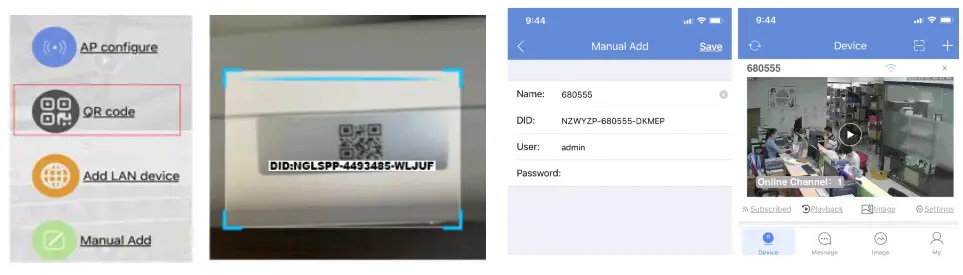
C, QR code added
 Open the APP Home page, click the
 icon in the upper right corner, select the QR code (you can also click on the sweep) as shown. The two-dimensional code recognition will enter the Add Device interface as shown
- Add a successful APP will return to the device home page interface, click the home page list to show the connected device. Will enter the camera preview interface.
 Open the APP Home page, click the
 icon in the upper right corner, select the QR code (you can also click on the sweep) as shown. The two-dimensional code recognition will enter the Add Device interface as shown
The user is admin, the password is empty
Now 4G camera Configure the connection successfully.
How do other network devices connect to the WAN through 4G cameras?
Take a mobile phone through a 4G camera to connect to the WAN as an example.
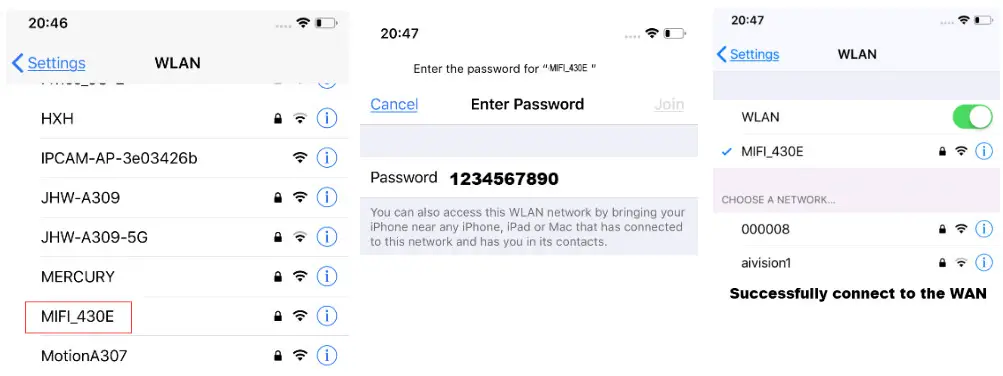
Open the WIFI settings of the mobile phone, find the wireless WIFI signal of the 4G camera, the WIFI name is MIFI-XXX, select this wireless WIFI signal, and enter the WIFI password: 1234567890. Then save, the mobile phone will successfully connect to the WAN.As shown below
How to log into 4G router and manage router
A, Use a computer or mobile phone to connect to the WIFI of the 4G camera,
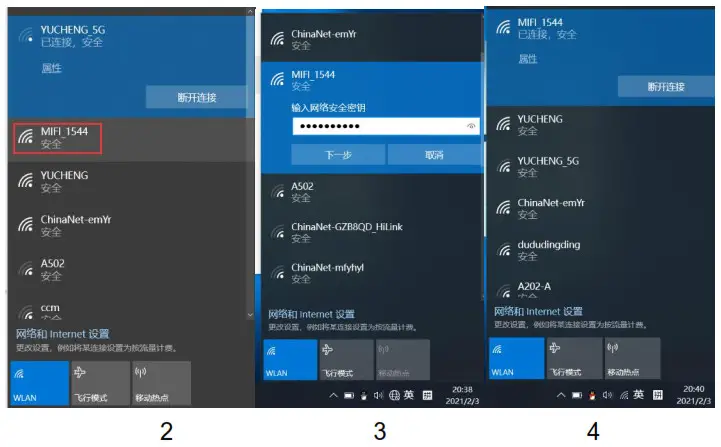 Use a computer to search for the WIFI signal of the camera. The WIFI name is the WIFI signal starting with MIFI-X, as shown in Figure 3. Select this WIFI signal and enter the connection password: 1234567890. Click the connect button, the computer will automatically connect to the camera via WIFI. As shown in Figure 4, the WIFI connection is successful.
B, Open the browser, enter the login address of the 4G router in the address bar of the browser: 192.168.2.1, enter the login user: admin, login password: admin, as shown in Figure 5. If the system is displayed in Chinese, please change the language to English, as shown in Figure 5
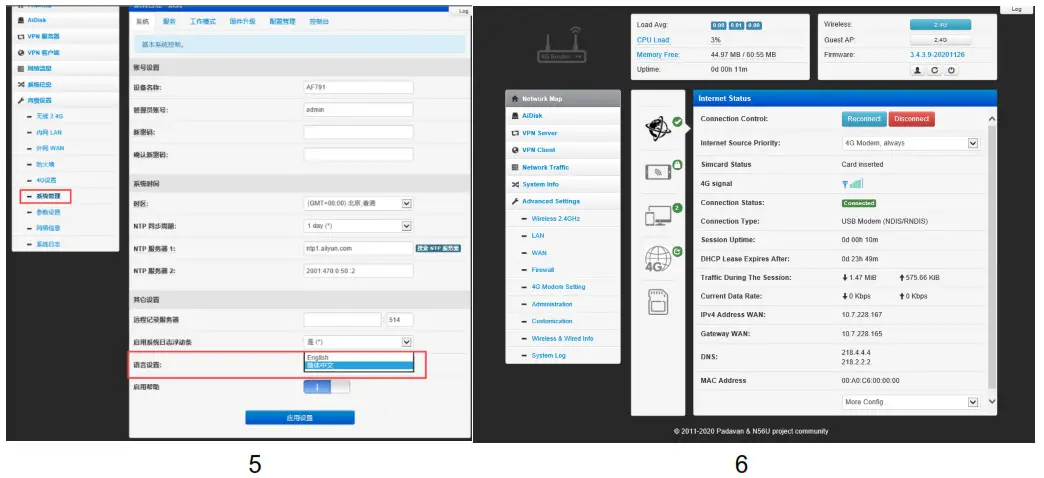
C, Figure 5 shows the connection status of the 4G router. If the 4G connection is unsuccessful, please check if your 4G SIM card is normal.
D, Now start configuring the 4G router
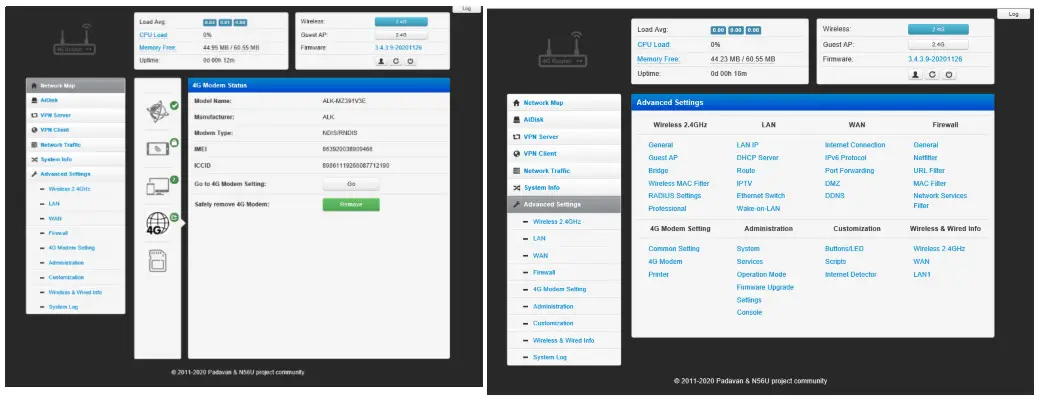
4G Router Hardware specifications
Basic parameters
The parameters of the AF791 module are as follows Table 1: AF791 basic parameters
| Project | Description | |
| product name | AF791 | Security router module |
| structure | Product Size | 58 mm x 38 mm x 10.5 mm |
| Wired network port | 2x LAN | LANx2 |
| Network port rate | 10/100Mbps, Auto MDI/MDIX | |
| WiFi | WiFi LAN | Support 802.11b/q/n |
| Antenna | I-PEX+antenna | |
| Coverage distance | Open area 30 meters | |
| SIM –I–: | SIM card | Nano-SIM |
| antenna | I-PEX+antenna | |
| Button | Reset button | One button reset |
| LED | LED status | Power, WiFi |
| Power | DC12V | |
| Frequency band information | FDD-LTE | Downlink rate 150Mbps, uplink rate 50Mbps |
| Band 1/3/5/8 | ||
| TDD-LTE | Downlink rate 150Mbps, uplink rate 50Mbps | |
| Band 38/39/40/41 | ||
| WCDMA | Downlink rate 21Mbps, uplink rate 5.76Mbps | |
| Band 1/5/8 |
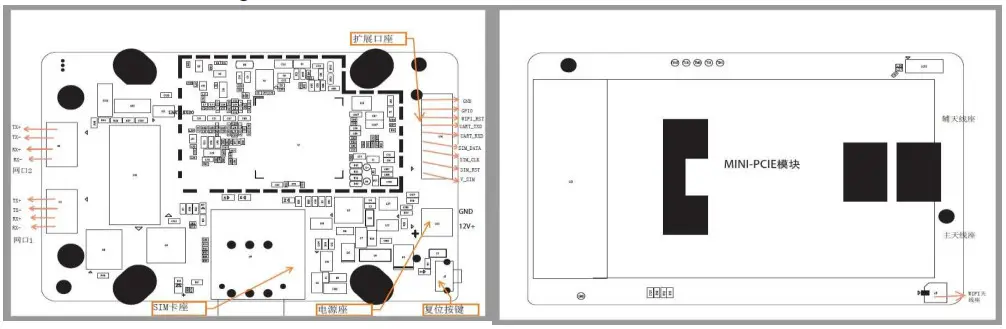
Interface definition diagram
Introduction to common functions
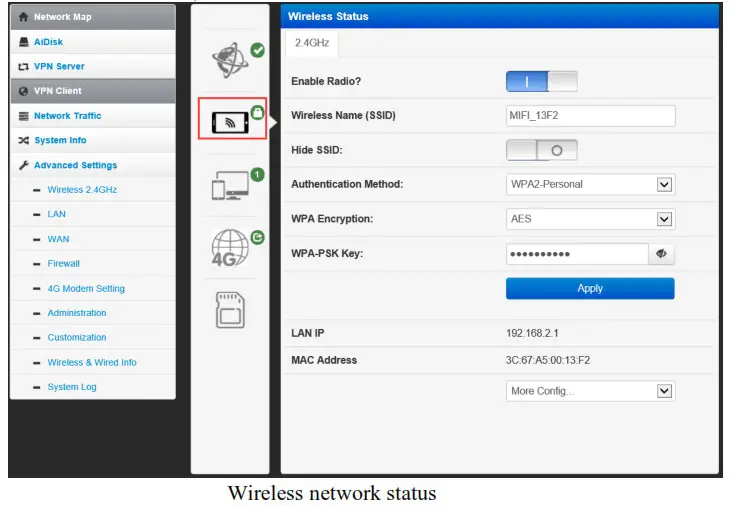
Wireless network status setting
The default parameters of the wireless WiFi function are as follows, and the settings take effect immediately. It is not recommended to use WIFI for industrial data transmission. Only recommended for device parameter configuration or short-distance data transmission. Table 5: WiFi default parameters
| Default parameter | Parameter value |
| SSID name | MIFI_XXXX |
| Wireless password | 1.23E+09 |
| Channel | automatic |
| Frequency band | 2.4G |
| Encryption method | WPA2(AES)-PSK |
Wireless-WiFi basic settings: set whether WiFi is turned on, modify SSID and password, security mode, Basic information such as the activation date;
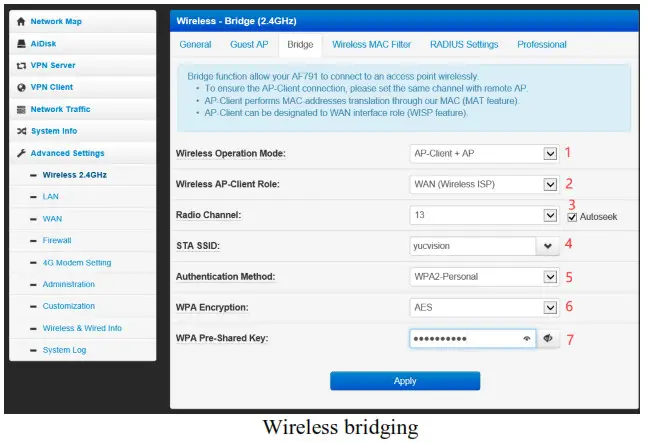
Wireless Bridge Setting
The router has a wireless client function, which is turned off by default and can be turned on when needed. As a wireless relay device, it can be connected to other WiFi to achieve Internet access. First, modify the Internet priority:
Broadband WAN or WISP
Wireless 2.4G option-wireless bridging: follow the steps in the figure down, set the corresponding parameters according to the actual connected WiFi, and click apply settings to complete the wireless bridging.
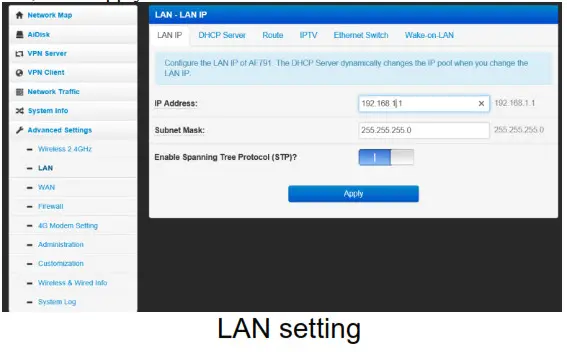
 Intranet settings
 Intranet settings
Support to modify the LAN port IP and subnet mask. The default IP address is 192.168.2.1. After the modification is completed, click Apply to restart the device to take effect.
APN settings
Support the configuration of APN, authentication, user name, and password.
If you are using an ordinary mobile phone card, you don’t need to worry about the APN settings, and you can connect to the Internet by inserting the card.
If you use an APN card and have a special APN address, you need to set the APN address, user name, and password here; first, in the APN setting column, fill in the accurate APN address as required. After the setting is successful, restart the device.
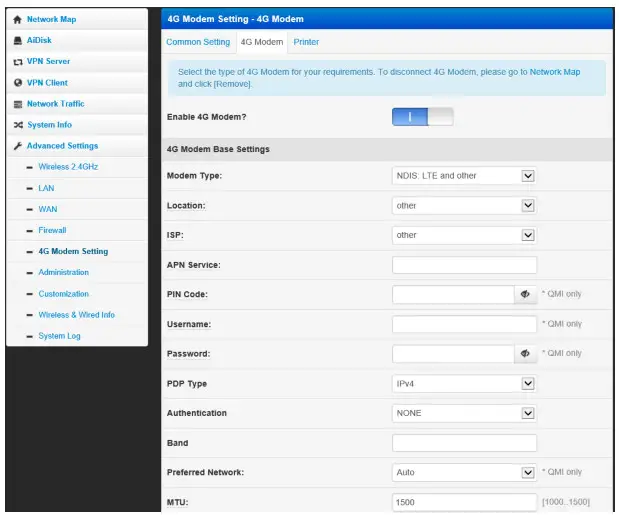
APN setting table 6: APN parameter table
| Parameter name | function |
| PDP type | Default IPV4, the protocol can be selected according to needs |
| APN | the name of the access point. Valid characters include: 0-9 a-z A-Z. – |
| Authentication method | default NONE, optional PAP, CHAP |
| Username | used to obtain verification from the Internet service provider when establishing a connection |
| Password | used to obtain verification from the Internet service provider when establishing a connection |
<Description >
》The module uses a Nano-SIM card. When using an APN dedicated network card, be sure to fill in the APN information, user name, and password. 》You can set the access point name (APN) on this webpage. After the setting is completed, please restart the device to take effect. Unpredictable errors may occur if you dial immediately
Restore factory settings Support web way of restoring factory settings.
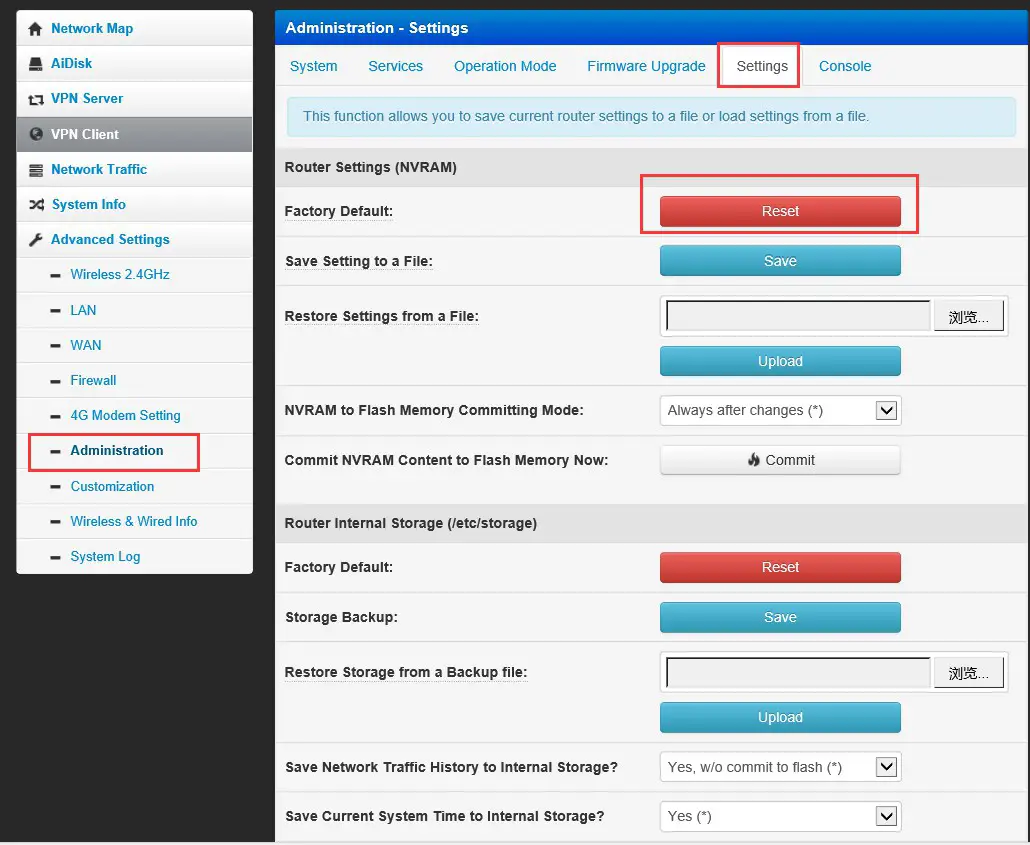
Restore factory settings page
*You can also use the Reload button (hardware restore factory settings button) to restore the module to the factory parameters.
*Method: Long press for 5s to release, the router will restore the factory parameter settings and restart.
System Log Support system log viewing and saving.
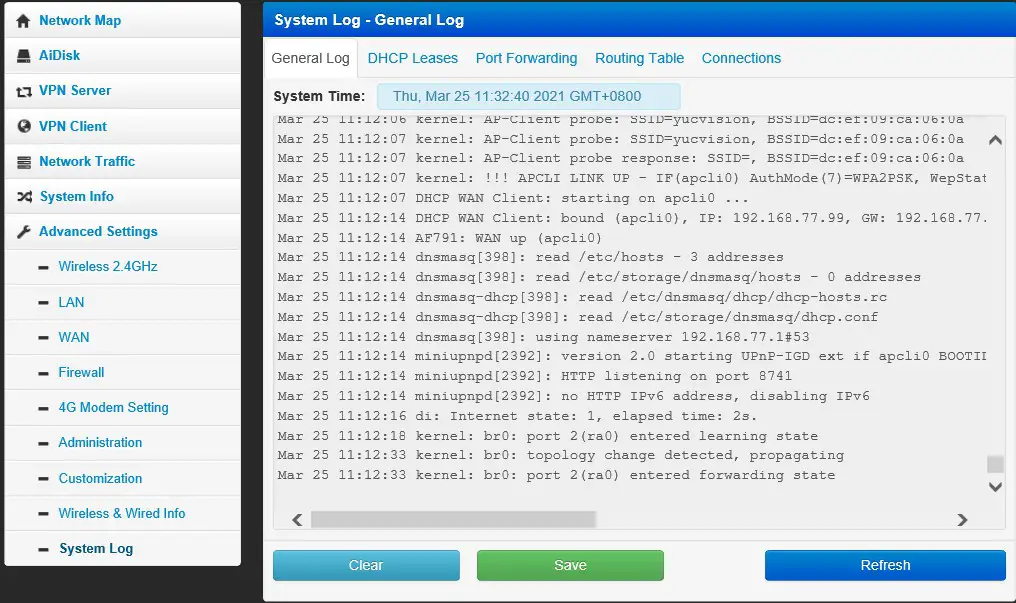
System log
Common problems
- How to restore the factory settings of the module?
Connect the module to the power supply, wait for a while (after the indicator of the device is stable), press the Reset button of the device, and hold it for more then 5 seconds to release, the device will automatically restart - What should I do if I forget the WLAN password or the login password of the management page?
After resetting the module to factory settings, the WLAN name is MIFI_XXXX, the WLAN password is 1234567890, and the initial login user admin on the management page, the password is admin. - What should I do if the 4G signal light is off or the Internet cannot be accessed?
Please refer to the chapter “Connecting to the Internet by Card” to confirm whether the size of the SIM card and the direction of the card are correct.
Please contact the operator to confirm whether the SIM is in arrears. If it is a new SIM, please contact the operator to confirm whether the card is completed
Whether the power is on and whether the antenna is connected.
If the above method still does not solve, please try to restore the factory settings and try again. - What should I do if the Internet speed is slow?
Please rotate the device or move it to the window to get a better signal.
If the Internet device (such as: mobile phone) is connected to the module through a wireless network, please adjust the location of the Internet device according to the wireless signal strength displayed by the Internet device
Please confirm whether the data traffic used in the current month has exceeded the upper limit of the data traffic contracted by the operator (if the upper limit is exceeded, the operator may limit the speed).
Restart the module and internet device, and try again. - What should I do if I cannot open the management page of the module?
Please confirm that your internet device has been connected to the module via a network cable or wirelessly.
Please make sure that your computer is set to automatically obtain an IP address and DNS server address.
Restart the browser, or try another browser
If the problem persists, try restoring factory settings. - Why is the content displayed on the management page not up to date?
Depending on the browser’s cache, the device information displayed on the management page may not be up to date. You can manually clear the browser’s cache (for example, open the browser and select Internet Options>General>Browsing History>Delete), and then restart the management page. - If you have other problems when using the module, please try: Restart the module. reset. Contact your carrier or dealer.
Five, safety information
Before using and operating the equipment, please read and observe the following precautions to ensure the best performance of the equipment and avoid dangerous or illegal situations.
Operating environment:
Please use the equipment in the range of 0℃~40℃, and store the equipment within the temperature range of -20℃~+70℃
And its accessories. When the ambient temperature is too high or too low, it may cause equipment failure.
Accessories requirements:
Please use the accessories approved by the equipment manufacturer and matched with this type of equipment. If you use other types of accessories, it may violate the warranty terms of the device and the relevant regulations of the country where the device is located and may cause a safety accident. If you need to obtain approved accessories, please contact an authorized service center
Power safety:
The power socket should be installed in the accessories of the equipment and should be easily accessible.
When the device is not in use, please disconnect the power supply from the device and unplug it from the power outlet
Power plug environmental protection:
Do not dispose of this equipment and its accessories as ordinary household garbage.
Please abide by the local laws and regulations regarding the disposal of this device and its accessories, and support the recycling action.