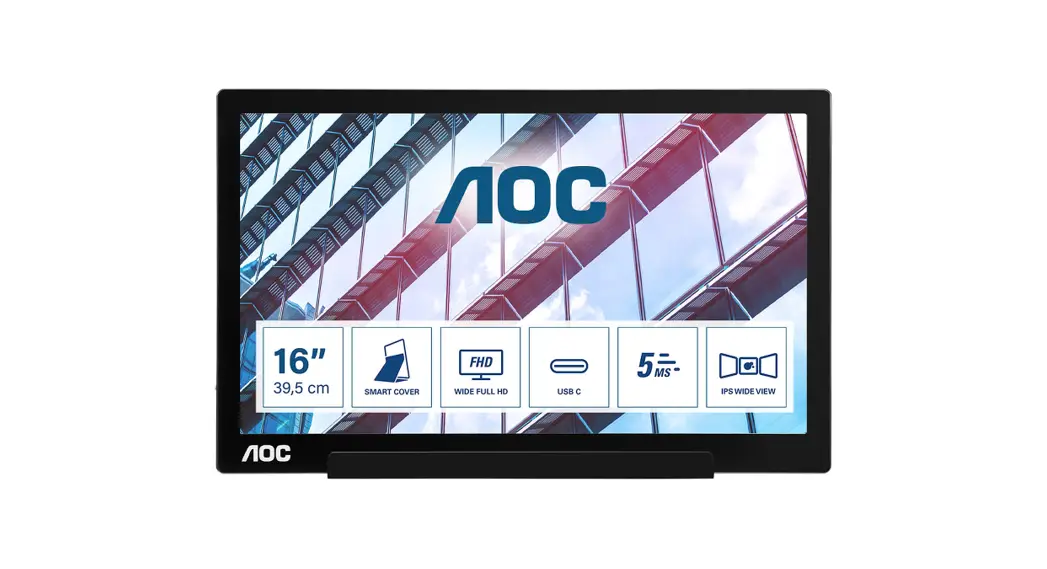

LCD Monitor User Manual
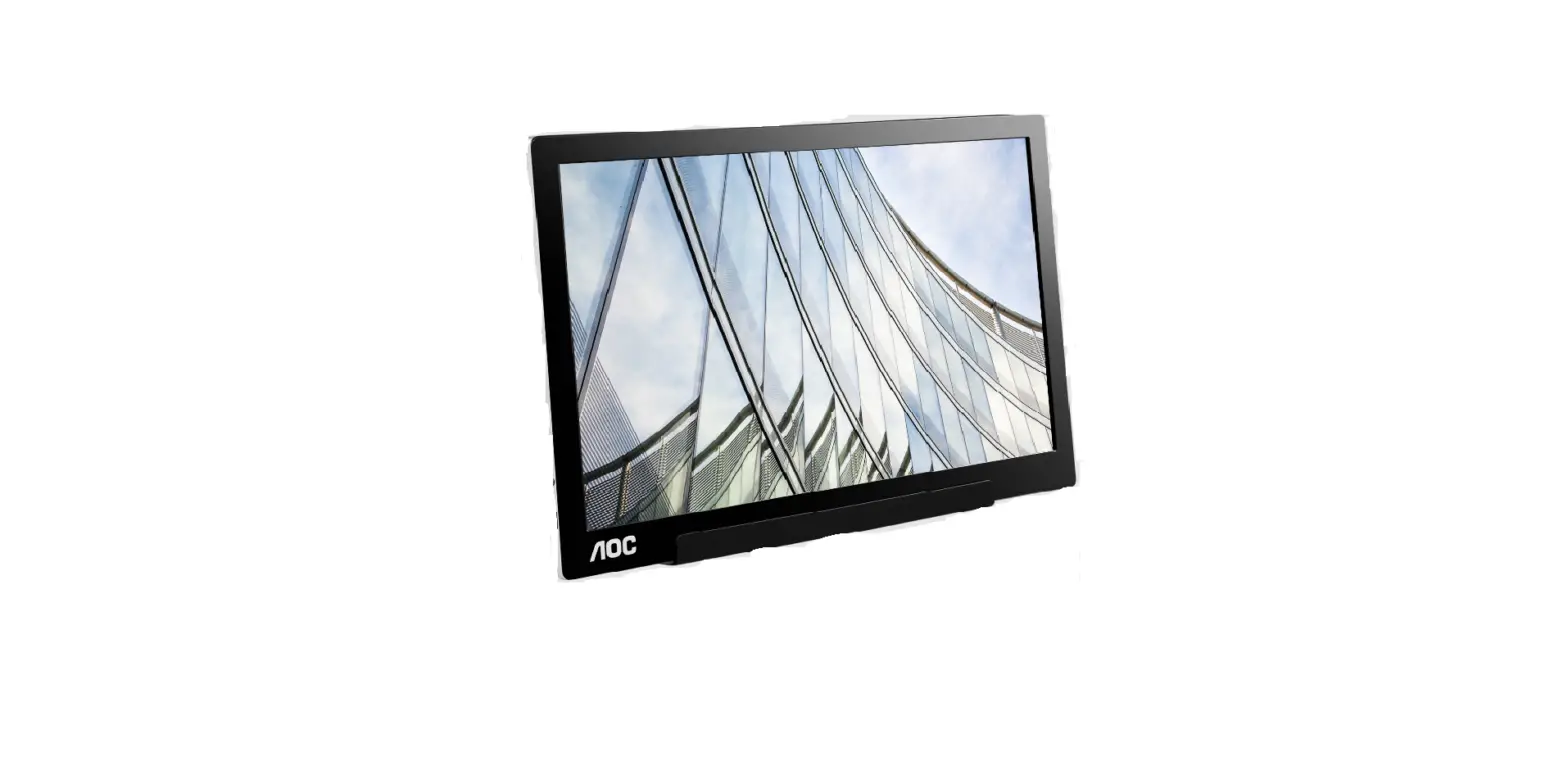
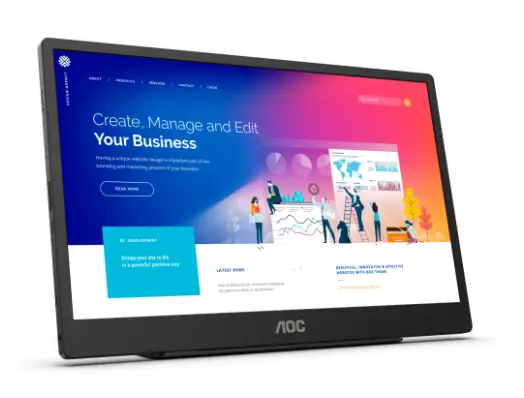
I1601P LED backlight
Safety
National Conventions
The following subsections describe notational conventions used in this document.
Notes, Cautions, and Warnings
Throughout this guide, blocks of text may be accompanied by an icon and printed in bold type or in italic type.
These blocks are notes, cautions, and warnings, and they are used as follows:
 NOTE: A NOTE indicates important information that helps you make better use of your computer system.
 CAUTION: A CAUTION indicates either potential damage to hardware or loss of data and tells you how to avoid the problem.
 WARNING: A WARNING indicates the potential for bodily harm and tells you how to avoid the problem. Some warnings may appear in alternate formats and may be unaccompanied by an icon. In such cases, the specific presentation of the warning is mandated by a regulatory authority.
Installation
Do not place the monitor on an unstable cart, stand, tripod, bracket, or table. If the monitor falls, it can injure a person and cause serious damage to this product. Use only a cart, stand, tripod, bracket, or table recommended by the manufacturer or sold with this product. Follow the manufacturer’s instructions when installing the product and use mounting accessories recommended by the manufacturer. A product and cart combination should be moved with care.Never push any object into the slot on the monitor cabinet. It could damage circuit parts causing a fire or electric shock. Never spill liquids on the monitor.
Do not place the front of the product on the floor.
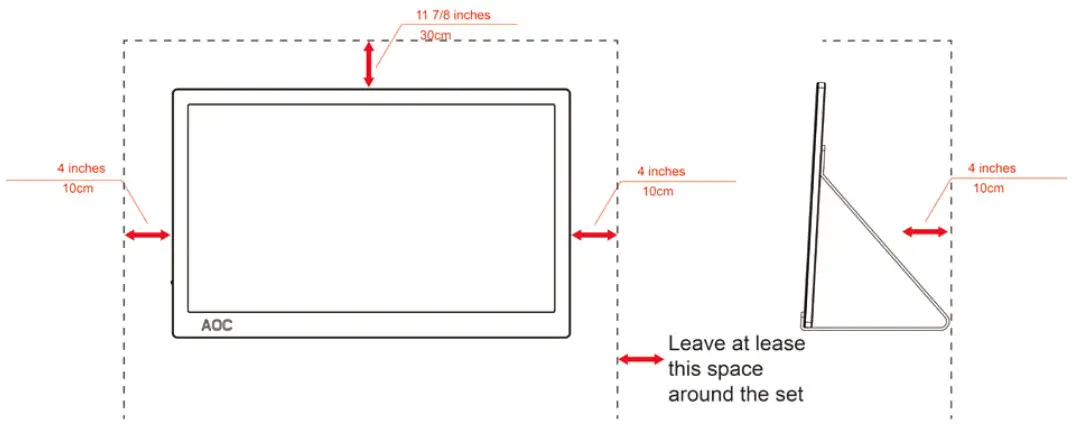
Leave some space around the monitor as shown below. Otherwise, air circulation may be inadequate hence overheating may cause a fire or damage to the monitor.
To avoid potential damage, for example, the panel peeling from the bezel, ensure that the monitor does not tilt downward by more than -5 degrees. If the -5 degree downward tilt angle maximum is exceeded, the monitor damage will not be covered under warranty.
See below the recommended ventilation areas around the monitor when the monitor is installed with the stand:
Installed with stand
Cleaning
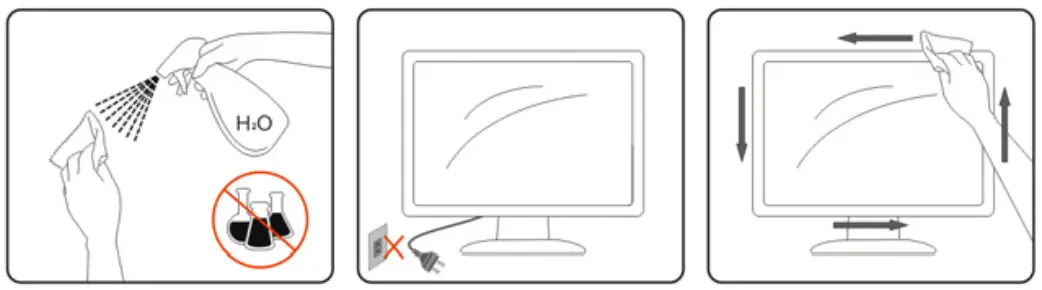
Clean the cabinet regularly with a cloth. You can use soft-detergent to wipe out the stain, instead of strong-detergent which will cauterize the product cabinet.
When cleaning, make sure no detergent is leaked into the product. The cleaning cloth should not be too rough as it will scratch the screen surface.
Please disconnect the power cord before cleaning the product.
Other
If the product is emitting a strange smell, sound, or smoke, disconnect the power plug IMMEDIATELY and contact a Service Center.
Make sure that the ventilating openings are not blocked by a table or curtain.
Do not engage the LCD monitor in severe vibration or high-impact conditions during operation.
Do not knock or drop the monitor during operation or transportation.
For a display with a glossy bezel, the user should consider the placement of the display as the bezel may cause disturbing reflections from surrounding light and bright surfaces.
Setup
Contents in Box
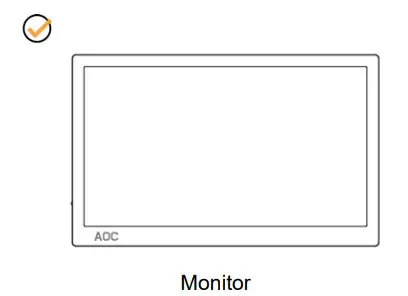 | 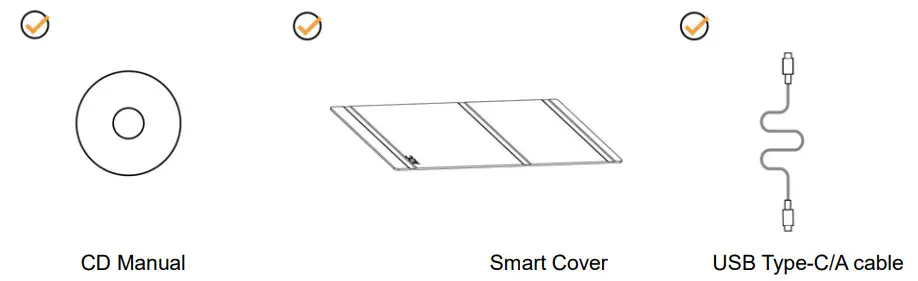 |
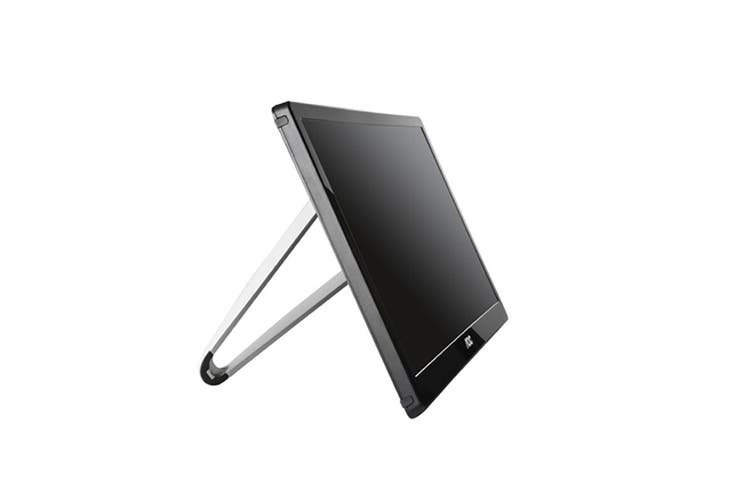
Adjusting Viewing Angle
For optimal viewing, it is recommended to look at the full face of the monitor, and then adjust the monitor’s angle to your own preference.
Hold the Smart Cover and Monitor so you will not topple the monitor when you change the monitor’s angle.
You are able to adjust the monitor’s angle from 5° to 25 °.
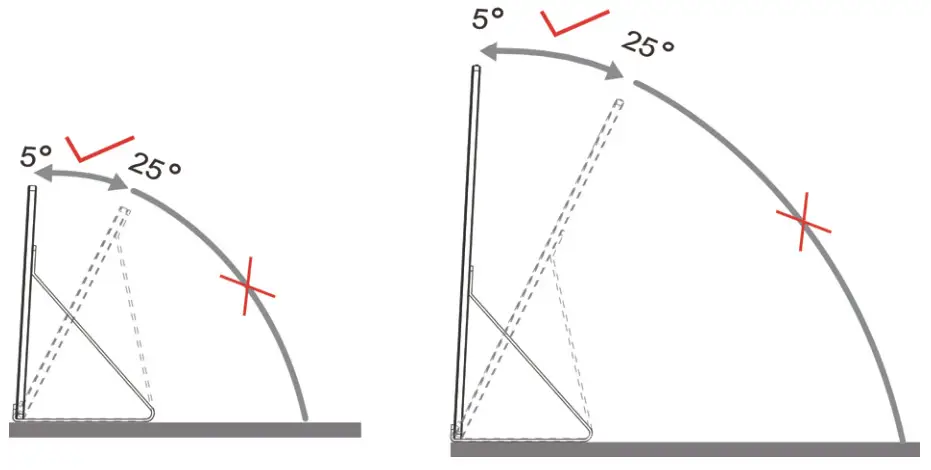
NOTE:
- Do not adjust the viewing angle over 5~25 degrees in order to avoid damage.
- Hold the Smart Cover and Monitor so you will not topple the monitor when you change the monitor’s angle.
- Do not touch the LCD screen when you change the angle. It may cause damage or break the LCD screen.
AOC I1601P monitor supports an auto-pivot function to keep the display upright as the monitor is rotated between portrait and landscape position.
Important: Install I-MENU(Version 2.0 or upper) from CD-ROM or AOC website.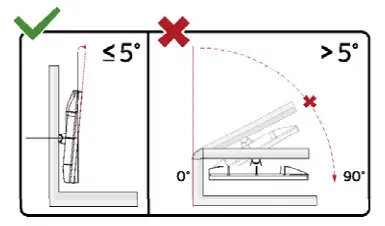 * Display design may differ from those illustrated.
WARNING:
- To avoid potential screen damage, such as panel peeling, ensure that the monitor does not tilt downward by more than -5 degrees.
- Do not press the screen while adjusting the angle of the monitor. Grasp only the bezel.
Connecting the Monitor
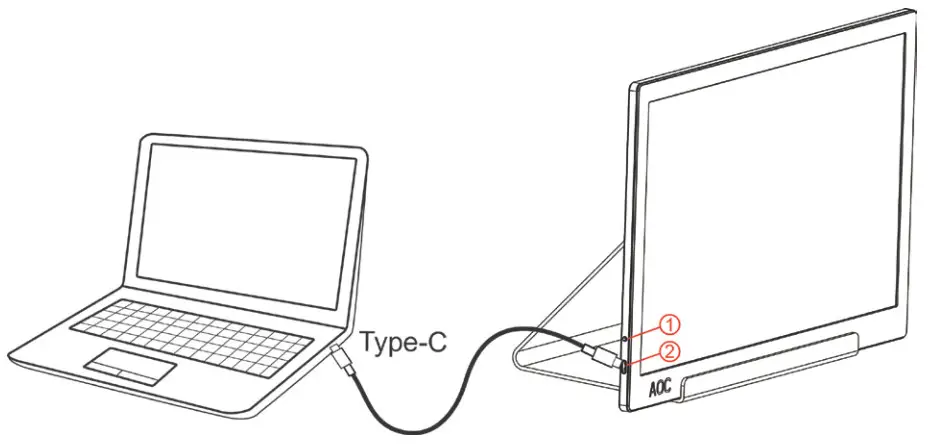
- Power Button
- USB Type-C/A
To protect equipment, always turn off the PC and LCD monitor before connecting.
- Connect one end of the USB cable to the USB Monitor and the other end of the USB cable to the computer.
- Your computer should detect the USB Monitor automatically.
If your monitor displays an image, installation is complete. If it does not display an image, please refer to Troubleshooting.
Use Type C to Type C cable ,OSD show USB C
Use Type C to Type A, OSD show Display link
Adjusting
Hotkeys
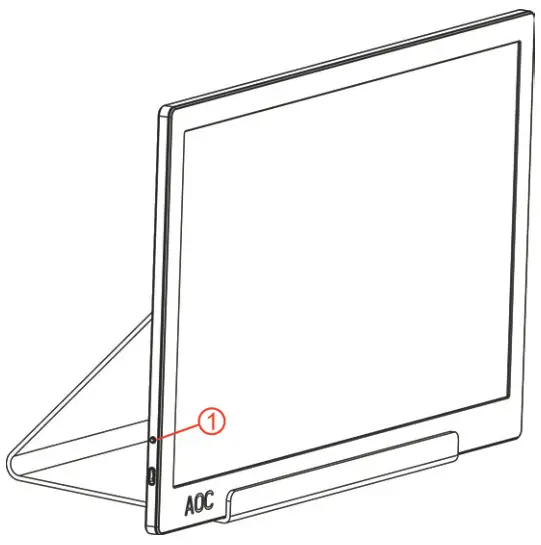
- Power /Menu/Increase
Power/Menu/Increase
When Power off, press  the button to turn on the monitor.
When Power on, press the button to display OSD or navigate towards the right direction.
When Power on, press the button continuously for about 3 seconds to turn off the monitor.
OSD Setting
Basic and simple instruction on the control keys.

- Press the bottom key
 to activate the OSD window.
 - You can now select any one of the functions by quickly repeat-pressing the bottom key. The blue box will navigate towards the right as you press the key. You can release once the blue box highlights the option you want to choose. Note that the selection is a one-way loop always moving in one direction and then returning at beginning of the menu. The blue box will remain on the selected function for about 3 seconds and the function icon will flash three times to confirm the choice visible on the 1st layer of the OSD and activate it.
| Brightness |  | 0-100 | Adjust brightness from 0-100 |
| Contrast |  | 0-100 | Adjust contrast from 0-100 |
| Overdrive |  | Off | Adjust the response time. |
| Weak | |||
| Medium | |||
| Strong | |||
| LowBlue Mode |  | Off | Decrease blue light wave by controlling color temperature |
| Multimedia | |||
| Internet | |||
| Office | |||
| Reading | |||
| HDR Mode |  | Off | Adjust contrast HDR Mode |
| HDR Picture | |||
| HDR Movie | |||
| HDR Game | |||
| Language |  | English Francais Espanol Portugues Deutsch Italiano Nederlands Svenska Suomi Polski | Select the OSD language Default is English. |
| Exit |  | Exit the main OSD |
- The main menu will disappear if no action for about 3 seconds.
- A submenu will disappear if no action for about 3 seconds.
- Before entering the OSD menu, the monitor will be powered off when continually pressing the button key for more than 3 seconds.
Driver
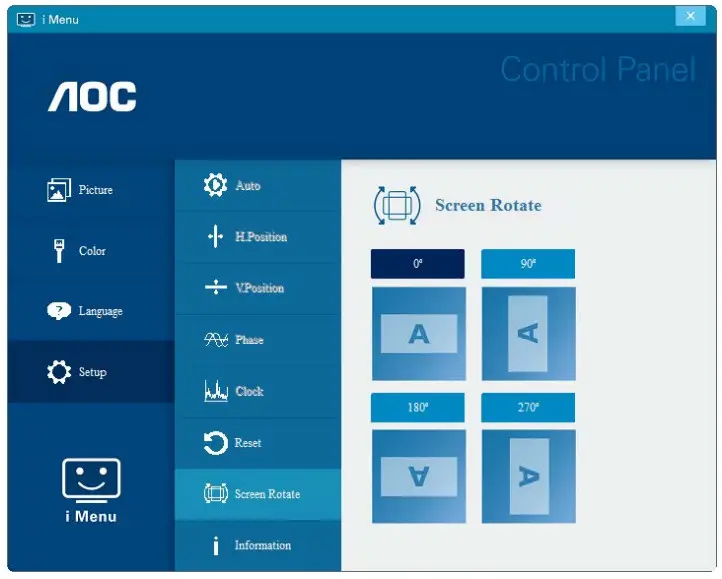
 i-Menu
Welcome to “i-Menu” software by AOC. i-Menu makes it easy to adjust your monitor display setting by using on-screen menus instead of the OSD button on the monitor. To complete the installation, please follow the installation guide. (Some devices are not compatible.)
 e-Saver
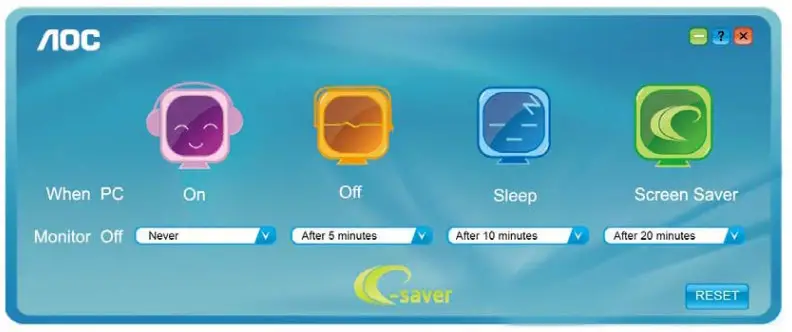
Welcome to use AOC e-Saver monitor power management software! The AOC e-Saver features Smart Shutdown functions for your monitors, allowing your monitor to timely shutdown when the PC unit is at any status (On, Off, Sleep, or Screen Saver); the actual shutdown time depends on your preferences (see example below).
Please click on “driver/e-Saver/setup.exe” to start installing the e-Saver software, follow the install wizard to complete the software installation.
Under each of the four PC statuses, you may choose from the pull-down menu the desired time (in minutes) you’re your monitor to automatically shut down. The example above illustrated:
- The monitor will never shut down when the PC is powered on.
- The monitor will automatically shut down 5 minutes after the PC is powered off.
- The monitor will automatically shut down 10 minutes after the PC is in sleep/stand-by mode.
- The monitor will automatically shut down 20 minutes after the screen saver appears.
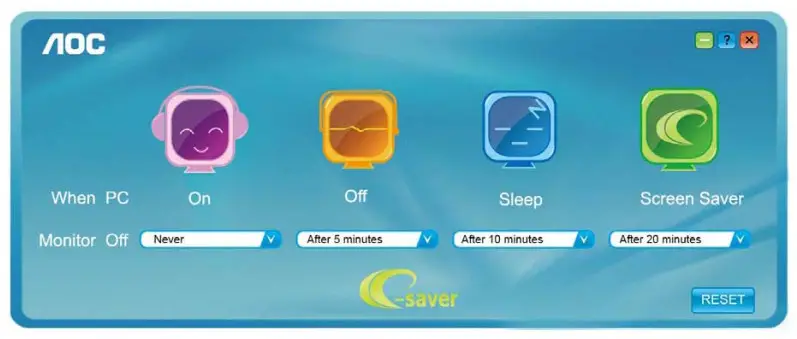
You can click “RESET” to set the e-Saver to its default settings like below.
 Screen+
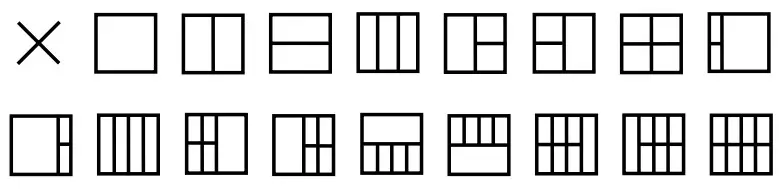
Welcome to “Screen+” software by AOC. Screen+ software is a desktop screen splitting tool; it splits the desktop into different panels, and each panel displays a different window. You only need to drag the window to a corresponding panel when you want to access it. It supports multiple monitor displays to make your task easier. Please follow the installation software to install it. The software Supported operating systems: Windows 10 , Windows 8, Windows 7.
Troubleshoot
This section provides tips for correcting problems, should any occur. It also describes how to contact AOC should you encounter problems that you cannot resolve. Before you call the AOC service center, please read the troubleshooting advice in this manual and in your computer User Manual. You may also want to consult with your system administrator or company technical support staff.
| Problem & Question | Possible Solutions |
| The monitor does not turn on | Check the connectors. Make sure the USB cable is firmly connected to the monitor Disconnect and reconnect the USB cable again. Check the condition of the USB cable. If the cable is frayed or damaged. replace the cable. If the connectors are soiled, wipe them with a clean cloth. |
| The screen Is blank, although the computer power Is on | Make sure the USB cable has properly connected to the computer. Make sure the computer is on and working. The computer may be in sleep or power-saving mode or displaying a blank screen saver. Move the mouse to ‘Wake up” the computer. |
| The picture “bounces” or moves In a wave-like pattern | Move electrical devices that may cause electrical interference away from the monitor. |
| The monitor display does not rotate when you rotate the monitor. | Make sure the right I-MENU is properly installed. |
| Regulation & Service | Please refer to Regulation & Service Information which is in the CD manual or www.aoc.com (to find the model you purchase in your country and to find Regulation & Service Information in the Support page. |
Specification
General Specification
| Panel | Model name | 11601P | ||
| Driving system | TFT Color LCD | |||
| Viewable Image Size | 39.49cm diagonal | |||
| Pixel pitch | 0.17925 (H)mm x 0.17925 (V)mm | |||
| Display Color | 262K Colors | |||
| Dot Clock | 148.5MHz | |||
| Others | Horizontal scan range | 30k-83kHz | ||
| Horizontal scan Size(Maximum) | 344.16 mm | |||
| Vertical scan range | 48Hz-75Hz | |||
| Vertical scan Size(Maximum) | 193.59 mm | |||
| Optimal preset resolution | 1920×1080@60Hz | |||
| Plug & Play | VESA DDC2B/CI | |||
| Input Connector | USB Type-C (DP Alt Mode) | |||
| Power Source | Notebook USB 5V | |||
| Power Consumption | Typical (Brightness = 90,Contrast = 50) | 8W | ||
| (Brightness = 100,Contrast = 100) | 9W | |||
| Standby mode | 0.3W | |||
| Off timer | 0-24 hrs | |||
| Dimensions & Weight: | Height (with base) | 235.2mm | ||
| Width | 376.2mm | |||
| Depth | 8.5 mm | |||
| Weight (monitor only) | 824g | |||
| Environmental | Temperature: | Operating | 0° to 40°C | |
| Non-Operating | -25′ to 55°C | |||
| Humidity: | Operating | 10% to 85% (non-condensing) | ||
| Non-Operating | 5% to 93% (non-condensing) | |||
| Altitude: | Operating | 0- 5000m(0∼ 16404 ft) | ||
| Non-Operating | 0- 12192m (0∼ 40000 ft ) | |||
| Support OS | Windows 7 | |||
| Windows 8 | ||||
| Windows 10 | ||||
| MacBook IOS at least 10.12.1 or more | ||||
PS: I1601P only as a display device.
 https://eprel.ec.europa.eu/qr/667656
Preset Display Modes
| Standard | Resolution | H. Frequency (kHz) | V. Frequency (Hz) |
| VGA | 640×480@60Hz | 31.469 | 59.94 |
| VGA | 640×480@72Hz | 37.861 | 72.809 |
| VGA | 640×480@75Hz | 37.5 | 75 |
| SVGA | 800×600@56Hz | 35.156 | 56.25 |
| SVGA | 800×600@60Hz | 37.879 | 60.317 |
| SVGA | 800×600@72Hz | 48.077 | 72.188 |
| SVGA | 800×600@75Hz | 46.875 | 75 |
| X | 1024×768@60Hz | 48.363 | 60.004 |
| XIA | 1024×768@70Hz | 56.476 | 70.069 |
| X | 1024×768@75Hz | 60.023 | 75.029 |
| SAGA | 1280×1024@60Hz | 63.981 | 60.02 |
| SAGA | 1280×1024@75Hz | 79.976 | 75.025 |
| WXGA+ | 1440×900@60Hz | 55.935 | 59.887 |
| WSXGA | 1680×1050@60Hz | 65.29 | 59.954 |
| WSXGA | 1680×1050@60Hz | 64.674 | 59.883 |
| HD | 1920×1080@60Hz | 67.5 | 60 |
| *** | 1280×960@60H7 | 60 | 60 |
| IBM MODES DOS | 720×400@70Hz | 31.469 | 70.087 |
| MAC MODES VGA | 640×480@67Hz | 35 | 66.667 |
| MAC MODES SVGA | 832×624@75Hz | 49.725 | 74.551 |
| MAC MODES XIA | 1024×768@75Hz | 60.241 | 74.927 |
Plug and Play
Plug & Play DDC2B Feature
This monitor is equipped with VESA DDC2B capabilities according to the VESA DDC STANDARD. It allows the monitor to inform the host system of its identity and, depending on the level of DDC used, communicate additional information about its display capabilities.
The DDC2B is a bi-directional data channel based on the I2C protocol. The host can request EDID information over the DDC2B channel.
©2021 AOC. All Rights Reserved.