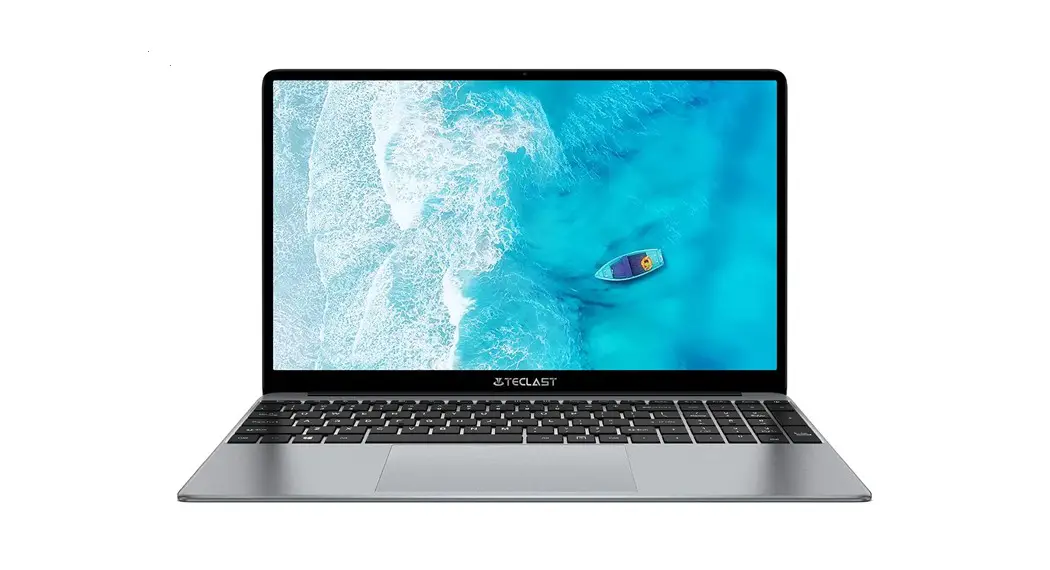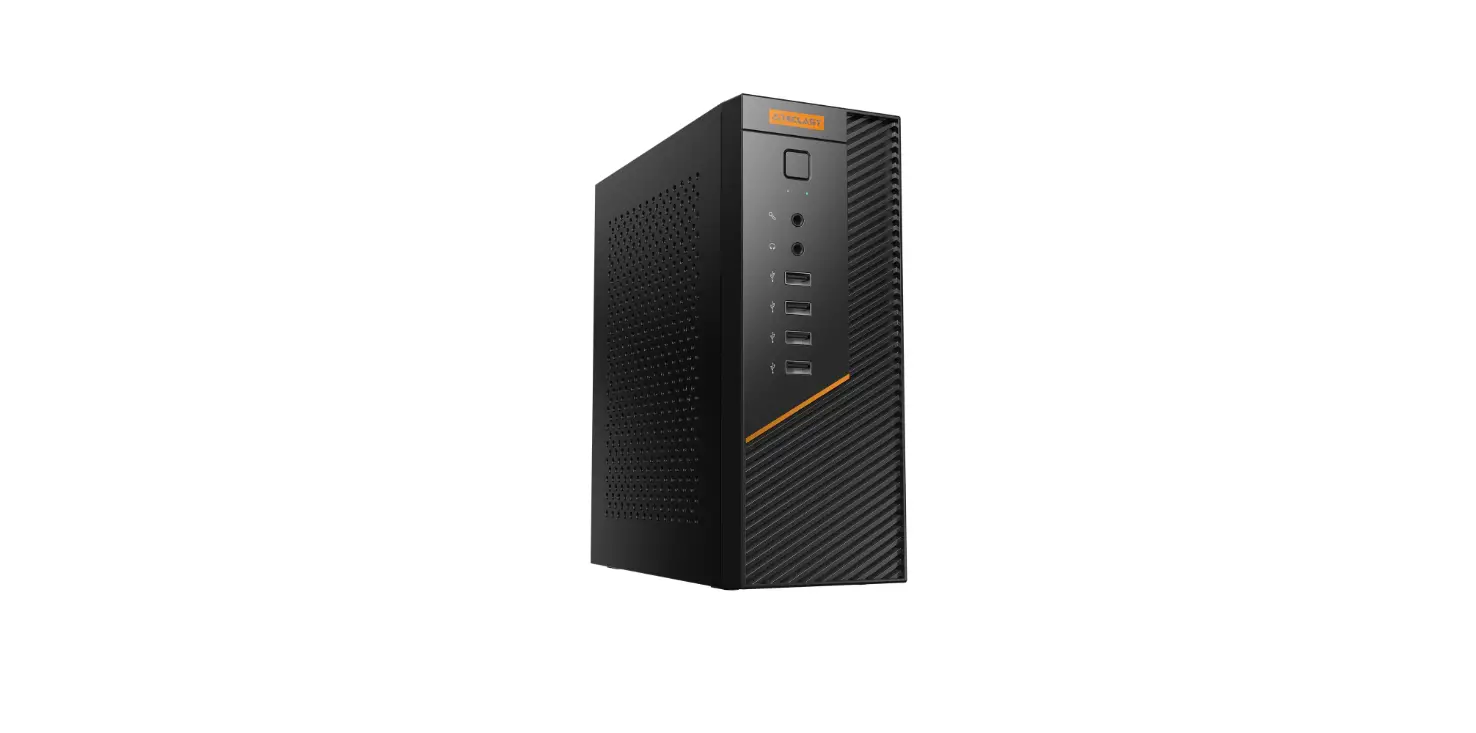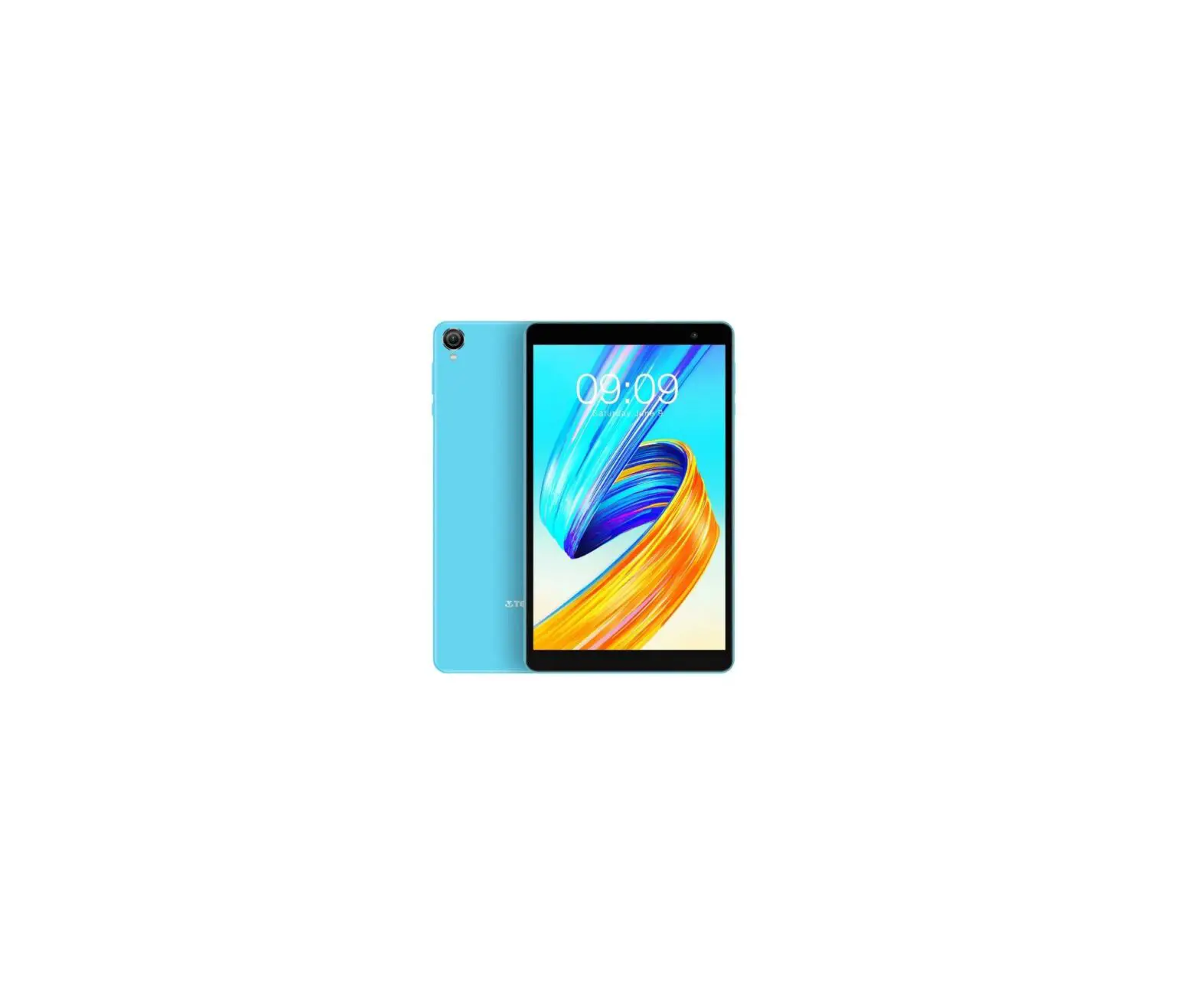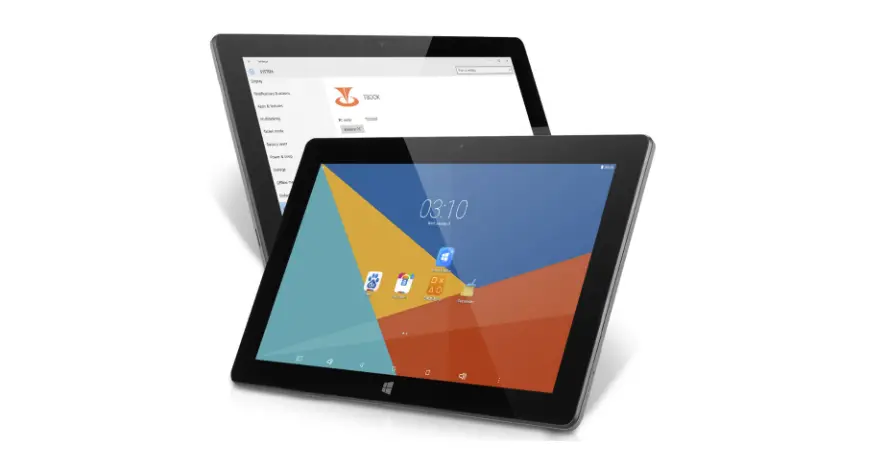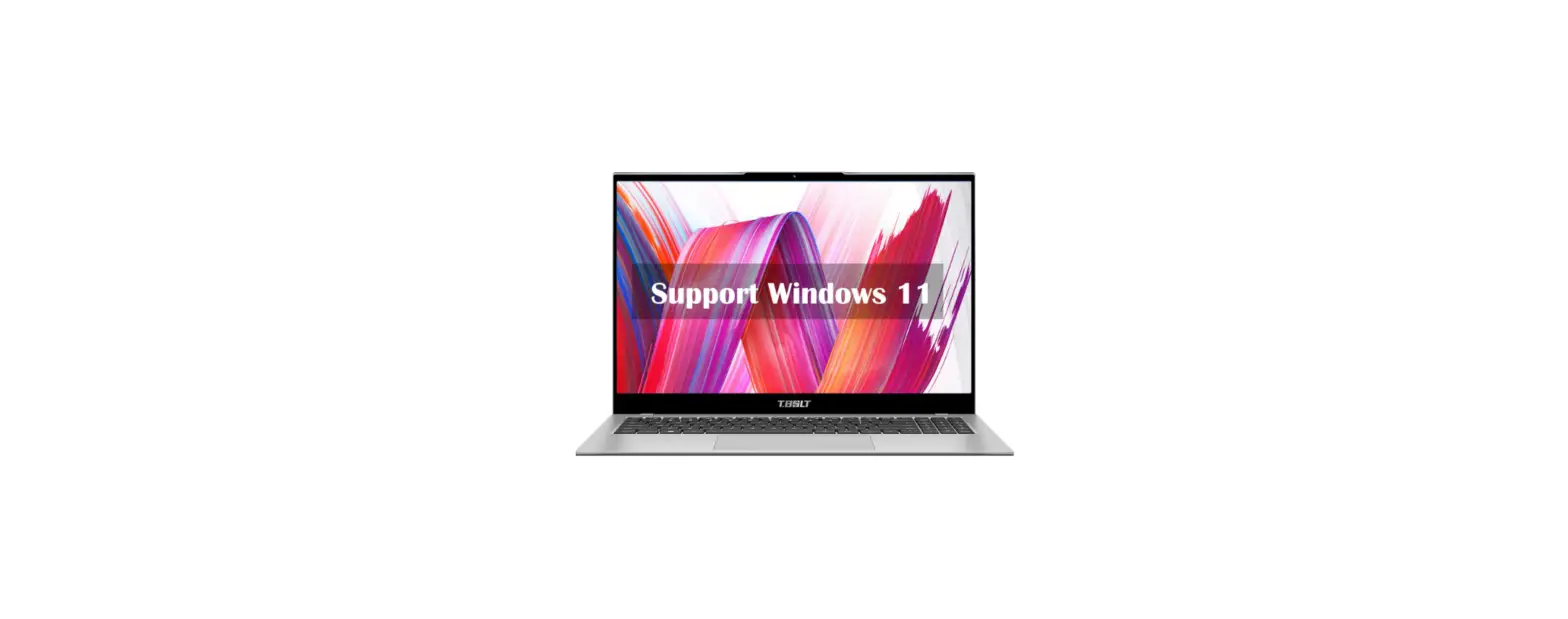

TECLAST 5.6 Inch Laptop Computer
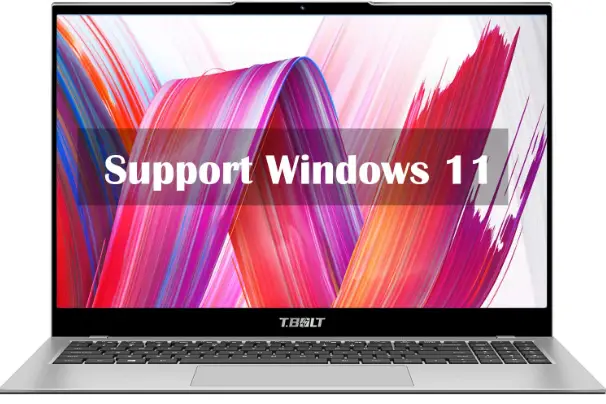
INTRODUCTION
This setup guide will help you get started with Windows, select system language, time zone, connect to Wi-Fi, setup your username, and device name during first boot up.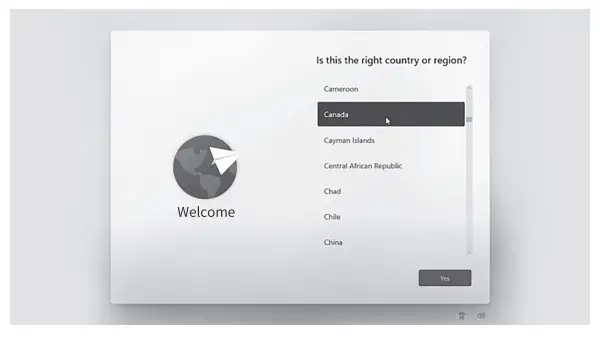
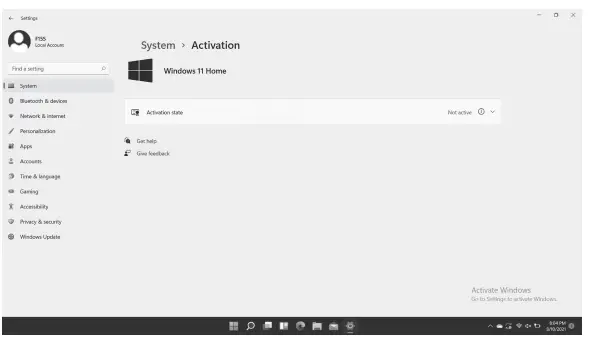
Windows can be automatically activated by connecting to the internet.
Power button
- When the device is off, long press power button for 3 secs to turn on the device.
- When the device is on, short press power button to turn on/off screen.
- When the device is on, long press power button for 3 secs to access the shutdown interface, long press for 10 secs to force shut down the device.
- Volume+ button: Press to increase the volume.

- Volume- button: Press to decrease the volume.



Status Bar
 Battery indicator, click to set screen brightness, and switch to power save mode. Windows will automatically adjust screen brightness in power save mode.
 Wi-Fi indicator, click to connect to Wi-Fi, and switch to airplane mode. Windows automatically disconnects from Wi-Fi in airplane mode.
 Volume indicator, click to adjust the volume.
 Notification center, click to check notifications and access action center. For more information, please check the Action Center section.
 Battery indicator, click to set screen brightness, and switch to power save mode. Windows will automatically adjust screen brightness in power save mode.
 Wi-Fi indicator, click to connect to Wi-Fi, and switch to airplane mode. Windows automatically disconnects from Wi-Fi in airplane mode.
 Volume indicator, click to adjust the volume.
 Notification center, click to check notifications and access action center. For more information, please check the Action Center section.
 Click to go to desktop.
 Click to go back to the previous screen
 Click to perform local and internet searches.
 Click to switch or close background apps.
 Click to sleep, shut down, or reboot the system.
 Click to browse or open all installed apps.
 Click to access account settings and view regularly use apps.
 Click to go to desktop.
 Click to go back to the previous screen
 Click to perform local and internet searches.
 Click to switch or close background apps.
 Click to sleep, shut down, or reboot the system.
 Click to browse or open all installed apps.
 Click to access account settings and view regularly use apps.
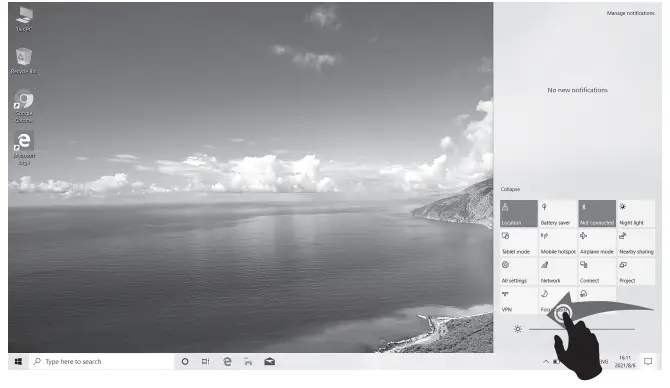
Action Center
 Click to turn on/off tablet mode
 Click to turn on/off screen rotation.
 Click to search and connect to wireless display
 Click to open all settings
 Click to turn on/off Bluetooth
 Click to turn on/off GPS
 Click to configure VPN settings
 Click to open One Note (login to Microsoft account is required)
 Click to turn on/off power save mode
 Click to adjust screen brightness
 Click to turn on/off WiFi
 Click to turn on/off airplane mode
 Click to turn on/off tablet mode
 Click to turn on/off screen rotation.
 Click to search and connect to wireless display
 Click to open all settings
 Click to turn on/off Bluetooth
 Click to turn on/off GPS
 Click to configure VPN settings
 Click to open One Note (login to Microsoft account is required)
 Click to turn on/off power save mode
 Click to adjust screen brightness
 Click to turn on/off WiFi
 Click to turn on/off airplane mode
Gesture Control
- Swipe in from the right side of your screen to open action center.

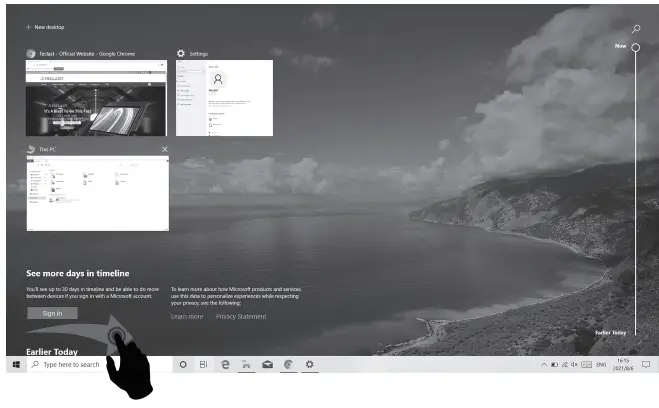
- Swipe in from the left to view your open apps in task view.

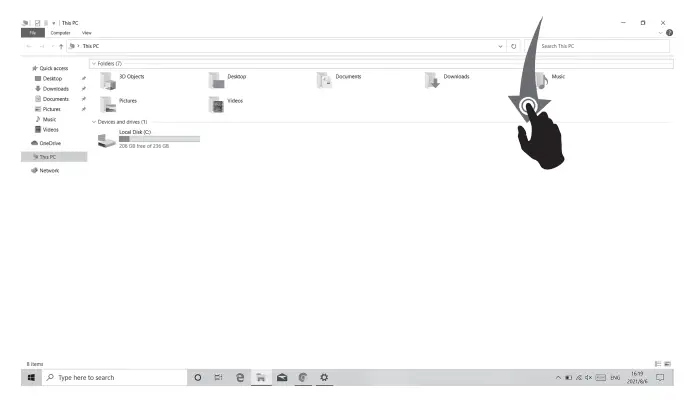
- Swipe in from the top to view a full-screened app’s title bar.

Factory Reset
User can perform a factory reset if the system is unstable or system files are corrupted, you can access this function by:
- Open all settings, select Update & Security.
- Select Recovery – Reset the PC.
- Select Remove Everything if you want to fully format the device.
- Click Reset to initiate.
Caution
- Please connect the device to power before resetting. Resetting your
- PC will reinstall Windows but delete your files, settings and apps
Charger Specifications
- Charger specs should match the input voltage/current shown on the back of the product.
- Please only use chargers that meets the above specification.
- Please do a full recharge every 3 months if the product is going to stay unused for an extended period.
- For first use after storage, the product may require a 30 minute charging session before charging status is indicated.
Table of hazardous substances contained in the product.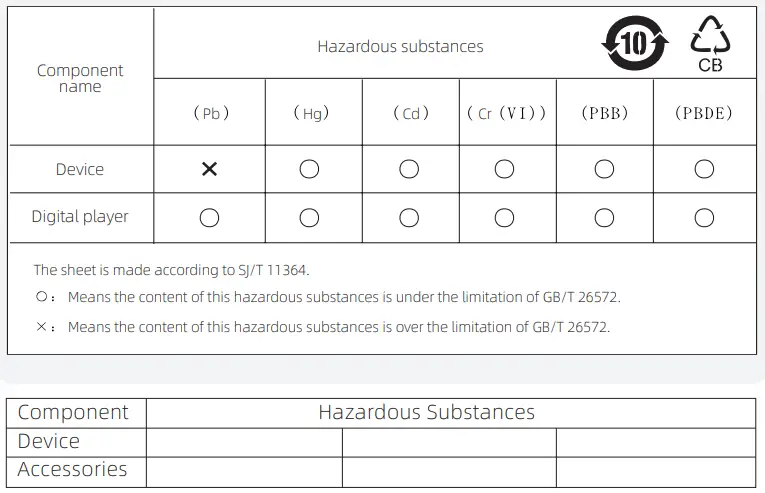
This table is proposed in accordance with the provision of SJ/T11364.
- X: Indicate that said hazardous substance contained in at least one of the homogeneous materials used for this part is above the limit requirement of GB/T 26572.
- O: Indicate that said hazardous substance in all of the homogeneous materials for this part is below the limit requirement of GB/T 26572.
This series of products implement the national standard: GB 28380-2012
- (Microcomputer Energy Efficiency Limit and Energy Efficiency Grade)
- Guangzhou Shangke Information Technology Limited
- Teclast official website: http://www.teclast.com
- Technical support: [email protected]
- Made In China
 台电 - 让更多人享受数字生活