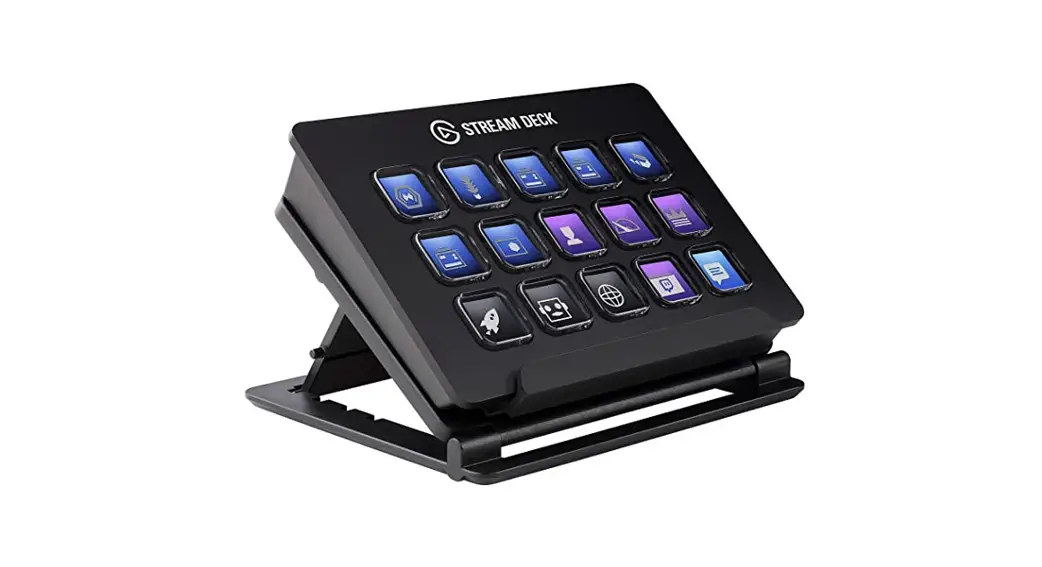

Elgato Stream Deck – Quick Start Guide
Step 1 – Connect Stream Deck
- Connect Stream Deck directly to a USB port on your PC or Mac — do not use a USB hub
 Connect Stream Deck directly to a USB port on your PC or Mac – do not use a USB hub.
Step 2 – Download Stream Deck app - Download and install the Stream Deck app.
 Download and install the Stream Deck app:
https://www.elgato.com/gaming/download
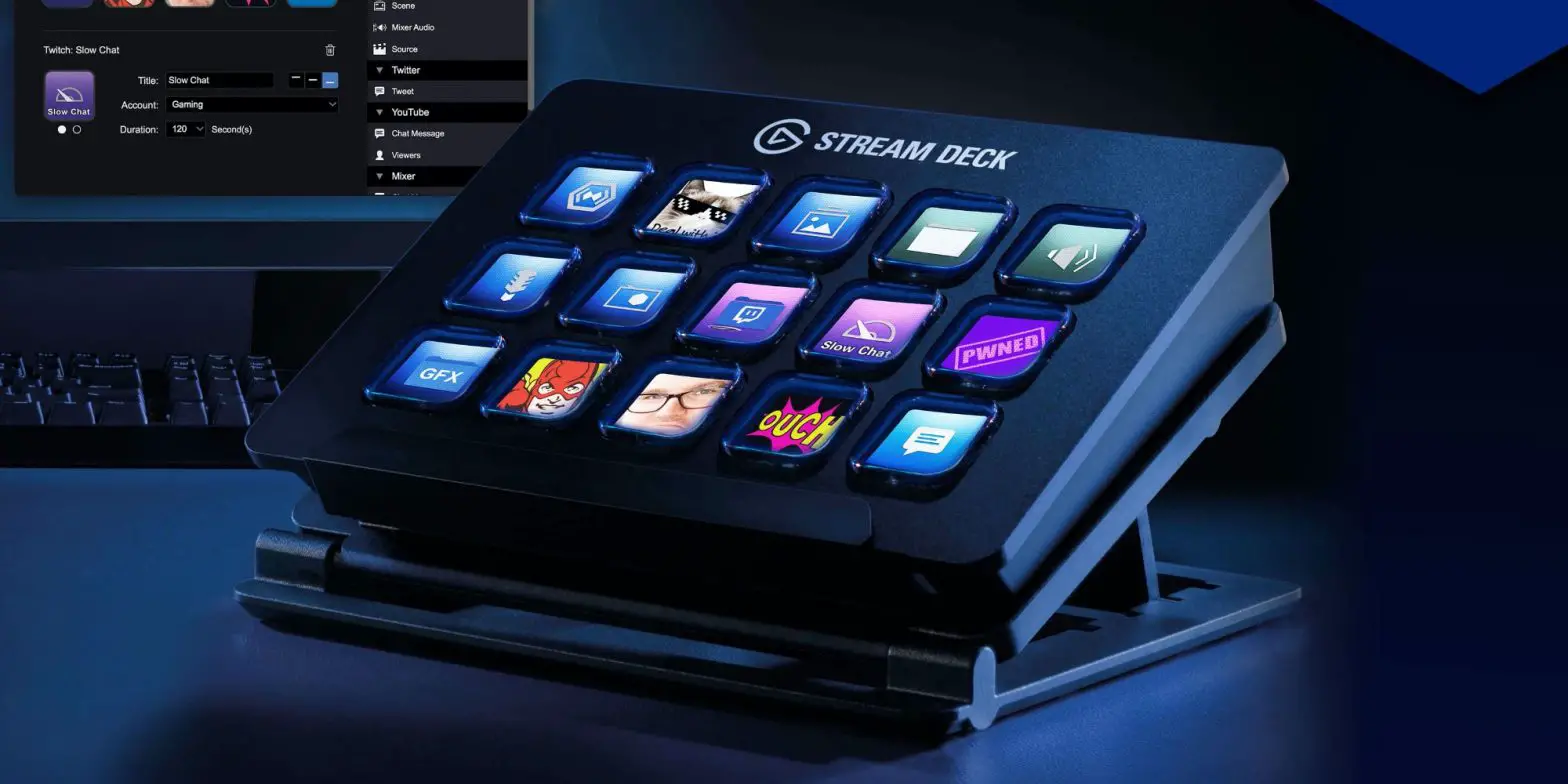
Step 3 – Launch and Customize Stream Deck - Launch the app to customize Stream Deck. Drag actions from the right panel and drop them onto your desired keys on the left.
 Launch the app to customize Stream Deck.
Drag action from the right panel and drop them onto your desired keys on the left.Step 4 – Use Custom Icons
- Configure your actions and personal keys with custom icons. Use 72 x 72 pixels jpg; or .png files to achieve best results,.
 Configure your actions and personalize keys with custom icons. Use 72 x 72 pixels .jpg or .png files to achieve best results.
Step 5 – Create Folders - Drag and hold one key over another to create a bolder
 Drag and hold one key over another to create a folder.
Tap the back key to exit a bolder and return to your main configuration Tap the back key to exit a folder and return to your main configuration.
Step 6 – Right-Click Keys to Modify - Right-click keys to cony, delete, or reset item.
 Right-click keys to Copy, Delete, or Reset them.
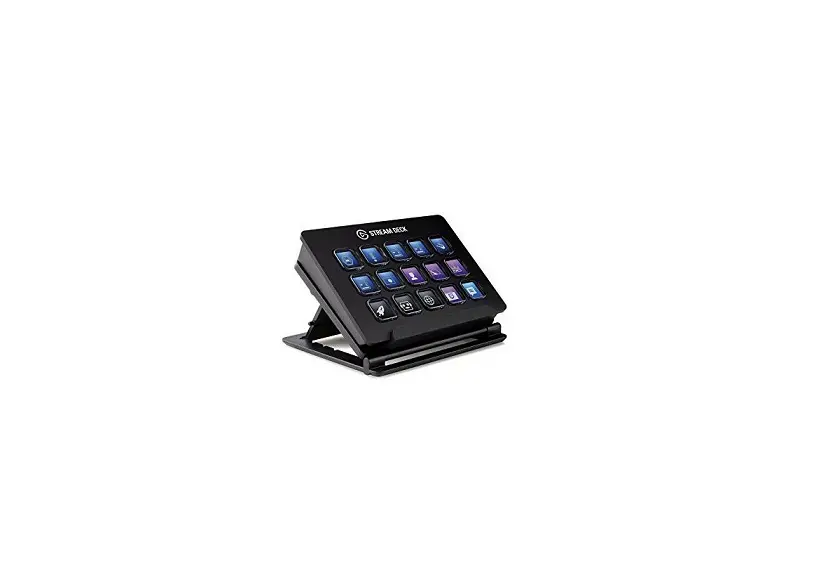
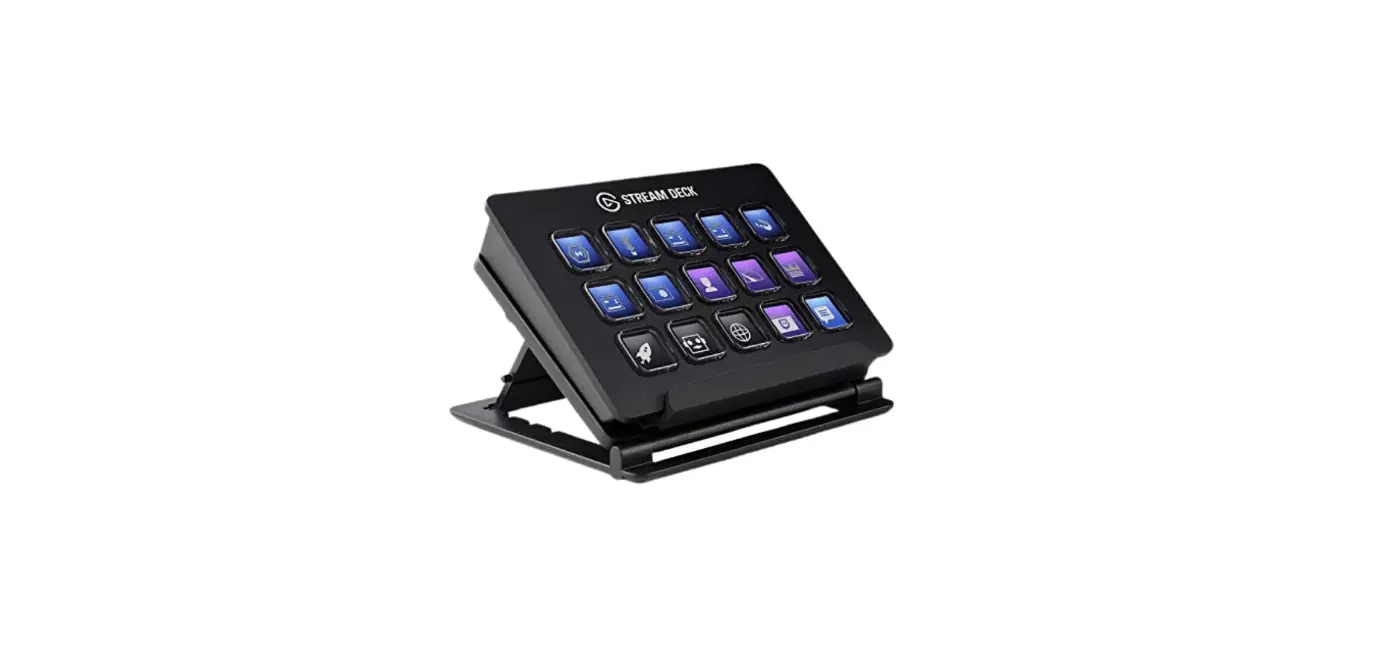
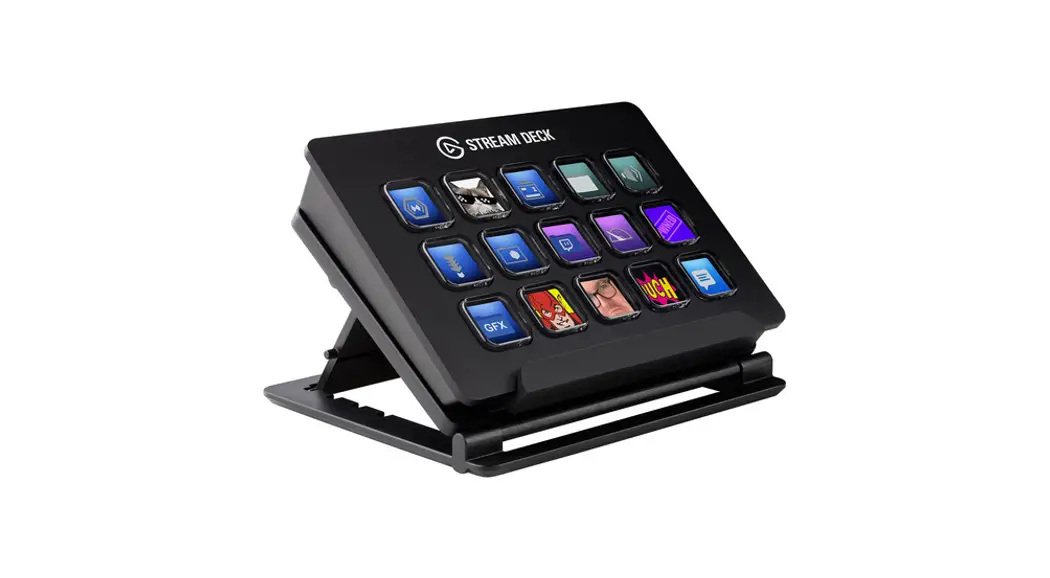
Step 7 – Use Stream Deck’s Stand - Prop Stream Deck on the included stand and adjust the legs for optimum access.

Prop Stream Deck on the included stand and adjust the legs for optimum access.
Step 8 – Use Social Media Accounts - Enter your %coal media accounts to connect with your fans

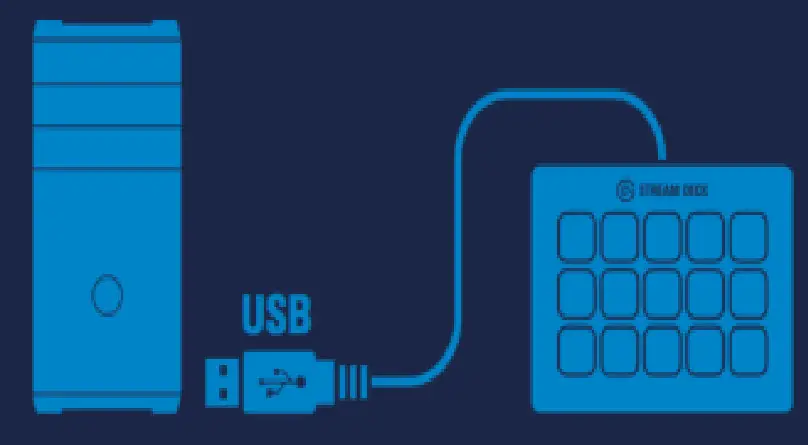 Connect Stream Deck directly to a USB port on your PC or Mac – do not use a USB hub.
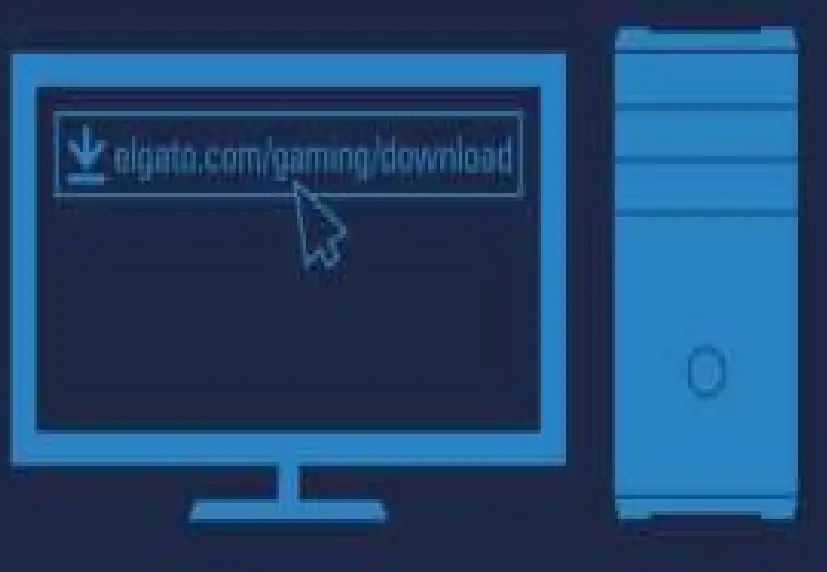 Download and install the Stream Deck app:
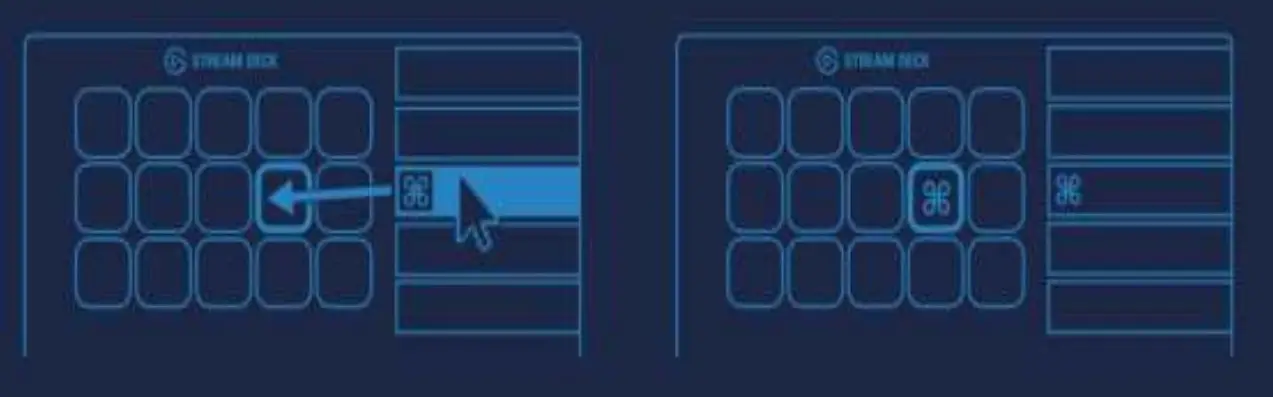 Launch the app to customize Stream Deck.
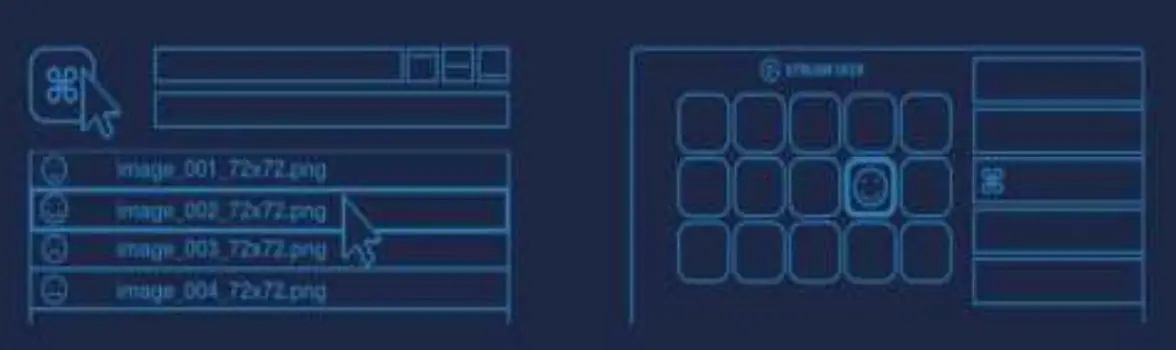 Configure your actions and personalize keys with custom icons. Use 72 x 72 pixels .jpg or .png files to achieve best results.
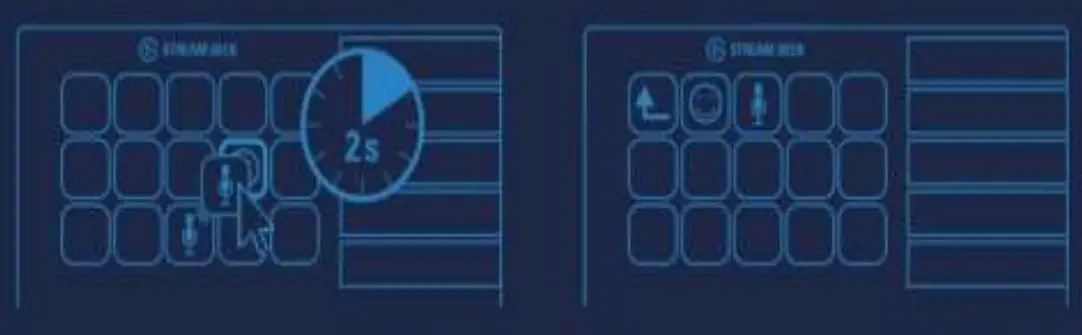 Drag and hold one key over another to create a folder.
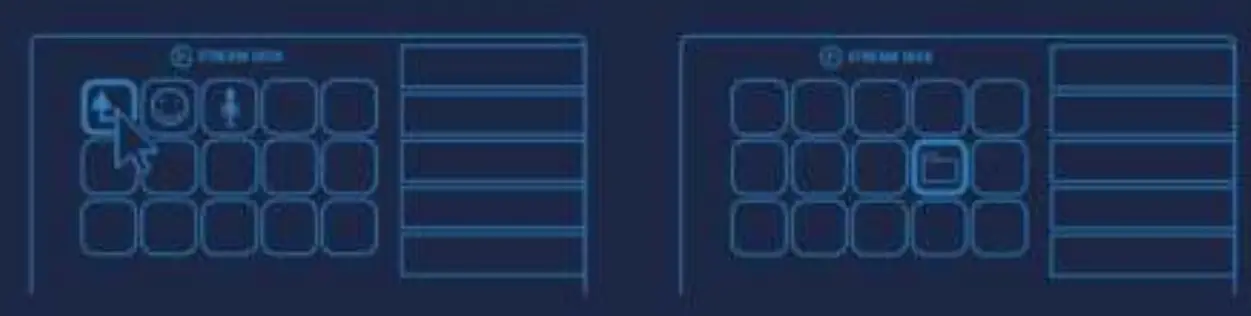 Tap the back key to exit a folder and return to your main configuration.
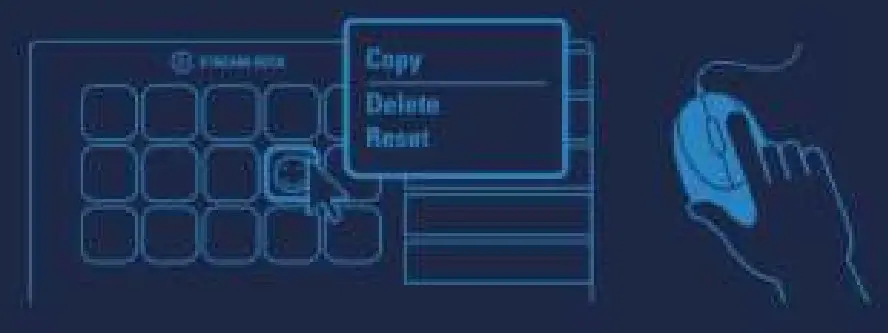 Right-click keys to Copy, Delete, or Reset them.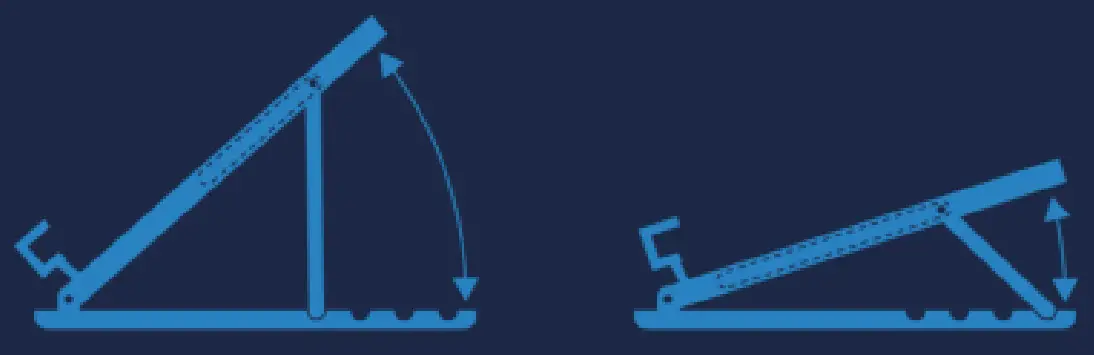
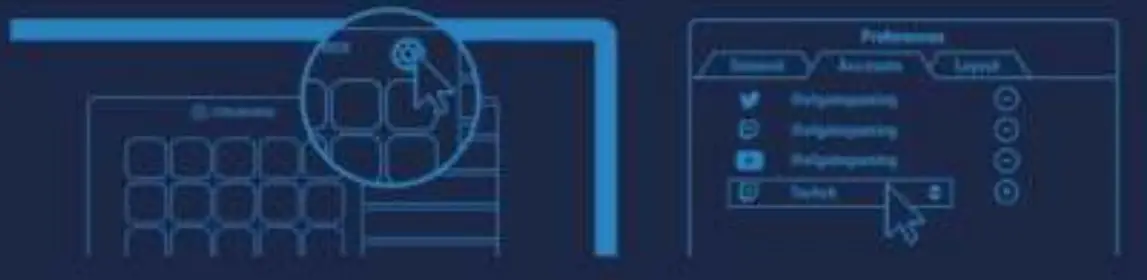
Enter your Social Media accounts in the Preferences to connect with your fans.
 Downloads | elgato.com