User Manual
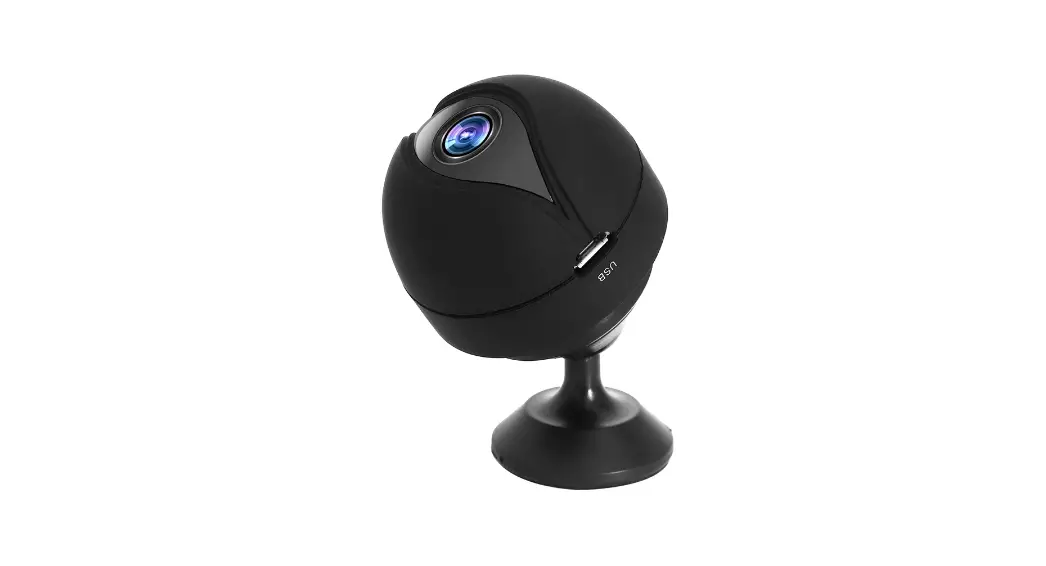
MINI WIFI HD Hidden Camera
A10
Easy installation, protable, compact, had camera to meet all your needs
Wireless Mini HD Camera
Dear customer, thank you for purchasing this product. Please read the user manual carefully and keep it for future reference.
Product Introduction
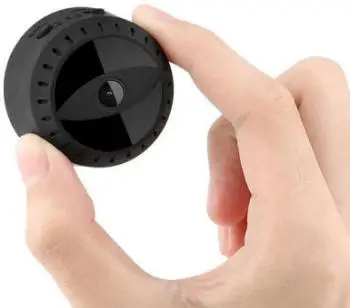
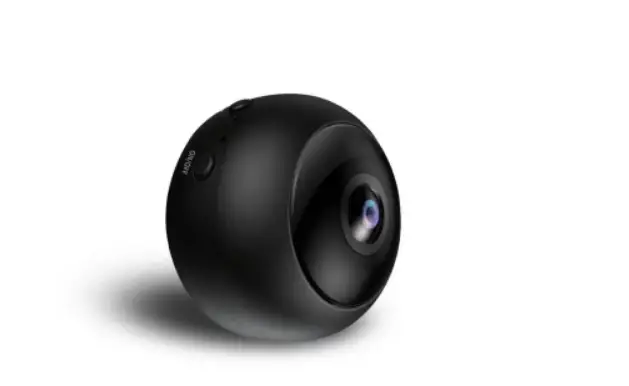
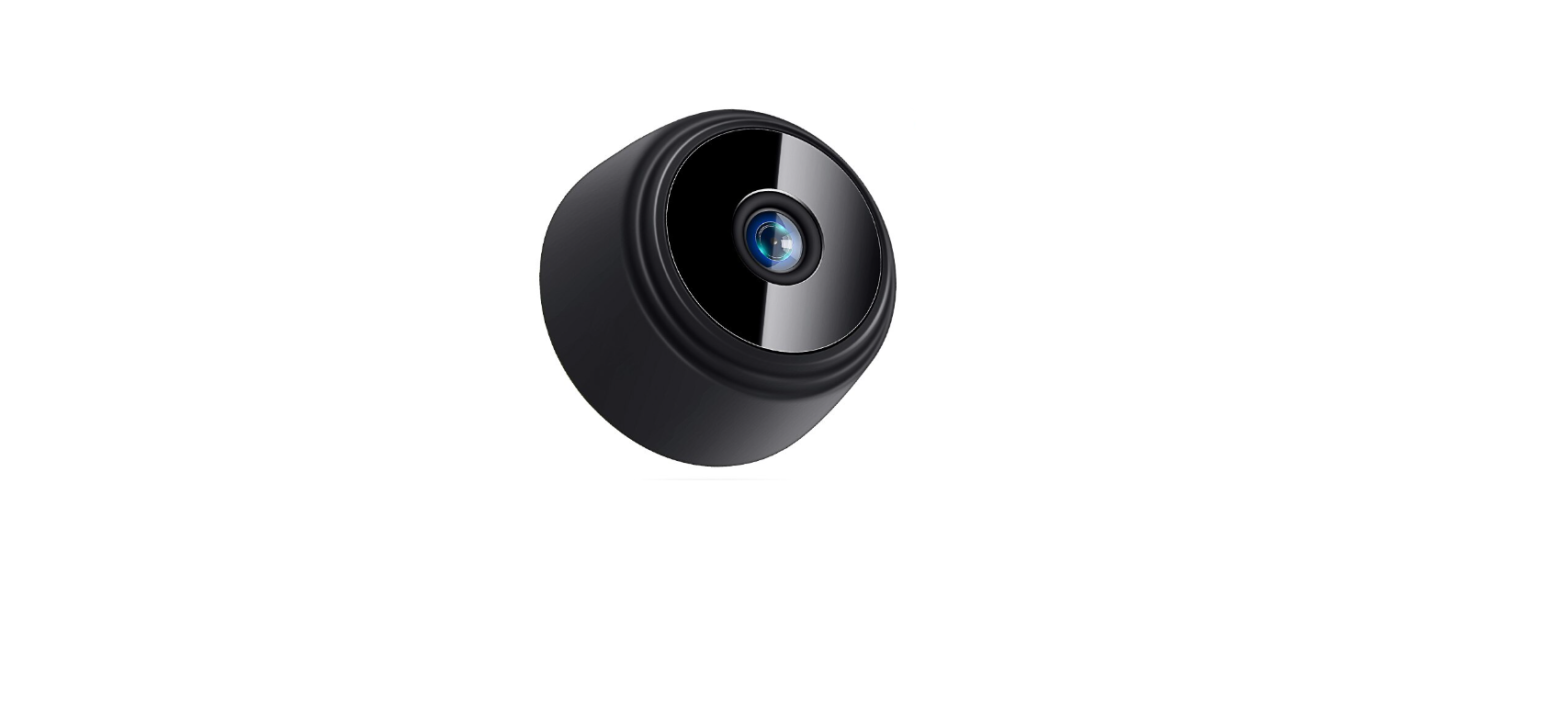
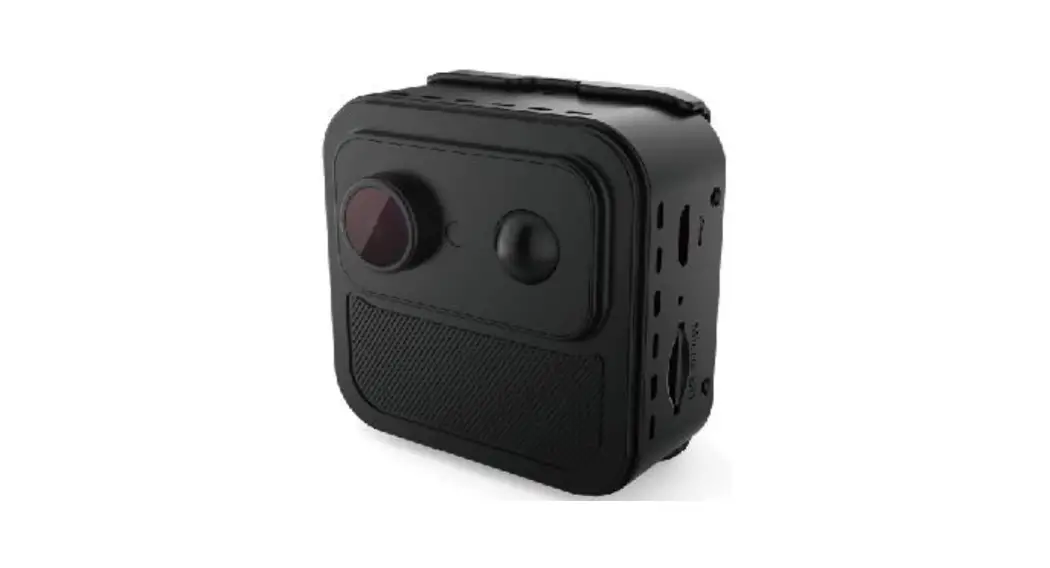
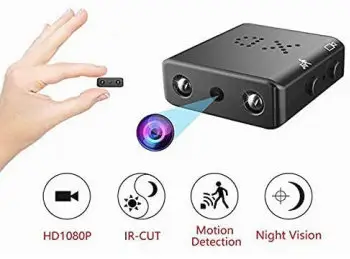
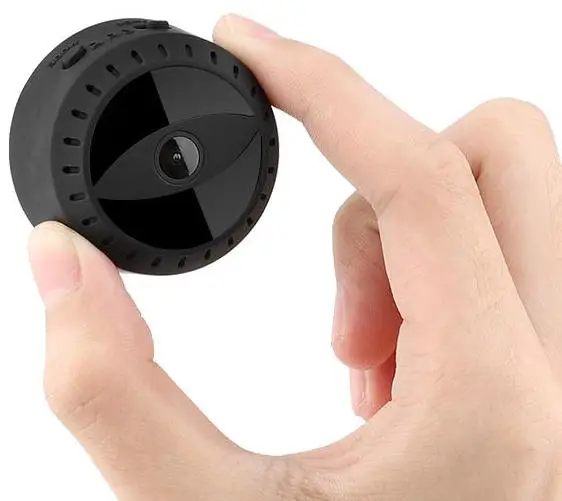
The camera A10 is the upgraded model. It’s quite small, but comes with all useful features you need for a WIFI Mini camera. Perfect as surveillance camera in: Office, Home, Car, etc. Just download the special App on your iPhone or Android phone and have it configured with router WIFI (Only 2.4GHz). Then you are ready to view live video on the App remotely from anywhere in the world. Keep an eye on your home or office as a nanny camera. With the internal magnet, the hidden camera can be adsorbed on any iron surfaces. All in one mini camera, it provides main features as follow: 150° Wide Angle, Built-in Magnet, 1080P Live Video, Motion Activated Push Alerts, No-Glow IR Night Vision, Recording while Charging, Playback/Snapshot/Record Remotely, iOS and Android Compatible, Live Stream from Anywhere, SD Card Recording, Free App, One App Multiple Camera, One Camera Multiple Users and More.
Product Overview
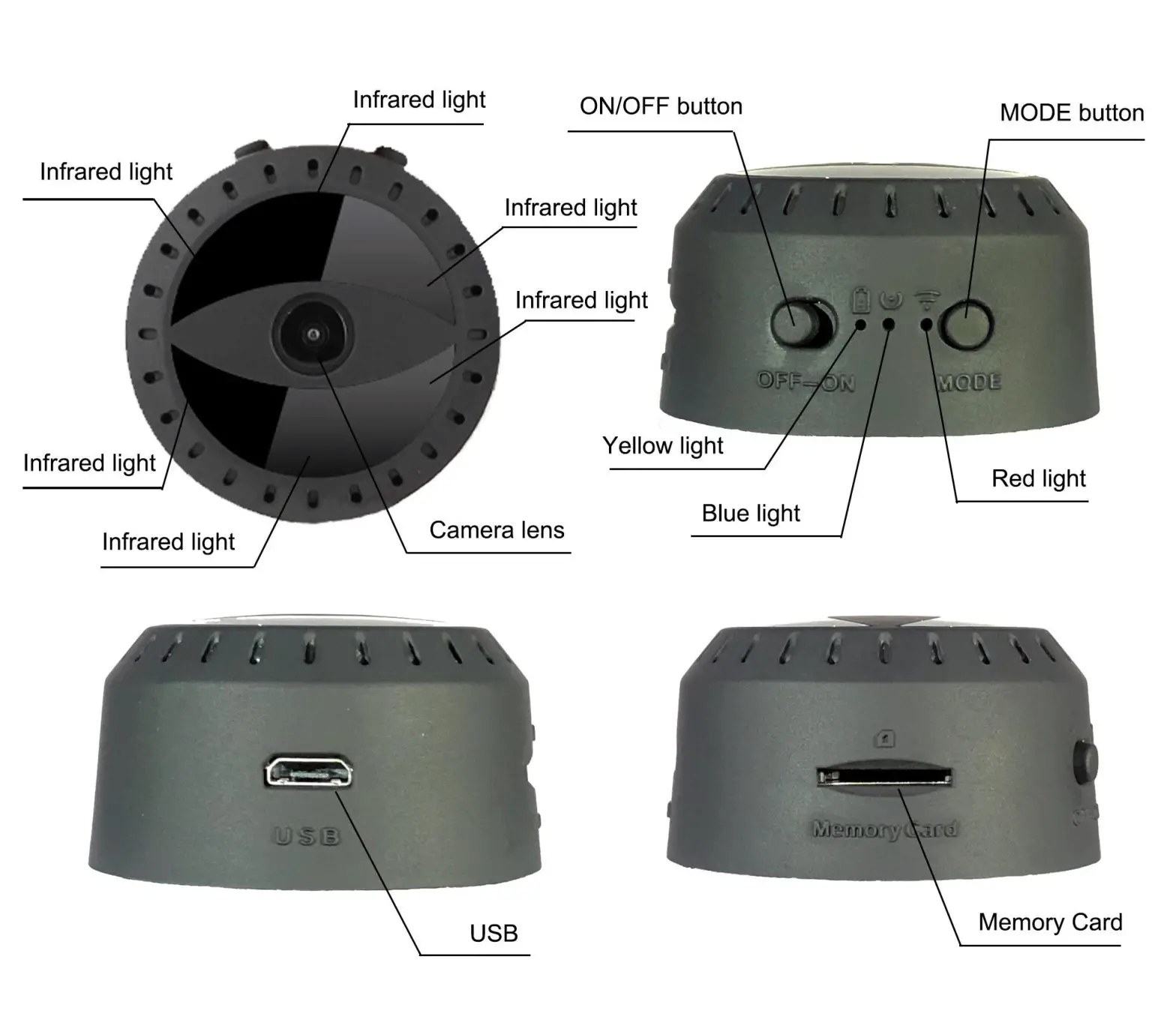
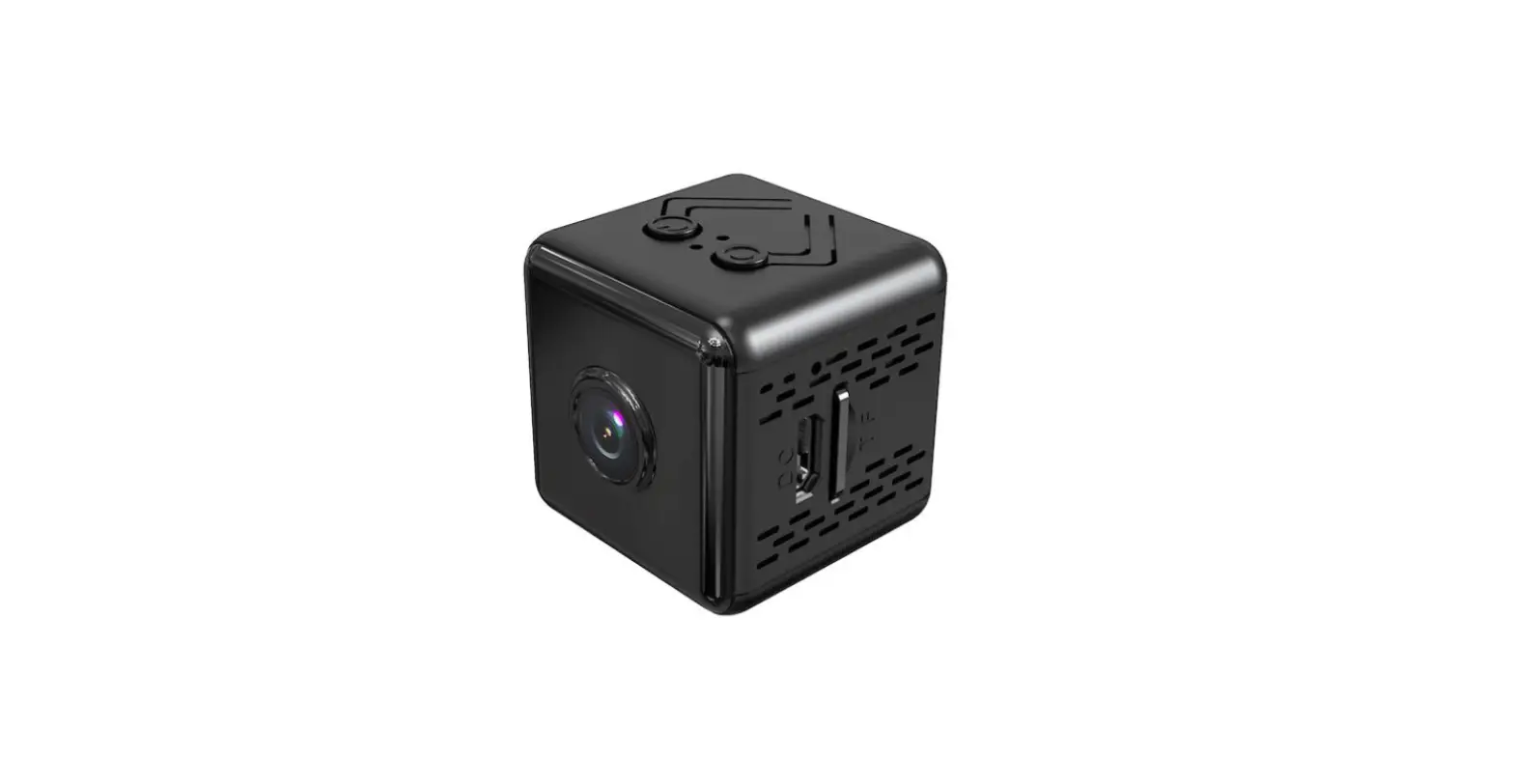
LED indicator:
AP mode: The blue lights up and the red flashes slowly.
WIFI mode: The red and blue light up together.
Network cannot be found: The blue lights up and the red is off (Now reset device).
Charging: The yellow lights up.
Button Operations:
ON/OFF: The “ON” button means that the power is turned on and the “OFF” button means that the power is turned off.
MODE: Press for 3 seconds to reset device. Reset successfully when red and blue are both off.
Interfaces:
USB: Charging interface. No data can be read from this interface.
Memory Card: Micro SD card (not included) interface.
Application Methods
- Download and install APP
Way 1: Android Device by Searching “HIDVCAM” in Google App market to download and install App; IOS Device by Searching “HIDVCAM” in App Store to download and install App;
Way 2: Scan the QR code to download “HIDVCAM”. http://houwei-tech.com/web/apphidvcam
 - Registry and Login:
- Open the App “HIDVCAM”,
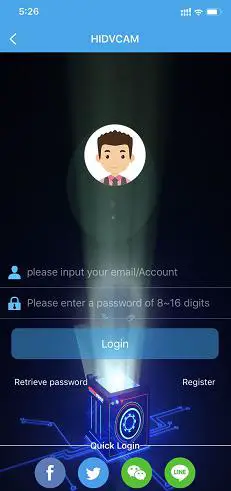
- Register your membership via WeChat Facebook Twitter Line Email.

- Connection
AP mode Connection (Nearby viewing)- Turn on camera: Press “ON” button to turn on the camera, in 10 seconds, and the blue light lights up, the red light flashes slowly.
- Go to the WIFI setting page, then connect the WIFI named ” IPC-XXXXX”.
- Open “HIDVCAM”, refresh the device list on the App, you can view connected camera.
- Click device, set a password to the device on the first use, then you can view camera on App.



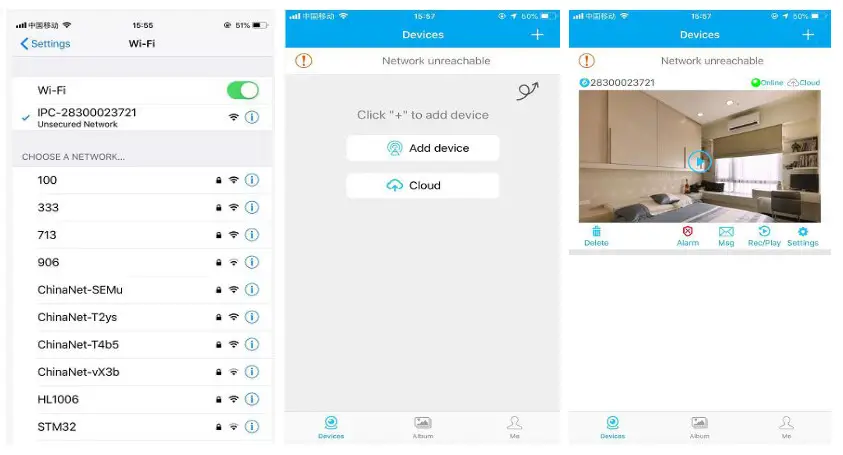
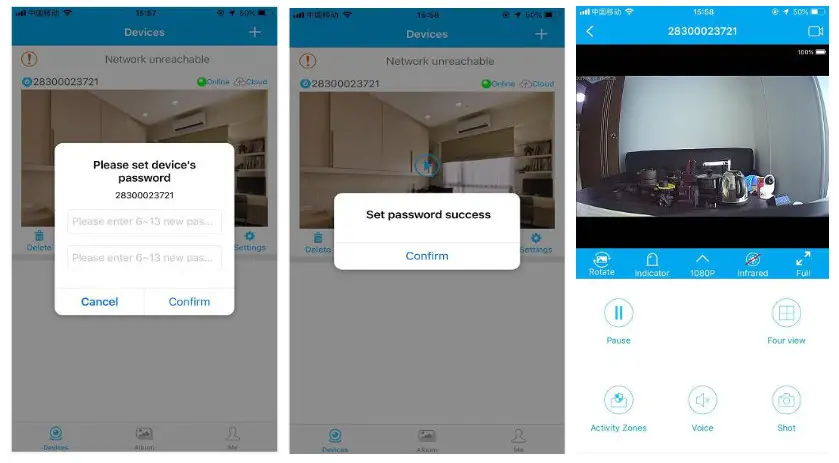
Router mode Connection (Remote viewing)
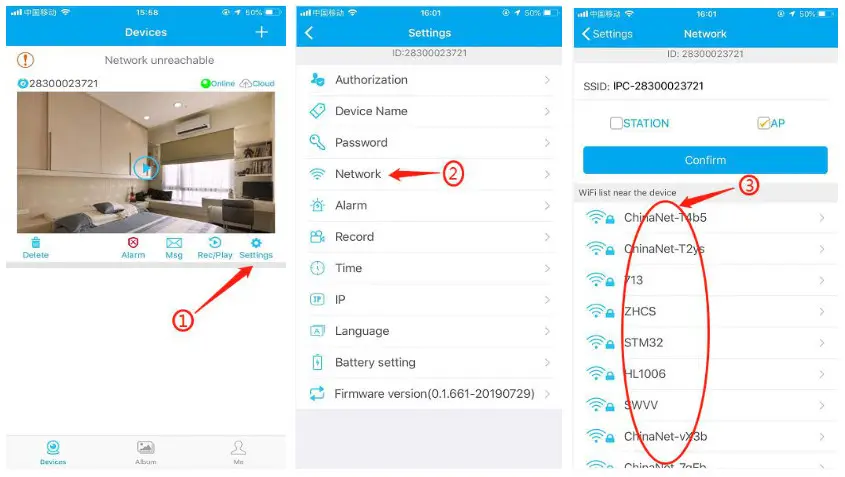
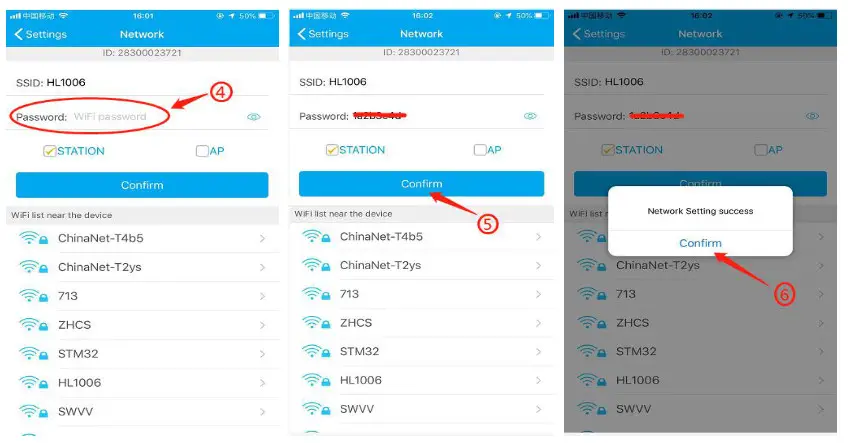
- Open App, go to device list, click [Settings]—[Network]— Choose an available WIFI from below options and input corresponding password — click Confirm — click Confirm
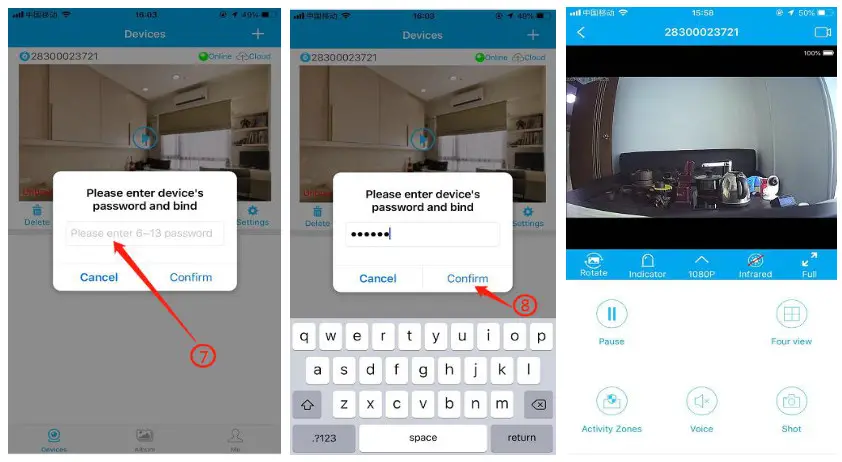
- After camera connect to router, refresh the page, waiting for about 30 seconds and the camera status will become online —then click play button—enter the password and confirm, you can view remote camera.


APP Introduction
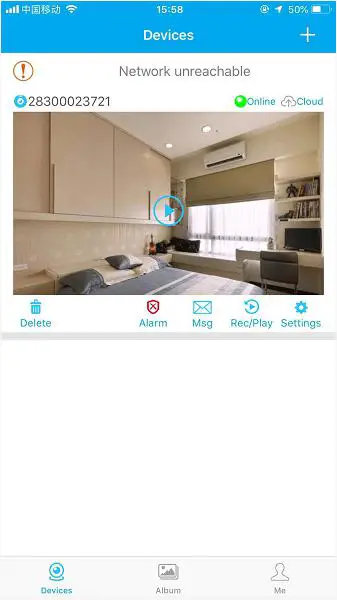
Function Introduction
- Device ID
- Online: Device status
- Cloud: Cloud storage
- Delete: Delete the camera
- Alarm: One click to turn ON/OFF alarm
- Msg: Alarm message
- Rec/Play: Playback video in TF card or Cloud
- Settings
Key Name Function 2830000xxxx Device ID Online Device status Cloud Cloud Storage Delete Delete the camera Alarm Turn On/Off Device alarm Msg Alarm message Rec/Play Playback video in TF card or Cloud Settings Settings of the device Devices Device view page Album Where to save the camera screenshot Me App account information 
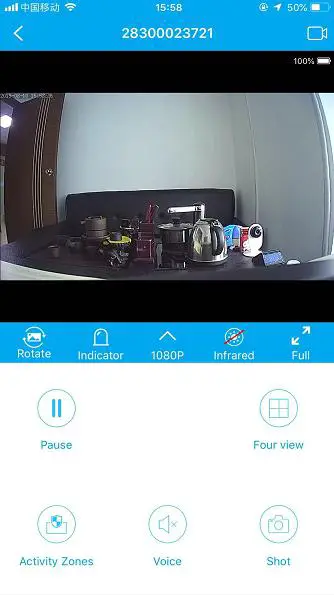
Interface Introduction
| Rotate | Flip video | ||
| Indicator | Turn On/Off the Indicator of camera | ||
| 1080p | 720p/1080p Resolution selection | ||
| Infrared | Turn-ON/OFF the IR of camera (night vision) | ||
| Full | Full-screen view video | ||
| Pause | Pause the video | ||
| Four view | 1/4 screen view video | ||
| Activity Zones | Set the motion detection area | ||
| Voice | monitor voice | ||
| Shot | Video screenshot | ||
 | Start/Stop Real-time recording | ||
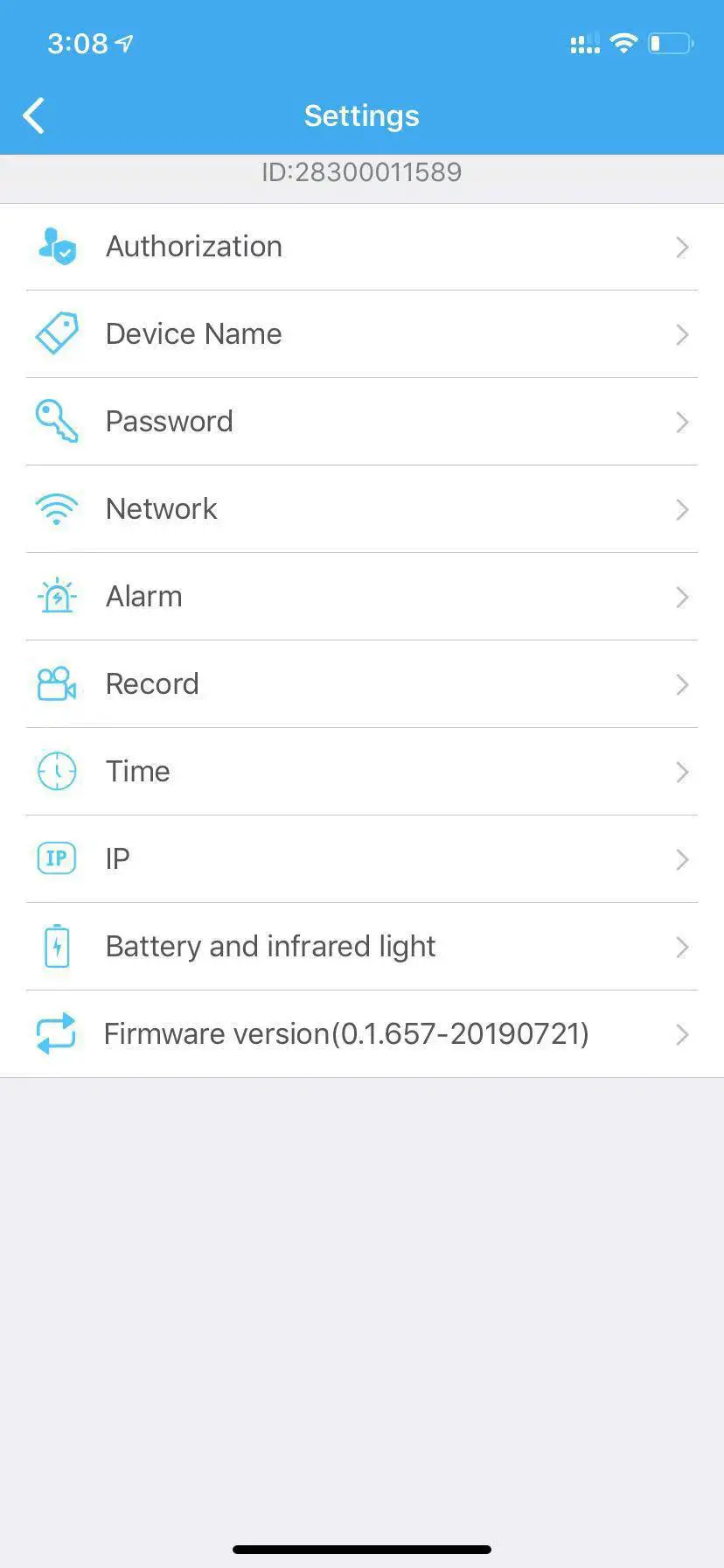
Settings
- Device Authorization: Input different users ID and shares the device to others.
- Device Name: You could name the device up to yourself, such as college, farm, etc.
- Password setting: You can modify the password if required.
- Network setting: Set up the device to connect to the Internet.
- Alarm setting: Motion detection and alarm sound setting.
- Recording settings: Set the resolution and the mode of records (Motion detection record /Regular record mode).
- Time setting: Synchronize the time between App and Phone.
- Static IP setting: You can set the IP address of the device.
- Battery and infrared light setting: Automatic shutdown when low power and open infrared light at certain time.
- Firmware version: Check whether the firmware is in latest version.

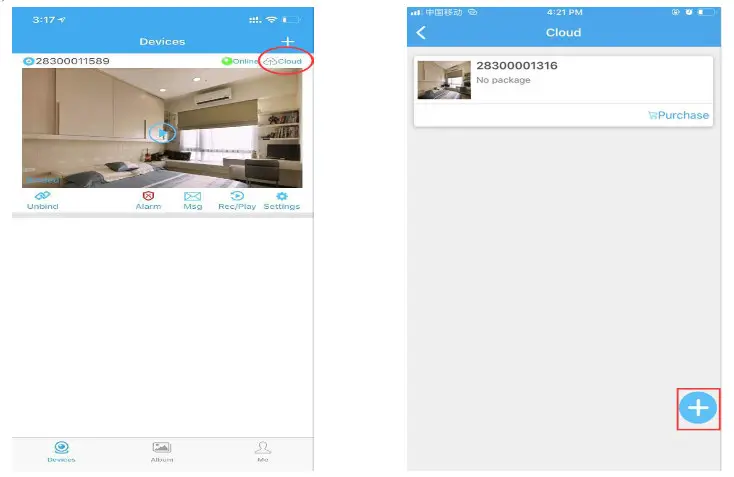
Cloud Storage
- Click “Cloud” to enter the cloud storage page.
- Subscribe the service your required.
- Redeem your subscribed service, the device starts cloud storage recording.
- Enable/Disable: Start or stop cloud recording.
- Expand service: Renew your subscribes.
- Cloud recording: Watch the video in your cloud.
- Subscribe / unsubscribe cloud: Purchase / cancel cloud service.

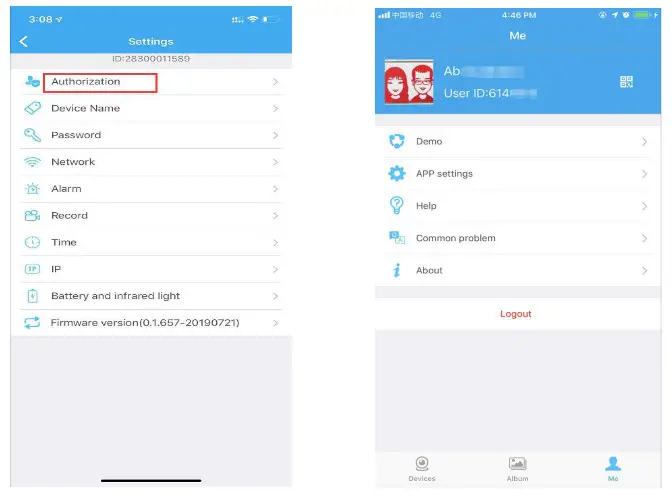
Device Share
You could share your camera to others, such as relatives, friends, colleagues, and set the user permissions of shared camera.
- Click “Settings” to enter the setting interface.
- Click on “Authorization Settings”.
- Get the ID of the user who needs to share. Share users must download “HIDVCAM” and log in after installation, click the “Me” button.
- After getting a user ID, input the ID on the authorization interface and click “Search”.
- Pop up the authorization confirmation interface, select the permission to be shared, and click “Confirm”. Device sharing is finished successfully When authorized user information is displayed in the user list.

Specifications
| Video resolution | 720P:1280*720, 1080P:1920* 1080 @ 25fps |
| Video compression | H264 |
| Wireless view | AP, WIFI |
| Visual angle | 150° wide angle |
| Motion detection | Support, three levels of sensitivity |
| Night vision | Support, 6 infrared lights switch manually |
| Alarm mode | Motion detection alarm and record |
| Backlight compensation | Auto |
| Memory support | 8-128GB TF card |
| Continuous video | Loop recording (support overlay) |
| Support system | 105 Android Windows Mac |
| Power supply | Built-in 3.7V 480mA polymer lithium battery |
| Charging voltage | DC 5V/IA |
| Charging time | 1 hour |
| Working time | 1.5 hours |
| Install method | Built-in magnetic absorption |
| Weight | 29g |
| Volume | Thickness: 25mm, Max diameter: 44mm |
Notes
- Use occasion: Please strictly abide by the relevant national laws and regulations. Do not use it for any illegal use, otherwise it may take consequences.
- Abort the battery: If long time do not use, please charge before using, and charge it at least once a month.
- Work normally when charging. It can support all-day monitoring if charging continuously.
- It works under 2.4GHz WIFI, but not 5GHz WIFI.
- Working temperature: 0~40. Storage temperature: -20~80.
- Working humidity: 20%~80%.
- Please format the SD card when you first use.
- This item is precision electronic products, do not make it subjected to strong impact, vibration, do not use in the strong magnetic or strong electric field.
Package Contents
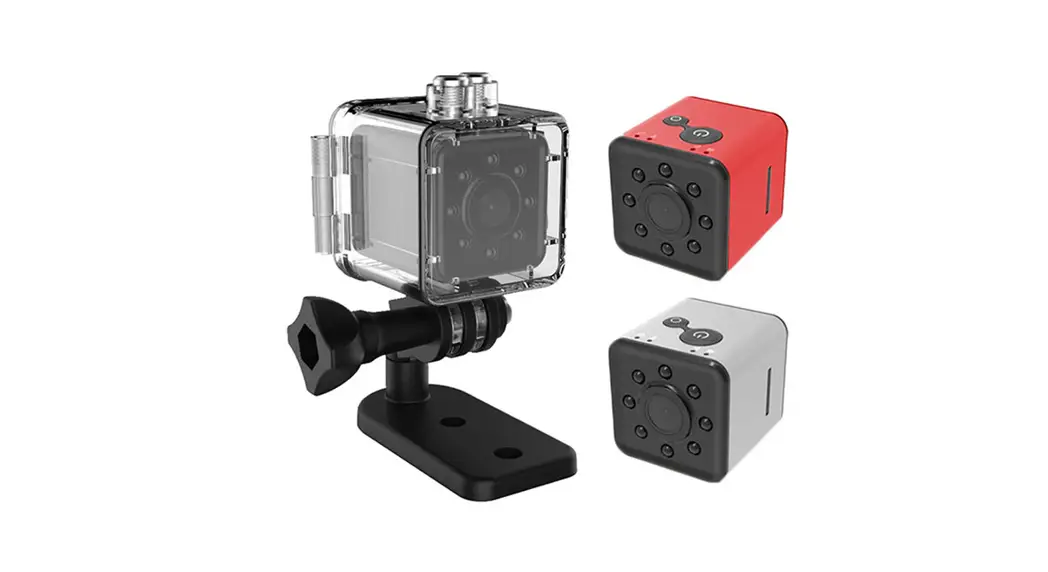
1 * Mini Camera
1 * Bracket
1 * Iron Sheet
1 * USB Charging Cable
1 * Mini USB Charging Cable
1 * User Manual