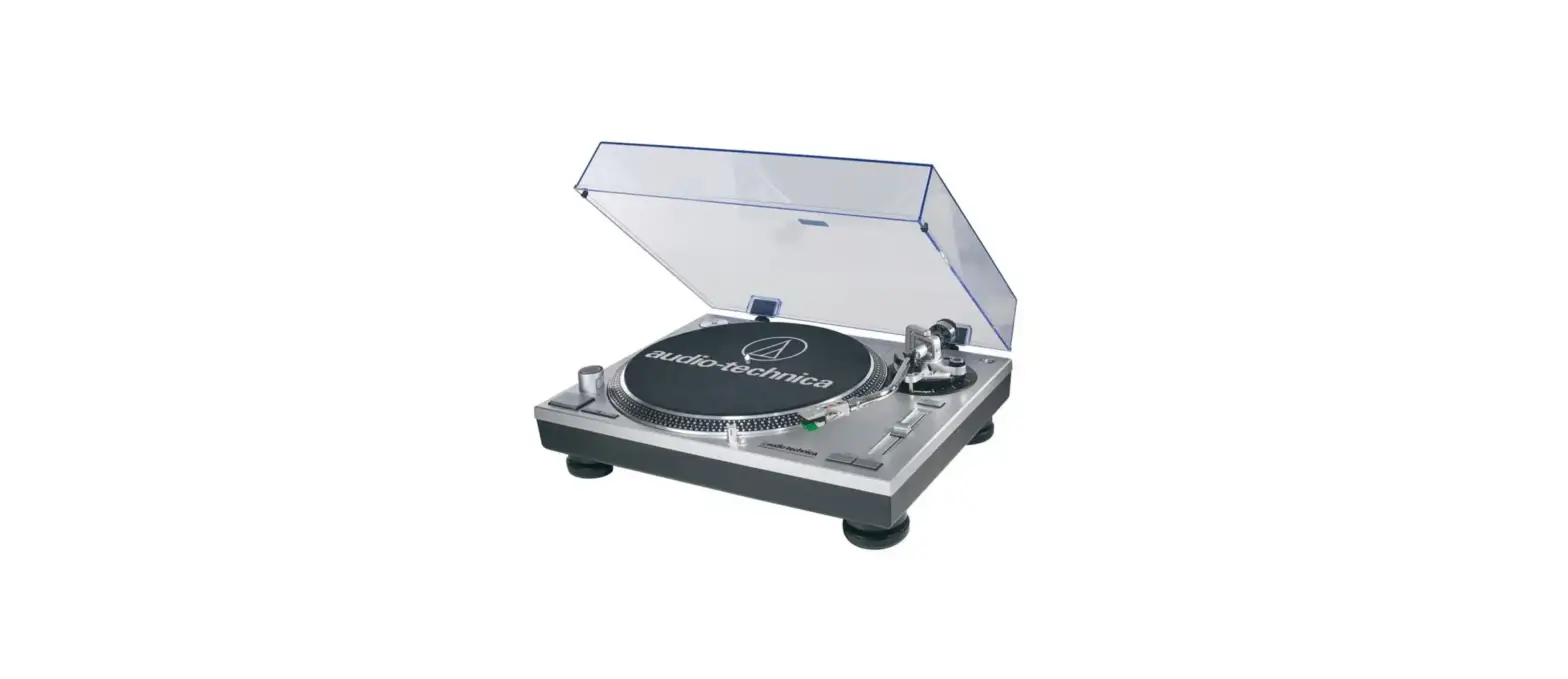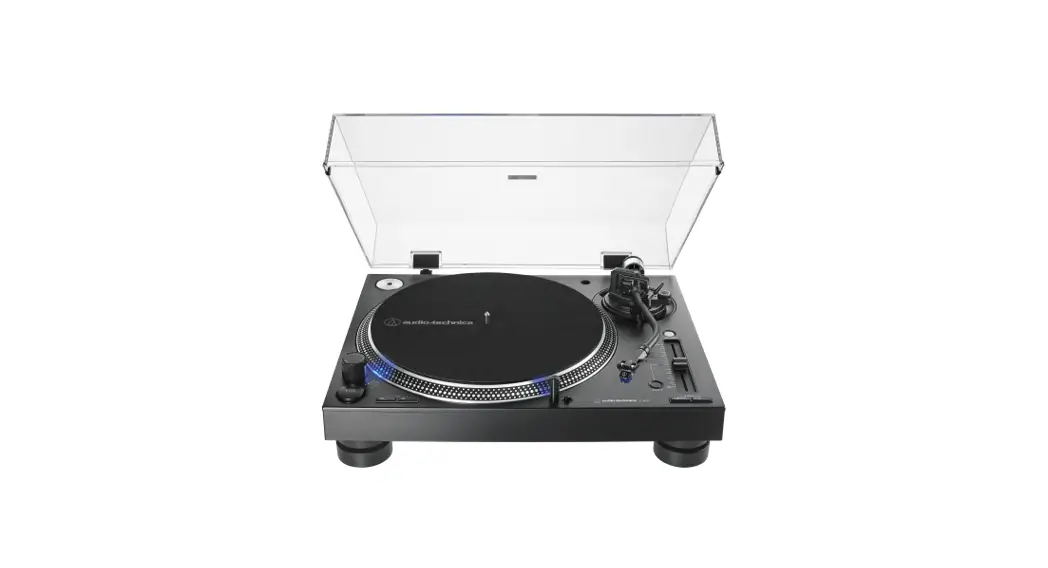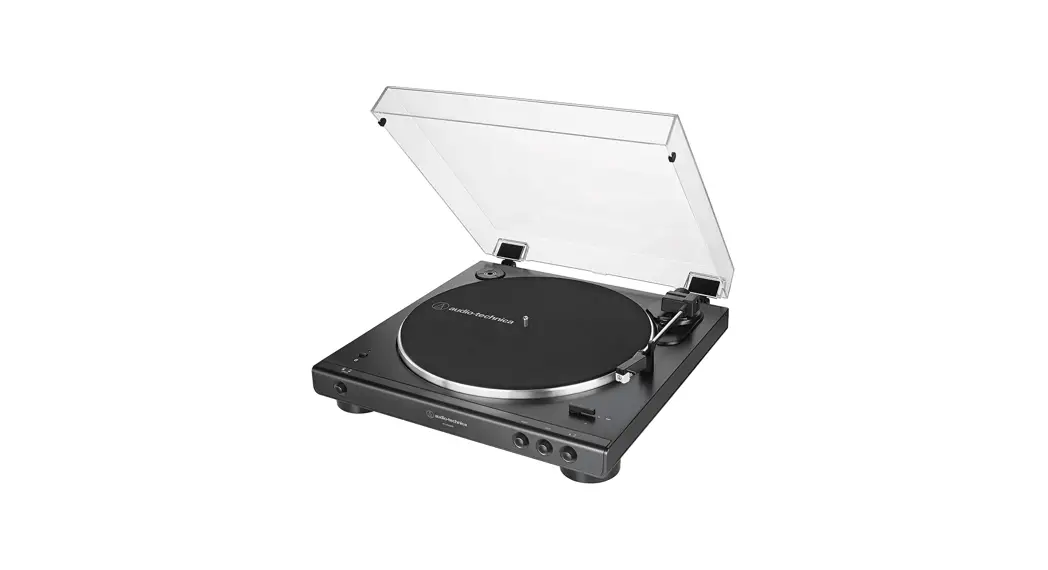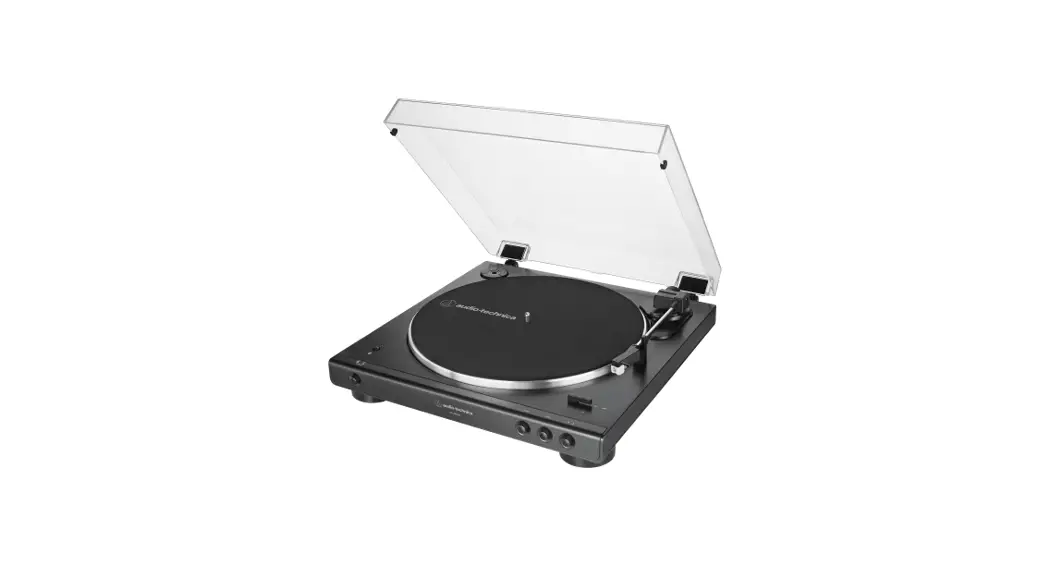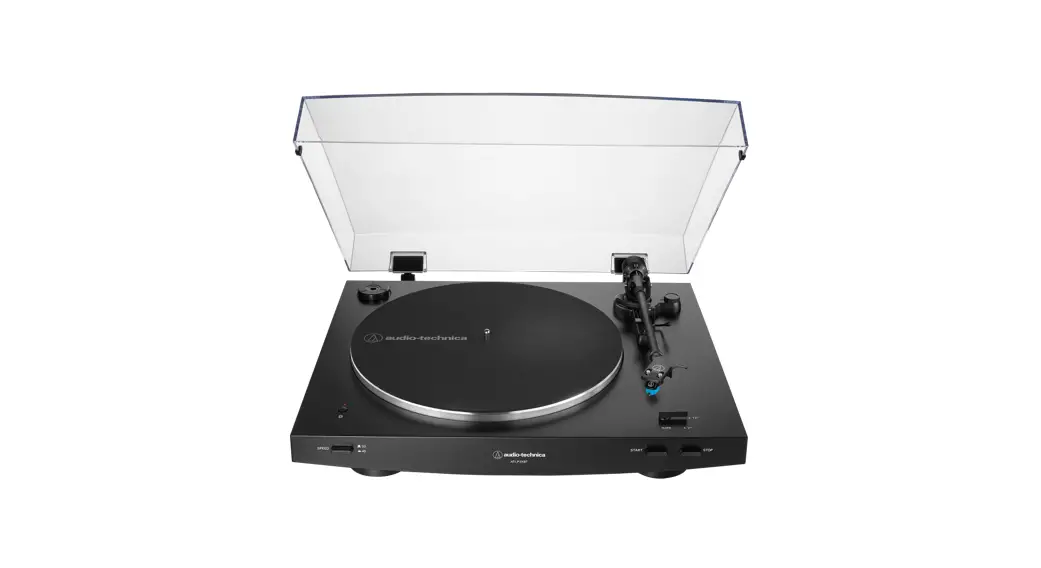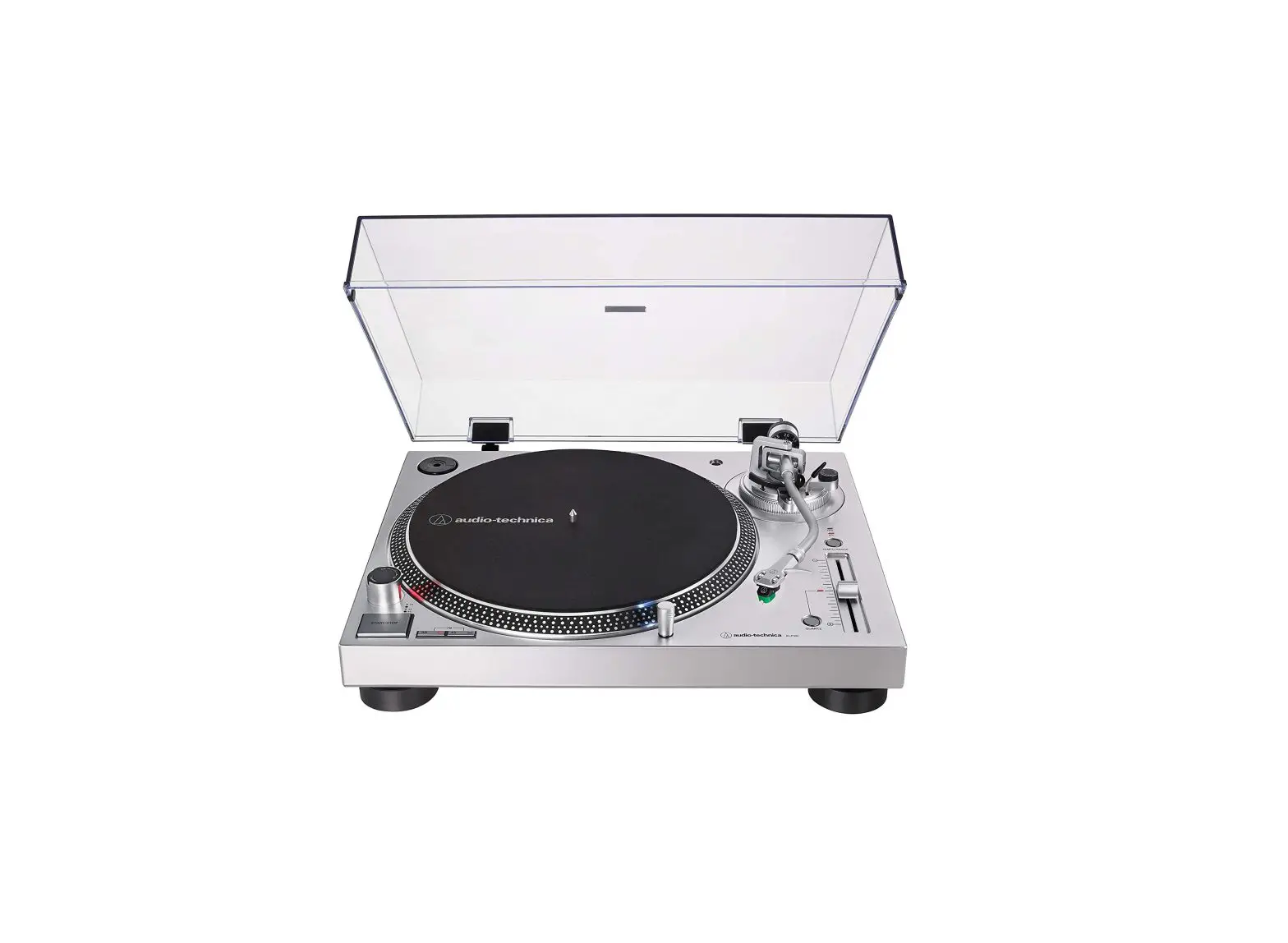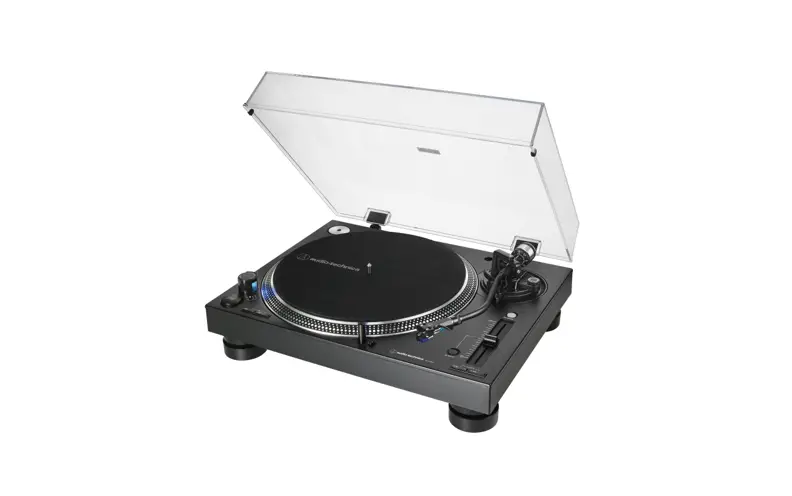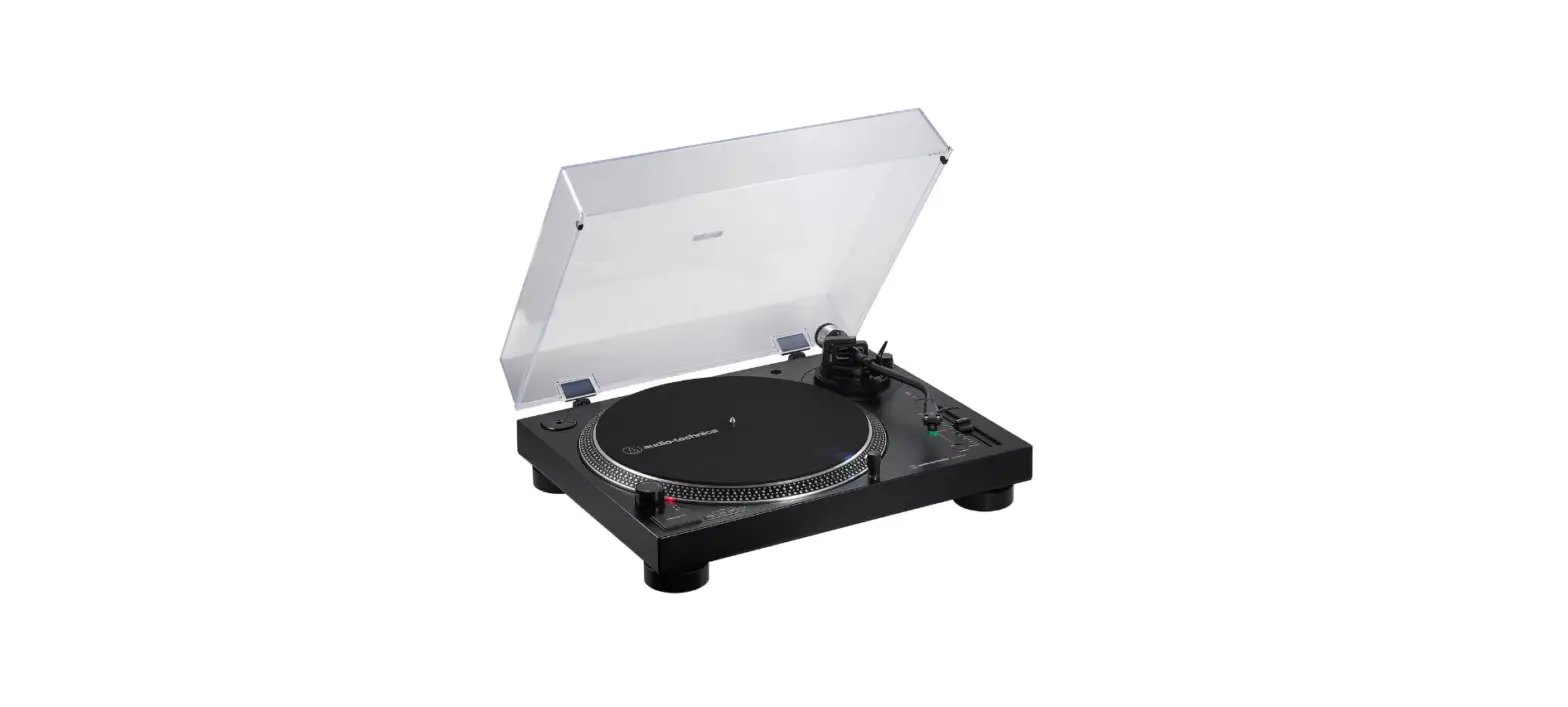

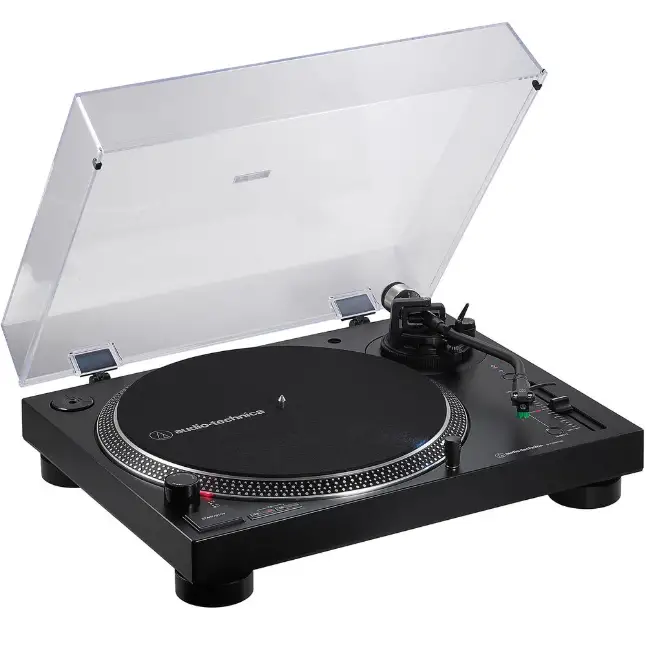
Audio-Technica AT-LP120XBT-USB-BK Wireless Direct-Drive Turntable
Introduction
Thank you for purchasing this Audio-Technica product. Before using the product, read through this user manual to ensure that you will use the product correctly. Please keep this manual for future reference. This product can be used only in the countries where the product is sold. Make sure that the operating voltage and the plug of AC adapter of the product are correct for the country you live in.
Package contents
Make sure that you have all the included items listed below before using this product. If some items are missing or damaged, contact your local Audio-Technica dealer.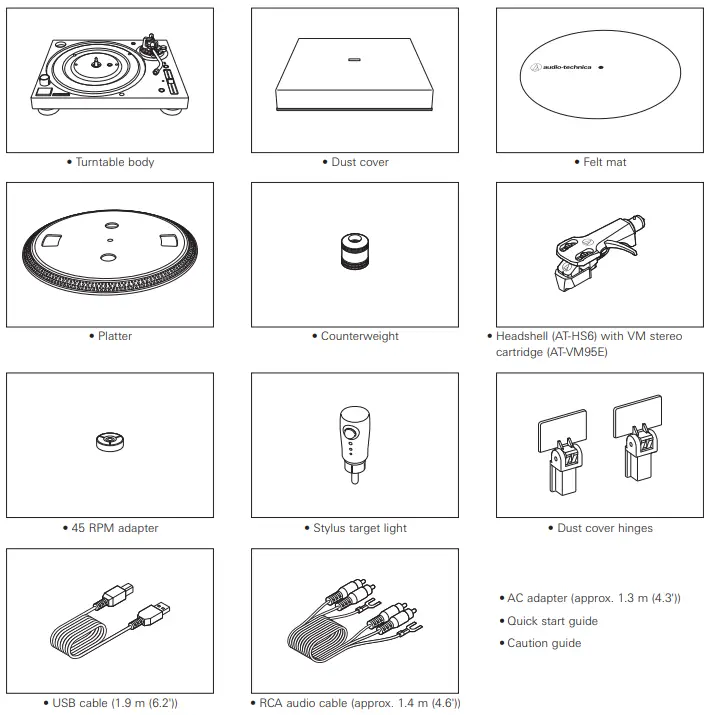
Safety precautions
Although this product was designed to be used safely, failing to use it correctly may result in an accident. To ensure safety, observe all warnings and cautions while using the product.
Important information
- To prevent fire or shock hazard, do not expose this apparatus to rain or moisture.
- Do not expose this apparatus to drips or splashes.
- To avoid electric shock, do not open the cabinet.
- Refer servicing to qualified personnel only.
- Do not expose this apparatus to excessive heat such as sunshine, fire or the like.
- Do not subject this apparatus to strong impact.
- This apparatus should be located close enough to the AC outlet so that you can easily grasp the AC adapter at any time.
- In case of emergency, disconnect the AC adapter quickly.
- Do not place any objects filled with liquids, such as vases, on this apparatus.
- To prevent fire, do not place any naked flame sources (such as lighted candles) on this apparatus.
- Do not install this apparatus in a confined space such as a bookcase or similar unit.
- Install this apparatus only in the place where ventilation is good.
Notes on use
Turntable body
- Do not set and use the product in locations that are considerably hot or humid, dirty, or subject to extreme vibrations.
- The product should be positioned on a flat, level surface.
- Read the user manual for the Bluetooth receiver device.
Cartridge
- Attach the protector to protect the stylus when the product is not in use.
- Do not touch the stylus of the cartridge with your finger.
- Do not allow the cartridge’s stylus to bump against the platter or the edge of the record.
Part names and functions
Top view diagram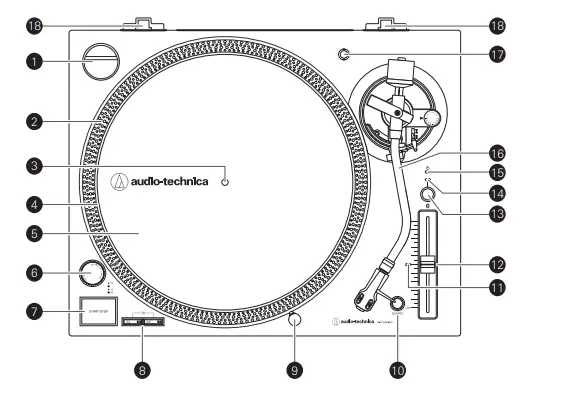
- 45-RPM adapter (shown in receptacle)
- Adapts 7″ records with large center holes to fixed center spindle.
- Strobe dots (on platter edge)
- Operate in conjunction with stroboscopic light located under the power dial to provide visual indication of accurate platter speeds.
- Spindle
- Platter
- Cast aluminum platter mounts directly to center spindle/motor shaft.
- Felt mat
- Power dial
- Controls power to the unit.
- START/STOP button
- Engages and disengages the motor/platter.
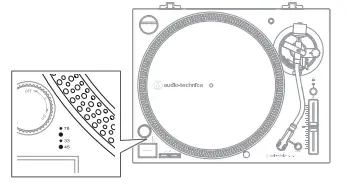
- Platter speed buttons
- Select 33 or 45 RPM platter speed. 78 RPM is selected by pressing both the 33 and 45 buttons simultaneously; both buttons should be illuminated.
- Removable stylus target light
- Provides illumination directed at the stylus position for easier cueing in low light. Easily plugs into jack on top of turntable deck
- Quartz button
- Turns the pitch function on and off. When the quartz is activated the platter will hold the RPMs at 0% pitch, regardless of the pitch slider position.
- Pitch selection indicator
- Shows red for standard or locked RPM setting.
- Pitch adjust slide control
- Use in conjunction with pitch button to vary the platter’s rotational speed. In the center detent position quartz lock is active.
- Wireless function button
- Use to connect the product to a Bluetooth® device.
- Indicator LED
- Displays the Bluetooth connection status by blinking/lighting.
- Power indicator LED
- Tonearm
- For details, refer to “Tonearm” on p. 5.
- Headshell receptacle
- Storage receptacle for extra headshell (not included).
- Dust cover hinge holders
- Attachment points for dust cover hinges.
Front and rear view diagram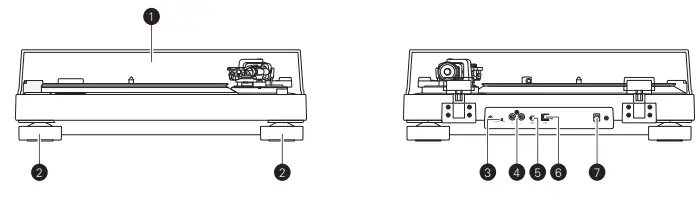
- Dust cover
- Feet
- Adjust the level of the product.
- Pre-amplifier selector switch
- If using an amplifier with a PHONO input jack, set this switch to the PHONO position. If connecting to the AUX jack of an amplifier, set this switch to the LINE position.
- Stereo output terminals
- Connect the RCA audio cable. Connect it to either the amplifier’s PHONO input jack or its line input jack. The red terminal is the right channel and the white terminal is the left channel.
- Ground (earth) terminal
- Connect the amplifier’s ground (earth) terminal to this terminal using the RCA audio cable’s ground line.
- USB output
- Use this output to connect your turntable to the USB input of your computer.
- Power input jack
- Connect the AC adapter.
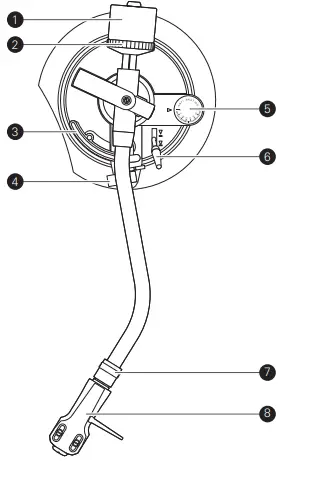
Tonearm
- Counterweight
- Balances the tonearm and adjusts to provide the proper tracking force.
- Tracking force gauge ring
- Use to adjust the tracking force.
- Tonearm lift
- Moves the tonearm vertically to and from the face of the record.
- Tonearm rest with clamp
- Use the clamp to secure the tonearm so that it does not move.
- Anti-skate control dial
- While the record is playing, a force acts on the stylus tip to pull it inward. This force can be counteracted by setting the same values for anti-skate and the tracking force.
- Tonearm lift control lever
- Operates the tonearm lift.
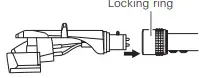
- Locking ring
- Rotate the ring to the left (counterclockwise) to secure the headshell. To remove the headshell, rotate the ring to the right.
- Headshell
- The cartridge (AT-VM95E) is attached to the headshell (AT-HS6).

- The cartridge (AT-VM95E) is attached to the headshell (AT-HS6).
Preparation for use
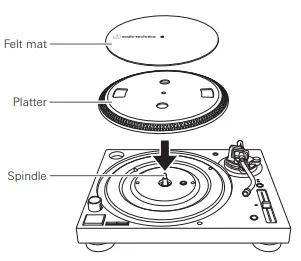
Placing the platter
- This product requires some assembly before using it for the first time.
- Do not connect the AC adapter until assembly is complete.
- Set the platter on the spindle.
- To avoid damaging the spindle when seating the platter, align the positions of the spindle and the platter’s hole, and then slowly seat the platter.
- Make certain that the platter is fully seated on the spindle.
- Place the felt mat on top of the platter

Setting up the turntable
- Position the product on a level surface.
- To avoid the effects of vibrations and acoustic pressure, do not mount the product next to such items as speakers.
- The product may pick up radio static if placed next to a radio.
- Therefore, try to keep the product away from radios.
- If the product is near equipment (cell phone, etc.) that emits strong radio waves, noise may occur.
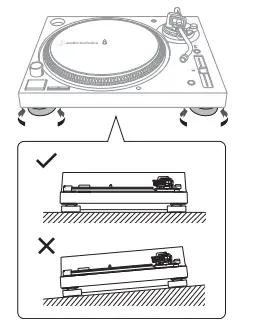
Leveling the turntable
- After positioning the product where you want to use it, adjust the feet so that the product is level.
- Use a level (sold separately) as needed to ensure that the product is level.

Assembling the tonearm
- Remove the cable tie used to secure the tonearm at the time of delivery.
- Use the clamp to temporarily secure the tonearm to the tonearm rest.
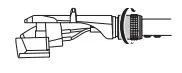
- Insert the headshell into the tonearm.
- Hold the right and left edges of the headshell so that you do not damage the stylus or cut the cartridge’s wires.

- With the headshell inserted, turn the locking ring counterclockwise (to the left).

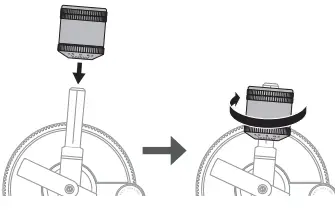
- With the tracking force gauge ring facing forward, attach the counterweight to the back of the tonearm, and slowly turn it counterclockwise (to the left).

Tonearm balance and tracking force
In order for the cartridge to pick up sound correctly from the record’s grooves, the tonearm’s balance and tracking force must be adjusted to fit the specifications of the cartridge. If the tonearm’s balance and tracking force are not properly adjusted, the record or the cartridge’s stylus may become damaged. Do not drag the cartridge’s stylus across the record or platter when adjusting the tonearm’s balance or tracking force. Doing so may damage the stylus.
Setting tonearm balance
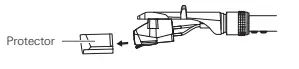
- Remove the cartridge’s protector.

- While lightly holding the headshell to prevent the tonearm from moving, unlatch the clamp.
- The tonearm is tilted because the balance has yet to be adjusted.

- While still lightly holding the headshell, turn the counterweight to adjust the tonearm’s balance.
- Adjust the balance so that the tonearm is level when you release the headshell.

- Remove the cartridge’s protector.
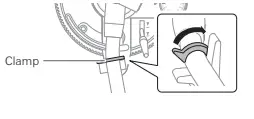
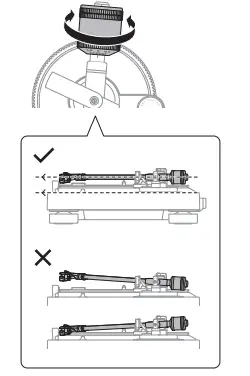
- Return the tonearm to the tonearm rest and latch the clamp.
Setting tracking force
- While supporting the counterweight so that it does not move, turn the tracking force gauge ring so that its “0” position lines up with the centerline on the back of the tonearm.
- The tracking force is not adjusted simply by turning the tracking force gauge ring.

- Turn the counterweight and the tracking force gauge ring together counterclockwise (to the left) until the centerline value matches the recommended tracking force value for the cartridge you are using.
- Refer to the cartridge maker’s specifications for the recommended tracking force value.
- The standard tracking force value for the cartridge provided with this product is 2.0 g.

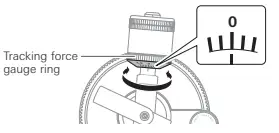
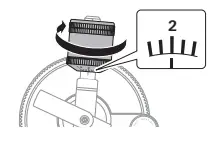
Setting the anti-skate adjustment
- While the record is playing, a force acts on the stylus tip to pull it inward. This force can be counteracted by setting the same values for anti-skate and the tracking force.
- Adjust the anti-skate control dial to have the same value as the tracking force value.

- The standard tracking force value for the cartridge provided with this product is 2.0 g
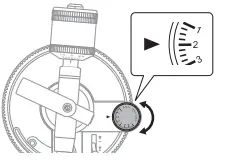
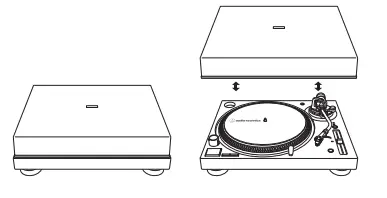
Installing/removing the dust cover
- The dust cover is designed to protect the product’s sensitive components when the product is not in use. It should remain off while records are playing.
- Using the dust cover during play may result in record damage or sound degradation.
- Always remove and replace the dust cover carefully.

Connecting the AC adapter
Finally, after all audio connections are made, attach the included AC adapter to the product. Then connect the AC adapter’s cord to a convenient AC outlet.
Wireless/wired connection
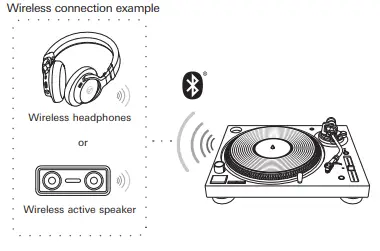
- You can connect to a speaker, etc. via Bluetooth technology or RCA audio cable.
- When using Bluetooth, refer to “Connecting via Bluetooth wireless technology” on p. 9.

- When connecting with the RCA audio cable, refer to “Connecting to audio source” on p. 10.

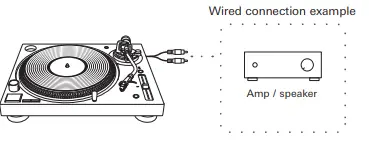
- Volume adjustment cannot be performed if there is no volume adjustment on the connected speakers, etc.
Connecting via Bluetooth wireless technology
The product supports Bluetooth wireless connection. It can be connected with Bluetooth-compatible headphones, active speakers and wireless stereo speakers (hereinafter referred to as Bluetooth receiver devices).
About pairing
When connecting a new Bluetooth receiver device, you need to pair it with the product. Once the Bluetooth receiver device and the product are paired, you do not need to pair them again. However, in the following cases you will need to pair again even if the Bluetooth receiver device was paired once:
- If the product is deleted from the Bluetooth receiver device’s connection history.
- If the product is sent out for repair.
- If 9 or more devices are paired.
(The product can save the pairing information of up to 8 devices. When you pair with a new device after pairing with 8 devices, pairing information for the device with the oldest connection date will be overwritten by the information for the new device.)
Pairing a Bluetooth device
- Read the user manual for the Bluetooth receiver device.
- Place the device within 1 m (3.3′) of the product to perform pairing correctly.
- Set your Bluetooth headphones, speakers, etc. to pairing mode.

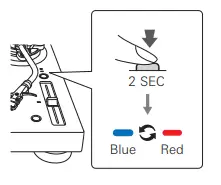
- Make sure the AC adapter is connected to an outlet, and then press and hold the wireless function button (about 2 seconds).
- The indicator LED will flash in red and blue alternately.
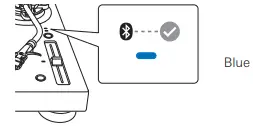
- When pairing is complete, the indicator LED lights in blue.

- The product stays in the pairing mode for 30 seconds. If pairing is not properly completed, follow the above steps again from the beginning.

About indicator LED display
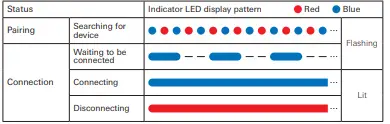
The indicator LED indicates the product’s status as explained below.
Setting pre-amplifier selector switch
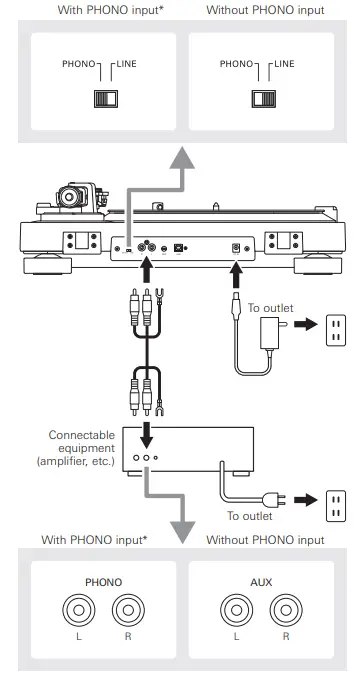
This product has a built-in phono equalizer function. You can use the product, even if you do not have a phono amplifier or connectable equipment with a built-in phono amplifier, by connecting an active speaker, etc. Use the pre-amplifier selector switch to set the output, as shown below.
| Connectable equipment being used | Position of pre-amplifier
selector switch | Where to connect the RCA audio cable |
| Device with phono input | PHONO | Phono input jack and ground (earth) terminal of connectable equipment |
| Device without phono input | LINE | AUX or line input jack of connectable equipment |
| PC sound card | LINE | Sound card’s line input jack*1 |
| Device with USB input | LINE | USB input of your computer*2 |
- An audio adapter (sold separately) may be required to connect the RCA audio cable to the PC sound card’s line input jack.
- Use included USB cable instead of RCA audio cable to connect.
- When connecting via Bluetooth, using the pre-amplifier selector switch is not necessary.
- Connecting to connectable equipment (active speakers, amplifiers, etc.)
Connecting to audio source
- Align the settings for the pre-amplifier selector switch and connect the RCA audio cable to an input jack that is compatible with the connectable equipment you are using (amplifier, receiver, active speakers, sound card, etc.).
- The RCA audio cable’s red jack is for the right (R) channel, and the white jack is for the left (L) channel.

- Depending on the equipment you are connecting, a ground (earth) terminal may exist near the phono input jack. If this is the case, connect to it using the ground line from the RCA audio cable.
- This will help prevent a low humming noise that might otherwise be heard during playback.
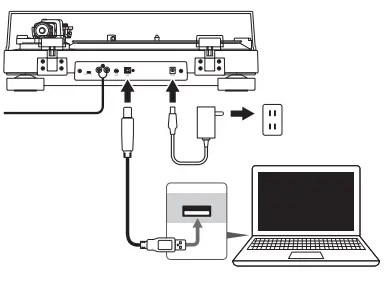
Connecting to computers with USB input
- Follow the settings for the pre-amplifier selector switch to connect the included USB cable to the USB input of your computer.
- The included USB cable connects the product to your computer without need for special drivers.
- Audacity (refer to http://www.audacityteam.org for details) and other compatible third-party recording software packages are available, allowing you to record from the product to your computer.
- Be sure to set the pre-amplifier selector switch to the LINE position.

Before playing a record
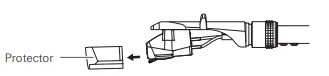
- Remove the cartridge’s protector.
- If the tonearm is fixed to the tonearm rest, unlatch the clamp.

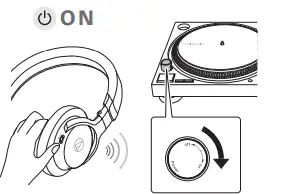
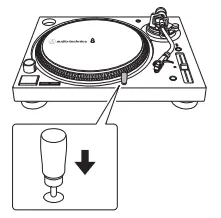
- Turn the power dial to the ON position.
- The power dial, power indicator LED and platter speed buttons will light up.
- If desired, plug in the stylus target light for illumination of the stylus tip position on the record.

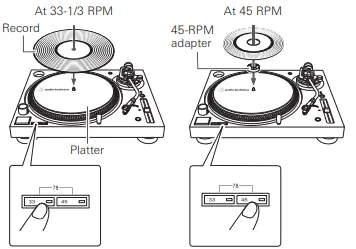
- Place the record on the platter so that the center hole aligns with the spindle.
- If playing a 45 RPM record, attach the 45 RPM adapter (see the diagram to the right below).
- Set the platter rotation speed (33/45/78) to match that of the record.

- To set the platter speed for 78 RPM, press both the 33 and 45 RPM buttons simultaneously
Playing a record
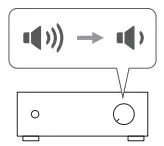
- Lower the volume of the amplifier, speakers, etc., sufficiently.
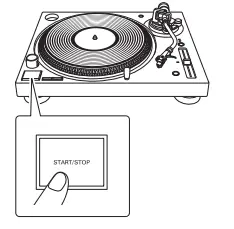
- Press the START/STOP button.
- The platter begins to rotate.

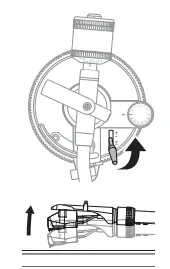
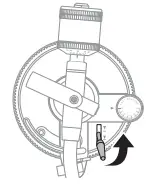
- Raise the tonearm by lifting the tonearm lift control lever to the UP position.

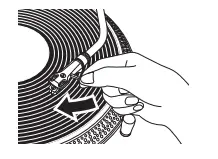
- Position the tonearm over the desired location (groove) on the record.

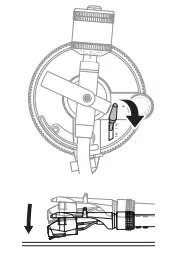
- Lower the tonearm by moving the tonearm lift control lever to the
- DOWN position. The tonearm descends slowly onto the record and play begins.
- Alternatively, you can skip steps 2 to 4, and use your fingers to lift the headshell, move the tonearm over the desired location on the record, and then place the headshell down to begin playing the record.
- Do not subject the product to strong impact during playback.

Checking and Adjusting Pitch
- Move the pitch adjust slide control up or down to make pitch adjustments.
- The pitch adjust slide control has center detent position for 0% pitch variation.
- As illuminated by the red light coming from beneath the power dial, observe the strobe dots on the edge of the platter. If the appropriate row of strobe dots appears to be stationary, the plater is moving at the precise rated speed. If the dots appear to be moving to the right, the platter is moving below rated speed; if they appear to be moving to the left, the platter is moving above rated speed.

- If the quartz button is pressed, the internal quartz lock will hold the platter at precise rated speed regardless of the position of the pitch adjust slide control.
Pausing the record
After lowering the volume of the amplifier, speakers, etc., sufficiently, lift the tonearm with the tonearm lift control lever.
Stopping the record
- Lower the volume of the amplifier, speakers, etc. sufficiently.

- Lift the tonearm lift control lever.

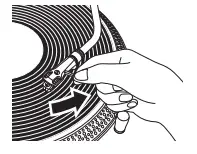
- Return the tonearm to the tonearm rest and fix it with the clamp.

- If using the stylus target light, turn it off by removing it from the jack.
- Press the START/STOP button to stop the platter rotation.
- The platter slows down and rotation stops.
- Turn the power dial to the OFF position.
- Remove the record after the platter has come to a complete stop.
Playing a record
How to use with Bluetooth connection
- To connect for the first time, pair the product and your device via Bluetooth wireless technology.
- Read the user manual for the Bluetooth receiver device.
Note that Audio-Technica cannot guarantee the operation of displays, such as the battery level display, or applications via Bluetooth devices.
- Turn on the Bluetooth receiver device.
- Indicator LED turns blue when the product and Bluetooth receiver device are connected correctly.
- When the indicator LED lights in red, press the wireless function button to connect Bluetooth communication.
- Refer to “Playing a record” on p. 12 to play a record.
- When Bluetooth is connected, and you keep the wired connection (amplifier, speaker, etc.) turned on, the sound will be heard from both the wireless and wired devices. Turn on only the device you want to use for playback.
Care
Turntable body
- When the turntable body is dirty or dusty, first disconnect the
- AC adapter’s cord, and then wipe off the dirt and dust with a soft, dry cloth.
- Do not use benzenes, thinners, etc.
- When storing the product for a long time, disconnect the
- AC adapter’s cord from the outlet and wrap the equipment in plastic; do not allow it to become damp.
Stylus tip
• If dirt and grime are stuck to the stylus tip, clean it before each use.
• We recommend using a stylus cleaner (sold separately) if the stylus tip is considerably dirty. Clean the stylus tip by moving the brush from the rear to the front of the stylus tip.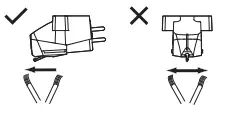
Removing the stylus
- In addition to the deterioration of sound quality, records may also be damaged as the cartridge’s stylus tip wears down.
- As a rule of thumb, replace the stylus after 300 hours of use.
- Be sure to disconnect the product’s AC adapter from the outlet.
- Release the headshell from the tonearm.
- Fix the tonearm with the clamp and then remove the headshell gently.
- After removing the cartridge’s protector, remove the stylus by pulling in the direction of the arrow without touching the cantilever, stylus tip, and magnets.

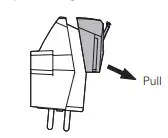
Installing a new replacement stylus
- Mount the new replacement stylus to the cartridge

- Mount the headshell onto the tonearm.
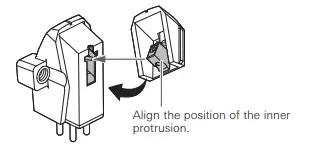
Replacing a cartridge
Refer to the user manual for the cartridge that you will be using if you are replacing the cartridge (AT-VM95E) included with this product with another, commercially available cartridge. After you replace the old cartridge with a new one, you must readjust the overhang and the tonearm’s balance and tracking force.
- Release the headshell from the tonearm.
- Use the clamp to secure the tonearm and then remove the headshell gently.
- Remove the stylus from the cartridge.
- Remove the lead tips.
- Be careful not to damage the lead tips.
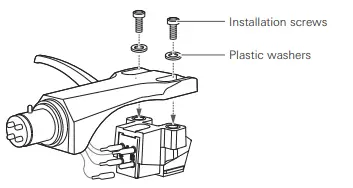
- Using a commercially sold, non-metallic slotted screwdriver, remove the installation screws, and then remove the cartridge from the headshell.
- Refer to the user manual for the new cartridge for mounting instructions and connecting to the lead tips

- Using a commercially sold, non-metallic slotted screwdriver, tighten the screws in both places, and then adjust the overhang.
- After the adjustments are complete, tighten the screws securely.
- Attach the headshell to the tonearm.
- Adjust the tonearm balance and tracking force.
- Refer to “Setting tonearm balance” and “Setting tracking force” on p. 7.
When the turntable is moved
- Using the product’s original packing materials, wrap the turntable in the reverse order from when you unwrapped it. If you do not have the packaging materials, take the following measures:
- After unplugging the AC adapter from the outlet, remove the platter, and then wrap it so that it does not get damaged. If the product is moved while the platter is still seated, it may damage the spindle.
- Fix the tonearm with the clamp.
- Remove the counterweight.
- Remove the headshell from the tonearm with the cartridge’s protector attached, and then wrap the entire headshell assembly so that it does not get damaged.
- Wrap the turntable body with a soft cloth so that it does not get damaged
Troubleshooting

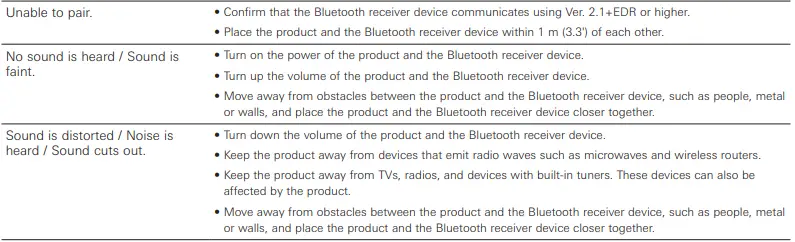
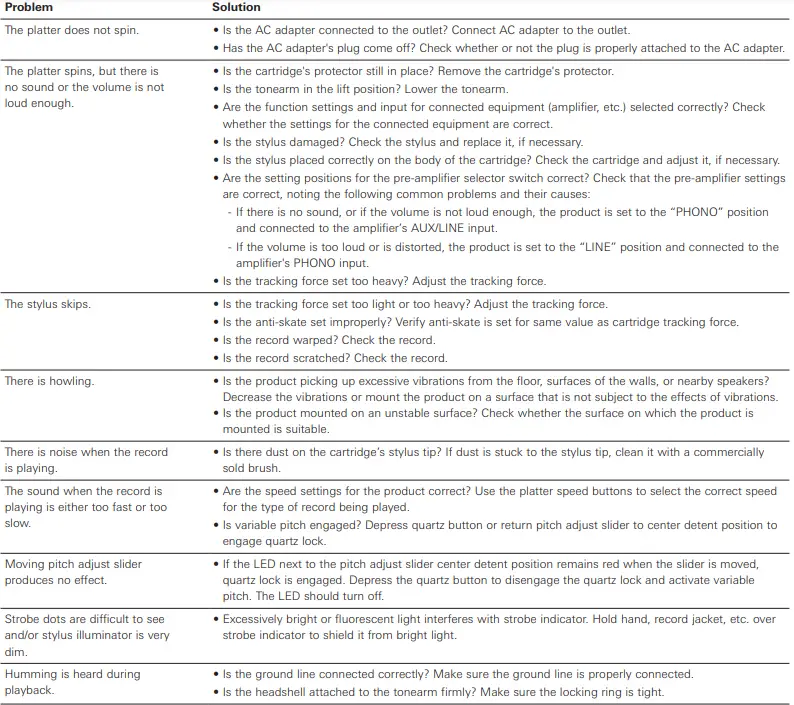
Dimensions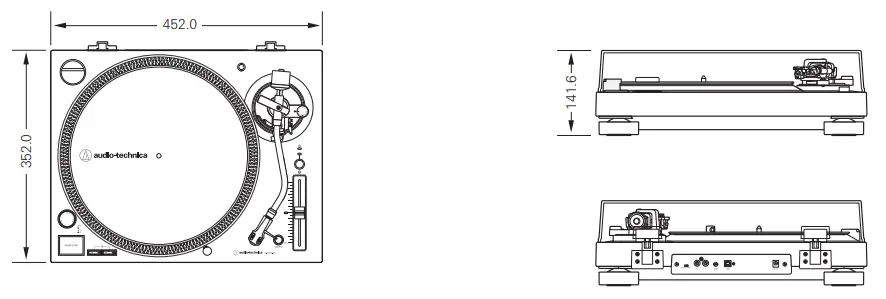
Specifications
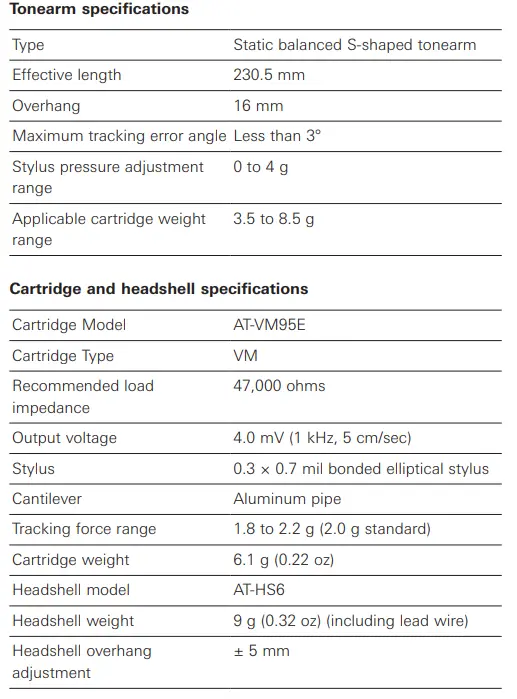
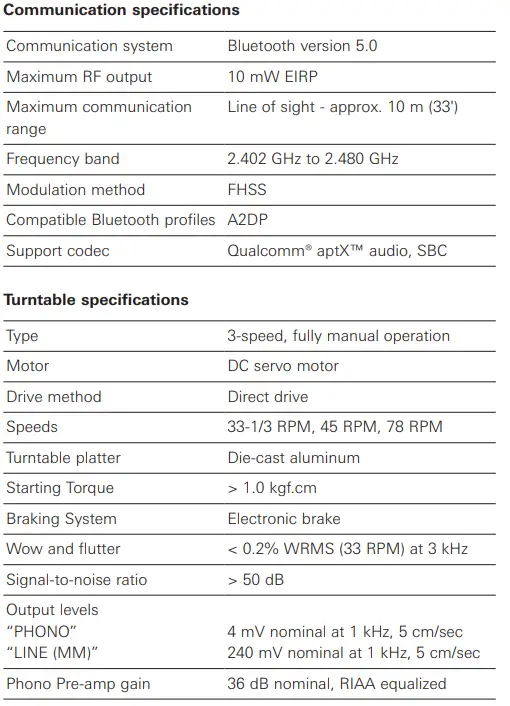
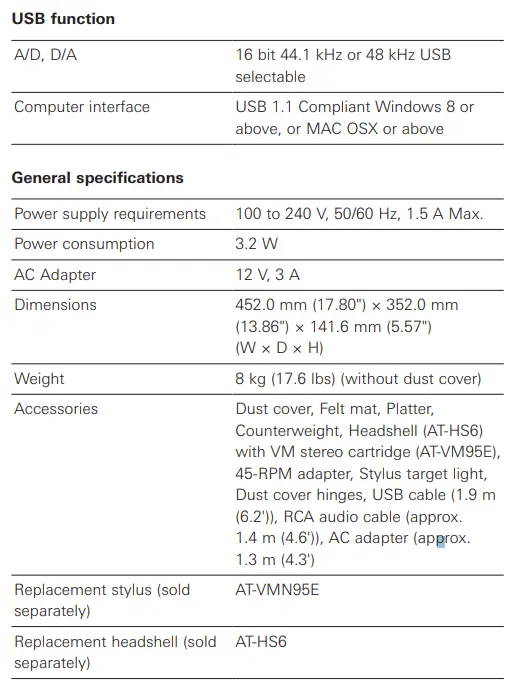
IC statement:
CAN ICES-3 (B)/NMB-3(B) This device complies with INDUSTRY CANADA R.S.S. 247. Operation is subject to the following conditions:
- This device may not cause harmful interference and
- this device must accept any interference received, including interference which may cause undesired operation.
Under Industry Canada regulations, this radio transmitter may only operate using an antenna of a type and maximum (or lesser) gain approved for the transmitter by Industry Canada. To reduce potential radio interference to other users, the antenna type and its gain should be so chosen that the equivalent isotropically radiated power (e.i.r.p.) is not more than that necessary for successful communication. This equipment should be installed and operated with minimum distance 20 cm between the radiator & your body
Safety precautions
RF Exposure Statement:
This transmitter must not be co-located or operated in conjunction with any other antenna or transmitter used in other systems. This device complies with FCC radiation exposure limits set forth for an uncontrolled environment and meets the FCC radio frequency (RF) Exposure Guidelines. This equipment has very low levels of RF energy that it deemed to comply without maximum permissive exposure evaluation (MPE). But it is desirable that it should be installed and operated keeping the radiator at least 20 cm or more away from person’s body.
FCC
This device complies with Part 15 of the FCC Rules. Operation is subject to the following two conditions:
- This device may not cause harmful interference, and
- this device must accept any interference received, including interference that may cause undesired operation.
Caution: You are cautioned that any changes or modifications not expressly approved in this manual could void your authority to operate this equipment. Note: This equipment has been tested and found to comply with the limits for a Class B digital device, pursuant to part 15 of the FCC Rules. These limits are designed to provide reasonable protection against harmful interference in a residential installation. This equipment generates, uses and can radiate radio frequency energy and, if not installed and used in accordance with the instructions, may cause harmful interference to radio communications. However, there is no guarantee that interference will not occur in a particular installation. If this equipment does cause harmful interference to radio or television reception, which can be determined by turning the equipment off and on, the user is encouraged to try to correct the interference by one or more of the following measures:
- Reorient or relocate the receiving antenna.
- Increase the separation between the equipment and receiver.
- Connect the equipment into an outlet on a circuit different from that to which the receiver is connected.
- Consult the dealer or an experienced radio/TV technician for help.
Contact:
Responsible Company: Audio-Technica U.S., Inc. Address: 1221 Commerce Drive, Stow, Ohio 44224, USA Tel: 330-686-2600
FAQS
Wireless, USB or Analog Connection The AT-LP120XBT-USB features Bluetooth wireless technology, a USB cable, and a dual RCA output cable to give you a wide variety of listening options.
With a built-in phono preamp and analog-to-digital converter, the USB turntable converts the cartridge’s analog signal to digital PCM and sends it to the computer via USB. Software in the computer converts the PCM into the required format such as MP3, FLAC, etc
You can connect powered speakers to the turntable. You can try to connect it to your TV using the audio connection of an unused input. The TV may not work without video as well so you could use the video out of another device into the corresponding video connection for the same input
Equipped with a built-in switchable phono preamp, the AT-LP120XBT-USB can be used with audio systems and powered speakers that do not have a dedicated phono input. Its USB output also allows the turntable to be connected to a computer to convert records to digital audio files
How do I connect my turntable to Bluetooth? To transmit your turntable’s signal via Bluetooth, all you need is a phono preamp and a Bluetooth transmitter. If you have a built-in preamp on your turntable, then you just connect the transmitter to your turntable’s RCA output.
Popular audio brands, from Audio-Technica to Sony, have released Bluetooth turntables for connecting your player to a separate speaker or device. And while they come with convenient Bluetooth connectivity, they still often give you the option to curate your vinyl system with speakers and other gear
Connect the RCA (red and white) plugs from the turntable cable to the RCA (female) to 3.5 mm (1/8″) mini-plug (male) adapter cable, making sure to match red plug to red plug and white to white. Then connect the adapter cable’s 3.5 mm mini-plug to the powered speakers’ Line Level* input.
USB turntables are a great idea for anyone who wants to make a digital copy of their precious vinyl collection. You may have tracks in your vinyl collection that can’t be found on streaming services or you may simply want to have access to your own records on your phone or portable music player
The quick answer is yes, but note that computers are designed to be “playback” devices and not necessarly “play through” devices, such as a stereo receiver, so you may need to change some settings in your computer for proper operation.
One of the biggest benefits to using a USB turntable is making backups of your albums in case one gets damaged, or borrowed by a friend. At the very least, you’ll have a high-quality digital version of your favorite records you can listen to over and over without wearing out the grooves.
When you plug the turntable’s analog (RCA) connector into any other input on a stereo receiver (Aux, CD, tape, etc.) or directly into powered speakers, you will need to engage the turntable’s RIAA preamp. These inputs are for line-level signals, so the turntable needs to supply the required preamplification.
Above all else, the LP120XBT-USB is a turntable which works for all possible needs, across a broad range of different uses and listening scenarios. It’s a high-quality turntable if you just want to play records, or a capable DJ deck for mixing on
If your turntable is equipped with a built-in preamp, you can directly connect your turntable to any soundbar input that is labeled AUX, or another name such as LINE, Audio, etc. You can do this using a phono cable/RCA cable
Soundbars can however be a great choice in a situation where it is handy to have one speaker system that works well for both TV and movie watching as well as for vinyl spinning.
If your turntable is equipped with a built-in preamp, you can directly connect your turntable to any soundbar input that is labeled AUX, or another name such as LINE, Audio, etc. You can do this using a phono cable/RCA cable
Yes, as this turntable has no built in speaker. But it does have it’s own built in amp. So you don’t need an individual amp or amp/receiver. But you do have to have a speaker with it’s own power source, like computer speaker or some of the larger portable stereo speakers that are out now.
Price: Decent price for what it delivers. Retailing at around $250 the Audio-Technica AT-LP120XUSB-BK is a great direct-drive turntable. Geared toward those that enjoy high-definition music through vinyl records, this is a great turntable that not only looks wonderful but delivers great functionality