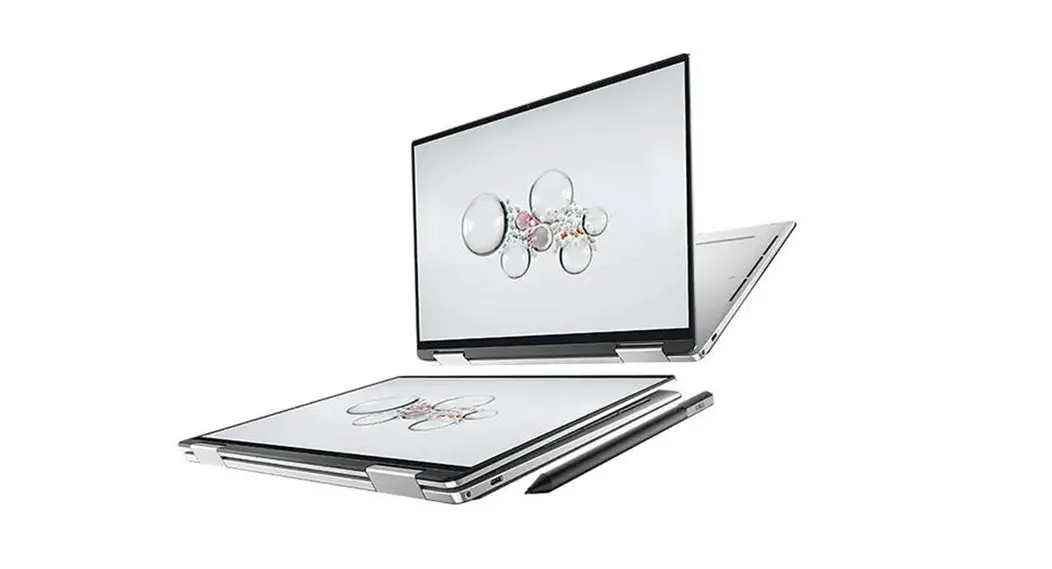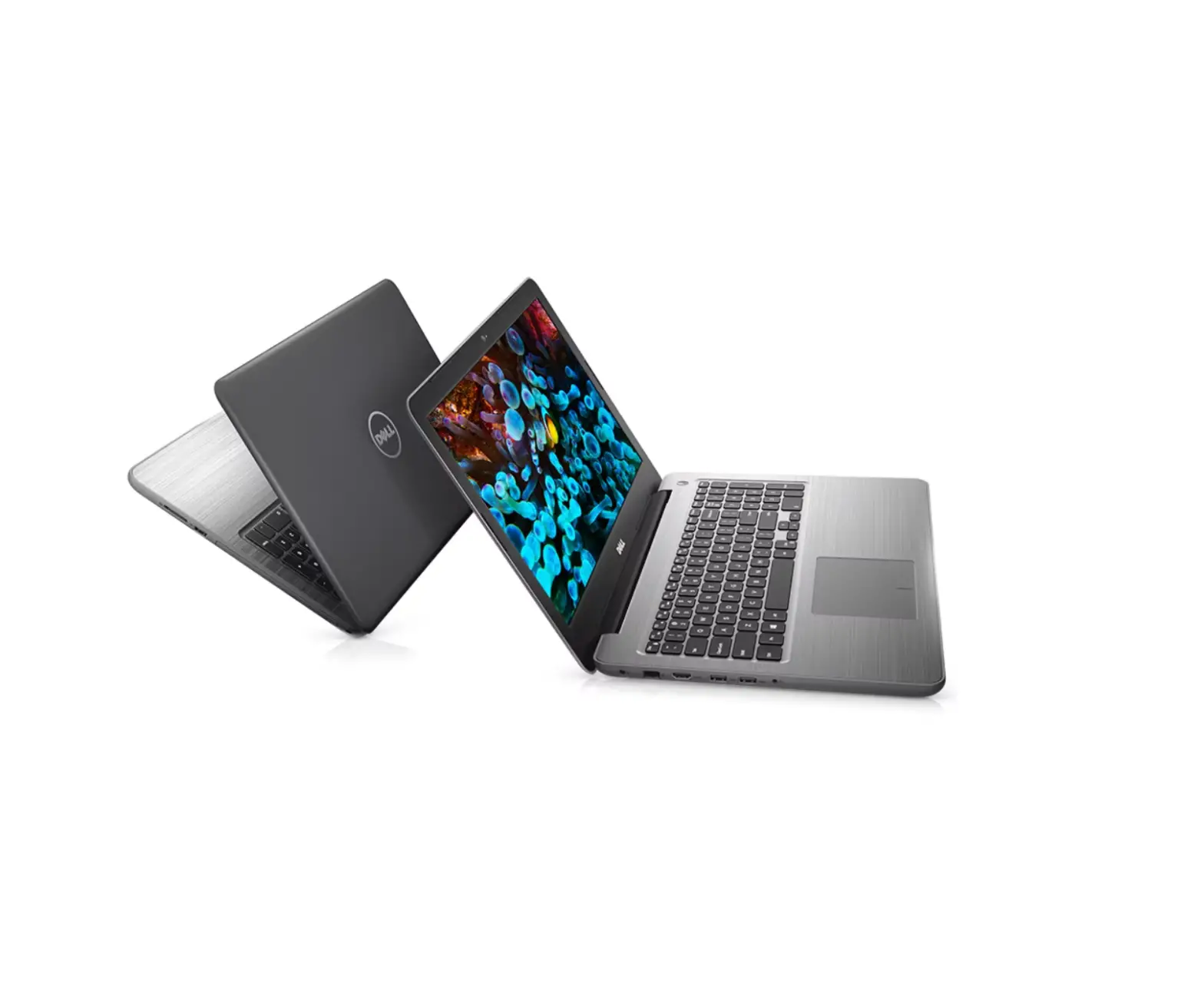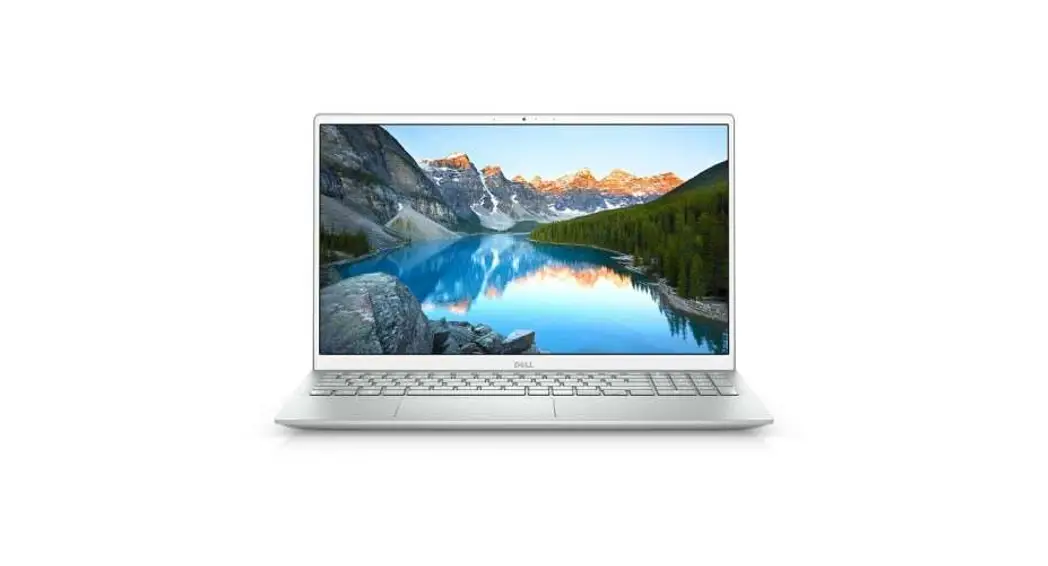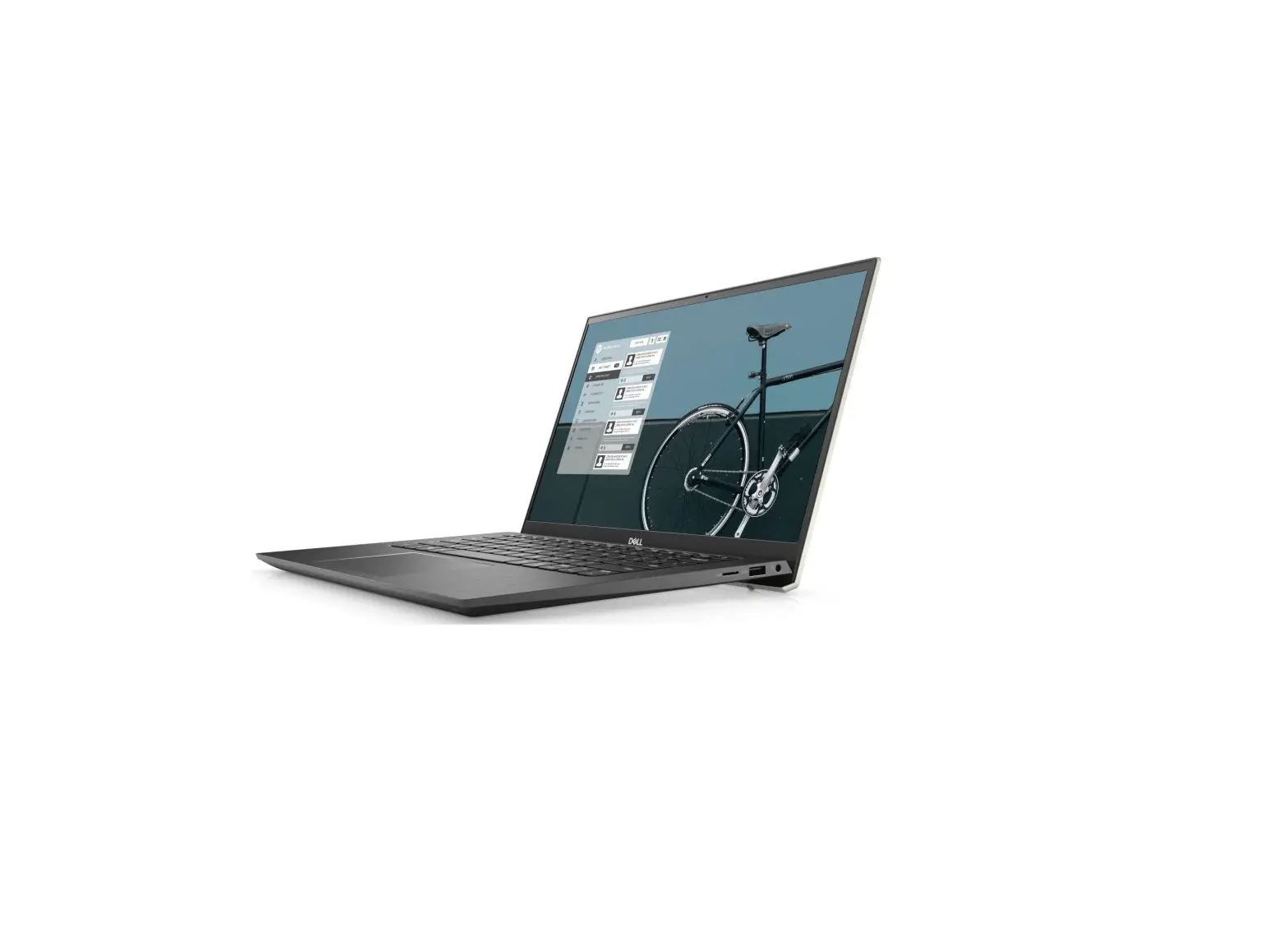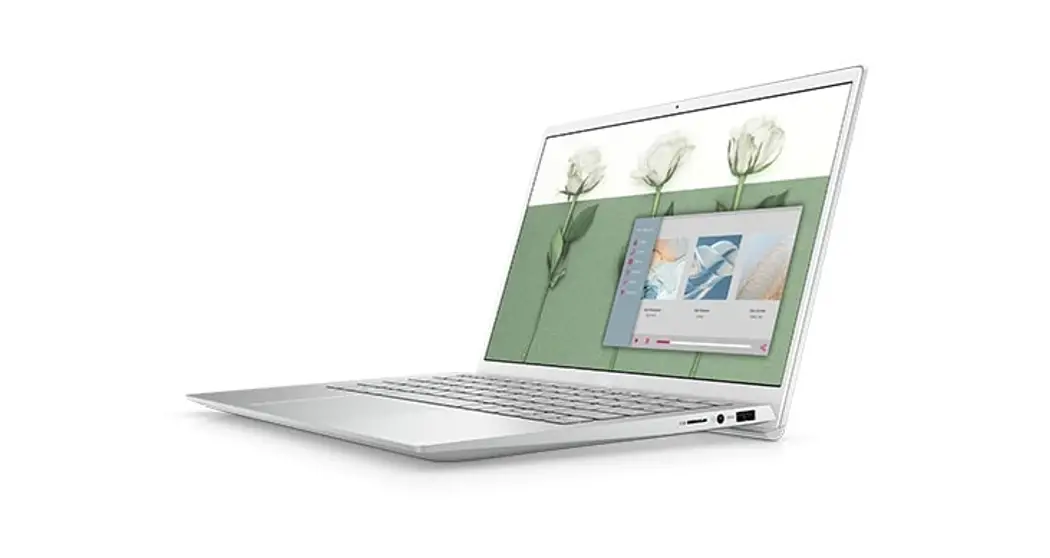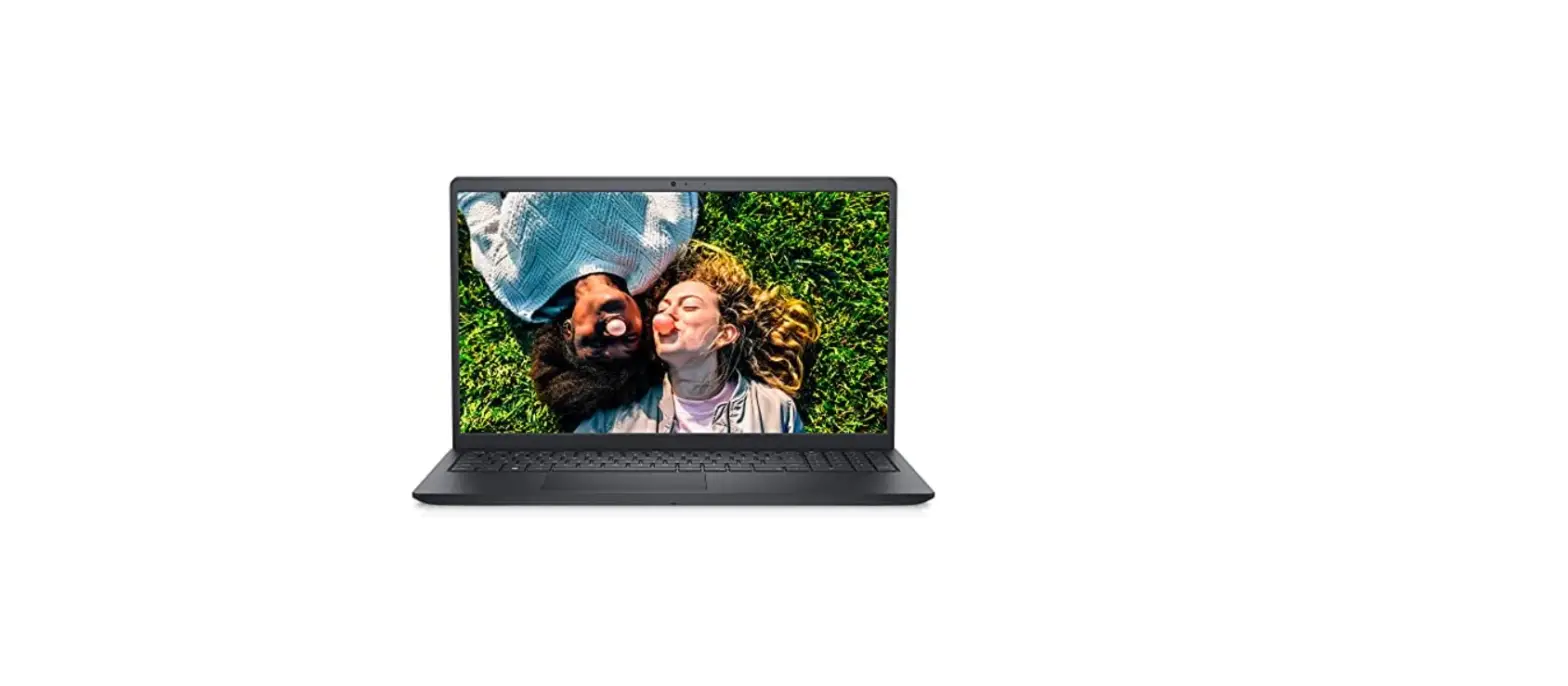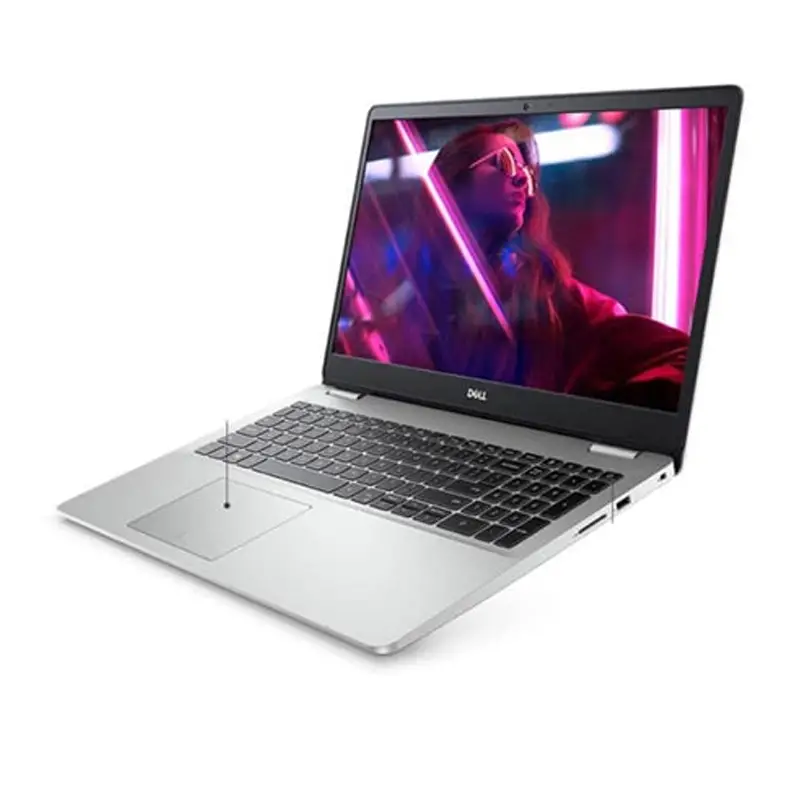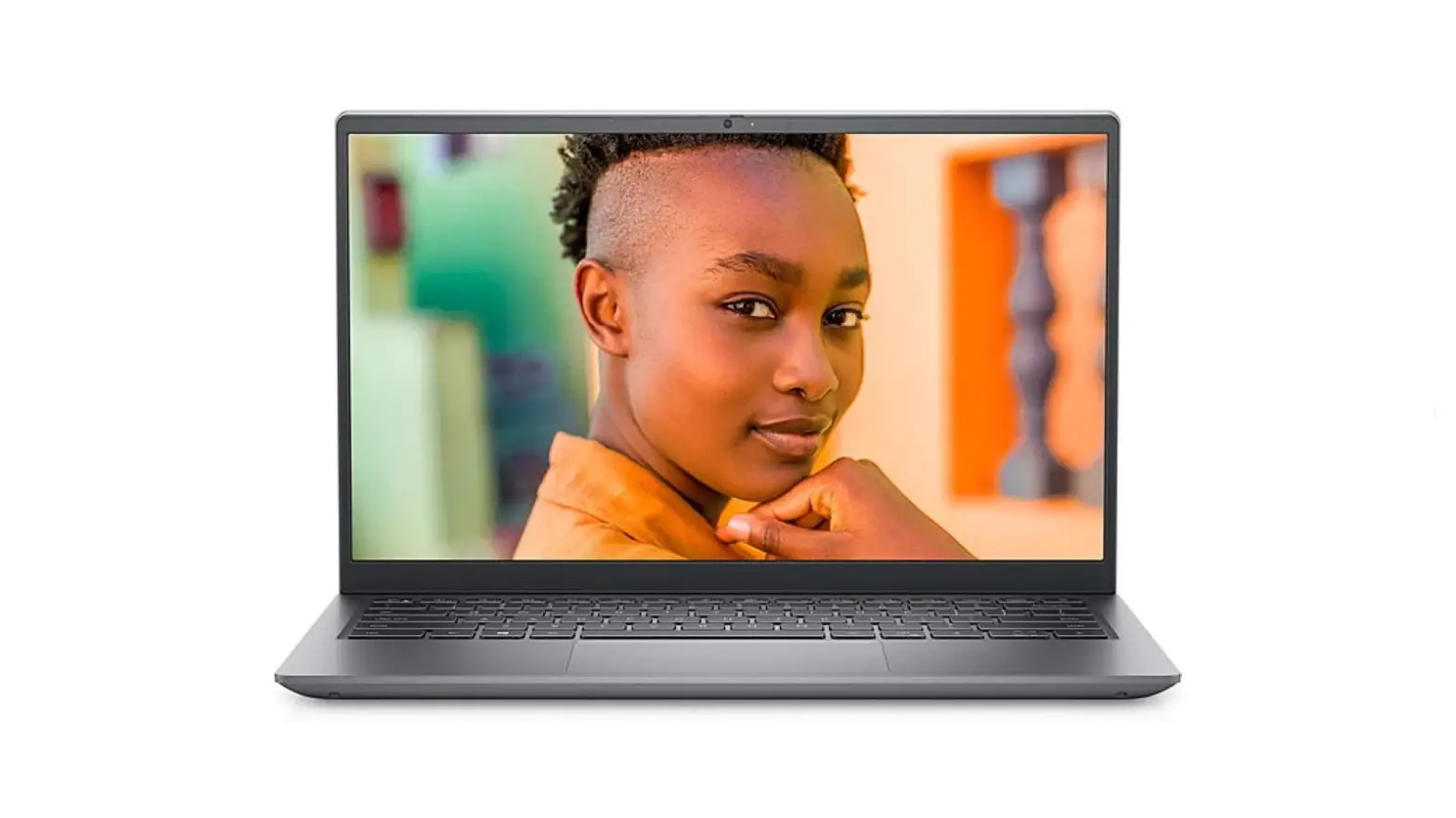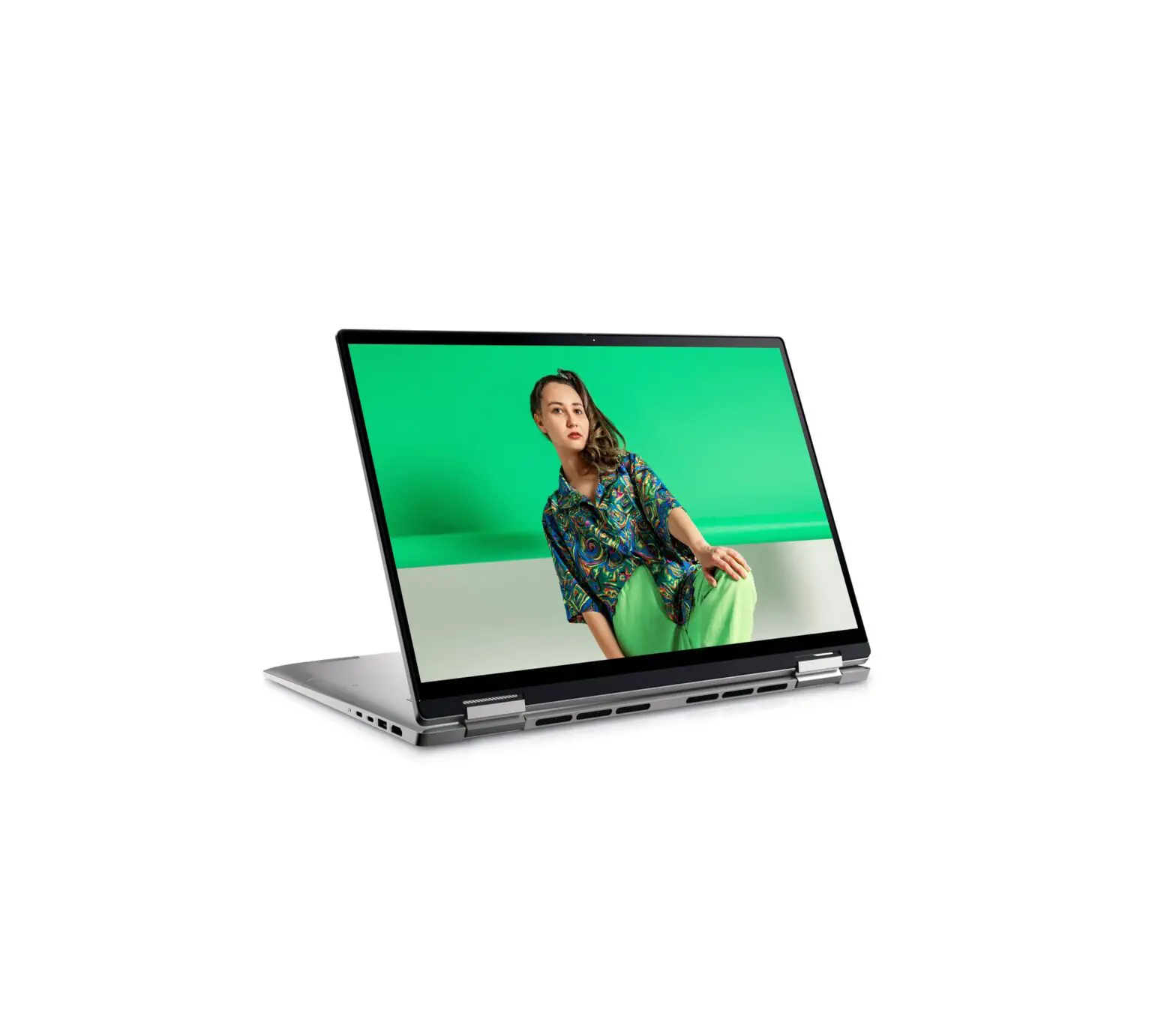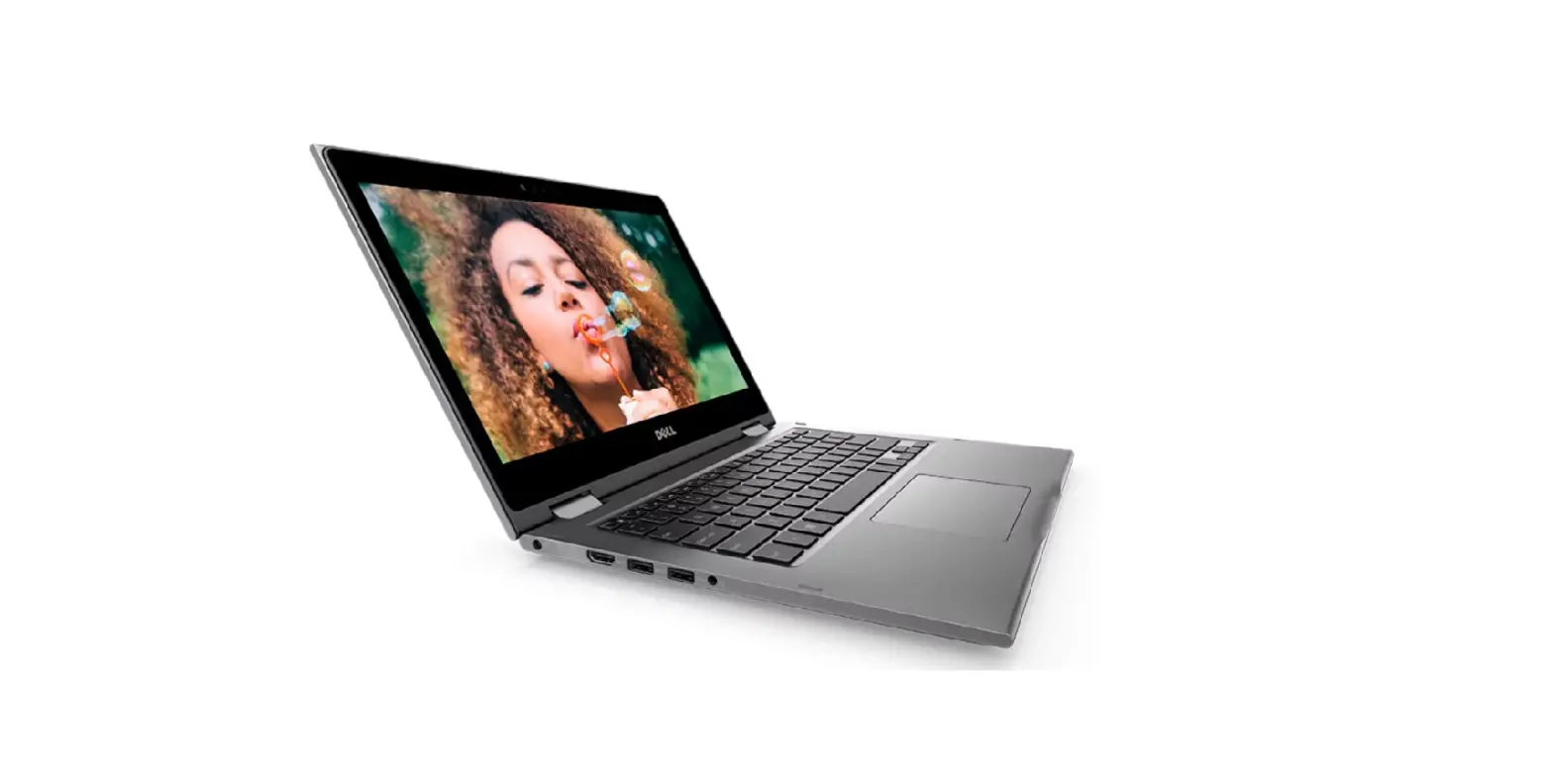

DELL Inspiron 13 5000 Series 2-in-1 Specifications
Notes, cautions, and warnings
NOTE: A NOTE indicates important information that helps you make better use of your computer.
CAUTION: A CAUTION indicates either potential damage to hardware or loss of data and tells you how to avoid the problem.
WARNING: A WARNING indicates a potential for property damage, personal injury, or death.
Set up your computer
- Connect the power adapter and press the power button.

- Finish operating system setup.
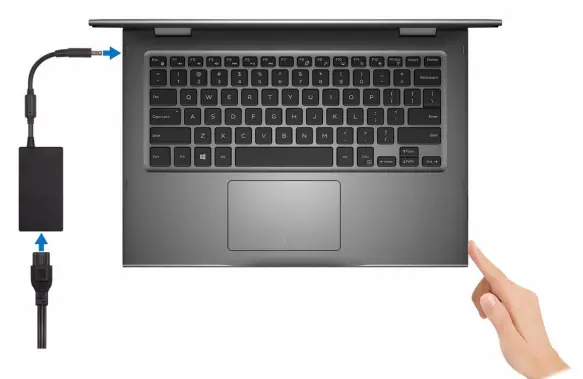
For Windows
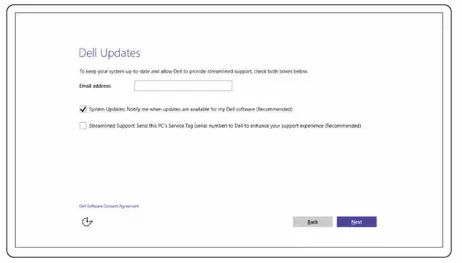
- Enable security and Dell updates.

- Connect to a wireless network.

- Sign in to your Microsoft account or create a new account.
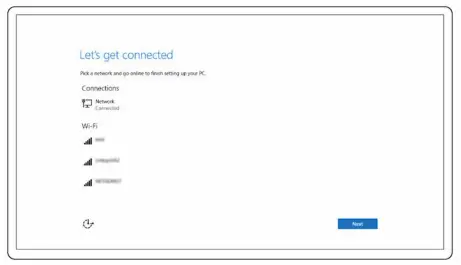
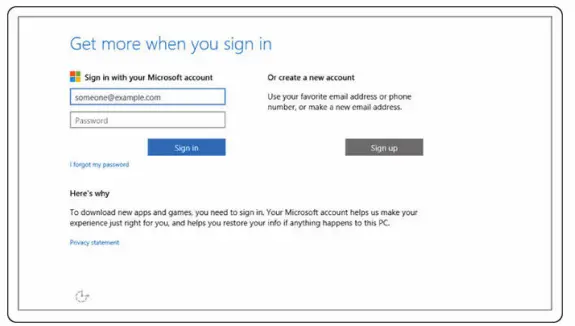
For Ubuntu: Follow the instructions on the screen to finish setup.
- Explore Dell resources on your desktop.
 Register your computer
 Dell Help & Support
 SupportAssist Check and update your computer
 Register your computer
 Dell Help & Support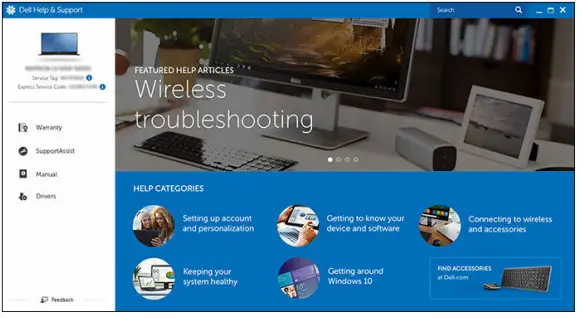
 SupportAssist Check and update your computer
Views
Front
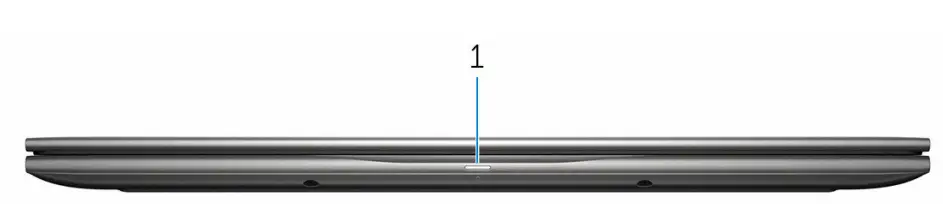
- Power and battery-status light/hard-drive activity light
Indicates the battery-charge status or the hard-drive activity.
NOTE: Press Fn+H to toggle this light between the power and battery-status light and hard-drive activity light.
Hard-drive activity light
Turns on when the computer reads from or writes to the hard drive.
Power and battery-status light
Indicates the power and battery-charge status.
Solid white: The power adapter is connected and the battery has more than 5% charge.
Amber: The computer is running on battery and the battery has less than 5% charge.
Off
- The power adapter is connected and the battery is fully charged.–
- The computer is running on battery and the battery has more than 5% charge.–
- The computer is in sleep state, hibernation, or turned off
Left
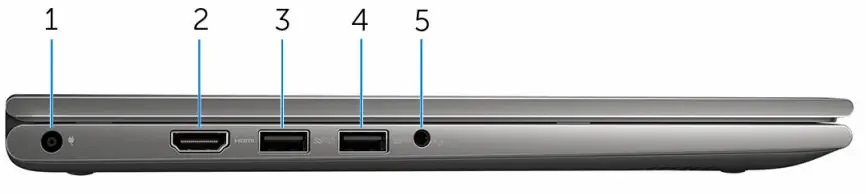
- Power-adapter port
Connect a power adapter to provide power to your computer and charge the battery. - HDMI port
Connect a TV or another HDMI-in-enabled device. Provides video and audio output. - USB 3.0 port with PowerShare
Connect peripherals such as storage devices, printers, and so on. Provides data transfer speeds up to 5 Gbps.
PowerShare allows you to charge your USB devices even when your computer is turned off.- NOTE: If your computer is powered off or in hibernate state, you must connect the power adapter to charge your devices using the PowerShare port. You must enable this feature in the BIOS setup program.
- Certain USB devices may not charge when the computer is powered off or in sleep state. In such cases, turn on the computer to charge the device.
- USB 3.0 port
Connect peripherals such as storage devices, printers, and so on. Provides data transfer speeds up to 5 Gbps. - Headset port
Connect a headphone, a microphone, or a headset (headphone and microphone combo).
Right
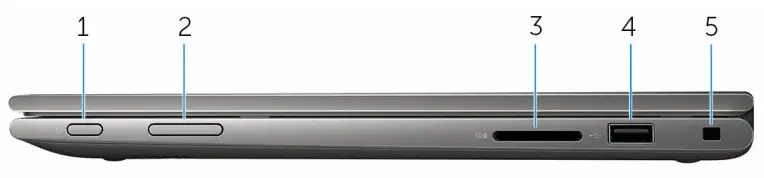
- Power button
- Press to turn on the computer if it is turned off or in sleep state.
- Press to put the computer in sleep state if it is turned on.
- Press and hold for 4 seconds to force shut-down the computer.
- NOTE: You can customize the power-button behavior in Power Options. For more information, see Me and My Dell at www.dell.com/support/manuals.
- Volume-control buttons (2)
- Press to increase or decrease the volume.
- Media-card reader
- Reads from and writes to media cards.
- USB 2.0 port
- Connect peripherals such as storage devices, printers, and so on. Provides data transfer speeds up to 480 Mbps.
- Security-cable slot
- Connect a security cable to prevent unauthorized movement of your computer.
Base
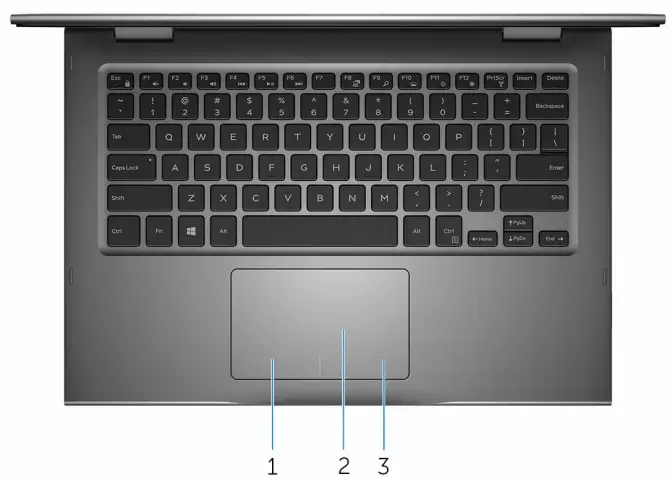
- Left-click area
- Press to left-click.
- Touch pad
- Move your finger on the touchpad to move the mouse pointer. Tap to left-click and two-finger tap to right-click.
- Right-click area
- Press to right-click.
Display
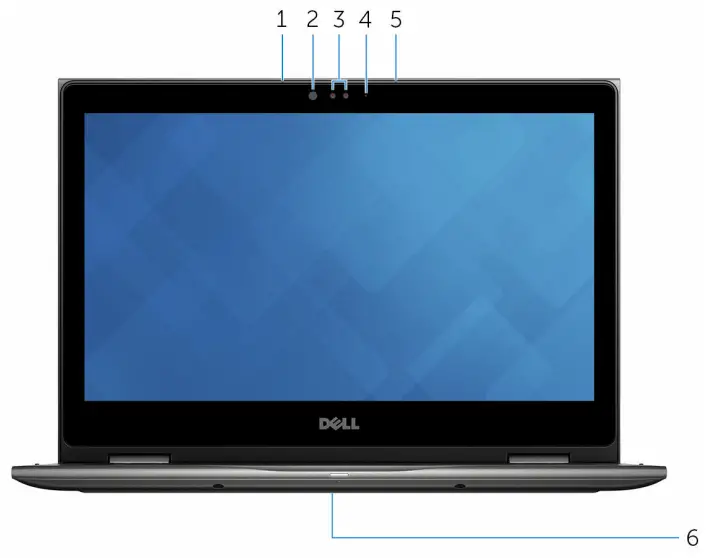
- Left microphone
- Provides digital sound input for audio recording, voice calls, and so on.
- Infrared emitter (optional)
- Emits infrared light, which allows the infrared camera to sense depth and track motion.
- An infrared camera (optional)
- Allows you to video chat, capture photos, and record videos. Depth-sensing feature of the camera enhances security when paired with Windows Hello.
- Camera
- Allows you to video chat, capture photos, and record videos.
- Camera-status light
- Turns on when the camera is in use.
- Right microphone
- Provides digital sound input for audio recording, voice calls, and so on.
- Service tag location
- The service tag is a unique alphanumeric identifier that allows Dell service technicians to identify the hardware components in your computer and access warranty information.
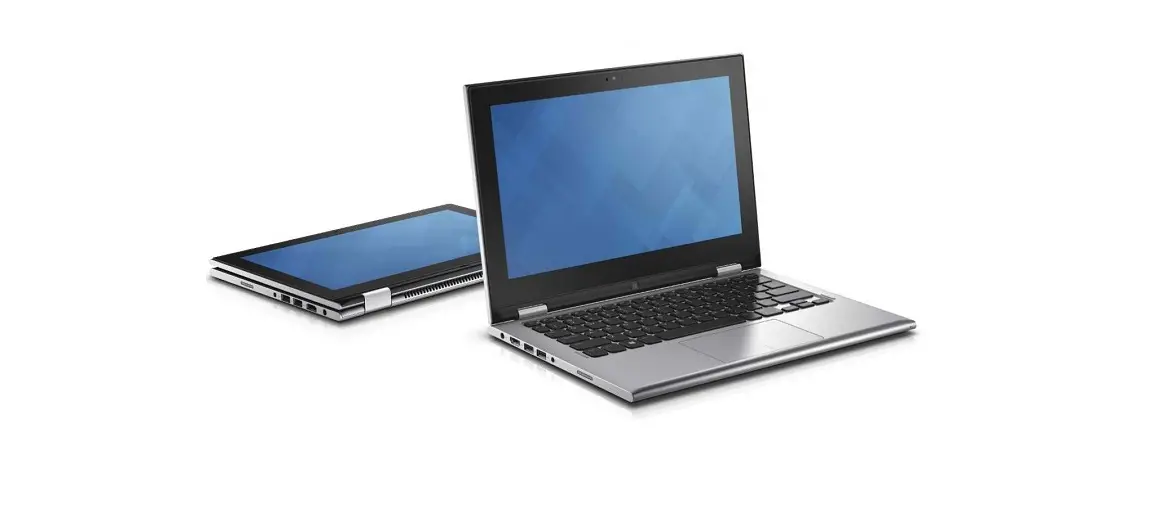
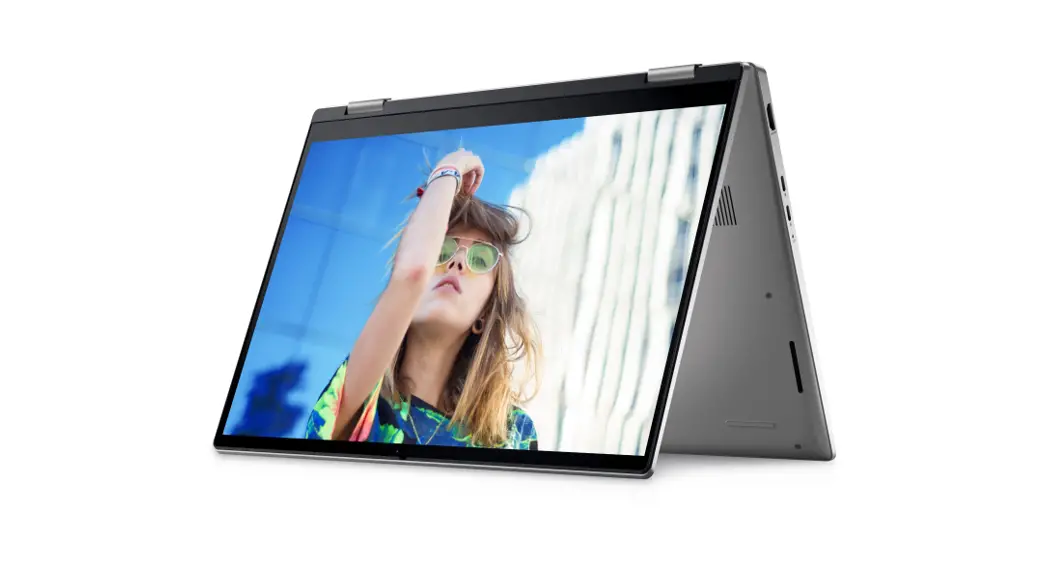
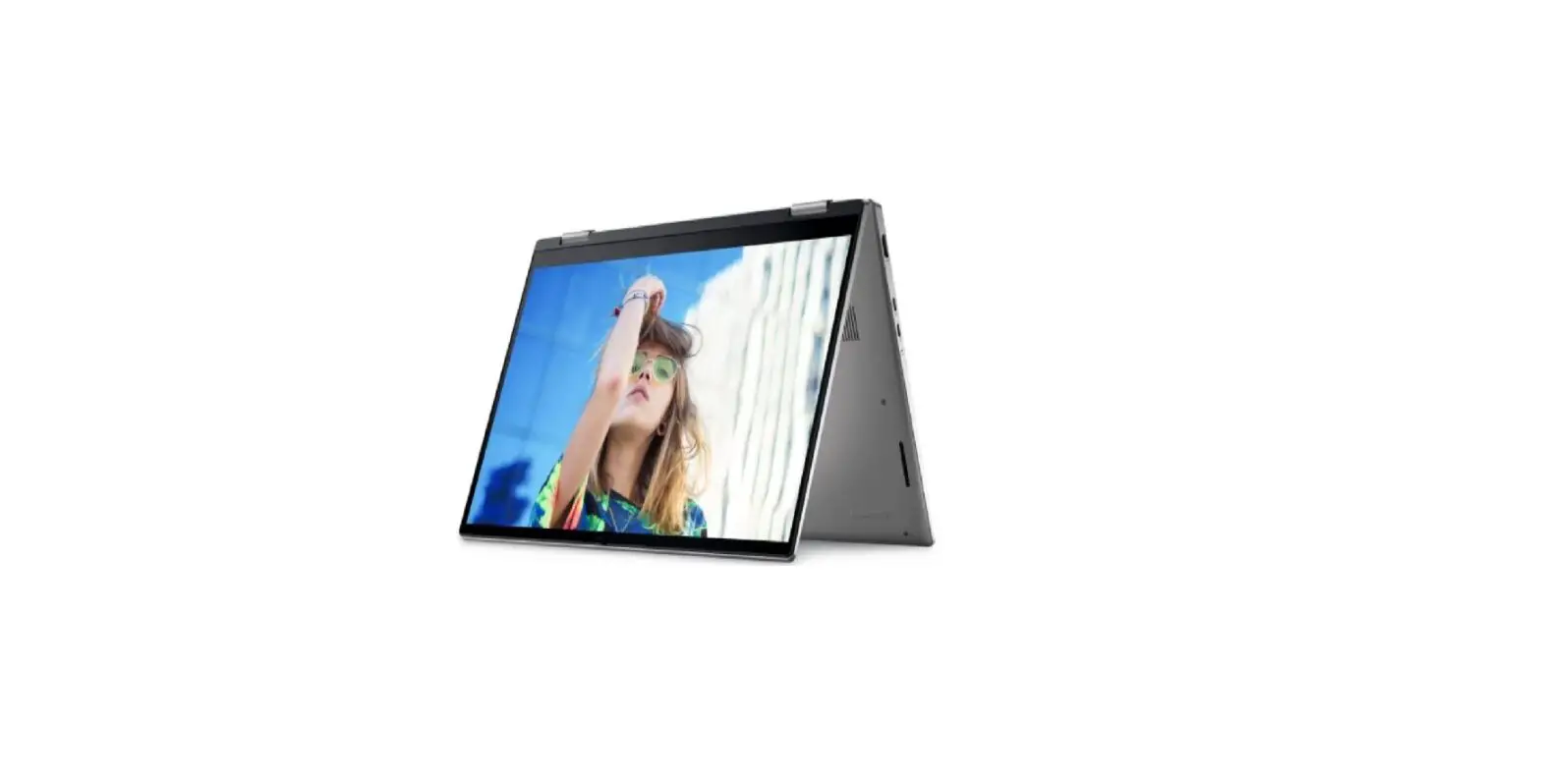
Modes
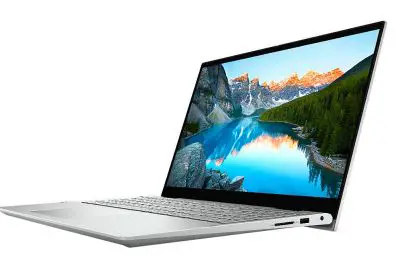
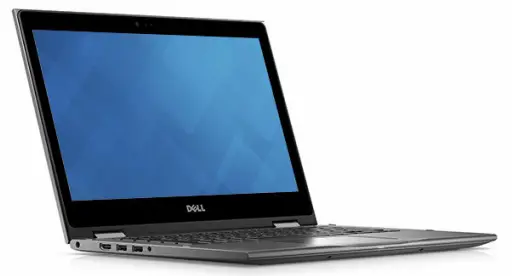
Notebook
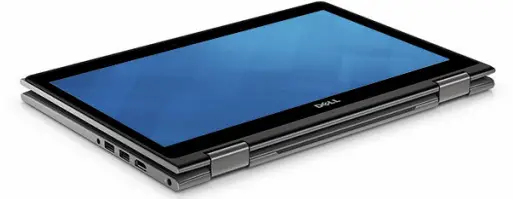
Tablet
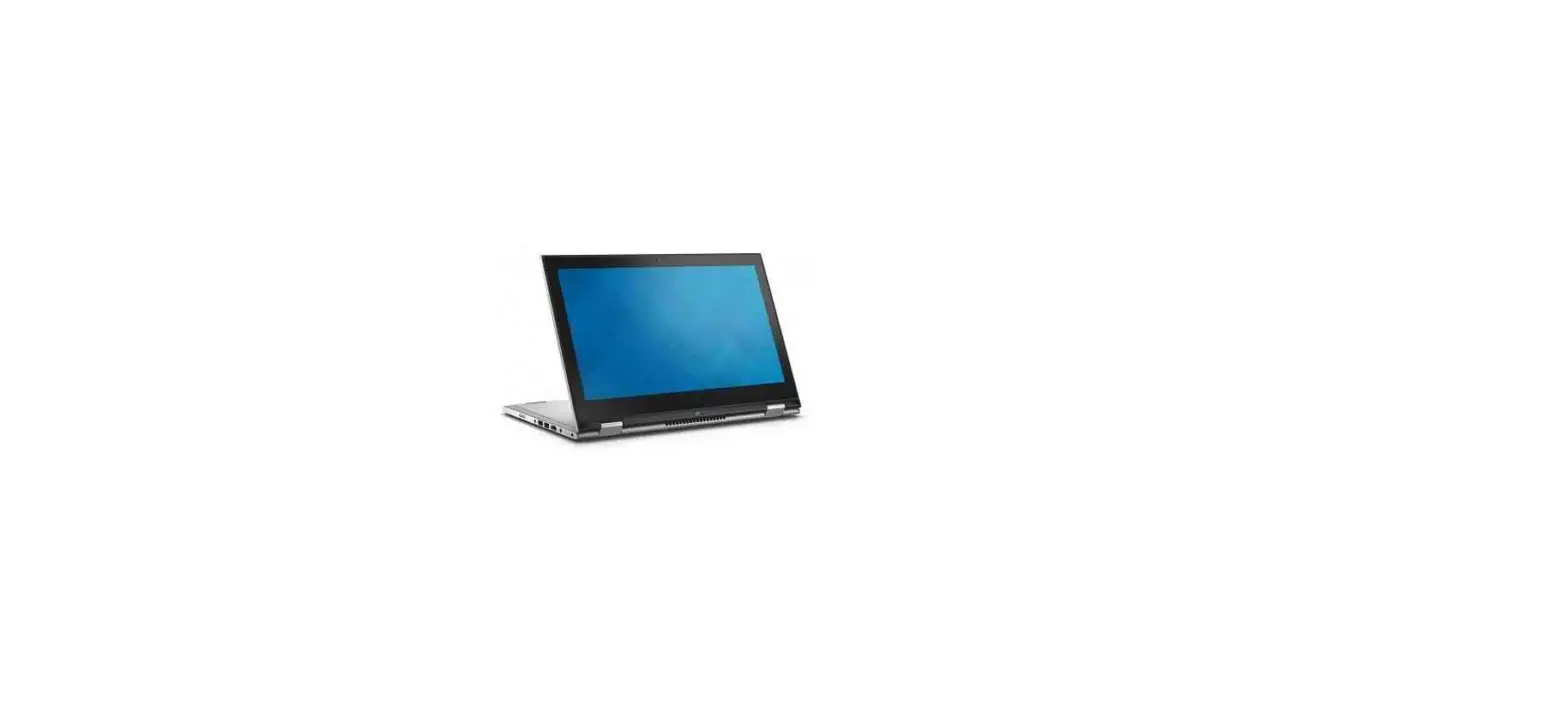
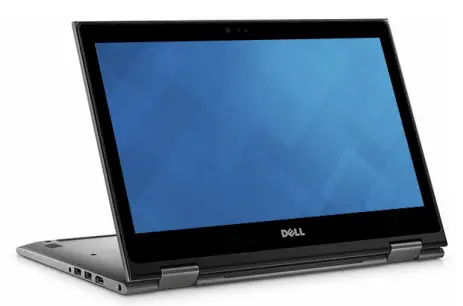
TabletStand
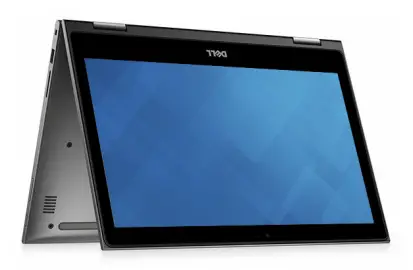
Tent
Specifications
Dimensions and weight
- Height: 19.50 mm (0.77 in)
- Width: 324 mm (12.76 in)
- Depth: 224.70 mm (8.85 in)
- Weight (maximum): 1.68 kg (3.70 lb)
NOTE: The weight of your computer varies depending on the configuration ordered and the manufacturing variability.
System information
- Computer model: Inspiron 13-5368
- Processor: 6th Generation Intel Core i3/i5/i7
- Intel Celeron Dual Core
- Intel Pentium Dual Core
- Chipset: Integrated in the processor
Memory
- Slots: Two SODIMM slots
- Type: Dual-channel DDR4
- Speed: 2133 MHz
- Configurations supported: 4 GB, 8 GB, 12 GB, and 16 GB
Ports and connectors
External
- USB: One USB 3.0 port
- One USB 2.0 port
- One USB 3.0 port with PowerShare
- Audio/Video: One HDMI port
- One headset (headphone and microphone combo) port
Internal
- M.2 Card: One M.2 slot for SSD card
Communications
- Wireless: Wi-Fi 802.11 ac
- Bluetooth 4.0
- Bluetooth 4.1 (optional)
- Miracast
- Wi-Fi Display Support (Wi-Fi Alliance)
Video
- Controller: Intel HD Graphics 510 – Intel Celeron and Pentium
- Intel HD Graphics 520 – Intel Core i3/i5/i7
- Intel Iris Graphics 540 – Intel Core i7
- Memory: Shared system memory
Audio
- Controller: Realtek ALC3253 with Waves MaxxAudio Pro
- Speakers: Two
- Speaker Output: Average – 2 W
- Peak – 2.5 W
- Microphone: Digital-array microphones in the camera assembly
- Volume controls: Media-control shortcut keys and volume-control buttons
Storage
- Interface: SATA 6 Gbps
- Hard drive: One 2.5-inch drive
- Solid-state drive: One 2.5-inch drive
Media-card reader
- Type: One SD card slot
- Cards supported: SD card
Keyboard
- Type: Backlit keyboard
- Non-Backlit keyboard
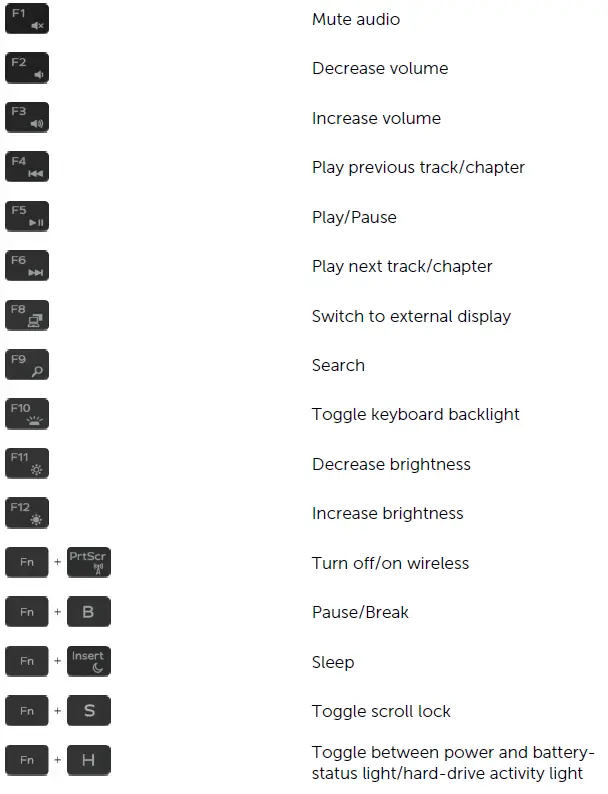
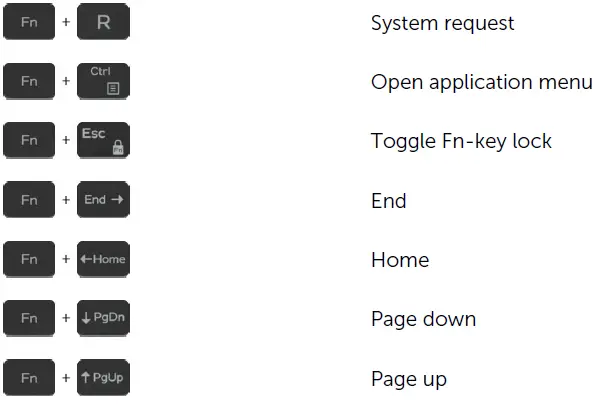
- Shortcut keys: Some keys on your keyboard have two symbols on them. These keys can be used to type alternate characters or to perform secondary functions. To type the alternate character, press Shift and the desired key. To perform secondary functions, press Fn and the desired key.NOTE: You can define the primary behavior of the function keys (F1-F12) by changing the Function Key Behavior in the BIOS setup program.
Camera
Resolution
- Still image: 0.92 megapixel
- Video: 1280 x 720 (HD) at 30 fps (maximum)
- Diagonal viewing angle: 74 degrees
Touchpad
Resolution
- Horizontal: 1260•
- Vertical: 960
Dimensions
- Height: 65 mm (2.56 in)
- Width: 105 mm (4.13 in)
Power adapter
- Type: 45 W
- Input voltage: 100 VAC–240 VAC
- Input frequency: 50 Hz–60 Hz
- Input current (maximum): 1.30 A
- Output current (continuous): 2.31 A
- Rated output voltage: 19.50 VDC
- Temperature range Operating: 0°C to 40°C (32°F to 104°F)
- Temperature range Storage: 40°C to 70°C (–40°F to 158°F)
Battery
- Type: 4-cell “smart” lithium-ion (56 WHr)
- Weight (maximum): 0.25 kg (0.55 lb)
- Voltage: 15.20 VDC
- Charging time (approximate): 4 hours (when the computer is off)
- Operating time: Varies depending on operating conditions and can significantly reduce under certain power-intensive conditions.
- Life span (approximate): 300 discharge/charge cycles
- Temperature range: Operating 0°C to 35°C (32°F to 95°F)
- Temperature range: Storage 40°C to 65°C (–40°F to 149°F)
- Coin-cell battery: CR-2032
- Height: 5.90 mm (0.23 in)
- Width: 98.20 mm (3.87 in)
- Depth: 233.37 mm (9.19 in)
Display
- Type: 13.3-inch HD WLED touch
- 13.3-inch Full HD WLED touchscreen
- Resolution (maximum): 1366 x 768
- 1920 x 1080
- Viewing angle: 120 degrees
- 160 degrees
- Pixel pitch: 0.2148 mm
- 0.1529 mm
- Height: 164.97 mm (6.49 in)
- 165.10 mm (6.50 in)
- Width: 293.42 mm (11.55 in)
- 293.60 mm (11.56 in)
- Diagonal: 337.82 mm (13.30 in)
- 337.82 mm (13.30 in)
- Refresh rate” 60 Hz
- Operating angle: 0 degree (closed) to 360 degrees
- Controls: Brightness can be controlled using shortcut keys
Computer environment
Airborne contaminant level: G1 as defined by ISA-S71.04-1985
| Operating | Storage | |
| Temperature range | 0°C to 35°C (32°F to 95°F) | –40°C to 65°C (–40°F to 149°F) |
| Relative humidity (maximum) | 10% to 90% (non-condensing) | 0% to 95% (non-condensing) |
| Vibration (maximum)* | 0.66 GRMS | 1.30 GRMS |
| Shock (maximum) | 110 G† | 160 G‡ |
| Altitude (maximum) | –15.2 m to 3048 m (–50 ft to 10,000 ft) | –15.2 m to 10,668 m (– 50 ft to 35,000 ft) |
- Measured using a random vibration spectrum that simulates user environment.
- † Measured using a 2 ms half-sine pulse when the hard drive is in use.
- ‡ Measured using a 2 ms half-sine pulse when the hard-drive head is in parked position.
Keyboard shortcuts
Keys/Description
Getting help and contacting Dell
Self-help resources
You can get information and help on Dell products and services using these self-help resources:
Information about Dell products and services www.dell.com
- Dell Help & Support app

- Get started app

- Accessing help in Windows 10
- In Windows search, type Help and Support, and press Enter.
- Online help for operating system www.dell.com/support/windows
- Troubleshooting information, user manuals, setup instructions, product specifications, technical help blogs, drivers, software updates, and so on www.dell.com/support
- Learn about your operating system, setting up and using your computer, data backup, diagnostics, and so on. See Me and My Dell at www.dell.com/support/manuals.


Contacting Dell
To contact Dell for sales, technical support, or customer service issues, see www.dell.com/contactdell.
NOTE
- Availability varies by country and product, and some services may not be available in your country.
- If you do not have an active internet connection, you can find contact information on your purchase invoice, packing slip, bill, or Dell product catalog.
© 2016 Dell Inc. All rights reserved.
This product is protected by U.S. and international copyright and intellectual property laws. Dell and the Dell logo are trademarks of Dell Inc. in the United States and/or other jurisdictions. All other marks and names mentioned herein may be trademarks of their respective companies.