APN-1167 Binding and Configuring a PaxLock Pro
Product Information:
The Net2 APN-1167 is a wireless access control unit that uses
Paxton proprietary wireless technology to communicate with the Net2
system. It is a battery-powered unit that can be directly installed
onto a door, which makes it ideal for situations where cabling is
impractical or expensive. The PaxLock Pro uses a Net2Air bridge to
communicate with the Net2 system, and it can be configured easily
using the door configuration window in Net2 software. The PaxLock
Pro also has troubleshooting features, including signal strength
testing and firmware updates.
Product Usage Instructions:
To use the Net2 APN-1167, follow the steps below:
- Install the PaxLock Pro directly onto the door.
- Bind the PaxLock Pro to the Net2 Software using a Net2Air
bridge. - Configure the unit by double-clicking on the specific door in
the doors tab within Net2. Here, you can make changes to the door
to configure the unit as appropriate.
- Name the door
- Set the door open time
- Holds the door unlocked during this timezone. Set to ‘At No
Time’ for normal user operation. - Local settings for the reader
- Configures the lock for timed release or toggle mode
- List the time zone and each user who have access through this
door
section of the user manual.
For example, if the PaxLock Pro is reporting a low signal, try
moving the Net2Air bridge to a new location and retest the signal
by presenting a token to the PaxLock Pro several times and
refreshing the doors page in Net2. If the firmware update keeps
failing, ensure that you have added the Net2Air bridge to the
system via the Net2 configuration utility and bound the PaxLock Pro
to the system by presenting a token to the PaxLock Pro that has
been added to the Net2 database. If the PaxLock Pro keeps going
offline, you may need to relocate the bridge to ensure the PaxLock
Pro has a better signal or add an additional Net2 Air Bridge to
increase the wireless range.
Net2 APN-1167
Binding and configuring a PaxLock Pro
Overview
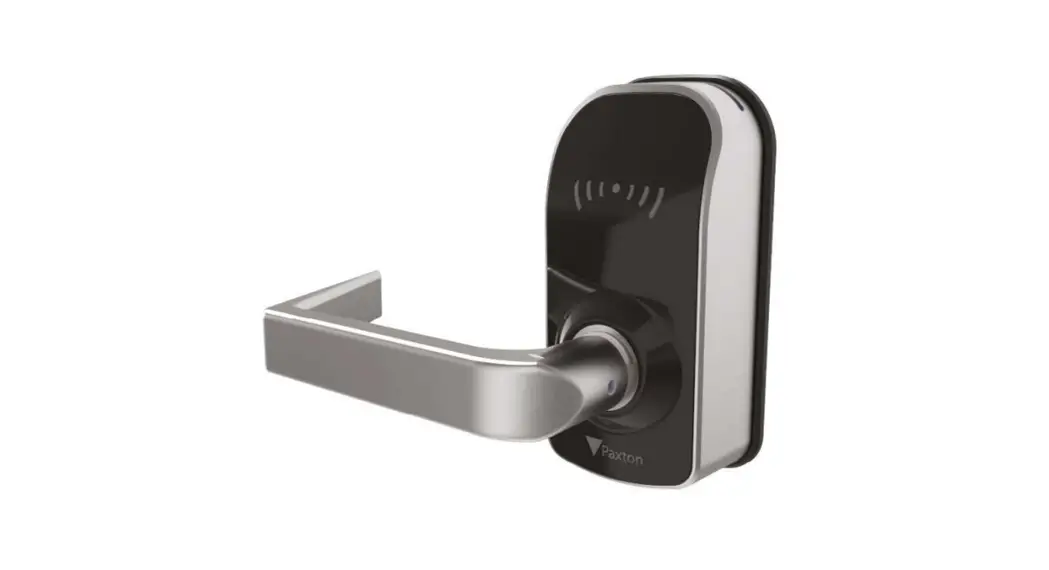
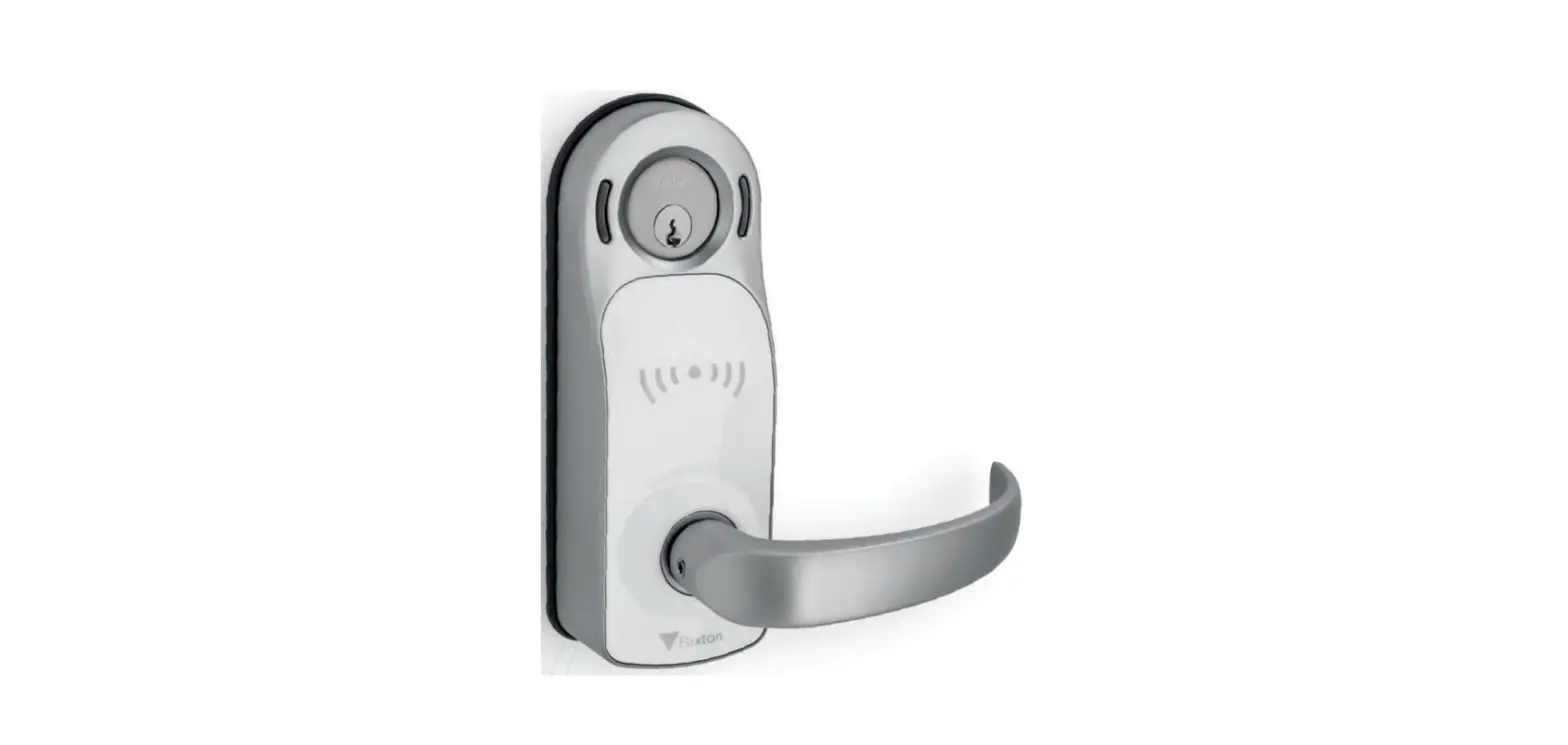
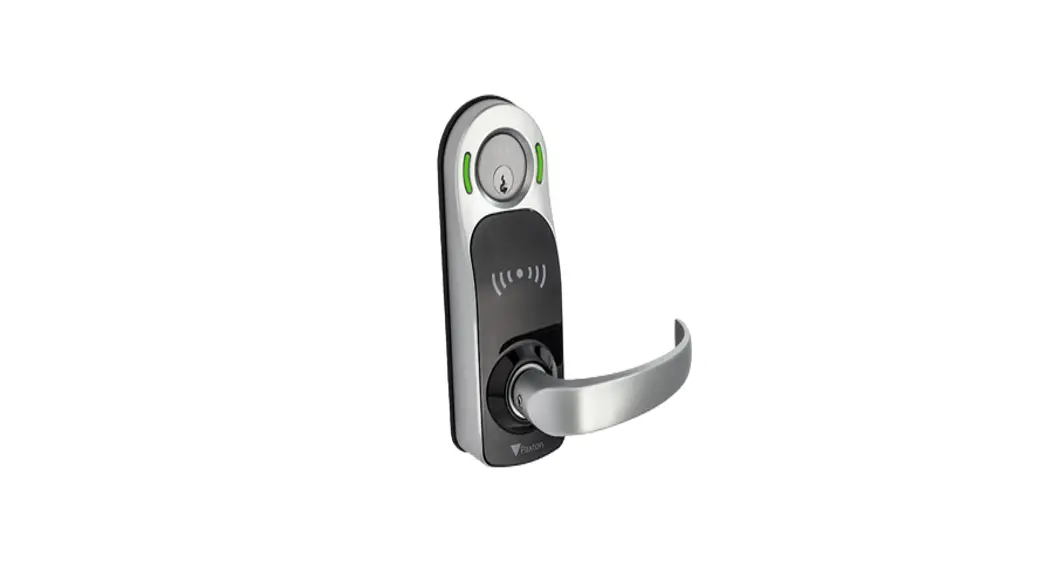
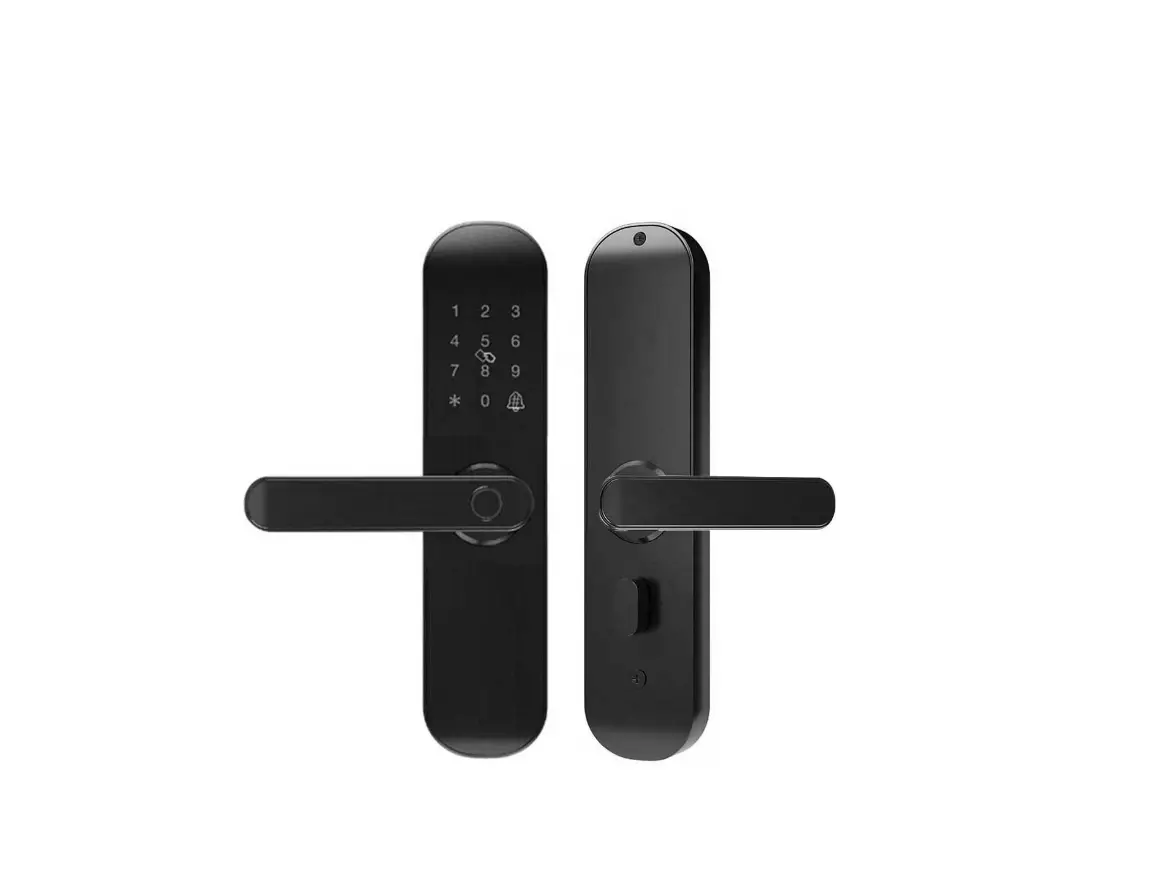
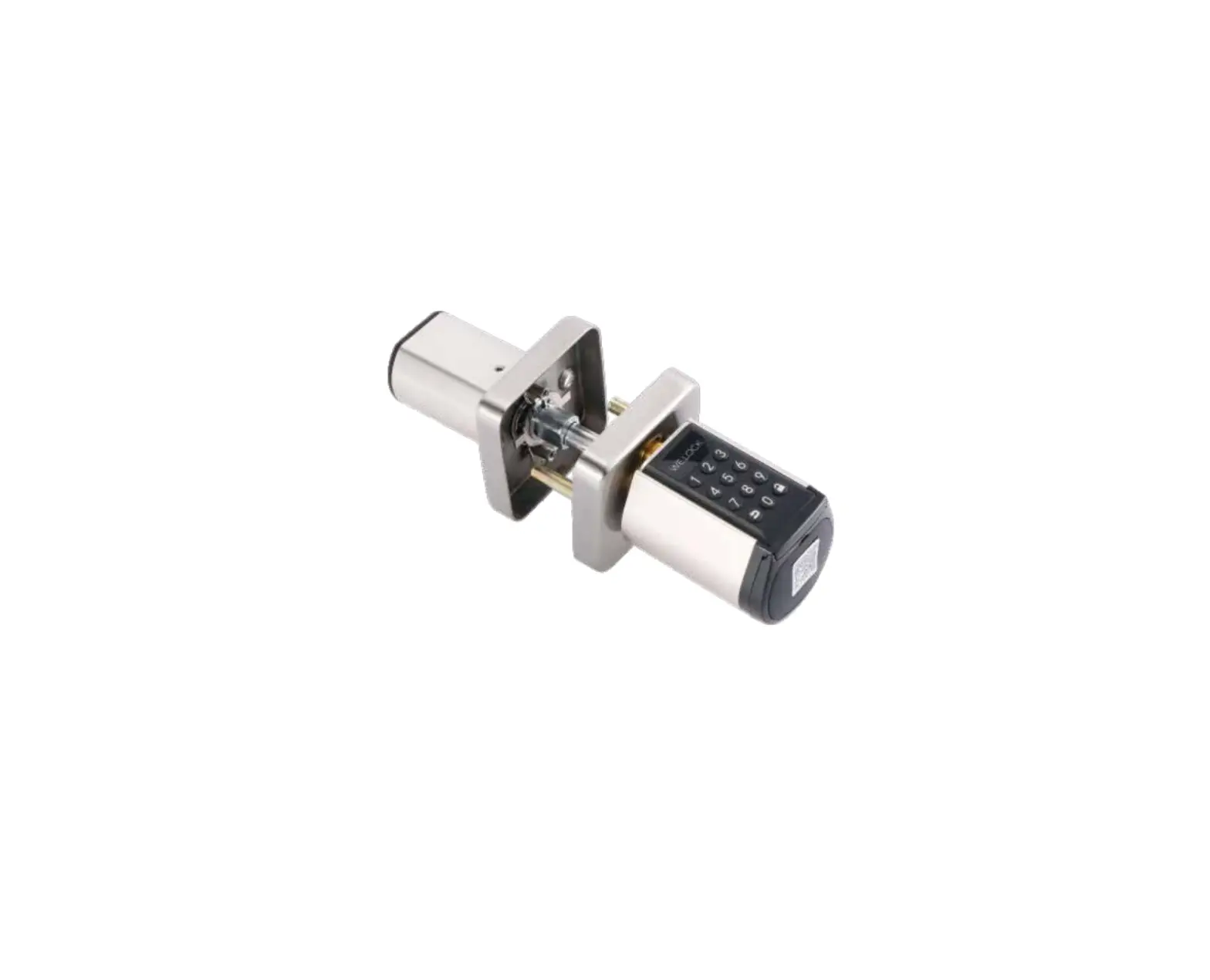
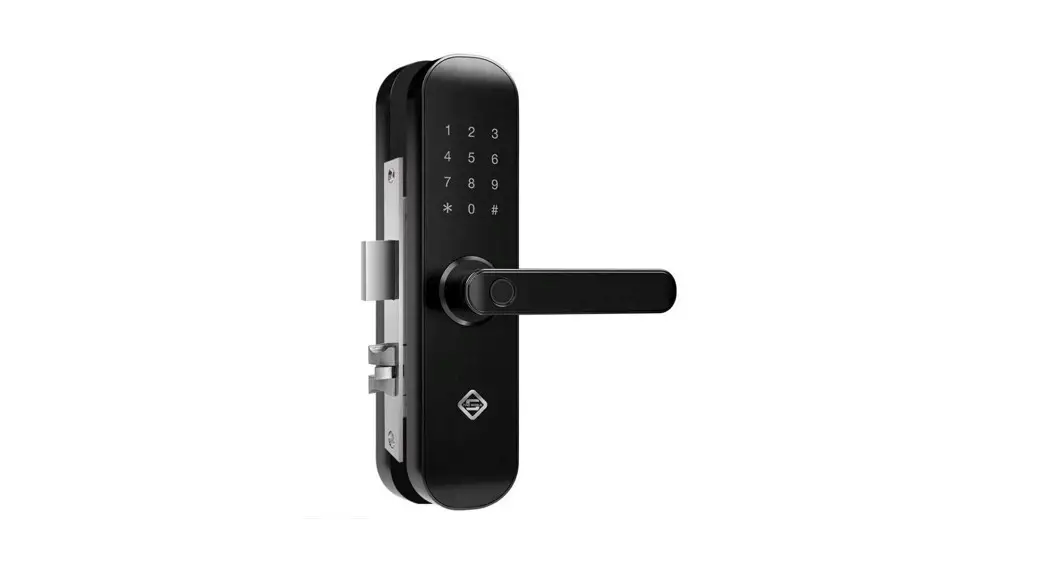
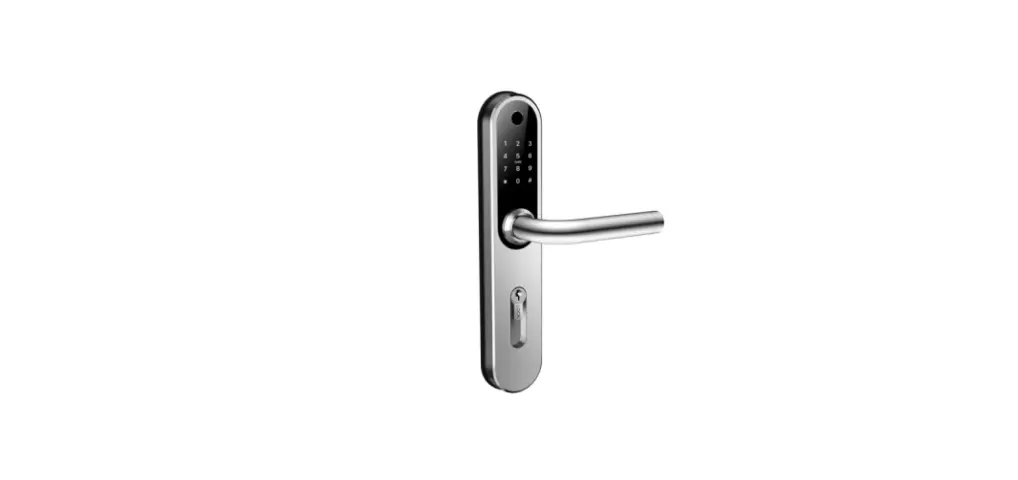
The PaxLock Pro is a battery powered wireless access control unit. Often used where cabling is expensive or impractical, the PaxLock Pro can be installed directly onto a door. The PaxLock Pro uses a Net2Air bridge to communicate with the Net2 system, using Paxton proprietary wireless technology.
See also:
AN1096 How to plan a Net2 wireless installation < http://paxton.info/975 >
Enrolling a PaxLock Pro
To enrol a PaxLock Pro, it must bind to a Net2Air bridge. Simply present a user token that is in the database to the reader, and the PaxLock will transmit this data out to a Net2Air bridge. If more than one bridge replies, the PaxLock checks the signal strength and selects the strongest bridge to communicate with. The Net2 PC then confirms that the user card presented is in the database and if so will proceed to bind the PaxLock to the system. The PaxLock LED will flash Green to confirm binding in progress. An alternating Red/Green flash indicates a software update is in progress. If the PaxLock is repositioned or the environment changes, it will automatically rebind to the bridge providing the strongest signal.
Configuring a PaxLock Pro
Following the installation and binding of a PaxLock Pro to the Net2 Software, configuring the unit is extremely simple. Double clicking on the specific door in the doors tab within Net2 will open up the door configuration window. Here, a selection of changes can be made to the door to configure the unit as appropriate.
1
Net2 APN-1167
Door name: Name the door. Door open time: Set the door open time. Unlock the Door during: Holds the door unlocked during this timezone. Set to ‘At No Time’ for normal user operation. Reader: Local settings for the reader. Output: Configures the lock for timed release or toggle mode Events: Shows the events for this control unit only. Access Rights: List the time zone and each user who have access through this door
Troubleshooting
Problem The PaxLock Pro is reporting a low signal
Recommendation
Move the Net2Air bridge to a new location trying to avoid any obstructions known to affect the wireless signal. Re-test the signal by presenting a token to the PaxLock Pro several times and refreshing the doors page in Net2.
Make sure the PaxLock Pro and Net2Air bridge are at least 3m(10ft) away from one another, and any other wireless equipment.
The RF signal will not pass through metal objects and any dense materials will reduce the range. Do not mount the PaxLock Pro and Net2Air bridge on different floors of a building.
2
Net2 APN-1167
Problem The firmware update keeps failing
Recommendation
Ideally you should have 3-4 bars of signal to ensure optimal performance. Should your PaxLock Pro consistently report less than this, look at re-locating the bridge.
The PaxLock Pro is not detected in the Net2 software and/or wont bind to the Net2 system
Check you have added the Net2Air bridge to the system via the Net2 configuration utility. Also ensure you have bound the PaxLock Pro to the system by presenting a token to the PaxLock Pro that has been added to the Net2 database.
Remove the PaxLock Pro from the door and take it closer to the Net2Air bridge. If it then binds successfully you will need to relocate the bridge to ensure the PaxLock Pro has a better signal.
If the PaxLock Pro has been previously bound to a different system, it will need to be reset. Follow the reset procedure outlined in the instructions.
The PaxLock Pro keeps going offline
If the PaxLock Pro has low signal in normal operation, moveable obstructions such as vehicles or people may be causing it to go offline. The Net2Air bridge may need to be re-located to give better signal strength. Adding an additional Net2 Air Bridge will increase the wireless range.
The site uses a shared wireless network with heavy usage. At certain times of the day the Net2 system is unable to communicate.
The Net2 wireless system must be able to co-exist with an existing network. In most cases it can do so without any changes required. Where there is limited bandwidth or very high data usage it is recommended to use channels 1 and 6 for the WiFi network and avoid channel 11. Contact Support for further assistance.
When I open the door, the latch isn’t fully retracting
The PaxLock Pro requires a lock case with a turning angle of 45° or less. If the handle is not fully retracting it is likely the lock case does not meet this requirement and will need replacing.
Note: This information is not applicable to the PaxLock US
3
Net2 APN-1167
Problem
The PaxLock Pro is clicking when a token is presented and not opening the door
Recommendation
Check you have followed the guidelines on the rear of the template included in the box. Contact Support for further assistance.
When I present a token the PaxLock Pro is not responding
Ensure the token you are presenting is a format supported by the PaxLock Pro. Supported formats are shown on the datasheet.
If the unit still fails to operate it could indicate the batteries need replacing. Check the battery status in the Net2 software or change the batteries for known charged ones.
I have added a new user but they are being denied access at the door
Check if access denied events are being sent to Net2. If they are not, it would indicate there is no connection established between the PaxLock Pro and the Net2Air bridge. Follow the recommendations to re-establish communications above.
4
 paxton.info/975