

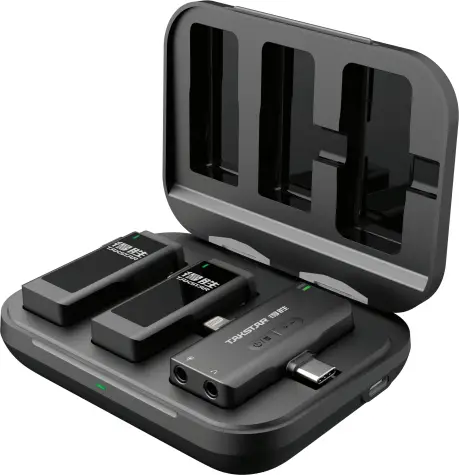
V4 DUAL Wireless Video Microphone
User Manual
Foreword
Dear user:
Thank you for choosing our V4 dual wireless camera microphone. In order to better understand the use of this product, it is recommended that you read this manual carefully before use.
If you have any questions or suggestions, please contact our local dealer.
Features
- Original lightning connector, no more worries about IOS ecosystem, and safe to use.
- Three-in-one universal receiver, lavalier design, compact and convenient.
- 2.4G wireless transmission technology, the stable transmission distance can be up to 120 meters.
- Real-time monitoring, free switching of three volume levels.
- Three noise reduction modes can be switched freely, to meet accurate pickup in any complex environment.
- Support TF card local audio storage, no more worry about file loss.
- The microphone can be used as a recording pen alone, and the recording can be saved synchronously anytime and anywhere in any environment.
- The microphone and receiver with a 3.5 mm cable which is used for the camera can last 12 hours of continuous interviews.
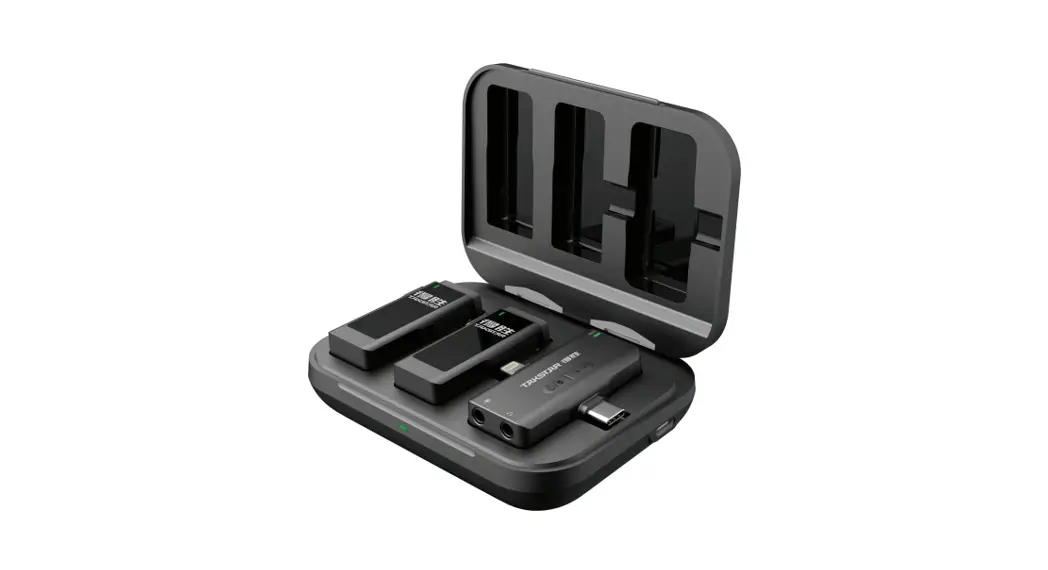
- Equipped with a charging case, the transmitter and receiver are more convenient to store and charge; interviews.
- The charging case has a large battery of 2000mAh that can be recharged, which is the first choice for travel and making a Live.
Applications
Live, Vlog, Video-shooting, interviews,s, and others.
Packing List
Charging case(two mics and one receiver) 1PCS
Microphone transmitter 2PCS
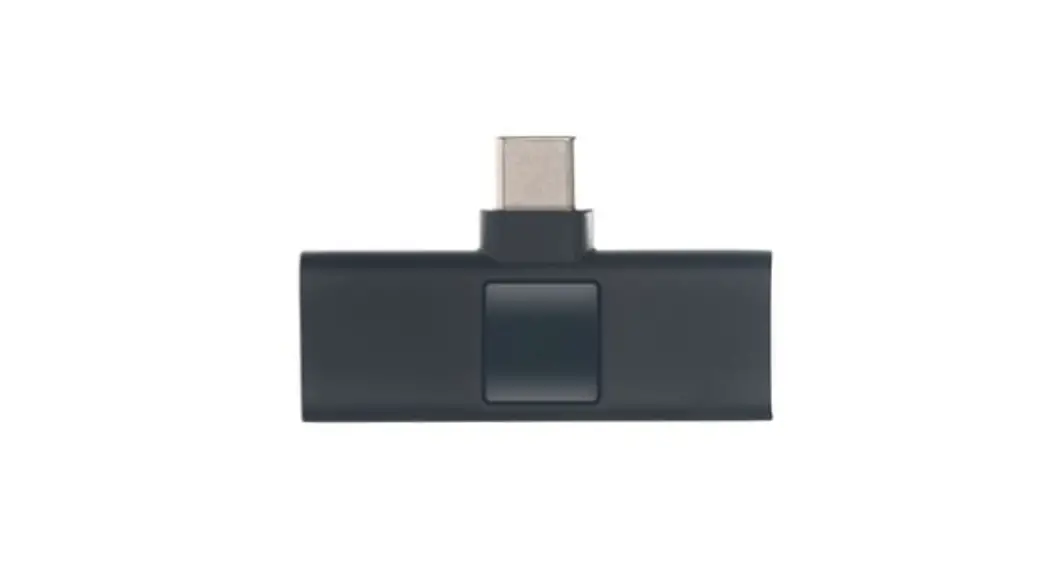
3 in 1 Receiver 1PCS
Audio cable 1PCS
Charging cable 1PCS
Earphone 1PCS
Furry windscreen 2PCS
User manual 1PCS
Specifications
Charging case
| Input voltage: DC 4.8V~5.4V | Battery capacity: 2000 mAh |
| Charging time: 90 mins | Recharge times: recharge 3 times for the microphone and receiver |
| Weight: about 128.2g | Charging case size: 111.2*79.5*34.4mm |
Microphone specification
| Frequency: 2.4GHz | Battery: 230mAh |
| Latency: 25 ms | Working time: 12 hrs |
| Frequency response range: 20-20KHz | Charging time: about 80 mins |
| DC: 4.8~5.4V | Weight: about 8.2g |
| Sensitivity: -26 dBFS | S/N Ratio: 64 dB |
| Microphone size: 49.25*20.9*20.56mm | |
Receiver specification
| Frequency: 2.4GHz | Battery: 230mAh |
| Latency: 25 ms | Working time: 12 hrs |
| Frequency response range: 20-20KHz | Charging time: about 80 mins |
| DC: 4.8~5.4V | Weight: about 18.7g |
| Microphone size: 53.4.*43.63*22.09mm | |
Note: The above data are measured by Takstar laboratory, and Takstar has the final interpretation right!
Functions
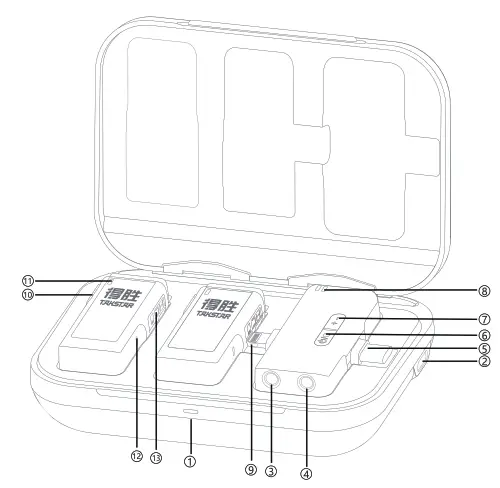
| 1. Charging case indicator light | 8. Indicator light on the receiver |
| 2. Type-C charging port | 12. Reset the key on the transmitter *2 |
| 3.3.5mm monitoring port | 9. Lightning receiver |
| 4.3.5 mm adapter cable port | 10. Power /Mute key *2 |
| 5. Type-C receiver | 11. Indicator light on the microphone *2 |
| 6. Power /reset button | 13. TF memory card slot *2 |
| 7. Volume/noise key | |
Microphone transmitter functions
| No | En= I | Operation | Light |
| 1 | Power on | 1Dpen the charging case and take out the microphone 2. Click the power button | Greenlight for one second |
| 2 | Power off | 1. Put it in the charging case and close the cover 2. Press the power button for 3 secs | / |
| 3 | Search for pairing | No pairing object | Greenlight flashes slowly |
| 4 | Paired | Connection succeeded | Greenlight is always on |
| 5 | Clear pairing/re-pairing | Three-click the power button within 10 secs after powering on | Red and green light flashes quickly |
| 6 | Mute/pick-up | Click the power button to switch mute/pick-up Mute: stop recording Pick-up: start recording | / |
| ‘.!J:e the green light flashes quickly | |||
| Pick-up: Greenlight is always on | |||
| 7 | Charging | Put it in the charging case and close the cover | Charging: Blue light flashes |
| Fully charged: Blue light off | |||
| 8 | Low power | Below 3.3 V voltage | Red light flashes quickly |
| 9 | Automatic power-off | Below 1W or no connection for over 15 minutes | Light off |
| 10 | TF card automatic Recording | After the connection is successful, it will automafical], enter the TF card recording mode. | Greenlight is always on |
| 11 | Use the microphone as a recorder alone ( no pair with receiver ) | Click the power button to switch to start recording / stop recording (autosave the file) | Blue light flashes slowly when recording and green light flashes slowly when stopping recording |
| 12 | when the microphone has no TF card | Recording fails | Blue light is always on |
| 13 | The microphone has a TF card but the TF card is damaged | Recording fails | Blue light is always on |
Receiver functions
| State | Operation | Light | |
| 1 | Power on | 1.0pen the charging case and take out the receiver 2. Click the power button | Greenlight for one second |
| 2 | Power off | 1. Put it in the charging case and dose the cover 2. Press the power button for 3 secs | / |
| 3 | Search for pairing | No pairing object | Greenlight flashes slowly |
| 4 | Paired | Connection succeeded | Greenlight is always on |
| 5 | Clear pairing/re-pairing | Three-dick the power button within 10 secs after powering on | Red and green light flashes quickly |
| 6 | Charging | Put it in the charging case and close the cover Mute: stop recording Pick-up: start recording | Charging: white light flashes |
| Fully charged: white light off |
| 7 | Mute/pick-up | Click the power button to switch mute/pick-up Mute: stop recording Pick-up: start recording | Mute: the green light flashes quickly |
| Pick-up: Greenlight is always on | |||
| Low power | Below 3.3 V voltage | Red light flashes quickly | |
| I | Automatic power-off | Below 3.3V or no connection for over 15 minute | Light off |
| Volume level switch | Click the volume key | The three levels are cycled in turn | |
| The prompt tone is as follows “Beep” (Level 1) “Beep” ‘Beep” (Level 2) “Beep” “Beep” “Beep’ (Level 3) | |||
| The indicator lights are as follows: Red light flashes once (level 1) Red light flashes twice (level 2) Red light flashes three times (level 3) | |||
| Noise reduction level switch | Double click the noise key | The three levels are cycled in turn | |
| The vomit tone are as follows: “Dong” (Level 1) “Dong Dong” (Level 2) “Dong Dong Dong” (Level 3) | |||
| The indicator lights are as follows: Greenlight flashes once (level 1) Greenlight flashes twice ( level 2) Greenlight flashes three times (level 3) |
Charging case specification
No. | State | Operation | Light |
| 1 | Charge the case | Charging with Type-C cable | Charging: red light is always on |
| Fully charged: the light is off | |||
| 2 | Battery level indicator of charging case | Open the case/indicator light:100%-75% | Greenlight is on for 10 secs |
| Open the case/indicator light:74%-36% | The blue light is on for 10 secs | ||
| Open the case/indicator light:35%-13% | Red light flashes | ||
| 3 | Charge two transmitters | Put two transmitters in the case and close the cover | Charging: the green. blue light flashes |
| Fully charged: corresponding lights are c” | |||
| 4 | Charge the receiver | Put the receiver in the case and close the cover | Charging: white light flashes |
| Fully charged: white light is off |
| 5 | Charge multiple devices | Put two transmitters and a receiver in the case and dose the cover | Charging: White. blue and green light flashes alternately in turn |
| Fully charged: corresponding lights are off |
Note: The TF card will automatically save a new recording file every time. When the capacity of the memory card is full, the oldest recording file will be automatically deleted.
Connection instruction
After taking out the device, the indicator lights of the microphones on the receiver and transmitter are always green, it is paired successfully. (See as below picture)
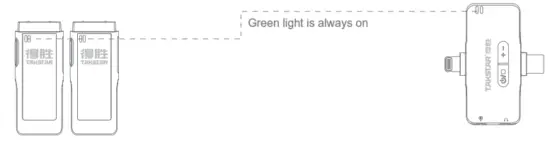
Mobile phone connection instruction
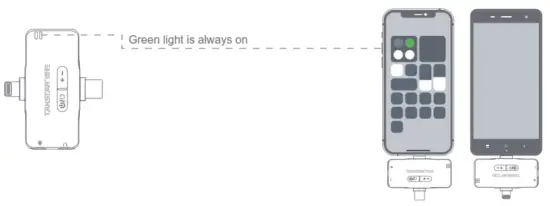
Plug the Lightning receiver/Type-C receiver into the Lightning port/Type-C port of the mobile phone, and the green light of the receiver is always on, and the microphone can be used to pick up sound.
Camera connection instructions
Plug the 3.5mm cable into the receiver and the 3.5mm hole of the camera respectively, the green light of the receiver is always on, and the microphone can be used to pick up sound.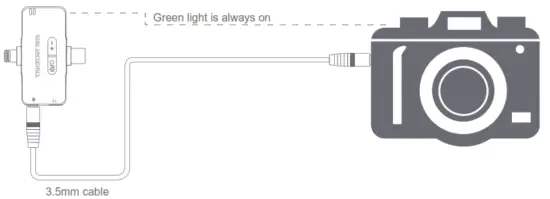
Windows Notebook Operation
Turn on the receiver and connect the TPYE-C port to the TPYE-C jack of the computer, or insert the 3.5 adapter cable to the audio input jack, click the “Speaker” icon at the bottom right of the computer, and then open the sound settings, “Sound” setting option and then click the bottom of the page to select “Voice Input” option, select the corresponding “Microphone” option to confirm.
Desktop Windows operation
Turn on the receiver, plug in the 3.5mm adapter cable to the audio input port of the host computer, click the “Speaker” icon at the bottom right of the computer, and then open the sound settings, the “Sound” setting option, and then click the “Sound Input the” option at the bottom of the page, and select the corresponding “Microphone” option to confirm.
MacBook operation
Turn on the receiver and connect the TPYE-C port to the TPYE-C socket of the MacBook. On the MacBook, select the “Settings” option, then click the “Sound”, then select the “Sound output” option, click to select “Speaker”, and then confirm; then select the “Sound input” option, click to select “Microphone -Wireless microphone”, Click Confirm to use.
Turn on OTG (only for the Android system)
Take the OPPO A72 model as an example
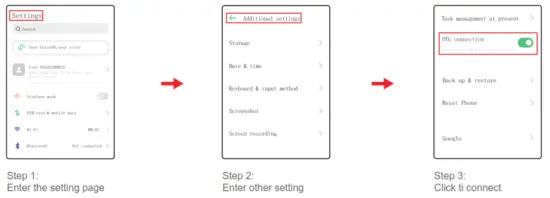
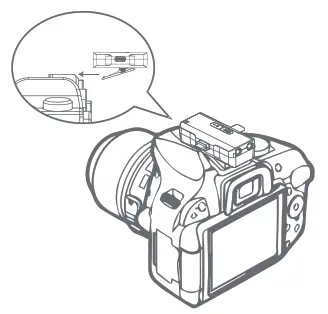
Instructions for installing the receiver to the camera
Before installing the camera, use the receiver’s back clip to clip on the camera shoe and then fix it.
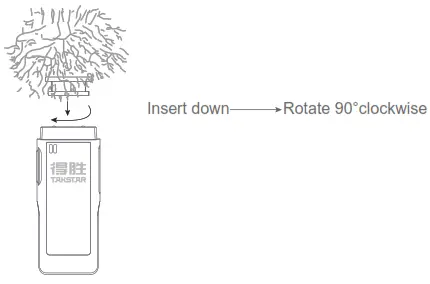
Furry windscreen installation instruction
Align the plastic buckle of the furry windscreen with the groove of the transmitter, insert it, and then rotate 90° clockwise to fix it.
Label Meanings
 According to the test results obtained based on RL2004/108/EG (Electromagnetic Compatibility Directive) and RL2006/95/EG (Low Voltage Directive), this product complies with the limits specified in the European Community EMC (Electromagnetic Compatibility) Directive, integration of relevant laws from its member states.
 NOTE: This equipment has been tested and found to comply with the limits for a Class B digital device, pursuant to part 15 of the FCC Rules. These limits are designed to provide reasonable protection against harmful interference in a residential installation. This equipment generates uses and can radiate radio frequency energy and, if not installed and used in accordance with the instructions, may cause harmful interference to radio communications. However, there is no guarantee that interference will not occur in a particular installation. If this equipment does cause harmful interference to radio or television reception, which can be determined by turning the equipment off and on, the user is encouraged to try to correct the interference by one or more of the following measures:
– Reorient or relocate the receiving antenna.
– Increase the separation between the equipment and receiver.
-Connect the equipment into an outlet on a circuit different from that to which the receiver is connected.
-Consult the dealer or an experienced radio/TV technician for help
Changes or modifications not expressly approved by the party responsible for compliance could void the user’s authority to operate the equipment. This device complies with Part 15 of the FCC Rules. Operation is subject to the following two conditions:
(1) this device may not cause harmful interference, and
(2) this device must accept any interference received, including interference that may cause undesired operation.
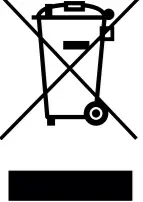 This symbol indicates that, according to the WEEE (Waste of Electrical and Electronic Equipment)Directive(2012/19/EU) and national laws, this type of waste should not be discarded along with your household waste, as it contains potentially hazardous substances that may pose a negative impact on the environment and human health. It should be handed over to an authorized WEEE collection facility for recovery and recycling. Herewith you will be helping effective utilization of natural resources. For more information on the disposal of WEEE products, please contact your local municipality, waste management bureau, or household waste disposal service.
Safety Instructions
To avoid electric shock, overheating, fire, radiation, explosion, mechanical risk, and injury or property loss due to improper use, please read and observe the following items before use:
- Please check if the power of the connected equipment matches that of this product before operation. Adjust the volume to the proper level during operation. Do not operate at over-power or high-volume levels for an extended time to avoid product malfunction or hearing impairment.
- If there is any abnormality during use (e.g., smoke, strange odor), please kill the power switch and unplug from the power source, then send the product to the local dealer for repair.
- Keep this product and its accessories in a dry and ventilated area. Do not store in a humid or dusty area for an extended time. Keep away from fire, rain, liquid intrusion, bumping, throwing, vibrating, or blocking any ventilation openings, to prevent malfunction.
- Please abide by safety rules during operation. Do not use the product in places prohibited by laws or regulations to avoid accidents.
- Do not disassemble or repair the product by yourself to avoid injury. If you have any questions or require any services, please contact our local dealer.
About This Manual
This manual contains up-to-date technical specifications as of printing. However, the specifications contained herein may not conform to your particular product since Takstar is constantly improving its products. For the latest version/more information please visit our website: https://www.takstar.com/. Specifications, devices, or accessories available may vary from region to region. If you have any questions, please contact our local dealer.
 http://www.takstar.com/
Scan for more product information
Guangdong Takstar Electronic Co., Ltd.
Address: Dinggang, No.5 Team, Xialiao Village,
Longxi Town, Boluo County, Huizhou City,
Guangdong, China
Tel: 86 752 6383644 Fax: 86 752 6383952
Email: [email protected]
Website: www.takstar.com
 得胜官网-广东得胜电子有限公司