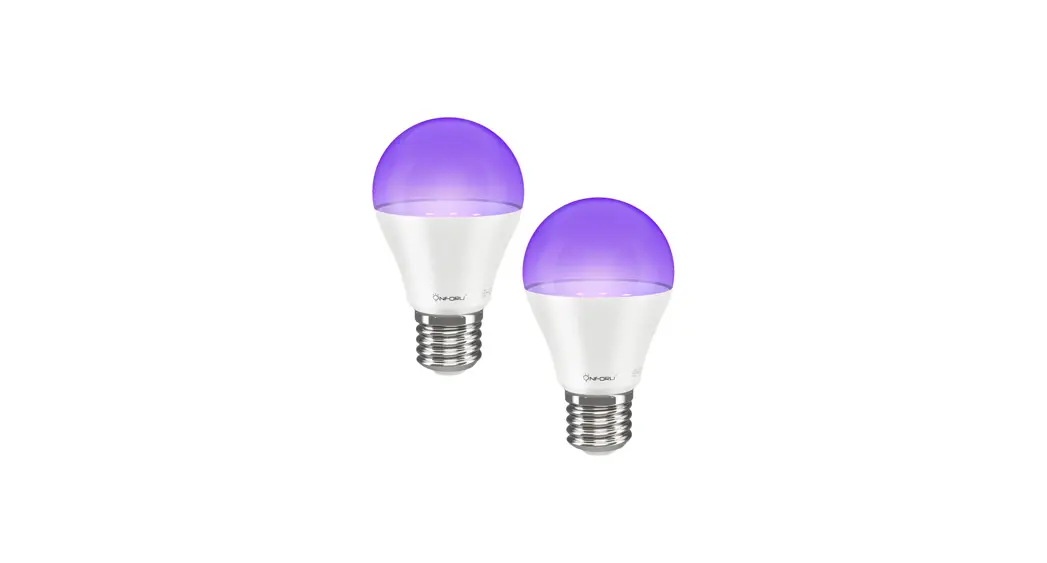
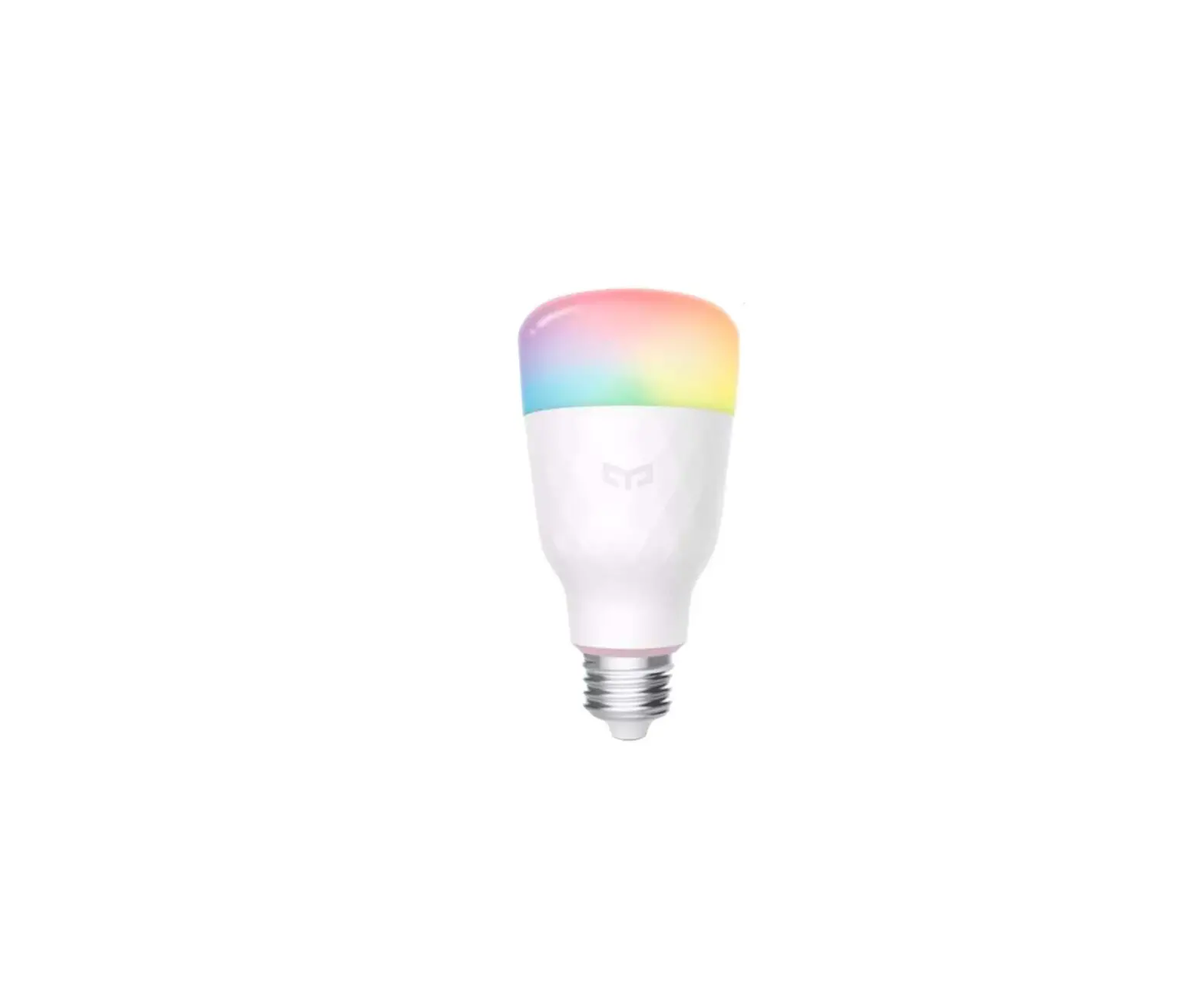
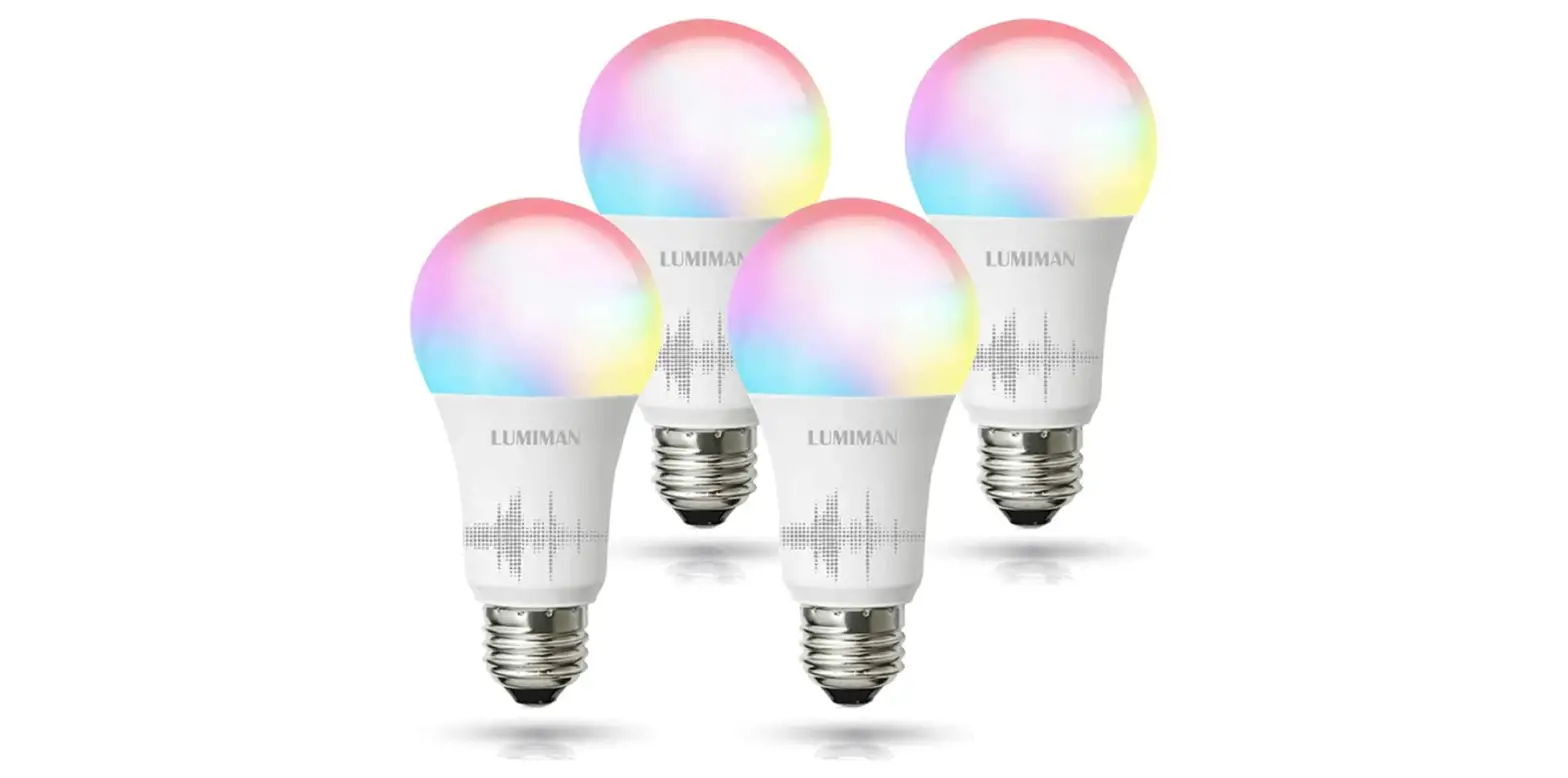
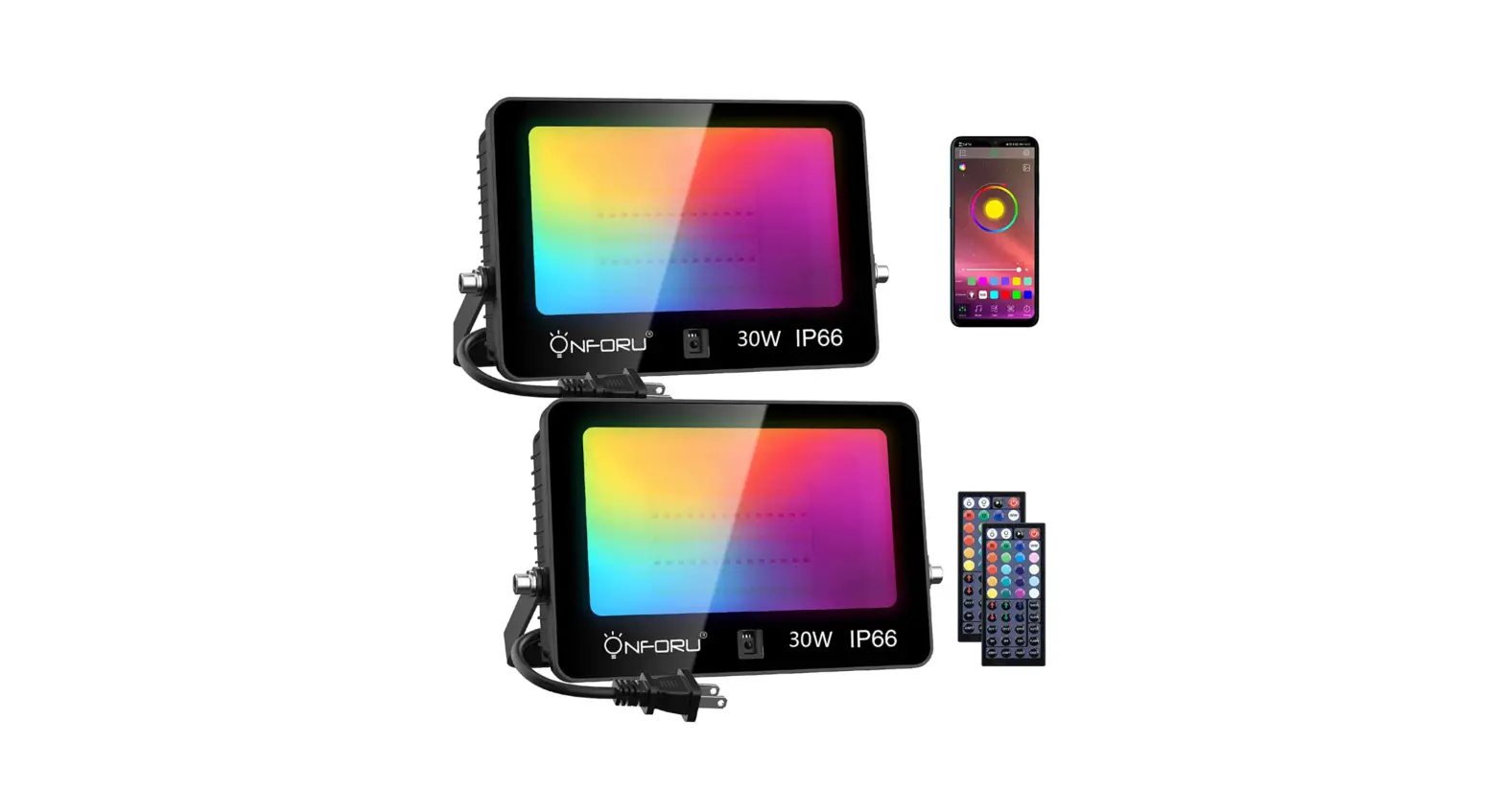
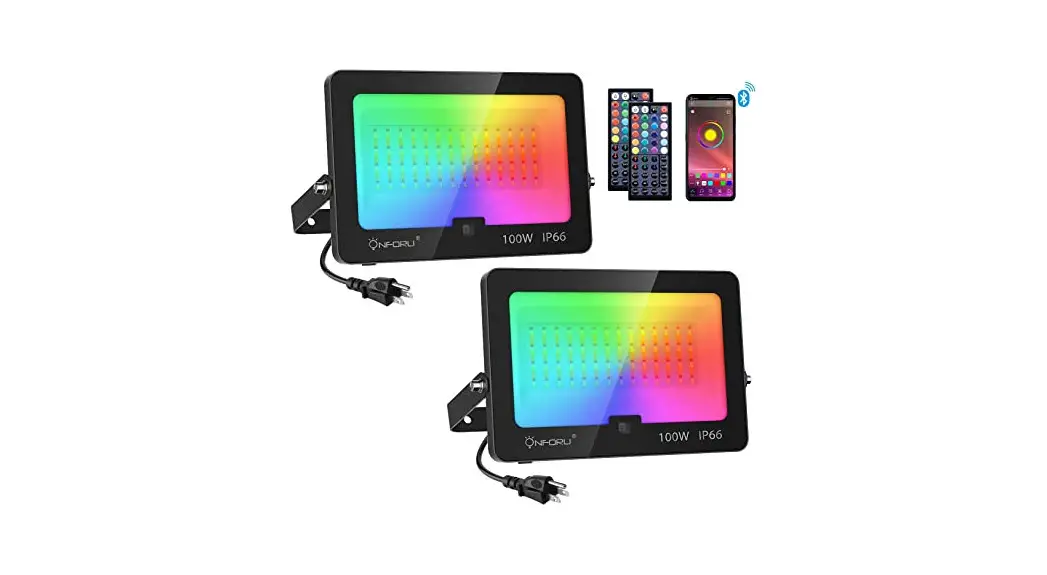
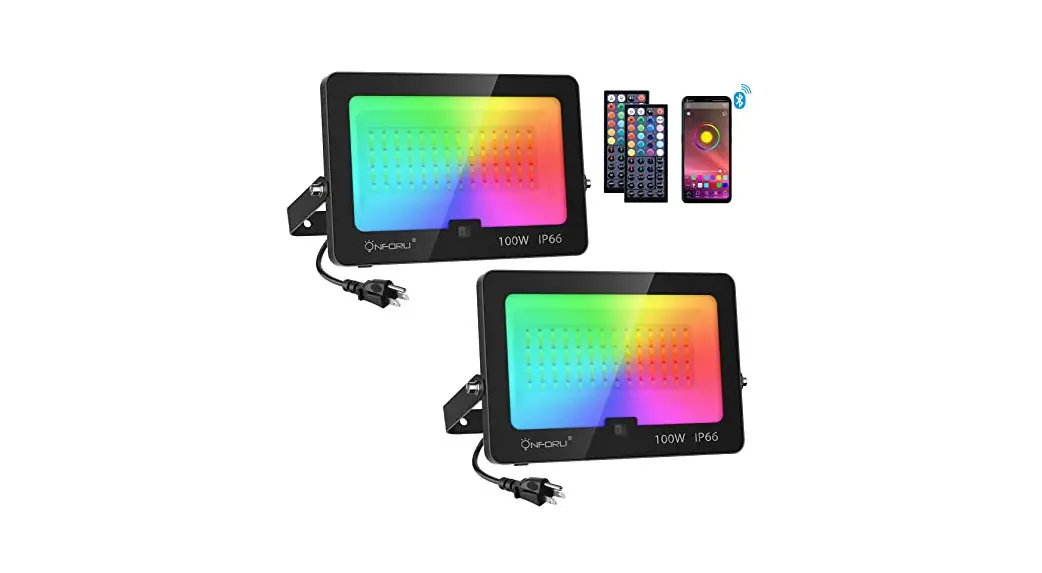
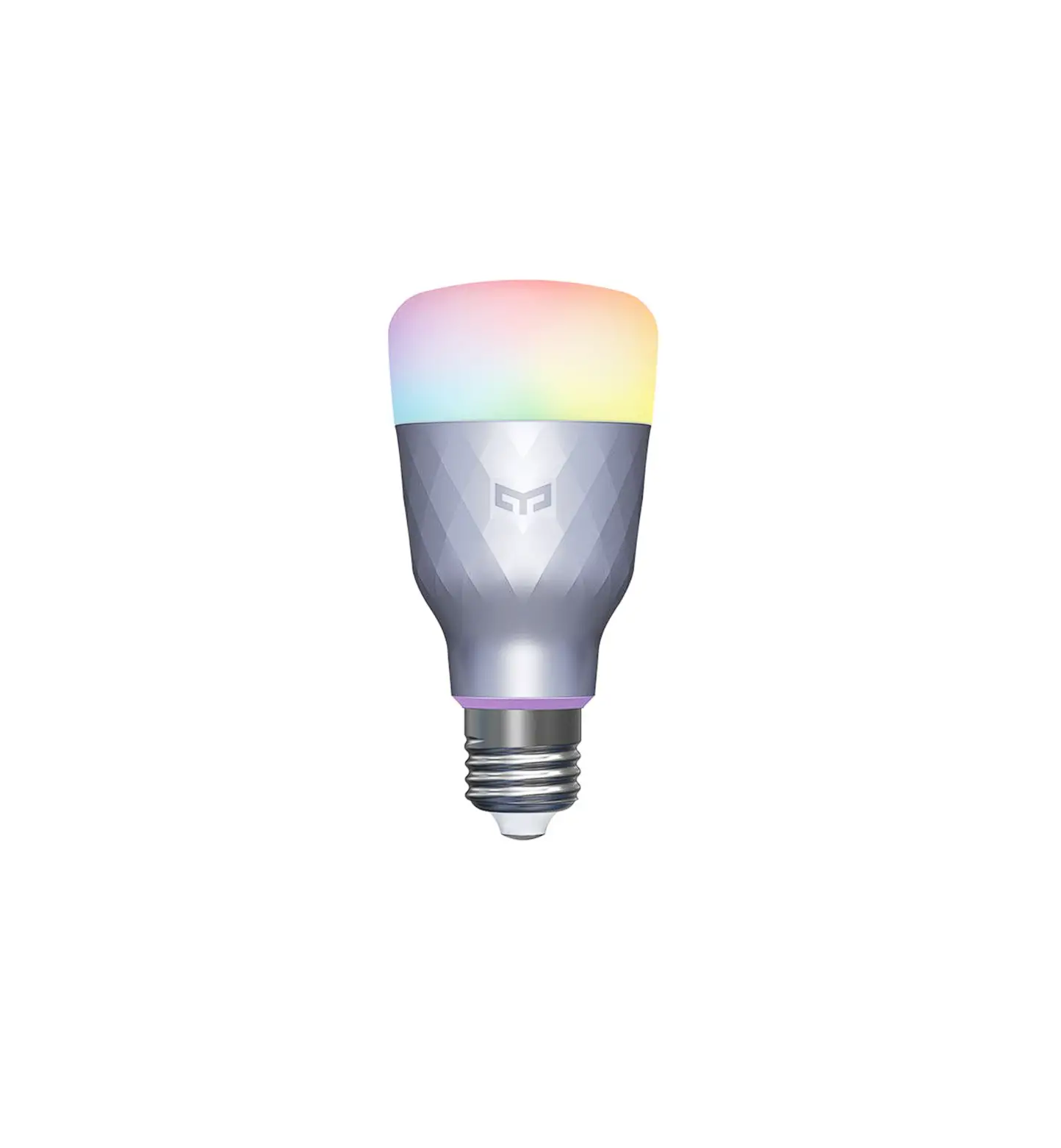
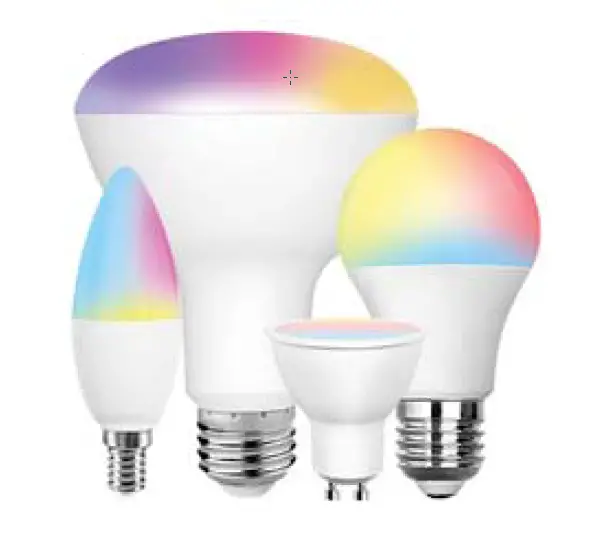
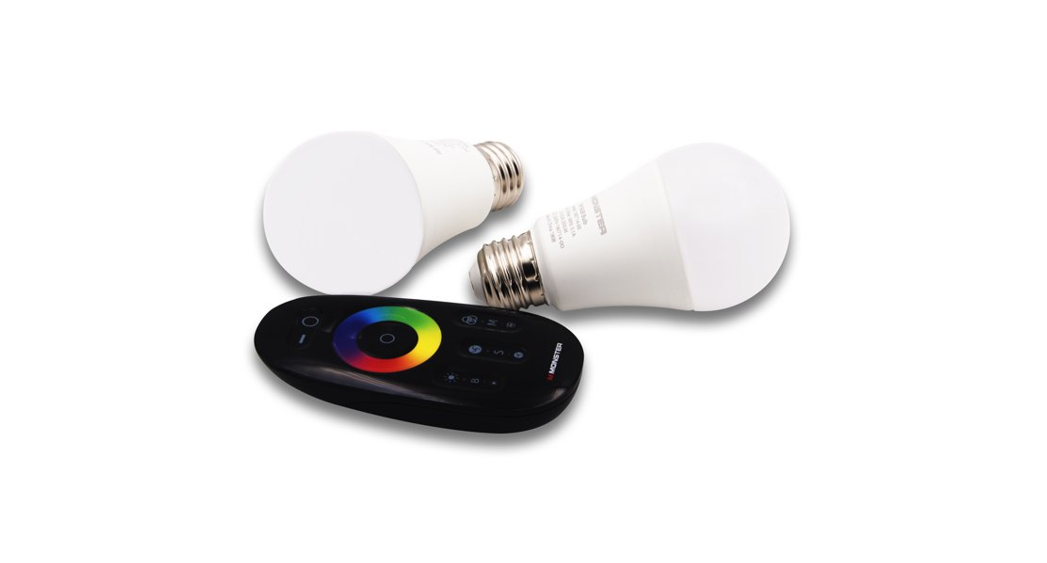
ON-GY03-RGBW-US-3 Smart LED Bulb
Product Information:
The ONFORU Smart LED Bulb is a high-quality LED bulb that offers
smart functionality. It is compatible with both Amazon Alexa and
Google Assistant, allowing for voice control. The bulb supports a
2.4 GHz network and cannot work with a 5.0 GHz network. It comes in
different models and configurations, including a 3-pack.
Key Parameters:
- Country: US, UK, EU
- SKU: ON-GY03-RGBW-US-3, ON-GY03-RGBW-UK-3,
ON-GY03-RGBW-EU-3 - Light Base: E26, B22, E27
- Bulb Type: A19, A60
- Model: MZT-GY001
- Quantity: 3-Pack
- Wattage: 7W
- Dimmable: Yes
- Input Voltage: 100-240V AC, 50/60Hz
- Color Temperature: RGB+5000K+3000K
- Max. Luminous Flux: 700LM (White Light)
- Beaming Angle: 270 Degree
- Connection Type: Wi-Fi
- Color: RGB, Daylight White, Warm White
- Dimensions: 60mm / 2.36in (diameter), 94mm / 3.7in
(height)
Product Usage Instructions:
Wi-Fi Connection:
- Ensure that your home network operates on a 2.4 GHz frequency
and that your phone is connected to the Wi-Fi network. - Make sure that your network is not hidden and is stable and
fast. - Check that your Wi-Fi password is correct. If not, re-enter the
correct password. - If a router/Wi-Fi password changes or additional smart devices
are registered with the Smart Life App, perform a factory reset of
the ONFORU Smart LED Bulb.
Factory Reset Procedure:
- Power on the LED Bulb.
- Turn the Smart Bulb ON/OFF three times until the Bulb starts
flashing quickly, indicating a successful factory reset. - Follow the steps in Section II of the user manual to pair the
LED Bulb with the Smart Life App.
Please refer to the user manual for more detailed instructions
on pairing the LED bulb with the Smart Life App, controlling the
light with Amazon Alexa, and controlling the light with Google
Assistant.
Smart LED Bulb User Guide
English
Section I General Matters for Attention.
Section II Pairing LED bulb To “Smart Life” App.
Section III Controlling Light With Amazon Alexa.
Section IV Controlling Light With Google Assistant.
Deutsch
Abschnitt I Allgemeine Hinweise zur Beachtung.
Abschnitt II Koppeln der LED-Lampe mit der App “Smart Life”..
Abschnitt III Steuern des Lichts mit Amazon Alexa. Abschnitt IV Licht steuern mit Google Assistant.
Français
Section I Questions générales à l’attention.
Section II Appairer l’ampoule LED à l’application “Smart Life”.
Section III Contrôler la lumière avec Amazon Alexa.
Section IV Contrôler la lumière avec Google Assistant.
Español
Sección I Cuestiones Generales de Atención.
Sección II Emparejar Bombilla LED a la Aplicación “Smart Life”
Sección III Controlando la Luz con Amazon Alexa.
Sección IV Controlando la luz con el Asistente de Google.
Lingua Italiana
Primo I Considerazioni generali.
Secondo II Associare le lampadine a LED all’app “Smart Life”.
Terzo III Usa Amazon Alexa per controllare la luce.
Quarto IV Utilizza l’Assistente Google per controllare le luci.
Catalogue
Pages 1 – 18
Pages 1 -2 Pages 3 – 12 Pages 13 – 15 Pages 16 – 18
Seiten 19 – 36
Seiten 19 – 20 Seiten 21 – 30 Seiten 31 – 33 Seiten 34 – 36
pages 37 – 54
pages 37 – 38 pages 39 – 48 pages 49 – 51 pages 52 – 54
páginas 55 – 72
páginas 55 – 56 páginas 57 – 66 páginas 67 – 69 páginas 70 – 72
pagine 73 – 90
pagine 73 – 74 pagine 75 – 84 pagine 85 – 87 pagine 88 – 90
English
ONFORU Smart LED Bulb User Guide
Congratulations of your purchase of the ONFORU Smart LED Bulb. We encourage you to read all safety information and instructions before your primary installation of this product.
The ONFORU Smart LED Bulb is compatible with both Amazon Alexa and Google Assistant upon initial installation and pairing of the “Smart Life” App. The “Smart Life” App. can then be connected to Amazon Alexa or Google Assistant allowing “Voice Control Functionality”.
SECTION I GENERAL MATTERS FOR ATTENTION
1. This smart LED bulb can only support 2.4 GHz network and cannot work with 5.0 GHz network. Please check if your home network is 2.4 GHz and make sure that your phone has been
2. connected to your Wi-Fi network. Please ensure your network is not hidden. If you fail to connect the bulb with your Wi-Fi, please check whether your network is stable
3. and fast. Slow networking speed may result in failure of connection. If you fail to connect the bulb with your Wi-Fi, please ensure your Wi-Fi password is correct.
4. If not, please re-enter the correct password. Wi-Fi Connection Issues If a router/Wi-Fi password changes or additional smart devices register with the “Smart Life”
5. App., a factory reset of the ONFORU Smart LED Bulb is required. If any matters regarding Smart LED Bulb connection happens, you can reset the factory setting of ONFORU Smart LED Bulb, then re-connect the Smart Bulb.
Factory Reset Procedure
1. Power on the LED Bulb. 2. Turn ON/OFF the Smart Bulb three times until the Bulb starts to flash quickly, which indicates
the success of the factory reset. 3. Follow steps in Section II of the user manual to pair the LED Bulb with the “Smart Life” App.
1
PARAMETERS
English
Country
US
UK
EU
SKU
ON-GY03-RGBW-US-3 ON-GY03-RGBW-UK-3 ON-GY03-RGBW-EU-3
Light Base
E26
B22
E27
Bulb Type
A19
A60
A60
Model
MZT-GY001
Quantity
3-Pack
Wattage
7W
Dimmable
Yes
Input Voltage
100-240V AC, 50/60Hz
Color Temperature
RGB+5000K+3000K
Max. Luminous Flux
Beaming Angle
700LM(White Light) 270 Degree
Connection Type
Wi-Fi
Color
RGB, Daylight White, Warm White
DIMENSION
60mm / 2.36in
60mm / 2.36in
94mm / 3.7in 94mm / 3.7in
ON-GY03-RGBW-US-3 ON-GY03-RGBW-EU-3
2
ON-GY03-RGBW-UK-3
English SECTION II- PAIRING LIGHT BULB WITH”SMART LIFE” App. Step 1
“Smart Life” App. installation. There are 2 options for obtaining and installing the “Smart Life” App. on your smart device. Option 1 Scan the QR code below
Option 2 Search for “Smart Life” in the App. Store or Google Play.
Step 2 Enter the “Smart Life” App. and register an account and log in.
Registration A. After entering the App., the App. will select the your current Country/Region automatically,
and you can choose the Country/Region Manually as well.
3
B. Enter your phone number or email
address for registering, and click “Get Verification Code”.
English
C, Enter the Verification Code you received and set your own passwords. Click “DONE”.
Logging IN If you already have an account for Smart Life App., Please select “Log in with existing account”.
A. After entering the App., the App. will select the your current Country/Region automatically, and you can choose the Country/Region manually.
B. Enter your phone number or email address with corresponding passwords to log in your account.
Note: You will need your “Smart Life” App. username and password to pair with Amazon Alexa and/or Google Assistant.
4
English Step 3
Add the bulb to Smart Life App. Note: This smart LED bulb can only support 2.4 GHz network and cannot work with 5.0 GHz network. Please check if your home network is 2.4 GHz and make sure that your phone has been connected to your Wi-Fi network. Please ensure your network is not hidden. (1) Tap “+” button on top right corner to add device, then tap”lighting device” to enter next page.
5
English
(2) Wi-Fi Network Configuration Smart Life App. supports two kinds of Wi-Fi networks, Normal Mode and Access Points (AP) Mode. Normal mode is the defaulted option. If your Wi-Fi signal is weak or slow, or if you can not pair the Smart Bulb with Smart Life App., you can choose to pair the Bulb via AP mode. In the AP mode, your equipment can only connect with one bulb each time.
How to pair the Bulb in 2 Modes. Normal Mode Setting 1. Power on the bulb with your own switch. 2. Repeatedly turn ON/OFF the Bulb three times until the bulb flashes quickly.
6
English
3. Tap the confirmation button to pair the Bulb.
4. Enter Wi-Fi password to join your network.
Please Note: a. This smart LED bulb can only support 2.4 GHz network and cannot work with 5.0 GHz b. network.
Please check if your home network is 2.4 GHz and make sure that your phone has been connected to your Wi-Fi network. Please ensure your network is not hidden.
5. Wait till it is successfully connected Note: If the bulb is still flashing until the progress map reaches 100%, the pairing fails, and you will need to repeat the previous 4 steps to pair the Bulb.
7
AP Mode Setting
English
2. Power on the bulb with your own switch.
1. Tap top right corner to enter AP mode setting page.
rapid blinking (about 0.5 second per blink)
3. Repeatedly turn ON/OFF the Bulb three times until the bulb flashes quickly.
8
English
4. When the Bulb is flashing quickly, repeatedly turn ON/OFF the Bulb three times until the Bulb flashes slowly (Approximately 3 seconds per time), then tap the confirmation button.
slow blinking (about 3 seconds per blink)
5. Enter Wi-Fi password to join your network and tap “Connect Now”.
9
6. Go to your phone Wi-Fi setting and connect the Wi-Fi named “SmartLife-xxxx”.
English
7. Go back to the App. page and wait till it is successfully connected.
10
English Step 4
Name the bulb and tap “Done”. You will find the device you’ve named is shown on the App. homepage. Tap the device to enter the setting page. Note: The name you give to the device will be the name for voice control on Amazon Alexa or Google Home later. For example, the device is named “Onforu smart bulb” in this user guide.
11
English
After completing SECTION II, you can now control the light with Smart Life App. on this setting page.
Try different functions on the App. to control the light and have fun.
Note: If you want to control the light with Amazon Alexa, please continue to read Section III. If you want to control the light with Google Home, please skip Section II and read Section IV directly.
12
English SECTION III CONTROLLING LIGHT WITH AMAZON ALEXA
Please make sure that your Alexa App. is connected to Amaozn Echo, and both work together successfully under your Wi-Fi network. Step A : Log in your Alexa App., tap at the top left corner, and tap “Skills”.
Step B : Type “Smart Life” to search for “Smart Life”, and enable “Smart Life” on Alexa.
13
English
Step C : Enter your account and password of Smart Life App., tap “Link Now”, then tap “Authorize” on the next page authorize Smart Life Info to Alexa.
Same account and password as Smart Life App.
Step D : Once your Smart Life account is successfully connected to Alexa, the following page will pop up. Tap “Done” on top left corner, then tap “DISCOVER DEVICES” on the next page.
14
English
Step E : Wait a few seconds for Alexa to detect the bulb from Smart Life App., and you will find the device named “Onforu Smart Bulb” has been paired to Alexa App. from Smart Life App.
After step E is done, you can now control the light with Alexa App. on this setting page.
slide to change brightness
tap to turn on/off the light
enter to change colors
Step F : Now you are able to control the light via Amazon Alexa.
Try these commands and see what happens by asking Alexa : Alexa, turn on “device name” Alexa, turn off “device name” Alexa, set “device name” to “color” Alexa, set “devcie name” to “number”
For example: “Alexa, turn on Onforu Smart Bulb”, “Alexa, dim Onforu Smart Bulb to 50%” etc.
Note: The device name is the one you give to the bulb on Smart Life App. In this user guide, the device is named “Onforu smart bulb”.
Note: If you also want to control the light with Google Home, You can continue to read Section IV and learn how to set up.
15
English SECTION IV- CONTROLLING LIGHT WITH GOOGLE ASSISTANT
Step A : Open your Google Home App., tap “Home Control” on the Left Side Bar page. Step B : Tap “+” button on the bottom right corner to enter next page.
Step C : Find “Smart Life” from the side bar list.
16
English
Step D : Enter your account and password of Smart Life App., tap “Link Now”, then tap “Authorize” on the next page to authorize your Smart Life Account Info to Google Home .
Same account and password as Smart Life App.
Step E : You will find that Google Home has found the device named “Onforu Smart Bulb” on this page.
17
Step F : Now you are able to control the light via Google Home.
English
Try these commands and see what happens by asking Google : ok, Google, turn on “device name” ok, Google, turn off “device name” ok, Google, set the “device name” to “color” ok, Google, set “device name” to “number”
For example: “ok Google, turn on Onforu smart bulb”, “ok Google, dim Onforu smart bulb To 50%” etc.
Note: The device name is the one you give to the bulb on Smart Life App. In this user guide, the device is named “Onforu smart bulb”.
18
Deutsch
ONFORU Smart LED Glühbirne Bedienungsanleitung
Herzlichen Glückwunsch zu Ihrem Kauf des ONFORU Smart LED Glühbirne.Wir empfehlen Ihnen, vor der Erstinstallation alle Sicherheitsinformationen und -instruktionen sorgfältig durchzulesen.
Die ONFORU Smart LED Birne ist bei der Erstinstallation und Kopplung der App “Smart Life” sowohl mit Amazon Alexa als auch mit Google Assistant kompatibel. Die App “Smart Life” kann dann mit Amazon Alexa oder Google Assistant verbunden werden, so dass “Sprachsteuerungsfunktionalität” ermöglicht wird.
ABSCHNITT I – ALLGEMEINE WICHTIGE THEMEN
1. Diese intelligente LED-Birne unterstützt nur 2.4 GHz-Netzwerke und funktioniert nicht mit 5.0 GHz-Netzwerke. Bitte überprüfen Sie, ob Ihr Heimnetzwerk ein 2.4 GHz ist und vergewissern Sie sich, dass Ihr Telefon mit Ihrem Wi-Fi-Netzwerk verbunden ist. Bitte stellen Sie sicher, dass Ihr Netzwerk nicht verborgen ist.
2. Sollten Sie die Glühbirne nicht mit Ihrem Wi-Fi verbinden, überprüfen Sie bitte, ob Ihr Netzwerk genug stabil und schnell ist. Langsame Netzwerkgeschwindigkeit kann zu einem Verbindungsabbruch führen.
3. Sollten Sie die Glühbirne nicht mit Ihrem Wi-Fi verbinden, vergewissern Sie sich bitte, dass Ihr Wi-Fi-Passwort korrekt ist. Ist dies nicht der Fall, geben Sie bitte das richtige Passwort erneut ein.
4. Probleme mit der Wi-Fi-Verbindung Wenn sich ein Router/Wi-Fi-Passwort ändert oder sich weitere Smart Geräte bei der “Smart Life App” anmelden, ist ein Werksreset der ONFORU Smart LED Birne erforderlich.
5. Sollten in Bezug auf die Verbindung der Smart LED-Glühbirne irgendwelche Probleme auftreten, können Sie die ONFORU Smart LED-Glühbirne auf die Werkseinstellung zurücksetzen und dann erneut anschließen.
Verfahren zum Rücksetzen auf die Werkseinstellungen
1. Schalten Sie die LED-Glühbirne ein. 2. Schalten Sie die Glühbirne dreimal ein und aus, bis sie schnell zu blinken beginnt, womit
angezeigt wird, dass die Rücksetzung auf Werkstatus erfolgreich war. 3. Führen Sie die Schritte in Abschnitt II der Bedienungsanleitung aus, um die LED-Glühbirne
mit der App “Smart Life” zu verbinden.
19
PARAMETER
Deutsch
Land
US
UK
EU
SKU
ON-GY03-RGBW-US-3 ON-GY03-RGBW-UK-3 ON-GY03-RGBW-EU-3
Leuchtensockel
E26
B22
E27
Glühlampentyp
A19
A60
A60
Modell
MZT-GY001
Mengeneinheit
3-Pack
Leistungsaufnahme
7W
in Watt
Dimmbar
Ja
Eingangsspannung
100-240V AC, 50/60Hz
Farbtemperatur
RGB+5000K+3000K
Max. Lichtstrom
700LM (Weißlicht)
Abstrahlwinkel
270 Grad
Anschlusstyp
Wi-Fi
Farbe
RGB, Tageslichtweiß, Warmweiß
Abmessungen
60mm / 2.36in
60mm / 2.36in
94mm / 3.7in 94mm / 3.7in
ON-GY03-RGBW-US-3 ON-GY03-RGBW-EU-3
20
ON-GY03-RGBW-UK-3
Deutsch ABSCHNITT II – ANSCHLUSS DER GLÜHBIRNE AN DIE “SMART LIFE” App. Schritt 1
“Smart Life” App. Installation. Es gibt 2 Möglichkeiten, die App “Smart Life” auf Ihrem Smartphone zu erhalten und zu installieren. Option 1 Scannen Sie den folgenden QR-Code
Option 2 Suchen Sie im App-Store nach “Smart Life” oder Google Play.
Schritt 2 Registrieren Sie sich mit einem Konto auf der App “Smart Life” und melden Sie sich damit an.
Registrierung A. Nach dem Betreten der App wählt die App automatisch das aktuelle Land/die aktuelle
Region aus. Sie können das Land/die Region auch manuell auswählen.
21
B. Geben Sie für die Registrierung Ihre
Telefonnummer oder E-Mail-Adresse ein und klicken Sie auf “Get Verification Code”.
Deutsch
C, G e b e n S i e n u n d e n e r h a l t e n e n Verifizierungscode ein und bestimmen Sie Ihre eigenen Passwörter. Klicken Sie auf “DONE”.
Einloggen Sollten Sie bereits ein Konto für die Smart Life App haben, wählen Sie bitte “Mit bestehendem Konto anmelden”.
A. Nach dem Betreten der App wählt die App automatisch das aktuelle Land/die aktuelle Region aus. Sie können das Land/die Region manuell auswählen.
B. Geben Sie Ihre Telefonnummer oder E-Mail-Adresse mit entsprechenden Passwörtern ein, um sich in Ihrem Konto anzumelden.
Hinweis: Sie benötigen Ihren “Smart Life” App Benutzernamen und Ihr Passwort, um eine Verbindung mit Amazon Alexa oder Google Assistant herzustellen.
22
Deutsch Schritt 3
Fügen Sie die Glühbirne zur Smart Life App hinzu. Hinweis: Diese intelligente LED-Birne unterstützt nur 2.4 GHz-Netzwerke und funktioniert nicht mit 5.0 GHz-Netzwerke. Bitte überprüfen Sie, ob Ihr Heimnetzwerk ein 2.4 GHz ist und vergewissern Sie sich, dass Ihr Telefon mit Ihrem Wi-Fi-Netzwerk verbunden ist. Bitte stellen Sie sicher, dass Ihr Netzwerk nicht ausgeblendet ist. (1) Tippen Sie auf die Schaltfläche “+” oben rechts, um das Gerät hinzuzufügen, und dann auf “lighting device” (Beleuchtungsvorrichtung), um zur nächsten Seite zu gelangen.
23
Deutsch
(2) Wi-Fi-Netzwerk-Konfiguration Die Smart Life App unterstützt zwei Arten von Wi-Fi-Netzwerken, den Normalmodus und den Access Point (AP)-Modus. Der Normalmodus ist die voreingestellte Option. Sollte Ihr Wi-Fi-Signal schwach oder langsam sein oder können Sie die Smart Glühbirne nicht mit der Smart Life App verbinden, können Sie die Birne über den AP-Modus anschließen. Im AP-Modus kann sich Ihr Telefon nur jeweils mit einer Birne verbinden.
Wie man die Glühbirne in 2 Modi koppelt. Normalmodus-Einstellung 1. Schalten Sie die Glühbirne mit Ihrem eigenen Schalter ein. 2. Schalten Sie die Glühbirne dreimal EIN/AUS, bis die Birne schnell blinkt.
24
Deutsch
3. Tippen Sie nun auf die Bestätigungstaste, um die Glühbirne zu verbinden.
4. Geben Sie das Wi-Fi-Passwort ein, um zu Ihrem Netzwerk zu gelangen.
Bitte beachten Sie: a. Diese intelligente LED-Birne kann nur 2.4 GHz-Netzwerke unterstützen und nicht mit
5.0 GHz-Netzwerken funktionieren. b. Bitte überprüfen Sie, ob Ihr Heimnetzwerk ein 2.4 GHz ist und vergewissern Sie sich, dass Ihr
Telefon mit Ihrem Wi-Fi-Netzwerk verbunden ist. Bitte stellen Sie sicher, dass Ihr Netzwerk nicht ausgeblendet ist.
5. Warten Sie, bis die Verbindung erfolgreich hergestellt worden ist. Hinweis: Blinkt die Glühbirne immer noch, wenn die Fortschrittsanzeige 100% erreicht, ist die Verknüpfung fehlgeschlagen und Sie müssen die vorherigen 4 Schritte wiederholen, um die Glühbirne anzuschließen.
25
AP-Modus-Einstellung
Deutsch
2. Schalten Sie die Glühbirne mit Ihrem eigenen Schalter ein.
1. Tippen Sie auf die rechte obere Ecke, um zur Einstellungsseite für den AP-Modus zu gelangen.
schnelles Blinken (ca. 5 Sekunden pro Zeiteinheit)
3. Schalten Sie die Lampe dreimal ein und aus, bis die Lampe schnell blinkt.
26
Deutsch
4. Sobald die Glühbirne schnell blinkt, schalten Sie sie dreimal ein und aus, bis die Birne langsam blinkt (ca. 3 Sekunden pro Zeiteinheit), und tippen dann auf die Bestätigungstaste.
langsames Blinken (ca. 3 Sekunden pro Zeiteinheit)
5. Geben Sie das Wi-Fi-Passwort ein, um zu Ihrem Netzwerk zu gelangen, und tippen Sie auf “Jetzt verbinden”.
27
Deutsch
6. Gehen Sie zu Ihrer Telefon-Wi-Fi-Einstellung und verbinden Sie das Wi-Fi mit dem Namen “SmartLife-xxxx”.
7. Gehen Sie zurück zur App-Seite und warten Sie, bis die Verbindung erfolgreich hergestellt wurde.
28
Deutsch Schritt 4
Vergeben Sie für die Glühbirne eine Bezeichnung und tippen Sie auf “Fertig”. Sie werden nun das von Ihnen benannte Gerät auf der App-Homepage sehen. Tippen Sie auf das Gerät, um zur Einstellungsseite zu gelangen. Hinweis: Der Name, den Sie dem Gerät geben, ist der Name für die spätere Sprachsteuerung auf Amazon Alexa oder Google Home. In dieser Bedienungsanleitung wird das Gerät beispielsweise “Onforu Smart Bulb” genannt.
29
Deutsch
Nach Abschluss von Abschnitt II können Sie nun auf dieser Einstellungsseite das Licht mit Smart Life App steuern.
Probieren Sie verschiedene Funktionen der App aus, um das Licht zu steuern.
Hinweis: Wenn Sie das Licht mit Amazon Alexa steuern möchten, lesen Sie bitte weiter Abschnitt III. Wenn Sie das Licht mit Google Home steuern möchten, überspringen Sie bitte Abschnitt II und lesen Sie direkt Abschnitt IV.
30
Deutsch ABSCHNITT III BELEUCHTUNGSSTEUERUNG MIT AMAZON ALEXA
Bitte stellen Sie sicher, dass Ihre Alexa App mit Amazon Echo verbunden ist und beide in Ihrem Wi-Fi-Netzwerk effektiv zusammenarbeiten. Schritt A : Melden Sie sich in Ihrer Alexa App an, tippen Sie ..in der linken oberen Ecke und dann auf “Skills”.
Schritt B : Geben Sie “Smart Life” ein, um nach “Smart Life” zu suchen, und aktivieren Sie “Smart Life” auf Alexa.
31
Deutsch
Schritt C : Geben Sie Ihr Konto und Ihr Passwort für die Smart Life App ein, tippen Sie auf “Jetzt verlinken”, und dann auf der nächsten Seite auf “Autorisieren”, um Smart Life Info für Alexa zu autorisieren.
Gleiches Konto und Passwort als Smart
Life App. Schritt D : Sobald Ihr Smart Life Konto erfolgreich mit Alexa verbunden ist, erscheint die folgende Seite. Tippen Sie auf “Done” (Fertig) in der linken oberen Ecke und dann auf der nächsten Seite auf “DISCOVER DEVICES” (Geräte entdecken).
32
Deutsch
Schritt E : Warten Sie ein paar Sekunden, bis Alexa die Glühbirne von Smart Life App erkennt, und Sie werden sehen, dass das Gerät mit dem Namen “Onforu Smart Bulb” mit der Alexa App von Smart Life App gekoppelt wurde.
Nach Abschluss von Schritt E können Sie nun auf dieser Einstellungsseite das Licht per Smart Life App steuern.
Zur Ein- oder Ausschalten des Lichts darauf tippen.
Zur Anpassung der Helligkeit hier schieben
Zur Einstellung der Farben diese Schnittstelle aufrufen
Schritt F : Jetzt können Sie das Licht über Amazon Alexa steuern.
Probieren Sie diese Befehle aus und sehen Sie, was passiert, wenn Sie Alexa Folgendes fragen: Alexa, schalte “Gerätename” ein. Alexa, schalte “Gerätename” aus. Alexa, setze “Gerätename” auf “Farbe”. Alexa, setze “Gerätename” auf “Zahl”.
Zum Beispiel: “Alexa, schalte Onforu Smart Bulb ein”, “Alexa, dimme Onforu Smart Bulb auf 50%” usw.
Hinweis: Der Gerätename ist derjenige, den Sie der Glühbirne in der Smart Life App geben. In dieser Bedienungsanleitung wird das Gerät “Onforu smart bulb” genannt.
Hinweis: Wenn Sie das Licht auch mit Google Home steuern möchten, können Sie in Abschnitt IV weiterlesen und lernen, wie man dies einrichtet.
33
Deutsch ABSCHNITT IV- BELEUCHTUNGSSTEUERUNG MIT GOOGLE ASSISTANT
Schritt A : Öffnen Sie Ihre Google Home App, tippen Sie auf “Home Control” auf der linken Seitenleistenliste. Schritt B : Tippen Sie auf die Schaltfläche “+” in der rechten unteren Ecke, um zur nächsten Seite zu gelangen.
Schritt C : Suchen Sie “Smart Life” aus der Seitenleistenliste.
34
Deutsch
Step D : Geben Sie Ihr Konto und Ihr Passwort für die Smart Life App ein, tippen Sie auf “Link now” (Jetzt verlinken) und dann auf der nächsten Seite auf “Authorize”, um Ihre Smart Life Kontoinformationen für Google Home zu autorisieren.
Gleiches Konto und Passwort als Smart
Life App. Step E : Sie werden sehen, dass Google Home das Gerät namens “Onforu Smart Bulb” auf dieser Seite gefunden hat.
35
Schritt F : Jetzt können Sie das Licht über Google Home steuern.
Deutsch
Probieren Sie diese Befehle aus und sehen Sie, was passiert, wenn Sie Google Folgendes fragen: ok, Google, schalte “Gerätename” ein. ok, Google, schalte “Gerätename” aus. ok, Google, setze “Gerätename” auf “Farbe”. ok, Google, setze “Gerätename” auf “Zahl”.
Zum Beispiel: “ok Google, schalte Onforu Smart Bulb ein”, “ok Google, dimme Onforu Smart Bulb auf 50%” etc.
Hinweis: Der Gerätename ist derjenige, den Sie der Glühbirne in der Smart Life App geben. In dieser Bedienungsanleitung wird das Gerät “Onforu smart bulb” genannt.
36
Français
Manuel d’Utilisation Ampoule LED Intelligente ONFORU
Merci d’avoir acheté notre Ampoule LED Intelligente ONFORU. Nous vous encourageons à lire l’ensemble des informations et instructions de sécurité avant d’utiliser ce produit pour la première fois.
L’Ampoule LED Intelligente ONFORU est compatible avec Amazon Alexa et avec l’Assistant Google après installation et appairage de l’application « Smart Life ». L’application « Smart Life » peut ensuite être connectée à Amazon Alexa ou à l’Assistant Google pour utiliser la « Fonction Contrôle Vocal ».
SECTION I INFORMATIONS GÉNÉRALES
1. Cette ampoule LED intelligente est uniquement compatible avec les réseaux Wifi 2,4 GHz et ne peut pas fonctionner sur des réseaux 5 GHz. Vérifiez que votre réseau domestique est bien en Wifi 2,4 GHz et assurez-vous que votre téléphone est bien connecté. Veuillez assurer que votre réseau n’est pas masqué.
2. Si vous ne parvenez pas à connecter l’ampoule à votre réseau Wifi, veuillez vérifier que votre réseau est stable et rapide. Un débit réduit peut entraîner une défaillance de la connexion.
3. Si vous ne parvenez pas à connecter l’ampoule à votre réseau Wifi, assurez-vous que le mot de passe est correct. Si ce n’est pas le cas, veuillez entrer le bon mot de passe.
4. Problèmes de connexion Wifi En cas de changement de mot de passe du routeur/Wifi ou d’appairage d’autres appareils intelligents avec l’application « Smart Life », il sera nécessaire de réinitialiser l’Ampoule LED Intelligente ONFORU en mode usine.
5. En cas de problème de connexion d’une Ampoule LED Intelligente, vous pouvez rétablir les réglages d’usine de l’Ampoule LED Intelligente ONFORU, puis reconnecter l’Ampoule Intelligente.
Procédure de Réinitialisation d’Usine
1. Allumez l’Ampoule LED. 2. Allumez/éteignez l’Ampoule Intelligente trois fois jusqu’à ce qu’elle se mette à clignoter
rapidement. Cela qui indique que la réinitialisation d’usine a bien été effectuée. 3. Suivez les étapes décrites dans la Section II du manuel d’utilisation pour appairer l’Ampoule
LED Intelligente avec l’application « Smart Life ».
37
PARAMÈTRES
Français
Pays
US
UK
EU
SKU
ON-GY03-RGBW-US-3 ON-GY03-RGBW-UK-3 ON-GY03-RGBW-EU-3
Culot
E26
B22
E27
Type d’Ampoule
A19
A60
A60
Modèle
MZT-GY001
Quantité
lot de 3
Puissance en watts
7W
Variateur
Oui
Tension d’Entrée
100-240V AC, 50/60Hz
Température de Couleur
Flux Lumineux Max.
Angle du Faisceau
RGB+5000K+3000K 700 lm (Lumière Blanche)
270 degrés
Type de Connexion
Wi-Fi
Couleur
RVB, Lumière du Jour, Blanc Chaud
DIMENSIONS
60mm / 2.36in
60mm / 2.36in
94mm / 3.7in 94mm / 3.7in
ON-GY03-RGBW-US-3 ON-GY03-RGBW-EU-3
ON-GY03-RGBW-UK-3 38
Français SECTION II APPAIRAGE DE L’AMPOULE AVEC l’APPLICATION « SMART LIFE » Étape 1
Installation de l’application « Smart Life » Vous avez le choix entre deux méthodes pour télécharger et installer l’application « Smart Life » sur votre appareil connecté. Option 1 Scannez le QR code ci-dessous.
Option 2 Recherchez « Smart Life » sur le Google Play Store ou l’App Store.
Étape 2 Lancer l’application « Smart Life », créer un compte et se connecter.
Inscription A. Après avoir lancé l’application, votre pays/région sera automatiquement identifié, mais vous
pouvez aussi choisir votre pays/région manuellement.
39
B. Entrez votre numéro de téléphone ou
votre e-mail pour vous vous inscrire, puis
sélectionnez « Get Verification Code » (Obtenir le code de vérification).
Français
C. Entrez le Code de Vérification que vous avez reçu et entrer votre mot de passe. Cliquez sur « DONE » (Terminé).
Se Connecter Si vous avez déjà un compte pour l’application Smart Life, sélectionnez « Log in with existing account » (se connecter avec un compte existant). A. Une fois dans l’application, votre pays/région sera automatiquement identifié et vous pouvez aussi choisir votre pays/région manuellement. B. Entrez votre numéro de téléphone ou votre e-mail et votre mot de passe pour vous connecter à votre compte.
40
Français
Note : Vous aurez besoin du nom d’utilisateur et du mot de passe de l’application « Smart Life » pour l’appairage avec Amazon Alexa ou Google Assistant.
Étape 3 Ajouter l’ampoule à l’application Smart Life.
Note : Cette ampoule LED intelligente est uniquement compatible avec les réseaux Wifi 2,4 GHz et ne peut pas fonctionner sur des réseaux 5 GHz. Vérifiez que votre réseau domestique est bien en Wifi 2,4 GHz et assurez-vous que votre téléphone est bien connecté. Veuillez assurer que votre réseau n’est pas masqué. (1) Sélectionnez le bouton « + » situé dans le coin supérieur droit pour ajouter un appareil, puis
« lighting device » (dispositif d’éclairage) pour accéder à la page suivante.
41
Français
(2) Configuration du Réseau Wifi L’application Smart Life prend en charge deux types de réseaux Wifi, le Mode Normal et le Mode Points d’Accès (AP). Le mode par défaut est le Mode Normal. Si votre signal Wifi est faible, si le débit est réduit, ou si vous ne pouvez pas réaliser l’appairage de l’Ampoule Intelligente avec l’application Smart Life, vous pouvez le faire via le mode AP. En mode AP, votre téléphone pourra se connecter à une seule ampoule chacque fois.
Comment réaliser l’appairage dans les 2 modes. En Mode Normal 1. Allumez l’ampoule avec l’interrupteur. 2. Allumez/éteignez l’ampoule à trois reprises jusqu’à ce qu’elle clignote rapidement.
42
Français
3. Appuyez sur le bouton de confirmation pour valider l’appairage de l’ampoule.
4. Entrez le mot de passe Wifi pour rejoindre votre réseau.
Veuillez noter : a. Cette ampoule LED intelligente est uniquement compatible avec les réseaux Wifi 2,4 GHz et
ne peut pas fonctionner sur des réseaux 5 GHz. b. Vérifiez que votre réseau domestique est bien en Wifi 2,4 GHz et assurez-vous que votre
téléphone est bien connecté. Veuillez assurer que votre réseau n’est pas masqué.
5. Attendez jusqu’à la connexion est établie. Note : Si l’ampoule continue à clignoter jusqu’à ce que la progression atteigne 100 %, l’appairage n’a pas fonctionné et vous devrez renouveler les 4 étapes précédentes pour réaliser l’appairage.
43
En Mode AP
Français
2. A l l u m e z l ‘ a m p o u l e a v e c l’interrupteur.
1. Tapez dans le coin supérieur
droite pour accéder à la page de configuration du mode AP.
clignotement rapide (Clignote toutes les 0,5 secondes)
3. Allumez/éteignez l’ampoule à trois reprises jusqu’à ce qu’elle clignote rapidement.
44
Français
4. Lorsque l’ampoule clignote rapidement, allumez/éteignez l’ampoule à trois reprises jusqu’à ce qu’elle clignote lentement (environ 3 secondes), appuyez ensuite sur le bouton de confirmation.
clignotement lent (Clignote toutes les 3 secondes)
5. Entrez le mot de passe Wifi pour rejoindre votre réseau et appuyez sur « Connect Now » (Se connecter maintenant).
45
Français
6. Accédez aux paramètres Wifi de votre téléphone et connectez-vous au réseau Wifi nommé « SmartLife-xxxx ».
7. Retournez dans l’application et attendez que la connexion soit établie.
46
Français Étape 4
Nommez l’ampoule et appuyez sur « Done » (Terminé). Vous constaterez que l’appareil que vous venez de nommer apparaît sur la page d’accueil de l’application. Sélectionnez l’appareil de votre choix pour accéder à sa page de configuration. Note : Le nom que vous donnez à l’appareil sera le nom utilisé ensuite pour le contrôle vocal sur Amazon Alexa ou Google Home. Par exemple, dans ce manuel d’utilisation, elle est nommée « Ampoule Intelligente Onforu ».
47
Français
Après avoir terminé les étapes de la SECTION II, vous pouvez maintenant contrôler l’ampoule grâce à l’application Smart Life.
Essayez différentes fonctions sur App pour contrôler la lumière et vous amuser.
Note : Si vous souhaitez contrôler l’éclairage avec Amazon Alexa, passez à la Section III. Si vous souhaitez contrôler l’éclairage avec Google Home, ignorez la section II et passez directement à la Section IV.
48
Français
SECTION III CONTRÔLER L’ÉCLAIRAGE AVEC AMAZON ALEXA
Assurez-vous que votre application Alexa est connectée à Amazon Echo et que les deux fonctionnent correctement sur votre réseau Wifi domestique.
Étape A : Connectez-vous à votre application Alexa, touchez sélectionnez « Skills ».
le coin supérieur gauche et
Étape B : Tapez « Smart Life » pour rechercher « Smart Life » et activez « Smart Life » dans Alexa.
49
Français
Étape C : Entrez votre nom d’utilisateur et votre mot de passe de l’application Smart Life, sélectionnez « Link Now » (lier maintenant), puis sur « Authorize » (autoriser) sur la page suivante pour autoriser les Infos Smart Life sur Alexa.
Même compte et mot de passe que Smart Life App. Étape D : Une fois votre compte Smart Life est connecté avec Alexa, la page suivante s’affiche. Appuyez sur « Done » (Terminé) dans le coin supérieur gauche, puis sur « DISCOVER DEVICES » (découvrir les appareils) sur la page suivante.
50
Français
Étape E : Patientez quelques secondes pour qu’Alexa détecte l’ampoule lié à l’application Smart Life et vous trouverez l’appareil nommé « Ampoule Intelligente Onforu » qui a été associé à l’application Alexa via Smart Life.
Une fois l’étape E terminée, vous pouvez contrôler l’éclairage avec l’application Alexa sur cette page de réglage.
glisser pour régler la luminosité
appuyez pour allumer / éteindre la lumière
enter to change colors
Étape F : Vous pouvez à présent contrôler l’éclairage via Amazon Alexa.
Essayez ces commandes vocales en demandant à Alexa : Alexa, allumes « nom de l’appareil ». Alexa, allumes « nom de l’appareil ». Alexa, règles « nom de l’appareil » sur « couleur ». Alexa, règles « nom de l’appareil » sur « numéro ».
Par exemple : « Alexa, allumes Ampoule Intelligente Onforu », « Alexa, luminosité Ampoule Intelligente Onforu à 50 % » etc.
Note : Le nom de l’appareil est celui que vous donnez à l’ampoule dans l’application Smart Life. Dans ce manuel d’utilisation, elle est nommée « Ampoule Intelligente Onforu ».
Note : Si vous souhaitez également contrôler l’éclairage avec Google Home, lisez la Section IV. 51
Français SECTION IV CONTRÔLER L’ÉCLAIRAGE AVEC L’ASSISTANT GOOGLE
Étape A : Ouvrez votre application Google Home, appuyez sur « Contrôle de la maison » sur la barre latérale à gauche. Étape B : Appuyez sur le bouton « + » en bas à droite pour accéder à la page suivante.
Étape C : Trouvez « Smart Life » dans la liste de la barre latérale.
52
Français
Étape D : Entrez votre nom d’utilisateur et votre mot de passe de l’application Smart Life, Appuyez sur « Lier Maintenant », puis sur « Autoriser » sur la page suivante pour autoriser les infos Smart Life sur Google Home.
Même compte et mot de passe que Smart Life App. Étape E : Sur cette page, vous constaterez que Google Home a trouvé l’appareil nommé « Ampoule Intelligente Onforu ».
53
Étape F : Vous pouvez à présent contrôler l’éclairage via Google Home.
Français
Essayez ces commandes vocales en demandant à l’Assistant Google : Ok Google, allumes « nom de l’appareil ». Ok Google, allumes « nom de l’appareil ». Ok Google, règles « nom de l’appareil » sur « couleur ». Ok Google, règles « nom de l’appareil » sur « numéro ».
Par exemple : « Ok Google, allumes Ampoule Intelligente Onforu », « Ok Google, luminosité Ampoule Intelligente Onforu à 50 % » etc.
Note : Le nom de l’appareil est celui que vous donnez à l’ampoule dans l’application Smart Life. Dans ce manuel d’utilisation, elle est nommée « Ampoule Intelligente Onforu ».
54
Español
Instrucciones de uso de la bombilla Smart LED ONFORU
Gracias por comprar nuestra bombilla Smart LED ONFORU. Antes de comenzar a instalar este producto, le recomendamos leer atentamente la información e instrucciones de seguridad.
La bombilla Smart LED de ONFORU es compatible con Amazon Alexa y el Asistente de Google tras su instalación inicial y sincronización con la aplicación «Smart Life». Entonces, podrá conectar la aplicación «Smart Life» con Amazon Alexa o el asistente de Google permitiendo la «Funcionalidad de control de voz».
SECCIÓN I – CUESTIONES GENERALES DE IMPORTANCIA
1. Esta bombilla LED solo es compatible con redes de 2.4 GHz y, por lo tanto, no funciona con redes de 5.0 GHz. Compruebe que su red doméstica sea de 2.4 GHz y asegúrese de que su teléfono móvil se ha conectado a la red wifi. Por favor, asegúrese de que su red no está oculta.
2. Si es imposible que conecte la luz LED a la red wifi, compruebe si su red es rápida y estable. Si la velocidad de navegación es muy lenta, puede fallar la conexión.
3. Si no puede conectar la luz LED a la red wifi, asegúrese de que la contraseña wifi sea la correcta. En caso de no ser así, introduzca la contraseña correcta.
4. Problemas de conexión wifi Si se modifica la contraseña de un rúter/red wifi o si hay dispositivos inteligentes adicionales registrados en la aplicación de «Smart Life», deberá restablecer los ajustes de fábrica de la bombilla Smart LED de ONFORU.
5. Si surge cualquier problema relacionado con la conexión de la bombilla Smart LED, puede restablecer los ajustes predeterminados de la bombilla Smart LED de ONFORU e intentar volver a conectarla.
Procedimiento de restablecimiento de fábrica
1. Encienda la bombilla LED. 2. Encienda y apague la bombilla tres veces hasta que esta comience a destellar rápidamente,
lo que le indicará que ha restablecido los ajustes predeterminados con éxito. 3. Siga los pasos de la Sección II del presente manual de instrucciones para sincronizar la
bombilla LED con la aplicación «Smart Life».
55
PARÁMETROS
Español
País SKU Casquillo Tipo de bombilla Modelo Cantidad Potencia Regulable Voltaje de entrada Temperatura del color Máx. Flujo luminoso Ángulo de emisión Tipo de conexión Color
US
UK
EU
ON-GY03-RGBW-US-3 ON-GY03-RGBW-UK-3 ON-GY03-RGBW-EU-3
E26
B22
E27
A19
A60
A60
MZT-GY001
Lote de 3
7W
Sí
100-240V AC, 50/60Hz
RGB+5000K+3000K
700LM (luz blanca)
270 grados Wi-Fi
RGB, luz blanca diurna, blanco cálido
DIMENSIONES
60mm / 2.36in
60mm / 2.36in
94mm / 3.7in 94mm / 3.7in
ON-GY03-RGBW-US-3 ON-GY03-RGBW-EU-3
56
ON-GY03-RGBW-UK-3
SECCIÓN II – SINCRONIZACIÓN DE LA BOMBILLA CON LA APLICACIÓN «SMART LIFE».
Español
Paso 1 Instale la aplicación «Smart Life».
Hay 2 opciones disponibles para obtener e instalar la aplicación «Smart Life» en un dispositivo inteligente.
Opción 2 Busque la aplicación «Smart Life» en la App Store o Google Play.
Opción 2 Busque la aplicación «Smart Life» en la App Store o Google Play.
Paso 2 Abra la aplicación «Smart Life», regístrese con una cuenta e inicie sesión.
Registro A. Tras abrir la aplicación, esta seleccionará de manera automática el país/región donde se
encuentra, aunque también podrá escoger el país/región de forma manual.
57
B. Introduzca su número de teléfono o
dirección de correo electrónico para
registrarse y haga clic en «Obtener código de verificación».
Español
C. Introduzca el código de verificación recibido y establezca sus propias contraseñas. Haga clic en «LISTO».
Inicio de sesión Si ya tiene una cuenta en la aplicación de Smart Life, seleccione «Iniciar sesión con una cuenta existente».
A. Tras abrir la aplicación, esta seleccionará de manera automática el país/región donde se encuentra, aunque también podrá escoger el país/región de forma manual.
B. Introduzca su número de teléfono o dirección de correo electrónico con las contraseñas correspondientes para iniciar sesión con su cuenta.
58
Español
Nota: Necesitará su nombre de usuario y contraseña de la aplicación «Smart Life» para sincronizar el producto con Amazon Alexa o el asistente de Google.
Paso 3 Añadir la bombilla a la aplicación Smart Life.
Nota: Esta bombilla LED solo es compatible con redes de 2.4 GHz y, por lo tanto, no funciona con redes de 5.0 GHz. Compruebe que su red doméstica sea de 2.4 GHz y asegúrese de que su teléfono móvil se ha conectado a la red wifi. Por favor, asegúrese de que su red no está oculta. (1) Pulse el botón «+», situado en la esquina superior derecha, para añadir el dispositivo.
Después, pulse «dispositivo de iluminación» para acceder a la siguiente página.
59
Español
(2) Configuración de la red wifi La aplicación de Smart Life es compatible con dos tipos de redes wifi: el modo normal y el modo de puntos de acceso (AP). El modo normal es la opción predeterminada. Si su señal wifi es demasiado débil o lenta, o si es imposible que sincronice la bombilla con la aplicación Smart Life, puede elegir sincronizarla a través del modo AP. En el modo AP, el teléfono móvil solo puede conectarse con una bombilla a la vez.
Cómo sincronizar la bombilla en los 2 modos. Configuración del modo normal 1. Encienda la bombilla con su propio interruptor. 2. Encienda/apague la bombilla tres veces hasta que esta parpadee rápidamente.
60
Español
3. Pulse el botón de confirmación para sincronizar la bombilla.
4. I n t r o d u z c a l a c o n t r a s e ñ a w i f i p a r a conectarse a la red.
Nota: a. Esta bombilla LED solo es compatible con redes de 2.4 GHz y, por lo tanto, no funciona con
redes de 5.0 GHz.
b. Compruebe que su red doméstica sea de 2.4 GHz y asegúrese de que su teléfono móvil se ha conectado a la red wifi. Por favor, asegúrese de que su red no está oculta.
5. Espere a que la bombilla se conecte con éxito Nota: Si la bombilla sigue parpadeando cuando la barra de carga haya alcanzado el 100 %, la sincronización habrá sufrido un fallo y deberá repetir los 4 pasos anteriores para vincular la bombilla.
61
Configuración del modo AP
Español
2. Encienda la bombilla con su propio interruptor.
1. Pulse sobre la esquina superior
derecha para acceder a la página de configuración del modo AP.
parpadeo rápido (alrededor de 0,5 segundos por parpadeo)
3. Encienda/apague la bombilla tres veces hasta que esta parpadee rápidamente.
62
Español
4. Cuando la bombilla parpadee rápidamente, encienda y apáguela tres veces hasta que parpadee lentamente (aproximadamente, cada 3 segundos). A continuación, toque el botón de confirmación.
parpadeo lento (alrededor de 3 segundos por parpadeo)
5. Introduzca la contraseña wifi para conectarse a la red y pulse «Conectar ahora».
63
Español
6. Diríjase a los ajustes wifi de su teléfono móvil y conéctese a la red wifi llamada «SmartLifexxxx».
7. Regrese a la aplicación y espere hasta que se conecte con éxito.
64
Español Paso 4
Otórguele un nombre a la bombilla y pulse sobre «Listo». Deberá visualizar el dispositivo nombrado en la página inicial de la aplicación. Pulse sobre el dispositivo para entrar en la página de configuración. Nota: El nombre que le dé al dispositivo será el nombre que deberá utilizar para el control de voz de Amazon Alexa o el asistente de Google. Por ejemplo, en el presente manual de instrucciones, el dispositivo se denomina «Onforu smart bulb».
65
Español
Tras completar la SECCIÓN II, podrá controlar la luz mediante la página de configuración de la aplicación Smart Life.
Prueba diferentes funciones en la aplicación para controlar la luz y divertirte.
Nota: Si desea controlar la luz mediante Amazon Alexa, continúe leyendo la Sección III. Si desea controlar la luz mediante Google Home, omita la Sección II y proceda a leer la Sección IV directamente.
66
Español SECCIÓN III CONTROL DE LUZ MEDIANTE AMAZON ALEXA
Por favor, asegúrese de que la aplicación de Alexa está conectada a Amazon Echo y de que funcionan correctamente bajo la red wifi. Paso A : Inicie sesión en la aplicación de Alexa. Pulse sobre en la esquina superior izquierda y después sobre «Habilidades».
Paso B : Escriba «Smart Life» para buscar la aplicación y habilítela en Alexa.
67
Español
Paso C : Introduzca la cuenta y contraseña de la aplicación Smart Life, pulse sobre «Vincular ahora» y, después, sobre «Autorizar» en la siguiente página para autorizar que Alexa utilice la información de Smart Life.
La misma cuenta y contraseña que la aplicación Smart Life. Paso D : Una vez haya vinculado correctamente la cuenta de Smart Life con Alexa, aparecerá la siguiente ventana emergente. Pulse «Listo», situado en la esquina superior izquierda y después toque «DESCUBRIR DISPOSITIVOS» en la página siguiente.
68
Español
Paso E : Espere unos segundos a que Alexa detecte la bombilla desde la aplicación Smart Life y podrá observar que el dispositivo llamado «Onforu Smart Bulb» se ha sincronizado con la aplicación Alexa.
Tras completar el paso E, podrá controlar la luz mediante la página de configuración de la aplicación Alexa.
deslice para cambiar el brillo
toque para encender / apagar la luz
entra para cambiar colores
Paso F : Ahora podrá controlar la luz a través de Amazon Alexa.
Pruebe estos comandos y vea qué sucede preguntando a Alexa: Alexa, enciende «nombre del dispositivo» Alexa, apaga «nombre del dispositivo» Alexa, pon «nombre del dispositivo» «color» Alexa, pon «nombre del dispositivo» a «número»
Por ejemplo: «Alexa, enciende Onforu Smart Bulb», «Alexa, baja la luz de Onforu Smart Bulb al 50 %», etc.
Nota: El nombre del dispositivo es el que le da a la bombilla desde la aplicación Smart Life. En el presente manual de instrucciones, el dispositivo se denomina «Onforu smart bulb».
Nota: Si desea controlar la luz también mediante Google Home, proceda a leer la Sección IV y aprenda a configurar el dispositivo.
69
Español SECCIÓN IV – CONTROL DE LA LUZ CON EL ASISTENTE DE GOOGLE
Paso A : Abra la aplicación de Google Home, pulse sobre el «Control de inicio», situado en la barra lateral izquierda de la página. Paso B : Pulse el botón «+», situado en la esquina inferior derecha, para acceder a la siguiente página.
Paso C : Busque «Smart Life» en la lista de la barra lateral.
70
Español
Paso D : Introduzca la cuenta y contraseña de la aplicación Smart Life. Pulse sobre «Vincular ahora» y, después, sobre «Autorizar» en la siguiente página para autorizar que Google Home utilice la información de Smart Life.
La misma cuenta y contraseña que la aplicación Smart Life. Paso E : Podrá comprobar que Google Home ha encontrado el dispositivo llamado «Onforu Smart Bulb» en esta página.
71
Paso F : Ahora podrá controlar la luz a través de Google Home.
Español
Pruebe estos comandos y vea qué sucede preguntando a Google: Ok, Google, enciende «nombre del dispositivo» Ok, Google, apaga «nombre del dispositivo» Ok, Google, pon «nombre del dispositivo» «color» Ok, Google, pon «nombre del dispositivo» a «número»
Por ejemplo: «Ok, Google, enciende Onforu Smart Bulb», «Ok, Google, baja la luz de Onforu Smart Bulb al 50 %», etc.
Nota: El nombre del dispositivo es el que le da a la bombilla desde la aplicación Smart Life. En el presente manual de instrucciones, el dispositivo se denomina «Onforu smart bulb».
72
Lingua Italiana
Guida all’utilizzo della lampadina Smart LED ONFORU
Congratulazioni per l’acquisto della lampadina Smart LED ONFORU. Vi invitiamo a leggere tutte le informazioni e le istruzioni di sicurezza prima dell’installazione iniziale di questo prodotto.
La lampadina Smart LED ONFORU è compatibile sia con Amazon Alexa sia con L’Assistente di Google al momento della prima installazione e dell’associazione con l’applicazione “Smart Life”. L’applicazione “Smart Life” può essere collegata ad Amazon Alexa o all’Assistente di Google, abilitando la funzione “Controllo Vocale”.
SEZIONE I INDICAZIONI GENERALI
1. Questa lampadina smart LED può funzionare solo con la rete 2.4 GHz e non supporta la rete 5.0 GHz. Si prega di controllare che la rete domestica è di 2.4 GHz e assicurarsi che il telefono è stato connesso alla rete Wi-Fi. Assicurarsi che la rete non è nascosta.
2. Se non si riesce a collegare la lampadina al Wi-Fi, verificare è la rete è stabile e veloce. La bassa velocità di rete può causare un errore di connessione.
3. Se non si riesce a collegare la lampadina al Wi-Fi, assicurarsi che la password del Wi-Fi è corretta. In caso contrario, immettere la password correttamente.
4. Problemi di connessione Wi-Fi Se si cambia la password di un router/Wi-Fi o altri dispositivi aggiuntivi smart registrati con la app “Smart Life” è necessario un reset di fabbrica della lampadina smart LED ONFORU.
5. Se si verificano problemi relativi alla connessione della lampadina Smart LED, è possibile ripristinare le impostazioni di fabbrica della lampadina Smart LED ONFORU, quindi ricollegarla.
Procedura del reset di fabbrica
1. Accendere la lampadina a LED. 2. Accendere e spegnere la lampadina Smart tre volte fino a quando la lampadina inizia a
lampeggiare rapidamente, indica che il reset di fabbrica avvenuto con successo. 3. Seguire i passaggi della Sezione II del manuale utente per collegare la lampadina LED
all’applicazione “Smart Life”.
73
PARAMETRI
Lingua Italiana
Paese
US
UK
EU
SKU
ON-GY03-RGBW-US-3 ON-GY03-RGBW-UK-3 ON-GY03-RGBW-EU-3
Attacco lampadina
E26
B22
E27
Tipo di lampadina
A19
A60
A60
modello
MZT-GY001
Quantità
Pacco da 3
Potenza
7W
Dimmerabile
Sì
Corrente in ingresso
Temperatura colore
100-240V AC, 50/60Hz RGB+5000K+3000K
Max. fascio luminoso
Angolo fascio luminoso
Tipo di connessione
Colore
700LM (luce bianca) 270 gradi Wi-Fi
RGB, bianco luce diurna, bianco caldo
DIMENSIONE
60mm / 2.36in
60mm / 2.36in
94mm / 3.7in 94mm / 3.7in
ON-GY03-RGBW-US-3
ON-GY03-RGBW-EU-3
74
ON-GY03-RGBW-UK-3
Lingua Italiana SEZIONE II- ASSOCIARE LA LAMPADINA ALL’App “SMART LIFE”. Passaggio 1
Installazione dell’applicazione “Smart Life”. Esistono 2 opzioni per ottenere ed installare l’applicazione “Smart Life” sul dispositivo smart. Opzione 1 Scansionare il codice QR
Opzione 2 Cercare “Smart Life” nell’App. Store o Google Play.
Passaggio 2 Accedere all’App “Smart Life”, effettuare la registrazione o il login.
Registrazione A. Dopo aver installato l’applicazione, verrà selezionato automaticamente il Paese attuale,
oppure si può scegliere il Paese manualmente.
75
B. Inserire il proprio numero di telefono
o indirizzo email per la registrazione e cliccare su “Ottieni codice di verifica”.
Lingua Italiana
C, Inserire il codice di verifica ricevuto e impostare la propria password. Cliccare su “FATTO”.
Login Se si dispone già di un account per l’applicazione Smart Life, selezionare “Accedi con account esistente”.
A. Dopo aver installato l’applicazione, verrà selezionato automaticamente il Paese attuale, oppure si può scegliere il Paese manualmente.
B. Inserire il proprio numero di telefono o indirizzo email con la password corrispondente per accedere al proprio account.
Nota Sarà necessario il nome utente e password dell’applicazione “Smart Life” per collegarsi con Amazon Alexa e Assistente di Google.
76
Lingua Italiana Passaggio 3
Associare la lampadina all’app Smart Life. Nota: Questa lampadina smart LED può funzionare solo con la rete 2.4 GHz e non supporta la rete 5.0 GHz. Si prega di controllare che la rete domestica è 2.4 GHz e assicurarsi che il telefono è stato collegato alla rete Wi-Fi. Assicurarsi che la rete non è nascosta. (1) Toccare il pulsante “+” nell’angolo in alto a destra per aggiungere il dispositivo, quindi
toccare “dispositivo di illuminazione” per accedere alla pagina successiva.
77
Lingua Italiana
(2) Configurazione della rete Wi-Fi Smart Life App. supporta due tipi di reti Wi-Fi, Modalità Normale e Access Points (AP) Mode. La Modalità Normale è l’opzione predefinita. Se il segnale Wi-Fi è debole o lento, o non è possibile associare la lampadina Smart con l’applicazione Smart Life, è possibile scegliere di associare la lampadina in modalità AP. In modalità AP, il telefono può connettersi con una sola lampadina ogni volta.
Come associare la lampadina nelle 2 modalità. Impostazione Modalità Normale 1. Accendere la lampadina dall’interruttore. 2. Accendere e spegnere la lampadina tre volte finché la lampadina lampeggia rapidamente.
78
Lingua Italiana
3. Toccare il pulsante di conferma per associare la lampadina.
4. Immettere la password Wi-Fi per accedere alla rete.
Si prega di notare: a. Questa lampadina smart LED può funzionare solo con la rete 2.4 GHz e non supporta la rete
5.0 GHz. b. Controllare che la rete domestica è 2.4 GHz e assicurarsi che il telefono è connesso alla rete
Wi-Fi. Assicurarsi che la rete non è nascosta.
5. Attendere fino al completamento della connessione Nota: se la lampadina continua a lampeggiare fino a quando la barra di avanzamento raggiunge il 100%, il collegamento non è riuscito e sarà necessario ripetere i precedenti 4 passaggi per associare la lampadina.
79
Impostazioni Modalità AP
Lingua Italiana
2. A c c e n d e r e l a l a m p a d i n a dall’interruttore.
1. Toccare l’angolo in alto a destra per accedere alla pagina di impostazione della modalità AP.
lampeggiamento rapido (circa 0,5 secondi per un lampeggiamento)
3. A c c e n d e r e e s p e g n e r e l a lampadina tre volte finché la lampadina non lampeggia rapidamente.
80
Lingua Italiana
4. Quando la lampadina lampeggia rapidamente, accendere/spegnere ripetutamente la lampadina tre volte finché la lampadina lampeggia lentamente (circa 3 secondi per volta), quindi toccare il pulsante di conferma.
lampeggio lento (circa 3 secondi per un lampeggi amento)
5. Inserire la password Wi-Fi per accedere alla rete e toccare “Connetti ora”.
81
Lingua Italiana
6. Passare all’impostazione Wi-Fi del telefono e collegare il Wi-Fi denominato “SmartLifexxxxxx”.
7. Tornare alla pagina dell’applicazione e attendere che la connessione abbia esito positivo.
82
Lingua Italiana Passaggio 4
Dare un nome alla lampadina e toccare “Fatto”. Troverete che il dispositivo che avete nominato è mostrato sull’homepage dell’App. Toccare il dispositivo per accedere alla pagina di impostazione. Nota: Il nome dato al dispositivo sarà successivamente il nome per il controllo vocale su Amazon Alexa oppure Google Home. Ad esempio, in questo manuale di istruzioni, il dispositivo è denominato “Onforu smart bulb”.
83
Lingua Italiana
Dopo aver completato la SEZIONE II, è ora possibile controllare la luce con l’applicazione Smart Life in questa pagina di impostazione.
Prova diverse funzioni sull’app pe r controllare la luce e divertirti.
Nota Se si desidera controllare la luce con Amazon Alexa, si prega di continuare a leggere la sezione III. Se si desidera controllare la luce con Google Home, saltare la sezione II e leggere direttamente la sezione IV.
84
Lingua Italiana
SEZIONE III CONTROLLARE LA LUCE CON AMAZON ALEXA
Assicurarsi che la app. Alexa sia collegata ad Amaozn Echo, e che entrambi funzionino correttamente con la propria rete Wi-Fi.
Passaggio A : Accedere alla app Alexa, toccare
l’angolo in alto a sinistra, e premere “Skill”.
Passaggio B : Digitare “Smart Life” per cercare “Smart Life”, e attivare “Smart Life” su Alexa. 85
Lingua Italiana
Passaggio C : Inserire il account e la password dell’app Smart Life, toccare “Collega ora”, quindi toccare “Autorizza” nella pagina successiva autorizzando Smart Life Info su Alexa.
Lo stesso account e password dell’app S mart Life. Passaggio D : Una volta che il proprio account Smart Life è collegato con successo ad Alexa, apparirà la pagina seguente. Toccare “Fatto” nell’angolo in alto a sinistra, quindi toccare “SCOPRI DISPOSITIVI” nella pagina successiva.
86
Lingua Italiana
Passaggio E : Attendere qualche secondo per permettere ad Alexa di rilevare la lampadina dall’app Smart Life e verificare che il dispositivo chiamato “Onforu Smart Bulb” è stato accoppiato ad Alexa da Smart Life.
Dopo il completamento del passaggio E, è possibile regolare la luce con Alexa App. in questa pagina di impostazione.
toccare per accendere / spegnere la luce
scivolare per cambiare la luminosità
entra per cambiare i colori
Passaggio F : E’ ora possibile controllare la luce tramite Amazon Alexa.
Provare questi comandi e verificare cosa succede chiedendo ad Alexa : Alexa, accendi “nome del dispositivo” Alexa, spegni “nome del dispositivo” Alexa, imposta “nome del dispositivo” al “colore” Alexa, imposta “nome del dispositivo” al “numero”
Esempio: “Alexa, accendi Onforu Smart Bulb”, “Alexa, abbassa la luce di Onforu Smart Bulb del 50%” ecc.
Nota: Il nome del dispositivo è quello che viene dato alla lampadina su Smart Life App. In questo manuale d’uso, il dispositivo si chiama “Onforu smart bulb”.
Nota: Se si desidera controllare la luce anche con Google Home, è possibile continuare a leggere la sezione IV e imparare ad impostarla.
87
Lingua Italiana SEZIONE IV- CONTROLLARE LA LUCE CON L’ASSISTENTE DI GOOGLE
Passaggio A : Aprire l’app Google Home, toccare “Home Control” nella pagina della barra laterale sinistra. Passaggio B : Toccare il pulsante “+” nell’angolo in basso a destra per accedere alla pagina successiva.
Passaggio C : Trovare “Smart Life” dalla lista nella barra laterale.
88
Lingua Italiana
Passaggio D : Inserire l’account e la password di Smart Life App., toccare “Collegati ora”, quindi toccare “Autorizza” nella pagina successiva per autorizzare Google Home ad accedere alle informazioni del proprio account Smart Life.
Lo stesso account e password dell’ap p Smart Life. Passaggio E : Verificare che Google Home mostri il dispositivo chiamato “Onforu Smart Bulb” in questa pagina.
89
Passaggio F : Ora è possibile controllare la luce tramite Google Home.
Lingua Italiana
Provare questi comandi e vedere cosa succede chiedendo a Google : ok, Google, accendi “nome del dispositivo” ok, Google, spegni “nome del dispositivo” ok, Google, imposta “nome del dispositivo” al “colore” ok, Google, imposta “nome del dispositivo” al “numero”
Per esempio: “ok Google, accendi Onforu smart bulb”, “ok Google, abbassa la luce di Onforu smart bulb del 50%” ecc.
Nota: Il nome del dispositivo è quello che viene dato alla lampadina su Smart Life App. In questo manuale d’uso, il dispositivo si chiama “Onforu smart bulb”.
90
FCC Statement This equipment has been tested and found to comply with the limits for a Class B digital device, pursuant to part 15 of the FCC Rules. These limits are designed to provide reasonable protection against harmful interference in a residential installation. This equipment generates, uses and can radiate radio frequency energy and, if not installed and used in accordance with the instructions, may cause harmful interference to radio communications. However, there is no guarantee that interference will not occur in a particular installation. If this equipment does cause harmful interference to radio or television reception, which can be determined by turning the equipment off and on, the user is encouraged to try to correct the interference by one or more of the following measures: ·Reorient or relocate the receiving antenna. ·Increase the separation between the equipment and receiver. ·Connect the equipment into an outlet on a circuit different from that to which the receiver is connected. ·Consult the dealer or an experienced radio/TV technician for help. Caution: Any changes or modifications to this device not explicitly approved by manufacturer could void your authority to operate this equipment. This device complies with part 15 of the FCC Rules. Operation is subject to the following two conditions: (1) This device may not cause harmful interference, and (2) this device must accept any interference received, including interference that may cause undesired operation.
RF Exposure Information This equipment complies with FCC radiation exposure limits set forth for an uncontrolled environment. This equipment should be installed and operated with minimum distance 20cm between the radiator and your body.
Shen Zhen Shi Meng Zhi Tuo Ke Ji You Xian Gong Si
Manufacturing Address: Qian wan yi lu 1 hao A dong 201 shi qian hai shen gang he zuo qu Shen Zhen Guang Gong Tel: + 86 13532553168
Contact Address: Dobranska 665, 332 09 Stenovice, Czech Republic Tel : +420 773 266 098 Email: [email protected] www.onforuleds.com