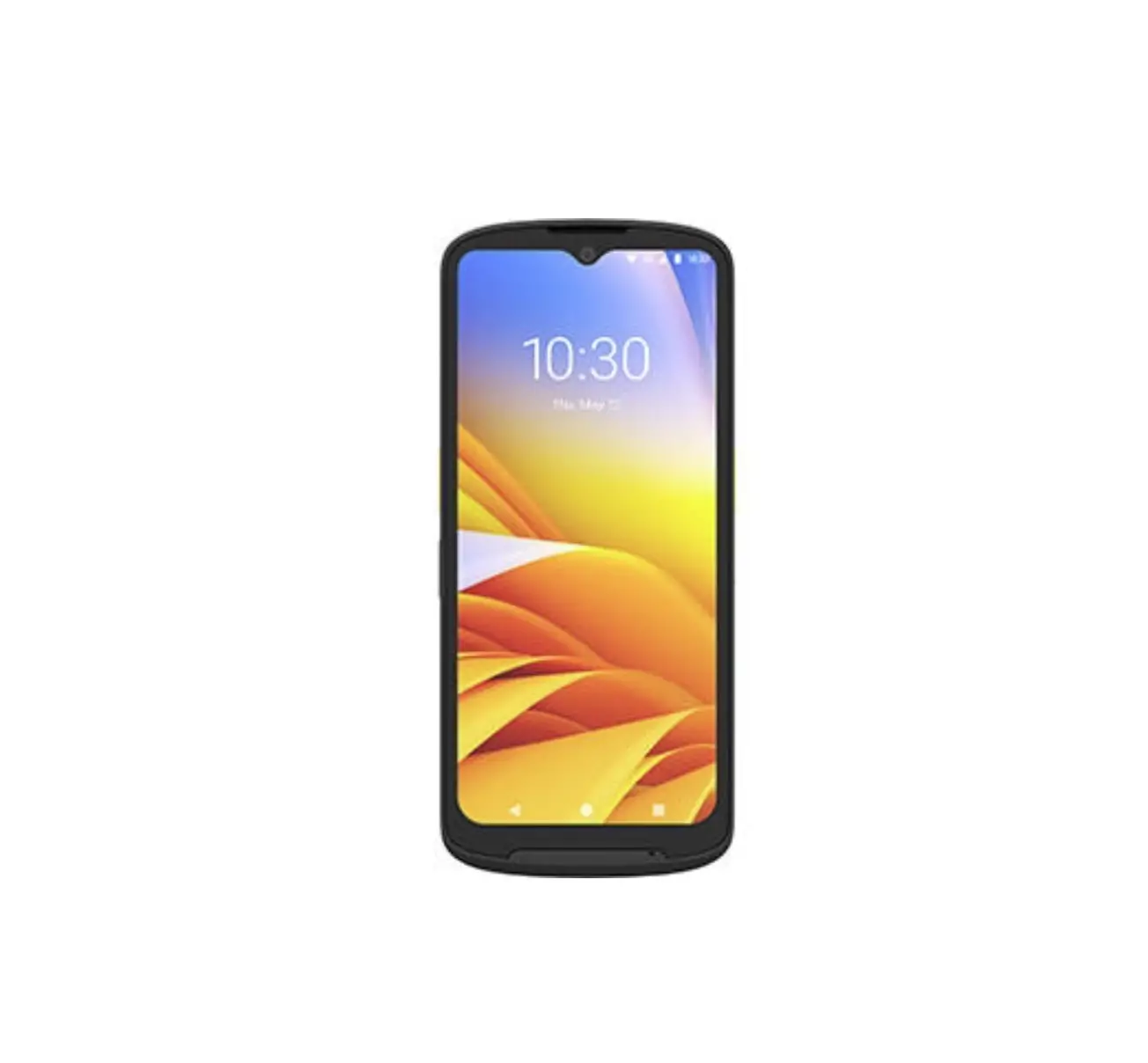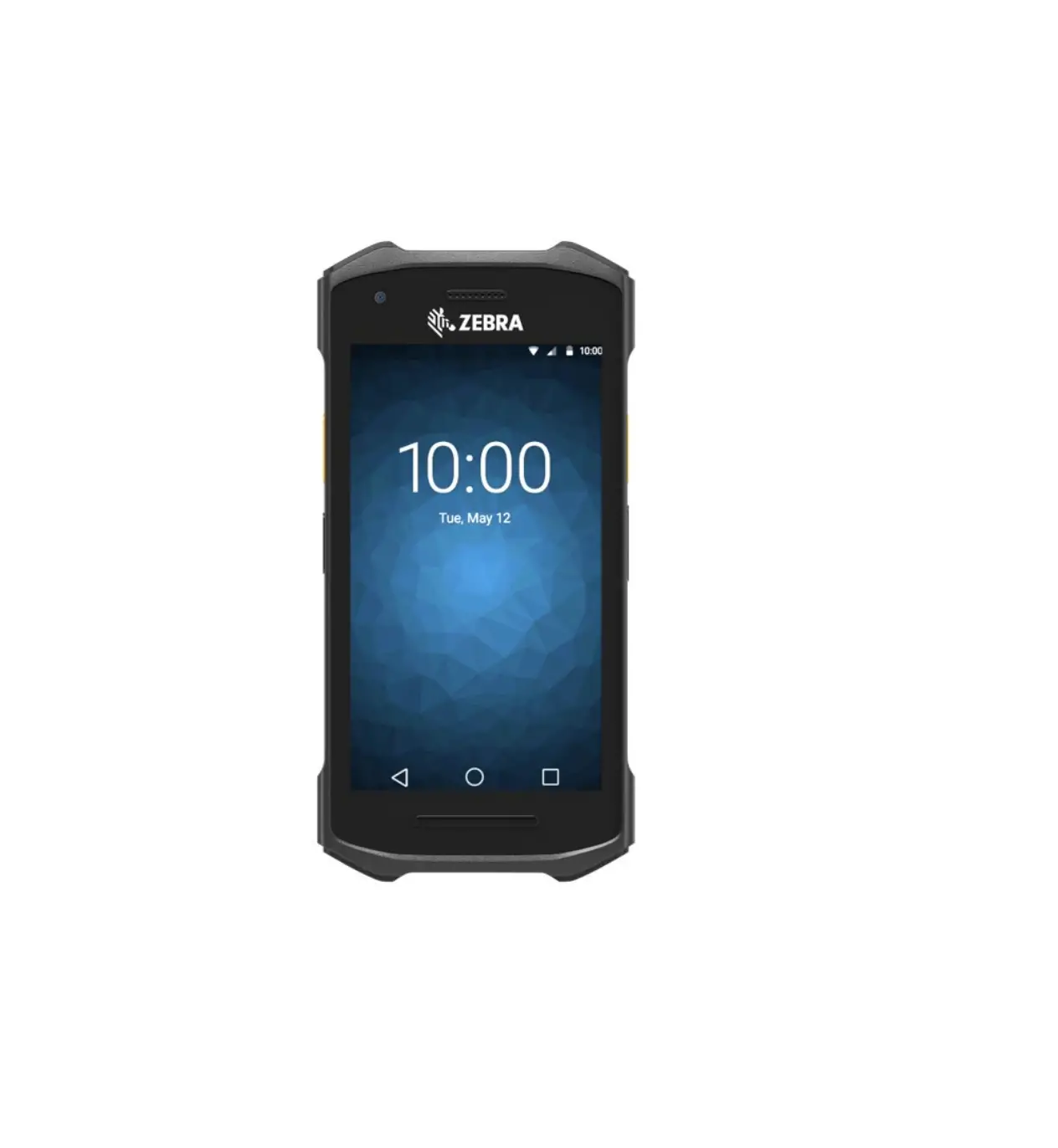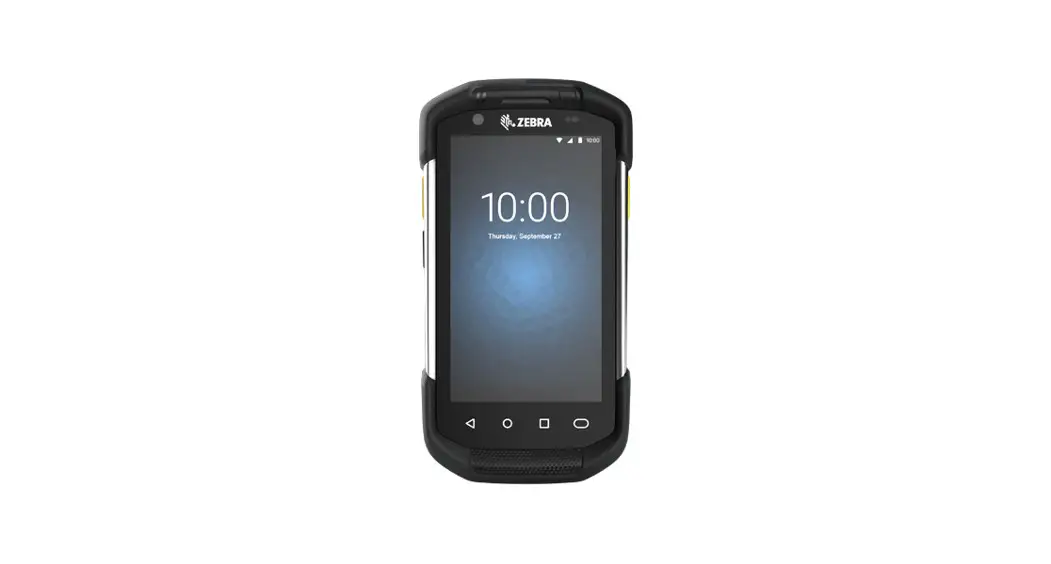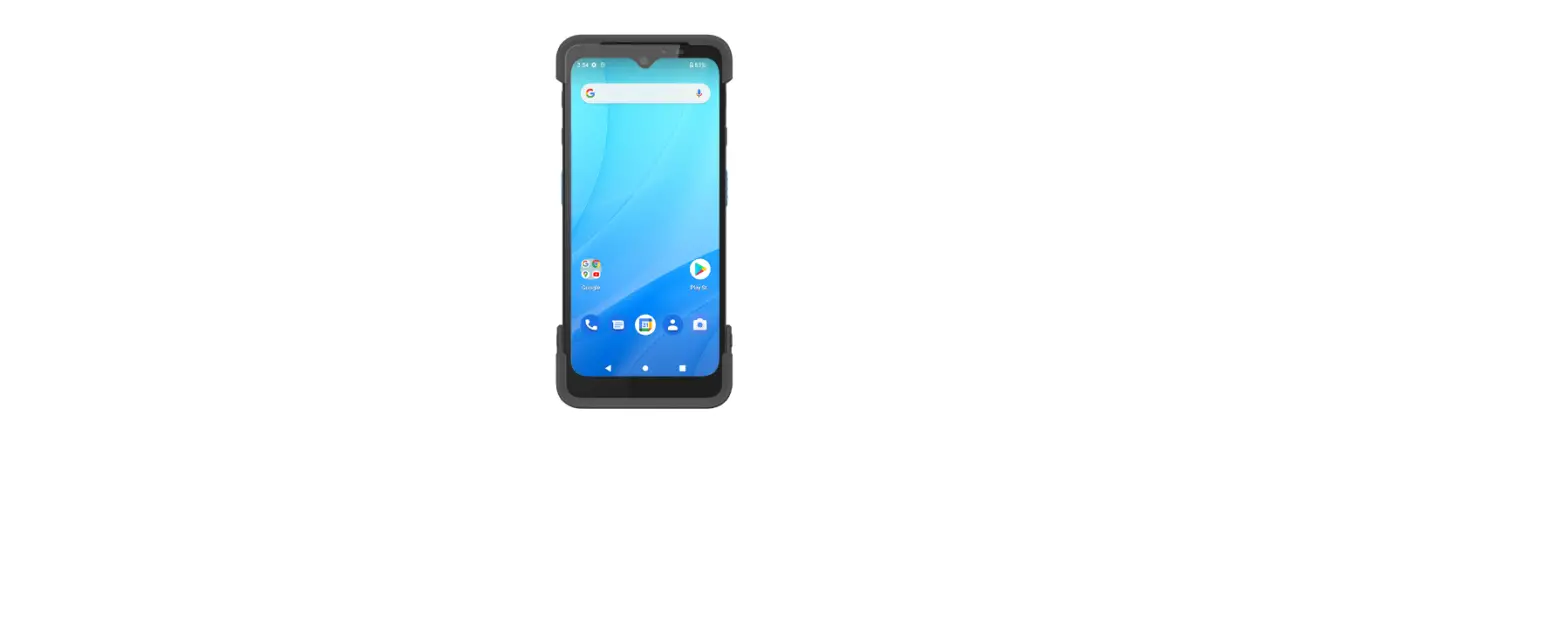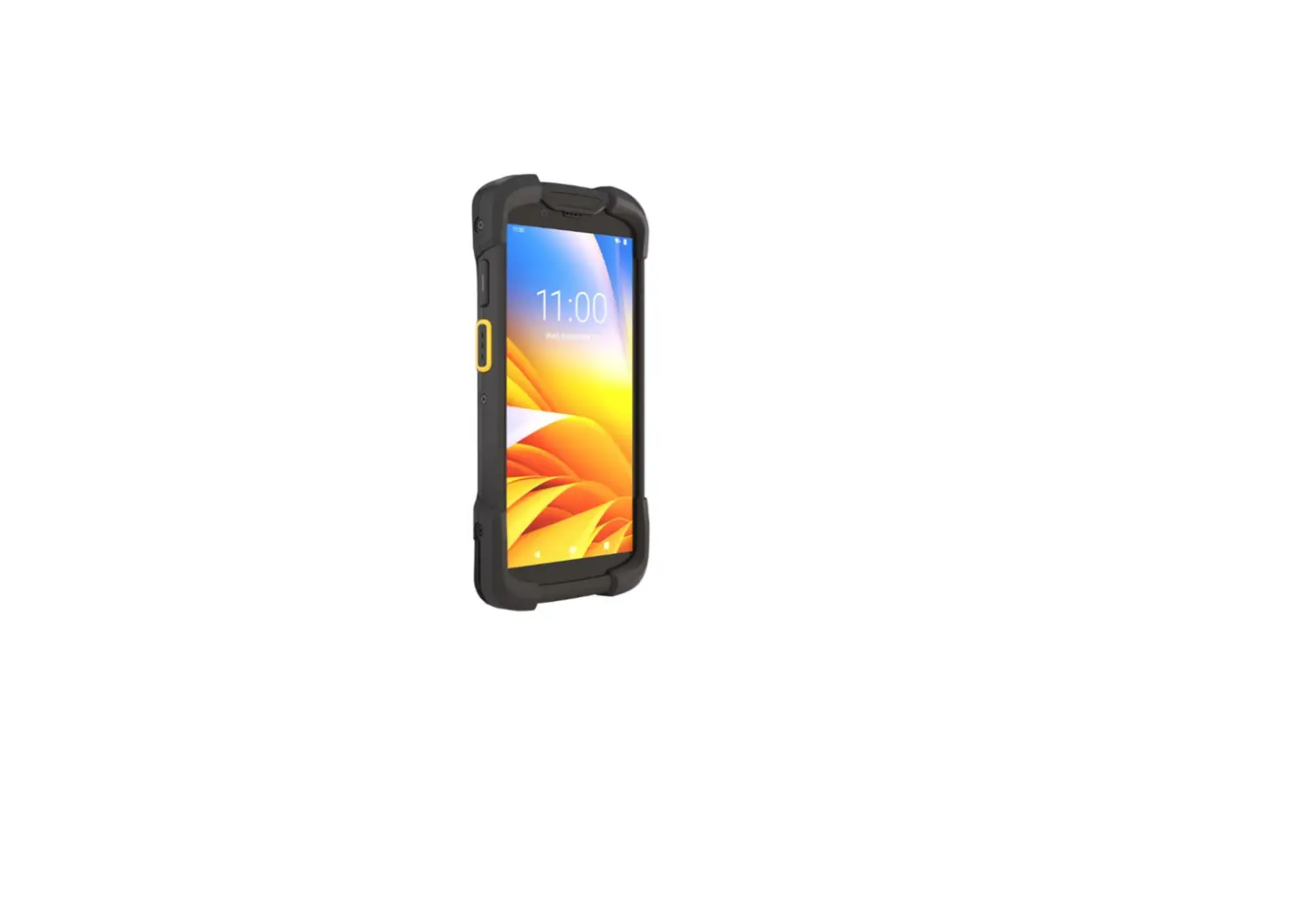

ZEBRA TC73 Touch Computer
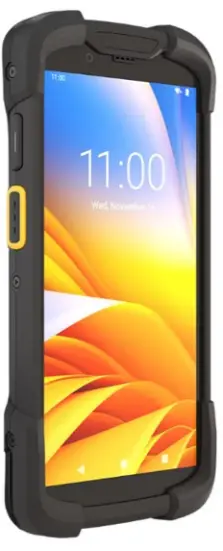
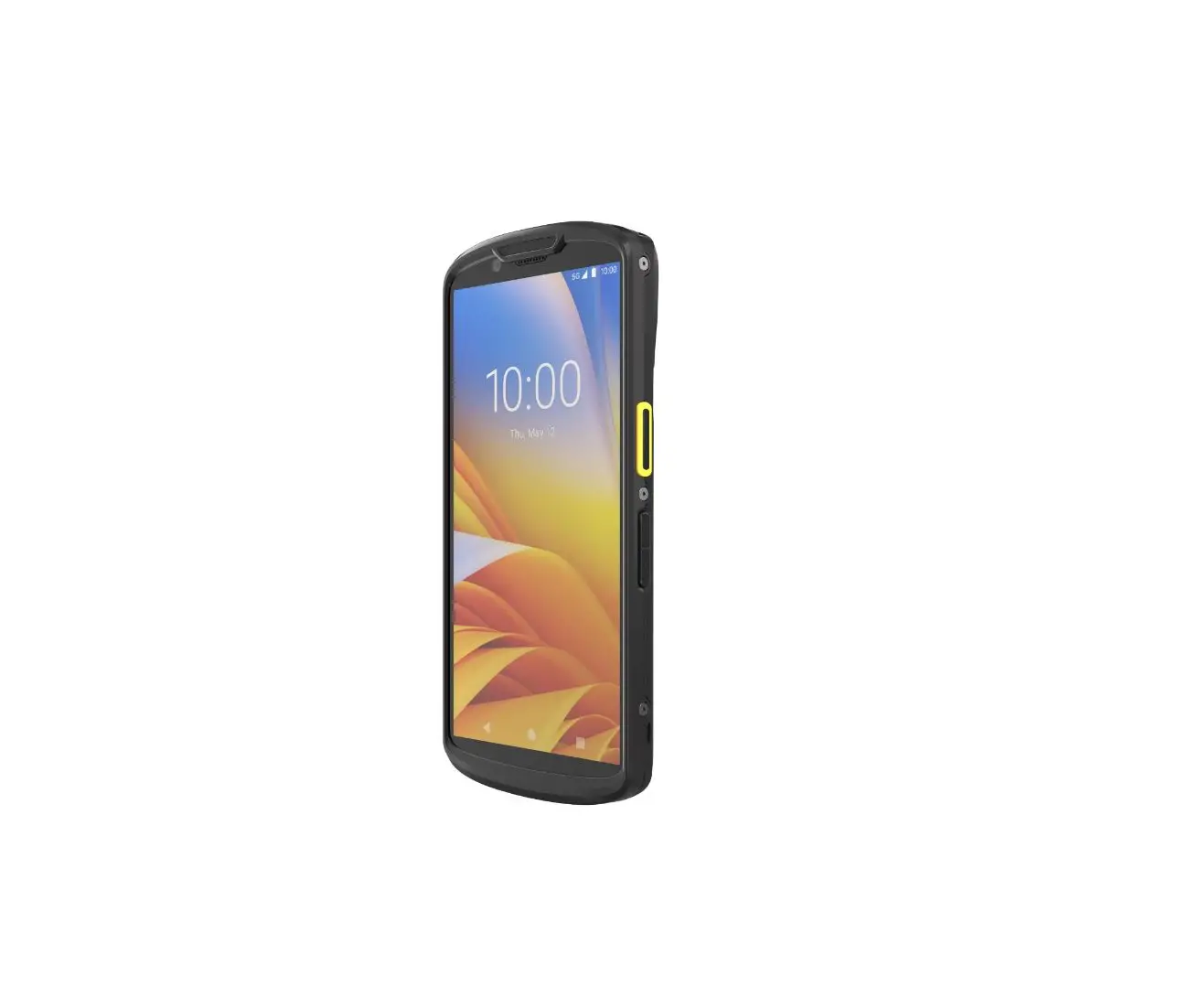
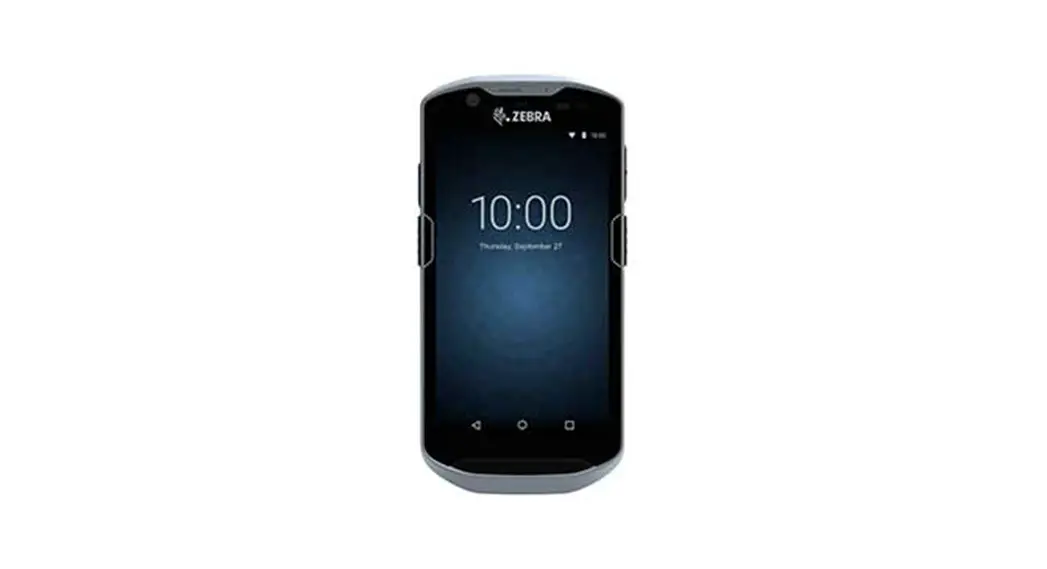
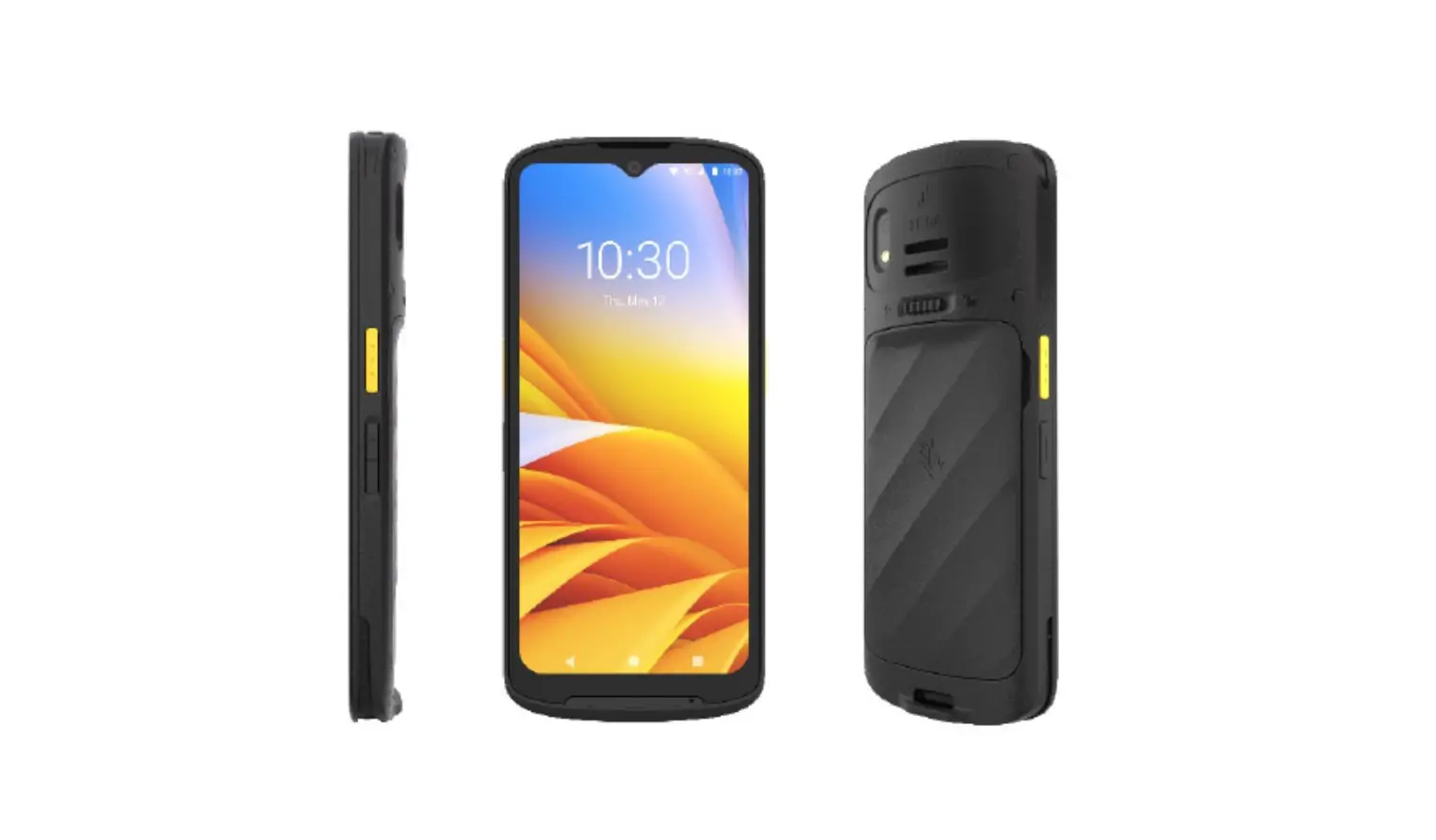
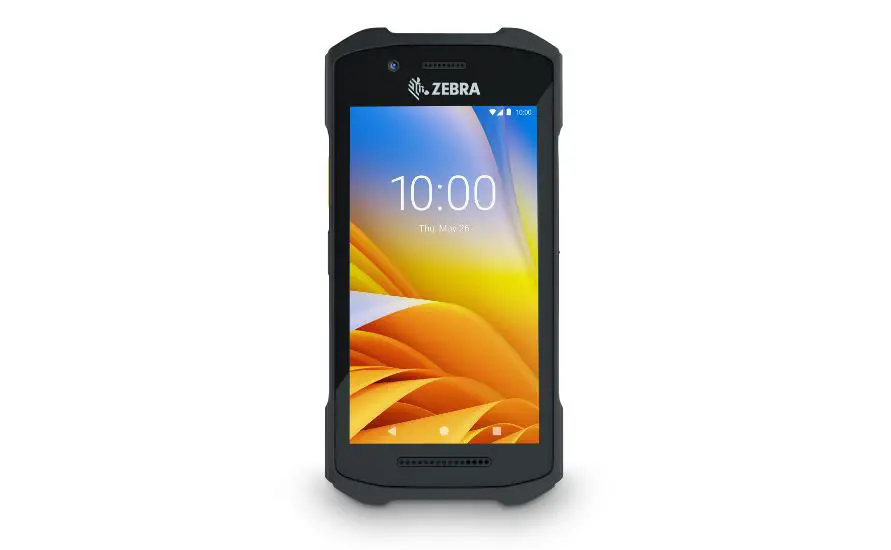
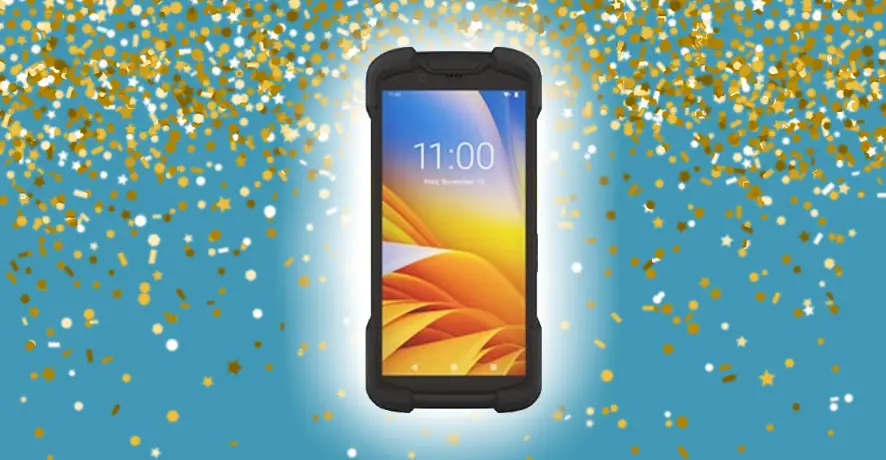
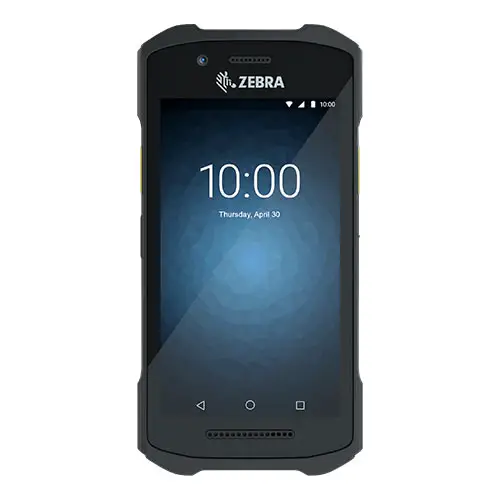
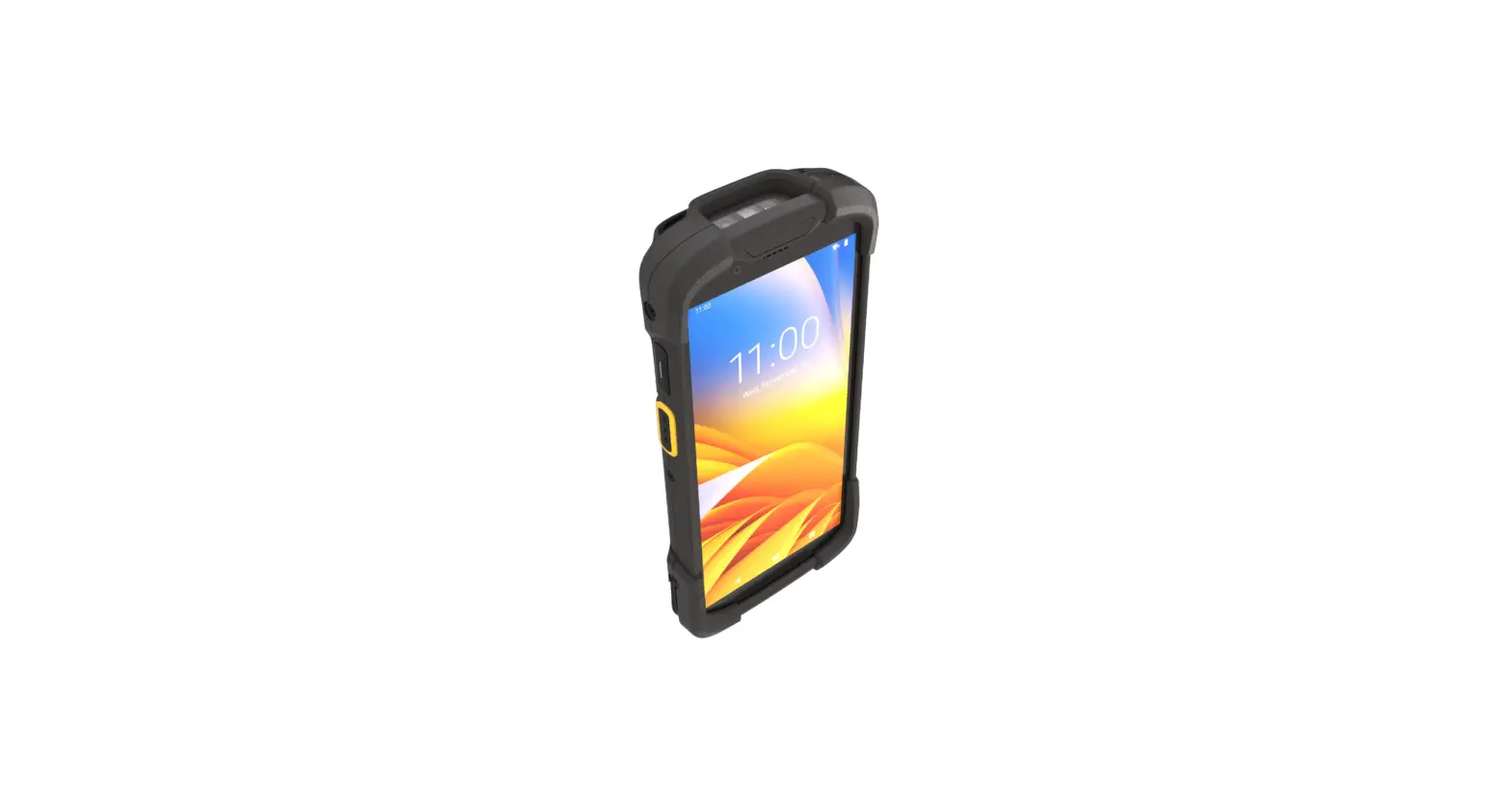
The TC73 touch computer is a handheld device designed for data capture and communication. It features a 6-inch LCD touch screen, an 8MP front camera, a proximity/light sensor, and a battery status LED. The device also includes programmable scan buttons, volume up/down buttons, and a PTT button for communication. It has a rear-facing common I/O port with 8 pins for charging and host communications, as well as a USB Type C port with 2 charge pins. The device runs on Android 10 and is built to withstand harsh environments.
Product Usage Instructions
- To turn on the device, press and hold the power button (1) until the display turns on.
- Use the touch screen (8) to navigate through the device.
- To take photos or videos, use the front camera (1).
- To initiate data capture, use the scan button (6, 9).
- To adjust audio volume, use the volume up/down button (7).
- To communicate using PTT, use the PTT button (10). Note that regulatory restrictions may apply in certain countries.
- To charge the device, connect it to a power source using the USB Type C port (11) or the rear-facing common I/O port (4).
- To remove the battery (7), pinch both latches (6) and lift up.
- For further information, refer to the user manual or contact Zebra Technologies.
ZEBRA and the stylized Zebra head are trademarks of Zebra Technologies Corporation, registered in many jurisdictions worldwide. All other trademarks are the property of their respective owners. ©2022 Zebra Technologies Corporation and/or its affiliates. All rights reserved.
Information in this document is subject to change without notice. The software described in this document is furnished under a license agreement or nondisclosure agreement. The software may be used or copied only in accordance with the terms of those agreements.
For further information regarding legal and proprietary statements, please go to:
- SOFTWARE: zebra.com/linkoslegal.
- COPYRIGHTS: zebra.com/copyright.
- WARRANTY: zebra.com/warranty.
- END USER LICENSE AGREEMENT: zebra.com/eula.
Terms of Use
Product Improvements
Continuous improvement of products is a policy of Zebra Technologies. All specifications and designs are subject to change without notice.
Liability Disclaimer
Zebra Technologies takes steps to ensure that its published Engineering specifications and manuals are correct; however, errors do occur. Zebra Technologies reserves the right to correct any such errors and disclaims liability resulting therefrom.
Limitation of Liability
In no event shall Zebra Technologies or anyone else involved in the creation, production, or delivery of the accompanying product (including hardware and software) be liable for any damages whatsoever (including, without limitation, consequential damages including loss of business profits, business interruption, or loss of business information) arising out of the use of, the results of use of, or inability to use such product, even if Zebra Technologies has been advised of the possibility of such damages. Some jurisdictions do not allow the exclusion or limitation of incidental or consequential damages, so the above limitation or exclusion may not apply to you.
Features
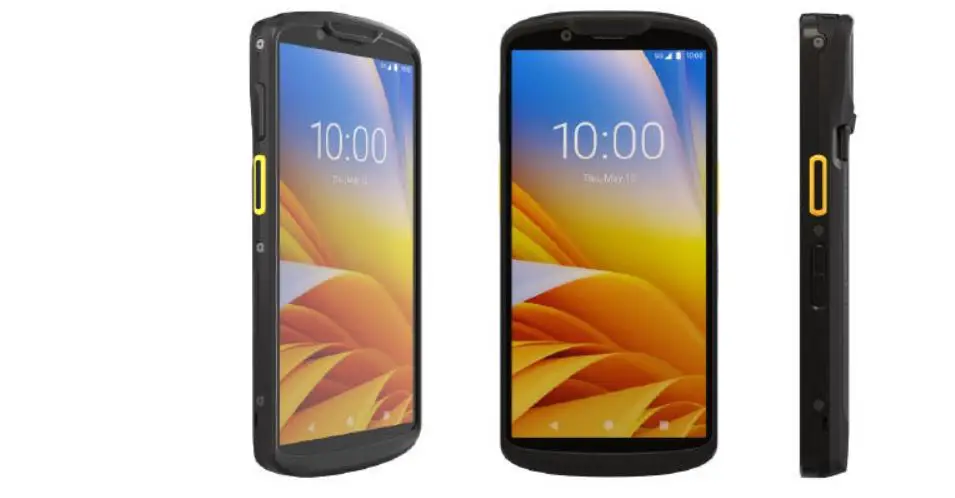
This section lists the features of the TC73 touch computer. Figure 1 Front and Side Views
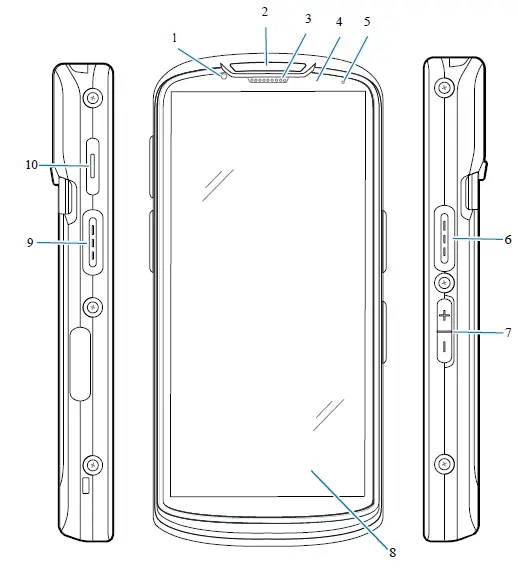
Table 1 TC73 Front View
| Number | Item | Description |
| 1 | Front camera 8MP | Takes photos and videos. |
| 2 | Scan LED | Indicates data capture status. |
| 3 | Receiver | Use for audio playback in Handset mode. |
| 4 | Proximity/light sensor | Determines proximity and ambient light for controlling display backlight intensity. |
| Number | Item | Description |
| 5 | Battery status LED | Indicates battery charging status while charging and application generated notifications. |
| 6, 9 | Scan button | Initiates data capture (programmable). |
| 7 | Volume up/down button | Increase and decrease audio volume (programmable). |
| 8 | 6 in. LCD touch screen | Displays all information needed to operate the device. |
| 10 | PTT button | Typically used for PTT communications. Where regulatory restrictions exist1, button is configurable for use with other applications. |
| 1Pakistan, Qatar | ||
Figure 2 Back, Top, and Bottom View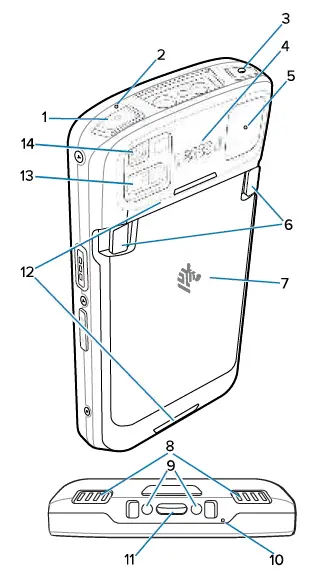
Table 2: TC73 Rear View
| Number | Item | Description |
| 1 | Power button | Turns the display on and off. Press and hold to reset the device, power off or swap battery. |
| 2, 5, 10 | Microphone | Use for noise cancellation. |
| 3 | Headset jack | For audio output to headset (TC73 only). |
| 4 | Back common I/ O 8 pins | Provides host communications, audio and device charging via cables and accessories. |
| 6 | Battery release latches | Pinch both latches in and lift up to remove the battery. |
| 7 | Battery | Provides power to the device. |
| 8 | Speaker | Provides audio output for video and music playback. Provides audio in speakerphone mode. |
| 9 | DC input pins | Power/ground for charging (5V through 9V). |
| 11 | USB Type C and 2 charge pins | Provides power to the device using I/O USB-C interface with 2 charge pins. |
| 12 | Hand strap attachment points | Attachment points for the hand strap. |
| 13 | ToF module | Employs time of flight techniques to resolve distance between the camera and subject (premium configurations only). |
| 14 | 16 MP rear camera with flash | Takes photos and videos with flash to provide illumination for the camera. |
Installing a microSD Card
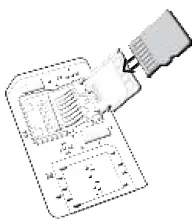
The microSD card slot provides secondary non-volatile storage. The slot is located under the battery pack. Refer to the documentation provided with the card for more information, and follow the manufacturer’s recommendations for use.
CAUTION—ESD: Follow proper electrostatic discharge (ESD) precautions to avoid damaging the microSD card. Proper ESD precautions include, but are not limited to, working on an ESD mat and ensuring the operator is properly grounded.
- Lift the access door.

- Slide the microSD card holder to the Open position.

- Lift the microSD card holder door.

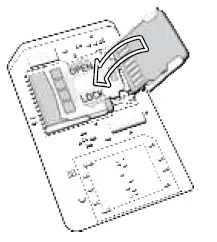
- Insert the microSD card into the card holder ensuring that the card slides into the holding tabs on each side of the door.

- Close the microSD card holder door.

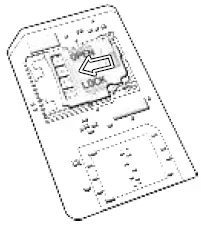
- Slide the microSD card holder door to the Lock position.
 NOTE: Access door must be replaced and securely seated to ensure proper device sealing.
 - Re-install the access door.

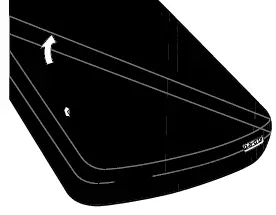
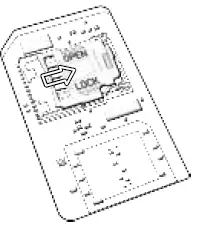
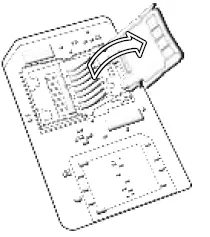
 NOTE: Access door must be replaced and securely seated to ensure proper device sealing.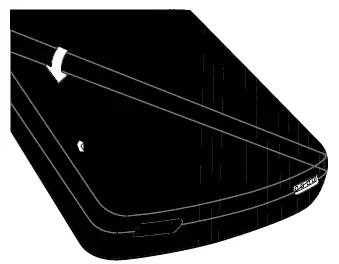
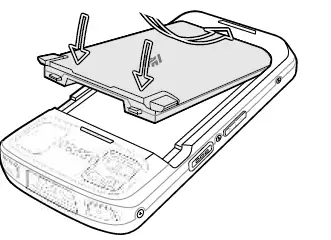
Installing the Battery
This section describes how to install the battery into the device.
NOTE: User modification of the device, particularly in the battery well, such as labels, asset tags, engravings, stickers, etc., may compromise the intended performance of the device or accessories. Performance levels such as sealing (Ingress Protection (IP)), impact performance (drop and tumble), functionality, temperature resistance, etc. could be affected. DO NOT put any labels, asset tags, engravings, stickers, etc. in the battery well.
- Insert the battery, bottom first, into the battery compartment in the back of the device.
- Press the battery down until it snaps into place.
Using the Rechargeable Li-Ion Battery with BLE Beacon
This device utilizes a rechargeable Li-Ion battery to facilitate BLE Beacon. Once enabled, the battery transmits a BLE signal for up to seven days while the device is powered off due to battery depletion.
NOTE: The device transmits a Bluetooth beacon only when the device is powered off or in Airplane Mode.
For additional information on configuring the Secondary BLE settings, see techdocs.zebra.com/emdk-for-android/11/mx/beaconmgr.
Charging the Spare Battery
This section provides information on charging a spare battery.
- Insert a spare battery into the spare battery slot.
- Ensure the battery is seated properly. The Spare Battery Charging LED blinks indicating charging. See Charging Indications on page 10 for charging indicators.
The battery charges from fully depleted to 90% in approximately 2.5 hours and from fully depleted to 100% in approximately 3.5 hours. In many cases the 90% charge provides plenty of charge for daily use. Depending on the usage profile, a full 100% charge lasts for approximately 14 hours of use. To achieve the best charging results use only Zebra charging accessories and batteries.
Charging
Use one of the following accessories to charge the device and/or spare battery.
Charging and Communication
| Description | Part Number | Charging | Communication | ||
| Battery (In device) | Spare Battery | USB | Ethernet | ||
| 1-Slot USB/Charge Only Cradle Kit | CRD-NGTC5-2SC1B | Yes | Yes | No | No |
| 1 -Slot USB/Ethernet Cradle Kit | CRD-NGTC5-2SE1B | Yes | Yes | Yes | Yes |
| 5-Slot Charge Only Cradle with Battery Kit | CRD-NGTC5-5SC4B | Yes | Yes | No | No |
| 5-Slot Charge Only Cradle Kit | CRD-NGTC5-5SC5D | Yes | No | No | No |
| 5-Slot Ethernet Cradle Kit | CRD-NGTC5-5SE5D | Yes | No | No | Yes |
| Charge/USB Cable | CBL-TC5X- USBC2A-01 | Yes | No | Yes | No |
Charging the Device
This section provides information for charging the device.
NOTE: Ensure that you follow the guidelines for battery safety described in the TC73/TC78 Product Reference Guide.
- To charge the main battery, connect the charging accessory to the appropriate power source.
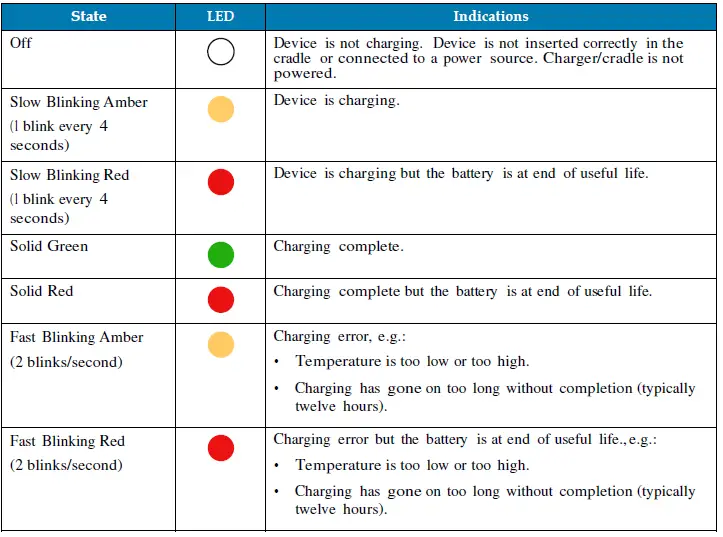
- Insert the device into a cradle or attach to a cable. The device turns on and begins charging. The Charging/Notification LED blinks amber while charging, then turns solid green when fully charged.
The standard battery charges from fully depleted to 90% in approximately two hours and from fully depleted to 100% in approximately three hours. In many cases the 90% charge provides plenty of charge for daily use. Depending on usage profile, a full 100% charge lasts for approximately 14 hours of use. To achieve the best charging results use only Zebra charging accessories and batteries. Charge batteries at room temperature with the device in sleep mode.
Charging Indications
The charging/notification LED indicates charging status.
Table 3 Charging/Notification LED Charging Indicators
2-Slot (1 Device/1 Spare Battery) USB Charging Cradle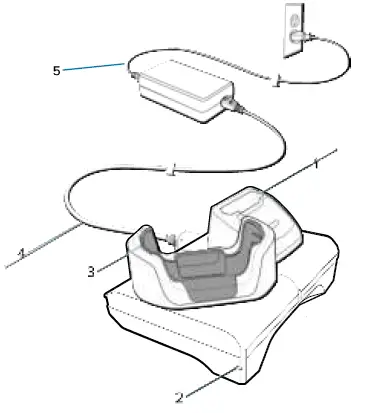
- Spare battery charging slot
- Power LED
- Device charging slot with shim
- DC power supply
- AC line cord
2-Slot (1 Device/1 Spare Battery) Ethernet and Communication Setup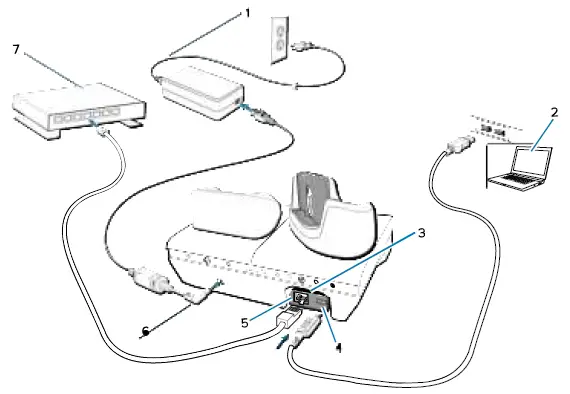
| 1 | AC line cord |
| 2 | Host computer |
| 3 | USB to Ethernet module kit (sold separately) |
| 4 | USB port (on USB to Ethernet module kit) |
| 5 | Ethernet port (on USB to Ethernet module kit) |
| 6 | Host computer |
| 7 | Ethernet switch |
NOTE: The USB to Ethernet module kit (KT-TC51-ETH1-01) connects via a single-slot USB charger.
5-Slot Charge Only Cradle
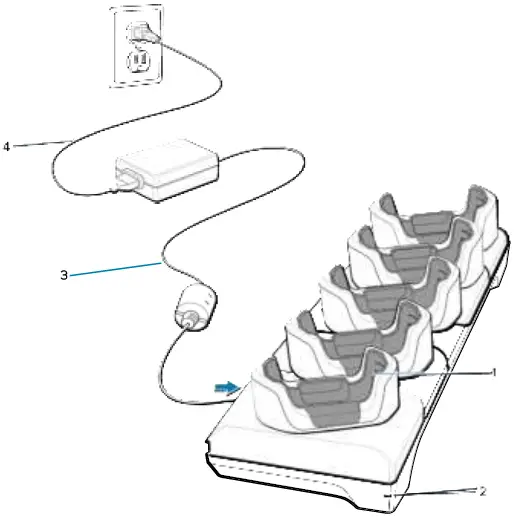
| 1 | Device charging slot with shim |
| 2 | Power LED |
| 3 | DC power supply |
| 4 | AC line cord |
5-Slot Ethernet Cradle Setup
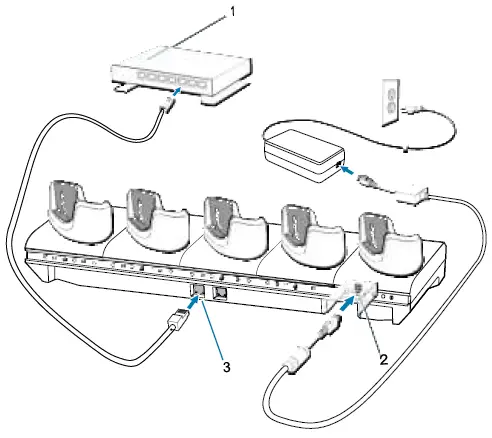
| 1 | Ethernet switch |
| 2 | DC power supply |
| 3 | Ethernet port |
5-Slot (4 Device/4 Spare Battery) Charge Only Cradle with Battery Charger
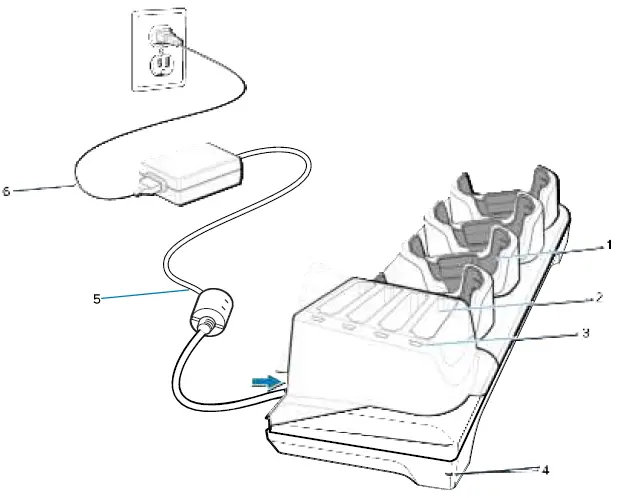
| 1 | Device charging slot with shim |
| 2 | Spare battery charging slot |
| 3 | Spare battery charging LED |
| 4 | Power LED |
| 5 | DC power supply |
| 6 | AC line cord |
Charge/USB-C Cable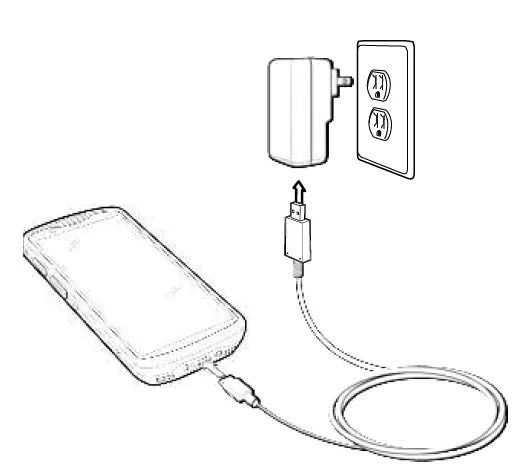
Scanning
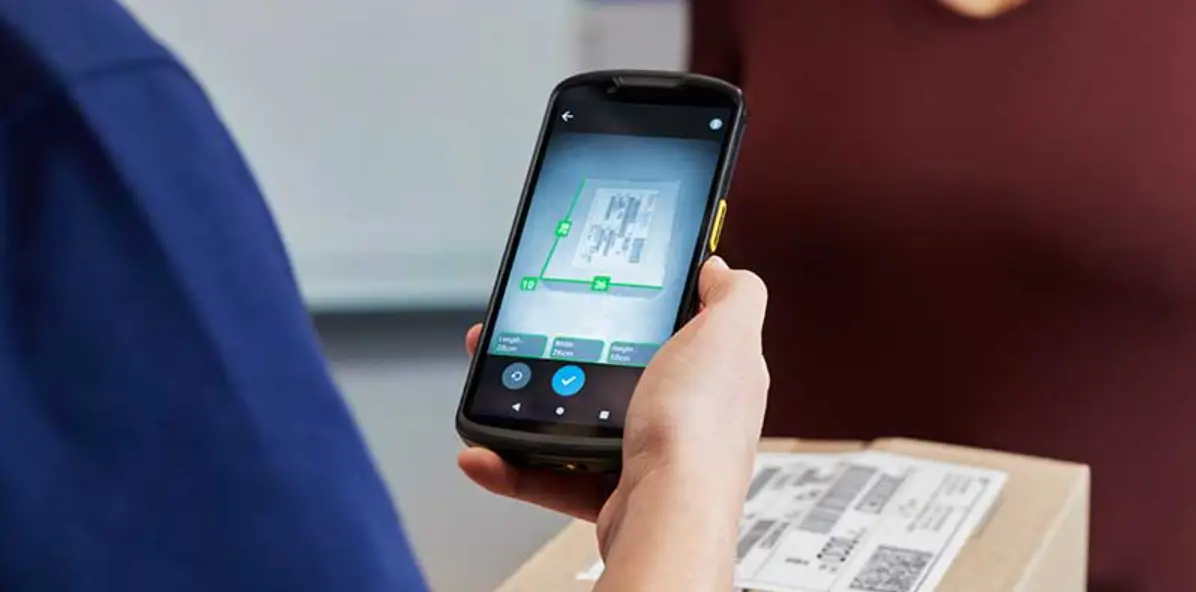
To read a barcode, a scan-enabled application is required. The device contains the DataWedge application that allows the user to enable the imager, decode the barcode data and display the barcode content.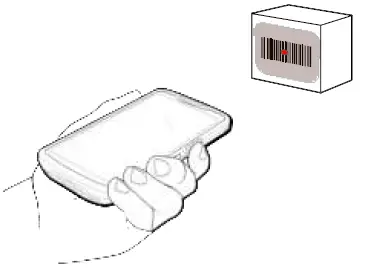
NOTE: The SE55 displays the green dash-dot-dash aimer. The SE4720 imager displays a red dot aimer.
- Ensure that an application is open on the device and a text field is in focus (text cursor in text field).
- Point the exit window on the top of the device at a barcode.
- Press and hold the scan button.
To assist in aiming, the red LED aiming pattern and red aiming dot turn on for the SE4720 and the green LED aiming pattern and green dash-dot-dash turn on for the SE55.
NOTE: When the device is in Picklist mode, the imager does not decode the barcode until the crosshair or aiming dot touches the barcode. - Ensure the barcode is within the area formed in the aiming pattern. The aiming dot is used for increased visibility in bright lighting conditions. Figure 3 Aiming Pattern
 Figure 4 Pick List Mode with Multiple Barcodes in Aiming Pattern
- The Data Capture LED lights green and a beep sounds, by default, to indicate the barcode was decoded successfully.
- Release the scan button.
NOTE: Imager decoding usually occurs instantaneously. The device repeats the steps required to take a digital picture (image) of a poor or difficult barcode as long as the scan button remains pressed. - The barcode content data displays in the text field.
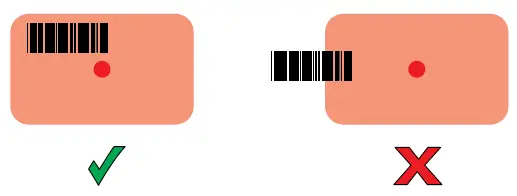 Figure 4 Pick List Mode with Multiple Barcodes in Aiming Pattern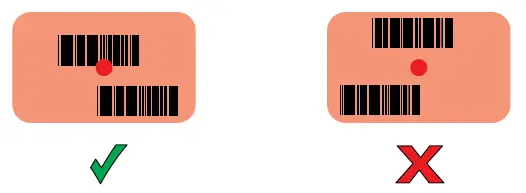
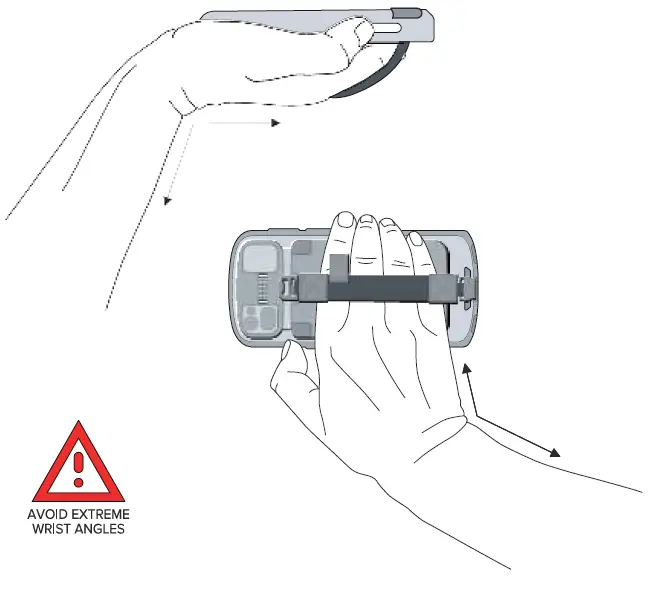
Ergonomic Considerations
References
 Zebra Technologies | Visible. Connected. Optimized.
-
Zebra Technologies | Visible. Connected. Optimized.
-
Copyright
-
Software Product Categories and End User License Agreements | Zebra
-
Zebra Open Source Terms | Zebra Technologies
-
Product Warranty Information | Zebra
-
Copyright
-
Software Product Categories and End User License Agreements | Zebra
-
Zebra Open Source Terms | Zebra Technologies
-
Product Warranty Information | Zebra
 Zebra Technologies | Visible. Connected. Optimized.
 Copyright