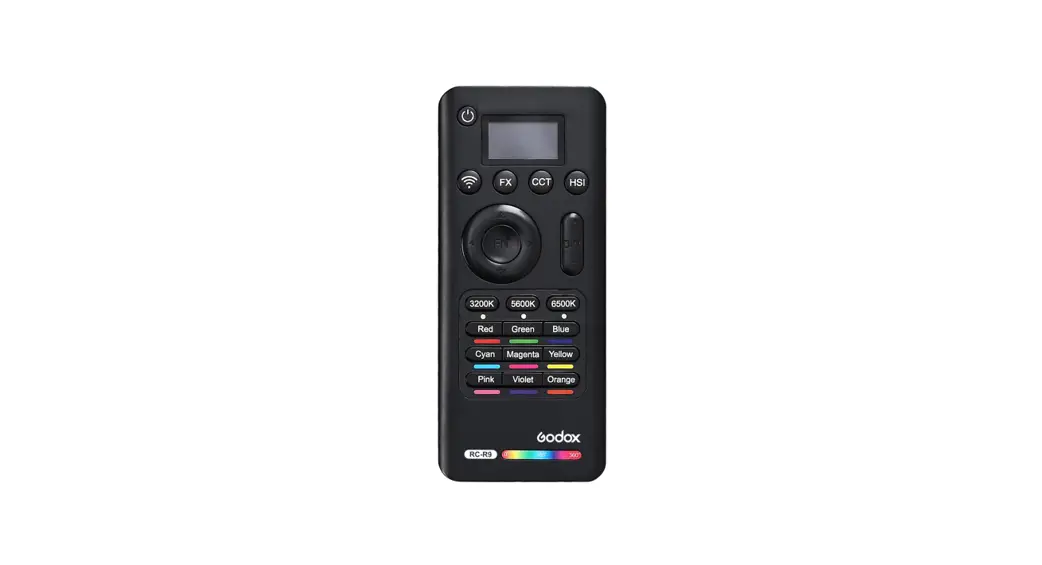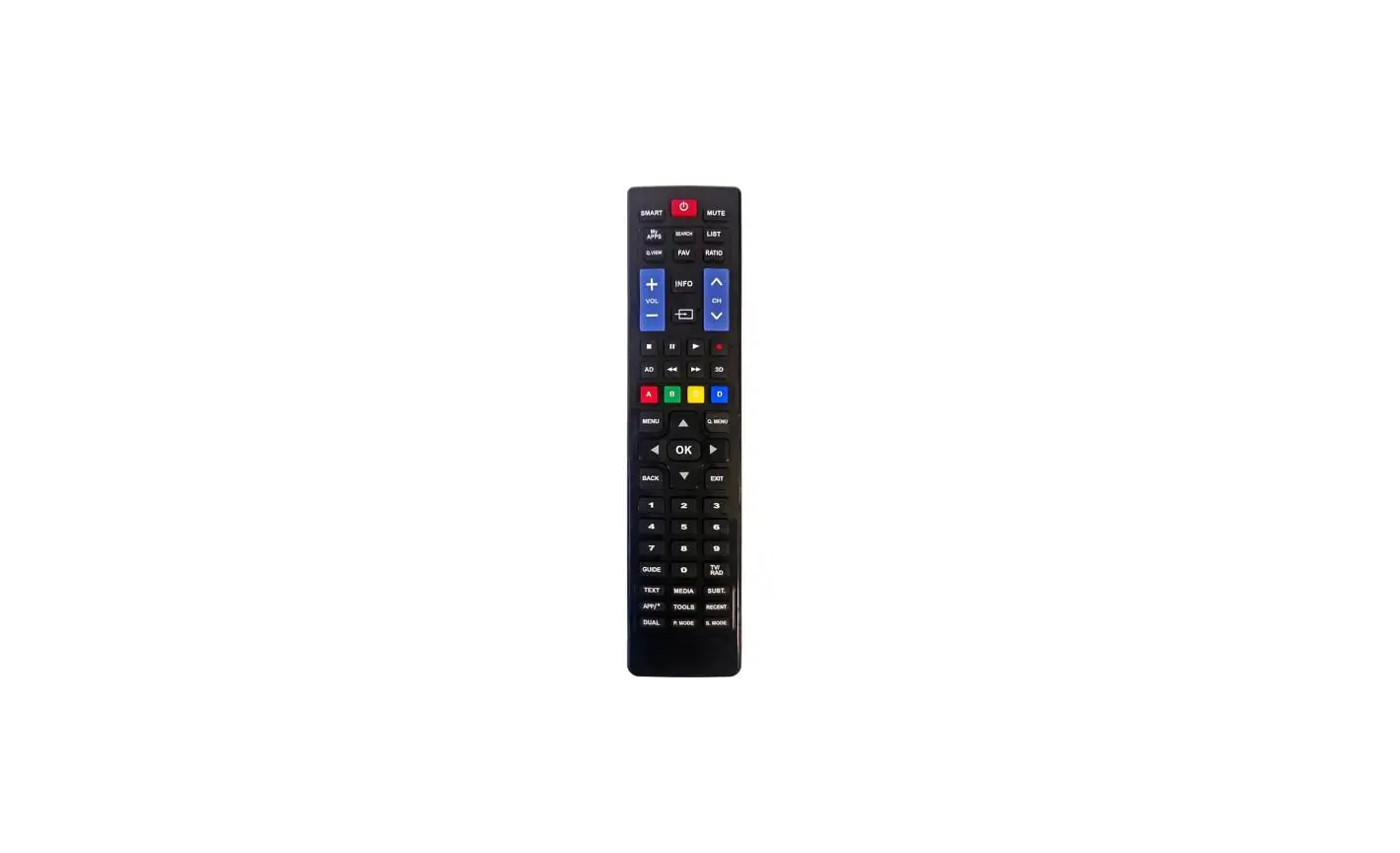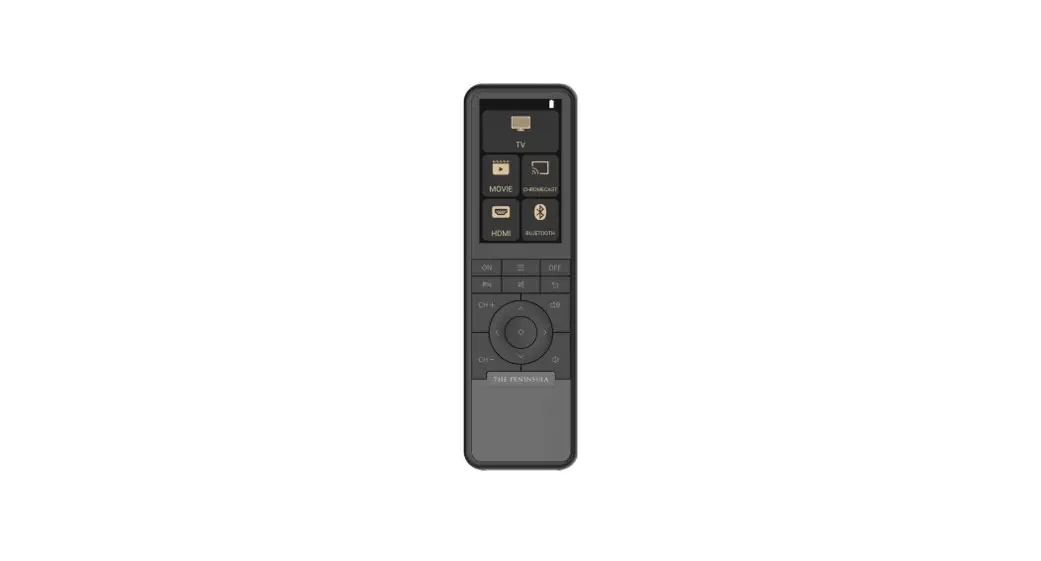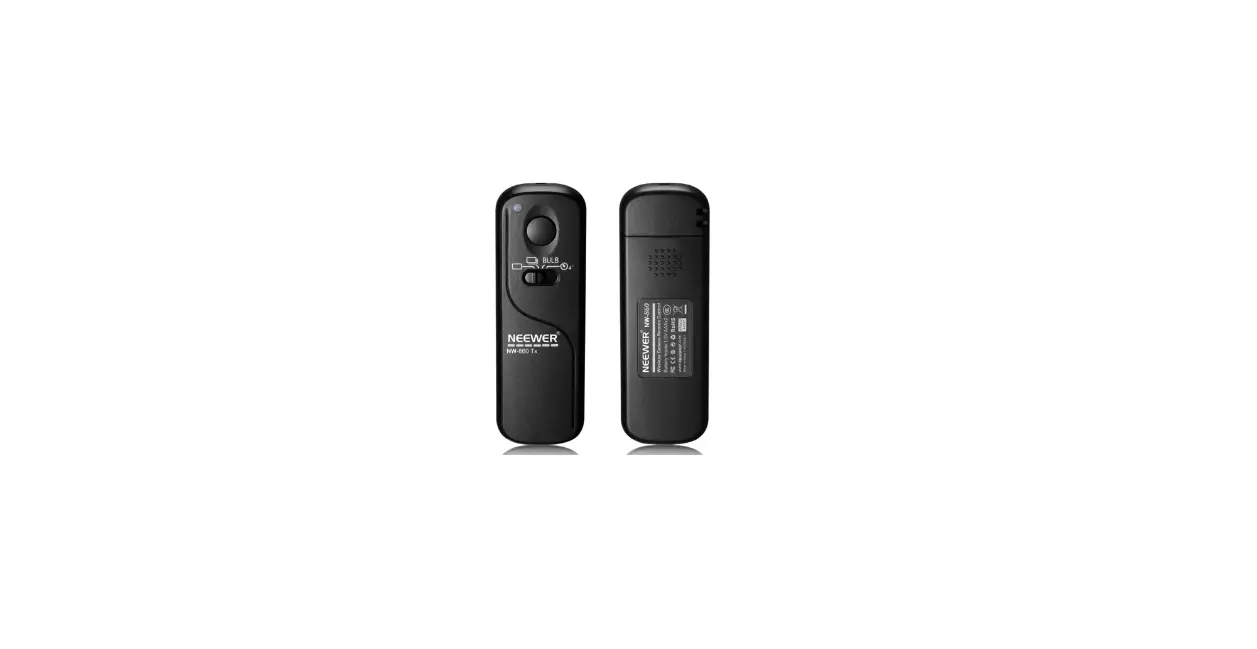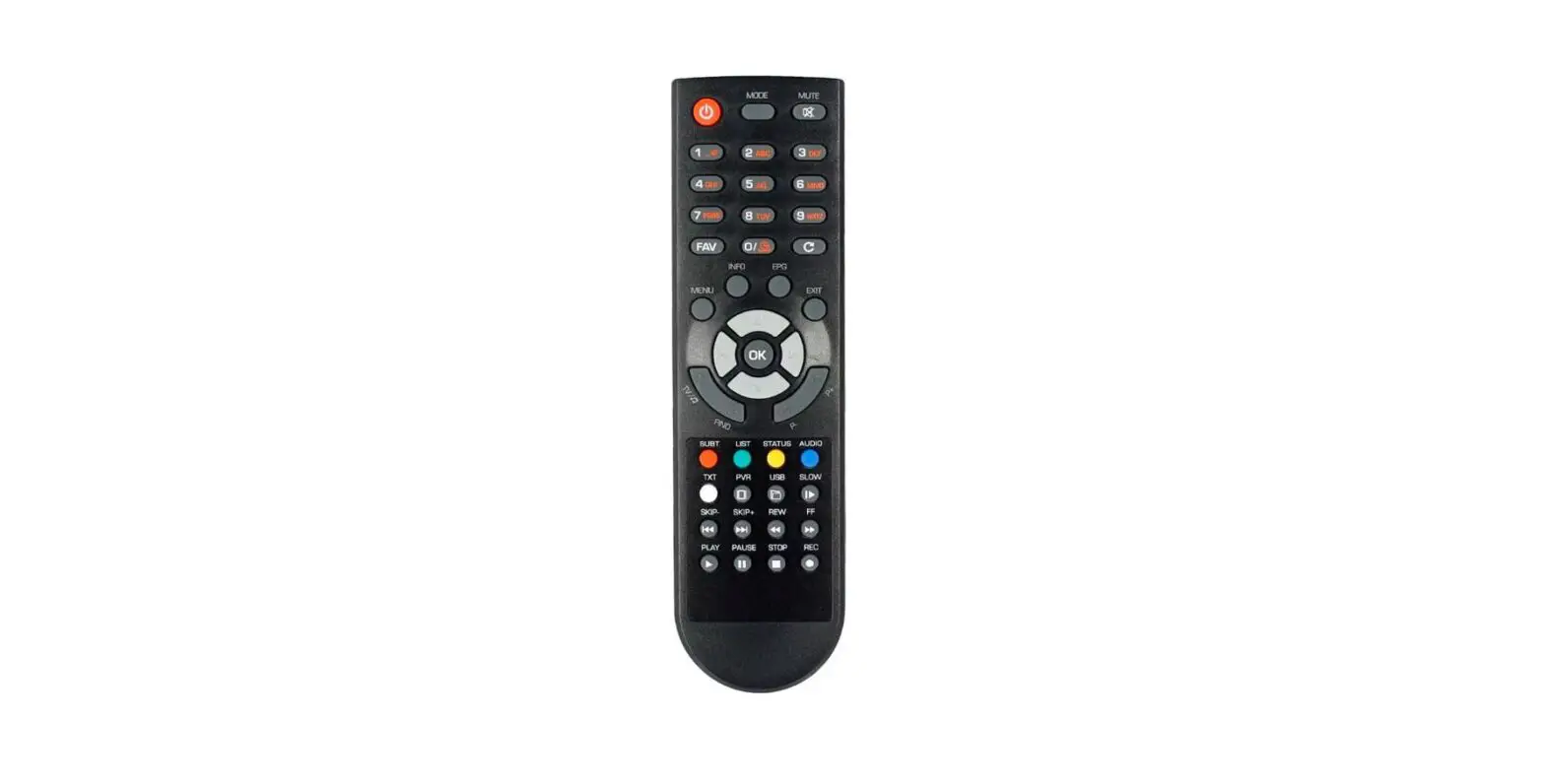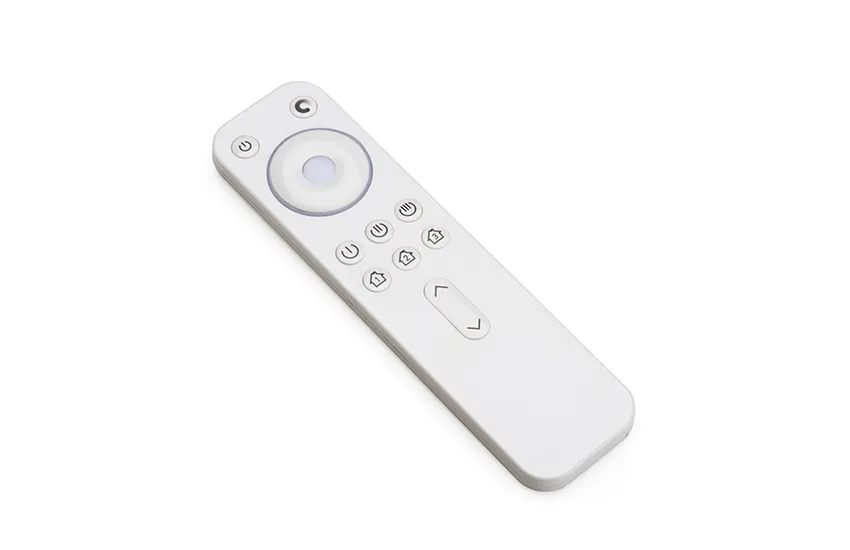

RC REMOTE CONTROL
PROGRAMMING INSTRUCTIONS
 RC-100
Remote Control
SPECIFICATIONS
| Power Supply | 2 x AAA 1.5V battery, Alkaline preferred |
| Carrying Case | RC-100 in carrying case |
| Upload Range | Up to 50ft |
| Operating Temperature | +32°F ~ +122°F |
| Dimensions | 4.84″ x 2.76″ x 0.8″ |
 WARNING
Remove the ba eries from compartment if the remote control will not be used for 30 days
PRODUCT OVERVIEW
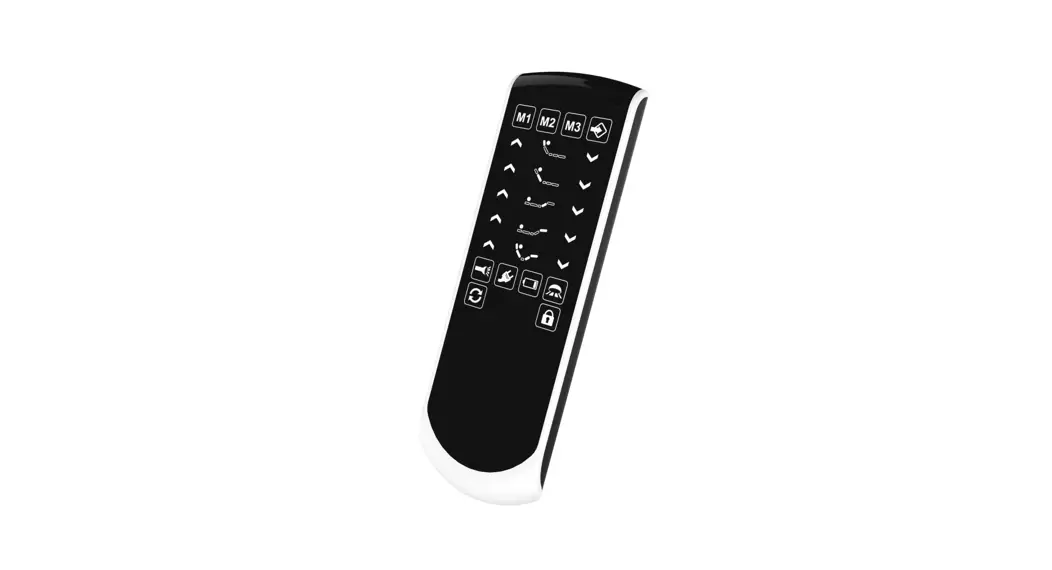
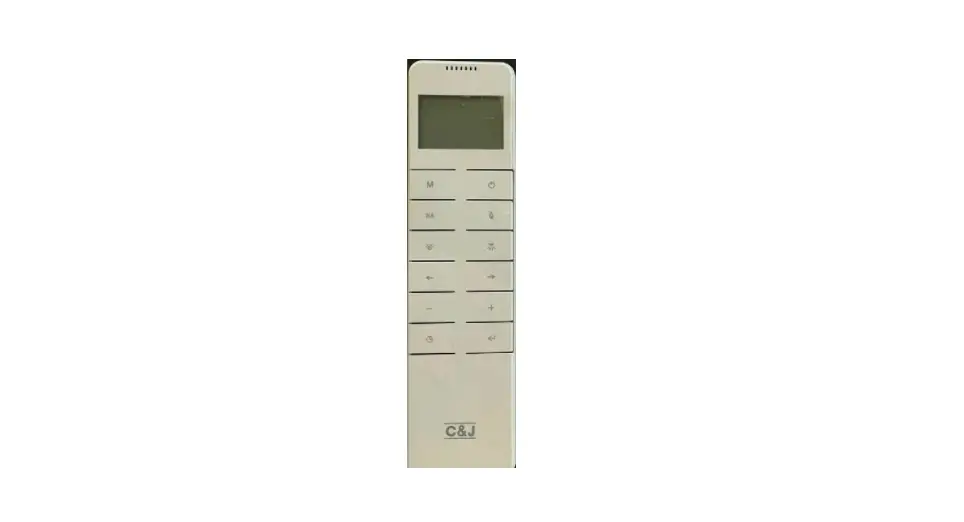
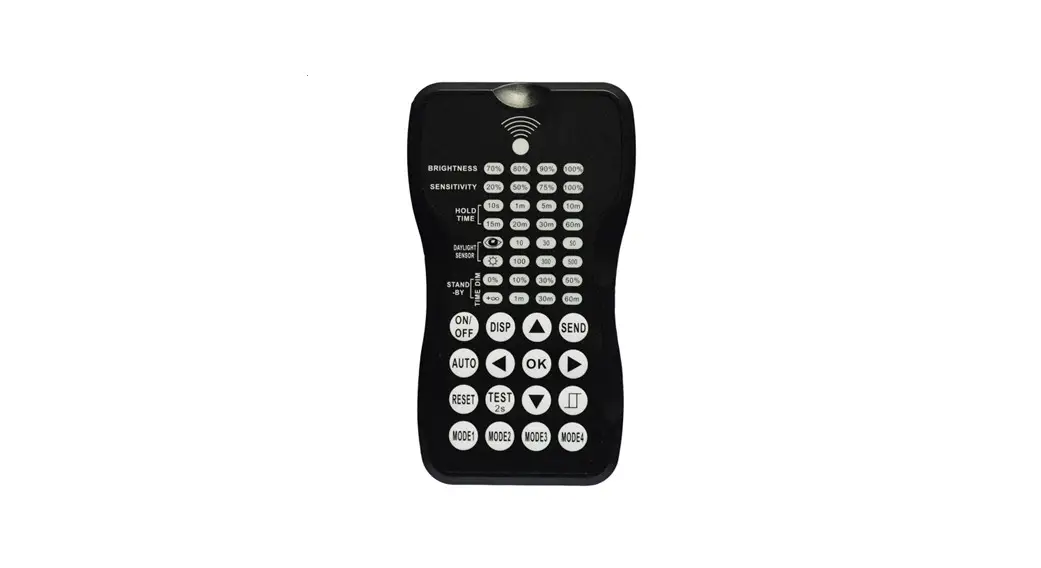
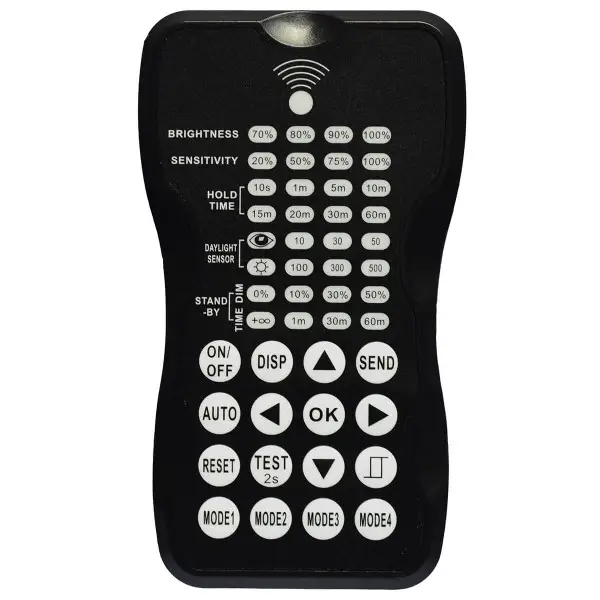
The RC-100 Remote Control is a handheld tool for remote control configuration of IR-enabled fixture integrated sensors. The tool enables modifying device settings via pushing buttons, without ladders or special tools, and stores up to four sensor parameter modes to speed up configuration of multiple sensors.
The Remote Control uses bidirectional IR communication send and receive sensor seat mount height up to 50 feet. The device can display previously established sensor settings, copy settings, send new settings or store settings profiles. For projects where identical setting may be demanded across a large number of areas or spaces, this capability provides a streamlined method of configuration. Settings can be copied throughout a site, or in different sites.
LED INDICATORS
| LED | DESCRIPTION | LED | DESCRIPTION | |
| BRIGHTNESS | High end trim turning function (To Set the output level of connected lighting during occupancy) |  | To select the current surrounding lux value as the daylight threshold. This feature allows the fixture to function properly under any application circumstances. | |
| SENSITIVITY | To set the occupancy sensing sensitivity of the Sensor |  | The daylight sensor stops working and any motion detected turns on the lighting fixture, no matter how bright natural light is. | |
| HOLD TIME | The time after which the Sensor will turn off (if you set standby level as 0) or DIM the light to a low level after the area is vacated | STANDBY DIM | Sets the output level of connected lights during vacancy. The sensor will regulate the lights output at the set level. Setting the STAND-BY DIM level at 0 means all lights off during vacancy. | |
| DAYLIGHT SENSOR | Button for checking various thresholds of natural light level for the Sensor | STANDBY TIME | Shows the time during which the Sensor will keep the light at low dim level after the HOLD TIME elapsed. | |
| BUTTON | DESCRIPTION | BUTTON | DESCRIPTION |
 | Press the button, the light goes to permanent on or permanent off mode, and the sensor is disabled. (MUST press  button to quit this mode for Setting. button to quit this mode for Setting. | | Press button, the sensor starts to function and all settings remain the same as the latest status before the light is switched on/off. |
 | Display the current/lastest setting parameters in LED indicators(the indicators will on for showing the setting parameters). |  | The button is for testing purpose sensitivity only. after you choose sensitivity thresholds, then you press button. The sensor goes to test mode (hold time is only 2s) automatically meanwhile the stand-by period and daylight sensor are disabled. Press button to quit from this mode. |
 | Press button, all settings go back to settings of dip Switch in sensor. | ||
 | Enter in the setting condition, the parameter leds of remote control will flash to be selected. and Navigate to UP and Down for choose selected parameters in LED indicators. | | Navigate to LEFT and RIGHT for choose selected parameters in LED indicators. |
 | Confirm the selected parameters selected parameters in remote control. |  | Open and close smart daylight Sensor. Press  Enter in the setting condition, the parameter leds of remote control will flash to be selected, Press for open or close smart daylight Sensor. Enter in the setting condition, the parameter leds of remote control will flash to be selected, Press for open or close smart daylight Sensor. |
 | Press button, upload the current parameters to sensor(s), the led light which the sensor connects will oNoff as confirm. | ||
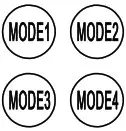 | 4 Scene modes with preset parameters which are available to be changed and saved in modes. |
SETTING
The SETTING Content contains all available se ngs and parameters for remote sensors. It allows you to change the available control, parameters, and opera on of the sensor from factory default or current parameters.
Changing multiple settings of sensor(s)
- Press
 button, the remote control leds will show the latest parameters you set.
NOTE: if you push button before, you must push button to unlock the sensor.
 - Press
 enter in the setting condition, the parameter leds of remote control will flash to be selected, navigate to the desired setting by pressing
  to select the new parameters.
 - Press ok to confirm all setting and saving.
- Aim at the target sensor and press to upload the new parameter, the led light which the sensor connects will on/off as confirm.
NOTE: the setting works key step is by Push, enter in the setting condition.
NOTE: the led light which the sensor connects will on/off after getting the new parameter as confirm.
NOTE: If you press button, the remote led indicators will show the latest parameters which were sent.
 to select the new parameters.
Changing multiple settings of sensors with smart photocell sensor
- Press , the remote led indicators will show the latest parameters.
- Press enter in the setting condition, the parameter Led indicators of remote control will flash to be selected.
- Press
 , 2 led indicators will flash in daylight sensor settings ,select daylight
  as setpoint to light on Automatically , select daylight
  as setpoint to light off Automatically.
 - Press
 to confirm all setting and saving.
 - Aim at the target sensor and press to upload the new parameter. The led light which the sensor connects will on/off.
 as setpoint to light on Automatically , select daylight
  as setpoint to light off Automatically.
NOTE: is disabled by default.
- Open or close the smart daylight sensor by push when remote control is in setting condition.
- When the smart daylight sensor open, 2 Led indicators are flash in daylight sensor setting. select daylight as setpoint to light on Automatically , select daylight as setpoint to light off automatically. When smart daylight sensor close, 1 Led indicator is flash in the daylight sensor setting for choose daylight sensor threshold.
- When the smart daylight sensor open, the stand-by time is only
 .
. - Smart daylight sensor takes place of normal photocell senor and works independently.
- See Daylight Sensor Function.
 .
.CORRIDOR FUNCTION
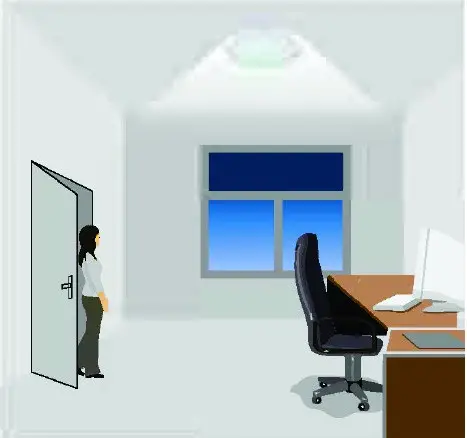
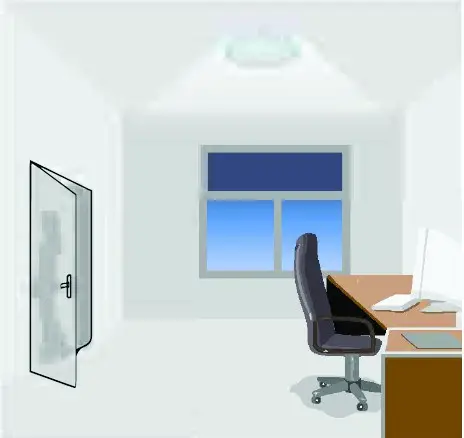
This function is inside the motion sensor for achieving tri-level control for some areas which require a light change notice before switch-off. The sensors offer 3 levels of light:
- 100% –> Dimmed light (natural light is insufficient) –>Off;
- Mo on hold-time and stand-by period;
- Selectable daylight threshold and freedom of detection area.


With sufficient natural light, the light does not switch on when presence is detected With insufficient natural light, the sensor switches on the light automa cally when presence is detected After hold-time, the light dims to stand-by level if the surrounding natural light is below the daylight threshold Light switches off automatically after the stand-by period elapses

DAYLIGHT SENSOR FUNCTION
Open the daylight sensor by pushing when remote control is in setting condition
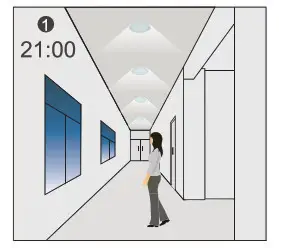 | 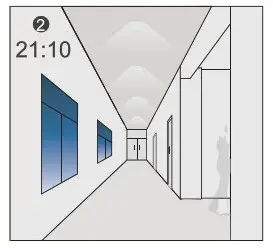 | 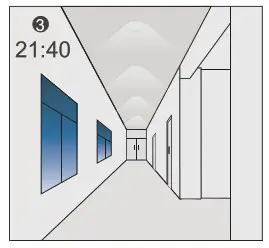 |
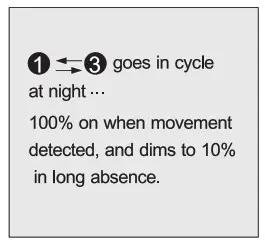
| The light switches on at 100% when there is movement detected | The light dims to standby level after the hold-time | The light remains in dimming level at night |
Settings on this demonstration:
Hold-time: 30min
setpoint to light on: 50lux
setpoint to light off: 300lux
Stand-by Dim: 10%
Stand-by period: +=
(when the smart photocell sensor open, the stand-by time is only +)
 | 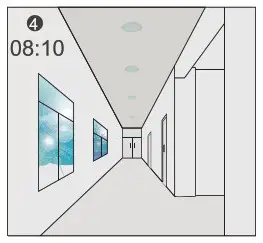 | 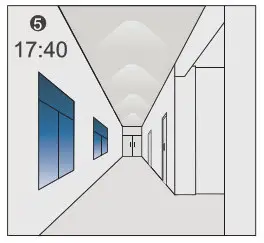 |
| When the natural light level exceeds set point off to light, the light will turn off even if when the space is occupied | The light automatically turns on at 10% when natural light is insufficient (no motion) |
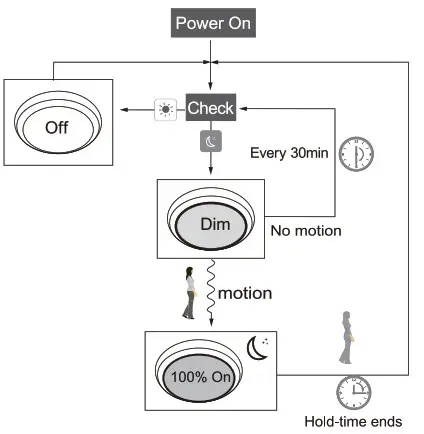
CORRIDOR FUNCTION vs. DAYLIGHT SENSOR FUNCTION
- In corridor function, turn on the light MUST by natural light level lower daylight sensor setting and Occupancy. In smart daylight sensor function, turn on the light by natural light level lower daylight set point to light on even if vacancy.
- In corridor function, turn off light by stand-by time finish if vacancy. In smart daylight sensor function, turn off the light by natural light level higher than daylight set point to light off even if occupancy.
- In smart daylight sensor function, natural light level lighter/lower than daylight set point to light off/on MUST keep at least 1 minute, that will turn off/on the light automatically.
ABOUT RESET & SCENE MODES (1,2,3,4)
The remote control comes with 4 Scene MODES which are not default. You may make desired parameters and save as the new MODE (1,2,3,4) to configure the installed sensors.
RESET: all settings go back to settings of DIP Switch in sensor.
SCENE MODES (1,2,3,4)
| Application | Scene Options | Brightness | Detection Area | Hold Time | Standby Time | Standby Dim Level Daylight | Sensor |
| Indoor | Mode 1 | 100% | 75% | 5min | 30min | 30% |  |
| Indoor | Mode 2 | 100% | 75% | 1min |  | 30% | |
| Indoor | Mode 3 | 100% | 75% | 5min | 30min | 30% | 3OLUX |
| Outdoor | Mode 4 | 100% | 75% | 1min | | 30% | (30LUX/300LUX) |
CHANGING MODES
- Press
 button, the remote control Led indicators show existing parameters.
 - Pree to select the new parameters.
- Press to confirm all parameters and saving in the mode.
 button, the remote control Led indicators show existing parameters.
UPLOADING
The upload func on allows you to configure the sensor with all parameters in one opera on. You may select CURRENT SETTING parameters or the MODE for uploading. Current se ng parameters or the MODE are displayed in Remote control.
Uploading current parameters to sensor(s) and duplicating sensor parameters from one to another
- Press button or press , all parameters are displayed in Remote control.
Note: check if all parameters are correct , if not, change them. - Aim at the sensor and press button , the light that sensor connects will be on/off as confirm.
Note: if other sensor need same parameters, just aim at the sensor and press button.

Miami, FL USA – [email protected]
T: 305.640.0465 – F: 305.640.0468
WWW.JADEMAR.COM
Information contained herein is subject to change without notice. Values are nominal. All values conform to DLC tolerances. Revised 12/2021