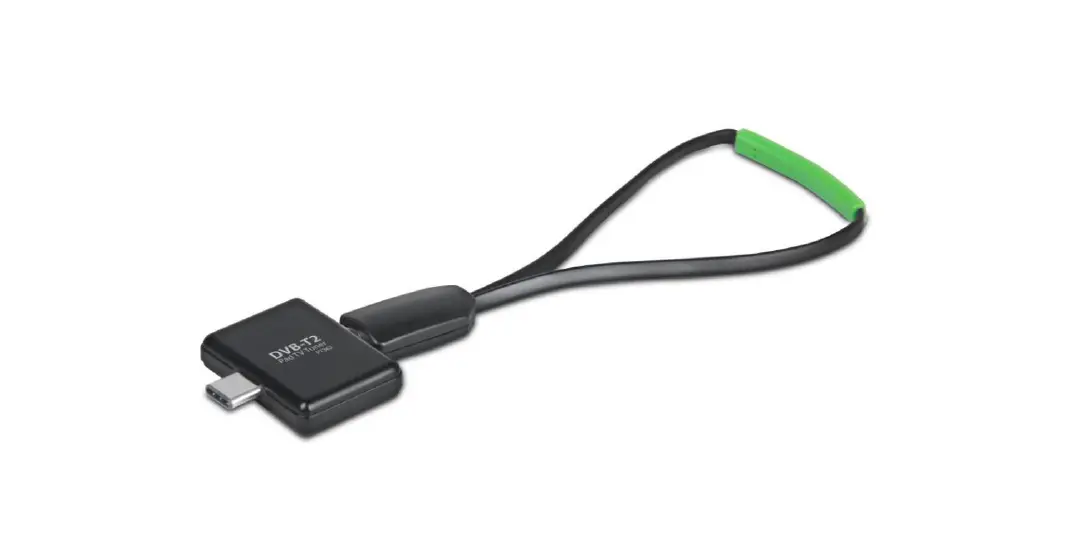
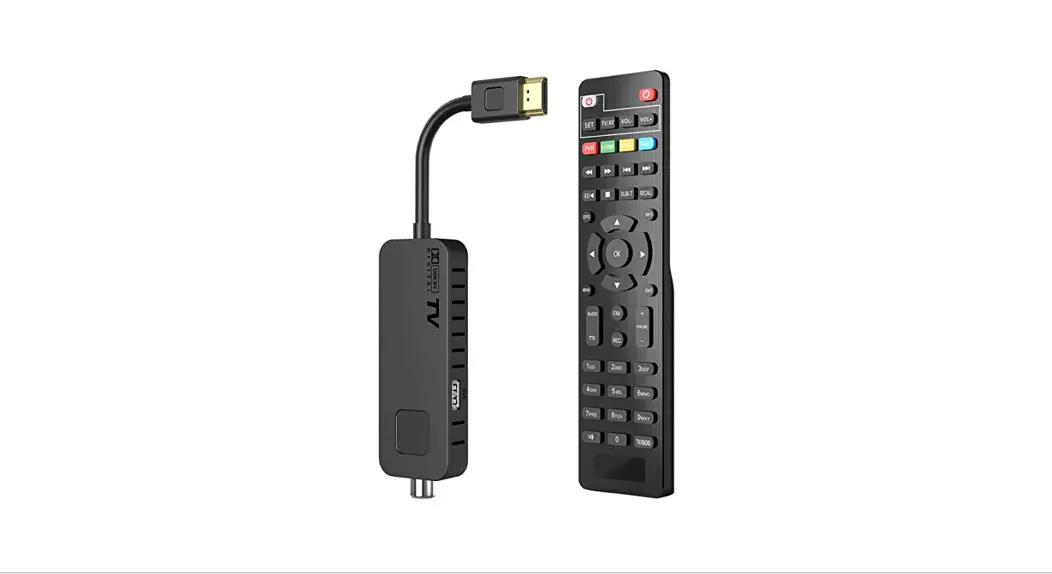
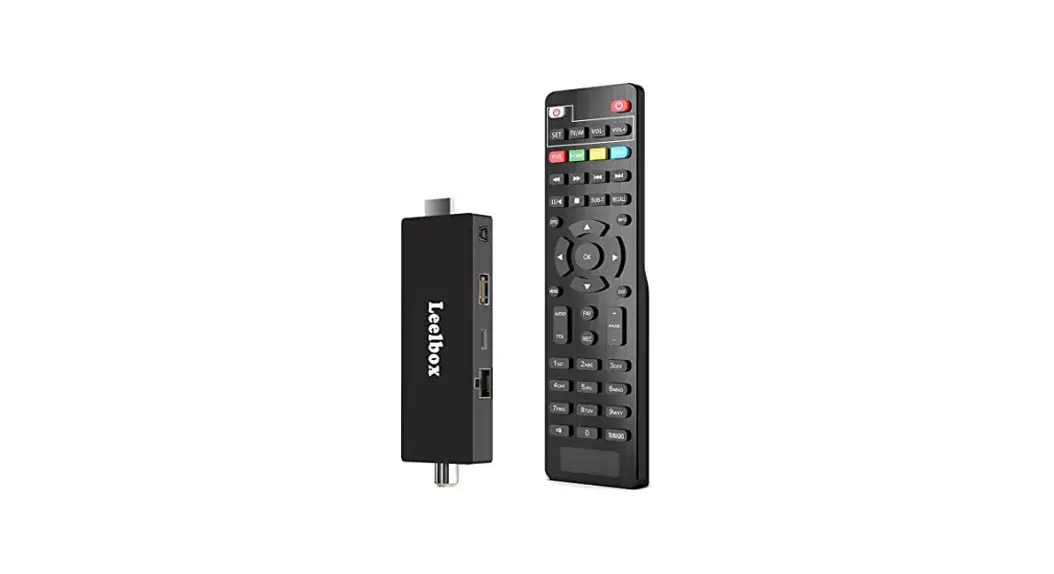
T232 Dual HD DVB-T2 USB Stick
Product Information: Dual HD DVB-T2 USB Stick T232
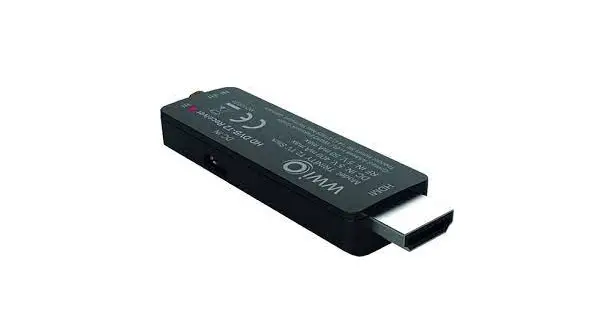
The Dual HD DVB-T2 USB Stick T232 is a powerful multimedia
device that allows you to access and work with digital TV, recorded
TV programs, and radio on your PC or laptop. It supports
multi-channel preview and recording at the same time.
Key Features:
- Decoder setting
- Recorded TV location
- Schedule Recording
- Channel setting
- Menu Description (right-click mouse)
- HiDTV description
- Video Recording
- Recorded file playback
- Snapshot Preview
- Time-shifting function
- EPG (Electronic Program Guide)
- PIP (Picture-in-Picture)
System Requirements:
- Windows: Microsoft Windows 7/8/10, 4GB RAM
- MAC: OS X 10.9 or later
- Minimum Processor: Quad-core i5 7400 3.0GHz or faster
- Sound and graphics with support for DirectX 9 or higher
Hardware Connection:
- Connect an outdoor antenna for optimal reception
- Plug the Dual HD DVB-T2 USB Stick T232 into a USB port on your
PC or laptop
Product Usage Instructions:
- Download the driver and software for Windows from www.mygica.com/support or for MAC from
https://www.geniatech.eu/support/eyetv-3-en/ - Install the driver and software on your computer
- Open the HiDTV software by double-clicking on HIDTV.exe
- Select one of the tuners available for use
- Click “Scan Channels” to scan for available channels
- Select your country and bandwidth, then click “Scan” to begin
the channel scanning process - Choose to stop and play after the channels have been
scanned - You can now watch TV channels while recording a different
channel - To set up Picture-in-Picture (PIP), choose “Setup” and select
PIP - Right-click on the screen to select “Digital TV” or “Digital
TV1” - Select one tuner for recording
Frequently Asked Questions:
- Q: Can not lock any program channel when auto
scan?A: Please check if there is DVBT2/T broadcasting program in your
area. Also, check if your signal condition is too weak. Try moving
the antenna around and re-scan.
Dual HD DVB-T2 USB Stick
T232
User’s Guide
T232 User’s Guide Chapter 1 Overview
Important Notice: “All channels are subject to coverage and may be changed from time to time. Reception may depend on the type and condition of your existing aerial. Aerial upgrade may be required. Please confirm coverage in your area.” We strongly recommend that you install an outdoors antenna when you use the DTV receiver indoors.
1
1.1 Introduction
Decoder setting Recorded TV location Schedule Recording Channel setting Menu Description(right click mouse) HiDTV description Video Recording Recorded file playback Snapshot Preview Time-shifting function EPG Video Windows description PIP
2.1 Hardware Connection
1.2 System requirements Windows:Microsoft Windows7/8/10, 4GB RAM MAC:OS X 10.9 or later Minimum processor: Minimum processor: Quad core i5 7400 3.0Ghz or faster
Note: If your PC is not fast enough, you might see jerky live TV video, but your TV recordings will be fine. Sound and graphics with support for DirectX 9 or higher
ANTENNA
2
Chapter 2 How to install driver and software Windows Driver and Software download link: www.mygica.com/support MAC Software download link: https://www.geniatech.eu/support/eyetv-3-en/
3.1 Driver Installation Step1: OS will remind a new hardware– “New Hardware Device” was found. Please choose “Cancel” Step2: Open the windows driver file which you downloaded from website, and click setup.exe to install driver Step3: Click “Next” to continue installation Step4: Click Install to begin the installation. Step5: Click “Finish” to completely install the Driver Software. 3.2 Software installation Step6: Click “HiDTV Install”, Step7: Installation of HiDTV, Choose setup language Step8: Click “Next” to continue installation Step9: If you want to change the destination folder, please click “Browse” and click “next” (Recommended is better) Step10: Please click “Next” Step11: Click “Finish”, the Hidtv software is installed on your computer. Step12: You will see that HiDTV application icons will appear on your desktop.
3
Step13: When its finished, please check on Control panel, select “System”–“System properties”–“Device Manager”, you can see three devices which new driver is installed.
DVB-T/T2/C Dual USB Stick
4
HiDTV user interface
Welcome to HiDTV. A most powerful multimedia application that allows you to access and work with
Digital TV, recorded TV Programs, Radio from your PC and Laptop. It supports multi channels
preview and recording at same time.
1 Minimize window 2 Full screen/window switch 3 Exit HiDTV software
4
Playback ( time-shifting,) Recorded file playback
5
Video: record the current playing audio and video to the special image files
Stop: stop the current video program
6
stop the current replay video files
stop auto scan channels
Channel edit: Scan channel automatically 7 rename the current channel, add favorite
channel
8
Current input source or channel name display
9 Hardware description 10 Signal strength display window
Setting: Record file format setting 11 Hardware setting Recorded file location
setting. Schedule Recording setting
12 EPG: open HiDTV EPG window 13 Available channel list 14 Volume adjustment 15 Mute: 16 Time-shifting and pause of playback: 17 Recorded file playback 5
1.Please double click HIDTV.exe software, then click on the menu, as we know the device has dual tuner, you can choose one of tuner as following image showed.
6
2.Click ” scan channels” to scanning channel
7
3.Select country and bandwidth, then, click “Scan” to scanning channels.
8
4.Choose to stop and play after the channels been scanned.
9
5.It can be realized that you can watch TV channels while you do recording of different channel. 1.Choose “Setup” to select “PIP”
10
6. Right-click on the screen to select Digital TV and Digital TV1
11
7.Select 1 tuner to do record.
12
Frequency Ask Question (FAQ) 1. Can not lock any program channel when auto scan
1. Please check if there is DVBT2/T broad casting program in your area; 2. Please check if your signal condition is too weak, try to move the antenna around and re-scan
again, it is better to move the antenna near the window 3. Please check you connect the antenna and tightly 4. Please check you select right country in the HidTV software scan function page. 5. Please try to use an outdoor antenna and scan once more.
2. I do find some channels,, but this time I get fewer channels than last time 1. Maybe you moved antenna’s position or angle, try to find the better position and keep the antenna
vertical 2. The weather also can also affect your receiving signal quality, if the weather is bad today, that is the
reason 3. In some new start DVBT2/T broadcasting area, the provider of DVBT2/T broadcasting, may change
their broadcasting power from day to day, try to find a best power strength. 4. If you put a CAN of cola on the antenna, that will make signal weak, please move them away.
3. Video playing but Audio failed Please check the sound card or the volume setting.
13
4. Watching TV some time freeze or slow, also audio stroke 1. Please check your PC is not Pentium 3 or 2, DVB-T2/T TV STICK need a high CPU to decoding
DVBT stream 2. Please check you VGA driver is properly installed and updated 3. Please don’t run another high CPU loading software such as game and CAD.
14
 Get Support from the MyGica official website
 eyetv 3 | Geniatech EyeTV