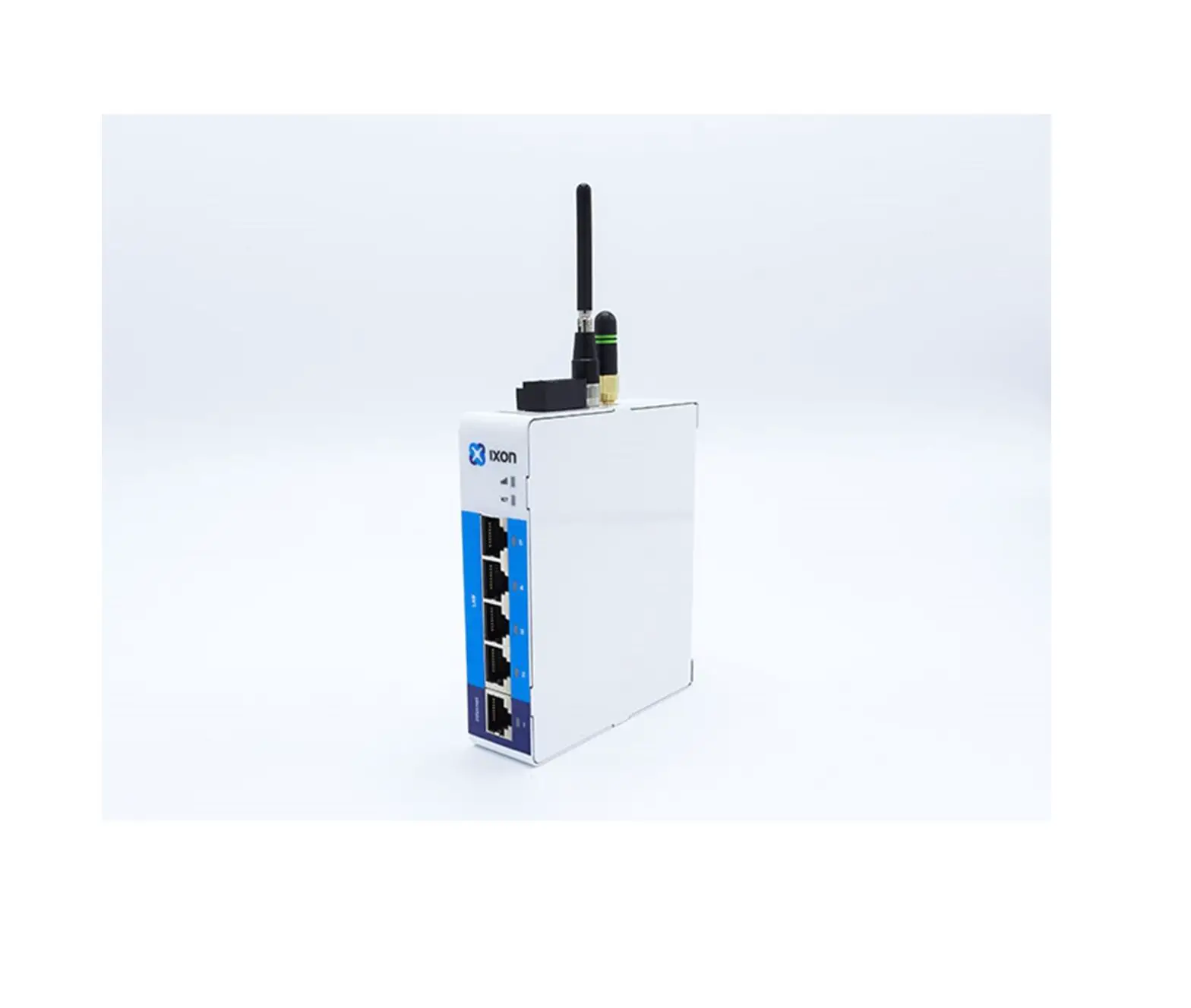


IXrouter
Quick Start Guide
Seamlessly integrated with the IXON Cloud
- Create your account
Get started with the IXrouter by creating an account on the IXON Cloud. Set up your own IIoT user and company account by visiting the portal. Nixon.cloud
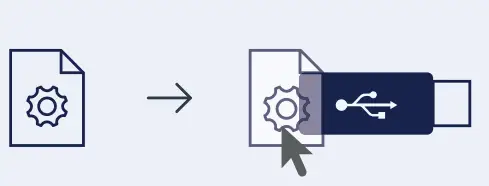
- Get config
Easily create the configuration file for your IXrouter from your own IIoT account. Go to the IXON Cloud Fleet Manager app. Expand the main menu, and select [Tools], then start the self-explaining wizard. Save the downloaded file to a USB flash drive (included) using the exact filename router. conf.
- Connect
No matter your situation, you can always connect your machine to the cloud. The IXrouter provides wired (Ethernet), 4G or Wi-Fi connectivity options. Registration starts immediately upon inserting the USB flash drive. Once the ACT led status is steady blue, the IXrouter is connected to the IXON Cloud and will automatically show up in your company account.
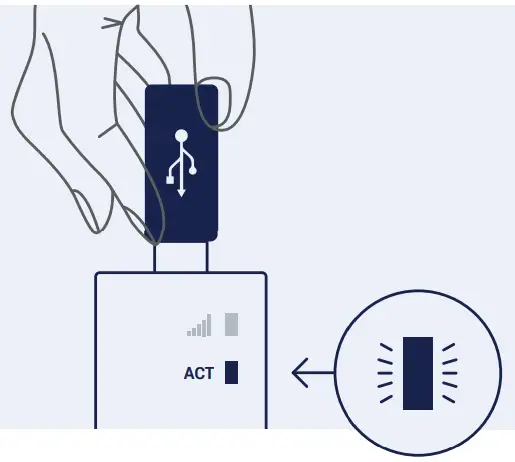
 Only insert the SIM card when the IXrouter is turned off.
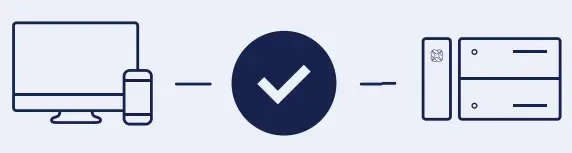
Ready. Set. Go!
You’ve now successfully installed your IXrouter. The IXrouter is designed for and seamlessly integrated with the IXON Cloud. Any further configuration can be handled from your own IIoT account. The IXON Cloud offers a multitude of services. Deliver remote service, monitor your machine, set up alerts, and create high-end data reports. It’s all at your fingertips in your own customer portal.
Find out more about IXON’s solution and its endless possibilities on www.ixon.cloud.
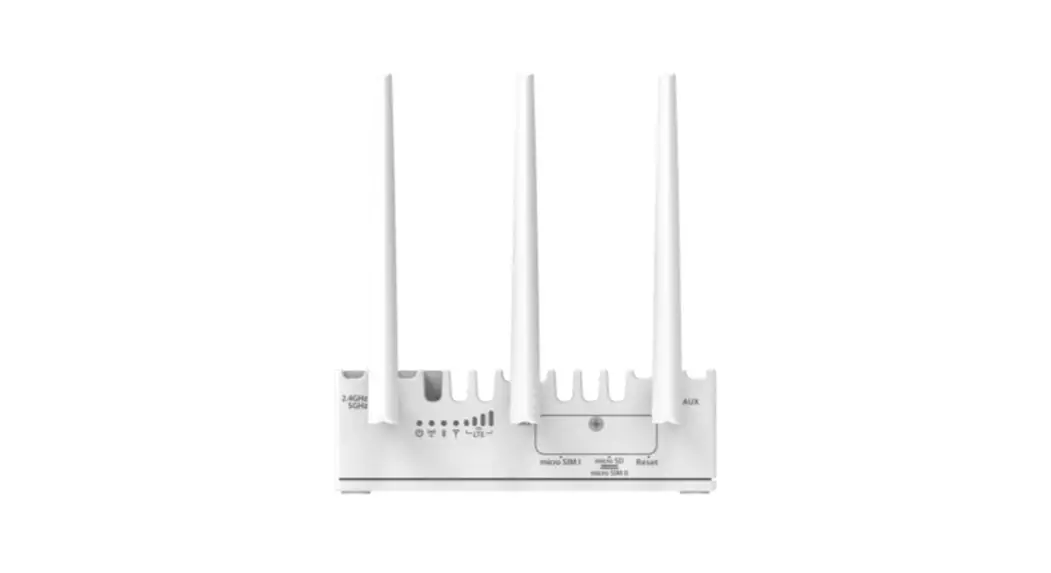
Troubleshooting Front Panel LEDs
| LED | State | Description |
 | Constant Blue | Connected, good reception |
| Constant Purple | Connected, medium reception | |
| Constant Red | Connected, poor reception | |
| Blinking Blue fast | Initializing cellular module | |
| Blinking Blue 1 pulse | No reception or unable to connect to the network (APN or SSID may be incorrect) | |
| Blinking Red 1 pulse | No reception or unable to connect to the network (APN or SSID may be incorrect) | |
| Blinking Red 2 pulses | PIN invalid or PUK required | |
| Blinking Red 4 pulses | SIM card is invalid or missing | |
| ACT | Constant Blue | Successfully connected to the IXON Cloud |
| Blinking Blue 1 pulse | Connecting to the IXON Cloud | |
| Blinking Blue 2 pulse | Initiating VPN connection | |
| Constant Red | Booting up (may take 1 min) or not yet registered | |
| Blinking Red 1 pulse | Waiting for internet access | |
| Blinking Red 3 pulses | LAN/WAN conflict (conflicting subnets) | |
| Blinking Red 4 pulses | Removed from the IXON Cloud (re-insert USB flash drive to register again) | |
| Blinking Red 5 pulses | Previously registered to the IXON Cloud (remove from the IXON Cloud and register again) |
Connectivity specifications
| Model | Wi-Fi | Cellular |
| IX2400 | ||
| IX2405 | Region: Worldwide LTE: B1/ B2/ B3/ B4/ B5/ B7/ B8/ B12/ B13/ B18 B19/ B20/ B25/ B26/ B28/ B38/ B39/ B40/ B41 WCDMA: B1/ B2/ B4/ B5/ B6/ B8/ B19 GSM: B2/ B3/ B5/ B8 | |
| IX2410 | 802.11b/g/n Client + AP mode | |
| IX2415 | 802.11b/g/n Client + AP mode | Region: Worldwide LTE: B1/ B2/ B3/ B4/ B5/ B7/ B8/ B12/ B13/ B18 B19/ B20/ B25/ B26/ B28/ B38/ B39/ B40/ B41 WCDMA: B1/ B2/ B4/ B5/ B6/ B8/ B19 GSM: B2/ B3/ B5/ B8 |
All models can connect via a wired connection (Ethernet cable).
General Specifications
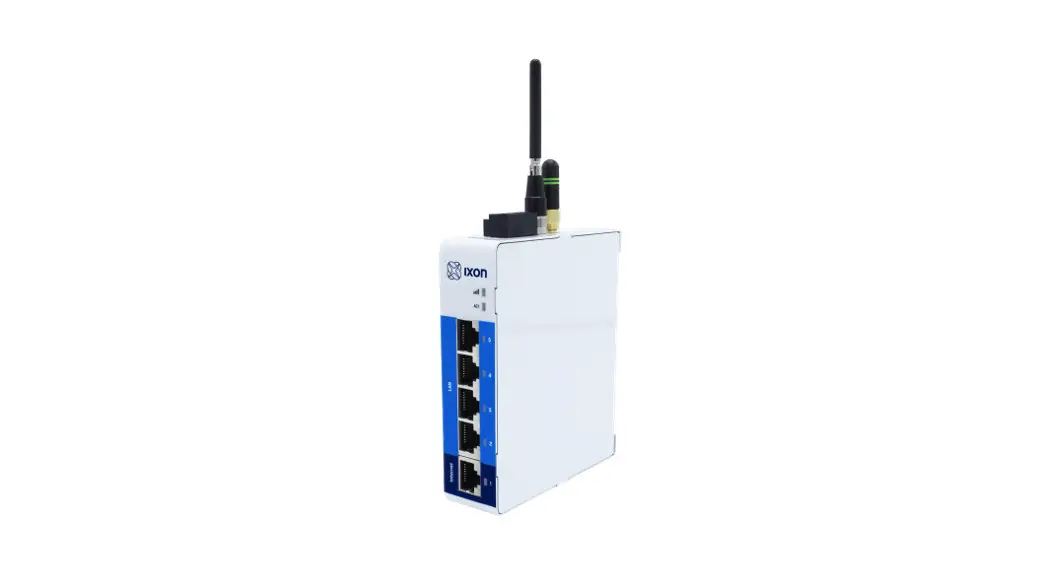
| Ports | 5x GbE (4x LAN, 1x WAN), 1x USB2.0 |
| Power supply | 12-24 VDC +/- 20% LPS 2A |
| Power consumption | About 2.5 to 5 Watt (idle) |
| Temperature range | -20°C to 65°C |
| Dimensions | 111 x 95 x 28mm |
| Physical specs | Metal case, IP20, DIN rail mountable |
| Certifications |  |
| Warranty | Two years |
| IXON Cloud | Lifetime access included |
Warning
The IXrouter allows the user to remotely connect to industrial control equipment via Ethernet, Wi-Fi, and cellular network connections. The remote user may fully operate and monitor the local control system and affect the function and control of the application similar to a local operator. Proper Control, Security, and Safety Procedures should be considered and implemented when utilizing the remote access feature.
Wi-Fi and 4G models
The antenna used with this transmitter must be installed with a separation distance of at least 20 cm from all persons and must not be co-located or operated in conjunction with any other antennas or transmitters.
Only an antenna tested with the wireless transmitter or a similar antenna with equal or lesser gain may be used.
This device complies with part 15 of the FCC rules. Operation is subject to the following two conditions:
(1) This device may not cause harmful interference, and (2) this device must accept any interference received, including interference that may cause undesired operation.
Additional Help and Support
For additional product support, specifications, a detailed user manual, and installation tips go to support. Nixon. cloud. For direct technical support and questions, get in touch with our Technical Support team via [email protected] or +31 (0)85 – 744 1105.
Version 1.4 06042021