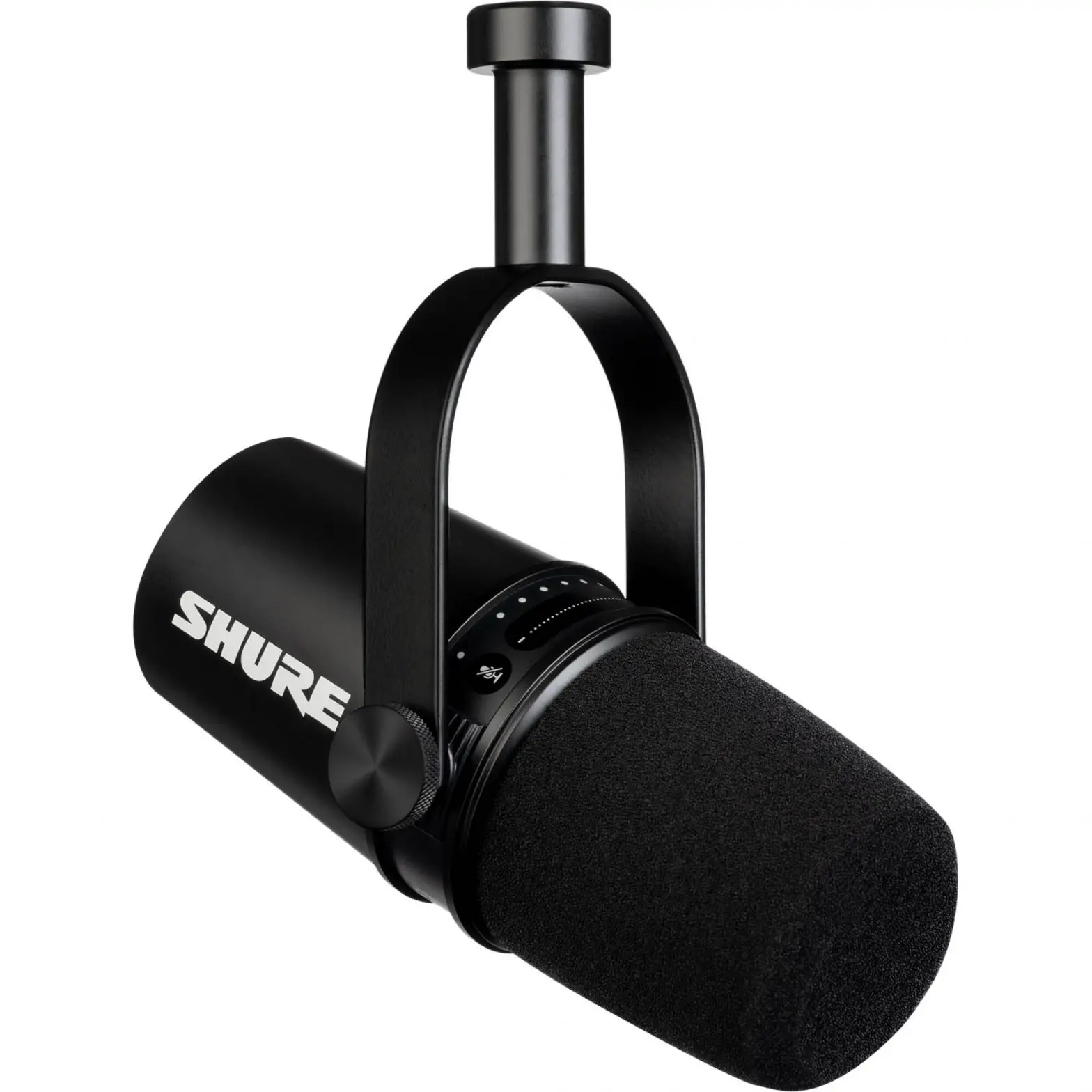
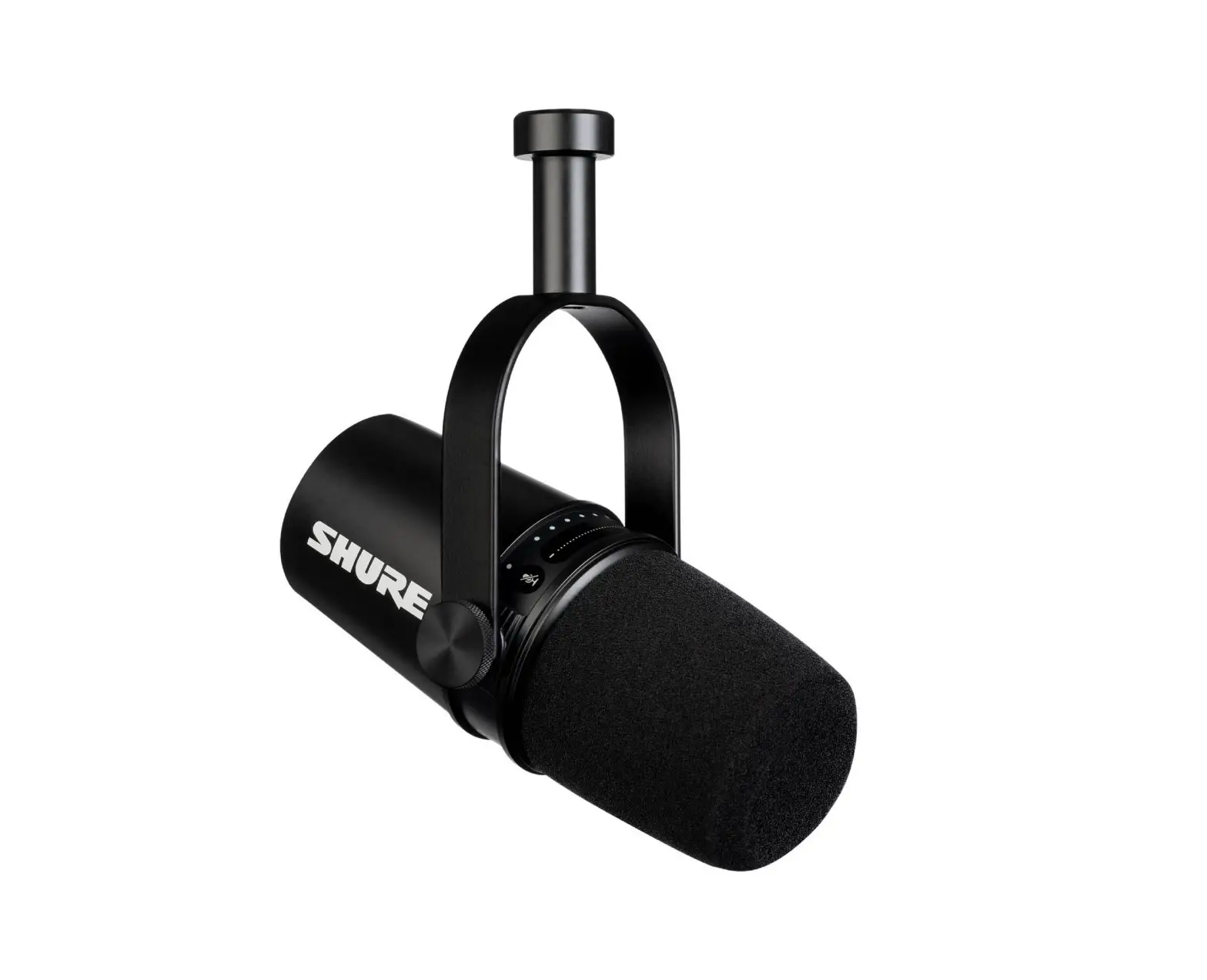
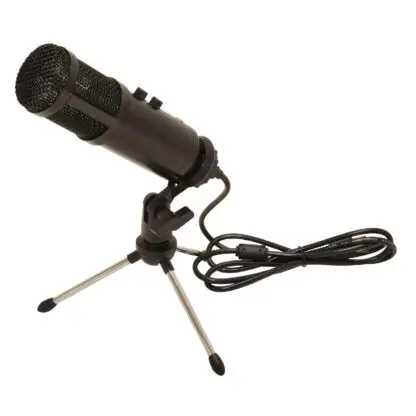
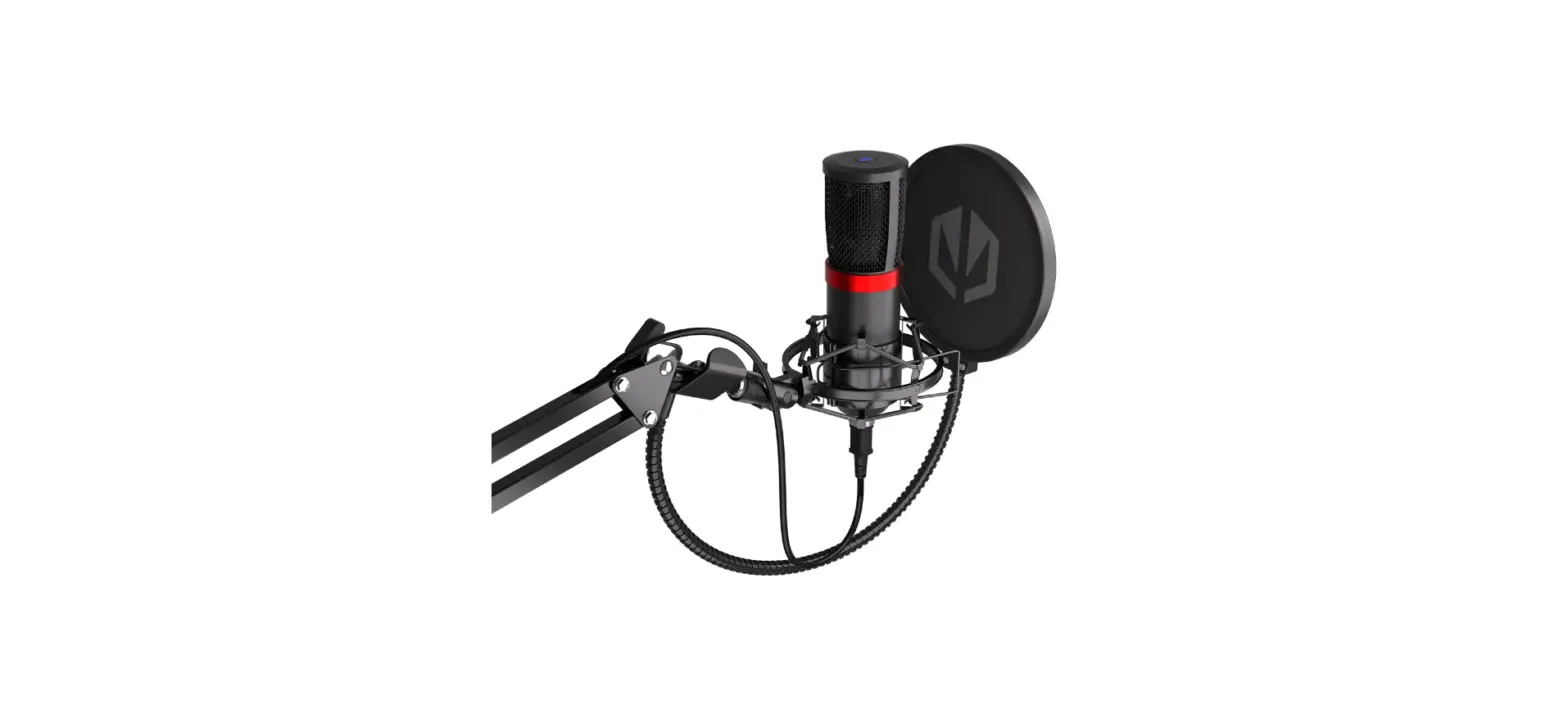
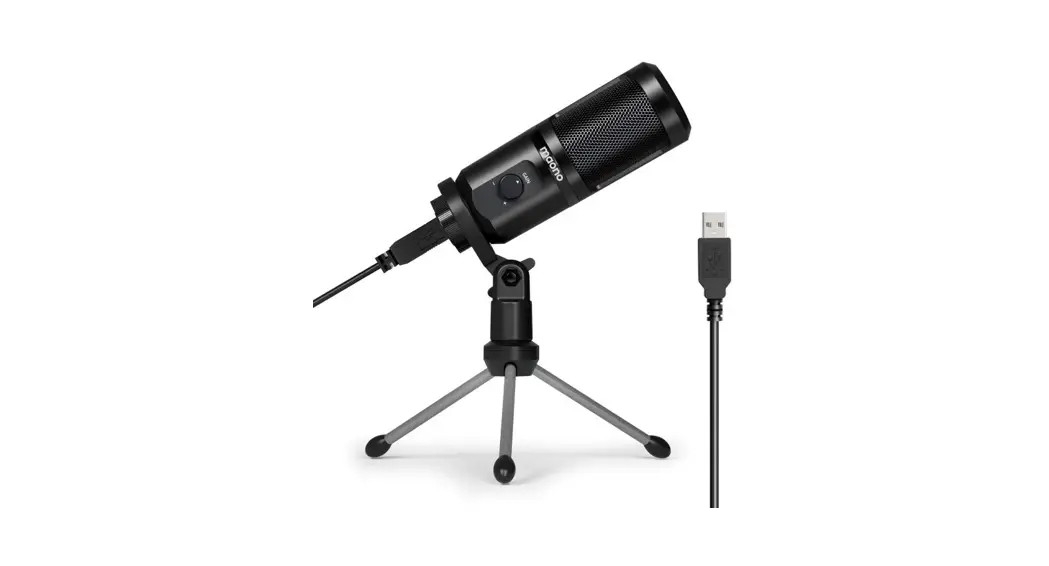
FM1 USB Podcast Microphone
Product Information
The FM1 is a USB microphone designed for use with computers and
mobile devices. It is compatible with Windows 7/8/10/11, Mac OS
(10.10 or above), most Android systems, iPhone, and iPad. The
microphone features seven different specifications, including two
knobs for adjusting the microphone angle, a mute button, and an
optional pop filter. The microphone is plug-and-play, requiring no
extra drivers to be installed.
Product Usage Instructions
System Requirements
- PC: Windows 7/8/10/11 USB 1.1/2.0/3.0
- MAC: Mac OS (10.10 or above) USB 1.1/2.0/3.0
- Cellphone: Android 6.0 or above, iOS 9.0 or above, Harmony OS
1.0 or above
Note: Compatible with WINS, MAC, LINUX, most Android systems,
iPhone and iPad (plug adapter required and not included in the
package)
Installation Instructions
- Connect USB Type C to microphone, and the USB A port (or
through an appropriate adapter) to a computer or mobile terminal.
Plug and play. No extra driver needs to be installed. - Please ensure that OneOdio FM1 has been chosen as the default
audio equipment. When microphone is connected and operating
normally, the green indicator light will be on. - To optimize recording, please make sure that the right side of
the microphone faces the direction where sound is being
produced. - By turning the knobs on both sides of the microphone, the
microphone angle can be adjusted. - Mute. In normal operating mode, the microphone will enter mute
mode if you gently press the mute button, and the green indicator
light will turn red. By pressing the button again, normal operation
will be resumed. - Installation of pop filter. The pop filter is optional. To
install a pop filter, unscrew the U-shaped bracket and round base.
During installation, the position of the pop filter can be adjusted
so that it is fixed in the best position.
Operating Procedure with a Mobile Phone
On the microphone is on, this means the phone has been connected
to the microphone.
- Connect USB Type C to microphone, and the USB A port (or
through an appropriate adapter) to a mobile terminal. - Please ensure that OneOdio FM1 has been chosen as the default
audio equipment. When microphone is connected and operating
normally, the green indicator light will be on.
Setting on Computer
Windows 8 and above
- Click on Start, then click on Settings.
- Click on System, then click on Sound.
- Select OneOdio FM1 as the default input device.
Windows 7
- Click on Start, then click on Control Panel.
- Click on Hardware and Sound, then click on Sound.
- Select OneOdio FM1 as the default input device.
Setting Microphone Level
- Right-click on the speaker icon in the taskbar and select
Sounds. - Click on the Recording tab, then select OneOdio FM1.
- Click on Properties, then click on the Levels tab.
- Adjust the microphone level as needed.
Setting on Apple Mac
- Click on the Apple menu, then click on System Preferences.
- Click on Sound, then click on Input.
- Select OneOdio FM1 as the default input device.
FM1
User Manual
Packing list
FM1
User Manual
System Requirements
PC Windows 7/8/10/11 USB 1.1/2.0/3.0
MAC Mac OS (10.10 or above) USB 1.1/2.0/3.0
Cellphone Android 6.0 or above iOS 9.0 or above Harmony OS 1.0 or above
Note: Compatible with WINS, MAC, LINUX, most Android systems, iPhone and iPad (plug adapter required and not included in the package)
Specifications
· Type: Condenser · Polar Pattern: Cardioid · Sampling Rate: (44.1 to 48) kHz / 16 bits · Frequency Response: 20 Hz – 20 kHz · Sensitivity: -38 dB ± 2 dB · Maximum SPL: 110 dB · Signal-to-Noise Ratio: 91 dB · Total Harmonic Distortion: 0.5 (1 kHz) · Monitor Output Type: 3.5 mm · Monitor Output Impedance: 32 · Monitor Output Power: 10 mW · Operating Voltage: (5 ± 0.5) VDC · Operating Current: 500 mA
Features
æ Sampling rate up to 48 kHz/16 bits ç Cardioid condenser microphone è Microphone gain control é Operation indicator lamp & microphone mute button ê 3.5mm headphone monitoring jack ë Monitoring on/off switch button ì Type-C port í Pop filter î 2m USB C-USB A audio cable
7
5
2
3
4
6
8
9
Installation Instructions
or
1. Connect USB Type C to microphone, and the USB A port (or through an appropriate adapter) to a computer or mobile terminal. Plug and play. No extra driver needs to be installed.
green 2. Please ensure that “OneOdio FM1” has been chosen as the default audio equipment. When microphone is connected and operating normally, the green indicator light will be on.
3. To optimize recording, please make sure that the right side of the microphone faces the direction where sound is being produced.
4. By turning the knobs on both sides of the microphone, the microphone angle can be adjusted.
green
red
5. Mute. In normal operating mode, the microphone will enter mute mode if you gently press the mute button, and the green indicator light will turn red. By pressing the button again, normal operation will be resumed.
6. Microphone monitor. Insert the headphone into the 3.5 mm audio monitor port of the microphone. To monitor your own voice, you can gently press the monitor switch, and the green indicator light on the monitor will come on. You can then monitor your voice immediately. If you press the key again, the microphone monitor will be switched off. Regardless of whether the monitor is switched on or off, it will neither interfere with your listening to other people speaking nor with audio or video played on the computer.
7. Installation of pop filter. The pop filter is optional. To install a pop filter, unscrew the U-shaped bracket and round base. During installation, the position of the pop filter can be adjusted so that it is fixed in the best position.
Operating Procedure with a Mobile Phone
· 1. Currently, the microphone is compatible with the following mobile phone systems: Andoid 6.0, Harmony OS 1.0 and iOS 9.0 or above.
· 2. Android: The microphone can be connected to most smart Android phones via OTG. Microphone functions (e.g. earphone monitor, sound quality of radio and recorder) are subject to limitations for certain models and applications. This does not result from the microphone quality. In this case, please contact the supplier of your mobile device to confirm if it supports OTG. For instance, for some OPPO and VIVO cellphones, the microphone can only function if OTG is enabled.
Correct connection of a mobile phone to the microphone: æ Connect the TYPE-C data cable connector to the microphone; ç Connect one end of the USB-A plug to the phone via an adapter. If the green light
on the microphone is on, this means the phone has been connected to the microphone.
1
2
· 3. iPhone: The microphone is compatible with iPhone 5 and higher-version models. An original accessory [lightning to USB camera adapter] has to be purchased from Apple’s official website for connecting to our microphone.
Setting on computer
Windows 8 starts here
Windows 10, 8, 7
1
2
1X
3
1X
1X 1X
1X
1X
Setting microphone level
1
1X
2
4 Microphone Properties Microphone
3
1X
2X
Setting on Apple Mac
1
1X
2
1X
3
1X