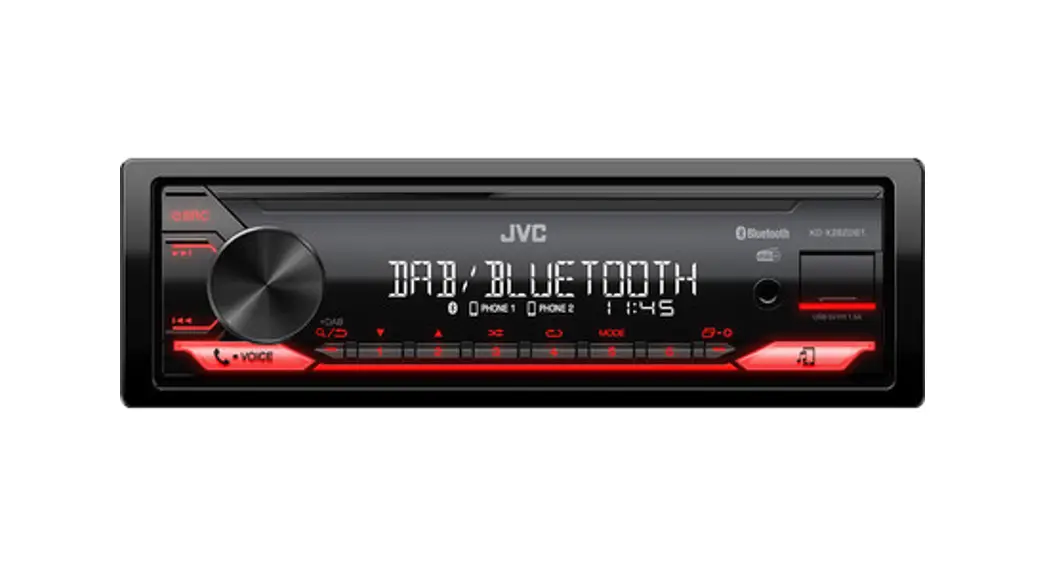
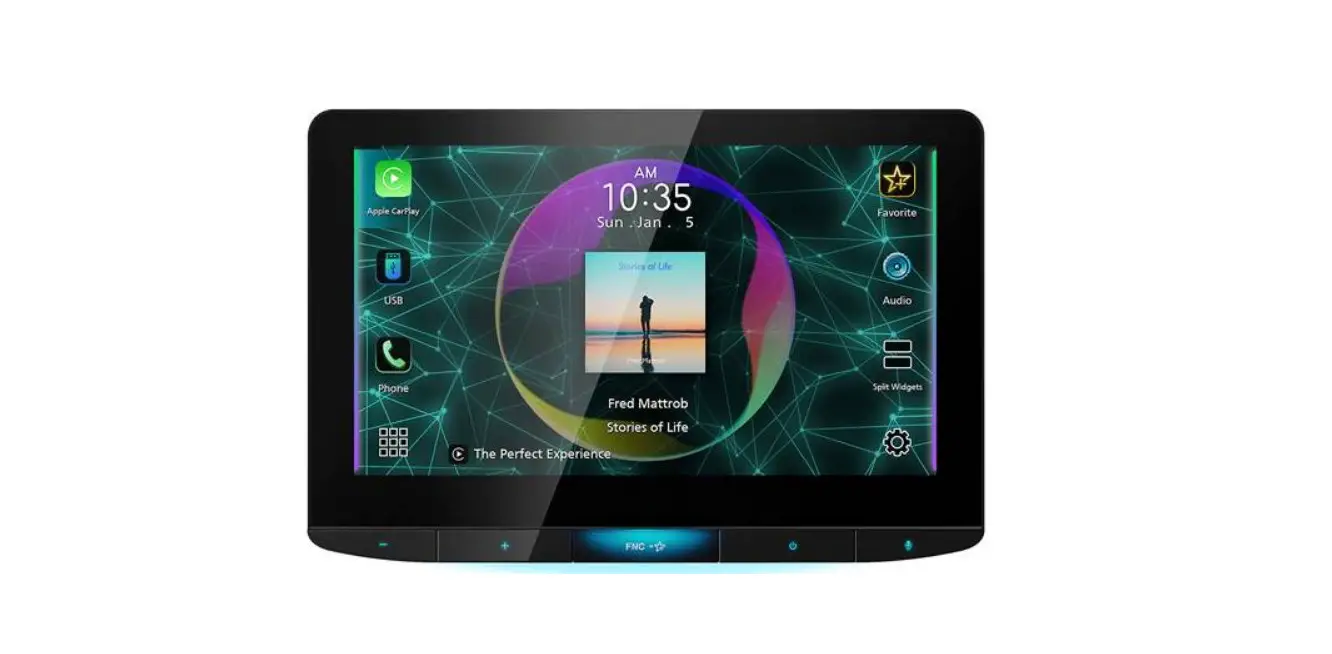
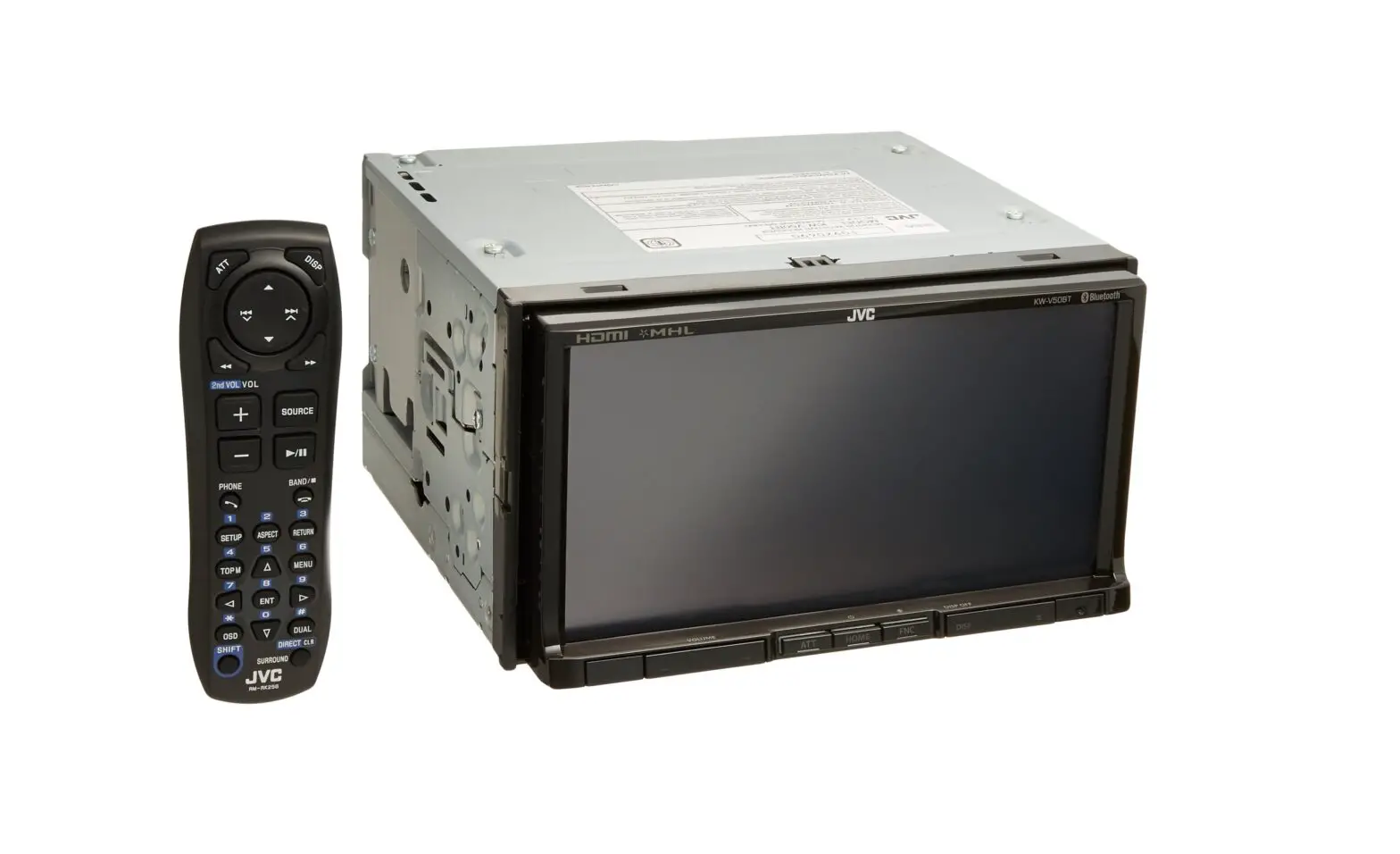
KWM785BW WVGA AV Digital Media Receiver
Product Information
| Trade Name | JVC |
|---|---|
| Products | MONITOR WITH RECEIVER |
| Model Name | KW-M785BW |
| Responsible Party | JVCKENWOOD USA CORPORATION |
| Address | 4001 Worsham Avenue, Long Beach, CA 90808, U.S.A. |
| Phone | 1-800-252-5722 |
Product Usage Instructions
To ensure proper usage of the KW-M785BW Monitor with Receiver,
please follow the instructions below:
- Make sure the device is placed at least 20 cm or more away from
a person’s body during installation and operation. - Do not co-locate or operate the transmitter in conjunction with
any other antenna or transmitter. - Ensure that the CR Coin Cell Lithium Battery is handled
according to special handling procedures if applicable. For more
information, visit the following website: https://www.dtsc.ca.gov/hazardouswaste/perchlorate - Comply with the FCC/ISED radiation exposure limits and keep the
radiator at a safe distance from a person’s body. - Do not modify or make changes to the device that are not
expressly approved by the responsible party for compliance, as it
may void the user’s authority to operate the equipment. - Ensure that the device does not cause harmful interference and
accepts any interference received, including interference that may
cause undesired operation.
Please refer to the user manual for additional information and
troubleshooting guidelines.
KW-M785BW
MONITOR WITHRECEIVER
Quick Start Guide
MONITEUR AVEC RÉCEPTEUR
Guide de démarrage rapide
MONITOR CON RECEPTOR
Guía de inicio rápido
ENGLISH FRANÇAIS ESPAÑOL
For detailed operations and information, refer to the INSTRUCTION MANUAL on the following website: Pour les opérations et les informations détaillées, reportez-vous au MANUEL D’INSTRUCTIONS sur le site web suivant: Para obtener más información y detalles sobre las operaciones, consulte el MANUAL DE INSTRUCCIONES en el siguiente sitio web:
<https://www.jvc.net/cs/car/>
B5K-0945-00 (KN)
Información acerca de la eliminación de equipos eléctricos y electrónicos al final de la vida útil (aplicable a los países que hayan adoptado sistemas independientes de recogida de residuos)
Los productos con el símbolo de un contenedor con ruedas tachado no podrán ser desechados como residuos domésticos. Los equipos eléctricos y electrónicos al final de la vida útil, deberán ser reciclados en instalaciones que puedan dar el tratamiento adecuado a estos productos y a sus subproductos residuales correspondientes. Póngase en contacto con su administración local para obtener información sobre el punto de recogida más cercano. Un tratamiento correcto del reciclaje y la eliminación de residuos ayuda a conservar los recursos y evita al mismo tiempo efectos perjudiciales en la salud y el medio ambiente.
Informação sobre a eliminação de pilhas Este produto não deve ser eliminado como lixo doméstico geral. Devolva a pilha usada ao revendedor ou entidade autorizada para que a mesma seja devolvida ao fabricante ou importador. A reciclagem e a eliminação de lixo de maneira apropriada ajudarão a conservar os recursos naturais ao mesmo tempo que prevenirão os efeitos prejudicais à nossa saúde e ao meio ambiente.
FCC CAUTION Changes or modifications not expressly approved by the party responsible for compliance could void the user’s authority to operate the equipment.
NOTE: This equipment has been tested and found to comply with the limits for a Class B digital device, pursuant to part 15 of the FCC Rules. These limits are designed to provide reasonable protection against harmful interference in a residential installation. This equipment generates, uses and can radiate radio frequency energy and, if not installed and used in accordance with the instructions, may cause harmful interference to radio communications. However, there is no guarantee that interference will not occur in a particular installation. If this equipment does cause harmful interference to radio or television reception, which can be determined by turning the equipment off and on, the user is encouraged to try to correct the interference by one or more of the following measures: Reorient or relocate the receiving antenna. Increase the separation between the equipment and
receiver. Connect the equipment into an outlet on a circuit different
from that to which the receiver is connected. Consult the dealer or an experienced radio/TV technician for
help.
Supplier’s Declaration of Conformity
Trade Name:
JVC
Products:
MONITOR WITH RECEIVER
Model Name:
KW-M785BW
Responsible Party: JVCKENWOOD USA CORPORATION
4001 Worsham Avenue, Long Beach,
CA 90808, U.S.A.
PHONE: 1-800-252-5722
THIS DEVICE COMPLIES WITH PART 15 OF THE FCC RULES. OPERATION IS SUBJECT TO THE FOLLOWING TWO CONDITIONS: (1) THIS DEVICE MAY NOT CAUSE HARMFUL INTERFERENCE,
AND (2) THIS DEVICE MUST ACCEPT ANY INTERFERENCE RECEIVED,
INCLUDING INTERFERENCE THAT MAY CAUSE UNDESIRED OPERATION.
This transmitter must not be co-located or operated in conjunction with any other antenna or transmitter.
Para cumplimiento de la IFT: “La operación de este equipo está sujeta a las siguientes dos condiciones: (1) es posible que este equipo o dispositivo no cause
interferencia perjudicial y (2) este equipo o dispositivo debe aceptar cualquier
interferencia, incluyendo la que pueda causar su operación no deseada”
CALIFORNIA, USA ONLY This product contains a CR Coin Cell Lithium Battery which contains Perchlorate Material–special handling may apply. See www.dtsc.ca.gov/hazardouswaste/perchlorate
i
ISED Caution This device contains licence-exempt transmitter(s)/receiver(s) that comply with Innovation, Science and Economic Development Canada’s licence-exempt RSS(s). Operation is subject to the following two conditions: 1. This device may not cause interference. 2. This device must accept any interference, including
interference that may cause undesired operation of the device.
Attention de `ISED L’émetteur/récepteur exempt de licence contenu dans le présent appareil est conforme aux CNR d’Innovation, Sciences et Développement économique Canada applicables aux appareils radio exempts de licence. L’exploitation est autorisée aux deux conditions suivantes : 1. L’appareil ne doit pas produire de brouillage. 2. L’appareil doit accepter tout brouillage radioélectrique
subi, même si le brouillage est susceptible d’en compromettre le fonctionnement.
CAUTION This equipment complies with FCC/ISED radiation exposure limits set forth for an uncontrolled environment and meets the FCC radio frequency (RF) Exposure Guidelines and RSS-102 of the ISED radio frequency (RF) Exposure rules. This equipment should be installed and operated keeping the radiator at least 20 cm or more away from person’s body.
ATTENTION Cet équipement est conforme aux limites d’exposition aux rayonnements énoncées pour un environnement non contrôlé et respecte les règles les radioélectriques (RF) de la FCC lignes directrices d’exposition et d’exposition aux fréquences radioélectriques (RF) CNR-102 de l’ISED. Cet équipement doit être installé et utilisé en gardant une distance de 20 cm ou plus entre le radiateur et le corps humain.
· Windows Media is a registered trademark or trademark of Microsoft Corporation in the United States and/or other countries. This product is protected by certain intellectual property rights of Microsoft. Use or distribution of such technology outside of this product is prohibited without a license from Microsoft.
· Use of the Made for Apple badge means that an accessory has been designed to connect specifically to the Apple product(s) identified in the badge and has been certified by the developer to meet Apple performance standards. Apple is not responsible for the operation of this device or its compliance with safety and regulatory standards. Please note that the use of this accessory with an Apple product may affect wireless performance.
· Apple, iPhone, and Lightning are trademarks of Apple Inc., registered in the U.S. and other countries.
· Apple, Siri, Apple CarPlay and Apple CarPlay logo are trademarks of Apple Inc., registered in the U.S. and other countries.
· App Store is a service mark of Apple Inc., registered in the U.S. and other countries.
· IOS is a trademark or registered trademark of Cisco in the U.S. and other countries and is used under license.
· Google, Android, Android Auto, Google Maps and other marks are trademarks of Google LLC.
· To use Android Auto on your car display, you’ll need an Android Auto compatible vehicle or aftermarket stereo, an Android phone running Android 6.0 or higher, an active data plan, and the Android Auto app.
· Wi-Fi® is a registered trademark of Wi-Fi Alliance®. · The Wi-Fi CERTIFIEDTM Logo is a registered trademark of Wi-Fi
Alliance®. · The Bluetooth® word mark and logos are registered
trademarks owned by Bluetooth SIG, Inc. and any use of such marks by JVCKENWOOD Corporation is under license. Other trademarks and trade names are those of their respective owners.
· SiriusXM and all related marks and logos are trademarks of Sirius XM Radio, Inc. All rights reserved.
· The terms HDMI, HDMI High-Definition Multimedia Interface, and the HDMI Logo are trademarks or registered trademarks of HDMI Licensing Administrator, Inc.
· Font for the this product is RT Font designed and sold by Ricoh Industrial Solutions Inc.
· Linux® is the registered trademark of Linus Torvalds in the U.S. and other countries.
· THIS PRODUCT IS LICENSED UNDER THE AVC PATENT PORTFOLIO LICENSE FOR THE PERSONAL USE OF A CONSUMER OR OTHER USES IN WHICH IT DOES NOT RECEIVE REMUNERATION TO (i) ENCODE VIDEO IN COMPLIANCE WITH THE AVC STANDARD (“AVC VIDEO”) AND/OR (ii) DECODE AVC VIDEO THAT WAS ENCODED BY A CONSUMER ENGAGED IN A PERSONAL ACTIVITY AND/OR WAS OBTAINED FROM A VIDEO PROVIDER LICENSED TO PROVIDE AVC VIDEO. NO LICENSE IS GRANTED OR SHALL BE IMPLIED FOR ANY OTHER USE. ADDITIONAL INFORMATION MAY BE OBTAINED FROM MPEG LA, L.L.C. SEE HTTP://WWW.MPEGLA.COM
ii
· THIS PRODUCT IS LICENSED UNDER THE MPEG-4 VISUAL PATENT PORTFOLIO LICENSE FOR THE PERSONAL AND NONCOMMERCIAL USE OF A CONSUMER FOR (¡) ENCODING VIDEO IN COMPLIANCE WITH THE MPEG-4 VISUAL STANDARD (“MPEG-4 VIDEO”) AND/OR (¡¡) DECODING MPEG-4 VIDEO THAT WAS ENCODED BY A CONSUMER ENGAGED IN A PERSONAL AND NON-COMMERCIAL ACTIVITY AND/OR WAS OBTAINED FROM A VIDEO PROVIDER LICENSED BY MPEG LA TO PROVIDE MPEG-4 VIDEO. NO LICENSE IS GRANTED OR SHALL BE IMPLIED FOR ANY OTHER USE. ADDITIONAL INFORMATION INCLUDING THAT RELATING TO PROMOTIONAL, INTERNAL AND COMMERCIAL USES AND LICENSING MAY BE OBTAINED FROM MPEG LA, LLC. SEE HTTP://WWW.MPEGLA.COM
· THIS PRODUCT IS LICENSED UNDER THE VC-1 PATENT PORTFOLIO LICENSE FOR THE PERSONAL AND NONCOMMERCIAL USE OF A CONSUMER TO ( i ) ENCODE VIDEO IN COMPLIANCE WITH THE VC-1 STANDARD (“VC-1 VIDEO”) AND/OR ( ii ) DECODE VC-1 VIDEO THAT WAS ENCODED BY A CONSUMER ENGAGED IN A PERSONAL AND NONCOMMERCIAL ACTIVITY AND/OR WAS OBTAINED FROM A VIDEO PROVIDER LICENSED TO PROVIDE VC-1 VIDEO. NO LICENSE IS GRANTED OR SHALL BE IMPLIED FOR ANY OTHER USE. ADDITIONAL INFORMATION MAY BE OBTAINED FROM MPEG LA, L.L.C. SEE HTTP://WWW.MPEGLA.COM
Important Notice on Software
Software License on This Product The software embedded in this product comprises a number of independent software components, each of which is copyrighted by JVCKENWOOD Corporation or by a third party.
This product uses software components that are based on an End-User License Agreement (hereinafter called “EULA”) stipulated by JVCKENWOOD Corporation and by third parties.
The EULA dictates the availability of the source codes of freesoftware components as a prerequisite to distributing them in executable form under the terms of the GNU General Public License or the Lesser General Public License (hereinafter called “GPL/LGPL”). To get information about the software components that are subject to the terms of the GPL/LGPL, please visit the following Website:
Website URL https://www3.jvckenwood.com/english/ download/gpl/
Queries concerning the contents of the source code or the like will not be accepted.
Please note that software components based on a EULA that is not subject to the terms of the GPL/LGPL or those that have been developed or created by JVCKENWOOD Corporation will be excluded from the scope of source code disclosure.
Because licenses to use software components distributed under the GPL/LGPL are offered to the customers for free of charge, no warranty is granted to the customers, whether explicitly or implicitly, to the extent of the applicable laws.
Unless otherwise stipulated by the applicable laws or agreed upon in writing, the copyright holders or those who are entitled to modify and redistribute the software components are not held responsible for any and all damages resulting from their use or from inability to use them. For more information about the terms of use of the software components, required items of compliance and so on, please refer to the GPL/LGPL.
Customers wishing themselves to use a software component that is subject to the GPL/LGPL embedded in this product are encouraged to read the terms of the corresponding license before use. Because each individual license is prescribed by a third party other than JVCKENWOOD Corporation, the original (English) of the license is presented.
EULA
Software License Agreement JVCKENWOOD Corporation (hereinafter called “Licensor”) holds either the copyright to the embedded software or the right to sublicense it. This agreement establishes the conditions under which the customer uses this “Licensed Software.”
The customer shall agree to the terms of this license agreement before proceeding to use Licensed Software.
This agreement is deemed to have taken effect when the customer (hereinafter called “User”) has used a product implementation of Licensed Software.
The Licensed Software may contain software Licensor has been licensed to use by third parties directly or indirectly. Some third parties may have terms of use prescribed for their customers, apart from this Software License Agreement. This agreement does not apply to such software. Be sure to consult “Important Notice on Software” as presented separately.
Article 1 (General) Licensor grants to User a non-exclusive, non-assignable right of use Licensed Software within the country where the User purchases the Product (hereinafter the “Country”) (except for the exception provided for in Paragraph 1, Article 3).
Article 2 (Right of Use) 1. The rise of use granted under this agreement is the right to
use Licensed Software in this product. 2. User may not duplicate, copy, modify, add to, translate
or otherwise alter, or loan licensed Software and the associated literature in whole or in part.
iii
3. Use of Licensed Software is limited to a private extent, and Licensed Software may not be distributed, licensed or sublicensed for any purposes whatsoever, including commercial use.
4. User shall use Licensed Software as per the instruction manual or instructions given in the help file and may not use or duplicate data in violations of the regulations of the Copyright Law or other governing laws by using Licensed Software in whole or in part.
Article 3 (Terms of License) 1. In assigning this product, User may not retain the original
copy of the embedded Licensed Software (including associated literature, updates and upgrades) and any duplicates and associated literature with regard to the license to use Licensed Software. User may transfer Licensed Software only to the condition of binding the assignee to abide by the terms of this Software License Agreement. 2. User may not reverse-engineer, disassemble, decompile or otherwise analyze the source code of Licensed Software.
Article 4 (Rights to Licensed Software) All rights to Licensed Software and the associated literature, including copyrights, shall reside with Licensor or the original right holder who has granted the Right of Use and right to sublicense to Licensor (hereinafter referred to as “Original Right Holder”), and User does not have any rights other than Right of Use granted hereunder with regard to Licensed Software and the associated literature.
Article 5 (Exemption Granted to Licensor) 1. Licensor and Original Right Holder do not assume any
responsibility for damages caused to User or third parties resulting from the exercise by User of the license granted hereunder, unless otherwise provided by any law to the contrary. 2. Licensor does not warrant Licensed Software to be merchantable, compatible and fit for specific purposes.
Article 6 (Responsibility for Third Parties) If disputes over the infringement of third parties’ intellectual property rights, such as copyrights and patent rights, arise out of the use of Licensed Software by User, User shall resolve these disputes at User’s own expenses while keep Licensor and Original Right Holder harmless.
Article 7 (Secrecy Obligation) User shall keep confidential Licensed Software provided hereunder, information contained in the associated literature or the like and those provisions of this agreement not yet in public knowledge and may not disclose or leak these to third parties without prior written consent from Licensor.
Article 8 (Cancellation of the Agreement) Licensor reserves the right to cancel this agreement forthwith and claim compensation from User for the damages caused by such cancellation when User: (1) Breaches any of the provisions of this agreement, or (2) Has received a petition for seizure, provisional seizure,
provisional disposition or any other kind of compulsory execution.
Article 9 (Destruction of Licensed Software) If this agreement is terminated under the provision of the foregoing paragraph, User shall destroy Licensed Software, along with all associated literature and its duplicates, within two (2) weeks from the date of termination.
Article 10 (Copyright Protection) 1. Copyrights and all other intellectual property rights relating
to Licensed Software shall reside with Licensor and Original Right Holder and in no circumstances with User. 2. User shall abide by the laws relating to copyrights and intellectual property rights in using Licensed Software.
Article 11 (Export Control) 1. Licensed Software and the associated literature or the
like may not be exported to places outside the Country (including transmission outside the Country over the Internet or the like). 2. User agrees that Licensed Software is subject to export controls imposed by the Country and the United States of America. 3. User agrees to comply with all the international and domestic laws that apply to this software (U.S. Export Administration Regulations and regulations established by the U.S., the Country and their governmental agencies regarding usage by end users and export destinations).
Article 12 (Miscellaneous) 1. Even if this agreement is invalidated in part by law, all other
provisions shall remain in effect. 2. Licensor and User shall consult each other in good faith to
resolve any matters not provided for in this agreement or questions arising from the interpretation of this agreement. 3. Licensor and User agree that this agreement is governed by the law of Japan and that all dispute involving claims and obligations that may arise out of this agreement will be settled by arbitration at the Tokyo District Court as the court of first instance.
iv
About this Guide
This Quick Start Guide describes basic functions of this unit. For functions not described in this Guide, refer to the Instruction Manual on the following website: <https://www.jvc.net/cs/car/>
The displays and panels shown in this Guide are examples used to provide clear explanations of the operations. For this reason, they may be different from the actual displays or panels.
This Guide mainly explains operations using the buttons on the monitor panel and keys on the touch panel.
< > indicates the various screens/menus/ operations/settings that appear on the touch panel.
[ ] indicates the keys and source names on the touch panel.
Indication language: English indications are used for the purpose of explanation. You can select the indication language from the <Settings> menu.
This symbol on the product means there are important operating and maintenance instructions in this Guide. Be sure to carefully read instructions in this Guide.
Contents
Important Notice ………………………………………… 3
Component Names and Basic Operations….. 4 Monitor panel…………………………………………………………………………4 Home screen…………………………………………………………………………..4 Turning on the power…………………………………………………………4 Turning off the power …………………………………………………………4 Adjusting the volume………………………………………………………….5 Attenuating the sound ……………………………………………………….5 Turning off the AV source ………………………………………………….5 Initial settings………………………………………………………………………….5 Date and clock settings………………………………………………………6
In-Car Connections……………………………………… 6 USB connection……………………………………………………………………..7 Bluetooth® connection……………………………………………………….7
Various Screens and Operations ……………….11 Source/option selection screen…………………………………… 11 Source control screen………………………………………………………. 11 List/setting screen……………………………………………………………… 12
Apps …………………………………………………………..13 Using Apps of iPhone — Apple CarPlay…………………… 13 Using the Apps of an AndroidTM device — Android AutoTM……………………………………………………………………. 15 Using the Apps of an Android device — USB Mirroring………………………………………………………………………. 16
USB …………………………………………………………….17 Playback operations………………………………………………………….. 17 Video playback operations…………………………………………….. 18
Tuner ………………………………………………………….19 Listening to the radio……………………………………………………….. 19 Presetting stations in the memory……………………………… 20 Selecting a preset station……………………………………………….. 20
Bluetooth® Device ……………………………………..21 Bluetooth mobile phone………………………………………………… 21 Bluetooth audio player ……………………………………………………. 23
Audio Settings……………………………………………24
Other Information ……………………………………..25 Note for specifications …………………………………………………….. 25
Installation and Connection………………………26 Before installation ……………………………………………………………… 26 Installing the unit……………………………………………………………….. 27 Removing the unit…………………………………………………………….. 28 Installing the supplied GPS antenna………………………….. 28 Connecting external components……………………………… 29 Wiring connection…………………………………………………………….. 30
2 ENGLISH
Important Notice
To ensure proper use, please read through this Guide before using this product. It is especially important that you read and observe WARNINGS and CAUTIONS in this Guide. Please keep the Guide in a safe and accessible place for future reference.
WARNINGS
To prevent accidents and damages · DO NOT install any unit or wire any cable in a
location where; it may obstruct the steering wheel and gearshift
lever operations. it may obstruct the operation of safety devices such
as air bags. it may obstruct visibility. · DO NOT raise the volume level too much, as this will make driving dangerous by blocking outside sounds, and may cause hearing loss. · DO NOT operate the unit while driving. If you need to operate the unit while driving, be sure to look around carefully. · Stop the car before performing any complicated operations. · The driver must not watch the monitor while driving.
CAUTIONS
To care for the unit · If you have parked the car for a long time in hot or
cold weather, wait until the temperature in the car becomes normal before operating the unit. To care for the monitor · The monitor built into this unit has been produced with high precision, but it may have some ineffective dots. This is inevitable and is not considered defective. · Do not expose the monitor to direct sunlight. · Do not operate the touch panel using a ball-point pen or similar tool with a sharp tip. Touch the keys on the touch panel with your finger directly (if you are wearing a glove, take it off). · When the temperature is very cold or very hot… Chemical changes occur inside, causing
malfunction. Pictures may not appear clearly or may move
slowly. Pictures may not be synchronized with the sound or picture quality may decline in such environments. On the volume setting · Digital devices produce very little noise compared with other sources. Lower the volume before playing these digital sources to avoid damaging the speakers by sudden increase of the output level.
About GPS
When you turn on this unit for the first time, you must wait while the system acquires GPS signals from satellites. This process could take up to several minutes. Make sure your vehicle is outdoors in an open area away from tall buildings and trees for fastest acquisition. Once the system acquires GPS signals, this unit will acquire them quickly each time you turn on this unit.
ENGLISH 3
Component Names and Basic Operations
Monitor panel
1
2
3
4 5 6
7
8
(USB1)5V 1.5A
1 Remote sensor 2 Screen (touch panel) 3 Monitor panel 4 FNC – button
· FNC (Press): Pops up the function menu (page 12).
· (Hold): Changes the screen from the playback source to the others. While Apple CarPlay or Android Auto is connected, switches to the current background playback source screen and vice versa. While no device for Apple CarPlay or Android Auto is connected, switches to the current background playback source screen and the other setting-related screen, home screen, or source selection screen and vice versa.
5 button (Press): Activates the voice recognition. When no device for Apple CarPlay, Android Auto, and Bluetooth phone is connected, pressing and holding this button displays Bluetooth pairing waiting dialog (page 8).
6 / button · (Press): Turns on the power. · (Hold): Turns off the power. · (Press): Displays the Home screen (see the following) while the power is on.
7 Volume +/ buttons 8 USB terminal from the rear panel
The buttons on the monitor illuminate and change the color periodically with the unit turned on.
Touching the operation keys performs the following actions: 1 The current playback source information.
Displays the current playing source control screen. · Touching [ < ] scrolls the text if not all of the text
is shown. 2 Selects the playback source. 3 Displays the <Settings> screen. 4 Displays the clock time and/or artwork screen.
· When you touch the clock time indication, you can move to the <Clock> screen, see page 6.
5 Displays all selectable playback sources and options.
Turning on the power
Home screen
· You can customize the Home screen. · To display the Home screen from other screens, press
the / button.
· When you turn on this unit for the first time, you must wait while the system acquires GPS signals from satellites. This process could take up to several minutes.
Apple CarPlay Where you are now in this <
Turning off the power
Sat. Jan. 01 2022
On the monitor panel:
(Hold)
4 ENGLISH
Component Names and Basic Operations
On the screen:
1 Display the source/option selection
screen. On the Home screen:
Turning off the AV source
1 Display the source/option selection
screen. On the Home screen:
2 Turn off the power.
On the source/option selection screen (page 11):
2 Turn off the AV source.
On the source/option selection screen (page 11):
Adjusting the volume
You can adjust the volume (00 to 40) by pressing + to increase and pressing to decrease. · When volume level is below 15,
holding + increases the volume continuously to level 15.
Attenuating the sound
On the source control screen:
To cancel attenuation:
· You can also use the pop-up function menu (page 12).
Initial settings
When you power on the unit for the first time or initialize the unit, the <Initial Settings> screen appears.
Perform the initial settings.
Initial Settings
Demonstration Language Front Camera Rear Camera User Customize Viewing Angle
ON OFF English Enter Enter Enter Enter Finish
Once completed, Home screen appears.
<Demonstration> · ON (Initial): Activates the display demonstration. · OFF: Deactivates the display demonstration.
<Language> Select the text language used for on-screen information. · English (Initial)/Español/Français
· GUI Language (Local (the language selected above) (Initial)/English): Selects the language used for displaying operation keys and menu items.
<Front Camera> Make the settings to display the picture from the connected front view camera.
<Rear Camera> Make the settings to display the picture from the connected rear view camera.
<User Customize> Change the display design.
<Viewing Angle> Select the viewing angle in relation to the monitor to make the image on the screen easier to see. · Under 0° (Initial)/5°/10°/15°/20°
ENGLISH 5
Component Names and Basic Operations
In-Car Connections
Date and clock settings
You can adjust the date and clock as follows using the <System> screen.
1 Display the Home screen.
2 Display the <Settings> screen.
On the Home screen:
3 Display the <System> screen (1), and
then enter the item-setting screen you want to change (2).
Settings
Audio Language
Display Clock
Input Time Format
System Time Zone
Key
Clock Adjust
English Enter Enter Enter Enter
Eg. when selecting <Clock>
4 Set or adjust the date and clock.
<Clock> * Select the method to set the date and clock. · GPS-SYNC (Initial): Synchronizes the clock time
with GPS. · Manual: Sets the clock manually using <Clock
Adjust>. See the following.
<Time Format> Select the time display format. · 12-Hour (Initial)/24-Hour
<Time Zone> Select the time zone for your residential area. · Pacific Time (Initial)/Central Time/Mountain
Time/Eastern Time, etc.
<Clock Adjust>. Touch [J]/[K] (1) to adjust the date (year/month/ date), and adjust the hour/minute. Touch [SET] (2) to finish setting the clock.
Clock Adjust
Year Month Date 2022 / 1 / 1
Hour Minute AM4 : 1
SET
<Daylight Saving Time> (Not used when the clock is set manually) Activate this by selecting the additional time for Daylight Saving Time (if available in your residential area). · OFF (Initial)/30min/1Hr
* You can also display the <Clock> screen by touching the clock area if shown on the Home screen.
To operate your smartphone hands-free, and Apps of the smartphone (Apple CarPlay, Android Auto, and USB Mirroring), the following connections are required. · For Wired Apple CarPlay (page 13), connect
iPhone with USB. · For Wireless Apple CarPlay (page 13), connect
iPhone with Bluetooth (Wi-Fi is auto-connected). · For Android Auto (page 15):
Android device with Android version 6.0 or later can be used with USB (In this case, Bluetooth is auto-connected, but Wi-Fi is not available)
To wirelessly use Android Auto with this unit, connect Android device with Bluetooth (Wi-Fi is auto-connected)
You need a compatible Android device (see below) with an active data plan. · An Android device with Android version 11 or later and 5 GHz Wi-Fi (subject to local regulations*); or · A Google-branded or Samsung-branded device with Android version 10; or · A Samsung Galaxy S8, Galaxy S8+ or Note 8, with Android 9
You can find more information at <g.co/androidauto/requirements>.
· For USB Mirroring (page 16) connect the Android device both with USB and Bluetooth.
· For Hands-Free Phone (page 21) and Bluetooth audio player (page 23), connect your device with Bluetooth®.
* Refer to the local regulations of your residential area.
6 ENGLISH
In-Car Connections
USB connection
Connect your smartphone (iPhone or Android device) for using Apps on the screen of this unit. · You can also connect a USB mass storage class
device such as a USB memory, digital audio player, etc. to the unit. But you cannot connect a PC, portable HDD and USB hub.
iPhone/Android device
AB
USB device
(USB1)5V 1.5A USB terminal from the rear panel
A For connecting your Android device, use the USB cable (commercially available)
B For connecting your iPhone, use the USB cable for iPhone KS-U62 (optional accessory)
Bluetooth® connection
Information for using Bluetooth devices Bluetooth is a short-range wireless radio communication technology for mobile devices such as mobile phones (smartphones), portable PCs, and other devices. Bluetooth devices can be connected without cables and communicate with each other. · Some Bluetooth devices may not be used with this
unit depending on the Bluetooth version of the device.
Pairing a Bluetooth device
When you connect a Bluetooth device to the unit for the first time, register the device to this unit (pairing). Pairing allows Bluetooth devices to communicate with each other. · The pairing method differs depending on the
Bluetooth version of the device. For devices with Bluetooth 2.1:
You can pair the device and the unit using SSP (Secure Simple Pairing) which only requires confirmation. For devices with Bluetooth 2.0: You need to enter a PIN code both on the device and the unit for pairing. · Once the connection is established, it is registered in the unit until you initialize the Bluetooth settings or the unit itself. Up to five devices can be registered in total. · To use the Bluetooth function, you need to turn on the Bluetooth function of the device.
Auto pairing When <Auto Pairing> is set to [ON], Bluetooth devices are automatically paired. · For iPhone with Apple CarPlay and Android device
with Android Auto: When the device is connected via USB, it is automatically paired regardless of this setting.
Automatic Wi-Fi connections This unit is equipped with the Wi-Fi function. · You can turn on or off the Wi-Fi function on the
<Wireless/HDMI SETUP> settings. To use the Wi-Fi function, select [Wi-Fi]. Once your iPhone or Android device is paired successfully with Bluetooth or connected with USB for Apple CarPlay or for Android Auto, it is automatically connected with Wi-Fi. And from the next time on, it is automatically connected through Wi-Fi. · Turn on the Bluetooth and Wi-Fi functions on your iPhone or Android device. · It is necessary to connect the GPS antenna in order to use wireless Apple CarPlay.
ENGLISH 7
In-Car Connections
Pairing a Bluetooth device using SSP (for Bluetooth 2.1)
1 Display the Home screen.
2 Display the <Device List> screen.
From the Home screen (page 4), touch as follows:
Then, on the <Settings> screen, touch as follows: [System] <Connections SETUP> : [Enter] On the <Connections SETUP> screen, touch as follows: <Device List> : [Enter] · You can also use the pop-up function menu to
display the <Device List> screen (page 12).
3 Make the unit ready for pairing.
On the <Device List> screen:
Please open Bluetooth settings on your device and select the device name below KW-MXXXXX Cancel
4 Search for the unit “KW-M785BW” from
your Bluetooth device.
5 Confirm the request both on the device
and the unit. On the device: Confirmation method varies for the device.
On the unit:
BT Pairing request To perform BT Pairing Please confirm the device display KW-MXXXXX (device name)
012345 (PIN code)
Pair
Cancel
Pairing is complete.
To reject the request: Touch [Cancel].
6 Register the usage of the Bluetooth
device. · See “Registering the usage of the devices” on
page 9.
Once pairing is completed… · For iPhone compatible with wireless Apple
CarPlay A confirmation message appears. Touch [Yes] to display the Apple CarPlay screen for
wireless connection. Touch [No] not to use Apple CarPlay for the
time being. To use Apple CarPlay, select it on the <Device List> screen.
· For Android device compatible with Android Auto When [Android Auto] (initial) is selected for the <Android Mode Select> setting, Android Auto is automatically activated, and this Android device is registered as Android Auto device. If Apple CarPlay is active currently, a warning message may appear, asking whether Android Auto or Apple CarPlay is to be used (depending on iPhone version).
8 ENGLISH
In-Car Connections
Pairing a Bluetooth device using a PIN code (for Bluetooth 2.0)
1 Display the Home screen.
2 Display the <PIN Code Set> screen.
From the Home screen (page 4), touch as
follows:
Then, on the <Settings> screen, touch as follows: [System] <Connections SETUP> : [Enter] On the <Connections SETUP> screen, touch as follows: <PIN Code> : [Enter] 3 Enter the PIN code.
PIN Code Set
0000
1
2
3
4
5
6
7
8
9
0
Enter Clear
· Initial PIN code : [0000] · If you do not need to change the PIN code [0000],
just touch [Enter].
4 Make the unit ready for pairing.
On the <Device List> screen:
Please open Bluetooth settings on your device and select the device name below
KW-MXXXXX
Cancel
5 Search for the unit “KW-M785BW” from
your Bluetooth device.
6 Select the unit “KW-M785BW” on your
Bluetooth device. Pairing is complete.
7 Register the usage of the Bluetooth
device. · See “Registering the usage of the devices” that
follows.
Once pairing is completed, see page 8. · For iPhone compatible with wireless Apple
CarPlay · For Android device compatible with Android
Auto
Registering the usage of the devices
You can confirm and change the usage (profile) of the registered devices on the <Device List> screen. · You can also connect/disconnect and delete
unwanted devices on the device list.
1 Display the <Device List> screen.
From the Home screen (page 4), touch as follows:
Then, on the <Settings> screen, touch as follows: [System] <Connections SETUP> : [Enter] On the <Connections SETUP> screen, touch as follows: <Device List> : [Enter]
Device List Device Name 1 Device Name 2 Device Name 3 Device Name 4 Device Name 5 Device Name 6
The currently activated (connected) devices are highlighted on the list. · Six devices can be displayed on the list; five
devices connected by Bluetooth and one by USB. · You can also use the pop-up function menu to
display the <Device List> screen (page 12).
ENGLISH 9
In-Car Connections
· Touch [ < ] scrolls the text if not all of the text is shown.
· For list/setting screen operations, see also page 12.
2 Select the device you want to use.
Device List Device Name 1 Device Name 2 Device Name 3 Device Name 4 Device Name 5 Device Name 6
· When Apple CarPlay or Android Auto is activated for the selected device, it will be disconnected. A warning message appears. Touch [Yes] to continue.
3 Select the profile for the selected device.
4 Touch [Close] to finish.
The <Device List> screen is displayed again. This unit searches for the device you have just set the usage (profile) for, and activates the device if it is connected.
About the profile icons · Available profile for the listed devices are in white.
When the profile is active for the devices, it becomes blue. Unavailable device and profile are in gray. · Bluetooth icon is displayed only when the device is connected by Bluetooth. · Apple CarPlay and Android Auto icons illuminate when they are active. · Mirroring icon is displayed when the device is selected as Mirroring in profile setting.
Icon Profile Bluetooth
HFP1
HFP2
A2DP SPP
Apple CarPlay Android Auto Mirroring
Status (on/off/unavailable) Bluetooth connection Hands-Free phone 1
Hands-free phone 2
Bluetooth audio player Apps Apple CarPlay Android Auto USB Mirroring
Please Select a profile
TEL(HFP)1 TEL(HFP)2 Audio(A2DP) / APP(SPP) USB Mirroring
Close
· [TEL(HFP)1]/[TEL(HFP)2]: To use the device as hands-free phone 1 and 2.
· [Audio(A2DP)/APP(SPP)]: To use the device as Bluetooth audio or Apps (Apple CarPlay/Android Auto).
· [USB Mirroring]: To use the device as USB Mirroring.
10 ENGLISH
Various Screens and Operations
You can display or change to other screens at any time to show information, change the playback source, change the settings, etc.
Source/option selection screen
Touch [ ] on the Home screen to display the source/ option selection screen.
Camera
Apps
Now Playing Bluetooth Audio
SETUP
Apple CarPlay Android Auto Bluetooth Audio Phone
USB
AV-IN
Tuner
SiriusXM USB Mirroring HDMI
AV Off
Maestro
Power Off
Touching the operation keys performs the following actions:
[Camera] [Apps] [Now Playing] [SETUP] [X]Switches to the camera view.
Switches to the currently available Apps [Apple CarPlay] or [Android Auto].
Displays the source currently played back. Displays the <Settings> screen.
Closes the screen and return to the Home screen.
Displays the home screen of Apple CarPlay.
Displays the home screen of Android Auto.
Plays a connected Bluetooth audio player.
Displays the phone control screen.
Plays files on a USB device.
Switches to the external AV component connected to the AVIN input terminal.
Switches to the radio broadcast.
Switches to the SiriusXM® radio broadcast.
Displays the screen of USB Mirroring.
Switches to the HDMI device.
Turns off the AV source.
Switches to the Maestro option screen.
Turns off the power.
To return to the Home screen Press the / button on the monitor panel or touch [X].
Source control screen
You can operate the playback source using the source control screen. · The operation keys and information displayed vary
for each source. Here the common operation keys are explained. For more about the other operation keys, see the respective page of each source section.
1 Current playback source icon and name · Touch [ > ] to show the source icons on the Home screen. Then touch [ < ] to hide the other icons.
2 Content information area · Touch [ < ] to scroll the text if not all of the text is shown. · Touch [ < ] to widen the window to show more detailed information. Then touch [ > ] to close the window.
3 Phone control screen indicator · Touch to display the phone control screen (page 22).
ENGLISH 11
Various Screens and Operations
4 Sound attenuating key (page 5) 5 TEL indicator is shown when a hands-free phone is
connected. 6 Clock display 7 Operation window tab
· Touch [ > ] to widen the operation window to show more operation keys besides those shown on the operation key area (p). Then touch [ < ] to close the window.
8 TI indicator 9 SiriusXM signal strength indicator p Operation key area
Using gesture control
You can also control playback by moving your finger on the touch panel as follows (for some sources, the gesture control is not available).
Using the pop-up function menu
You can easily access the frequently used features.
1 Display the pop-up function menu.
2 Touch one of the following items you
want to use.
[ ]* [ ]*
Displays the <Device List> screen (page 10).
· (Touch) Switches the screen. · (Hold) Turns off the screen.
Displays the <Settings> screen.
Displays the <User Customize> screen and you can change the background screen.
Displays the <Screen Adjustment> screen.
Displays the view from the connected camera.
To close the pop-up function menu Press FNC- on the monitor panel or touch the screen anywhere other than the pop-up function menu.
List/setting screen
Below are the common operation keys which appear on the list/setting screen. · The appearance or location of the operation keys
may differ, however the similar operation keys have the same operations. · Available operation keys differ depending on the setting screens. Not all these operation keys are shown on every screen.
1MBZ
“; 5PQ 6Q
· Sliding the finger up/down: Selects a folder.
· Sliding the finger left/right: Selects a file.
· Moving your finger clockwise/counterclockwise: Increases/decreases the volume.
* You can change the last four items to display on the pop-up function menu.
12 ENGLISH
Various Screens and Operations
Apps
Touching the operation keys performs the following actions:
1 Returns to the upper layer.*1 2 Finishes the setting and closes the current screen. 3 Plays all files in the folder containing the current
file.*2 4 (Not displayed for folder list) Enters alphabet search
to list the items in alphabetical order. *2 When a key pad is displayed, follow the procedure below. 1 Touch the first letter you want to search for.
· To search by a number, touch [1,2,3…]. · To search by a symbol, touch [#]. 2 Select your desired item on the search result list. 5 Returns to the root folder.*2 6 Returns to the upper layer.*2 7 Changes the page to display more items. 8 Returns to the previous screen.
*1 Only for Bluetooth Audio *2 Only for USB
You can use the Apps installed in your iPhone and Android device by using “Apple CarPlay,” “Android Auto,” and “USB Mirroring.” · For iPhone: You can use Apple CarPlay (see the
following). · For Android device: You can use Android Auto
(page 15) and USB Mirroring (page 16).
Preparation: Make sure that the microphone is connected (page 30).
Using Apps of iPhone — Apple CarPlay
About Apple CarPlay Apple CarPlay is a smarter, safer way to use your iPhone in the car. Apple CarPlay takes the things you want to do with iPhone while driving and displays them on the screen of this unit. You can get directions, make calls, send and receive messages, and listen to the music from iPhone while driving. You can also use Siri voice control to make it easier to operate iPhone. · For details about Apple CarPlay, visit
<https://apple.com/ios/carplay/>.
Compatible iPhone devices You can use Apple CarPlay with the following iPhone models. iPhone 6S, 6S Plus, 7, 7 Plus, 8, 8 Plus, X, XS, XS Max, XR,11, 11 Pro, 11 Pro Max, SE (1st/2nd generation), 12, 12 mini, 12 Pro, 12 Pro Max, 13, 13 mini, 13 Pro, 3 Pro Max
Connecting iPhone compatible with Apple CarPlay See pages 6 to .
If two iPhone devices compatible with Apple CarPlay are connected wirelessly, the device recognized first is used for Apple CarPlay. To use the other iPhone, select it on the <Device List> screen.
ENGLISH 13
Apps
Starting Apple CarPlay
Once the wireless setting and connection are done for the first time, the source is automatically changed, and you can use of the Apps of the connected iPhone. · Unlock your iPhone beforehand. · You cannot use Apple CarPlay when the screen
recording function is enabled on the iPhone.
Apple CarPlay screen operation
You can use the Apps of the connected iPhone. The items displayed and the language used on the screen differ among the connected devices.
To change the source from the others Touch [Apple CarPlay] on the source/option selection screen (page 11).
Camera
Apps
Now Playing Bluetooth Audio
SETUP
Apple CarPlay Android Auto Bluetooth Audio Phone
USB
AV-IN
Tuner
SiriusXM USB Mirroring HDMI
AV Off
Maestro
Power Off
The Apple CarPlay screen is displayed.
1 Application buttons
Starts the application.
2 Short cut buttons
3 [
] button
· (Touch) Displays the home screen of Apple
CarPlay.
· (Hold) Activates Siri.
4 [HOME] button*
Exits the Apple CarPlay screen and displays the
Home screen.
* This icon design may change depending on the iOS version.
To exit the Apple CarPlay screen Touch [HOME] on the Apple CarPlay screen, or press the / button on the monitor panel.
Using Siri
You can activate Siri while the Apple CarPlay screen is displayed.
On the monitor panel:
1 Press the button on the monitor panel. 2 Talk to Siri through the microphone.
To deactivate Siri, press the button again.
On the Apple CarPlay screen:
1 Touch and hold [
].
2 Talk to Siri through the microphone.
To deactivate Siri, touch [
].
Switching the Apple CarPlay screen and the current playback source screen
You can switch the Apple CarPlay screen and the current playback source screen when the App of the Apple CarPlay without audio-output is used.
Press and hold FNC- button on the monitor panel. · Each time you press and hold the button, the screen
alternates. · You can also use the pop-up function menu
(page 12). The screen cannot be switched in some cases, such
as while the picture from the connected camera or a message window is displayed.
14 ENGLISH
Apps
Using the Apps of an AndroidTM device — Android AutoTM
About Android Auto Android Auto enables you to use features of your Android device convenient for driving. You can easily access route guidance, make calls, listen to music, and access convenient features on the Android device while driving. · For details about Android Auto, visit <https://www.
android.com/auto/> and <https://support.google. com/androidauto>.
Compatible Android devices · See page 6.
Connecting an Android device compatible with Android Auto See pages 6 to .
· If two Android devices compatible with Android Auto are connected wirelessly, the device recognized first is used for Android Auto. To use the other Android device, select it on the <Device List> screen.
· Bluetooth mobile phone currently connected is disconnected when Android device with Android Auto is connected with Bluetooth.
Starting Android Auto
Selecting [Android Auto] on the screen displays the Android Auto screen and enable use of the Apps of the connected Android device. · Unlock your Android device beforehand.
Operation buttons on the Android Auto screen
You can perform the operations of the Apps of the connected Android device. The items displayed on the screen differ among the connected Android device.
Preparation: Be sure [Android Auto] is selected for the <Android Mode Select> setting.
To change the source from the others Touch [Android Auto] on the source/option selection screen (page 11).
Camera
Apps
Now Playing Bluetooth Audio
SETUP
Apple CarPlay Android Auto Bluetooth Audio Phone
USB
AV-IN
Tuner
SiriusXM USB Mirroring HDMI
AV Off
Maestro
Power Off
The Android Auto screen is displayed.
1 Application/information buttons Starts the application or displays information.
To exit the Android Auto screen Press the / button on the monitor panel.
Using voice guidance of the Android device
You can activate the voice guidance of the Android device while the Android Auto screen is displayed.
1 Press the button on the monitor panel.
The voice guidance is activated.
2 Speak to the microphone to operate the
Android device.
To cancel the voice guidance, press the button. Each time you press the button, the voice guidance turns on and off.
ENGLISH 15
Apps
Switching the Android Auto screen and the current playback source screen
You can switch the Android Auto screen and the current playback source screen when the App of the Android Auto without audio-output is used.
Press and hold FNC- button on the monitor panel. · Each time you press and hold the button, the screen
alternates. · You can also use the pop-up function menu
(page 12).
The screen cannot be switched in some cases, such as while the picture from the connected camera or a message window is displayed.
Using the Apps of an Android device — USB Mirroring
This feature is only used with Android device. By installing JVC’s Mirroring OA App into your Android device, the screen of the Android device is displayed on the monitor panel of this unit, and you can operate the Android device using the touch panel of this unit. · For details about JVC’s Mirroring, visit
<https://www.jvc.net/cs/car/>.
Compatible Android devices Android version 7.0 or later
Installing JVC’s Mirroring OA App You can obtain “Mirroring OA for JVC” in Google Play. · Make sure to install the most recent version into your
Android device. · When you use “Mirroring OA for JVC” for the
first time, the terms of service are displayed. It is necessary to agree to the terms of service to use this feature.
Connecting an Android device with JVC’s Mirroring OA App installed Connect an Android device with JVC’s Mirroring OA App installed via both USB and Bluetooth connection (page 7).
Starting USB Mirroring
Preparation: · Unlock your Android device beforehand. · Make sure that the JVC’s Mirroring OA App is
installed. · Be sure [Mirroring for Android] is selected for
the <Android Mode Select> setting.
1 Connect the Android device.
1 Connect the device with Bluetooth. Pair the device with the unit via Bluetooth. See “Pairing a Bluetooth device” on page 7. Select [USB Mirroring] on the profile setting of the <Device List> screen (page 10).
2 Then, connect the device with USB.
Then follow steps 2 to 4 below on the Android device screen:
2 Touch the icon of JVC’s Mirroring OA App.
3 Touch [OK] to start JVC’s Mirroring OA
App.
4 Touch [Start now] to capture the Android
device screen to the screen of this unit.
5 Touch [USB Mirroring].
On the source/option selection screen (page 11).
Camera
Apps
Now Playing Bluetooth Audio
SETUP
Apple CarPlay Android Auto Bluetooth Audio Phone
USB
AV-IN
Tuner
SiriusXM USB Mirroring HDMI
AV Off
Maestro
Power Off
The Android device screen is displayed on the monitor screen of this unit. You can access your Android device from this unit.
To exit the Android device screen Press the / button on the monitor panel.
16 ENGLISH
USB
Playback operations Starting playing the USB
All files in the USB device will be played repeatedly until you change the source or disconnect the USB device.
· When no USB device is connected: Connect a USB device to the USB terminal. The playback source changes to [USB] and playback starts. · When a USB device is already connected: Select [USB] as the source. From the Home screen (page 4), touch as follows:
Playback information and key operation
USB
1 Displays/hides the following operation keys
[ ][ ] Selects a folder. [ ] [MODE]Selects repeat playback mode by touching repeatedly.*
Displays the <USB Mode> screen.
2 Jacket picture (artwork) is shown if any 3 Playing time/playback status 4 Content information
· Touching [ < ] scrolls the text if not all of the text is shown.
5 Operation keys
Displays the <Equalizer> screen (page 24).
[ ]Displays the search method selection
window.
[S]/[T] · (Touch) Selects a file. · (Hold) Reverses/forwards search. [IW]Starts/pauses playback.
[ ]Selects random playback mode.*
6 Repeat/Random mode indicator 7 File type indicator (MUSIC/MOVIE/PICTURE) 8 Playlist (PLIST) indicator: displayed when Category
List/Link Search is selected. 9 Current playback file information
(file type/folder no./file no.)
Selecting the file type to play
You can specify the file type to play.
USB
File type Audio
Select the file type as follows:
[Audio] [Video] [Photo]Plays back audio files. Plays back video files. Plays back still picture files (Slide Show).
· If the USB contains no files of the selected type, the message “No File” appears. In this case, select the correct file type.
* You cannot activate repeat playback mode and random playback mode at the same time.
ENGLISH 17
USB
Video playback operations
While watching a video, you can use the following features.
Touch screen operations
Touching the numbered areas above performs the following actions: 1 Displays the video menu control. 2 Displays the video source control screen. 3 Goes to the previous file. 4 Goes to the next file.
Video menu control
Menu Control
Touching the operation keys performs the following actions:
1
[ ]Displays the <Aspect> screen.
· Touch [ Aspect] to select the aspect
ratio.
<Full>: For 16:9 original pictures
4:3 signal
16:9 signal
[ ]Displays the <Screen Adjustment> screen. 1 Touch [DIM ON] or [DIM OFF] to
turn on or off the dimmer. 2 Touch [+]/[] to adjust the other
items. · <Contrast>: Adjusts the contrast
(10 to +10). · <Bright>: Adjusts the brightness
(15 to +15). · <Color>: Adjusts the color
(10 to +10). · <Tint>: Adjusts the tint (10 to +10).
Video source control screen
USB
<Normal>: For 4:3 original pictures
4:3 signal
16:9 signal
<Auto>: The aspect ratio is automatically selected to match the incoming signals.
1 File type 2 Playback status 3 Current playback folder no.file no. 4 Playing time 5 Playback mode indicator (Repeat/Random)
18 ENGLISH
Tuner
Listening to the radio
This unit alarms you emergency when receiving an alarm signal from FM broadcast. Select [Tuner] as the source. From the Home screen (page 4), touch as follows:
The last station you selected is tuned in, and the source control screen for the station is displayed.
Playback information on the source control screen
TUNER
1 Selects the band (AM/FM1/FM2/FM3) · Each time you touch [FM], FM band changes in order of FM1, FM2, and FM3.
2 Station information area · Touching [ < ] scrolls the text if not all of the text is shown. · Touching [Radio Text] switches between [Radio Text], [Radio Text Plus] and [PTY].
3 Current station frequency 4 Displays the preset stations window (page 20)
· To hide the window, touch [ > ]. 5 [P1] [P5]
· (Touch) Selects a preset station. · (Hold) Presets the current station. 6 Displays/hides the following operation keys
(For FM stations) (Hold) Presets the stations automatically.
[MONO](For FM stations) Activates monaural mode for better FM reception (stereo effect will be lost). The MONO indicator lights up. · To deactivate, touch [MONO] again.
[TI](For FM RDBS stations)
Activates TI Standby Reception mode.
· When TI is activated, the unit
is ready to switch to Traffic
Information if available. The TI
indicator lights up in white.
· If the TI indicator lights up in
orange, tune in to another station
providing Radio Broadcast Data
System signals.
· The volume adjustment made for
Traffic Information is automatically
memorized and used.
· To deactivate, touch [TI] again.
[MODE](For FM stations) Displays the <Tuner Mode> screen.
7 Indicators · TI: Lights up white when receiving the traffic information, and lights in orange when TI Standby Reception is on standby. · ST: Lights up when receiving a stereo broadcast. · MONO: Lights up when receiving stations in monaural forcibly. · AUTO1/AUTO2/MANU: Seek mode indicator
8 Operation keys
Displays the <Equalizer> screen (page 24).
(For FM RDBS stations) Enters PTY search mode. 1 Touch [PTY]. 2 Touch and hold a PTY code to
search for. If there is a station broadcasting a program of the same PTY code as you have selected, that station is tuned in.
Selects the seek mode for [S]/ [T]. · AUTO1 (Initial): Auto search · AUTO2: Tunes in preset stations
one after another · MANU: Manual search
Searches for a station. · The search method differs
according to the selected setting for [SEEK] (see above).
ENGLISH 19
Tuner
Presetting stations in the memory
You can preset five stations each for AM and FM1/ FM2/FM3.
Automatic presetting — SSM (Strongstation Sequential Memory) (For FM only)
1 Select the FM band (1 3)
On the source control screen: FM1 FM3
2 Start SSM.
(Hold) The local stations with the strongest signals are found and stored automatically.
Manual presetting
1 Select the band, and then tune in to a
station you want to preset. On the source control screen:
FM1 FM3
2 Select a preset number to store into.
TUNER AM FM1
P1
FM1
P2
FM1
P3
FM1
P4
FM1
P5
FM1
(Hold)
The station selected in step 1 is stored into the preset number [P1] to [P5] you have selected.
Selecting a preset station
1 Select the band, and then display the
preset station window. On the source control screen:
FM1 FM3
2 Select a preset station.
TUNER
AM FM1
P1
FM1
P2
FM1
P3
FM1
P4
FM1
P5
FM1
· To show the details of the item, touch [ < ]. · You can also select a preset channel by touching
[P1] [P5].
To hide the window: Touch [ > ].
20 ENGLISH
Bluetooth® Device
You can use the mobile phone and portable audio player connected through Bluetooth · While using Apple CarPlay, Android Auto, or USB
Mirroring, use their features for hands-free phones and audio playback. (The Bluetooth device currently connected is disconnected when an iPhone with Apple CarPlay or an Android device with Android Auto is connected.)
Bluetooth mobile phone
When a call comes in, this unit automatically enters [Phone], and when it ends, go back to the previous source.
When a call comes in…
Note · While driving, do not perform complicated
operations such as dialing numbers, using the phone book, etc. When you perform these operations, stop your car in a safe place. · To use the Bluetooth function, you need to turn on the Bluetooth function of the device. · Some Bluetooth devices may not be used with this unit depending on the Bluetooth version of the device. · When a Bluetooth mobile phone is connected, the signal strength and battery level are displayed when the information is acquired from the device. · If your mobile phone supports PBAP (Phone Book Access Profile), you can display the following items on the touch panel when the mobile phone is connected. Phone book Dialed calls, received calls, and missed calls (up to
100 entries in total) · Two devices for Bluetooth mobile phone and one for
Bluetooth audio can be connected at a time. However, when [Bluetooth Audio] is selected as the source, you can connect up to five Bluetooth audio devices and switch between these five devices.
1 Device Name 1
2 Device Name 2
Incoming Call
Name 1234XXXXXX
1 Phone device information · Either hands-free phone 1 or 2 is highlighted to indicate which phone is ringing when a call comes in.
Touching the operation keys performs the following actions:
[ ] [ ]Answers a call. Rejects a call.
· Call information is displayed if acquired. · Phone operation is not available while the picture
from any camera is displayed.
During a call…
1 Device Name 1
Talking…
2 Device Name 2
Name 1234XXXXXX
NR LEVEL 0 +
EC LEVEL 0 +
DTMF MIC LEVEL 0 +
Touching the operation keys performs the following actions:
[ ] []/
[] [DTMF]
NR LEVEL [] / [+] EC LEVEL [] / [+] MIC LEVEL [] / [+]
Ends a call.
Switches between hands-free mode and phone mode.
Enters DTMF (Dual Tone Multi Frequency). You can send a text using the keypad. Adjusts the noise reduction level. (5 to 5) Adjusts the echo volume level. (5 to 5) Adjusts the volume level of the microphone. (10 to 10)
· Press volume + / buttons on the monitor panel to adjust the volume of the call or earpiece.
ENGLISH 21
Bluetooth® Device
Making a call
1 Display the phone control screen.
From the Home screen (page 4), touch as follows:
2 Select which phone to use if two mobile
phones are connected.
1 Device Name 1
2 Device Name 2
1234XXXXXX
X
1
2
3
4
5
6
7
8
9
*
0/+
#
*
The currently active device is highlighted. * Displays the <Connections SETUP> screen.
3 Select a method to make a call (1 5).
1 Device Name 1
2 Device Name 2
1234XXXXXX
X
1
2
3
4
5
6
7
8
9
*
0/+
#
1 From the call history* (missed calls/received calls/dialed calls)
2 From the phone book* 3 From the preset list (page 23) 4 Use direct number entry 5 Use voice dialing
* Applicable only for mobile phone compatible with PBAP (Phone Book Access Profile).
4 Select a contact (1), then make a call (2).
· When item 1, 2 or 3 is selected in step 3:
1 Device Name 1
2 Device Name 2
Name 1 1234XXXXXX
Name 1 2345XXXXXX
Name 3
3456XXXXXX
A-Z
Name 4
4567XXXXXX
Name 5 8901XXXXXX
To use alphabet search in the phone book 1 Touch [ A-Z]. 2 Touch the first letter you want to search for on
the keypad. To search for a number, touch [1,2,3…]. 3 Select a contact you want to call from the list.
Phone book search results: “Sort order”, “display order” or any other equivalent settings of the phone may affect and show different search results (page display).
To display other phone numbers in the same contact You can store up to ten phone numbers per contact. 1 Touch [> ]. 2 Select a contact you want to call from the list.
· When item 4 is selected in step 3:
Enter the phone number (1), then make a call (2).
1 Device Name 1
2 Device Name 2
1234XXXXXX
X
1
2
3
4
5
6
7
8
9
*
0/+
#
· To enter “+”, touch and hold [0/+]. · To delete the last entry, touch [ X ].
· When item 5 is selected in step 3:
Say the name of the person you want to call. · Available only when the connected mobile
phone has a voice recognition system. · If the unit cannot find the target, “Please speak
into the microphone” appears. Touch [Start], and then say the name again. · To cancel voice dialling, touch [Cancel].
22 ENGLISH
Bluetooth® Device
Presetting phone numbers
You can preset up to five phone numbers.
1 Display the phone control screen.
From the Home screen (page 4), touch as follows:
2 Select which phone to use if two mobile
phones are connected.
1 Device Name 1
2 Device Name 2
1234XXXXXX
X
1
2
3
4
5
6
7
8
9
*
0/+
#
*
The currently active device is highlighted. * Displays the <Connections SETUP> screen.
3 Select call history or phone book (1), and
then select a contact (2) to preset.
1 Device Name 1
2 Device Name 2
Name 1 1234XXXXXX
Name 1 2345XXXXXX
Name 3
3456XXXXXX
A-Z
Name 4
4567XXXXXX
Name 5 8901XXXXXX
4 Select a preset number to store into.
1 Device Name 1
2 Device Name 2
1234XXXXXX
2345XXXXXX
3456XXXXXX
No preset
No preset
(Hold)
To delete the contact in the preset number: Touch [ ] besides the contact on the preset list.
Bluetooth audio player
Select [Bluetooth Audio] as the source. From the Home screen (page 4), touch as follows:
The <Bluetooth Audio> screen is displayed.
1 Jacket picture (artwork) is shown if any 2 Playing time/playback status 3 Tag data* (current file title/artist name/album title)
· Pressing [ < ] scrolls the text if not all of the text is shown.
4 Signal strength and battery level (Appear only when the information is acquired from the device.)
5 Device name · Touching the device name shows the <JVC Streaming DJ> screen.
6 Displays/hides other available operation keys
Selects random playback mode.
[ ] [ ]Selects repeat playback mode by touching repeatedly.
Displays <Connections SETUP> screen.
7 Operation keys
[ ]Displays the <Equalizer> screen (page 24).
[ ] [S]/[T] [I] [W]Displays the category list. · (Touch) Selects a file. · (Hold) Reverses/forwards search. Starts playback. Pauses playback.
8 Repeat mode indicator 9 Random mode indicator
* Available only for devices compatible with AVRCP 1.3.
ENGLISH 23
Audio Settings
1 Display the <Audio> screen.
From the Home screen (page 4), touch as
follows:
<Equalizer>
The following adjustments are memorized for each source until you adjust the sound again.
Then, on the <Settings> screen, touch as follows: [Audio] (1) [Enter] for the item you adjust (2).
Settings Audio Equalizer Display Sound Effect Input Fader / Balance System Speaker / X’over Key Time Alignment
Enter Enter Enter Enter Enter
2 Adjust the item.
The <Audio> settings are not adjustable; · When the AV source is turned off. · When the Bluetooth phone is used (making or
receiving a call, during a call, or while voice dialling). · When Apple CarPlay or Android Auto is used for
phone calling.
Selecting a preset sound mode
Select a preset sound mode on the <Equalizer> screen (1). · Pop/Hip Hop/R&B/Jazz/Classical/Hard Rock/
Flat (Initial)/Bass Boost/User1/User2/User3/User4
Equalizer SRC Name
Preset
Flat
[dB] +9 +7 +5 +30 -3 -5 -7 -9
62.5 100 160 250 400 630 1k 1.6k 2.5k 4k 6.3k 10k 16k [Hz]
Bass EXT ON OFF
SW Level
0
EQ INIT ALL SRC
<SW Level> Adjusts the subwoofer level (2). · Not adjustable when <None> is selected for
subwoofer on the <Speaker Select> screen. · 50 to +10 (Initial: 0)
To apply the adjusted equalizer to all playback sources, touch [ALL SRC], and then touch [OK] to confirm.
<Sound Effect>
Adjust the sound effect.
<Loudness> Adjusts loudness. · OFF (Initial)/Low/High
<Bass Boost> Selects the bass boost level. OFF (Initial)/Level 1/Level 2/Level 3
<Volume Link EQ> Reduces the driving noise by raising the bandwidth. · OFF (Initial)/ON
<Space Enhancement> Virtually enhances the sound space using the Digital Signal Processor (DSP) system (except for Tuner). Select the enhance level. · OFF (Initial)/Small/Medium/Large
<Digital Track Expander> Compensates the sound lost while audio compression process (except for analog signals). · OFF/ON (Initial)
<Sound Response> Virtually makes the sound more realistic using the Digital Signal Processor (DSP) system. Select the sound level. · OFF (Initial)/Level 1/Level 2/Level 3
<Sound Lift> Moves the center of the sound to the lower or higher point. Select the height. · OFF (Initial)/Low/Middle/High
24 ENGLISH
Audio Settings
<Fader/Balance>
Touch [J]/[K]/[H]/[I] or drag the mark to adjust.
<Fader> When <X’over Network> is set to [2 way], you can adjust the front and rear speaker output balance. · F15 to R15 (Initial: 0)
<Balance> Adjusts the left and right speaker output balance. · L15 to R15 (Initial: 0)
To clear the adjustment: Touch [Center].
Other Information
For playback operations of SiriusXM® Radio sources and other settings information, refer to the INSTRUCTION MANUAL on the following website: <https://www.jvc.net/cs/car/> · The availability of each source vary depending on
the model.
Note for specifications
Bluetooth Frequency Range: 2.402 GHz — 2.480 GHz
Speaker Impedance: 4 — 8
Operating Voltage: 12 V DC car battery
ENGLISH 25
Installation and Connection
This section is for the professional installer. For safety’s sake, leave wiring and mounting to professionals. Consult the car audio dealer.
WARNINGS
· DO NOT connect the ignition wire (red) and the battery wire (yellow) to the car chassis (ground), you may cause a short circuit, that in turn may start a fire.
· DO NOT cut out the fuse from the ignition wire (red) and the battery wire (yellow). The power supply must be connected to the wires via the fuse.
· Always connect the ignition wire (red) and the battery wire (yellow) to the power source running through the fuse box.
CAUTIONS
· Install this unit in the console of your car. · Do not touch the metal parts of this unit during and
shortly after the use of the unit. Metal parts such as the heat sink and enclosure become hot. · When parking at a low ceiling area, turn off the unit to store the antenna. As when the unit is installed in the car with the function of auto antenna; the radio antenna extends automatically when you turn on the unit with the antenna control wire (ANT. CONT) connected. (Page 30)
Before installation
Precautions on installation and connection
· Mounting and wiring this product requires skills and experience. For best safety, leave the mounting and wiring work to professionals.
· Mount the unit so that the mounting angle is 30° or less.
· Make sure to ground the unit to a negative 12 V DC power supply.
· Do not install the unit in a location exposed to direct sunlight or excessive heat or humidity. Also avoid places with too much dust or the possibility of water splashing.
· Do not use your own screws. Use only the screws provided. If you use the wrong screws, you could damage the unit.
· After the unit is installed, check whether the brake lamps, blinkers, wipers, etc. on the car are working properly.
· Do not press hard on the panel surface when installing the unit to the car. Otherwise scratches, damage, or failure may result.
· If the power is not turned on (“Miswiring DC Offset Error”, “Warning DC Offset Error” is displayed), the speaker wire may have a short circuit or have touched the chassis of the car and the protection function may have been activated. In this case, the speaker wire should be checked.
· Keep all cables away from heat dissipating metal parts.
· If your car’s ignition does not have an ACC position, connect the ignition wires to a power source that can be turned on and off with the ignition key. If you connect the ignition wire to a power source with a constant voltage supply, such as with battery wires, the battery may be drained.
· If the fuse blows, first make sure the wires are not touching to cause a short circuit, then replace the old fuse with one with the same rating.
· Insulate unconnected wires with vinyl tape or other similar material. To prevent a short circuit, do not remove the caps and do not let the cable out at the ends of the unconnected wires or the terminals.
· Secure the wires with cable clamps and wrap vinyl tape around the wires that comes into contact with metal parts to protect the wires and to prevent short circuit.
· Connect the speaker wires correctly to the terminals to which they correspond. The unit may be damaged or fail to work if you share the · wires or ground them to any metal part in the car.
· When only two speakers are being connected to the system, connect both connectors either to the front output terminals or to the rear output terminals (do not mix front and rear). For example, if you connect the ª connector of the left speaker to a front output terminal, do not connect the · connector to a rear output terminal.
26 ENGLISH
Installation and Connection
Parts list for installation
Note: This parts list does not include all the package contents.
¥ Wiring harness (× 1) ø Extension wire, 2 m (× 1) Flat head screws, M5 × 8 mm (× 6) [ Round head screws, M5 x 8 mm (× 6) ” Microphone, 3 m (× 1) ] Trim plate (× 1) ` Mounting sleeve (× 1) Extraction keys (× 2) « GPS antenna, 3.5 m (× 1) Å Metal plate (× 1)
Installation procedure
1 Remove the key from the ignition and
disconnect the · battery.
2 Make the proper input and output wire
connections for each unit.
3 Connect the speaker wires of the wiring
harness.
4 Connect the wires of the wiring harness
in the following order: ground, battery, ignition.
5 Connect the wiring harness to the unit.
6 Install the unit in your car.
Make sure that the unit is installed securely in place. If the unit is unstable, it may malfunction (e.g., the sound may skip).
7 Reconnect the · battery. 8 Initialize the unit. 9 Configure <Initial Settings> (page 5).
Installing the unit using the mounting sleeve
`
Installing the unit
Installing the unit using the mounting bracket removed from the car
/ [
Bend the tabs of the mounting sleeve with a screwdriver or similar utensil and attach it in place.
Installing the trim plate
]
/ [
Car bracket*
Note: Select the appropriate screws (supplied) for the mounting bracket. * Shape of your car brackets may differ.
ENGLISH 27
Installation and Connection
Removing the unit
1 Remove the trim plate (]) by inserting the
two extraction keys () as illustrated.
]
3 Insert the extraction keys () deeply into
the slots on each side.
2 When the lower level is removed, remove
from the upper two catches of the trim plate (]).
4 Lower the extraction keys () toward the
bottom, and pull out the unit halfway while pressing towards the inside.
Installing the supplied GPS antenna
GPS antenna is installed inside of the car. It should be installed as horizontally as possible to allow easy reception of the GPS satellite signals.
1 Clean your dashboard or other surface. 2 Remove the separator of the metal plate
(Å).
3 Press the metal plate (Å) down firmly
on your dashboard or other mounting surface. You can bend the metal plate (Å) to conform to a curved surface, if necessary.
4 Remove the separator of the GPS antenna
(«), and stick the antenna to the metal plate (Å).
«
Å
The frame can be removed from the top side in the same manner.
Be careful to avoid injury from the catch pins on the extraction key.
5 Pull the unit all the way out with your
hands, being careful not to drop it.
28 ENGLISH
Installation and Connection
Notes on using the supplied GPS antenna («) · Use the supplied GPS antenna («). Using the GPS
antenna other than the supplied one may cause a drop in positioning accuracy. · Depending on the type of car, reception of the GPS satellite signals might not be possible with an inside installation. · Please install the supplied GPS antenna («) in an area away from any antennas that are used with CB radios or satellite televisions. · The supplied GPS antenna («) should be installed at a position that is spaced at least 30 cm (12 inch) from mobile phone or other transmitting antenna. Signals from the GPS satellite may be interfered with by these types of communication. · Painting the supplied GPS antenna («) with (metallic) paint may cause a drop in performance.
Connecting external components
FRONT VIEW CAMERA
1 GPS antenna input (GPS) (page 28) 2 HDMI terminal 3 Rear view camera input (R-CAM) 4 Video output (V-OUT) 5 Audio video input (AV-IN) 6 iDatalink input for connecting an ADS adapter
(commercially available) 7 Expansion port for connecting SiriusXM Connect
Vehicle Tuner (EXT I/F) (commercially available) 8 Front view camera input 9 Microphone input (MIC) (page 30) p Antenna terminal q USB terminal w Output terminals*
· Left output (White) · Right output (Red)
REAR: Rear speaker preouts FRONT: Front speaker preouts SW: Subwoofer preouts
For 3-way crossover: REAR: Tweeter preouts FRONT: Mid range speaker preouts SW: Subwoofer preouts
* When connecting an external amplifier, connect its ground wire to the chassis of the car; otherwise the unit may be damaged.
2 Use HDMI cable KS-U70 (optional accessory).
W: 11.1 mm or less
W
H: 7.7 mm or less
H D
D: 21.5 mm or less
When you connect the cable to HDMI terminal, detach the fixture. After connecting the cable, attach the fixture back using the screw.
HDMI cable
Fixture
5 Connect the following type of 4-pole mini plug:
13 24
1 Left audio 2 Right audio 3 Ground 4 Composite video
7 Antenna
SiriusXM Connect Vehicle Tuner (Commercially available)
(USB1)5V 1.5A
ENGLISH 29
Installation and Connection
Wiring connection
FRONT VIEW CAMERA
Connect to the video out terminal of the front camera
”
10 A fuse
¥
Purple with white stripe
Light green
REVERSE
White ] / White with black stripe [ PRK SW
Gray ] / Gray with black stripe [
Green ] / Green with black stripe [
Purple ] / Purple with black stripe [
Orange with white stripe
Light blue with yellow stripe Blue with white stripe (12 V 350 mA) Red (Ignition wire) Yellow (Battery wire) Black (Ground wire)
STEERING WHEEL REMOTO INPUT REMOTE CONT
ANT.CONT P.CONT
30 ENGLISH
Connect the antenna cord to the antenna terminal
USB terminal (1 m)
(USB1)5V 1.5A
Connect a USB device
To the car’s reverse lamp harness
when using the optional rear view camera
To the car’s parking brake detection switch harness
Extension wire ( ø )
(For best safety, be sure to connect the parking sensor.)
To front speakers (left) / Mid-range speakers (left) for 3-way crossover
To front speakers (right) / Mid-range speakers (right) for 3-way crossover To rear speakers (left) / Tweeters (left) for 3-way crossover To rear speakers (right) / Tweeters (right) for 3-way crossover To the car light control switch
To the steering wheel remote control adapter (not supplied)
To the power control terminal when using the optional power amplifier (Or) To the control terminal of the motor antenna or to the power terminal for the booster amplifier of film-type antenna
Ignition key switch
Car fuse
To the car chassis
Car battery
À propos de ce guide
Ce guide de démarrage rapide décrit les fonctions de base de cet appareil. Pour les fonctions qui ne sont pas décrites dans ce guide, reportez-vous au mode d’emploi sur le site Web suivant: <https://www.jvc.net/cs/car/>
Les affichages et les panneaux montrés dans ce guide sont des exemples utilisés pour aider à mieux comprendre les explications et les opérations. Pour cette raison, les affichages et les panneaux représentés peuvent être différents de leur apparence réelle.
Ce guide explique les opérations en utilisant les touches du panneau du moniteur et touches sur le panneau tactile.
< > indique les divers écrans/menus/opérations/ réglages qui apparaissent sur le panneau tactile.
[ ] indique les touches et les noms de source sur le panneau tactile.
Langue des indications : Les indications en anglais sont utilisées dans un but explicatif. Vous pouvez choisir la langue des indications à partir du menu <Settings>.
Ce symbole sur le produit signifie que ce guide contient des instructions importantes sur le fonctionnement et l’entretien. Assurez-vous de lire attentivement les instructions de ce guide.
2 FRANÇAIS
Table des matières
Notice importante………………………………………. 3
Noms des composants et opérations de base…………………………………………………………….. 4
Panneau du moniteur …………………………………………………………4 Écran d’accueil ………………………………………………………………………. 4 Mise sous tension de l’appareil………………………………………..4 Mise hors tension de l’appareil………………………………………..4 Réglage du volume………………………………………………………………5 Atténuation du son………………………………………………………………5 Mise hors service la source AV …………………………………………5 Réglages initiaux……………………………………………………………………5 Réglages de la date et de l’horloge ………………………………. 6
Connexion à l’appareil………………………………… 6 Connexion USB………………………………………………………………………7 Connexion Bluetooth®………………………………………………………..7
Divers écran et opérations…………………………11 Écran de sélection de source/option…………………………. 11 Écran de commande de la source………………………………. 11 Écran de liste/réglage………………………………………………………. 12
Applications……………………………………………….13 Utilisation d’application iPhone — Apple CarPlay………………………………………………………………………. 13 Utilisation d’applications de périphériques AndroidTM — Android AutoTM ………………………………………… 15 Utilisation d’applications d’un périphérique Android — USB Mirroring………………………………………………. 16
USB …………………………………………………………….17 Opérations de lecture………………………………………………………. 17 Utilisation de la lecture vidéo ……………………………………….. 18
Tuner ………………………………………………………….19 Écoute de la radio ……………………………………………………………… 19 Préréglage des stations en mémoire…………………………. 20 Sélection d’une station préréglée……………………………….. 20
Périphérique Bluetooth®……………………………21 Téléphone portable Bluetooth…………………………………….. 21 Lecteur audio Bluetooth…………………………………………………. 23
Réglages audio…………………………………………..24
Autres informations…………………………………..25 Remarque concernant les spécifications………………….. 25
Installation et raccordements ……………………26 Avant d’installer………………………………………………………………….. 26 Installation de l’appareil ………………………………………………….. 27 Retrait de l’appareil……………………………………………………………. 28 Installation de l’antenne GPS fournie…………………………. 28 Connexion d’appareils extérieurs………………………………… 29 Connexions ………………………………………………………………………….. 30
Notice importante
Pour utiliser correctement l’appareil, veuillez ce guide complément avant de l’utiliser. Il est particulièrement important que vous lisiez et acceptiez les AVERTISSEMENTS et les PRÉCAUTIONS de ce guide. Veuillez garder ce guide dans un endroit sûr et accessible pour une utilisation future.
AVERTISSEMENTS
Pour éviter tout accident et tout dommage · N’INSTALLEZ aucun appareil ni aucun câble dans un
endroit où : il peut gêner l’utilisation du volant ou du levier de
vitesse. il peut gêner le fonctionnement de dispositifs de
sécurité tels que les coussins de sécurité. il peut gêner la visibilité. · N’AUGMENTEZ pas le volume trop haut, car cela rendrait la conduite dangereuse en bloquant les sons de l’extérieur et pourrait créer une perte d’audition. · NE MANIPULEZ pas l’appareil quand vous conduisez. Si vous devez commander l’appareil pendant que vous conduisez, assurez-vous de bien regarder autour de vous. · Arrêtez la voiture avant de réaliser toute opération compliquée. · Le conducteur ne doit pas regarder le moniteur lorsqu’il conduit.
PRÉCAUTIONS
Pour prendre soin de l’appareil · Si votre voiture est restée garée pendant longtemps
dans un climat chaud ou froid, attendez que la température à l’intérieur de la voiture redevienne normale avant d’utiliser l’appareil. Pour prendre soin du moniteur · Le moniteur intégré à l’appareil est un produit de grande précision, mais qui peut posséder des pixels déficients. C’est inévitable et ce n’est pas considéré comme un mauvais fonctionnement. · N’exposez pas le moniteur à la lumière directe du soleil. · N’utilisez pas le panneau tactile avec un stylo bille ou un objet pointu similaire. Touchez les touches sur le panneau tactile directement avec un doigt (si vous portez des gants, retirez-les). · Quand la température est très basse ou très élevée… Un changement chimique se produit à l’intérieur,
causant un mauvais fonctionnement. Les images peuvent ne pas apparaître clairement
ou se déplacer doucement. Les images peuvent ne pas être synchronisées avec le son ou la qualité de l’image peut être réduite dans de tels environnements. Sur le réglage du volume · Les appareils numériques produisent très peut de bruit par rapport aux autres sources. Réduisez le volume avant de reproduire ces sources numériques afin d’éviter d’endommager les enceintes par la soudaine augmentation du niveau de sortie.
À propos de GPS
Lorsque vous mettez cet appareil sous tension pour la première fois, vous devez attendre que le système acquière les signaux GPS des satellites. Ce processus peut prendre jusqu’à plusieurs minutes. Assurez-vous que votre véhicule se trouve à l’extérieur, dans une zone ouverte, loin de grands bâtiments et d’arbres, afin d’obtenir une acquisition plus rapide. Une fois que le système a acquis les signaux GPS, cet appareil les obtiendra rapidement chaque fois que vous le mettrez sous tension.
FRANÇAIS 3
Noms des composants et opérations de base
Panneau du moniteur
1
2
3
4 5 6
7
8
(USB1)5V 1.5A
1 Capteur de télécommande 2 Écran (panneau tactile) 3 Panneau du moniteur 4 Touche FNC –
· FNC (Appuyer) : Affiche le menu de la fonction (page 12)
· (Maintenir pressée) : Change l’écran de la source de lecture aux autres sources. Lorsque Apple CarPlay ou Android Auto est connecté, commute sur l’écran de la source de lecture en fond actuel et vice versa. Lorsqu’aucun appareil pour Apple CarPlay ou Android Auto n’est connecté, permet de commuter l’écran de la source de lecture actuellement en fond et l’autre écran lié aux réglages, l’écran d’accueil ou l’écran de sélection de la source, et vice versa.
5 Touche (Appuyer) : Active la reconnaissance vocale. Lorsqu’aucun appareil pour Apple CarPlay, Android Auto et téléphone Bluetooth n’est connecté, maintenir cette touche enfoncée fait apparaître la boîte de dialogue d’attente de pairage Bluetooth (page 8).
6 Touche / · (Appuyer) : Met sous tension de l’appareil. · (Maintenir pressée) : Met hors tension de l’appareil. · (Appuyer) : L’écran d’accueil apparaît (voir ce qui suit) quand l’appareil est en service.
7 Touches volume +/ 8 Prise USB sur le panneau arrière
Les touches du moniteur s’illuminent et changent de couleur périodiquement lorsque l’appareil est sous tension.
Écran d’accueil
· Vous pouvez personnaliser l’écran d’accueil · Pour afficher l’écran d’accueil à partir d’un autre
écran, appuyez sur la touche / .
Apple CarPlay Where you are now in this <
Sat. Jan. 01 2022
Toucher les touches de fonctionnement permet de réaliser les actions suivantes : 1 Informations sur la source en cours de lecture.
Affiche l’écran de commande de la source de lecture actuelle. · Toucher [ < ] fait défiler le texte si tout le texte
n’apparaît pas. 2 Choisit la source de lecture. 3 Affiche l’écran <Settings>. 4 Affiche l’écran de l’heure de l’horloge et/ou de
l’illustration. · Toucher l’indication de l’heure vous permet
d’accéder à l’écran <Clock>, référez-vous à la page 6. 5 Affiche toutes les sources et options de lecture sélectionnables.
Mise sous tension de l’appareil
· Lorsque vous mettez cet appareil sous tension pour la première fois, vous devez attendre que le système acquière les signaux GPS des satellites. Ce processus peut prendre jusqu’à plusieurs minutes.
Mise hors tension de l’appareil
Sur le panneau du moniteur :
(Maintenir pressée)
4 FRANÇAIS
Noms des composants et opérations de base
Sur l’écran :
1 Affichez l’écran de sélection de source/
option. Sur l’écran d’accueil :
Mise hors service la source AV
1 Affichez l’écran de sélection de source/
option. Sur l’écran d’accueil :
2 Mettez l’appareil hors tension.
Sur l’écran de sélection de source/option (page 11) :
2 Mettez hors service la source AV.
Sur l’écran de sélection de source/option (page 11) :
Réglage du volume
Vous pouvez régler le volume (00 à 40) en appuyant sur + pour l’augmenter et sur pour le diminuer. · Quand le niveau de volume est
inférieur à 15, maintenir enfoncé + augmente le volume de façon continue jusqu’au niveau 15.
Atténuation du son
Sur l’écran de commande de la source :
Pour annuler l’atténuation :
· Vous pouvez aussi utiliser le menu déroulant de la fonction (page 12).
Réglages initiaux
Quand vous mettez l’appareil sous tension pour la première fois ou l’initialisez, l’écran <Initial Settings> apparaît.
Réalisation des réglages initiaux.
Initial Settings
Demonstration Language Front Camera Rear Camera User Customize Viewing Angle
ON OFF English Enter Enter Enter Enter Finish
Une fois terminé, l’écran d’accueil apparaît.
<Demonstration> · ON (Réglage initial) : Met en service la démonstration
des affichages. · OFF : Hors service la démonstration des affichages.
<Language> Choisissez la langue des textes utilisés pour les informations sur l’écran. · English (Réglage initial)/Español/Français
· GUI Language (Local (la langue choisie ci-dessus) (Réglage initial)/English) : Sélectionne une langue pour afficher les touches de fonctionnement et les options de menu.
<Front Camera> Faites les réglages pour afficher l’image de la caméra de vue avant connectée.
<Rear Camera> Faites les réglages pour afficher l’image de la caméra de recul.
<User Customize> Changez la disposition de l’affichage.
<Viewing Angle> Sélectionnez l’angle de vue du moniteur pour rendre l’image sur l’écran plus facile à voir. · Under 0° (Réglage initial)/5°/10°/15°/20°
FRANÇAIS 5
Noms des composants et opérations de base
Connexion à l’appareil
Réglages de la date et de l’horloge
Vous pouvez régler la date et l’horloge de la façon suivante en utilisant l’écran <System>.
1 Affichez l’écran d’accueil.
2 Affichez l’écran <Settings>.
Sur l’écran d’accueil :
3 Affiche l’écran <System> (1), puis accédez
à l’écran de réglage de l’élément que vous souhaitez modifier (2).
Settings
Audio Language
Display Clock
Input Time Format
System Time Zone
Key
Clock Adjust
English Enter Enter Enter Enter
Eg. Quand vous choisissez <Clock>
4 Réglez la date et l’horloge.
<Clock> * Choisissez la méthode pour régler la date et l’horloge. · GPS-SYNC (Réglage initial) : Synchronise l’heure
de l’horloge avec le GPS. · Manual : Permet de régler l’horloge
manuellement en utilisant <Clock Adjust>. Voir ce qui suit.
<Time Format> Choisissez le format d’affichage de lvheure. · 12-Hour (Réglage initial)/24-Hour
<Time Zone> Choisissez le fuseau horaire pour la région où vous habitez. · Pacific Time (Réglage initial)/Central Time/
Mountain Time/Eastern Time, etc.
<Clock Adjust> Touchez [J]/[K] (1) pour régler la date (année/ mois/date) et régler les heures/minutes. Touchez [SET] (2) pour terminer le réglage de l’horloge.
Clock Adjust
Year Month Date 2022 / 1 / 1
Hour Minute AM4 : 1
SET
<Daylight Saving Time> (Non utilisé lorsque l’horloge est réglée manuellement) Activez cette fonction en sélectionnant l’heure additionnelle pour l’heure d’été (si elle est disponible dans votre zone résidentielle). · OFF (Réglage initial)/30min/1Hr
* Vous pouvez aussi afficher l’écran <Clock> en touchant la zone de l’horloge si elle apparaît sur l’écran d’accueil.
6 FRANÇAIS
Pour utiliser votre smartphone en mode mains libres et les applications du smartphone (Apple CarPlay, Android Auto et USB Mirroring), les connexions suivantes sont nécessaires. · Pour Apple CarPlay filaire (page 13), connectez
l’iPhone avec USB. · Pour Apple CarPlay sans fil (page 13), connectez
l’iPhone par Bluetooth (la connexion Wi-Fi est automatique). · Pour Android Auto (page 15) : Un périphérique Android avec la version 6.0 ou
ultérieure peut être utilisé avec USB (Dans ce cas, la connexion Bluetooth est automatique, mais le Wi-Fi n’est pas disponible). Pour utiliser Android Auto sans fil avec cette appareil, connectez le périphérique Android par Bluetooth ( la connexion Wi-Fi est automatique). Vous avez besoin d’un périphérique Android compatible (voir ci-dessous) avec un forfait de données actif. · Un périphérique Android avec la version 11 ou
ultérieure d’Android et une connexion Wi-Fi 5 GHz (sous réserve des réglementations locales*) ; ou · Un appareil de marque Google ou Samsung avec Android version 10 ; ou · Un Samsung Galaxy S8, Galaxy S8+ ou Note 8, avec Android 9 Vous pouvez trouver plus d’informations à l’adresse <g.co/androidauto/requirements>. · Pour USB Mirroring (page 16) connectez le périphérique Android à la fois par USB et Bluetooth.
· Pour le téléphone mains libres (page 21) et les lecteurs audio Bluetooth (page 23), connectez votre périphérique par Bluetooth®.
* Reportez-vous aux réglementations locales de votre zone résidentielle.
Connexions à l’appareil
Connexion USB
Connectez votre smartphone (iPhone ou appareil Android) pour utiliser les applications sur l’écran de cet appareil. · Vous pouvez aussi connecter un périphérique USB
à mémoire de grande capacité tel qu’une mémoire USB, un lecteur audio numérique, etc. à cet appareil. Mais vous ne pouvez pas connecter un ordinateur, un disque dur portable et un hub USB.
iPhone/Appareil Android
AB
Périphérique USB
(USB1)5V 1.5A Prise USB sur le panneau arrière
A Pour connecter votre appareil Android, utilisez un câble USB (en vente dans le commerce).
B Pour connecter votre iPhone, utilisez le câble USB pour iPhone KS-U62 (accessoire en option).
Connexion Bluetooth®
Informations pour l’utilisation de périphériques Bluetooth Bluetooth est une technologie de communication radio à courte distance pour les appareils portables tels que les téléphones portables (smartphones), les ordinateurs portables, etc. Les périphériques Bluetooth peuvent être connectés sans câble et communiquer les uns avec les autres. · Il se peut que certains périphériques Bluetooth
ne puissent pas être utilisés avec cet appareil en fonction de la version Bluetooth du périphérique.
Pairage d’un périphérique Bluetooth
Quand vous connecter un périphérique Bluetooth à l’appareil pour la première fois, enregistrez le périphérique sur cet appareil (pairage). Le pairage permet aux périphériques Bluetooth de communiquer entre eux. · La méthode de pairage diffère en fonction de la
version Bluetooth du périphérique. Pour les périphériques avec Bluetooth 2.1 :
Vous pouvez faire le pairage du périphérique et de l’appareil en utilisant SSP (Secure Simple Pairing) qui nécessite uniquement une confirmation. Pour les périphériques avec Bluetooth 2.0 : Vous avez besoin d’entrer un code PIN sur le périphérique et l’appareil pour le pairage. · Une fois la connexion établie, elle est enregistrée dans l’appareil jusqu’à ce que vous initialisiez les paramètres Bluetooth ou l’appareil lui-même. Un maximum de 5 périphériques peuvent être enregistrés en tout. · Pour utiliser la fonction Bluetooth, vous devez mettre en service la fonction Bluetooth du périphérique.
Pairage automatique Quand <Auto Pairing> est réglé sur [ON], les périphériques Bluetooth sont appariés automatiquement. · Pour les iPhone avec Apple CarPlay et les
périphériques Android avec Android Auto : quand le périphérique est connecté via USB, il est apparié automatiquement quel que soit ce réglage.
Connexions Wi-Fi automatiques Cet appareil est équipé de la fonction Wi-Fi. · Vous pouvez activer ou désactiver la fonction Wi-Fi
avec les réglages <Wireless/HDMI SETUP>. Pour utilisez la fonction Wi-Fi, sélectionnez [Wi-Fi]. Une fois que votre iPhone ou votre périphérique Android est apparié avec succès par Bluetooth ou connecté par USB pour Apple CarPlay ou pour Android Auto, il est automatiquement connecté par Wi-Fi, et à partir de la fois suivante. Il est automatiquement connecté par Wi-Fi. · Activez les fonctions Bluetooth et Wi-Fi sur votre iPhone ou votre périphérique Android. · Il est nécessaire de connecter l’antenne GPS afin d’utiliser Apple CarPlay sans fil.
FRANÇAIS 7
Connexions à l’appareil
Pairage d’un périphérique Bluetooth en utilisant SSP (pour Bluetooth 2.1)
1 Affichez l’écran d’accueil.
2 Affichez l’écran <Device List>.
Sur l’écran d’accueil (page 4), touchez ce qui suit :
Puis, sur l’écran <Settings>, touchez ce qui suit : [System] <Connections SETUP> : [Enter] Sur l’écran <Connections SETUP>, touchez ce qui suit : <Device List> : [Enter] · Vous pouvez aussi utiliser le menu déroulant de
la fonction pour afficher l’écran <Device List> (page 12).
3 Préparez l’appareil pour le pairage.
Sur l’écran <Device List> :
Please open Bluetooth settings on your device and select the device name below KW-MXXXXX Cancel
4 Recherchez l’appareil “KW-M785BW” à
partir de votre périphérique Bluetooth.
5 Validez la demande sur le périphérique et
l’appareil. Sur le périphérique : La méthode de validation varie selon le périphérique.
Sur l’appareil :
BT Pairing request To perform BT Pairing Please confirm the device display KW-MXXXXX (device name)
012345 (PIN code)
Pair
Cancel
Le pairage est terminé.
Pour refuser la demande : Touchez [Cancel].
6 Enregistrez l’utilisation du périphérique
Bluetooth. · Référez-vous à “Enregistrement de l’utilisation des
périphériques” à la page 9.
Une fois le pairage effectué… · Pour les iPhone compatibles avec Apple CarPlay
sans fil Un message de confirmation apparaît. Touchez [Yes] pour afficher l’écran Apple CarPlay
pour la connexion sans fil. Touchez [No] pour ne pas utiliser Apple CarPlay
pour l’instant. Pour utiliser Apple CarPlay, sélectionnez-le sur l’écran <Device List>.
· Pour un périphérique Android compatible avec Android Auto Quand [Android Auto] (réglage initial) est sélectionné pour le réglage <Android Mode Select>, Android Auto est automatiquement activé, et ce périphérique Android est enregistré comme périphérique Android Auto. Si Apple CarPlay est actuellement activé, un message d’avertissement peut apparaître, demandant si Android Auto ou Apple CarPlay doit être utilisé (selon la version de l’iPhone).
8 FRANÇAIS
Connexions à l’appareil
Pairage d’un périphérique Bluetooth en utilisant un code PIN (pour Bluetooth 2.0)
1 Affichez l’écran d’accueil.
2 Affichez l’écran <PIN Code Set>.
Sur l’écran d’accueil (page 4), touchez ce qui suit :
Puis, sur l’écran <Settings>, touchez ce qui suit : [System] <Connections SETUP> : [Enter] Sur l’écran <Connections SETUP>, touchez ce qui suit : <PIN Code> : [Enter] 3 Entrez le code PIN.
PIN Code Set
0000
1
2
3
4
5
6
7
8
9
0
Enter Clear
· Code PIN initial : [0000] · Si vous n’avez pas besoin de changer le code PIN
[0000], touchez simplement [Enter].
4 Préparez l’appareil pour le pairage.
Sur l’écran <Device List> :
Please open Bluetooth settings on your device and select the device name below
KW-MXXXXX
Cancel
5 Recherchez l’appareil “KW-M785BW” à
partir de votre périphérique Bluetooth.
6 Choisissez l’appareil “KW-M785BW” sur
votre périphérique Bluetooth. Le pairage est terminé.
7 Enregistrez l’utilisation du périphérique
Bluetooth. · Référez-vous à “Enregistrement de l’utilisation des
périphériques” ci-après.
Une fois le pairage effectué, voir page 8. · Pour les iPhone compatibles avec Apple CarPlay
sans fil · Pour un périphérique Android compatible avec
Android Auto
Enregistrement de l’utilisation des périphériques
Vous pouvez vérifier et modifier l’utilisation (profil) des périphériques enregistrés sur l’écran <Device List>. · Vous pouvez aussi connecter/déconnecter et
supprimer les périphériques indésirables de la liste des périphériques.
1 Affichez l’écran <Device List>.
Sur l’écran d’accueil (page 4), touchez ce qui suit :
Puis, sur l’écran <Settings>, touchez ce qui suit : [System] <Connections SETUP> : [Enter] Sur l’écran <Connections SETUP>, touchez ce qui suit : <Device List> : [Enter]
Device List Device Name 1 Device Name 2 Device Name 3 Device Name 4 Device Name 5 Device Name 6
Les périphériques actuellement activés (connectés) sont mis en valeur dans la liste. · Six périphériques peuvent être affichés dans la
liste ; cinq périphériques connectés par Bluetooth et un par USB. · Vous pouvez aussi utiliser le menu déroulant de la fonction pour afficher l’écran <Device List> (page 12).
FRANÇAIS 9
Connexions à l’appareil
· Toucher [ < ] fait défiler le texte si tout le texte n’apparaît pas.
· Pour les opérations de l’écran de liste/réglage, référez-vous aussi à la page 12.
2 Choisissez le périphérique que vous
souhaitez utiliser.
Device List Device Name 1 Device Name 2 Device Name 3 Device Name 4 Device Name 5 Device Name 6
· Lorsque Apple CarPlay ou Android Auto est activé pour le périphérique sélectionné, celui-ci est déconnecté. Un message d’avertissement apparaît. Touchez [Yes] pour continuer.
3 Choisissez le profil pour le périphérique choisi.
4 Touchez [Close] pour terminer.
L’écran <Device List> apparaît de nouveau. Cette appareil recherche le périphérique pour lequel vous venez de régler l’utilisation (profil), et active le périphérique s’il est connecté.
À propos des icônes de profil · Les profils disponibles pour les périphériques de la
liste sont en blanc. Lorsque le profil est actif pour les périphériques, il devient bleu. Les périphériques et profils non disponibles sont en gris. · L’icône Bluetooth apparaît uniquement lorsque le périphérique est connecté par Bluetooth. · Les icônes Apple CarPlay et Android Auto s’allument quand ils sont activés. · L’icône de duplication d’écran apparaît quand le périphérique est sélectionné pour la duplication d’écran dans le réglage du profil.
Icône Profil
État (activé/désactivé/non disponible)
Bluetooth Connexion Bluetooth
HFP1
Téléphone mains libres 1
HFP2
Téléphone mains libres 2
A2DP
Lecteur audio Bluetooth
SPP
Apps
Apple CarPlay
Android Auto
Mirroring
Apple CarPlay Android Auto Duplication d’écran USB (USB Mirroring)
Please Select a profile TEL(HFP)1 TEL(HFP)2 Audio(A2DP) / APP(SPP) USB Mirroring
Close
· [TEL(HFP)1]/[TEL(HFP)2] : Pour utiliser le périphérique comme téléphone mains libres 1 et 2.
· [Audio(A2DP)/APP(SPP)] : Pour utiliser le périphérique comme système audio Bluetooth ou Apps (Apple CarPlay/Android Auto).
· [USB Mirroring] : Pour utiliser le périphérique pour la duplication d’écran USB (USB Mirroring).
10 FRANÇAIS
Divers écran et opérations
Vous pouvez afficher ou changer d’autres écrans n’importe quand pour afficher des informations, changer la source de lecture, changer des réglages, etc.
Écran de sélection de source/option
Touchez [ ] sur l’écran d’accueil pour afficher l’écran de sélection de source/option.
Camera
Apps
Now Playing Bluetooth Audio
SETUP
Apple CarPlay Android Auto Bluetooth Audio Phone
USB
AV-IN
Tuner
SiriusXM USB Mirroring HDMI
AV Off
Maestro
Power Off
Toucher les touches de fonctionnement permet de réaliser les actions suivantes :
[Camera] [Apps] [Now Playing] [SETUP] [X]Commute sur la caméra de vue.
Commute sur les applications actuellement disponibles [Apple CarPlay] ou [Android Auto]. Affiche la source actuellement lue.
Affiche l’écran <Settings>.
Referme l’écran et retourne sur l’écran d’accueil.
Affiche l’écran d’accueil de Apple CarPlay.
Affiche l’écran d’accueil de Android Auto.
Reproduit un lecteur audio Bluetooth connecté.
Affiche l’écran de commande du téléphone.
Reproduit les fichiers sur un périphérique USB.
Commute sur l’appareil extérieur audio-vidéo connecté à la prise d’entrée AV-IN.
Commute sur réception radio.
Commute sur la réception radio SiriusXM®.
Affiche l’écran de USB Mirroring (duplication d’écran USB).
Commute sur le périphérique HDMI.
Met hors service la source AV.
Commute sur l’écran d’option Maestro.
Met hors tension de l’appareil.
Pour retourner à l’écran d’accueil Appuyez sur la touche / sur le panneau du moniteur, ou touchez [X].
Écran de commande de la source
Vous pouvez commander la source de lecture en utilisant l’écran de commande de la source. · Les touches de commande et les informations
affichées varient pour chaque source. Les touches de commande courantes sont expliquées ici. Pour en savoir plus sur les autres touches de commande, consultez la page correspondante de chaque section de source.
1 Icône et nom de la source de lecture actuelle · Touchez [ > ] pour afficher les icônes de source sur l’écran d’accueil. Puis touchez [ < ] pour cacher les autres icônes.
2 Zone des informations relatives au contenu · Touchez [ < ] pour faire défiler le texte si tout le texte n’apparaît pas. · Touchez [ < ] pour élargir la fenêtre et afficher plus d’informations détaillées. Puis touchez [ > ] pour fermer la fenêtre.
3 Indicateur de l’écran de commande du téléphone · Touchez pour affiche l’écran de commande du téléphone (page 22).
FRANÇAIS 11
Divers écran et opérations
4 Touche d’atténuation du son (page 5) 5 L’indicateur TEL apparaît lorsqu’un téléphone mains
libres est connecté. 6 Affichage de l’horloge 7 Onglet de la fenêtre de commande
· Touchez [ > ] pour élargir la fenêtre de commande et afficher d’autres touches de commande en plus de celles affichées dans la zone des touches de commande (p). Puis touchez [ < ] pour fermer la fenêtre.
8 Indicateur TI 9 Indicateur de puissance du signal SiriusXM p Zone des touches de commande
Utilisation du contrôle gestuel
Vous pouvez aussi commander la lecture en déplaçant votre doit sur le panneau tactile de la façon suivante (pour certaines sources, le contrôle gestuel n’est pas disponible).
· Glissement du doigt en haut/bas : Choisit un dossier.
· Glissement du doigt à gauche/droite : Choisit un fichier.
· Bougez votre doigt dans le sens des aiguilles d’une montre/dans le sens contraire : Augmente/diminue le volume.
Utilisation du menu déroulant de la fonction
Vous pouvez facilement accéder aux fonctions les plus fréquemment utilisées.
1 Affichez le menu déroulant de la fonction.
2 Touchez l’un des éléments suivants que
vous souhaitez utiliser.
[ ]* [ ]*
Affiche l’écran <Device List> (page 10).
· (Touchez) Commute l’écran. · (Maintenir pressée) Met l’écran
hors service.
Affiche l’écran <Settings>.
Affiche l’écran <User Customize> de façon à pouvoir changer l’écran du fond.
Affiche l’écran <Screen Adjustment>.
Affiche la vue de la caméra connectée.
* Vous pouvez changer les quatre derniers éléments à afficher sur le menu déroulant de la fonction.
Pour fermer le menu déroulant de la fonction Appuyez sur FNC- sur le panneau du moniteur ou touchez l’écran n’importe où ailleurs que sur le menu déroulant de la fonction.
Écran de liste/réglage
Voici les touches de fonctionnement communes qui apparaissent sur l’écran de liste/réglage. · L’apparence ou l’emplacement des touches de
fonctionnement peut différer mais les touches de fonctionnement similaires permettent d’accéder aux mêmes opérations. · Les touches de fonctionnement disponibles diffèrent en fonction des écrans de réglage. Toutes les touches de fonctionnement n’apparaissent pas sur tous les écrans.
1MBZ
“;
5PQ
6Q
12 FRANÇAIS
Divers écran et opérations
Toucher les touches de fonctionnement permet de réaliser les actions suivantes :
1 Retourne au niveau supérieur.*1 2 Termine le réglage et ferme l’écran actuel. 3 Lit tous les fichiers du dossier contenant le fichier
actuel.*2 4 (N’est pas affiché pour la liste des dossiers) Entre
en recherche alphabétique pour faire la liste des éléments dans l’ordre alphabétique. *2 Lorsqu’un clavier apparaît, suivez la procédure ci-dessous. 1 Touchez la première lettre que vous souhaitez
rechercher. · Pour faire une recherche par un nombre,
touchez [1,2,3…]. · Pour faire une recherche par un symbole,
touchez [#]. 2 Choisissez l’élément souhaité dans la liste des
résultats de la recherche. 5 Retourne au dossier racine.*2 6 Retourne au niveau supérieur.*2 7 Change la page pour afficher plus d’éléments. 8 Retourne à l’écran précédent.
*1 Uniquement pour Audio Bluetooth *2 Uniquement pour USB
Applications
Vous pouvez utiliser les applications installées sur votre iPhone et votre périphérique Android en utilisant “Apple CarPlay”, “Android Auto” et “USB Mirroring”. · Pour iPhone : Vous pouvez utiliser Apple CarPlay
(voir ce qui suit). · Pour un périphérique Android : Vous pouvez
utiliser Android Auto (page 15) et USB Mirroring (page 16).
Préparation : Assurez-vous que le microphone est connecté (page 30).
Utilisation d’application iPhone — Apple CarPlay
À propos de Apple CarPlay Apple CarPlay est une méthode intelligente et sûre d’utiliser votre iPhone en voiture. Apple CarPlay s’occupe des choses que vous souhaitez faire avec l’iPhone pendant que vous conduisez et les afficher sur l’écran de cet appareil. Vous pouvez obtenir des directions, passer un appel, envoyer et recevoir des messages et écouter de la musique à partir du iPhone pendant que vous conduisez. Vous pouvez aussi utiliser les commandes vocales Siri pour commander plus facilement votre iPhone. · Pour les détails sur Apple CarPlay, consultez
<https://apple.com/ios/carplay/>.
Périphériques iPhone compatibles Vous pouvez utiliser Apple CarPlay avec les modèles d’iPhone suivants. iPhone 6S, 6S Plus, 7, 7 Plus, 8, 8 Plus, X, XS, XS Max, XR, 11, 11 Pro, 11 Pro Max, SE (1e/2e génération), 12, 12 mini, 12 Pro, 12 Pro Max, 13, 13 mini, 13 Pro, 13 Pro Max
Connexion d’un iPhone compatible avec Apple CarPlay Voir pages 6 à .
Si deux iPhone compatibles avec Apple CarPlay sont connectés sans fil, l’appareil reconnu en premier est utilisé pour Apple CarPlay. Pour utiliser l’autre iPhone, sélectionnez-le sur l’écran <Device List>.
FRANÇAIS 13
Applications
Démarrage d’Apple CarPlay
Une fois le réglage et la connexion sans fil effectuées pour la première fois, la source change automatiquement, et vous pouvez utiliser les applications de l’iPhone connecté. · Déverrouillez d’abord votre iPhone. · Vous ne pouvez pas utiliser Apple CarPlay lorsque
la fonction d’enregistrement d’écran est activée sur l’iPhone.
Pour changer la source à partir des autres sources Touchez [Apple CarPlay] sur l’écran de sélection de source/option (page 11).
Camera
Apps
Now Playing Bluetooth Audio
SETUP
Apple CarPlay Android Auto Bluetooth Audio Phone
USB
AV-IN
Tuner
SiriusXM USB Mirroring HDMI
AV Off
Maestro
Power Off
L’écran Apple CarPlay est affiché.
14 FRANÇAIS
Utilisation de l’écran Apple CarPlay
Vous pouvez utiliser les applications de l’iPhone connecté. Les éléments affichés et la langue utilisée sur l’écran diffèrent en fonction du périphérique connecté.
Utilisation de Siri
Vous pouvez activer Siri pendant que l’écran Apple CarPlay est affiché.
Sur le panneau du moniteur :
1 Appuyez sur la touche sur le panneau
du moniteur.
2 Parlez à Siri par le microphone.
Pour désactiver Siri, appuyez de nouveau sur la touche.
1 Touches d’application
Démarre l’application.
2 Touches de raccourci
3 Touche [
]
· (Toucher) Affiche l’écran d’accueil de Apple
CarPlay.
· (Maintenir pressée) Active Siri.
4 Touche [HOME]*
Quitte l’écran Apple CarPlay et affiche l’écran
d’accueil.
* Le design de cette icône peut changer en fonction de la version
d’iOS.
Pour quitter l’écran Apple CarPlay Touchez [HOME] sur l’écran Apple CarPlay ou appuyez sur la touche / sur le panneau du moniteur.
Sur l’écran Apple CarPlay :
1 Touchez longuement [
].
2 Parlez à Siri par le microphone.
Pour désactiver Siri, touchez [
].
Commutation de l’écran Apple CarPlay et de l’écran de la source de lecture actuelle.
Vous pouvez commuter l’écran Apple CarPlay et l’écran de la source de lecture actuelle lorsqu’une application Apple CarPlay sans sortie audio est utilisée.
Maintenez enfoncé la touche FNC- sur le panneau du moniteur. · Chaque fois que vous appuyez sur la touche et la
maintenez enfoncée, l’écran change. · Vous pouvez aussi utiliser le menu déroulant de la
fonction (page 12). Dans certains cas, il est impossible de changer
d’écran, par exemple lorsque l’image de l’appareil photo connecté ou une fenêtre de message apparaît.
Applications
Utilisation d’applications de périphériques AndroidTM — Android AutoTM
À propos de Android Auto Android Auto vous permet d’utiliser des fonctionnalités pratiques de votre périphérique Android lors de la conduite. Vous pouvez accéder facilement au guidage routier, passer des appels, écouter de la musique et accéder à des fonctionnalités pratiques de votre périphérique Android quand vous conduisez. · Pour les détails sur Android Auto, consultez
<https://www.android.com/auto/> et <https://support.google.com/androidauto>.
Périphériques Android compatibles Voir page 6.
Connexion d’un périphérique Android compatible avec Android Auto Voir pages 6 à .
Démarrage de Android Auto
Choisir [Android Auto] sur l’écran fait apparaître l’écran Android Auto et permet d’utiliser les applications du périphérique Android connecté. · Déverrouillez d’abord votre périphérique Android.
Préparation : Assurez-vous que [Android Auto] est sélectionné pour <Android Mode Select>.
Pour changer la source à partir des autres sources
Touchez [Android Auto] sur l’écran de sélection de source/option (page 11) :
Camera
Apps
Now Playing Bluetooth Audio
SETUP
Apple CarPlay Android Auto Bluetooth Audio Phone
USB
AV-IN
Tuner
SiriusXM USB Mirroring HDMI
AV Off
· Si deux périphériques Android compatibles avec Android Auto sont connectés sans fil, l’appareil reconnu en premier est utilisé pour Android Auto. Pour utiliser l’autre périphérique Android, sélectionnez-le sur l’écran <Device List>.
· Le téléphone mobile Bluetooth actuellement connecté est déconnecté lorsque l’appareil Android avec Android Auto est connecté avec Bluetooth.
Maestro
Power Off
L’écran Android Auto est affiché.
Touches de fonctionnement sur l’écran Android Auto
Vous pouvez réalisez les opérations des applications du périphérique Android connecté. Les éléments affichés sur l’écran diffèrent en fonction du périphérique Android connecté.
1 1 Touches d’application/information
Démarre l’application ou affiche les informations.
Pour quitter l’écran Android Auto Appuyez sur la touche / sur le panneau du moniteur.
Utilisation du guidage vocal de l’appareil Android
Vous pouvez activer le guidage vocal de l’appareil Android pendant que l’écran Android Auto est affiché.
1 Appuyez sur la touche sur le panneau
du moniteur. Le guidage vocal est activé.
2 Parlez dans le microphone pour
commander le périphérique Android. Pour annuler le guidage vocal, appuyez sur la touche . Chaque fois que vous appuyez sur le bouton, le guidage vocal est activé et désactivé.
FRANÇAIS 15
Applications
Commutation de l’écran Android Auto et de l’écran de la source de lecture actuelle
Vous pouvez commuter l’écran Android Auto et l’écran de la source de lecture actuelle lorsqu’une application Android Auto sans sortie audio est utilisée.
Maintenez enfoncé la touche FNC- sur le panneau du moniteur. · Chaque fois que vous appuyez sur la touche et la
maintenez enfoncée, l’écran change. · Vous pouvez aussi utiliser le menu déroulant de la
fonction (page 12). Dans certains cas, il est impossible de changer
d’écran, par exemple lorsque l’image de l’appareil photo connecté ou une fenêtre de message apparaît.
Utilisation d’applications d’un périphérique Android — USB Mirroring
Cette fonction est utilisée uniquement avec les périphériques Android. En installant l’application Mirroring OA de JVC sur votre périphérique Android, l’écran du périphérique Android apparaît sur le panneau du moniteur de cet appareil, et vous pouvez faire fonctionner le périphérique Android à l’aide du panneau tactile de cet appareil. · Pour les détails sur la duplication d’écran de JVC,
consultez le site <https://www.jvc.net/cs/car/>.
Périphériques Android compatibles Android version 7,0 ou ultérieur
16 FRANÇAIS
Installation de l’application OA Mirroring de JVC Vous pouvez vous procurer “Mirroring OA for JVC” sur Google Play. · Assurez-vous d’installer la version la plus récente sur
votre périphérique Android. · Quand vous utilisez “Mirroring OA for JVC” pour
la première fois, les conditions d’utilisation apparaissent. Vous devez accepter les conditions pour utiliser cette fonctionnalité.
Connexion d’un périphérique Android avec l’application Mirroring OA de JVC installée Connectez un périphérique Android avec l’application Mirroring OA de JVC installée via une connexion USB et Bluetooth (page 7).
Démarrage de la duplication d’écran USB
Préparation : · Déverrouillez d’abord votre périphérique Android. · Assurez-vous que l’application Mirroring OA de
JVC est installée. · Assurez-vous que [Mirroring for Android] est
sélectionné pour <Android Mode Select>.
1 Connectez le périphérique Android.
1 Connectez le périphérique avec Bluetooth. Appariez le périphérique avec cet appareil via Bluetooth. Voir “Pairage d’un périphérique Bluetooth” à la page 7. Sélectionnez [USB Mirroring] sur le réglage du profil de l’écran <Device List> (page 10).
2 Puis, connectez le périphérique avec USB.
Puis, suivez les étapes 2 à 4 ci-dessous sur l’écran du périphérique Android :
2 Touchez l’icône de l’application Mirroring
OA de JVC.
3 Touchez [OK] pour démarrer l’application
Mirroring OA de JVC.
4 Touchez [Start now] pour capturer l’écran
du périphérique Android sur l’écran de cet appareil.
5 Touchez [USB Mirroiring].
Sur l’écran de sélection de source/option (page 11) :
Camera
Apps
Now Playing Bluetooth Audio
SETUP
Apple CarPlay Android Auto Bluetooth Audio Phone
USB
AV-IN
Tuner
SiriusXM USB Mirroring HDMI
AV Off
Maestro
Power Off
L’écran du périphérique Android apparaît sur l’écran du moniteur de cet appareil. Vous pouvez accéder à votre périphérique Android à partir de cet appareil.
Pour quitter l’écran du périphérique Android Appuyez sur la touche / sur le panneau du moniteur.
USB
Opérations de lecture Démarrage de la lecture USB
Tous les fichiers sur le périphérique USB sont reproduites répétitivement jusqu’à ce que vous changiez la source ou déconnectez le périphérique USB.
· Quand aucun périphérique USB n’est connecté : Connectez un périphérique USB à la prise USB. La source de lecture change sur [USB] et la lecture démarre. · Quand un périphérique USB est déjà connecté : Choisissez [USB] comme source. Sur l’écran d’accueil (page 4), touchez ce qui suit :
Informations de lecture et utilisation des touches
USB
1 Affiche/cache les autres touches de fonctionnement suivantes.
[ ][ ] Choisit un dossier. [ ] [MODE]Permet de choisir le mode de lecture répétée en touchant répétitivement.*
Affiche l’écran <USB Mode>.
2 L’image de la pochette (illustration) apparaît s’il y en a une.
3 Durée de lecture/état de lecture 4 Informations sur le contenu
· Toucher [ < ] fait défiler le texte si tout le texte n’apparaît pas.
5 Touches de fonctionnement
Affiche l’écran <Equalizer> (page 24).
[ ]Affiche la fenêtre de sélection de la
méthode de recherche.
[S]/[T] · (Toucher) Choisit un fichier. · (Maintenir pressée) Recherche vers l’arrière/vers l’avant. [IW]Démarre/arrête momentanément (pause) la lecture.
[ ]Choisit le mode de lecture aléatoire.*
6 Indicateur de mode de lecture répétée/aléatoire 7 Indicateur de type de fichier (MUSIC/MOVIE/
PICTURE) 8 Indicateur de liste de lecture (PLIST) : affiché quand
Category List/Link Search est sélectionné.
9 Informations sur le fichier actuellement lu (type de fichier/No. de dossier/No. de fichier)
* Vous ne pouvez pas mettre en service le mode de lecture répétée et le mode de lecture aléatoire en même temps.
Sélection du type de fichier à reproduire
Vous pouvez spécifier le type de fichier à reproduire.
USB
File type Audio
Choisissez le type de fichier de la façon suivante :
[Audio] [Video] [Photo]Lit les fichiers audio. Lit les fichiers vidéo. Lit les fichiers d’images fixes (diaporama).
· Si le périphérique USB ne contient aucun fichier du type choisi, le message “No File” apparaît. Dans ce cas, sélectionnez le type de fichier correct.
FRANÇAIS 17
USB
Utilisation de la lecture vidéo
Lorsque vous regardez une vidéo, vous pouvez utiliser les fonctions suivantes.
Fonctionnement tactile
Toucher les zones numérotées ci-dessus permet de réaliser les actions suivantes : 1 Affiche les commandes du menu vidéo. 2 Affiche l’écran de commande de la source vidéo. 3 Retourne au fichier précédent. 4 Passe au fichier suivant.
Commandes du menu vidéo
Menu Control
Toucher les touches de fonctionnement permet de réaliser les actions suivantes :
1 [ ]
Affiche l’écran <Aspect>.
· Touchez [ Aspect] pour sélectionner le
format de l’image.
<Full> : Pour les images originales 16:9
Signal 4:3
Signal 16:9
[ ]Affiche l’écran <Screen Adjustment>. 1 Touchez [DIM ON] ou [DIM OFF] pour activer ou désactiver le gradateur. 2 Touchez [+]/[] pour ajuster les autres éléments. · <Contrast> : Ajuste le contraste (10 à +10). · <Bright> : Ajuste la luminosité (15 à +15). · <Color> : Ajuste la couleur (10 à +10). · <Tint> : Ajuste la teinte (10 à +10).
Écran de commande de la source vidéo
USB
<Normal> : Pour les images originales
4:3
Signal 4:3
Signal 16:9
<Auto> : Le format de l’image est choisi automatiquement en fonction des signaux d’entrée.
1 Type de fichier 2 État de lecture 3 No de dossier/No de fichier de la lecture en cours. 4 Durée de lecture 5 Indicateur du mode de lecture (Répétée/Aléatoire)
18 FRANÇAIS
Tuner
Écoute de la radio
Cet appareil vous alerte en cas d’urgence quand il reçoit un signal d’alarme d’une émission FM. Choisissez [Tuner] comme source. Sur l’écran d’accueil (page 4), touchez ce qui suit :
La dernière station que vous avez choisie est accordée et l’écran de commande de la source pour cette station apparaît.
Informations de lecture sur l’écran de commande de la source
TUNER
1 Sélectionne la bande (AM/FM1/FM2/FM3) · Chaque fois que vous touchez [FM], la bande FM change dans l’ordre FM1, FM2 et FM3.
2 Zone des informations relatives à la station · Toucher [ < ] fait défiler le texte si tout le texte n’apparaît pas. · Toucher [Radio Text] permet de commuter entre [Radio Text], [Radio Text Plus] et [PTY].
3 Fréquence de la station actuelle 4 Affiche la liste des stations préréglées (page 20)
· Pour cacher la fenêtre, touchez [ > ]. 5 [P1] [P5]
· (Touchez) Choisit une station préréglée. · (Maintenir pressée) Prérègle la station actuelle. 6 Affiche/cache les autres touches de fonctionnement suivantes.
(Pour les stations FM) (Maintenir pressée) Prérègle les stations automatiquement.
[MONO](Pour les stations FM) Met en service le mode monophonique pour obtenir une meilleure réception FM (l’effet stéréo sera perdu). L’indicateur MONO s’allume. · Pour désactiver, touchez de
nouveau [MONO].
(Pour les stations FM RDBS)
Met en service le mode d’attente de
réception TI.
· Quand TI est activé, l’appareil est
prêt à commuter sur les informations
routières si elles sont disponibles.
L’indicateur TI s’allume en blanc.
· Si l’indicateur TI s’allume en
orange, accordez une autres
station diffusant les signaux Radio
Broadcast Data System.
· L’ajustement du volume réalisé
pour les informations routières est
mémorisé automatiquement.
· Pour désactiver, touchez de
nouveau [TI].
[MODE](Pour les stations FM) Affiche l’écran <Tuner Mode>.
7 Indicateurs · TI : S’allume en blanc lors de la réception d’informations routières, et s’allume en orange quand l’attente de réception TI est en mode d’attente. · ST : S’allume lors de la réception d’une émission stéréo. · MONO : S’allume quand vous forcez la réception de station en mode monophonique. · AUTO1/AUTO2/MANU : Indicateur du mode de recherche
8 Touches de fonctionnement
[ ]Affiche l’écran <Equalizer> (page 24).
[PTY] [SEEK] [S]/[T](Pour les stations FM RDBS) Entrez en mode de recherche de PTY. 1 Touchez [PTY]. 2 Touchez longuement le code PTY
que vous souhaitez rechercher. S’il y a une station diffusant un programme du code PTY que vous avez choisi, la station est accordée.
Permet de choisir le mode de recherche pour [S]/[T]. · AUTO1 (Réglage initial) : Recherche
auto · AUTO2 : Accordez les stations
préréglées l’une après l’autre · MANU : Recherche manuel
Recherche une station. · La méthode de recherche diffère
en fonction du réglage sélectionné [SEEK] (voir ci-dessus).
FRANÇAIS 19
Tuner
Préréglage des stations en mémoire
Vous pouvez prérégler cinq stations pour chaque bande AM et FM1/FM2/FM3.
Préréglage automatique — SSM (Strongstation Sequential Memory) (Pour FM uniquement)
1 Choisissez la bande FM (1 3)
Sur l’écran de commande de la source : FM1 FM3
Préréglage manuel
1 Choisissez la bande, puis accordez la
station que vous souhaitez prérégler. Sur l’écran de commande de la source :
FM1 FM3
2 Choisissez un numéro de préréglage à
mémoriser.
2 Démarrez le préréglage automatique SSM.
(Maintenir pressée) Les stations locales avec les signaux les plus forts sont recherchées et mémorisées automatiquement.
TUNER AM FM1
P1
FM1
P2
FM1
P3
FM1
P4
FM1
P5
FM1
(Maintenir
pressée)
La station sélectionnée à l’étape 1 est mémorisée sur le numéro préréglé [P1] à [P5] que vous avez sélectionné.
Sélection d’une station préréglée
1 Sélectionnez la bande, puis affichez la
fenêtre de préréglage de la station. Sur l’écran de commande de la source :
FM1 FM3
2 Choisissez une station préréglée.
TUNER
AM FM1
P1
FM1
P2
FM1
P3
FM1
P4
FM1
P5
FM1
· Pour afficher les détails sur l’élément, touchez [ < ]. · Vous pouvez aussi choisir un canal préréglé en
touchant [P1] [P5].
Pour cacher la fenêtre : Touchez [ > ].
20 FRANÇAIS
Périphérique Bluetooth®
Vous pouvez utiliser le téléphone portable et le lecteur audio portable connectés par Bluetooth. · Lorsque vous utilisez Apple CarPlay, Android Auto
ou USB Mirroring, utilisez leurs fonctions pour les téléphones mains libres et la lecture audio. (Le périphérique Bluetooth actuellement connecté est déconnecté lorsqu’un iPhone avec Apple CarPlay ou un appareil Android avec Android Auto est connecté.)
Remarque · Pendant que vous conduisez, ne réalisez pas
d’opérations compliquées telles que la composition d’un numéro, l’utilisation du répertoire téléphonique, etc. Pour réaliser ces opérations, arrêtez votre voiture dans un endroit sûr. · Pour utiliser la fonction Bluetooth, vous devez mettre en service la fonction Bluetooth du périphérique. · Il se peut que certains périphériques Bluetooth ne puissent pas être utilisés avec cet appareil en fonction de la version Bluetooth du périphérique. · Quand un téléphone mobile Bluetooth est connecté, la force du signal et le niveau de la batterie sont affichés lorsque l’information est acquise à partir du périphérique. · Si votre téléphone portable prend en charge le PBAP (Profil d’accès au répertoire téléphonique), vous pouvez afficher les éléments suivants sur le panneau tactile quand le téléphone portable est connecté. Répertoire téléphonique Appels passées, appels reçus et appels manqués
(100 entrées en tout) · Deux périphériques pour le téléphone portable
Bluetooth et un pour l’audio Bluetooth peuvent être connectés en même temps. Cependant, quand [Bluetooth Audio] est sélectionné comme source, vous pouvez vous connecter à cinq périphériques audio Bluetooth et commuter parmi ces cinq périphériques.
Téléphone portable Bluetooth
Lorsqu’un appel arrive, cet appareil passe automatiquement en mode [Phone], et quand il est terminé, il retourne sur la source précédente.
Quand un appel arrive…
1 Device Name 1
2 Device Name 2
Incoming Call
Name 1234XXXXXX
1 Informations sur l’appareil téléphonique · Le téléphone mains libres 1 ou 2 est mis en valeur pour indiquer quel téléphone sonne lorsqu’un appel arrive.
Toucher les touches de fonctionnement permet de réaliser les actions suivantes :
[ ] [ ]Répond à un appel. Refuser un appel.
· Les informations sur l’appel sont affichées si elles peuvent être obtenues.
· Le téléphone ne peut pas être utilisé lorsque l’image de n’importe quelle caméra est affichée.
Pendant un appel…
1 Device Name 1
Talking…
2 Device Name 2
Name 1234XXXXXX
NR LEVEL 0 +
EC LEVEL 0 +
DTMF MIC LEVEL 0 +
Toucher les touches de fonctionnement permet de réaliser les actions suivantes :
[ ] []/
[]
Termine un appel.
Commute entre le mode mains libres et le mode téléphone.
Entre en mode DTMF (Dual Tone Multi Frequency). Vous pouvez envoyer un texte en utilisant le clavier.
Ajuste du niveau de réduction de bruit. (5 à 5)
Ajuste le niveau de volume d’écho. (5 à 5)
Ajuste le niveau de volume du microphone. (10 à 10)
· Appuyez sur les touches de volume + / sur le panneau du moniteur pour régler le volume d’appel de l’oreillette.
FRANÇAIS 21
Périphérique Bluetooth®
Pour faire un appel
1 Affichez l’écran de commande du téléphone.
Sur l’écran d’accueil (page 4), touchez ce qui suit :
2 Choisissez quel téléphone utiliser si deux
téléphones portables sont connectés.
1 Device Name 1
2 Device Name 2
1234XXXXXX
X
1
2
3
4
5
6
7
8
9
*
0/+
#
*
Le périphérique actuellement actif est mis en valeur. * Affiche l’écran <Connections SETUP>.
3 Choisissez une méthode pour passer un
appel (1 5).
1 Device Name 1
2 Device Name 2
1234XXXXXX
X
1
2
3
4
5
6
7
8
9
*
0/+
#
1 À partir de l’historique des appels* (appels manqués/appels reçus/appels passés)
2 À partir du répertoire téléphonique* 3 À partir de la liste des préréglages (page 23) 4 Utilisez l’entrée directe de numéro 5 Utilisez la composition vocale
* Utilisable uniquement pour les téléphones portables compatibles avec le profile PBAP (Profil d’accès au répertoire téléphonique).
4 Sélectionnez un contact (1), puis passez
un appel (2). ·
 Android Auto | Android
 dtsc.ca.gov/hazardouswaste/perchlorate
 iOS - CarPlay - Apple
 Android Auto | Android
 Car Electronics Support Information | JVC
 JVC
JVC