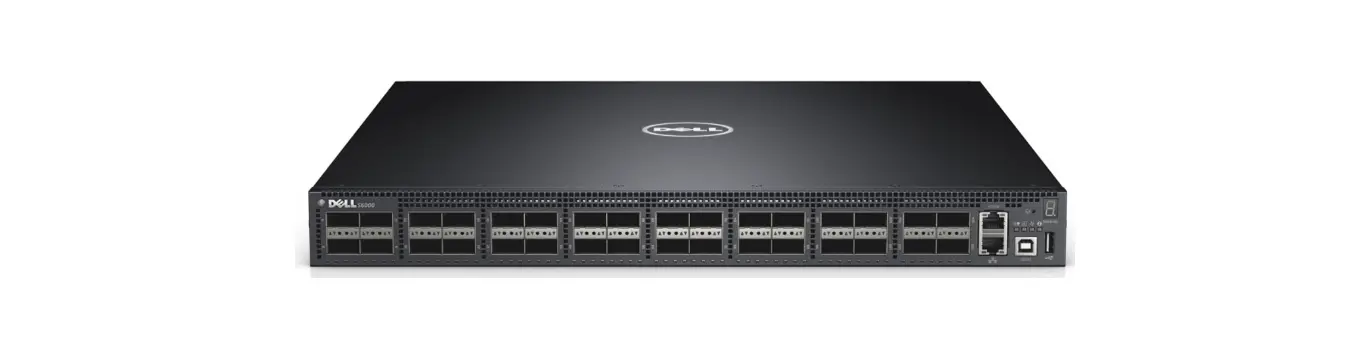
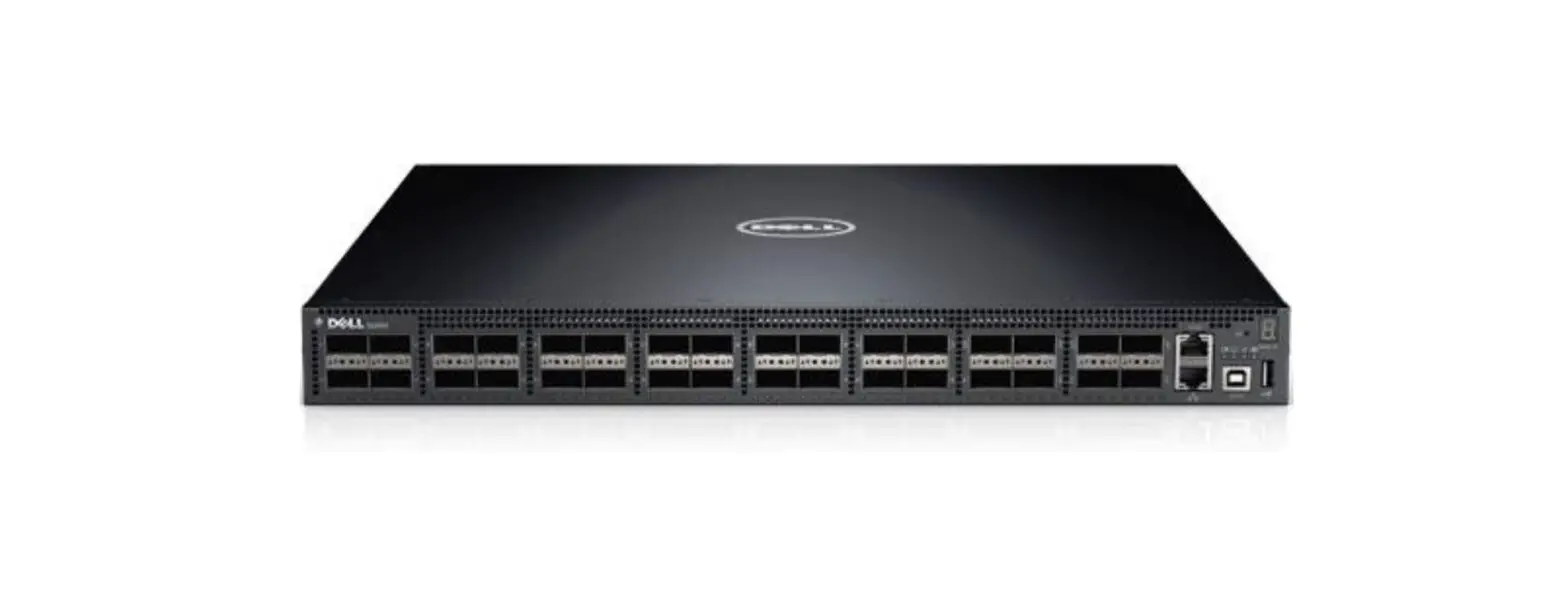
S6100-ON Networking System
Product Information
Product Name: Dell S6100-ON
The Dell S6100-ON is a networking platform that operates on the
Dell Networking operating software (OS). It is designed to provide
reliable and efficient networking solutions.
Hardware Requirements
The Dell S6100-ON system has the following hardware
requirements:
- Fan subsystem (available)
- Fan modules with airflow from I/O side to PSU side (red–normal
air flow direction) or from PSU side to I/O side (blue–reversed
air flow direction) - AC or DC power supply with airflow from I/O side to PSU side or
from PSU side to I/O side
Note: Fan modules and power supplies are field replaceable
units. All fans and power supplies must have the same airflow
direction to avoid heat damage to components.
Software Requirements
| Software | Minimum Release Requirement |
|---|---|
| Dell Networking OS | 9.14(2.14) |
| ONIE | 3.25.1.3 |
| DIAG-OS | 3.25.4.1 |
Note: For information about non-Dell OS versions, refer to the
Dell S6100-Open Networking (ON) System Release Notes.
New Dell Networking OS Version 9.14(2.14) Features
The following features are integrated into the Dell Networking
9.14.2 branch through this release: None.
Product Usage Instructions
Prerequisite Steps to Upgrade Dell Networking OS
- Uninstall the older version of the Open Automation (OA)
package. - Upgrade the Dell Networking OS to version 9.14.2.0 or
later. - Install the following OA packages from the respective upgraded
version:- SmartScripts
- Puppet
- Open management infrastructure (OMI)
- SNMP MIB
Rev. A00 April 2022
Dell System S6100ON 9.14(2.14) Release
Notes
This document contains information about open and resolved caveats, and operational information specific to the Dell Networking operating software (OS) and the S6100-Open Networking (ON) platform. Current Release Version: 9.14(2.14) Release Date: 2022-04-15 Previous Release Version: 9.14(2.12)
Topics:
· Document Revision History · Requirements · New Dell Networking OS Version 9.14(2.14) Features · Restrictions · Changes to the Default Behavior and CLI Syntax · Documentation Corrections · Deferred Issues · Fixed Issues · Known Issues · Upgrading the ONIE Package for the S6100-ON System · Upgrading the DIAG Package for the S6100-ON System · Installing Dell Networking OS on the S6100-ON using ONIE · Upgrading the S6100-ON Dell Networking OS Image using Dell Networking OS CLI · Upgrade the Boot Selector and Boot Flash Images from Dell Networking OS · Upgrade the CPLD Images · Upgrading the SmartFusion Microcontroller Subsystem — SMF MSS-IAP · Upgrading the SmartFusion Microcontroller Subsystem — SMF MSS-FPGA · Upgrading the OOB-FPGA Image · Uninstalling the Dell Networking OS · Installing a Third Party Operating System · Contacting Dell
NOTE: This document may contain language that is not consistent with current guidelines of Dell Technologies. There are plans to update this document over subsequent releases to revise the language accordingly.
Incorrect behavior or unexpected caveats are listed as the Problem Report (PR) numbers within the appropriate sections.
For more information about hardware and software features, commands, and capabilities, see the Dell Networking website at: http://www.dell.com/en-us/work/learn/networking.
Document Revision History
Table 1. Revision History
Date
Description
202204
Initial release.
1
Requirements
The following requirements apply to the S6100-ON system.
Hardware Requirements
The following lists the Dell S6100-ON system hardware requirements:
Up to four I/O modules of 8 x 10/25/40/50/100 GbE QSFP28 port Up to four I/O modules of 16 x 10/40 GbE QSFP+ ports Up to four I/O modules of 4 x 10/25/40/50/100 GbE QSFP28 ports and 4 x 100 GbE CXP ports Up to one hundred twenty-eight 10G ports Up to one hundred twenty-eight 25G ports Up to sixty-four 40G ports Up to sixty-four 50G ports Up to thirty-two 100G ports One each RJ45 management and console ports, micro universal serial bus (MicroUSB-B) 2.0 port, and USB type A port Two small form-factor pluggable plus (SFP+) 10G ports Two AC or DC power supply units (PSUs) Four fans with airflow from the I/O side to the power supply unit (PSU) side or from the PSU side to the I/O side (optional
fan subsystem available)
The following lists the individual Dell S6100-ON system hardware components that are available to order:
Fan with airflow from I/O side to PSU side (red–normal air flow direction) Fan with airflow from PSU side to I/O side (blue–reversed air flow direction) AC or DC power supply with airflow from I/O side to PSU side AC or DC power supply with airflow from PSU side to I/O side
NOTE: Fan modules and power supplies are field replaceable units.
NOTE: All fans and PSUs must have the same airflow direction. If you mix the airflow direction, the switch detects the discrepancy, issues an alarm, and may autoshutdown to avoid heat damage to components. You must correct the mixed airflow direction.
Software Requirements
Table 2. Software Requirements
Software
Minimum Release Requirement
Dell Networking OS
9.14(2.14)
ONIE
3.25.1.3
DIAG-OS
3.25.4.1
NOTE: For information about non-Dell OS versions, see Dell S6100-Open Networking (ON) System Release Notes.
New Dell Networking OS Version 9.14(2.14) Features
The following features are integrated into the Dell Networking 9.14.2 branch through this release: None.
2
Restrictions
You can use non-Dell qualified cables, adapters, and optics in a S6100-ON switch, but Dell Networking does not guarantee their performance as the S6100-ON does not support non-Dell qualified transceivers of 25G and above. If you insert a non-Dell qualified transceiver of 25G and above into a SFP28, QSFP+, or QSFP28 port, the switch places the interface in an error-disabled (operationally down) state and generates a syslog message, such as: %S6100LC0640:8 %IFAGT-2-TRANSCEIVER_UNSUPPORTED_ERROR: Transceiver in slot 1 port 49 unrecognized, putting interface in operational-down state.
To verify the error-disabled status of an interface, enter any of the following show commands.
Dell# show inventory media
Slot Port Type
Media
Serial Number DellQualified
——————————————————————–
1
49 UNKNOWN
UNKNOWN
USC1D6J
No**
1
50 QSFP
40GBASE-LR4
UQ90C7B
No**
1
51 QSFP
40GBASE-SR4
7503835V009Y
Yes
1
52 QSFP
40GBASE-CR4
10190002
No
1
53 QSFP
40GBASE-SR4
FE2429470007
Yes
1
54
Media not present or accessible
** Interface is down(error disabled) as transceiver is not DellQualified
Dell# show interfaces fortyGigE 1/49
fortyGigE 1/49 is up, line protocol is down(error-disabled[Transceiver Unsupported]) …
Prerequisite steps to upgrade the Dell Networking OS from earlier version to 9.14.2.0 or later: 1. Uninstall the older version of the Open Automation (OA) package 2. Upgrade the Dell Networking OS to 9.14.2.0 or later version 3. Install the following OA packages from the respective upgraded version: a. SmartScripts b. Puppet c. Open management infrastructure (OMI) d. SNMP MIB
Prerequisite steps to downgrade the Dell Networking OS from 9.14.2.0 or later to the earlier version:
1. Uninstall the OA package of 9.14.2.0 or later version 2. Downgrade the Dell Networking OS to an earlier version 3. Install the respective OA package from an earlier version
For more information about installing, uninstalling and upgrading the Dell Networking OS and OA package, see the respective Dell System Release Notes.
If you downgrade the Dell Networking OS version from 9.14.2.14 to 9.11.0.0 or any older versions, the system displays the following error message even though there is no functional impact:
CDB boot error: C.cdb file format
Before downgrading, save the current configuration and then remove the CDB files (confd_cdb.tar.gz.version and confd_cdb.tar.gz). To remove the files, use the following steps:
DellEMC#write memory DellEMC#delete flash://confd_cdb.tar.gz.version DellEMC#delete flash://confd_cdb.tar.gz DellEMC#reload
In a VXLAN scenario, hybrid port is not supported.
While deploying the system in the normal-reload mode in BMP configuration, use the ip ssh server enable command at the beginning of the startup configuration if the write memory command is used at the end of the configuration.
Do not configure the vxlan-instance command on the port, which is configured with the portmode hybrid command. Do not configure the vxlan-instance enabled port as a member of VLAN, which does not have VXLAN-VNI configuration.
File system partition:
3
The ONIE installer, of OS versions 9.10(0.1P9) and later, changes the file system partition scheme to facilitate the installation of certain third-party networking operating systems.
If you have installed Dell Networking OS using the ONIE install option, you cannot downgrade from Dell Networking OS 9.14(2.14) to versions earlier than 9.10(0.1P9), using the upgrade system command, due to file system partition compatibility issues.
NOTE: The above restriction is not applicable if you have upgraded Dell Networking OS using the upgrade system command, instead of theONIE install option. To downgrade Dell Networking OS version 9.14(2.14) to a version earlier than 9.10(0.1P9), follow these steps: 1. From the ONIE menu, use the ONIE uninstall option to uninstall Dell Networking OS 9.14(2.14). 2. Use the ONIE install option to install the older version of Dell Networking OS.
REST API does not support AAA authentication.
The systems shipped with OS 9.11(1.0) and above might contain one of the following chipsets: BCM56960_B1 chipset with part number F6N2R or 6N1J1. BCM56960_B0 chipset with part number KPX54 or H68CJ. You can check the part number using the show inventory command.
In a system using BCM56960_B1 chipset, you cannot downgrade from Dell Networking OS 9.14(2.14) to OS versions earlier than 9.10(0.2), due to NPU compatibility issues. NOTE: The above restriction is not applicable for systems using BCM56960_B0 chipset.
You cannot use the established keyword in an ACL rule, along with the other control flags.
While using the established keyword in an ACL rule, all the other TCP control flags are masked, to avoid redundant TCP control flags configuration in a single rule. When you use any TCP control flag in an ACL rule, established is masked and other control flags are available.
DIAG version can also be 3.25.4.1
When FRRP is enabled in a VLT domain, no flavor of Spanning tree should concurrently be enabled on the nodes of that specific VLT domain. In essence FRRP and xSTP should not co-exist in a VLT environment.
The following features are not available in Dell Networking OS: Protocol-independent multicast (PIM) equal cost multi path (ECMP) Static Internet group management protocol (IGMP) join (ip igmp static-group) IGMP querier timeout configuration (ip igmp querier-timeout) IGMP group join limit (ip igmp group join-limit)
When 1024 or more VNI profiles are configured, the system takes more time to load. Dell recommends to restrict the VNI profiles to be less than 1000.
If you use the interface range command to select multiple interfaces that are added to the management VRF, the ipv6 address command does not display the autoconfig option. You can configure the autoconfig command on individual interfaces.
If you use the interface range command to select multiple interfaces that are added to the management VRF, the ipv6 nd command displays the following options but they do not take effect if you use them:
dns-server hop-limit managed-config-flag max-ra-interval mtu other-config-flag prefix ra-guard ra-lifetime reachable-time retrans-timer suppress-none
4
Changes to the Default Behavior and CLI Syntax
The following behavior and CLI changes are applicable to the S6100-ON switch with Dell Networking OS version 9.14(2.14): None.
Documentation Corrections
This section describes the errors that are identified in the current release of the Dell Networking OS. The router bgp command allows you to configure only one L3 interface with an IPv4 address. The Configuration guide
does not mention this limitation and will be corrected in the next release of the guide.
Deferred Issues
Issues that appear here were reported in Dell Networking OS version 9.14(2.0) as open, but have since been deferred. Deferred caveats are those issues that are found to be invalid, not reproducible, or not scheduled for resolution.
Deferred issues are reported using the following definitions.
Category
PR# Severity
Description
Problem Report number that identifies the issue.
S1–Crash: A software crash occurs in the kernel or a running process that requires a restart of AFM, the router, switch, or process.
S2–Critical: An issue that renders the system or a major feature unusable, which can have a pervasive impact on the system or network, and for which there is no work-around acceptable to the customer.
S3–Major: An issue that affects the functionality of a major feature or negatively effects the network for which there exists a work-around that is acceptable to the customer.
S4–Minor: A cosmetic issue or an issue in a minor feature with little or no network impact for which there might be a work-around.
Synopsis Release Notes Work around
Synopsis is the title or short description of the issue.
Release Notes description contains more detailed information about the issue.
Work around describes a mechanism for circumventing, avoiding, or recovering from the issue. It might not be a permanent solution. Issues listed in the “Closed Caveats” section should not be present, and the work-around is unnecessary, as the version of code for which this release note is documented has resolved the caveat.
Deferred S6100-ON 9.14(2.0) Software Issues
Issues that appear in this section were reported in Dell Networking OS version 9.14(2.0) as open, but have since been deferred. Deferred caveats are those that are found to be invalid, not reproducible, or not scheduled for resolution. The following issues have been deferred in the Dell Networking OS version 9.14(2.0): None.
Fixed Issues
Fixed issues are reported using the following definitions.
Category
PR#
Description
Problem Report number that identifies the issue.
5
Category
Severity
Synopsis Release Notes Work around
Description
S1–Crash: A software crash occurs in the kernel or a running process that requires a restart of AFM, the router, switch, or process.
S2–Critical: An issue that renders the system or a major feature unusable, which can have a pervasive impact on the system or network, and for which there is no work-around acceptable to the customer.
S3–Major: An issue that affects the functionality of a major feature or negatively effects the network for which there exists a work-around that is acceptable to the customer.
S4–Minor: A cosmetic issue or an issue in a minor feature with little or no network impact for which there might be a work-around.
Synopsis is the title or short description of the issue.
Release Notes description contains more detailed information about the issue.
Work around describes a mechanism for circumventing, avoiding, or recovering from the issue. It might not be a permanent solution.
Issues listed in the “Closed Caveats” section should not be present, and the work-around is unnecessary, as the version of code for which this release note is documented has resolved the caveat.
Fixed S6100-ON 9.14(2.14) Software Issues
NOTE: Dell Networking OS 9.14(2.14) includes fixes for caveats addressed in the previous 9.14 releases. See the respective release notes documentation for the list of caveats fixed in the earlier 9.14 releases.
The following caveats have been fixed in Dell Networking OS version 9.14(2.14):
PR# 170114 Severity: Synopsis:
Release Notes:
Workaround: PR# 170232 Severity: Synopsis: Release Notes: Workaround: PR# 170301 Severity: Synopsis:
Release Notes:
Sev 2 The switch experiences memory leaks when processing certain types of packets. The switch experiences memory leaks when processing certain types of packets. None
Sev 2 The switch sends deprecated VRRP traps. The switch sends deprecated VRRP traps. None
Sev 3 The BN_mod_sqrt() function, which computes a modular square root, contains a bug that can cause it to loop forever for non-prime moduli (CVE-2022-0778). The BN_mod_sqrt() function, which computes a modular square root, contains a bug that can cause it to loop forever for non-prime moduli (CVE-2022-0778).
6
Workaround:
None
Known Issues
Known issues are reported using the following definitions.
Category
PR# Severity
Description
Problem Report number that identifies the issue.
S1–Crash: A software crash occurs in the kernel or a running process that requires a restart of AFM, the router, switch, or process.
S2–Critical: An issue that renders the system or a major feature unusable, which can have a pervasive impact on the system or network, and for which there is no work-around acceptable to the customer.
S3–Major: An issue that affects the functionality of a major feature or negatively effects the network for which there exists a work-around that is acceptable to the customer.
S4–Minor: A cosmetic issue or an issue in a minor feature with little or no network impact for which there might be a work-around.
Synopsis Release Notes Work around
Synopsis is the title or short description of the issue.
Release Notes description contains more detailed information about the issue.
Work around describes a mechanism for circumventing, avoiding, or recovering from the issue. It might not be a permanent solution. Issues listed in the “Closed Caveats” section should not be present, and the work-around is unnecessary, as the version of code for which this release note is documented has resolved the caveat.
Known S6100ON 9.14(2.14) Software Issues
The following caveats are open in Dell Networking OS version 9.14(2.14):
None.
Upgrading the ONIE Package for the S6100-ON System
To upgrade the ONIE package, use one of the following two processes: Zero touch (dynamic): Copy the update ONIE installer for your system to the TFTP or HTTP server. Configure the
DHCP options using the ONIE specifications shown at the following link: https://github.com/opencomputeproject/onie/ wiki/Design-Spec-SW-Updating-ONIE. Manual: Copy the image onto the TFTP or HTTP server and boot into ONIE. Update the ONIE using the onie-selfupdate command, then download and run an ONIE updater image (onie-updater-x86_64-s6100_c2538-r0 ). The supported URL types are: HTTP, FTP, TFTP, and FILE.
To upgrade ONIE, perform the following steps: 1. Reboot the system. During the reboot process, the system displays the following message prompting you to press the Esc
key in order to stop the autoboot process:
Press Esc to stop autoboot … 5 Grub 1.99~rc1 (Dell EMC) Built by build at bsdlab on Mon_Feb_21_10:41:12_UTC_2022
S6100 Boot Flash Label 3.25.2.14 NetBoot Label 3.25.2.14
2. At this prompt message, press the Esc key. The following menu appears:
Grub 1.99~rc1 (Dell EMC) Built by root at ubuntu on Mon_Feb_21_10:41:12_UTC_2022 S6100-ON Boot Flash Label 3.25.2.14 NetBoot Label 3.25.2.14 +—————————————————————————-+
7
|Dell EMC Networking OS |Dell EMC-Boot Line Interface |DIAG-OS |ONIE
| |
| |
+—————————————————————————–+ Use the ^ and v keys to select which entry is highlighted. Press enter to boot the selected OS, ‘f’ to boot Dell EMC Networking OS, ‘b’ to
go to BLI, ‘o’ to boot ONIE, ‘d’ to boot DIAG-OS, ‘e’ to edit the commands before booting or ‘c’ for a command-line.
3. From the menu, choose the ONIE option. NOTE: To choose an option from the menu, select one of the options using the up or down arrow key and press Enter.
The following menu appears:
GNU GRUB version 1.99~rc1
+————————————————-+
| ONIE: Install OS
|
| ONIE: Rescue
|
| ONIE: Uninstall OS
|
|*ONIE: Update ONIE
|
| ONIE: Embed ONIE
|
| EDA-DIAG
|
|
|
+————————————————-+
Use the ^ and v keys to select which entry is highlighted. Press enter to boot the selected OS, `e’ to edit the commands before booting or `c’ for a command-line.
4. From this menu, choose the ONIE : Update ONIE option.
NOTE: To choose an option from the menu, select one of the options using the up or down arrow key and press Enter.
The ONIE update mode is enabled and the ONIE prompt appears, as shown:
ONIE: ONIE Update Mode … Version : 3.25.1.3 Build Date: 2022-02-21T14:41-0700 Info: Mounting kernel filesystems… done. Info: Mounting LABEL=ONIE-BOOT on /mnt/onie-boot … Info: Using eth0 MAC address: 90:b1:1c:f4:23:56 Info: eth0: Checking link… up. Info: Trying DHCPv4 on interface: eth0 DHCPv4 on interface: eth0 failedONIE: Using default IPv4 addr: eth0: 192.168.3.10/255.255.255.0 Starting: dropbear ssh daemon… done. Starting: telnetd… done. discover: ONIE update mode detected. Running updater. Starting: discover… done.
Please press Enter to activate this console. Info: eth0: Checking link… up. Info: Trying DHCPv4 on interface: eth0
To check the install status inspect /var/log/onie.log. Try this: tail -f /var/log/onie.log
** ONIE Update Mode Enabled ** ONIE:/ #
5. At the ONIE prompt, to stop the ONIE discovery process, enter the following command: ONIE:/ # onie-discovery-stop
8
The ONIE discovery stops, as shown:
discover: ONIE update mode detected. Stopping: discover… done. ONIE:/ #
6. Configure an interface and assign an IP address to that interface using the following command: ONIE:/ # ifconfig eth0 10.16.129.131/16
7. Enter the following command to upgrade ONIE:ONIE:/ # onie-self-update tftp://<tftp-serveraddress>/ onie-updater-x86_64-s6100_c2538-r0. NOTE: Copy the onie-updater-x86_64-s6100_c2538-r0 file to the /tftpboot folder in the server.
ONIE is updated on the system, as shown:
discover: ONIE update mode detected.
Stopping: discover… done.
Info: Fetching tftp://10.16.127.86/onie-updater-x86_64-s6100_c2538-r0…
onie-updater- 100% |*******************************| 8561k 0:00:00 ETA
ONIE: Executing installer: tftp://10.16.127.86/onie-updater-x86_64-s6100_c2538-r0
Verifying image checksum … OK.
Preparing image archive … OK.
ONIE: Version
: 3.25.1.3
ONIE: Architecture : x86_64
ONIE: Machine
: dell_S6100_c2538
ONIE: Machine Rev : 0
ONIE: Config Version: 1
Installing ONIE on: /dev/sda
Rebooting…
ONIE:/ # discover: ONIE update mode detected.
Stopping: discover…start-stop-daemon: warning: killing process 299: No such process
done.
Stopping: dropbear ssh daemon… done.
Stopping: telnetd… done.
Stopping: syslogd… done.
Info: Unmounting kernel filesystems
The system is going down NOW!
Sent SIGTERM to all processes
Sent SIGKILL tosd 4:0:0:0: [sda] Synchronizing SCSI cache
Restarting system.
machine restart
BIOS (Dell EMC, Inc.) Boot Selector S6100 3.25.0.0-6 32 port 100G / 2 port sfp+ mgmt
Booting Primary BIOS SMF Version 0x12: Last POR=0x11, Reset=0x55
POST Configuration CPU Signature 406D8 CPU FamilyID=6, Model=4D, SteppingId=8, Processor=0 Microcode Revision 125 Platform ID: 0x10041A57 PMG_CST_CFG_CTL: 0x40006 BBL_CR_CTL3: 0x7E2801FF Misc EN: 0x840081 Gen PM Con1: 0x203808 Therm Status: 0x88440000 POST Control=0xEA010303, Status=0xE6009F00
BIOS initializations…
CPGC Memtest ………………………….. PASS
9
Upgrading the DIAG Package for the S6100-ON System
To upgrade the DIAG package, use one of the following two processes: Zero touch (dynamic): Copy the update ONIE installer for your system to the TFTP or HTTP server. Configure the
DHCP options using the ONIE specifications shown at the following link: https://github.com/opencomputeproject/onie/ wiki/Design-Spec-SW-Updating-ONIE. Manual: Copy the image onto the TFTP or HTTP server and boot ONIE. Update the ONIE using the onie-selfupdate command, then download and run an ONIE updater image ( diag-installer-x86_64-dell_s6100_c2538r0.3.25.4.1.bin). The supported URL types are: HTTP, FTP, TFTP, and FILE.
NOTE: If Dell Networking OS is already installed on the S6100-ON system, before upgrading the DIAG package, you must first uninstall Dell Networking OS. For more information about uninstalling Dell Networking OS, see Uninstalling Dell Networking OS on the S6100-ON.
To upgrade DIAG, perform the following steps: 1. Reboot the system. During the reboot process, the system displays the following message prompting you to press the Esc
key in order to stop the autoboot process:
Press Esc to stop autoboot … 5 Grub 1.99~rc1 (Dell EMC Inc) Built by build at bsdlab on Mon_Feb_21_10:41:12_UTC_2022
S6100 Boot Flash Label 3.25.2.14 NetBoot Label 3.25.2.14
2. At this prompt message, press the Esc key. The following menu appears:
Grub 1.99~rc1 (Dell EMC)
Built by root at ubuntu on Mon_Feb_21_10:41:12_UTC_2022
S6100-ON Boot Flash Label 3.25.2.14 NetBoot Label 3.25.2.14
+—————————————————————————-+
|Dell EMC Networking OS
|
|Dell EMC-Boot Line Interface
|
|DIAG-OS
|
|ONIE
|
+—————————————————————————–+ Use the ^ and v keys to select which entry is highlighted. Press enter to boot the selected OS, ‘f’ to boot Dell EMC Networking OS, ‘b’ to
go to BLI, ‘o’ to boot ONIE, ‘d’ to boot DIAG-OS, ‘e’ to edit the commands before booting or ‘c’ for a command-line.
3. From the menu, choose the ONIE option. NOTE: To choose an option from the menu, select one of the options using the up or down arrow key and press Enter.
The following menu appears:
GNU GRUB version 1.99~rc1
+———————————————-+
|*ONIE: Install OS
|
| ONIE: Rescue
|
| ONIE: Uninstall OS
|
| ONIE: Update ONIE
|
| ONIE: Embed ONIE
|
|
|
+———————————————-+
Use the ^ and v keys to select which entry is highlighted. Press enter to boot the selected OS, `e’ to edit the commands before booting or `c’ for a command-line.
4. From this menu, choose the ONIE : Install OS option. NOTE: To choose an option from the menu, select one of the options using the up or down arrow key and press Enter.
10
The ONIE Installer mode is enabled and the ONIE prompt appears, as shown:
ONIE: OS Install Mode … Version : 3.25.1.3 Build Date: 2022-02-21T14:41-0700 Info: Mounting kernel filesystems… done. ERROR: fsck corrected errors. Info: Mounting LABEL=ONIE-BOOT on /mnt/onie-boot … Info: Using eth0 MAC address: 90:b1:1c:f4:23:56 Info: eth0: Checking link… up. Info: Trying DHCPv4 on interface: eth0 DHCPv4 on interface: eth0 failedONIE: Using default IPv4 addr: eth0: 192.168.3.10/255.255.255.0 Starting: dropbear ssh daemon… done. Starting: telnetd… done. discover: installer mode detected. Running installer. Starting: discover… done.
Please press Enter to activate this console. Info: eth0: Checking link… up. Info: Trying DHCPv4 on interface: eth0
To check the install status inspect /var/log/onie.log. Try this: tail -f /var/log/onie.log
** Installer Mode Enabled ** ONIE:/ #
5. At the ONIE prompt, to stop the ONIE discovery process, enter the following command:
ONIE:/ # onie-discovery-stop
The ONIE discovery stops, as shown:
ONIE:/ # onie-discovery-stop discover: installer mode detected. Stopping: discover… done. ONIE:/ #
6. Configure an interface and assign an IP address to that interface using the following command: ONIE:/ # ifconfig eth0 10.16.129.131/16
7. Enter the following command to upgrade DIAG on the S6100ON system: onie-nos-install ftp://ftp:ftp@<ftpserver-adress>/tftpboot/ diag-installer-x86_64-dell_s6100_c2538-r0.3.25.4.1.bin NOTE: Copy the diag-installer-x86_64-dell_s6100_c2538-r0.3.25.4.1.bin file to the /tftpboot folder in the server.
The DIAG is updated on the system, as shown:
ONIE:/ # onie-nos-install ftp://ftp:[email protected]/tftpboot/diag-installer-x86_64-
dell_s6100_c2538-r0.3.25.4.1.bin
discover: installer mode detected.
Stopping: discover… done.
Info: Fetching ftp://ftp:[email protected]/tftpboot/diag-installer-x86_64-
dell_s6100_c2538-r0.3.25.4.1.bin …
Connecting to 10.11.227.233 (10.11.227.233:21)
installer
100% |*******************************| 167M 0:00:00 ETA
ONIE: Executing installer: ftp://ftp:[email protected]/tftpboot/diag-installer-x86_64-
dell_s6100_c2538-r0.3.25.4.1.bin
Ignoring Verifying image checksum … OK.
cur_dir / archive_path /installer tmp_dir /tmp/tmp.nC1CKc
Preparing image archive …sed -e ‘1,/^exit_marker$/d’ /installer | tar xf – OK.
DiagOS Installer: platform: x86_64-dell_S6100_c2538-r0
EDA-DIAG Partiton not found. Diag OS Installer Mode : INSTALL INSTALL mode : would remove existing partitions and create fresh…
Creating new diag-os partition /dev/sda3 with label EDA-DIAG … Warning: The kernel is still using the old partition table.
11
The new table will be used at the next reboot. The operation has completed successfully.
volume label EDA-DIAG on device /dev/sda3 mke2fs 1.42.8 (21-Feb-2022) Filesystem label=EDA-DIAG OS type: Linux Block size=4096 (log=2) Fragment size=4096 (log=2) Stride=0 blocks, Stripe width=0 blocks 65536 inodes, 262144 blocks 13107 blocks (5.00%) reserved for the super user First data block=0 Maximum filesystem blocks=268435456 8 block groups
Installing Dell Networking OS on the S6100-ON using ONIE
NOTE: You will need the Dell Networking OS installer package, ONIE-FTOS-S6100-ON-9.14.2.14.bin to install the Dell Networking OS on your S6100-ON system that has only ONIE.
To install the Dell Networking OS version 9.14(2.14) on a new S6100-ON device, perform the following steps: 1. Reboot the system. During the reboot process, the system displays the following message prompting you to press the Esc
key in order to stop the autoboot process:
Grub 1.99~rc1 (Dell EMC) Built by build at bsdlab on Mon_Feb_21_10:41:12_UTC_2022
S6100 Boot Flash Label 3.25.2.14 NetBoot Label 3.25.2.14
2. At this prompt message, press the Esc key. The following menu appears:
Grub 1.99~rc1 (Dell EMC)
Built by root at ubuntu on Mon_Feb_21_10:41:12_UTC_2022
Z9100 Boot Flash Label 3.25.2.14 NetBoot Label 3.25.2.14
+—————————————————————————-+
|Dell EMC Networking OS
|
|Dell EMC-Boot Line Interface
|
|DIAG-OS
|
|ONIE
|
+—————————————————————————–+ Use the ^ and v keys to select which entry is highlighted. Press enter to boot the selected OS, ‘f’ to boot Dell EMC Networking OS, ‘b’ to
go to BLI, ‘o’ to boot ONIE, ‘d’ to boot DIAG-OS, ‘e’ to edit the commands before booting or ‘c’ for a command-line.
3. From the menu, choose the ONIE option. NOTE: To choose an option from the menu, highlight one of the options using the up or down arrow key and press
Enter.
The following menu appears:
GNU GRUB version 1.99~rc1
+———————————————-+
|*ONIE: Install OS
|
| ONIE: Rescue
|
| ONIE: Uninstall OS
|
| ONIE: Update ONIE
|
| ONIE: Embed ONIE
|
|
|
+———————————————-+
12
Use the ^ and v keys to select which entry is highlighted. Press enter to boot the selected OS, `e’ to edit the commands before booting or `c’ for a command-line.
4. From this menu, choose the ONIE : Install OS option. NOTE: To choose an option from the menu, highlight one of the options using the up or down arrow key and press Enter.
The ONIE Installer mode is enabled and the ONIE prompt appears, as shown:
ONIE: OS Install Mode … Version : 3.25.1.3 Build Date: 2022-02-21T16:57-0700 Info: Mounting kernel filesystems… done. Info: Mounting LABEL=ONIE-BOOT on /mnt/onie-boot … Info: Using eth0 MAC address: 4c:76:25:f5:17:00 Info: eth0: Checking link… up. Info: Trying DHCPv4 on interface: eth0 DHCPv4 on interface: eth0 failedONIE: Using default IPv4 addr: eth0: 192.168.3.10/255.255.255.0 Starting: dropbear ssh daemon… done. Starting: telnetd… done. discover: installer mode detected. Running installer. Starting: discover… done.
Please press Enter to activate this console. Info: eth0: Checking link… up. Info: Trying DHCPv4 on interface: eth0 DHCPv4 on interface: eth0 failedONIE: Using default IPv4 addr: eth0: 192.168.3.10/255.255.255.0 ONIE: Starting ONIE Service Discovery FAT-fs (sda7): Invalid FSINFO signature: 0x82564557, 0x61417272 (sector = 1)
To check the install status inspect /var/log/onie.log. Try this: tail -f /var/log/onie.log
** Installer Mode Enabled ** ONIE:/ #
5. At the ONIE prompt, to stop the ONIE discovery process, enter the following command: ONIE:/ # onie-discovery-stop
The ONIE discovery stops, as shown:
ONIE:/ # onie-discovery-stop discover: installer mode detected. Stopping: discover… done. ONIE:/ #
ONIE:/ # onie-discovery-stop discover: installer mode detected. Stopping: discover… done. ONIE:/ #
6. Configure an interface and assign an IP address to that interface using the following command: ONIE:/ # ifconfig eth0 10.16.129.131/16
7. Enter the following command to begin the installation process:
ONIE:/ # onie-nos-install tftp://<tftp-server-address>/ONIE-FTOS-S6100ON-9.14.2.14.bin
NOTE: You must copy the FTOS-S6100-ON-9.14.2.14.bin file to the /tftpboot folder in the server.
NOTE: After the Dell Networking OS installation completes, the system automatically reboots.
13
Following is the installation and boot log of Dell Networking OS:
ONIE:/ # onie-nos-install tftp://10.16.127.144/FTOS-S6100-ON-9.14.2.14.bin
discover: installer mode detected.
Stopping: discover… done.
Info: Fetching tftp://10.16.127.144/FTOS-S6100-ON-9.14.2.14.bin …
ONIE-FTOS-S6100-ON-9 100% |*******************************| 106M 0:00:00 ETA
ONIE: Executing installer: tftp://10.16.127.144/ONIE-FTOS-S6100-ON-9.14.2.14.bin
Verifying image checksum … OK.
Preparing image archive from /installer … Done.
Verifying Product Platform…
Product Name
: S6100-ON
Image Platform
: FTOS-S6100-ON
Image File
: FTOS-S6100-ON-bin
Image Compatibility : Verified
Verifying MAC Address…
MAC Address is Configured
Image Platform
: FTOS-S6100-ON
Deleting Extra partitions… Done.
Creating New partitions… Done.
Creating Hybrid MBR… Done.
Mouting /dev/sda4,/dev/sda5 and /dev/sda6… Done.
Installing GRUB on /dev/sda4…Done.
Copying Images… Done.
Rebooting…
ONIE:/ # discover: installer mode detected.
Stopping: discover…start-stop-daemon: warning: killing process 297: No such process
done.
Stopping: dropbear ssh daemon… done.
Stopping: telnetd… done.
Stopping: syslogd… done.
Info: Unmounting kernel filesystems
The system is going down NOW!
Sent SIGTERM to all processes
Sent SIGKILL tosd 4:0:0:0: [sda] Synchronizing SCSI cache
Restarting system.
machine restart
BIOS (Dell EMC) Boot Selector S6100 3.25.0.0-6 IO card / 2 port sfp+ mgmt
8. After the installation completes, the system displays the following DELL prompt: DellEMC#
Upgrading the S6100-ON Dell Networking OS Image using Dell Networking OS CLI
Bare Metal Provisioning
NOTE: If you are using Bare Metal Provisioning (BMP), see the Bare Metal Provisioning topic in the Dell Networking OS Configuration Guide or the Open Automation Guide.
Manual Upgrade Procedure
The ONIE installer, of OS versions 9.10(0.1P9) and later, changes the file system partition scheme to facilitate the installation of certain third-party networking operating systems.
If you have installed Dell Networking OS using the ONIE install option, you cannot downgrade from Dell Networking OS 9.14(2.14) to versions earlier than 9.10(0.1P9), using the upgrade system command, due to file system partition compatibility issues. If you try to downgrade, the system displays the following error message:
DellEMC#upgrade system tftp: a: Address or name of remote host []: 10.16.127.44 Source file name []: FTOS-S6100-ON-9.10.0.1P8.bin !!!!!!!!!!!!!!!!!!!!!!!!!!!!!!!!!!!!!!!!!!!!!!!!!!!!!!!!!!! % Error: Detected System Image is incompatible with flash partition scheme.
14
% Error: Perform ONIE uninstall followed by onie-nos-install to upgrade to this version. % Error: Upgrade system image failed. DellEMC#Feb 21 03:39:57: %STKUNIT1-M:CP %DOWNLOAD-6-UPGRADE: Upgrade failed
To downgrade Dell Networking OS version 9.14(2.14) to versions earlier than 9.10(0.1P9), follow these steps: 1. From the ONIE menu, use the ONIE uninstall option to uninstall Dell Networking OS 9.14(2.14). 2. Use the ONIE install option to install the older version of Dell Networking OS.
You can upgrade or downgrade to any version, if you have upgraded Dell Networking OS using the upgrade system command, instead of the ONIE install option.
The systems shipped with OS 9.14(2.14) and above might contain one of the following chipsets: BCM56960_B1 chipset with part number F6N2R or 6N1J1. BCM56960_B0 chipset with part number KPX54 or H68CJ. You can check the part number using the show inventory command
In a system using BCM56960_B1 chipset, you cannot downgrade from Dell Networking OS 9.14(2.14) to OS versions earlier than 9.10(0.2), due to NPU compatibility issues.
In a system using BCM56960_B1 chipset, if you try to downgrade from OS 9.14(2.14) to OS versions earlier than 9.10(0.2) using BMP or the upgrade command, the system displays the following error message:
DellEMC#upgrade system tftp: a: Address or name of remote host []: 10.16.127.44 Source file name []: FTOS-S6100-ON-9.10.0.1.bin 00:12:47 : Discarded 1 pkts. Expected block num : 56. Received block num: 55
% Error: Detected System Image is incompatible with NPU. % Error: Upgrading Release File Corrupted. % Error: Upgrade system image failed.
You can upgrade or downgrade the OS to any version in systems using BCM56960_B0 chipset.
Follow these steps carefully to upgrade your S6100-ON systems: 1. Cancel BMP and disable BMP from the next reload:
DellEMC# stop bmp DellEMC#conf DellEMC(conf)# reload-type DellEMC(conf-reload-type)# boot-type normal-reload DellEMC(conf-reload-type)# end
2. Dell Networking recommends that you back up your startup configuration and any important files and directories to an external media prior to upgrading the system.
3. Upgrade the Dell Networking OS in flash partition A: or B:
EXEC Privilege Mode
upgrade system [flash: | ftp: stack-unit <id> | tftp: | scp: | usbflash:] [A: | B:]
DellEMC#upgrade system tftp: A: Address or name of remote host []: 10.16.127.144 Source file name []: FTOS-S6100-ON-9.14.2.14.bin 00:07:37 : Discarded 1 pkts. Expected block num : 51. Received block num: 50 !!!!!!!!!!!!!!!!!!!!!!!!!!!!!!!!!!!!!!!!!!!!!!!!!!!…………! 78361787 bytes successfully copied System image upgrade completed successfully. DellEMC#Feb 21 19:00:53: %STKUNIT1-M:CP %DOWNLOAD-6-UPGRADE: Upgrade completed successfully
4. Verify that the Dell Networking OS has been upgraded correctly in the upgraded flash partition EXEC Privilege Mode show boot system stack-unit 1 | all]
DellEMC#show boot system stack-unit all
Current system image information in the system:
==========================================================
Type
Boot Type
A
B
15
———————————————————-
stack-unit 1 FLASH BOOT
9.14(2.14)[boot] 9.14(2.12)
stack-unit 2 is not present.
stack-unit 3 is not present.
stack-unit 4 is not present.
stack-unit 5 is not present.
stack-unit 6 is not present.
5. Change the Primary Boot Parameter of the S6100-ON to the upgraded partition A: or B: CONFIGURATION Mode boot system stack-unit 1 primary system: [A: | B: | tftp: | ftp:]
6. Save the configuration so that the configuration will be retained after a reload using the write memory command.
EXEC Privilege Mode write memory
DellEMC#write memory ! Feb 21 10:18:14: %STKUNIT1-M:CP %FILEMGR-5-FILESAVED: Copied running-config to startup-config in flash by default
DellEMC#
7. Reload the unit. EXEC Privilege Mode reload
Command
: reload
Mode
: EXEC PRIVILEGE
DellEMC#reload
Proceed with reload [confirm yes/no]: y
8. Verify the S6100ON has been upgraded to the Dell Networking OS version 9.14(2.14).
EXEC Privilege Mode
show version
DellEMC#show version Dell EMC Real Time Operating System Software Dell EMC Operating System Version: 2.0 Dell EMC Application Software Version: 9.14(2.14) Copyright (c) 1999-2021 by Dell EMC Inc. All Rights Reserved. Build Time: Mon Feb 21 00:15:13 2022 Build Path: /build/build08/SW/SRC Dell EMC Networking OS uptime is 1 minute(s)
System image file is “FTOS-S6100.bin”
System Type: S6100-ON Control Processor: Intel Rangeley with 3 Gbytes (3203289088 bytes) of memory, core(s) 4.
8G bytes of boot flash memory.
1 4 Modules, 16x40G/8x100G ports TE/TF/FO/FI/HU G (S6100-ON) 14 Ten GigabitEthernet/IEEE 802.3 interface(s) 12 Twenty Five GigabitEthernet/IEEE 802.3 interface(s)
2 Hundred GigabitEthernet/IEEE 802.3 interface(s) DellEMC#
16
Upgrade the Boot Selector and Boot Flash Images from Dell Networking OS
To upgrade the Boot Selector and Boot Flash images from Dell Networking OS, perform the following steps: 1. Upgrade the S6100-ON Boot Selector image.
EXEC Privilege Mode
upgrade boot bootselector-image stack-unit [<id> | all] [booted]
To upgrade the Boot Selector image to the image version packed with the loaded Dell Networking OS image, use the booted option. You can find the Boot Selector image version packed with the loaded Dell Networking OS using the show os-version command in EXEC Privilege mode.
DellEMC#upgrade boot bootselector-image stack-unit 1 booted
Current Boot information in the system:
========================================================================
Card
BootSelector
Current Version
New Version
————————————————————————
Unit1
Boot Selector
3.25.0.0-5
3.25.0.0-6
***********************************************************************
* Warning – Upgrading boot selectors is inherently risky and should *
* only be attempted when necessary. A failure at this upgrade may *
* cause a board RMA. Proceed with caution !
*
***********************************************************************
Proceed upgrade Boot Selector image for stack-unit 1 [yes/no]: yes
!!!!!!!!!!!!!!!!!!!!!!!!!!!!!!!!!!!!!!!!!!!!!!!!!!!!!!!!!!!!!!!!! Bootselector image upgrade for stack-unit 1 completed successfully. DellEMC#
2. Reload the unit. EXEC Privilege Mode reload
3. Upgrade the Dell Networking OS GRUB. EXEC Privilege Mode upgrade boot bootflash-image stack-unit <stackunitid> booted
Current Boot information in the system:
========================================================================
Card
BootFlash
Current Version
New Version
————————————————————————
Unit1
Boot Flash
3.25.2.11
3.25.2.14
***********************************************************************
* Warning – Upgrading boot flash is inherently risky and should only *
* be attempted when necessary. A failure at this upgrade may cause *
* a board RMA. Proceed with caution !
*
***********************************************************************
Proceed upgrade Boot Flash image for stack-unit 1 [yes/no]: yes
!!!!! Bootflash image upgrade for stack-unit 1 completed successfully. DellEMC#
4. Reload the unit. EXEC Privilege Mode reload
17
5. Verify whether the upgrade is successful.
DellEMC#show system stack-unit 1
— Unit 1 —
Unit Type
: Management Unit
Status
: online
Next Boot
: online
Required Type
: S6100-ON – 4 Modules, 16x40G/8x100G ports TE/TF/FO/FI/HU
G
Current Type
: S6100-ON – 4 Modules, 16x40G/8x100G ports TE/TF/FO/FI/HU
G
Master priority
: NA
Hardware Rev
: 0.0
Num Ports
: 130
Up Time
: 4 min, 47 sec
Dell EMC Networking OS Version : 9.14(2.14)
Jumbo Capable
: yes
POE Capable
: no
FIPS Mode
: disabled
Boot Flash
: 3.25.2.14
Boot Selector
: 3.25.0.0-6
Memory Size
: 3177226240 bytes
Temperature
: 28C
Voltage
: ok
Serial Number
: NA
Part Number
: 0WKFYN
Rev X02
Vendor Id
: NA
Date Code
: NA
Country Code
: NA
Piece Part ID
: CN-0WKFYN-77931-58K-0004
PPID Revision
: X02
Service Tag
: 21VRG02
Expr Svc Code
: 446 737 939 4
Auto Reboot
: enabled
Burned In MAC
: 4c:76:25:f5:17:00
No Of MACs
: 3
— Module 1 —
Status
: online
Module Type
: S6100-MOD-8xETH100-T – 8-port 100GE QSFP28+
Num Ports
: 8
Hot Pluggable : no
— Module 2 —
Status
: online
Module Type
: S6100-MOD-8xETH100-4CXP-T – 8-port 100GE QSFP28_4CXP+
Num Ports
: 8
Hot Pluggable : no
— Module 3 —
Status
: online
Module Type
: S6100-MOD-8xETH100-4CXP-T – 8-port 100GE QSFP28_4CXP+
Num Ports
: 8
Hot Pluggable : no
— Module 4 —
Status
: online
Module Type
: S6100-MOD-8xETH100-4CXP-T – 8-port 100GE QSFP28_4CXP+
Num Ports
: 8
Hot Pluggable : no
— Power Supplies —
Unit Bay Status
Type FanStatus FanSpeed(rpm)
———————————————————–
1
1 down
UNKNOWN down
0
1
2 up
AC
up
2496
— Fan Status —
Unit Bay TrayStatus Fan1 Speed
—————————————-
1 1
up
up
3482
1 2
up
up
3571
18
1 3
up
1 4
up
up
3539
up
3561
Speed in RPM
6. After you upgrade Dell Networking Networking OS to 9.14(2.14) from an earlier version and update the BIOS using the booted option, the system does not allow you to downgrade the BIOS to an earlier version. To run an earlier BIOS version, use FTP, TFTP, or SCP option from the current OS version.
DellEMC#upgrade boot bootselector-image stack-unit 1 tftp://10.16.127.7/FTOSSK-9.14.2.14.bin Feb 21 09:32:03 : Discarded 1 pkts. Expected block num : 51. Received block num: 50 Feb 21 09:32:06 : Discarded 1 pkts. Expected block num : 65. Received block num: 64 !!!!!!!!!!!!!!!!!!!!!!!!!!!!!!!!!!!!!!!!!!!!!!!!!!!!!!!!!!!!!!!!!!!!!!!!!!!!.
Current Boot information in the system:
========================================================================
Card
BootSelector
Current Version
New Version
————————————————————————
Unit1
Boot Selector
3.38.0.1-4
3.38.0.1-3
***********************************************************************
* Warning – Upgrading boot selectors is inherently risky and should *
* only be attempted when necessary. A failure at this upgrade may *
* cause a board RMA. Proceed with caution !
*
***********************************************************************
Proceed upgrade Boot Selector image for stack-unit 1 [yes/no]: yes
!!!!!!!!!!!!!!!!!!!!!!!!!!!!!!!!!!!!!!!!!!!!!!!!!!!!!!!!!!!!!!!!!!!!!!!!!!!!!!!!!!!!!! !!!!!!!!!!!!!!!!!!!!!!!!!!!!!!!!!!!!!!!!!!!!!!!!!!!!!!!!!!!!!!!!!!!!!!!!!!!!!!!!!!!!!! !!! Bootselector image upgrade for stack-unit 1 completed successfully.
Upgrade the CPLD Images
On the S6100ON, you must upgrade the switchcard, CXP, 40G, and 100G CPLD images separately. NOTE: If your CPLD revisions are higher than the ones shown here, DO NOT make any changes. If you have questions regarding the CPLD revision, contact Technical Support.
Verify that you need a CPLD upgrade
To identify the CPLD version, use the show revision command.
DellEMC#show revision
— Stack unit 1 -S6100-ON SWITCHCARD CPLD : 5
S6100-ON IOM CPLD1
: 5
S6100-ON IOM CPLD2 S6100-ON IOM CPLD4 S6100-ON MSS FPGA
: 12 : 4 : 1.1
S6100-ON MSS IAP S6100-ON OOB-FPGA
: 2.4 : 1.0
DellEMC#
19
To view the CPLD version that is associated with the Dell Networking OS image, use the following command:
DellEMC#show os-version
RELEASE IMAGE INFORMATION :
———————————————————————
Platform
Version
Size
ReleaseTime
S-Series:S6100-ON
9.14(2.14) 78345374 Feb 21 2022 17:15:23
TARGET IMAGE INFORMATION :
———————————————————————
Type
Version
Target
checksum
runtime
9.14(2.14)
Control Processor
passed
BOOT IMAGE INFORMATION :
———————————————————————
Type
Version
Target
checksum
boot flash
3.25.2.14
Control Processor
passed
BOOTSEL IMAGE INFORMATION :
———————————————————————
Type
Version
Target
checksum
boot selector
3.25.0.0-6
Control Processor
passed
FPGA IMAGE INFORMATION :
———————————————————————
Card
FPGA Name
Version
stack-unit 1
S6100-ON SWITCHCARD CPLD
5
stack-unit 1
S6100-ON IOM CPLD1
5
stack-unit 1
S6100-ON IOM CPLD2
12
stack-unit 1 : — NO IOM CPLD3 FOUND —
5
stack-unit 1
S6100-ON IOM CPLD4
4
stack-unit 1
S6100-ON MSS FPGA
1.1
stack-unit 1
S6100-ON MSS IAP
2.4
stack-unit 1
S6100-ON OOB-FPGA
1.0
Upgrading the Switchcard-CPLD Image
The S6100-ON system with Dell Networking OS Version 9.14(2.14) requires switchcard-cpld image 5. NOTE: The upgrade fpga-image switchcard-cpld stack-unit 1 booted command is hidden when using the feature in the CLI. However, it is a supported command. The mod-id option represents the ID of the module slot on the S6100ON.
NOTE: Ensure that the BIOS version is 3.25.0.0-6. You can verify this version using the show system stack-unit 1 command.
To upgrade the CPLD image, follow these steps. 1. Upgrade the switchcard-CPLD image.
EXEC Privilege Mode upgrade fpga-image switchcard-cpld stack-unit <1> booted
Current information for the system:
========================================================================
Card
Device Name
Current Version
New Version
————————————————————————
Unit1
S6100-ON SWITCHCARD CPLD
4
5
***********************************************************************
* Warning – Upgrading FPGA is inherently risky and should
*
* only be attempted when necessary. A failure at this upgrade may *
* cause a board RMA. Proceed with caution !
*
***********************************************************************
Upgrade image for stack-unit 1 [yes/no]: yes
Cpld upgrade in progress!!! Please do NOT power off the unit!!!
20
!!!!!!!!!!!!!!!!!!!!!!!!!!!!!!!!!!!!!!!!!!!!!!!!!!!!!!!!!!!!!!!!!!!!!!!!!!!!!!!!!!
Upgrade result : ================ Unit 1 Cpld upgrade successful Unit 1. Please power cycle to take effect.
DellEMC#Feb 21 12:41:34: %S6100-ON:1 %DOWNLOAD-6-FPGA_UPGRADE: stack-unit 1 fpga upgrade success.
Upgrading the CXP Module CPLD image
The S6100-ON system with Dell Networking OS Version 9.14(2.14) requires CXP MODULE CPLD image 5. To display the CXP module CPLD version currently running on an S6100-ON, use the show revision command.
NOTE: The upgrade fpga-image mod-id stack-unit 1 booted command is hidden when using the feature in the CLI. However, it is a supported command. The mod-id option represents the ID of the module slot on the S6100ON.
To upgrade the CPLD image, follow these steps. 1. Upgrade the CXP module CPLD image.
EXEC Privilege Mode upgrade fpga-image mod-id stack-unit 1 booted
NOTE: In this example, the CXP Module is in slot 2.
DellEMC#upgrade fpga-image 2 stack-unit 1 booted
Current information for the system:
========================================================================
Card
Device Name
Current Version
New Version
————————————————————————
Unit1
S6100-ON IOM CPLD2
4
5
***********************************************************************
* Warning – Upgrading FPGA is inherently risky and should
*
* only be attempted when necessary. A failure at this upgrade may *
* cause a board RMA. Proceed with caution !
*
***********************************************************************
Upgrade image for stack-unit 1 [yes/no]: yes
Upgrading the 40G Module CPLD image
The S6100-ON system with Dell Networking OS Version 9.14(2.14) requires 40G MODULE CPLD image 12. To display the 40G module CPLD version currently running on an S6100-ON, use the show revision command.
NOTE: The upgrade fpga-image mod-id stack-unit 1 booted command is hidden when using the feature in the CLI. However, it is a supported command. The mod-id option represents the ID of the module slot on the S6100ON.
Upgrade the 40G module CPLD image. 1. Upgrade the 40G module CPLD image.
EXEC Privilege Mode upgrade fpga-image mod-id stack-unit 1 booted
NOTE: In this example, the 40G Module is in slot 3.
DellEMC#upgrade fpga-image 3 stack-unit 1 booted
Current information for the system:
========================================================================
Card
Device Name
Current Version
New Version
————————————————————————
Unit1
S6100-ON IOM CPLD3
11
12
21
***********************************************************************
* Warning – Upgrading FPGA is inherently risky and should
*
* only be attempted when necessary. A failure at this upgrade may *
* cause a board RMA. Proceed with caution !
*
***********************************************************************
Upgrade image for stack-unit 1 [yes/no]: yes
Cpld upgrade in progress!!! Please do NOT power off the unit!!! !!!!!!!!!!!!!!!!!!!!!!!!!!!!!!!!!!!!!!!!!!!!!!!!!!!!!!!!!!!!!!!!!!!!!!!!!!!!!!!!!!
Upgrade result : ================ Unit 1 Cpld upgrade successful Unit 1. Please power cycle to take effect.
DellEMC#Feb 21 13:29:39: %S6100-ON:1 %DOWNLOAD-6-FPGA_UPGRADE: stack-unit 1 fpga upgrade success.
Upgrading the 100G Module CPLD image
The S6100-ON system with Dell Networking OS Version 9.14(2.14) requires 100G QSFP28 module CPLD image 4. To display the 100G QSFP28 module CPLD version currently running on an S6100-ON, use the show revision command.
NOTE: The upgrade fpga-image mod-id stack-unit 1 booted command is hidden when using the feature in the CLI. However, it is a supported command. The mod-id option represents the ID of the module slot on the S6100ON.
To upgrade the CPLD image, follow these steps. 1. Upgrade the 100G module CPLD image.
EXEC Privilege Mode upgrade fpga-image mod-id stack-unit 1 booted
NOTE: In this example, the 100G Module is in slot 4.
DellEMC#upgrade fpga-image 4 stack-unit 1 booted
Current information for the system:
========================================================================
Card
Device Name
Current Version
New Version
————————————————————————
Unit1
S6100-ON IOM CPLD4
3
4
***********************************************************************
* Warning – Upgrading FPGA is inherently risky and should
*
* only be attempted when necessary. A failure at this upgrade may *
* cause a board RMA. Proceed with caution !
*
***********************************************************************
Upgrade image for stack-unit 1 [yes/no]: yes
Cpld upgrade in progress!!! Please do NOT power off the unit!!! !!!!!!!!!!!!!!!!!!!!!!!!!!!!!!!!!!!!!!!!!!!!!!!!!!!!!!!!!!!!!!!!!!!!!!!!!!!!!!!!!!!
Upgrade result : ================ Unit 1 Cpld upgrade successful Unit 1. Please power cycle to take effect.
DellEMC#Feb 21 13:38:19: %S6100-ON:1 %DOWNLOAD-6-FPGA_UPGRADE: stack-unit 1 fpga upgrade success.
22
Upgrading the SmartFusion Microcontroller Subsystem — SMF MSS-IAP
The S6100-ON system with Dell Networking OS Version 9.14(2.14) requires mss-iap image 2.4. To upgrade the SmartFusion Microcontroller Subsystem — SMF MSS-IAP, follow these steps: 1. Upgrade the SMF MSS-IAP image.
EXEC Privilege Mode upgrade mss-iap-image stack-unit <stackunitid> booted
DellEMC#upgrade mss-iap-image stack-unit 1 booted
Current information for the system:
========================================================================
Card
Device Name
Current Version
New Version
————————————————————————
CP
S6100-ON MSS IAP
2.1
2.4
***********************************************************************
* Warning – Upgrading FPGA is inherently risky and should
*
* only be attempted when necessary. A failure at this upgrade may *
* cause a board RMA. Proceed with caution !
*
***********************************************************************
Warning – PSU and FANTRAYS Syslog messages may appear during SMF FPGA upgrade. Please ignore these messages !!!
Upgrade image for stack-unit 1 [yes/no]: yes
SMF MSS upgrade in progress!!! Please do NOT power off the unit!!! Auto Reset will happen at the end of Upgrade!!! !!!!!!!!!!!!!!!!!!!!!!!!!!!!!!!!!!!!
Upgrade result : ================ UNIT1 SMF MSS upgrade successful UNIT1. will go for reboot to complete the upgrade.
DellEMC#Feb 21 11:28:09: %STKUNIT1-M:CP %DOWNLOAD-6-FPGA_UPGRADE: UNIT 1 fpga upgrade success.
BIOS (Dell EMC) Boot Selector S6100 3.25.0.0-6 4 IO card / 2 port sfp+ mgmt.
After the SMF MSS-IAP upgrade is successfully completed, the system re-boots automatically.
Upgrading the SmartFusion Microcontroller Subsystem — SMF MSS-FPGA
The S6100-ON system with Dell Networking OS Version 9.14(2.14) requires mss-fpga image 1.1. NOTE: Before upgrading the SmartFusion Microcontroller Subsystem SMF MSS-FPGA, you must first upgrade the SMF MSS-IAP.
To upgrade the SmartFusion Microcontroller Subsystem — SMF MSS-FPGA, follow these steps: 1. Upgrade the SMF MSS-FPGA image.
EXEC Privilege Mode upgrade mss-fpga-image stack-unit <stackunitid> booted
DellEMC#upgrade mss-fpga-image stack-unit 1 booted
Current information for the system:
23
========================================================================
Card
Device Name
Current Version
New Version
————————————————————————
CP
S6100-ON MSS FPGA
1.1
1.1
***********************************************************************
* Warning – Upgrading FPGA is inherently risky and should
*
* only be attempted when necessary. A failure at this upgrade may *
* cause a board RMA. Proceed with caution !
*
***********************************************************************
Upgrade image for stack-unit 1 [yes/no]: yes
SMF FPGA upgrade in progress!!! Please do NOT power off the unit!!! Auto Reset will happen at the end of Upgrade!!! !!!!!!!!!!!!!!!!!!!!!!!!!!!!!
Upgrade result : ================ UNIT1 SMF FPGA upgrade successful UNIT1. will go for reboot to complete the upgrade.
DellEMC#Feb 21 13:49:27: %STKUNIT1-M:CP %DOWNLOAD-6-FPGA_UPGRADE: UNIT 1 fpga upgrade success.
BIOS (Dell EMC) Boot Selector S6100 3.25.0.0-6 4 IO card / 2 port sfp+ mgmt.
NOTE: Although the system displays that the system power cycles automatically after the upgrade, the system may not power cycle. If the system does not power cycle automatically, wait for at least five minutes and power cycle the system by switching off and switching on the system.
Upgrading the OOB-FPGA Image
The S6100-ON system with Dell Networking OS Version 9.14(2.14) requires oob-fpga image 1.0. To upgrade the OOB-FPGA, follow these steps: 1. Upgrade the OOB-FPGA image.
EXEC Privilege Mode upgrade fpga-image system fpga stack-unit <stackunitid> booted
DellEMC#upgrade fpga-image system fpga stack-unit 1 booted
Current information for the system:
========================================================================
Card
Device Name
Current Version
New Version
————————————————————————
CP
S6100-ON OOB-FPGA
1.0
1.0
***********************************************************************
* Warning – Upgrading FPGA is inherently risky and should
*
* only be attempted when necessary. A failure at this upgrade may *
* cause a board RMA. Proceed with caution !
*
***********************************************************************
Upgrade image for system 1 [yes/no]: yes
OOB FPGA upgrade in progress!!! Please do NOT power off the unit!!! !!!!!!!!!!!!!!!!!!!!!!!!!!!!!!!!!!!!!!!!!!!!!!!!!!!!!!!!!!!!!!!!!!!!!!!!!!!!!!!!!!!!!! !!!!!!!!!!
Upgrade result : ================ UNIT1 OOB FPGA upgrade successful UNIT1. Please power cycle to take effect.
24
DellEMC#Feb 21 12:15:57: %STKUNIT1-M:CP %DOWNLOAD-6-FPGA_UPGRADE: UNIT 1 fpga upgrade success.
Uninstalling the Dell Networking OS
To uninstall the Dell Networking OS version 9.14(2.14) from your S6100-ON system, perform the following steps: 1. Reboot the system. During the reboot process, the system displays the following message prompting you to press the Esc
key in order to stop the auto-boot process:
Press Esc to stop autoboot … 5 Grub 1.99~rc1 (Dell EMC) Built by root at ubuntu on Mon_Feb_21_10:41:12_UTC_2022
S6100 Boot Flash Label 3.25.2.14 NetBoot Label 3.25.2.14
2. At this prompt message, press the Esc key. The following menu appears:
Grub 1.99~rc1 (Dell EMC)
Built by root at ubuntu on Mon_Feb_21_10:41:12_UTC_2022
Z9100 Boot Flash Label 3.25.2.14 NetBoot Label 3.25.2.14
+—————————————————————————-+
|Dell EMC Networking OS
|
|Dell EMC-Boot Line Interface
|
|DIAG-OS
|
|ONIE
|
+—————————————————————————–+ Use the ^ and v keys to select which entry is highlighted. Press enter to boot the selected OS, ‘f’ to boot Dell EMC Networking OS, ‘b’ to
go to BLI, ‘o’ to boot ONIE, ‘d’ to boot DIAG-OS, ‘e’ to edit the commands before booting or ‘c’ for a command-line.
3. From the menu, choose the ONIE option. NOTE: To choose an option from the menu, highlight one of the options using the up or down arrow key and press
Enter.
The following menu appears:
GNU GRUB version 1.99~rc1
+——————————————–+
| ONIE: Install OS
|
| ONIE: Rescue
|
|*ONIE: Uninstall OS
|
| ONIE: Update ONIE
|
| ONIE: Embed ONIE
|
| EDA-DIAG
|
|
|
+——————————————–+
Use the ^ and v keys to select which entry is highlighted. Press enter to boot the selected OS, `e’ to edit the commands before booting or `c’ for a command-line.
4. From this menu, choose the ONIE : Uninstall OS option. NOTE: To choose an option from the menu, highlight one of the options using the up or down arrow key and press Enter.
The uninstall process begins, as shown:
ONIE: OS Uninstall Mode … Version : 3.25.1.3 Build Date: 2022-02-21T16:57-0700 Info: Mounting kernel filesystems… done. Info: Mounting ONIE-BOOT on /mnt/onie-boot …
25
Info: Using eth0 MAC address: 4c:76:25:f5:15:80 Info: eth0: Checking link… up. Info: Trying DHCPv4 on interface: eth0 Warning: Unable to configure interface using DHCPv4: eth0 ONIE: Using default IPv4 addr: eth0: 192.168.3.10/24 ONIE: Using link-local IPv4 addr: eth0: 169.254.40.85/16 Starting: dropbear ssh daemon… done. Starting: telnetd… done. discover: Uninstall mode detected. Running uninstaller. Erasing internal mass storage device: /dev/sda4 (32MB)
Percent complete: 100% Erase complete. Deleting partition 4 from /dev/sda Erasing internal mass storage device: /dev/sda5 (500MB)
Percent complete: 100% Erase complete. Deleting partition 5 from /dev/sda Erasing internal mass storage device: /dev/sda6 (500MB)
Percent complete: 100% Erase complete. Deleting partition 6 from /dev/sda Erasing internal mass storage device: /dev/sda7 (13085MB)
Percent complete: 100% Erase complete. Deleting partition 7 from /dev/sda Installing for i386-pc platform. Installation finished. No error reported. Uninstall complete. Rebooting… discover: Uninstall mode detected. No discover stopped. Stopping: dropbear ssh daemon… done. Stopping: telnetd… done. Stopping: syslogd… done. Info: Unmounting kernel filesystems The system is going down NOW! Sent SIGTERM to all processes Sent SIGKILL to all processes Requesting system reboot sd 4:0:0:0: [sda] Synchronizing SCSI cache Restarting system. machine restart
BIOS (Dell EMC) Boot Selector S6100 3.25.0.0-6 32 port 100G / 2 port sfp+ mgmt
Booting Primary BIOS SMF Version 0x12: Last POR=0x11, Reset=0x55
POST Configuration CPU Signature 406D8 CPU FamilyID=6, Model=4D, SteppingId=8, Processor=0 Microcode Revision 125 Platform ID: 0x10041A57 PMG_CST_CFG_CTL: 0x40006 BBL_CR_CTL3: 0x7E2801FF Misc EN: 0x840081 Gen PM Con1: 0x203808 Therm Status: 0x88440000 POST Control=0xEA010303, Status=0xE6009F00
BIOS initializations…
CPGC Memtest ………………………….. PASS
POST: RTC Battery OK at last cold boot RTC date Monday 02/21/2022 8:49:12
POST SPD test …………………………. PASS
POST Lower DRAM Memory test …. Perf cnt (curr,fixed): 0x1DA77F97A,0x3B4F007C8
26
POST Lower DRAM Memory test …………….. PASS POST Lower DRAM ECC check ………………. PASS 5. After the installation completes, the system displays the following ONIE prompt: ONIE:/ #
Installing a Third Party Operating System
Apart from the Dell Networking OS, you can also install a supported third party operating system on the S6100-ON system. For more information on installing a third party operating system, refer to the third party OS vendor’s website for OS installation instructions.
Contacting Dell
NOTE: If you do not have an active Internet connection, you can find contact information on your purchase invoice, packing slip, bill, or Dell product catalog. Dell provides several online and telephone-based support and service options. Availability varies by country and product, and some services may not be available in your area. To contact Dell for sales, technical support, or customer service issues: Go to www.dell.com/support.
27
Notes, cautions, and warnings
NOTE: A NOTE indicates important information that helps you make better use of your product. CAUTION: A CAUTION indicates either potential damage to hardware or loss of data and tells you how to avoid the problem. WARNING: A WARNING indicates a potential for property damage, personal injury, or death.
© 2022 Dell Inc. or its subsidiaries. All rights reserved. Dell, EMC, and other trademarks are trademarks of Dell Inc. or its subsidiaries. Other trademarks may be trademarks of their respective owners.
 Computers, Monitors & Technology Solutions | Dell USA
 Dell Networking Solutions | Dell USA
 GitHub - opencomputeproject/onie: Open Network Install Environment