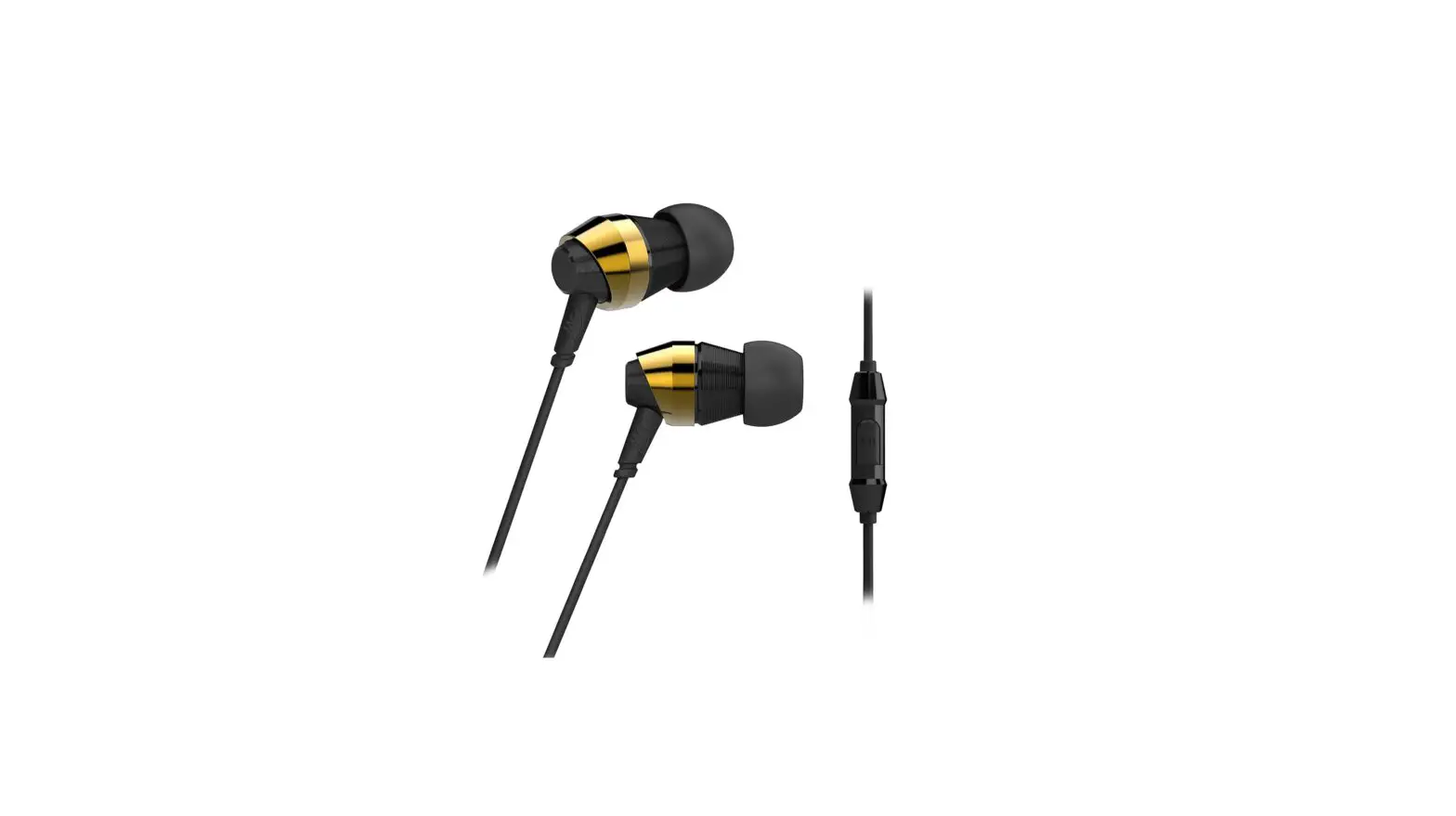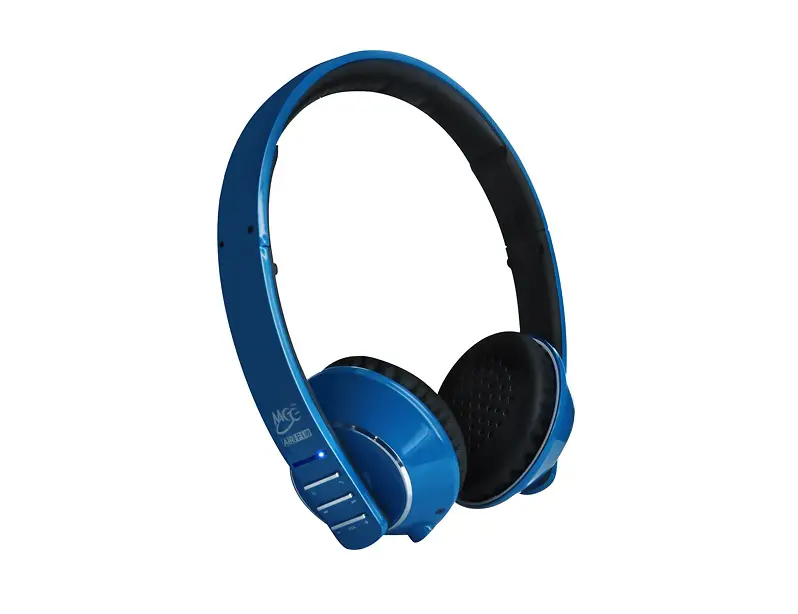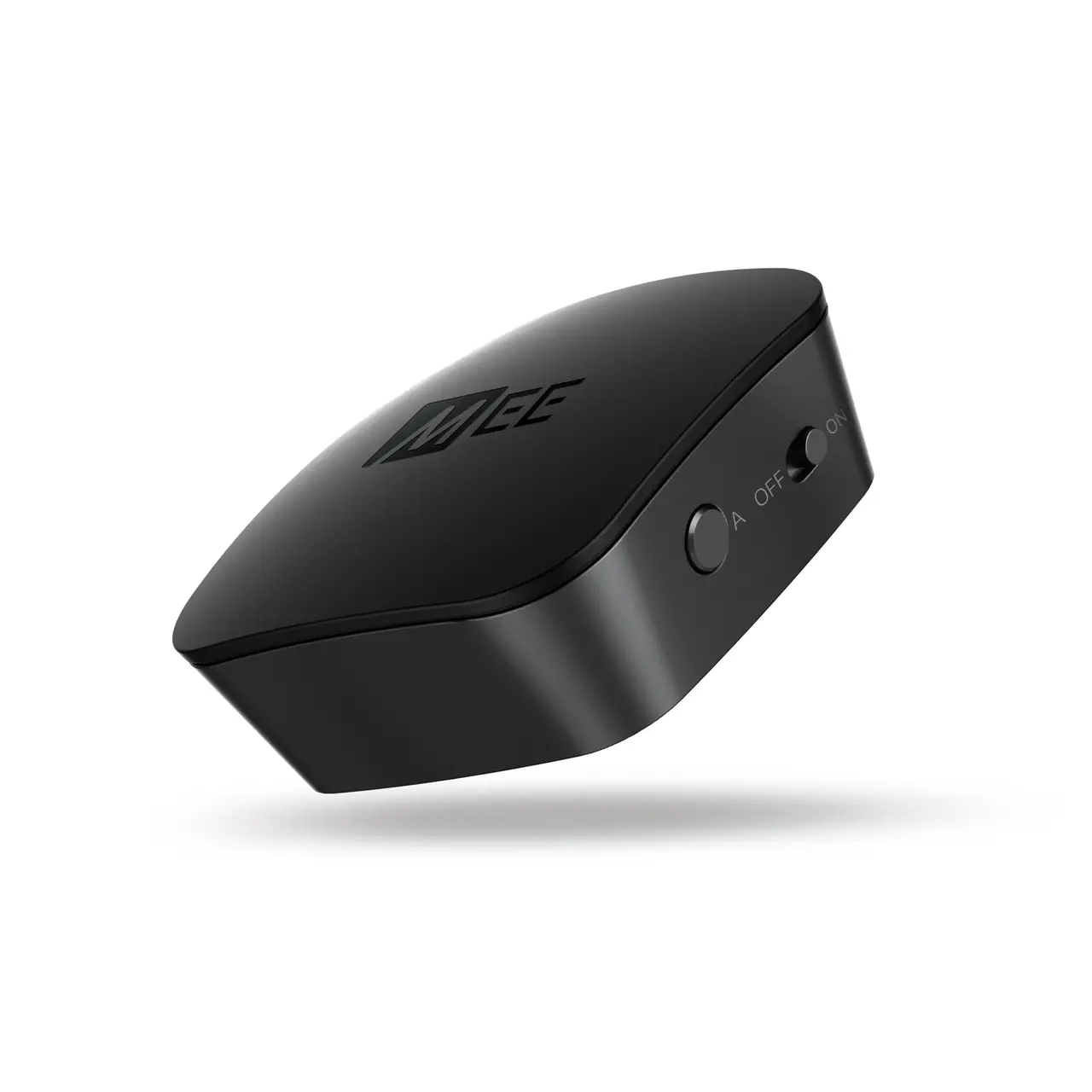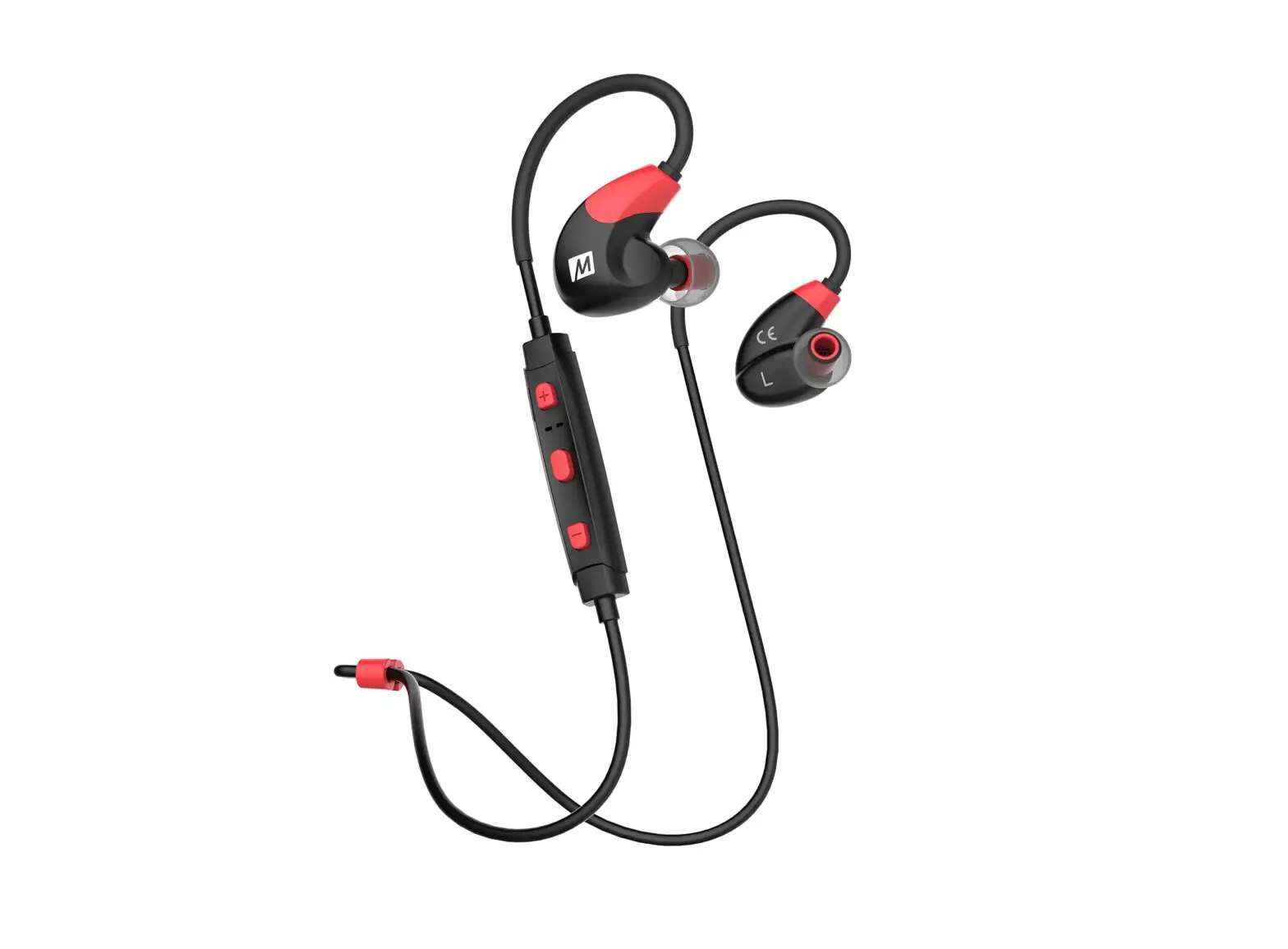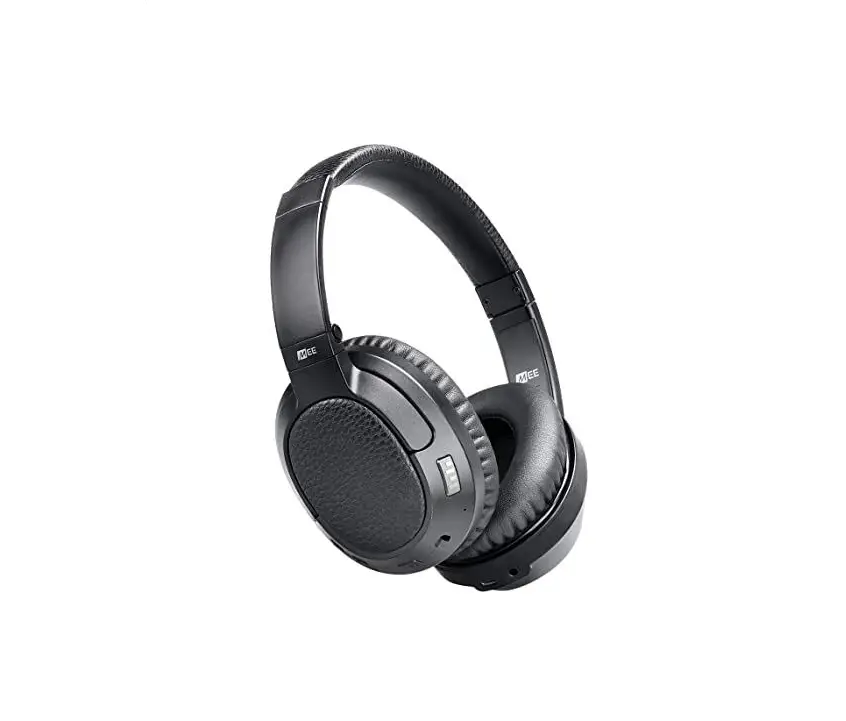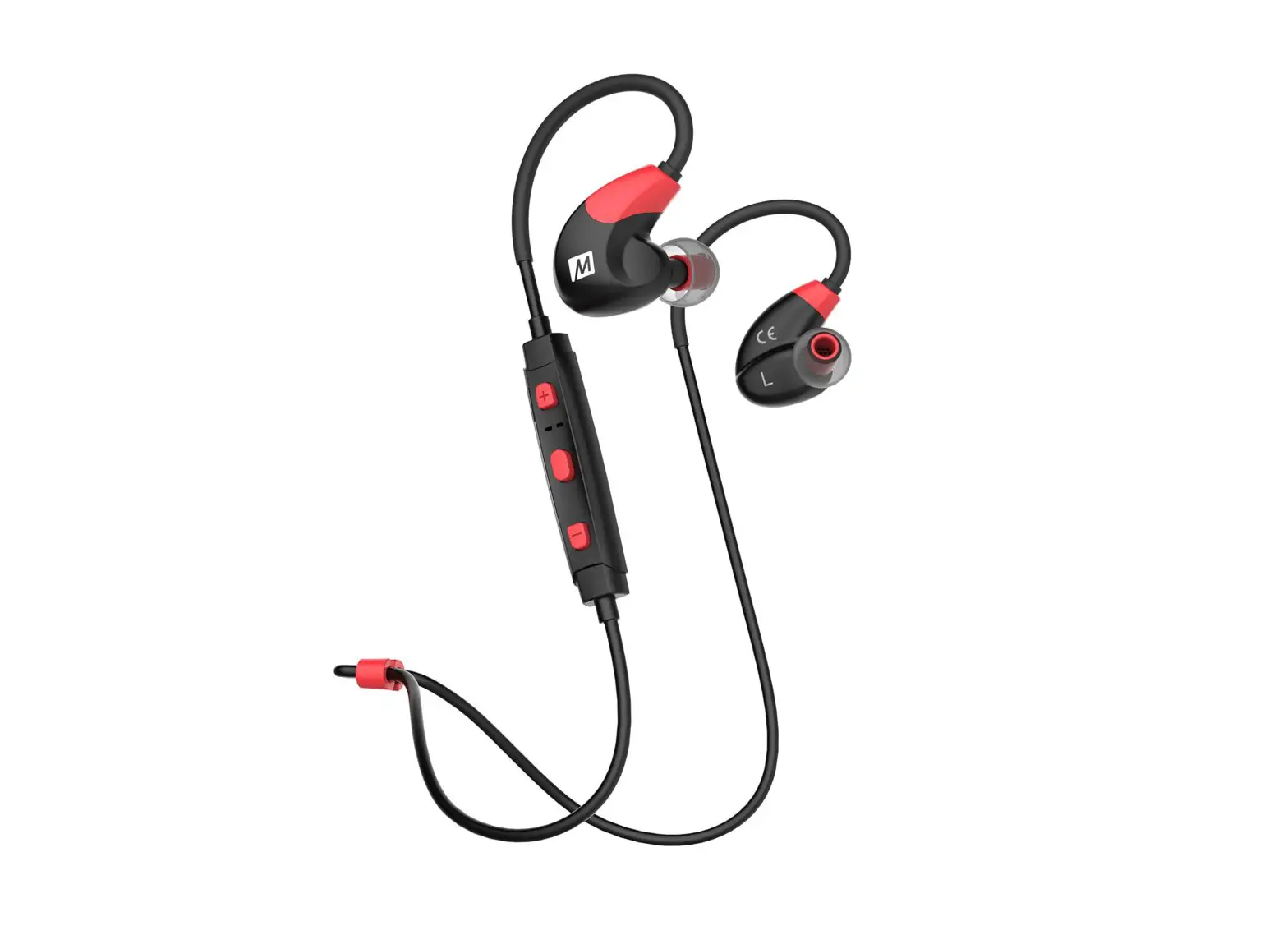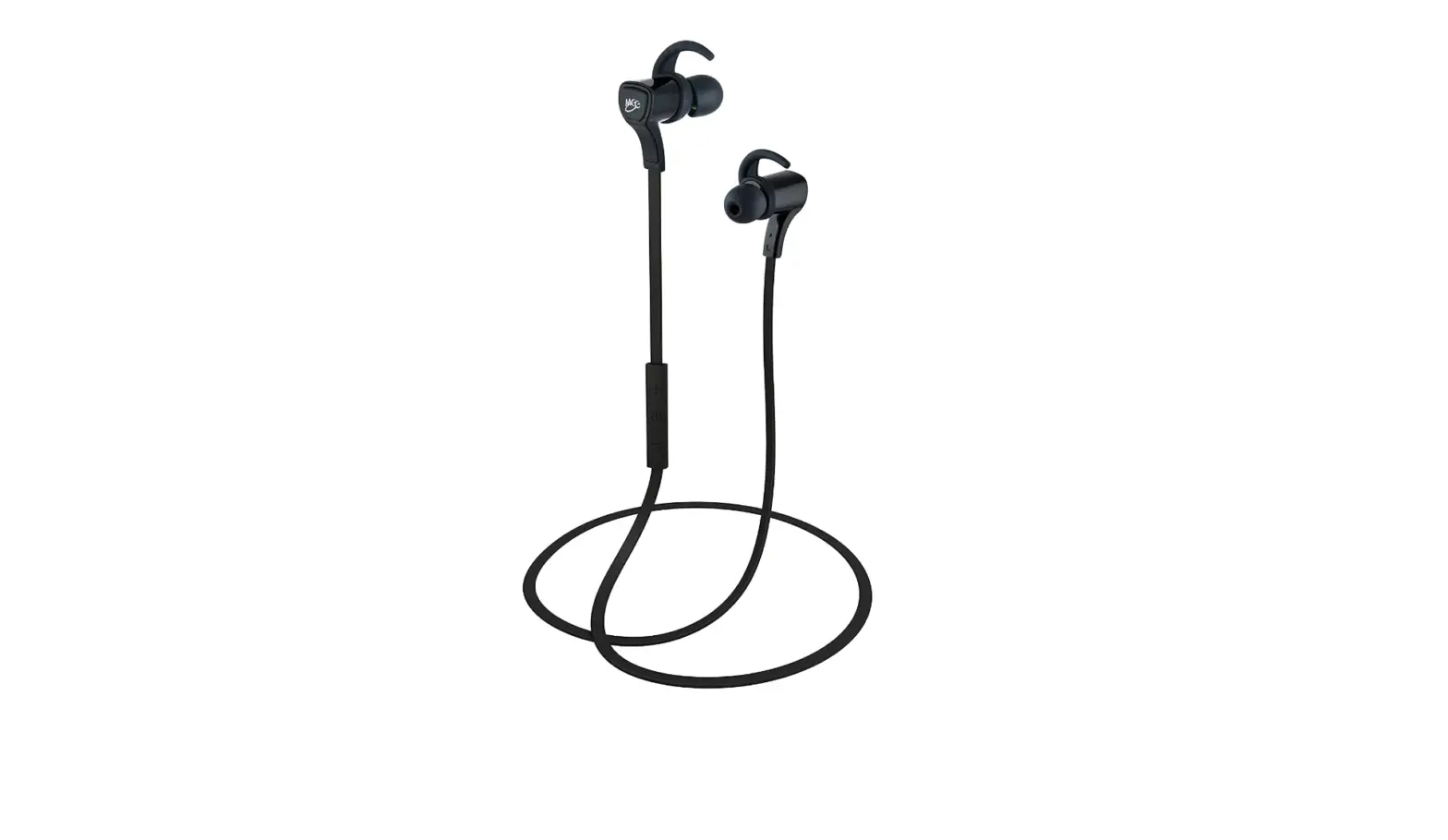

MEE audio Air-Fi Metro2 AF72 Bluetooth Wireless Noise-Isolating In-Ear Stereo Headset
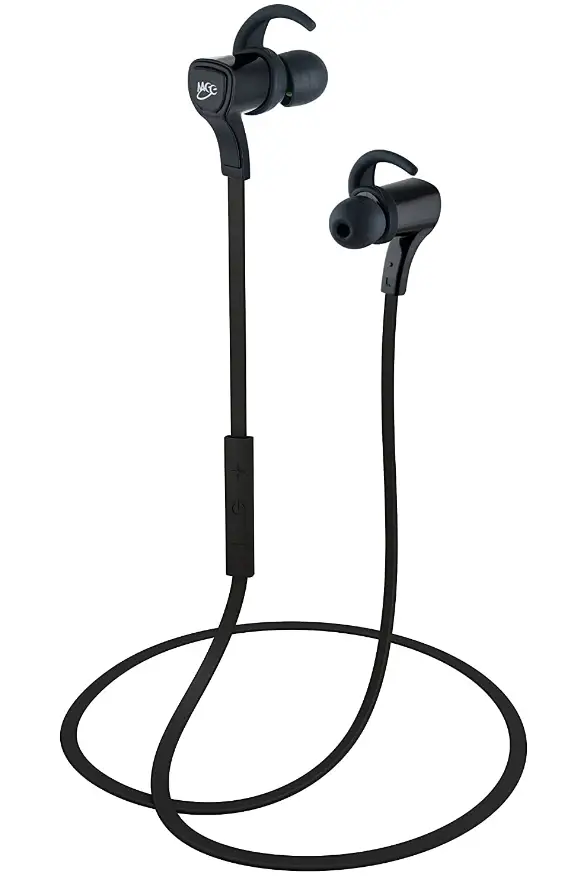
Specifications
- Product Dimensions
3.27 x 1.26 x 7.25 inches - Item Weight
0.353 ounces - Batteries
1 Lithium Ion batteries - Noise Control
Sound Isolation - Connectivity Technology
Wireless - Brand
MEE audio
Introduction
With the lightweight Air-Fi Metro2 from MEE audio, you can detach from your smartphone or tablet for complete mobility, hands-free phone calls, and superior music (formerly MEElectronics). The Metro2 uses aptX technology for the finest quality wireless audio streaming, offering beautiful full-range sound with crystal clarity and bass that is rich but balanced. The Metro2 was designed to rival the sound of wired earphones. With flexible ear fittings that keep it firmly in place, the Metro2, the world’s lightest stereo wireless headset, provides all-day comfort. It weighs only 0.4 ounces. The noise-Isolating in-ear design keeps outside noise out and your media in. You can make the most of your smartphone or tablet for music, movies, audiobooks, phone calls, and other activities thanks to the built-in microphone and controller.
QUICK START GUIDE
- CHARGE THE METRO2 BEFORE FIRST USE
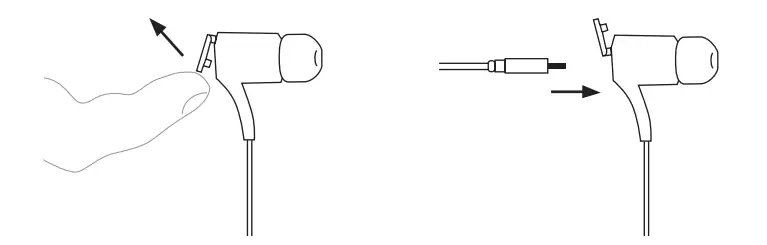
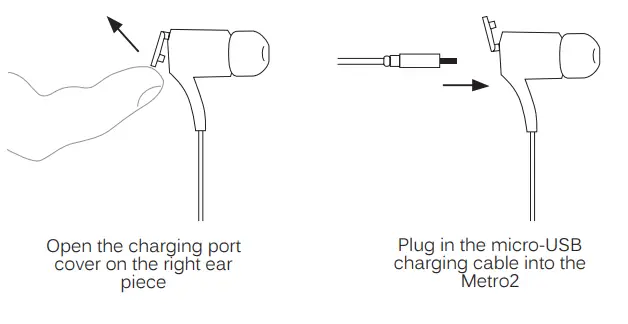
Open the charging port cover on the right ear piece and plug in the micro-USB charging cable into the Metro2 and a powered USB port. (See Page 3 for more information)
- SELECT PROPER SIZED EAR TIPS AND INSTALL STABILIZER FINS
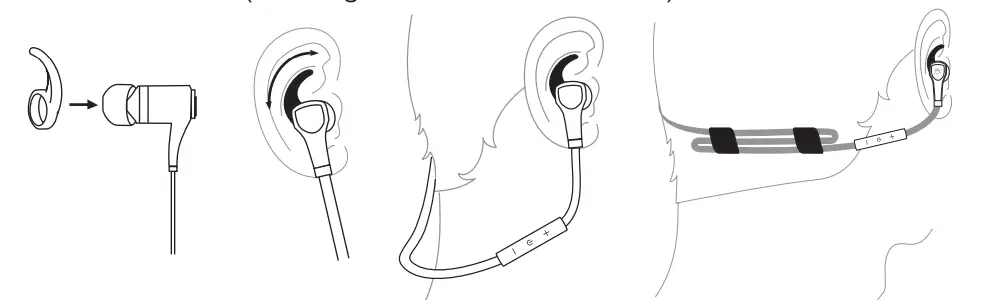
Try all three sizes of ear tips to find the best fit. Install the supplied stabi-lizer fins and adjust for best stability. Configure the cable clips as shown below if desired. (See Page 5 for more information)
- PAIR WITH YOUR DEVICEPress the multifunction button for 8 seconds until the red & blue indicator lights flash in an alternating manner. Go to the Bluetooth menu on your device and select “Air-Fi Metro 2” to initiate pairing.

PRODUCT OVERVIEW
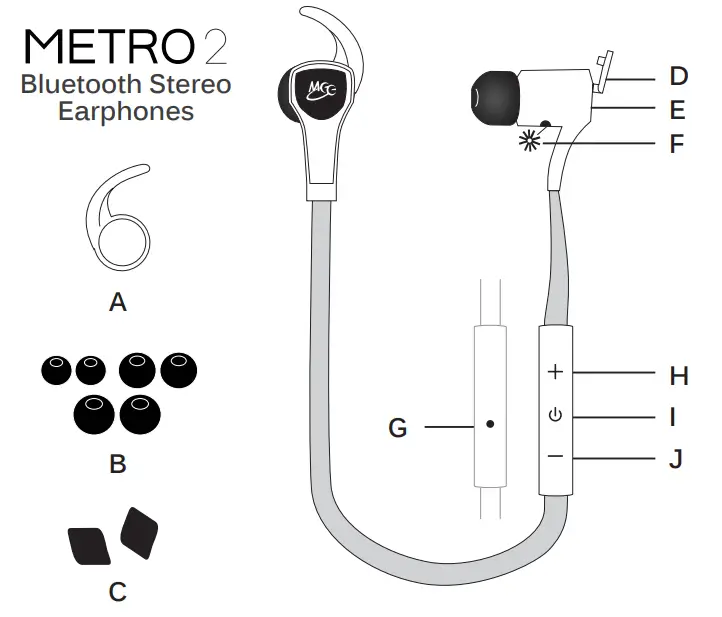
- Stabilizer fins, 1 pair
- Small / medium / large ear tips
- Cable clips, 1 pair
- Charging port cover
- Micro-USB charging port
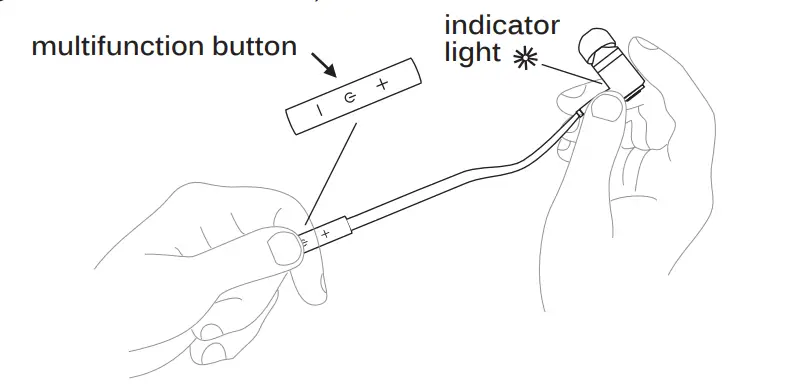
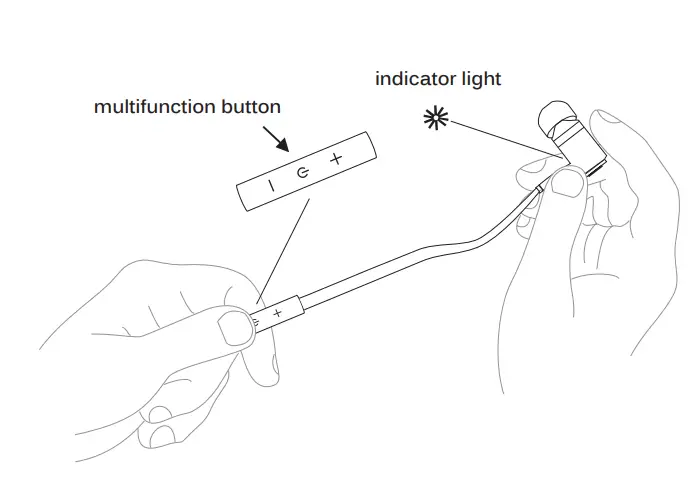
- LED indicator light
- Microphone
- Volume up / previous song button
- Multifunction button
- Volume down / next song button
CHARGING
You must completely charge the headset before the first use Open the charging port cover on the right earpiece and plug in the micro-USB charging cable into the Metro2 and a powered USB port. The red indicator light will stay on while charging and turn off when charging is complete. Charge time is typically 2 hours.
Notes
- The Metro2 will not work while the charging cable is plugged in.
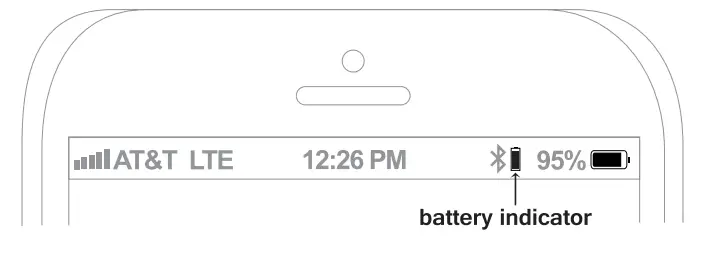
- Apple iOS devices such as the iPhone®, iPad®, and iPod touch® will display a battery indicator in the top right corner of the screen when the Metro2 is connected.
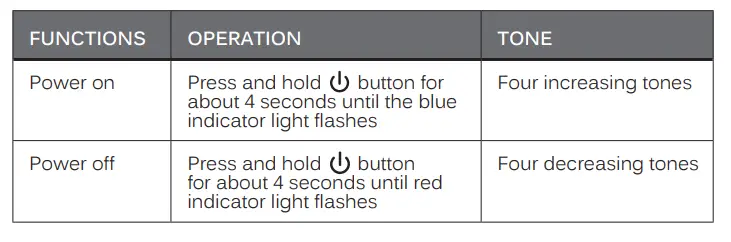
POWER ON/OFF
Note
In order to save power, the headset will power off automatically if not connected within 5 minutes of being turned on.
PROPER WEAR AND FIT
INSTALLING FINS, EAR TIPS AND CABLE CLIPS
Install stabilizer fins on the headset and rotate to find a suitable position as shown:
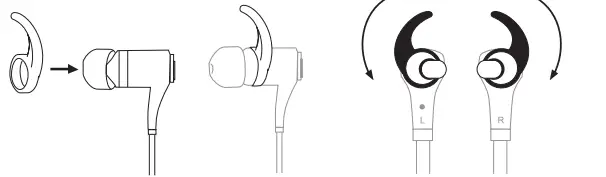
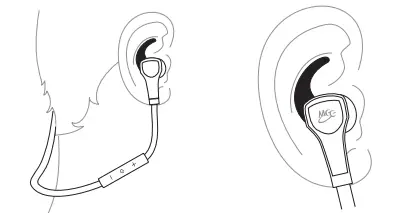
Choose the eartips best suited for your ear size. Wear as follows:
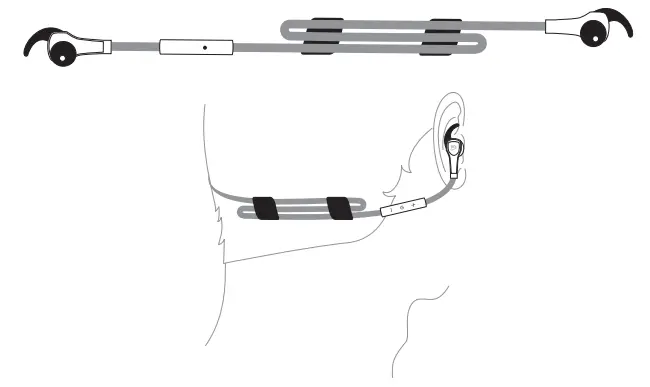
Configure the cable management clips to reduce cable slack for a more secure and comfortable fit.
PROPER WEAR AND FIT (Continued)
CHANGING EAR TIPS
The Metro2 is an in-ear headphone and requires ear tips to seal with your ear canal. An airtight seal between the ear tip and ear canal is important for getting the best sound. Three sizes of ear tips are included to help you achieve the best fit and comfort.
REMOVING EAR TIPS
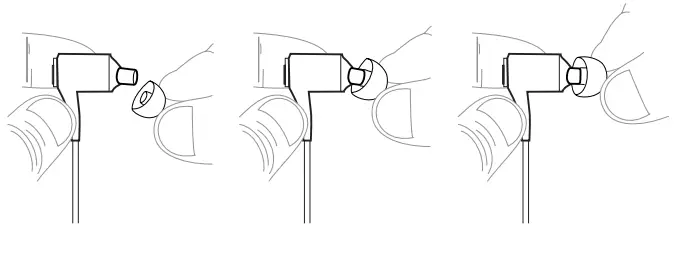
Hold the ear tip firmly in one hand and the earpiece in the other and pull the ear tip straight off the earphone nozzle.
INSTALLING EAR TIPS
- Hold the earpiece in one hand and the ear tip in the other with its open end facing the earpiece
- Push the ear tip tube against the nozzle at a 45-degree angle
- Push the ear tip completely onto the nozzle and wiggle the ear tip until the bottom of the ear tip is flush against the base of the earphone nozzle.
- Gently pull on the ear tip to make sure it is installed securely. If it isn’t installed securely, either push it onto the nozzle until it is or remove and repeat steps a) through c)
PAIRING WITH BLUETOOTH DEVICES
Prior to using the headset for the first time, you have to pair it with a Bluetooth-enabled audio device.
It is only necessary to pair your Metro2 once with each device
- PAIRING
Open the Bluetooth menu (see sections 2 through 4 below) on the device you wish to pair. Some devices require you to select “search for devices” or “add new devices” in order to create a Bluetooth pairing.
Make sure the Metro2 is off and within 1 meter of your device.
Initiate pairing mode by pressing the multifunction button for 8 seconds until the red & blue indicator lights flash in an alternating manner. (Note: The Metro2 will enter standby mode if not paired within 2 minutes.)
Select “Air-Fi Metro 2” when it appears on your device. If “Air-Fi Metro 2” doesn’t appear in the Bluetooth menu of your device, ensure the red and blue indicator lights on the headset are flashing alternatively and Bluetooth is enabled on your device. If your device asks for a pin, enter “0000”.
The device will pair and then connect. After successful connection, the blue indicator light on the Metro2 will flash twice every 4 seconds. - LOCATING THE BLUETOOTH MENU ON AN IPHONE, IPAD, OR IPOD TOUCH
On your device, go to Settings
Select Bluetooth (Bluetooth is under the General menu in iOS 5.1.1 and older); if Bluetooth is not on, turn it on. The iPhone/iPad/iPod will automatically search for new devices
PAIRING WITH BLUETOOTH DEVICES (Continued)
LOCATING THE BLUETOOTH MENU ON ANDROID ™ PHONES AND TABLETS
- On your device, go to Settings menu
- Select Bluetooth (Bluetooth is under the Wireless & Networks menu in older Android devices); if Bluetooth is not on, turn it on.
- Select “Search for Devices” if your phone or tablet does not automatically search for new devices
LOCATING THE BLUETOOTH MENU ON WINDOWS® PHONE 8 DEVICES
- On your device, go to Settings
- Select Bluetooth. If Bluetooth is not on, turn it on. The Windows Phone will automatically search for new devices
If pairing fails after several tries, please refer to your device’s user manual for further information.
For instructions on pairing other devices, please refer to your device’s user manual.
CONNECTING WITH PAIRED DEVICES
When the Metro2 is turned on, it will automatically connect to previously paired devices that have Bluetooth turned on and are within range, with priority given to the most recently connected device.
The headset can remember 8 paired devices; when the number of paired devices exceeds 8, the first paired device will be replaced.
If the Metro2 is in standby mode (turned on but no device connected), a short press of the multifunction button will connect to the most recently connected device that has Bluetooth turned on and is within range.
Notes
- On some Bluetooth devices, such as certain Nokia and Blackberry phones, the settings must allow for automatic connection. Please refer to your device’s manual for further information.
- On some Mac and PC computers you will need to manually enable Blue-tooth audio every time you connect
MULTIPOINT
Multipoint allows two Bluetooth devices to be connected to the Metro2 simultaneously.
TURNING ON MULTIPOINT: MULTIPOINT IS OFF BY DEFAULT. ENABLE MULTIPOINT AS FOLLOWS:
- Put the Metro2 in standby mode (turned on but with no devices connected to it). Bluetooth may need to be turned off temporarily on nearby devices so that they do not connect to the Metro2
- Long press and + buttons in standby mode, and release them when you hear four beeps of increasing tone.
SIMULTANEOUS CONNECTION OF TWO DEVICES
- Pair two devices by following the pairing procedure for each device. Both devices will need to be paired before multipoint can be used.
- With multipoint enabled, when turned on the Metro2 will automatically connect to the last 2 devices that have Bluetooth enabled and are within range.
- If a device that has already been paired does not connect automatically, select “Air-Fi Metro 2” from the Bluetooth menu of the device.
- To avoid connecting to multiple devices, disable Bluetooth on the devices you do not want connected to the Metro2 or disable multipoint (see page 10).
- If you no longer want the Metro2 to connect to a device, remove the “Air-Fi Metro 2” pairing from the Bluetooth menu of that device.
MULTIPOINT FUNCTIONALITY
Switching audio between two devices during media playback
- Pause audio playback on the active device
- Start audio playback on the other connected device; it may take up to 10 seconds for the audio to switch.
Incoming calls will always take precedence over media. If media is playing on one device and an incoming call is received on the other device, the Metro2 will pause the media on the active device and activate the device with the incoming call. Once the call is ended, the Metro2 will reactivate the original device and resume playback (with most media applications).
MULTIPOINT (Continued)
TURNING MULTIPOINT OFF
We recommend keeping multipoint off if you don’t use this feature, which will result in the best connectivity and battery life. Disable multipoint as follows:
Long press and — buttons in standby mode (see Section 1a on Page 9 for standby mode instructions) and release them when you hear four beeps of decreasing tone.
PHONE FUNCTIONALITY & CONTROLS
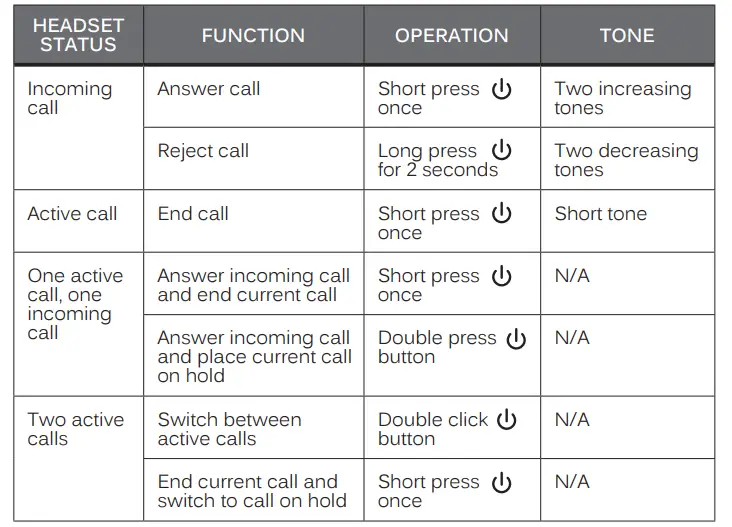
CONTROLLING PHONE CALLS
Note
Pressing the answer button on a connected device with a call coming in will activate the phone handset, not the Metro2. Long press for 2 seconds to transfer the call to Metro2.
PHONE FUNCTIONALITY & CONTROLS (Continued)
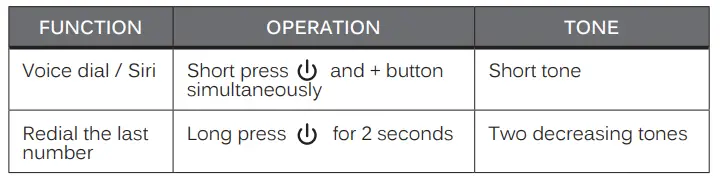
DIALING
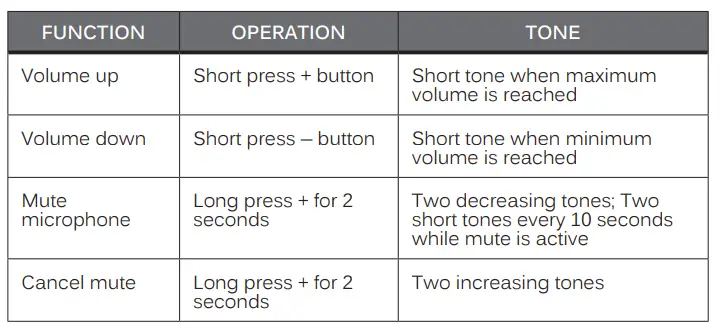
IN-CALL CONTROLS
Note
Phone functionality may differ depending on the device type, OS, and version. Please refer to your mobile phone user’s manual in the event of a discrepancy.
CONTROLLING MEDIA PLAYBACK
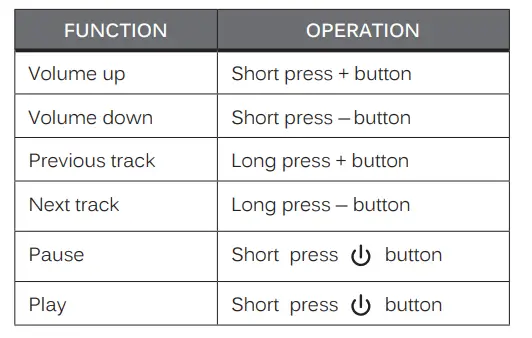
Notes
- The Metro2 will beep when trying to adjust the volume above or below the maximum or minimum settings.
- Remote control functionality requires your Bluetooth device to support the AVRCP profile.
INDICATOR LIGHTS AND TONES
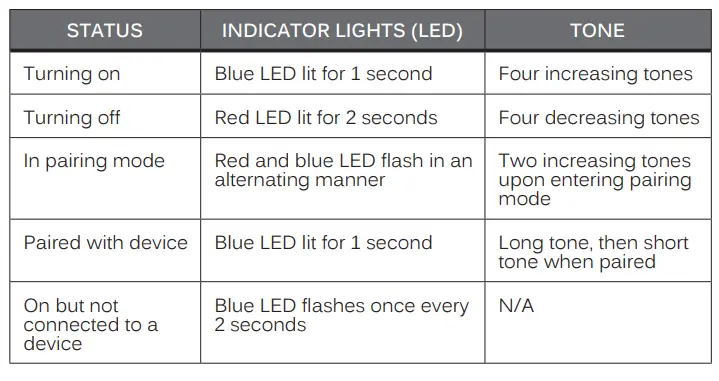
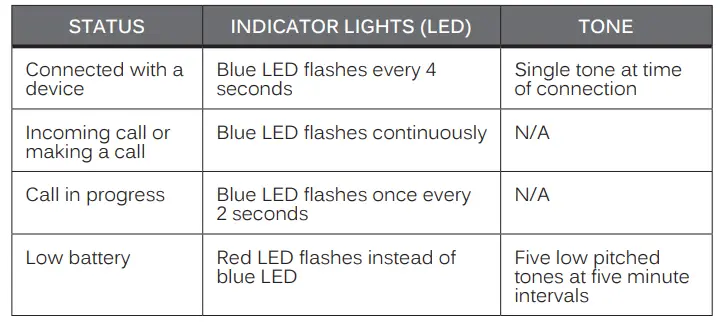
FACTORY RESET
Performing a factory reset will clear all of your paired devices and can be used as a troubleshooting method. Use the following steps to perform a factory reset:
- Plug a charging cable into the Metro2
- Press and hold the Volume Up “+” button until you see both the blue and red LEDs turn on. There will be four long tones. The red LED will remain on until the Metro is disconnected from the charger.
Note
The first time the Metro2 is turned on after the factory reset, it will enter pairing mode automatically. If the Metro2 was previously paired with a device, the pairing must be deleted from the device and the pairing process will need to be repeated.
WARNING
Turn down the volume prior to using the headphones; adjust the volume to the desired level once they are connected. Do not use headphones at high volumes for extended periods of time as doing so will result in permanent hearing damage. It is advised you keep volume levels moderate to low at all times for your safety, even when loud background noise is present.
Visit www.osha.gov for more info.
Follow all laws governing use of headsets while driving, cycling, walking, and/or running. Do not insert both earphones while driving a car, cycling, operating machinery, or performing other activities that require hearing surrounding sounds.
CLEANING INSTRUCTIONS
- Remove the ear tips and the stabilizer fins from the earphones
- Take a cotton swab that is either dry or has been dampened by a small amount of rubbing alcohol or soapy water
- Swab around the nozzle of the earphone
- Swab the ear tip including the inside of the ear tip
- Swab the inside of the stabilizer fin ring
Note
Ear tips and stabilizer fins can also be submerged fully in rubbing alcohol or hydrogen peroxide - Wait for the earphones and ear tips to dry completely
- Put the ear tips and fins back on the earphone, making sure they are fitted securely. Always make sure ear tips are installed properly on the earphone nozzle to avoid an ear tip coming off in your ear.
Clean the cable and earphone housing as necessary using a cloth dampened with soapy water, and then again with a damp cloth. Using chemical cleaners on the Metro2 may cause discoloration and hardening of the cable and is not recommended.
CARE AND SAFETY
- Do not use your wireless headset around flammable gases as fire or explosion may occur.
- Keep the device and packaging out of reach of children.
- There is no user replaceable/reparable parts in the headset. Disassembly will void your warranty.
- Do not expose the headset to excessive heat or cold, moisture, sweat, water, or other liquids. Doing so will void your warranty.
- Do not drop the device.
STORAGE
When not in use or charging, store the Metro2 in the included carrying case. Storing or transporting the Metro2 in a pocket or bag without using the case may decrease the lifespan and void the warranty.
SPECIFICATIONS
See the Air-Fi Metro2 product page at www.meelec.com for product specifications
TROUBLESHOOTING
Visit www.meelec.com/bluetooth for troubleshooting information
Frequently Asked Questions
Mini USB plugs into the back of the right earpiece.
While they will most likely stay in place because of the 3 different cup sizes and the ear fins, they probably wouldn’t be best with a super heavy sweat activity. Because they’re not labeled as a “sports” headphones, I’d be a little worried about sweat down inside the speaker/USB connection which is outside of the right earbud, covered but not water resistant. I wear mine around the office and haven’t had any issues with slippage. They do transmit my dress shoe footsteps into the headphones but depending on the level of the music, you most likely wouldn’t notice in running shoes. Finally, I looked at the MEElectronics Sport-Fi X6 version and they don’t mention anything about being water/sweat resistant, just that they stay in place during “activities”. I think these would too based on my experience. Long answer short: I’d wear them running. Guess it would all depend upon you. Hope this helped! P.S.
I have 2 of these. One at work, and one at home. Honestly, I am not sure if you mean in one use, or lifetime. May be 6 hours in one use.
I have not “sweated” in them. I believe they may be somewhat water resistant, but I would not count on it for these headphones. If you really want something that is sweatproof, I would recommend the Meelectronics Sport-fi X6. I also have those and they are definitely sweatproof. I’ve used them running, biking, and for strength training. They are great headphones and have definitely held up to sweat.
The Metro2 can be paired to multiple devices but it can only have 1 active connection at a time. The only Bluetooth audio device I am aware of which can be connected to 2 devices concurrently (at the same time) is the Jawbone Nerd.
I am hard of hearing. Therefore, I have to turn it up the volume. As the result, the battery only lasted 2 hrs for me.
Works with anything Bluetooth. If your TV supports Bluetooth, then it should work.
Works great no issues at all so far
Yes, the stabilizer ear fins are removable. The Metro2 will stay in your ears without the fins with the proper fit from the ear tips, but the fins provide additional support.
I use iPhone 6 and it works perfectly, don’t know about Samsung
Sorry…I don’t have any experience with the Mpow earbuds so I can’t compare. However, I will say I’ve enjoyed using the MEElectronics Air-Fi Metro 2 earbuds. I’ve used them with my 4-year-old Android phone and a 2012 Nexus 7 tablet. They sound great with both. Just be aware that you need to find the right earbud gels for your ears to get full sound from any set of earbuds. If you are looking for something for exercise, I would recommend the MEElectronics Sport-Fi X6 Bluetooth Wireless Sports In-Ear Headphone with Memory Wire, Black/Red. They have been very comfortable and fantastic for exercising. I’ve used them for running, cycling, and strength exercising.
There is definitely a delay in sound even playing from my phone in my pocket to my ear. Also, these wouldn’t connect to my MacBook pro.