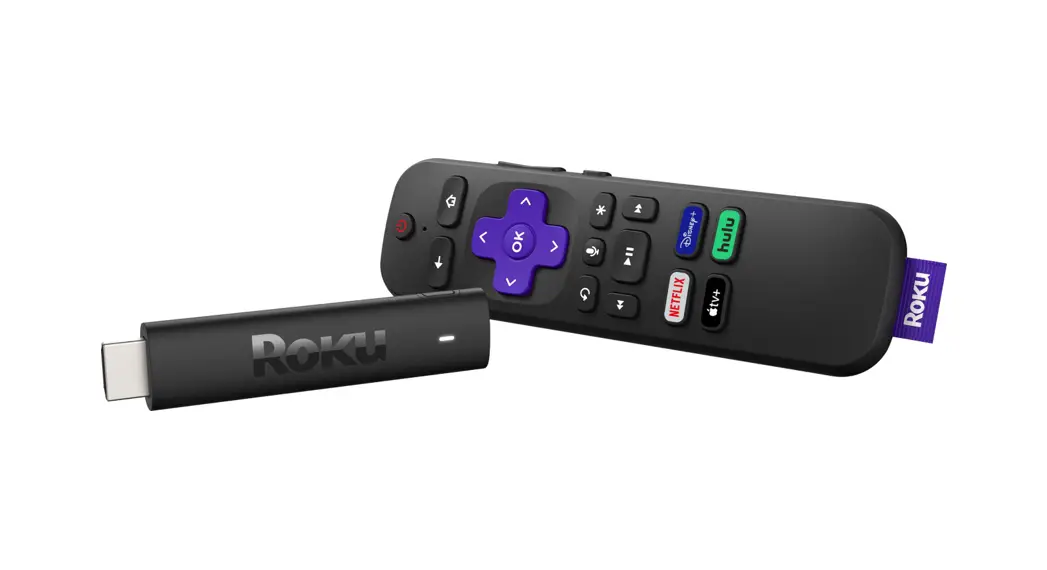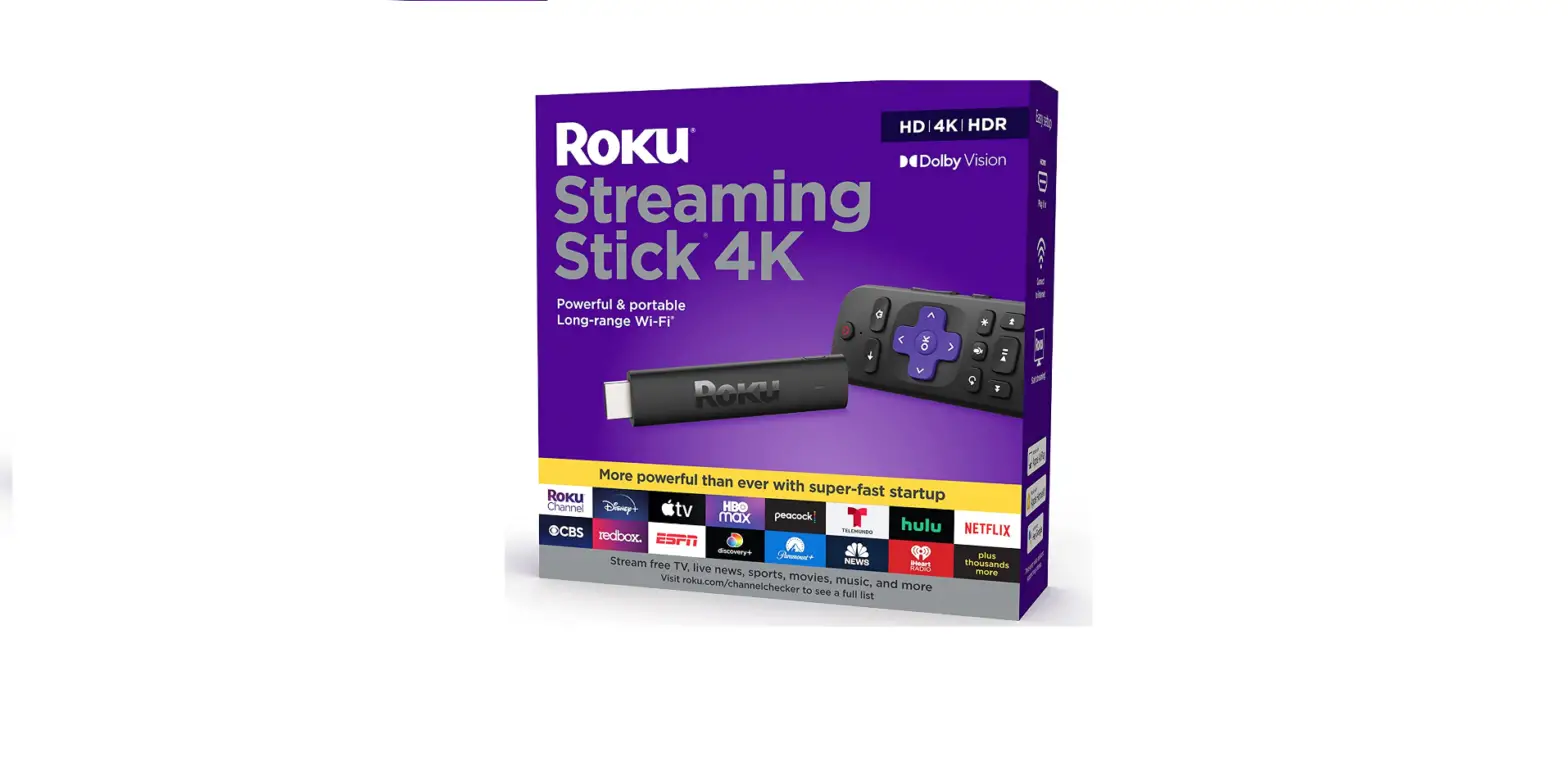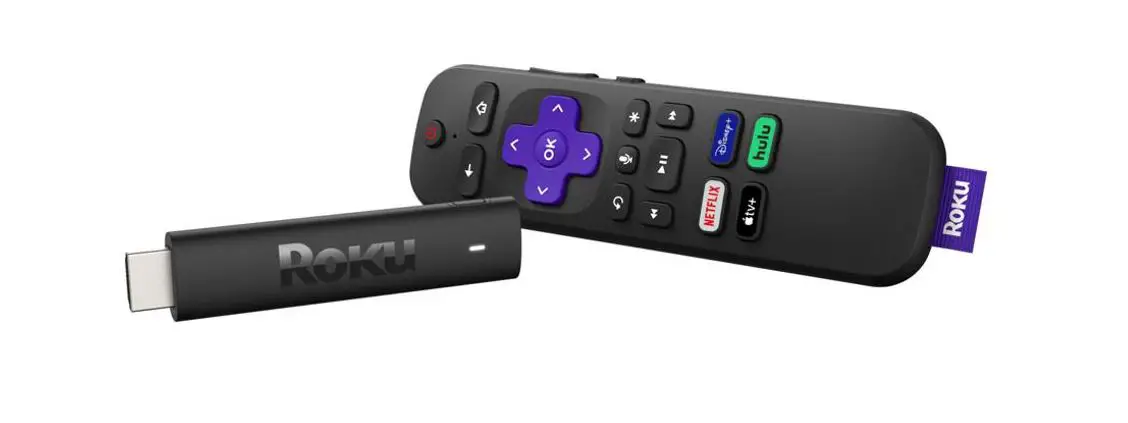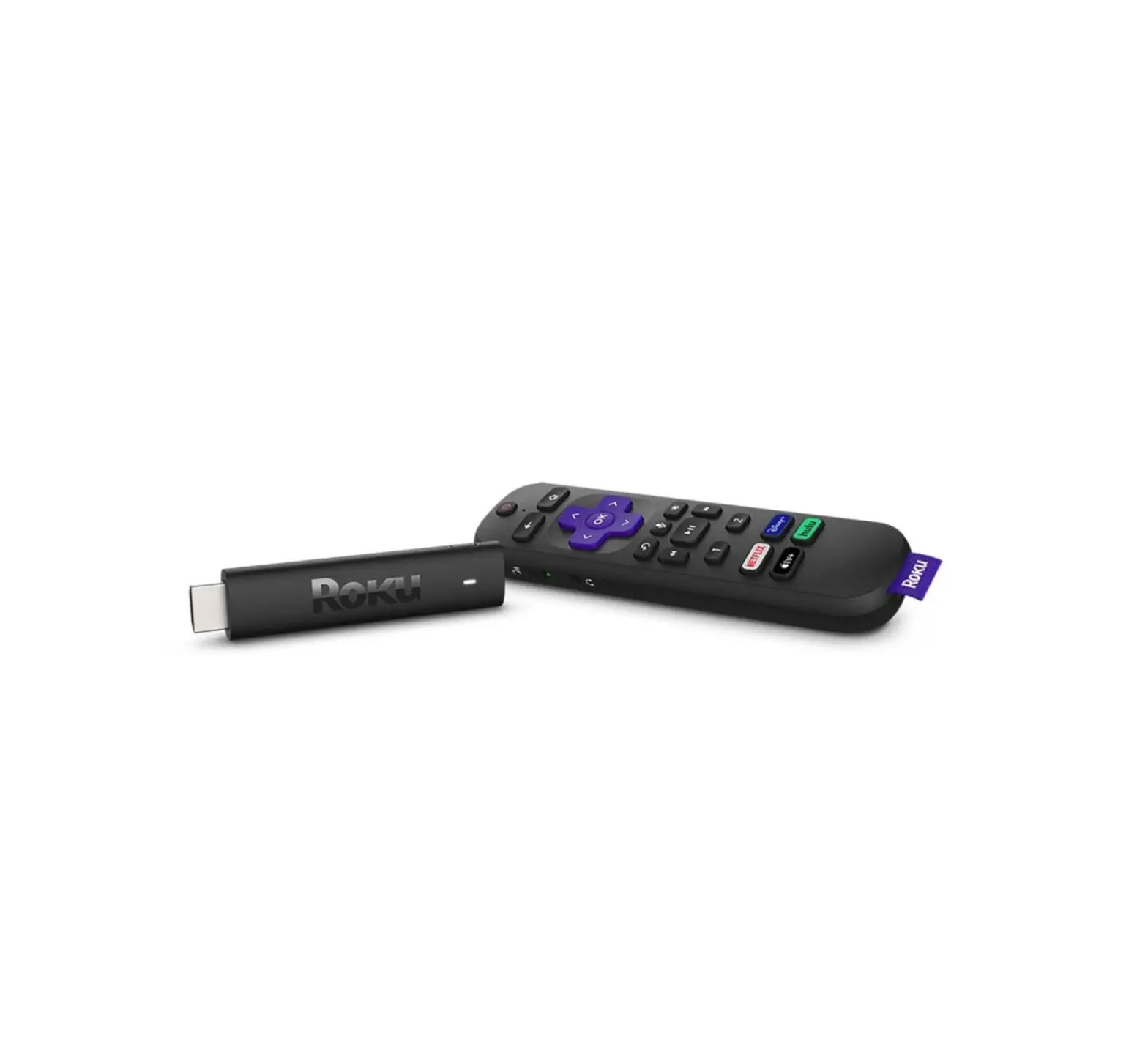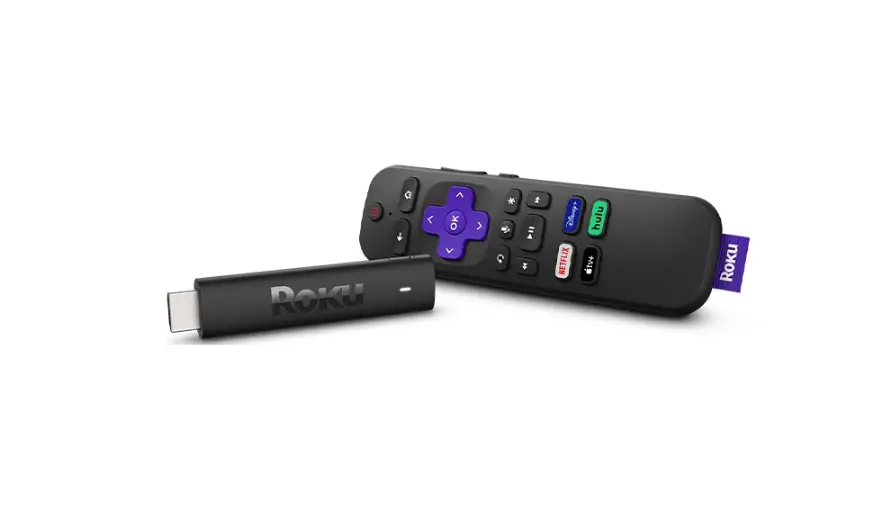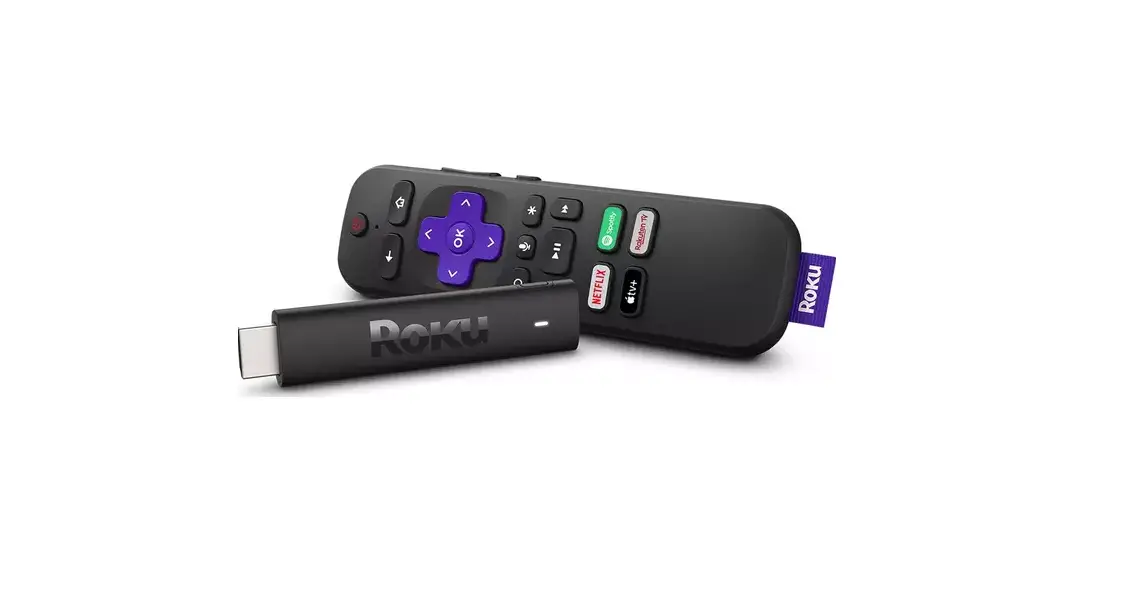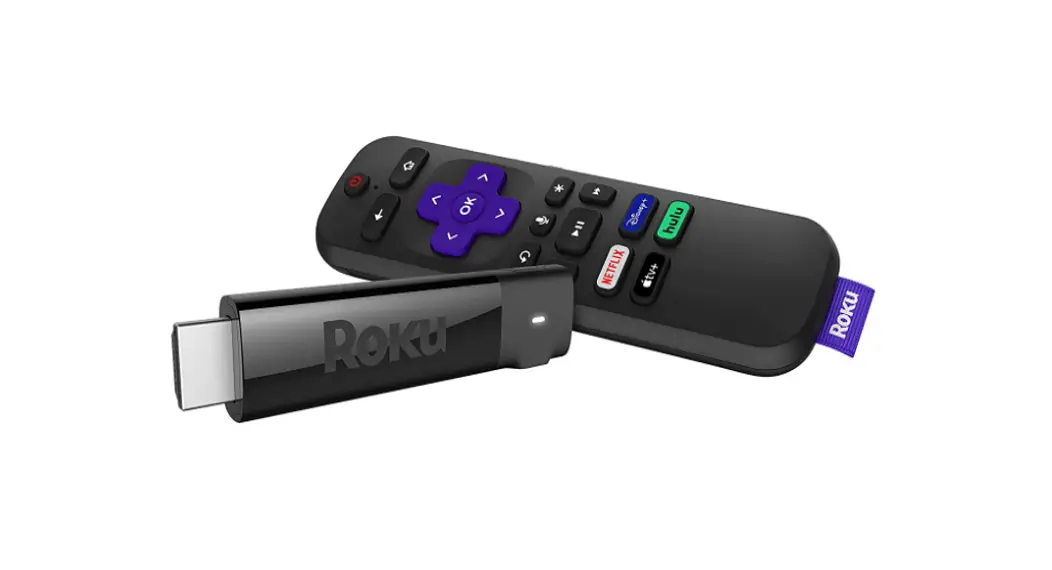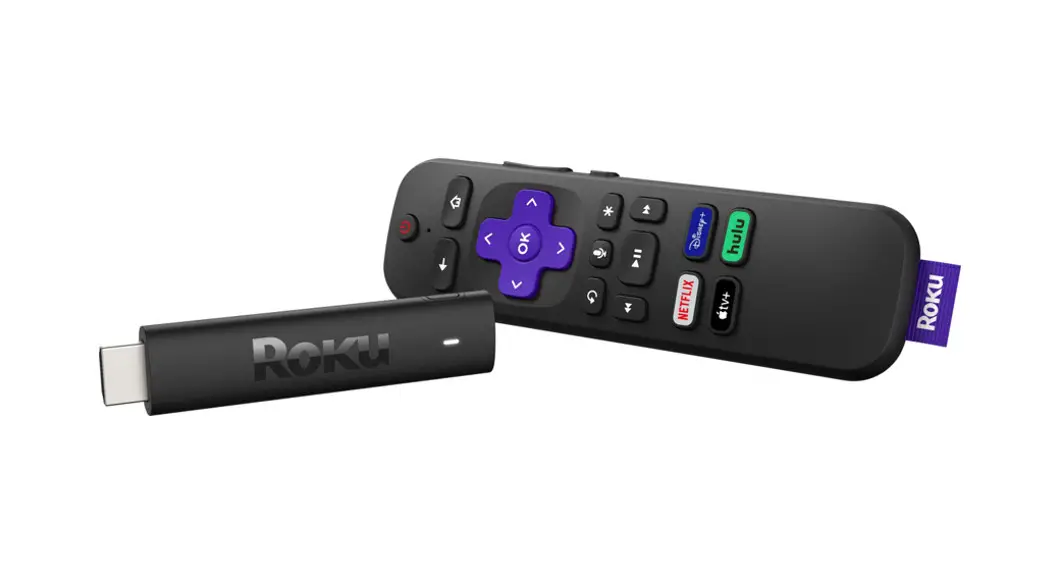

Roku Streaming Stick
Quick Start Guide
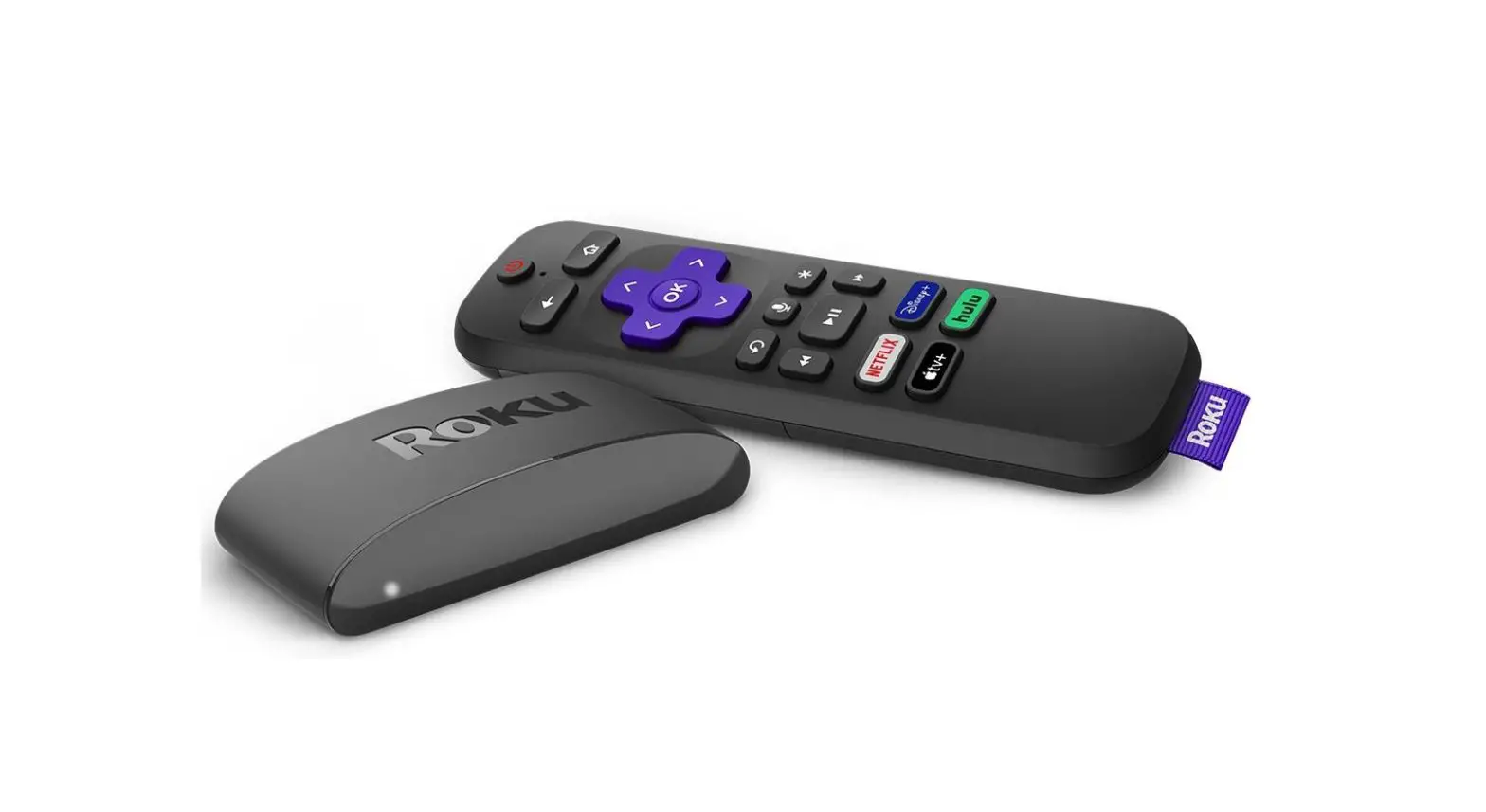
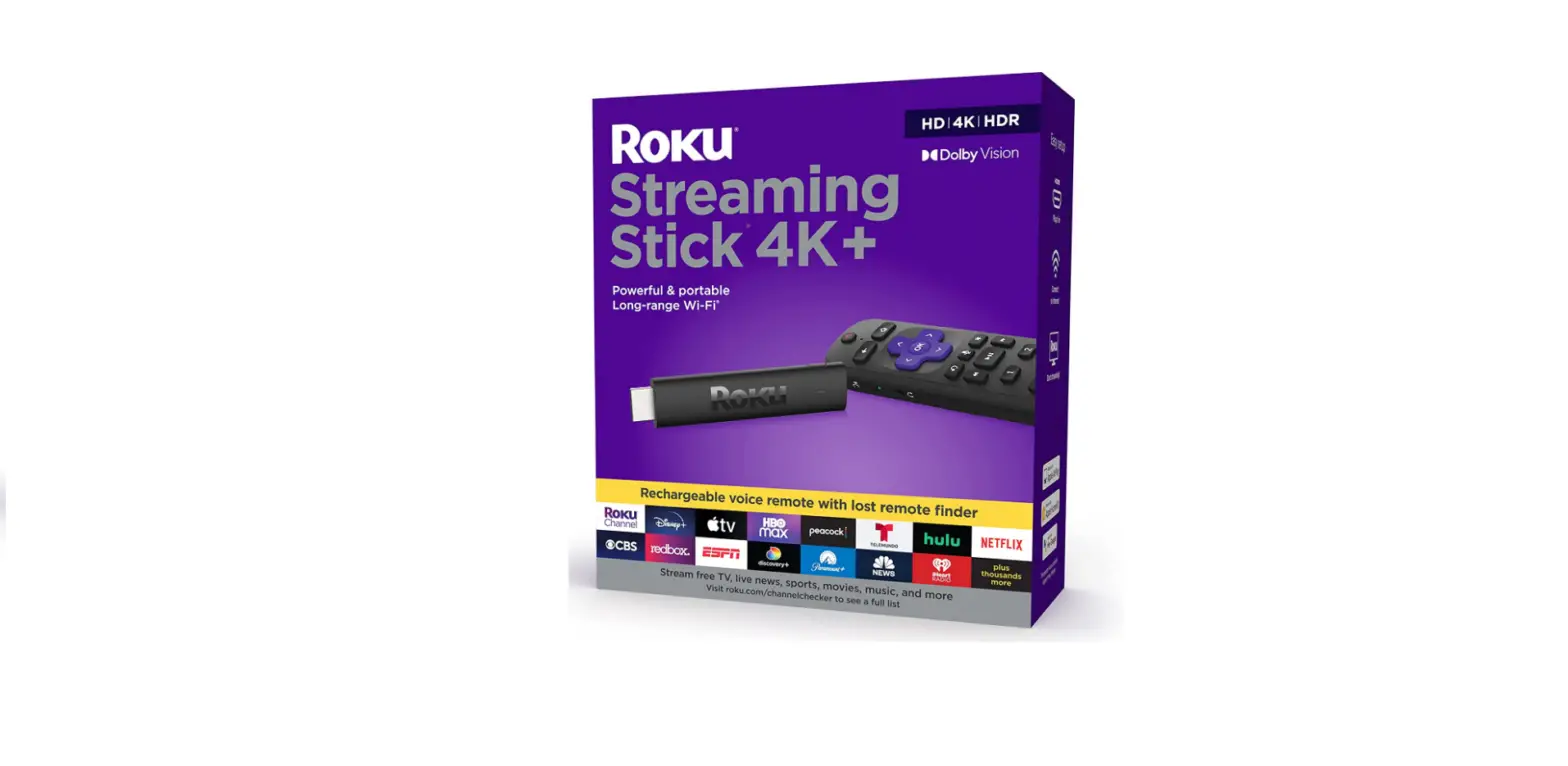
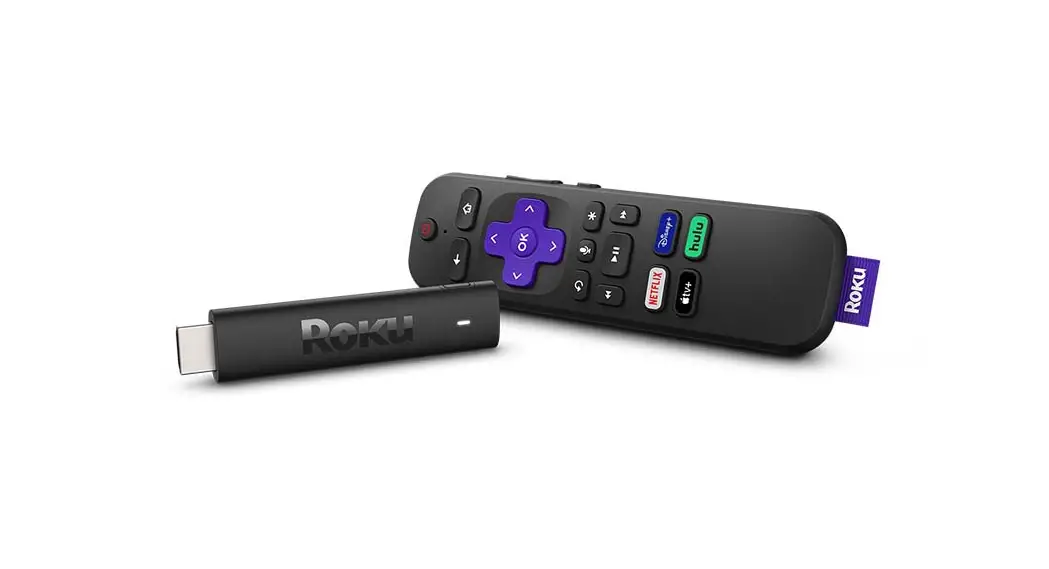
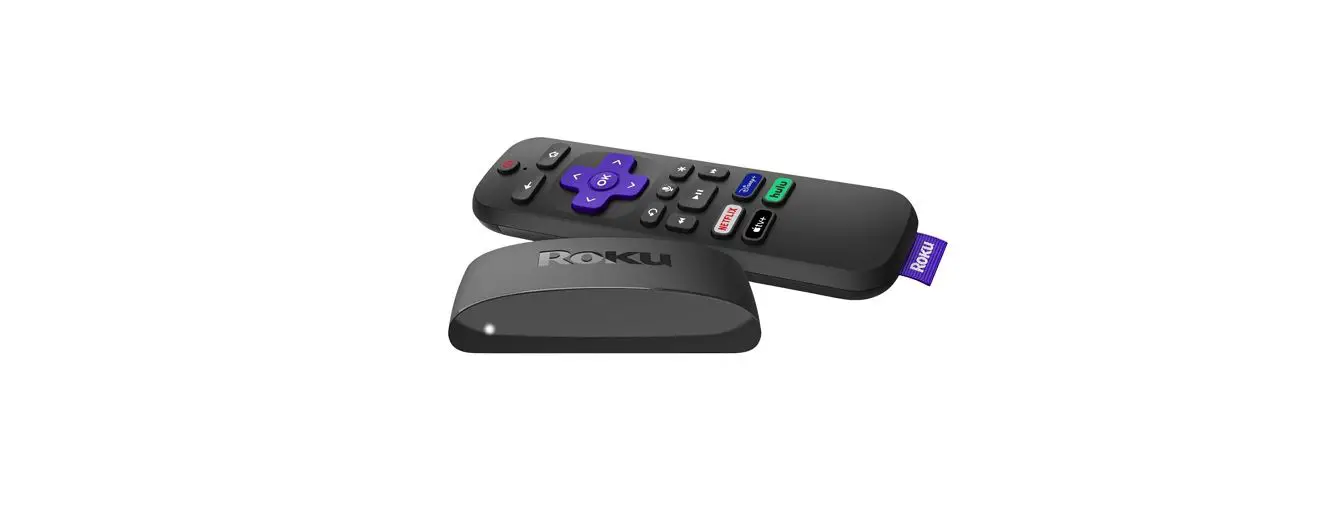
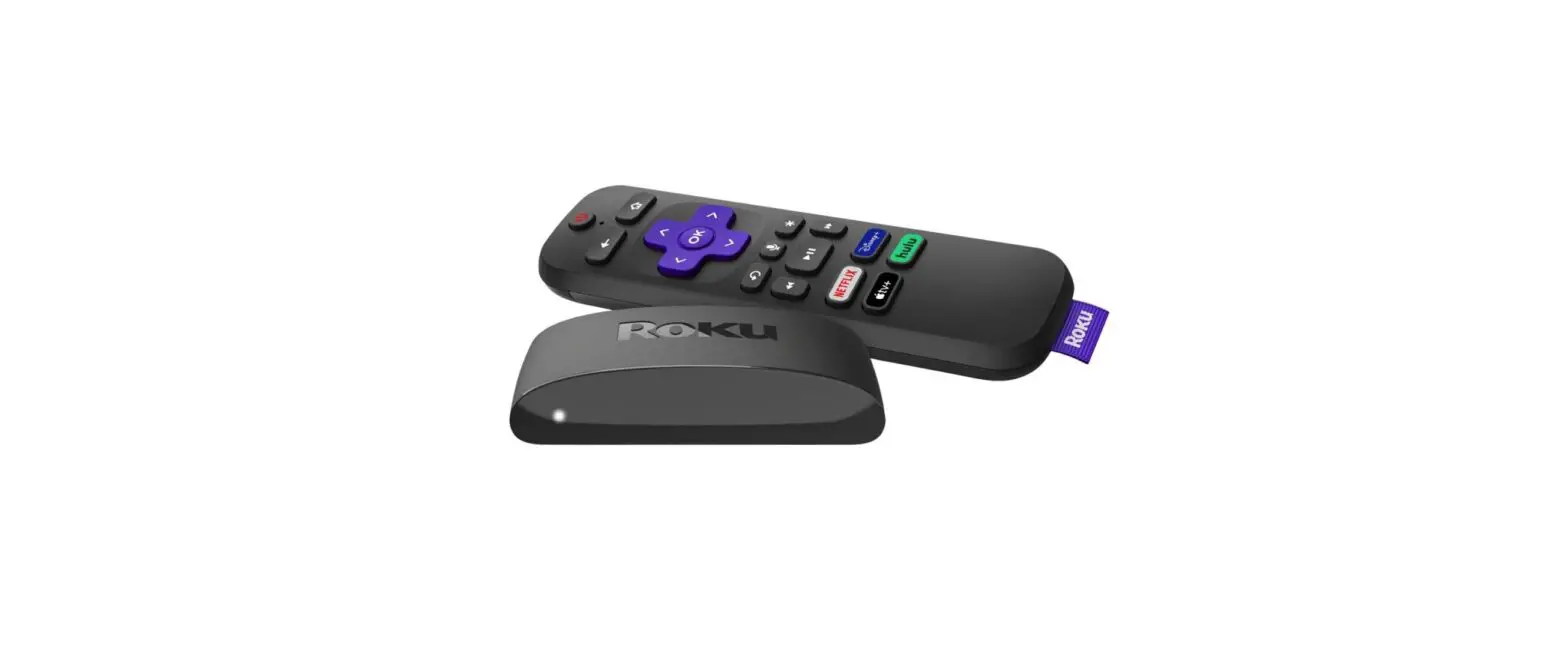
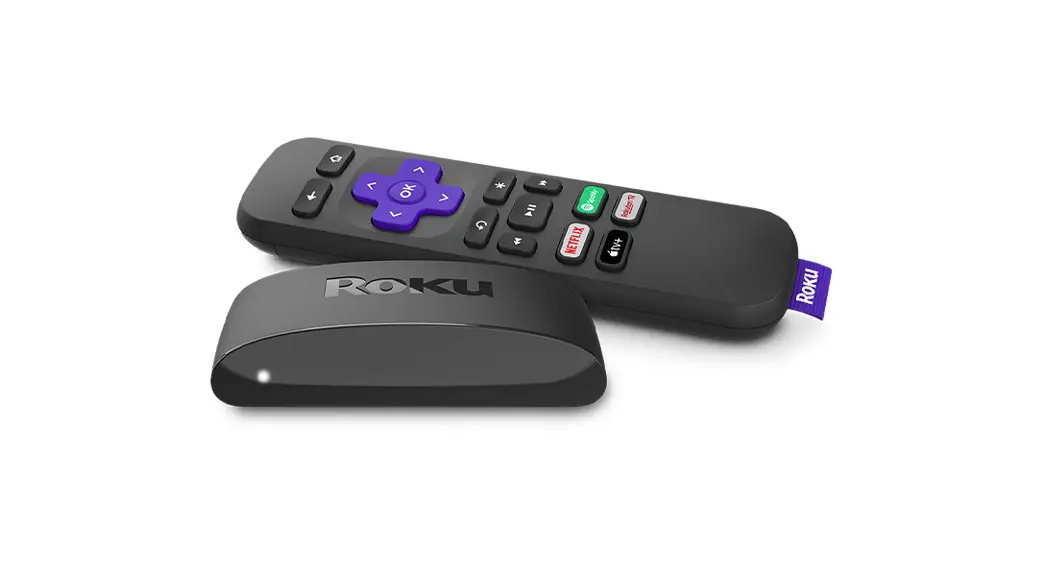
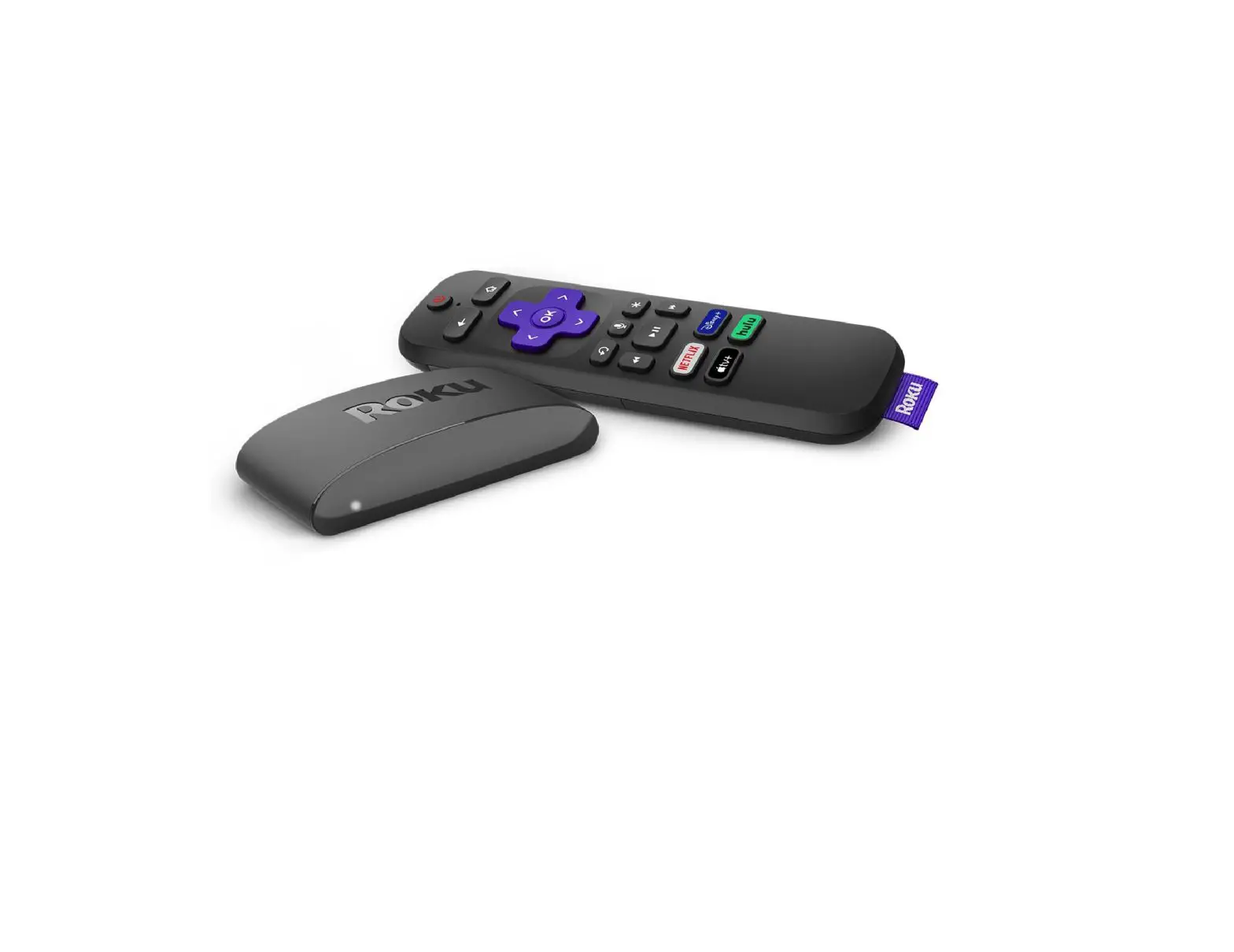
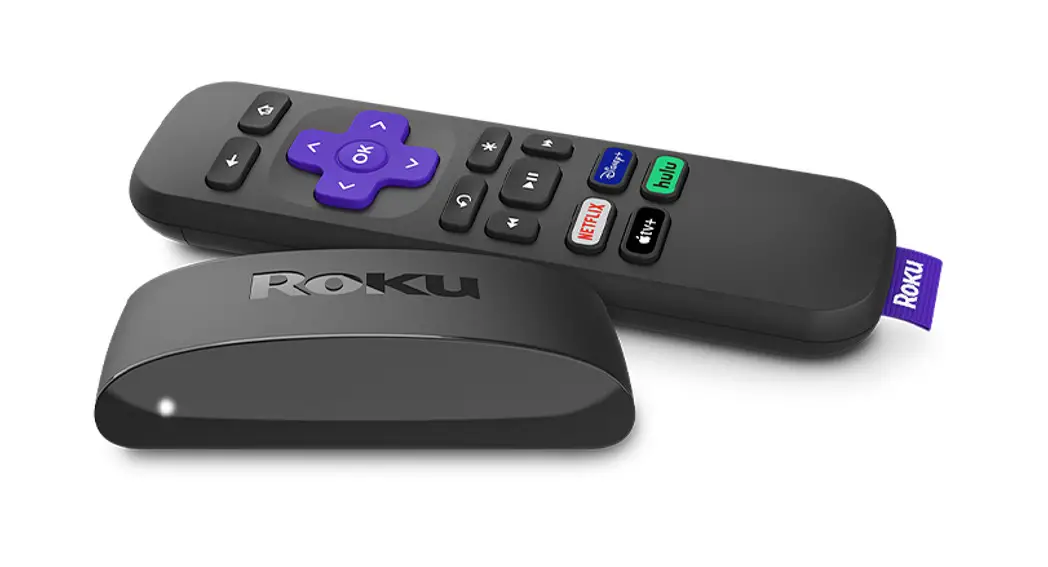
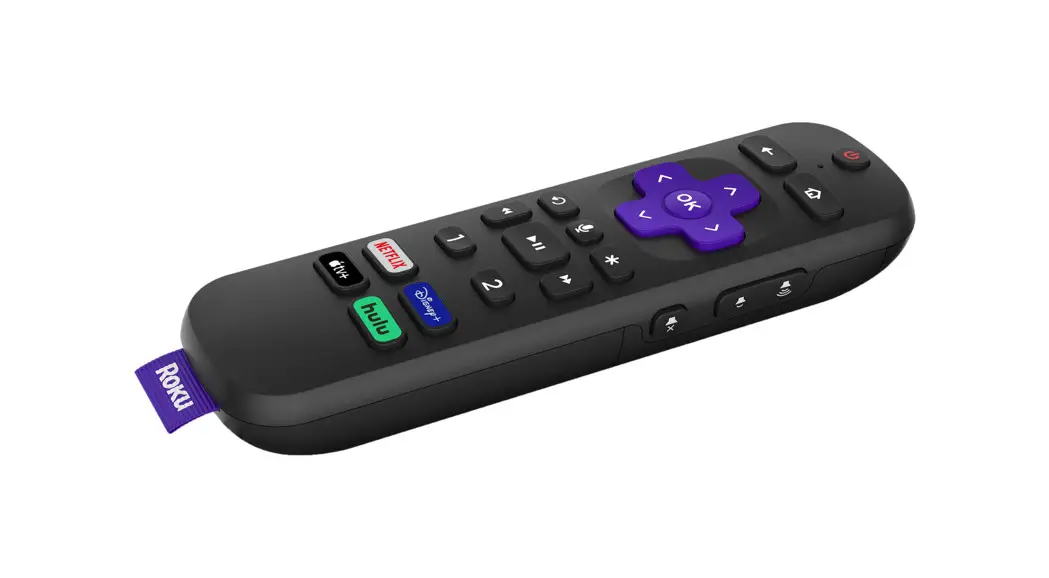
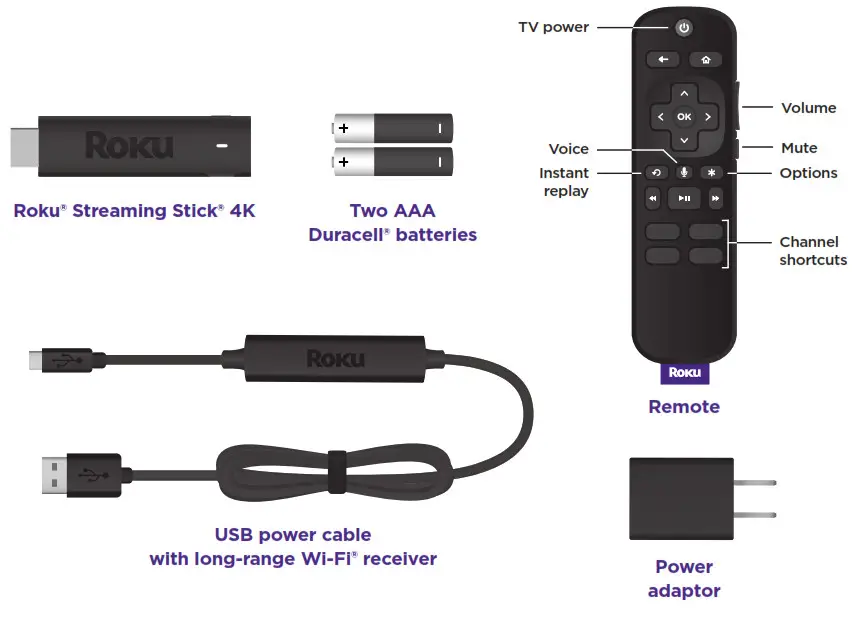
What’s included
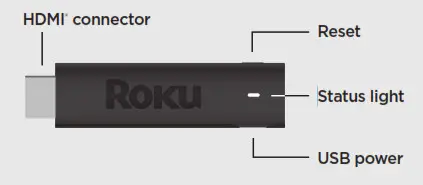
Details
Let’s get started
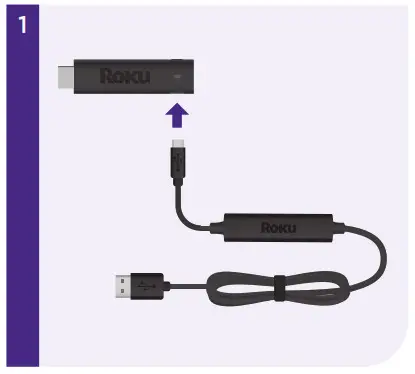
STEP 1: Connect your streaming player
Plug the USB power cable into your streaming player. We recommend keeping the power cable coiled in the velcro wrap.
TIP:
For help setting up your device visit go.roku.com/rss4k
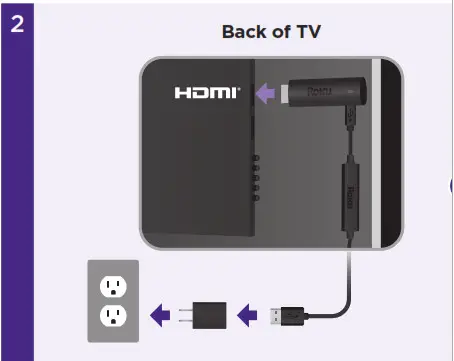
STEP 2: Connect to TV
For the best streaming experience, use the included USB power cable and power adaptor to connect your streaming player to a wall outlet.
NOTE: See a red light on your streaming player?
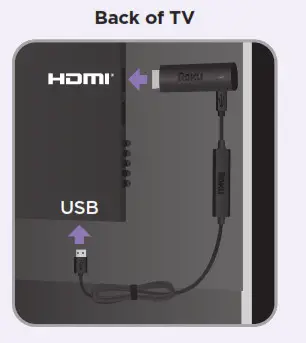
Or use the included USB power cable to connect to the USB port on your TV.
See Wi-Fi® tips on the back of this guide for more information.
That means the USB port on your TV is not providing enough power. Use the included power adaptor instead.
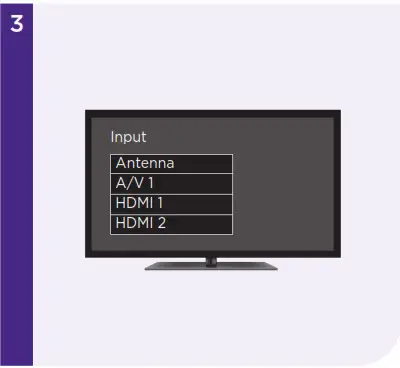
STEP 3: Select input
Use your TV remote to power on your TV and select the input (source) you used to connect your streaming player.
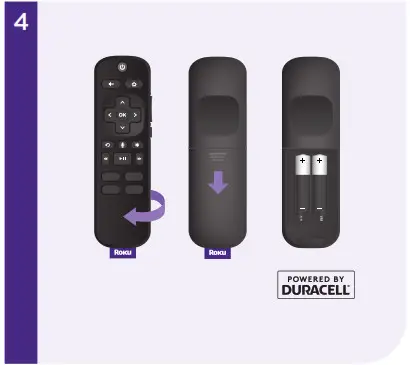
STEP 4: Insert batteries
Slide open the cover on the back of your remote and insert the included Duracell® batteries. Your remote will pair automatically.
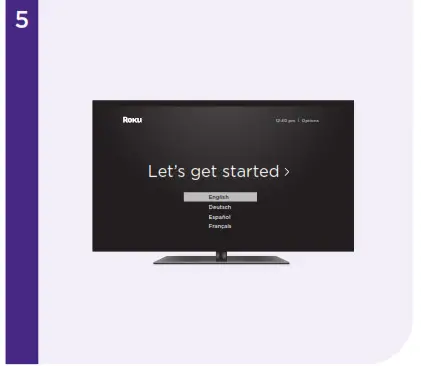
STEP 5: Follow the on-screen setup
Follow the instructions on your TV screen. Activate your streaming player by using your computer or smartphone to link to a Roku account.
IMPORTANT:
Roku never charges for activation support.
Tips for better Wi-Fi® performance
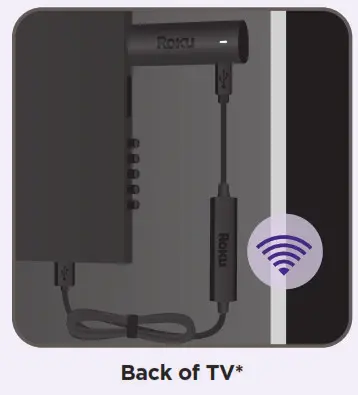
DO
For the best performance, separate the Wi-Fi® receiver from other cables behind your TV.
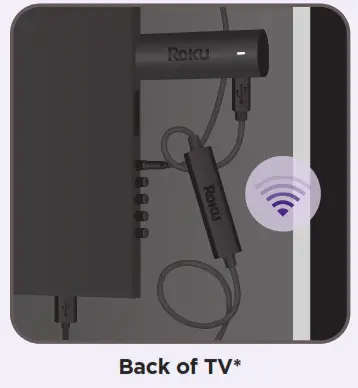
DO NOT
To minimize interference, do not place the Wi-Fi® receiver near exposed input ports or resting on other electronic devices.
*For illustration only
Common questions
Why do I need to create a Roku account?
You’ll need a Roku account to stream, add channels, easily manage subscriptions, rent movies, and more.
Why do I need to enter a credit card?
Saving a payment method makes it easy to rent or buy movies, subscribe to popular channels, and start free trials in just a click.
No charges will be made without your authorization.
What type of voice commands can I use with this remote?
“Play classic rock”
“Turn captions on”
“Launch The Roku Channel”
“Skip 30 seconds”
“Show me action movies”
Visit go.roku.com/rss4k for more information
Need more help?
support.roku.com
Cut cable.
Save money.
Stream big.
streamandsave.com
See what’s streaming for free, tips, and more blog.roku.com
Follow us

© 2021 Roku, Inc. All rights reserved. Roku, the Roku logo, and STREAMING STICK are the registered trademarks of Roku, Inc.
All other logos and trademarks herein not owned by Roku, Inc. are the property of their respective owners.