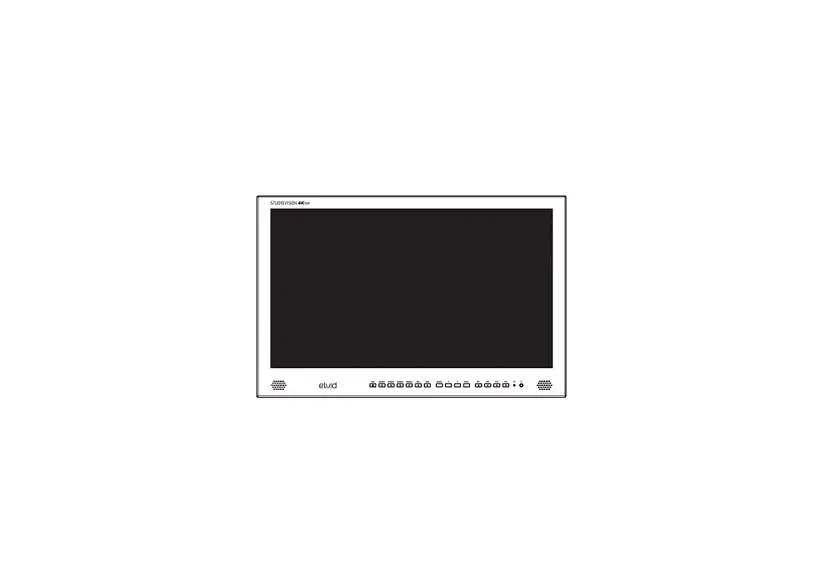
SkyVision WCM-55-HD 5.5 Inch 4K Wireless HD Monitor
Product Information
Product Name: SKYVISION WCM-55-HD 5.5 4K Wireless HD
Monitor
Manufacturer: Elvid
Features:
- Wireless transmitter, receiver, and recorder functions
- Compact and camera mountable unit
- Full HD resolution screen
- Can function as a wired on-camera monitor or wireless monitor
for directors - Can be paired with a smartphone or tablet to follow camera
action in real time from up to 500 feet away - Touch screen interface
- 1/4-20 mounting socket for easy mounting onto a ball head,
accessory arm, or tripod - Battery-powered or can be powered via external power
sources - HDMI input and output connectors for connecting to cameras or
other sources - Wirelessly transmit incoming signals to another SkyVision
monitor and one mobile device - User interface with various settings and menus for
customization
Product Usage Instructions
- Mounting the Monitor:
The SkyVision monitor has a 1/4-20 socket for mounting onto a
ball head, accessory arm, or tripod. Follow these steps:- Screw the monitor onto a 1/4-20 stud.
- Tighten the ball head or accessory arm locking knobs to ensure
the monitor is secure.
- Powering the Monitor:
The SkyVision monitor can be powered by batteries or external
power sources. Follow these steps:- Battery Power:
- Place one or two NP-F batteries into the battery slots,
ensuring the terminals align with the contacts. - To remove a battery, press the battery release button and slide
it out of the slot.
- Place one or two NP-F batteries into the battery slots,
- External Power Sources:
- For AC power from a wall outlet, use the Watson Pro PS-12V2A-21
power supply (not included). - For D-Tap power source, use the Watson Pro CA-DTAP-21M 2.1 mm
D-Tap to 2.1 mm barrel cable (not included).
- For AC power from a wall outlet, use the Watson Pro PS-12V2A-21
- Battery Power:
- Turning the Monitor On and Off:
To control the power of the monitor, follow these steps:
- To turn on the monitor, press the power button.
- To turn off the monitor, press and hold the power button for 3
seconds.
To connect the monitor to a camera or other source, follow these
steps:
- Connect the monitor’s HDMI input to a camera or other source
with an HDMI output.
To output the signal from the monitor, follow these steps:
- HDMI:
Use the HDMI output to send the signal to a monitor or recorder.
Note that active image controls and scopes will not be transmitted
downstream. - Wireless:
The SkyVision monitor can wirelessly transmit an incoming signal
to another SkyVision monitor and one mobile device. To view the
signal on your mobile device, visit www.elvidcinema.com/goto/overview/WCM-55-HD
or use the provided QR code to download the app.
The SkyVision monitor has a user interface with various settings
and menus for customization. Follow these steps to access the
menus:
- All the setting configurations are located in the menus along
the bottom of the screen. - The available menus are Input Source, Scopes, Markers, Focusing
Tools, Exposure Tools, Image Adjust, Recording/Playback, and the
Main menu.
SKYVISION
WCM-55-HD
5.5″ 4K Wireless HD Monitor
QUICKSTART GUIDE
THANK YOU FOR CHOOSING ELVID.
The Elvid SkyVision 5.5-inch monitor adds the functions of a wireless transmitter, receiver, and recorder, to your setup. And they’re all built into a compact, camera mountable unit with a full HD resolution screen. The wide range of functionality allows you to use it as a wired on-camera monitor, or as a wireless monitor for directors. To follow the camera action in real time, a smartphone or tablet can be paired with the transmitting monitor from up to 500 feet away.
Whether in transmitter or receiver mode, the SkyVision monitor can record image and sound onto an installed microSD card and quickly access it for playback. User-friendly onscreen menus make numerous scopes, markers, focusing, and exposure tools easy to access. And three programmable function buttons put your most frequently used monitoring and broadcast tools at your fingertips. To ensure a crisp and dynamic image with vibrant colors, the monitor comes with eight preloaded 3D LUTS. User-supplied LUTs can be accessed via a microSD card.
3
PRECAUTIONS
· Exposure to high sound levels can cause permanent hearing loss. Avoid listening at high volumes for extended periods of time.
· Keep this product away from water and any flammable gases or liquids.
· Do not expose this product to humidity or extreme heat or cold.
· Make sure this product is powered off when plugging it into a power source.
· Use only the correct, recommended voltage.
· Do not attempt to disassemble or repair this product.
· Do not place or store the monitor facedown, since this can damage the screen.
· Do not block the vents in this product.
· Handle this product with care. Avoid any impacts to this product.
· Disconnect this product from its power source before storage and during electrical storms.
· Do not use chemical solutions to clean this product. Clean it with only a soft, dry cloth.
· Keep this product away from children.
· Make sure that this product is intact and that there are no missing parts.
· To avoid damage to this product, be careful not to overtighten or improperly thread any of the threaded fittings.
· All images are for illustrative purposes only.
4
OVERVIEW
Power button
F1
F2
F3
Function buttons
1/4-20 mounting socket
CONTENTS INCLUDE
· MicroSD card (installed) · Quickstart Guide
5
Touch screen
DC IN 7- – -16.8V
HDMI OUT
HDMI IN
Power input Headphone jack HDMI output connector HDMI input connector
6
NPF-F battery slots
Battery release buttons
microSD
microSD Memory Card slot USB Type-C service port
7
GETTING STARTED
MOUNTING THE MONITOR
The SkyVision monitor has a 1/4-20 socket for mounting onto a ball head, accessory arm, or tripod.
Screw the monitor onto a 1/4-20 stud. Make sure the monitor is secure by tightening the ball head or accessory arm locking knobs before you release it.
POWERING THE MONITOR
Battery Power Place one or two NP-F batteries into the battery slots. Make sure the battery’s terminals align with the battery slot’s contacts.
The SkyVision monitor will run on a single NP-F battery. This means you can have continuous power by recharging one battery in a charger while the other powers the monitor.
To remove a battery, press the battery release button and slide it out of the slot.
8
External Power Sources The SkyVision monitor will run on AC power from a wall outlet, using the Watson Pro PS-12V2A-21 power supply (not included), or from a D-Tap power source with the Watson Pro CA-DTAP-21M 2.1 mm D-Tap to 2.1 mm barrel cable (not included).
TURNING THE MONITOR ON AND OFF
Press the power button to activate the monitor. Press and hold the power button for 3 seconds to turn off the monitor.
CONNECTING TO A CAMERA OR OUTPUT SOURCE
HDMI Connect the monitor’s HDMI input to a camera or other source with an HDMI output.
9
OUTPUTTING THE SIGNAL
HDMI Use the HDMI output to send the signal to a monitor or recorder. Note: The HDMI output connector is a loop-through output. Active image controls and scopes will not be transmitted downstream. Wireless The SkyVision monitor can wirelessly transmit an incoming signal to another SkyVision monitor and one mobile device. To view the signal on your mobile device, go to www.elvidcinema.com/goto/overview/WCM-55-HD, or use the QR code below to download the app.
10
USER INTERFACE
Wireless channel Device mode Signal intensity Video input
WIRELESS
TX
Resolution Zoom 3D LUT TF card Power level
Function menu Lock screen
Main menu Audio meter
11
STATUS ICONS
The current status of the monitor is displayed at the top of the screen.
ACCESSING THE MENUS
To get the most out of the monitor, make sure its settings are properly configured. All the setting configurations are in the menus along the bottom of the screen: Input Source, Scopes, Markers, Focusing Tools, Exposure Tools, Image Adjust, Recording/Playback, and the Main menu.
MENU NAVIGATION
To open one of the menus, tap on its icon at the bottom of the screen. The active menu’s icon will be highlighted. A ” > ” icon indicates a submenu. Tap on the menu item to access the submenu. Tap the ( ) icon to return to the previous menu.
12
CLOSING AND HIDING THE MENUS AND STATUS ICONS
To close an open menu, tap on its highlighted icon at the bottom of the screen. To hide the status icons at the top of the screen, and the menu icons at the bottom of the screen, tap on an empty part of the screen. Tap on the screen again to make the icons reappear. Lock Screen Tap the Lock Screen icon ( ) to disable the touch screen. Use the lock screen feature to ensure monitor settings aren’t accidentally changed.
13
FUNCTION BUTTONS
There are three user-definable function buttons (F1, F2, and F3) on the top of the monitor.
By default, no functions are assigned to the function buttons.
To set the function button assignments, follow these steps:
1. Press and hold the function button until the function select menu appears.
2. Tap on the desired function. 3. Press the ( ) icon to return to the function menu, or tap
on a blank area of the screen to close the menu.
Menu options for the function buttons are:
· Histogram · Waveform · RGB Parade · Vector · Marker · Safe area · Anamorphic · Center Marker · Peaking
· Zoom · Zebra · False color · Monochrome · LUT · HDR · Recording · Play · Close
14
RESETTING THE
WCM-55-HD
To erase all settings and return to the factory presets, follow these steps: 1. Open the Main Menu. 2. Select System. 3. In the System menu, select Factory Reset to open the reset
menu, and press the Yes prompt on the next page. 4. To exit the system menus and resume operation, touch the
Main Menu button. Note: The SkyVision monitor does not need to be rebooted after a factory reset.
15
SPECIFICATIONS
Panel Type Panel Size Backlight Resolution Brightness Contrast Ratio Aspect Ratio Viewing Angle
Input
Output
Threaded Socket Input Voltage
LCD
5.5 in. (14 cm)
LED
1920 × 1080
1000 cd/m2
1200:1
16:9
L/R: 160° U/D: 160°
HDMI USB Type-C microSD DC input 2.1 mm barrel
HDMI Headphone (3.5 mm female) microSD
1/4-20 female
7 V to 16.8 V
16
Power Consumption
Up to 13 W
Battery Type
NP-F (×2)
Touchscreen
Yes
Wireless Range
500 ft. (152.4 m)
Video Input Format
1920×1080p 60/59.94/50/30/29.97/25/ 24/23.98 1920×1080i 60/59.94/50 1280×720p 60/59.94/50
LUT Format
Cube (17×17×17 / 33×33×33)
Video Recording Format MP4 (up to 4G/file)
Audio Recording Format 48 kHz
Transmission Frequency 5.1 to 5.8 GHz Band
Transmission Power
17 dBm
Latency
80 ms
Receiving Sensitivity
-80 dBm
Dimensions (W × H × D)
6 × 4 × 1.2 in. (15.1 × 10.3 × 3 cm)
Weight (monitor only) 11 oz. (312 g)
17
ONE-YEAR LIMITED WARRANTY
This Elvid product is warranted to the original purchaser to be free from defects in materials and workmanship under normal consumer use for a period of one (1) year from the original purchase date or thirty (30) days after replacement, whichever occurs later. The warranty provider’s responsibility with respect to this limited warranty shall be limited solely to repair or replacement, at the provider’s discretion, of any product that fails during normal use of this product in its intended manner and in its intended environment. Inoperability of the product or part(s) shall be determined by the warranty provider. If the product has been discontinued, the warranty provider reserves the right to replace it with a model of equivalent quality and function. This warranty does not cover damage or defect caused by misuse, neglect, accident, alteration, abuse, improper installation or maintenance. EXCEPT AS PROVIDED HEREIN, THE WARRANTY PROVIDER MAKES NEITHER ANY EXPRESS WARRANTIES NOR ANY IMPLIED WARRANTIES, INCLUDING BUT NOT LIMITED TO ANY IMPLIED WARRANTY OF MERCHANTABILITY OR FITNESS FOR A PARTICULAR PURPOSE. This warranty provides you with specific legal rights, and you may also have additional rights that vary from state to state. To obtain warranty coverage, contact the Elvid Customer Service Department to obtain a return merchandise authorization (“RMA”) number, and return the defective product to Elvid along with the RMA number and proof of purchase. Shipment of the defective product is at the purchaser’s own risk and expense. For more information or to arrange service, visit www.elvidcinema.com or call Customer Service at 212-594-2353. Product warranty is provided by the Gradus Group. www.gradusgroup.com Elvid is a registered trademark of the Gradus Group. © 2023 Gradus Group LLC. All Rights Reserved.
19
ELVID ®
A Gradus Group Brand
GG1
 Elvid | Pro Video Accessories
 Elvid | Pro Video Accessories
 Gradus | Gradus Group