REXTON TeleCare
Rexton TeleCare User’s Quick Guide
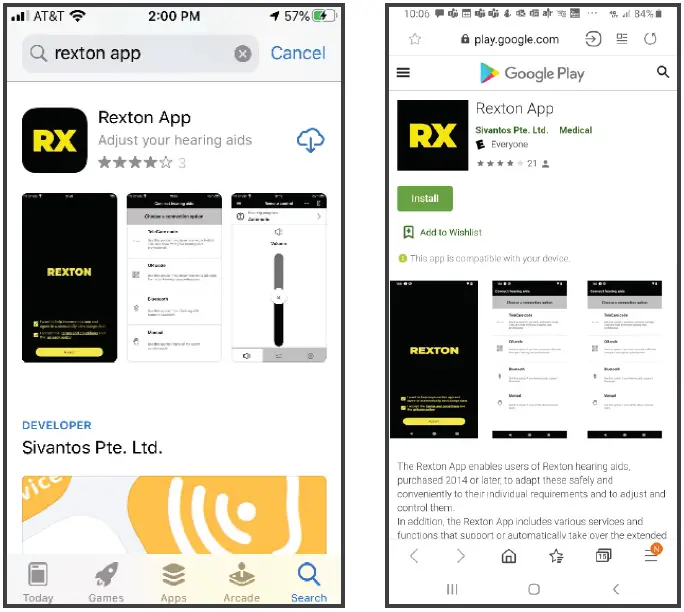
Download the Rexton App to your iPhone or Android smart phone before your fitting.
Download Instructions
- Go to your app store
- Type Rexton App in search bar
- Tap “Get” (or cloud icon) or “Install”
- Follow the instructions on screen
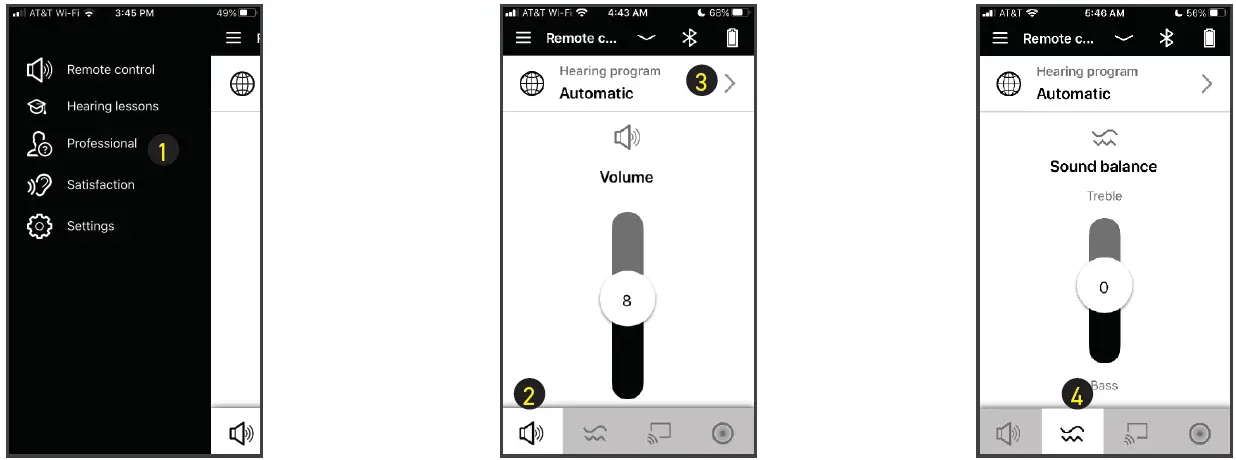
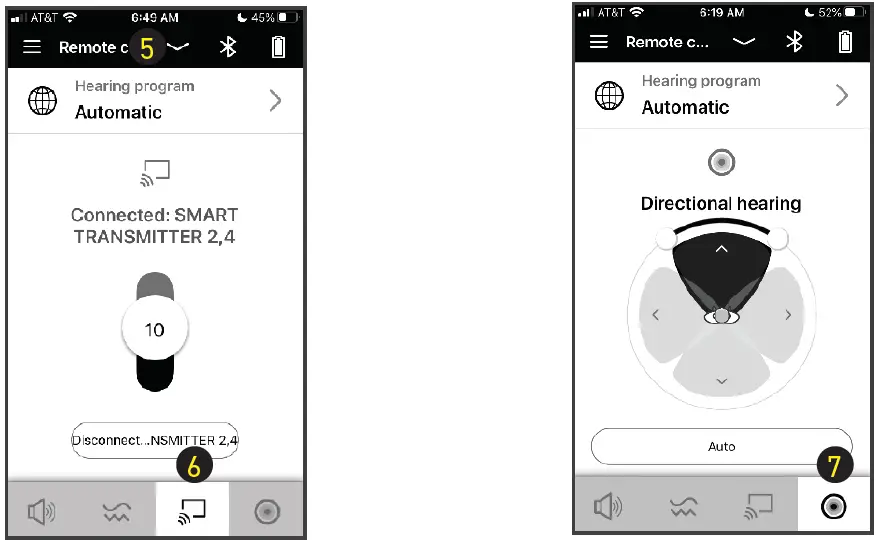
Rexton App Controls
- Telecare access for remote adjustments
- Volume change
- Program change
- Sound Balance (Treble and Bass)
- Battery status
- TV Streaming *
- Directional hearing
Accessory required
The Rexton app allows you to visit your Costco dispenser for hearing aid adjustments from anywhere after your initial fitting – without having to return to the hearing center.
Your Costco dispenser can walk you through the one-time activation at your fitting or you can activate later should you want a remote support session.
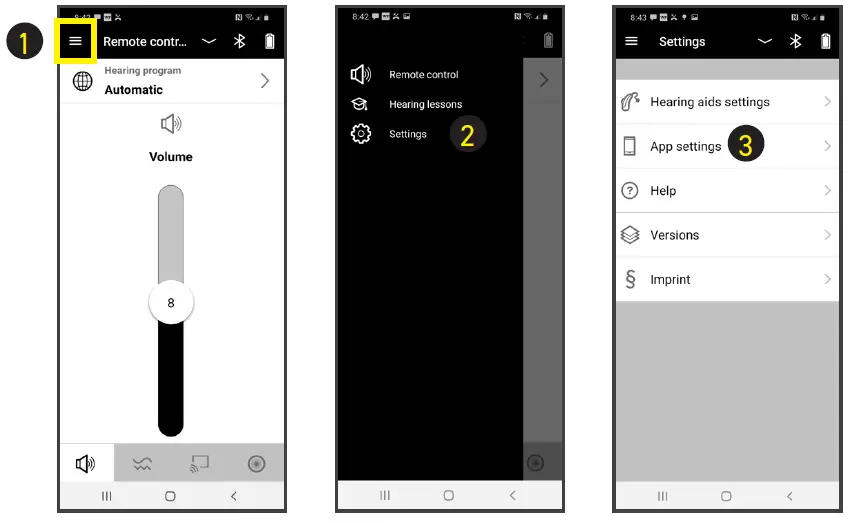
How to activate TeleCare
- Tap Menu
- Tap Settings
- Tap App Settings
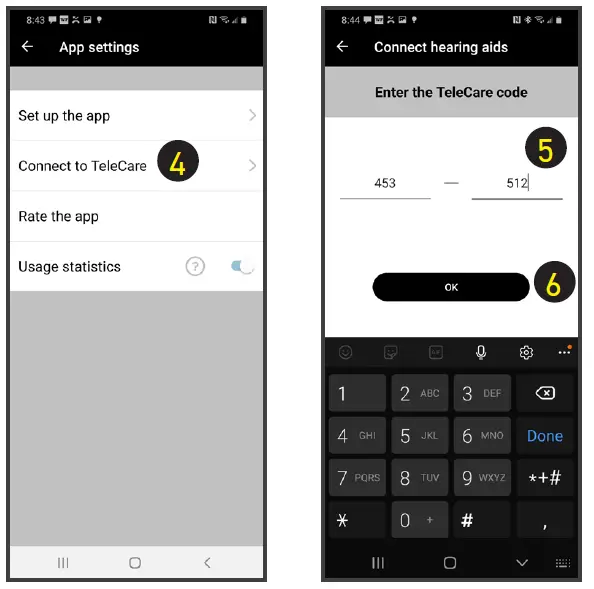
- Tap Connect to TeleCare
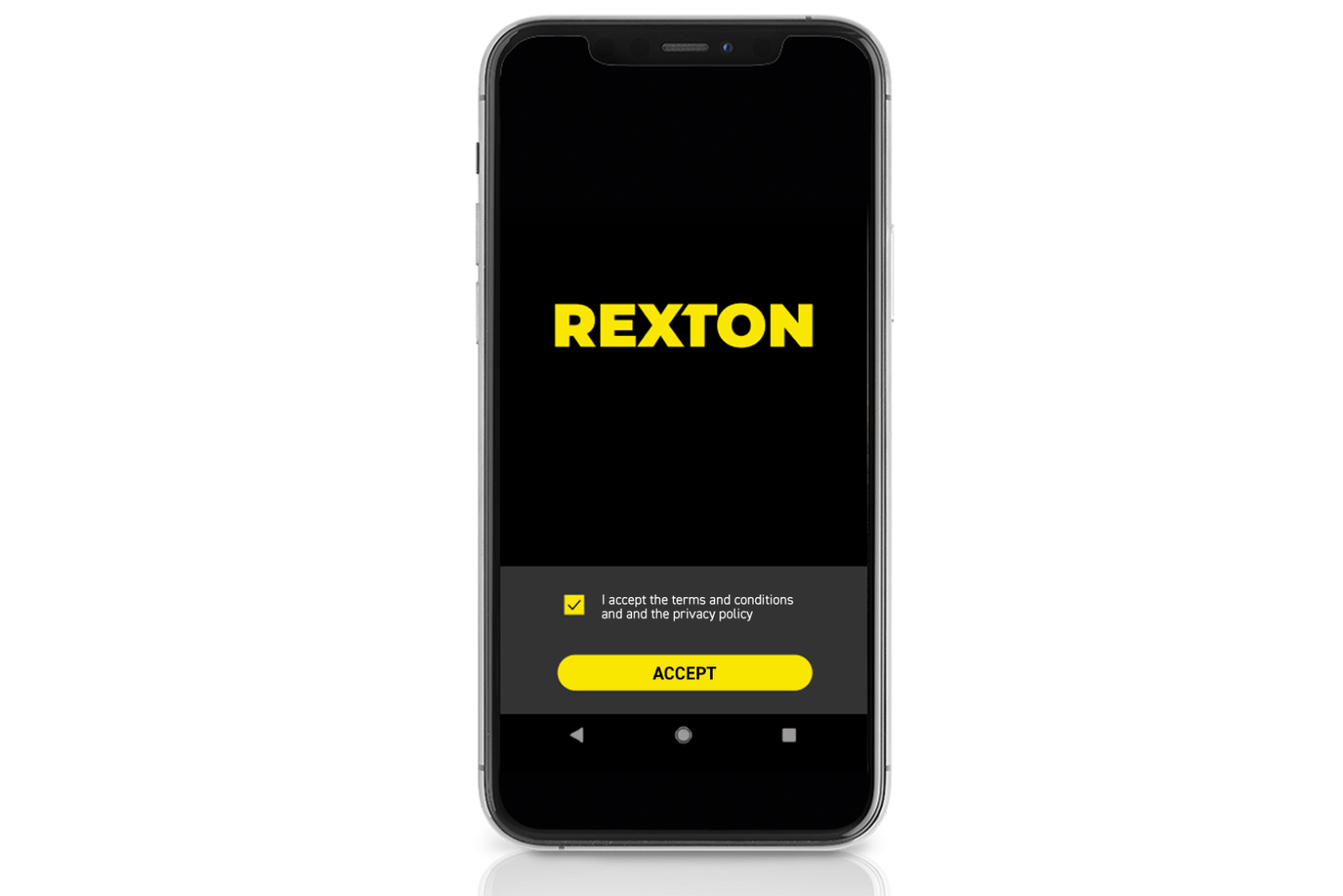
Accept Terms ad allow microphone and camera acess - Enter Activation Code (provided by dispenser or text message)
- Tap Ok
You are now ready for remote appointments
Preparing for a Virtual Appointment
- Fully charge your hearing aids and phone
- Be in an area that has a strong cell signal (3 or more bars)
- Have your Rexton app open at appointment time
Attending Your Appointment
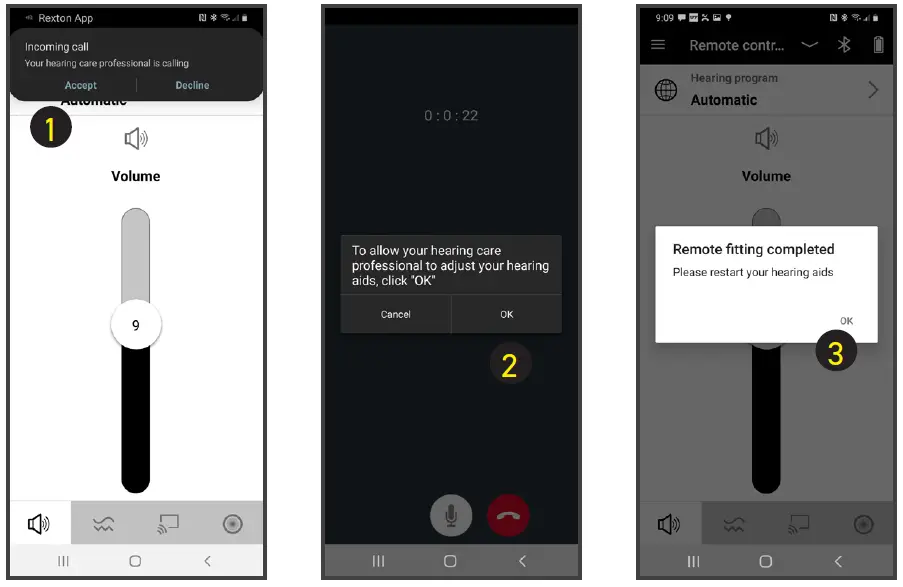
- Accept incoming call from your dispenser (Costco)
- Tap Ok to allow adjustments to your hearing aids
Discuss your concerns while adjustments are made - Your Costco dispenser will end the call when complete
Restart your hearing aids (via rocker switch or charger)