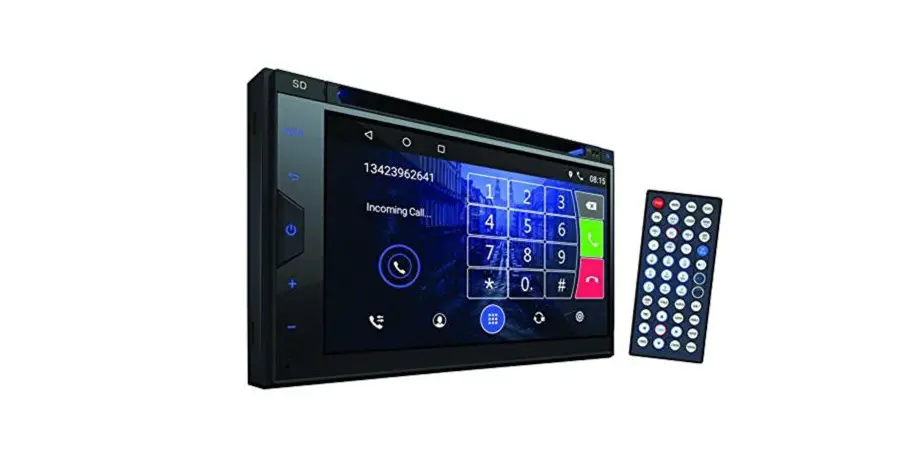
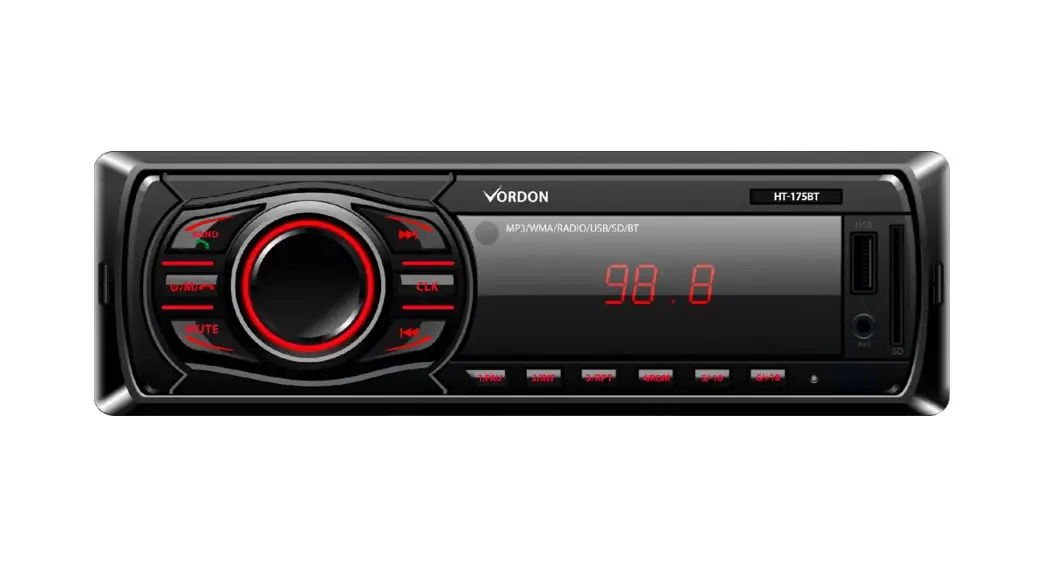
PLCD43MRB Car In Dash AM/FM MPX Receiver
Product Information:
The Car In-dash AM/FM MPX Receiver is a versatile audio system
designed for use in cars. It features CD, CD-R/RW, and MP3 playback
capabilities, allowing you to listen to your favorite music while
on the go. The receiver also includes USB and AUX inputs, providing
convenient options for connecting external devices.
Receiver Models:
- PLCD43MRB
- PLCD43BTM
Product Usage Instructions:
Precautions:
1. Avoid tightly gripping the display and buttons to prevent
damage.
2. Do not insert any foreign objects into the openings of the
car radio, such as the disc compartment, USB jack, AUX IN, or
connections, as this may cause damage.
3. Avoid switching on the car radio for long periods of time
when the motor is switched off, as it may drain the car battery and
prevent the vehicle from starting.
Installation:
Before installing the Car Radio, follow these steps:
- Ensure the ignition is turned off and disconnect the cable from
the vehicle battery’s negative (-) terminal. - Disconnect the wire harness and antenna.
- Lift either the left or right top corner of the plastic outer
trim ring and pull it out to remove it. - Insert the two bracket keys into the left and right side of the
chassis to separate it from the housing. - Insert the mounting sleeve into the dashboard and bend the
mounting tabs out with a screwdriver. Ensure that the lock lever is
flush with the mounting sleeve. - Insert the car radio into the mounting sleeve.
- Use a metal strap to secure the rear part of the chassis using
the provided hardware. - Make wiring connections according to the Wiring Diagram.
- Install the plastic outer trim ring.
Wiring Connections:
Refer to the Wiring Diagram for proper wiring connections:
- Radio Antenna Socket
- White: Left CH Auxiliary RCA Audio Input
- Red: Right CH Auxiliary RCA Audio Input
- White: Front Left CH RCA Audio Output
- Red: Front Right CH RCA Audio Output
- Red: Rear Right CH RCA Audio Output
- White: Rear Left CH RCA Audio Output
- GND – (Black)
- Power B+ (Yellow)
- +12V DC NEGATIVE GROUND
- ACC + (Red)
- ANT + (Blue)
- FUSE 15A
- Purple
- Purple/Black
- Gray
- Gray/Black
- White
- White/Black
- Green
- Green/Black
Removal of the Main Unit:
- Remove the metal strap from the main unit.
- Remove the plastic trim out from the main unit.
- Insert a bracket key into the left and right side of the main
unit and draw the unit out of the mounting.
Car In-dash AM/FM MPX Receiver with CD, CD, CD-R/RW, MP3 Playback & USB/AUX Inputs
CLK
USER’S MANUAL
Receiver Models: PLCD43MRB/PLCD43BTM
COTENTS
COTENTS………………………………………………………………………………………………………………………………………………………. 1 PRECAUTIONS ………………………………………………………………………………………………………………………………………………. 2
How to Handle Discs ………………………………………………………………………………………………………………………………. 2 Precautions & Warnings ………………………………………………………………………………………………………………………….. 2 Lithium Battery Cell Warnings ………………………………………………………………………………………………………………….. 2 Drives and connections …………………………………………………………………………………………………………………………… 2 Others Warnings ……………………………………………………………………………………………………………………………………. 2 INSTALLATION……………………………………………………………………………………………………………………………………………….. 3 Installation Procedures ……………………………………………………………………………………………………………………………. 3 Installation Opening………………………………………………………………………………………………………………………………… 3 Important: ……………………………………………………………………………………………………………………………………………… 3 To Install the Car Radio …………………………………………………………………………………………………………………………… 3 Wiring Connections ………………………………………………………………………………………………………………………………… 4 Removal of the Main Unit ………………………………………………………………………………………………………………………… 4 CONTROL PANEL BUTTON LOACTIONS ………………………………………………………………………………………………………….. 5 GENERAL OPERATION …………………………………………………………………………………………………………………………………… 6 Turn Unit On/Off …………………………………………………………………………………………………………………………………….. 6 Adjust Volume (VOL)………………………………………………………………………………………………………………………………. 6 Adjust Menu Options (SEL) ……………………………………………………………………………………………………………………… 6 Set the Clock (CLK)………………………………………………………………………………………………………………………………… 6 Change the Source (MODE) ……………………………………………………………………………………………………………………. 7 Mute on/off ……………………………………………………………………………………………………………………………………………. 7 Loudness on/off……………………………………………………………………………………………………………………………………… 7 Preset Equalizer(EQ) ……………………………………………………………………………………………………………………………… 7 Release the detachable front panel …………………………………………………………………………………………………………… 7 USB port……………………………………………………………………………………………………………………………………………….. 7 Built-in Microphone…………………………………………………………………………………………………………………………………. 7 Aux input connector………………………………………………………………………………………………………………………………… 7 Reset System (RESET)…………………………………………………………………………………………………………………………… 7 RADIO OPERATION………………………………………………………………………………………………………………………………………… 8 Switch Between USA area and Europe area Frequency……………………………………………………………………………….. 8 Change Bands (BAND) …………………………………………………………………………………………………………………………… 8 Manual Tuning ( / ) ………………………………………………………………………………………………………………………. 8 Auto Seek Tuning ( / )…………………………………………………………………………………………………………………… 8 To Store / Recall Preset Stations ………………………………………………………………………………………………………………. 8 Automatic Store station/ Preset station scan (AMS)……………………………………………………………………………………… 8 LOCAL/DX ……………………………………………………………………………………………………………………………………………. 8 STEREO/MONO ……………………………………………………………………………………………………………………………………. 8 DISC / USB OPERATION …………………………………………………………………………………………………………………………………. 9 To insert DISC / USB ………………………………………………………………………………………………………………………………. 9 Eject Disc/USB ………………………………………………………………………………………………………………………………………. 9 Play/Pause ……………………………………………………………………………………………………………………………………………. 9 Next/Previous Track ……………………………………………………………………………………………………………………………….. 9 Fast Forward/Backward…………………………………………………………………………………………………………………………… 9 Introduction Scan …………………………………………………………………………………………………………………………………… 9 Repeating the same track………………………………………………………………………………………………………………………… 9 Playing all tracks in random……………………………………………………………………………………………………………………… 9 Track/Folder Navigation ………………………………………………………………………………………………………………………….. 9 Select the track or file for playback in MP3 format……………………………………………………………………………………… 10 AUXILIARY INPUT OPERATION ……………………………………………………………………………………………………………………… 10 BLUETOOTH OPERATION ………………………………………………………………………………………………………………………………11 Pair and Connect……………………………………………………………………………………………………………………………………11 Make a Call …………………………………………………………………………………………………………………………………………..11 Redial Last Dialed Number………………………………………………………………………………………………………………………11 Answer a Call ………………………………………………………………………………………………………………………………………..11 Reject a Call………………………………………………………………………………………………………………………………………….11 End a Call……………………………………………………………………………………………………………………………………………..11 Switch Audio Between Car Audio and Mobile Phone ……………………………………………………………………………………11 Adjust Talk Volume …………………………………………………………………………………………………………………………………11 Audio Streaming (A2DP) …………………………………………………………………………………………………………………………11 REMOTE CONTROL ……………………………………………………………………………………………………………………………………… 12 SPECIFICATIONS …………………………………………………………………………………………………………………………………………. 13 TROUBLESHOOTING ……………………………………………………………………………………………………………………………………. 14
– 1 –
PRECAUTIONS
How to Handle Discs · Handle a disc by its edges. Do not touch the playing side. · Before inserting a disc, wipe the disc outward from the disc center with a clean, soft, dry and lint-free cloth. Do not use solvents or thinners such a petrol/benzene or cleaners. · After removing a disc from the disc slot, place the disc in a sleeve or case to keep it clean and prevent scratches. · Do not stick paper or tape on the disc surface. If there is glue (or adhesive) on the disc surface, remove it before using the disc.
Precautions & Warnings · To reduce the risk of fire, electric shock, and interference, do not attempt to repair this unit yourself. Refer
all service to a qualified technician. · Some MP3/WMA files may not be playable. · Keep the volume at a reasonable level to avoid distracted driving. High volume levels may make it difficult
to concentrate on traffic and road conditions while driving. · If the car has been in direct sunlight for an extended period, you may need to reduce the temperature
inside the car before turning on and using the unit. · If the battery is disconnected, discharged, or changed, the preset memory of the unit will be lost and
require reprogramming. · The unit is designed to be installed in a level, horizontal position.
For optimal performance, avoid installing the unit at an angle. · Never use excessive force when removing or attaching the faceplate.
Do not tightly grip the display and buttons to avoid damage.
Lithium Battery Cell Warnings · Cell leakage may cause damage to the remote control · Do not throw cells into as this may cause an explosion. · Keep battery cells out of reach of children.
Drives and connections Never place any foreign objects into the openings of the car radio (disc compartment, USB jack, AUX IN, connection). Otherwise you might damage the slots and connections.
Others Warnings Do not switch on the car radio for long periods of time when the motor is switched off. This could cause the car battery to discharge and the vehicle can no longer be started.
– 2 –
INSTALLATION
Installation Procedures First complete the electrical connections and then check for correctness.
Installation Opening This unit can be installed in any dashboard Having an opening as shown the right figure.
182 mm
Important: Remove the transport CD deck screws before use.
53 mm
To Install the Car Radio Be sure you test all connections first, and then follow these steps to install this unit. 1. Make sure the ignition is turned off, and then disconnect the cable from the vehicle battery’s
negative (-) terminal. 2. Disconnect the wire harness and the antenna. 3. Lift the left or right top corner of the plastic outer trim ring then pull it out to remove it. 4. Insert the two bracket keys into the left and right side of the chassis, as shown the below figure to
separate the chassis from the housing.
Bracket key
Bracket key Plastic outer trim ring
5. Insert mounting sleeve into the dashboard and bend the mounting tabs out with a screwdriver. Make sure that the lock lever is flush with the mounting sleeve and is not projecting beyond.
6. Insert car radio into the mounting sleeve. 7. Use a metal strap to secure the rear part of the chassis using the hardware indicated. 8. Make wiring connections, as illustrated in the “Wiring Diagram.” 9. Install the plastic outer trim ring.
– 3 –
INSTALLATION DIAGRAM
HEX NUT
SPRING WASHER PLAIN WASHER
TAPPING SCREW
DASH BOARD
HEX NUT CONSOLE MOUNTING SLEEVE
HEX BOLT
– Only use speakers with 4 ohms impedance. – Do not attach the control panel to the chassis before wiring is complete. – The maximum current of the auto antenna is 200mA.
Wiring Connections
WIRING DIAGRAM
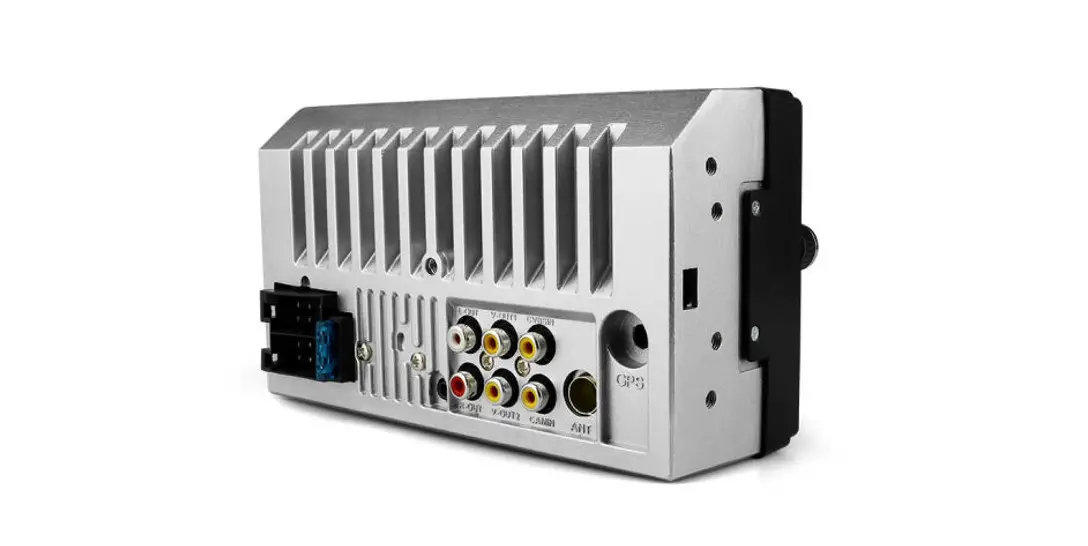
Radio Antenna Socket
White: Left CH Auxiliary RCA Audio Input
Red: Right CH Auxiliary RCA Audio Input
White: Front Left CH RCA Audio Output
Red: Front Right CH RCA Audio Output Red: Rear Right CH RCA Audio Output
White: Rear Left CH RCA Audio Output
GND – (Black)
CAUTION
Power B+ (Yellow)
+12V DC NEGATIVE GROUND
ACC + (Red) ANT + (Blue)
15A
FUSE 15A
Purple Purple/Black
Gray Gray/Black
White White/Black
Green Green/Black
Rear Right Speaker
Front Right Speaker
Front Left Speaker
Rear Left Speaker
Removal of the Main Unit
1. Remove the metal strap from the main unit. 2. Remove the plastic trim out from the main unit. 3. Insert a bracket key into the left and right side of the main unit and draw the unit out of the mounting
sleeve.
– 4 –
CONTROL PANEL BUTTON LOACTIONS
4
1
14
16
18 15
21
17
20 12
CLK
19
3
2
11 13 5
6
7
8
9 10 22 23
RESET
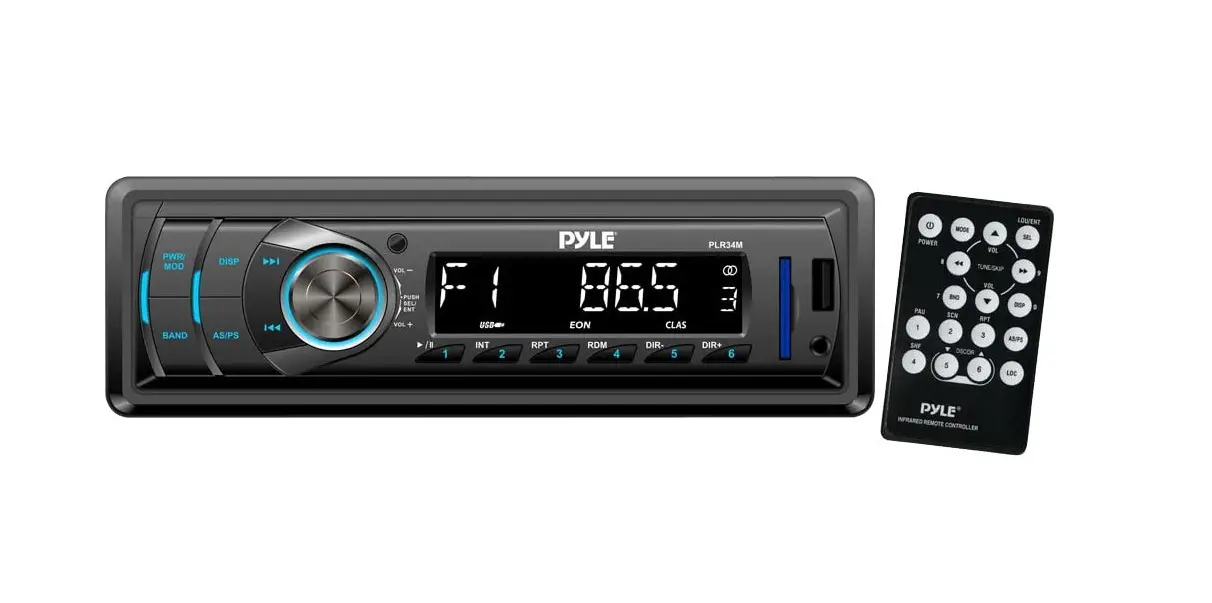
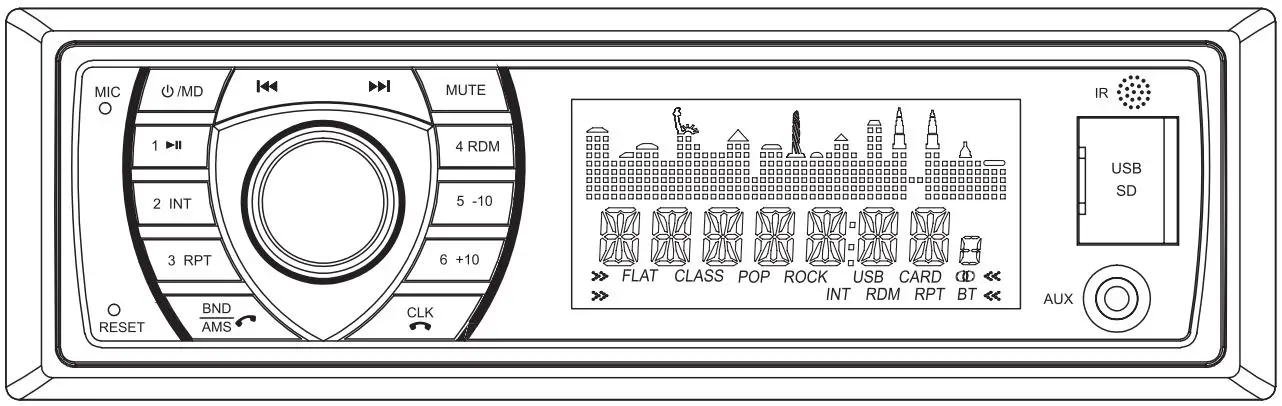
254 1. (power)/MODE (source) button 2. SEL (select/menu) button and VOL (volume) knob 3. BAND(band) button, button 4. AMS (automatic store / preset station scan, automatic music search) button 5. (pause/play), Preset station1 button 6. INT (intro), Preset station 2 button 7. RPT (repeat), Preset station 3 button 8. RDM (random), Preset station 4 button 9. -10(previous 10 tracks), Preset station 5 button 10. +10(next 10 tracks), Preset station 6 button 11. CLK (clock setting) button, button 12. (tune down, seek down, track down, fast reverse) button 13. (tune up, seek up, track up, fast forward)button 14. MUTE button 15. (eject) button 16. Disc slot 17. IR remote control sensor 18. LCD Display 19. EQ(Equalizer Preset) Button 20. USB port 21. MIC hole(built-in Microphone) 22. AUX IN (auxiliary input) jack 23. (Release) button 24. RESET button
– 5 –
GENERAL OPERATION
Turn Unit On/Off · Press the power (
turn off the unit. · Press the power (
) /MODE button on the front panel to turn on the unit, and long press it again to ) button on the remote control to turn the unit on or off.
Adjust Volume (VOL) Rotate the VOL knob on the front panel or press the VOL+ increase or decrease the volume level.
/VOL-
button on the remote control to
Adjust Menu Options (SEL) · Press the SEL button on the front panel or on the remote control repeatedly to cycle through the following
adjustable audio functions: BASS, TREBLE, BALANCE, FADER, EQ OFF/ROCK/POP/CLASS/FLAT, LOUD ON/OFF, DX/LOC, STEREO/MONO and VOLUME.
· Rotate the VOL knob on the front panel or press the VOL+ control to adjust the selected item.
/VOL-
button on the remote
– BASS/TREBLE:-7,-6, ~, -1,0,+1,~, +6,+7 – BALANCE:L10,L09,~, L1, R=L, R1,~,R09,R10 – FADER:R10,R09,~,R1,R=F, F1,~,F09,F10 – EQ(Equalizer) Setting: OFF, ROCK, POP, CLASSIC, FLAT – Loudness: LOUD ON/OFF – DX/LOCAL: Enables or disables the local broadcast mode (LOCAL). – Stereo/Mono: Switches between MONO and STEREO reception mode for radio frequencies. – Volume level:0,1,~,40
· Press and hold the SEL button on the front panel or press the SEL/ENTER button on the remote control to access these additional functions: VOL(LAS/ADJ), AREA EU/US, CLOCK 12/24, BEEP ON/OFF.
– VOL(LAS/ADJ):This option allows you to preset a volume level as the power-on memory volume level.
– VOL LAST: In this mode, the unit switches on at the actual volume it had when it was last switched off.
– VOL ADJ: In this mode, the unit power on at the actual volume that you preseted a constant switch-on volume level. Press the SEL button to enter the constant switch-on volume adjusting mode and the “A-VOL XX” will be shown on the LCD display. Then you can adjust a constant switch-on volume level by rotating the VOL knob.
– AREA EU/US: This car radio is equipped the Europe / USA frequency. Rotate the volume knob to switch between USA and Europe frequency. The system will change the frequency setting in about 3 seconds.
– CLOCK 1 2/ 2 4: This unit is equipped with two types of clock display formats, 12 and 24 hours. Rotate the volume knob to choose 12 hours format or 24 hours format.
– BEEP ON/OFF: Enables or disables the “BEEP” signal to confirm use.
· Rotate the VOL knob on the front panel or press the VOL+ /VOLcontrol to adjust the selected item.
button on the remote
Set the Clock (CLK) 1. To display clock time, press the CLK button. 2. To set clock time, press and hold the CLK button and the hour will flash.
– 6 –
3. Press the or button on the front panel or on the remote control to adjust the hour. 4. Press the CLK button and the minutes will flash. 5. Press the or button on the front panel or on the remote control to adjust the minute. 6. Finally press the CLK button to confirm the time adjustments. Change the Source (MODE) Press the MODE button to switch between RADIO, BT(Bluetooth), DISC(with a CD/MP3 disc inside the disc slot), USB(with USB device inserted) and AUX -IN(auxiliary input) modes. Mute on/off In power on mode, briefly press the MUTE button to toggle mute on or off. The muted state will be also released when the volume knob is used. Loudness on/off Press the LOUD button on the remote control to turn on the loudness to reinforce the output of bass frequencies, press again to turn it off. Preset Equalizer(EQ) Press the EQ button on the front panel or on the remote control to toggle between EQ OFF, ROCK, POP , CLASS, FLAT. Release the detachable front panel Press the (Release) button to detach the detachable front panel, then the front panel can be removed from the chassis. USB port The USB port of this car radio is designed for media playback from flash memory devices and charging for iPhone / andriod mobile phone. The charging current consumption is 1 ampere. Built-in Microphone To receive your voice when you calling by using this Bluetooth hands-free system. Aux input connector The 3.5mm auxiliary input stereo connection is designed for devices with 3.5mm line-out or headphone output. Reset System (RESET) The RESET button is used to reset all parameters to factory default settings. This function may be used when the LCD does not display normally or sound is distorted, or when any of the controls are disabled. Press the button to release the front panel and remove it, then use a thin object with a pointed end to depress the RESET button.
– 7 –
RADIO OPERATION
Switch Between USA area and Europe area Frequency In radio mode, press and hold the VOL/SEL button to enter switch state of the EU(USA) and EU (Europe) frequency, then rotate it to switch between US(USA) and EU(Europe) frequency. The system will change the frequency setting in about 3 seconds.
Change Bands (BAND) Press the BAND button to switch between the FM1, FM2, FM3, AM1 and AM2 bands. Each band stores up to six preset stations.
Manual Tuning ( / ) Press and hold the or button on the front panel or on the remote control to enter manual tuning mode. In manual tuning mode, press the or button to move the radio frequency number up or down one step.
Auto Seek Tuning ( / ) In standby mode or while not in manual tuning mode, quickly press the or button to move to the next/previous available station automatically.
To Store / Recall Preset Stations The radio can be stored 6 preset stations for each band (FM1, FM2, FM3, AM1 and AM2) for a total of 30 preset stations. – To memorize a station:
– Turn the radio on and select the desired band and station. – Select a station by or button. – Press and hold the desired preset button (numbered 1-6 on the face of the radio) for more than 2 seconds to save the station to that preset number. – To recall a preset station: – Select the desired band. – Briefly press a preset button (numbered 1-6) to recall the corresponding preset station.
Automatic Store station/ Preset station scan (AMS) Press and hold the AMS button for more than 2 seconds to select six strong stations and store them in the current band. The radio will automatically scan the current frequency and enter the six strongest stations into the preset memory positions for that band. Briefly press the AMS button on the remote control to recall each preset station that saved in the memories in each band.
LOCAL/DX In urban areas, most stations are strong enough and “LOCAL ON” mode should be selected. Switch to LOCAL OFF mode to search for stations with weaker signals. Press the LOC button on the remote control to choose local or distant reception mode.
STEREO/MONO FM station is received in stereo mode. However, if the signal is weak or reception is not as good as you would like, switching to MONO mode usually improves the overall sound quality. Press the ST button on the remote control to choose FM STEREO or MONO audio effect.
– 8 –
DISC / USB OPERATION
To insert DISC / USB · To play files on a disc, insert a disc with the label surface facing upward into the disc slot.
Playback will begin automatically.
· To play files on a USB device, open the USB port cover and insert the USB storage device into the USB port. Playback will begin automatically.
Label surface up
Eject Disc/USB · To eject a disc, press the
disc and then remove it
button to stop playback. Press the
(eject) button to eject the
· To eject a USB device, press the button to stop playback, then remove the USB device.
Play/Pause Press the (play/pause) button to pause or resume playback.
Next/Previous Track
· To play the next track, press the button.
· To play the previous track, press the
button.
Fast Forward/Backward · To fast forward, press and hold the
· To fast backward, press and hold the
button. button.
Introduction Scan Press the INT button to play the first 10 seconds of each track, press again to stop the introduction scan, and play the current track.
Repeating the same track Press the RPT button to toggle between RPT ALL (Play all track), RPT FLR(Continuously repeats all tracks in current folder), and RPT ONE (Continuously repeats current track).
Playing all tracks in random Press the RDM button to play all tracks in random order, press again to cancel this function.
Track/Folder Navigation · During a disc, USB mode, press the 5/-10 button to go backward 10 tracks.
Press the 6/+10 button to jump forward 10 tracks.
· During a MP3 disc, USB mode, press and hold the 5/-10 button to go back the previous folder. Press and hold the 6/+10 button to go to the next folder. You can repeat this function depending on the number and level of folders.
· These buttons have no this function if the USB device has no folders.
– 9 –
Select the track or file for playback in MP3 format During CD, USB playback, press the AMS button to enter the track search modes: a) In playback of CD or files with MP3 format, press the AMS button to access the track or file number searching mode which allow you to quickly find a specific track or MP3 file by its serial number, and the “TRK SCH” and “TRK ****” will appear on the LCD display in sequence. b) Rotate VOL knob to select the number of your favorite track or file with high speed. You can also press the numerical keys on the remote control to select a specific track by its serial number. c) Finally press the SEL/ENTER button to confirm and play the track that you selected.
AUXILIARY INPUT OPERATION
This car radio has an external auxiliary input jack, it is compatible with audio output from an MP3 music player. So you can listen to sounds and music from external devices, if you have plugged such a player into the AUX IN jack with a audio cable. Press the MODE button to switch to the AUX input mode on or off.
9
– 10 –
BLUETOOTH OPERATION
Pair and Connect Prior to using the Bluetooth device as a hands-free system for a Bluetooth-enabled mobile phone for the first time, you must pair and connect the two devices as follows: 1. In any mode, prior to pairing and connecting, the BT logo in the LCD indicating that no device is
connected. To begin pairing, enable BT mode on your mobile phone. 2. When the phone finds the car audio system, the “PYLE” name will be displayed. 3. Choose the “PYLE” from the device list to pair and connect with the car audio system. Upon confirming,
the BT logo will stop flashing. 4. When pairing is complete, the mobile phone audio will automatically transfer to the car audio system
whenever a call is made or received, or when the mobile phone plays music.
Make a Call · To make a call, dial the call directly from the paired mobile phone. · To make a call with this bluetooth hands-free system:
a) When linking up the Bluetooth-enabled mobile phone to this bluetooth hands-free system, press the button to access the dial telephone number mode, then press the “0~9”, * and # button on remote
control to input the telephone number, and the entered number will be shown on the LCD display. b) If a number has been incorrectly inputted, press the DEL button or button to delete it. c) Press the button to make outgoing call.
Redial Last Dialed Number Press and hold the button on the control panel to redial the last dialed phone number.
Answer a Call
· When the mobile phone is called, the incoming telephone number displays on the LCD.
· To receive the call, press the
button on the control panel.
Reject a Call To reject the call, press the
button on the control panel.
End a Call To end an active call, press the
button.
Switch Audio Between Car Audio and Mobile Phone During a call, press the VOL knob/button to switch the audio source from the car audio system back to your mobile phone.
Adjust Talk Volume · During a call, use VOL knob or VOL+ · Use the MUTE button to mute sound.
/VOL-
button to adjust the volume level.
Audio Streaming (A2DP) 1. Press the /MODE button to enter BT mode and display pause in the LCD display. 2. When a mobile device is paired, music played through that device will automatically be heard through the
car audio system. 3. Press the or button to play the next or previous on the mobile phone. 4. Press the button to pause or resume music playback.
– 11 –
REMOTE CONTROL
Remove Insulating Sheet The remote control comes with an insulating sheet attached to the underside of the remote control, as illustrated on the right. The remote control will not work until the insulating sheet is removed.
Replace Lithium Battery Cell 1. When the lithium cell battery becomes weak,
replace it as illustrated on the right. 2. Press and hold the movable block in the direction
indicated by arrow 1. At the same time, pull the cell holder out of the remote control in the direction indicated by arrow 2. 3. Replace the old cell with a new one, making sure the
(+) polarity is facing upward. 4. Re-insert the cell holder into the remote control.
– Cell leakage may cause damage to the remote control. – Do not throw cells into as this may cause an explosion. – Keep battery cells out of reach of children.
Remote Control Operation Position the emitting window of the remote control toward the sensor window of the unit.
· The operation angle for front panel remote control reception is about 30 degrees. · The distance between the emitting window of the remote control and the sensor window
of the unit should remain less 5 meters.
Button Names and Locations
1. (Power on/off) button 2. VOL+/VOL-(volume increase/decrease) button 3. Band button, (answer call) button 4. button: Tune down, seek down; Track down, fast reverse 5. SEL(selection/Enter) button 6. button: Tune up, seek up; Track up, fast forward 7. Mute button, DEL(Delete) button 8. CLK(clock setting) button, (end call) button 9. button, preset station 1 button, keypad 1 10. INT(intro) button, preset station 2 button, keypad 2 11. RPT(repeat) button, preset station 3 button, keypad 3 12. RDM (random), preset station 4 button, keypad 4 13. -10(previous 10 tracks), preset station 5 button, keypad 5 14. +10(next 10 tracks), preset station 6 button, keypad 6 15. ST (stereo) button, keypad 7 16. LOUD(loudness) button, keypad 8 17. AMS (automatic music search) button, keypad 9 18. MODE button, keypad * 19. EQ(Equalizer) button, keypad 0 20. LOC (local)/DX button, keypad #
Note: When using the remote control for the first time, you must pull out the protective plastic tab from the battery compartment found on the back of the remote control.
– 12 –
SPECIFICATIONS
General Chassis Dimensions……………………………………………………..178(W) x 160(D) x 50(H) mm Power Supply Requirement ………………………………………………………………………..DC 12V Current Consumption ……………………………………………………………………………15A (max.) Maximum Power Output ……………………………………………………………………….75W x 4CH Radio FM USA/ Europe Frequency Range……………………………….87.5 – 107.9 MHz (200KHz/Step)
87.5 – 108.0 MHz(50KHz/Step) Usable Sensitivity …………………………………………………………………………………….30 dBu I.F. Frequency ………………………………………………………………………………………10.7 MHz AM USA/ Europe Frequency Range……………………………………530 – 1710KHz (10KHz/Step)
522 – 1620 KHz (9KHz/Step) Usable Sensitivity …………………………………………………………………………………….20 dBu I.F. Frequency ………………………………………………………………………………………..450 KHz CD/USB Usable Audio Formats ……………………………………………………………………..CD/MP3/WMA USB Port Type…………………………………………………………………………………2.0 Pre-amp Output ……………………………………………………………………………..Front and Rear Frequency Response ……………………………………………………………………..20 Hz – 20 KHz S/N Ratio …………………………………………………………………………………………………….60dB BT BT Profile supports ………………………………………………………….A2DP, AVRCP,HSP, HFP Range of frequency ……………………………………………………………………..2.4GHz spectrum
– 13 –
TROUBLESHOOTING
The following chart will help in solving most problems that may occur. If you still have questions after going through the checklist, please consult your local customer service representative. Before going through this check list, refer the wiring and operating procedures.
Symptom No power
Disc can not be loaded or ejected.
No sound
Sound skips
The operation keys do not work No radio reception. In automatic search mode the radio does not stop at a transmitting station.
Cause
The car ignition switch has not turned on.
The fuse has been blown. Presence of CD disc inside the player. Inserting the disc in reverse direction. The surface of CD is extremely dirty or has been scraped. Temperature inside the car is too high.
Condensation
Volume is in minimum. The wiring is not properly connected. The installation angle is more than 30°. The surface of CD is extremely dirty or has been scraped. 1. The built-in microcomputer is not operating properly due to noise. 2. The front panel has not properly installed.
The antenna cable is not connected.
Solution If the power supply is connected to the car accessory circuits, but the engine is not moving, switch the ignition key to “ACC”. Replace a new one. Remove the disc from the player, and insert a new one. Insert the CD with the label facing upward.
Clean the disc or try to replace a new one.
Cool off or until the ambient temperature return to normal. Leave the player off for an hour or so, and then try again. Adjust volume to a desired level.
Check wiring connection.
Adjust the installation angle less than 30°.
Clean the disc or try to replace a new one.
1. Press the RESET button to restore the program.
2. Fixed the front panel into its place.
Insert the antenna cable firmly into the antenna socket of this radio player.
The transmission signals are too weak.
Select a radio station manually.
– 14 –