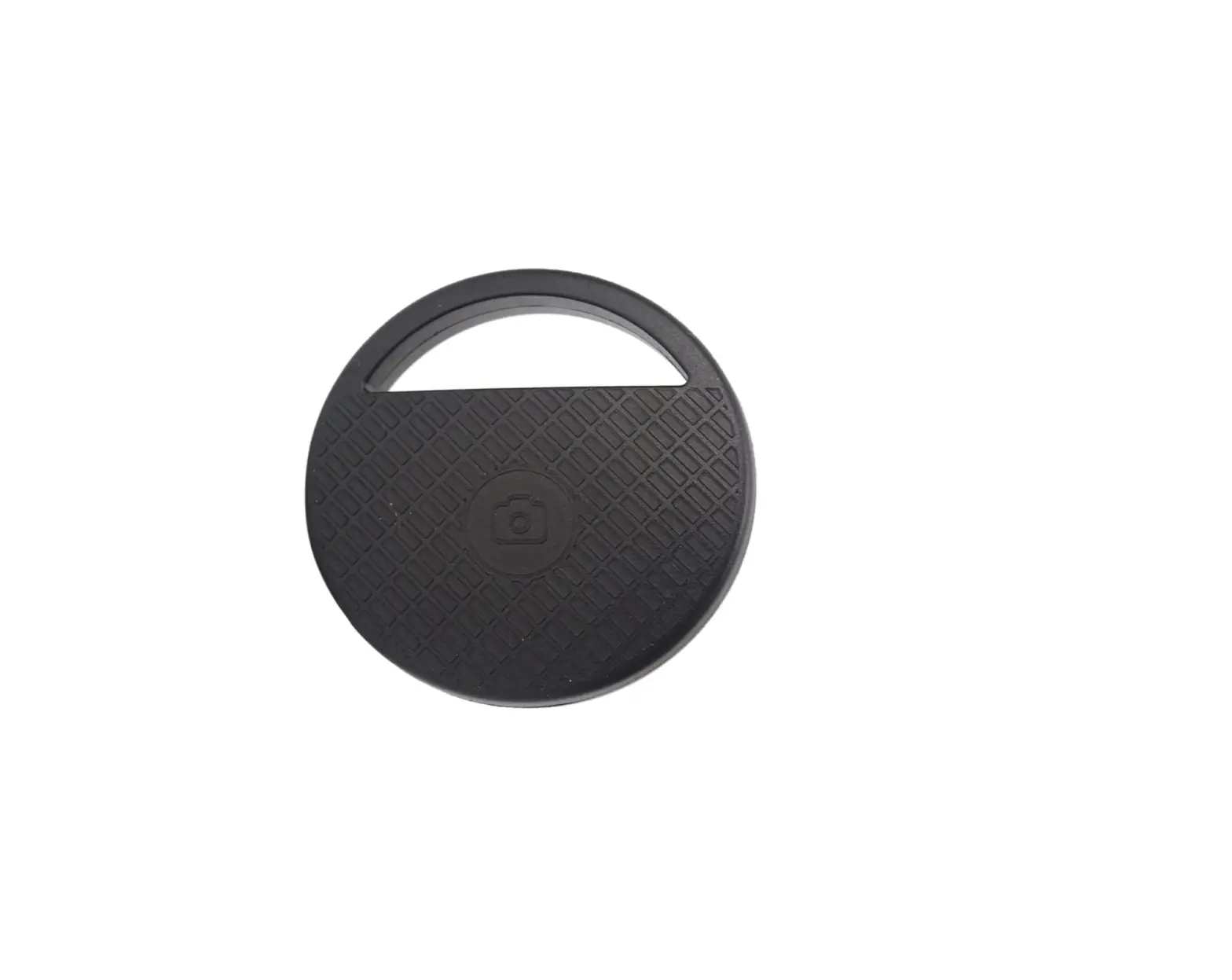
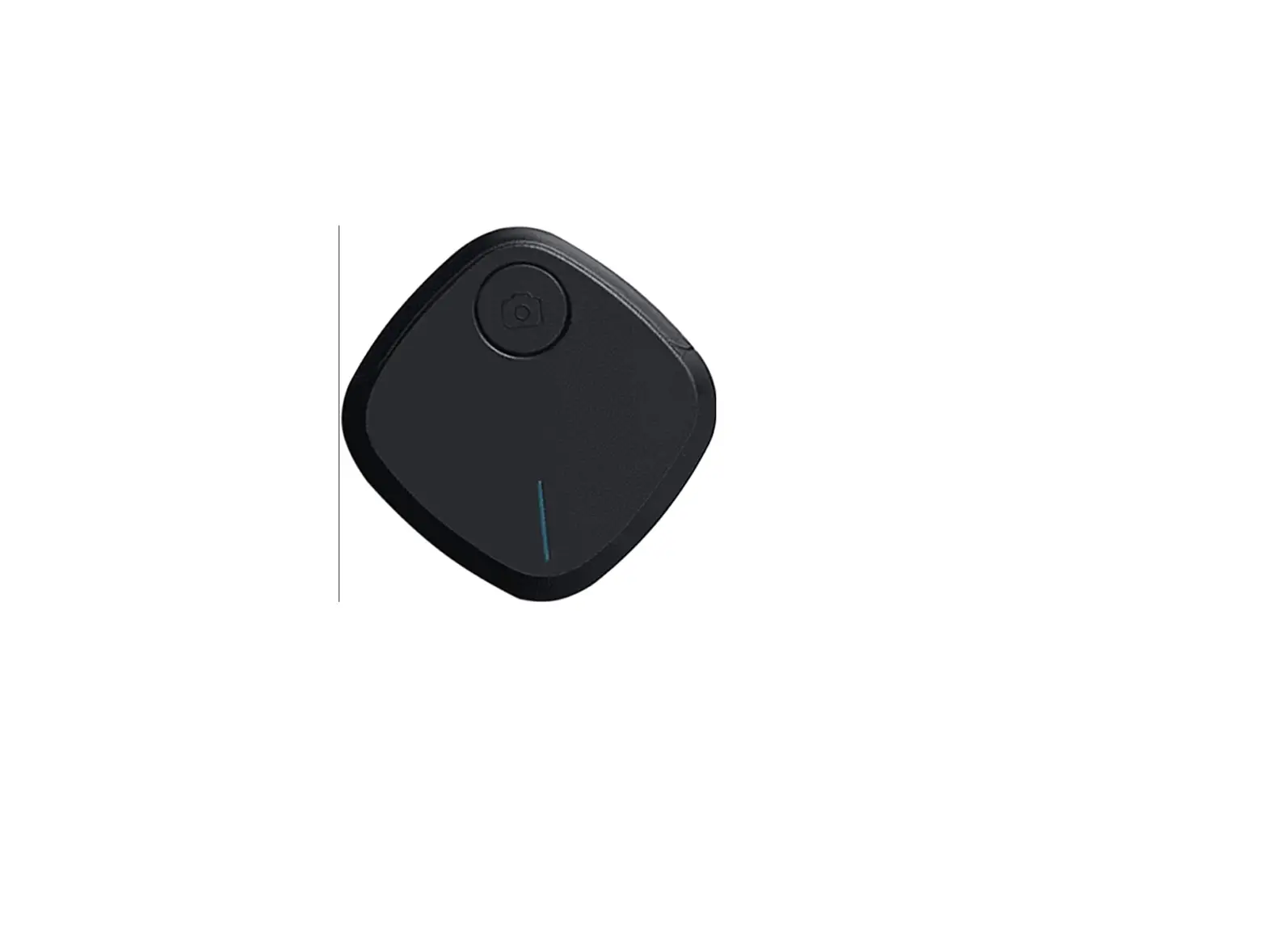
CP.OS.00000281.01 Osmo Action GPS Bluetooth Remote Controller
Product Information
The Osmo Action GPS Bluetooth Remote Controller is a device
designed to control DJI Osmo Action cameras. It can be easily
installed in various places such as the handlebar of a bicycle,
allowing for flexible shooting in different sports scenes. The
remote controller features several buttons and a screen that
displays the status of the connected camera, battery level of the
remote controller, and other information. It supports Bluetooth
connection and has a USB-C port for charging.
- Quick Switch Button: Used to switch between
different camera modes. - Link Button: Used for Bluetooth connection and
linking with the camera. - Shutter/Record Button: Used to capture photos
or start/stop video recording.
Screen Description
The screen on the remote controller displays various information
related to the camera and its connection. Here’s a breakdown:
- Verification Code: Displays the verification
code for linking the remote controller with the camera. - GPS Signal: Indicates the strength of the GPS
signal when searching for it. - Battery Level: Shows the battery level of the
remote controller. - Connection Status: Displays the connection
status with the camera via Bluetooth. - microSD Card Information: Shows the remaining
number of photos or video duration based on the current shooting
mode. - Screen Information: Synchronizes camera
information when connected.
The screen will enter sleep mode after 3 minutes of inactivity.
The remote controller will power off after 10 minutes of inactivity
when not connected to a camera and not charging. Press any button
to exit sleep mode and continue using the remote controller.
Product Usage Instructions
- Read and understand the safety guidelines provided in the user
manual. - Ensure that the Osmo Action camera and the remote controller
are both powered on. - On the remote controller, use the Quick Switch Button to select
the desired camera mode. - Press and hold the Link Button on the remote controller to
initiate Bluetooth connection. - On the camera, accept the connection request by tapping
“Accept” on the screen and entering the verification code displayed
on the remote controller. - Once linked, the screen on the remote controller will display
relevant information about the camera and its connection
status. - To capture a photo, press the Shutter/Record Button on the
remote controller. To start or stop video recording, press and hold
the Shutter/Record Button. - Monitor the battery level of the remote controller on the
screen. Charge it using the USB-C port when necessary. - If controlling multiple cameras, the screen will display the
number of connected cameras. Use the Quick Switch Button to switch
between cameras. - When finished using the remote controller, ensure it is safely
stored and powered off to conserve battery life.
Osmo Action GPS Bluetooth Remote Controller
User Guide
v1.0 2023.08
Contents
EN User Guide
3
CHS
11
EN
Disclaimer
By using this product, you signify that you have read, understand, and accept the terms and conditions of this guideline and all instructions at https://www.dji.com/osmo-action-4. EXCEPT AS EXPRESSLY PROVIDED IN AFTER-SALES SERVICE POLICIES AVAILABLE AT HTTPS://WWW. DJI.COM/SERVICE/POLICY, THE PRODUCT AND ALL MATERIALS AND CONTENT AVAILABLE THROUGH THE PRODUCT ARE PROVIDED “AS IS” AND ON “AS AVAILABLE BASIS” WITHOUT WARRANTY OR CONDITION OF ANY KIND.
Safety Guidelines
1. Put out any product fire using water, sand, a fire blanket, or a dry powder fire extinguisher. 2. The product should only be used in temperatures from -10° to 45° C (14° to 113° F). 3. DO NOT disassemble or pierce the product in any way or the battery may leak, catch fire, or
explode. 4. DO NOT drop or strike the product. DO NOT place heavy objects on the product. 5. DO NOT heat the product. DO NOT put the product in a microwave oven or a pressurized
container. 6. DO NOT leave the product near heat sources such as a furnace or heater. DO NOT leave the
product inside of a vehicle on hot days. DO NOT store the product in environments above 45° C (113° F). The ideal storage temperature is 22° to 28° C (72° to 82° F). 7. DO NOT store the product for an extended period after fully discharging the battery. Otherwise, the battery may over-discharge and cause irreparable damage. 8. Discharge and charge the battery completely once every three months to keep it in good working condition.
3
EN
Introduction
OSMOTM Action GPS Bluetooth Remote Controller (hereinafter referred to as “remote controller”) connects to Osmo Action 4* via Bluetooth. Users can control the camera remotely to capture footage using the remote controller. The remote controller supports single-camera and multicamera control modes so that users can shoot with up to 16 cameras simultaneously. The builtin satellite positioning modules enable users to record accurate data in motion. When used with the DJITM Mimo app, users can add a host of collected data to enrich the video, such as speed, route, direction, and elevation.
With the wrist strap, the remote controller can be installed in different places such as the handlebar of the bicycle, which can be flexibly adjusted to shoot in various sports scenes.
* Support for DJI devices will be updated continuously. Visit the corresponding DJI Osmo Action camera product page for a complete list.
Overview
4
8 5
1
2
6
3
7
9 10
1. Quick Switch Button 2. Shutter/Record Button 3. USB-C Port 4. Status LED 5. Screen
6. Link Button 7. Lanyard Hole 8. Wrist Strap Hole 9. Bluetooth RC Wrist Strap (Long) 10. Bluetooth RC Wrist Strap (Short)
4
EN
Button Features
Quick Switch Button
Link Button Shutter/Record Button
Quick Switch Button · Press and hold: power on or off the remote controller. · Press once: switch between shooting modes when connected to the camera.
Link Button · Press and hold: link the remote controller and the camera. · Press once: power on the camera when the camera is in sleep mode and connected to
the remote controller. During the linking process, press once to cancel linking.
Shutter/Record Button · Press and hold: power off the camera. When the camera is in sleep mode, press and hold
to power on the camera. · Press once: take a photo or start/stop recording. When the camera is in sleep mode, press
once to start SnapShot. Note: both both scenarios refer to situations when the remote controller is connected to the camera.
Button Combinations · Press and hold the shutter/record button and link button for four seconds: switch
between single-camera control mode and multi-camera control mode and start linking. · Press and hold the quick switch button and shutter/record button for four seconds:
view the firmware version of the remote controller · Press and hold the quick switch button and link button for four seconds: forget the
Bluetooth connection and start linking.
5
EN
Screen Description
The screen displays the status of the connected camera, the battery level of the remote controller, and other information. When controlling multiple cameras, the screen displays the number of cameras connected. The display on the screen varies depending on the camera mode.
1
23
5
4
6
1. Verification Code: displays the verification code. When the camera is found, both the remote controller screen and the camera screen show the same verification code. Tap Accept on the camera screen.
2. GPS Signal: displays GPS signal strength. When the remote controller is searching for the GPS signal, the icon will be displayed.
3. Battery Level: displays the battery level of the remote controller. 4. Connection Status: displays the connection to the camera via Bluetooth. 5. microSD Card Information: displays either the remaining number of photos or the video
duration that can be taken or recorded according to the current shooting mode. The icon is displayed only when a camera is connected. 6. Screen Information: the camera information will be synchronized when the camera is connected.
The screen will enter sleep mode if there is no operation within 3 minutes. The remote controller will power off if there is no operation after 10 minutes when there is no camera connected and the remote controller is not charging. When the screen is off, press any button to exit sleep mode and continue using the remote controller.
6
EN
Operation
Installation Methods
The package includes two wrist straps of different lengths. The remote controller can be fixed to the wrist using the long wrist strap and can also be fixed to the bicycle handlebar, motorcycle handlebar, backpack strap, and other locations using the short wrist strap.
Installing the Long Wrist Strap
Fix the remote controller in a suitable position on the wrist and fasten the hook-and-loop fastener properly, as shown below.
1 2
Installing the Short Wrist Strap
1. Remove the buckle from the hole of the long wrist strap, as shown below.
2. Thread the short wrist strap through the strap slot on the back of the remote controller. Make sure that the side with the raised surface is facing upward.
3. Adjust the position of the remote controller on the wrist strap until one end of the strap slot reaches the raised surface. Thread the buckle through the hole on the short wrist strap.
7
EN
4. Thread the strap through the buckle and fasten the hook-and-loop fastener properly.
Linking
Linking in Single-Camera Control Mode
When powered on, the remote controller automatically searches for and connects to any Osmo Action 4 cameras. Follow the prompts on the camera screen to link the devices.
Linking in Multi-Camera Control Mode
When powered on, the remote controller will be in single-camera control mode by default. Press and hold the shutter/record and link buttons for four seconds to switch into multi-camera control mode. Then the remote controller searches for the cameras and starts the linking process. Follow the prompts on the camera screen to link the devices. When controlling multiple cameras, the screen displays the number of cameras connected. During linking, the status LED of the remote controller will blink blue. After linking the remote controller to the camera, users can control the camera remotely to capture footage using the remote controller.
Controlling the Cameras
Single-Camera Control Mode
In single-camera control mode, press the quick switch button once to switch between shooting modes. The shooting modes that can be switched are the same as the settings in the camera. Press the shutter/record button once to take a photo or to start or stop recording.
Multi-Camera Control Mode
In multi-camera control mode, the remote controller can control each camera to use its set shooting mode to capture videos or images. Press the quick switch button to set all cameras to a unified shooting mode. Press the shutter/record button once to take a photo or start recording and press twice to stop recording. The shooting parameters will be based on the presets of each camera in this mode.
8
EN
Dashboard
The built-in satellite positioning modules enable users to record fitness data accurately when shooting. When used with DJI Mimo, users can add a host of collected data to enrich the video, such as speed, route, direction, and elevation.
· Make sure to use the remote controller in an open outdoor environment to avoid signal interference and wait 1-2 minutes until the GPS signal is strong. Make sure the remote controller faces upward for the optimal GPS signal. DO NOT block the top of the remote controller with your hands or other objects.
· The remote controller does not have a GPS signal underwater. DO NOT use the remote controller underwater.
Charging the Battery
Connect the remote controller to a charger via the USB-C port.
Status LED
Status LED
Status Indicator Charging Status When Powered Off Solid green for 6 seconds and turns off Blinks green four times Blinks green three times
Descriptions
Charging completed Charging, 76%-100% Charging, 51%-75%
9
EN
Blinks green twice Blinks green System Status Blinks red three times Blinks blue Operation Status Solid green Temporarily off Blinks red
Charging, 26%-50% Charging, 0%-25%
Power on or off Linking
Ready to use Take a photo Recording a video
Specifications
Model Dimensions Weight Waterproof Level Effective Remote Control Distance* GNSS Bluetooth Protocol Operating Frequency Transmitter Power (EIRP) Battery Capacity Battery Type Charging Temperature Operating Temperature
OSMO-AF-336 40.5×38.6×20.5 mm 26 g IPX7 25 m GPS+BeiDou+Galileo+GLONASS
BLE 5.0 2.4000-2.4835 GHz <10 dBm
270 mAh Chargeable Lithium Battery 0 ° to 45 ° C (32 ° to 113 ° F) -10 ° to 45° C (-14 ° to 122° F)
* The effective remote control distance is measured in an interference-free outdoor environment without any obstacles.
10
CHS
https://www.dji.com/osmo-action-4
1.
2. -10 45 3.
4. 5. 6.
45 22 -28 7.
8. 3
11
CHS
OSMOTM Action GPS “” Osmo Action 4* 16 DJITM Mimo App * DJI Osmo Action
4
8 5
1
2
6
3
7
9
10
1. 2. 3. USB-C 4. 5.
6. 7. 8. 9. Osmo Action 10. Osmo Action
12
CHS
· ·
· ·
· · / SnapShot
· 4 · 4 · 4
13
CHS
Osmo Action GPS
1
23
5
4
6
1. “”
2. GPS GPS GPS 3. 4. 5. microSD microSD
6.
3 10
14
CHS
1 2
1.
2. 3.
4.
15
CHS
4
/
DJI Mimo App
· GPS 1-2 GPS
·
16
USB-C USB-C
CHS
6
76%-100% 51%-75% 26%-50% 0%-25%
17
CHS
GNSS
OSMO-AF-336 40.5 x 38.6 x 20.5 mm 26 g IPX7 25 * GPS+BeiDou+Galileo+GLONASS
BLE 5.0 2.402-2.480 GHz < 4 dBm
270mAh USB-C 4.4V 0 45 -10 45
*
18
Contact DJI SUPPORT
https://www.dji.com/osmo-action-4/downloads
This content is subject to change without prior notice.
DJI and OSMO ACTION are trademarks of DJI. Copyright © 2023 DJI OSMO All Rights Reserved.