 BigBlue CP2500 Portable Power Station
  About this product
 BigBlue CP2500 Portable Power Station
 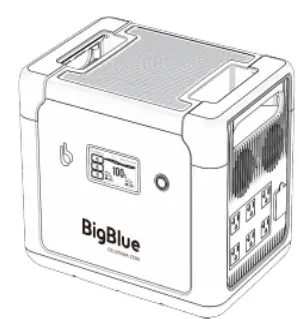 About this product
Thank you for using the portable power station produced by our company . In the event of a power outage, or if you need electricity for a tri p, you can use this product to power your electrical or digital products. This power supply supports DC output, USB output, AC output, and c a supply power for your mobile phone, tablet computer, laptop, CPAP, lighting and car devices. This product built-in safer and more reliable.
Specifications
| BATTERY | |
| Capacity | 1843.2Wh( 576000mAh/3.2V) |
| Battery Type | LiFePO4(EV-grade) |
| Cycle Life | ≥3500times(80%) |
| INPUT | |
| AC Input | 1200W Max |
| Car Charger | 12-24V⎓10A(240WMax) |
| Solar Input | 12V-65V⎓22.5A(25A Max), 1200WMax |
| RECHARGING TIME | |
| AC | 1.5 Hours( to 80%) |
| Car Charger | 12-14 Hours(12V),6-7 Hours(24V)( to 80%) |
| Solar | 1050H0oWu/r㎡s(6L*BigBlue SP200/3*BigBlue SP400 to 80%) ighting standard |
| OUTPUT | |
| 6xAC | 120V~20.83A,Rated 2500W(5000W Surge), Frequency 60Hz |
| 2xUSB-A | 5V⎓3A、9V⎓2A、12V⎓1.5A 18W(Max), (2xUSB-A:36W Max) |
| 2xUSB-C(PD) | 5V,9V,12V,15V⎓3A,20V⎓2.25A 45W(Max), (2xUSB-C:90W Max) |
| 2xUSB-C(PD) | 5V,9V,12V,15V⎓3A,20V⎓5A 100W(Max), (2xUSB-C:200W Max) |
| 2xDC 5.5mm | 12V⎓5A 60W(Max) |
| 1xc i garette li ghter | 12V⎓10A 120W(2xDC+1xCigarette Lighter: 120W Max) |
| OTHERS | |
| Net Weight | 25.3KG |
| Size | 384*274*325mm |
| Discharge Temperature | -20℃~45℃ |
| Recharge Temperature | 0℃~45℃ |
| Storage Temperature | -20℃~45℃ 1*C ,1*AC C ,1*MC4-XT60 C ,1*- |
| Packing Details | ellpowa 2500 able able Cigarette Lighter-XT60 Cable,1*User Manual,1*Accessory Bag |
The above data comes from the BigBlue laboratory. The test data may vary depending on factors such as the use environment and usage method, and the charging time will be different. This data is for reference only.
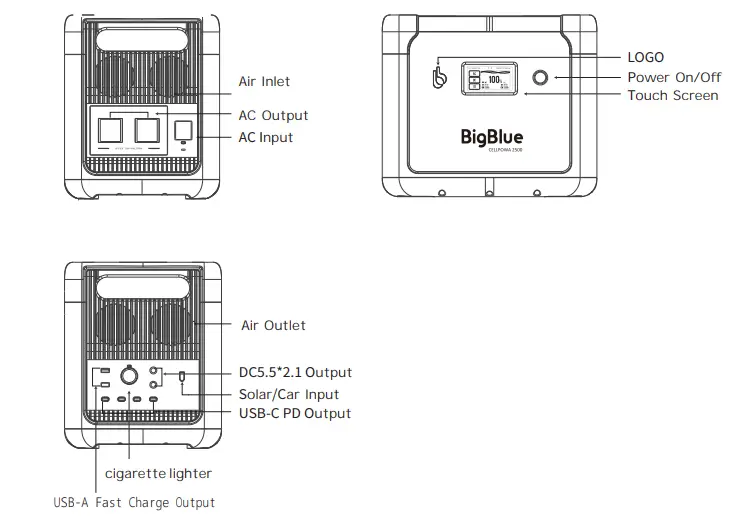
Product Details Touch Screen Details
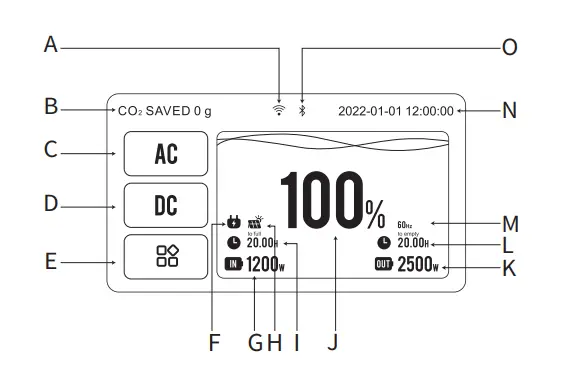
 Touch Screen Details
- WIFI: After connecting to the WIFI successfully, the WIFI icon will be displayed on the main interface of the display screen. You need to enter the account and password the first time.
- Carbon emission reduction tips: Indicates that the machine reduces carbon dioxide emissions through solar charging.
- AC: Click the AC button to enable AC output.
- DC: Click the DC button to enable DC, USB-A and USB-C output.
- Menu: Click the menu icon to view/change the detailed information of the machine: current output/input parameters, battery information, time and networking settings, etc
- AC input icon.
- Charging power: display the current input power.
- Solar input MPPT icon
- Remaining charging time: Determine the remaining charging time according to the current discharge power.
- Battery percentage: Displays the current remaining battery percentage. When the remaining power is less than 10%, it is recommended to charge the product.
- Output power: display the current output power.
- AC frequency: Displays the current working frequency of the AC grid.
- Date and time: Display the current date and time, which can be reset.
- Bluetooth: Bluetooth is turned on
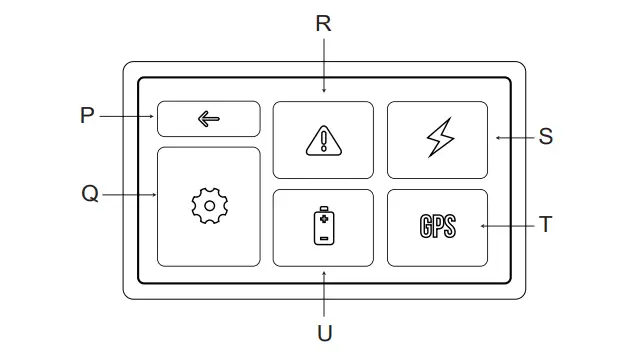
secondary Screen.

- Back button: Click to return to the previous menu.
- Settings: Click the settings icon to enter the system settings: network settings, time settings, general electrical settings, language settings, touch correction, and viewing product information.
- Warning notice.
- Charge and discharge information: It can display the charging power, charging voltage, charging current, charging temperature of AC charging or DC charging, as well as the discharging power, discharging voltage, discharging current and discharging temperature of AC discharging and DC discharging.
- GPS: Click GPS to enter the latitude and longitude positioning, and display the latitude and longitude coordinates after positioning.
- Battery information: You can view the power, battery health information, remaining power.
APP registration and use
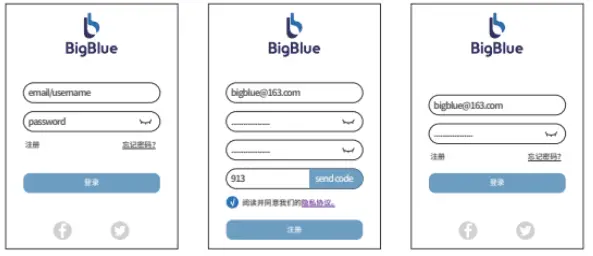
Register and Login
- This product can be controlled through APP, you can download BigBlue Energy APP in the Android or Apple application store and BigBlue official website https://bigblue-tech.com.
- For the first login, you need to register a personal APP account, (click to register) fill in the user registration information, enter a valid email account, and set a login password.
- Click to send the verification code, the verification code will be sent to the registered email account, enter the received verification code and click to register.
APP Instructions
When using the app for the first time, add a device first.
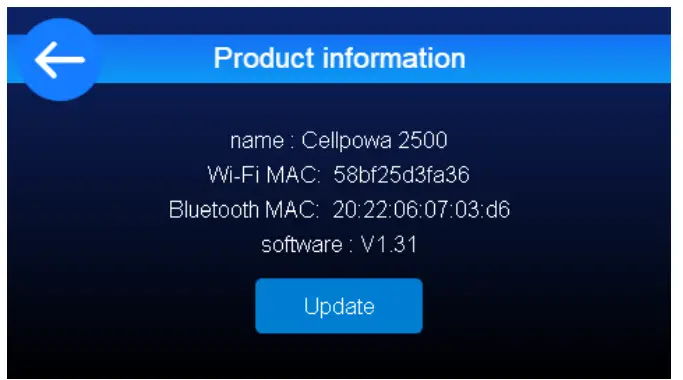
- Go to Product Menu → Product Settings → Product Information to check the product Bluetooth Mac address (each/machine is assigned a unique Mac address code).
- Turn on the phone’s Bluetooth, and then open the BigBlue Energy APP.
- Click ” ” in the upper right corner of the APP and select Add Device. Find the corresponding B1uetooth Mac address code in the setting device list, click “OK”
- Bluetooth connection
Open the menu on the machine’s touch screen → System Settings → Product Information, View Bluetooth mac(each machine is assigned a unique mac address code).
 BigBlue丨Home backup and off-grid solar generator – BigBlue Official Store