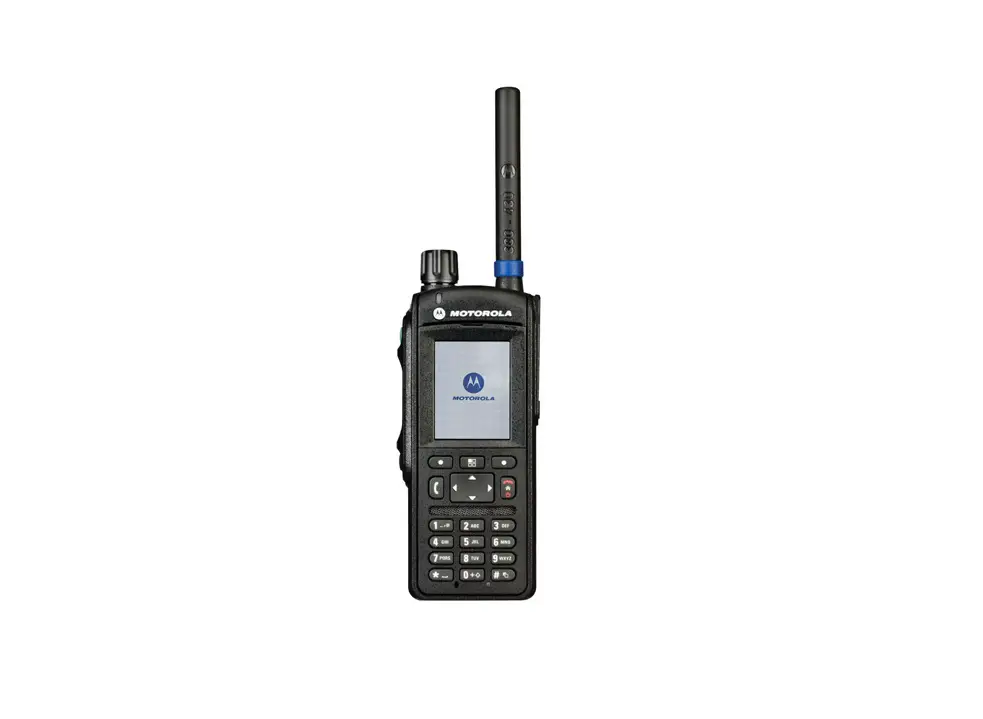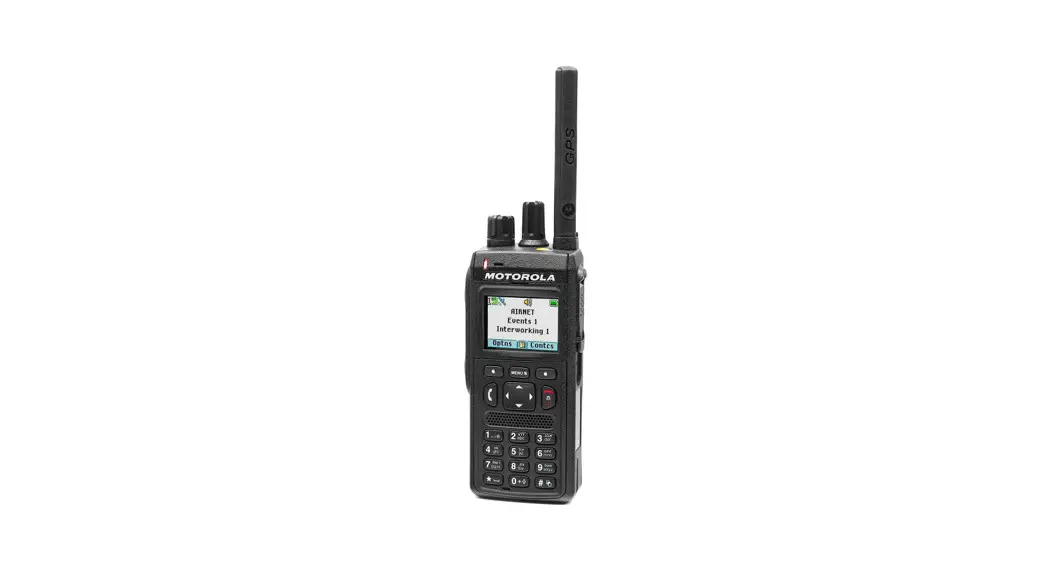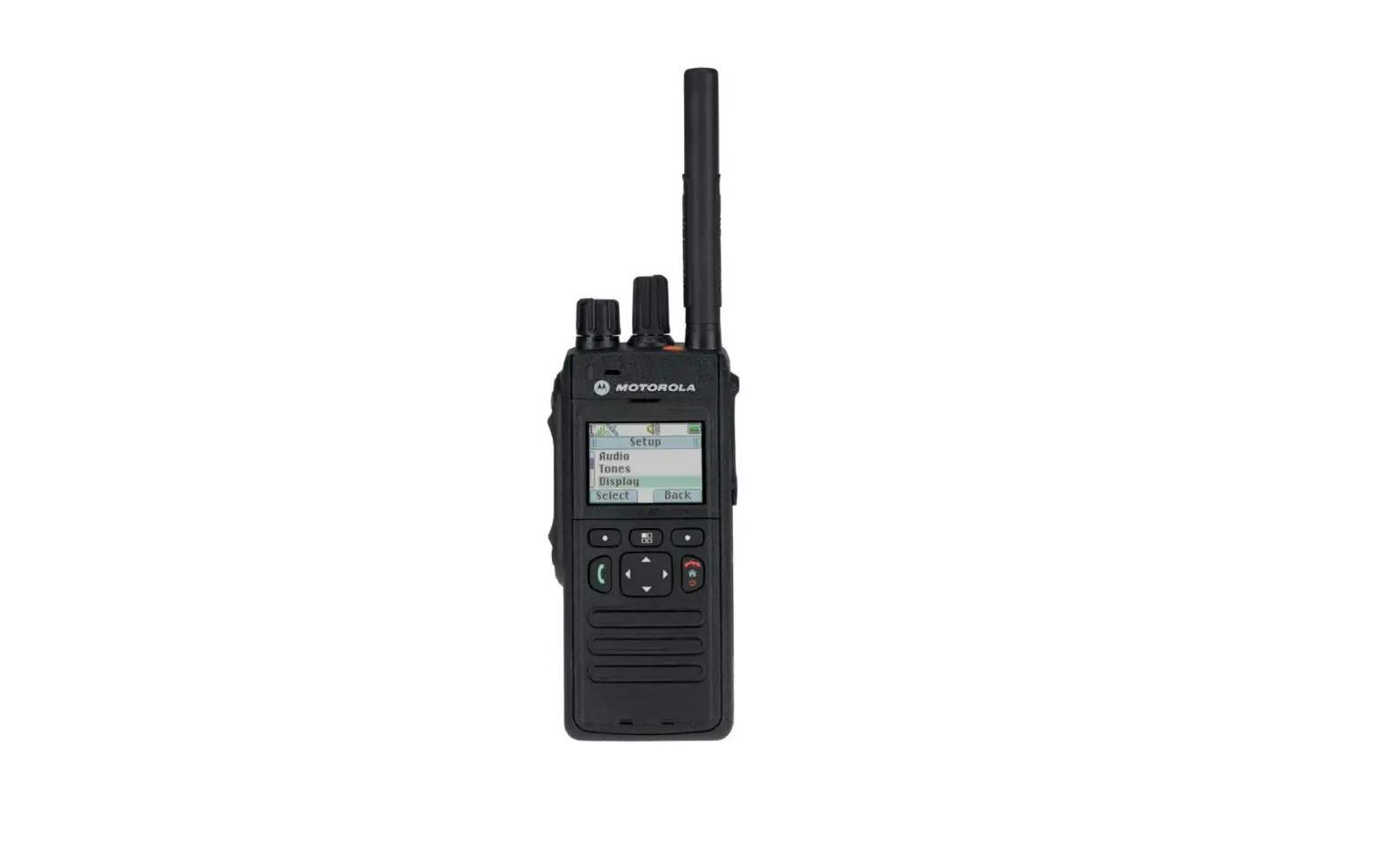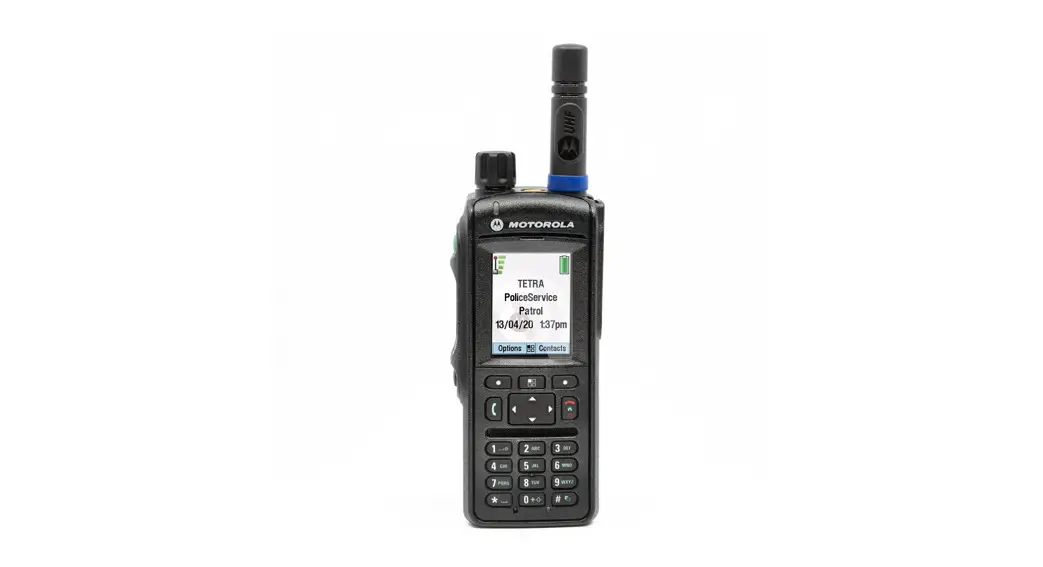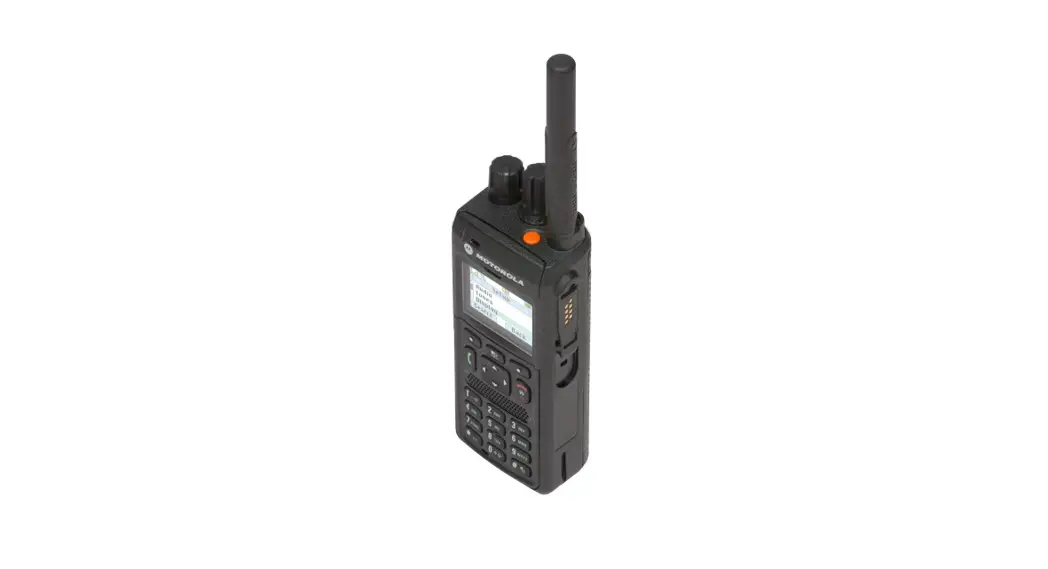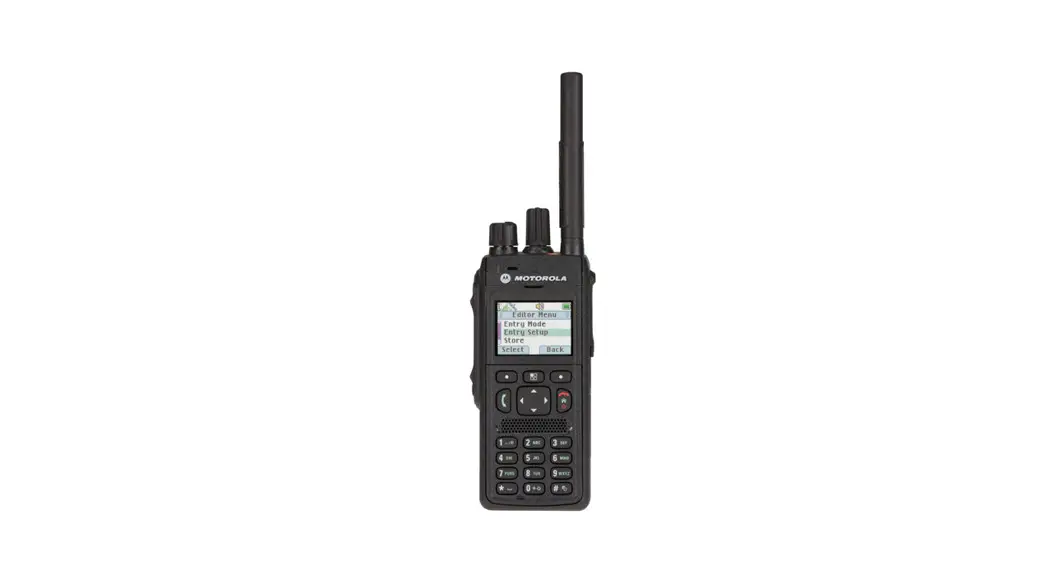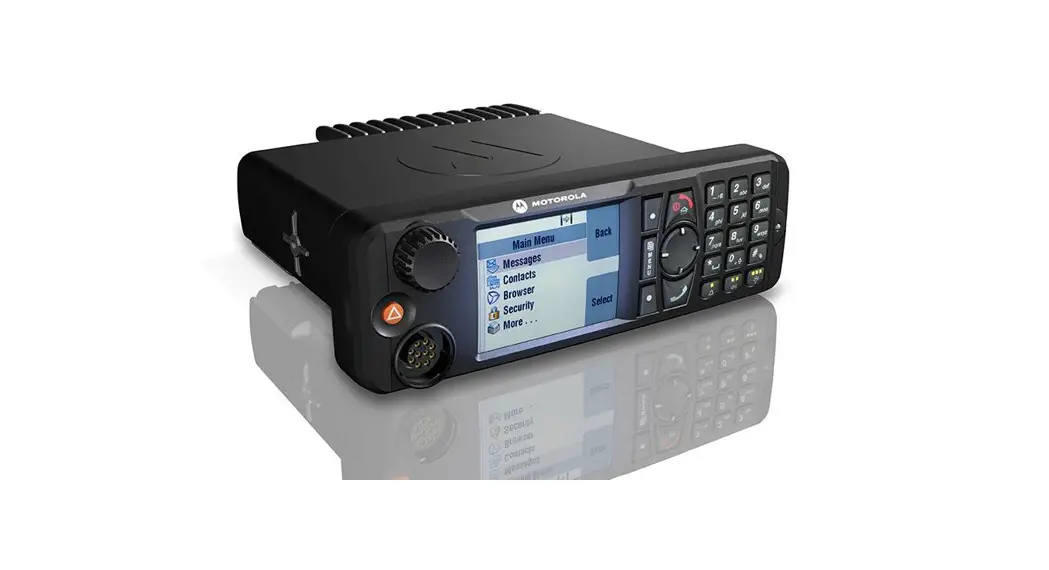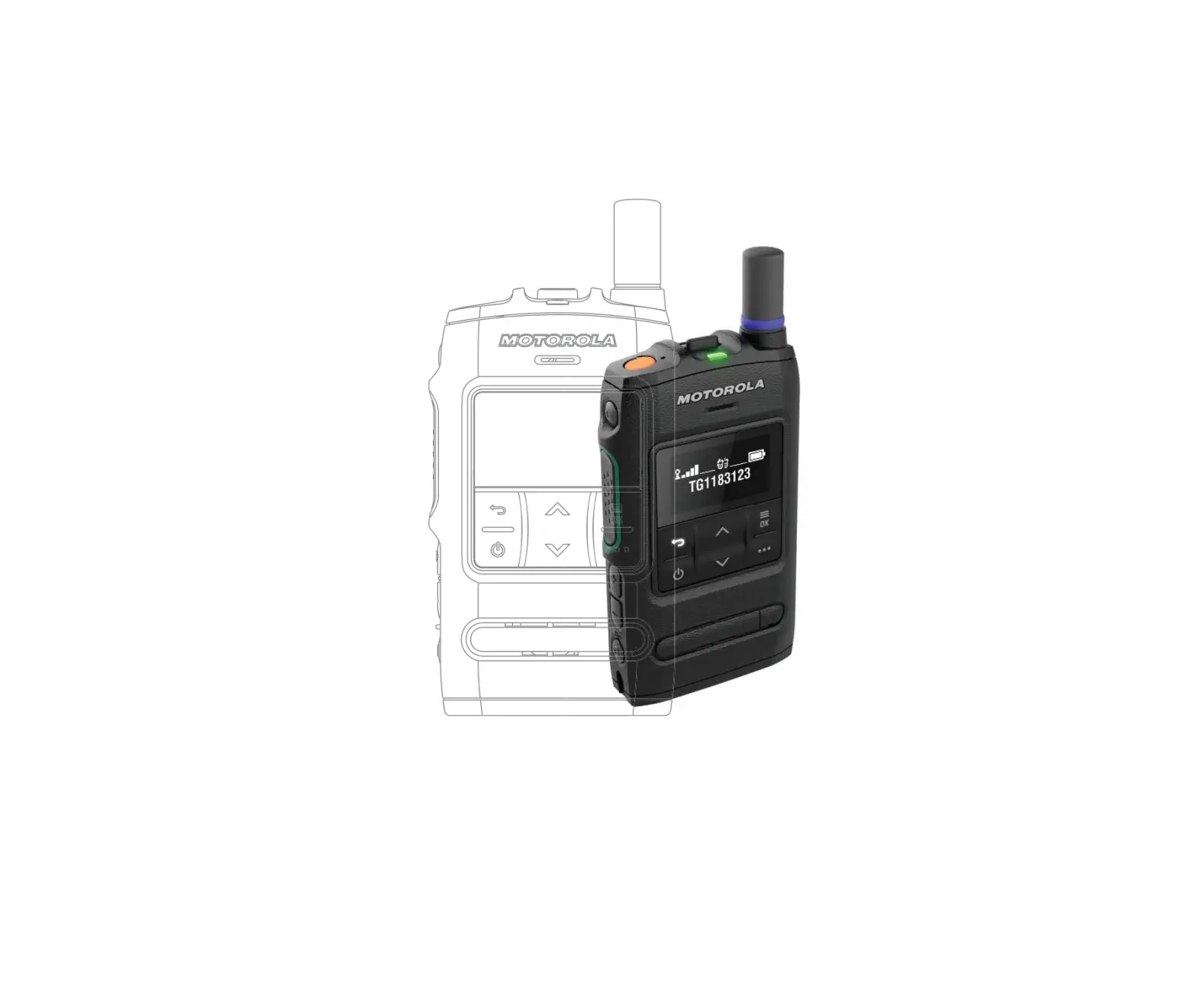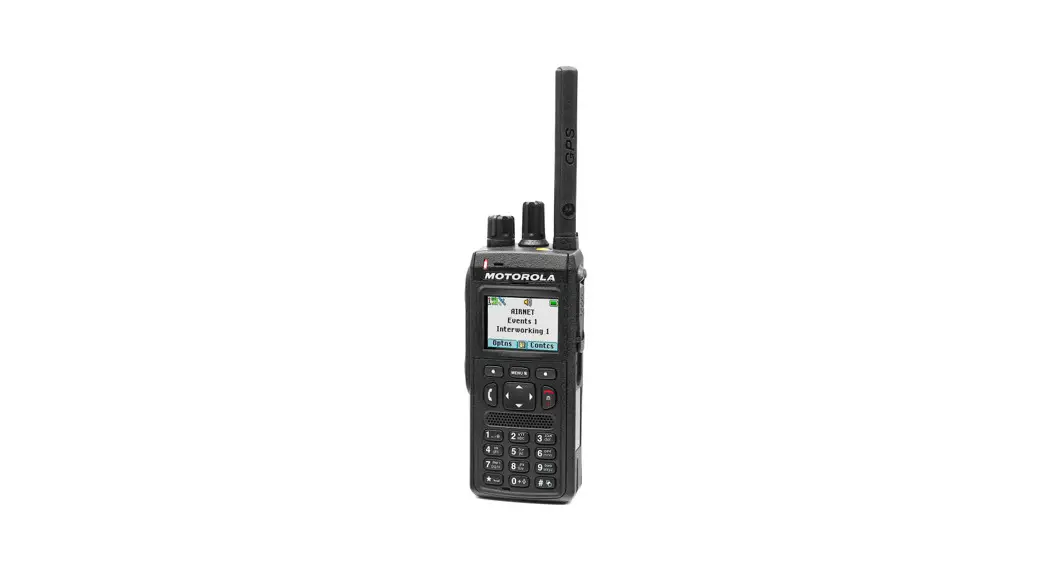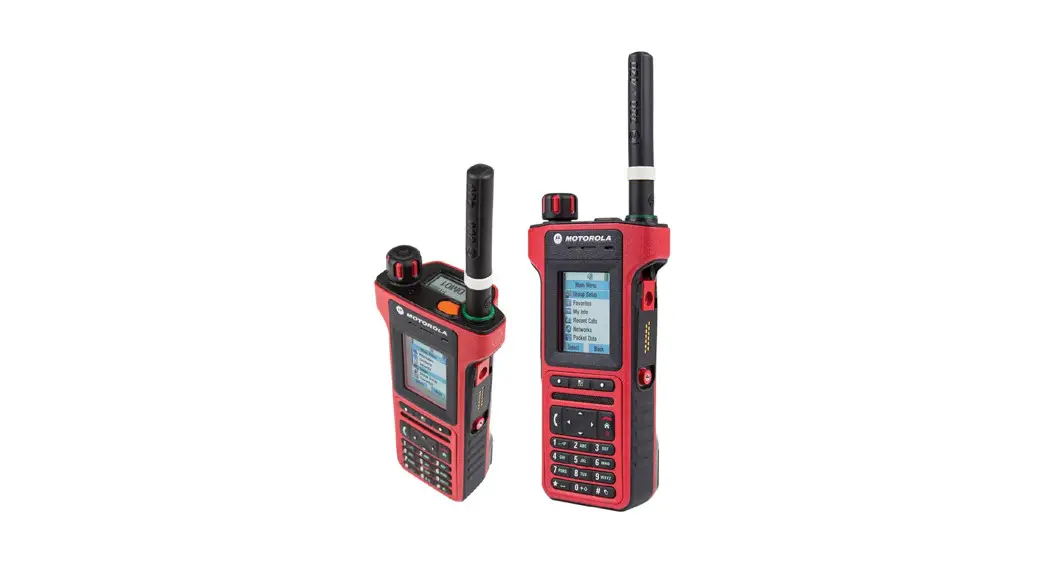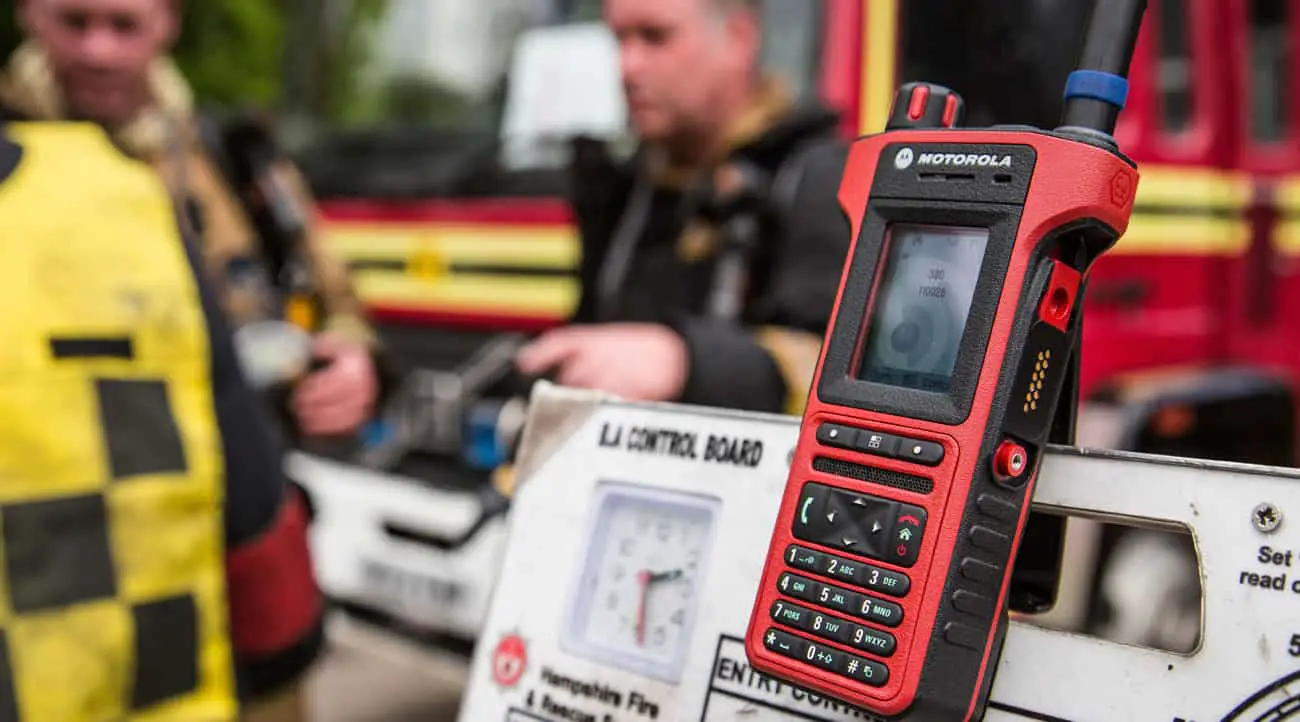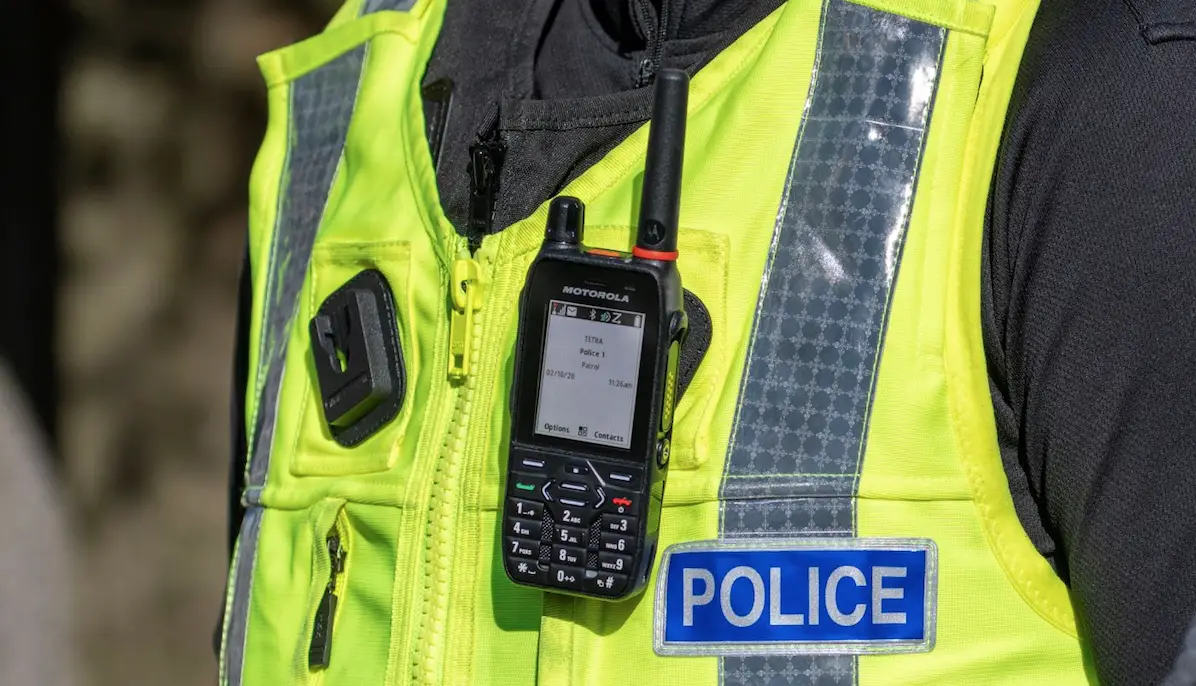
MOTOROLA SOLUTIONS MXP600 Mission Critical TETRA Portable Radio
Looking After Your Radio
Never leave your radio or battery in extreme temperatures (over +85 °C).
For example, behind a windscreen in direct sunlight.
The radio is submersible (compliant with the IP68 standard), but only with the battery and antenna attached.
To clean your radio, use a moistened or antistatic cloth.
Ensure no contamination is on the gore port membrane, that is the area labelled as VENT on the back of the radio chassis.
Holding Your Radio
The radio has three microphones:
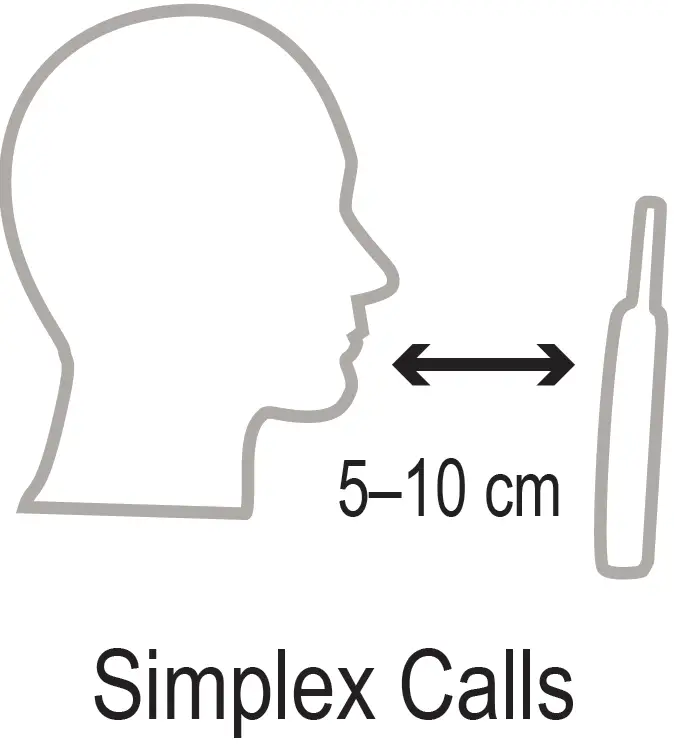
- A top front microphone for Simplex group, dispatcher, or private calls.
- A top back microphone for optional noise cancellation.
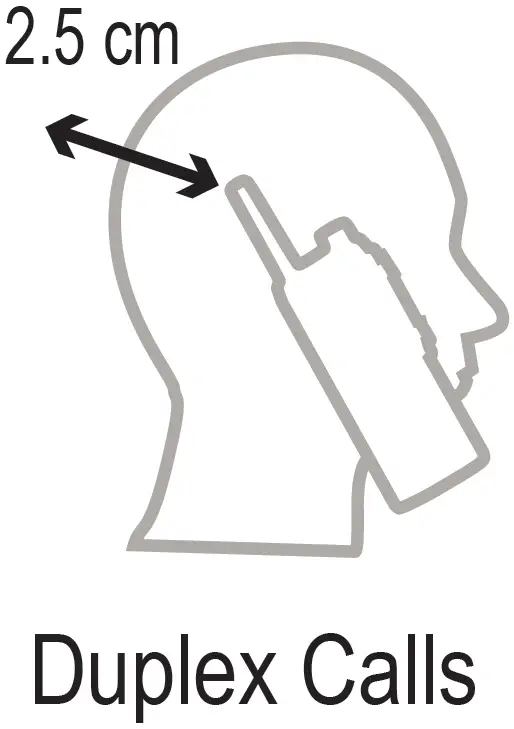
- A bottom microphone for Duplex, telephone-like calls.
- When using high audio, hold your radio vertically with the top microphone 5–10 cm away from your mouth.
- Speak into the top microphone.
- Listen through the speaker.
- Keep the antenna at least 2.5 cm away from your head and body.
- When using low audio, hold your radio as you would a telephone.
- Speak into the bottom microphone.
- Listen through the earpiece.
- Keep the antenna at least 2.5 cm away from your head and body.
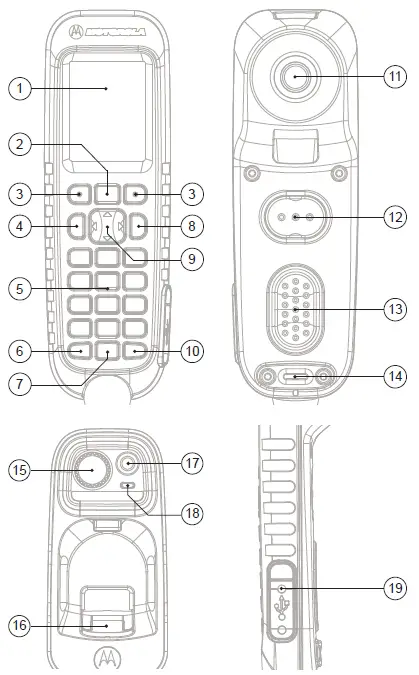
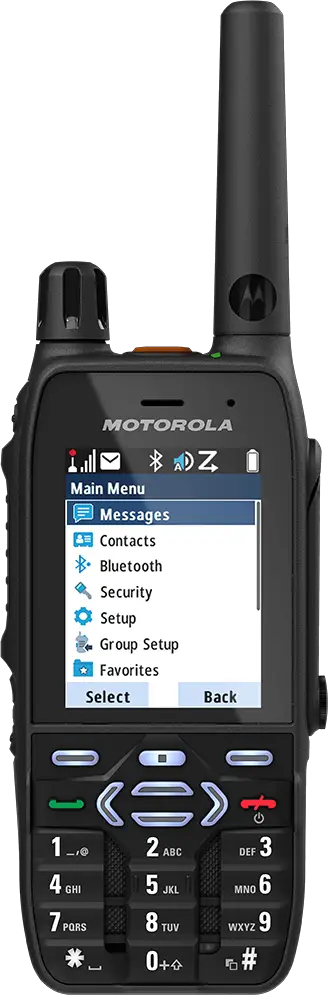
- Emergency Button
- LED Status Indicator
- GCAI-Mini Connector
- Antenna
- Rotary Knob
- Programmable Button
- Push-To-Talk Button (PTT)
- Soft Key
- Near-Field Communication Tag
- Send Key
- Bottom Microphone
- Backlight Sensor
- Keypad
- Speaker
- On/Off/End/Home Key
- Menu Key
- Display
- Top Microphone
- Earpiece
- Bottom Connector
Status Icons
Icon | Description |
| In Service (TMO) |
| No Service (TMO) |
| Signal Strength |
| High RF Power |
| Direct Mode (DMO) |
| Emergency Mode |
| Battery Strength |
| Battery Charging |
| All Ring Tones Off |
| Simplex Ring Muted |
| Duplex Ring Muted |
| Scan |
| Migration |
| Low Audio |
| High Audio |
| Earpiece Connected |
| New Message Has Arrived |
| New Message In Inbox |
| Packet Data |
| Keys Locked |
| GNSS |
| Non-Formatted SD Card |
| USB Connected |
| Bluetooth Enabled |
| Wi-Fi Strength |
 | Wi-Fi OTAP |























Installing the Battery
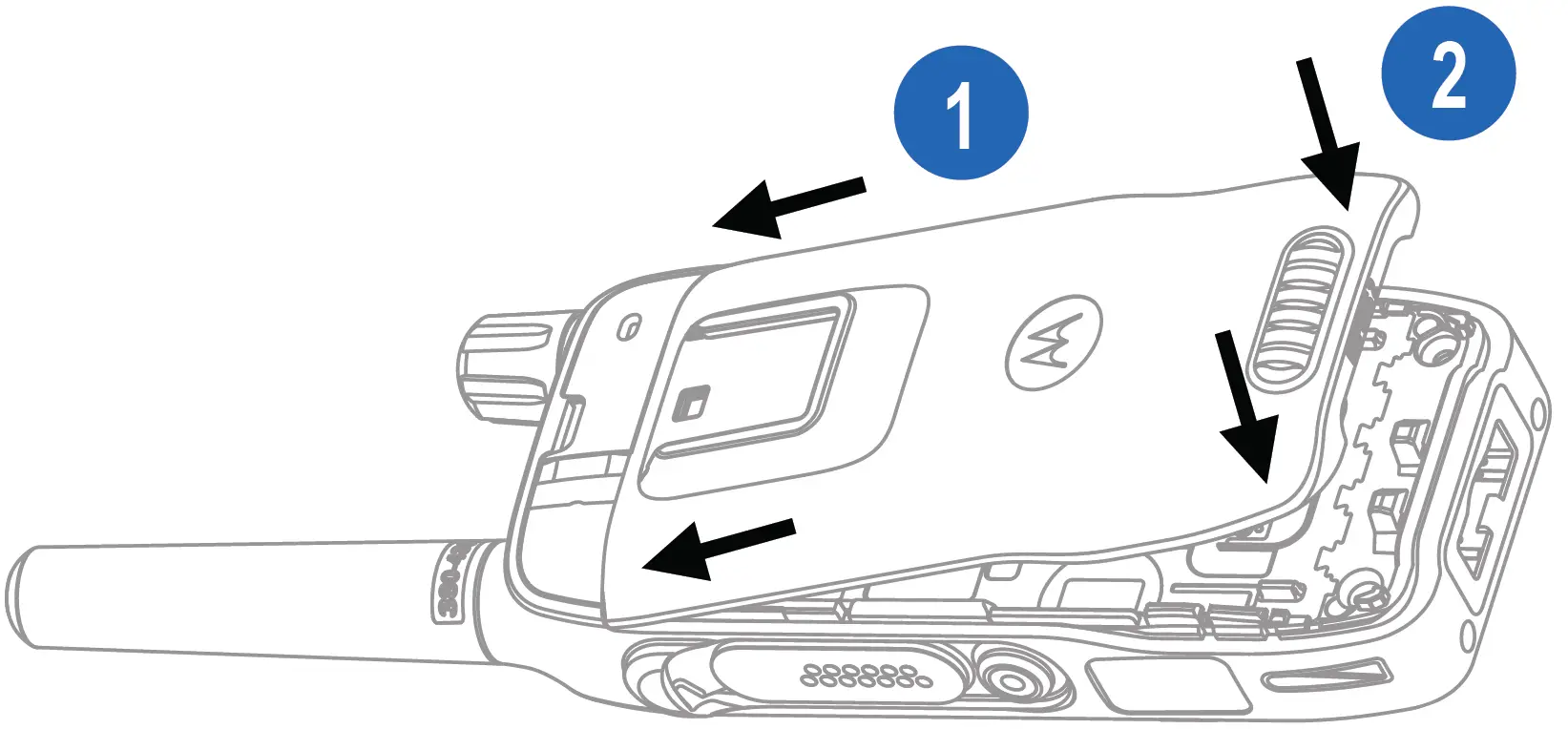
- Insert the battery into the compartment at a high entry angle.
- Slide the battery under the two catches.
- Press down the battery until it clicks in place.
Removing the Battery
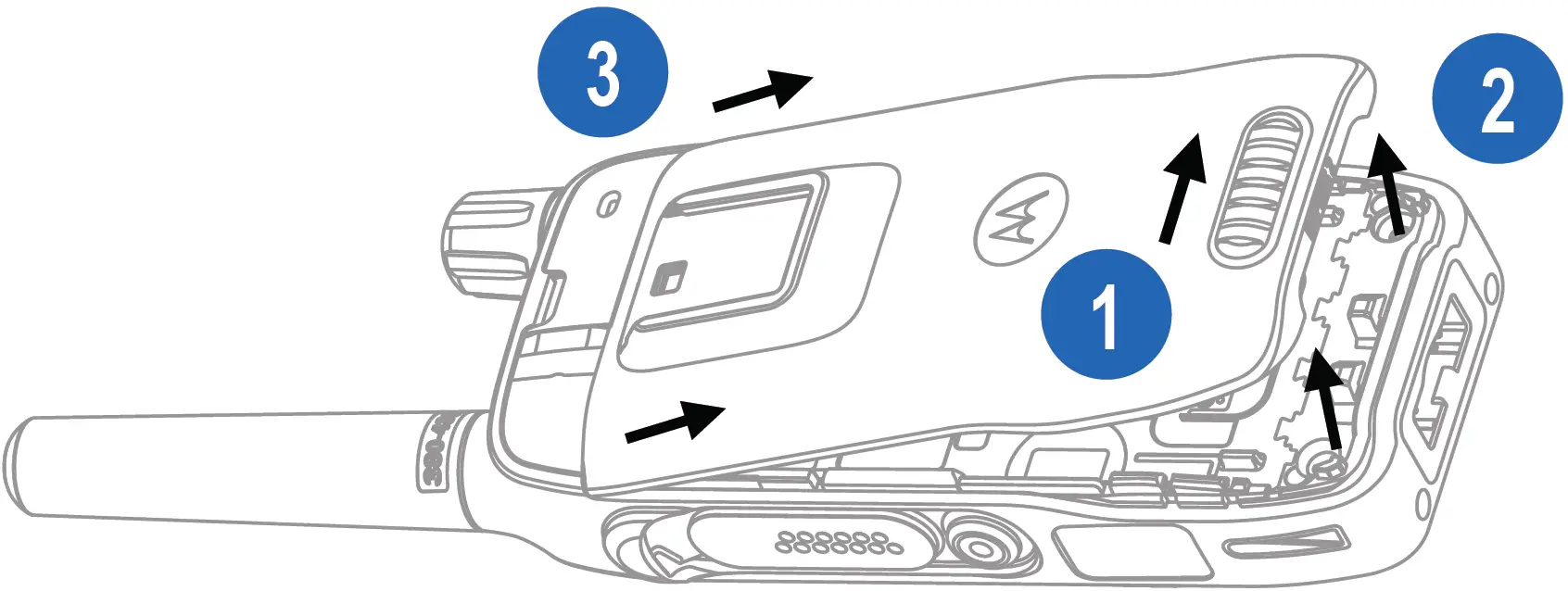
- Slide the battery latch to the right and hold it.
- Lift the battery.
- Remove the battery from the compartment.
Attaching the Antenna
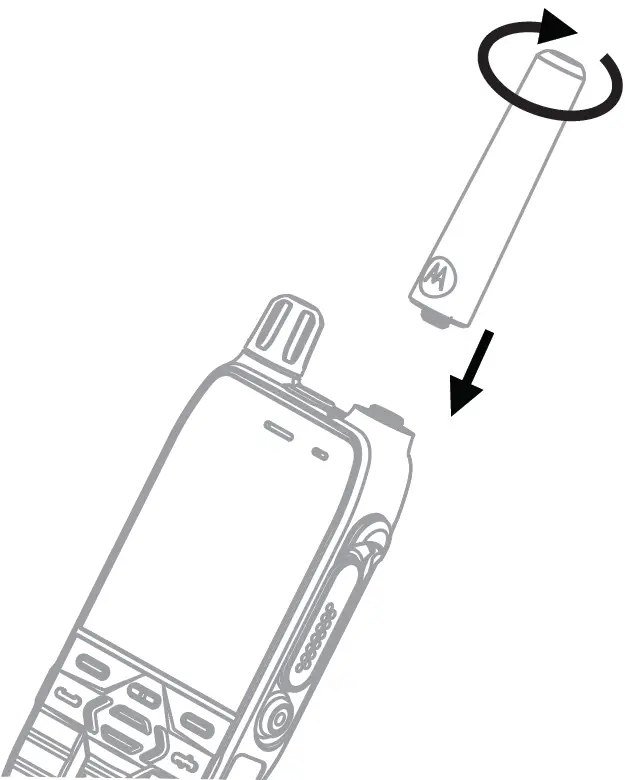
- Turn off the radio before attaching the antenna.
- Insert the threaded base of the antenna into the terminal on top of the radio.
- Turn the antenna clockwise until snug. Do not force.
Turning the Radio On or Off
To turn the radio on or off, press and hold the On/Off key.
LED Status Indicator
Indication | Status when Not Charging | Status when Charging |
Solid green | In use | Fully charged |
Blinking green | In TMO service or idle / Switching from TMO to DMO | 90% charged |
Solid red | Out of service | Rapid charge |
Blinking red | Connecting to a network / Switching from DMO to TMO | Faulty or invalid battery |
Solid orange | Radio is powering on/ Transmit Inhibit mode in service | Not applicable |
Blinking orange | Incoming private or phone call | Battery on standby to rapid charge |
No indication | Radio powered off / Radio in covert mode | Not applicable |
Battery Capacity Information
Information | Description |
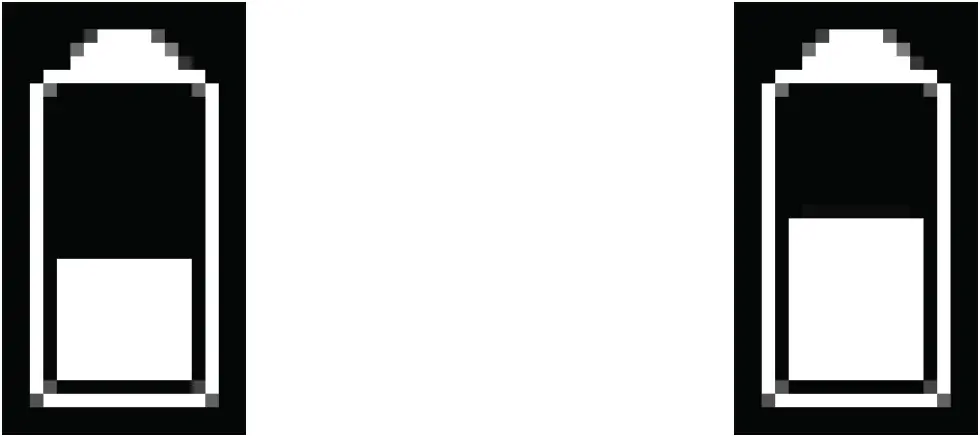
| Full (80%–100% capacity) |
| Middle (60%–80% capacity) |
| Low (25%–60% capacity) |
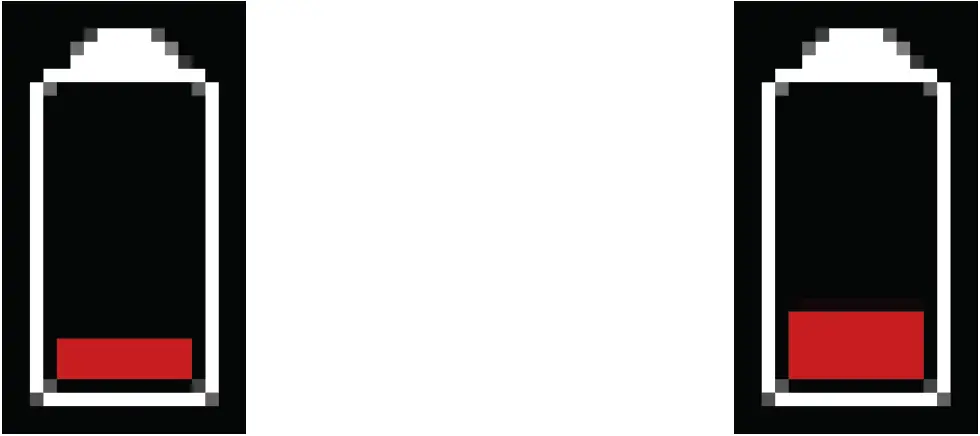
| Very low (5%–25% capacity) |
 | Less than 5% capacity |


Unlocking the Radio
To unlock the radio after powering on, enter the code at the prompt.
The default code is 0000. Your service provider may change this number before you receive your radio.
Unlocking or Locking the Keypad
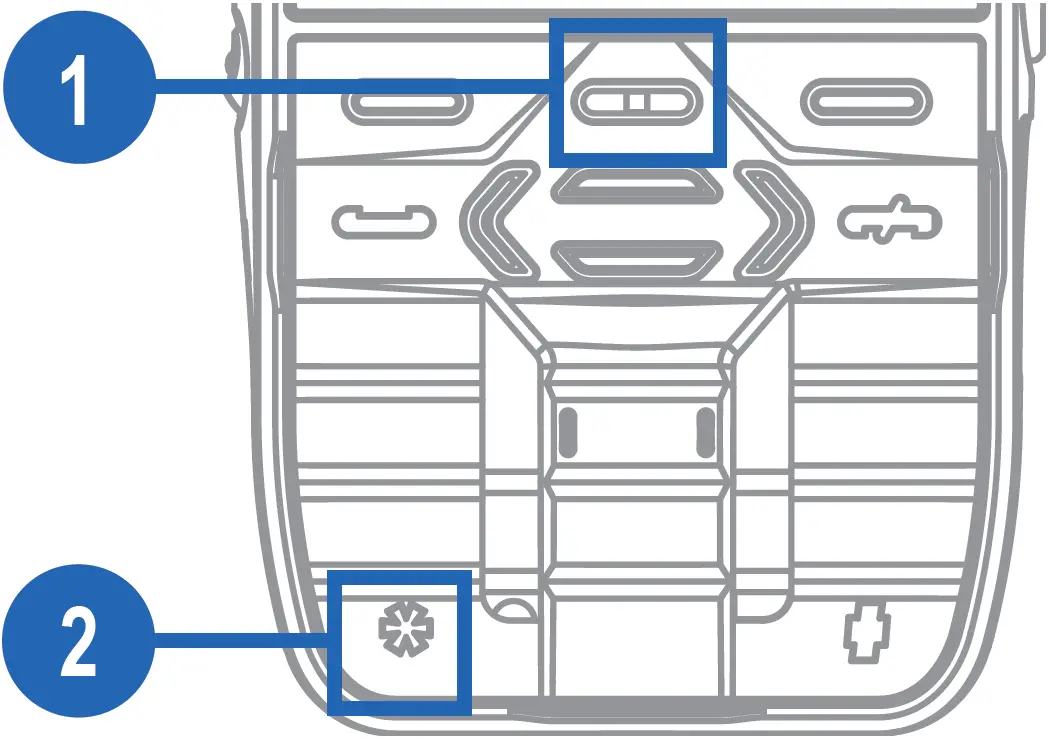
To unlock or lock the keypad, press the Menu key followed by the * key.
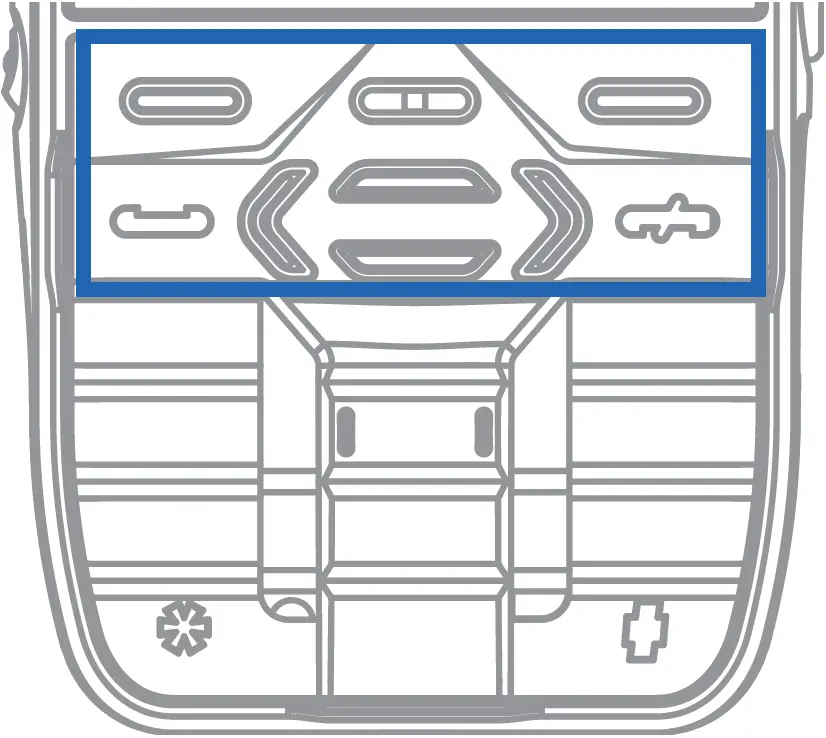
To enter the menu, press the Menu key.
To scroll through the menu, press the Up or Down Navigation button.
To select a menu item, press the Select soft key or the Right Navigation key.
To return to the previous level, press Back or the Left Navigation key.
To exit the menu, press the Back key.
Selecting TMO or DMO
From the home screen, select Options → Trunked Mode or Direct Mode.
Making TMO or DMO Group Calls
- From the home screen, press the Navigation keys or turn the Rotary Knob to highlight the desired talkgroup.
- Press Select.
- Press and hold PTT.
- Wait for the Talk Permit Tone (if configured) and talk.
- To listen, release PTT.
Making TMO or DMO Emergency Group Calls
- Press and hold the Emergency button.
The emergency alarm is sent automatically (if configured). - Press and hold PTT.
- Wait for the Talk Permit Tone (if configured) and talk. Release PTT to listen.
If using the Hot Mic feature, wait for the Emergency Mic On message to appear on the display, then talk without pressing PTT. - To exit Emergency Mode, press and hold the Exit soft key.
Making Simplex Private Calls
In DMO
- From the home screen, dial a number.
- Press and hold PTT to make a call.
- Wait for the Talk Permit Tone (if configured) and talk. Release PTT to listen.
- To terminate the call, press the End key.
In TMO
- From the home screen, dial a number.
- Press PTT to make a call. Wait for the called party to pick up.
- When the call is connected, press and hold PTT to talk. Wait for the Talk Permit Tone (if configured). Release PTT to listen.
- To terminate the call, press the End key.
Making Duplex Private, Phone, or PABX Calls
- From the home screen, dial a number.
- Press the Send key. The ring tone sounds till the called party answers.
- To terminate the call, press the End key.
Sending Status Message
- From the home screen, press the Menu key.
- Select Messages → Send Status.
- Highlight the required status message and press the Send key.
- If the list is empty, enter a 5-digit status message number and press the Send key.

 Mission Critical Communications - Motorola Solutions
 Motorola Solutions