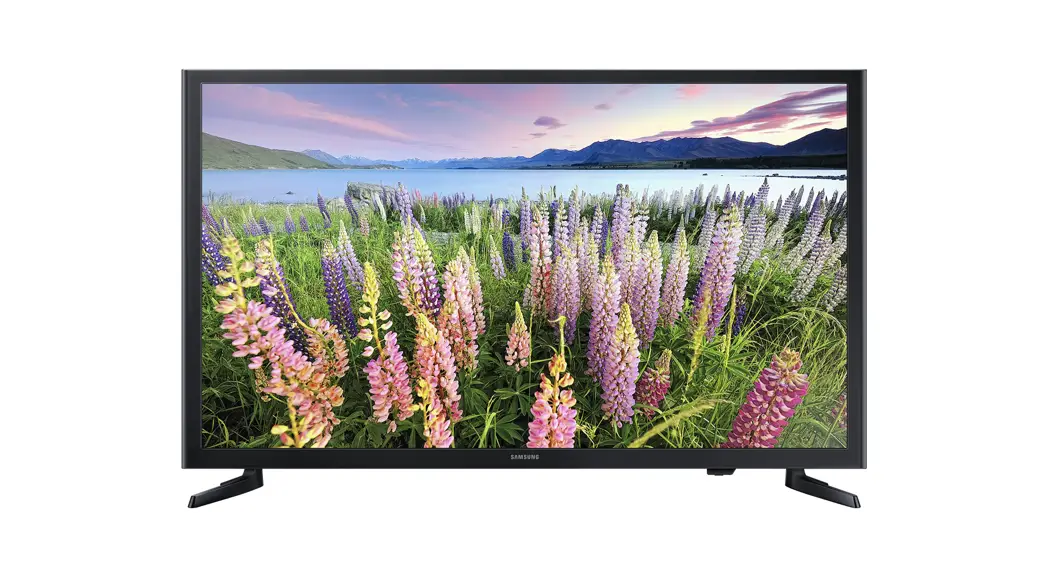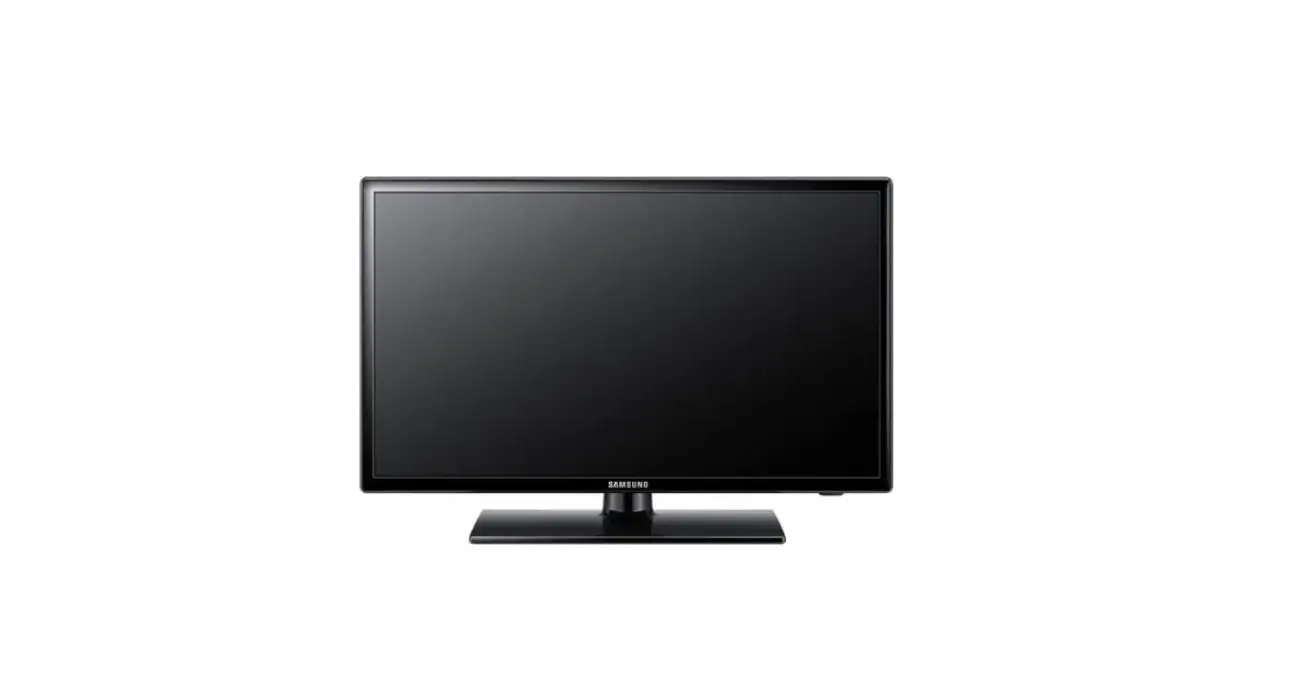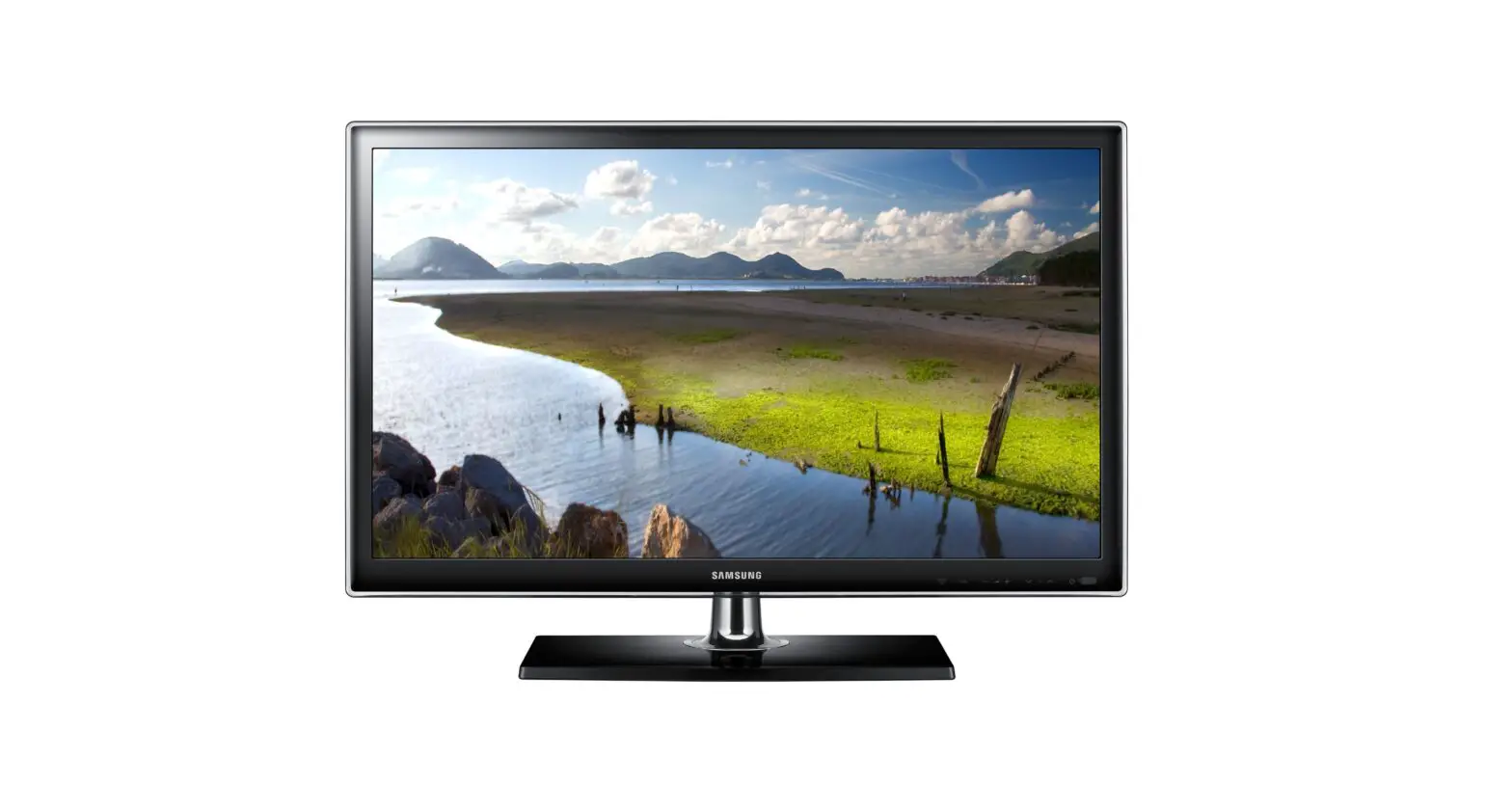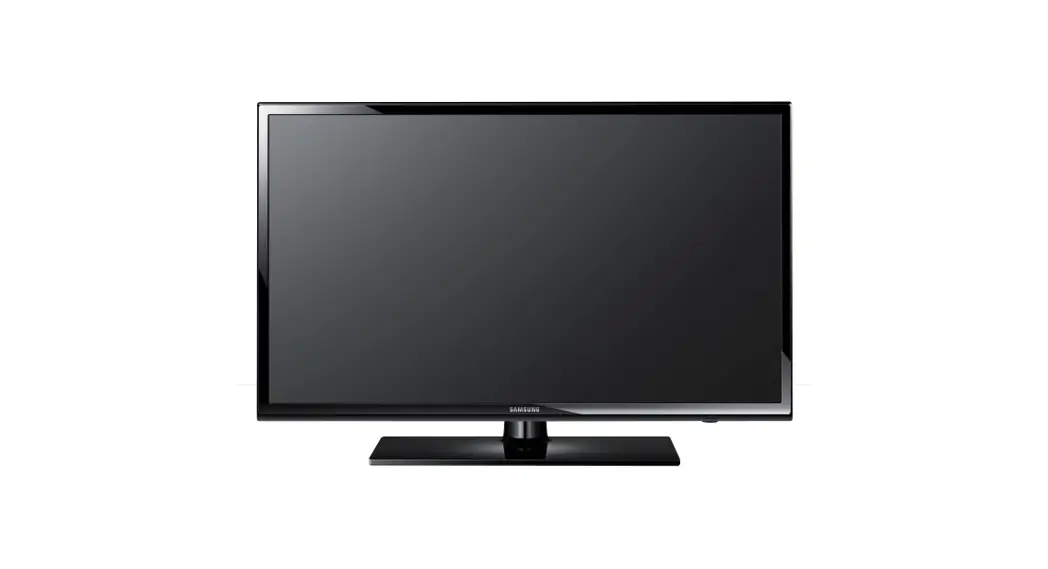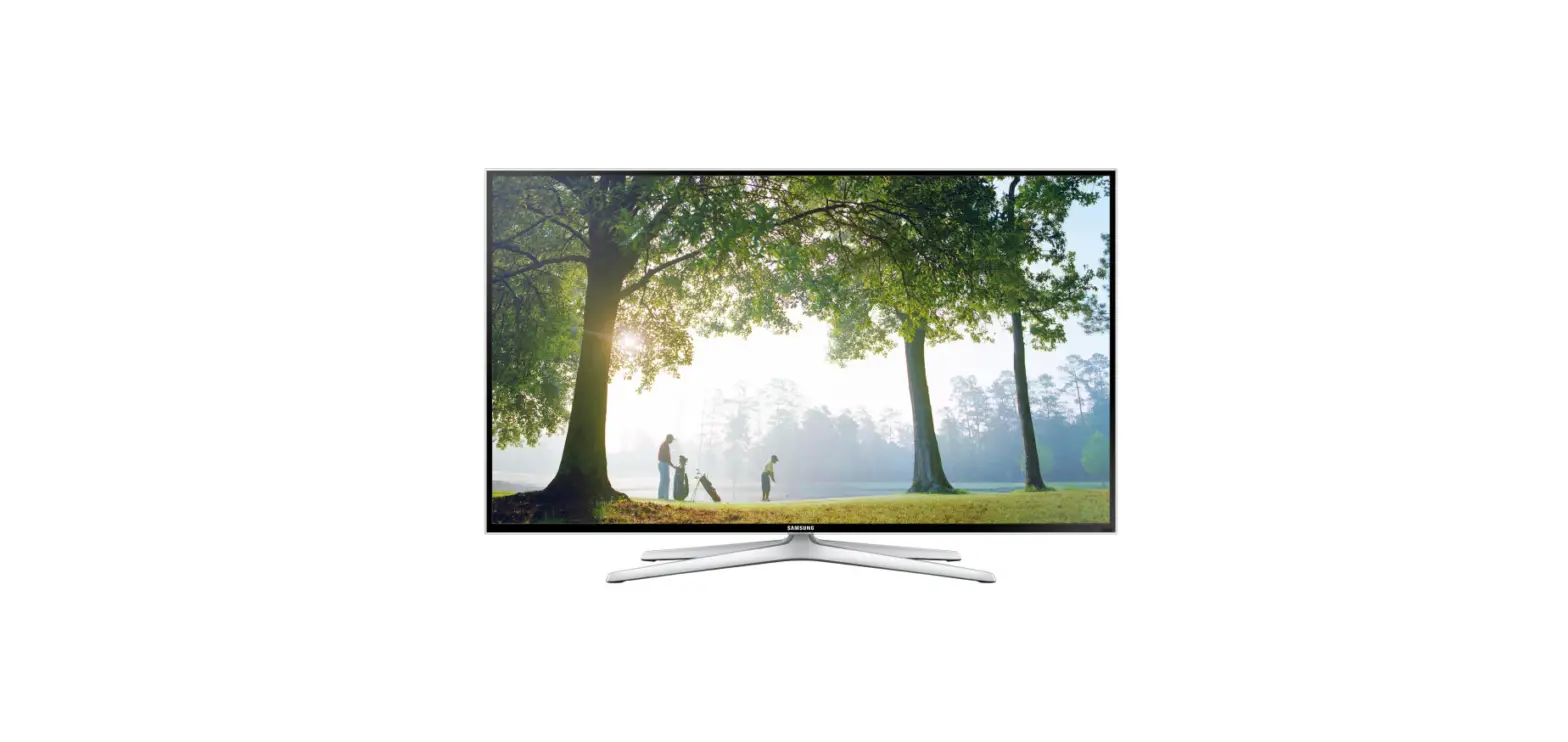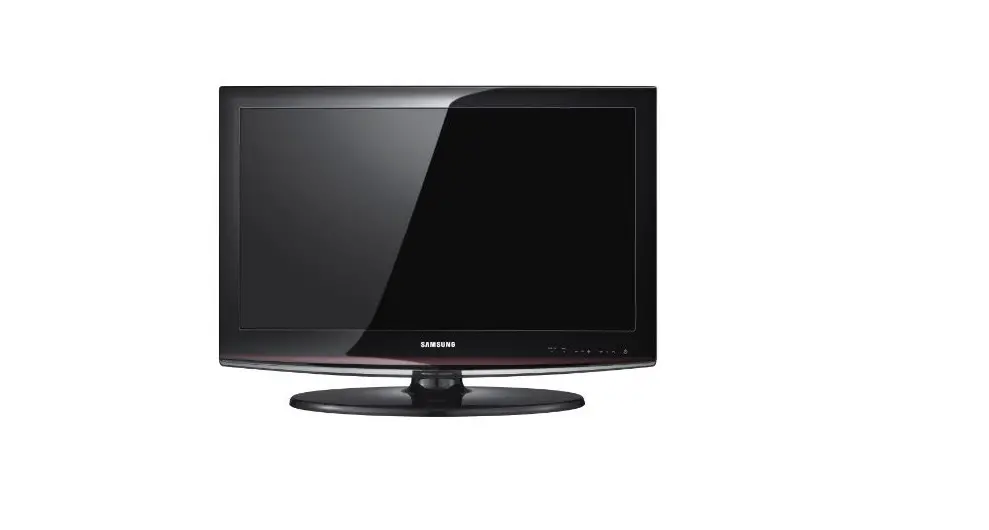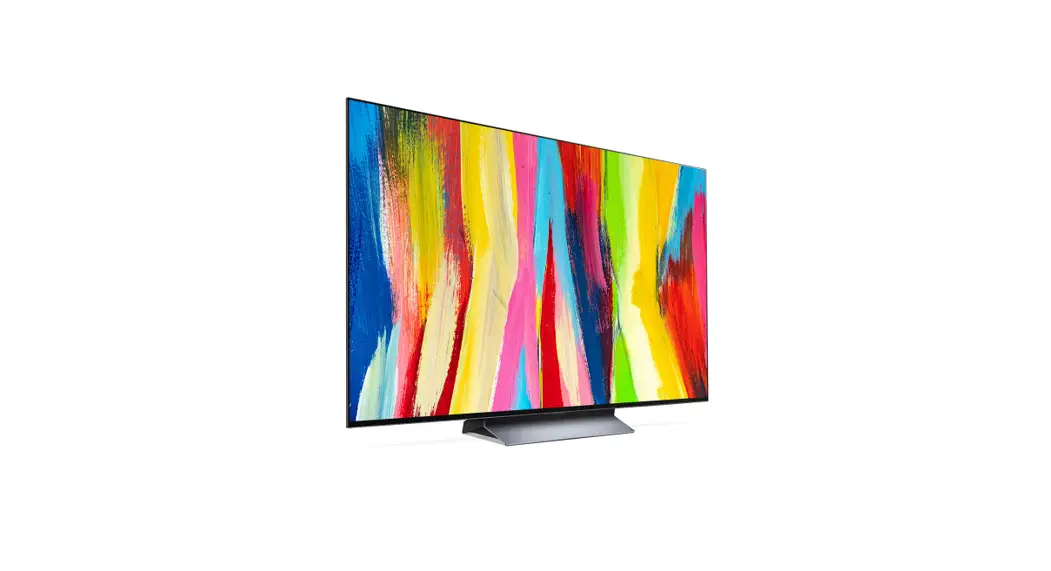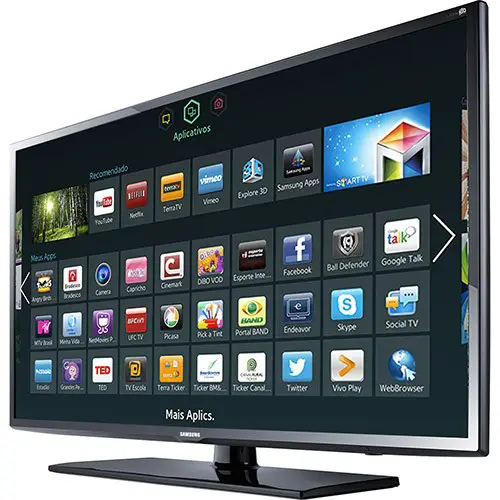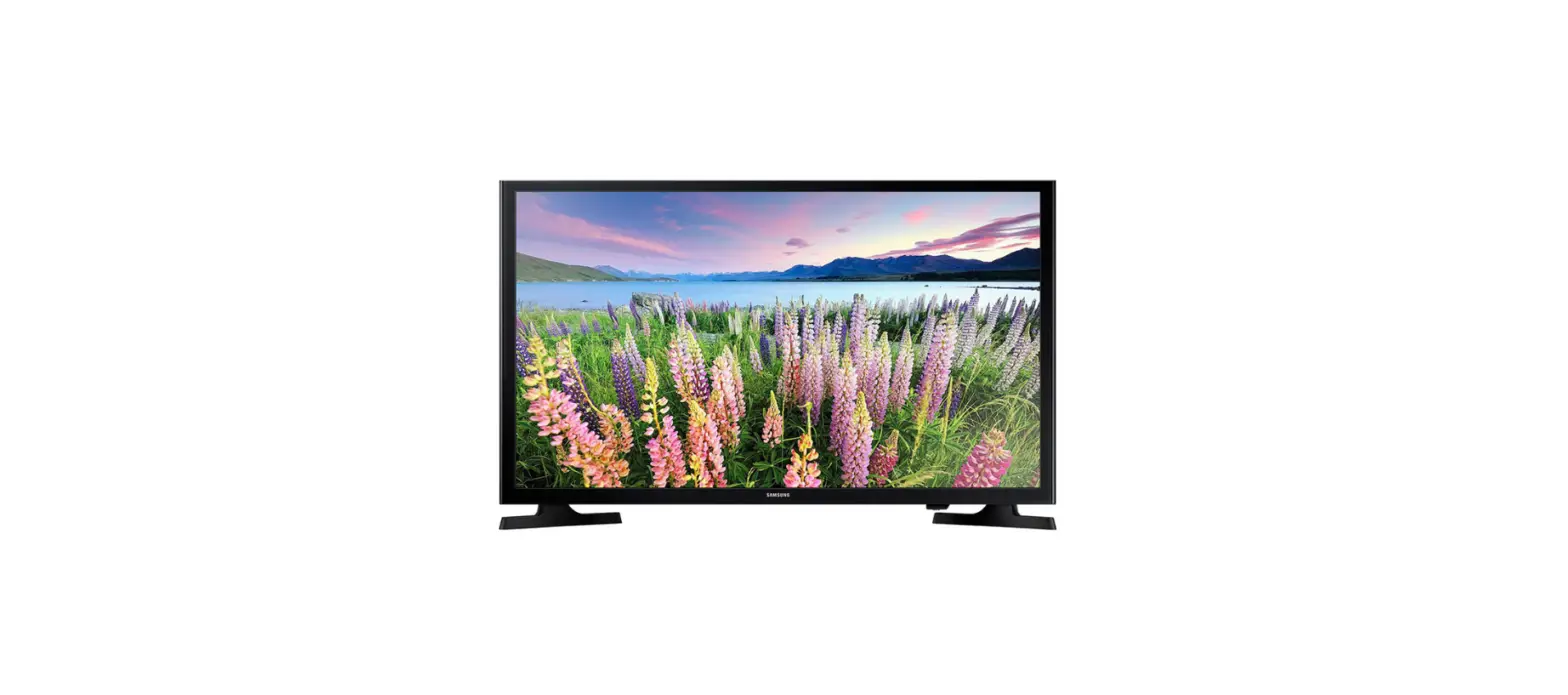

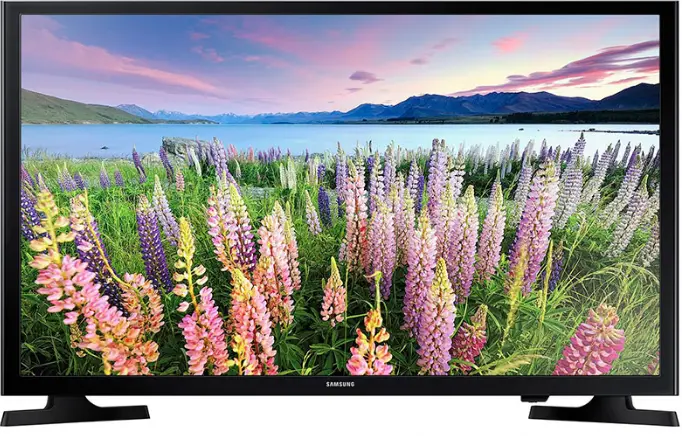
Samsung UN48J5000 48-Inch 1080p LED TV
INTRODUCTION
Important Warranty Information Regarding Television Format Viewing
Wide screen format LED Displays with aspect ratios of 16:9 (the ratio of thescreen width to screen height) are primarily designed to display wide screen format full-motion video. The images displayed on them should primarily be in the wide screen 16:9 ratio format, or expanded to fill the screen if your model offers this feature and the images are constantly moving. Displaying stationary graphics and images on screen, such as the dark sidebars on non- expanded standard format television video and programming, should be limited to no more than 5% of the total television viewing per week. Additionally, viewing other stationary images and text such as stock market crawls, video game displays, station logos, web sites or computer graphics and patterns, should be limited as described above for all televisions. Displaying stationary images that exceed the above guidelines can cause uneven aging of LED Displays that leave subtle, but permanent burned-in ghost images in the LED picture. To avoid this, vary the programming and images, and primarily display full screen moving images, not stationary patterns or dark bars. On LED models that offer picture sizing features, use these controls to view different formats as a full-screen picture. Be careful in the selection and duration of television formats you use for viewing. Uneven LED aging as a result of format selection and use, as well as burned-in images, are not covered by your Samsung limited warranty.
SAMSUNG ELECTRONICS NORTH AMERICAN LIMITED WARRANTY STATEMENT
Subject to the requirements, conditions, exclusions and limitations of the original Limited Warranty supplied with Samsung Electronics (SAMSUNG) products, and the requirements, conditions, exclusions and limitations contained herein, SAMSUNG will additionally provide Warranty Repair Service in the United States on SAMSUNG products purchased in Canada, and in Canada on SAMSUNG products purchased in the United States, for the warranty period originally specified, and to the Original Purchaser only. The above described warranty repairs must be performed by a SAMSUNG Authorized Service Center. Along with this Statement and the Original Limited Warranty Statement, a dated Bill of Sale as Proof of Purchase must be presented to the Service Center. Transportation to and from the Service Center is the responsibility of the purchaser. Conditions covered are limited only to manufacturing defects in material or workmanship, and only those encountered in normal use of the product. Exclusions include, but are not limited to, any originally specified provisions for in-home or on-site services, minimum or maximum repair times, exchanges or replacements, accessories, options, upgrades, or consumables. For the location of a SAMSUNG Authorized Service Center, please call toll-free: –
- In the United States : 1-800-SAMSUNG (1-800-726-7864)
- – In Canada : 1-800-SAMSUNG
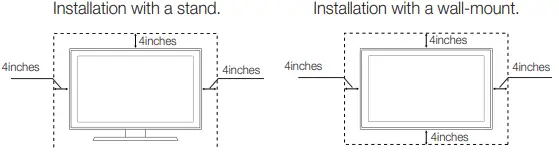
Securing the Installation Space
- Keep the required distances between the product and other objects (e.g. walls) to ensure proper ventilation.
- Failing to do so may result in fire or a problem with the product due to an increase in the internal temperature of the product.
- When using a stand or wall-mount, use parts provided by Samsung Electronics only.
- If you use parts provided by another manufacturer, it may result in a problem with the product or an injury due to the product falling.
- The appearance may differ depending on the product.
- Be careful when you contact the TV because some parts can be somewhat hot.

| Country | CANADA | U.S.A |
|
Address | Samsung Electronics Canada Inc. 2050 Derry Road West, Mississauga, Ontario L5N 0B9 Canada |
Samsung Electronics America, Inc. 85 Challenger Road Ridgefield Park, NJ 07660 |
| Customer Care Center( |
1-800-SAMSUNG (726-7864) |
1-800-SAMSUNG (726-7864) |
|
Web Site | www.samsung.com/ca/ support (English)
www.samsung.com/ca_fr/ support (French) |
www.samsung.com/us/ support |
Important Safety Instructions
- The slots and openings in the cabinet and in the back or bottom are provided for necessary ventilation. To ensure reliable operation of this apparatus, and to protect it from overheating, these slots and openings must never be blocked or covered.
- Do not cover the slots and openings with a cloth or other materials.
- Do not block the slots and openings by placing this apparatus on a bed, sofa, rug or other similar surface.
- Do not place this apparatus in a confined space, such as a bookcase or built-in cabinet, unless proper ventilation is provided.
- Do not place this apparatus near or over a radiator or heat register, or where it is exposed to direct sunlight.
- Do not place a vessel containing water (vases etc.) on this apparatus, as this can result in a risk of fire or electric shock.
- Do not expose this apparatus to rain or place it near water (near a bathtub, washbowl, kitchen sink, or laundry tub, in a wet basement, or near a swimming pool etc.). If this apparatus accidentally gets wet, unplug it and contact an authorized dealer immediately.
- Make sure to pull out the power cord from the outlet before cleaning.
- This apparatus use batteries. In your community, there might be regulations that require you to dispose of these batteries properly to protect the environment. Please contact your local authorities for disposal or recycling information.
- Do not overload wall outlets, extension cords, or adaptors beyond their capacity, since this can result in fire or electric shock.
- Power-supply cords should be routed so that they are not likely to be walked on or pinched by items placed upon or against them. Pay particular attention to cords at the plug end, where connected to adaptors, and at the point where they exit from the apparatus.
- To protect this apparatus from a lightning storm, or when it is left unattended and unused for long periods of time, unplug it from the wall outlet and disconnect the antenna or cable system. This will prevent damage to the set due to lightning and power line surges.
- Before connecting the AC power cord to the DC adaptor outlet, make sure the voltage designation of the DC adaptor corresponds to the local electrical supply. (depending on the model)
- Never insert anything metallic into the open parts of this apparatus. Doing so may create a danger of electric shock.
- To avoid electric shock, never touch the inside of this apparatus. Only a qualified technician should open this apparatus.
- Make sure to plug the power cord in until it is firmly inserted. Pull on the plug, not the cord, when removing the power cord from the outlet. Do not touch the power cord with wet hands.
- If this apparatus does not operate normally – in particular, if there are any unusual sounds or smells coming from it – unplug it immediately and contact an authorized dealer or service center.
- Be sure to pull the power plug out of the outlet if the TV is to remain unused or if you are to leave the house for an extended period of time (especially when children, elderly or disabled people will be left alone in the house).
- Accumulated dust can cause an electric shock, an electric leakage, or a fire by causing the power cord to generate sparks and heat, or cause the insulation to deteriorate.
- Be sure to contact an authorized service center, when installing your set in a location with heavy dust, high or low temperatures, high humidity, chemical substances or where it will operate for 24 hours a day such as in an airport, a train station, etc. Failure to do so may cause serious damage to your set.
- Use only a properly grounded plug and receptacle.
- An improper ground may cause electric shock or equipment damage. (Class l Equipment only.)
- To turn off the apparatus completely, you must pull the power plug out of the wall socket. Consequently, the power plug should be readily accessible at all times.
- Do not allow children to hang onto the product.
- Store the accessories (batteries, etc.) in a location safely out of the reach of children.
- Do not install the product in an unstable location such as a shaky self, a slanted floor, or a location exposed to vibration.
- Do not drop or impart a shock to the product. If the product is damaged, disconnect the power cord and contact a service center.
- To clean the product, unplug the power cord from the power outlet and wipe the product using a soft cloth dipped in a small amount of water.
- Do not use any chemicals such as wax, benzene, alcohol, thinners, insecticide, air freshener, lubricant or detergent. This may damage the appearance or erase the printing on the product.
- Do not expose the apparatus to dripping or splashing.
- Do not dispose of batteries in a fire.
- Do not short circuit, disassemble, or overheat the batteries.
- There is a danger of explosion if you replace the batteries with the wrong type of battery. Replace only with the same or equivalent type.
Getting Started
Accessories
- Remote Control & Batteries (AAA x 2)
- Warranty Card / Regulatory Guide
- Owner’s Instructions
- Power Cord
- Cable Guide
Input Cables (Sold Separately)
- Audio
- Composite (AV)
- Component
- Coaxial (RF)
- HDMI
- HDMI-DVI
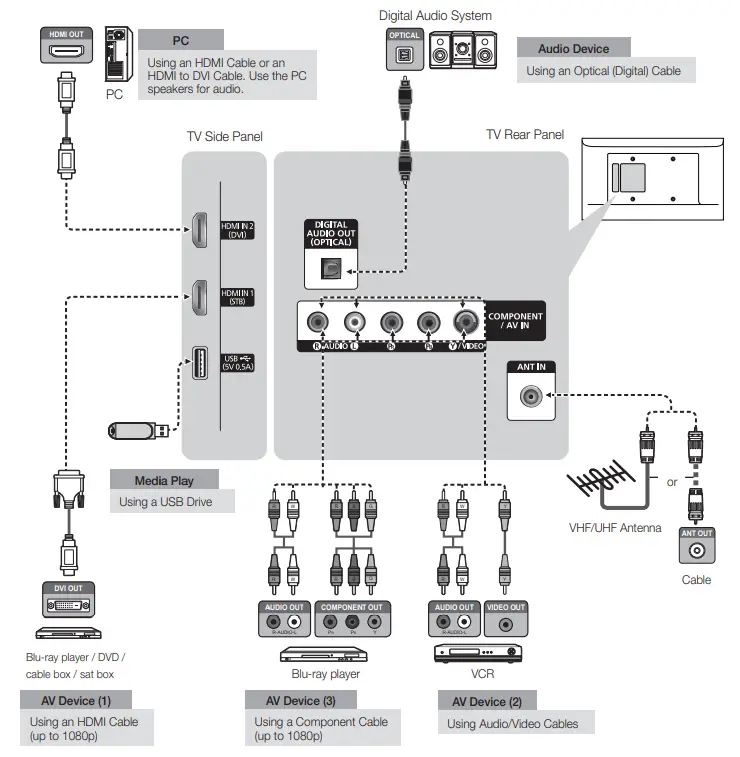
Make sure you have the correct cable before plugging it in. Illustrations of common plugs and jacks are shown below.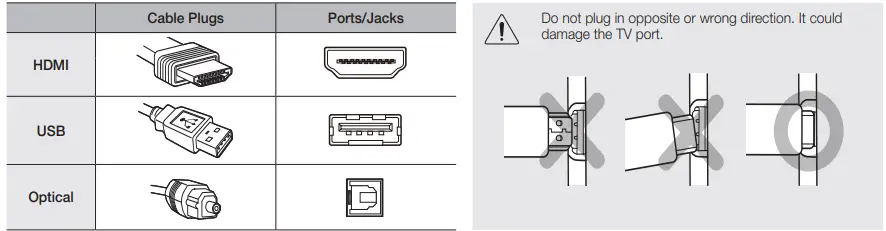
TV Controller
The TV’s Controller on the bottom right side of the TV, lets you control the TV without the remote control.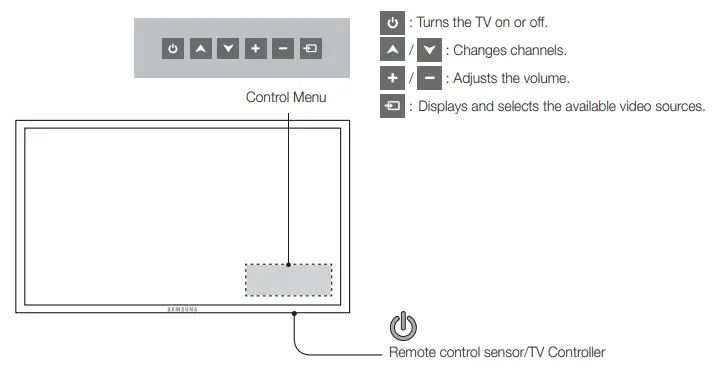
Connections
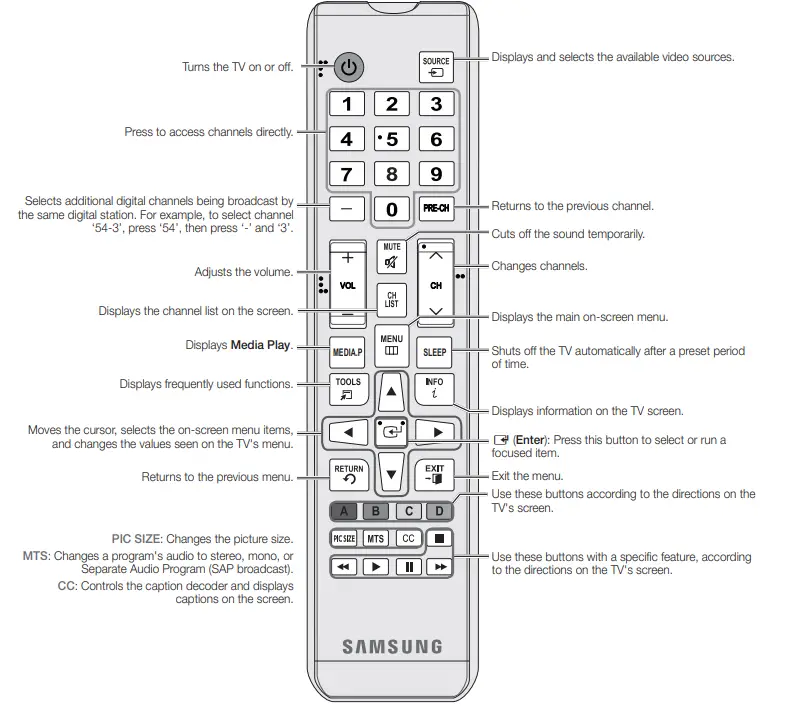
Remote Control
Display Modes (HDMI/DVI Input)
|
Mode |
Resolution | Horizontal Frequency
(KHz) | Vertical Frequency
(Hz) | Pixel Clock Frequency
(MHz) | Sync Polarity (H / V) |
1920 x 1080 |
|
IBM | 640 x 350 | 31.469 | 70.086 | 25.175 | +/- | c |
| 720 x 400 | 31.469 | 70.087 | 28.322 | -/+ | c | |
|
MAC | 640 x 480 | 35.000 | 66.667 | 30.240 | -/- | c |
| 832 x 624 | 49.726 | 74.551 | 57.284 | -/- | c | |
| 1152 x 870 | 68.681 | 75.062 | 100.000 | -/- | c | |
|
VESA DMT | 640 x 480 | 31.469 | 59.940 | 25.175 | -/- | c |
| 640 x 480 | 37.861 | 72.809 | 31.500 | -/- | c | |
| 640 x 480 | 37.500 | 75.000 | 31.500 | -/- | c | |
| 800 x 600 | 37.879 | 60.317 | 40.000 | +/+ | c | |
| 800 x 600 | 48.077 | 72.188 | 50.000 | +/+ | c | |
| 800 x 600 | 46.875 | 75.000 | 49.500 | +/+ | c | |
| 1024 x 768 | 48.363 | 60.004 | 65.000 | -/- | c | |
| 1024 x 768 | 56.476 | 70.069 | 75.000 | -/- | c | |
| 1024 x 768 | 60.023 | 75.029 | 78.750 | +/+ | c | |
| 1152 x 864 | 67.500 | 75.000 | 108.000 | +/+ | c | |
| 1280 x 720 | 45.000 | 60.000 | 74.250 | +/+ | c | |
| 1280 x 800 | 49.702 | 59.810 | 83.500 | -/+ | c | |
| 1280 x 1024 | 63.981 | 60.020 | 108.000 | +/+ | c | |
| 1280 x 1024 | 79.976 | 75.025 | 135.000 | +/+ | c | |
| 1366 x 768 | 47.712 | 59.790 | 85.500 | +/+ | c | |
| 1440 x 900 | 55.935 | 59.887 | 106.500 | -/+ | c | |
| 1600 x 900RB | 60.000 | 60.000 | 108.000 | +/+ | c | |
| 1680 x 1050 | 65.290 | 59.954 | 146.250 | -/+ | c | |
| 1920 x 1080 | 67.500 | 60.000 | 148.500 | +/+ | c |
Installing batteries (Battery size: AAA)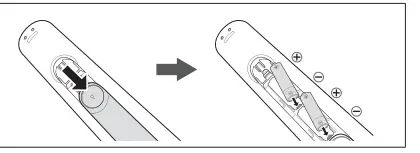
Program Rating Lock
The Program Rating Lock feature automatically locks out programs that are deemed inappropriate for children. The user must enter a PIN (personal identification number) before any of the Program Rating Lock restrictions are set up or changed.
- Program Rating Lock is not available in HDMI or Component mode.
- The default PIN number of a new TV set is “0-0-0-0”.
- Program Rating Lock: You can block rated TV Programs.
- TV Parental Guidelines: You can block TV programs depending on their rating. This function allows you to control what your children are watching.
- MPAA Rating: You can block movies depending on their MPAA rating. The Motion Picture Association of America (MPAA) has implemented a rating system that provides parents or guardians with advanced information on which films are appropriate for children.
- Canadian English: You can block TV programs depending on their Anglophone Canadian.
- Canadian French: You can block TV programs depending on their French Canadian rating.
- Downloadable U.S. Rating: Parental restriction information can be used while watching DTV channels.
- Change PIN: The Change PIN screen will appear. Choose any 4 digits for your PIN and enter it in Enter New PIN. Re-enter the same 4 digits in Confirm New PIN. When the Change PIN screen disappears, press the OK button. The TV has memorized your new PIN.
- If you forget the PIN, press the remote-control buttons in the following sequence, which resets the pin to “0-0-0-0” : POWER (off) → MUTE → 8 → 2 → 4 → POWER (on)
Self Diagnosis
- Picture Test: Use to check for picture problems. If the problem continues to occur, check the color pattern.
- Sound Test: Use the built-in melody sound to check for sound problems.
- Signal Strength: (digital channels only) An HD channel’s reception quality is either perfect or the channels are unavailable. Adjust your antenna to increase signal strength.
- Reset: Reset all settings to the factory defaults.
- The PIN input screen appears before the setup screen.
- Enter your 4-digit PIN. Change the PIN using the Change PIN option.
Software Upgrade
Software Upgrade can be performed by downloading the latest firmware from samsung.com to a USB memory device.
Use Mode
You can turn the TV into a display model for retail environments by setting Use Mode to Store Demo.
HD Connection Guide
Refer to this information when connecting external devices to the TV.
Contact Samsung
View this information when your TV does not work properly or when you want to upgrade the software. You can find information regarding our call centers and how to download products and software.
Media Play
Enjoy photos, music and/or movie files saved on a USB Mass Storage Class (MSC) device.
Videos
- Press the ◄/► buttons to select Videos, then press the ENTERE button in the Media Play menu.
Press the ◄/►/▲/▼ buttons to select the desired video in the file list. - Press the ENTERE button or (Play) button.
- The selected file is displayed on the top with its playing time.
- If video time information is unknown, playing time and the progress bar are not displayed.
- During video playback, you can search using the ◄/► buttons.
- In this mode, you can play movie clips contained in a game, but you cannot play the game itself.
- Supported Subtitle Formats
External
| Name | File extension |
| MPEG-4 timed text | .ttxt |
| SAMI | .smi |
| SubRip | .srt |
| SubViewer | .sub |
| Micro DVD | .sub or .txt |
| SubStation Alpha | .ssa |
| Advanced SubStation Alpha | .ass |
Internal
| Name | Container | Format |
| Xsub | AVI | Picture Format |
| SubStation Alpha | MKV | Text Format |
| Advanced SubStation Alpha | MKV | Text Format |
| SubRip | MKV | Text Format |
| MPEG-4 Timed text | MP4 | Text Format |
Supported Video Formats
| File Extension |
Container |
Video Codec |
Resolution | Frame rate(fps) | Bit rate (Mbps) | Audio Codec |
|
*.avi *.mkv |
AVI MKV ASF MP4 3GP MOV FLV VRO VOB PS TS | Motion JPEG | 640×480 | 8 |
AC3 LPCM ADPCM (IMA, MS) AAC HE-AAC WMA DD+ MPEG(MP3) DTS (Core , LBR) G.711(A- Law, μ-Law) | |
| H.264 BP/ MP/HP | ||||||
| *.asf
*.wmv | ||||||
| H. 264 BP / MP / HP | ||||||
| *.mp4
*.mov *.3gp *.vro *.mpg *.mpeg *.ts *.tp |
1920×1080 |
MAX 30 |
30 | |||
| Divx 3.11 / 4
/ 5 / 6 | ||||||
| MPEG4 SP/ ASP | ||||||
| Window Media Video v9(VC1) | ||||||
| *.trp | ||||||
| *.mov | MPEG2 | |||||
| *.flv | ||||||
| *.vob | ||||||
| *.svi |
MPEG1 | |||||
| *.divx | ||||||
| *.webm | WebM | VP8 | 1920×1080 | 6~30 | 20 | Vorbis |
Supported Photo Formats
| Image | Photo | Resolution |
|
JPEG | Base-line | 15360 x 8704 |
| Progressive | 1024 x 768 |
Media Play – Additional Functions
| Category | Operation | Videos | Music | Photos |
| Title | You can move the other file directly. | c | ||
| Repeat Mode | You can play movie and music files repeatedly. | c | c | |
| Picture Size | You can adjust the picture size to your preference. | c | ||
| Picture Mode | You can adjust the picture setting. | c | c | |
| Sound Mode | You can adjust the sound setting. | c | c | c |
|
Subtitle Settings | You can play the video with Subtitles. This function only works if the subtitles are the same file name as the video. |
c | ||
| Audio Format | You can select the digital audio output format. | c | ||
|
Audio Language | You can change the audio language if the video has more than one language. |
c | ||
| Stop Slide Show /
Start Slide Show |
You can start or stop a Slide Show. |
c | ||
| Slide Show Speed | You can select the slide show speed during the slide show. | c | ||
| Background Music | You can set and select background music when watching a Slide Show. |
c | ||
| Zoom | You can zoom into images in full screen mode. | c | ||
| Rotate | You can rotate images in full screen mode. | c | ||
| Information | You can see detailed information about the played file. | c | c | c |
Other Information
Installing the Wall Mount Kit
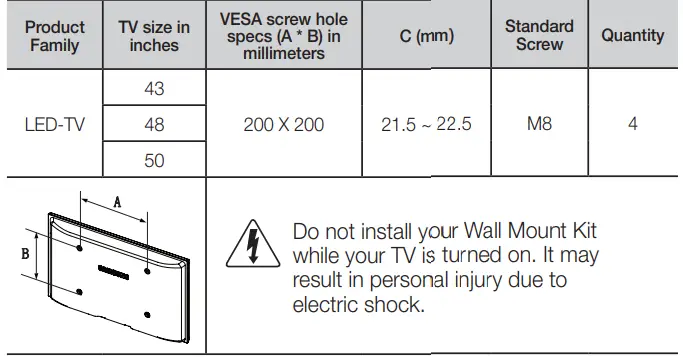
For detailed information on installing the wall mount, see the instructions provided with the wall mount items. Contact a technician for assistance when installing the wall mount bracket. Samsung Electronics is not responsible for any damage to the product or injury to yourself or others if you elect to install the wall mount on your own.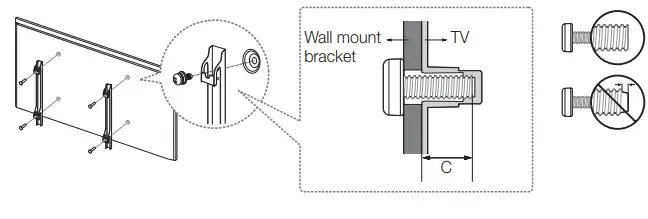
Arranging the cables with the cable guide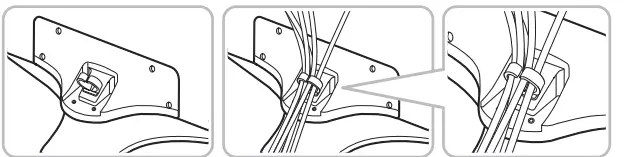
Troubleshooting
| Problem | Possible Solution |
| Flickering and Dimming | If your Samsung Television is flickering or dimming sporadically, you may need to disable some of its energy efficient features like the Energy Saving feature. If you follow below step with your remote, you can turn these features off or on.
Energy Saving : MENU → Setup → Eco Solution → Energy Saving → Select Settings |
| Component Connections / Screen Color | If you find that the color on your Samsung television’s screen is not correct or black and White, first run a Self Diagnosis on the TV to make sure there are no device issues.
Self Diagnosis : MENU → Support → Self Diagnosis → Picture Test If the test is ok, try making sure: Your connections are all consistent. For example, if you’ve used the AV In jack on your TV, make sure you have used the AV Out jack on your video source. Try making sure you have connected to the correct jacks. For example, if you use the Component jacks, labeled Pb, Pr, and Y, to connect your TV and video source, make sure you have connected the blue Pb jack on the video source to the blue Pb jack on the TV, the red Pr jack on the source to the red Pr jack on the TV. |
| Screen Brightness | If you find that the colors on your Samsung TV are correct but just a little too dark or bright, there are some settings you should check before calling for a repair.
Backlight, Contrast, Brightness, Sharpness, Color, Tint (G/R) and so on. Go in to “Picture” on user Menu then try adjusting options mentioned above. |
| Unwanted Powering off | If your Samsung TV appears to turn off by itself, there may be an issue with either your Timer settings or your Eco friendly No Signal Power Off feature.
First make sure you Sleep Timer is not accidentally set. The sleep timer allows you the comfort of falling asleep with the TV still on but, turns it off after a certain period of time so as not to waste energy. Sleep Timer : MENU → Setup → Time → Sleep Timer If the Sleep Timer is not activated, you may have engaged the No Signal Power Off or Auto Power Off feature. No Signal Power Off : MENU → Setup → Eco Solution → No Signal Power Off Auto Power Off : MENU → Setup → Eco Solution → Auto Power Off |
| Trouble Powering On | Before Turn on check red light on the right or left bottom of your TV. Press power on button on TV or remote and it will blink about 5 times before turning on.
If you find that you are having trouble powering on your Samsung television, there are a number of things to check before making a call to the service department. If you happen to be using the TV as a monitor and the stand-by light only blinks for a few seconds when you press the power button, your PC is in sleep mode. To take your PC out of sleep mode, press a key on your keyboard or move the mouse. Then try turning your TV on. If you’re sure your power cord, remote control, and PC are functioning properly, you may be having a cable issue. If you have a cable or satellite box, your TV may appear to be off because the cable or satellite box is not outputting a signal. To test the signal output of your cable or satellite box, press the guide or info button on the cable or satellite box remote control. If the screen displays the guide or info data, the problem is caused by the box. |
| Stand Assembly | If you have any trouble to assemble the stand though you refer to “Install the Stand” mentioned at separate guide. |
| Cannot find channel | Re-run plug and play. |
| Poor picture | First, perform the Picture Test and to see if your TV is properly displaying the test image. Go to MENU – Support – Self Diagnosis – Picture Test
If the test image is properly displayed, the poor picture may be caused by the source or signal. |
| The TV image does not look as good as it did in the store. | If you have an analog cable/satellite box, upgrade to a digital set top box. Use HDMI or Component cables to deliver HD (high definition) picture quality.
Cable/Satellite subscribers: Try HD channels from the channel line up. Air/Cable Antenna connection: Try HD channels after performing Auto program. ✎ Many HD channels are up scaled from SD(Standard Definition) contents. Adjust the Cable/Set top box video output resolution to 1080i or 720p. |
| The picture is distorted: macroblock error, small block, dots, pixelization. | Compression of video contents may cause picture distortion, especially on fast moving pictures such as sports and action movies.
A weak signal can cause picture distortion. This is not a TV problem. Mobile phones used close to the TV (within 3.3ft) may cause noise in the picture on analog and digital channels. |
| Color is wrong or missing. | If you’re using a component connection, make sure the component cables are connected to the correct jacks. Incorrect or loose connections may cause color problems or a blank screen. |
| There is poor color or brightness. | Adjust the Picture options in the TV menu. (Go to Picture Mode / Color / Brightness / Sharpness)
Adjust the Energy Saving option in the TV menu. (Go to MENU – Setup – Eco Solution – Energy Saving) Try resetting the picture to view the default picture setting. (Go to MENU – Picture – Picture Reset) |
| There is a dotted line on the edge of the screen. | If the picture size is set to Screen Fit, change it to 16:9.
Change the cable/satellite box resolution. |
| The picture is black and white. | If you are using an AV composite input, connect the video cable (yellow) to the Green jack of component input 1 on the TV. |
| When changing channels, the picture freezes or is distorted or delayed. | If connected to a cable box, please try to reset it. (Reconnect the AC cord and wait until the cable box reboots. It may take up to 20 minutes)
Set the output resolution of the cable box to 1080i or 720p. |
| Sound Problem | First of all, please perform the Sound Test to confirm that your TV audio is properly operating. (Go to MENU – Support – Self Diagnosis – Sound Test)
If the audio is OK, the sound problem may caused by the source or signal. |
| There is no sound or the sound is too low at maximum volume. | Please check the volume of the device (Cable/Sat Box, DVD, Blu-ray, etc.) connected to your TV. |
| The picture is good but there is no sound. | If you are using an external device, check the device’s audio output option (ex. you may need to change your cable box’s audio option to HDMI when you have a HDMI connected to your TV).
Reboot the connected device by reconnecting the device’s power cable. |
| The speakers are making an inappropriate noise. | Check the cable connections. Make sure a video cable is not connected to an audio input.
For Antenna or Cable connections, check the signal information. A weak signal may cause sound distortion. Perform the Sound Test as explained above. |
| No Picture, No Video | |
| The TV will not turn on. | Make sure the AC power cord is securely plugged into the wall outlet and the TV.
Make sure the wall outlet is working. Try pressing the POWER button on the TV to make sure the problem is not the remote. If the TV turns on, refer to ‘Remote control does not work’ below. |
| The TV turns off automatically. | Ensure the Sleep Timer is set to Off in the Time menu.
If your PC is connected to the TV, check your PC power settings. Make sure the AC power cord is plugged in securely to the wall outlet and the TV. When you are watching TV connected to an antenna or cable connection, the TV will turn off after 10 – 15 minutes if there is no signal. |
| There is no picture/video. | Check the cable connections. (Remove and reconnect all cables connected to the TV and external devices).
Set your external device’s (Cable/Sat Box, DVD, Blu-ray etc) video outputs to match the connections to the TV input. For example, if an external device’s output is HDMI, it should be connected to an HDMI input on the TV. Make sure your connected devices are powered on. Be sure to select the TV’s correct source by pressing the SOURCE button on the remote control. Reboot the connected device by reconnecting the device’s power cable. |
| RF(Cable/Antenna) Connection | |
| The TV is not receiving all channels. | Make sure the coaxial cable is connected securely.
Please try Auto Program to add available channels to the channel list. go to MENU – Channel – Auto Program then select Auto and make sure the correct Cable TV signal type is set in the menu. There are 3 options. (STD, HRC and IRC) Verify the antenna is positioned correctly. |
| No Caption on digital channels. | Check the Caption Setup menu. Try changing Caption Mode Service1 to CC1.
Some channels may not have caption data. |
| The picture is distorted: macroblock, error, small block, dots, pixelization. | Compression of video contents may cause picture distortion. Especially on fast moving pictures such as sports and action movies.
A weak signal can cause picture distortion. This is not a TV problem. |
| Others | |
| Purple/green rolling horizontal bars and buzzing noise from the TV speakers with Component cable connection. | Remove the left and right audio connections from the set-top-box. If the buzzing stops, this indicates that the set-top-box has a grounding issue. Replace the Component video cables with an HDMI connection. |
| The picture will not display in full screen. | HD channels will have black bars on either side of the screen when displaying up scaled SD (4:3) contents.
Black bars on the Top & Bottom will be shown on movies that have aspect ratios different from your TV. Adjust the picture size option on your external device or change the TV to full screen. |
| The remote control does not work. | Replace the remote control batteries with correct polarity (+/–).
Clean the transmission window located on the top of the remote control. Try pointing the remote directly at the TV from 5~6 feet away. |
| The cable/set top box remote control does not turn the TV on or off, or adjust the volume. | Program the Cable/Set top box remote control to operate the TV. Refer to the Cable/Set top box user manual for the SAMSUNG TV code. |
| A “Mode Not Supported” message appears. | Check the supported resolution of the TV and adjust the external device’s output resolution accordingly. Refer to resolution settings in this manual. |
| Caption on the TV menu is greyed out. | You cannot select Caption in the TV menu when watching content from a device connected via HDMI or Component.
Caption must be activated on the external device. |
| There is a plastic smell from the TV. | This smell is normal and will dissipate over time. |
| TV Signal Strength is unavailable in the Self Diagnosis Test menu. | This function is only available for digital channels from an Antenna / RF / Coax connection. |
| TV is tilted to the right or left side. | Remove the stand base from the TV and reassemble it. |
| The Channel menu is greyed out (unavailable). | The Channel menu is only available when you select the TV source. |
| Your settings are lost after 30 minutes or every time the TV is turned off. | If TV is in the Store Demo mode, it will reset audio and picture settings every 30 minutes. Please change from Store Demo mode to Home Use mode using the Plug & Play procedure. Press the SOURCE button to select TV mode, go to MENU → Setup → Plug & Play → ENTERE. |
| You have intermittent loss of audio or video. | Check the cable connections and reconnect them.
Loss of audio or video can be caused by using overly rigid or thick cables. Make sure the cables are flexible enough for long term use. If mounting the TV to the wall, we recommend using cables with 90 degree connectors. |
| You see small particles when you look closely at the edge of the frame of the TV. | This is part of the product’s design and is not a defect. |
| POP (TV’s internal banner ad) appears on the screen. | Select Home Use under Plug & Play mode. For details, refer to Plug & Play (Initial Setup). |
Storage and Maintenance
- If you attached some stickers on the TV screen, it remains some debris after removing the sticker. Please clean it to watch TV.
- The exterior and screen of the product can get scratched during cleaning. Be sure to wipe the exterior and screen carefully using a soft cloth to prevent scratches
License
Specifications
| Environmental Considerations Operating Temperature Operating Humidity
Storage Temperature Storage Humidity |
50°F to 104°F (10°C to 40°C) 10% to 80%, non-condensing -4°F to 113°F (-20°C to 45°C ) 5% to 95%, non-condensing | ||
| Model Name | UN43J5000 | UN48J5000 | UN50J5000 |
| Display Resolution | 1920 x 1080 | ||
| Screen Size
(Diagonal) | 43″ Class
(42.5″ measured diagonally) | 48″ Class
(47.6″ measured diagonally) | 50″ Class
(49.5″ measured diagonally) |
| Sound
Output | 20 W
(10 W x 2) | ||
| Dimensions (W x H x D) Body
With stand |
38.8 x 22.6 x 2.8 inches (985.5 x 574.9 x 72.0 mm) 38.8 x 24.8 x 11.3 inches (985.5 x 631.7 x 288.0 mm) |
43.2 x 25.1 x 2.9 inches (1098.7 x 638.7 x 73.9 mm) 43.2 x 27.4 x 12.2 inches (1098.7 x 696.6 x 310.5 mm) |
44.9 x 26.0 x 2.8 inches (1140.8 x 662.3 x 72.7 mm) 44.9 x 28.3 x 12.2 inches (1140.8 x 719.8 x 310.5 mm) |
| Weight Without Stand
With Stand |
16.5 lbs (7.5 kg) 18.7 lbs (8.5 kg) |
20.9 lbs (9.5 kg) 23.1 lbs (10.5 kg) |
23.1 lbs (10.5 kg) 25.3 lbs (11.5 kg) |
JACK PANEL DETAIL / REAR VIEW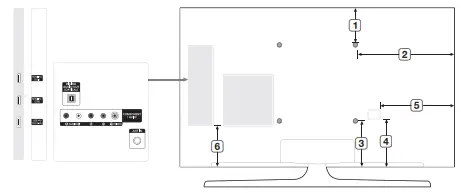
| Model name | 1 | 2 | 3 | 4 | 5 |
| UN43J5000 | 7.1 | 15.4 | 7.5 | 7.4 | 7.9 |
| UN48J5000 | 8.3 | 17.6 | 8.4 | 6.2 | 6.9 |
| UN50J5000 | 8.8 | 18.5 | 8.9 | 6.4 | 6.9 |
FAQS
This model has an optical output port – but not a headphone jack.
The legs/stands are curved and the way they are attached they do not extend past the edge of the TV, the total depth of the legs/stands is 6 inches. This TV would fit on most TV stands.
The mounting screws will accompany the mounting kit, rather than the TV. Since different mounts have different parts and thickness options, it’s best to order the screws directly from the manufacturer.
Models sold in the U.S. region support only the U.S. standard of 110-120v/60Hz. We recommend purchasing your product in the region it will be used to ensure compatibility with the power and broadcast standards of that region.
Only digital optical. No analog or stereo or headphone jack. It will require you to either use a sound device that supports digital optical directly, or you will need to buy a digital optical cable and converter
Yes it has an audio output mini jack
Try turning down the volume while still set in TV speaker mode. Then switch to external.
Only digital optical. No analog or stereo or headphone jack. It will require you to either use a sound device that supports
Try turning down the volume while still set in TV speaker mode. Then switch to external.
Models sold in the U.S. region support only the U.S. standard of 110-120v/60Hz. We recommend purchasing your product in the region it will be used to ensure compatibility with the power and broadcast standards of that region.
Yes it has an audio output mini jack
Try turning down the volume while still set in TV speaker mode. Then switch to external.
Try turning down the volume while still set in TV speaker mode. Then switch to external.
I have comcast cable. The cable company provides a remote which is used with the cable box. Each tv company has a listing of settings to program the remote. If you have cable, ask the company for a set up guide.
It is not a 4K tv, but because of the size of the TV, 1080p still looks excellent