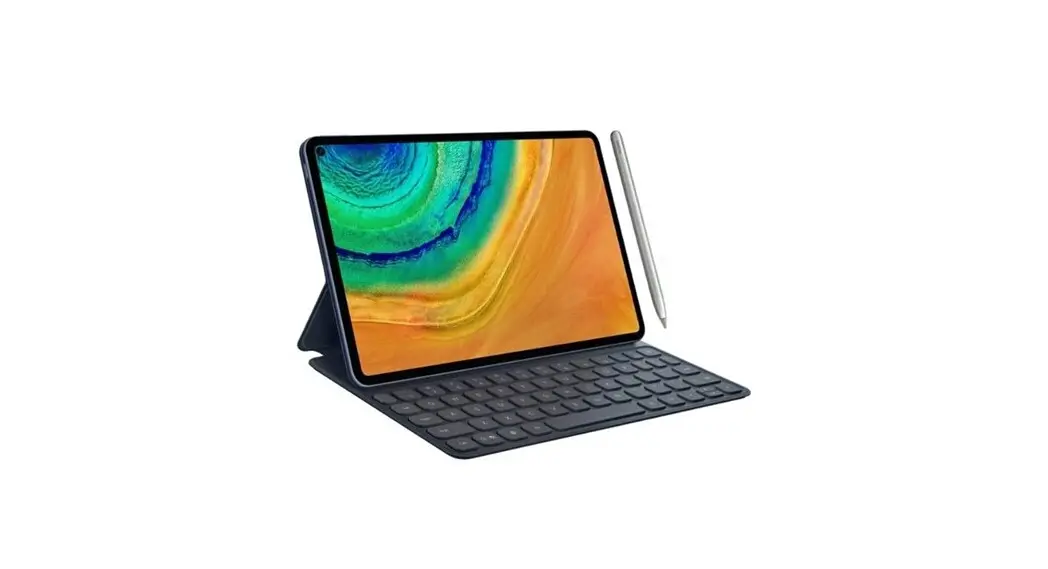
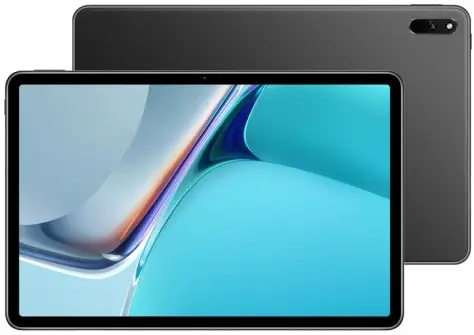
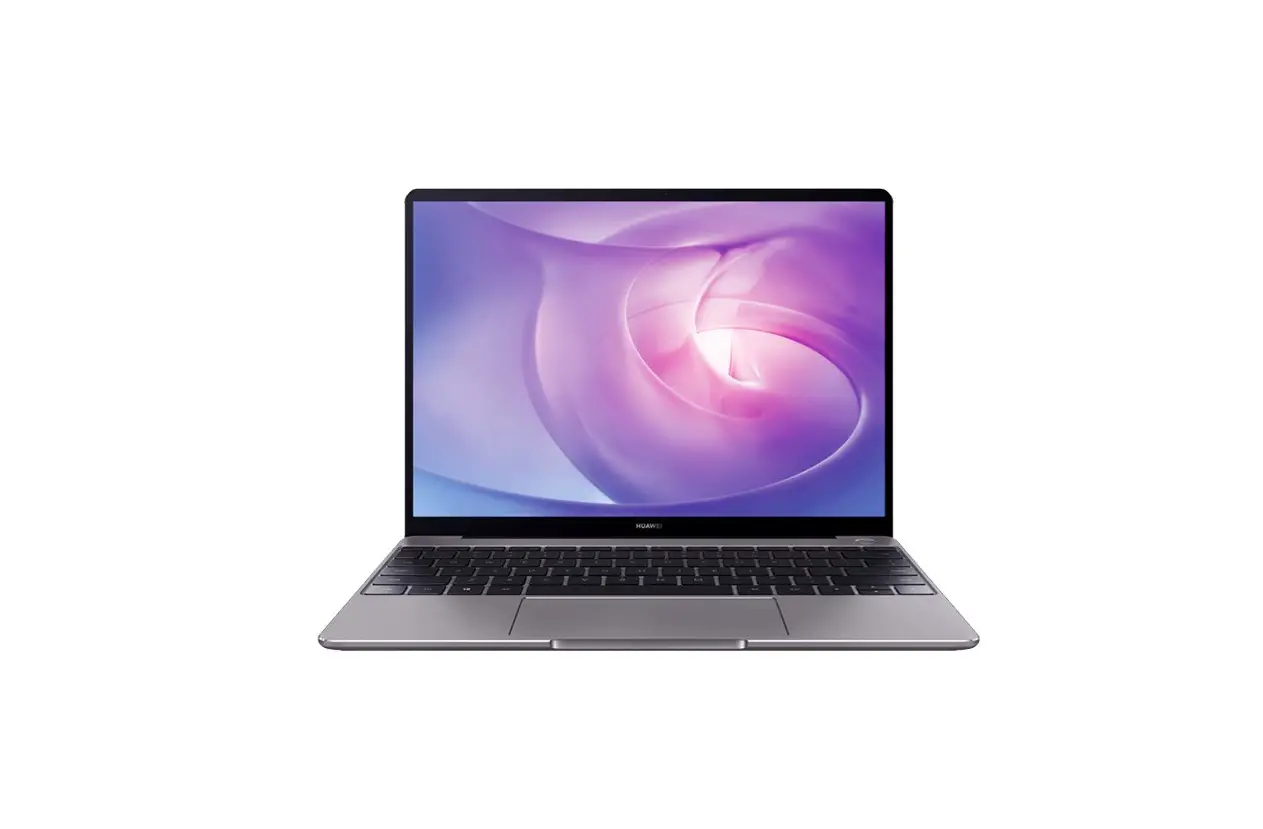
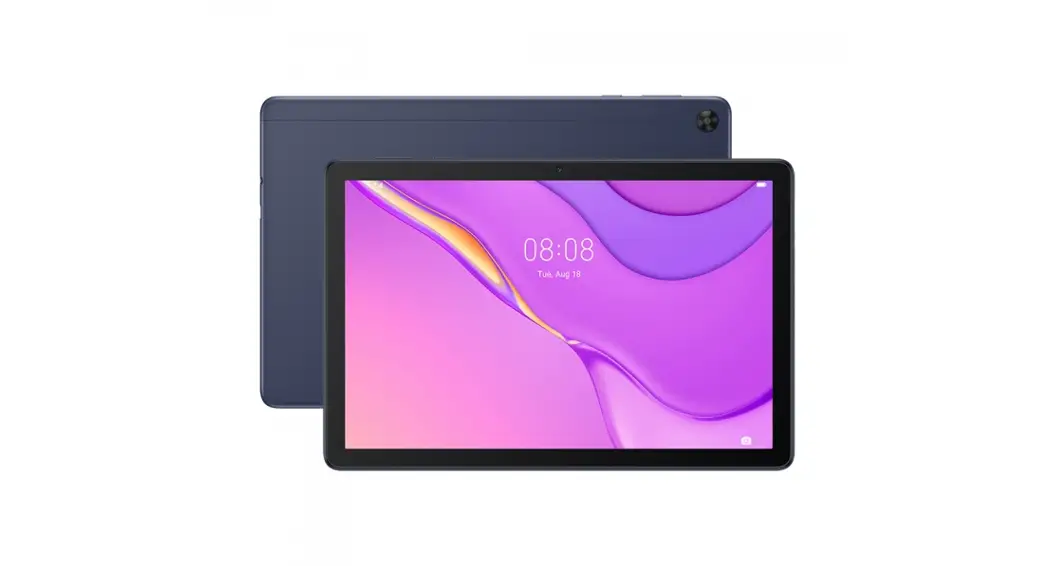
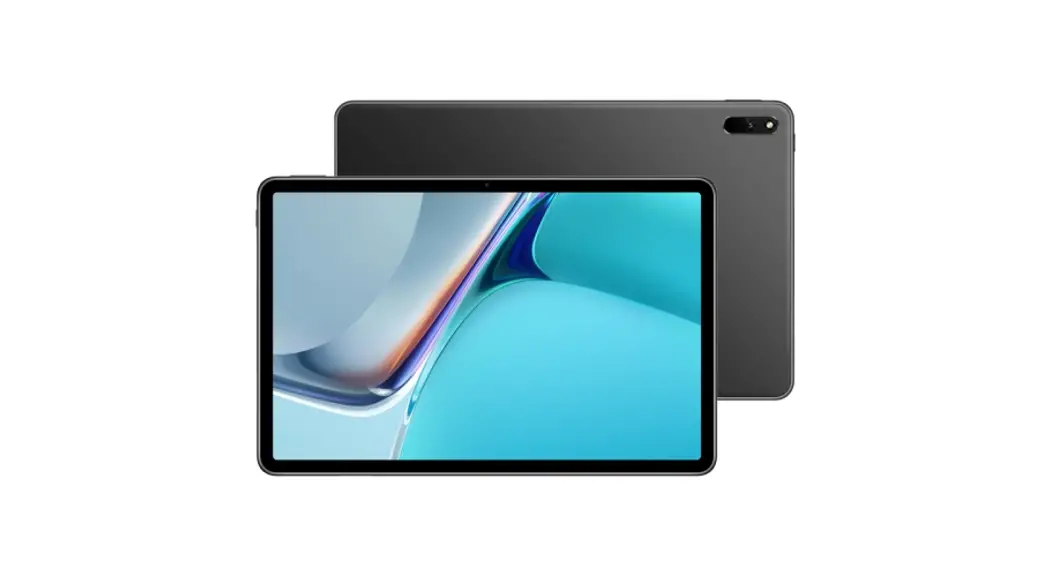
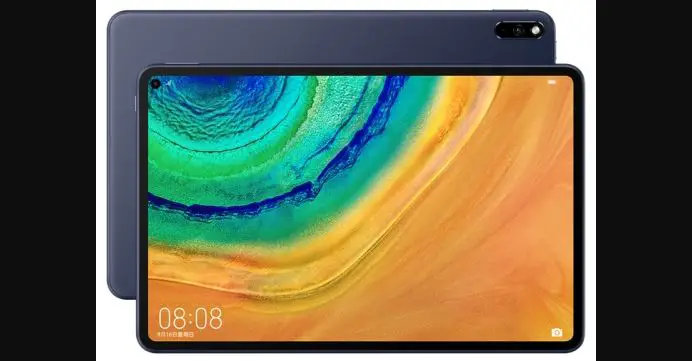
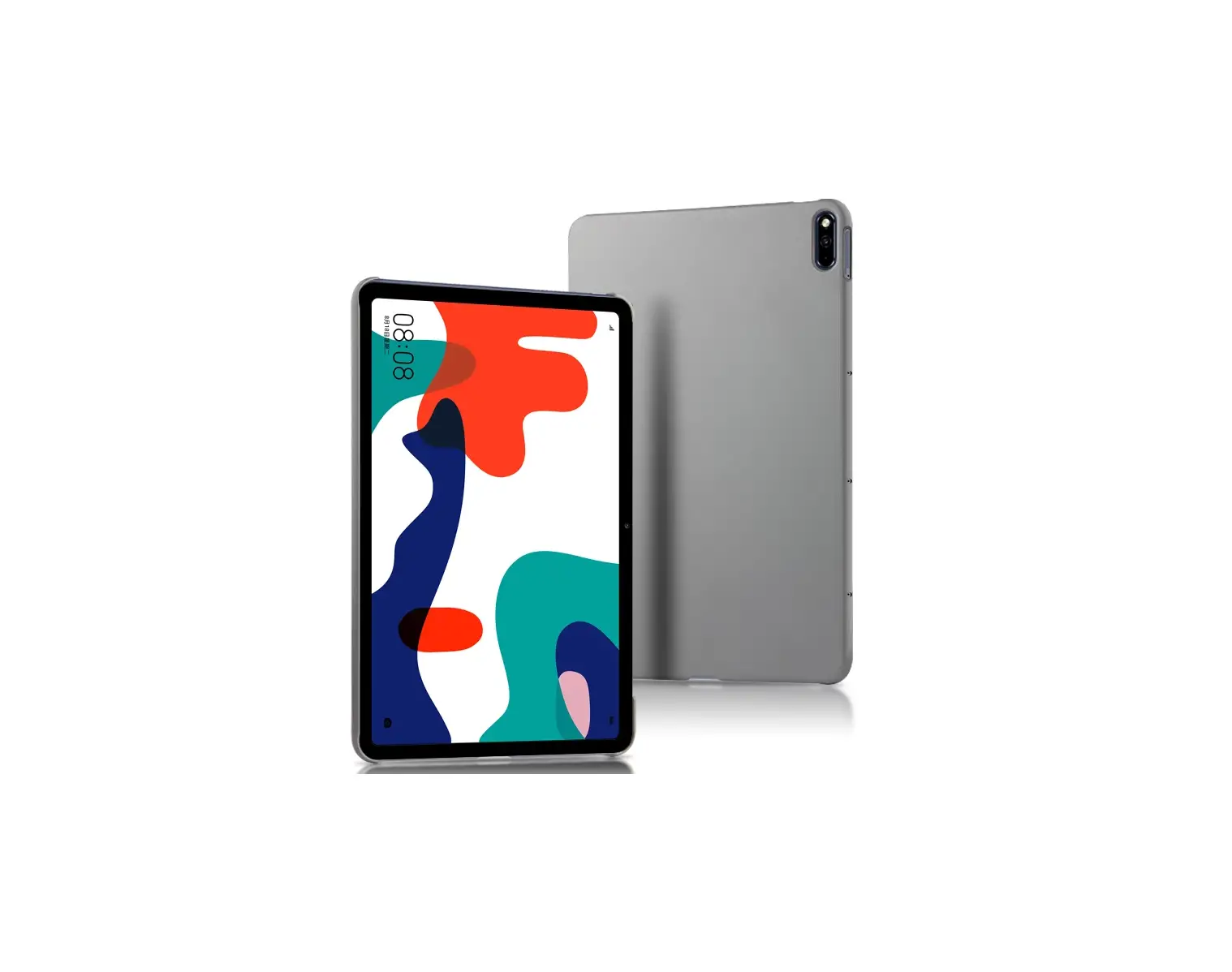
MatePad Paper
Product Information:
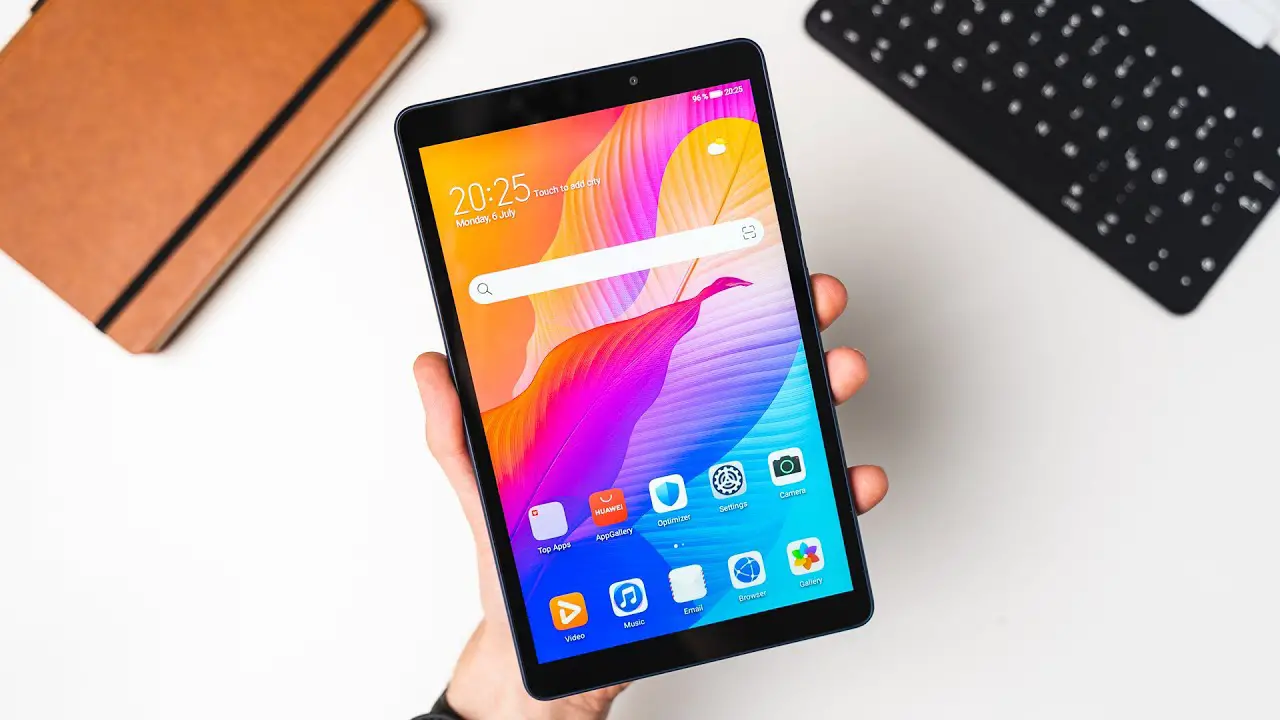
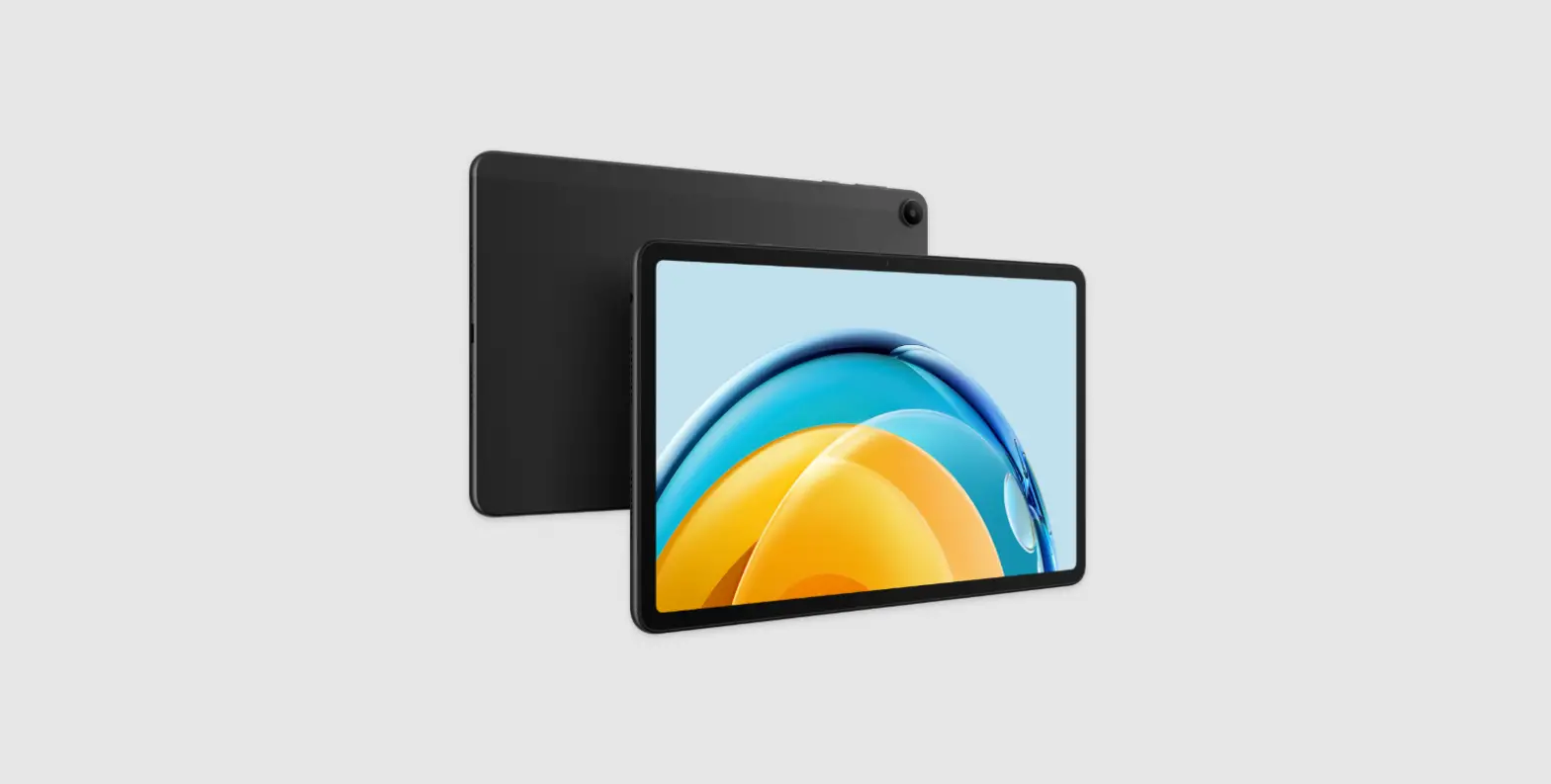
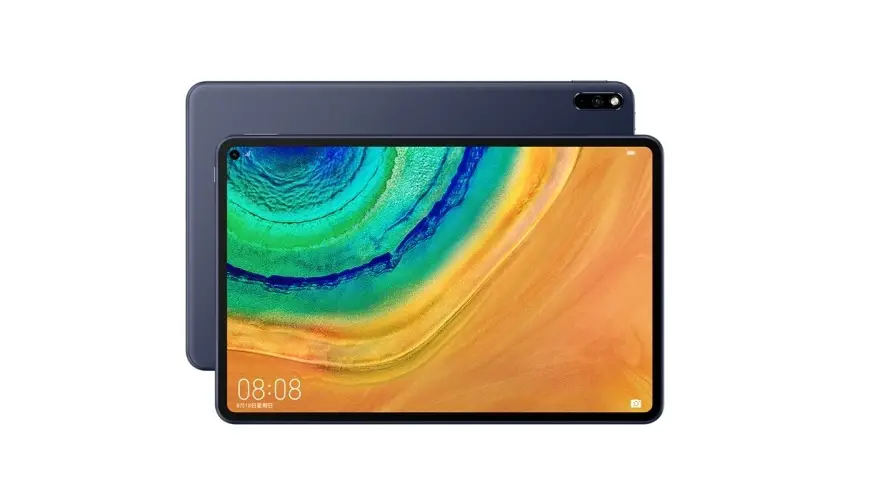
The product is a tablet device manufactured by Huawei. It offers
various features and functionalities to enhance user experience.
Some of the key features include:
- Gesture Navigation: Users can navigate on the tablet using hand
gestures. - Huawei Share: Users can transfer files between their Huawei
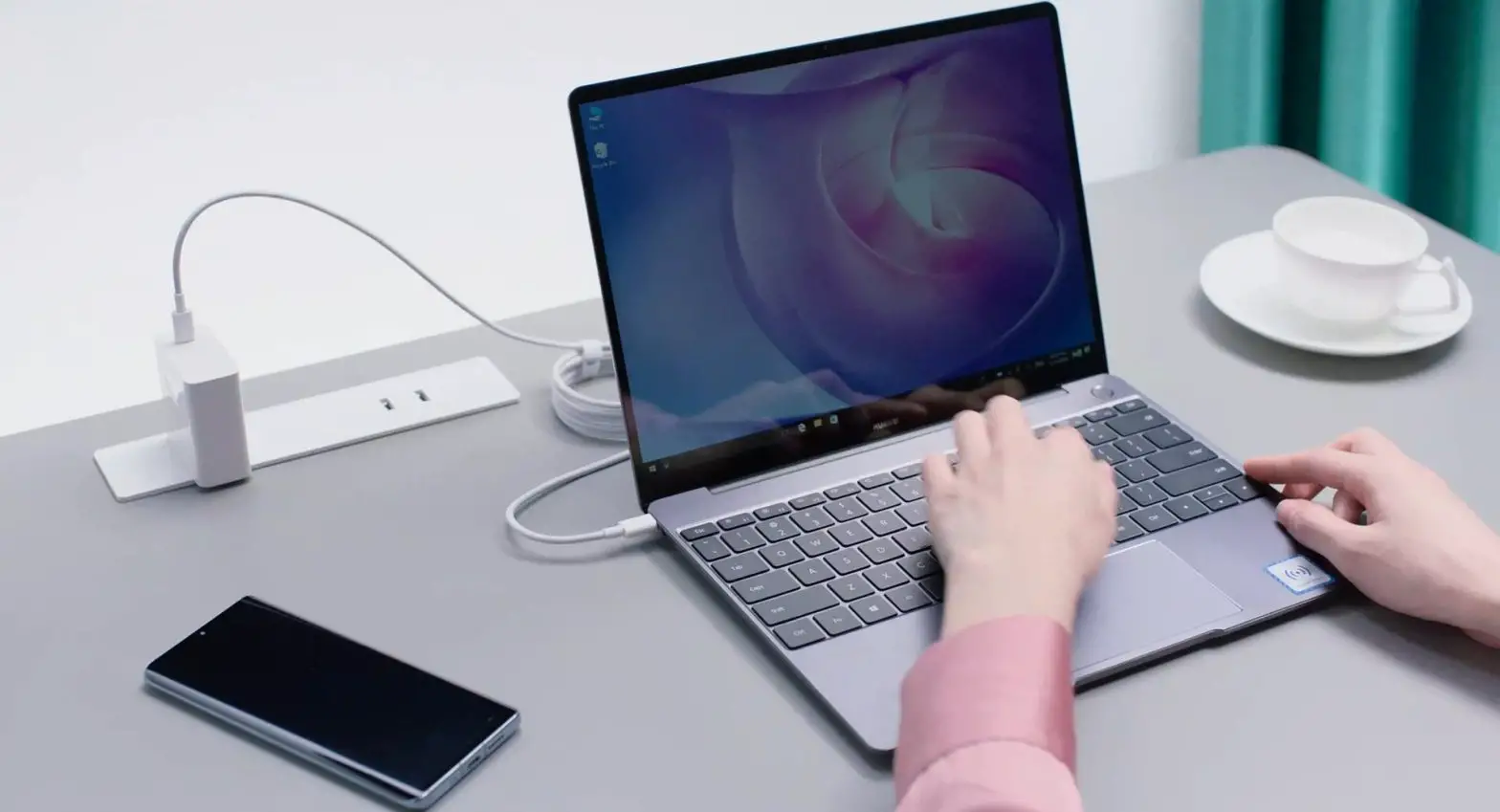
phone, tablet, and laptop without using mobile data or data
cables. - Lock Screen Customization: Users can personalize their lock
screen by adding images and signatures. - Scribble to Text Conversion: Users can write on the tablet
using a stylus and convert their handwriting into legible
text. - Note Taking and Organization: Users can take and categorize
notes in a notebook. - Wireless Projection: Users can project their tablet screen onto
a large display without the need for cables. - Handwriting Annotations: Users can write annotations while
reading on the tablet. - Instant Text Translations: Users can get direct onscreen
translations by selecting words or text.
Product Usage Instructions:
- Wave your hand to navigate on the tablet.
- Enable Huawei Share on both the sending and receiving
devices. - On a phone or tablet, touch and hold to select the file you
wish to share, then touch Share and select the receiving
device. - On a laptop, drag the file you wish to share onto the receiving
device name listed on the Huawei Share screen. - On the receiving device, touch ACCEPT.
Lock Screen Customization:
- Touch in the lower left corner of the screen and go to Home
screen & wallpaper > Wallpaper to select a wallpaper. - While setting the wallpaper, touch Set signature in the top
right corner and use your stylus to sign your signature or scribble
in the signature zone. Touch to save your edits. - Touch Set as lock screen.
Scribble to Text Conversion:
- Go to > Accessibility features > Stylus > FreeScript
and make sure that FreeScript is enabled. - Alternatively, touch your HUAWEI ID profile picture and go to
My stylus to enable this feature. - Touch a search or text box and start writing. Your handwriting
will be automatically converted into text. Note that some text
boxes may not support this feature.
Note Taking and Organization:
- Save a note by going to > Move. Once saved, you can
categorize it in your notebook.
Wireless Projection:
- Turn on the large display and ensure its wireless projection
feature is enabled. - Swipe down from the upper right edge of the tablet to display
Control Panel, enable Wireless Projection, and follow the onscreen
instructions to complete the connection. - To exit wireless projection, swipe down from the upper left
edge to display Notification Panel and touch Disconnect.
Handwriting Annotations:
- While reading, swipe left or right, tap near either edge of the
screen, or press the Volume up or down buttons to turn the
page. - Use the stylus to write annotations anywhere on the
screen. - Touch and hold down to select a passage of text.
- Touch Thought to write a note or touch Underline to underline
the selected text. - Tap the center of the screen to display a floating toolbar
where you can insert bookmarks and annotations, and view bookmarked
pages or previous notes.
Instant Text Translations:
- Select the words or text you want to translate.
- Get a direct onscreen translation instantly.
.BUF1BE 1BQFS
User Guide
Contents
Direct Your Device with a Wave of the Hand Transfer Files in an Instant, with Huawei Share Sign Off on Your Lock Screen Turn Your Scribbles into Legible Text Take and Share Notes with Newfound Ease Put Your Work on Full Display, with Wireless Projection Take Notes to Make Your Mark Instant Text Translations Transfer Books Between Devices A Split Screen to Take Note of Turn Your Tablet into a Secondary Laptop Display Add Markers to Recordings A Whole New Home Screen Design Light Mode and Refresh Mode Mark Up Your Screen Cross-Device File Management A Navigation Dock for All Your Needs
i
Direct Your Device with a Wave of the Hand
Navigate on your tablet with a few simple hand gestures. Try it out
Notification Panel: Swipe down from the upper left edge of the screen to view and manage app notifications. Control Panel: Swipe down from the upper right edge of the screen to display control panel, to quickly enable or disable frequently-used features. Gestures: Go to > System & updates > System navigation and select Gestures. You’ll then be able to use the following hand gestures: · Back: Swipe inward from the left or right edge. · Return to the home screen: Swipe up from the bottom of the screen. · Access recent tasks: Swipe up from the bottom of the screen and hold for a short while.
1
Transfer Files in an Instant, with Huawei Share
Send files between your Huawei phone, tablet, and laptop, without the hassle or expense of using mobile data or a data cable.
Try it out
1 Enable Huawei Share on both the sending and receiving devices.
· For Huawei phones and tablets: Swipe down from the upper right edge to display Control Panel, and enable Huawei Share in the shortcut switches panel.
· For Huawei laptops: Open Huawei PC Manager and enable Huawei Share.
2 When sharing from a phone or tablet, touch and hold to select the file you wish to share,
touch Share, and select the receiving device. When sharing from a laptop, drag the file you wish to share onto the receiving device name listed on the Huawei Share screen.
3 On the receiving device, touch ACCEPT.
2
Sign Off on Your Lock Screen
Put a personal stamp on your lock screen, by using an image as the wallpaper, and even adding your signature!
Try it out
1 Touch in the lower left corner of the screen, and go to Home screen & wallpaper >
Wallpaper to select a wallpaper.
2 When setting the wallpaper, you can touch Set signature in the top right corner, and then
use your stylus to sign your signature, or scribble away in the signature zone. When you’re finished, touch to save your edits.
3 Touch Set as lock screen.
3
Turn Your Scribbles into Legible Text
Handwrite content into handy text boxes to have it converted into tidy font talk about thinking outside-the-box! Before using this feature, pair your stylus with the tablet by attaching the notch area on your stylus to the right side of the tablet, and following the onscreen instructions to complete the connection.
Try it out
1 Go to > Accessibility features > Stylus > FreeScript and make sure that FreeScript is
enabled. You can also touch your HUAWEI ID profile picture, and go to My stylus to enable this feature.
2 Touch a search or text box, and begin writing in it. Your handwriting will be automatically
converted into typed text. You can also use your stylus to: · Select: By drawing a straight horizontal line through the desired text. · Delete: By drawing a wavy line through the word or words you wish to delete. · Add or delete spaces: By drawing a vertical line between text or in the spaces
between text. Note Some text boxes do not support this feature.
4
Take and Share Notes with Newfound Ease
Create eye-catching notes with the dazzling templates at your disposal then share your insights with others, or have them sent to your other devices.
Try it out Open Notes, touch , and select a template to start editing using your stylus. · Touch the lasso and circle the area of interest. Then feel free to hold down and drag
on the selected area to relocate it as needed. · Go to > Handwriting-to-text to convert your handwriting into typed text, and to have
it inserted into your notes. · Go to > Share to send your notes as images or PDF files to others or your other
devices. Note
Once you’ve saved a note, you can categorize it in your notebook, by going to > Move.
5
Put Your Work on Full Display, with Wireless Projection
Project your tablet screen to a large display in a heartbeat, and without having to run a cable between the two devices!
Try it out
1 Turn on the large display, and make sure that its wireless projection feature is enabled. 2 Swipe down from the upper right edge of the tablet to display Control Panel, enable
Wireless Projection, and follow the onscreen instructions to complete the connection. To exit wireless projection, swipe down from the upper left edge to display Notification Panel, and touch Disconnect.
6
Take Notes to Make Your Mark
Effortless handwriting annotations allow you to jot down whatever comes to mind, when you’re reading on your tablet.
Try it out While reading, swipe left or right, tap near either edge of the screen, or press the Volume up or down buttons, to turn the page. You can also use your stylus to write annotations wherever you like. Touch and hold down to select a passage of text. Then feel free to: Touch Thought to write a note, or touch Underline to underline the selected text. Tap the center of the screen to display a floating toolbar, where you can:
Touch to insert bookmarks, and annotations.
to view bookmarked pages or previous notes and
7
Instant Text Translations
See something in another language, and curious to learn what it says? Just select the words or text, and get a direct onscreen translation… just like that!
Try it out Translate individual words: Touch and hold down to select paragraphs, sentences, or words that you wish to translate. Then touch Translate. Translate the full text: Tap the center of the screen to display the floating toolbar. Then touch to translate all of the text onscreen.
Note The system will automatically detect the source language, but you can also manually select the source and target languages for translation. Only e-books from Bookstore can be translated. More languages will be supported in future versions.
8
Transfer Books Between Devices
Send e-books in the Books app from your phone to your tablet, to switch reading devices in the blink of an eye.
Try it out
1 Enable Wi-Fi and Bluetooth, and log in with the same HUAWEI ID on both your phone
and tablet.
2 While reading on your phone, swipe down from the upper right edge to display Control
Panel, and select your tablet in the Super Device or Device+ section to transfer the page there.
Note If Books is not installed on your phone, you can download the app via AppGallery. Make sure the app is up to date.
9
A Split Screen to Take Note of
Open an app and a note window side-by-side, to browse while doodling away, or take notes while reading there’s so much more you can do with the power of two!
Try it out · Enable split-screen mode: Swipe inward from the top right corner of the screen with your
stylus, to display the menu. Then touch Split-screen note. A note window will appear onscreen alongside the app you have already opened. · Exit split-screen mode: Swipe inward from the right edge of the screen with your finger. You can also use your stylus to open the menu once again, and touch Exit.
Note Touch your profile picture, go to My stylus > Double-tap, enable Double-tap and select Open shortcut menu. From there you can double-tap the virtual key on the stylus to display the split-screen menu.
10
Turn Your Tablet into a Secondary Laptop Display
Extend your laptop screen to the tablet, to open office apps and notes on both screens, and enjoy seamless, anytime multi-tasking.
Try it out
1 Enable Bluetooth and Wi-Fi on both the tablet and laptop.
2 On the tablet, go to
collaboration.
> Accessibility features > Experimental features and enable PC
3 On the laptop, open Huawei PC Manager, go to My devices > My tablet > Connect, and
select your tablet from the list of available devices. Then follow the onscreen instructions to complete the connection.
Note Before using this feature, make sure that your laptop is running Huawei PC Manager 12.0 or a later version.
11
Add Markers to Recordings
Add markers to voice memos and conference recordings to highlight important moments.
Try it out
1 On the note-taking screen, touch >
to begin recording.
2 Touch to add markers to your audio track, and
to stop recording.
Note Touch a marker to jump directly to that point in the recording, or touch and hold down on a marker to drag or delete it.
12
A Whole New Home Screen Design
Touch the icons in the navigation bar on the left, to switch between frequently-used features like Notes, Bookstore, and Apps. You’ll also find widgets in Home that take you directly to your favorite apps. · HUAWEI ID: Touch your profile picture in the top left corner to go to the Me screen. From
there, you can log in with your HUAWEI ID, and adjust your stylus, reading, and other settings. · Home: Displays frequently used apps in widget form, including calendar, notepad, and mail, for easy content browsing and editing.
Note To turn the page while reading, touch Previous or Next at the bottom of the screen, or slide up and down.
13
Light Mode and Refresh Mode
Set Refresh mode and Light mode based on the time of day and lighting environment, to enjoy the best possible display effects at all hours.
Try it out Swipe down from the upper right edge of the screen to display Control Panel. From there, you can set the following: · Refresh mode: Select Smart for an auto-adjusting display that balances display quality
with smoothness in real time, and select Normal to give priority to display quality. For the latter, frame freezing and screen flickering may occur in certain apps. Smart is recommended for daily use, since it’s designed to cover the most common conditions. If you notice that there are residual images onscreen, you can touch Refresh now to have them removed. · Light mode: Select Day, Night, and other options based on the ambient lighting conditions. You can also touch to manually adjust the screen brightness.
Note Setting Light mode as Off can help extend your device’s battery life.
14
Mark Up Your Screen
Scribble while you scroll, with Annotate, and turn a cherished book or article into a dogeared digital masterpiece!
Try it out
1 Use your stylus to swipe inward from the top right corner, to display the menu. Then
touch Annotate.
2 Scribble on any area of the screen. You can switch between brush effects and colors as
needed.
3 Once you’re finished, touch
edited files in Files.
to save your edits as an image or PDF. You’ll find the
Note Touch your profile picture, go to My stylus > Double-tap, and enable Double-tap and select Open shortcut menu. Double-tapping the virtual key on the stylus will display the menu.
15
Cross-Device File Management
Connect your tablet to your laptop to view and edit tablet files directly on the laptop screen, and turn your two favorite devices into a seamless efficiency machine! Try it out
1 During Multi-Screen Collaboration, double-click on This PC on your laptop, and open the
drive letter with the name of your tablet model to view its folders by category.
2 This feature makes it easy to attach tablet files to laptop emails, or save edited files
directly in tablet folders.
16
A Navigation Dock for All Your Needs
With the navigation dock, all of your most frequently-used shortcuts are just a touch away! Get exactly where left off in a favorite book or article, without having to flip through different settings screens, to read and browse with newfound ease!
Try it out Swipe down from the top right edge of the screen to display Control Panel, and enable Navigation Dock in the shortcut switch panel. From there, feel free to: · Expand the navigation dock: Tap on the navigation dock to expand it, and perform the
following: switch between screen refresh modes, return to home screen, return to the previous screen, and more. · Refresh the current screen: Double-tap on the navigation dock to immediately refresh the current screen and remove any residual images. · Move the navigation dock: Touch and hold down on the navigation dock and drag it to your desired location.
Note The navigation dock will be hidden along the edge of the screen when this feature is idle for more than five seconds. Just tap on the dock when you want to use it again.
17
This guide is for reference only. The actual product, including but not limited to the color, size, and screen layout, may vary. All statements, information, and recommendations in this guide do not constitute a warranty of any kind, express or implied.
Please visit https://consumer.huawei.com/en/support/hotline for recently updated hotline and email address in your country or region. Model: HMW-W09 HarmonyOS 2_01
 Hotline | HUAWEI Support Global