
PENTAIR Home SSPC Sump Pump Controller
Getting Started
OVERVIEW
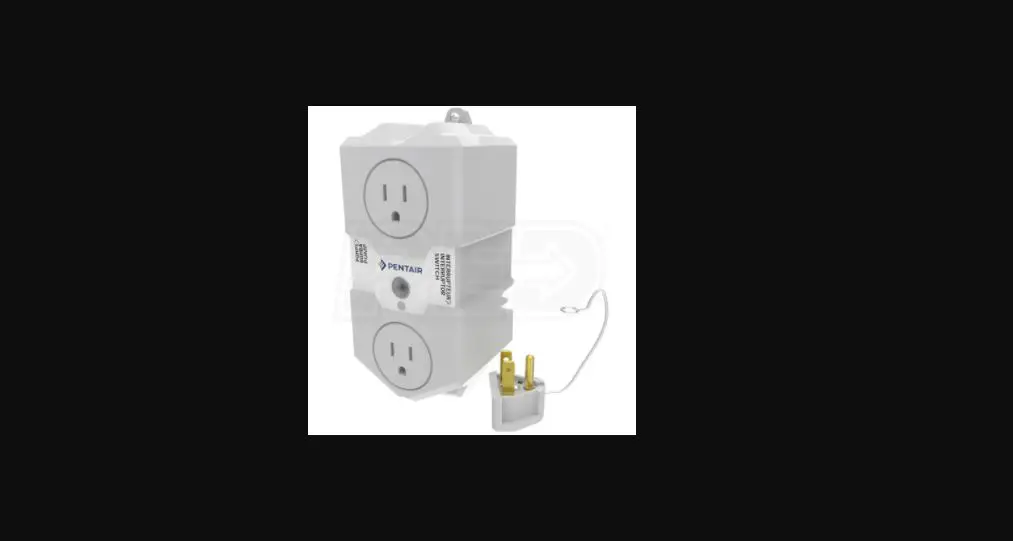
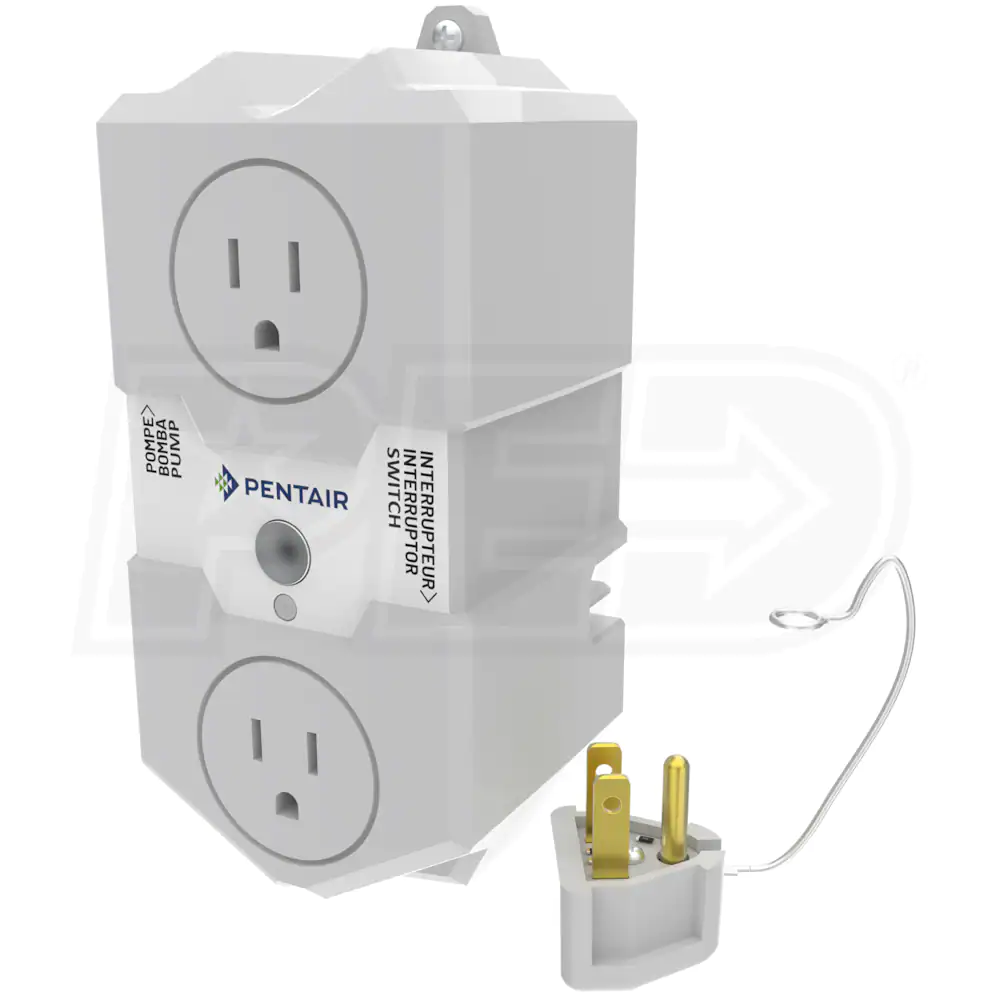
Pentair® Sump Controller is an easy-to-install, versatile sump pump controller that activates your pump when waters rise. The universal outlet allows the controller to be used with most existing sump pumps.
The Sump Controller is WiFi enabled and designed to sync with Pentair Home App, providing homeowners the ability to remotely control pump settings, monitor critical pump data, receive pump alerts such as high water alarms, and receive maintenance reports to dispatch service calls in a timely manner.
The App is simple to use by navigating these icons available at app’s dashboard.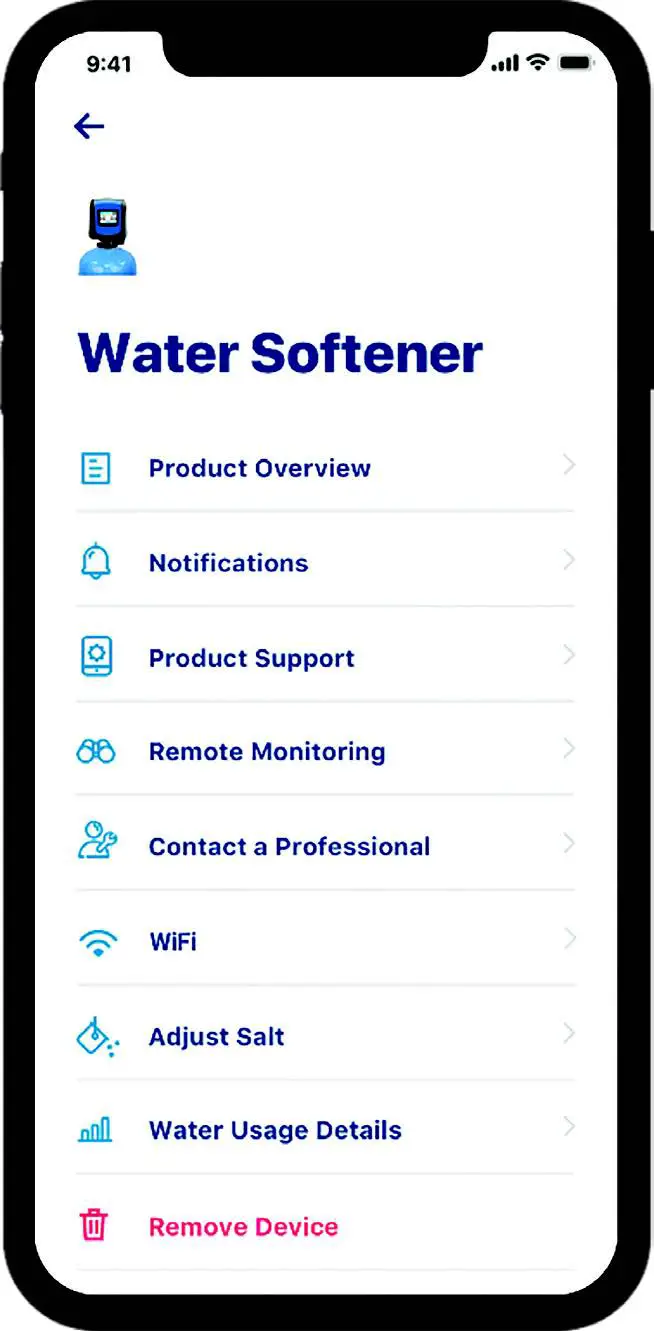
Pentair Dashboard
Schedule (future feature)
My Devices Sump Controller Dashboard
Account
See the following pages for quick start instructions.
The following items are included in the package:
- Sump Controller
- Pseudo plug
- Reed Float switch
- Wall mount and screw
MOBILE APP REGISTRATION
Download the Pentair Home App to your mobile device from the App Store® or Google Play™ Store. Open the App.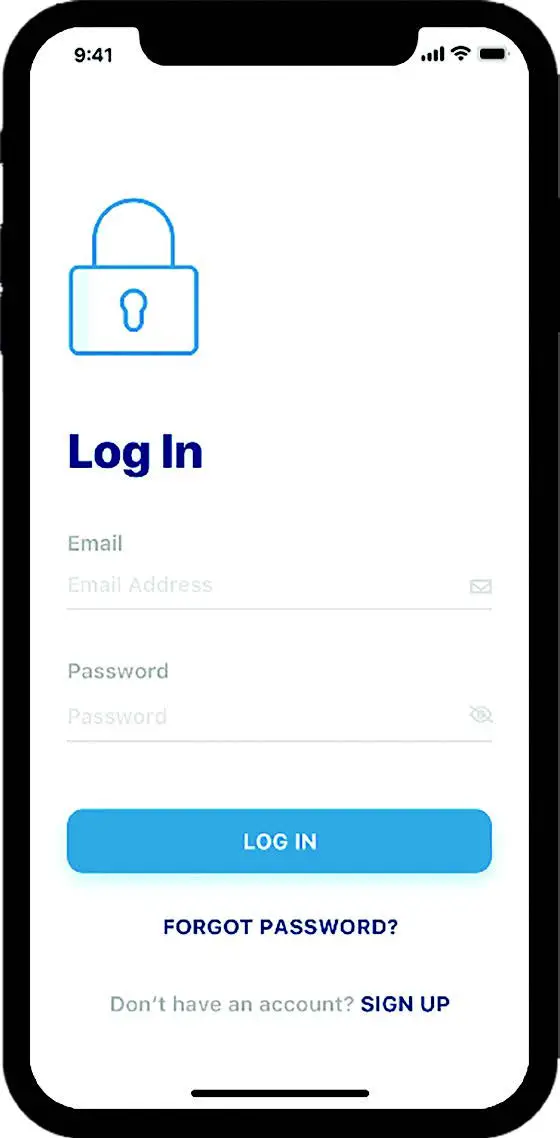
EXISTING USERS: LOGIN to your account.
NEW USERS: Scroll down in the App and click SIGN UP.
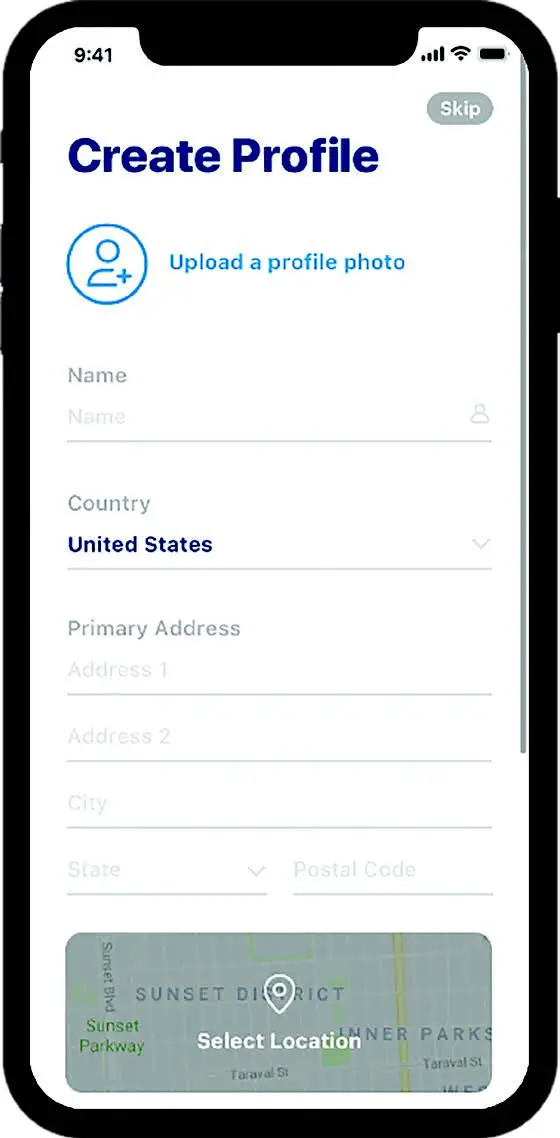
- Enter a valid EMAIL and PASSWORD.
- Select TERMS OF SERVICE.
- Click CREATE AN ACCOUNT.
- Complete instructions in the VERIFICATION EMAIL.
- LOGIN to your account.
INSTALL THE SUMP CONTROLLER

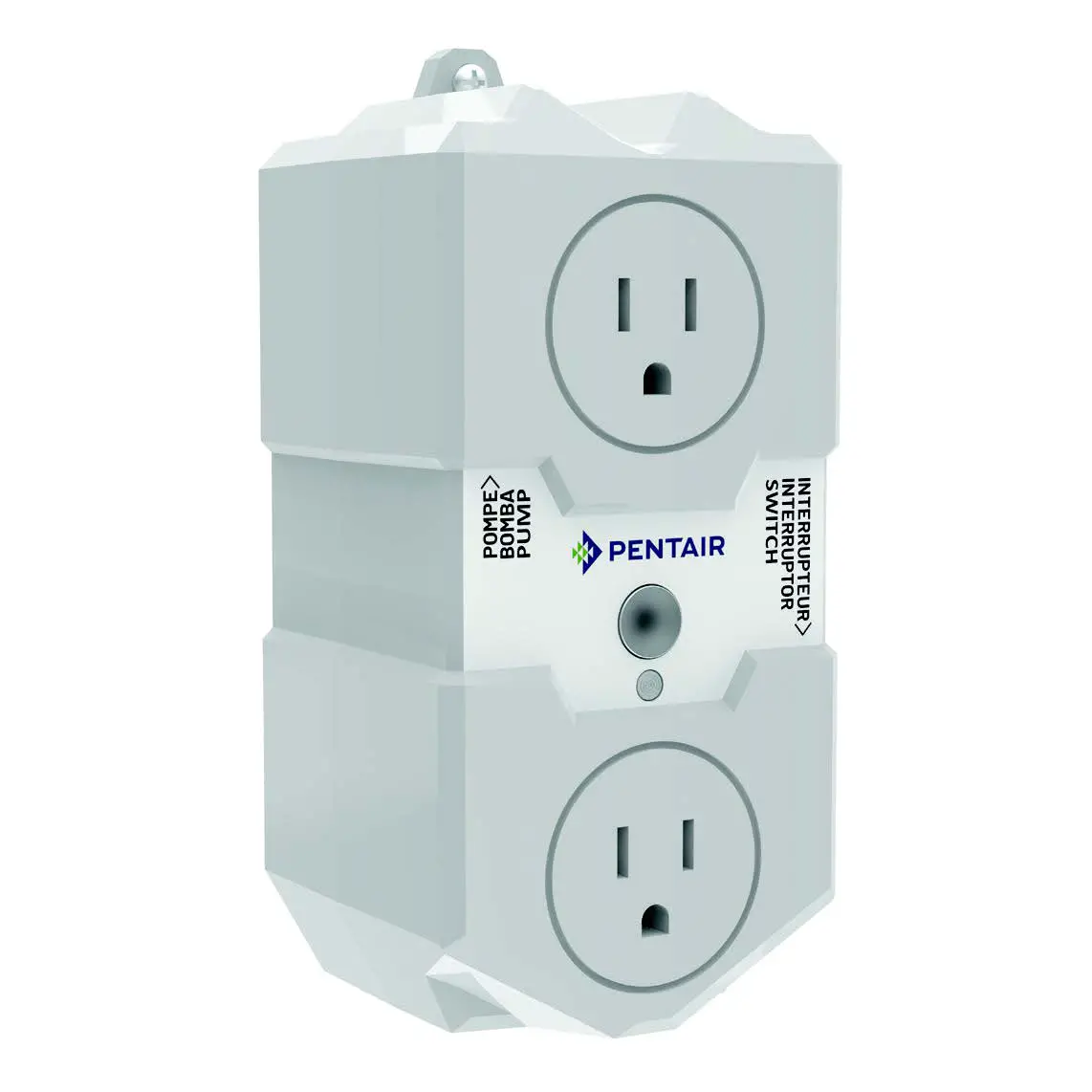
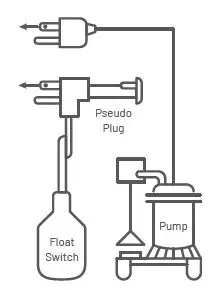
- Unplug your existing sump pump from wall outlet.
- Plug your pump’s cord into the top outlet of the Sump Controller.
- Plug the Piggyback Switch into the bottom outlet of the Sump Controller.

- Plug the Pseudo Plug into the back of the piggyback switch
- Plug the included reed float switch wires into the side of the Sump Controller.
- Plug the Sump Controller into the wall outlet.
- Secure the High Level Switch to the discharge pipe with a cable tie. It should be located near the top of the sump pit.
ADD YOUR DEVICE
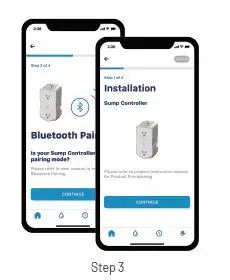
- From the Sump Controller, press and hold the MODE button for 4 to 15 seconds to enter the PAIRING MODE (blinking blue).
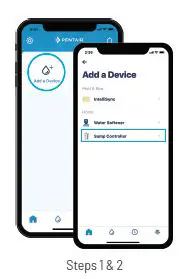
- In the App, go to the Pentair dashboard, then press ADD A DEVICE.

- Select SUMP CONTROLLER. Click CONTINUE on both the INSTALLATION and the Bluetooth® wireless technology PAIRING screens.

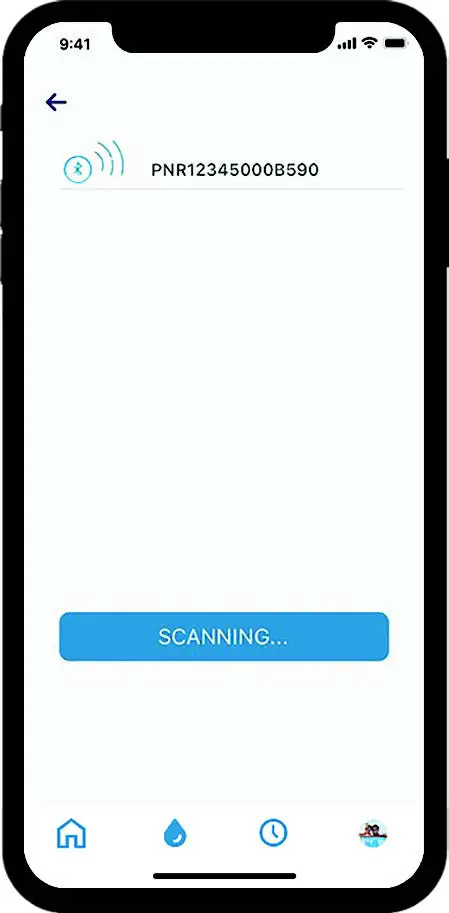
- Choose the device (name will always start with the letters PNR). The Bluetooth icon will turn white after connecting,
so you know you’ve made a successful connection. - Press CONTINUE on your phone when prompted.

CONNECT SUMP CONTROLLER TO WIFI
- Select your home WiFi account, add your home WiFi password and press CONTINUE.
- Set the location of your Sump Controller. If you click on SELECT LOCATION, your current location should appear; select it and press SAVE. If not, manually enter the address. Press OK when prompted.
- You are now connected!
STEP 1
STEP2
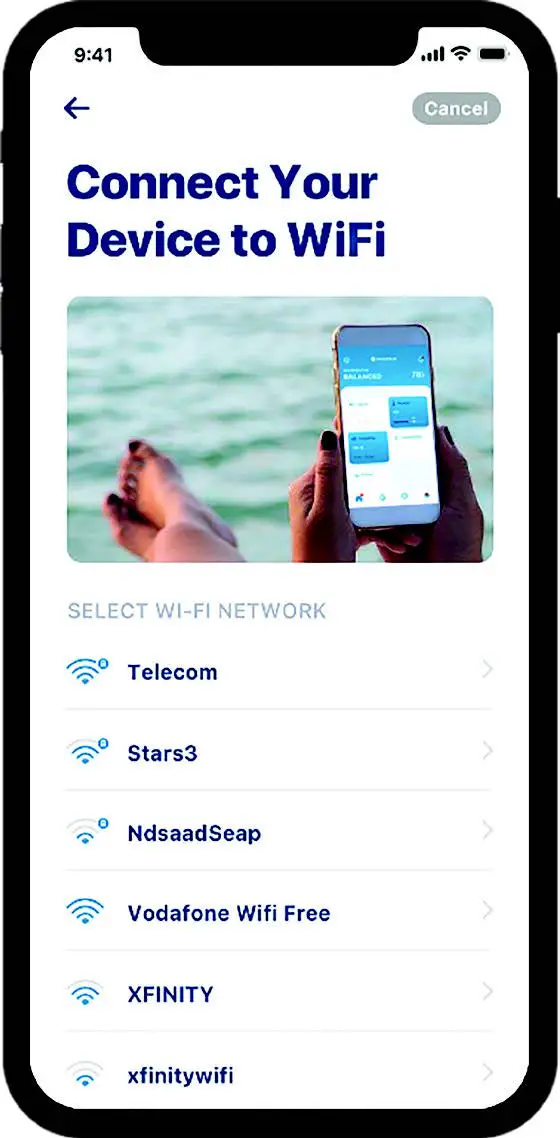
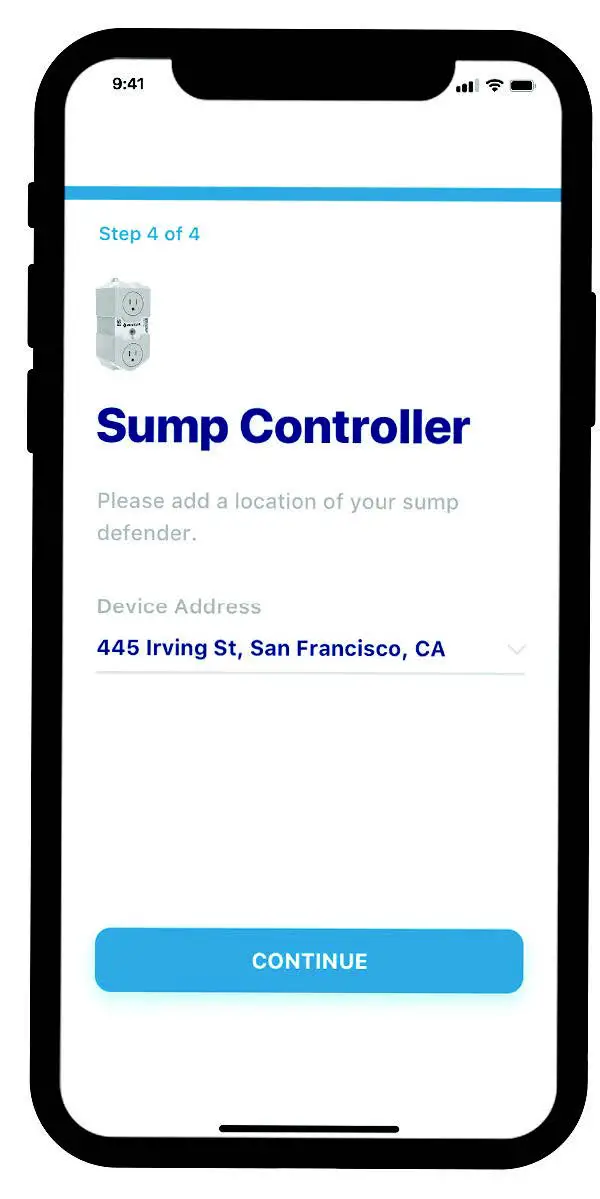
Note: During the first 20 pump cycles, the device learns what is normal operating behavior in your installation. For example, how long and the frequently at which the system runs, as well as how much power is required to remove water from your application. Over time, the device repeats this process to continue monitoring the change in performance, ensuring you get notified of any abnormalities.
Using The App
APP OVERVIEW
The ACCOUNT icon takes you to all the details of your account, from your profile and device notifications to contacting a professional for service and warranty information.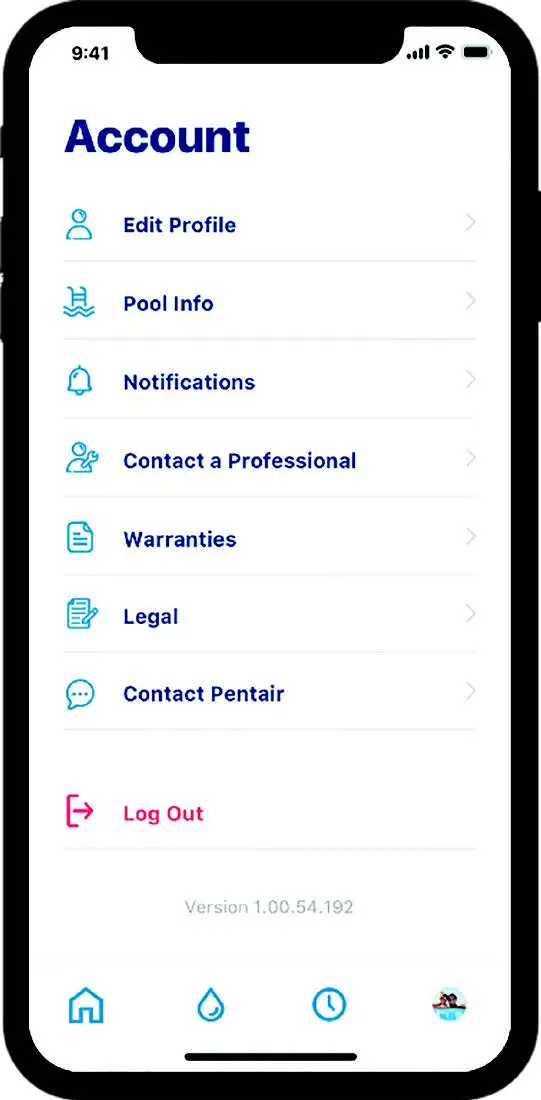
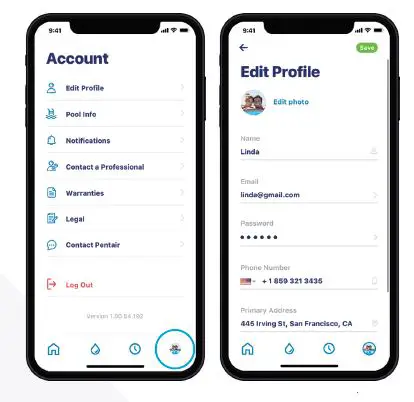
EDIT PROFILE
- Go to the ACCOUNT screen.
- Select EDIT PROFILE to:
- Add/edit your account photo.
- Add/change your name, email, password or phone number.
- Change or add an address.
- Delete your account.
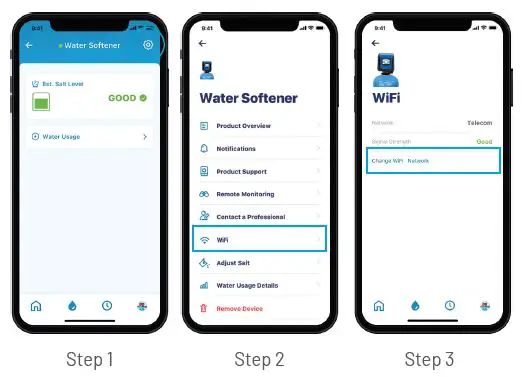
CHANGE WIFI NETWORK
- Press the GEAR icon on the dashboard.
- Select WIFI and press CHANGE.
- Press CHANGE WIFI NETWORK.

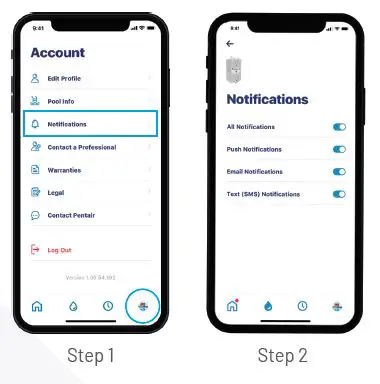
NOTIFICATION PREFERENCES
- To adjust your notification preferences, go to your ACCOUNT and select NOTIFICATIONS.
- Select SUMP CONTROLLER, then choose how to receive alerts.
- Return to the NOTIFICATIONS screen and select News & Marketing.
- Choose how to receive News & Marketing alerts.

ALERTS
All alerts are displayed on the dashboard screen through the MY DEVICE icon. Alerts remain on the dashboard until the issue has been resolved.
Consult the Alerts table in this guide for a complete list of possible alerts.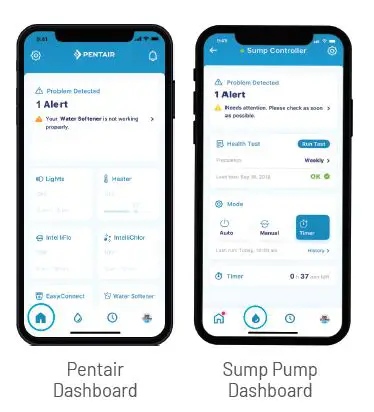
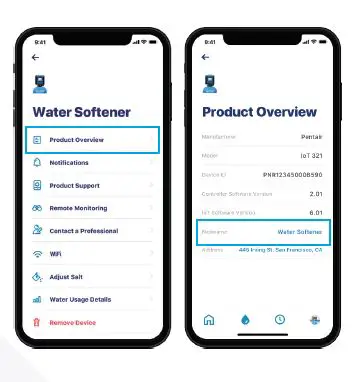
NICKNAME YOUR PROXDUCT
- Press the GEAR icon in the upper left of the App.
- Select PRODUCT OVERVIEW.
- Press NICKNAME, update it, then press SAVE.

CONTROLLER MODES
The Sump Controller has several operational modes that effect how the unit functions. These include:
AUTO: This is the default operational mode of the Sump Controller. In Auto mode, the pump will operate either by Float Switch or by User Button.
- If the pump is turned on by the Float Switch, then it is automatically turned off only by the Float Switch.
- If the pump is turned on by the User Button, then it is only turned off by the User Button.
MANUAL: When in Manual mode, the pump is not operated by either the Float Switch or User Button. It is controlled by user-defined duration and frequency. These are set and updated through the App.
TIMER: In Timer mode, the pump will turn on and run for the time duration set in the App. It will automatically return to Auto mode after the timer expires.
SERVICE: While in Service mode, it cannot be controlled via the App. The pump can be turned on and off with the mode button.
Additionally, pressing the mode button on the front of the unit allows to owner to do the following actions:
| Action | Button Press |
| Turn pump on/off | 1 time quickly |
| Clear Faults / Silence Buzzer | 2 times quickly |
| Perform Health Test | 3 times quickly |
| Turn on Bluetooth® wireless technology Pairing | Push and hold for 4 to 15 sec |
| Enter Service Mode | Push and hold for 25 to 40 sec |
| Factory Reset | Power ON + Push and hold for 4 to 10 sec |
CONTROLLER INDICATIONS
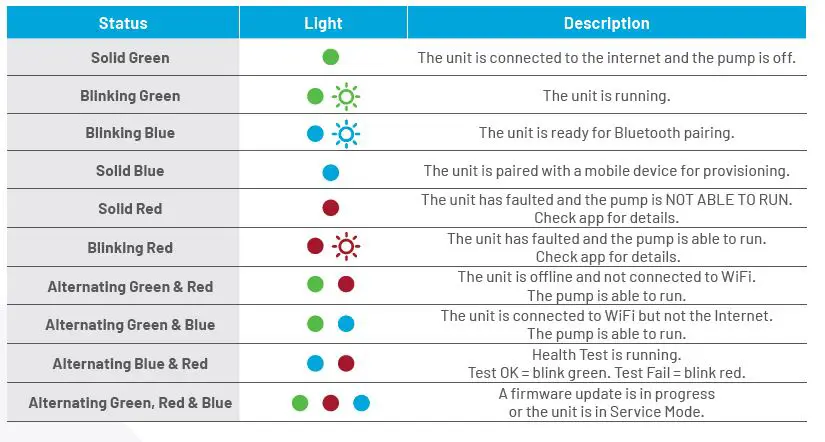
SUMP CONTROLLER ALERTS
| Alert | Cause | Corrective Action |
| Over Current Alert | 1. Something stuck in the pump. 2. Incoming voltage is not 100V. | 1. Check if anything is stuck in the pump. 2. Verify the incoming voltage is above 100V. 3. If the pump is clear and the incoming voltage is OK, consider replacing the pump. It is likely that it is wearing out. |
| Locked Rotor Alert | 1. Something stuck in the pump. 2. Incoming voltage is not 100V. | 1. Check if anything is stuck in the pump. 2. Verify the incoming voltage is above 100V. 3. If pump is clear and the incoming voltage is OK, replace the pump. |
| Dry Run Error Alert | 1. Float switch may be stuck in the “up” position. 2. Float switch may need adjusting. 3. The float switch error. | 1. Check float switch is not stuck in the “up” position. Ensure it is not hanging up on the side of the basin or some piece of plumbing or piping. 2. Check float switch is adjusted properly. Ensure pump turns OFF before water level drops below the pump inlet. 3. Manually raise and lower float switch to see if the pump turns on and off. If float switch isn’t working, replace it. |
| Current Sensor Alert | 1. Sump Controller board issues. | 1. Pump still operates as normal but Sump Controller is operating with limited functionality. Recommend replacing the Controller. |
| Relay Alert | 1. Controller board having problem. | Recommend replacing Sump Controller immediately. As a short-term fix, consider the following steps: 1. Remove the Pseudo Plug from the back of the float switch. 2. Plug the float switch directly into the power outlet. 3. Plug the sump pump into the back of the float switch. This allows sump pump to function in a traditional manner until a new controller can be installed. |
| Float Switch Alert | 1. Float switch is stuck. 2. Float switch is failed. | 1. Manually raise and lower float switch to see if the pump turns on and off. 2. If float switch doesn’t respond, replace it. |
| High Water Alarm Alert | 1. Pump cannot keep up with the amount of water entering the sump pit. | 1. Review the system immediately to prevent potential damage. It is likely that the pump needs replacing or is undersized for the application. |
| Pump Fault Alert | 1. Pump not connected to Controller. 2. Pump failed. | 1. Review the system immediately to make sure pump is plugged in the controller. 2. Pump needs replacing. |
| Offline | 1. Bad internet connection. 2. Unplugged device. | 1. Check your internet connection. 2. Ensure device is plugged in. |
| Wrong Installation Alert | 1. Pump and float switch are plugged into wrong outlets on Sump Controller. | 1. Verify pump cord and float switch cord are plugged into correct locations on the device. |
GENERAL TROUBLESHOOTING
| Fault | Cause | Corrective Action |
| Pump Won’t Start | Either Sump Controller or pump are not fully plugged in. Float and pump were plugged into the wrong outlets on Sump Controller. | Check that all plugs are securely plugged in and seated properly. Swap plugs between the top and bottom on Sump Controller. |
| Pump Won’t Stop | Float switch may be stuck in place. | Check Float Switch is moving freely and clear fault by pressing the Sump Controller button twice in quick succession. |
| Pump runs longer than configuration settings. | Float switch may be stuck in place. | Check Float Switch is moving freely and clear fault by pressing the Sump Controller button twice in quick succession. |
| High Water Alarm | High water in sump. | Alarm will turn off once high water disperses. |
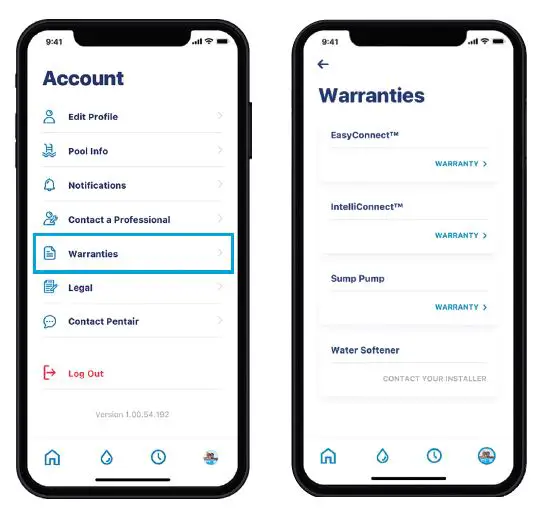
WARRANTY
- Go to your ACCOUNT, then select WARRANTIES.
- Press WARRANTY under the appropriate device. It will take you to the product support page on
Pentair.com.
293 Wright Street | Delavan, WI 53115 | Ph: 866-973-6835 | pentair.com
All indicated Pentair trademarks and logos are property of Pentair. Third party registered and unregistered trademarks and logos are the property of their respective owners. Because we are continuously improving our products and services, Pentair reserves the right to change specifications without prior notice. Pentair is an equal opportunity employer.
Apple App Store® is a registered trademark of Apple, Inc.
Google Play™ is a registered trademark of Google, LLC.
The Bluetooth® word mark and logos are registered trademarks owned by Bluetooth SIG, Inc. and any use of such marks by Pentair in under license. Other trademarks and trade names are those of their respective owners.
P13211 (08-21-20) ©2020 Pentair. All Rights Reserved.