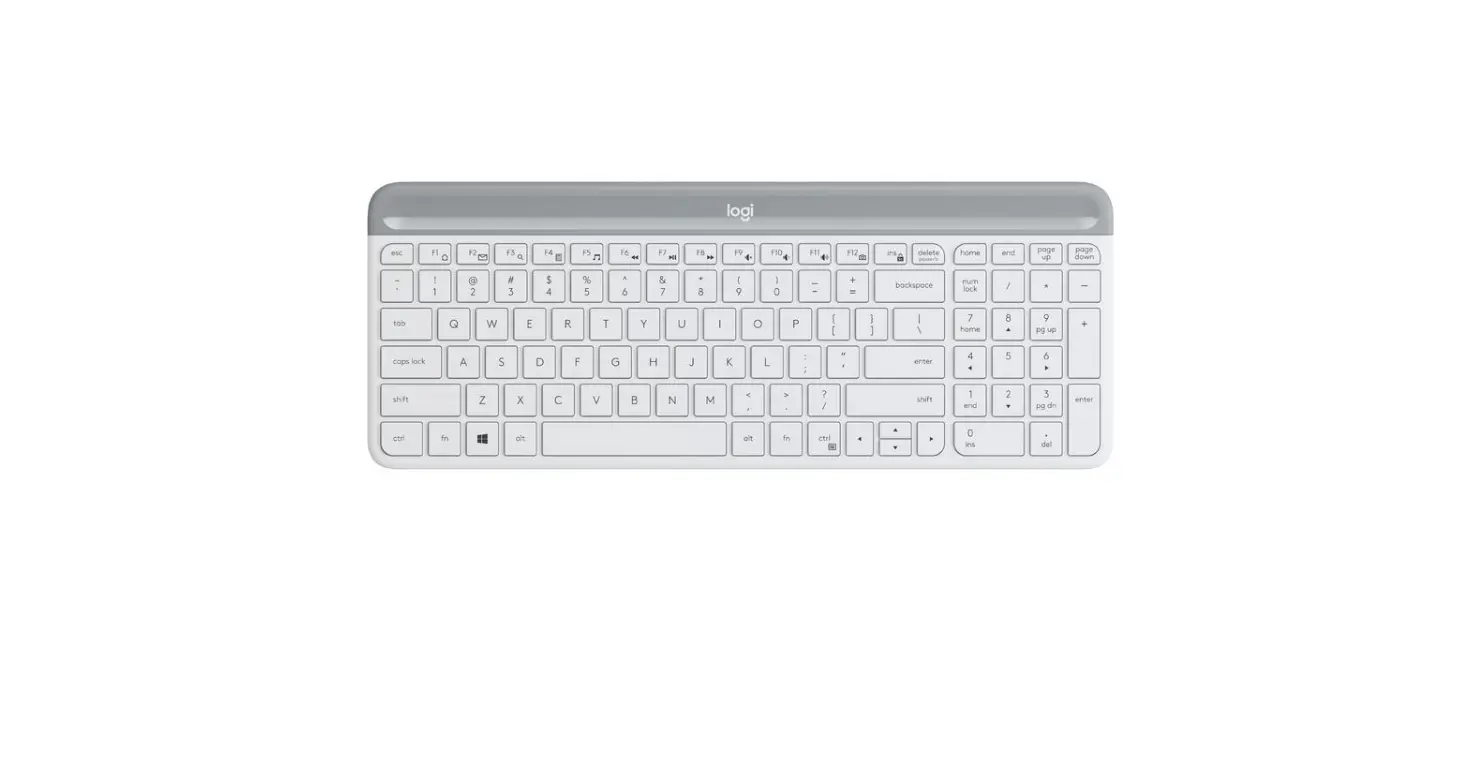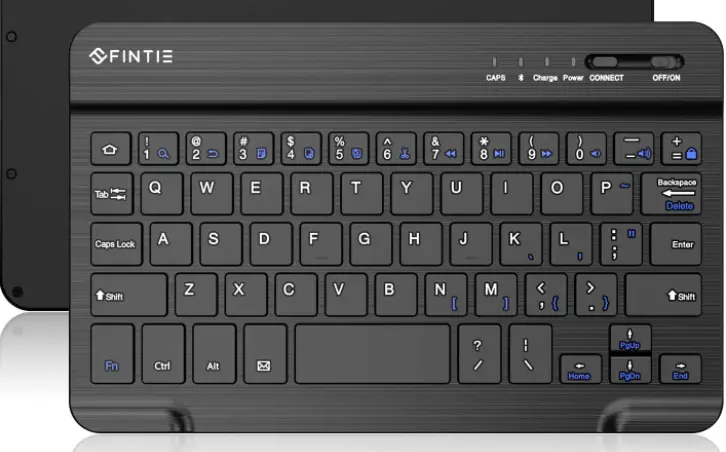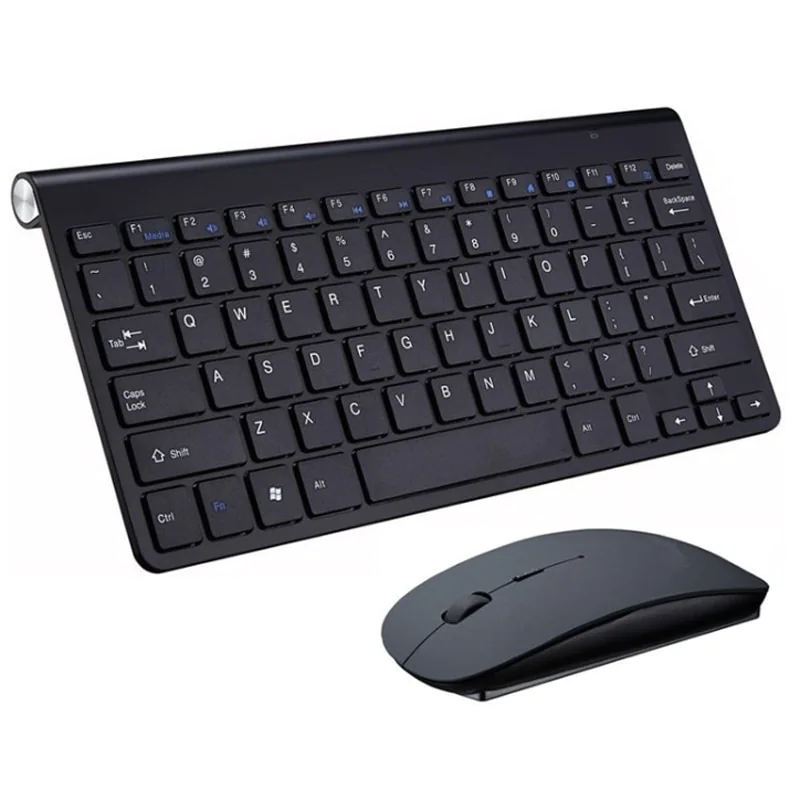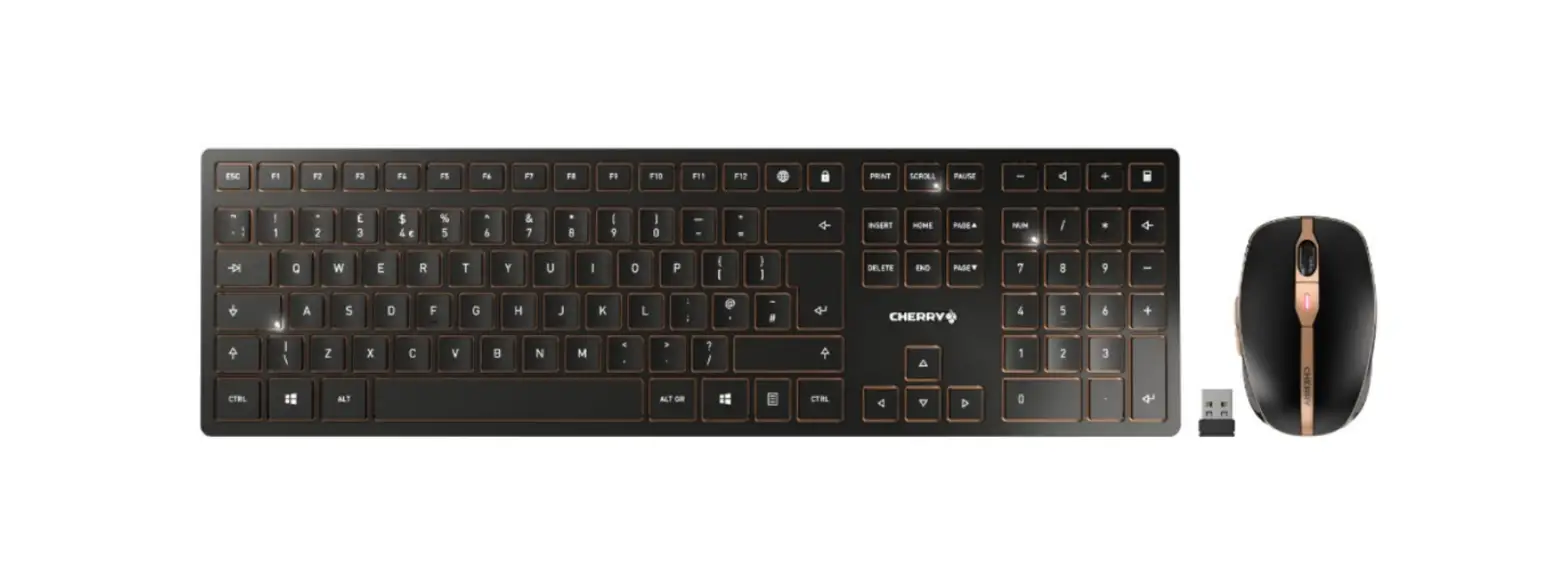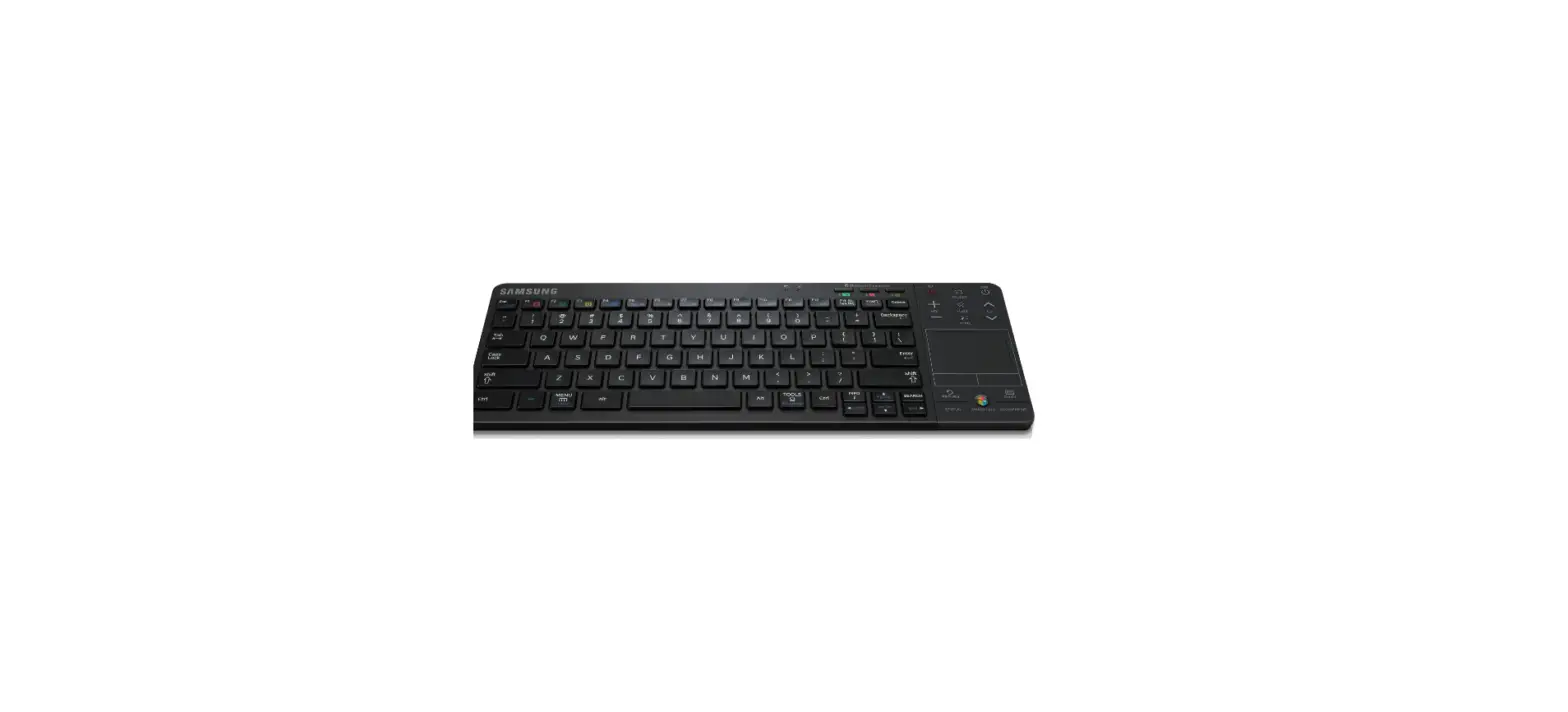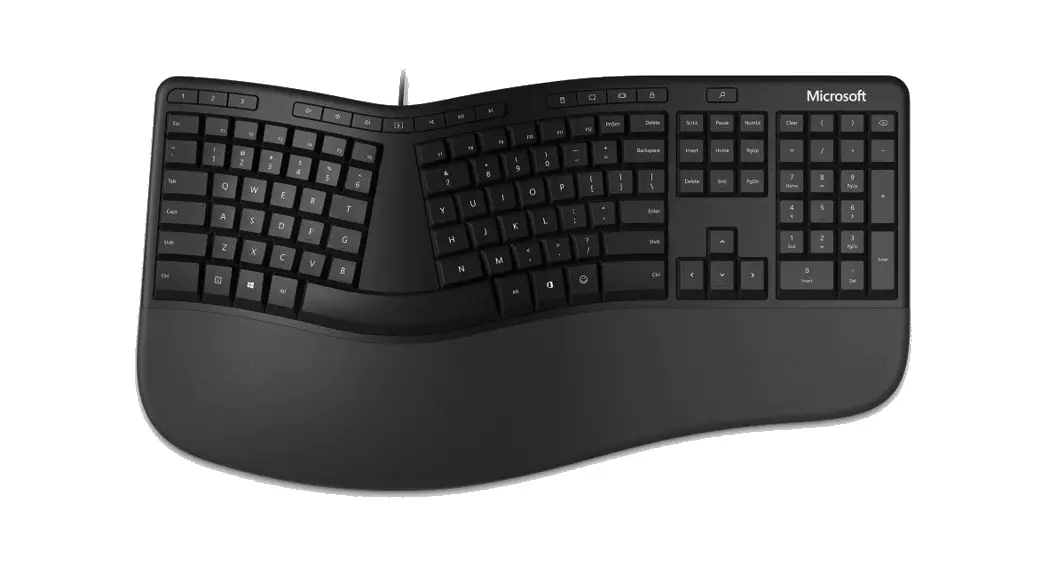
Surface
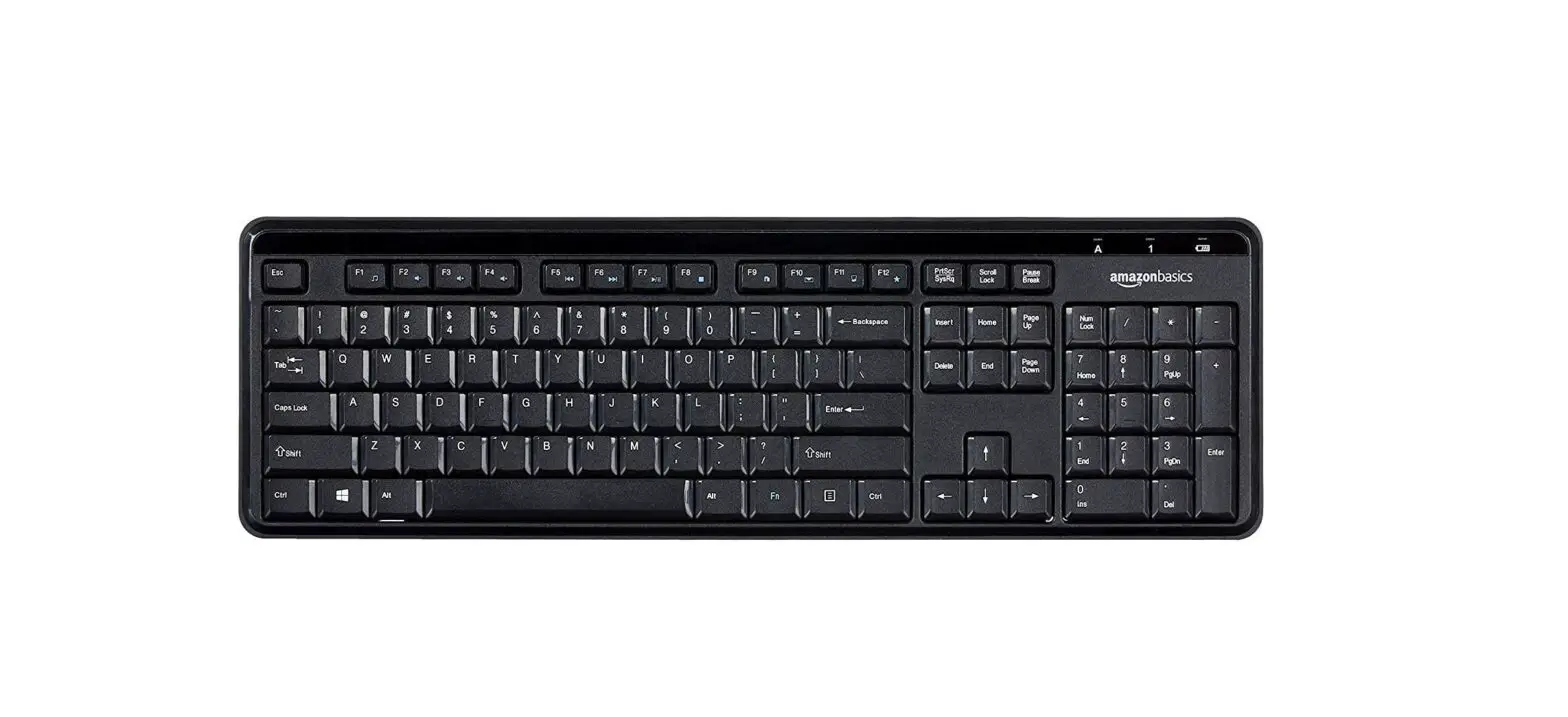
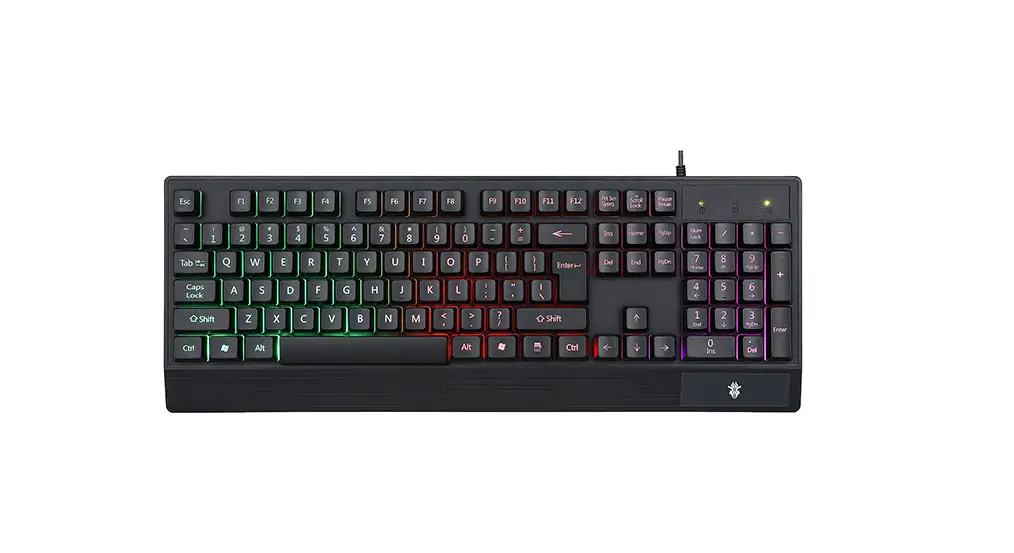
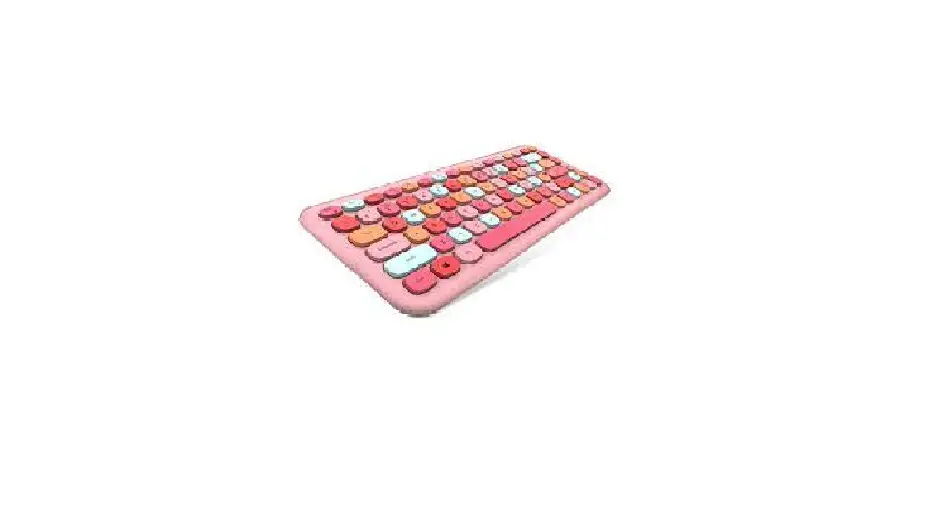
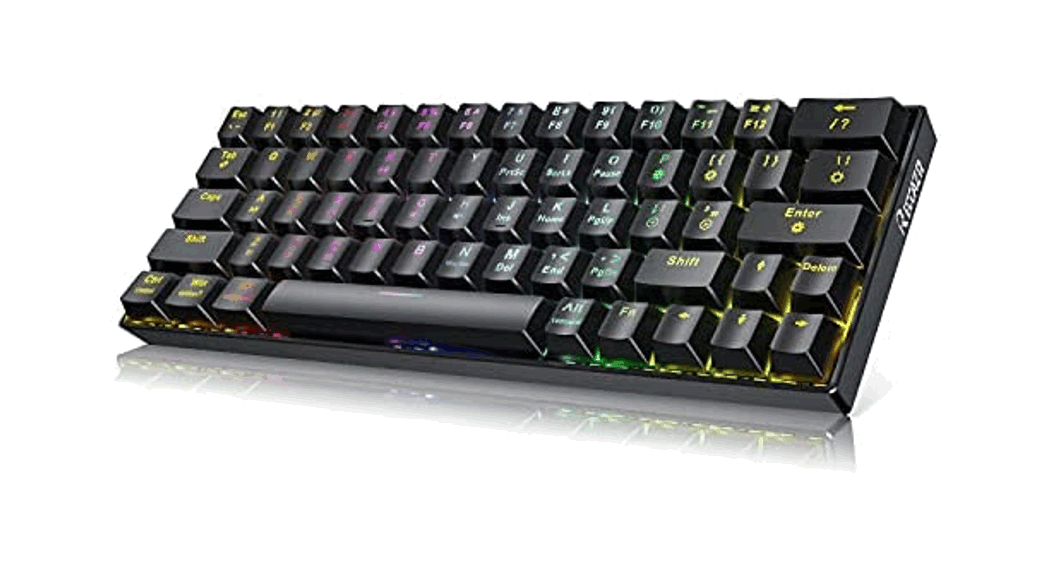
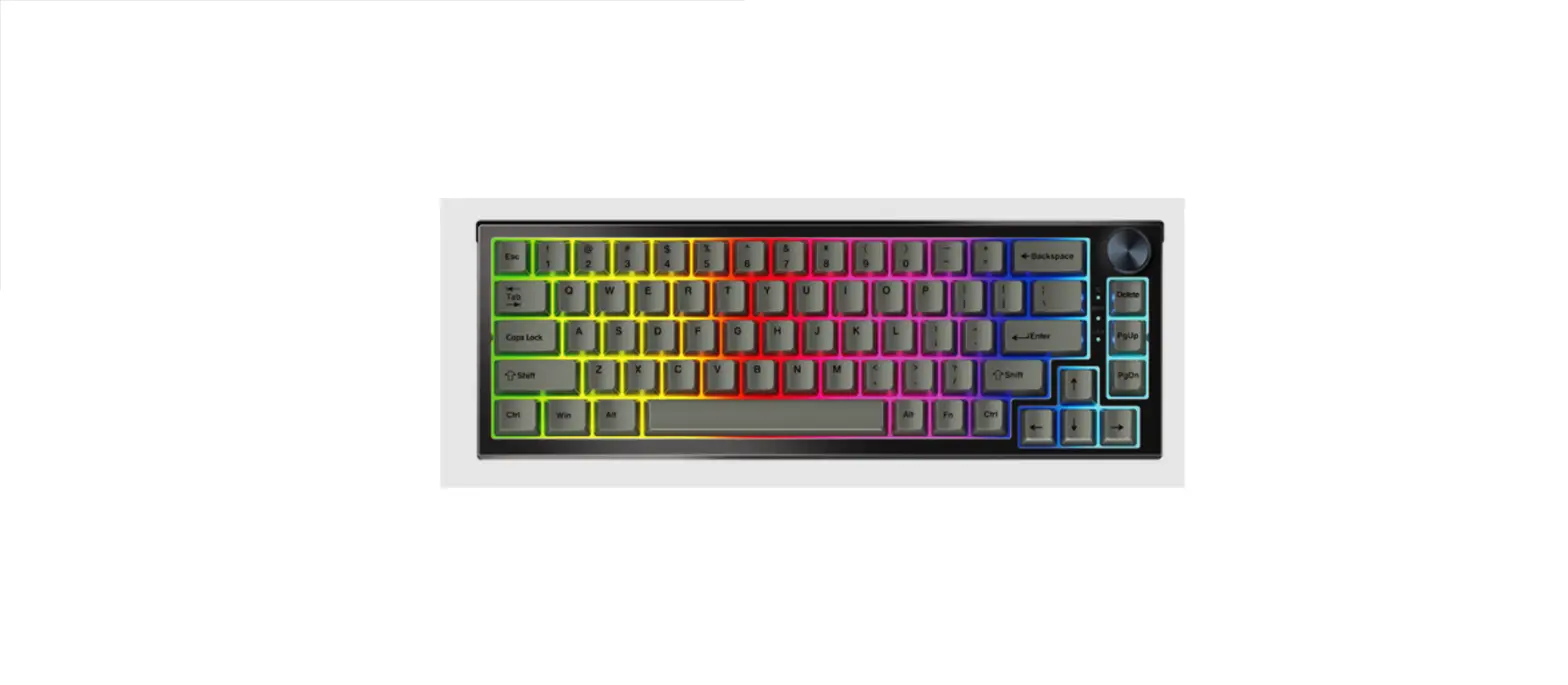
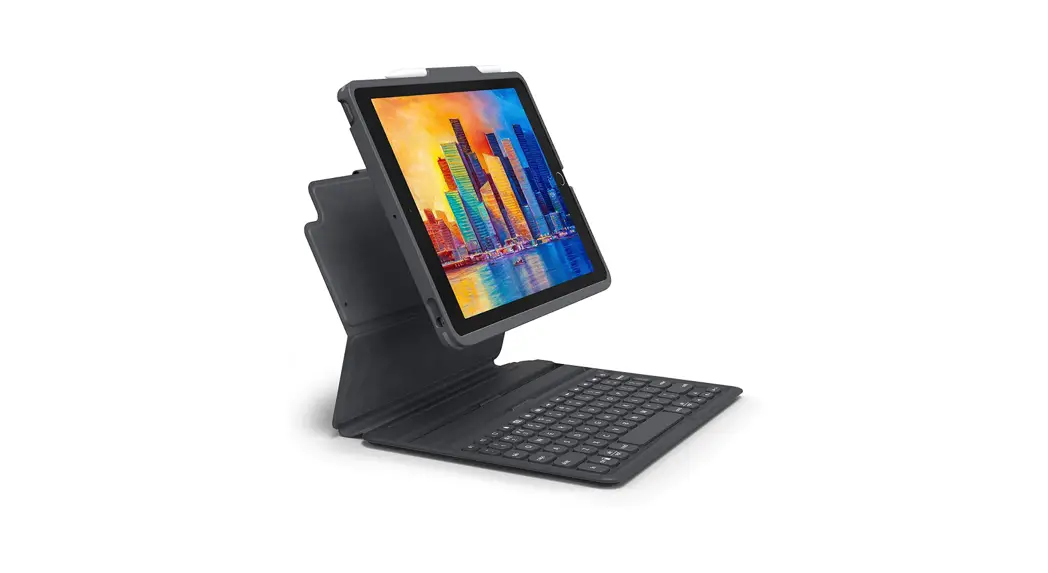
Wireless Keyboard User Manual
Package included: Instruction monual*1 Wireless keyboord*1 USB charging coble*1
Product Specifications
| 1. Bluetooth 5.0 Interface Standard 2. Operating Distance Available: 10 meters 3. Modulation System: GFSK 4. Operating Voltage: 3.0-4.2V 5. Working Current: <2.5 mA 6. Standby Current: <0.3mA 7. Sleeping Current: <40pA | 8. Standby Time: >100 days 9. Charging Time: 2-3 hours 10. Sustainable Working Time: more than 35 hours 11. Lithium Battery Life: 3 years 12. Key Strength: 80±-109 13. Key Life: 5 Million Stroke 14. Operating Temperature: -10°C-±55°C |
Getting Started Guide
Bluetooth Keyboard Connection Procedure
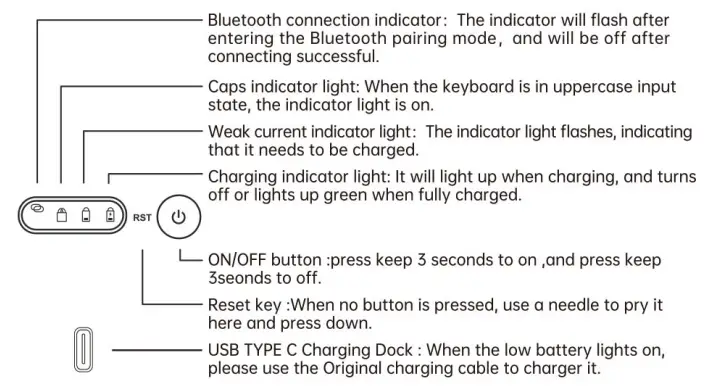
- Press and hold the power button for 3 seconds, the Bluetooth indicator, CapsLock indicators, and the weak current indicator will stay on for 1 second and then off. (Some models automatically enter pairing when they are turned on, if the current model does not enter, manually press
 to enter the pairing)
- Open and unlock your device and click on the “Settings” icon.

- In the settings menu, click on the “devices” menu.

- Select Bluetooth in the system, turn on Bluetooth on the right and dick “Add Bluetooth or another device”, and click the Bluetooth function to search for nearby Bluetooth devices.

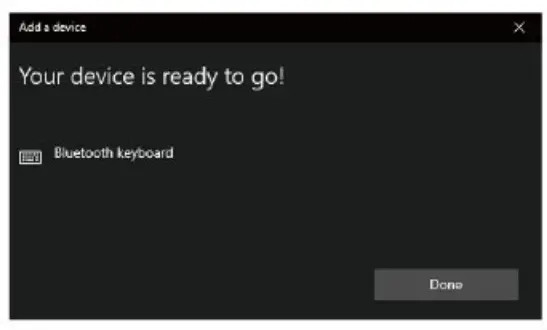
- Discover the Bluetooth keyboard device: Bluetooth Keyboard, and click on it, the device is automatically connected, and the Bluetooth indicator is off.

- It can be used normally after closing the connection page.

 to enter the pairing)
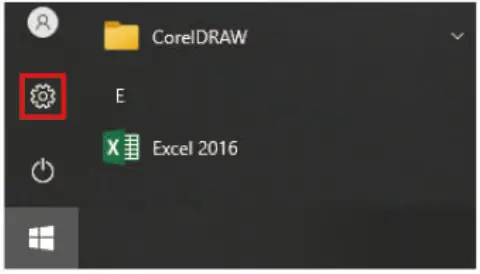
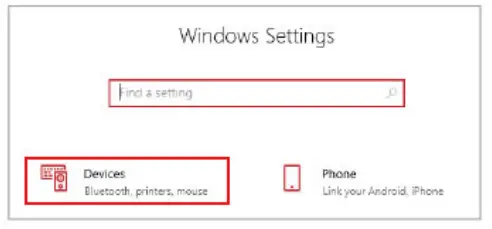
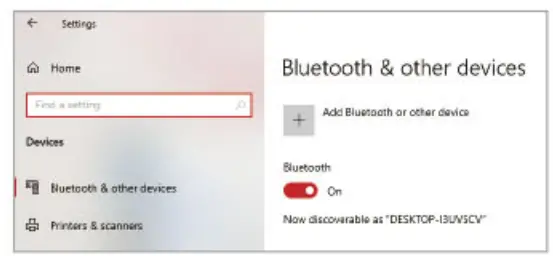
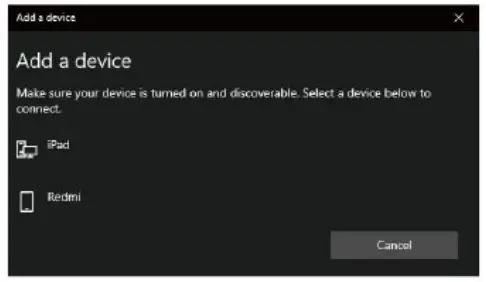
 When the connected device fails to connect back or enters the code matching again. First, delete the device name corresponding to the paired Bluetooth keyboard on the current tablet, then turn off the tablet Bluetooth and turn it on again, enter the pairing mode to connect.
Keyboard shortcut function description
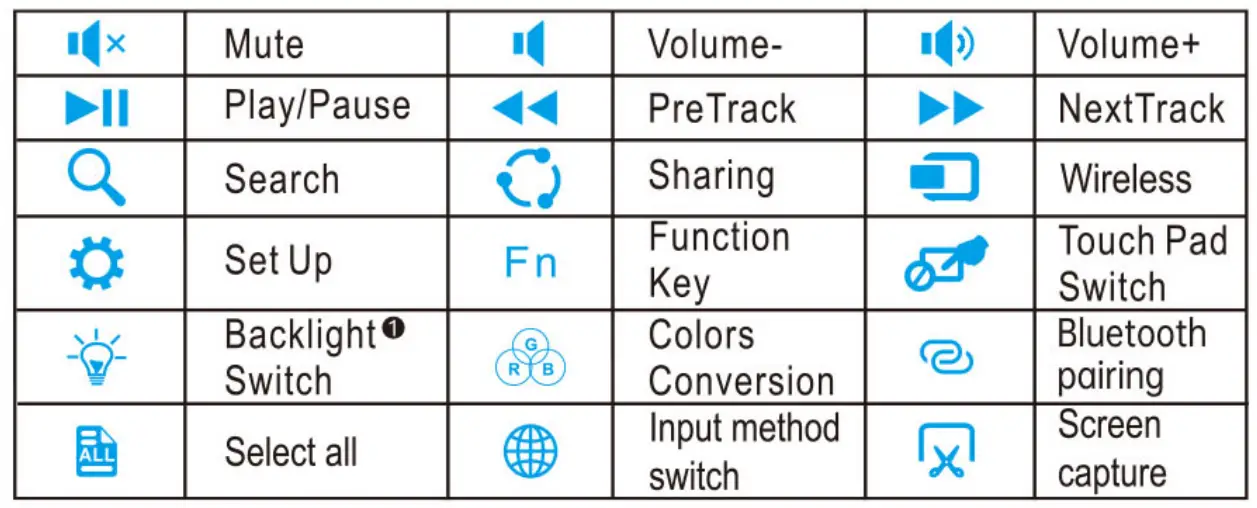
Note1: This key is only available on the backlit version of the keyboard.
 | Color adjustment: direct click, a total of 7 color cycles. |
 | Brightness adjustment: Fn combination button, a total of 3 brightness cycles. |
Touchpad Operating Instruction
- Touchpad Operating Function Description
Touchpad function Mouse function Finger Schematic Finger movement Move Move the cursor 
Swipe your finger Quick click with one finger Left mouse button 
Click with one finger Two-finger click Right mouse button 
Two-finger click Quick double-tap with one finger Double-tap with one finger 
Quick double-tap with one finger Quickly double-click and drag with one finger Left-click to select the target and drag 
Quickly double-click and drag with one finger Two fingers move vertically Middle button vertical scroll 
Two fingers move vertically Two fingers move horizontally Middle button horizontal scroll 
Two fingers move horizontally - Touchpad gestures







| Gesture | Finger schematic | Function Description |
| Enlarge | 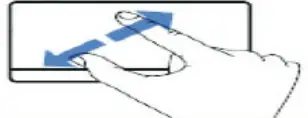 | Enlarge goal, similar to holding down Ctrl key and scroll mouse wheel |
| Narrow | 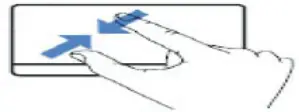 | Narrow target, similar to holding down Ctrl key and scroll mouse wheel |
| Three-finger click | 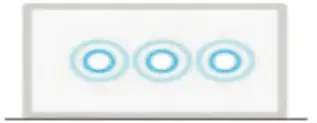 | Win – S key combination (open Cortana) |
| Four-finger click |  | Win +A key combination (Open Action + Center) |
| Three fingers left draw | 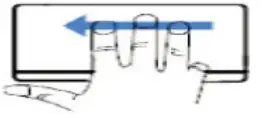 | Alt + Shift + Tab key combination (active window switch) |
| Three fingers right-zoned | 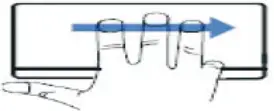 | Alt + Shift + Tab key combination (active window switch) |
| Three fingers up plan | 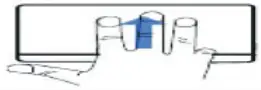 | Win + Tab key combination (Open Task browser window) |
| Three fingers drawdown | 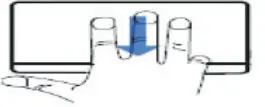 | Win + D key combination (show desktop) |
| From left edge to right plan | 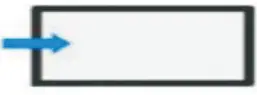 | Win + Tab key combination (Open Task browser window) |
| From right to left draw the edge |  | Win +A key combination (Open Action + Center) |
| Drawdown from the top edge | 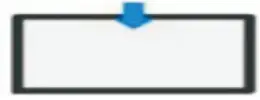 | Win + ↓ key combination (narrow open window) |
| Draw upward from the lower edge | 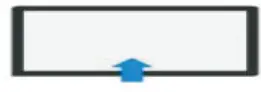 | Win + B key combination (show hide the taskbar) |
 Attention
 Attention
- When not used for a long time, suggest closing the keyboard, in order to prolong battery life.
- In order to get a longer battery lift, charging before the keyboard power light flashes, and charging time must be better than 2hours.
Energy-saving sleep mode
When the keyboard is not used will enter sleep mode after 15minutes, keyboard indicator will off, press any key 5s to wake it up when need to be used again, then the keyboard indicator will turn on.
Troubleshooting
- Make sure the power is turned on
- Ensure keyboard operable distance
- Make sure the battery has power
- Ensure the device’s Bluetooth was turned on
- Ensure the wireless keyboard was connected with the Bluetooth
- Ensure the wireless keyboard is paired successfully
After pressing the power switch and it not working, charge the keyboard at first then reset it and turn it on again.
Cleaning
Washing, alcohol, or a similar cleaning agent decontamination keyboard
When the battery is low, the power indicator blinks, which means one needs to charge the keyboard
- Connect Genuine Parts USB cable B port to keyboard cradle.
- Connect USB cable A port to power adapter or computer USB port.
- When the keyboard is charging, the charging indicator will be on for a long time, and then it will turn off or turn on in green when it is fully charged.
Warranty Card
User information
Company or personage full name___________________________
Contact address___________________________
TEL___________________________
Zip ___________________________
The purchased product name and model NO.___________________________
Purchased date___________________________
This reason due to the product is broken and damage is not include in the warranty
- Accident, misuse, improper operation, or any unauthorized repair, modification, or removal.
- Improper operation or maintenance, when operation violation of the instructions or connection unsuitable power supply.
- Or use consumables that are not provided by the company (such as spare batteries), unless applicable laws prohibit such restrictions.
FCC Caution
This device complies with part 15 of the FCC Rules. Operation is subject to the following two conditions: (1) This device may not cause harmful interference, and (2) this device must accept any interference received, including interference that may cause undesired operation.
Any changes or modifications not expressly approved by the party responsible for compliance could void the user’s authority to operate the equipment.
Note: This equipment has been tested and found to comply with the limits for a Class B digital device, pursuant to part 15 of the FCC Rules. These limits are designed to provide reasonable protection against harmful interference in a residential installation. This equipment generates uses and can radiate radio frequency energy and, if not installed and used in accordance with the instructions, may cause harmful interference to radio communications. However, there is no guarantee that interference will not occur in a particular installation. If this equipment does cause harmful interference to radio or television reception, which can be determined by turning the equipment off and on, the user is encouraged to try to correct the interference by one or more of the following measures:
-Reorient or relocate the receiving antenna.
-Increase the separation between the equipment and receiver.
-Connect the equipment into an outlet on a circuit different from that to which the receiver is connected.
-Consult the dealer or an experienced radio/TV technician for help.
The device has been evaluated to meet general RF exposure requirements. The device can be used in portable exposure conditions without restriction.