 CTL Chromebook PX14E / PX14EX / PX14EXT
USER MANUAL
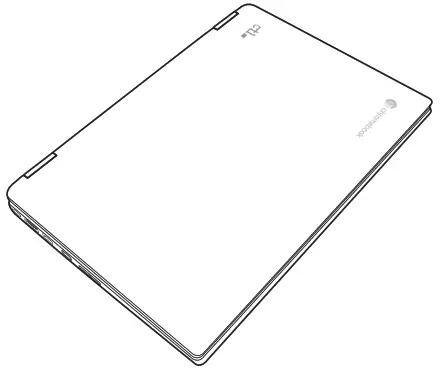
Knowing the Parts
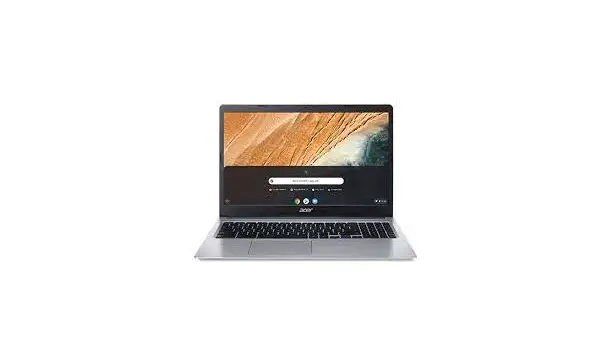
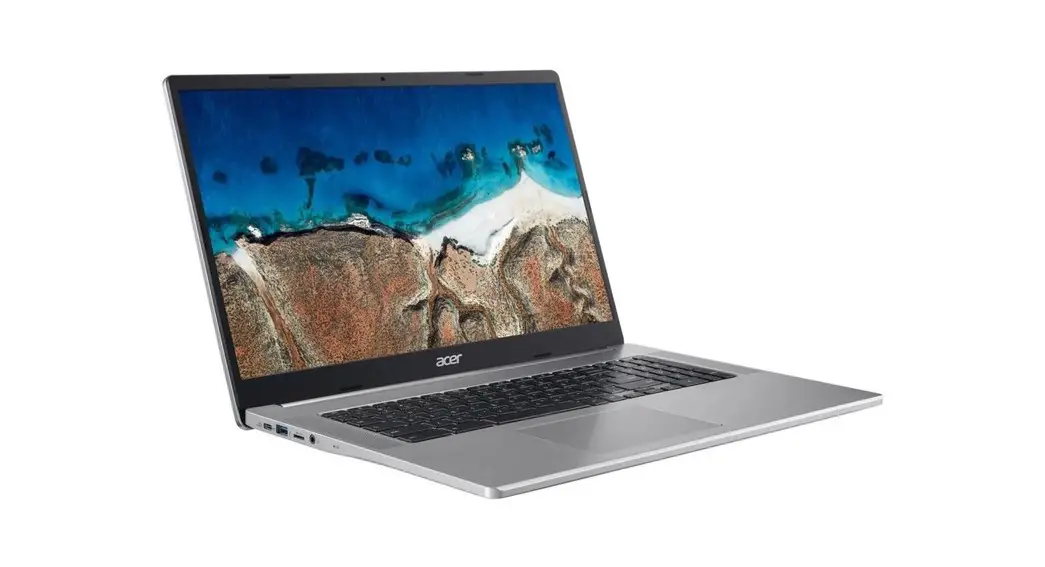
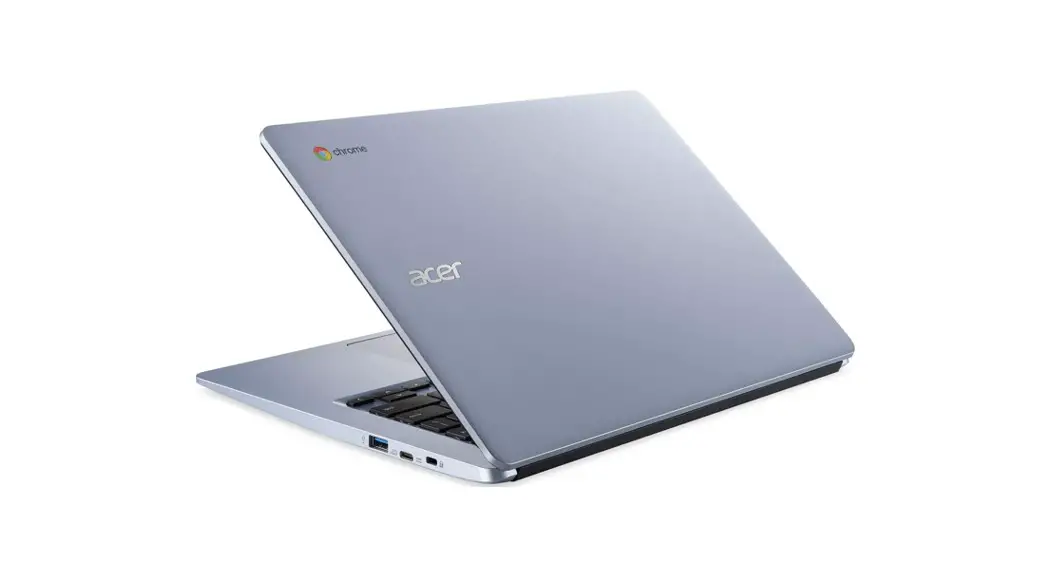
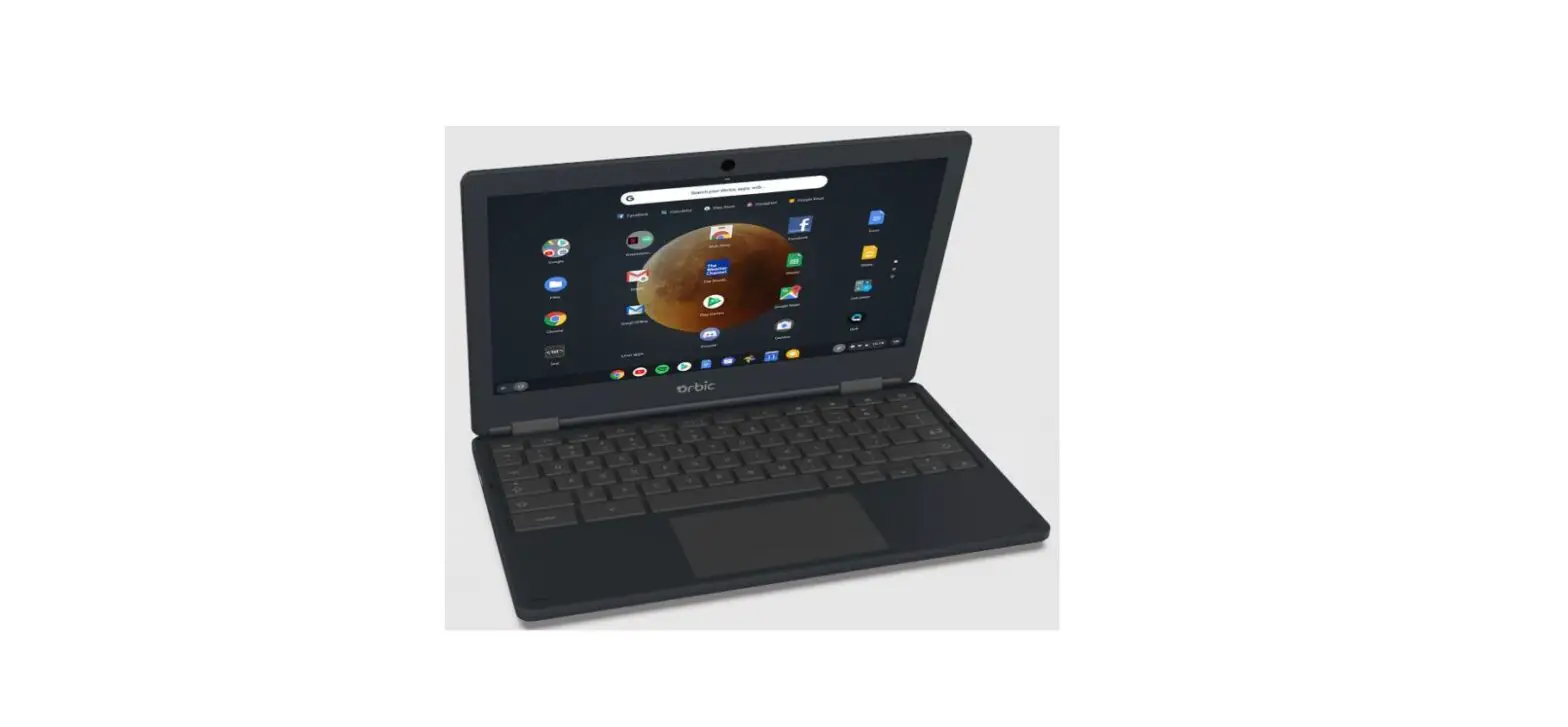
Basic sides of the Chromebook NOTE: Photos and icons in this document are used for artistic purposes only and do not show what is actually used in the product itself.
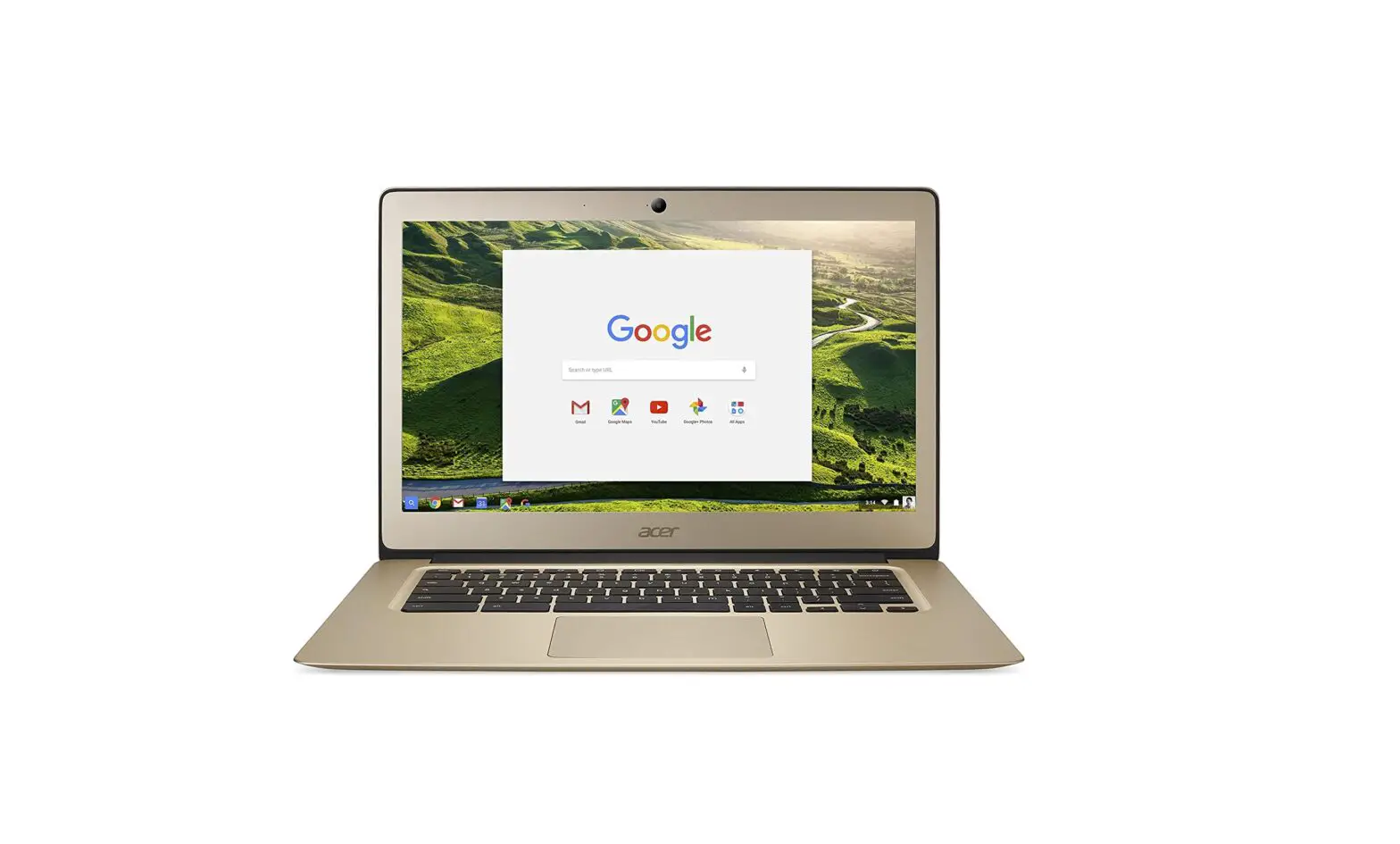
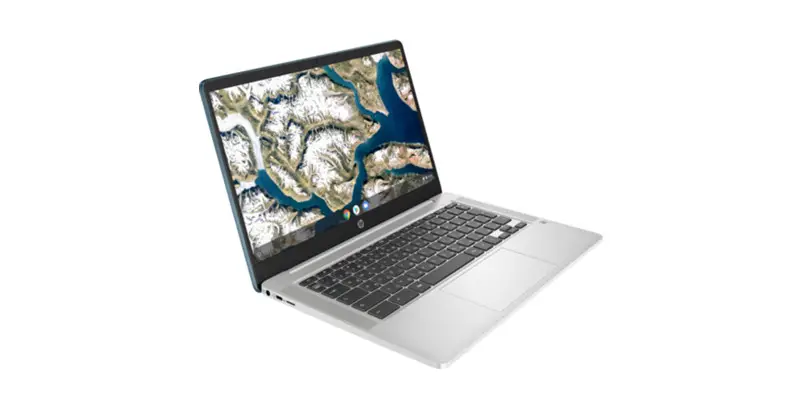
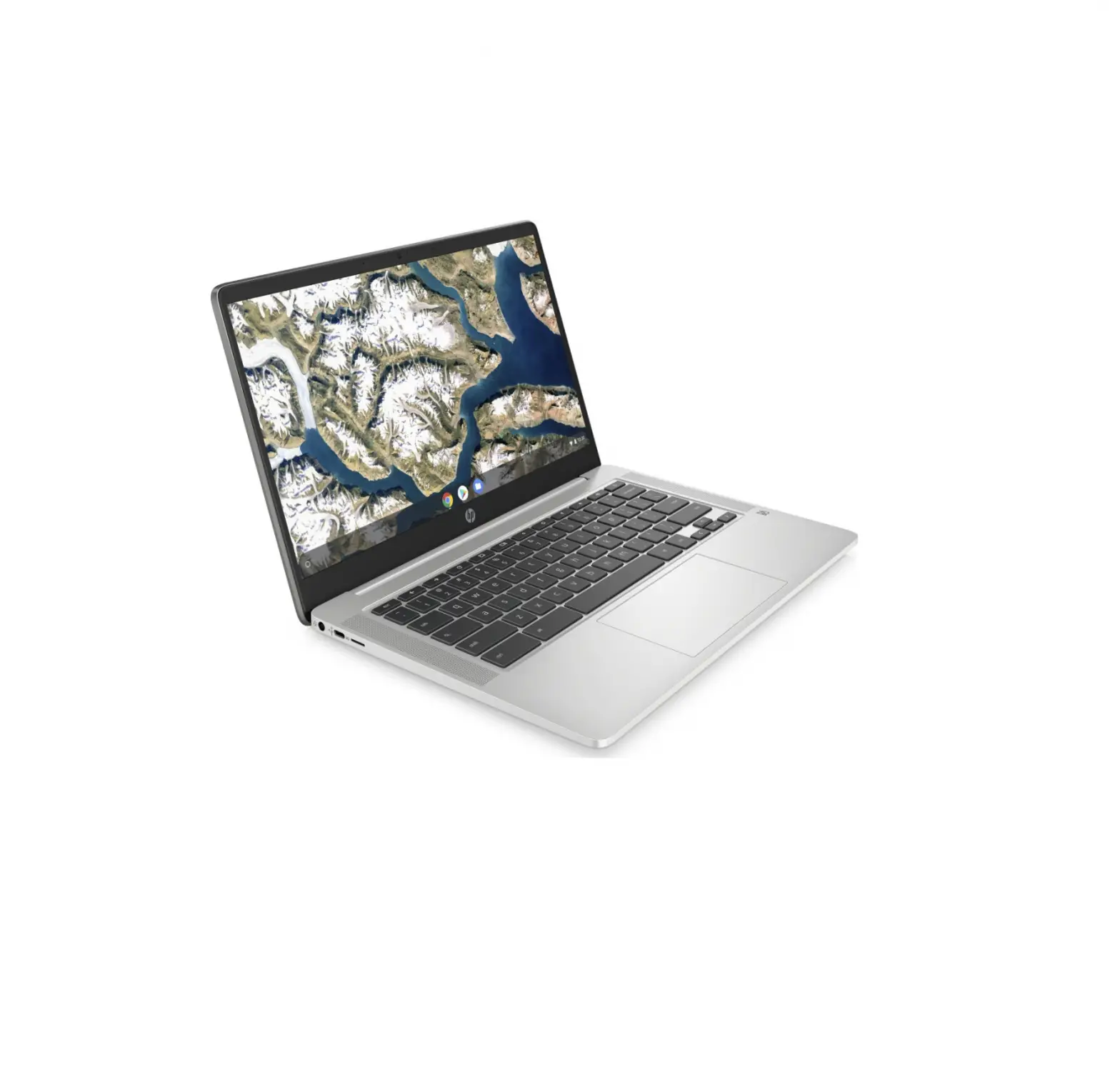
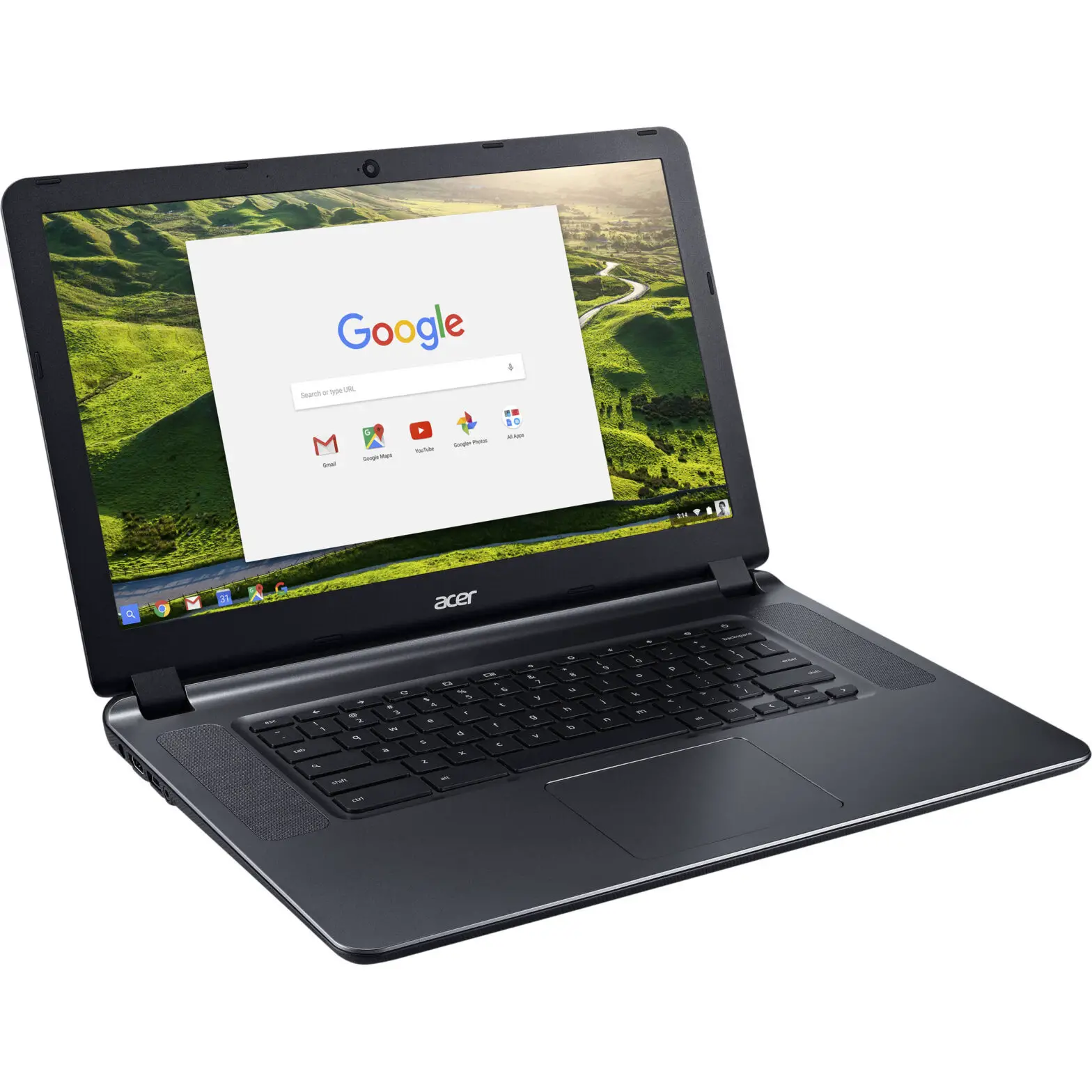
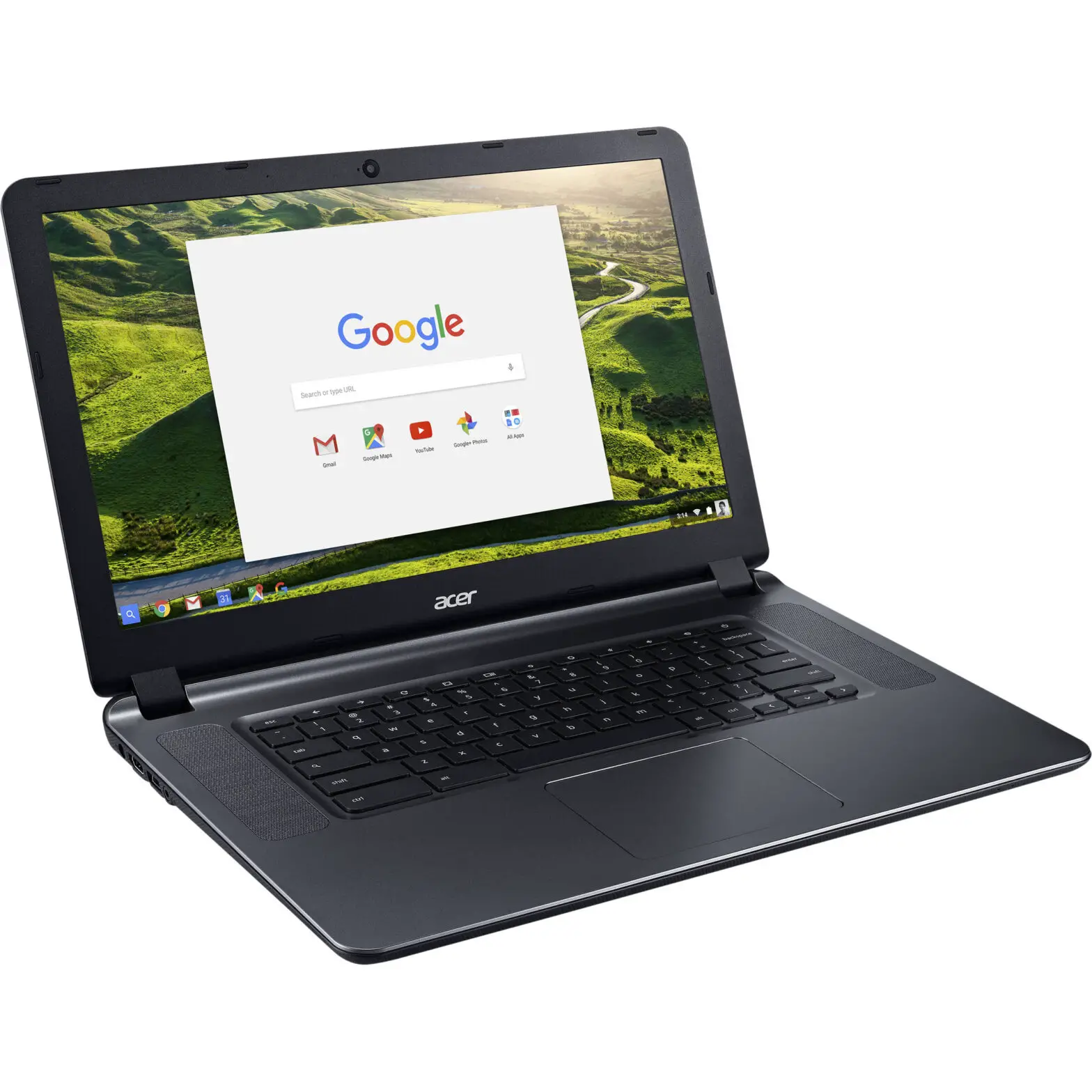
Top and Front Sides
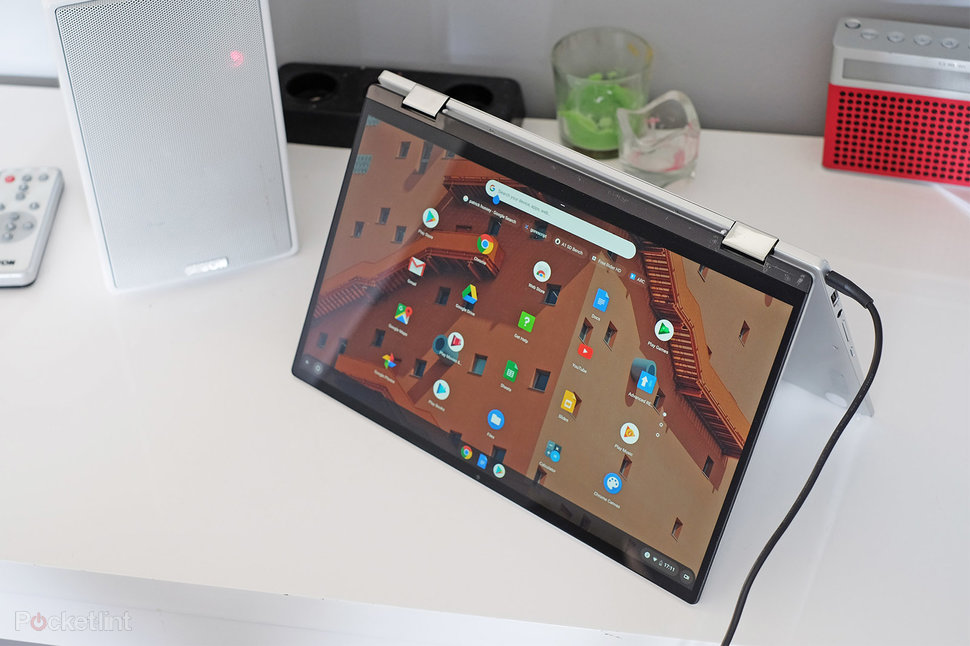
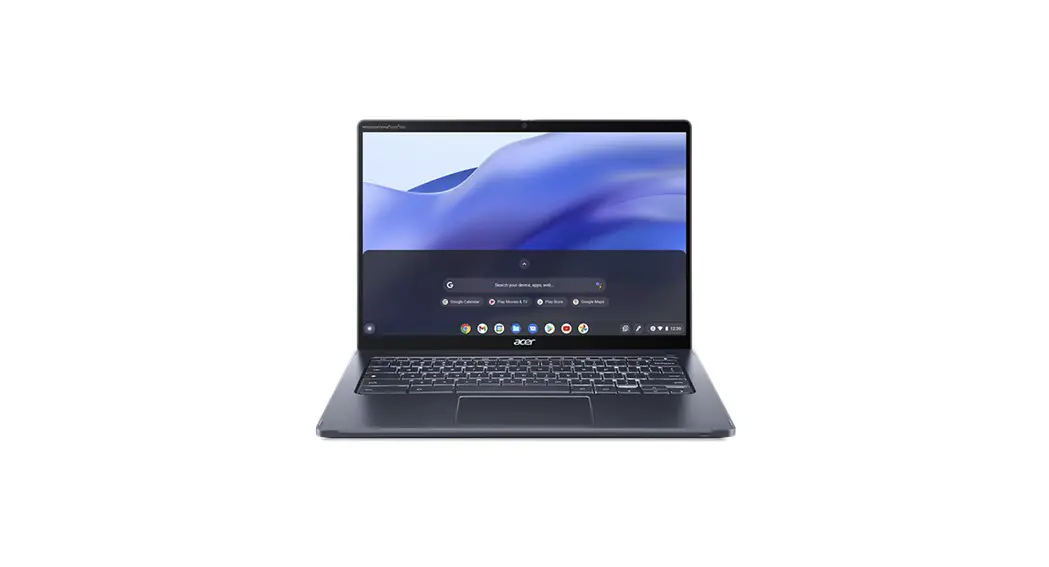
Refer to the diagram below to identify the components on these sides of the Chromebook. NOTE: The keyboard will be different for each territory. IMPORTANT! Selected models may feature display panels that do not fully open to a 180-degree angle, with such models do not attempt to force the display panel beyond its limit as it may cause damage to the device.
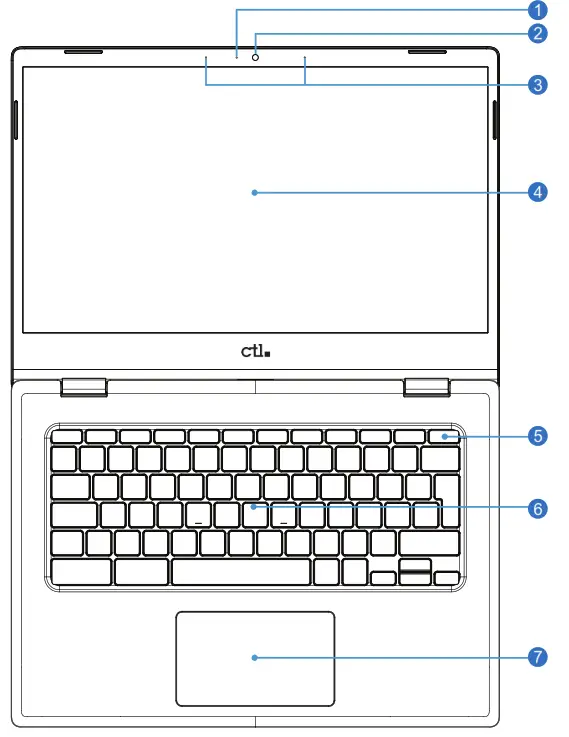
 Camera Indicator
 Indicates whether the built-in camera is in operation.
 Camera
 Allows picture taking or video recording for video conferencing and other applications.
 Microphone
 Used for video conferencing, voice narrations, or audio recordings.
 Display Panel
 Displays the Chromebook’s user interface.
 NOTE: Use a soft cloth without chemical liquids (use plain water if necessary) to clean the display panel.
 Power Switch
 Turns the Chromebook on/off or puts the Chromebook into sleep mode.
 Keyboard
 Used to enter data into the Chromebook.
 Touchpad and Buttons Allows navigating via touch gestures and clicking like a computer mouse. NOTE: You can customize the touchpad settings in the Device sub-menu in the Settings menu.
 Camera Indicator
 Indicates whether the built-in camera is in operation.
 Camera
 Allows picture taking or video recording for video conferencing and other applications.
 Microphone
 Used for video conferencing, voice narrations, or audio recordings.
 Display Panel
 Displays the Chromebook’s user interface.
 Power Switch
 Turns the Chromebook on/off or puts the Chromebook into sleep mode.
 Keyboard
 Used to enter data into the Chromebook.
 Touchpad and Buttons
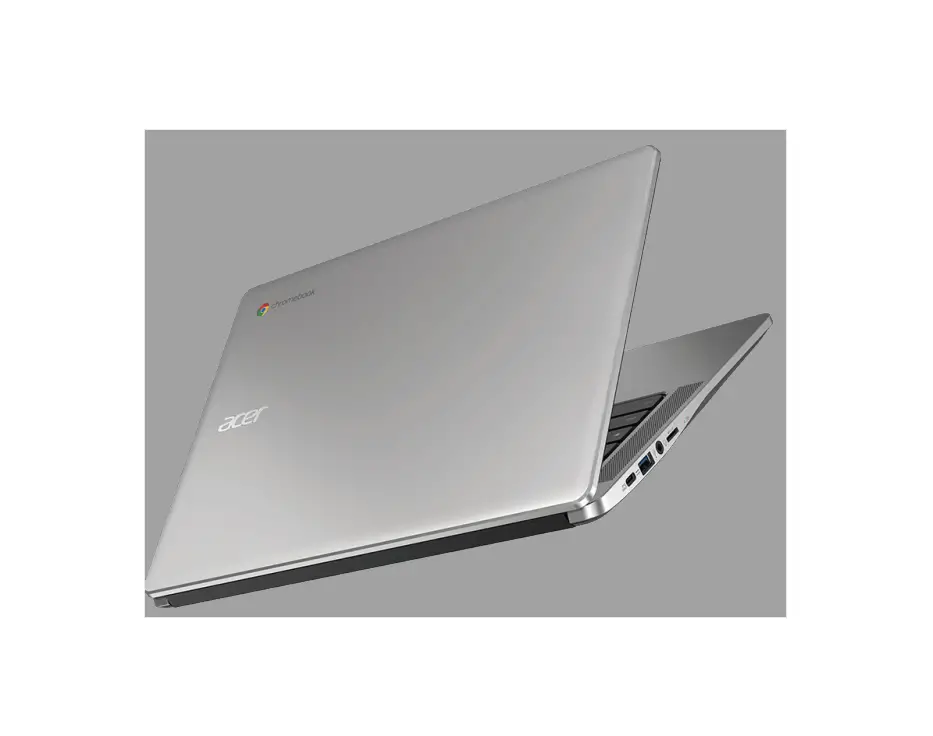
Left Side
Refer to the diagram below to identify the components on this side of the Chromebook.
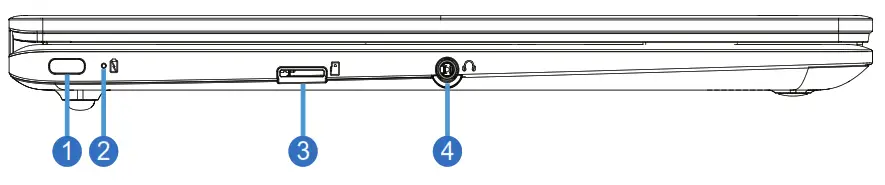
 Power (DC) Input / USB 3.2 Port (Type-C)
Supplies power to the Chromebook and charges the internal battery. Also features USB version 3.2 functionality using a Type-C connector (USB-C). • For use with storage devices.
• Supports a maximum transfer speed of up to 5 Gbps.
• Supports USB Power Delivery up to 45W.
• Compatible with DisplayPort interface. CAUTION! Always use the supplied power adapter to prevent damage to the Chromebook.
 Battery Charge Indicator
Shows the Chromebook’s charging status:
On: Connected to the AC power adapter.
Off: Not connected to the AC power adapter.
 Flash Memory Card Reader
Reads and writes microSD cards used in devices such as digital cameras and mobile phones.
 Headphone Output / Microphone Input Combo Jack
Used to connect to amplified speakers, headphones, or a microphone.
Using this jack automatically disables the built-in speakers.
 Power (DC) Input / USB 3.2 Port (Type-C)
 • For use with storage devices.
 Battery Charge Indicator
 Flash Memory Card Reader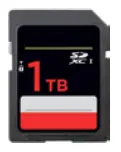
 Headphone Output / Microphone Input Combo Jack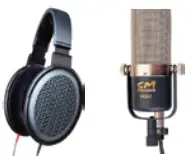
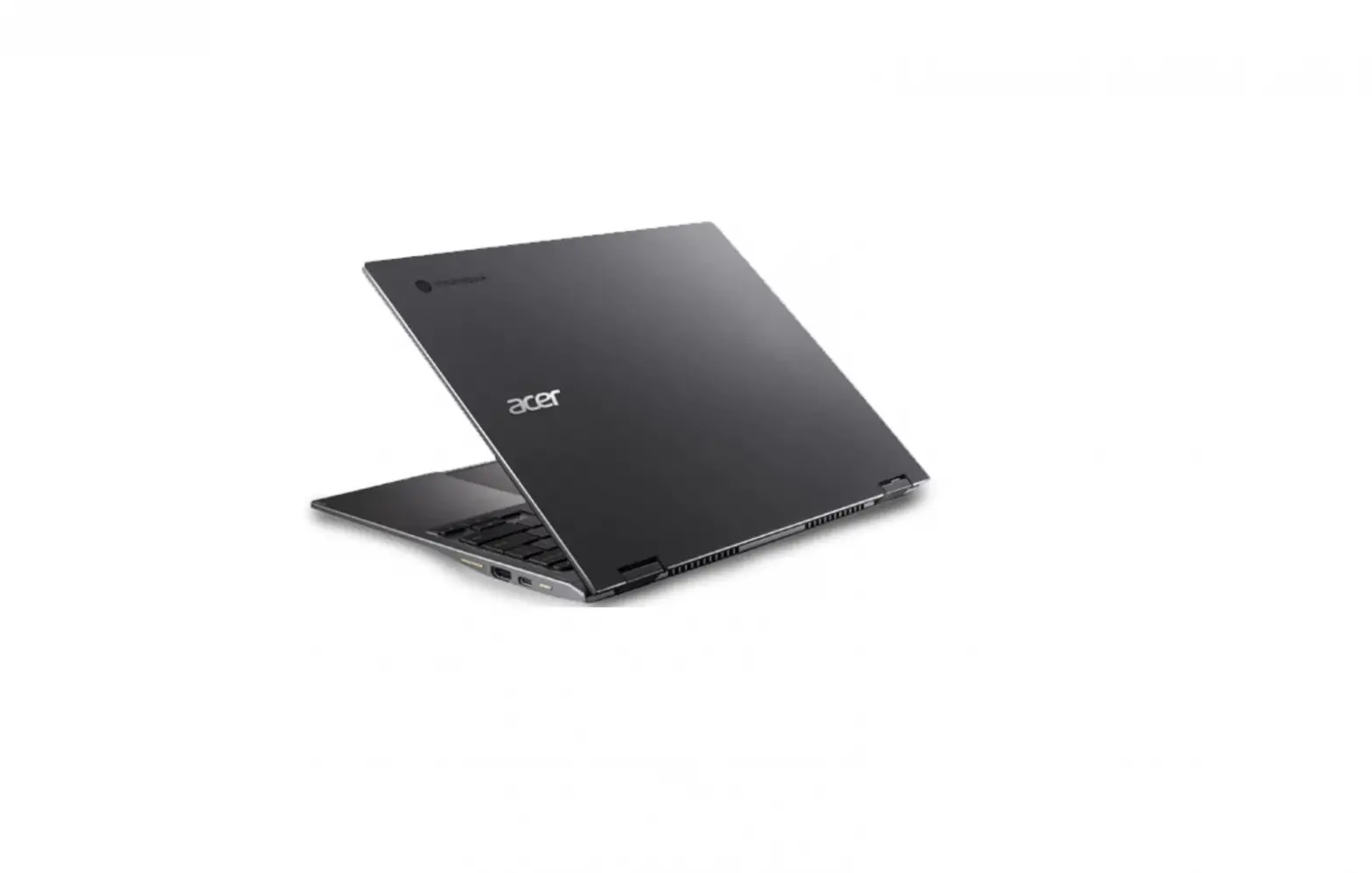
Right Side
Refer to the diagram below to identify the components on this side of the Chromebook.

 USB Port (3.2 / 2.0 / 1.1)
Allows multiple devices to run simultaneously on the Chromebook with hubs. Supports hot-swapping of devices. Supports charging devices while in sleep mode.
- Power (DC) Input / USB 3.2 Port (Type-C)
Supplies power to the Chromebook and charges the internal battery. Also features USB version 3.2 functionality using a Type-C connector (USB-C). • For use with storage devices.
• Supports a maximum transfer speed of up to 5 Gbps.
• Supports USB Power Delivery up to 45W.
• Compatible with DisplayPort interface. CAUTION! Always use the supplied power adapter to prevent damage to the Chromebook.
 USB Port (3.2 / 2.0 / 1.1)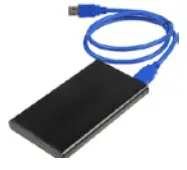
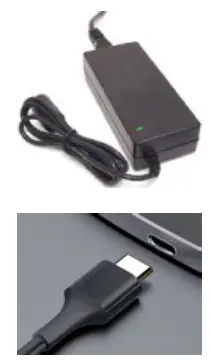 • For use with storage devices.
Getting Started
Power System
NOTE: Photos and icons in this document are used for artistic purposes only and do not show what is actually used in the product itself.
Power System Using AC Power
Your Chromebook comes with a universal ACDC adapter applicable to any 100V-120V and 220V-240V outlets without using power converters.
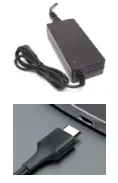
When using the adapter, connect the AC power cord to the adapter, the power cord to an AC outlet, and then the USB Type-C connector to the Chromebook. The power indicator on the adapter (if available) will light if the power is within accepted ranges.
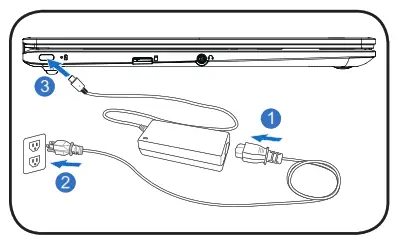
If a power strip is used, ensure the total ampere rating of the products plugged into the power strip does not exceed the ampere rating of the power strip. IMPORTANT! This Chromebook may come with a two or three-prong plug depending on territory. If a three-prong plug is provided, you must use a grounded AC outlet to ensure safe operation. DO NOT remove the grounding prong from the power cable plug. IMPORTANT! Damage may occur if you use a different adapter to power the Chromebook.
If there is smoke, burning scent, or extreme heat coming from the adapter, turn OFF the Chromebook and contact an authorized service center. You may damage both the Chromebook and its battery with a faulty adapter. IMPORTANT! Plug the adapter into an AC outlet that is easily accessible at all times and place the adapter in a ventilated area. DO NOT place heavy objects on the adapter or cover it with anything that will reduce cooling. DO NOT use the adapter inside a carrying case. WARNING! DO NOT cover the adapter. Keep it away from your body as it may become hot when in use.
 Using Battery Power
The Chromebook is designed to work with a battery. A fully charged battery will provide several hours of battery life, which can be further extended by using the power management features in the Device sub-menu in the Settings menu. Battery Care
There is a limit on the number of times the battery can be recharged. Its lifespan will depend on your environment temperature, humidity, and how your Chromebook is used. Use the battery in a temperature range between 5˚C and 35˚C (41˚F and 95˚F) to ensure a longer battery life.
Leaving a battery in a surrounding environment with extremely high temperature can result in an explosion or the leakage of flammable liquid or gas. WARNING! DO NOT throw any batteries into fire, DO NOT short circuit the contacts, and DO NOT disassemble any batteries. If there is any abnormal operation or damage to the batteries, turn OFF the Chromebook and contact an authorized service center. Use only approved batteries. Using an incorrect battery type can cause a risk of explosion. Follow local regulations for instructions to dispose of used batteries.

Appendix
Declaration and Safety Statements NOTE: Photos and icons in this document are used for artistic purposes only and do not show what is actually used in the product itself.
CE Mark Warning
This is a Class B product. In a domestic environment, this product may cause radio interference, in which case the user may be required to take adequate measures.
FCC Radio Frequency (RF) Exposure Caution Statement
This equipment complies with FCC RF exposure limits set forth for an uncontrolled environment. To maintain compliance with FCC RF exposure compliance requirements, please follow operation instructions in the user guide.
UL Safety Notices
- DO NOT use the Chromebook near water, for example, near a bath tub, wash bowl, kitchen sink or laundry tub, in a wet basement or near a swimming pool.
- DO NOT use the Chromebook during an electrical storm. There may be a remote risk of electric shock from lightning.
- DO NOT use the Chromebook in the vicinity of a gas leak.
- DO NOT dispose of the Chromebook battery pack in a fire.
- DO NOT use power adapters or batteries from other devices to reduce the risk of injury to persons due to fire or explosion. Use only UL certified power adapters or batteries supplied by the manufacturer or authorized retailers.