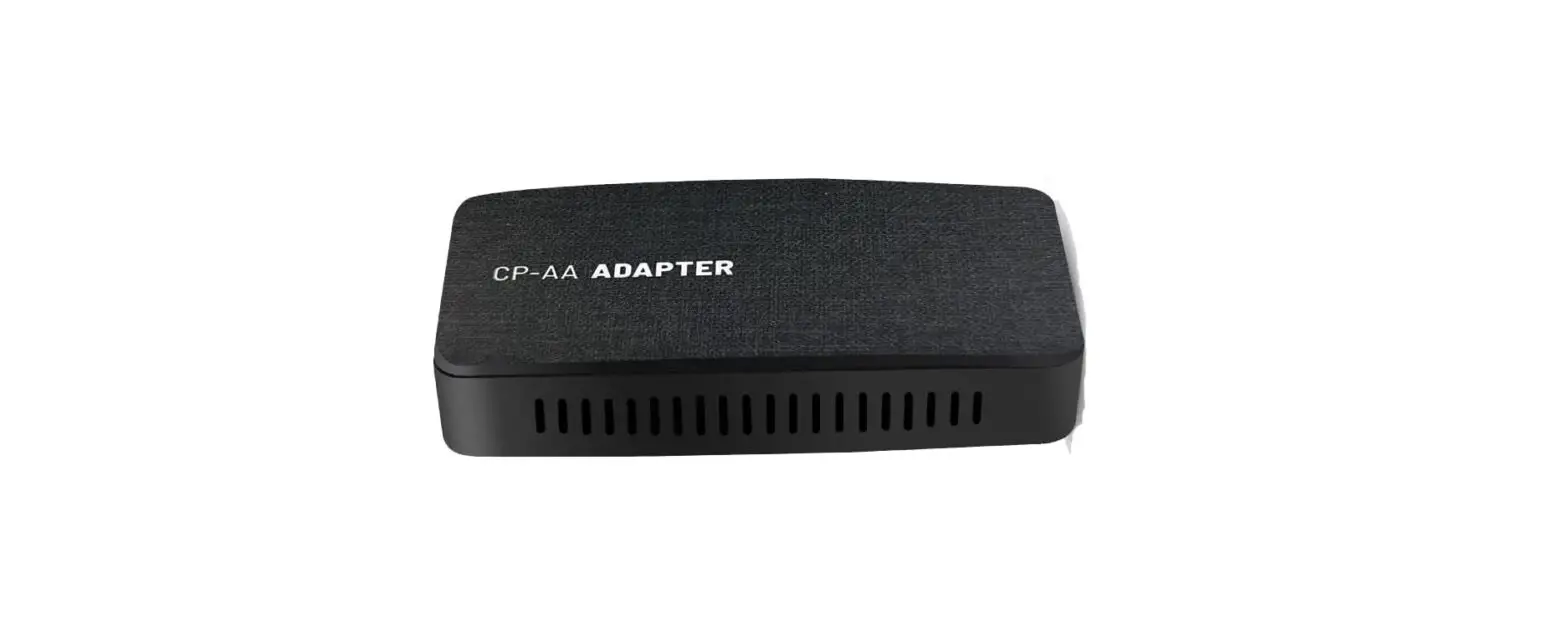
P2000-CICMD MOST CarPlay Interface
Mr12Volt MOST CarPlay Interface for BMW CIC Quick User
Guide
Model No: P2000-CICMD
1 – All you need to know before Installation
The Mr12volt interface emulates the CD changer function of a BMW
radio and is connected through the MOST bus of its function. Once
successfully installed, CD1 will appear and operate within.
Coding of a CDC option is needed, there are handful of software
available in the market which can code in CDC option.
If there is an external CD changer fitted in your car, it must
be bypassed with a FO loop.
For 1 & 3 series with a CD changer fitted in the trunk. Use
an Optical Bypass connector to disable and it can be purchased from
mr12volt website.
DIP SWITCH CONFIGURATION
2 – Product Features
- CarPlay
- Android Auto
- Mirroring
- Music & Video Playback (Through USB Flash)
- Bluetooth HF & Music Streaming
- Reverse Camera Input (Support up to AHD720P)
- Front Camera Input
- Passenger Side L/R Camera Input (For the use of Blind
Spot) - Reverse Grid Line
- Digital Sound Processor (DSP) with 15 Band Equalizer
Adjustment - Software Update available
3 – Main Feature Operations
CarPlay/Android Auto
Support both wired and wireless CarPlay connection. To connect
to wireless CarPlay, both Bluetooth and Wi-Fi connection are
required. For wired CarPlay & Android Auto: Use a genuine cable
to connect.
Mirroring – iPhone
- Disable CarPlay by turning off Bluetooth & Wi-Fi
Connection - Enter Mirroring menu on Car display and Choose iPhone
- Turn on Wi-Fi on phone connect network carplay_xxxx (PW is
88888888) - Go to iPhone Control Center, select Screen Mirroring and select
Mirroring again - Phone display will appear on Car Display now
Mirroring – Android Phone
It is necessary to install MLink application on your Android
phone, which can be downloaded on www.mr12volt.com (Go to SUPPORT
—> Download —> P2000 mirroring). Both Bluetooth &
Hotspot connection are needed at all time for mirroring.
- Hotspot Setting:
- 5GHz band must be selected
- Enter Mirroring menu on car display and choose Android
- Network name & Password on phone must be set same as shown
on Mr12volt Mirroring menu - Open MLink app–>turn on Bluetooth and Hotspot
- When both Bluetooth and Hotspot are successfully connected,
phone display will appear on the car Display
- It is always best to open mirroring menu on car display prior
to the connection of Bluetooth, so that Android Auto does not
overtake the function of mirroring when first connected to
Bluetooth.
Bluetooth
- Phone contact list
- Contact history
- Dial Pad
- Audio Streaming BT Hands-free
- When a call is incoming, answer and reject button will appear
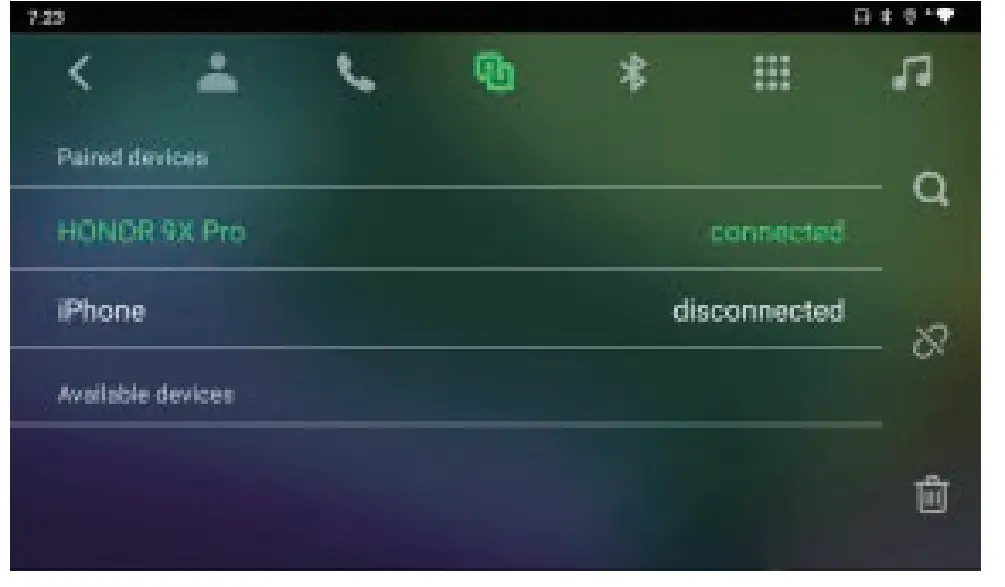
on display, use MMI/i-Drive/Rotary button to select. - BMW factory Bluetooth HF and Mr12volt Bluetooth can be
connected at the same time. (see below picture) When both are
connected and a call is incoming, BMW HF will take over Mr12volt HF
and it can be answered through phone button on steering wheel. - Mr12volt does not support the integration of OEM microphone
even with
4 – Car Settings
This feature is not mentioned in the user manual.
5 – Sound Settings
This feature is not mentioned in the user manual.
6 – USB Supported Formats & Other Specs
This feature is not mentioned in the user manual.
7 – FAQ
This feature is not mentioned in the user manual.
Product Usage Instructions
- Before installation, it is important to know that the Mr12volt
interface emulates the CD changer function of a BMW radio and is
connected through the MOST bus of its function. Once successfully
installed, CD1 will appear and operate within. Coding of a CDC
option is needed, and there are handfuls of software available in
the market which can code in CDC option. If there is an external CD
changer fitted in your car, it must be bypassed with a FO loop. For
1 & 3 series with a CD changer fitted in the trunk, use the
Optical Bypass connector to disable and it can be purchased from
Mr12volt website. - To use CarPlay or Android Auto, both wired and wireless
connection are supported. To connect to wireless CarPlay, both
Bluetooth and Wi-Fi connection are required. For wired CarPlay
& Android Auto, use a genuine cable to connect. - To use Mirroring with an iPhone, disable CarPlay by turning off
Bluetooth & Wi-Fi Connection and enter the Mirroring menu on
the Car display and choose iPhone. Turn on Wi-Fi on the phone and
connect to network carplay_xxxx (PW is 88888888). Go to iPhone
Control Center, select Screen Mirroring and select Mirroring again.
The phone display will appear on the Car Display now. - To use Mirroring with an Android Phone, install the MLink
application on your Android phone, which can be downloaded on
www.mr12volt.com (Go to SUPPORT —> Download —> P2000
mirroring). Both Bluetooth & Hotspot connection are needed at
all times for mirroring. In Hotspot Setting, select the 5GHz band
and enter the Mirroring menu on car display and choose Android. Set
the network name & password on the phone the same as shown on
Mr12volt Mirroring menu. Open MLink app–>turn on Bluetooth and
Hotspot. When both Bluetooth and Hotspot are successfully
connected, the phone display will appear on the car Display. It is
always best to open the mirroring menu on the car display prior to
the connection of Bluetooth, so that Android Auto does not overtake
the function of mirroring when first connected to Bluetooth. - To use Bluetooth, the phone contact list, contact history, dial
pad, and audio streaming BT Hands-free are supported. When a call
is incoming, answer and reject button will appear on display, use
MMI/i-Drive/Rotary button to select. BMW factory Bluetooth HF and
Mr12volt Bluetooth can be connected at the same time. When both are
connected and a call is incoming, BMW HF will take over Mr12volt
HF, and it can be answered through the phone button on the steering
wheel. Mr12volt does not support the integration of OEM
microphone.
Mr12Volt MOST CarPlay interface for BMW CIC Quick User Guide
Model No : P2000-CICMD
1 – All you need to know before Installation 2 – Product Features 3 – Main Feature Operations 4 – Car Settings 5 – Sound Settings 6 – USB Supported Formats & Other Specs 7 – FAQ
1 – All you need to know before Installation
Mr12volt interface emulates CD changer function of a BMW radio and is connected through MOST bus of its function. Once successfully installed, CD1 will appear and operate within. (Picture illustrated above)
Coding of a CDC option is needed, there are handful of software available in the market which can code in CDC option.
If there is an external CD changer fitted in your car, it must be bypassed with a FO loop.
For 1 & 3 series with a CD changer fitted in the trunk. Use a Optical Bypass connector to disable and it can be purchased from mr12volt website.
DIP SWITCH CONFIGURATION
2 – Product Features
CarPlay Android Auto Mirroring Music & Video Playback ( Through USB Flash ) Bluetooth HF & Music Streaming Reverse Camera Input ( Support up to AHD720P ) Front Camera Input Passenger Side L/R Camera Input ( For the use of Blind Spot ) Reverse Grid Line Digital Sound Processor (DSP) with 15 Band Equalizer Adjustment Software Update available
3 – Main Feature Operations
CarPlay/Android Auto
Support both wired and wireless CarPlay connection To connect to wireless CarPlay, both Bluetooth and Wi-Fi connection are
required For wired CarPlay & Android Auto : Use a genuine cable to connect
through the USB / Lightening connector. Both Wi-Fi & Bluetooth connections are NOT required in this case. How to Connect CarPlay : Search for Mr12volt_xxxx and pair to make a Bluetooth connection —> Turn on Wi-Fi and & Use CarPlay —> it will start CarPlay on your screen after few seconds, it could take longer for a first time connection How to Connect Android Auto : Search for MR12volt_xxx and Pair to make a Bluetooth connection, Wi-Fi on phone will be on automatically and connected to Android Auto
Mirroring
iPhone
1. Disable CarPlay by turning off Bluetooth & Wi-Fi Connection
2. Enter Mirroring menu on Car display and Choose iPhone
3. Turn on Wi-Fi on phone connect network “carplay_xxxx” ( PW is 88888888) 4. Go to iPhone Control Center, select Screen Mirroring and select Mirroring again 5. Phone display will appear on Car Display now
Android Phone
It is necessary to install “MLink” application on your Android phone, it can be downloaded on www.mr12volt.com ( Go to SUPPORT —> Download —> P2000 mirroring)
Both Bluetooth & Hotspot connection are needed at all time for mirroring Hotspot Setting : 1. 5GHz band must be selected 2. Enter Mirroring menu on car display and choose “Android” 3. Network name & Password on phone must be set same as shown on
Mr12volt “Mirroring” menu 4. Open MLInk app–>turn on Bluetooth and Hotspot 5. When both Bluetooth and Hotspot are successfully connected, phone
display will appear on the car Display It is always best to open mirroring menu on car display prior to the
connection of Bluetooth, so that Android Auto does not overtake the function of mirroring when first connected to Bluetooth
Bluetooth
Phone contact list Contact history Dial Pad Audio Streaming BT Hands-free When a call is incoming, answer and reject button will appear on display,
use MMI/i-Drive/Rotary button to select. BMW factory Bluetooth HF and Mr12volt Bluetooth can be connected at
the same time. (see below picture) When both are connected and a call is incoming, BMW HF will take over Mr12volt HF and it can be answered through phone button on steering wheel.
Mr12volt does not support the integration of OEM microphone even with
the installation of a Y-cable. if you need to use Mr12volt HF or Voice Command such as Siri, the 3.5mm jack microphone supplied in the package must be installed.
Car Setting
4 – Car Settings
“Reverse Camera” settings OE Camera (Default) – Select this when car is fitted with factory camera AfterMarket 360 – Select this when car is installed with a aftermarket
camera ( support up to AHD720 only)
“Reverse condition” settings Gear Position (Default) – Detects through CAN bus when reverse. Reverse state – Detects through 12v reverse light signal when reverse
(requires the manual wiring connection of a car reverse signal)
When do i select “Reverse State” ? Mr12volt detects car CAN bus with most of the car models in the market, however in some cases particularly in older generation cars, when a CAN bus can’t be detected, it is necessary to manually detect camera through car reverse light signal. (Refer to the BMW CIC Installation Diagram for more details ) “Starting front view” – Front Camera timer setting with 5s, 10s, 30s
“Dedicated right view” – L/R Side camera setting (Blind Spot camera) Can Active – Detects through CAN bus 12v Active – Detects through 12v side L/R light
“Reverse track” – Option to turn ON / OFF of a Parking Grid (For AfterMarket camera only) “Reverse radar” – Option to turn ON / OFF of a Reverse Sensor (For AfterMarket Reverse sensor only)
5 – Sound Settings
Sound Settings
DSP Built-In Bass/Mild/Treble level adjustment with 15 bars customization Factory default at Flat
6 – USB Supported Formats & Other Specs
Music and Video Playback File Format
USB file format FAT32 Support USB2.0 , Hard disk memory Supported music format : MP3, WMA, AAC, AC3, DTS, OGG, FLAC, APE,
AMR Supported video format : mkv, mp4, avi, wmv, rmvb, rm, mpg, mpeg, ts,
dat, asf, flv, vob Supported Photo format : BMP, JPG, GIF, PNG DOES NOT support folder management when browsing USB Music and
Video files
Other Data
Support Phone Charging through USB connector @ 500mAh Support Hi-Resolution Loss-less Apple music Wireless
7 – FAQ
Q: I have a Harman & Kardon system, does it work ? A: It works on all sound systems regardless its Harman & Kardon, Hi Fi or Standard system.
Q: Do i need any coding? A: coding of a CDC option is needed if there is no factory fitted CD changer, and on the other hand, if there is CD changer fitted , it must be disabled.
Q; Can i use my BMW Bluetooth HF while connected to Mr12volt Bluetooth ? A: Yes, they can be connected at the same time, BMW factory HF will take over Mr12volt when a call is received and it can be answered through phone button on steering wheel.
Q; I have a factory microphone in my BMW car, can i connect this to Mr12volt instead of the microphone in the package. ? A: NO, Mr12volt does not support the integration of OEM microphone even with the installation of a Y-cable. if you need to use Mr12volt HF or Voice Command such as Siri, the 3.5mm jack microphone supplied in the package must be installed.
 Mr12Volt Car Interface