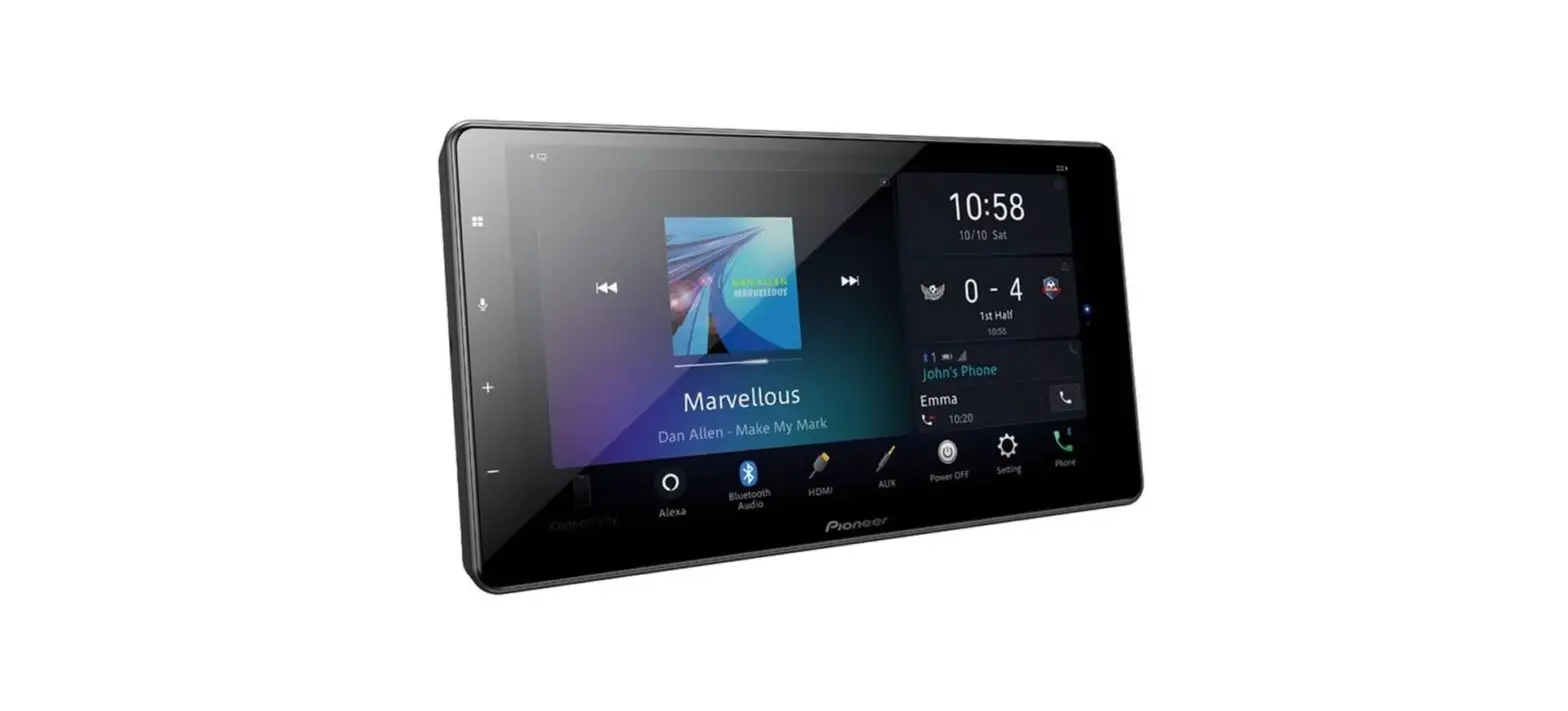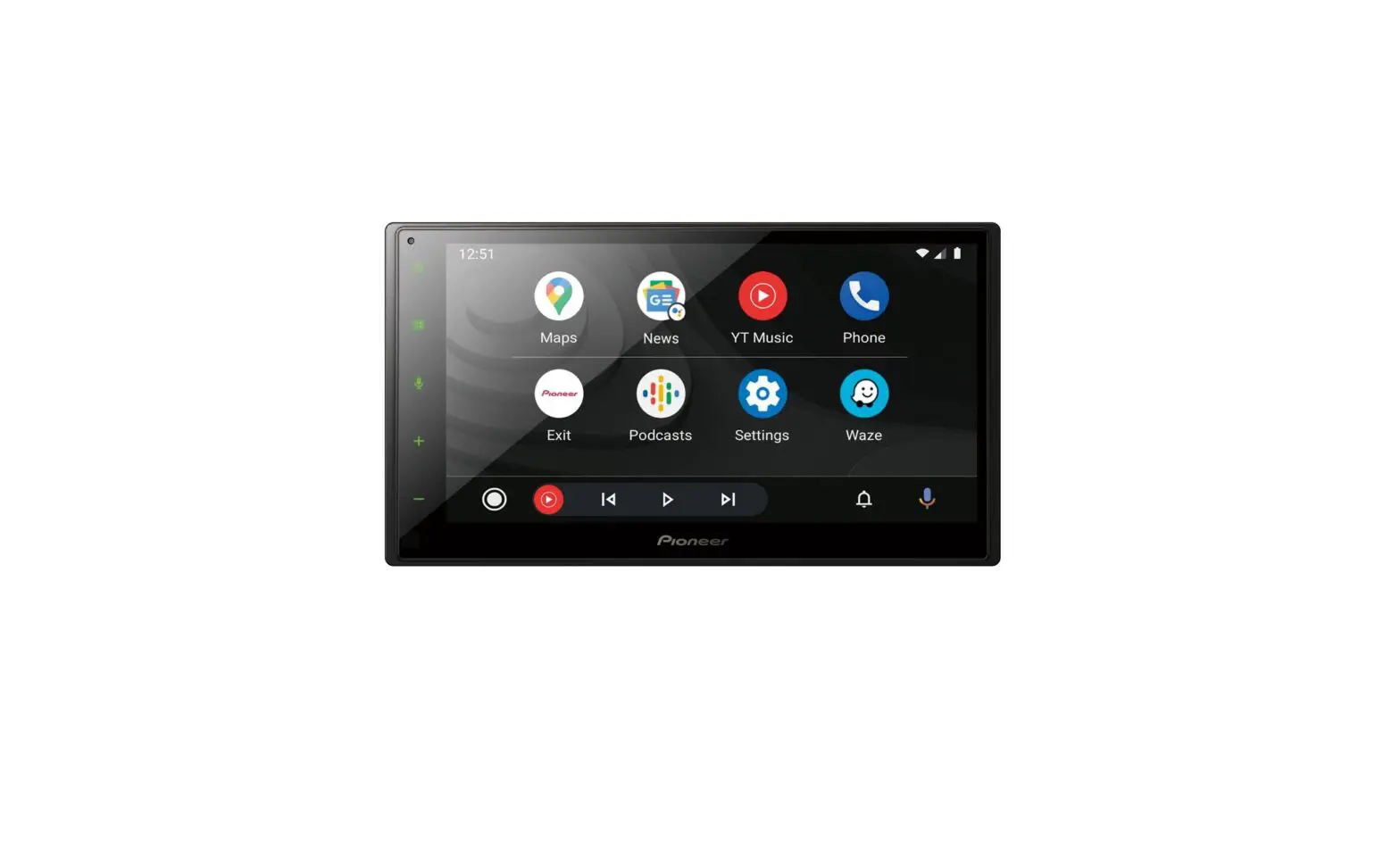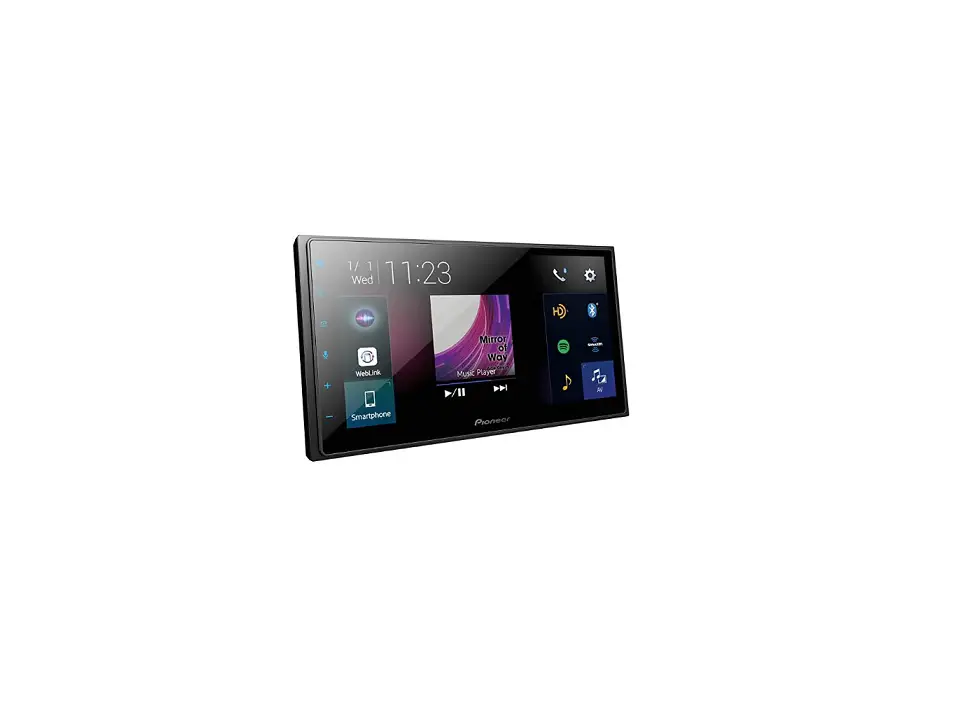
Pioneer DMH-WT3800NEX In Dash AV Receivers System Firmware Update Instructions

System Firmware Update Instructions for Pioneer In-Dash AV Receivers
This firmware update applies only to the following models of Pioneer In-Dash AV Receivers sold in in the United States and Canada.
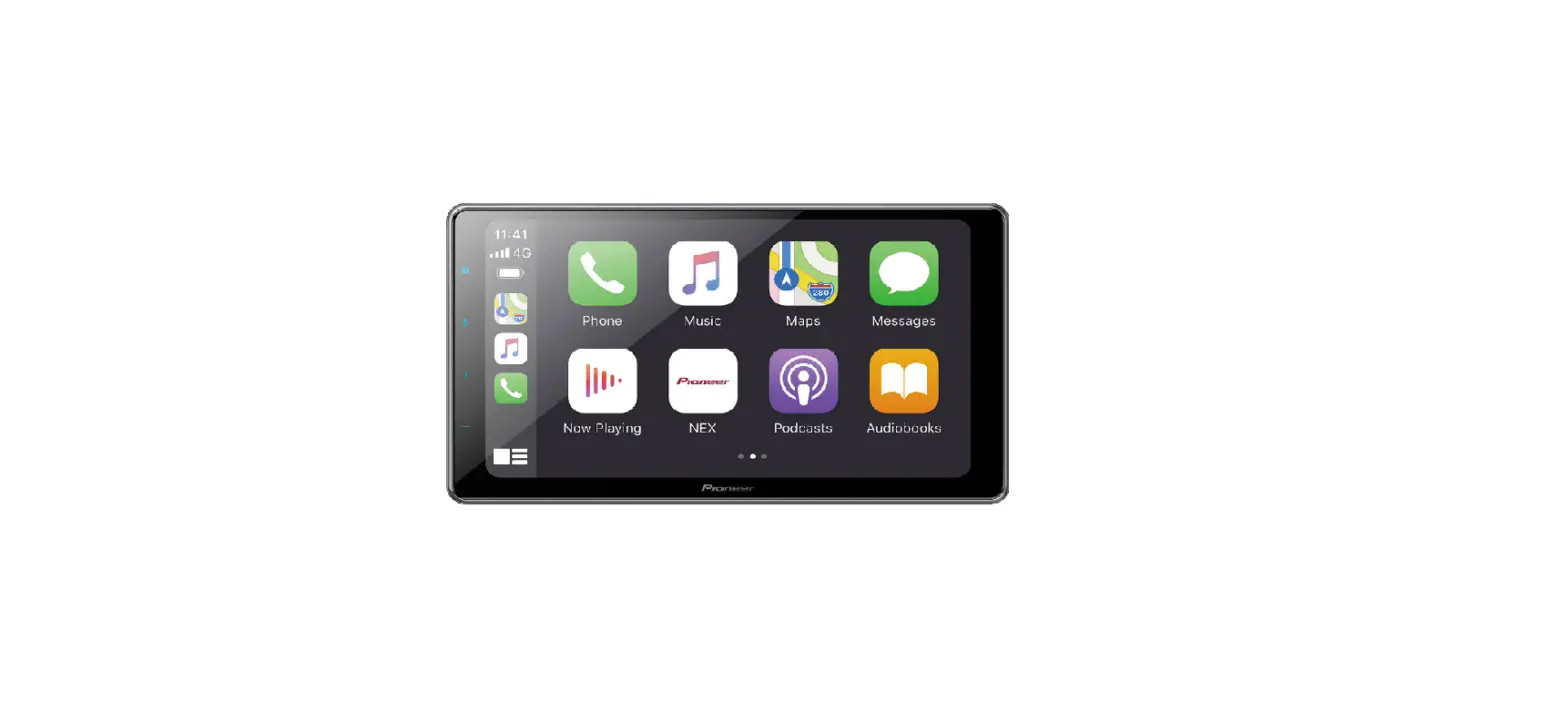
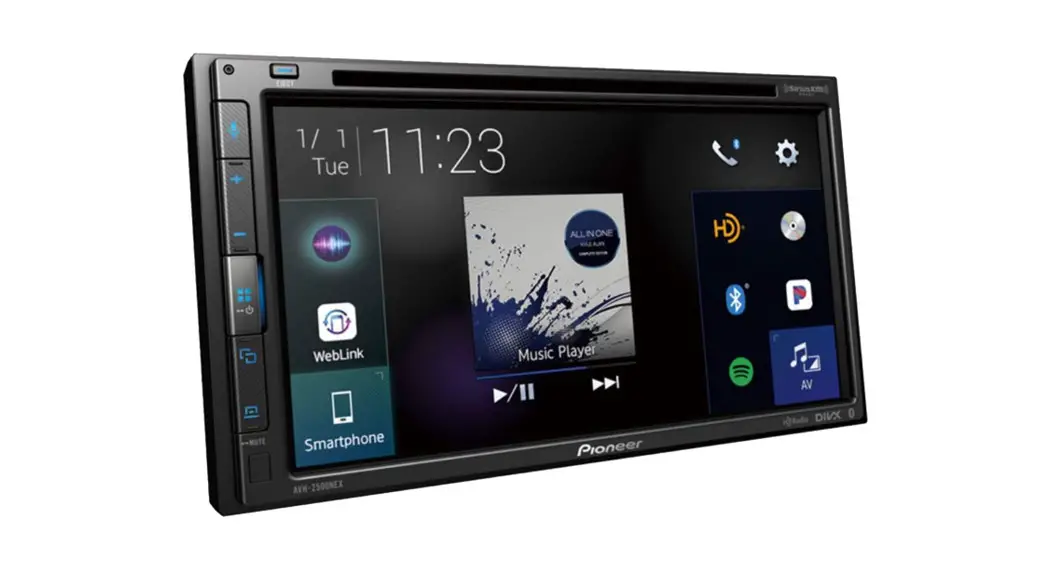
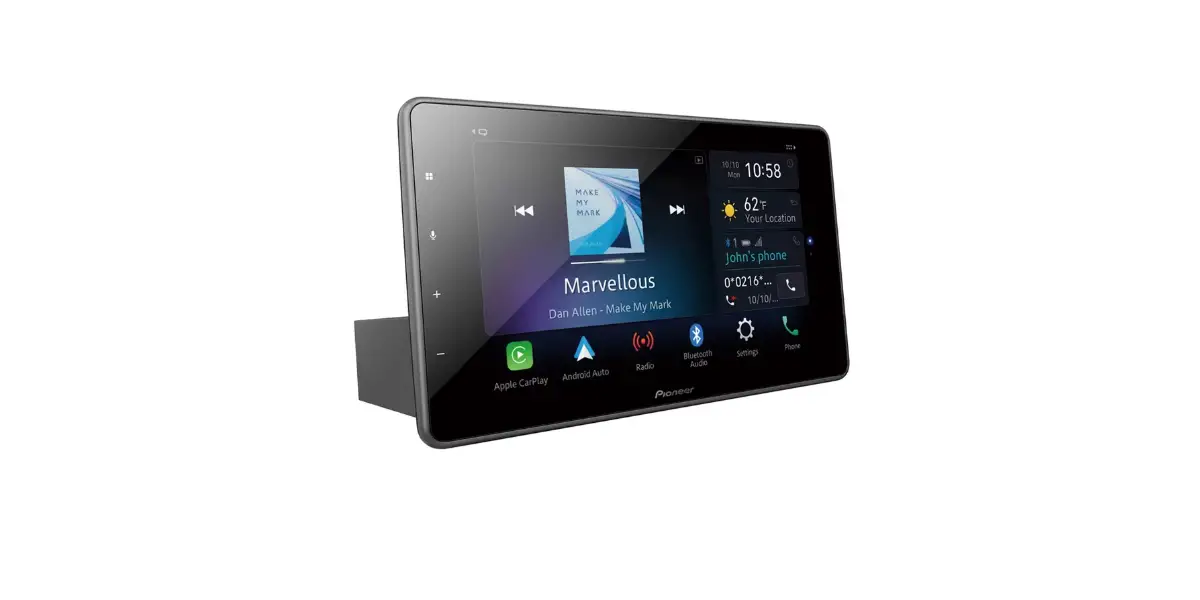
DMH-WT3800NEX
IMPORTANT
Please download and print these firmware update instructions before downloading and installing the firmware update. It is important that you complete all steps correctly and in the order described below.
Note: If you have any questions, please contact Pioneer Customer Service toll free at 1-800-421-1404, Monday through Friday, 7:30 AM – 11:30 AM and 12:30 PM – 4:00 PM (Pacific Time), excluding holidays, or by email through parts.pioneerelectronics.com/contact.
In order to perform this update, the following items are needed:
- Pioneer In-Dash AV receiver listed above.
- A USB storage device meeting the following requirements:
- 512MB or larger in capacity, formatted to FAT32 or NTFS
- Blank (should not contain any files)
CAUTION
- DO NOT turn your unit off or eject the USB storage device while the firmware is being updated.
- You can only update the firmware when the vehicle is stopped and the parking brake is engaged.
Checking the firmware version
Check whether the firmware of your unit needs to be updated by checking the version number of the firmware.
Procedure:
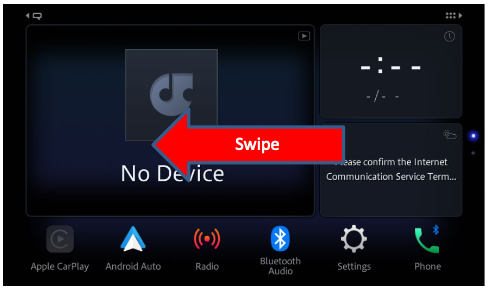
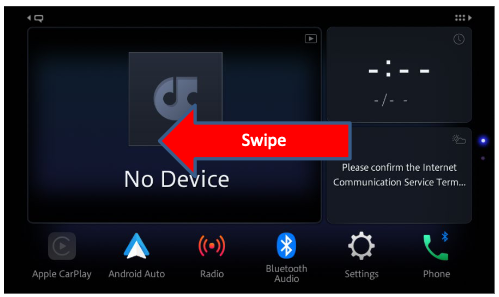
- Flick toward left on Home Screen to switch to Source list page.

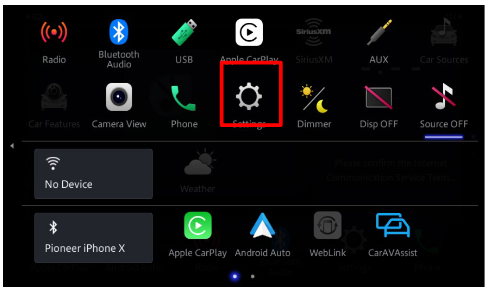
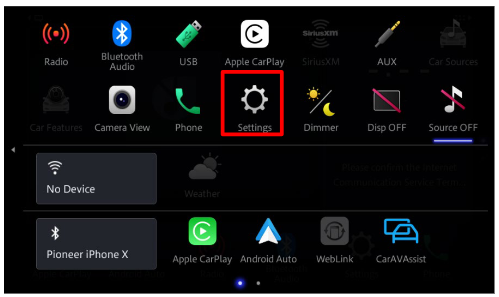
- Select “Setting” icon on source list page.

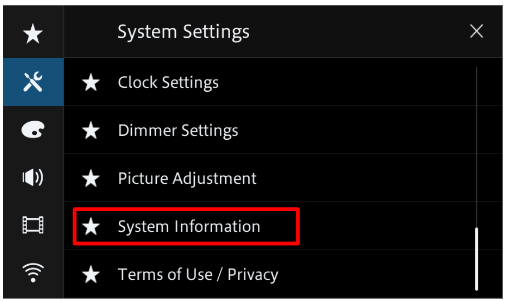
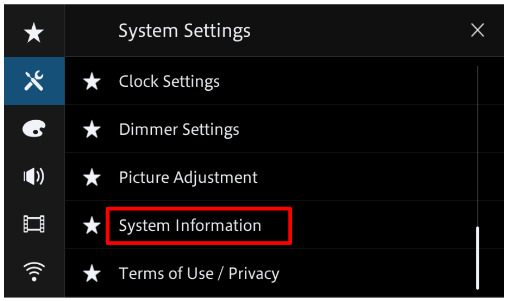
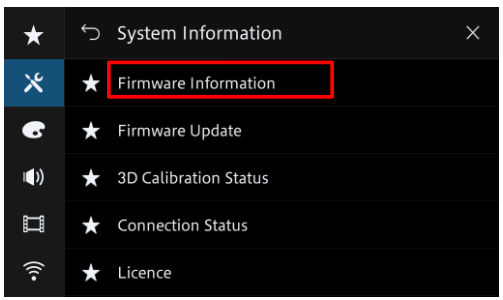
- Scroll down the list and touch [System Information].

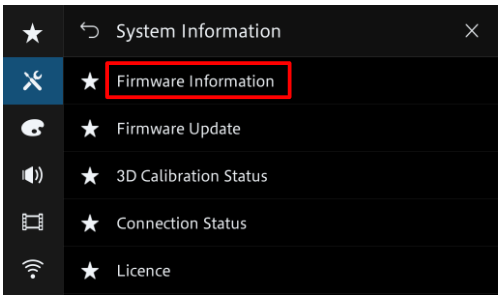
- Touch [Firmware information].

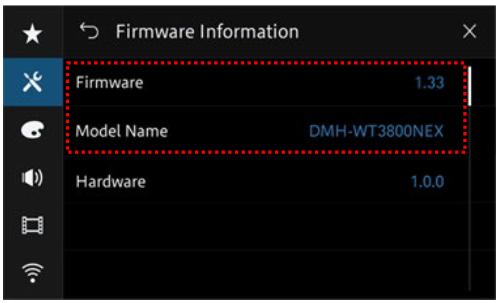
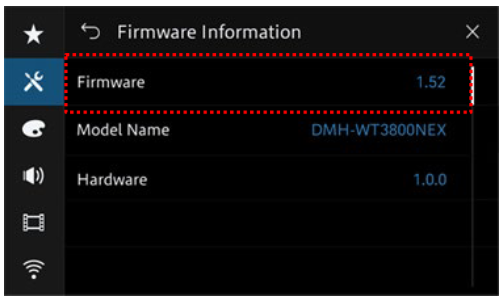
- After the “Firmware Information” screen appears,
Check the firmware version number and model name.
Downloading the firmware update files from Pioneer’s website
- Download the firmware update files by clicking on the following link and finding your product:
https://www.pioneerelectronics.com/PUSA/Support/Downloads - Extract the download file.
The downloaded zip file will produce the following file when decompressed: (See the table below)

Updating the firmware on your unit
IMPORTANT
DMH-WT3800NEX
- DO NOT perform this firmware update if the model number of your Pioneer product is anything other than one of the above models.
- Ensure that the update file is located within the root (top) folder of your USB storage device. There should be no other files within the USB storage device.
- While your unit is being updated, DO NOT turn off the system’s power and DO NOT touch the unit’s touchscreen as this may result in severe damage to your unit.
- DO NOT remove the USB storage device during the firmware update process.
- Performing the firmware update will restore all settings to their default values.
- Disconnect any external mobile devices that are currently connected to your unit.
Procedure:
- Connect a blank (formatted) USB storage device to your computer, and then locate the correct update file and copy it onto the USB storage device.
- Connect the USB storage device to the USB port.
- Set the audio source to “OFF” on your unit.
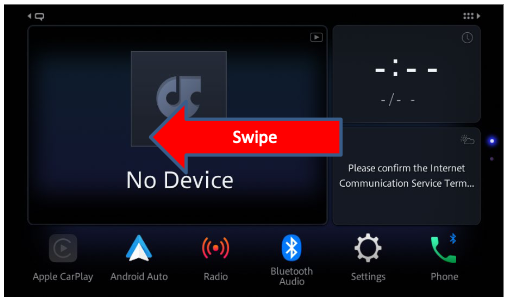
- Swipe toward left on Home Screen to switch to Source list page.

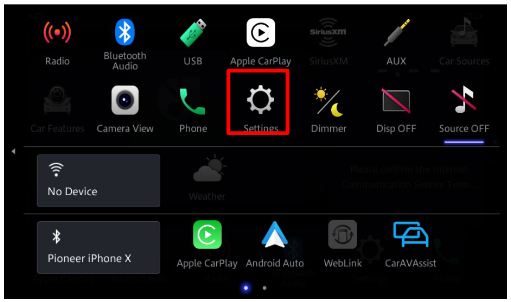
- Select “Setting” icon on source list page.
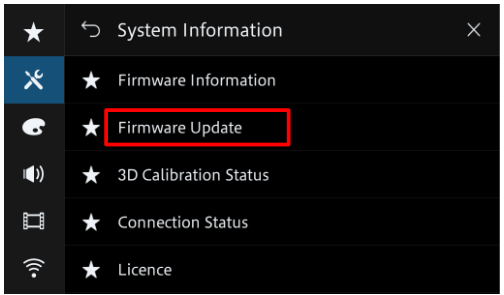
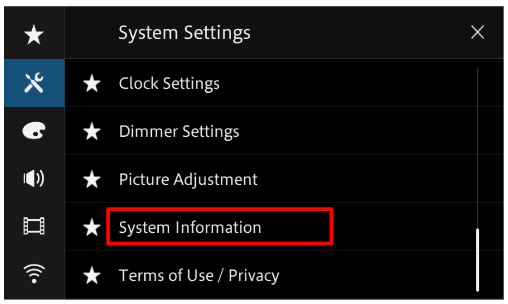
- Scroll down the list and touch [System Information]

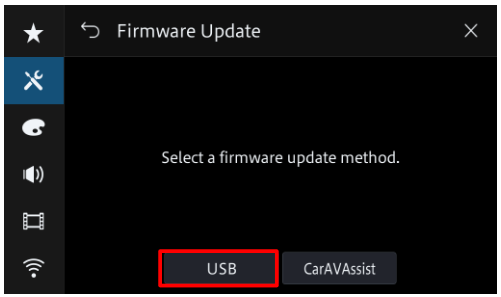
- Touch [Firmware Update]. The “Firmware Update” screen appears.

- Touch [USB].

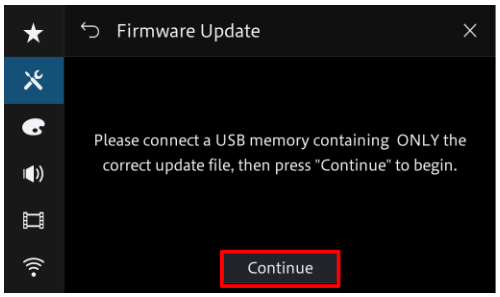
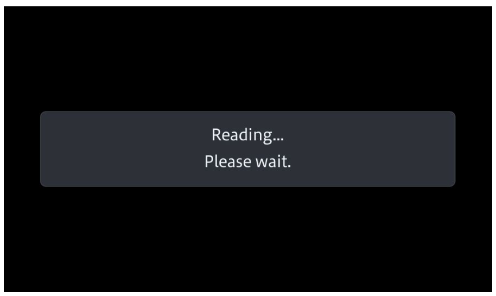
- Touch [Continue] to display the data transfer mode.


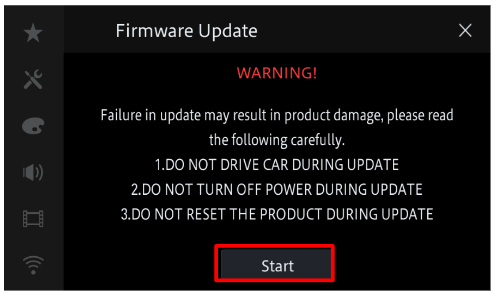
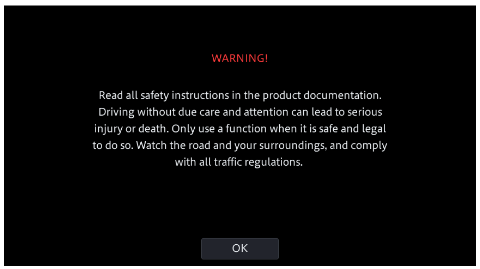
It will take several minutes to load, so please wait. - Read the “WARNING,” then touch the [Start] button to start the update process.
If it shows “ERROR” on the display, try another USB device.
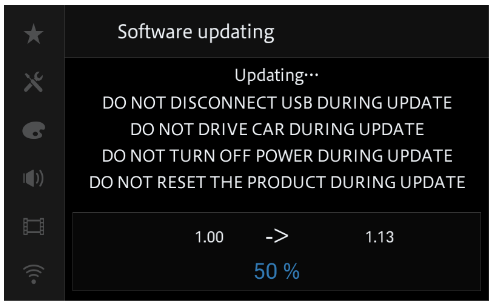
Version up will start. - The progress is displayed during the updating.

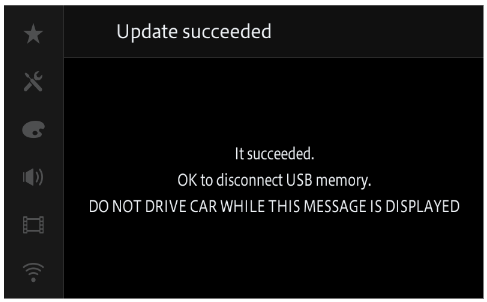
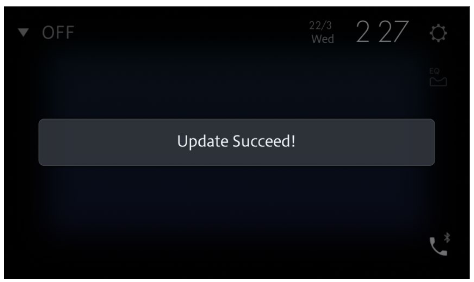
DO NOT turn your unit off or eject the USB storage device while the firmware is being updated. - Display will show “It succeeded…” when the update is complete.
Please disconnect the USB storage device.
- The product will reboot after the update is finished. Do not touch anything even when the screen is blacked out. After it has finished rebooting, the screen will return to the menu screen.

- The firmware update is now complete.

Confirm that the firmware has been updated
Perform the same procedure for “Displaying the firmware version” to confirm that the firmware has been updated.
Procedure:
- Swipe toward left on Home Screen to switch to Source list page.

- Select “Setting” icon on source list page.

- Scroll down the list and touch [System Information].

- Touch [Firmware information].

- After the “Firmware Information” screen appears,
Check the firmware version number and model name.
If you have any difficulty performing these instructions, please contact Pioneer Customer Service toll free at 1-800-421-1404, Monday through Friday, 7:30 AM – 11:30 AM and 12:30 PM – 4:00 PM (Pacific Time), excluding holidays, or online through parts.pioneerelectronics.com/contact.
Copyright 2023 Pioneer Corporation