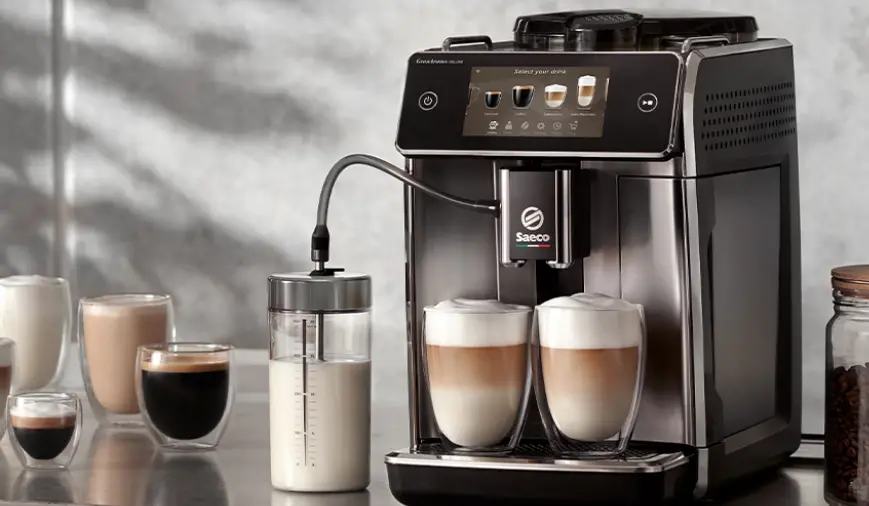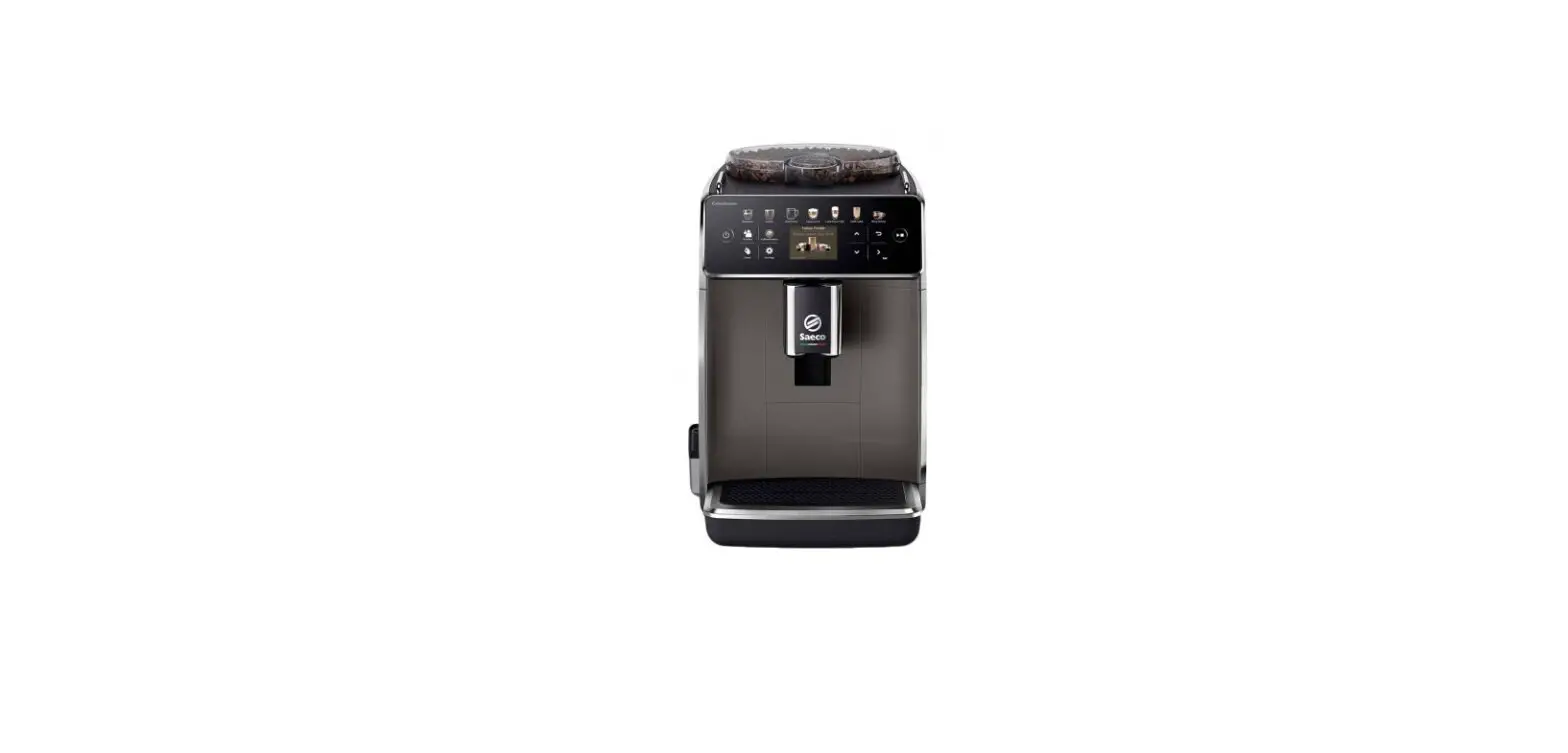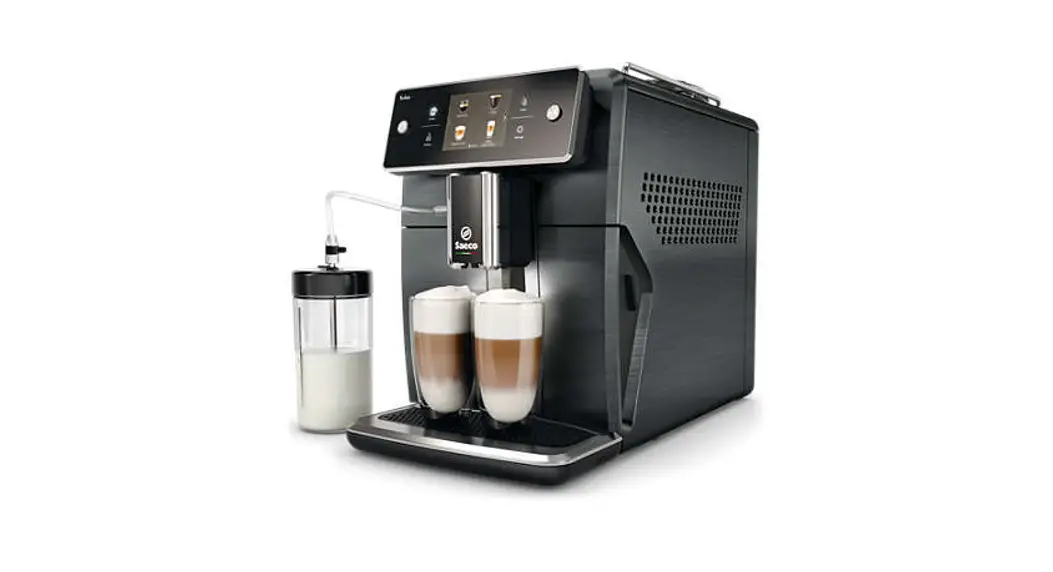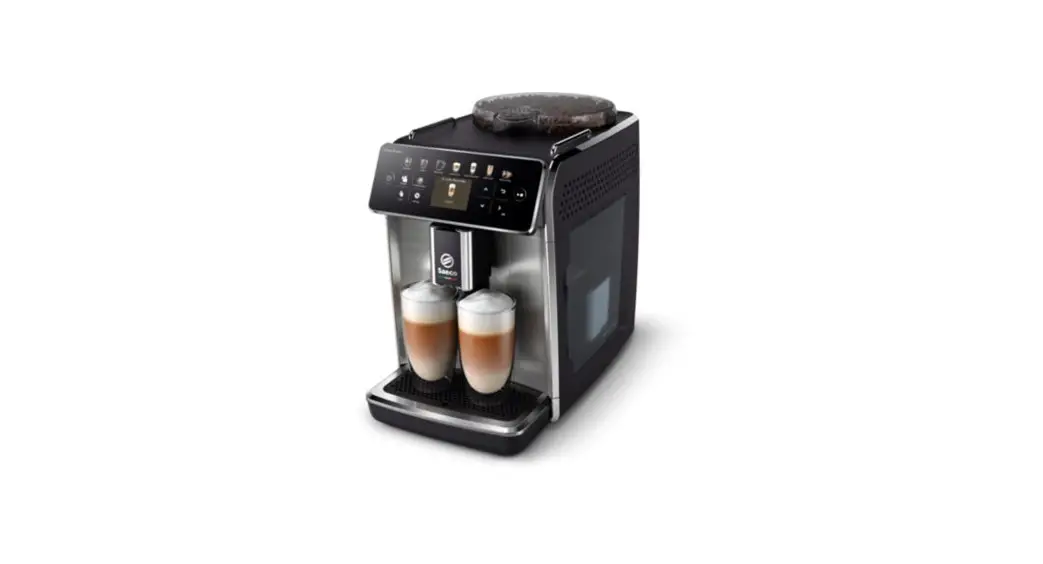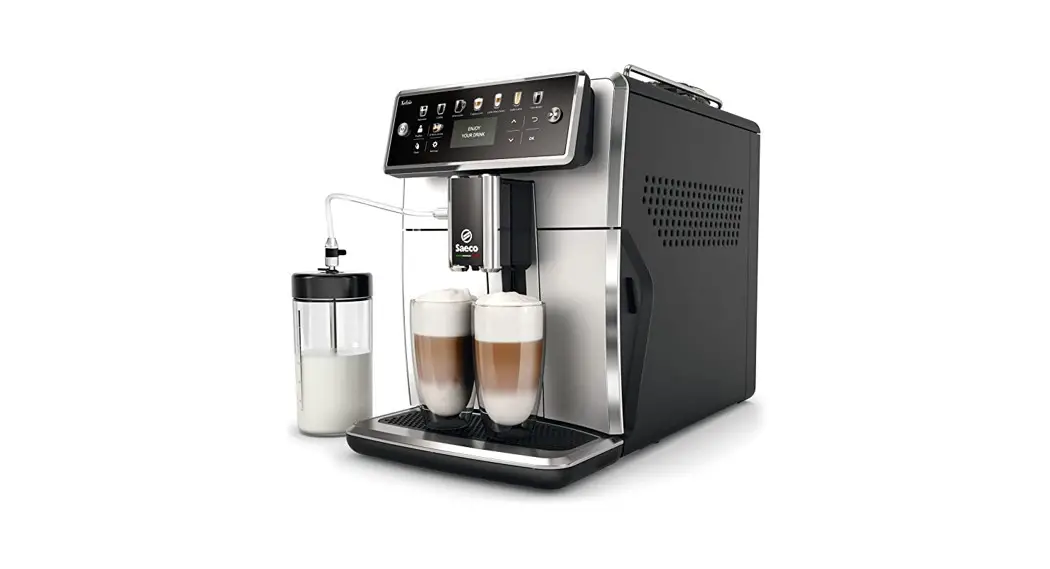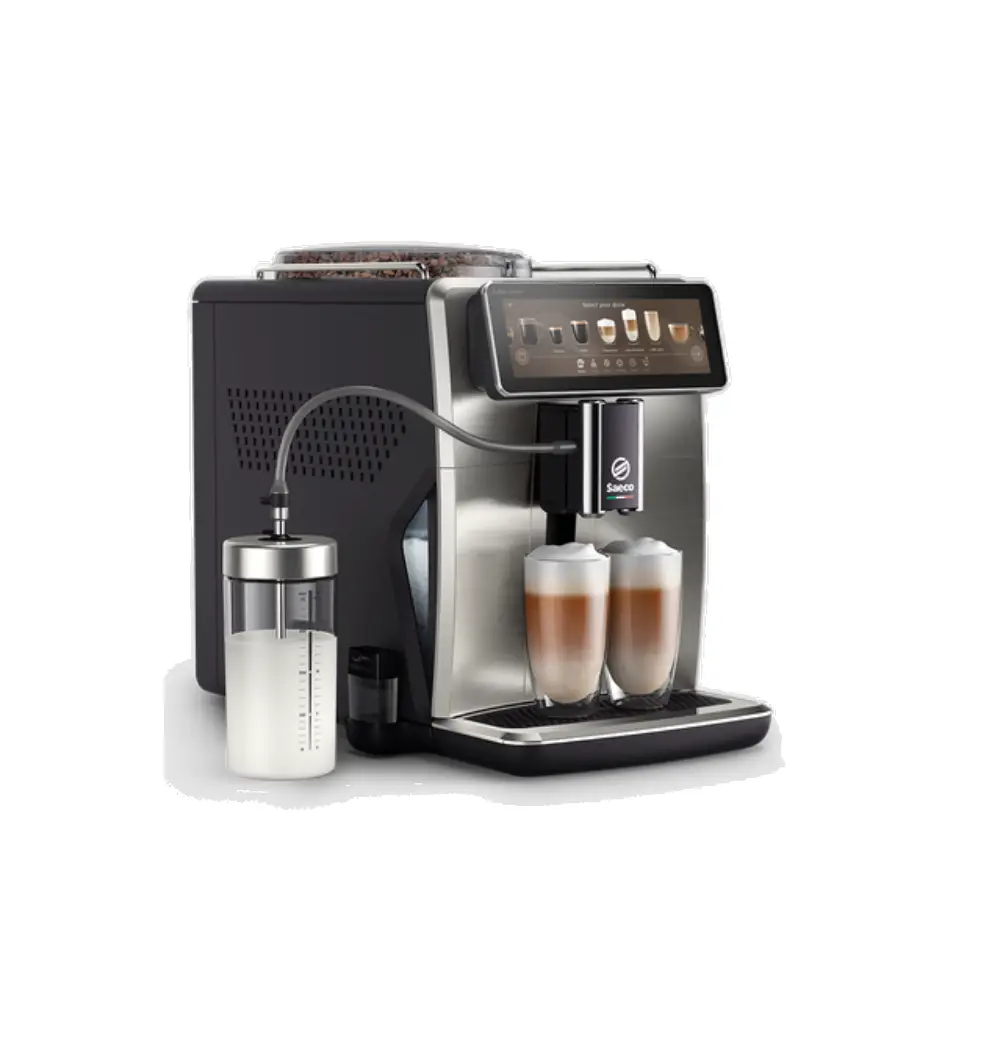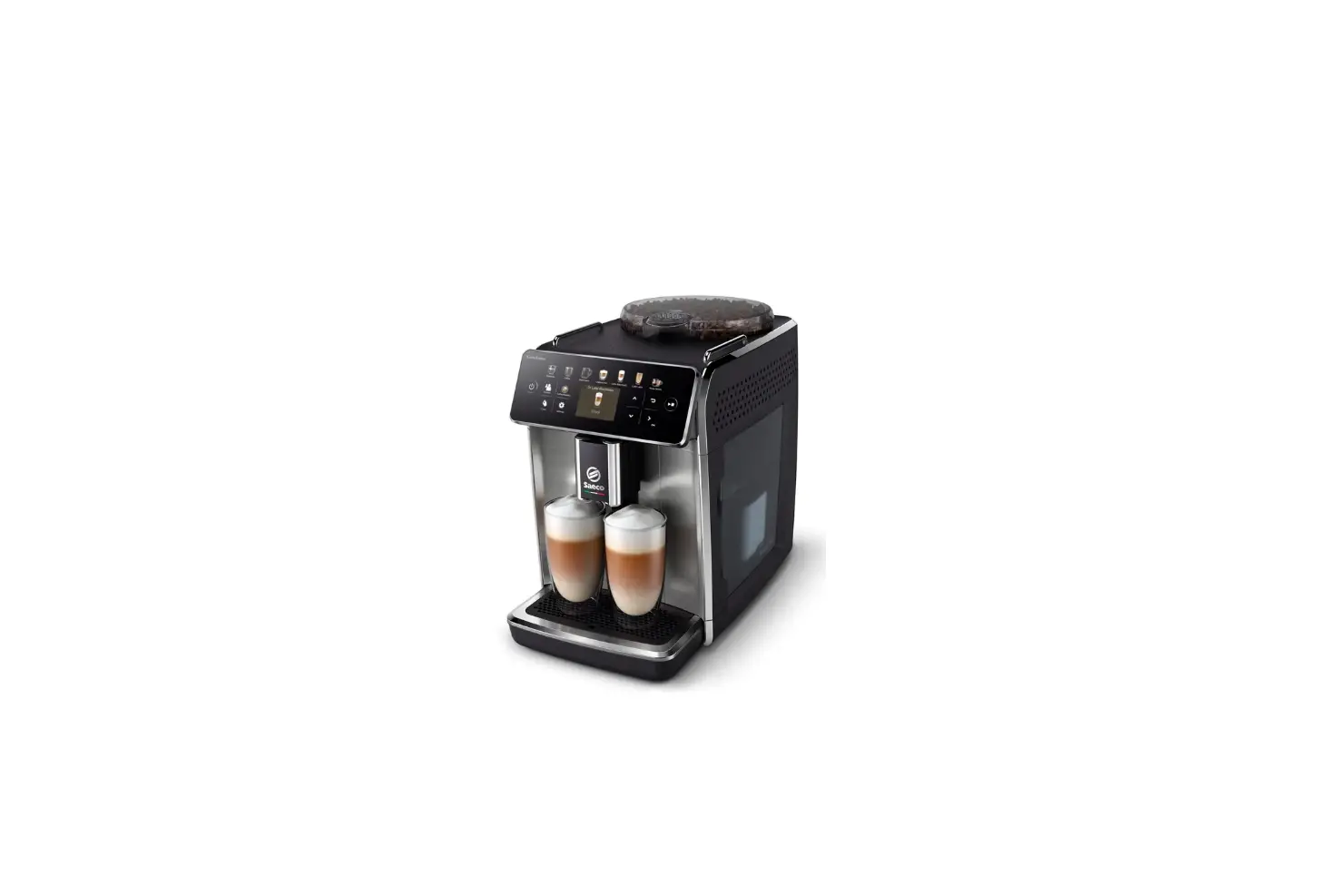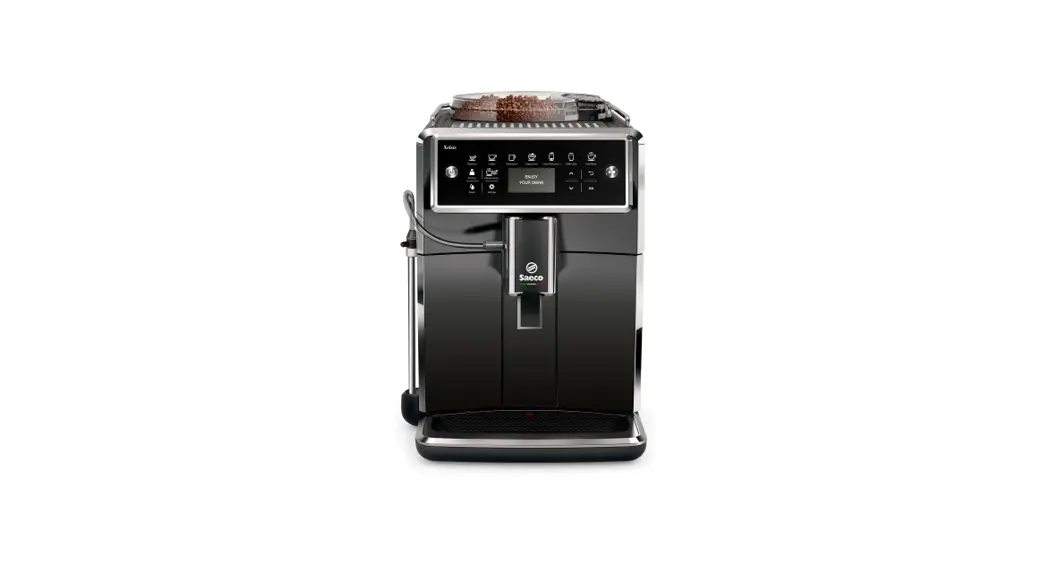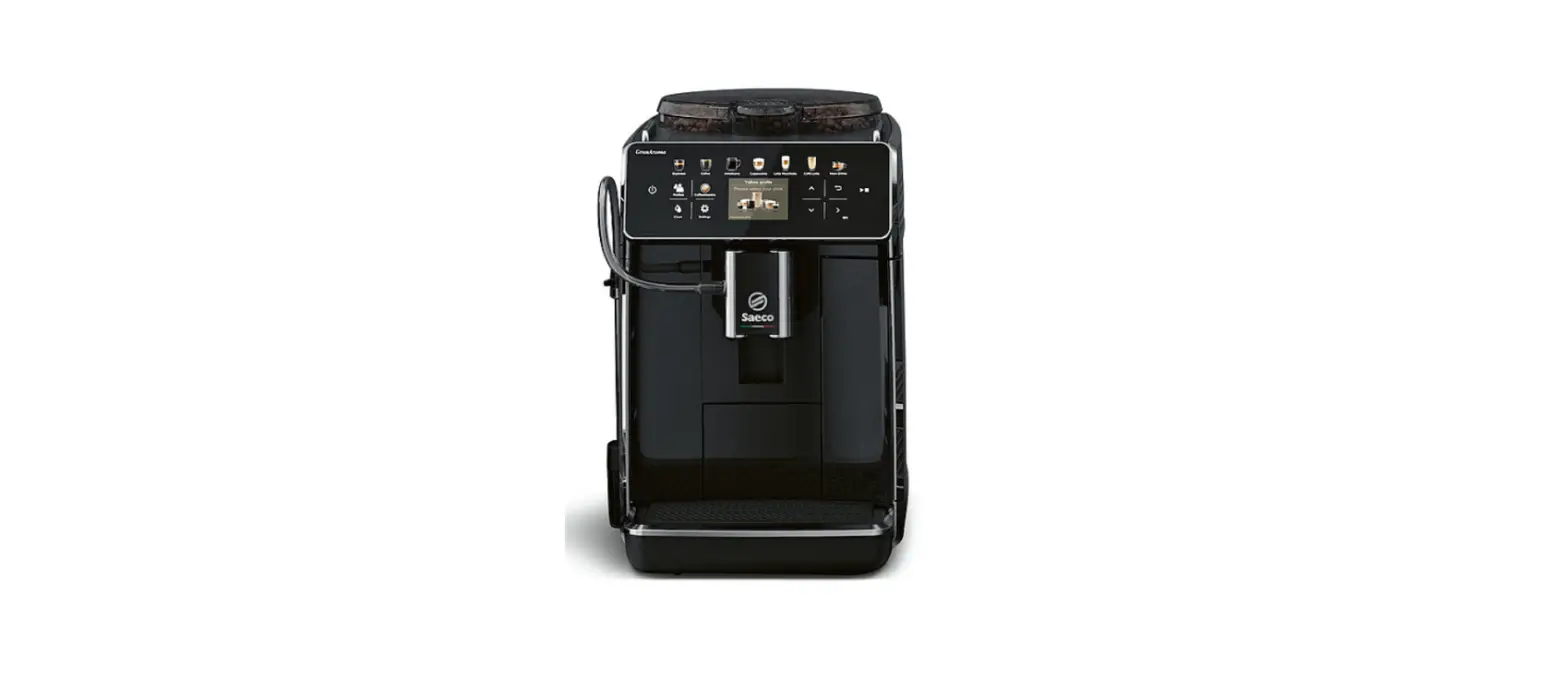
 Saeco SM6585 GranAroma Automatic Coffee Machine
 Saeco SM6585 GranAroma Automatic Coffee Machine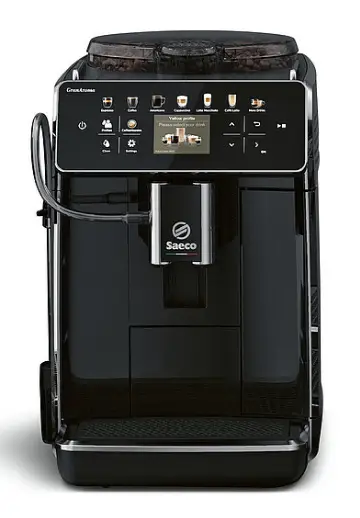
Machine overview 
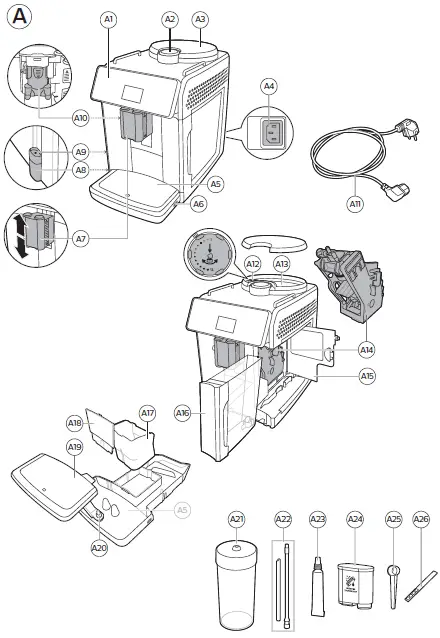
- A1 Control panel
- A2 Lid of pre-ground coffee compartment
- A3 Lid of bean hopper
- A4 Socket for cord
- A5 Drip tray
- A6 Drip tray release grip
- A7 Adjustable coffee and milk dispensing spout A8 HygieSteam container
- A9 HygieSteam cover with milk tube holder A10 Internal cappuccinatore
- Accessories
- A21 Milk container
- A22 Milk tube
- A23 Grease tube
- A11 Mains cord with plug
- A12 Grind setting knob
- A13 Bean hopper
- A14 Brew group
- A15 Service door
- A16 Water tank
- A17 Coffee grounds container
- A18 Front panel of coffee grounds container A19 Drip tray cover
- A20 ‘Drip tray full’ indicator
- A24 AquaClean filter
- A25 Measuring scoop
- A26 Water hardness test strip
Control panel
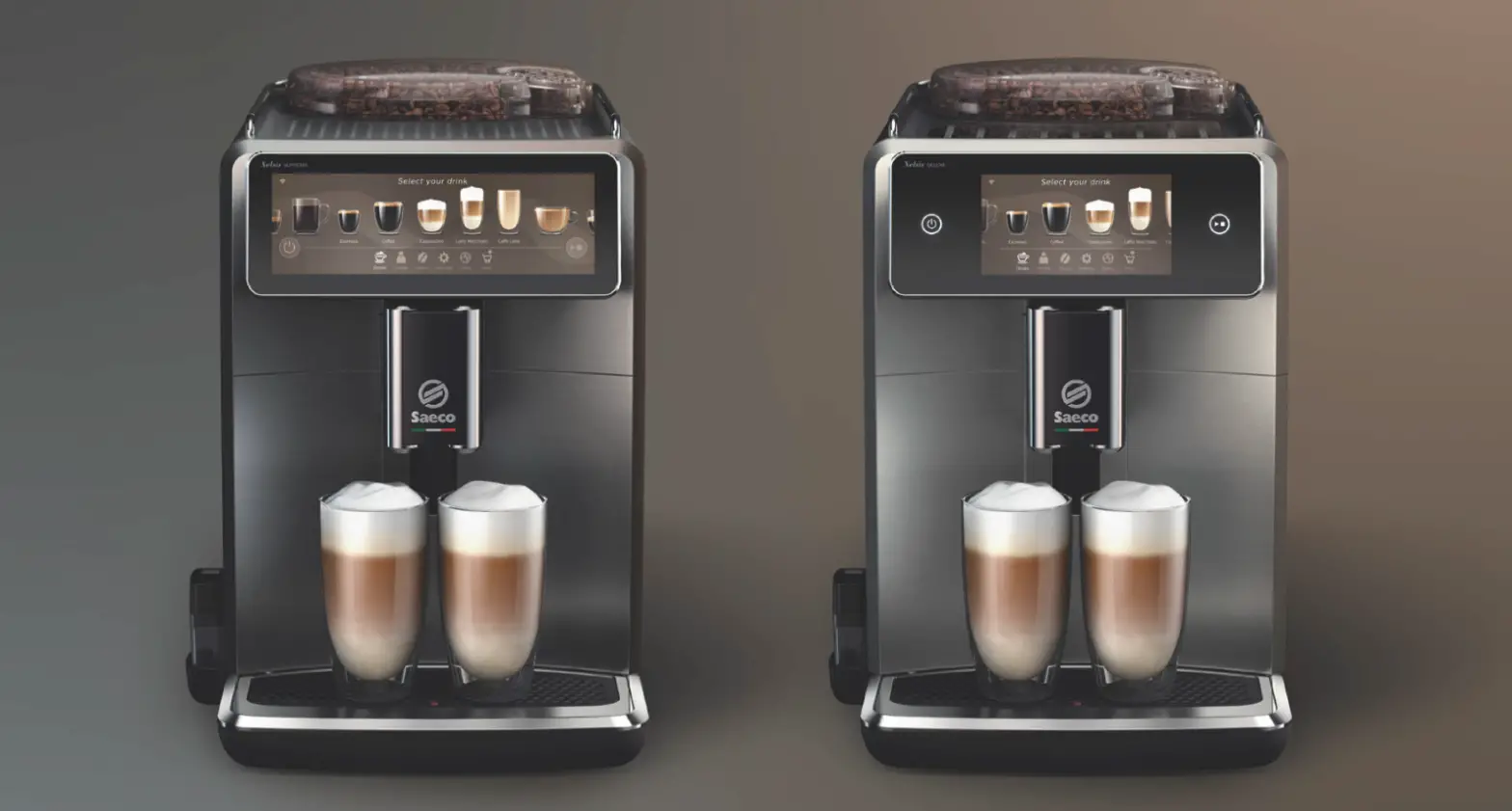
There are two versions of this espresso machine. Their control panels look different, but all buttons and icons work in the same way. Refer to figure B for an overview of all buttons and icons. Below you find the description.
Use the up and down arrows to scroll through the display and tap the OK icon to select or confirm your choices.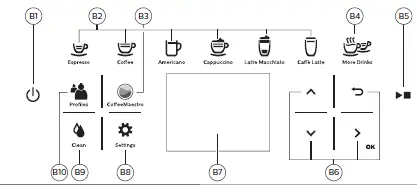
- B1 On/off button
B3 CoffeeMaestro icon - B2 One-touch drink icons
B4 Menu with more drinks - B5 Start/stop button
B8 Machine settings - B6 Navigation icons (up, down, back, ok)
B9 Cleaning menu - B7 Display
B10 Personal profiles
Congratulations on your purchase of a Saeco full-automatic coffee machine! To fully benefit from the online support that Saeco offers, go to www.philips.com/MyCoffeeMachine and register your product.
Note: This machine has been tested with coffee. Although it has been carefully cleaned, there may be some coffee residues left. We guarantee, however, that the machine is absolutely new.
Before first use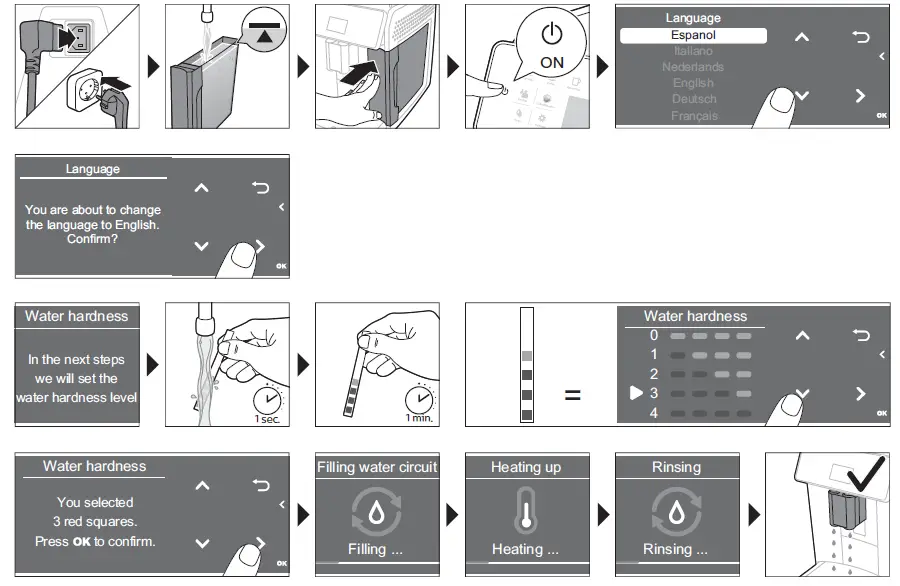
Brewing drinks
General steps
- Fill the water tank with tap water and fill the bean hopper with coffee beans.
- Insert the small plug into the socket located on the back of the machine. Insert the mains plug into the wall socket.
- Press the on/off button to switch on the machine.
- The machine starts heating up and performs the automatic rinsing cycle.
- When all lights in the drink icons light up continuously, the machine is ready for use.
- Place a cup under the coffee dispensing spout. Slide the coffee dispensing spout up or down to adjust its height to the size of the cup or glass you are using (Fig. 1).
Brewing coffee with beans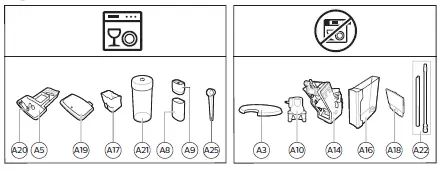
- To brew a coffee, tap the drink icon of your choice (Fig. 2) or tap the ‘More Drinks’ icon (Fig. 3).
- You can now adjust the drink to your personal taste (Fig. 4). Use the up and down arrows (Fig. 5)to adjust the coffee strength. Tap the OK icon if you want to adjust more settings (Fig. 6)
- Press the start/stop button at any time to start brewing the selected drink.
- To stop dispensing coffee before the machine is finished, press the start/stop button again.
To brew 2 coffees at the same time, tap the drink icon twice or select the 2x icon scrolling the dedicated bar.
Do not use caramelized or flavored coffee beans.
Brewing milk-based drinks
- Fill the water tank with tap water and fill the bean hopper with beans.
- Unscrew the lid of the milk container and fill the milk container with milk (Fig. 7). Then place the metal milk tube in the container.
Always use milk coming directly from the fridge for optimal results. - Connect the flexible milk tube to the cappuccinatore (Fig. 8).
- Tap the milk-based drink icon of your choice (Fig. 9) or tap the ‘More Drinks’ icon to select a different drink (Fig. 3).
- You can now adjust the drink to your own preference (Fig. 10).
- Press the start/stop button.
- For specific drinks, the machine first dispenses milk and then coffee. For a number of other drinks this is the other way around, the machine will first dispense coffee and then milk.
- To stop dispensing milk before the machine has dispensed the preset amount, press the start/stop button.
- To stop dispensing the complete drink (milk and coffee) before the machine is finished, press and hold the start/stop button.
- Directly after dispensing the milk, the ‘HygieSteam Shot’ is performed. The machine forces steam through the internal milk system to rinse it quickly.
Brewing coffee with pre-ground coffee
- Tilt the lid and pour one measuring scoop of pre-ground coffee into the pre-ground coffee compartment (Fig. 11).
- After selecting a drink, use the up and down arrows to select pre-ground coffee (Fig. 12). Then press the start/stop button.
Note: If you select pre-ground coffee, you cannot adjust the coffee strength and/or brew more than one drink at the same time.
Dispensing hot water
- Make sure that the internal cappuccinatore is properly attached to the machine (Fig. 13).
- Place a cup under the spout
- Tap the ‘More drinks’ icon (Fig. 3) and scroll down to select ‘Hot Water’.
- Use the up and down arrows to adjust the hot water quantity or temperature to your preference (Fig. 14).
- Press the start/stop button.
- To stop dispensing hot water before machine is finished, press the start/stop stop button again.
Personalizing drinks
The machine allows you to adjust the settings of a drink to your own preference and to store the adjusted drink in a personal profile. The different profiles have different colors.
Brewing drinks with CoffeeMaestro function
Your machine offers the possibility to select taste profiles instead of adjusting all settings separately with the CoffeeEqualizer function. You can choose between Delicato, Intenso and Forte. To select a CoffeeMaestro taste profile:
- Tap the drink icon of your choice (Fig. 2) or tap the ‘More Drinks’ icon to select a different drink (Fig. 3).
- Tap the CoffeeMaestro icon repeatedly (Fig. 15).
- Press OK to confirm your choice.The main settings of the drink are now adjusted accordingly.
- Press the start/stop button to start brewing the drink.
CoffeeEqualizer function
After selecting a drink, the CoffeeEqualizer function is activated automatically. You can use the up and down arrows to adjust the following settings:
- Aroma strength
- Coffee quantity
- Milk quantity
- Water quantity
- Drink temperature
- Foam amount
- You can also decide to prepare 1 or 2 cups
- Coffee quantity for travel mug (specific types only)
Note: It depends on the drink you choose which settings you can adjust.
Selecting a profile
You can select a profile and store a recipe using the profiles icon.
- Tap the profiles icon repeatedly to select one of the colored profiles (Fig. 16). All profiles have a different color.
- Select a drink by tapping one of the one-touch drink icons or by tapping the ‘More Drinks’ icon.
- Adjust the drink settings to your favorite taste.
- Press start/stop button to brew the drink you selected
- Your new settings have now been stored in the colored profile you selected.
You can always restore the factory settings of the machine (see ‘Restoring factory settings’).
- Your new settings have now been stored in the colored profile you selected.
Guest profile
Your machine is equipped with a guest profile. When the guest profile is selected, the profile icon is off. When you select this profile, you can still personalize the settings to your own preference but the recipes you brew will not be stored.
Extra shot (ExtraShot)
Your machine offers you the possibility to add an extra shot of Ristretto to your coffee and milk drinks, for example if you want to have a stronger coffee.
- Place a cup under the spout.
- Tap one of the one-touch drinks icons to select a drink (Fig. 2) or tap the ‘More Drinks’ icon to select a different drink (Fig. 3).
- Use the up arrow to set the strength to the top level and select the ExtraShot function (Fig. 17).
- Tap the OK icon if you want to personalize the other settings. Then press the start/stop button to start brewing the drink.
- To stop dispensing the drink before the machine has finished, press the start/stop button again.
When you have selected the ExtraShot function, you can only brew one coffee at the time.
Adjusting machine settings
Setting the water hardness
We advise you to adjust the water hardness setting to the water hardness level in your region for optimal performance and a longer lifetime of the machine. This also prevents you from having to descale the machine too often. The default water hardness setting is 4: hard water.
Use the water hardness test strip supplied in the box to determine the water hardness in your region:
- Immerse the water hardness test strip in tap water or hold it under the tap for 1 second (Fig. 18).
- Wait 1 minute. The number of squares on the test strip that turn red indicate the water hardness (Fig. 19).
Set the machine to the correct water hardness:
- Tap the Settings icon and use the up and down arrows to select ‘Water hardness’. Then press the OK icon to confirm.
- Use the up and down arrows to select the water hardness level. The number of red squares selected on the display should be the same as the number of red squares on the test strip (Fig. 20). 3 When you have set the correct water hardness, tap the OK icon to confirm.
Adjusting the grind setting
You can change the coffee strength with the grind setting knob inside the bean container. The lower the grind setting, the finer the coffee beans are ground and the stronger the coffee becomes. There are 12 different grind settings you can choose from. The machine has been set up to get the best taste out of your coffee beans. Therefore we advise you not to adjust the grind setting until you have brewed 100-150 cups (approx. 1 month of use). You can only adjust the grind setting when the machine is grinding coffee beans. You need to brew 2 to 3 drinks before you can taste the full difference.
WARNING: Do not turn the grind setting knob more than one notch at a time to prevent damage to the grinder.
- Place a cup under the coffee dispensing spout.
- Remove the lid from the coffee bean hopper (Fig. 21).
- Tap the Espresso icon and then press the start/stop button.
- When the grinder starts grinding, press down the grind setting knob and turn it to the left or right (Fig. 22).
Adjusting other machine settings
By tapping the Settings icon you can adjust the following machine settings:
- Water hardness: you can choose between 5 levels according to the water hardness in your region.
- Standby time: you can select 15, 30, 60 or 180 minutes.
- Display brightness: you can select low, medium and high.
- Language: you can select the display language of your preference.
- Sound: you can activate or deactivate the beeping sound of the machine.
- Front illumination: you can choose ‘always on’, ‘on during brewing’ or ‘always off’.
- Measuring unit: you can choose between ml. or oz.\
Restoring factory settings
The machine offers you the possibility to restore the factory settings at any moment.
- Tap the Settings icon.
- Use the up and down arrows to select ‘Factory settings’. Confirm by tapping the OK icon.
- Press the start/stop button to confirm that you want to restore the settings.
The settings are now restored.
The following factory settings are restored to default: water hardness, standby time, display brightness, sound, front illumination, profiles.
AquaClean water filter
Your machine is AquaClean enabled. You can place the AquaClean water filter in the water tank to preserve the taste of your coffee. It also diminishes the need for descaling by reducing limescale build-up in your machine. You can purchase an AquaClean water filter from your local retailer, from authorized service centers or online at www.philips.com/parts-and-accessories.
AquaClean filter status indication
When the AquaClean is active, the status of the AquaClean filter is always visible on the screen as a percentage.
- If the status of the AquaClean filter is 10% or less, the screen shows a message for 2 seconds each time you switch on the machine. This message advises you to buy a new filter.
- If the status of the filter is 0%, the machine asks you to replace the AquaClean filter every time you switch on the machine.
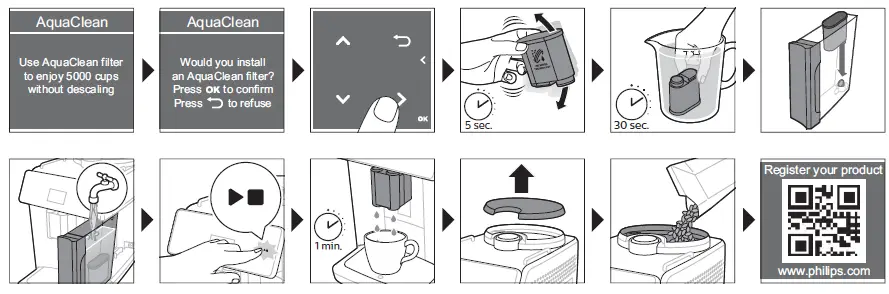
Activating the AquaClean water filter (5 min.)
The machine does not automatically detect that a filter has been placed in the water tank. Therefore you need to activate each new AquaClean water filter that you install in the ‘Clean’ menu.
When the machine stops showing the filter activation message, you can still activate an AquaClean water filter, but you will need to descale the machine first.
Your machine has to be completely limescale-free before you start using the AquaClean water filter.
Before activating the AquaClean water filter, it has to be prepared by soaking it in water as described below. If you don’t do this, air might be drawn into the machine instead of water, which makes a lot of noise and prevents the machine from being able to brew coffee.
- Tap the ‘Clean’ icon and use the up and down arrows to select ‘AquaClean’.
- Tap the OK icon to confirm.
- Tap the OK icon again when the activation screen appears. Follow the instructions on the screen.
- Shake the filter for about 5 seconds (Fig. 23).
- Immerse the filter upside down in a jug with cold water and shake/press it (Fig. 24).
- Insert the filter vertically onto the filter connection in the water tank. Press it down to the lowest possible point (Fig. 25).
- Fill the water tank with fresh water and place it back into the machine.
- Place a bowl under the spout.
- Press the start/stop button to start the activation process.
- Hot water will be dispensed from the spout during 1 minute.
- The filter is now successfully activated.
After 95 liters of water have flowed through the filter, the filter will cease to work. The AquaClean status indicator drops to 0% to remind you to replace the filter. As long as the AquaClean status indicator is shown on the display, you can replace the filter without having to descale the machine first. If you do not replace the AquaClean water filter in time, the AquaClean indicator goes out after some time. In that case you can still replace the filter but you first need to descale the machine. When the AquaClean status indicator drops to 0% or when the machine reminds you to replace the AquaClean filter:
- take out the old AquaClean water filter.
- install a new filter and activate it as described in chapter ‘Activating the AquaClean water filter (5 min.)’.
Replace the AquaClean water filter at least every 3 months, even if the machine does not yet indicate that replacement is required.
Removing and inserting the brew group
Go to www.saeco.com/care for detailed video instructions on how to remove, insert and clean the brew group.
Removing the brew group from the machine
- Switch off the machine.
- Remove the water tank and open the service door (Fig. 26).
- Press the PUSH handle (Fig. 27) and pull at the grip of the brew group to remove it from the machine (Fig. 28).
When you remove the brew group from the machine, make sure to empty the drip tray and the coffee grounds container.
Reinserting the brew group
Before you slide the brew group back into the machine, make sure it is in the correct position.
- Check if the brew group is in the correct position. The arrow on the yellow cylinder on the side of the brew group has to be aligned with the black arrow and N (Fig. 29).
- If they are not aligned, push down the lever until it is in contact with the base of the brew group (Fig. 30).
- Slide the brew group back into the machine along the guiding rails on the sides (Fig. 31) until it locks into position with a click (Fig. 32). Do not press the PUSH button.
- Close the service door and place back the water tank.
Cleaning and maintenance
Regular cleaning and maintenance keeps your machine in top condition and ensures good-tasting coffee for a long time with a steady coffee flow. Consult the table below for a detailed description on when and how to clean all detachable parts of the machine. You can find more detailed information and video instructions on www.saeco.com/care. See figure C for an overview of which parts can be cleaned in the dishwasher.
| Detachable parts | When to clean | How to clean |
| Brew group | Weekly | Remove the brew group from the machine |
| (see ‘Removing and inserting the brew | ||
| group’). Rinse it under the tap (see ‘Cleaning | ||
| the brew group under the tap’). | ||
| Monthly | Clean the brew group with the Philips coffee | |
| oil remover tablet (see ‘Cleaning the brew | ||
| group with the coffee oil remover tablets’). | ||
| Milk system/internal | After every day of use | Perform the ‘HygieSteam’ program in the |
| cappuccinatore | cleaning menu. Select ‘HygieSteam’ in the | |
| cleaning menu and follow the instructions | ||
| on the screen. Wipe the outside of the metal | ||
| milk tube with a damp cloth before placing it | ||
| into the milk tube holder. | ||
| Weekly | Remove and disassemble the internal | |
| cappuccinatore (see ‘Cleaning the internal | ||
| cappuccinatore under the tap’). Rinse all | ||
| parts under the tap with some washing-up | ||
| liquid. | ||
| Monthly | Perform the ‘Deep Milk Clean’ procedure | |
| with the Philips milk circuit cleaner. Select | ||
| ‘Deep Milk Clean’ in the cleaning menu and | ||
| follow the instructions on the screen. Go to | ||
| www.saeco.com/care for detailed video | ||
| instructions. | ||
| Milk container | Weekly | Disassemble the milk container (Fig. 33) and |
| push out the ball using the pin of the milk | ||
| tube (Fig. 34). Clean all parts of the milk | ||
| container under the tap or in the dishwasher | ||
| HygieSteam | Weekly or when the machine | Remove the HygieSteam container from the |
| container (milk tube | reminds you | machine (Fig. 35) and remove the |
| holder) | HygieSteam cover (Fig. 36). Empty the | |
| HygieSteam container and clean the | ||
| container and cover under the tap or in the | ||
| dishwasher. Let the container and cover air- | ||
| dry and place them back in the machine. | ||
| Pre-ground coffee | Check the pre-ground coffee | Unplug the machine and remove the brew |
| compartment | compartment weekly to see if it | group. Open the lid of the pre-ground coffee |
| is clogged. | compartment and insert the spoon handle | |
| into it. Move the handle up and down until | ||
| the clogged ground coffee falls down (Fig. | ||
| 37). Go to www.saeco.com/care for detailed | ||
| video instructions. |
| Detachable parts | When to clean | How to clean |
| Coffee grounds | Empty the coffee grounds | Remove the coffee grounds container while |
| container | container when prompted by | the machine is switched on. Rinse it under |
| the machine. Clean it weekly. | the tap with some washing-up liquid or | |
| clean it in the dishwasher. The front panel of | ||
| the coffee grounds container (Fig. A18) is | ||
| not dishwasher-safe. | ||
| Drip tray | Empty the drip tray daily or as | Remove the drip tray (Fig. 39) and rinse it |
| soon as the red ‘drip tray full’ | under the tap with some washing-up liquid. | |
| indicator pops up through the | You can also clean the drip tray and the drip | |
| drip tray (Fig. 38). Clean the drip | tray cover in the dishwasher. The front panel | |
| tray weekly. | of the coffee grounds container (Fig. A18) is | |
| not dishwasher-safe. | ||
| Lubrication of the | Every 2 months | Lubricate the brew group with the Philips |
| brew group | grease (see ‘Lubricating the brew group’). | |
| Water tank | Weekly | Rinse the water tank under the tap |
| Machine front | Weekly | Clean with a non-abrasive cloth |
Cleaning the brew group
Regular cleaning of the brew group prevents coffee residues from clogging up the internal circuits. Visit www.saeco.com/care for support videos on how to remove, insert and clean the brew group.
Cleaning the brew group under the tap
- Remove the brew group (see ‘Removing and inserting the brew group’).
- Rinse the brew group thoroughly with water. Carefully clean the upper filter (Fig. 40) of the brew group.
- Let the brew group air-dry before you place it back. Do not dry the brew group with a cloth to prevent fibers from collecting inside the brew group.
Cleaning the brew group with the coffee oil remover tablets
Only use Philips coffee oil remover tablets.
- Tap the Clean icon and use the up and down arrows to select ‘Brew group clean’.
- Tap the OK icon to confirm and then follow the instructions on the screen.
Lubricating the brew group
To improve your machine’s performance, we suggest that you lubricate the brew group every 2 months, to ensure that the moving parts continue to move smoothly.
1 Apply a thin layer of grease on the piston (grey part) of the brew group (Fig. 41).
2 Apply a thin layer of grease around the shaft (grey part) in the bottom of the brew group (Fig. 42). 3 Apply a thin layer of grease to the rails on both sides (Fig. 43).
Cleaning programs for the internal cappuccinatore
The machine has three programs to clean the internal cappuccinatore:
- ‘HygieSteam Shot’: the machine shoots steam through the internal cap puccinatore to rinse it quickly.
- ‘HygieSteam’: the machine thoroughly cleans the internal milk system with steam. Make sure that the HygieSteam container is correctly assembled (Fig. 44) and attached to the machine (Fig. 45). Place the milk tube in the milk tube holder (Fig. 46) and follow the instructions on the screen.
- ‘Deep Milk Clean’: Perform the ‘Deep Milk Clean’ procedure with the Philips milk circuit cleaner for thorough cleaning of the internal milk system.
Cleaning the internal cappuccinatore under the tap
- Open the door of the internal cappuccinatore (Fig. 47).
- Remove the internal cappuccinatore by pulling it down (Fig. 48).
- Disassemble the internal cappuccinatore by pulling the bottom part off the top part (Fig. 49).
- Disassemble all parts (Fig. 50) and clean them under the tap.
- Reassemble the internal cappuccinatore.
- To place back the internal cappuccinatore, put it in upright position and make sure the holes are aligned with the two tubes on the machine. Then move the internal cappuccinatore upwards until it locks into place (Fig. 13).
- Close the door. Visit www.saeco.com/care for detailed video instructions.
Descaling procedure
Please use Philips descaler only. Under no circumstances should you use a descaler based on sulfuric acid, hydrochloric acid, sulfamic or acetic acid (vinegar) as this may damage the water circuit in your machine and will not dissolve the limescale properly. Not using the Philips descaler will void your warranty. Failure to descale the appliance will also void your warranty. You can buy Philips descaler in the online shop at www.saeco.com/care.
- When the machine asks you to descale it, press the start/stop button to start. To start descaling without being prompted by the machine, tap the Clean icon and select ‘Descale’.
- Remove the drip tray, the coffee grounds container and the HygieSteam container (Fig. 35), empty them and put them back into place.
- Remove the water tank and empty it. Then remove the AquaClean filter.
- Pour the whole bottle of Philips descaler into the water tank and then fill it with water up to the CALC CLEAN level (Fig. 51). Then place it back into the machine.
- Place a large container (1.5 l) under the coffee dispensing spout.
- Make sure that the HygieSteam container is correctly assembled (Fig. 44) and attached to the machine (Fig. 45). Place the milk tube in the milk tube holder (Fig. 46).
- Follow the instructions on the screen to start the descaling procedure. The descaling procedure lasts approx. 30 minutes and consists of a descaling cycle and a rinsing cycle.
- Once the descaling cycle is finished, you need to rinse the water tank and water circuit. Follow the instructions on the screen.
- Place a new AquaClean filter in the water tank and activate it (see ‘Activating the AquaClean water
Tip: Using the AquaClean filter reduces the need for descaling!
What to do if the descaling procedure is interrupted
You can exit the descaling procedure by pressing the on/off button on the control panel. If the descaling procedure is interrupted before it is completely finished, do the following:
- Empty and rinse the water tank thoroughly.
- Fill the water tank with fresh water up to the CALC CLEAN level indication and switch the machine back on. The machine will heat up and perform an automatic rinsing cycle.
- Before brewing any drinks, perform a manual rinsing cycle. To perform a manual rinsing cycle, first dispense half a water tank of hot water and then brew 2 cups of pre-ground coffee without adding ground coffee.
Note: If the descaling procedure was not completed, the machine will require another descaling procedure as soon as possible.
Error codes
Below you find a list of the error codes showing problems that you can solve yourself. Video instructions are available on www.saeco.com/care. If another error code appears, please contact the Philips Consumer Care Center in your country. For contact details, see the warranty leaflet.
| Error code | Problem | Possible solution |
| 01 | The coffee funnel is | Switch off the machine and unplug it. Remove the brew group. |
| clogged. | Then open the lid of the pre-ground coffee compartment and | |
| insert the spoon handle. Move the handle up and down until | ||
| the clogged ground coffee falls down (Fig. 37). Visit | ||
| www.saeco.com/care for detailed video instructions. | ||
| 03 | The brew group is dirty | Switch off the machine. Rinse the brew group with fresh water, |
| or not well-greased. | let it air-dry and then lubricate it (see ‘Lubricating the brew | |
| group’). Consult chapter ‘Cleaning the brew group’ or visit | ||
| www.saeco.com/care for detailed video instructions. Then | ||
| switch the machine on again. | ||
| 04 | The brew group is not | Switch off the machine. Remove the brew group and reinsert it. |
| positioned correctly. | Make sure that the brew group is in the correct position before | |
| you insert it. Consult chapter ‘Handling the brew group’ or visit | ||
| www.saeco.com/care for detailed video instructions. Then | ||
| switch the machine on again. | ||
| 05 | There is air in the water | Restart the machine by switching it off and on again. If this |
| circuit. | works, dispense 2-3 cups of hot water. Descale the machine if | |
| you have not done so for a longer period of time. | ||
| The AquaClean filter | Remove the AquaClean filter and try to brew a coffee again. If | |
| was not prepared | this works, make sure that the AquaClean filter is prepared | |
| properly before | properly before you place it back. Put the AquaClean filter | |
| installation or it is | back into the water tank. If this still does not work, the filter | |
| clogged. | might be clogged and needs to be replaced. | |
| 11 | The machine needs to | Allow some time for the machine to adjust from |
| adjust to room | transport/outdoor temperature to room temperature. Switch | |
| temperature | off the machine for 30 minutes and switch it on again. If this | |
| does not work, contact the Consumer Care Center in your | ||
| country. For contact details, see the warranty leaflet. | ||
| 14 | The machine is | Switch off the machine and switch it back on after 30 minutes. |
| overheated. |
Error code Problem Possible solution
The machine is not connected to the wall socket properly.
Make sure that the small plug of the power cord is properly connected to the socket on the back of the machine.
Ordering accessories
To clean and descale the machine, only use the Philips maintenance products. These products can be purchased from your local retailer, from authorized service centers or online at www.philips.com. To find a full list of spare parts online, enter the model number of your machine. You can find the model number on the inside of the service door.
Maintenance products and type numbers:
- Descaling solution CA6700
- AquaClean filter CA6903
- Brew group grease HD5061
- Coffee oil remover tablets CA6704
- Milk circuit cleaner CA6705
- Maintenance kit CA6707
Troubleshooting
This chapter summarizes the most common problems you could encounter with the machine. Support videos and a complete list of frequently asked questions are available on www.saeco.com/care. If you are unable to solve the problem, contact the Consumer Care Center in your country. For contact details, see the warranty leaflet.
| Problem | Cause | Solution |
| There are some coffee | This machine has been tested | Although it has been carefully cleaned, |
| residues inside my new | with coffee. | there may be some coffee residues left. |
| coffee machine. | However, the machine is absolutely | |
| new. | ||
| The drip tray fills up | This is normal. The machine | Empty the drip tray daily or as soon as |
| quickly / there is always | uses water to rinse the internal | the red ‘drip tray full’ indicator pops up |
| some water in the drip | circuit and brew group. Some | through the drip tray cover. Tip: place a |
| tray. | water flows through the internal | cup under the dispensing spout to |
| system directly into the drip | collect rinsing water that comes out of | |
| tray. | it. | |
| The ’empty coffee | You emptied the coffee grounds | Remove the coffee grounds container, |
| grounds container’ icon | container while the machine | wait at least 5 seconds and then insert it |
| remains on. | was unplugged from the wall | again. |
| socket, or you placed it back too | ||
| fast. |
| Problem | Cause | Solution |
| The machine prompts to | The machine did not reset the | Always wait approx. 5 seconds when |
| empty the coffee | counter the last time you | you place back the coffee grounds |
| grounds container even | emptied the coffee grounds | container. In this way, the coffee pucks |
| though the container is | container. | counter will be reset to zero and the |
| not full. | number of coffee pucks is counted | |
| correctly. | ||
| The coffee grounds | You removed the drip tray | When you remove the drip tray, also |
| container is too full and | without emptying the coffee | empty the coffee grounds container |
| the ’empty coffee | grounds container. | even if it contains only a few coffee |
| grounds container’ icon | pucks. This ensures that the coffee | |
| did not appear on the | pucks counter is reset to zero and that | |
| display. | the number of coffee pucks is counted | |
| correctly. | ||
| I cannot remove the | The brew group is not in the | Reset the machine in the following way: |
| brew group. | correct position. | close the service door and place back |
| the water tank. Switch the machine off | ||
| and back on again and wait for the | ||
| lights in the drink icons to come on. Try | ||
| to remove the brew group again. See | ||
| chapter ‘Removing and inserting the | ||
| brew group’ for step-by-step | ||
| instructions. | ||
| I cannot insert the brew | The brew group is not in the | Reset the machine in the following way: |
| group. | correct position. | close the service door and place back |
| the water tank. Leave the brew group | ||
| out. Switch off the machine and unplug | ||
| it. Wait for 30 seconds and then plug | ||
| the machine back in, switch it on and | ||
| wait for the lights in the drink icons to | ||
| come on. Then put the brew group in | ||
| the correct position and reinsert it into | ||
| the machine. See chapter ‘Removing | ||
| and inserting the brew group’ for step- | ||
| by-step instructions. | ||
| The coffee is watery. | The brew group is dirty or needs | Remove the brew group, rinse it under |
| to be lubricated. | the tap and leave it to dry. Then | |
| lubricate the moving parts (see | ||
| ‘Lubricating the brew group’). | ||
| The machine is performing its | Brew 5 cups of coffee initially to allow | |
| self-adjustment procedure. This | the machine to complete its self- | |
| procedure is started | adjustment procedure. | |
| automatically when you use the | ||
| machine for the first time, when | ||
| you change to another type of | ||
| coffee beans or after a long | ||
| period of non-use. | ||
| The grinder is set to a too | Set the grinder to a finer (lower) setting. | |
| coarse setting. | Brew 2 to 3 drinks to be able to taste | |
| the full difference. |
| The coffee is not hot enough. | The temperature is set too low. | Set the temperature to the maximum setting (Fig. 52). |
| A cold cup reduces the | Preheat the cups by rinsing them with | |
| temperature of the drink. | hot water. | |
| Adding milk reduces the | Regardless of whether you add hot or | |
| temperature of the drink. | cold milk, adding milk always reduces | |
| the temperature of the coffee. Preheat | ||
| the cups by rinsing them with hot water. | ||
| Coffee does not come | The AquaClean water filter was | Remove the AquaClean filter and |
| out or coffee comes out | not prepared properly for | dispense some hot water. If this works, |
| slowly. | installation. | the AquaClean filter was not installed |
| properly. Reinstall and activate the | ||
| AquaClean filter and follow all steps in | ||
| chapter ‘AquaClean water filter’. | ||
| After a long period of non-use, you | ||
| need to prepare the AquaClean water | ||
| filter for use again and dispense 2-3 | ||
| cups of hot water. | ||
| The AquaClean water filter is | Replace the AquaClean water filter | |
| clogged. | every 3 months. A filter that is older | |
| than 3 months can become clogged. | ||
| The grinder is set to a too fine | Set the grinder to a coarser (higher) | |
| setting. | setting. Note that this will impact the | |
| coffee taste. | ||
| The brew group is dirty. | Remove the brew group and rinse it | |
| under the tap (see ‘Cleaning the brew | ||
| group under the tap’). | ||
| The coffee dispensing spout is | Clean the coffee dispensing spout and | |
| dirty. | its holes with a pipe cleaner or needle. | |
| The pre-ground coffee | Switch off the machine and remove the | |
| compartment is clogged | brew group. Open the lid of the pre- | |
| ground coffee compartment and insert | ||
| the spoon handle into it. Move the | ||
| handle up and down until the clogged | ||
| ground coffee falls down (Fig. 37). | ||
| The machine circuit is blocked | Descale the machine with Philips | |
| by limescale. | descaler (see ‘Descaling procedure’). | |
| Always descale when the machine | ||
| prompts you. | ||
| The milk does not froth. | The internal cappuccinatore is | Clean the internal cappuccinatore and |
| dirty or not inserted correctly. | make sure that you position and insert it | |
| correctly (see ‘Cleaning the internal | ||
| cappuccinatore under the tap’). |
| Problem | Cause | Solution |
| The type of milk used is not | Different types of milk result in different | |
| suitable for frothing. | amounts of froth and different froth | |
| qualities. | ||
| The milk is splashing. | The milk you use is not cold | Make sure you use cold milk coming |
| enough. | directly from the fridge. | |
| The flexible milk tube is not | Open the door of the coffee dispensing | |
| connected properly. | spout (Fig. 47) and check if the flexible | |
| milk tube is fully connected to the | ||
| cappuccinatore (Fig. 53). Note that the | ||
| cappuccinatore and milk tubes may be | ||
| hot. Let the cappuccinatore and the | ||
| tubes cool down before you touch | ||
| them. | ||
| The cappuccinatore and milk | Remove and disassemble the internal | |
| tubes are not clean. | cappuccinatore (see ‘Cleaning the | |
| internal cappuccinatore under the tap’). | ||
| Rinse all parts under the tap. For | ||
| thorough cleaning, use Philips milk | ||
| circuit cleaner and perform the Deep | ||
| Milk Clean procedure via the cleaning | ||
| ( ) menu. Note that if the parts have | ||
| been cleaned in the dishwasher, they | ||
| may have become clogged by food | ||
| particles or detergent residues. A visual | ||
| check that they are not obstructed is | ||
| also recommended. | ||
| We advise you to perform the | ||
| HygieSteam program every day: 1) Press | ||
| ‘Clean’ on the control panel. 2) Select | ||
| ‘HygieSteam’. 3) Press the start button | ||
| to start the process. Then confirm all | ||
| steps on the display. | ||
| The milk tubes are clogged. | Always store the milk container without | |
| the milk tubes in the refrigerator. | ||
| Leftover milk could accumulate inside | ||
| the milk tubes and block the flow of | ||
| milk through the tubes. Rinse the milk | ||
| tubes before storage. | ||
| The machine seems to | The machine uses water to rinse | Empty the drip tray every day or as |
| be leaking. | the internal circuit and brew | soon as the ‘drip tray full’ indicator pops |
| group. This water flows through | up through the drip tray cover. Tip: | |
| the internal system directly into | Place a cup under the dispensing spout | |
| the drip tray. This is normal. | to collect rinsing water and reduce the | |
| amount of water in the drip tray. | ||
| The drip tray is too full and has | Empty the drip tray every day or as | |
| overflowed which makes it look | soon as the ‘drip tray full’ indicator pops | |
| like the machine is leaking. | up through the drip tray cover. |
Technical specifications
The manufacturer reserves the right to improve the technical specifications of the product. All the preset quantities are approximate.
Description
- Size (w x h x d)
- Weight
- Power cord length
- Water tank
- Coffee bean hopper capacity
- Coffee grounds container capacity
- Milk container capacity
- Adjustable spout height
- Nominal voltage – Power rating – Power supply
Value
- 262 x 383 x 448 mm
- 8 – 8.5 kg
- 1200 mm
- 1.8 litres
- 300 g
- 12 pucks
- 600 ml
- 87 – 147 mm
- See data label on inside of service door (Fig. A15)
 Home | Forest Stewardship Council
 Philips - United States | Philips
 Saeco | Support