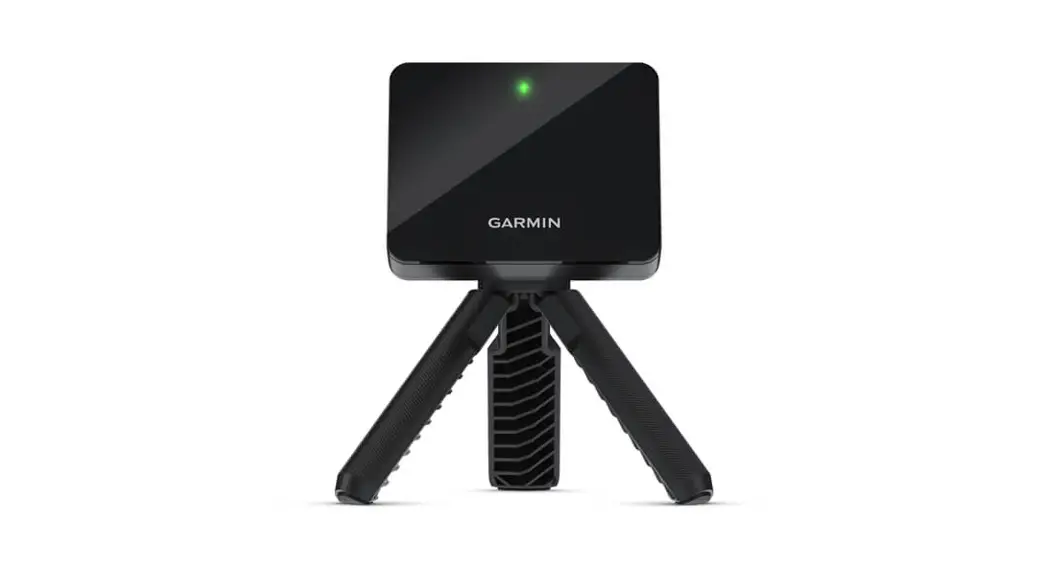
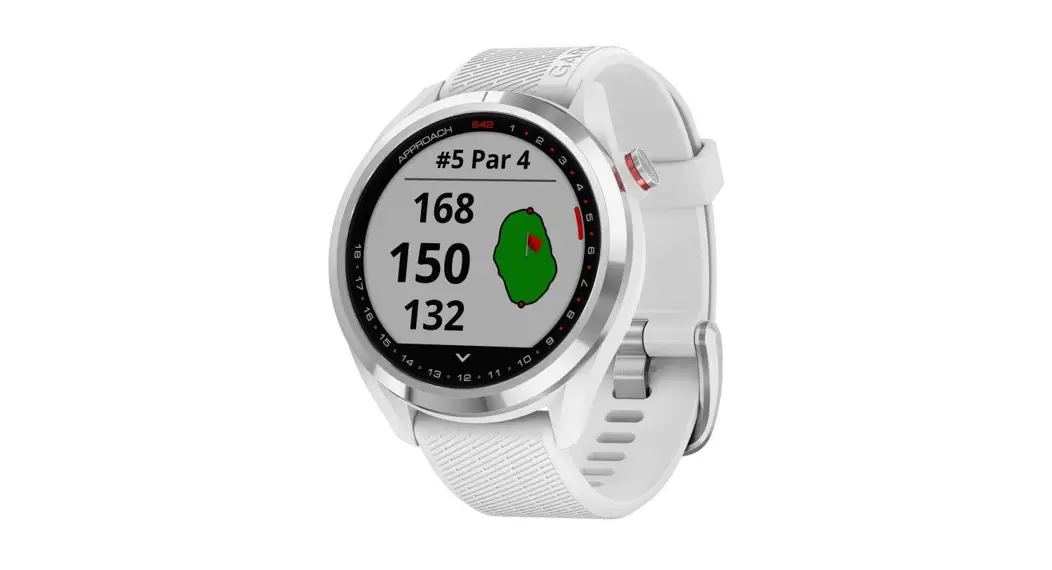
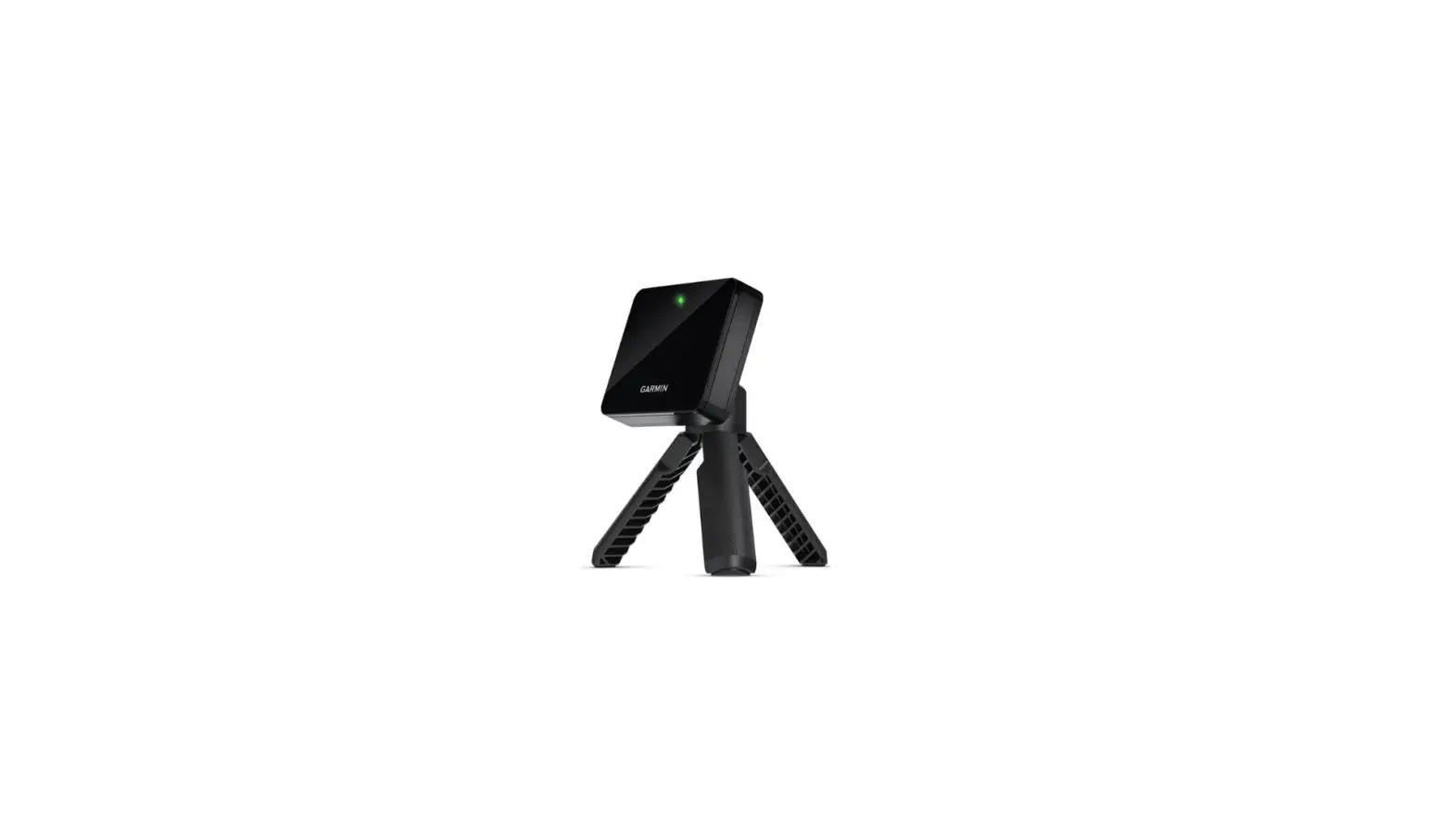
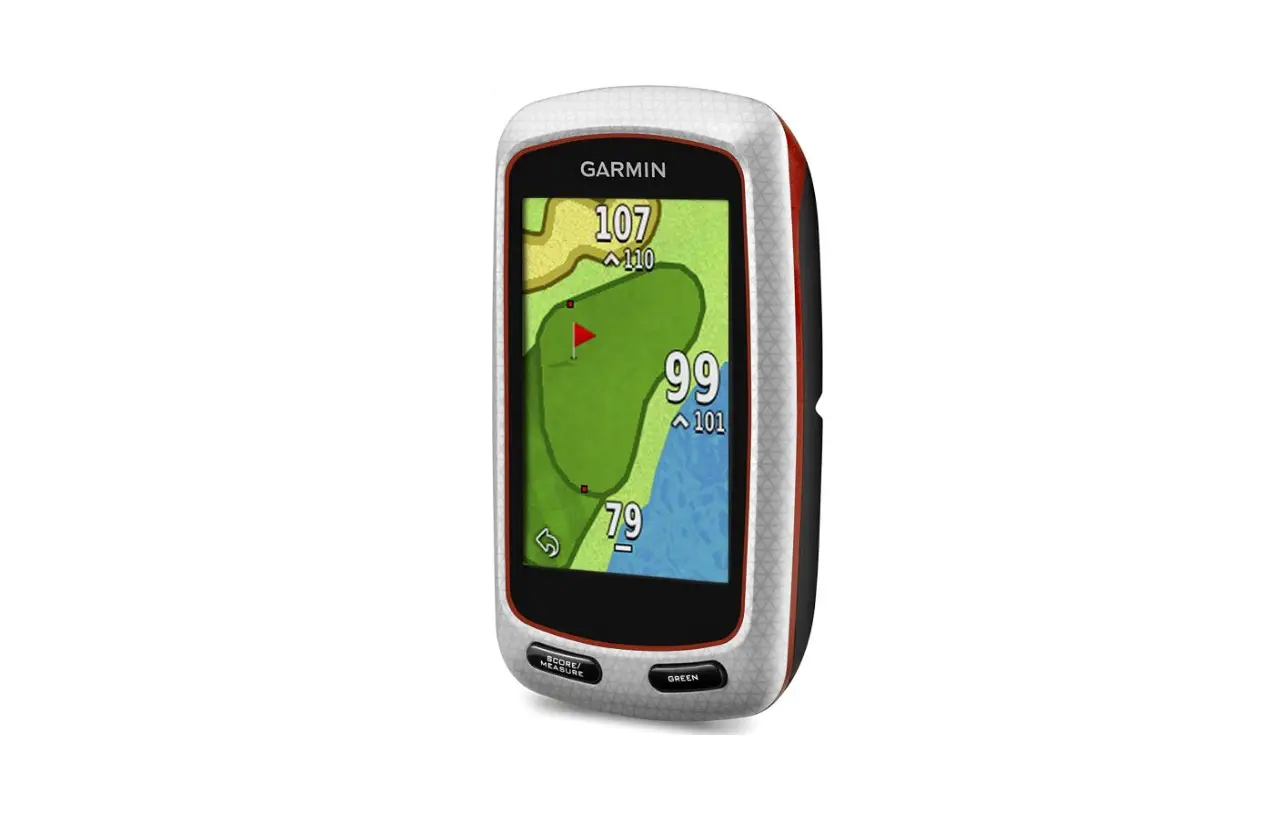
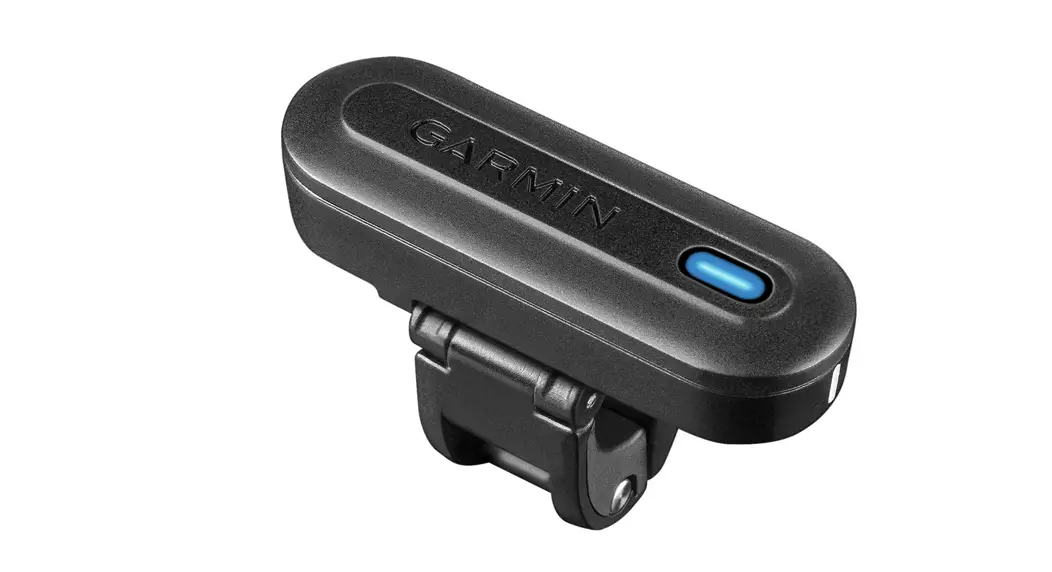
R10 Portable Golf Launch Monitor
Product Information: – Product Name: Garmin Golf
Launch Monitor – Manufacturer: Garmin – Model Number: [Not
mentioned in the provided text] – Copyright: All rights reserved.
The manual cannot be copied without written consent from Garmin. –
Product Updates: Visit www.garmin.com for current updates and
supplemental information regarding product usage. – Device
Overview: The device features an alignment line, a button for power
control, a charge LED, and a USB port for charging and software
updates. LED Statuses: – Solid blue: The launch
monitor is in pairing mode. – Flashing blue: The launch monitor is
reconnecting to the previously connected phone. – Solid white: The
launch monitor is in mass storage mode. – Flashing white: The
launch monitor is in standby mode. – Flashing green: The launch
monitor is ready for a shot. Product Usage
Instructions: 1. Pairing Your Smartphone:
– Turn on the device by pressing the button. – Hold the button
until the status LED turns blue to enter pairing mode. – Follow the
smartphone pairing instructions provided by the device’s app. 2.
Installing the Magnetic Tripod Mount: – Refer to
the user manual for detailed instructions on installing the
magnetic tripod mount. [Page 4 of the manual] 3. Preparing
for a Shot: – Ensure that the device is fully charged or
connected to a power source. – Align the alignment line of the
device with the ball and shot target to set the target line. 4.
Using the Golf Simulator Features: – Refer to the
user manual for detailed instructions on using the golf simulator
features. [Page 6 of the manual] 5. Setting the Weather
Conditions: – Refer to the user manual for detailed
instructions on setting the weather conditions. [Page 6 of the
manual] 6. Home Tee Hero Mode: – Refer to the user
manual for detailed instructions on using the Home Tee Hero mode.
[Page 7 of the manual] 7. Virtual Round Scoring: –
Refer to the user manual for detailed instructions on using the
virtual round scoring feature. [Page 7 of the manual] 8.
Driving Range Mode: – Refer to the user manual for
detailed instructions on using the driving range mode. [Page 8 of
the manual] 9. Charging the Device: – Connect the
provided USB cable to the USB port located under the weather cap. –
Connect the other end of the cable to a power source or computer
for charging. – Refer to the user manual for additional charging
information. [Page 10 of the manual] 10. Using the Phone
Mount: – Refer to the user manual for detailed
instructions on using the phone mount. [Page 11 of the manual] 11.
Product Updates: – Set up Garmin Express on your
computer to download and install software updates. – Refer to the
user manual for detailed instructions on setting up Garmin Express.
[Page 12 of the manual] 12. Device Care: – Clean
the device using appropriate cleaning methods. – Store the device
properly for long-term storage. – Refer to the user manual for
detailed care instructions. [Page 13 of the manual] 13.
Troubleshooting: – Refer to the user manual for
troubleshooting tips related to specific issues mentioned in the
table of contents. [Page 13 of the manual] Note: For specific
instructions and additional information, please refer to the
complete user manual provided with the product.
APPROACH® R10
Owner’s Manual
© 2021 Garmin Ltd. or its subsidiaries
All rights reserved. Under the copyright laws, this manual may not be copied, in whole or in part, without the written consent of Garmin. Garmin reserves the right to change or improve its products and to make changes in the content of this manual without obligation to notify any person or organization of such changes or improvements. Go to www.garmin.com for current updates and supplemental information concerning the use of this product.
Garmin®, the Garmin logo, and Approach® are trademarks of Garmin Ltd. or its subsidiaries, registered in the USA and other countries. Garmin ConnectTM, Garmin ExpressTM, and Garmin GolfTM are trademarks of Garmin Ltd. or its subsidiaries. These trademarks may not be used without the express permission of Garmin.
AndroidTM is a trademark of Google Inc. The BLUETOOTH® word mark and logos are owned by Bluetooth SIG, Inc. and any use of such marks by Garmin is under license. iOS® is a registered trademark of Cisco Systems, Inc. used under license by Apple Inc. Other trademarks and trade names are those of their respective owners.
Table of Contents
Introduction ……………………………….. 1
Device Overview……………………………….. 1 LED Statuses……………………………………. 2 Pairing Your Smartphone…………………… 2
Garmin Golf App…………………………. 3
Installing the Magnetic Tripod Mount ……………………………………….. 4
Preparing for a Shot……………………. 5
Using the Golf Simulator Features…. 6
Setting the Weather Conditions…………. 6 Home Tee Hero Mode……………………….. 7
Virtual Round Scoring……………………. 7 Driving Range Mode………………………….. 8
Swing Capture………………………………. 8 Viewing Your Driving Range Session Statistics………………………………………. 9 Editing a Shot………………………………… 9 Viewing Advanced Swing Metrics…… 9 Viewing Saved Driving Range Sessions……………………………………….. 9 Ending Your Driving Range Session…………………………………………. 9 Weekly Tournament………………………… 10 TruGolf E6 Connect…………………………. 10 Connecting Your Device to the E6 Connect Desktop Application……….. 10 Connecting the Device to the E6 Connect Mobile App…………………….. 10
Appendix…………………………………. 10
Charging the Device………………………… 10 Viewing Battery Power…………………. 10
Using the Phone Mount…………………… 11 Product Updates…………………………….. 12
Setting Up Garmin Express…………… 12 Specifications…………………………………. 12 Getting More Information………………… 12 Device Care…………………………………….. 13
Cleaning the Device……………………… 13 Long-Term Storage…………………………. 13 Troubleshooting……………………………… 13
Table of Contents
My device is tipped too far…………… 13 Adjusting the Device Alignment……. 13 Tips for Improving the Launch Monitor’s Accuracy……………………… 13 Tips for Using the Carrying Case…… 14 Resetting the Device……………………. 14 My phone will not connect to the device…………………………………………. 14
i
Introduction
WARNING See the Important Safety and Product Information guide in the product box for product warnings and other important information.
Device Overview
Alignment line: Align with the ball and shot target to set the target line. Button: Press to turn the device on. Hold for one second to turn the device off. With the device turned off, hold until the status LED turns blue to enter pairing mode. Charge LED: Indicates the battery status (LED Statuses, page 2). USB port (under weather cap): Connect the USB cable to charge the device or download software updates using your computer.
Introduction
1
LED Statuses
The status LED indicates the device status. The charge LED
indicates the battery status.
Status LED Activity Status
Solid blue
The launch monitor is in pairing mode.
Flashing blue
The launch monitor is reconnecting to the previously connected phone.
Solid white
The launch monitor is in mass storage mode.
Flashing white
The launch monitor is in standby mode.
Flashing green
The launch monitor is ready for a shot.
Solid red
The launch monitor is busy.
Flashing red
An error occurred. To resolve the error, reset the launch monitor. If that does not resolve the issue, go to support.garmin.com.
Flashing purple
A software update is in progress.
Charge LED Activity Status
Flashing red
The battery is charging.
Solid red
The battery is fully charged.
Rapidly flashing red
The launch monitor is unplugged and the remaining battery power is low.
NOTE: The LED flashes rapidly for five seconds after the launch monitor is turned on if the battery is low.
Pairing Your Smartphone
To use this device, you must pair it with the Garmin GolfTM app.
1 From the app store on your smartphone, install and open the Garmin Golf app.
2 Bring your smartphone near your device.
3 Press the button to turn on your device.
The first time you turn on the device, it automatically enters pairing mode, and the status LED is solid blue.
TIP: You can hold the button while the device is off until the status LED turns solid blue to manually enter pairing mode.
4 From the or instructions.
menu in the app, select Garmin Devices > Add Device, and follow the on-screen
2
Introduction
Garmin Golf App
The Garmin Golf app allows you to view detailed statistics and shot analyses that are recorded on your Approach device. For viewing on a larger display, you can mirror the Garmin Golf app to a compatible smart TV using the screen mirroring function on your smartphone. With a Garmin Golf subscription, golfers can compete with each other at over 42,000 virtual courses and participate in a weekly virtual tournament. The subscription can be purchased through the app.
The Garmin Golf app syncs your data with your Garmin ConnectTM account. You can download the Garmin Golf app from the app store on your smartphone.
Garmin Golf App
3
Installing the Magnetic Tripod Mount
WARNING Both the device and its mount may contain magnets. Under certain circumstances, magnets may cause interference with some internal medical devices, including pacemakers and insulin pumps. Devices and mounts that contain magnets should be kept away from such medical devices.
NOTICE The mount contains a magnet. Under certain circumstances, magnets may cause damage to some electronic devices, including hard drives in laptop computers. Use caution when the mount is near electronic devices. 1 Ensure the tripod mount is free of any debris. 2 Insert the top of the tripod mount into the back of the device.
The tripod mount is magnetic and holds the device in place. NOTE: The tripod mount can only be installed one way. If it is not fully seated in the back of the device, you have installed it using the wrong orientation.
3 Open the tripod legs so they are fully extended.
4
Installing the Magnetic Tripod Mount
Preparing for a Shot
CAUTION Failing to take one or more of the following actions could result in possible property damage or personal injury while using the device indoors: · Ensure there is adequate ceiling height and that no objects can obstruct your backswing or follow through. · Ensure that any net or impact screen is set up with adequate free space behind the net or screen. · Ensure that any net or impact screen is high enough and extended enough to account for high-lofted shots or
any errant shots. · Ensure that any net or enclosure frame is padded to help reduce ball ricochet.
1 Place the ball at the desired tee location. NOTE: The tee location must be at least 8 ft. (2.4 m) away from the net when playing indoors.
2 Attach the launch monitor to the tripod mount (Installing the Magnetic Tripod Mount, page 4). 3 Place the launch monitor on the ground between 6 ft. and 8 ft. (1.8 m and 2.4 m) behind the tee location.
NOTE: If you are using a golf mat, make sure the bottom edge of the launch monitor sits above the mat. 4 Adjust the launch monitor so the red alignment line is aligned with the tee location and the target of the shot.
TIP: You can lay a golf club on the ground between the alignment line and tee location to confirm they are lined up. 5 If necessary, you can move the tee location up to 1 ft. (0.3 m) on either side of the target line, within a 2 x 2 ft. (0.6 x 0.6 m) hitting area that begins 6 ft. (1.8 m) from the launch monitor. This may be helpful if your tee location becomes worn during a golf simulator game mode session. NOTE: The ball and club angles are measured parallel to the target line.
6 Press the button to turn on the launch monitor. 7 Start a golf simulator game mode (Using the Golf Simulator Features, page 6). 8 Wait for the status LED to begin flashing green, and take a shot.
Preparing for a Shot
5
Using the Golf Simulator Features
You can use the golf simulator features in the Garmin Golf app to test your skills and help you have fun on the driving range. These features use the internal device radar to take measurements that help you analyze your practice. 1 Open the Garmin Golf app on your paired smartphone. 2 Select an option:
· If you are using an iOS® device, select Golf Sim. · If you are using a device with AndroidTM, select > Golf Sim. 3 Select a game mode. 4 Follow the on-screen instructions.
Setting the Weather Conditions
You can set weather conditions when you start a golf simulator game mode. It is important to set weather conditions that match where you typically play. If they do not match the conditions at your normal course locations, the carry distances may seem inaccurate. 1 Start a Home Tee Hero or Driving Range session (Using the Golf Simulator Features, page 6). 2 When prompted, select Weather Conditions. 3 Select an option:
· To set the weather conditions based on the course location, select Course Location. NOTE: This option is only available in the Home Tee Hero mode.
· To set the weather conditions based on your current location, select Current Location. NOTE: To use the Current Location option, enable phone app permissions to share your location to the Garmin Golf app.
· To set custom weather conditions, select Custom, and adjust the listed weather conditions.
6
Using the Golf Simulator Features
Home Tee Hero Mode
The Home Tee Hero mode allows you to play a virtual round of golf at a course rendered with 3D technology. There are over 42,000 courses available.
Displays the distance to the hole.
Displays the distance to the shot target.
Displays the elevation difference between the location of the ball and the shot target.
Displays the wind speed and direction. Displays the shot target. TIP: You can move the shot target by dragging it to the desired location on the course. Select to open the menu.
Displays the current hole number.
Displays the par for the current hole.
Select to toggle to an overhead camera view.
Displays the scorecard for the current player.
Virtual Round Scoring
During a virtual round, the Garmin Golf app calculates your score using a method similar to stroke play. Each shot you take counts as one stroke. Hitting the ball into the water or out of bounds adds a penalty stroke. Because there is no putting in a virtual round, additional strokes are added based on how accurate you are with your approach shot. You can receive 0 to 3 additional strokes depending on how close your approach shot is to the hole.
Using the Golf Simulator Features
7
Driving Range Mode
The Driving Range mode allows you to practice on a virtual driving range, and provides detailed metrics for every shot.
Displays swing metrics for the selected shot. TIP: You can change the swing metrics that are displayed by selecting the swing metric fields.
Select to toggle to an overhead camera view with distance markers.
Displays the trajectory of the shot.
Select to open the menu.
Select to enable the Swing Capture feature.
Select to enable spoken audio metrics and to choose the metric that is spoken after each shot.
Select to tag the shot and write a note about it.
Displays the shot number.
Displays the club for the shot.
Swing Capture
The Swing Capture feature allows you to use your paired smartphone’s camera to automatically record videos of your swings during a Driving Range session. You can view the recorded swings and associate them with the advanced swing metrics recorded for that shot.
Enabling the Swing Capture Feature
Before you can enable the Swing Capture feature, you must allow the Garmin Golf app to use the camera on your paired smartphone. 1 During a Driving Range session, select . 2 Select the Swing Capture toggle switch.
8
Using the Golf Simulator Features
Viewing Your Recorded Swings
1 During a Driving Range session, select > Session Stats. 2 Swipe up from the bottom of the screen. 3 Select a recorded shot from the shot list. 4 If necessary, select > Swing Playback.
Viewing Your Driving Range Session Statistics
1 During a Driving Range session, select > Session Stats. 2 Swipe up from the bottom of the screen.
Statistics for each shot and club appear. TIP: You can filter out a club from the club and shot lists by selecting the club at the top of the screen.
Editing a Shot
You can edit a previous shot. 1 During a Driving Range session, select > Session Stats. 2 Swipe up from the bottom of the screen. 3 Select Edit. 4 Select a shot. 5 Select an option:
· To change the club for the shot, select CHANGE CLUB, and select a club. · To delete the shot, select DELETE. 6 Select Save.
Viewing Advanced Swing Metrics
You can view advanced swing metrics for any shot from a Driving Range session. 1 During a Driving Range session, select > Session Stats. 2 Swipe up from the bottom of the screen. 3 Select a shot from the shot list. 4 Select > Ball Impact or > Data Fields.
Viewing Swing Metric Descriptions
During a Driving Range session, hold your finger on a swing metric field for one second. A description and illustration of the swing metric appears.
Viewing Saved Driving Range Sessions
1 From the or menu in the app, select Golf Sim Sessions. 2 Select a Driving Range session.
Deleting Saved Driving Range Sessions
1 From the or menu in the app, select Golf Sim Sessions. 2 Select > Edit Sessions. 3 Select at least one Driving Range session. 4 Select > Delete.
Ending Your Driving Range Session
1 During a Driving Range session, select 2 Select an option:
· To save the session, select Save. · To delete the session, select Delete.
> End Session.
Using the Golf Simulator Features
9
Weekly Tournament
You can compete in a virtual tournament against other golfers around the world on different courses each week. You can play in each weekly tournament as many times as you want. All scores are posted on the leaderboard.
TruGolf E6 Connect
You can view all of your recorded shots in detailed, high-definition graphics on your E6 Connect software. Go to https://e6golf.com/ for more information about purchasing a subscription, downloading the desktop application, and installing the mobile app on your compatible smartphone.
Connecting Your Device to the E6 Connect Desktop Application
1 In the Garmin Golf app, select Golf Sim > TruGolf E6 Connect > Play on PC. 2 Follow the on-screen instructions.
Connecting the Device to the E6 Connect Mobile App
You can connect the device to the E6 Connect mobile app on your compatible iOS device. 1 In the Garmin Golf app, select Golf Sim > TruGolf E6 Connect > Play on iOS. 2 Follow the on-screen instructions.
Appendix
Charging the Device
WARNING This product contains a lithium-ion battery. To prevent the possibility of personal injury or product damage caused by battery exposure to extreme heat, store the device out of direct sunlight.
NOTICE To prevent corrosion, thoroughly dry the USB port, the weather cap, and the surrounding area before charging or connecting to a computer.
The device is powered by a built-in lithium-ion battery that you can charge using a standard wall outlet or a USB port on your computer. You can use the device radar features while the device is charging. NOTE: The device will not charge when outside the approved temperature range (Specifications, page 12). 1 Pull up the weather cap from the USB port. 2 Plug the small end of the USB cable into the USB port on the device. 3 Plug the large end of the USB cable into an external power source, such as an AC adapter or a USB port on
your computer. 4 Charge the device completely.
TIP: You can turn off the device or connect it to an AC adapter to charge it faster.
Viewing Battery Power
You can view the remaining battery power of the device when it is connected to the Garmin Golf app. 1 From the or menu in the app, select Garmin Devices. 2 Select your device.
NOTE: A message appears when the remaining battery power is below 10%.
Viewing Battery Power During a Golf Simulator Session
You can view the remaining battery power of the device during a golf simulator session. In the Garmin Golf app, select or . A battery gauge appears in the menu.
10
Appendix
Using the Phone Mount
You can use the phone mount and bag clip to attach your paired smartphone to your golf bag for convenient viewing and interaction with the Garmin Golf app. The phone mount is compatible with smartphones in portrait view with widths between 58 mm (2.3 in.) and 90 mm (3.5 in.). The phone mount should only be attached when your golf bag is stationary. 1 Insert the bag clip ball mount into the back of the phone mount until it clicks into place.
2 Pull the adjustable side of the phone mount outward. 3 Position your smartphone within the phone mount.
Appendix
11
4 Release the adjustable side of the phone mount to secure your smartphone in place. 5 Clip the bag clip to the top of your golf bag.
NOTE: Your smartphone should sit below the top of the bag to avoid making contact with your golf clubs.
Product Updates
On your computer, install Garmin ExpressTM (www.garmin.com/express). On your smartphone, install the Garmin Golf app. This provides easy access to these services for Garmin® devices: · Software updates · Product registration
Setting Up Garmin Express
1 Connect the device to your computer using a USB cable. 2 Go to www.garmin.com/express. 3 Follow the on-screen instructions.
Specifications
Battery type Battery life Operating temperature range Charging temperature range
Wireless frequencies/protocols
Water rating
Rechargeable, built-in lithium-ion battery Up to 10 hr. From -10º to 55ºC (from 14º to 131ºF) From 0º to 45ºC (from 32º to 113ºF) 2.4 GHz @ 6.2 dBm maximum 24 GHz @ 20 dBm maximum IEC 60529 IPX71
Getting More Information
You can find more information about this product on the Garmin website. · Go to support.garmin.com for additional manuals, articles, and software updates. · Go to buy.garmin.com, or contact your Garmin dealer for information about optional accessories and
replacement parts.
1 The device withstands incidental exposure to water of up to 1 m for up to 30 min. For more information, go to www.garmin.com/waterrating.
12
Appendix
Device Care
NOTICE Avoid extreme shock and harsh treatment, because it can degrade the life of the product. Do not use a sharp object to clean the device. Avoid chemical cleaners, solvents, and insect repellents that can damage plastic components and finishes. Do not store the device where prolonged exposure to extreme temperatures can occur, because it can cause permanent damage. Secure the weather cap tightly to prevent damage to the USB port.
Cleaning the Device
1 Clean the surface of the device using a cloth dampened with a mild detergent solution. 2 Wipe the device dry.
Long-Term Storage
When you do not plan to use the device for several months, you should charge the battery to at least 50% before you store the device. You should store the device in a cool, dry place with temperatures around the typical household level. After storage, you should fully recharge the device before using it.
Troubleshooting
My device is tipped too far
If an error message appears in the Garmin Golf app indicating your device is tipped too far, you can try these tips. · Verify the tripod mount is properly installed on the device. · Move the device to a more level surface. · Move the device to a more stable surface. · Move the device to a surface that is more in line with the ball.
Adjusting the Device Alignment
If the device is misaligned, your swing metrics while using the golf simulator features will not be accurate. For example, if the alignment is off by several degrees, the metrics will also be off by several degrees. If your swing metrics seem to be inaccurate, you can adjust the alignment. 1 Hit a short, straight shot using a high loft club, such as a sand wedge. 2 Compare the shot to the ball launch direction in the Garmin Golf app.
If the device is misaligned, the ball launch direction in the app will not match your shot. For example, if the device is facing too far to the left of your target line, the launch direction shown in the app will be farther right than your shot. 3 Adjust the alignment of the device as needed. 4 Repeat this process until the ball launch direction in the app matches your shot.
Tips for Improving the Launch Monitor’s Accuracy
If your swing metrics seem to be inaccurate, you can try these tips. · When prompted after starting a golf simulator game mode, set the exact distance between the launch
monitor and the tee location. · When prompted after starting a golf simulator game mode, set weather conditions that match where you
typically play (Setting the Weather Conditions, page 6). · Adjust the alignment of the launch monitor (Adjusting the Device Alignment, page 13).
Appendix
13
Tips for Using the Carrying Case
· Place the device in the carrying case with its front facing down to avoid pressing the button. · Leave the bag clip and phone mount attached when placing them in the carrying case.
Resetting the Device
If the device stops responding, you may need to reset it. This does not erase any of your data. Hold the button until the status LED turns off. The device resets.
My phone will not connect to the device
If your phone will not connect to the device, you can try these tips.
· Bring the device within range of your smartphone.
· Turn off your smartphone and your device, and turn them back on again.
· Make sure Bluetooth® technology is enabled on your smartphone.
· Make sure the status LED on the device is flashing blue.
· Update the Garmin Golf app to the latest version.
· If your device is already paired to your smartphone, turn Bluetooth technology off on your smartphone, and turn it back on.
· Remove your device from the Garmin Golf app and the Bluetooth settings on your smartphone to retry the pairing process.
· If you bought a new smartphone, remove your device from the Garmin Golf app on the smartphone you intend to stop using.
· On your smartphone, open the Garmin Golf app, select enter pairing mode.
or , and select Garmin Devices > Add Device to
· With your device turned off, hold the button until the status LED turns solid blue to enter pairing mode.
14
Appendix
support.garmin.com
April 2023
GUID-E2BBF6BE-4276-436F-B697-59ABEFD61933 v2
 Garmin International | Home
 Garmin Customer Support
 Garmin International | Home
 E6 Connect | Golf Simulator Software & Virtual Golf | E6Golf