
Instruction Manual for FrSky Scout
VS600 BLACK/VS600 RED
Introduction
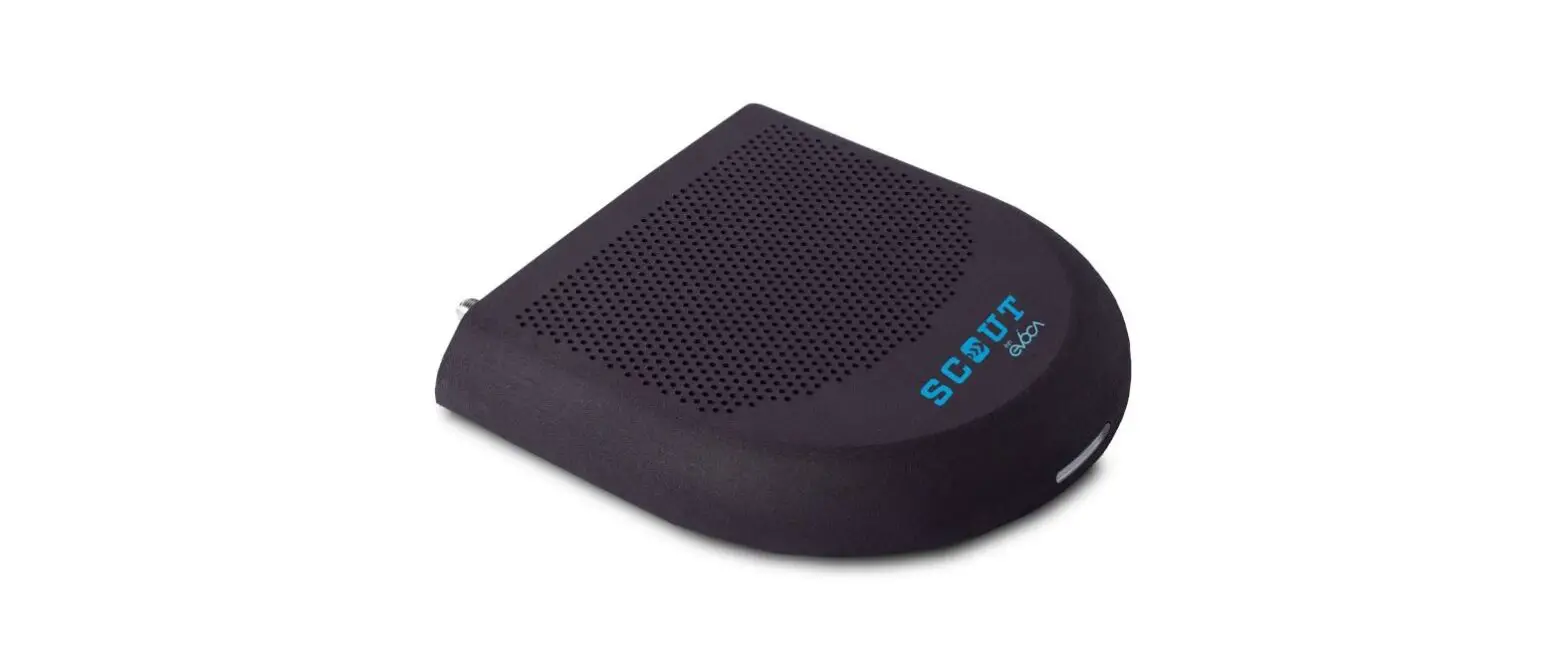
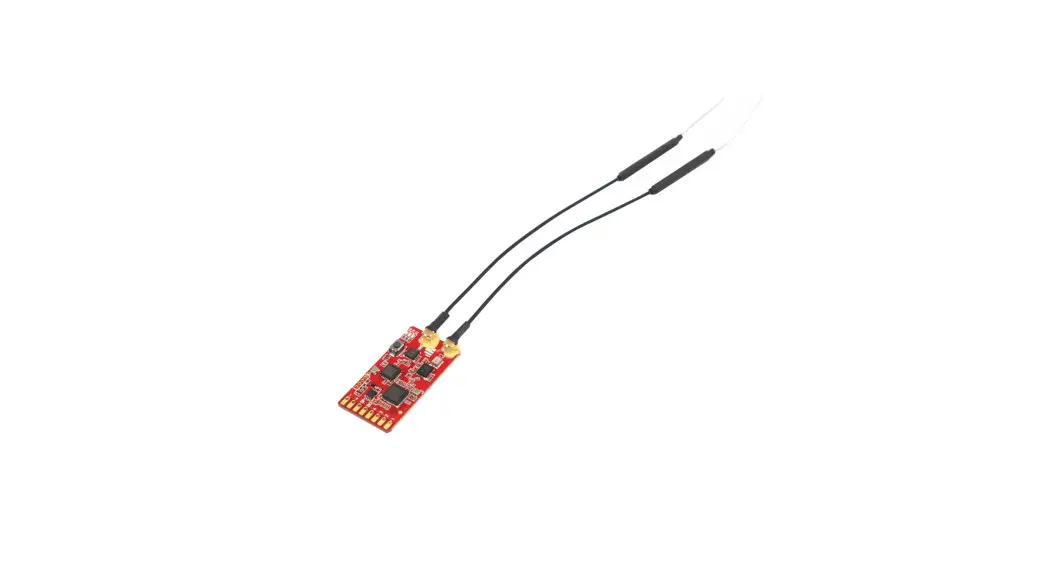
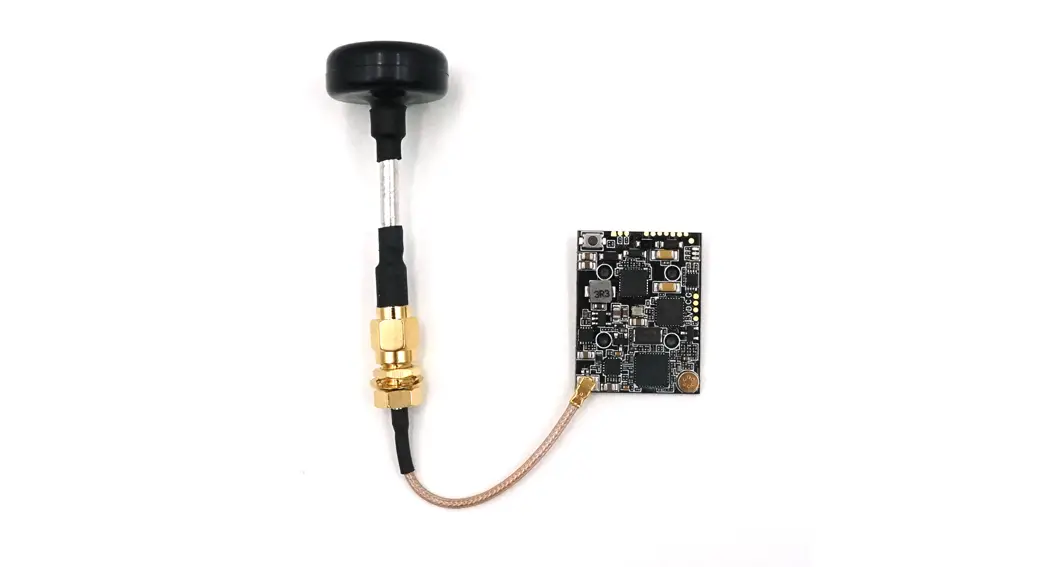
Thank you for purchasing the FrSky Scout VS600 BLACK/VS600 RED video transmission device. A simple and clean design, equipped with switchable power output and operating band and channel. Paired with a FrSky radio transmitter, the parameters can be adjusted conveniently through the grains. Lua script. In addition, it has a built-in microphone that transmits audio. To fully enjoy all the features of this device please thoroughly read the instructions below to set up the device.
Overview

Specifications
| Model Name | L*W*H(mm) | Weight(g) | Available Channel | Operating Voltage |
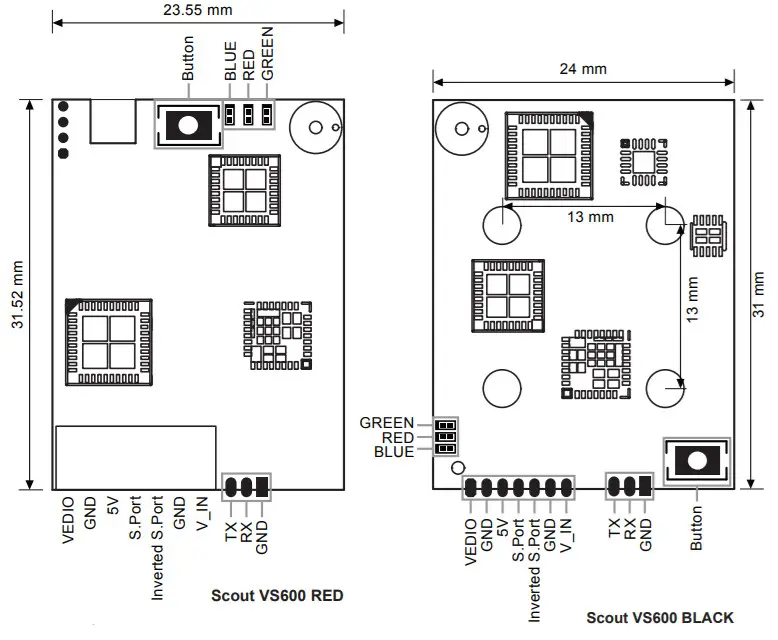
| Scout VS600 BLACK | 31*24*4.9 | 4 | 48CH | 2-6S |
| Scout VS600 RED | 31.5*23.6*4.5 | 4.2 | 48CH | 2-6S |
- Transmission Frequency: 5.8 GHz
- Transmission Power: <0.01mW (pit mode) /25mW/200mW/600mW
Features
- Support S.Port
- Support inverted S.Port
- Built-in microphone
- Adjustable RF power
- Support set parameters by gTrans.lua /Button /FreeLink(PC)/FreeLink App.
Transmission Frequency
| FR fMHz\CH | CH1 | CH2 | CH3 | CH4 | CH5 | CH6 | CH7 | CH8 |
| A | 5865 | 5845 | 5825 | 5605 | 5785 | 576S | 5745 | 5725 |
| B | 5733 | 5752 | 5771 | 5790 | 5809 | 5828 | 5847 | 5866 |
| C | 5705 | 5685 | 5665 | 5645 | 5885 | 5g0S | 5925 | 5945 |
| D | 5740 | 5760 | 5780 | 5600 | 5820 | 5840 | 5860 | 5880 |
| E | 5658 | 5695 | 5732 | 5769 | 5806 | 5843 | 5880 | 5817 |
| F | 5362 | 5389 | 5436 | 5473 | 5S10 | 5547 | 5584 | 5612 |
LED State
| LED | Green | Red | Blue |
| Indication | RF Power | Band | Channel |
The Scout VS600 BLACK/VS600 RED has a green LED which indicates the RF power. As you press the button key, the LED will flash, indicating the corresponding RF power level.
The Scout VS600 BLACK/VS600 RED has a red LED which indicates the frequency band. As you press the button key, the LED will flash, indicating the corresponding frequency band.
The Scout VS600 BLACK/VS600 RED has a blue LED that indicates the channel. As you press the button key, the LED will flash, indicating the corresponding channel.
Configuration method
1.Manual configuration (by the Button )
Press the button for (3s) to enter the power/channel/frequency selection mode, press the button for (3s) again to switch between power/channel/frequency.
| Greed LED | Red LED | States | Operation |
| On | On | Channel setting mode | Press the BUTTON (1.5S) to change the channel |
| Off | On | RF Power setting mode | Press the BUTTON (1.5S) to change the RF Power |
| On | Off | Frequency Band setting mode | Press the BUTTON (1.5S) to change the Frequency Band |
Note: When setting Channel /Frequency band/RF Power, please strictly follow local laws and regulations.
2. The script configuration
Channel, Operating Band, and Operating Power can be set through the transmitter.Run the gTrans.lua which is
on the SD card and start configuration.
The interface is below.
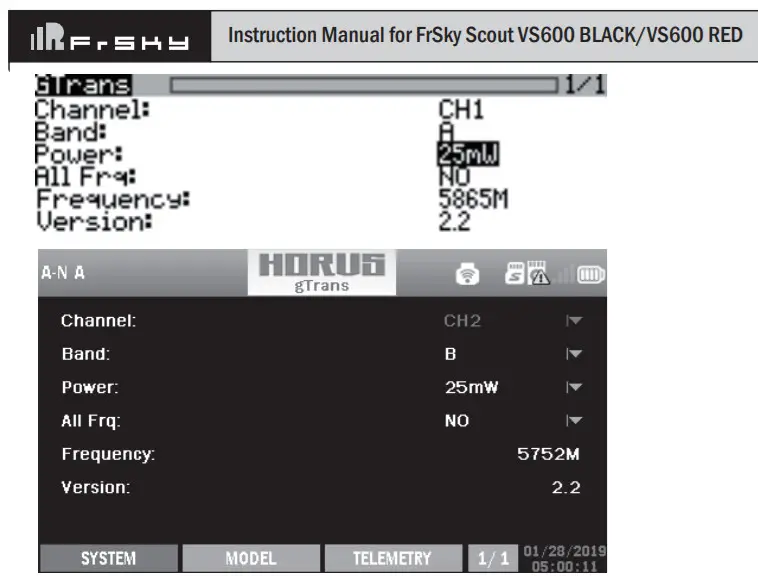
Note: Please running Scout VS600 BLACK/VS600 RED before running the script.
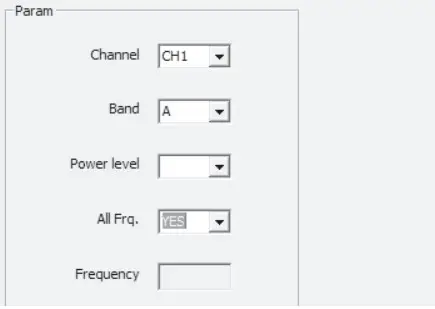
3. FreeLink(PC) configuration
Channel, Operating Band, and Operating Power can be set through the FreeLink(PC). Connect Scout VS600 BLACK/VS600 RED to STK or S.Port AirLink S to the computer and configure parameters with FreeLink(PC).
The interface is below.
4.FreeLink App configuration
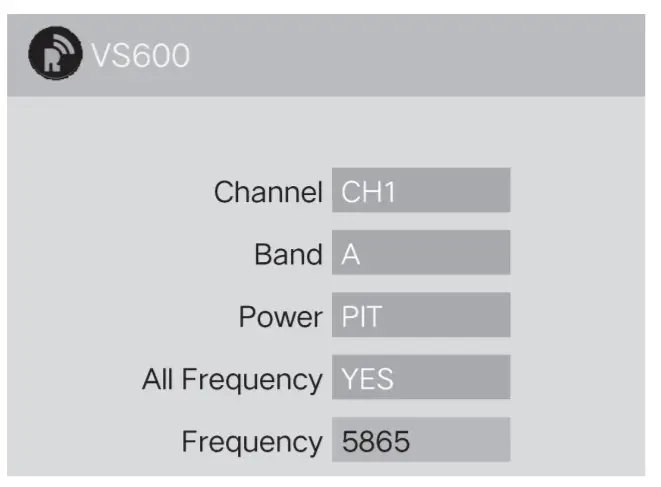
Channel, Operating Band, and Operating Power can be set through the FreeLink App. Connect Scout VS600 BLACK/VS600 RED to the S.Port AirLink S and configure parameters with FreeLink App in the mobile terminal.
Pit Mode
A feature introduced with Scout VS600 BLACK/VS600 RED is Pit Mode, It allows the user to power up their video transmitter during race events without interfering with other users and still have the ability to change VTX settings and perform tests mode features all the functions under Normal mode other than operating power.
FCC STATEMENT
- This device complies with part 15 of the FCC Rules. Operation is subject to the following two conditions:
(1) This device may not cause harmful interference.
(2) This device must accept any interference received, including interference that may cause undesired operation. - Changes or modifications not expressly approved by the party responsible for compliance could void the user’s authority to operate the equipment.
Note: This equipment has been tested and found to comply with the limits for a Class B digital device, pursuant to part 15 of the FCC Rules. These limits are designed to provide reasonable protection against harmful interference in a residential installation. This equipment generates uses and can radiate radio frequency energy and, if not
installed and used in accordance with the instructions, may cause harmful interference to radio communications. However, there is no guarantee that interference will not occur in a particular installation. If this equipment does cause harmful interference to radio or television reception, which can be determined by turning the equipment off
and on, the user is encouraged to try to correct the interference by one or more of the following measures:
- Reorient or relocate the receiving antenna.
- Increase the separation between the equipment and receiver.
- Connect the equipment into an outlet on a circuit different from that to which the receiver is connected.
- Consult the dealer or an experienced radio/TV technician for help.
FrSky is continuously adding features and improvements to our products. To get the most from your product, please check the download section of the FrSky website www.frsky-rc.com for the latest update firmware and manuals.
FrSky Electronic Co., Ltd
www.frsky-rc.com
Contact us: [email protected]
Add: F-4, Building C, Zhongxiu Technology Park, No.3 Yuanxi Road, Wuxi, 214125, Jiangsu, China
Technical Support: [email protected]
 FrSky Top Rated RC Hobby Radio, Receiver and RC Model - Lets you set the limits